
Introduction
Turning an image into a shape layer allows you to fully customize its appearance with fills, layer styles, and effects. In this tutorial, you’ll learn how to convert a paw print image into a clean, editable shape layer in Adobe After Effects.
Step 1: Create a New Composition
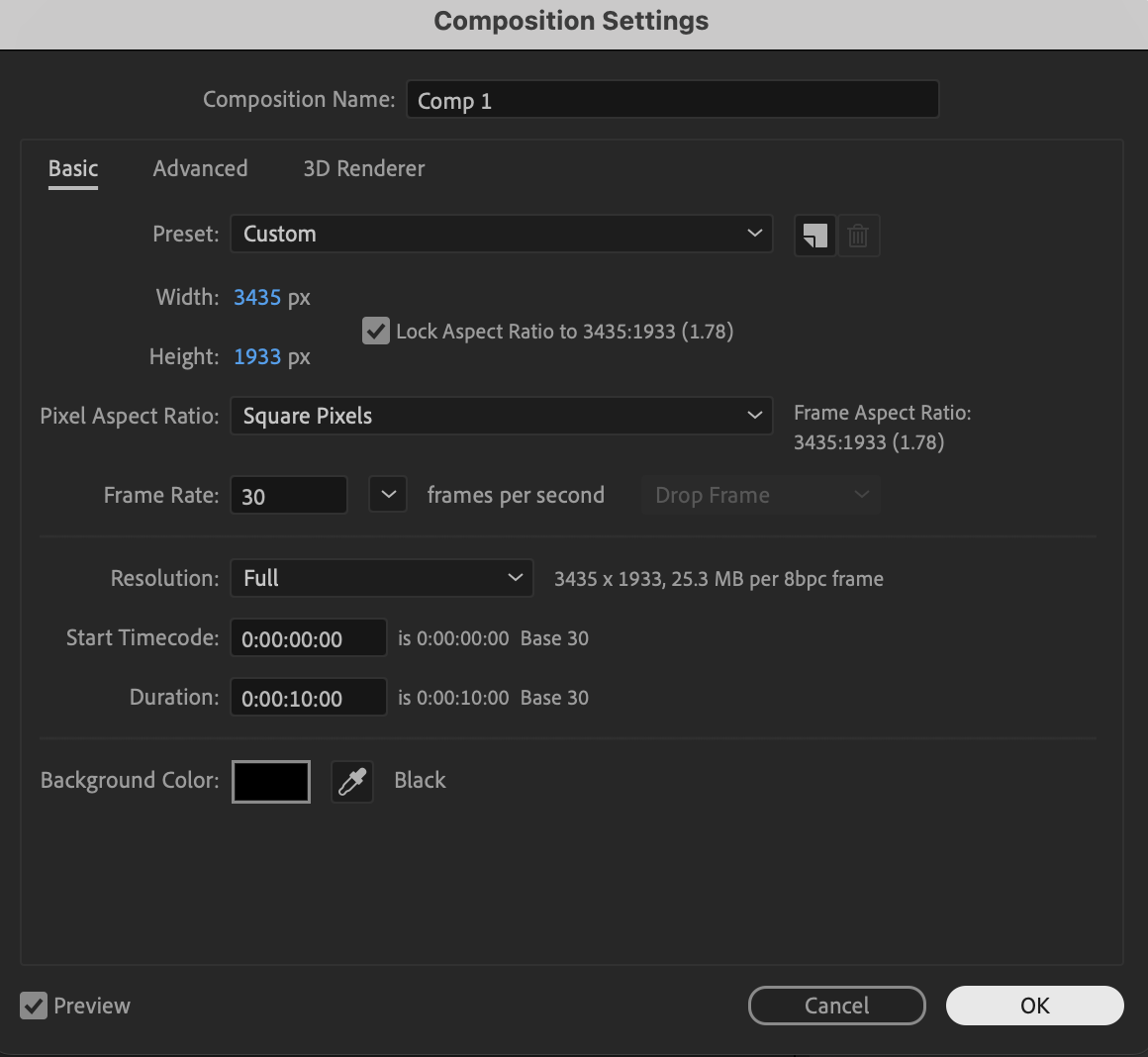
Create a new composition with your desired resolution, frame rate, and duration
Step 2: Import the Paw Print Image
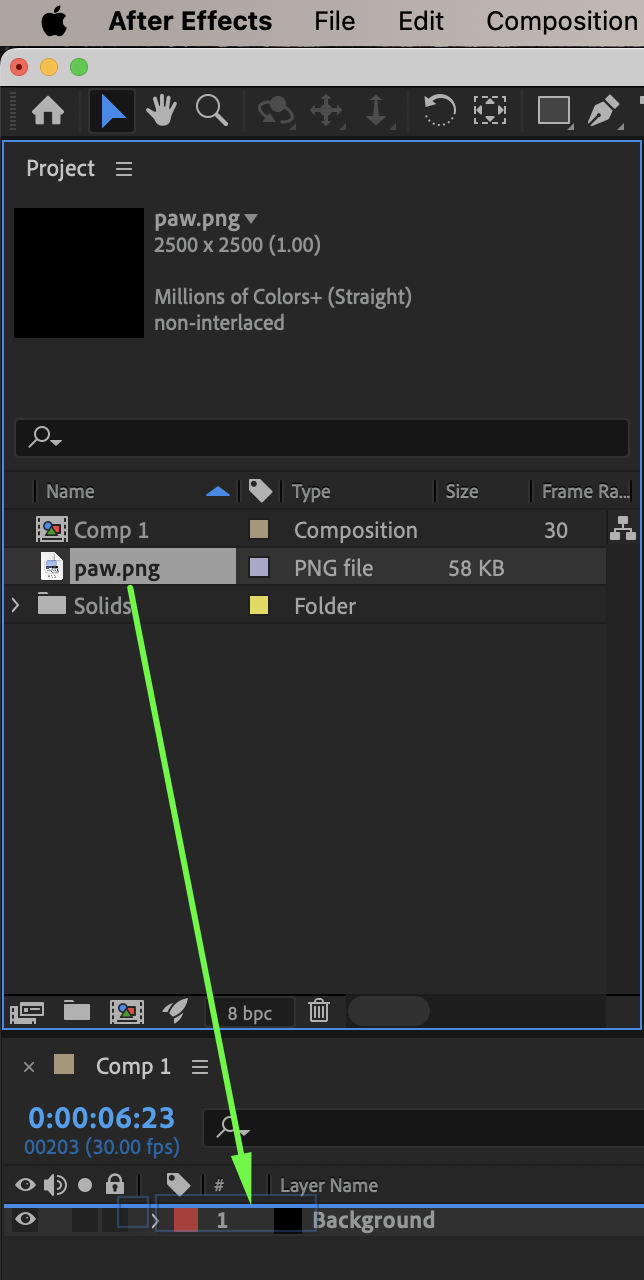
Go to File → Import → File and import your paw print image. Drag the image onto the timeline.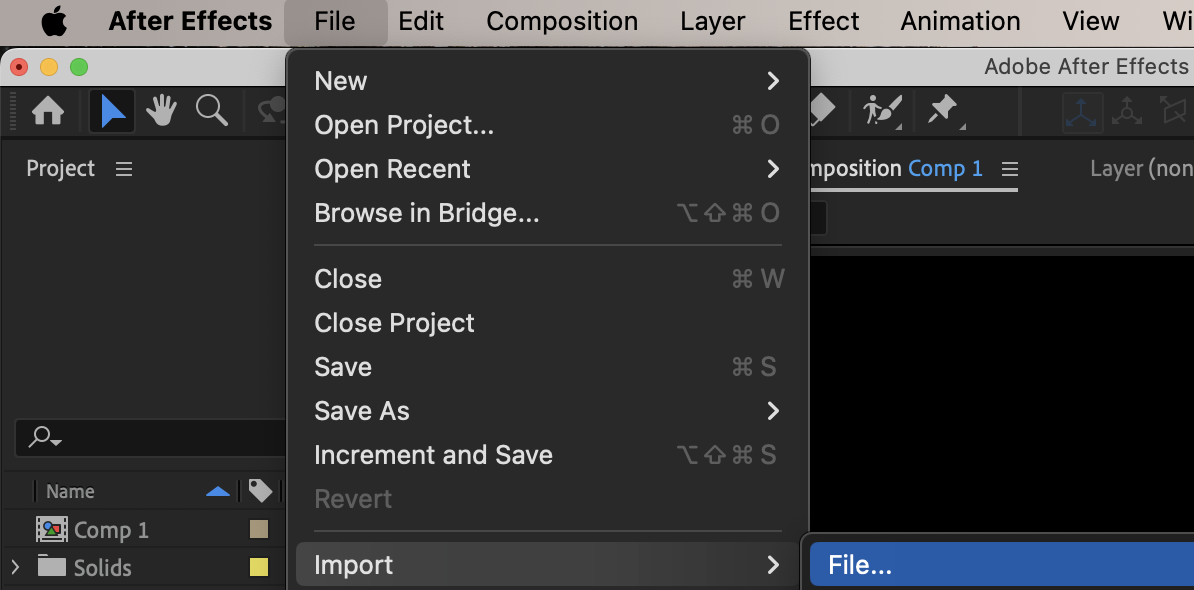
Step 3: Auto-Trace the Paw Shape
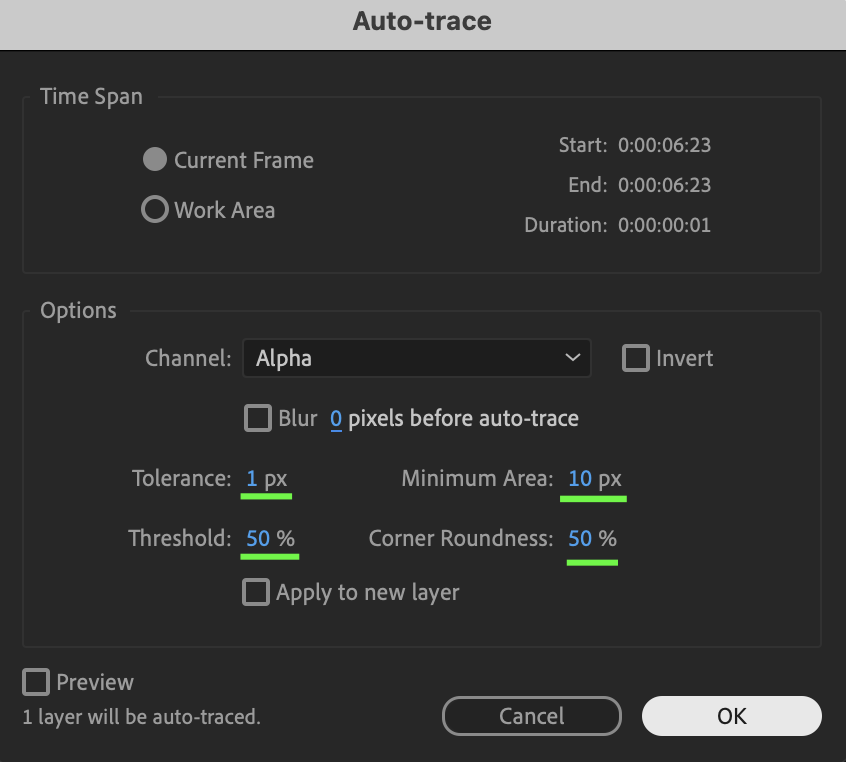
Select the paw image layer. Go to Layer → Auto-Trace. In the Auto-Trace window, use the following settings:
Tolerance: 1 px
Minimum Area: 1 px
Threshold: 50%
Corner Roundness: 50%
Click OK to generate masks from the image.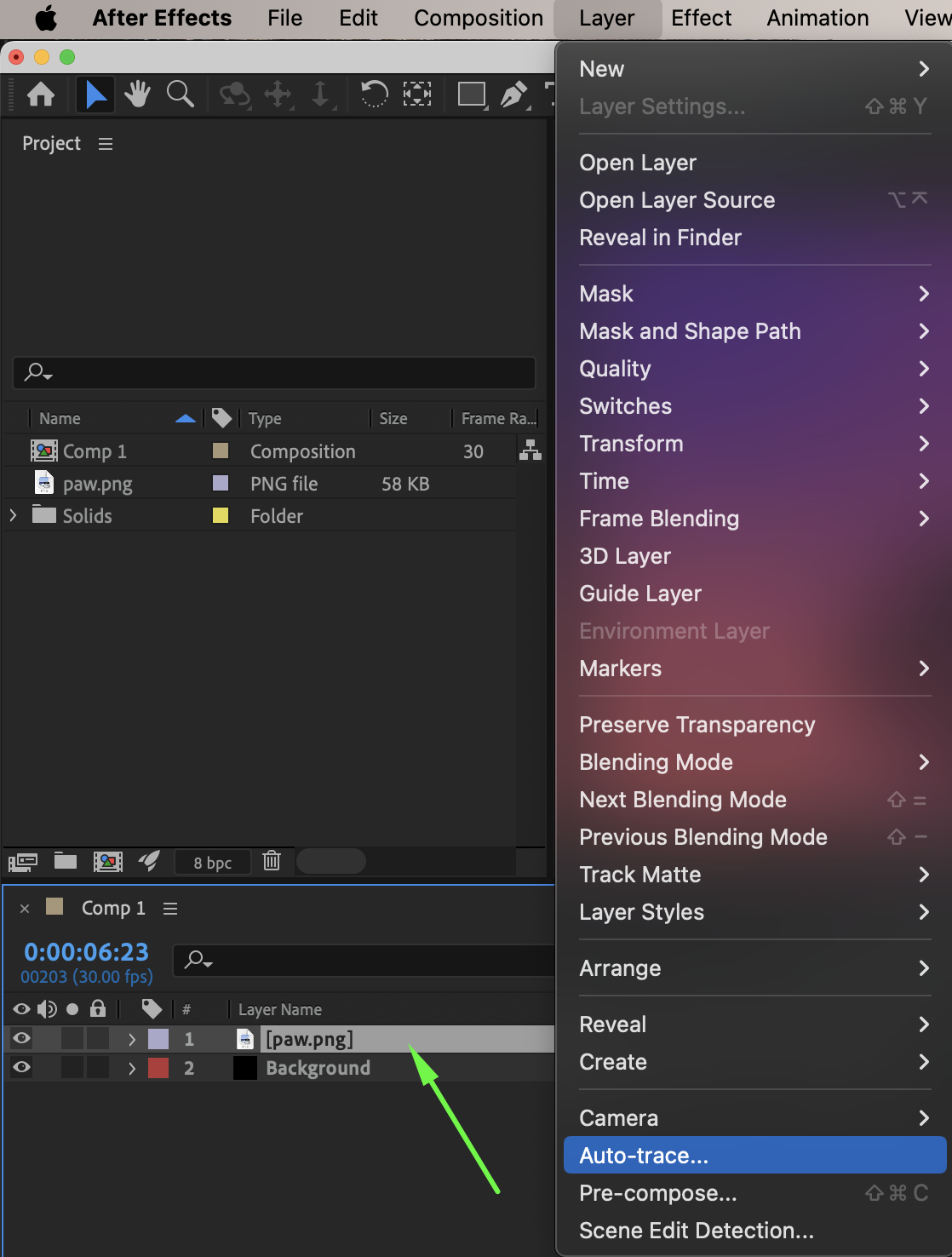
 Step 4: Create a Shape Layer
Double-click the Rectangle Tool (Q) Before doing this, make sure:
Fill: Black
Stroke: None
This will create a new shape layer.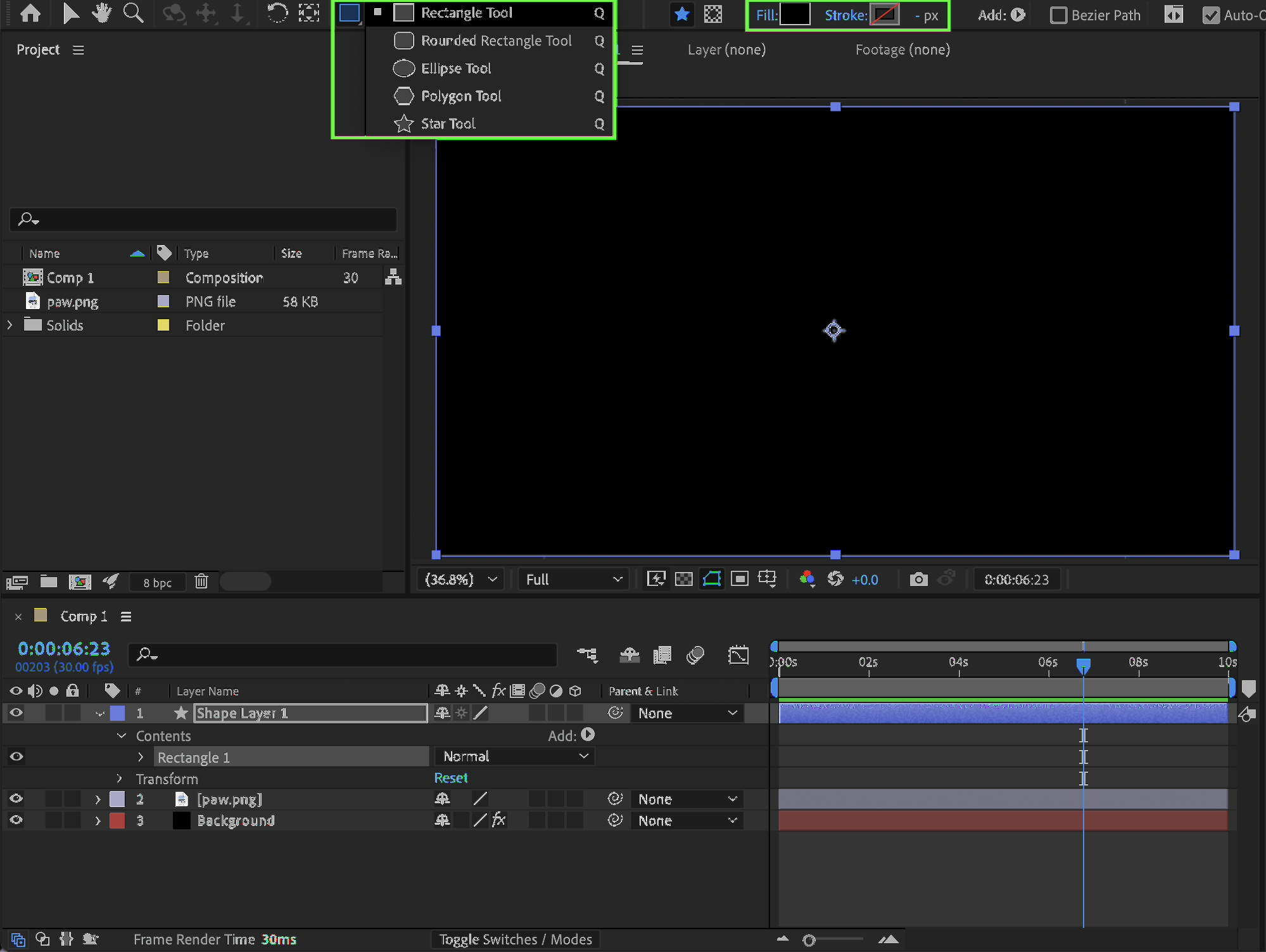
Step 5: Transfer Masks to the Shape Layer
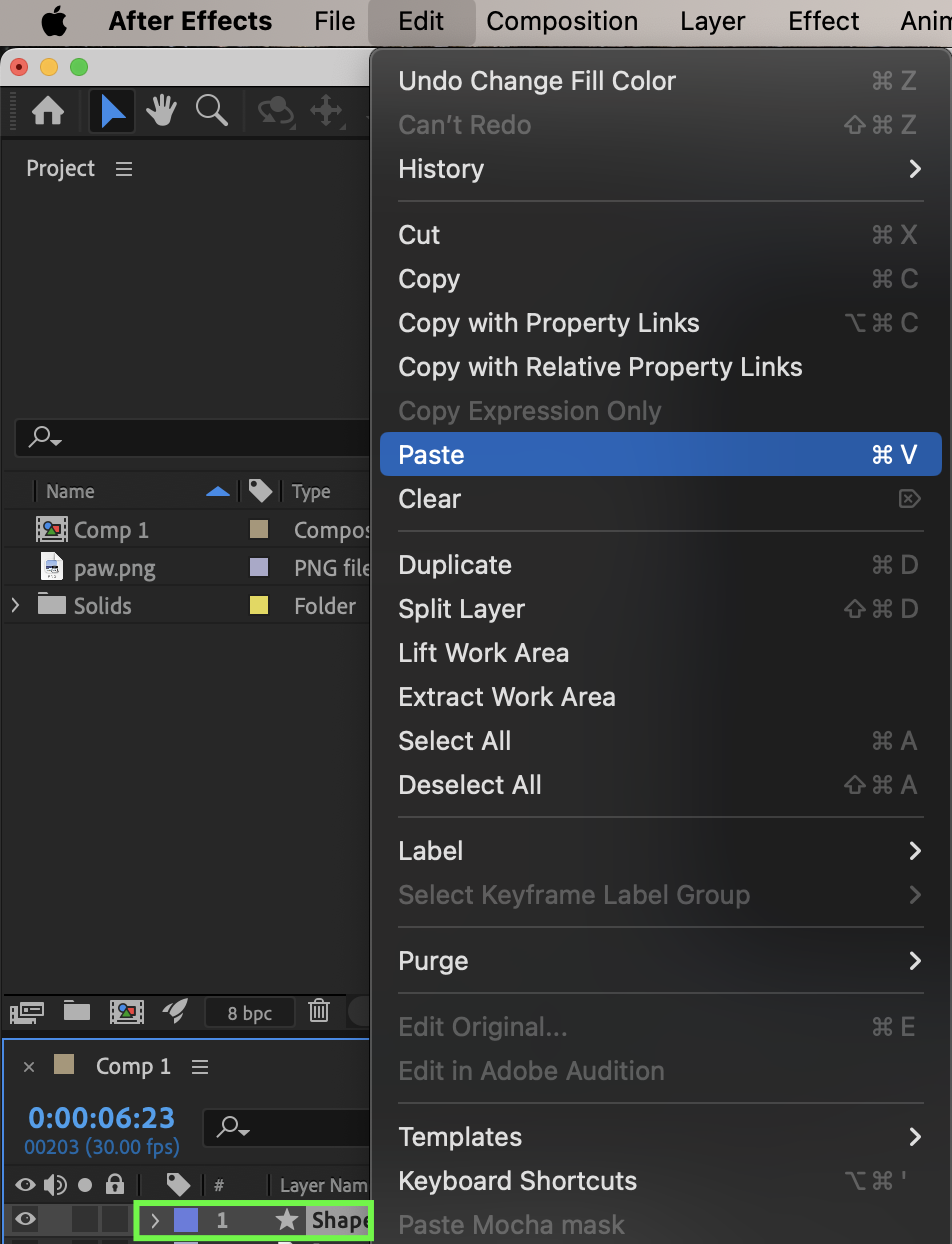
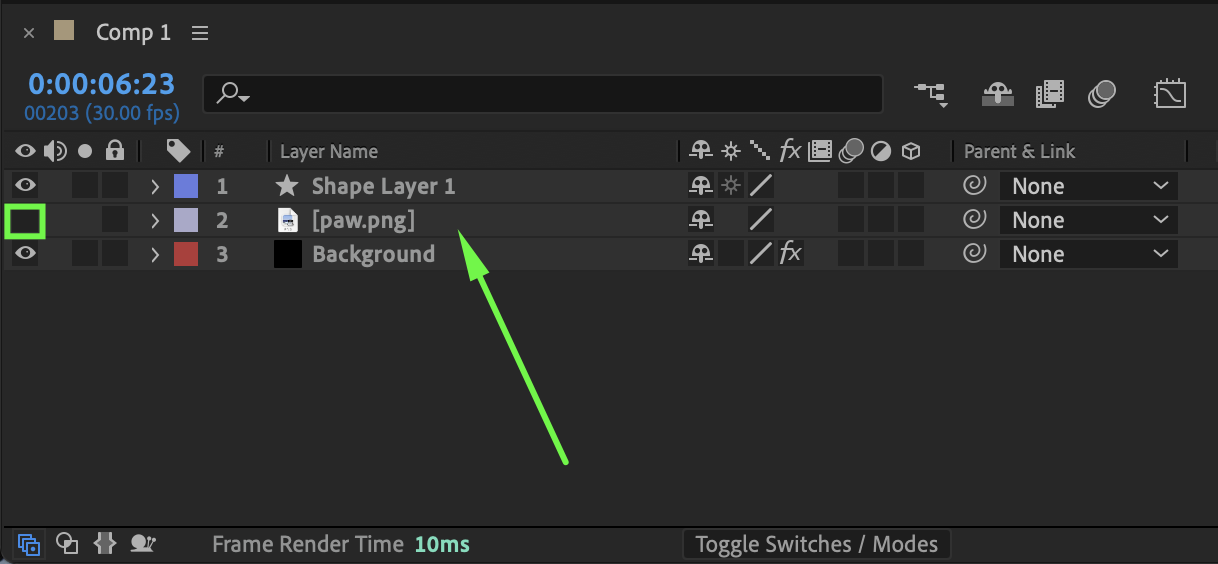
Select the paw image layer. Copy all generated masks (Ctrl/Cmd + C). Select the shape layer and paste the masks (Ctrl/Cmd + V). Turn off the visibility (eye icon) of the original paw image layer.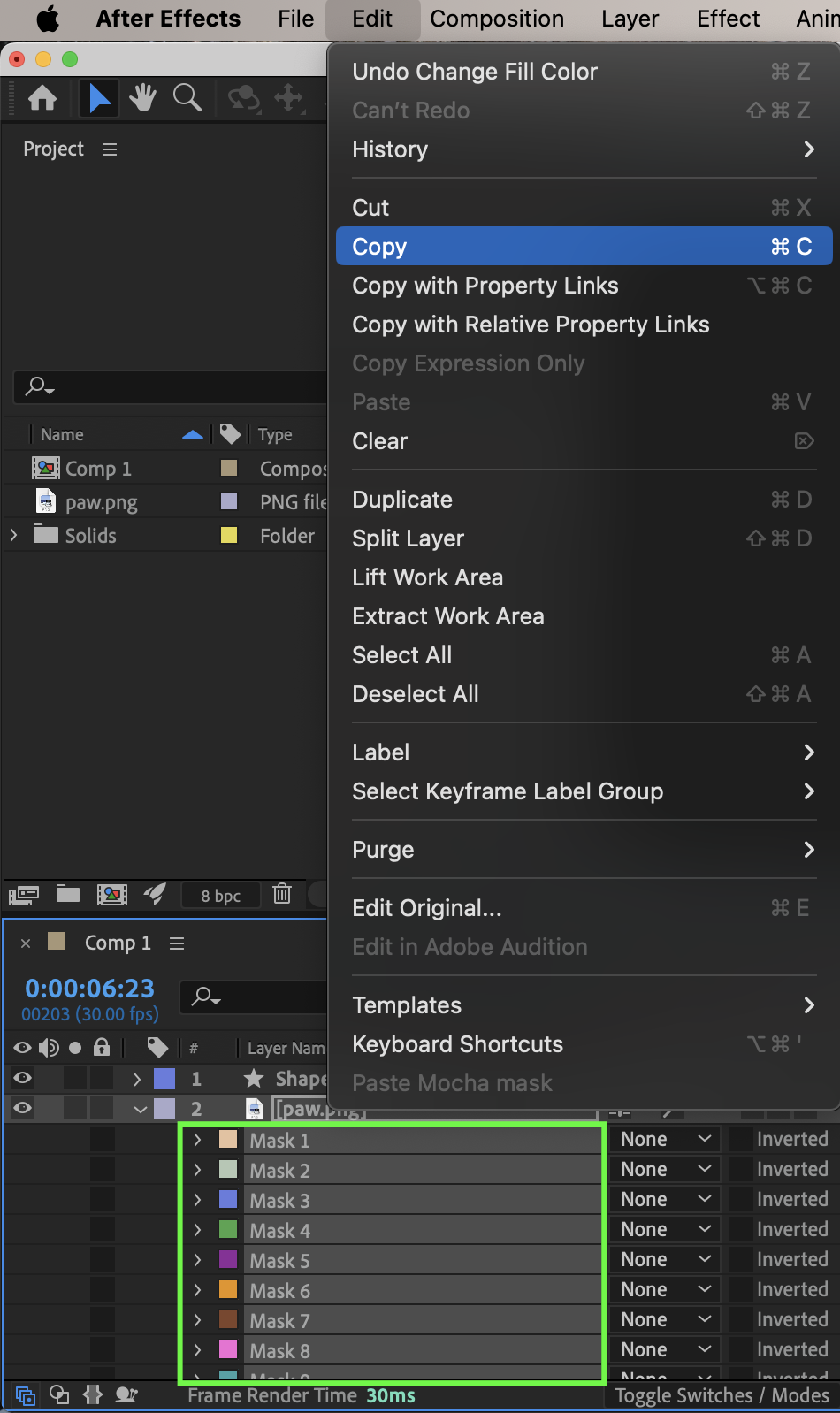
Step 6: Style the Shape Layer
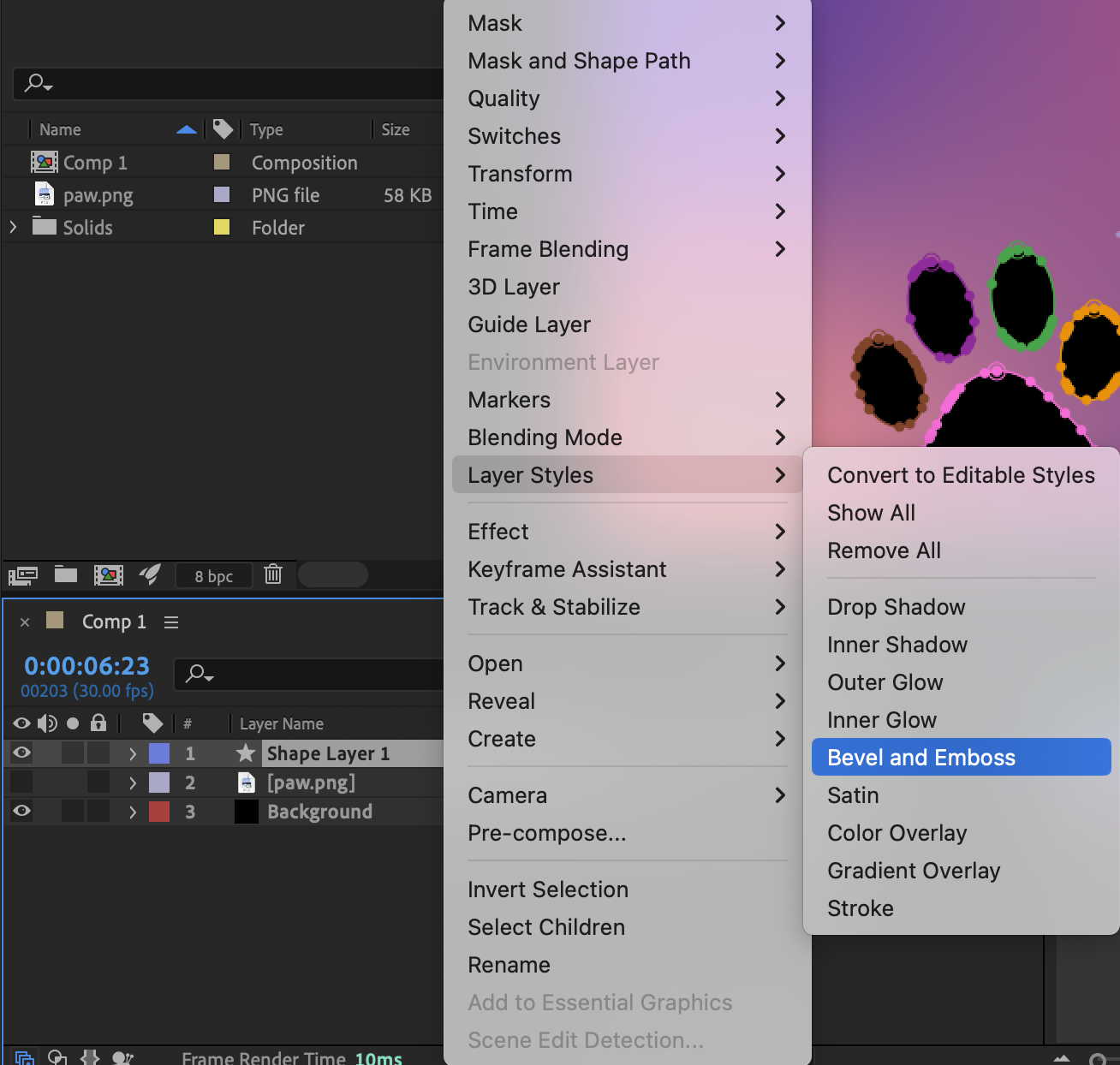
You can now customize the shape layer. Right-click the shape layer and choose: Layer Styles → Bevel and Emboss
 Step 7: Adjust Bevel and Emboss Settings
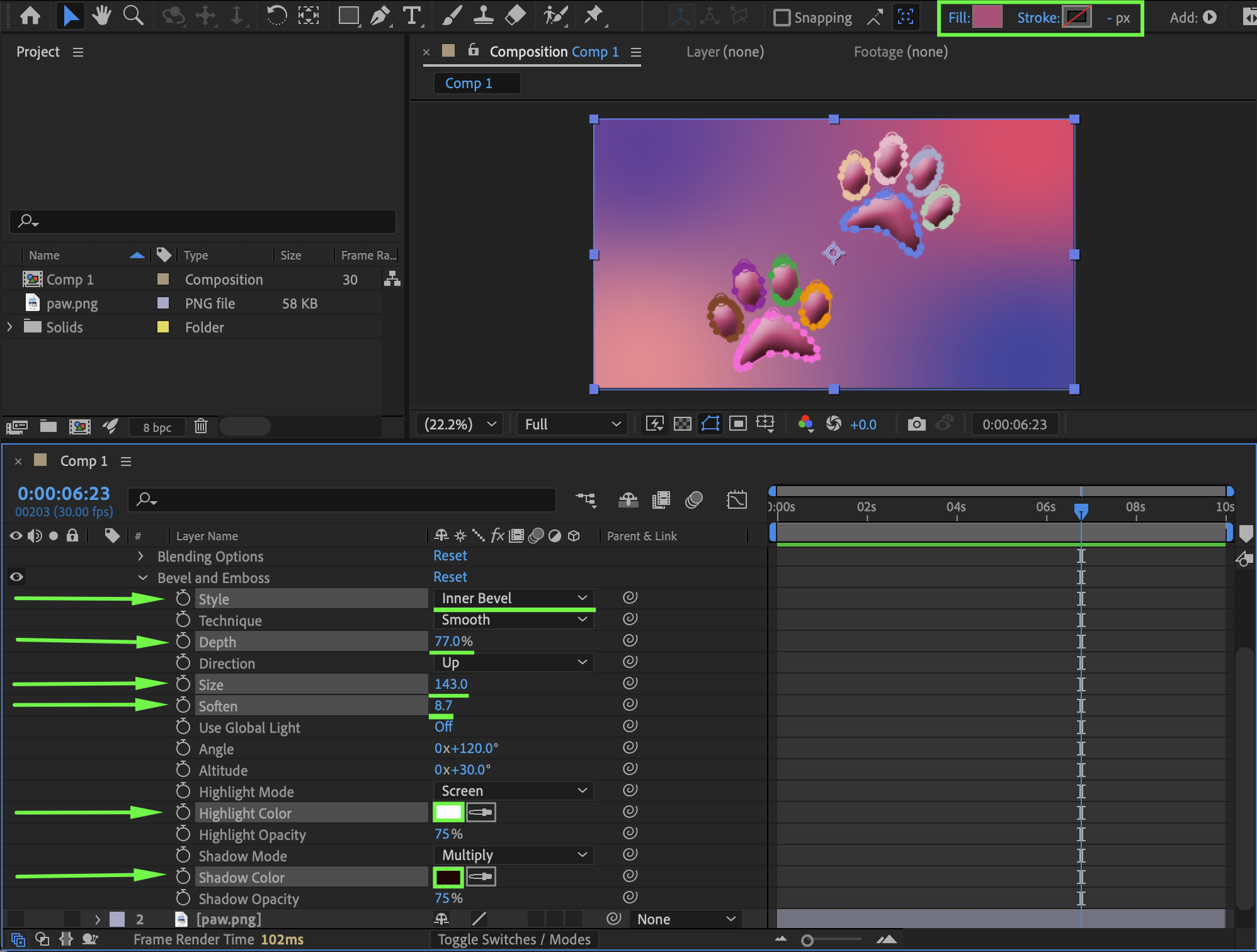
Expand the layer properties and adjust:
Style: Inner Bevel
Depth: 77
Size: 143
Soften: 8.7
Set Highlight Color and Shadow Color to create a gradient effect based on the fill color selected in the top toolbar.
Step 8: Preview the Result
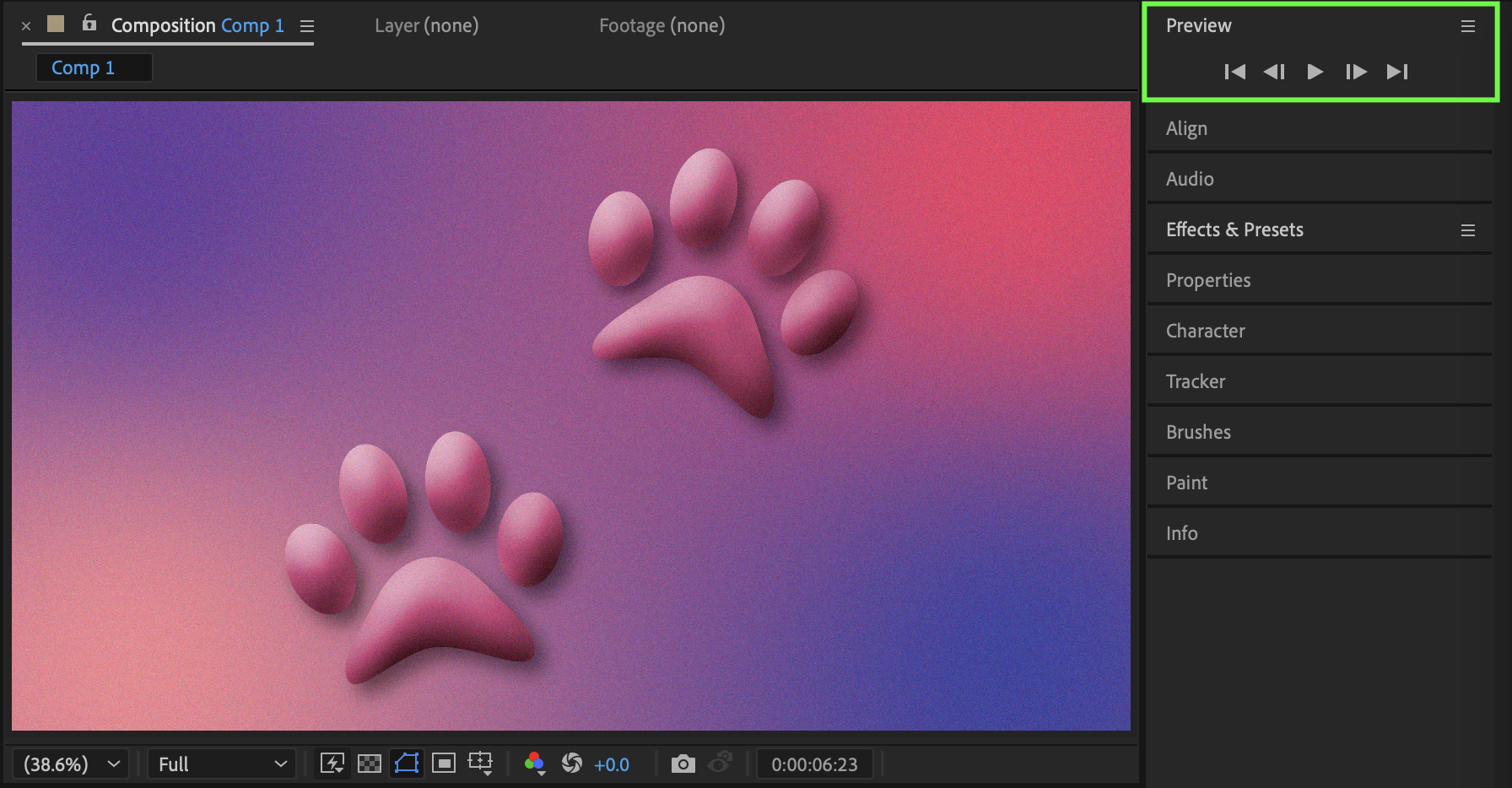
Preview the composition and make final adjustments to refine the shape’s look.
Conclusion
By using Auto-Trace and shape layers, you can easily convert image-based graphics into fully customizable shapes in After Effects. This technique is perfect for icons, logos, and stylized elements like paw prints.
Our Bestsellers
Our Bestsellers


