
Creating a Wind Animation in After Effects
Introduction – Simulate Stylized Wind Using Shape Layers
Creating a wind animation in After Effects is a great way to add motion and atmosphere to your compositions. This stylized effect is perfect for scenes with nature, motion graphics, or adding light animated detail to a design. Below is a step-by-step guide to create a smooth, elegant wind effect using shape layers, trim paths, and motion blur.
Step 1: Create a New Composition
Open After Effects and go to Composition > New Composition. Set the duration to around 3 seconds and choose a resolution like 1920×1080. This will be the working area for your wind animation.
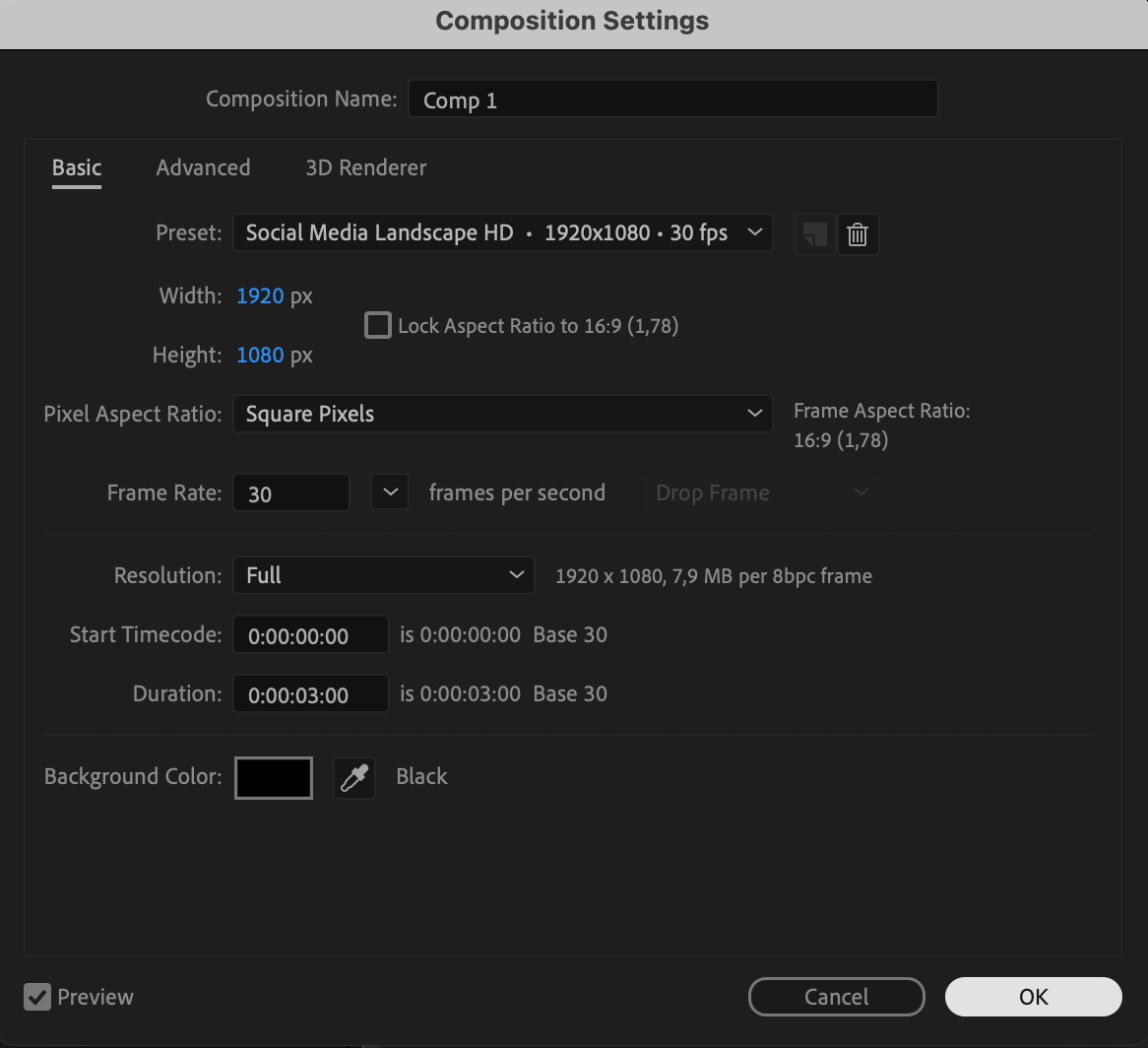 Step 2: Add a Solid Background
Go to Layer > New > Solid and choose any color you like. This will serve as your background. For a sky-like appearance, choose something light, such as white or light blue, but you can change it later if needed.
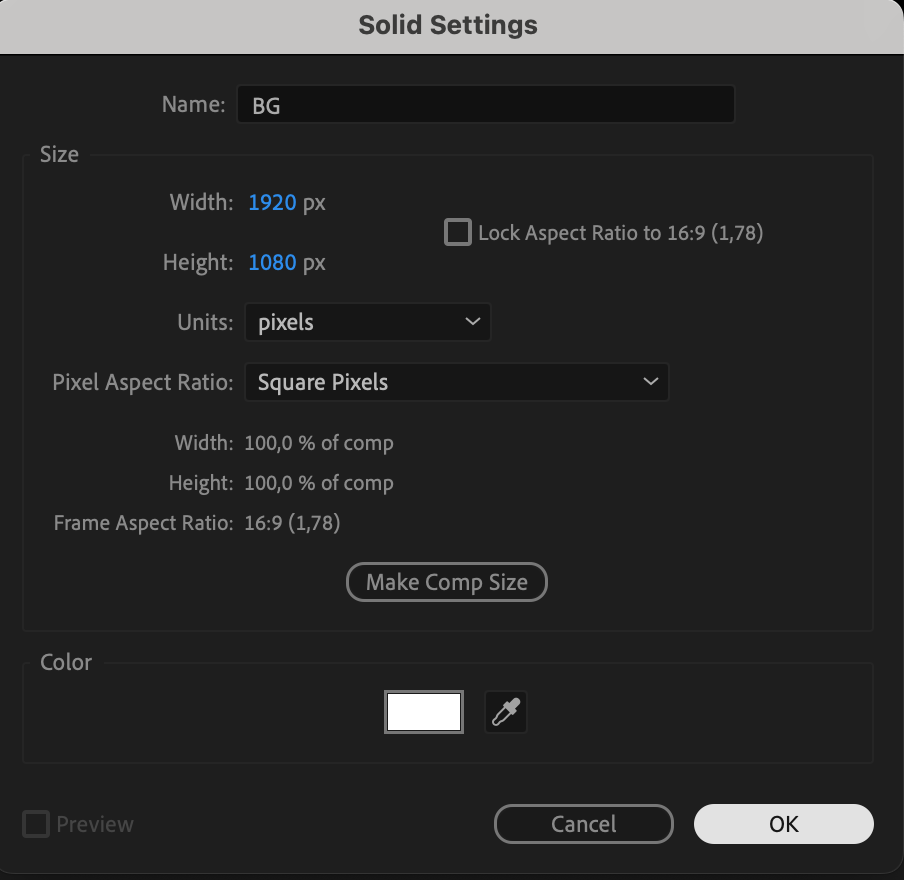
Step 3: Apply a Gradient Ramp
With the solid layer selected, go to Effects & Presets and apply Gradient Ramp. Set the first color to light blue and the second to a deeper blue to simulate a sky or soft background. Adjust the start and end points of the ramp for a smooth gradient.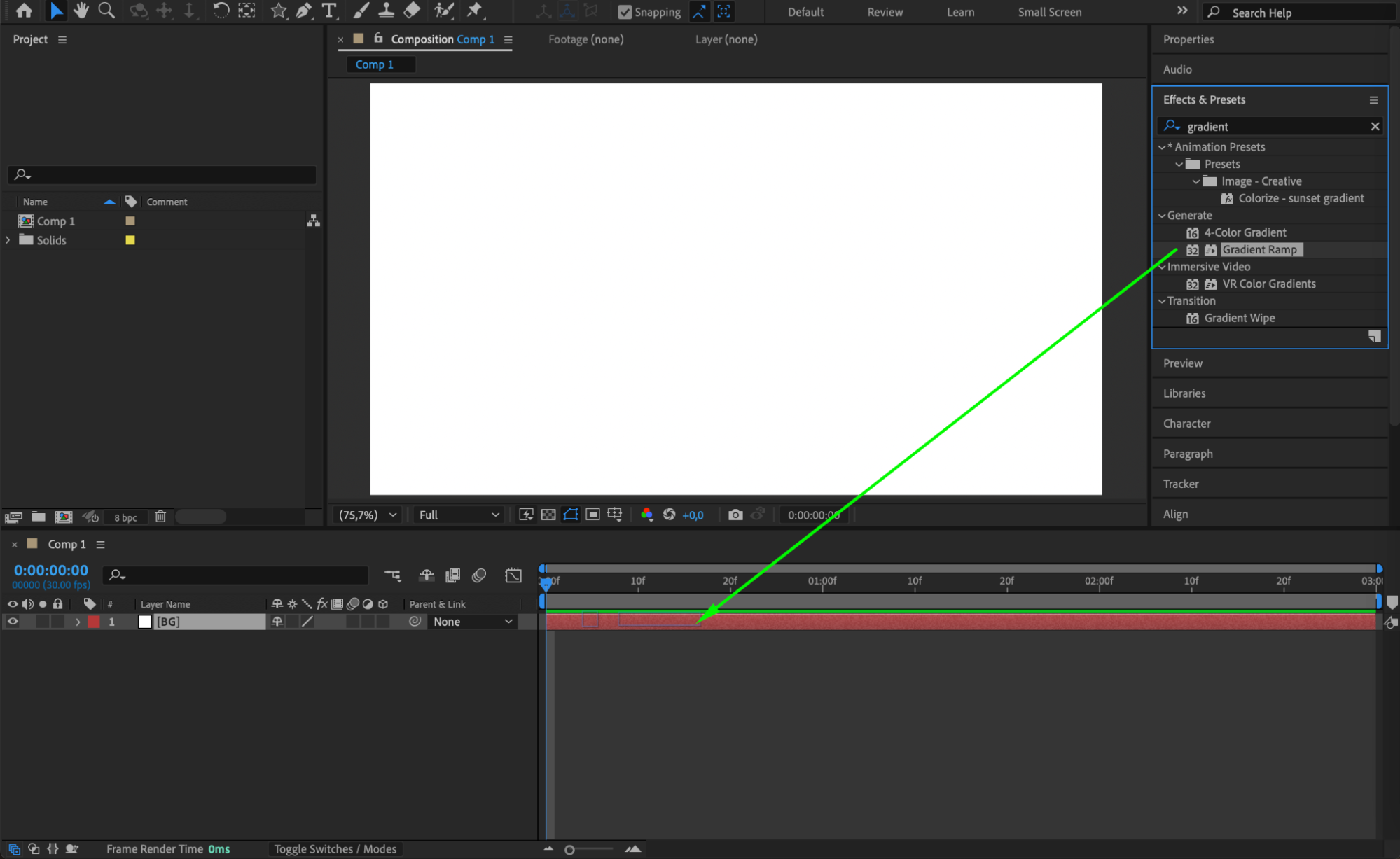
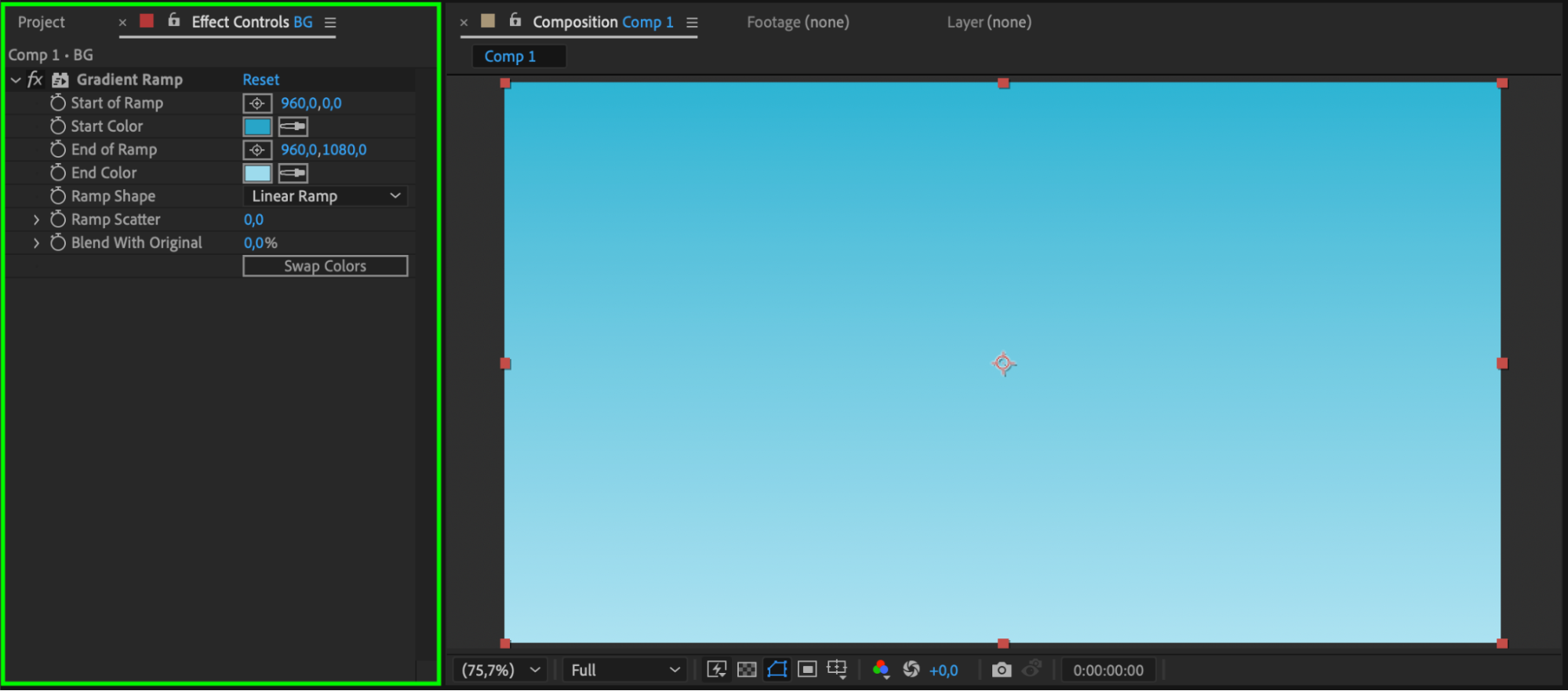 Step 4: Create a Curved Line with the Pen Tool
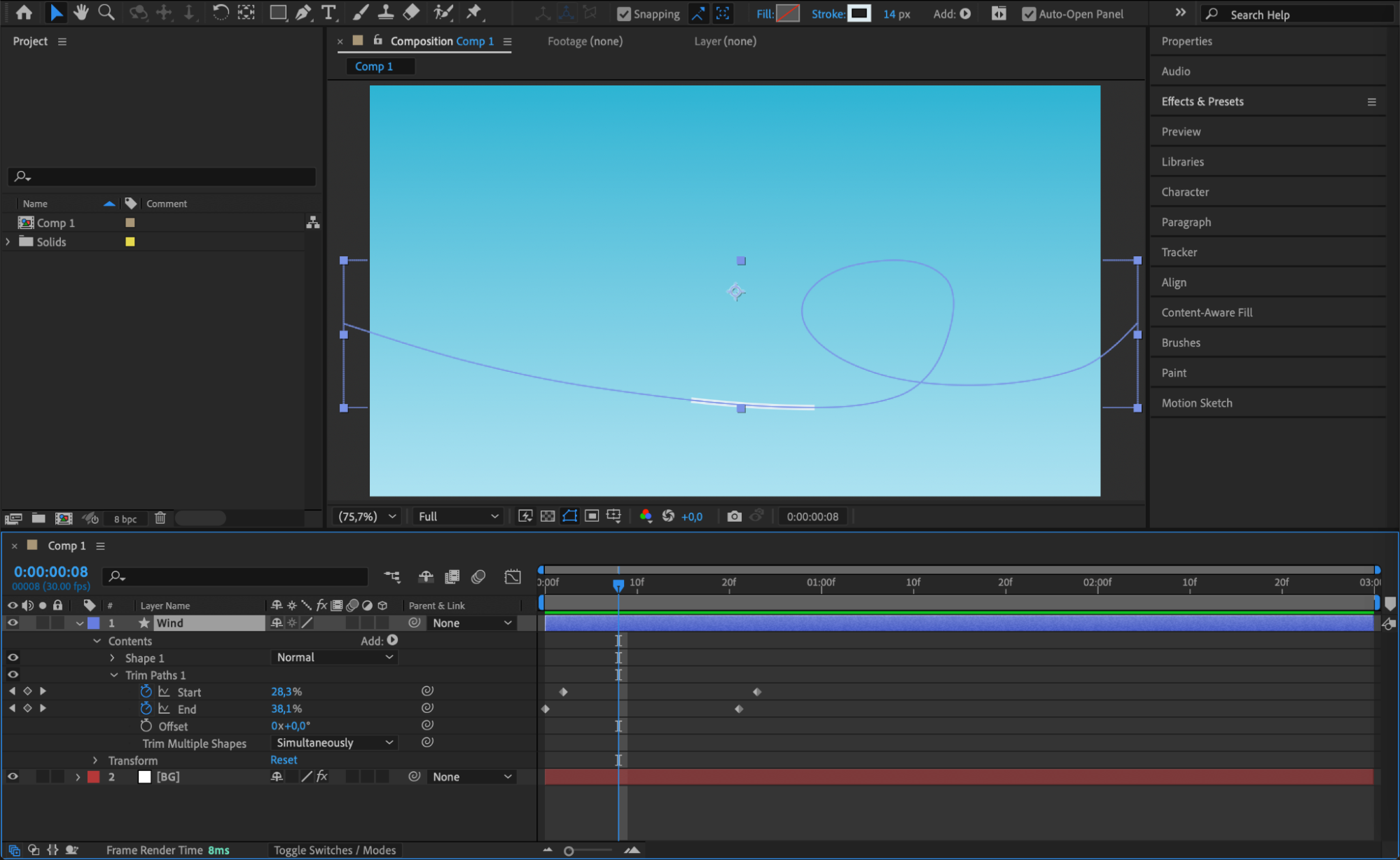
Select the Pen Tool (G), set the Fill to None, and choose a white Stroke around 14 px. On a new shape layer, draw a smooth, flowing spiral or curved line that swirls toward the center. This line will represent a stylized gust of wind.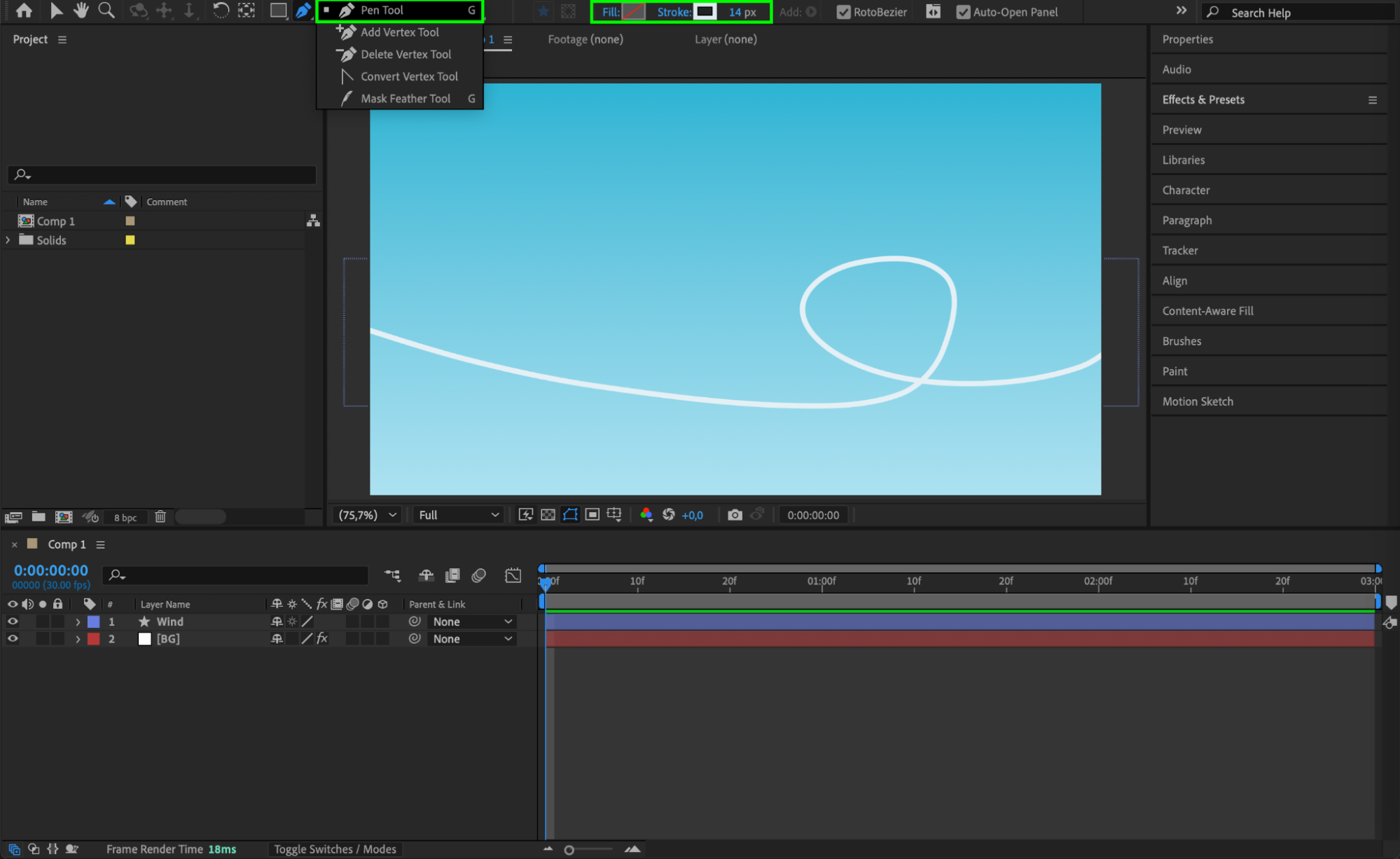 Step 5: Add Trim Paths to Animate the Line
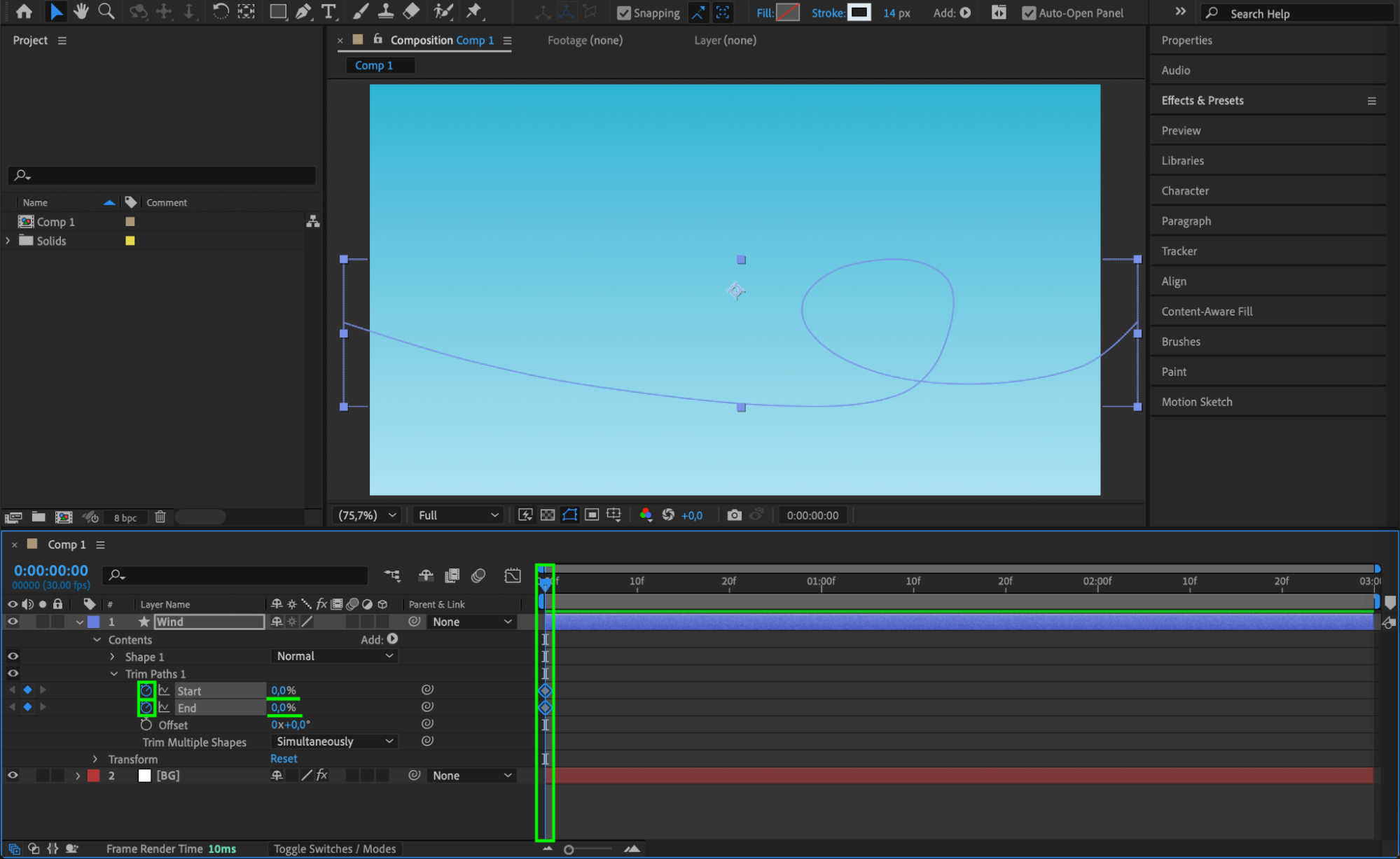
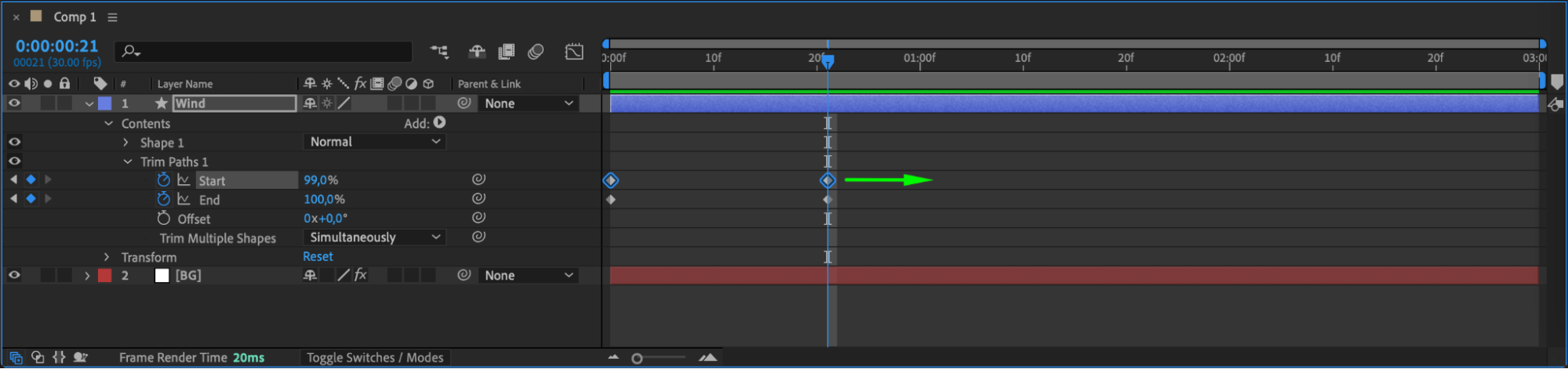
Expand the shape layer’s properties, go to Contents, click Add > Trim Paths. This will allow you to animate the drawing of the line. Animate both Start and End properties:
At the beginning of the timeline, set both Start and End to 0%.
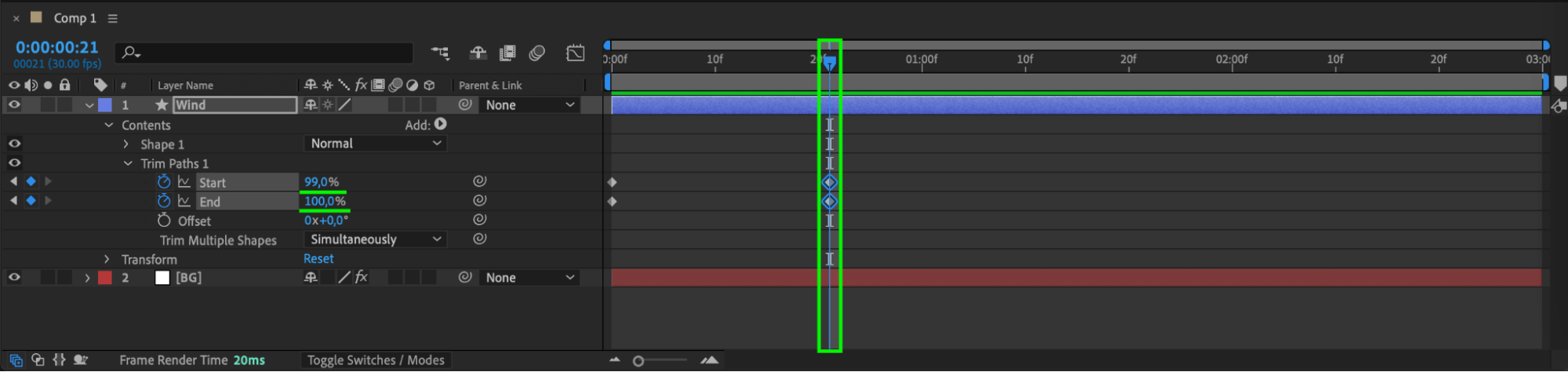
Around the middle of the composition, set End to 100% and Start to around 99%. This makes the wind line appear quickly and then disappear smoothly.
Offset the Start keyframes 2 frames forward for a trailing effect.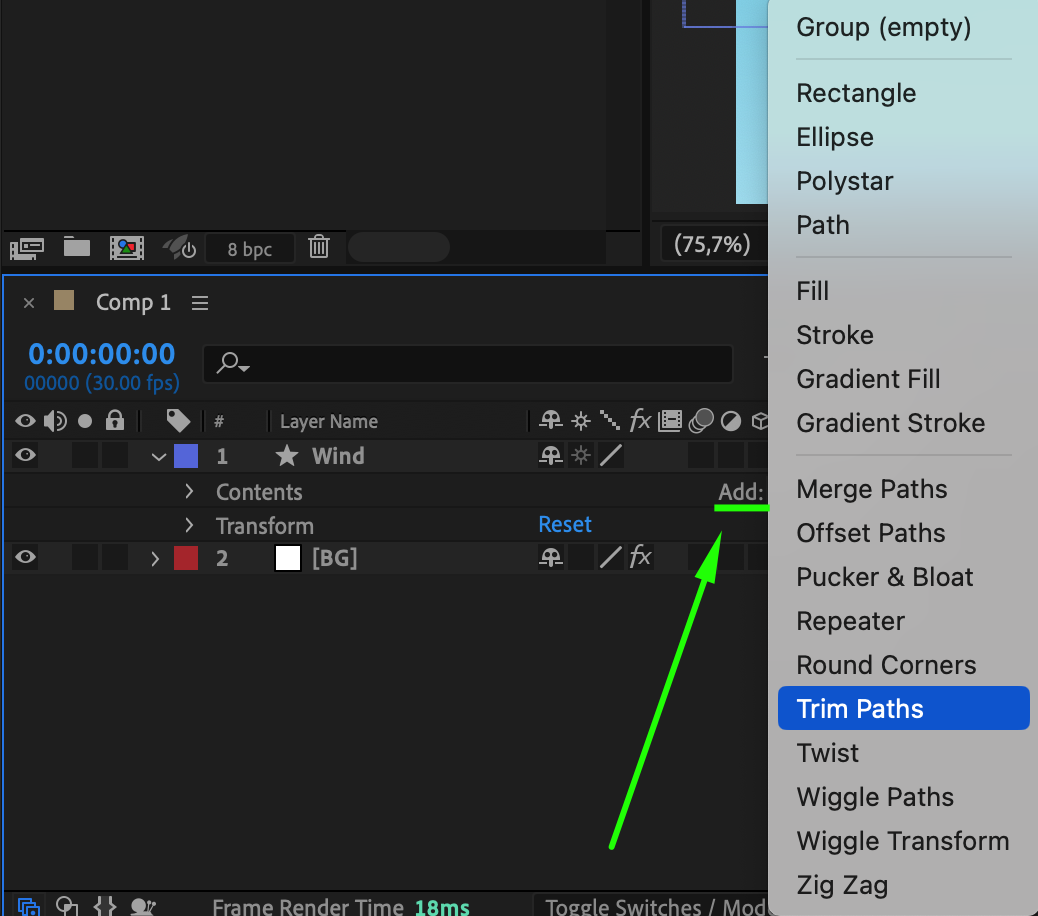
Step 6: Apply Easy Ease
Select all the keyframes, right-click, and choose Keyframe Assistant > Easy Ease. This makes the animation smoother and gives a natural flow to the wind movement.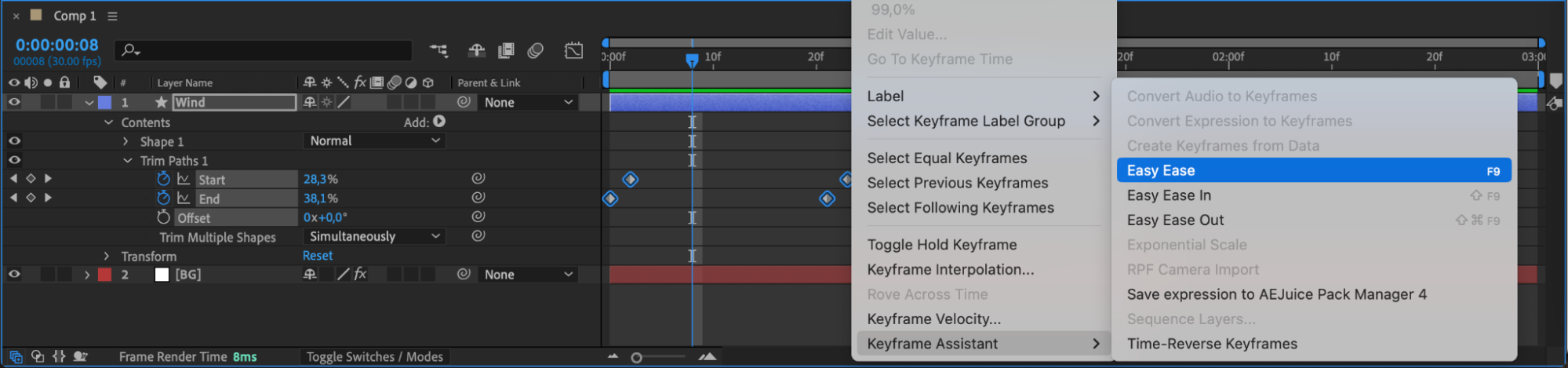 Step 7: Enable Motion Blur
Turn on Motion Blur for the shape layer and enable it in the timeline panel. This adds a soft blur effect as the line moves, making it feel more dynamic and realistic.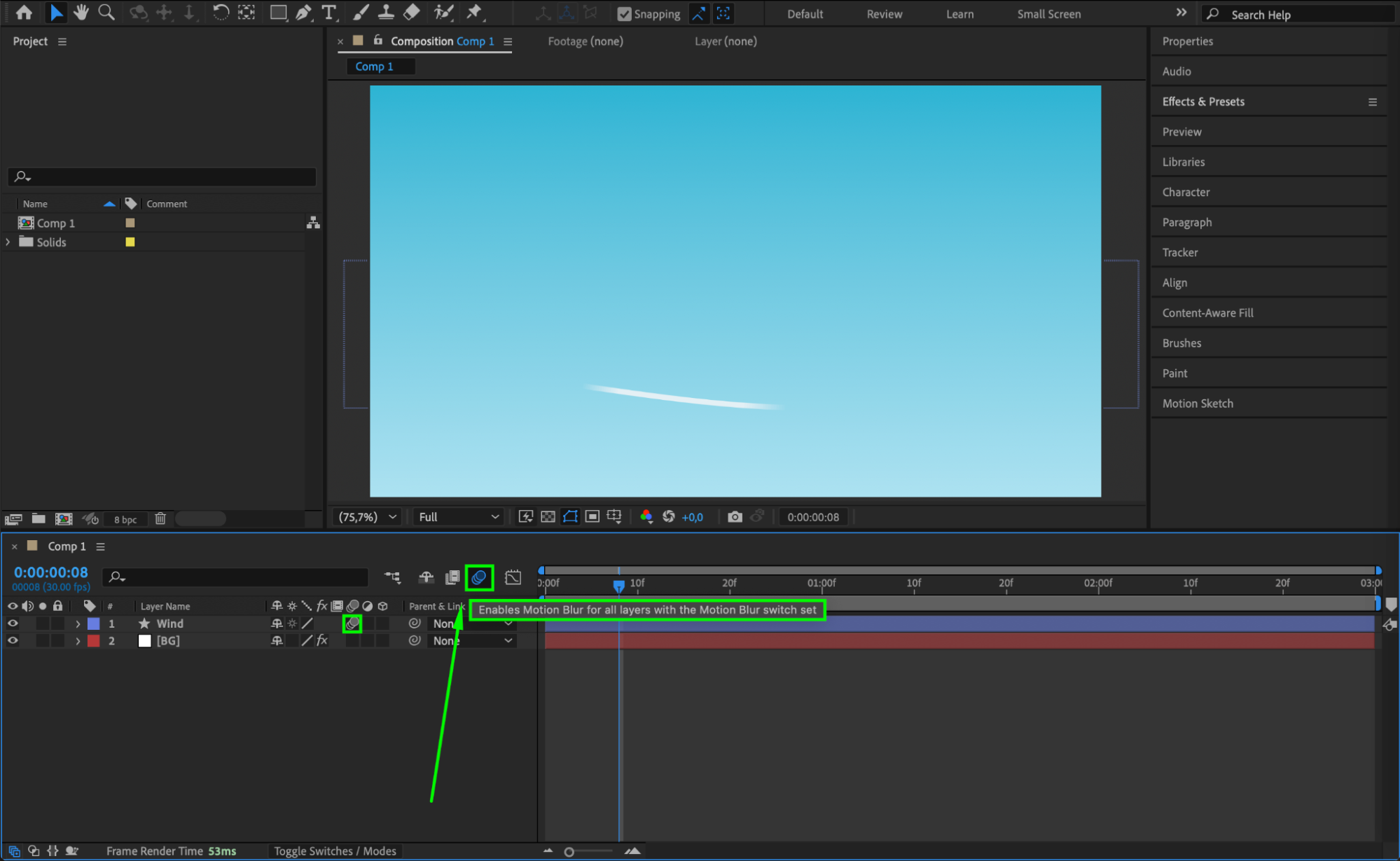 Step 8: Add More Wind Lines and Preview
Duplicate the shape layer and adjust each duplicate slightly – change the curve, size, or animation timing. This will make the wind look more organic and varied. Then press Spacebar to preview the animation and make adjustments as needed.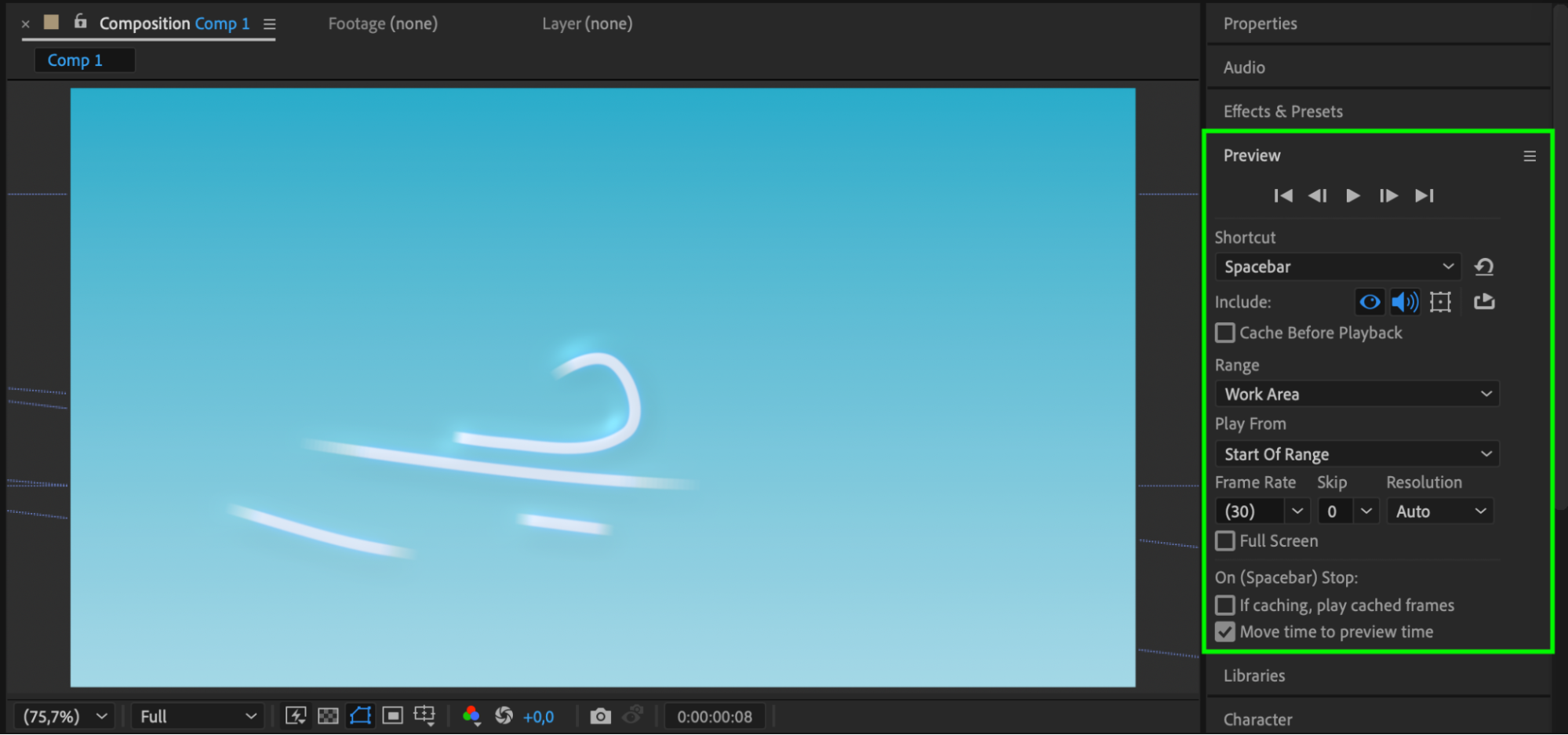 Conclusion
Creating a wind animation in After Effects is simple with shape layers and trim paths. By drawing elegant lines, animating them with trim paths, and using motion blur, you can produce a beautiful stylized wind effect for use in motion graphics, backgrounds, or nature scenes.
Our Bestsellers
Our Bestsellers


