
Introduction
The iconic 80s metal title style is known for its sharp highlights, metallic gradients, glowing edges, and dramatic lighting. In this tutorial, you’ll learn how to recreate this retro metal look in After Effects using layered text, Colorama, CC Glass, and Fractal Noise.
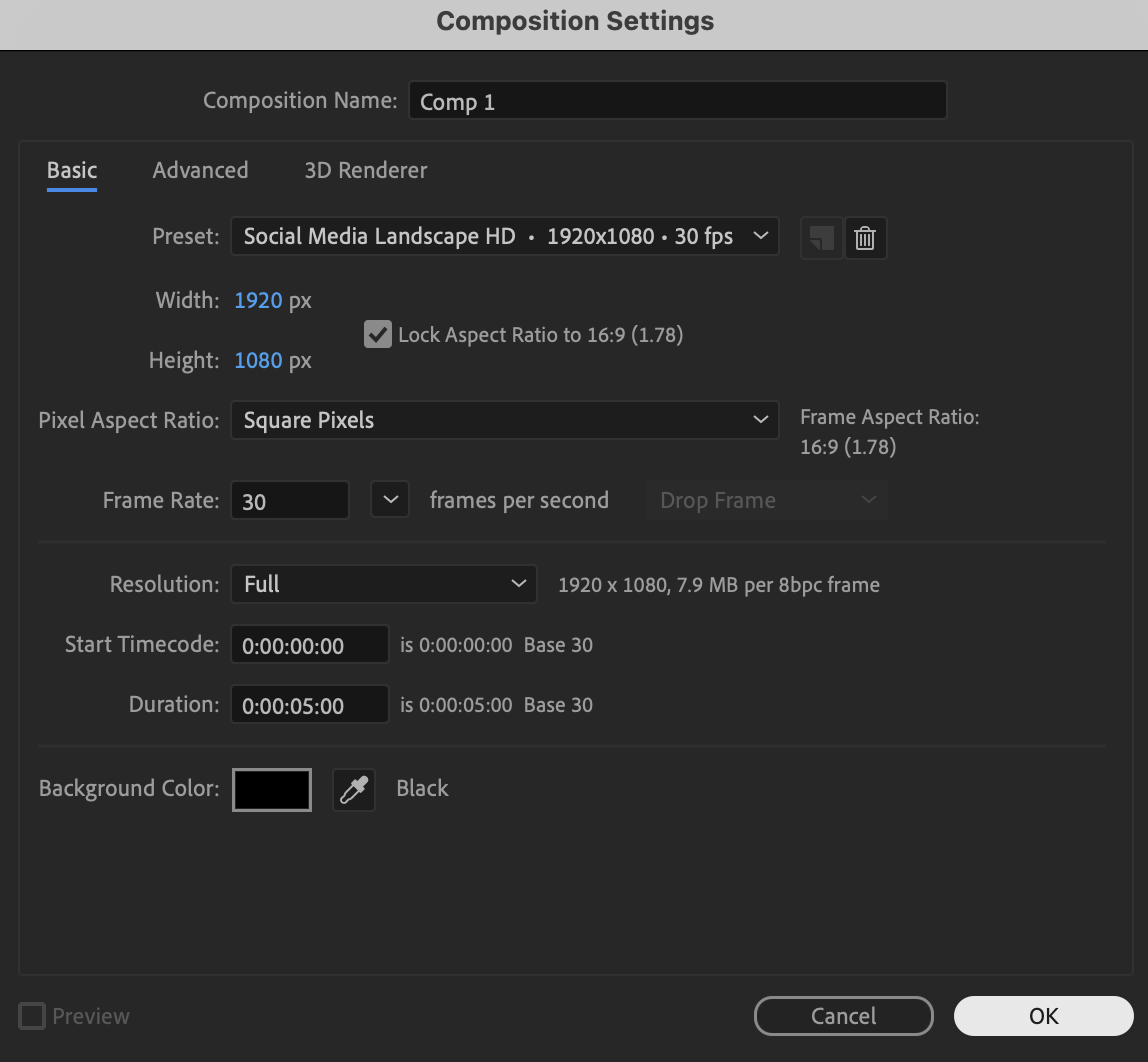
Step 1: Create a New Composition
Create a new composition with your preferred resolution, frame rate, and duration.
 Step 2: Create the Base Text
Select the Type Tool (Ctrl/Cmd + T) and create your title text. Set the Fill Color to white.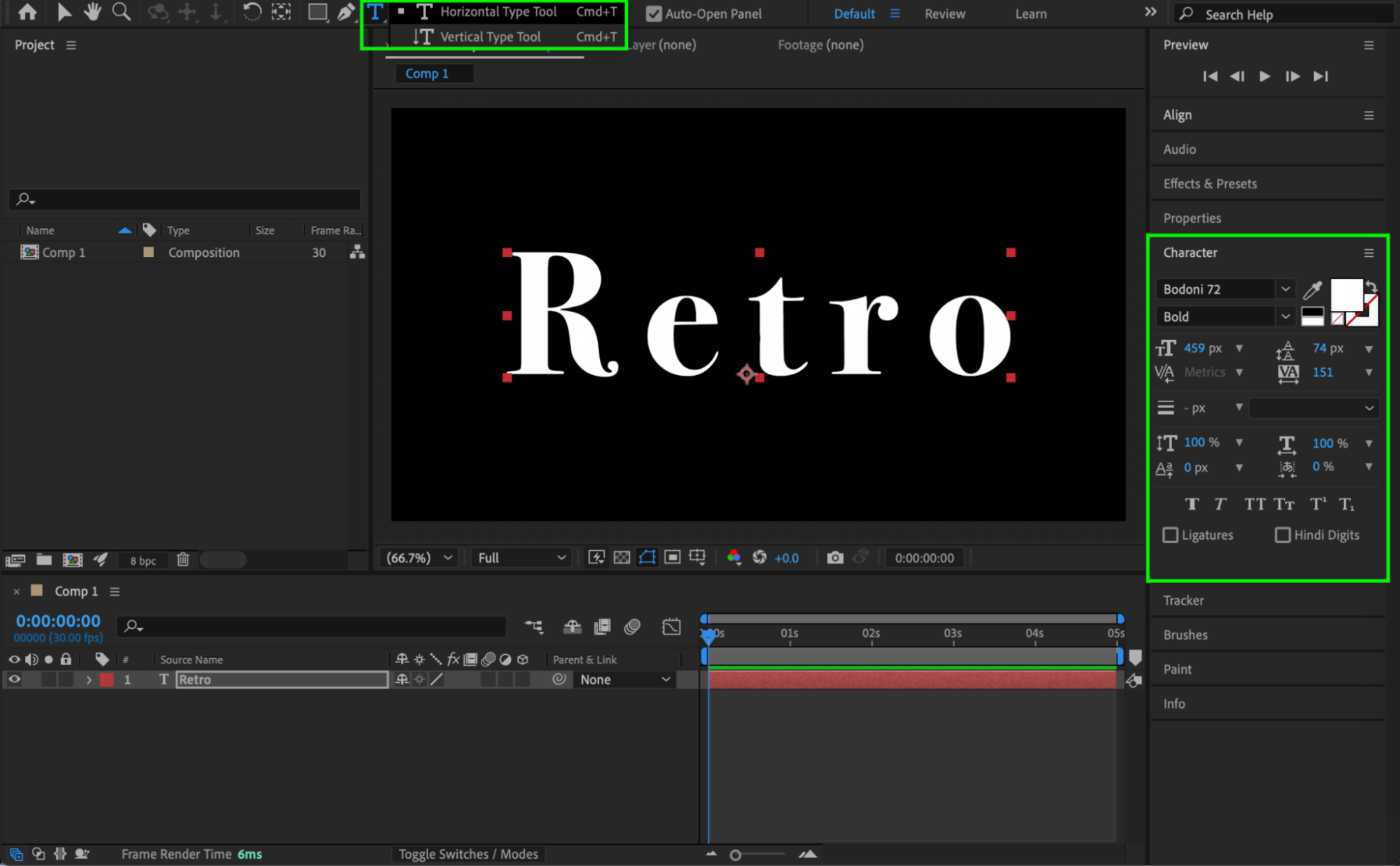 Step 3: Duplicate the Text Layer
Duplicate the text layer. For the duplicated layer:
Set Fill Color to black
Enable Stroke
Set Stroke Color to white
Set Stroke Width to 6 px
This layer will be used later for metallic highlights.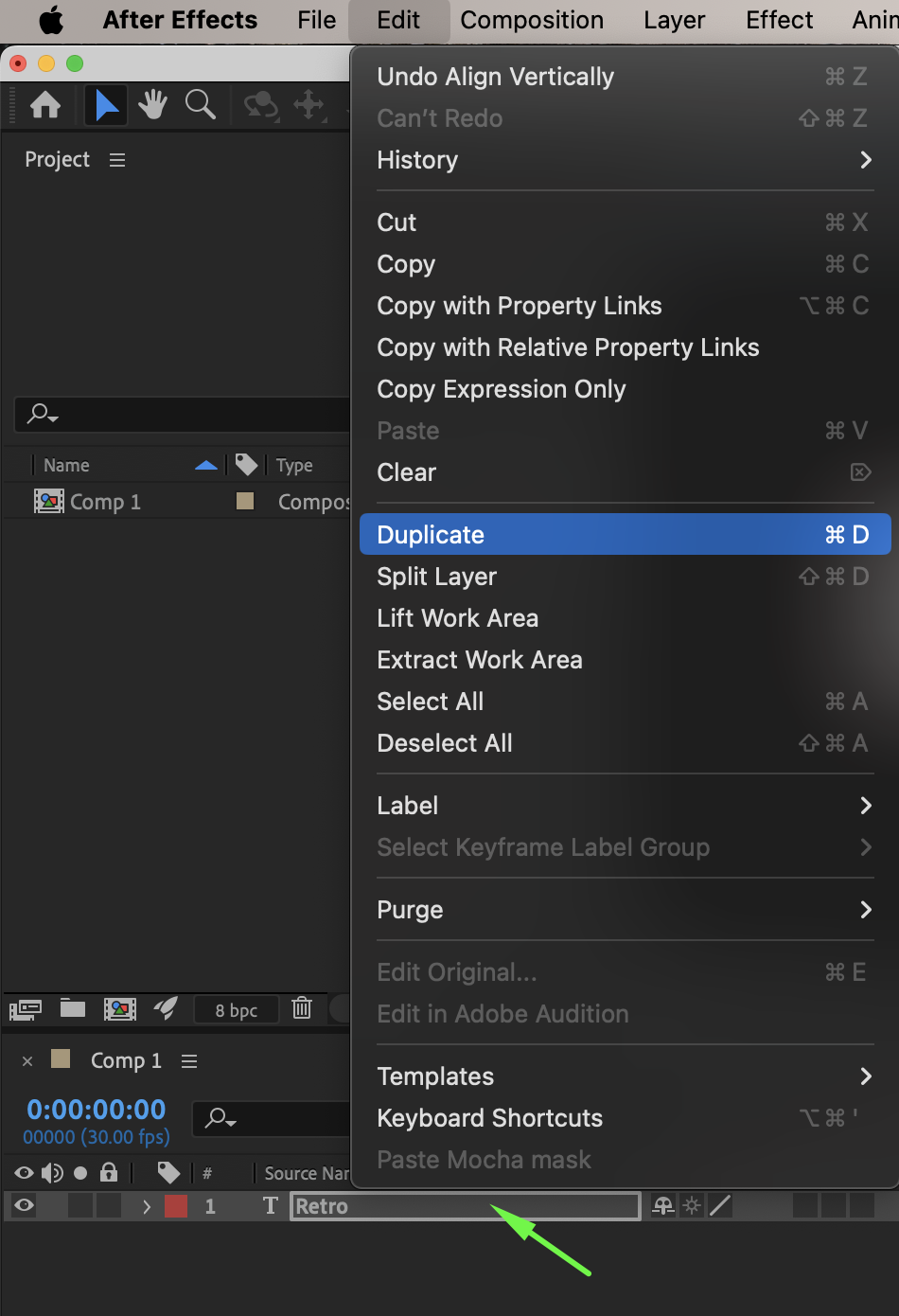
 Step 4: Prepare the Base Metal Layer
Turn off the visibility (eye icon) of the duplicated layer. On the original text layer:
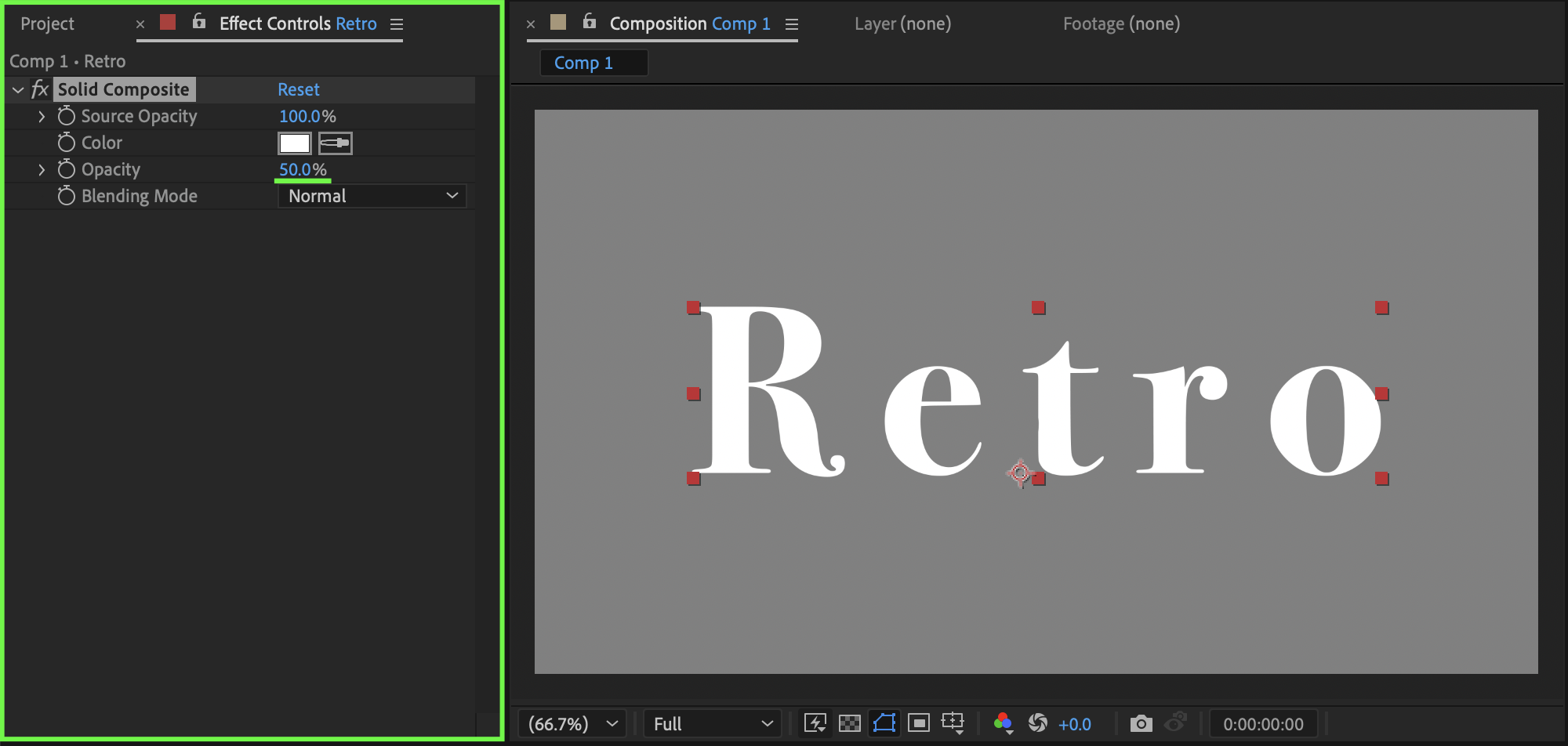
Apply Solid Composite
Set Opacity to 50%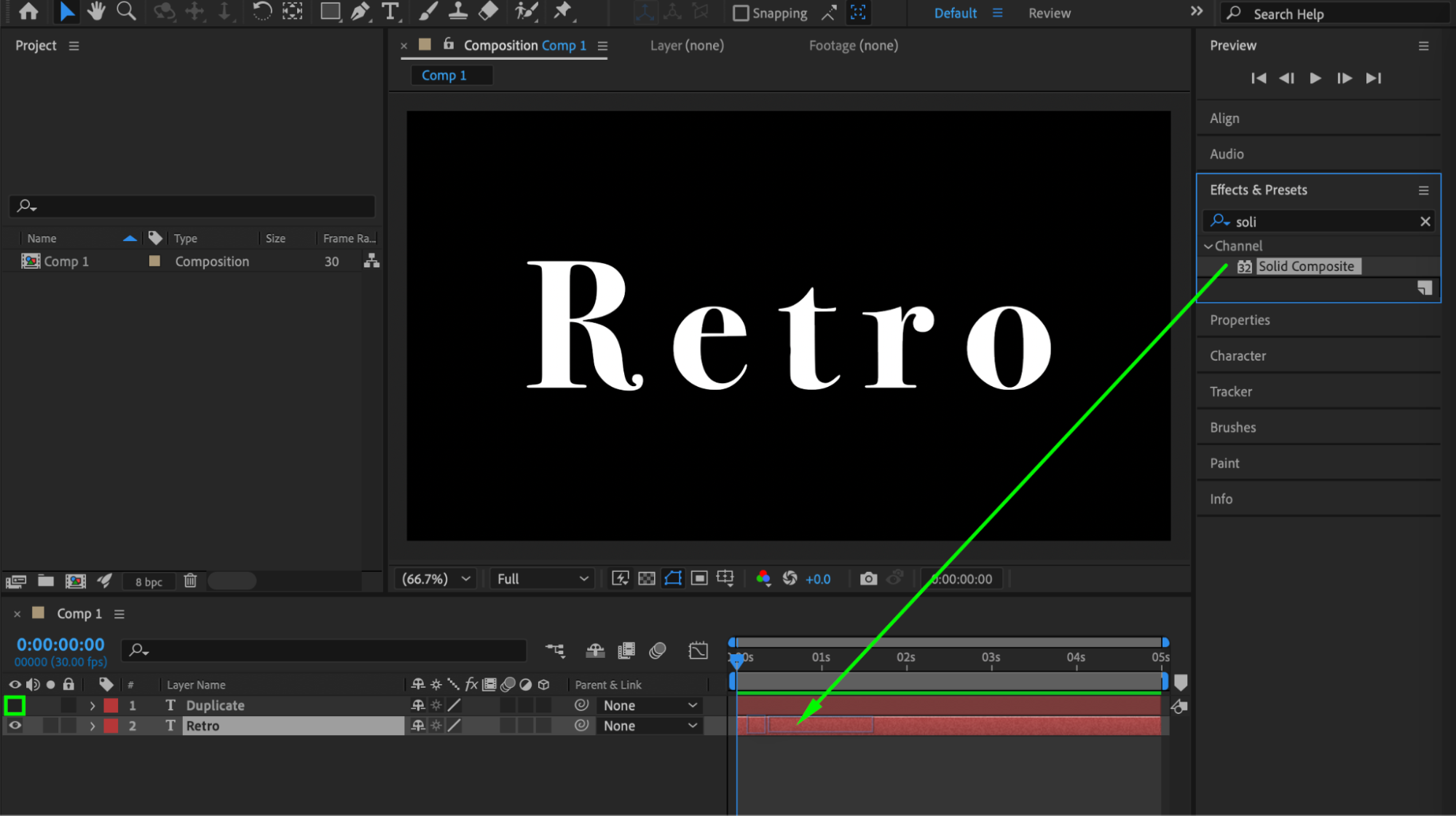
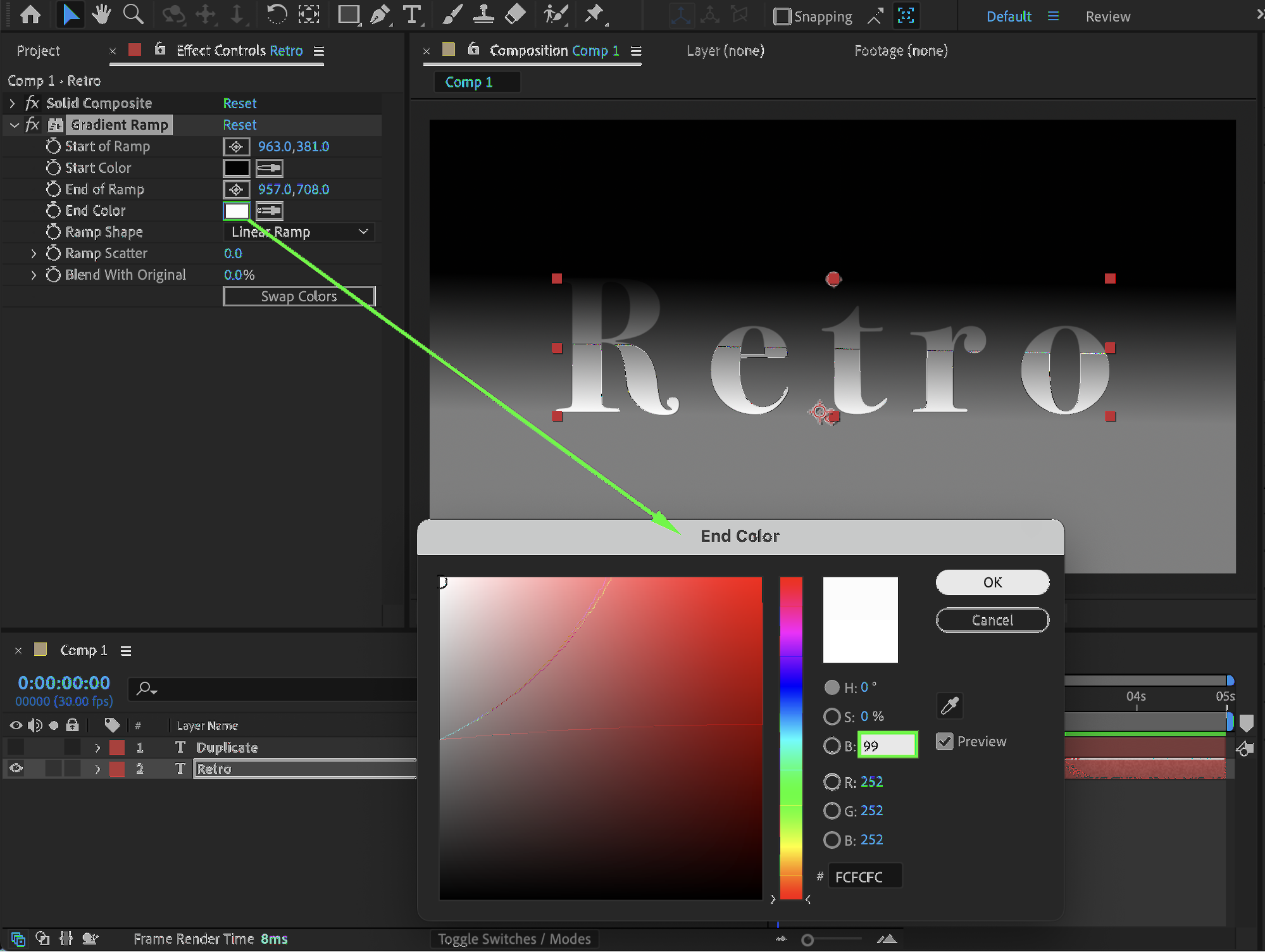
Step 5: Add Gradient Ramp
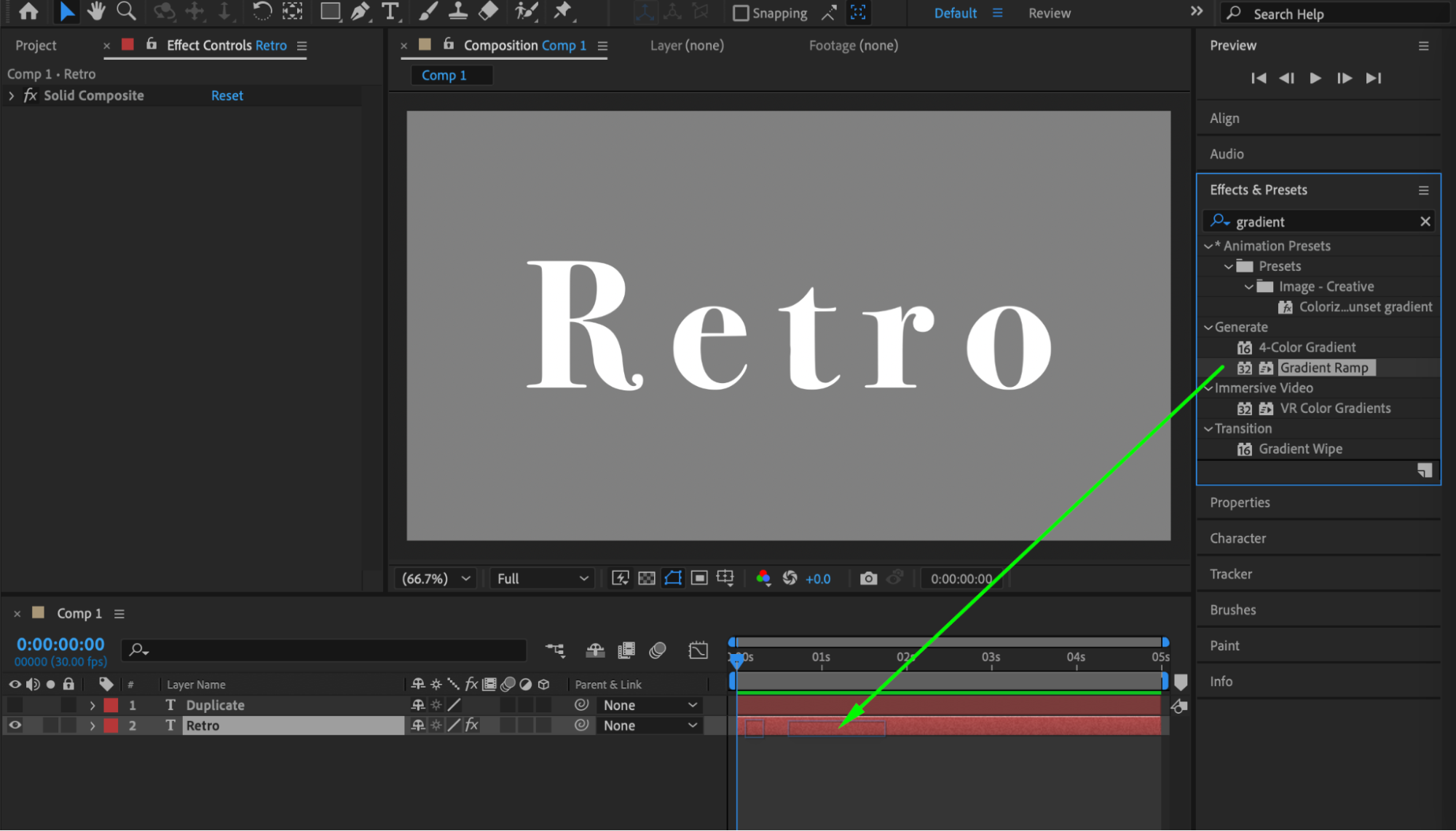
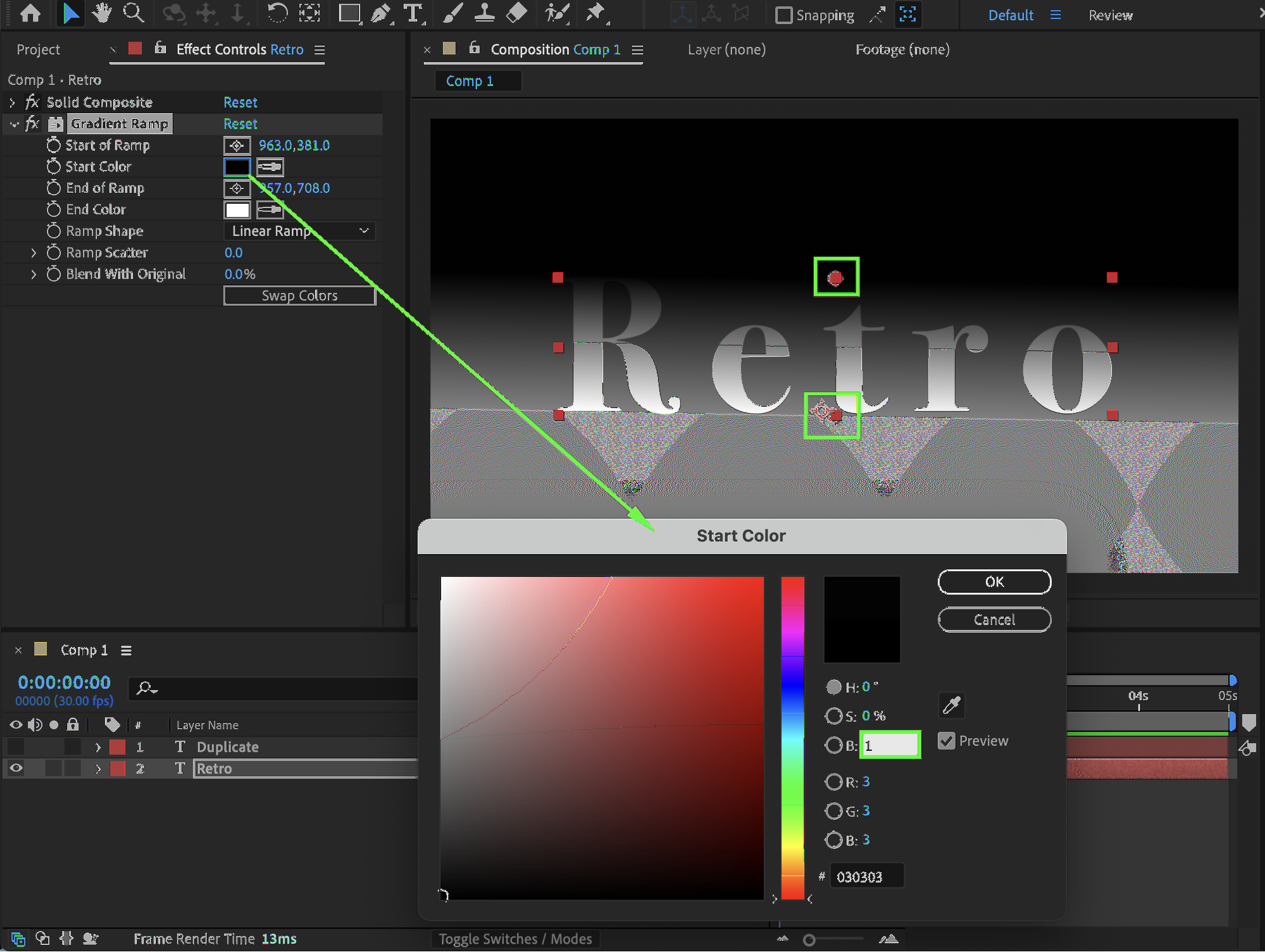
Apply the Gradient Ramp effect. Set:
Start Color: Black (Brightness 1)
End Color: White (Brightness 99)
Move the Start of Ramp and End of Ramp closer to the text to concentrate the metallic gradient.
 Step 6: Blur and Blend
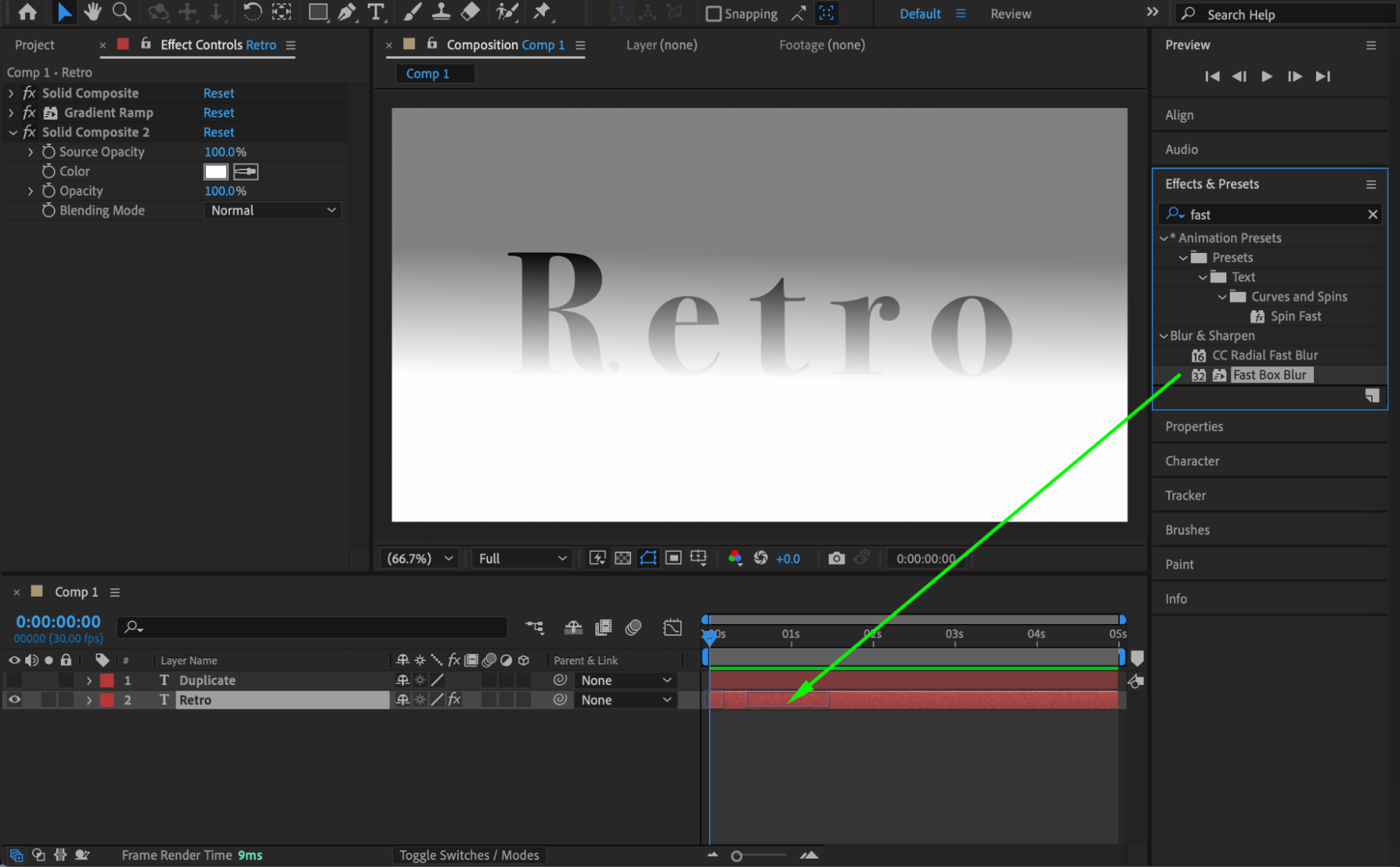
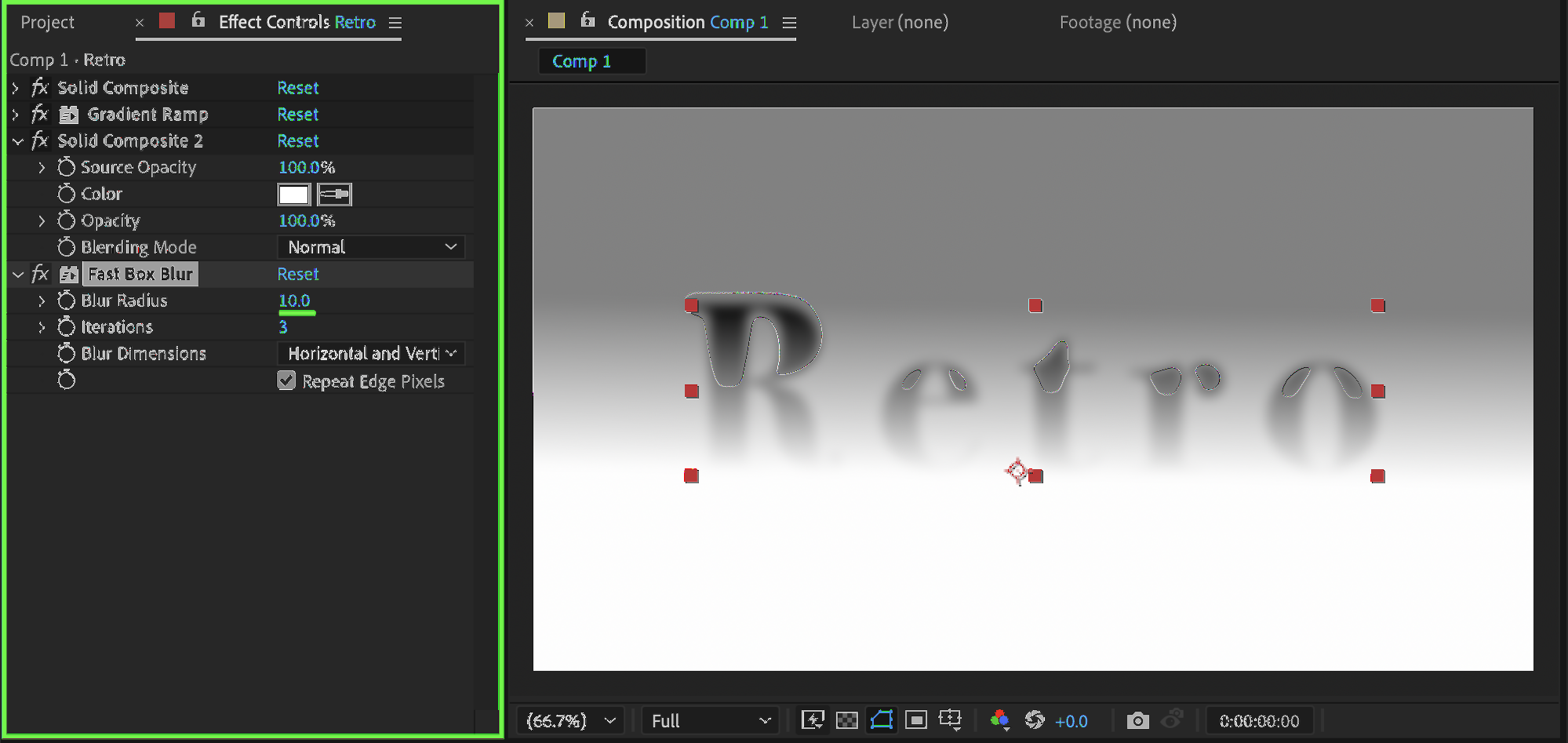
Apply Solid Composite again, then add Fast Box Blur. Set:
Blur Radius: 10
This softens the gradient transitions.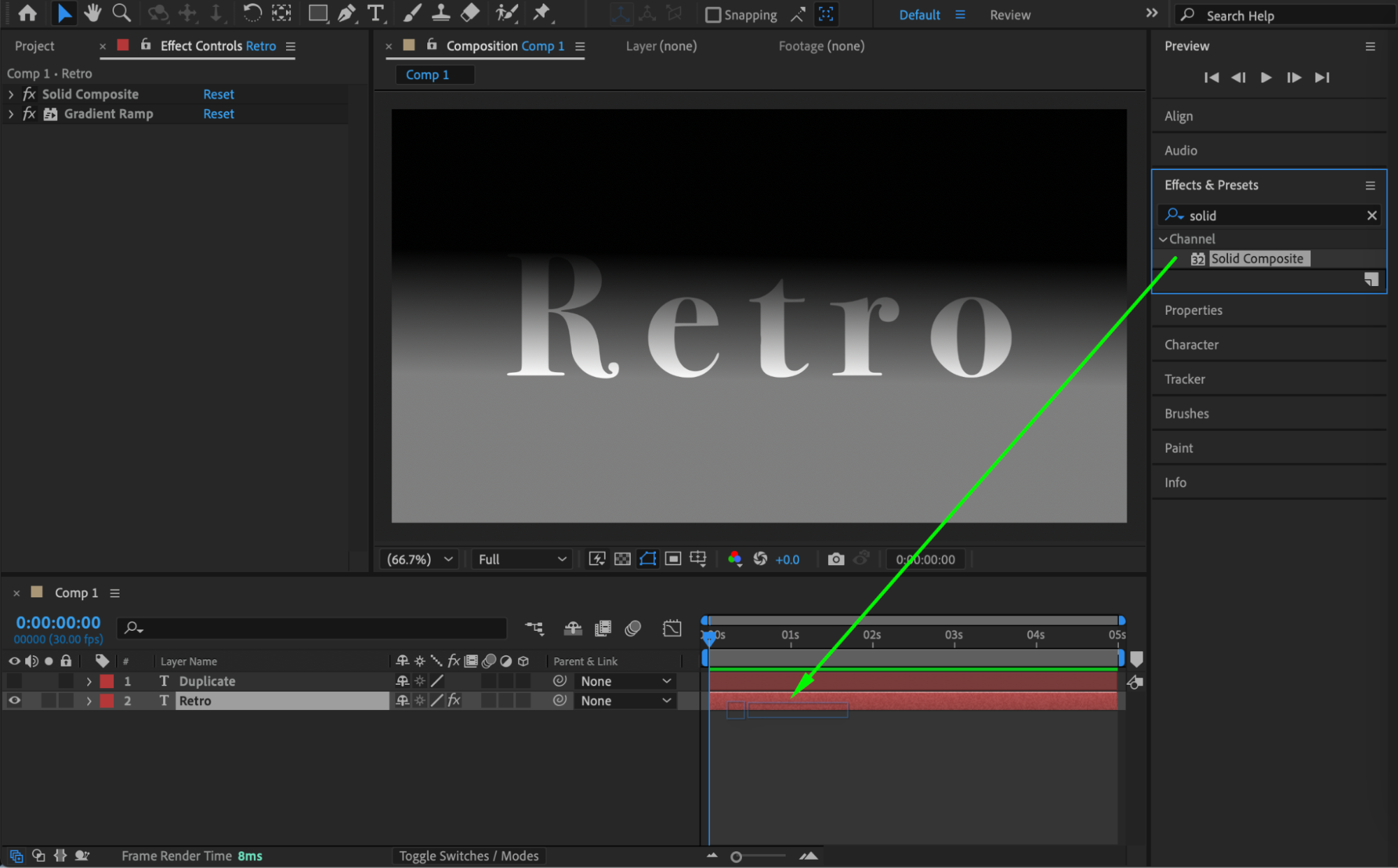
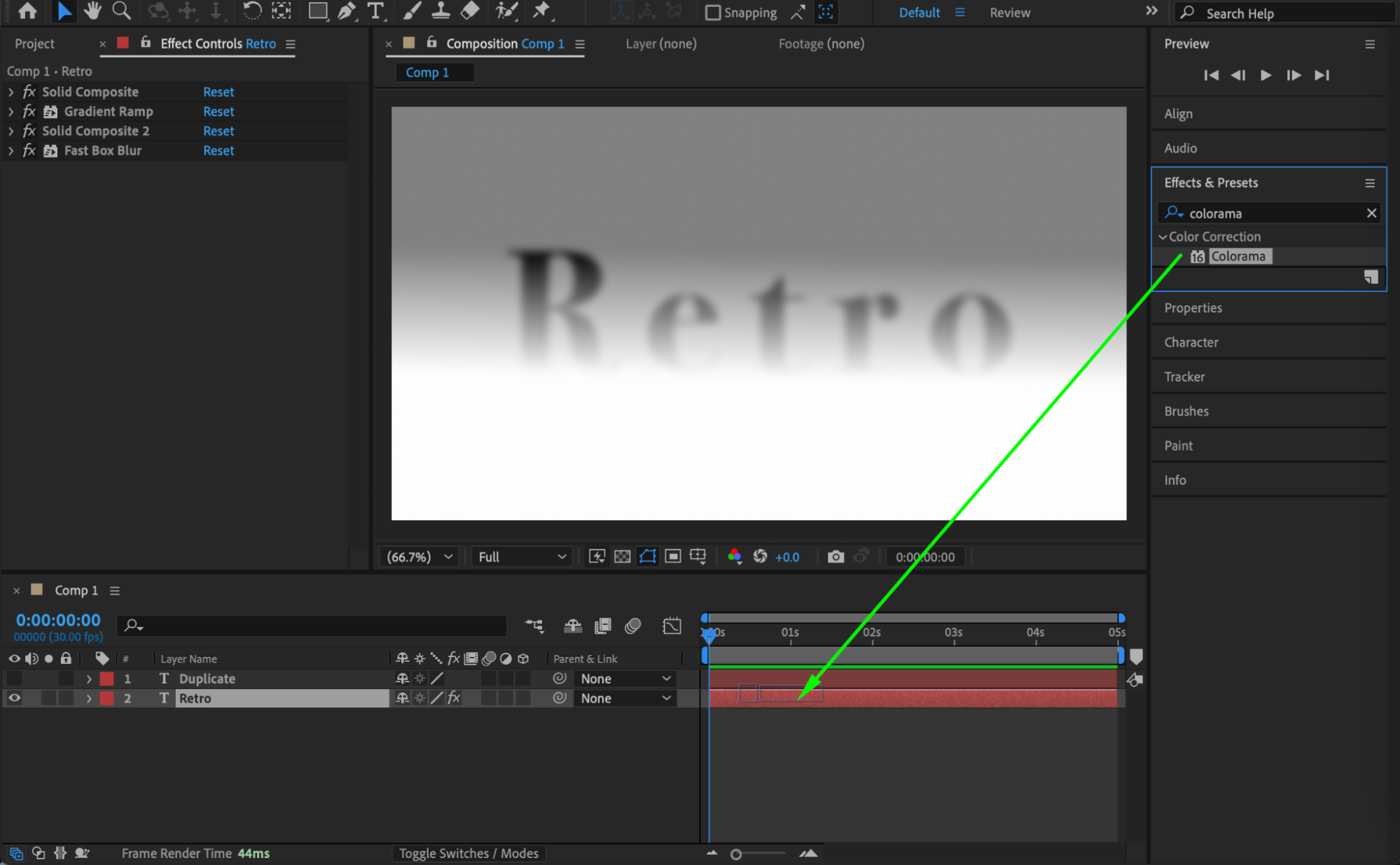
 Step 7: Apply Colorama for Metal Coloring
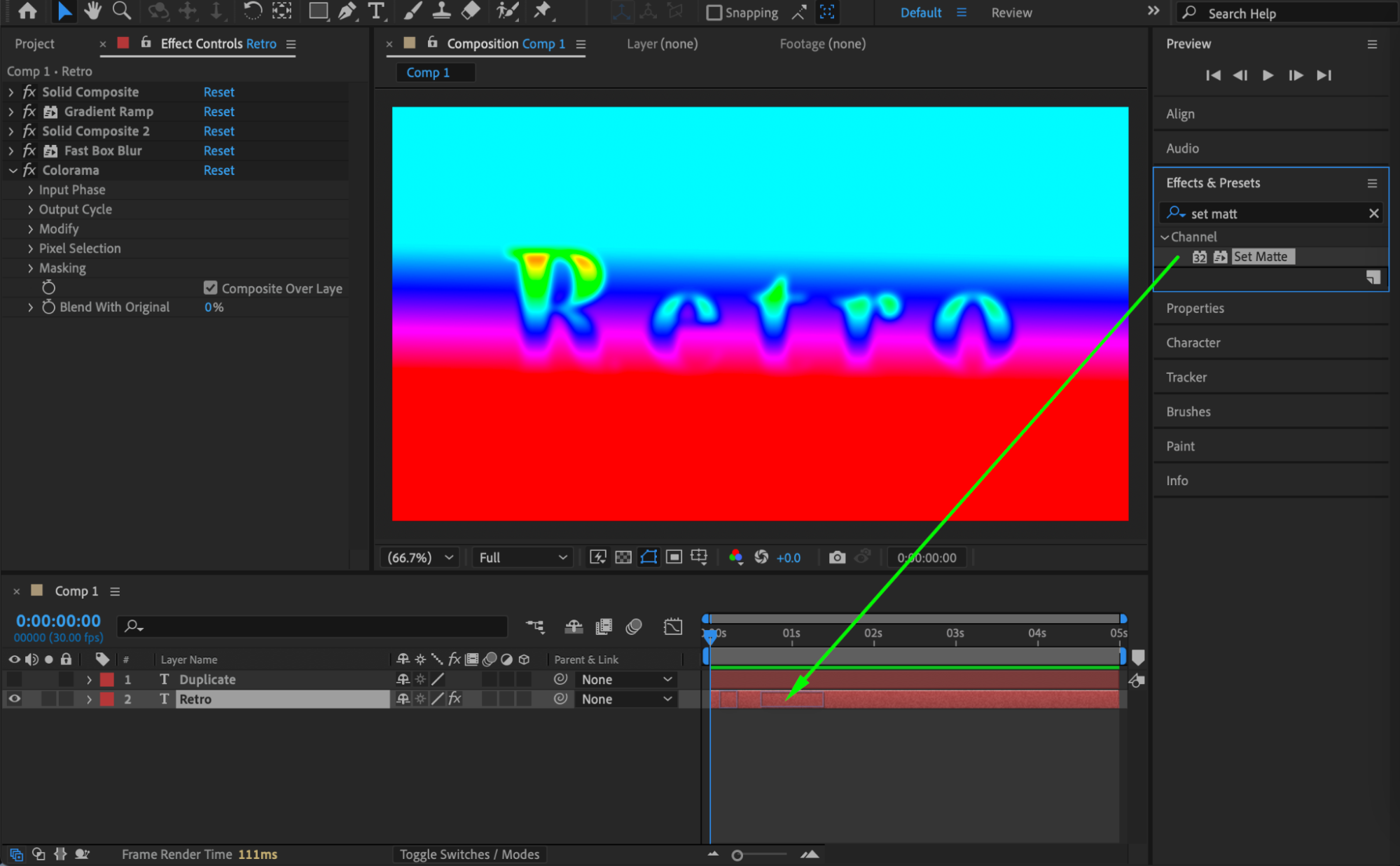
Add the Colorama and Set Matte effects.
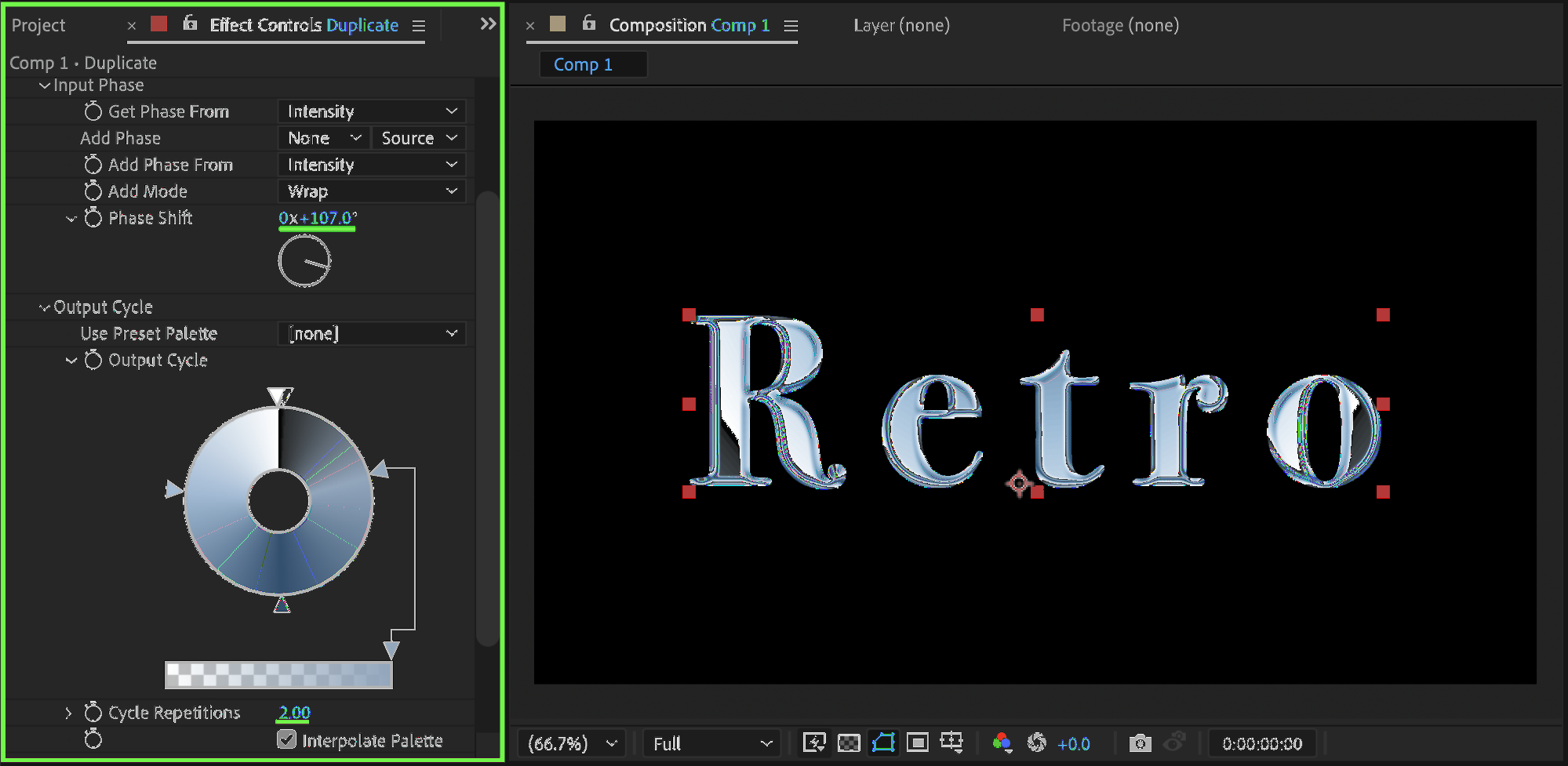
Set Phase Shift between 80°–180°
Choose Ramp Grey as the preset palette
Add light blue and light blue-grey tones to the palette for a metallic sheen
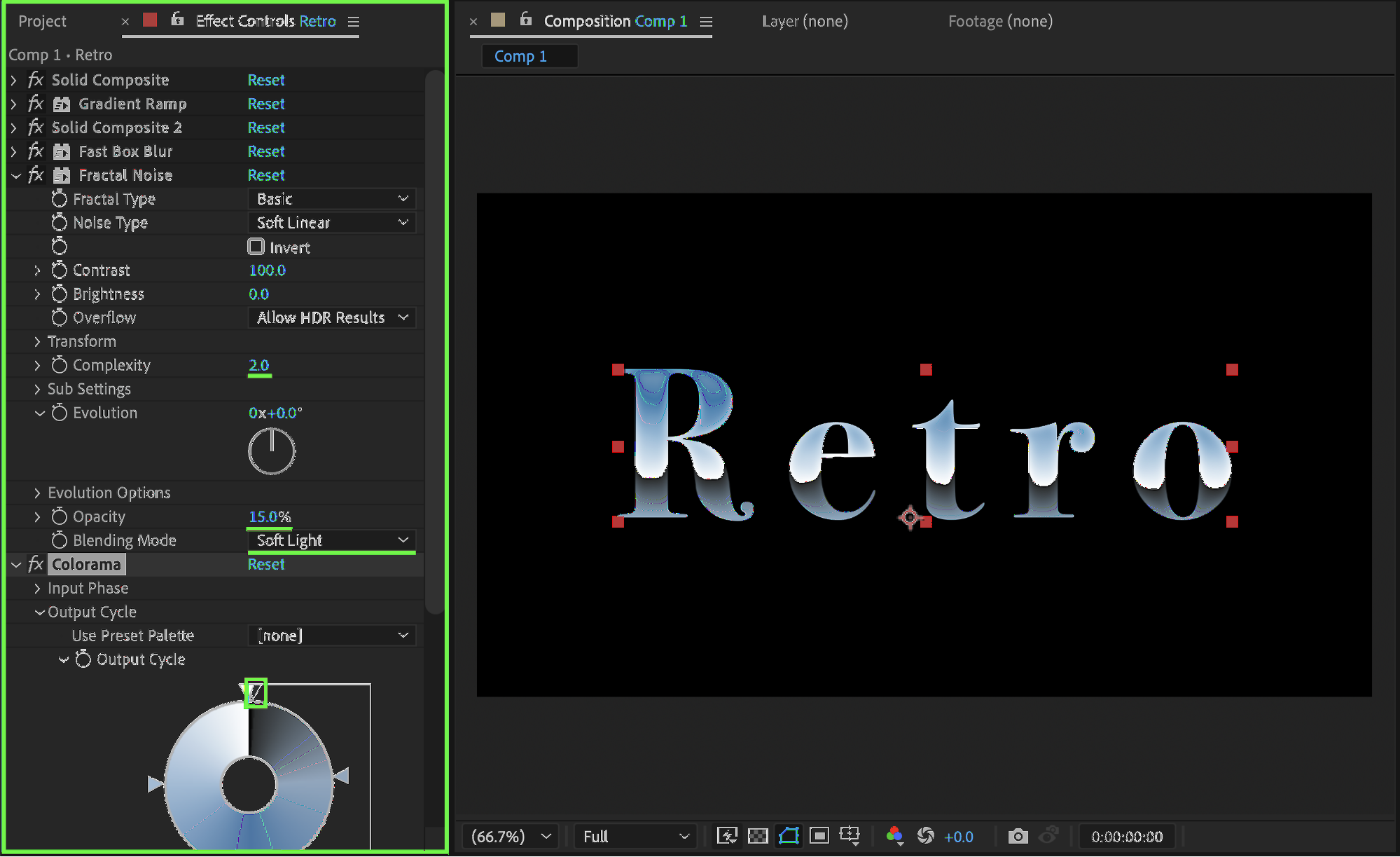
 Step 8: Add Texture with Fractal Noise
Apply Fractal Noise. Set:
Complexity: 2
Opacity: 15 – 30
Blending Mode: Soft Light
In the Colorama palette, add a dark grey color after white to achieve smoother color blending.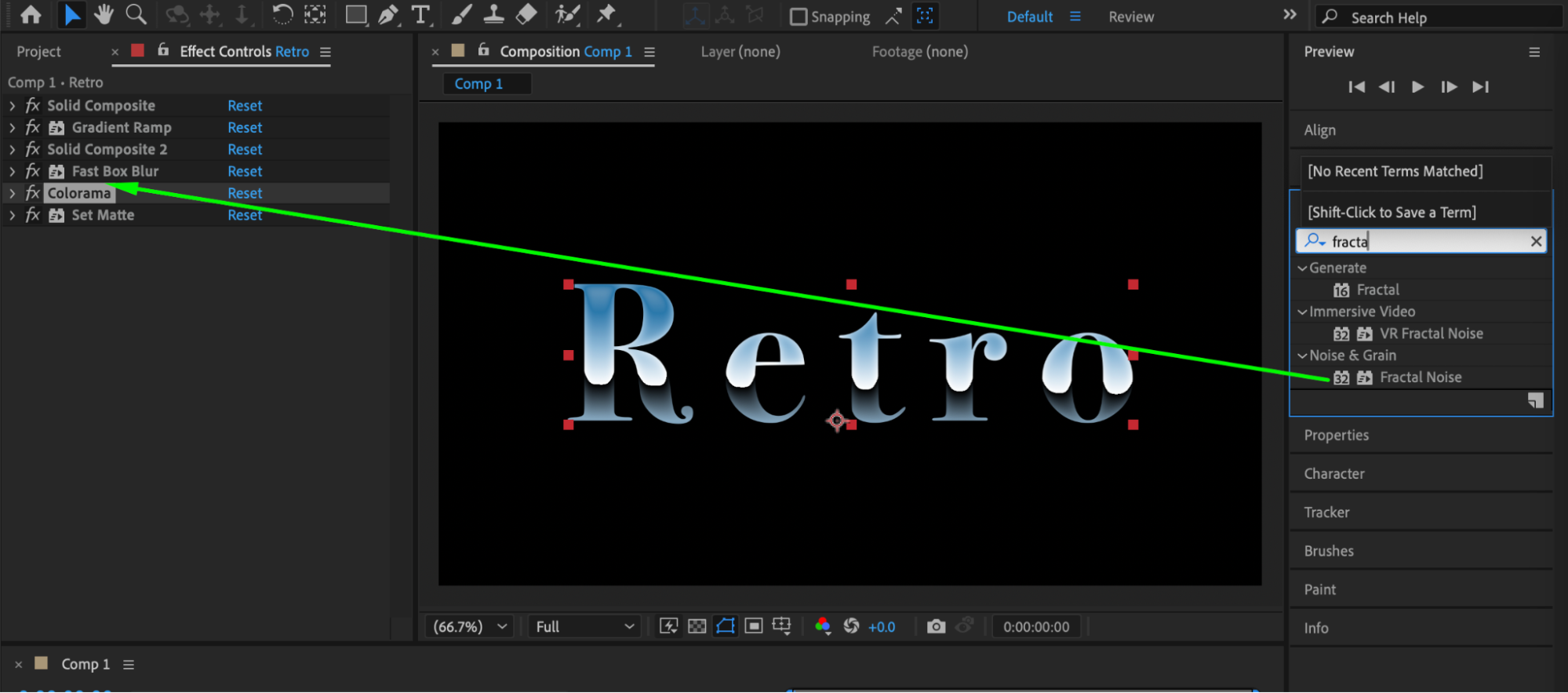
 Step 9: Activate the Highlight Layer
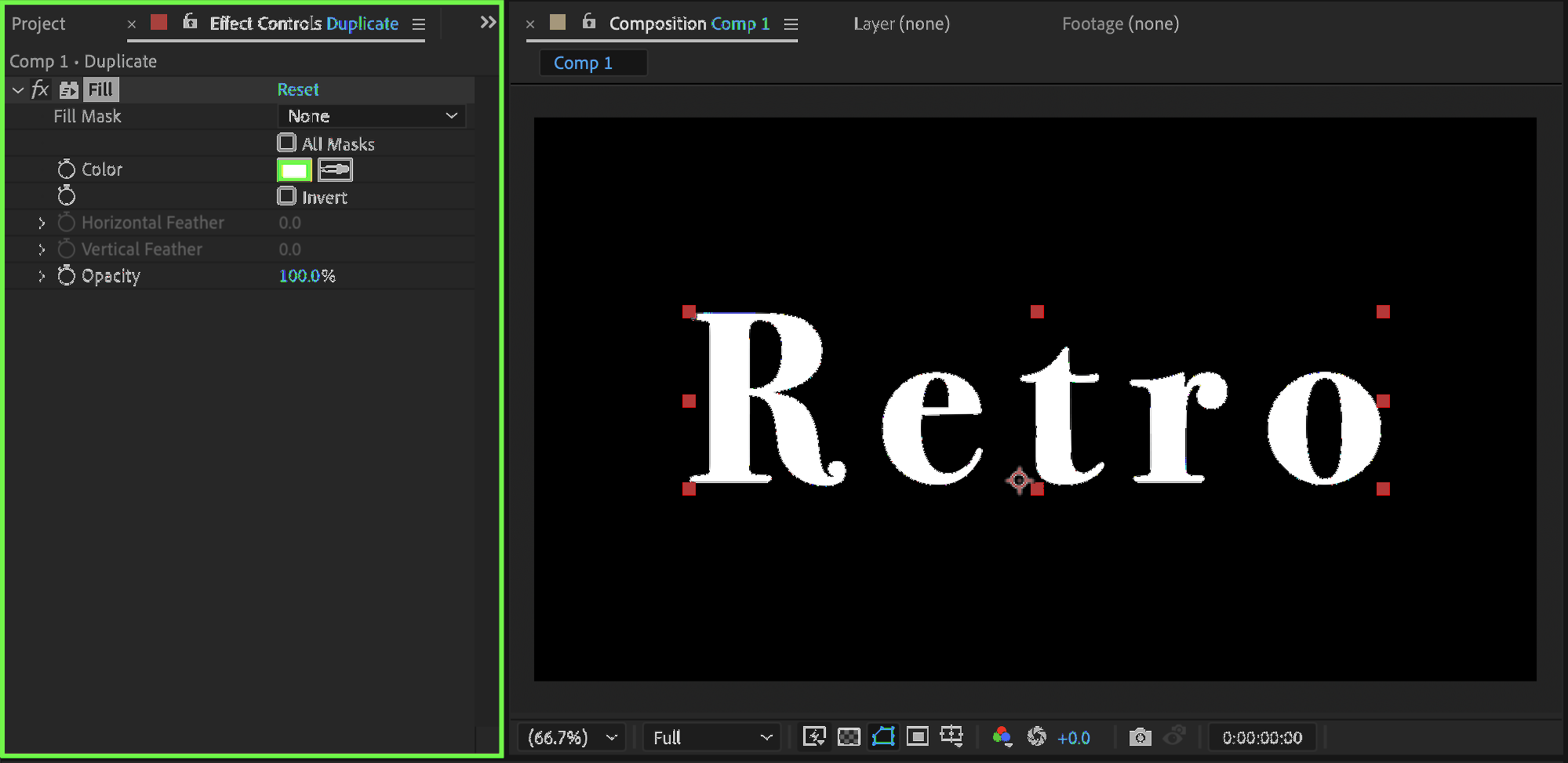
Turn the visibility back on for the duplicated text layer. Apply a Fill effect and set the color to white.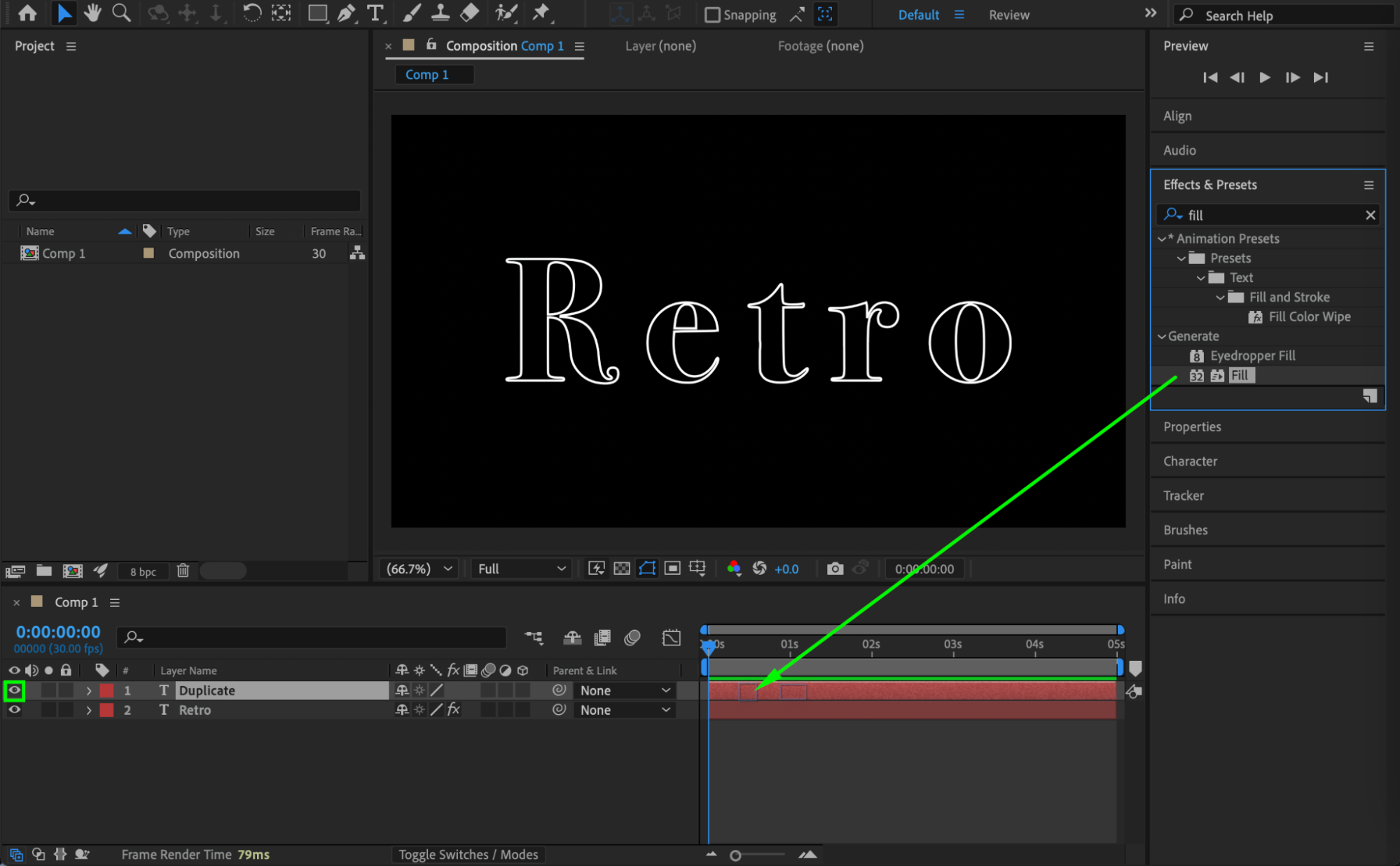
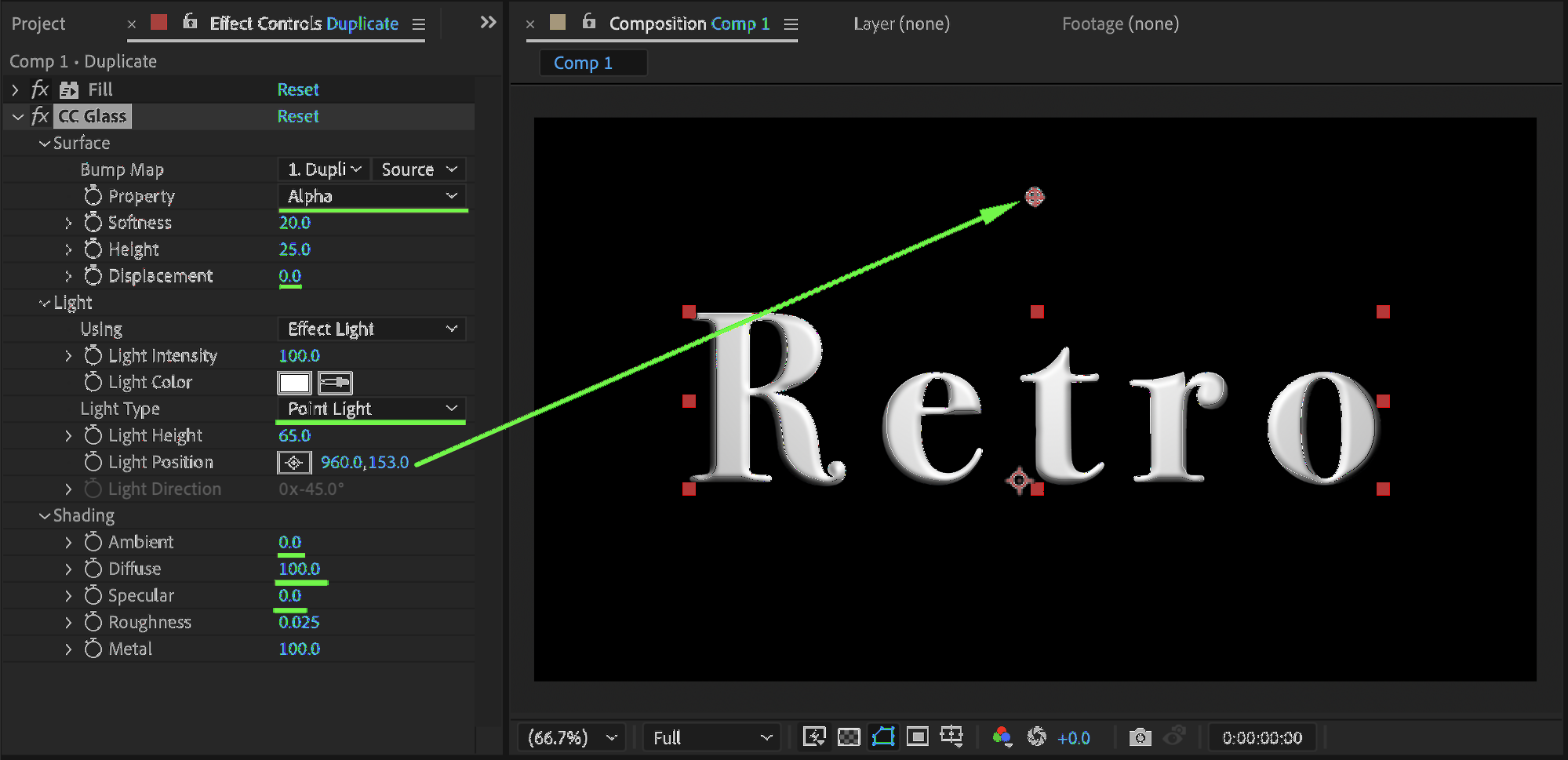
Step 10: Add CC Glass for Metal Reflection
Apply CC Glass to the duplicated layer. Set:
Property: Alpha
Displacement: 0
Light Type: Point Light
Position the Light slightly above the text
Ambient: 0
Diffuse: 100
Specular: 0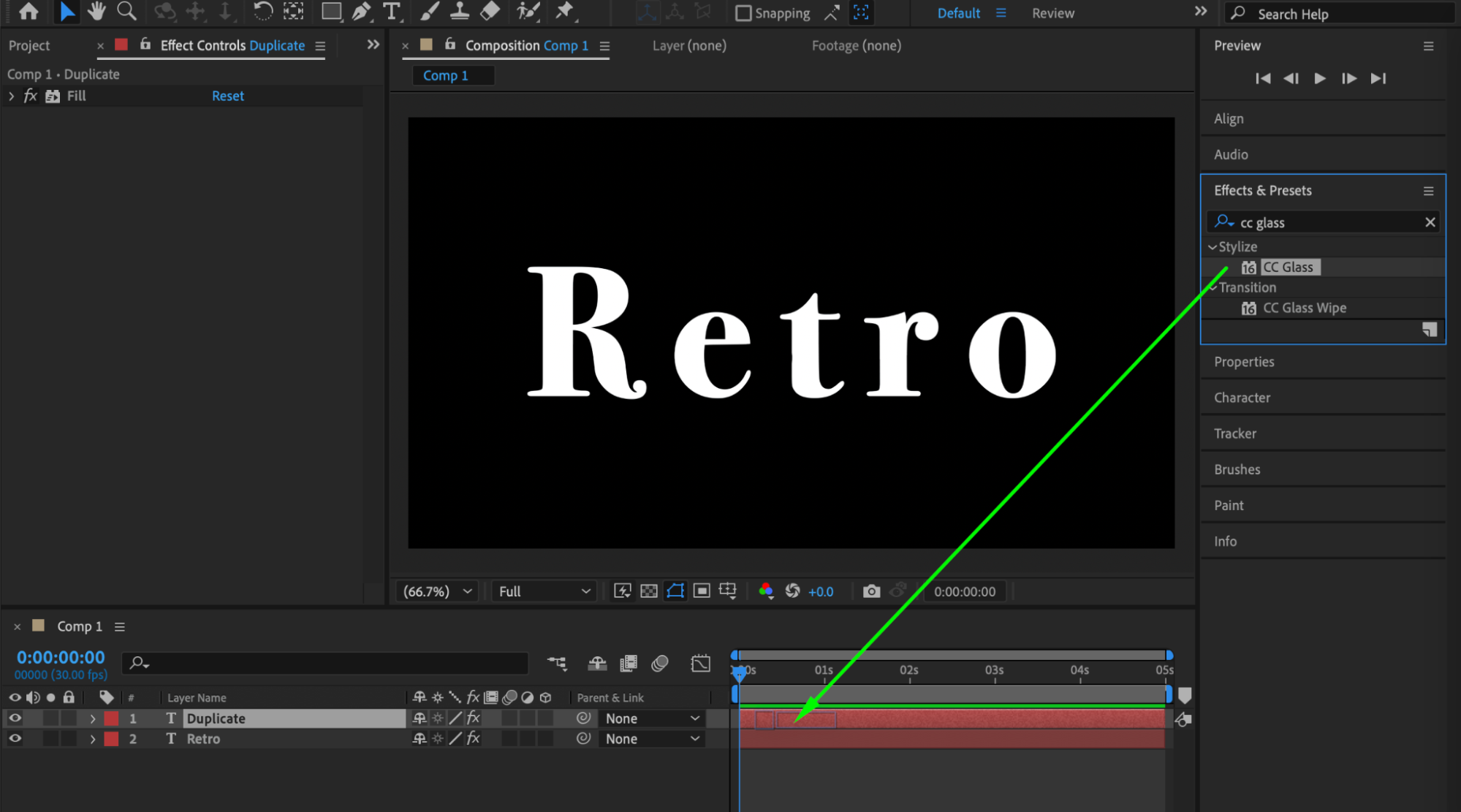
Step 11: Enhance Highlights
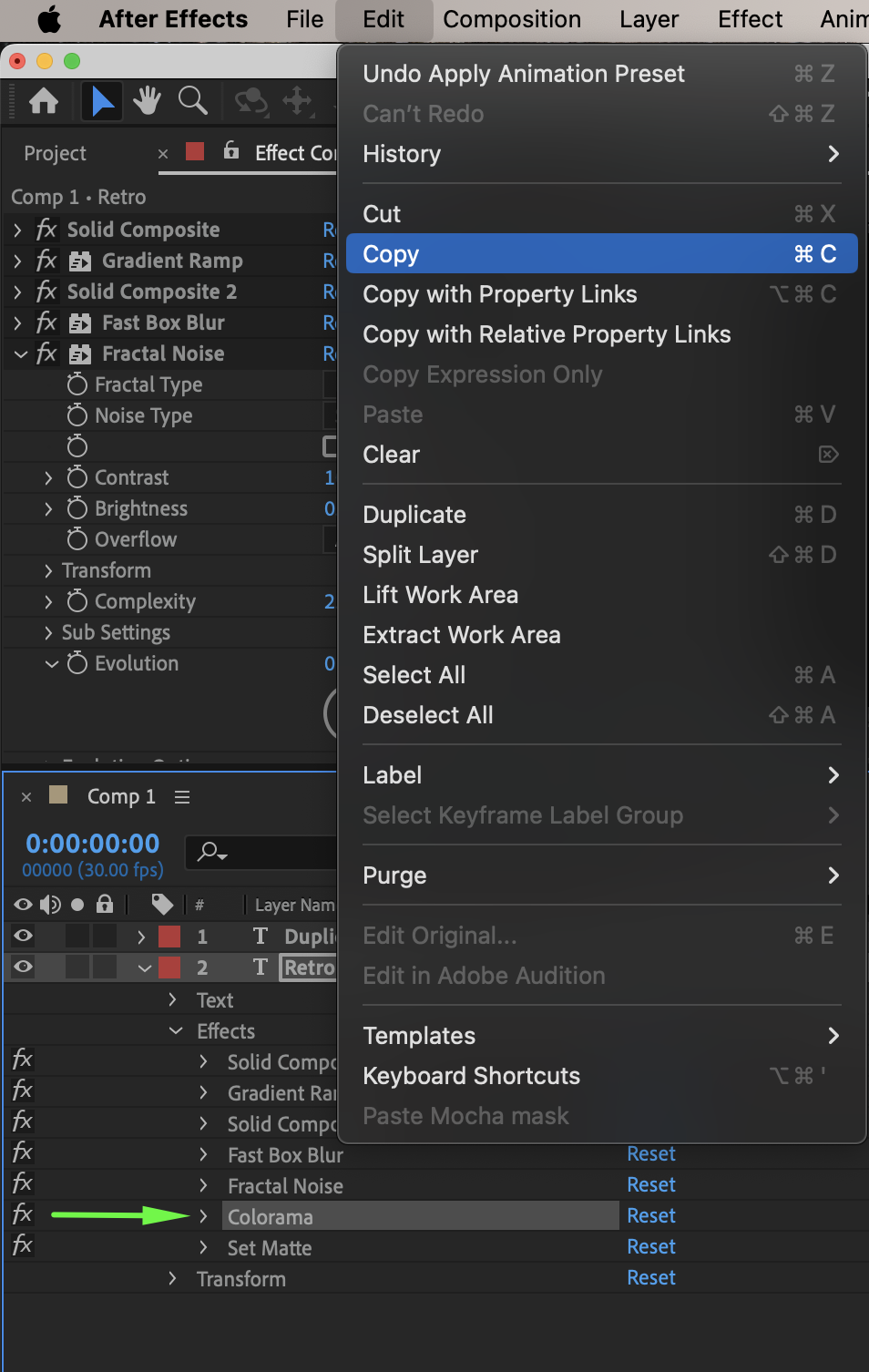
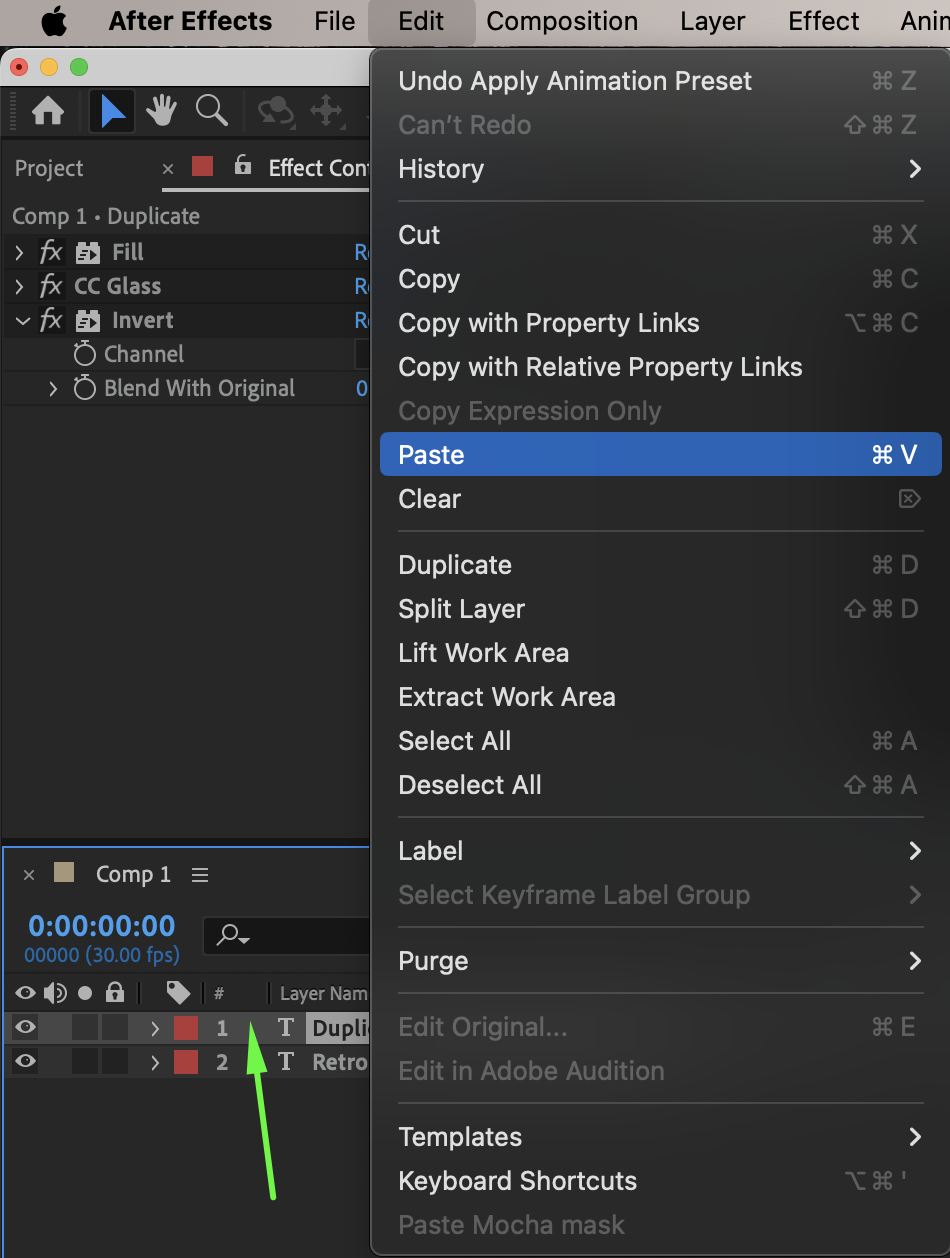
Add the Invert effect. Copy the Colorama effect from the original text layer and paste it onto the duplicated layer. Adjust:
Cycle Repetitions: 2
Phase Shift: 90°–120°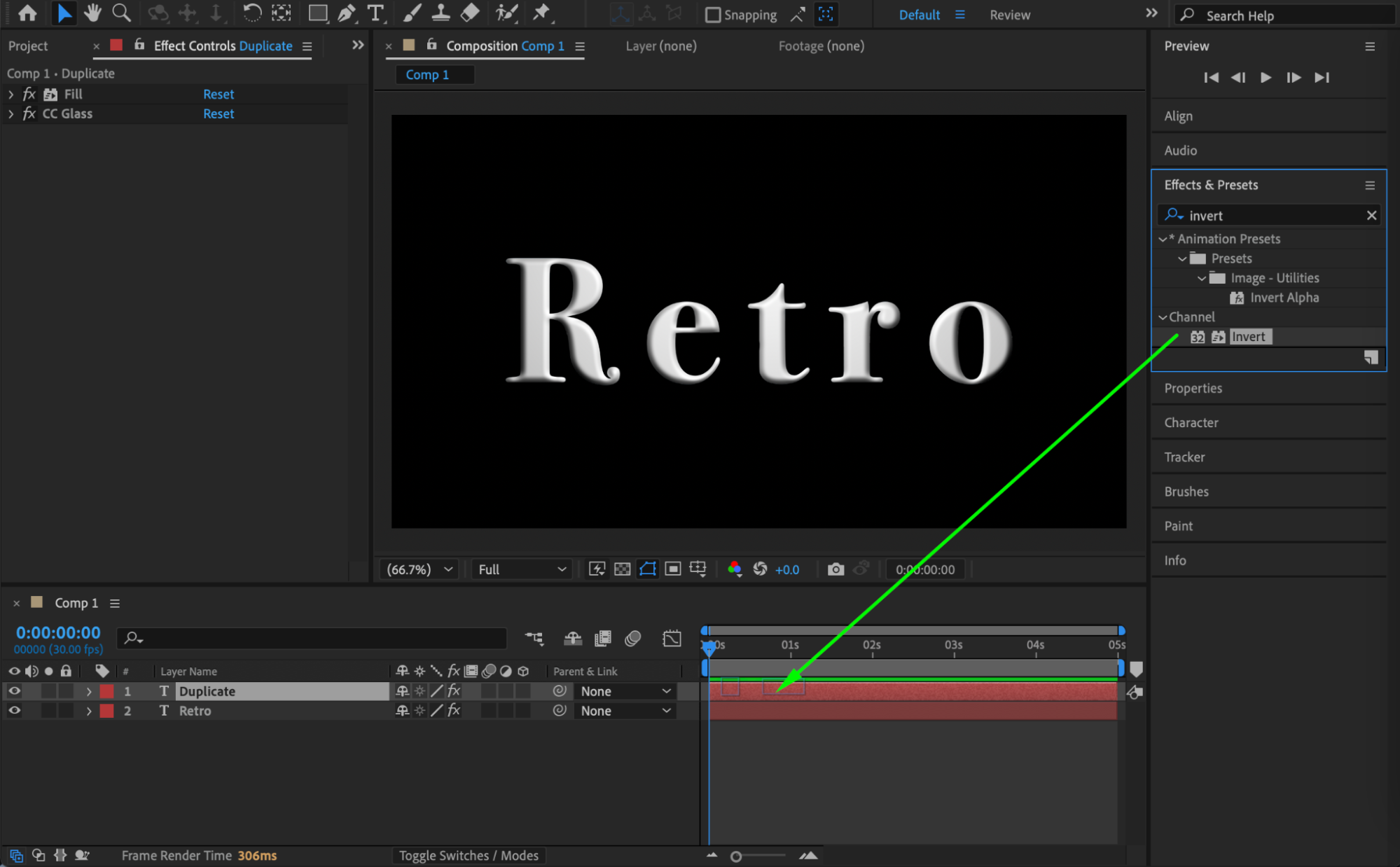
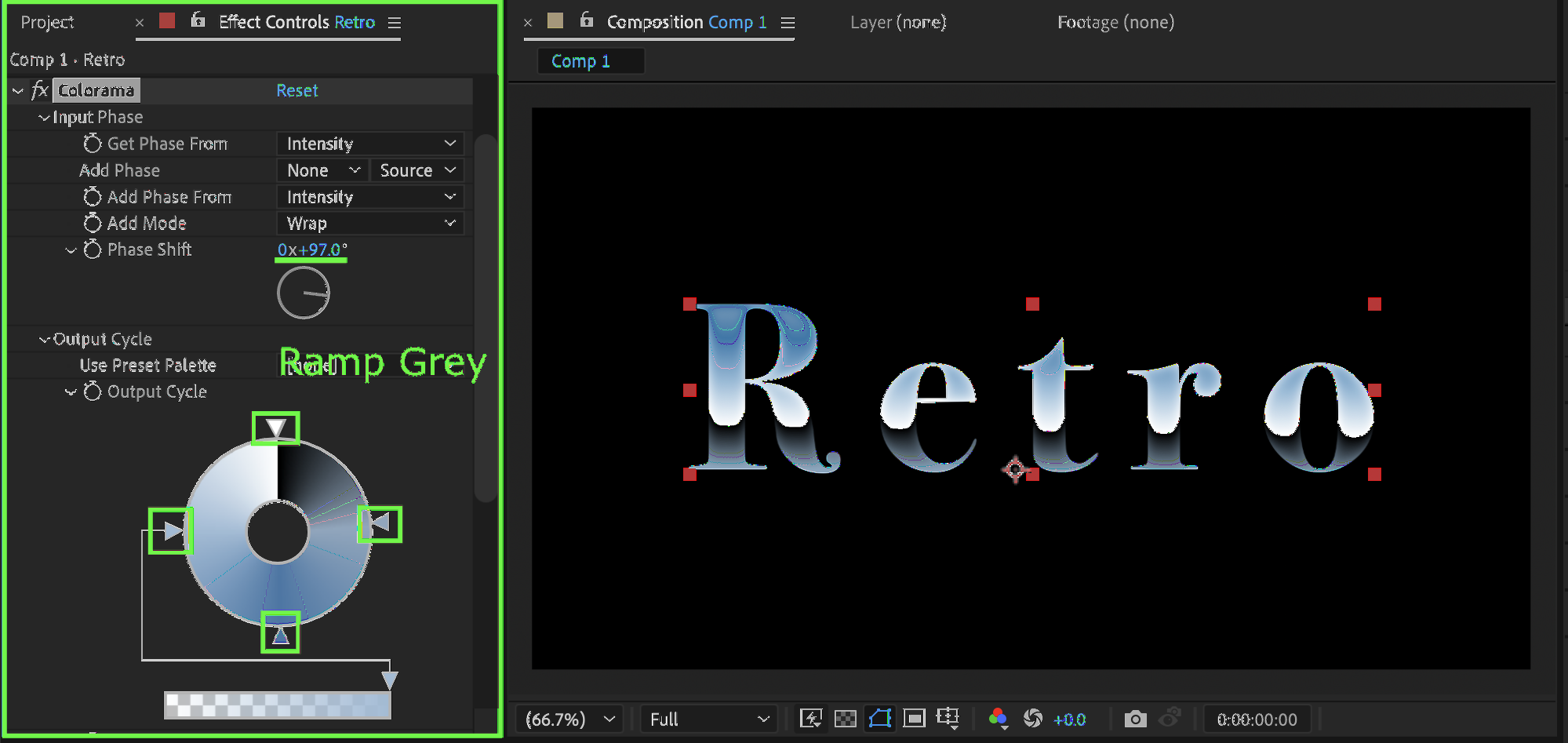 Step 12: Apply Set Matte
Add Set Matte. Set:
Use For Matte: Luminance
This helps isolate the metallic highlights.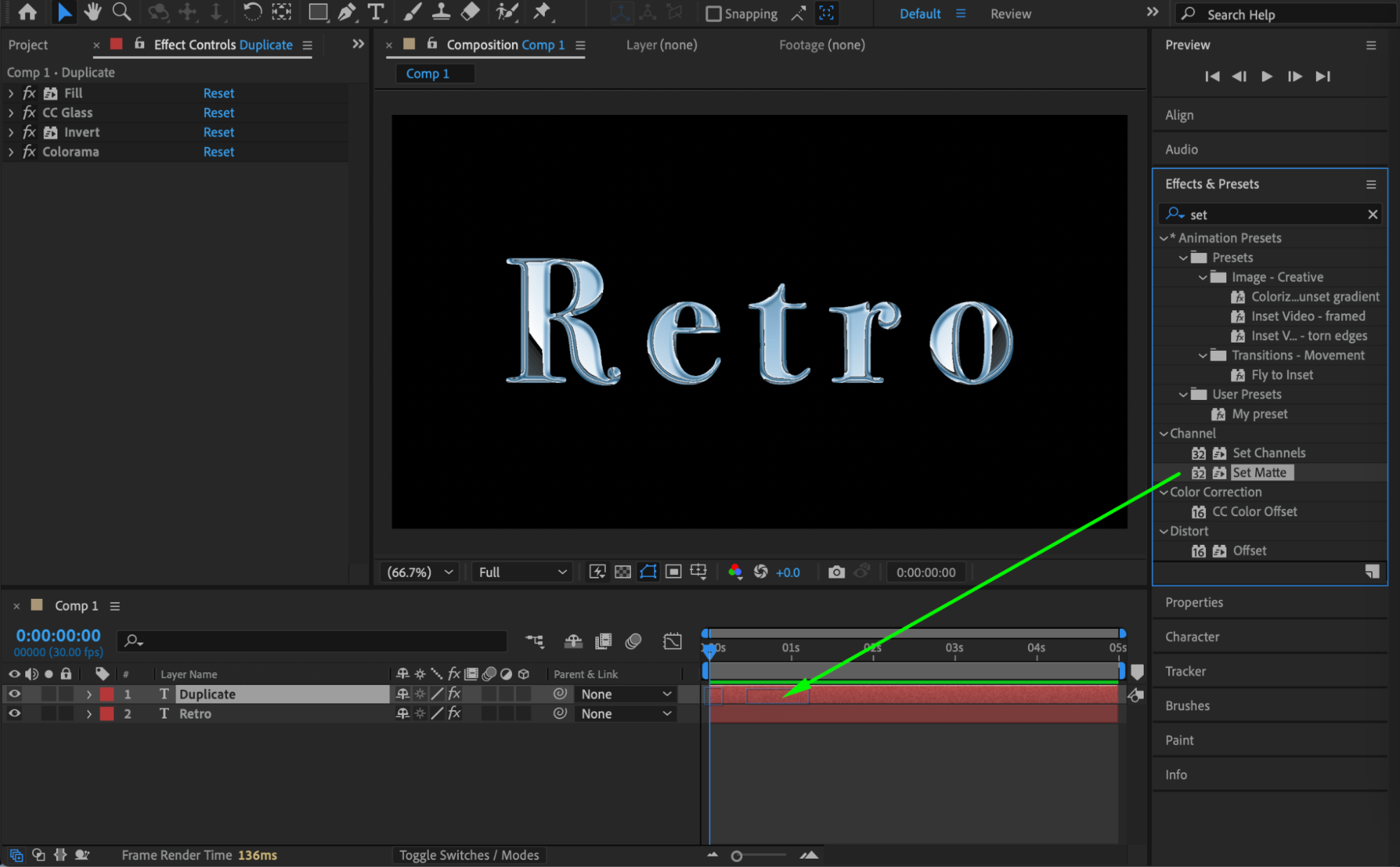
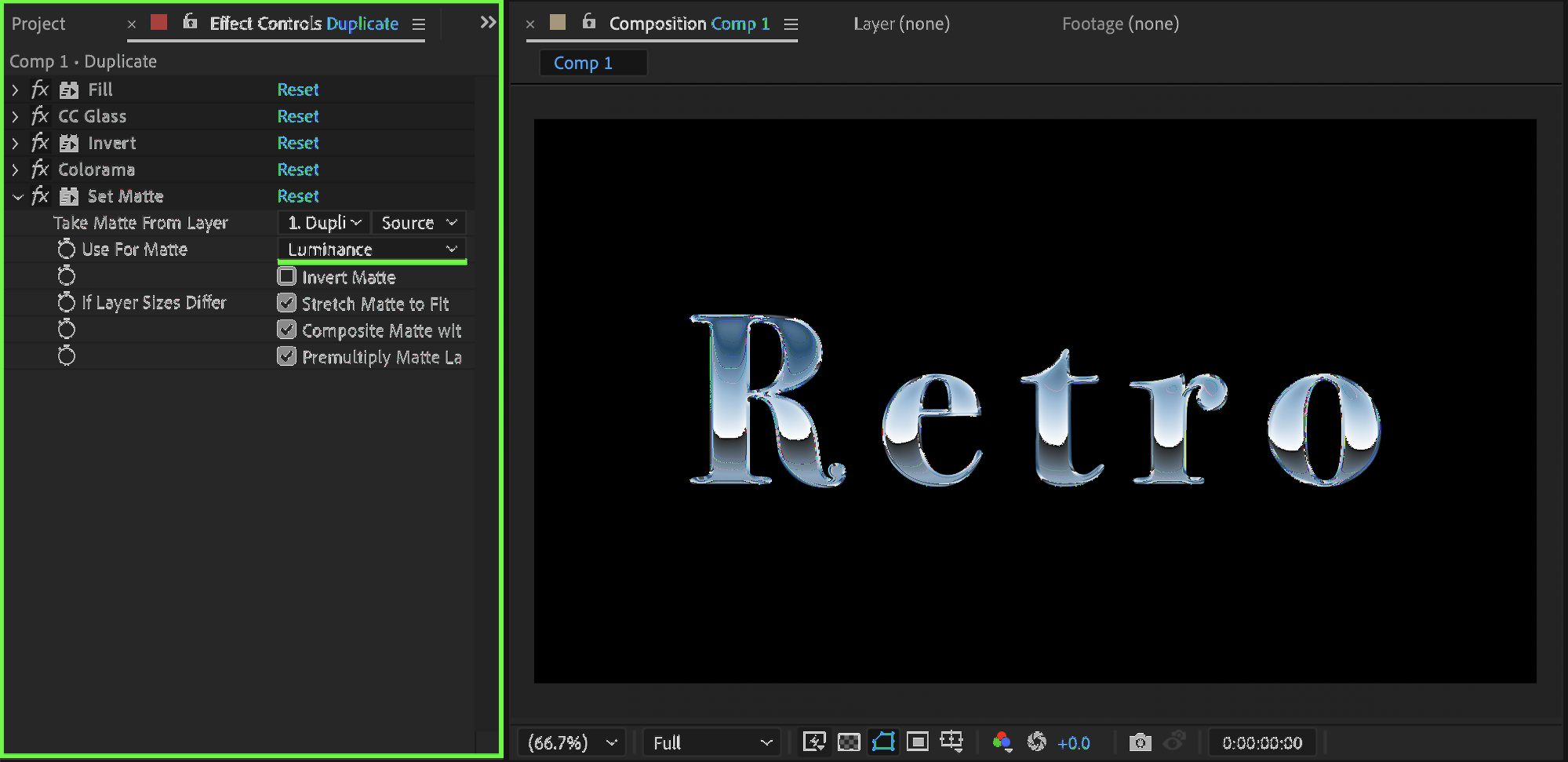 Step 13: Add Glow
Apply the Glow effect. Set:
Glow Threshold: 90
Glow Radius: 20
Glow Intensity: 7
Glow Colors: A & B Colors
Color B: Light yellow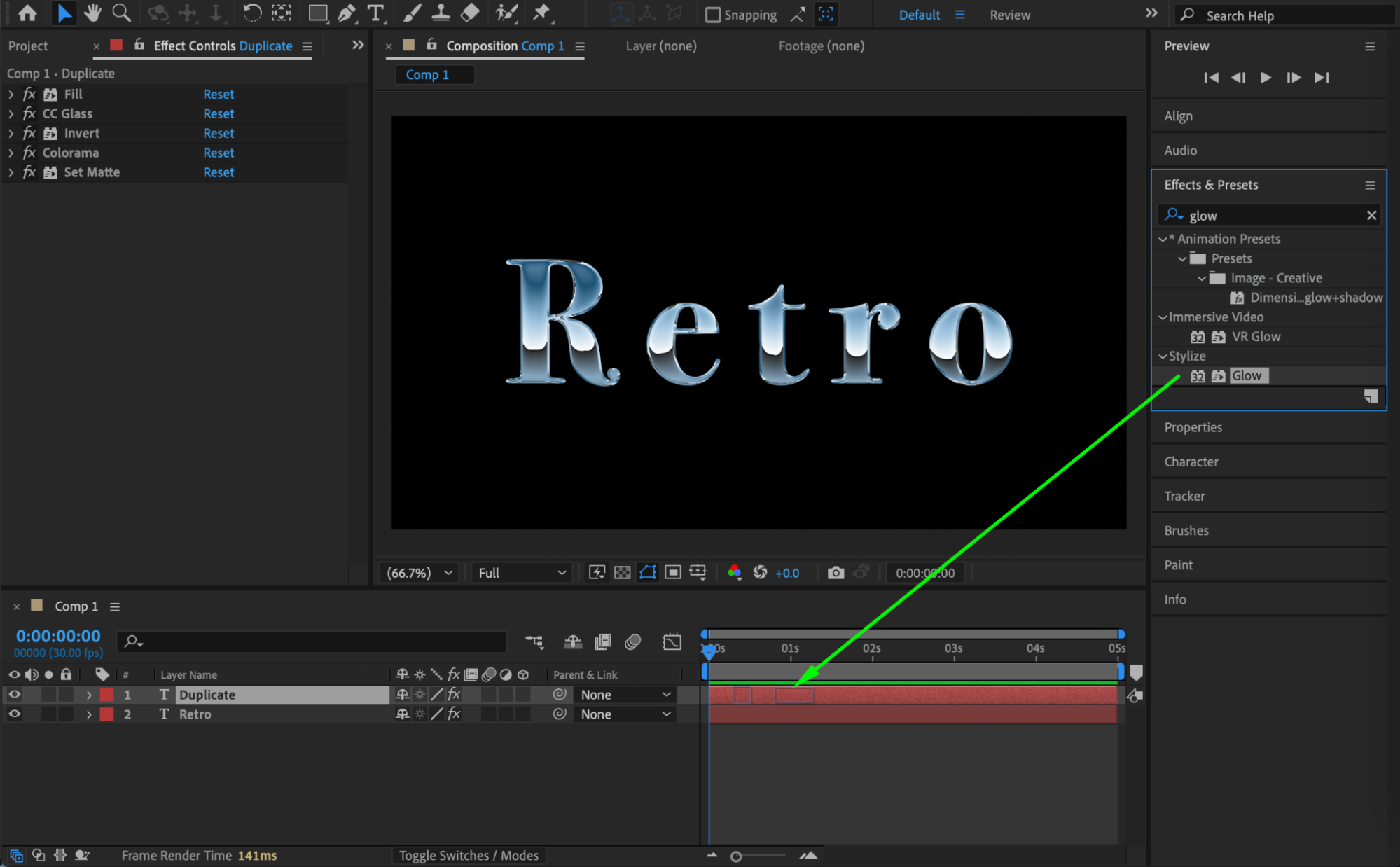
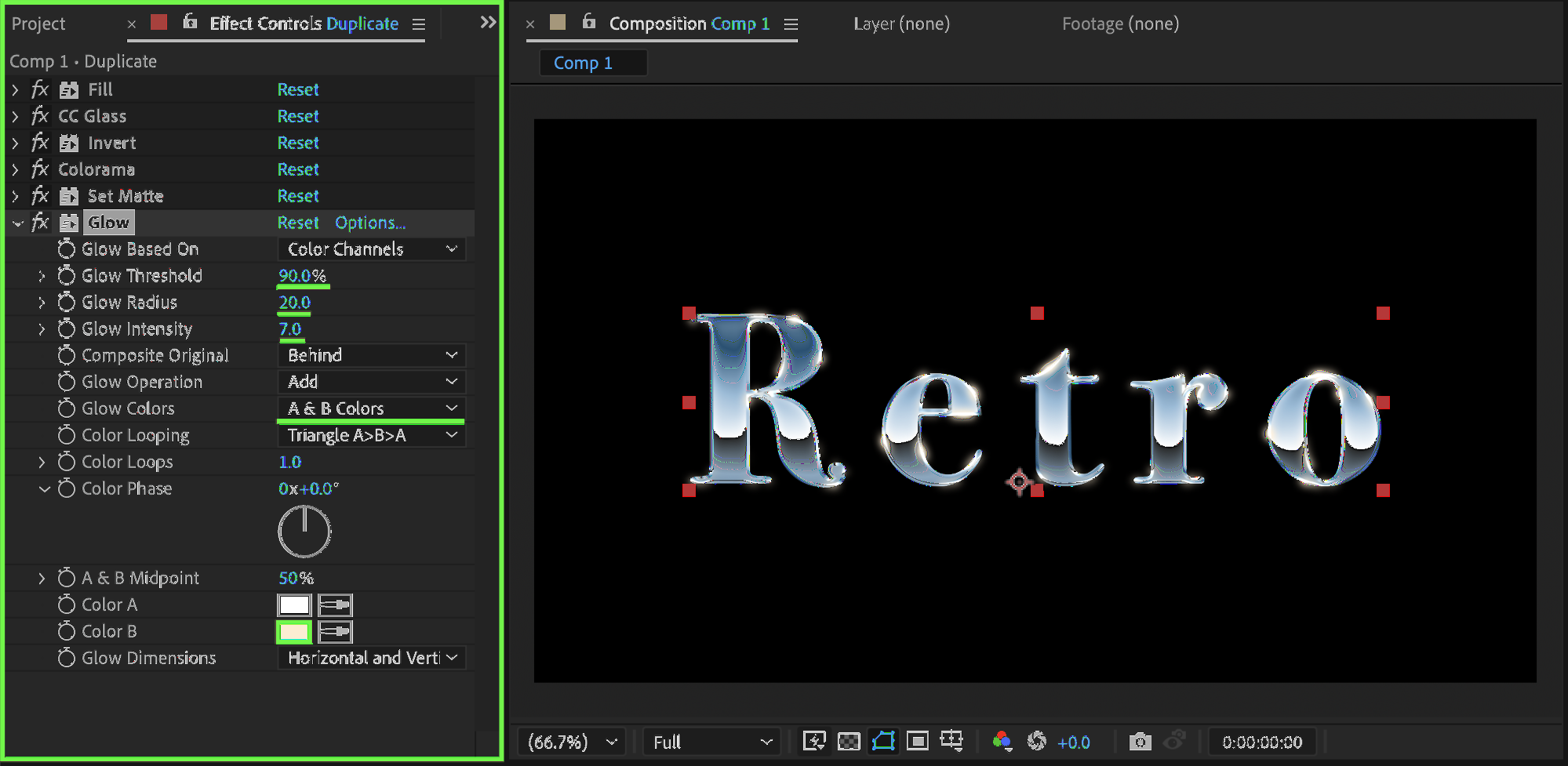 Step 14: Animate the Lighting
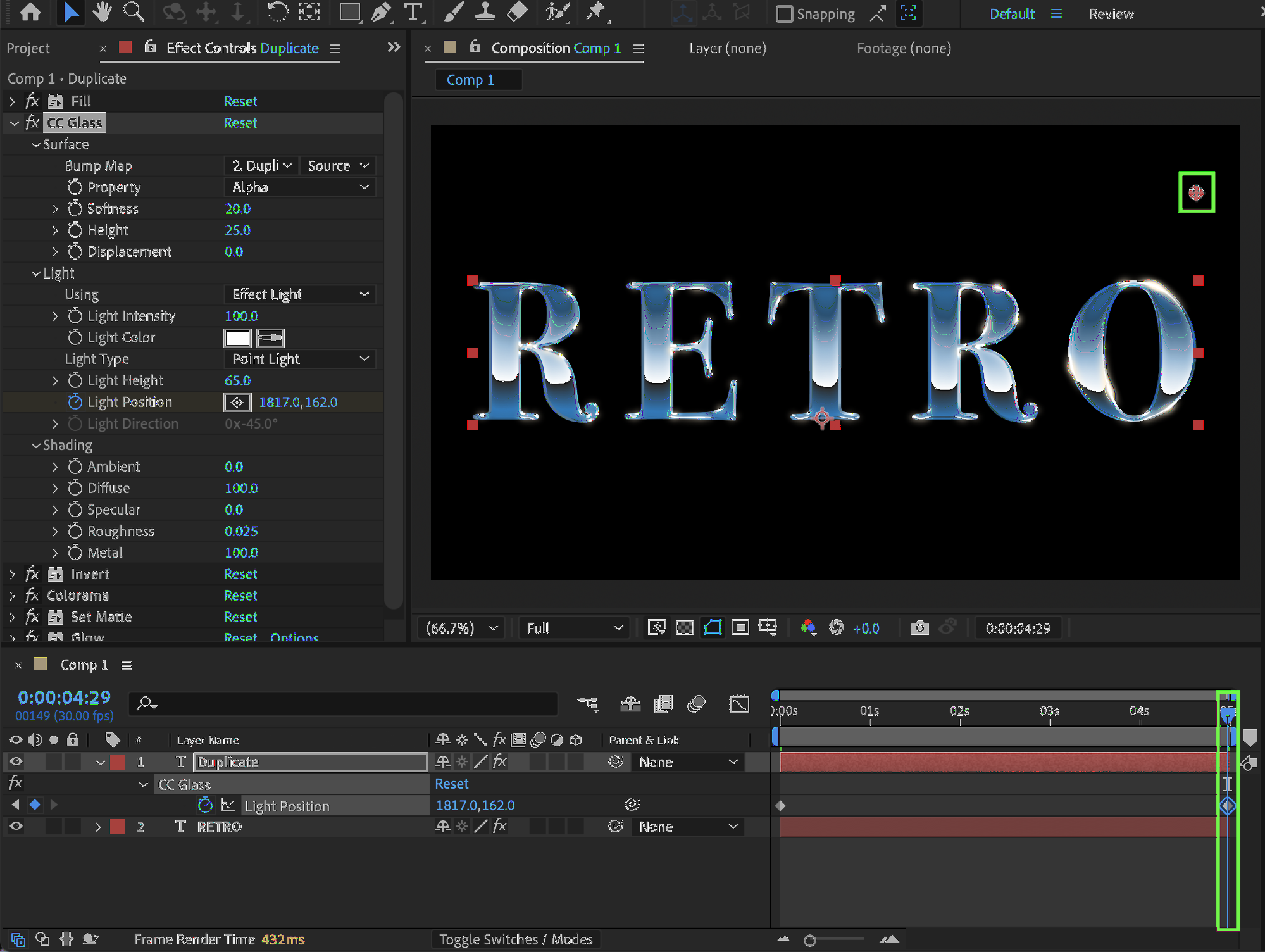
To add dynamic action, animate the Light Position in CC Glass:
At the start: place the light above the left side of the text
At the end: move it above the right side of the text
This creates a sweeping metallic light reflection.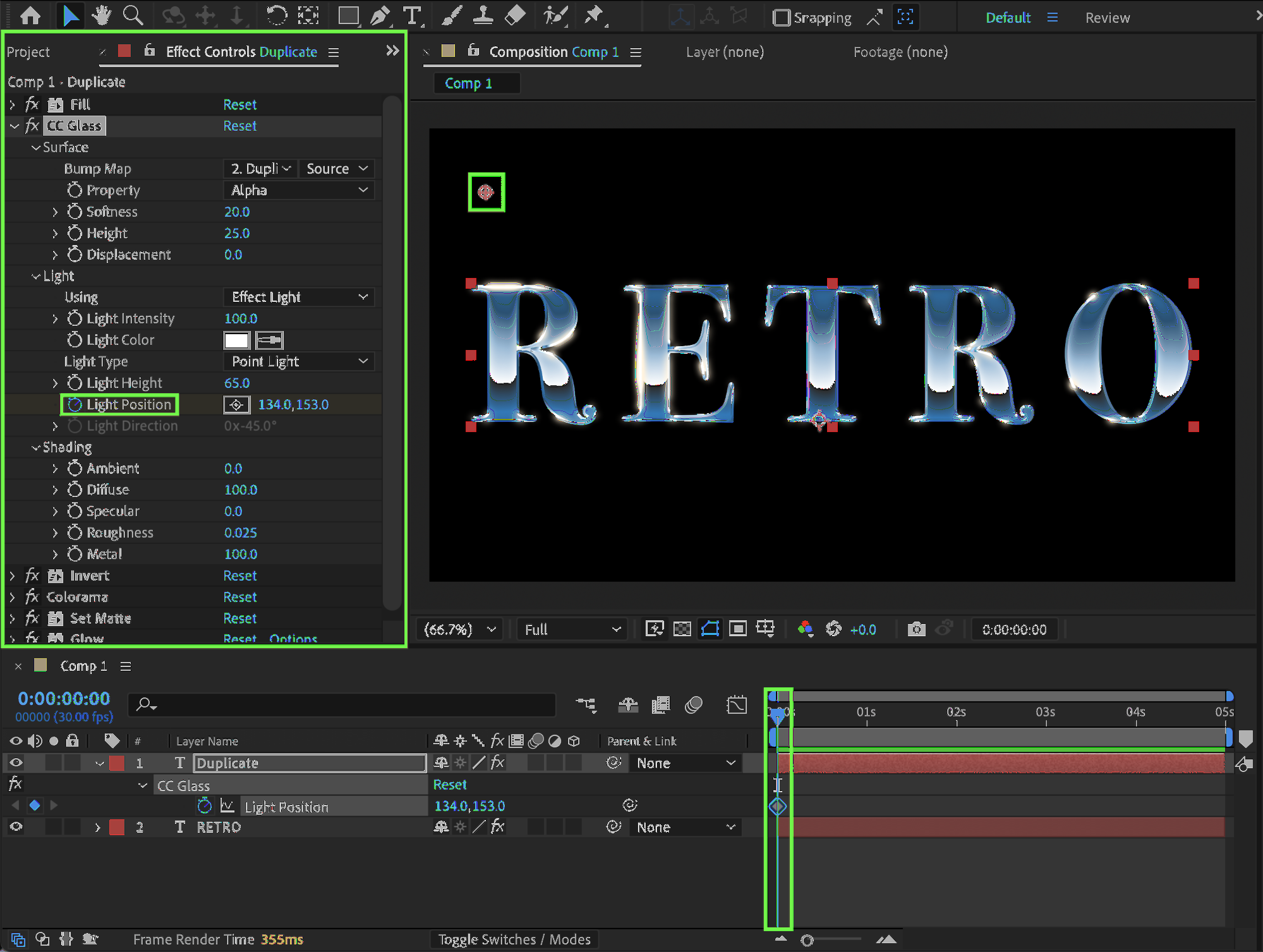
 Step 15: Preview the Result
Preview the composition and fine-tune gradients, glow, and lighting until the metal title feels bold, dramatic, and authentically 80s.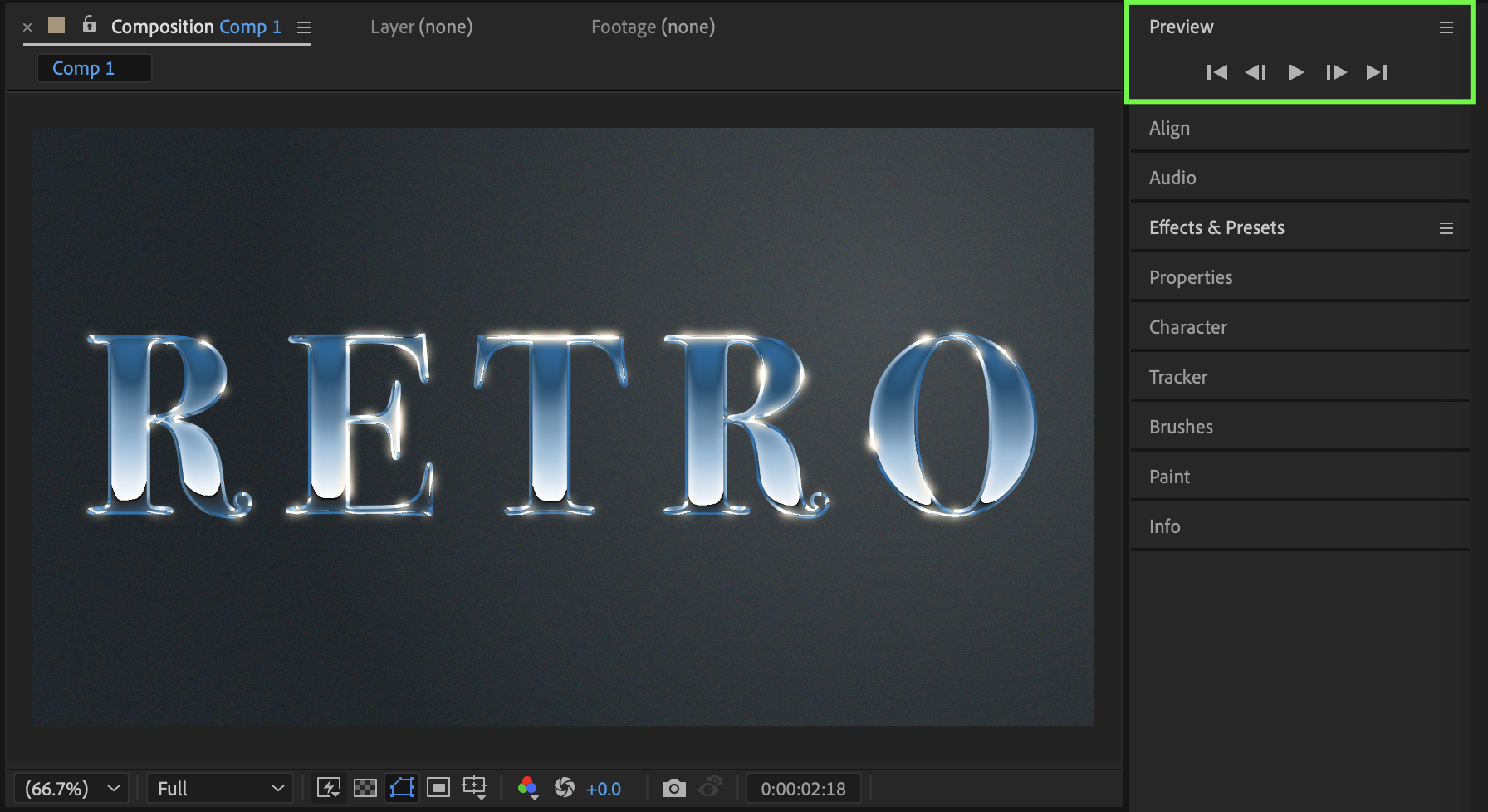
Conclusion
By combining Gradient Ramp, Colorama, CC Glass, and animated lighting, you can recreate a powerful 80s metal title effect in After Effects. This style is perfect for retro intros, rock branding, and cinematic title sequences.
Our Bestsellers
Our Bestsellers


