
How to Make a Retro 80s Style Title in After Effects
Introduction
The 1980s are famous for their vibrant, neon-colored visuals and bold title animations. In this tutorial, you’ll learn how to recreate that iconic 80s look in Adobe After Effects. By combining text animation, echo effects, and color channel separation, you can easily design a stylish retro title for your projects.
Step 1: Create a New Composition
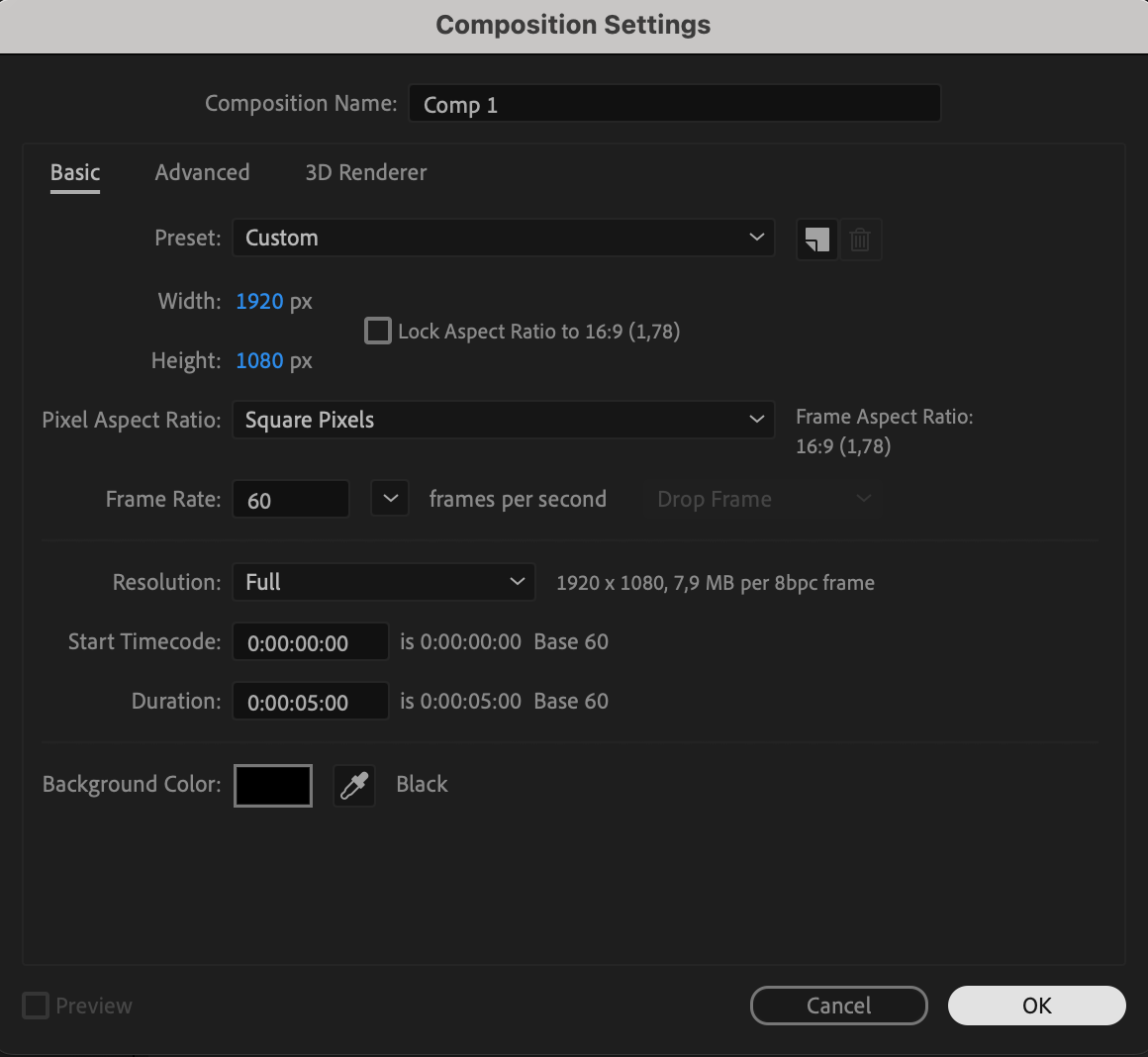
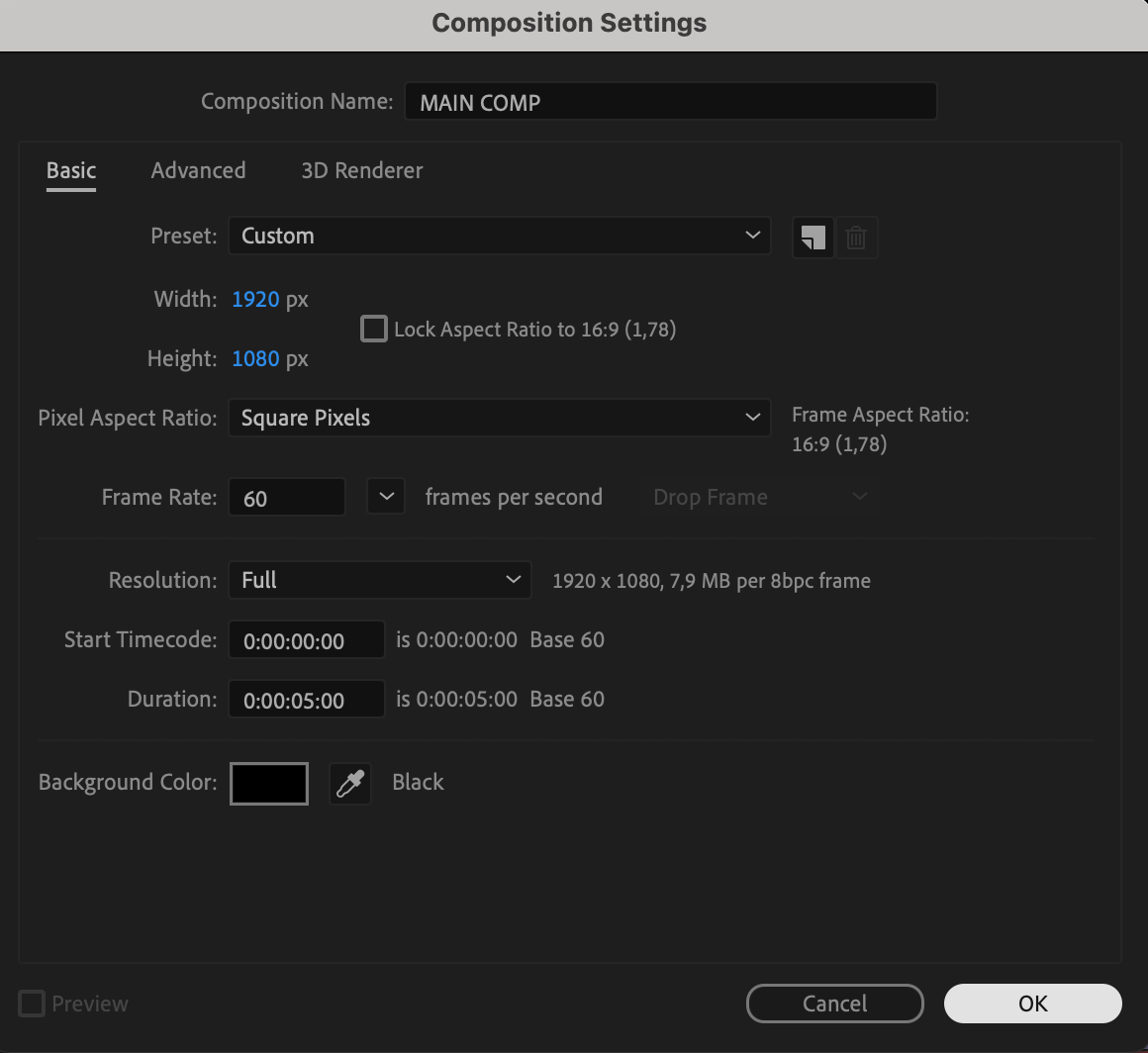
Start by creating a new composition. Go to Composition > New Composition and set your desired resolution and frame rate. This will be the base for your 80s-style title.
 Step 2: Create Your Text
Select the Type Tool (Ctrl/Cmd + T) and click inside your composition to type your title. Use the Properties and Paragraph panels to customize the font, size, color, and alignment of your text.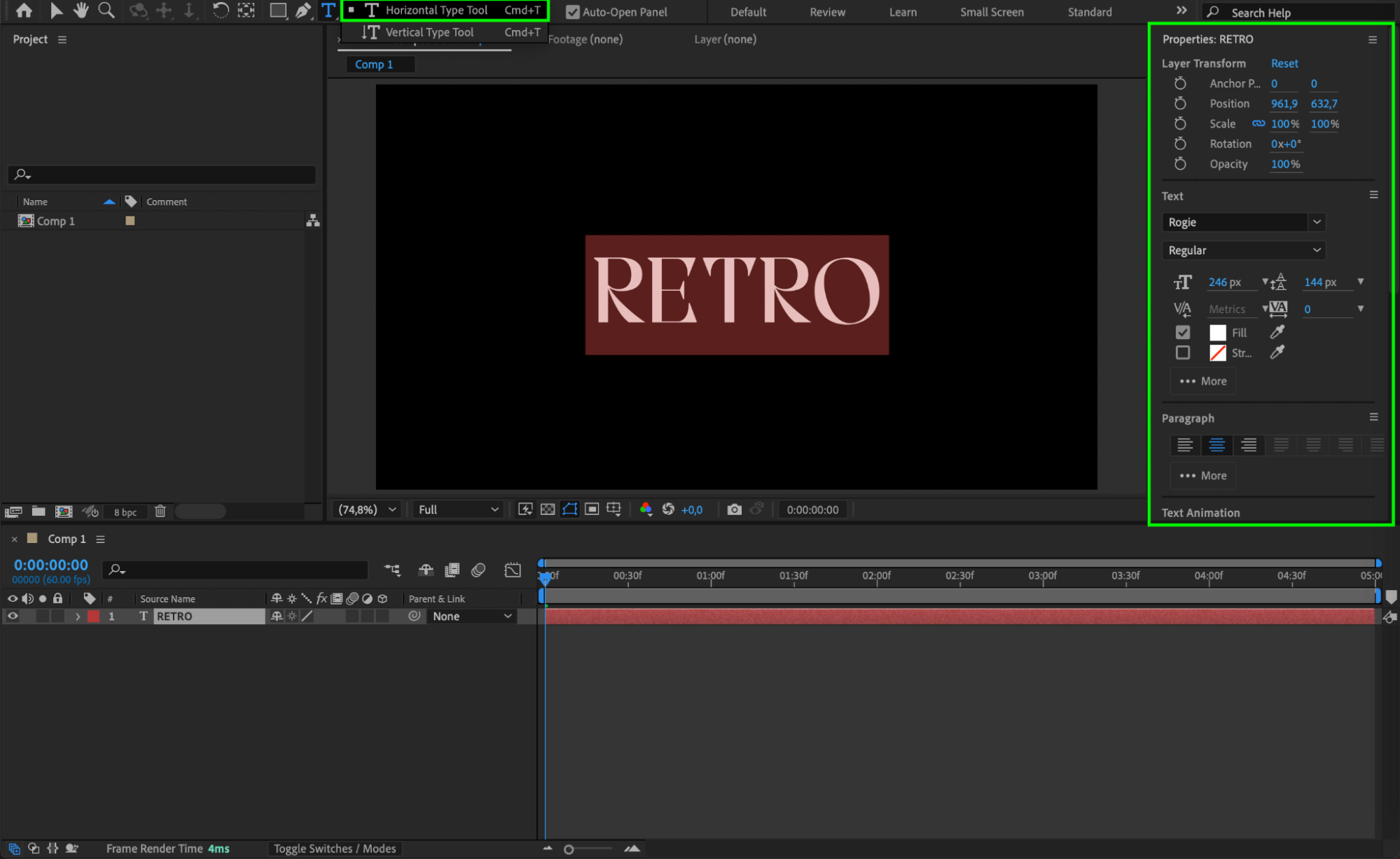 Step 3: Animate the Text Position
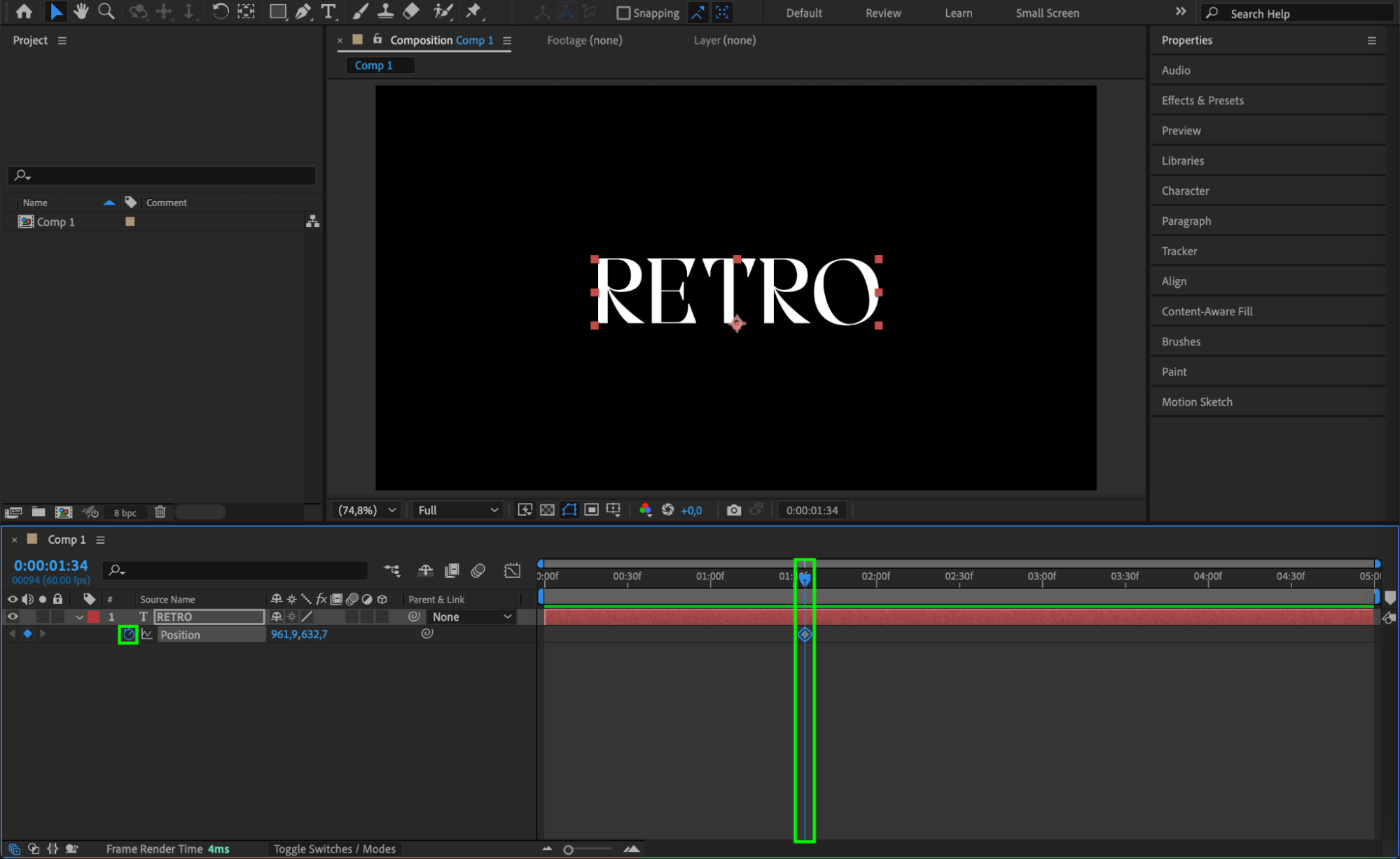
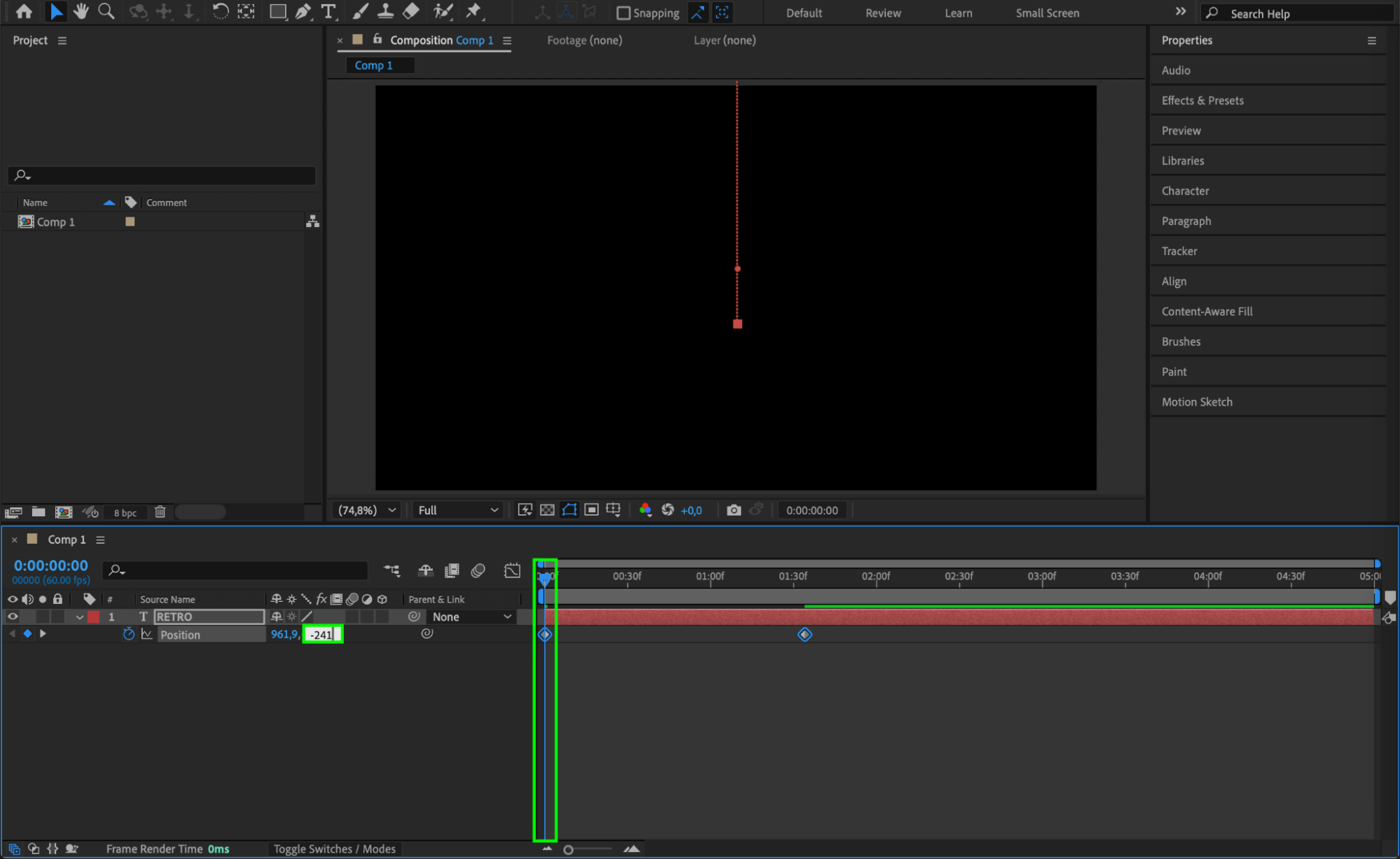
Animate the position of the text to give it dynamic movement. Move the CTI (Current Time Indicator) to the middle of the timeline, select the text layer, and click the stopwatch next to Position to create a keyframe. Then move the CTI to the beginning and adjust the text position so that it starts off-screen.
Step 4: Apply Easy Ease and Graph Editor
Select both position keyframes, right-click and choose Keyframe Assistant > Easy Ease In. Then open the Graph Editor and adjust the speed graph to create a smoother, more natural motion for your text animation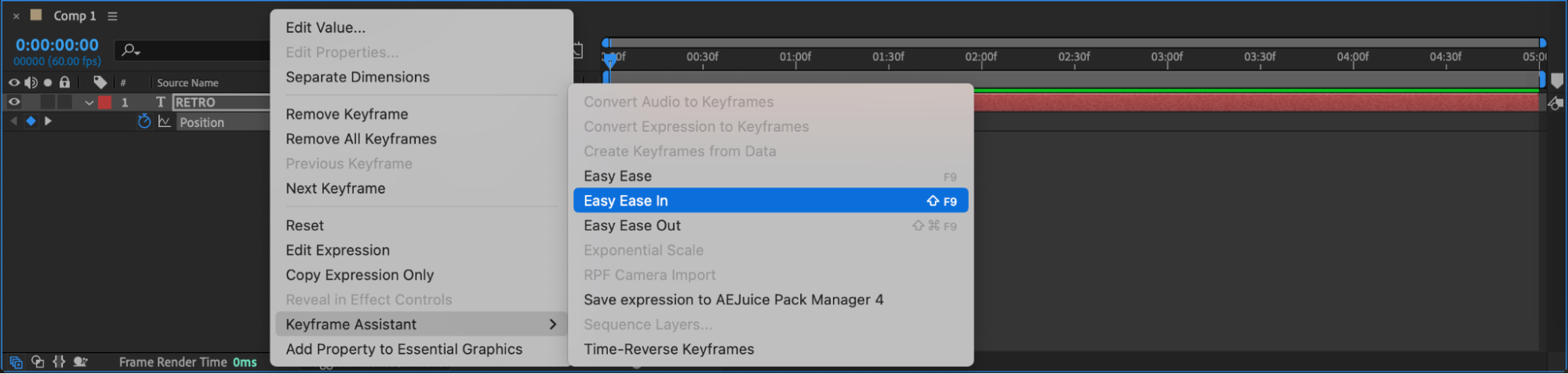
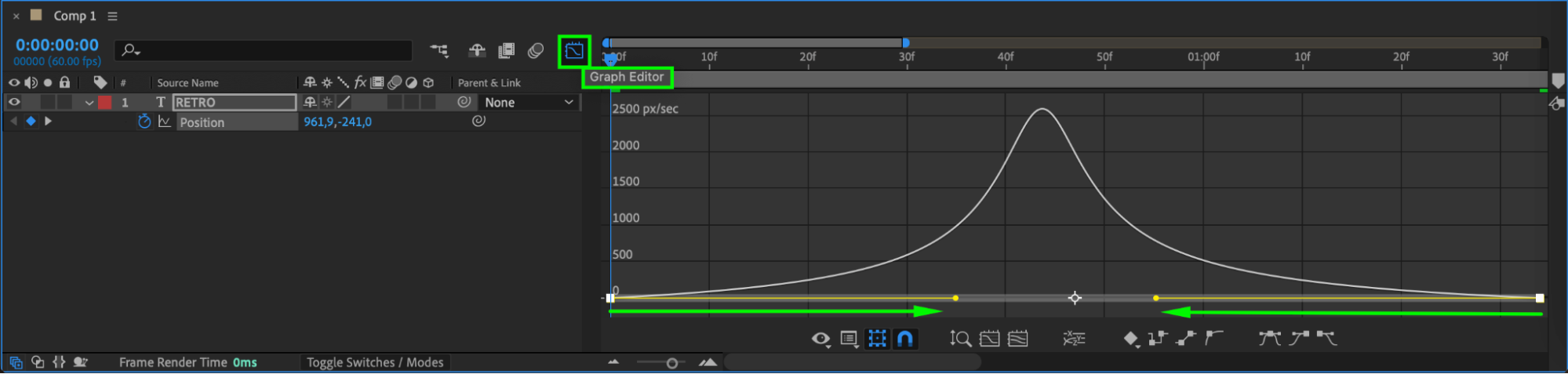 Step 5: Add an Adjustment Layer
Go to Layer > New > Adjustment Layer to create a layer that will hold your visual effects without affecting the original text directly.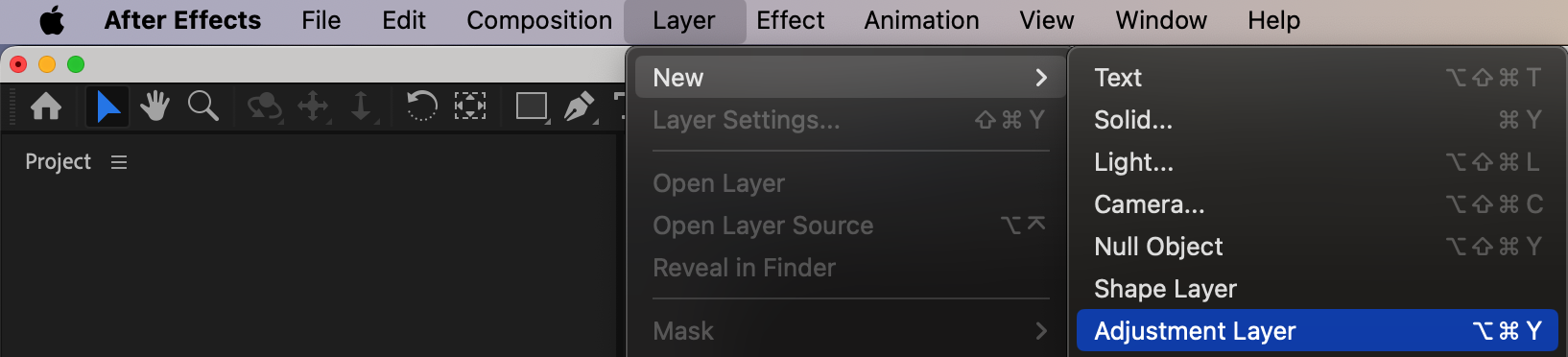 Step 6: Add the Echo Effect
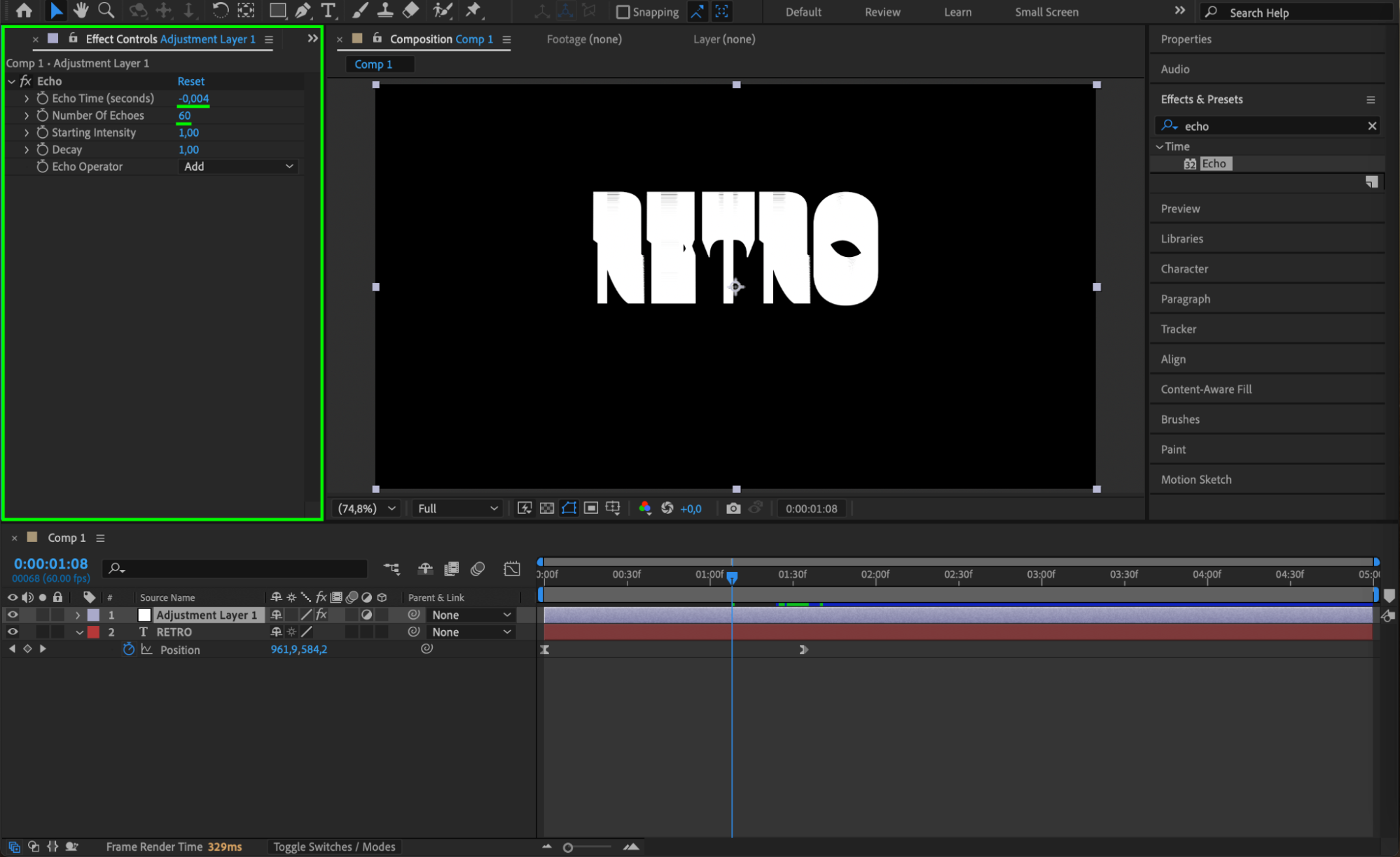
Drag the Echo effect from the Effects & Presets panel onto your adjustment layer. Set Echo Time to -0.004 and Number of Echoes to 60. This creates a trailing motion blur that feels very retro.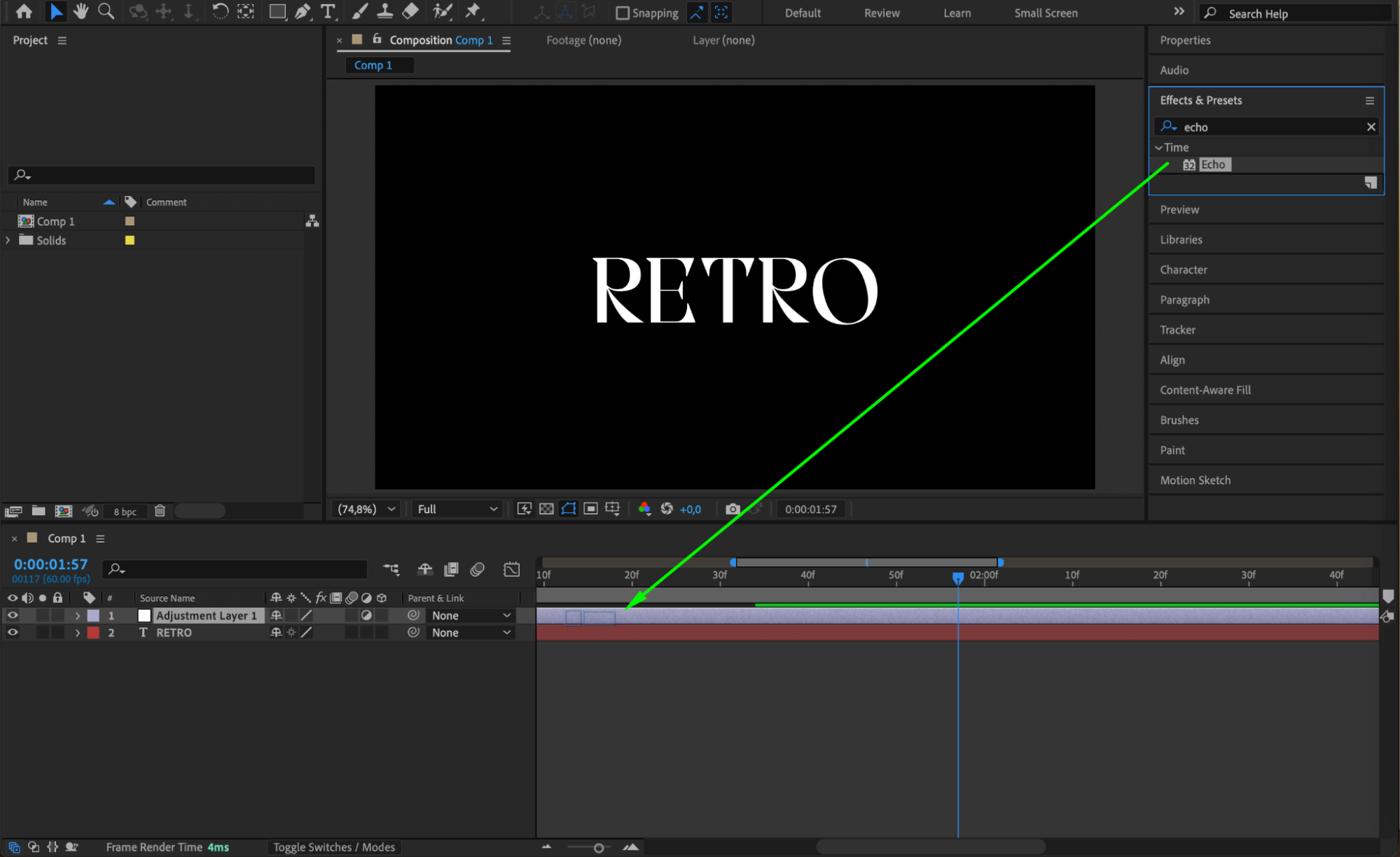
 Step 7: Create a Main Composition
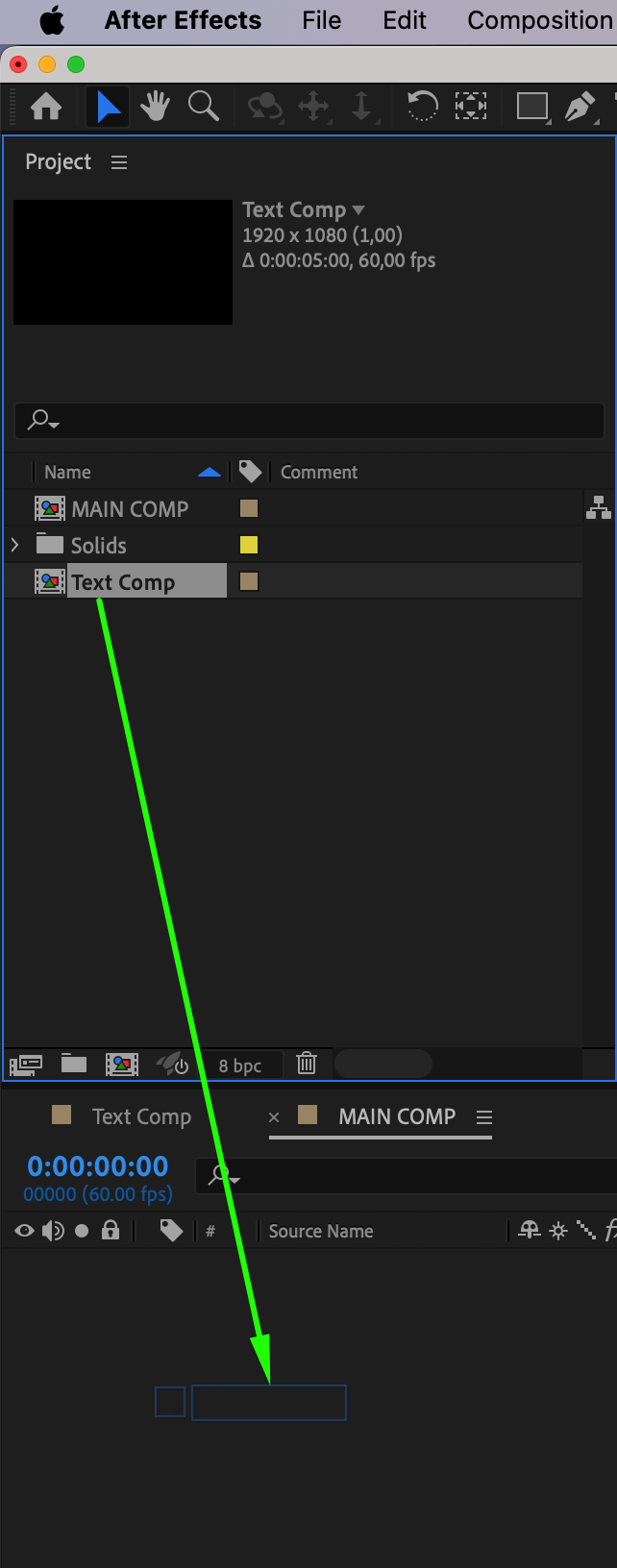
Create another new composition and name it Main Comp. Drag your original composition into this new comp. This allows you to apply additional effects without altering the base animation.
 Step 8: Duplicate the Composition
Duplicate the composition twice (Ctrl/Cmd + D) so you have three layers in total. These will be used for the RGB color split effect.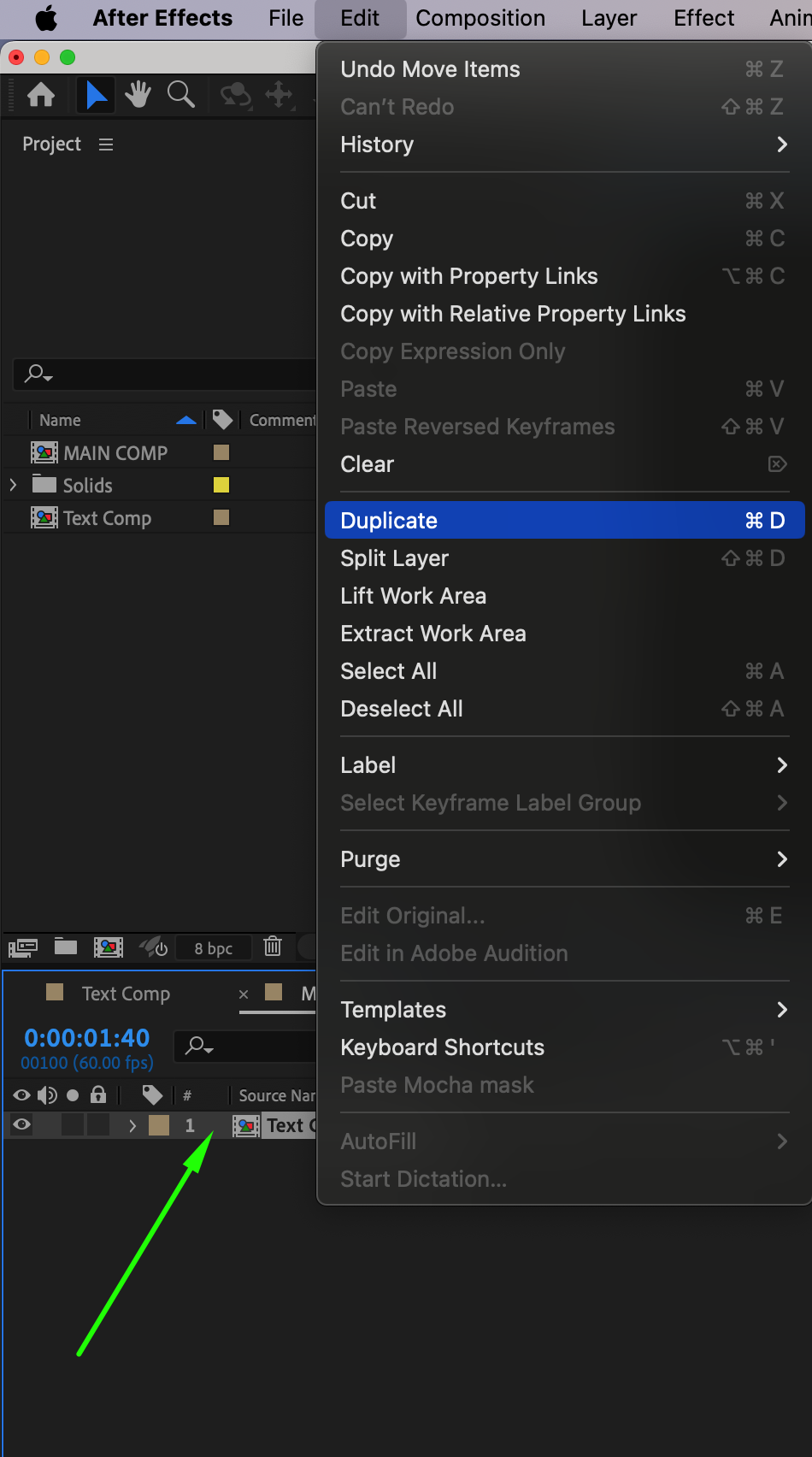 Step 9: Apply Shift Channels to Each Layer
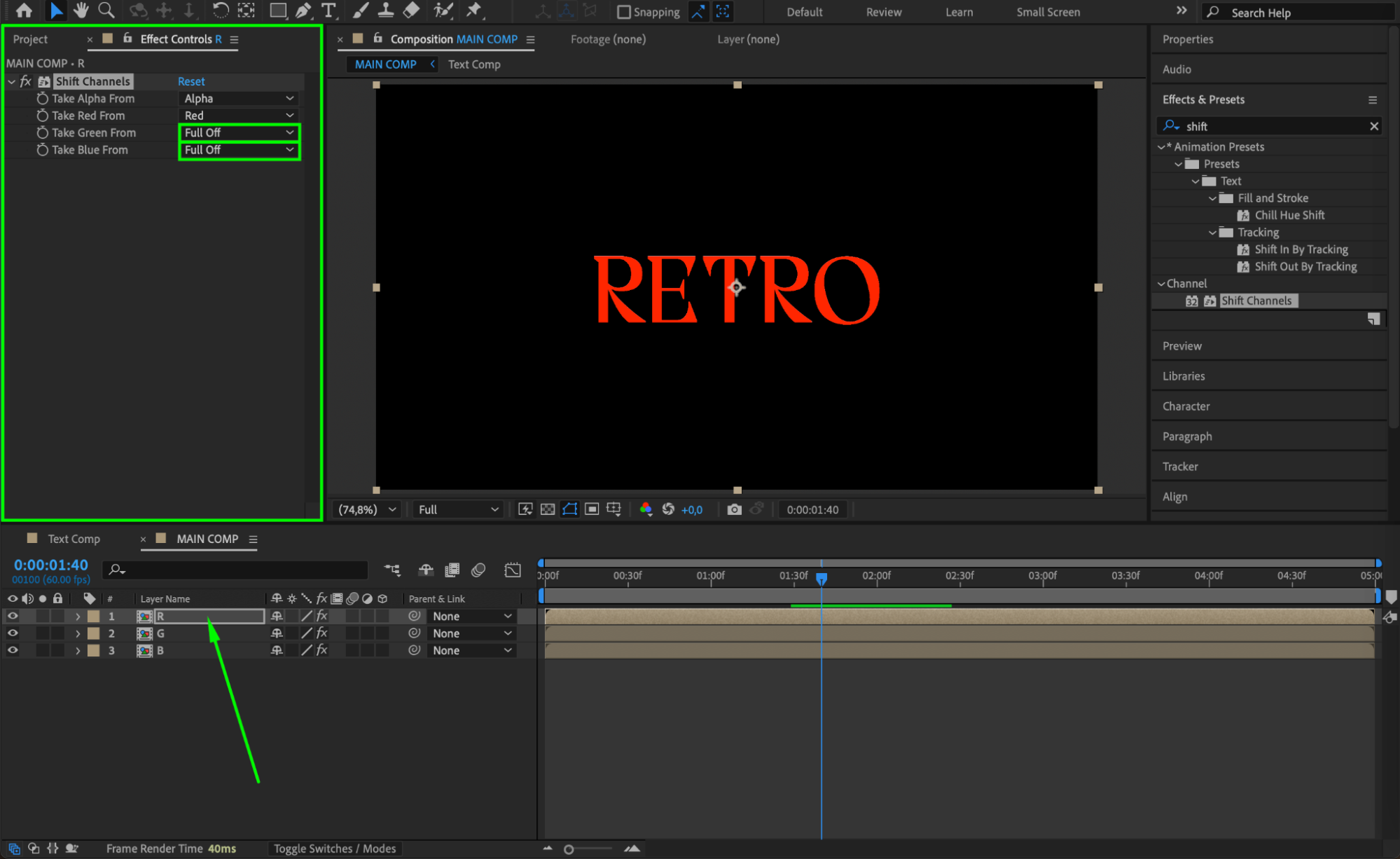
Apply the Shift Channels effect to all three duplicated layers. Rename the layers to R, G, and B.
For the R layer: Set Take Red From: Red, and set Take Green From and Take Blue From to Full Off.
For the G layer: Set Take Green From: Green, others to Full Off.
For the B layer: Set Take Blue From: Blue, others to Full Off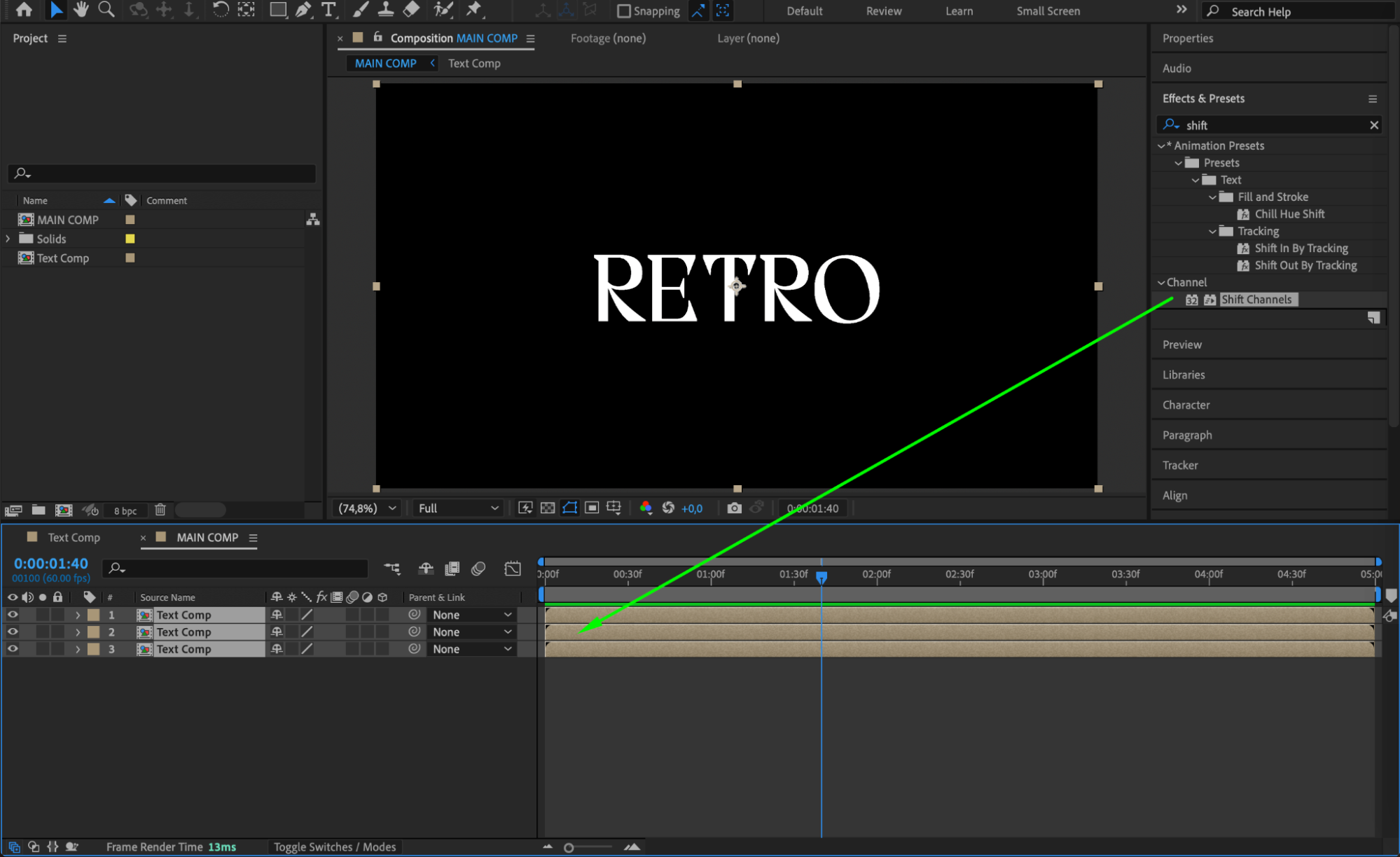
Step 10: Change Blending Modes to Add
Set the Blending Mode for all three RGB layers to Add. This will combine the colors and create a glowing, vibrant look typical of the 80s style.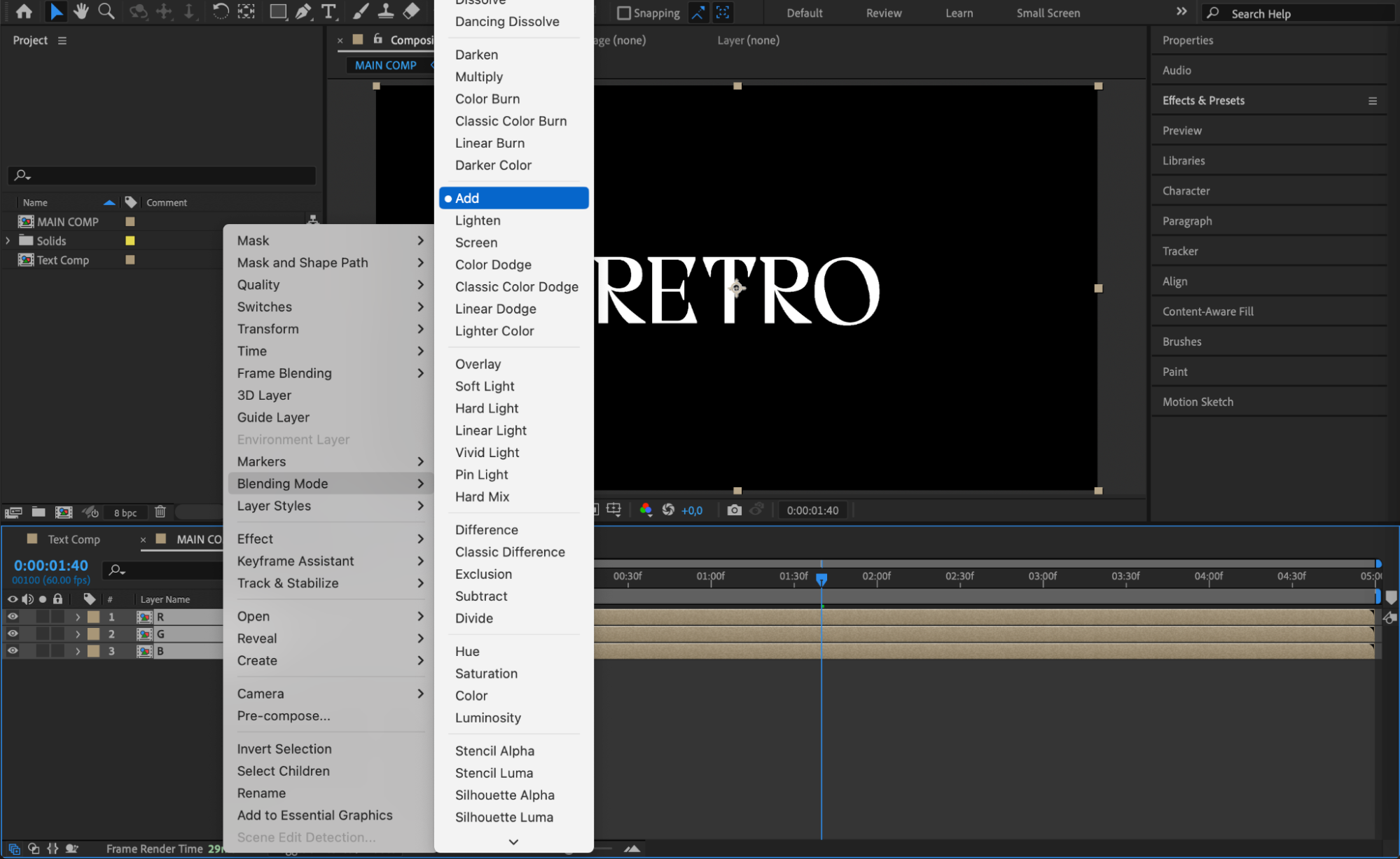 Step 11: Offset Layers in the Timeline
Move each RGB layer slightly in time by dragging them a few frames forward or backward. This creates a cool glitchy separation effect between the color channels.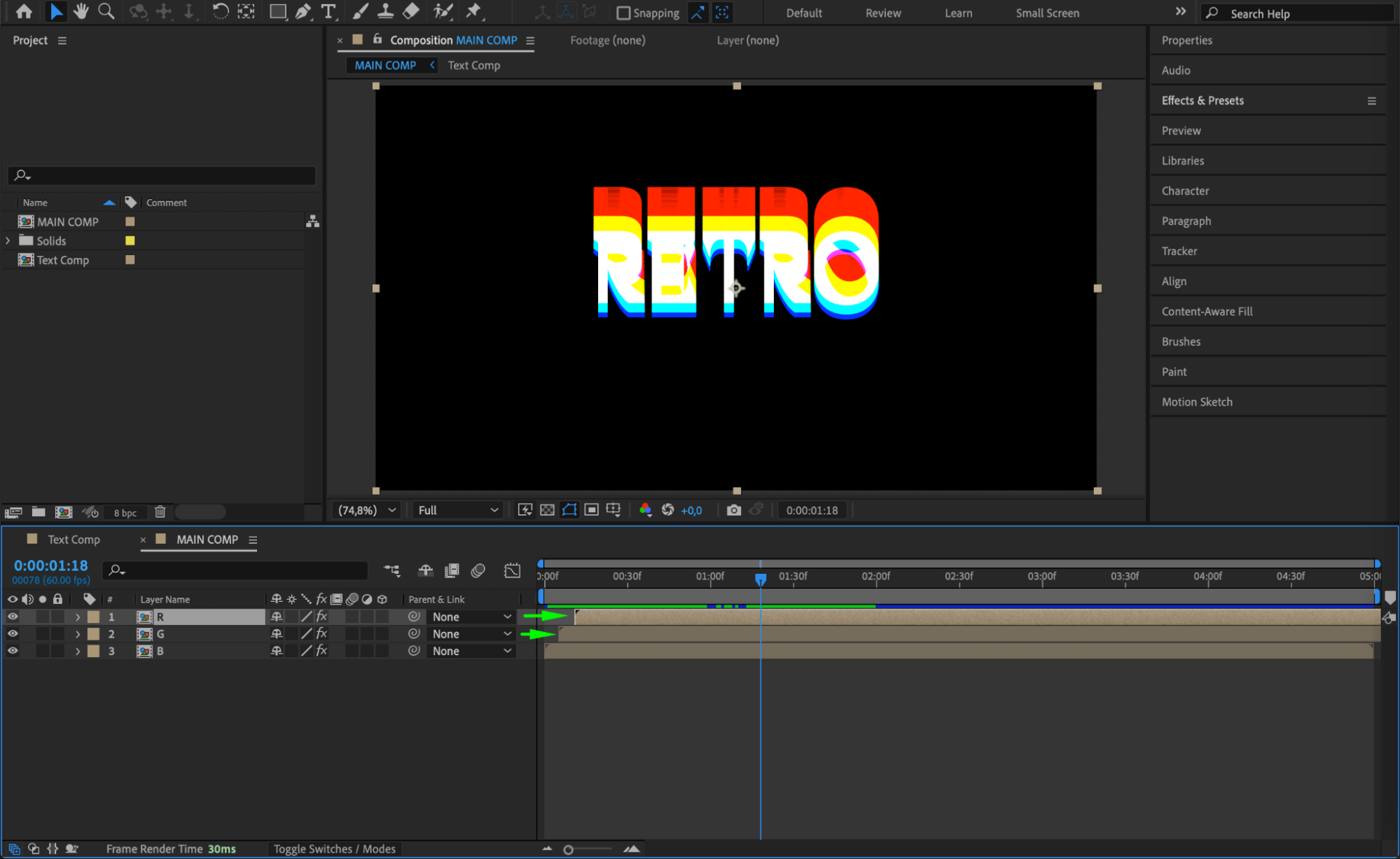 Step 12: Add Another Adjustment Layer
Create another Adjustment Layer by going to Layer > New > Adjustment Layer. This will be used for final color and texture enhancements.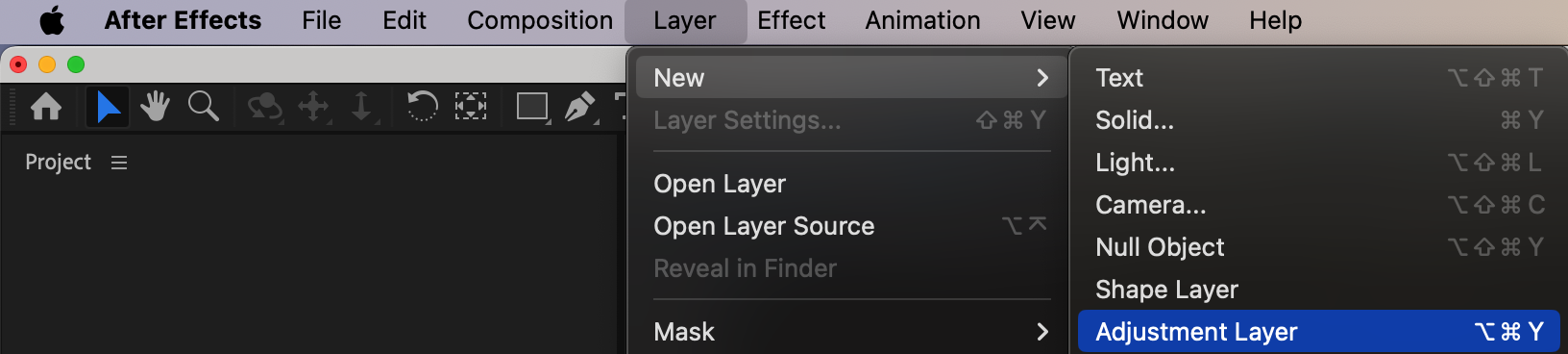 Step 13: Apply Final Effects
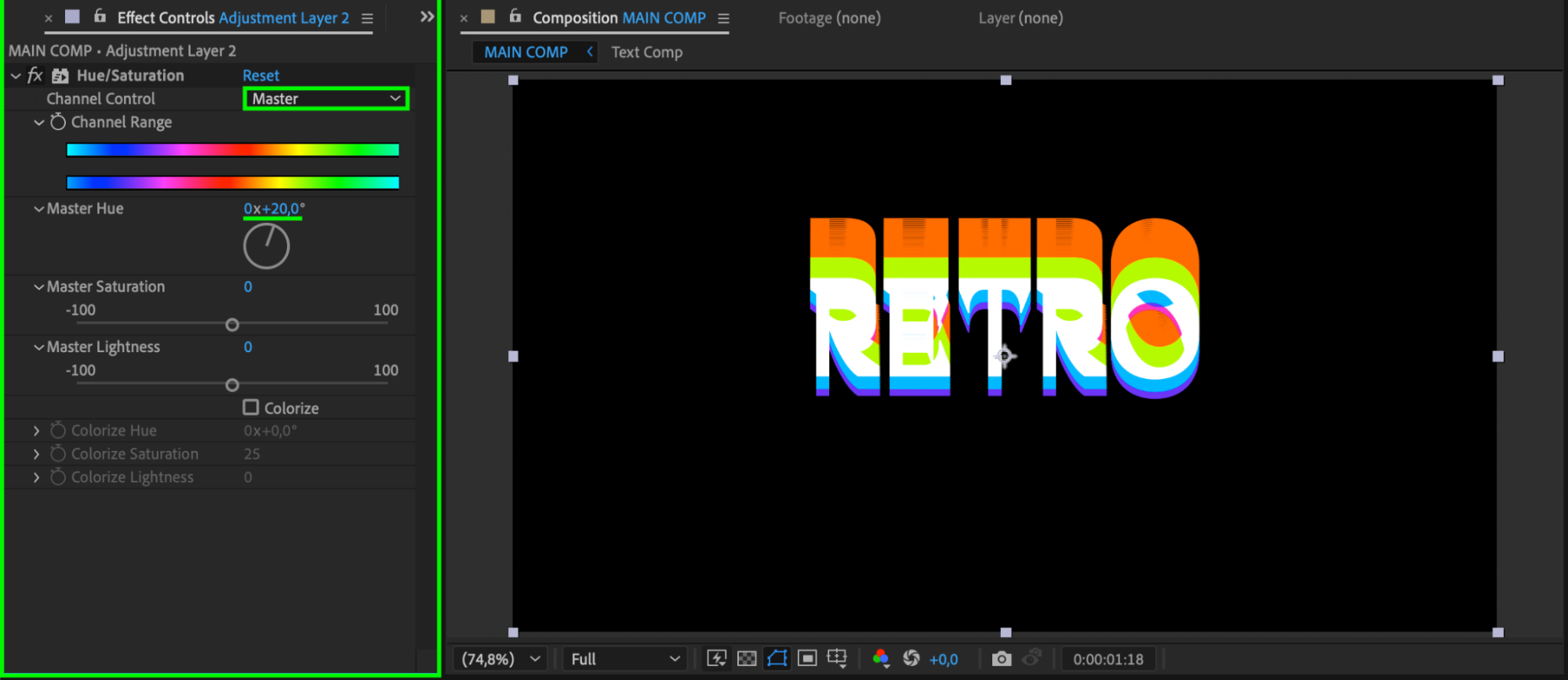
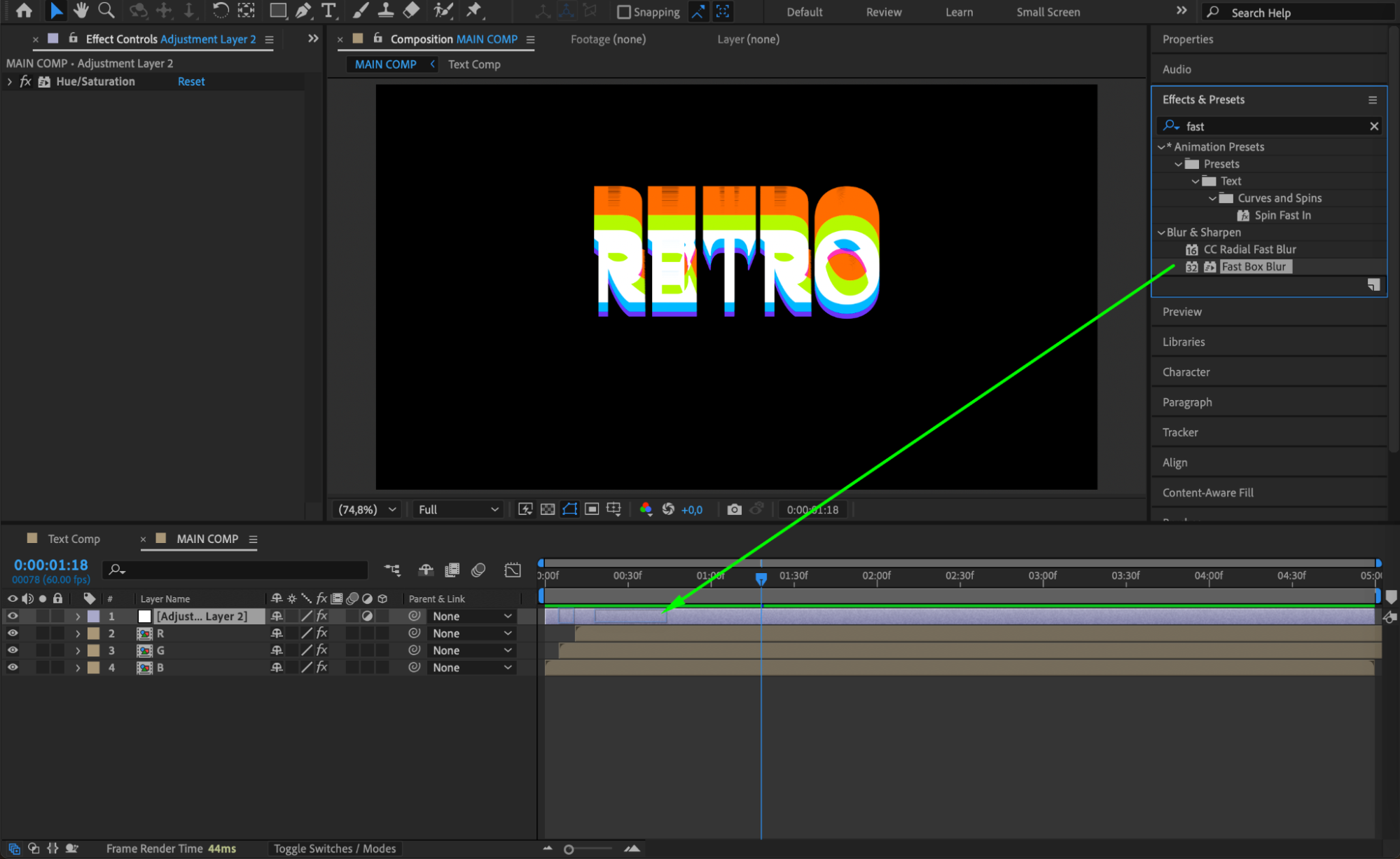
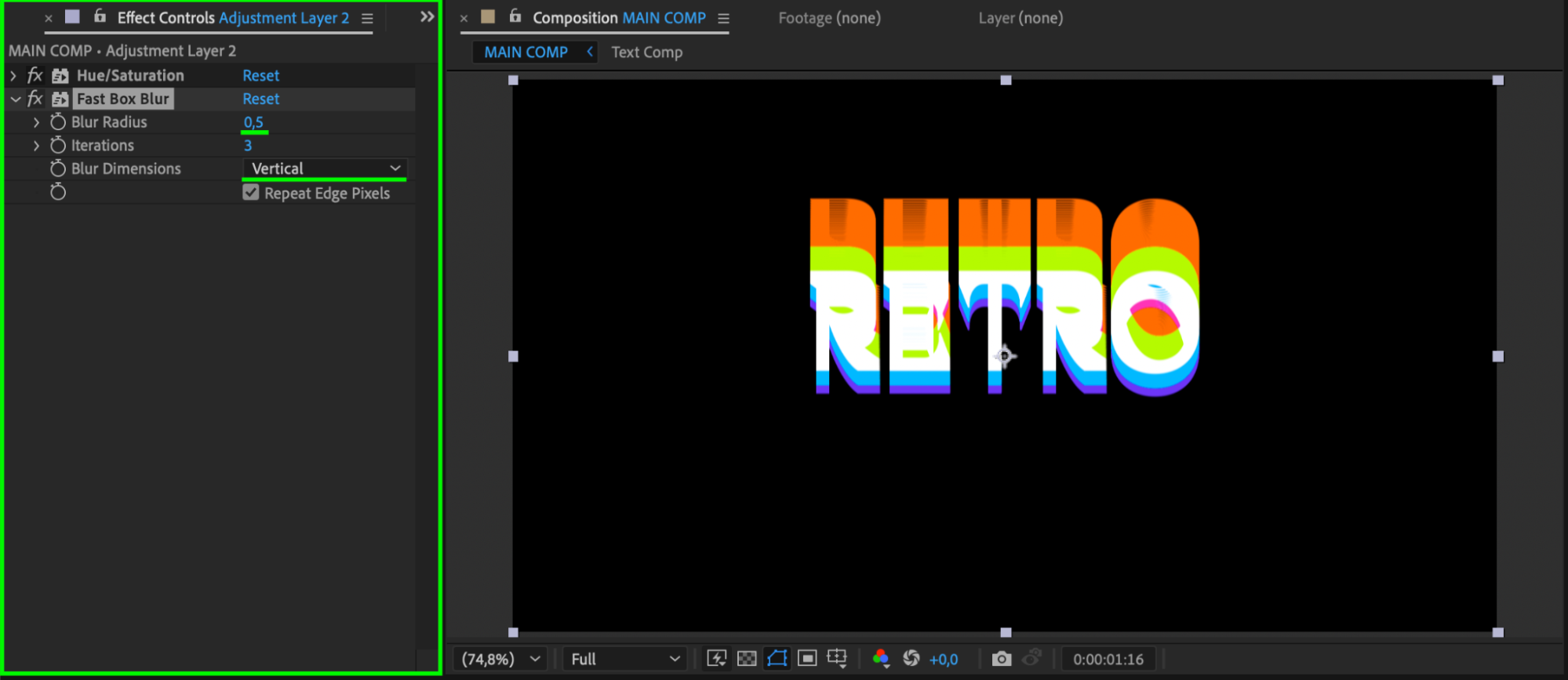
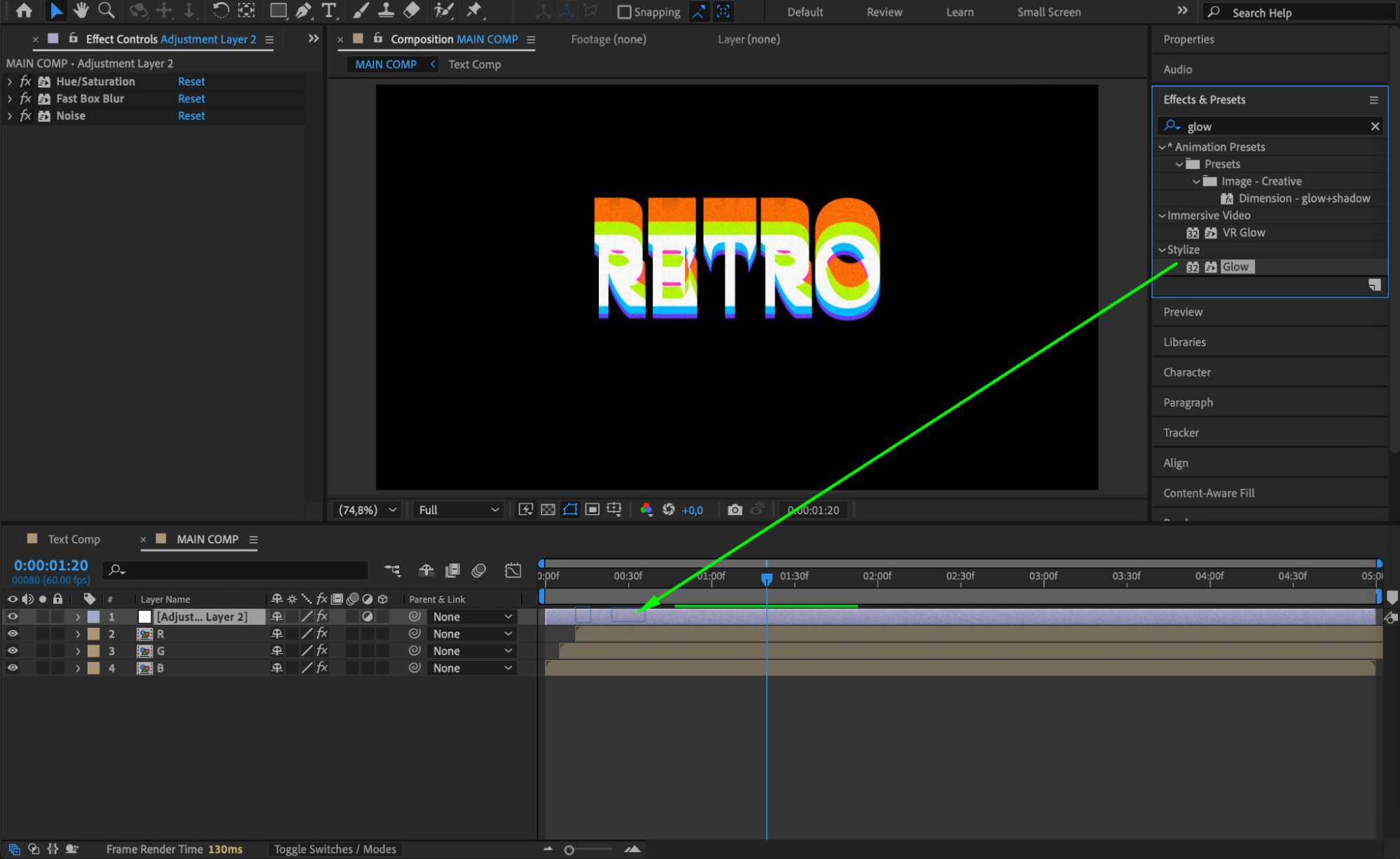
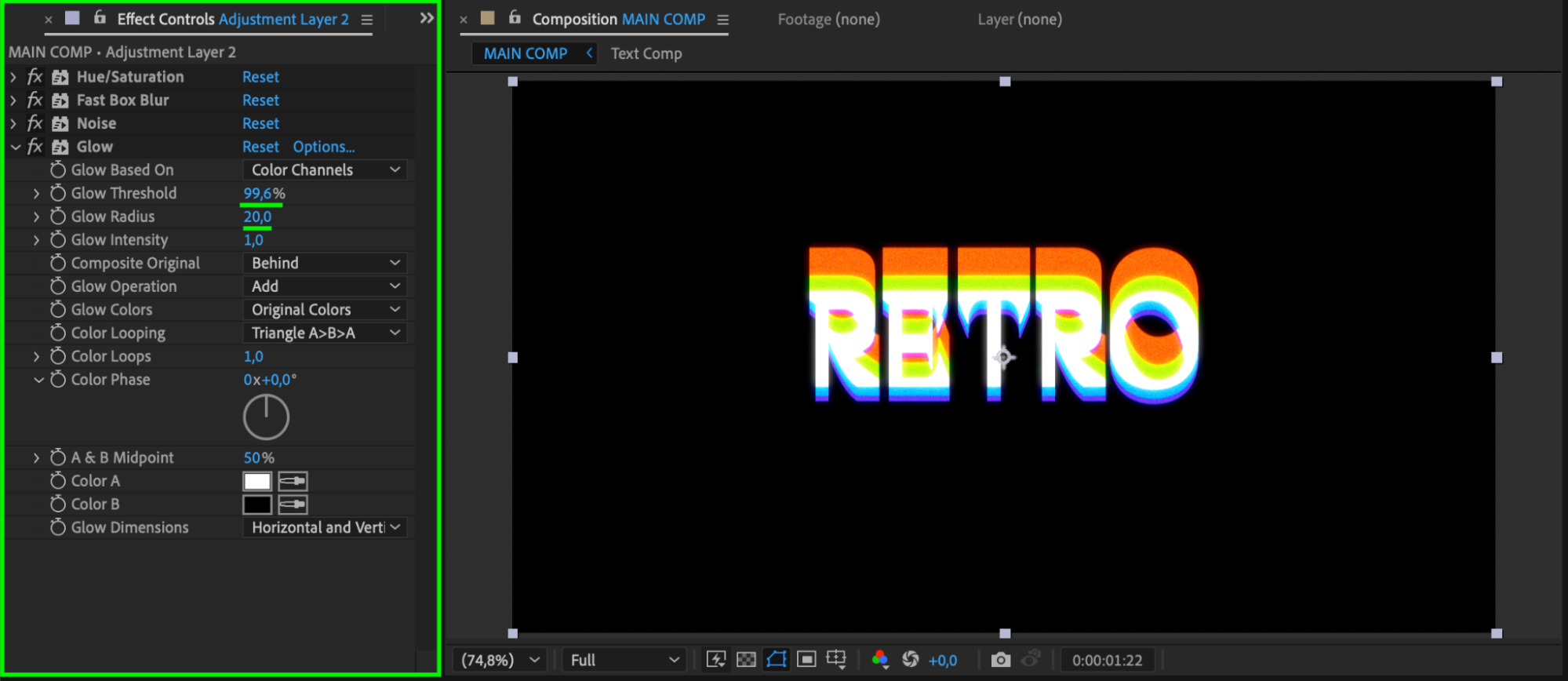
On this adjustment layer, add effects like Hue/Saturation, Fast Box Blur, Noise, and Glow. Adjust the settings to amplify the retro look – such as slightly boosting saturation, softening the image, and adding a subtle noise texture.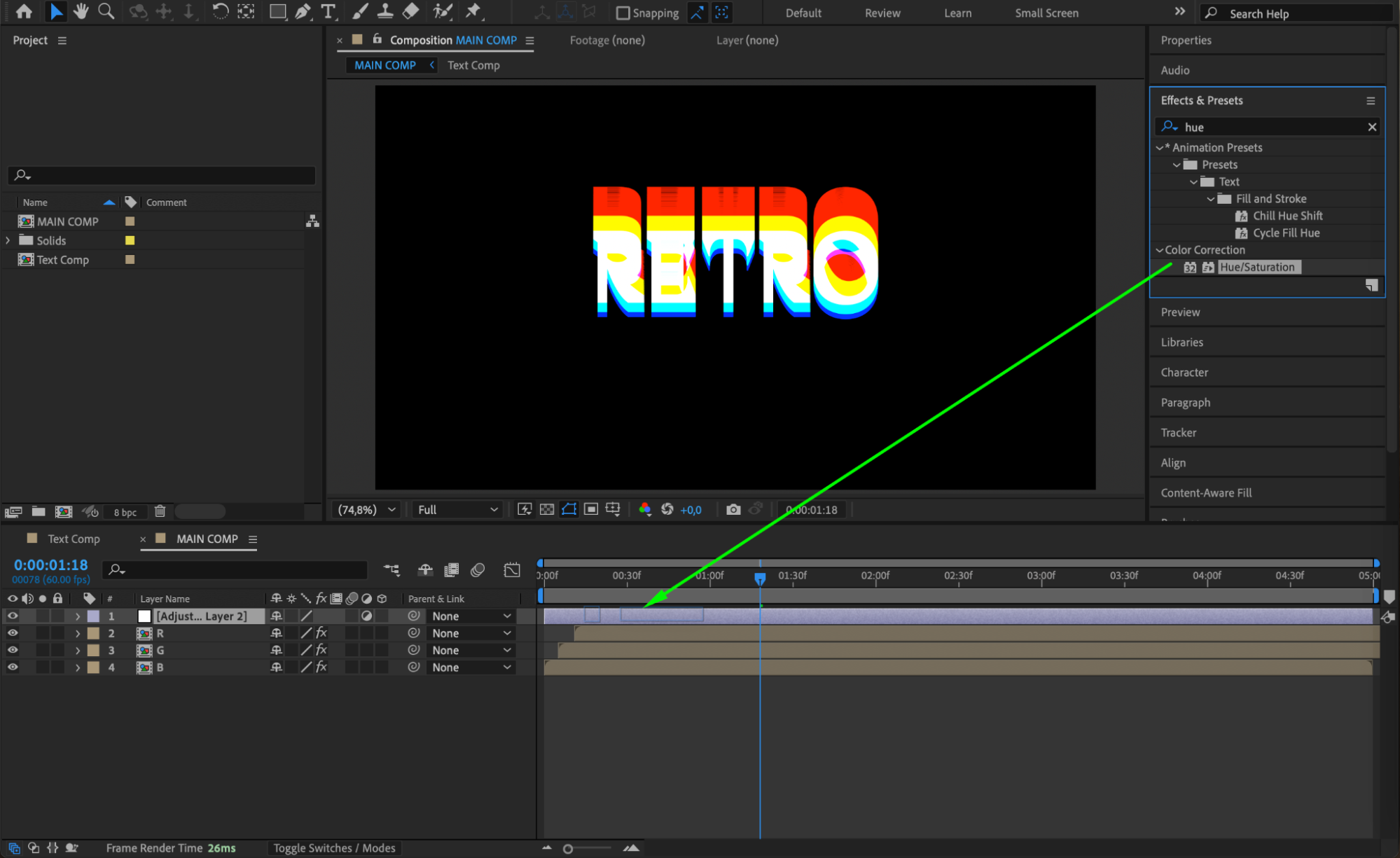
 Step 14: Preview Your Animation
Press the spacebar to preview your 80s-style title animation. Check the movement, echo effect, RGB split, and overall color grading. If needed, adjust the timing, effects settings, or layer positions to perfect the final look.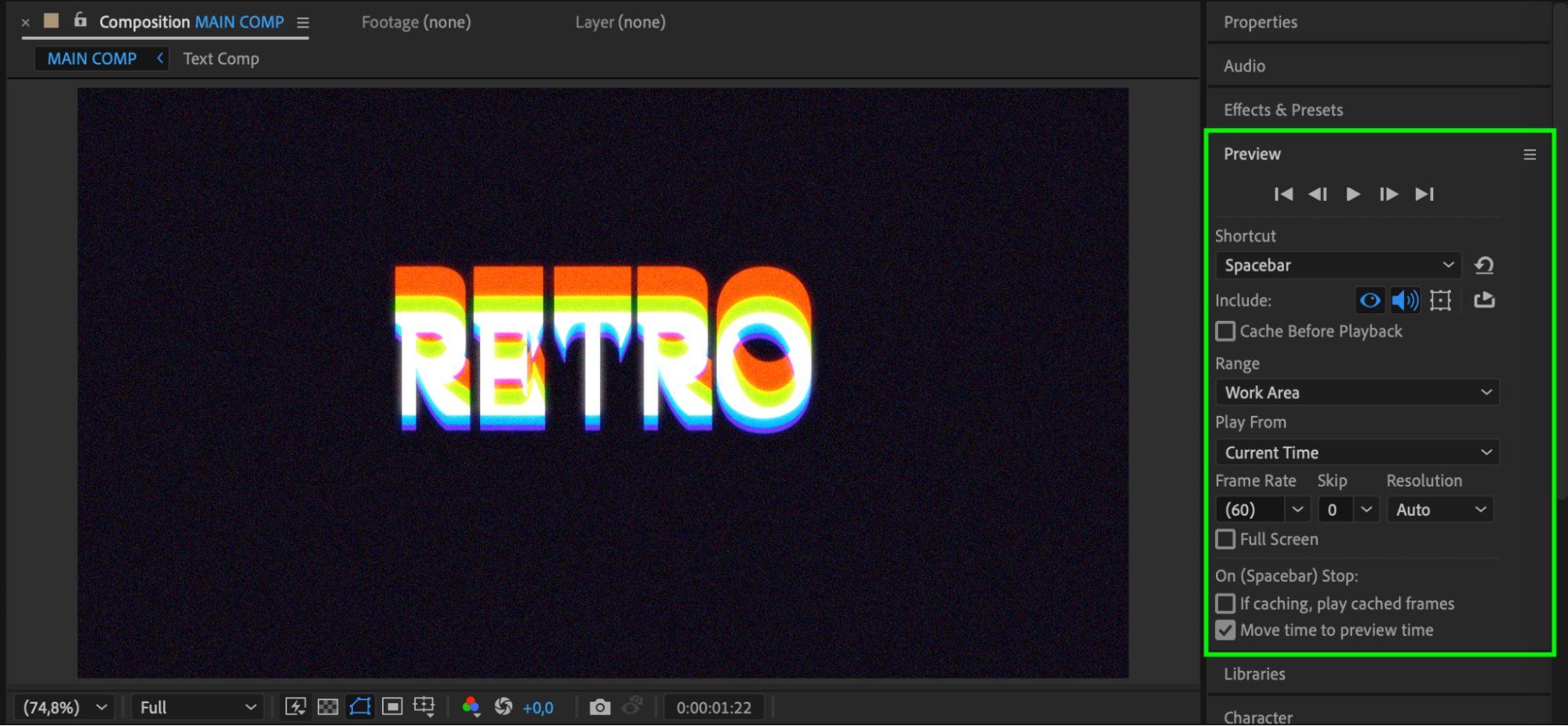
Conclusion
By combining position animation, the Echo effect, RGB splitting, and final color treatments, you can easily create an energetic 80s-style title in After Effects. This technique is perfect for music videos, event promos, and any project that needs a retro touch.
Our Bestsellers
Our Bestsellers


