
How to Animate Ink Splatter Effects in After Effects
Introduction to Ink Splatter Animation
Ink splatters are a great way to add an artistic or dramatic look to your motion graphics. In this tutorial, you’ll learn how to create a simple but stylized ink splatter animation using basic shape tools and built-in effects in Adobe After Effects.
Step 1: Create a New Composition
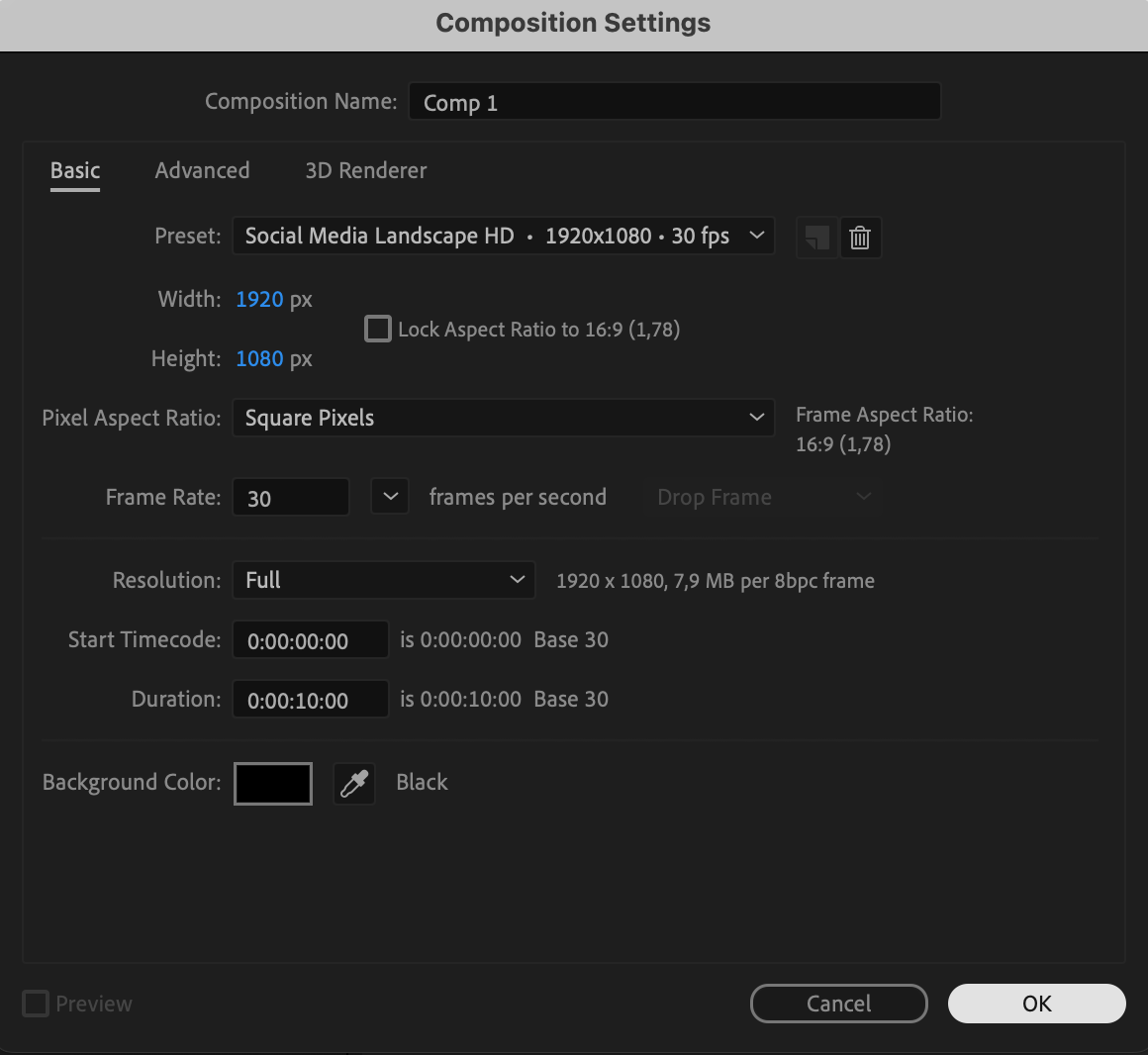
Start by creating a new composition. Go to the top menu and click Composition > New Composition. Set your resolution, duration, and frame rate according to your project needs. Click OK to create the comp.
Step 2: Draw a White Circle
Select the Ellipse Tool (Q) from the toolbar. Hold Ctrl/Cmd + Shift as you click and drag to draw a perfect white circle. Make sure the Fill is set to white and the Stroke is set to none. This will serve as the base of your splatter.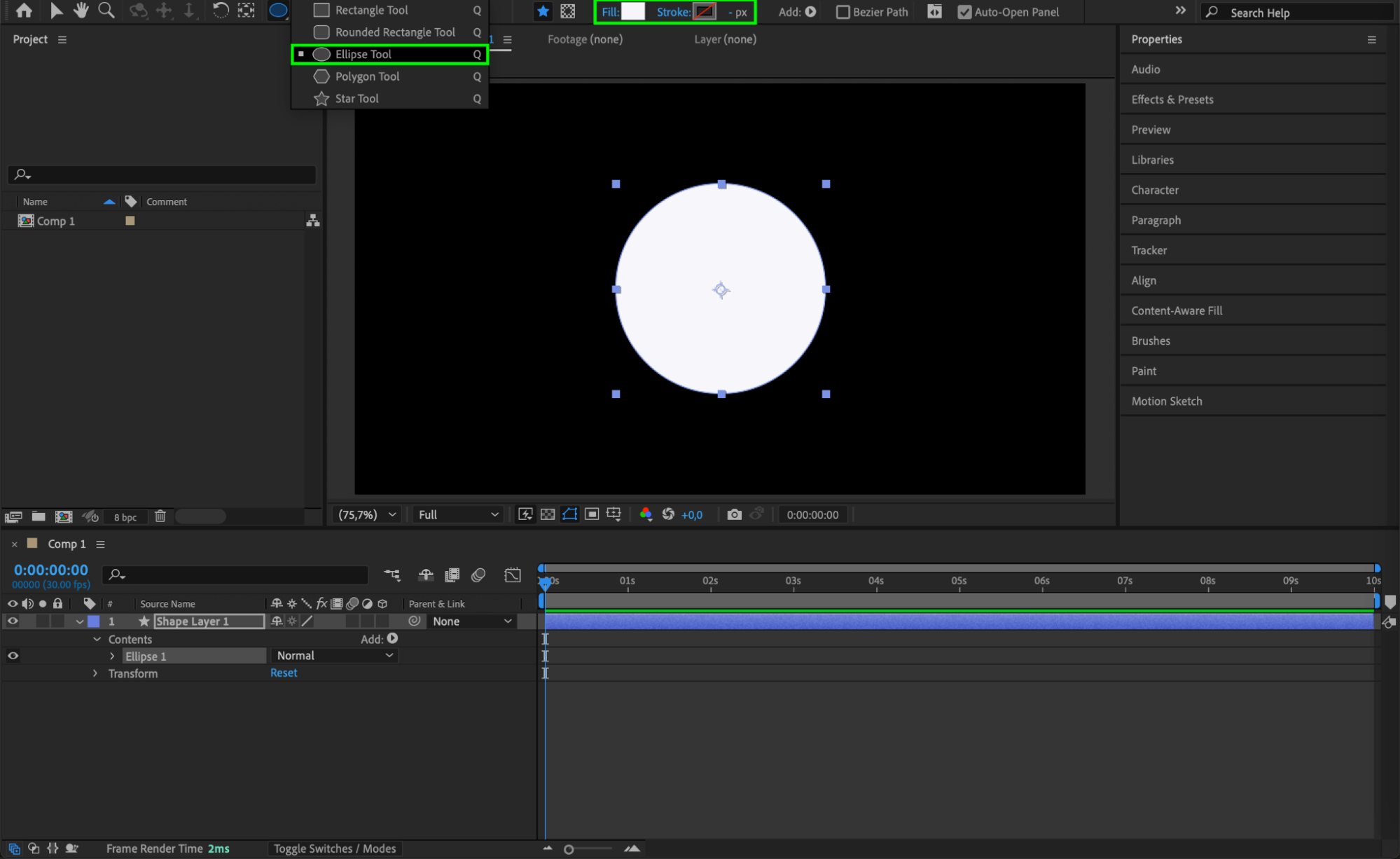 Step 3: Add Turbulent Displace for Organic Movement
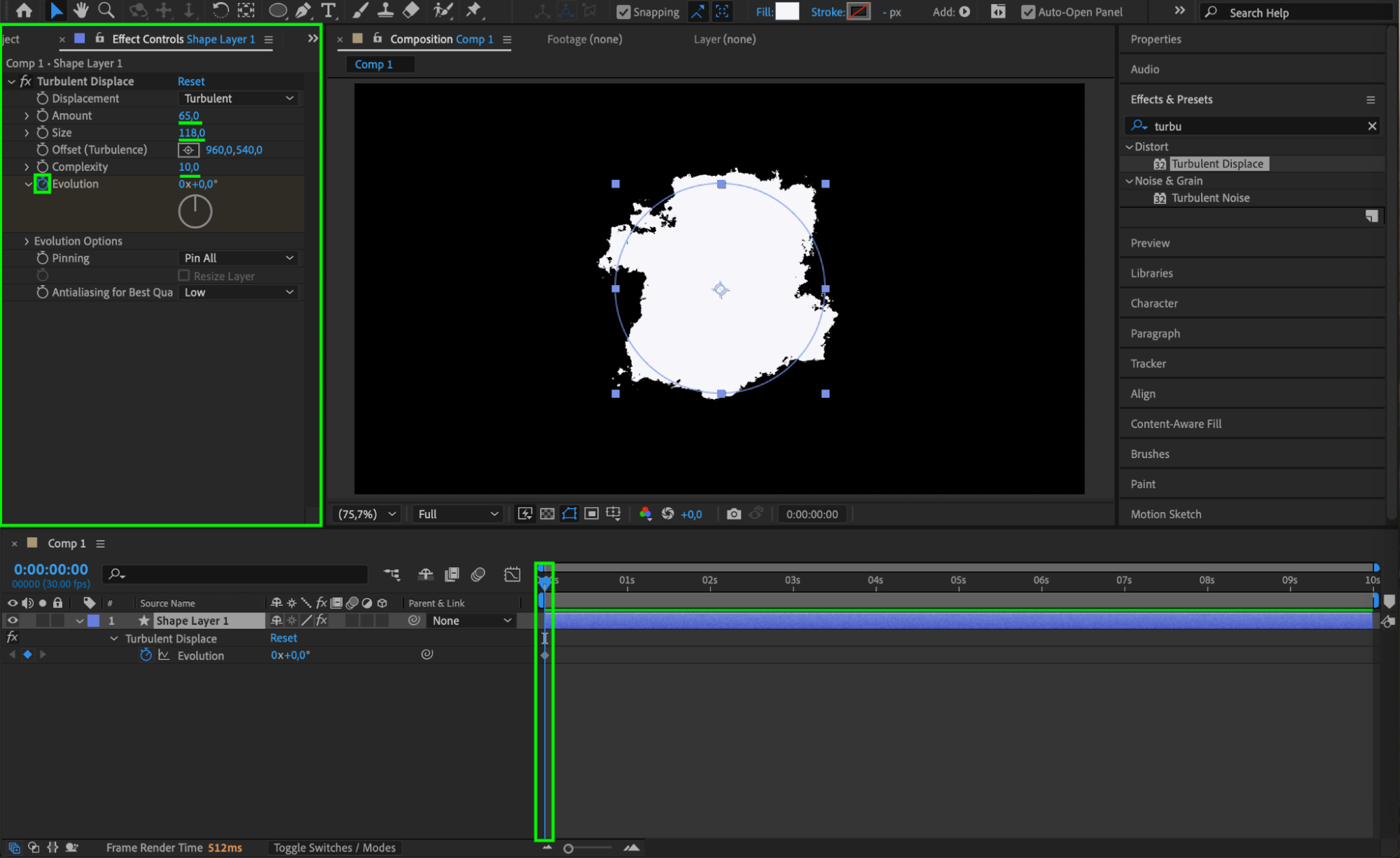
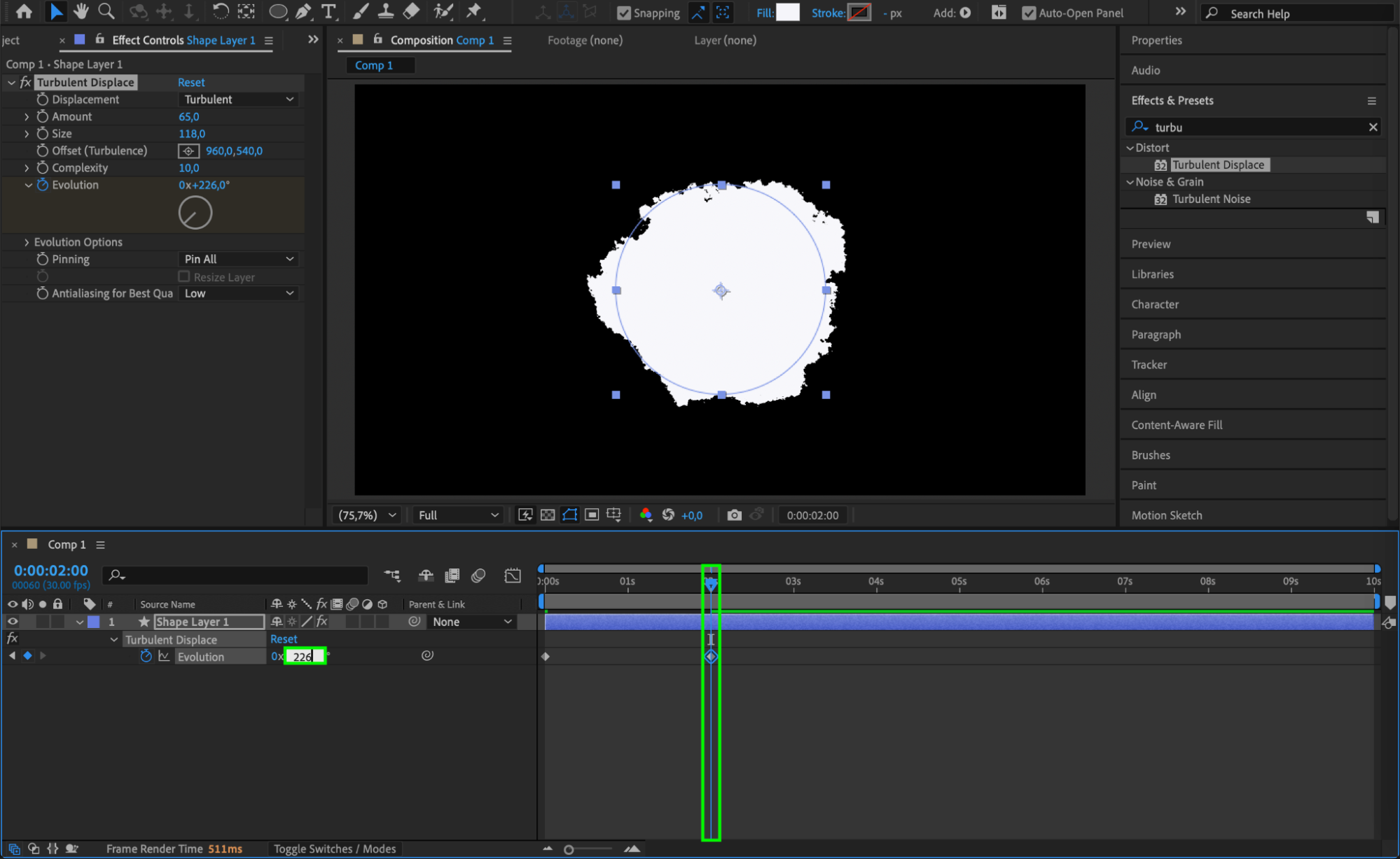
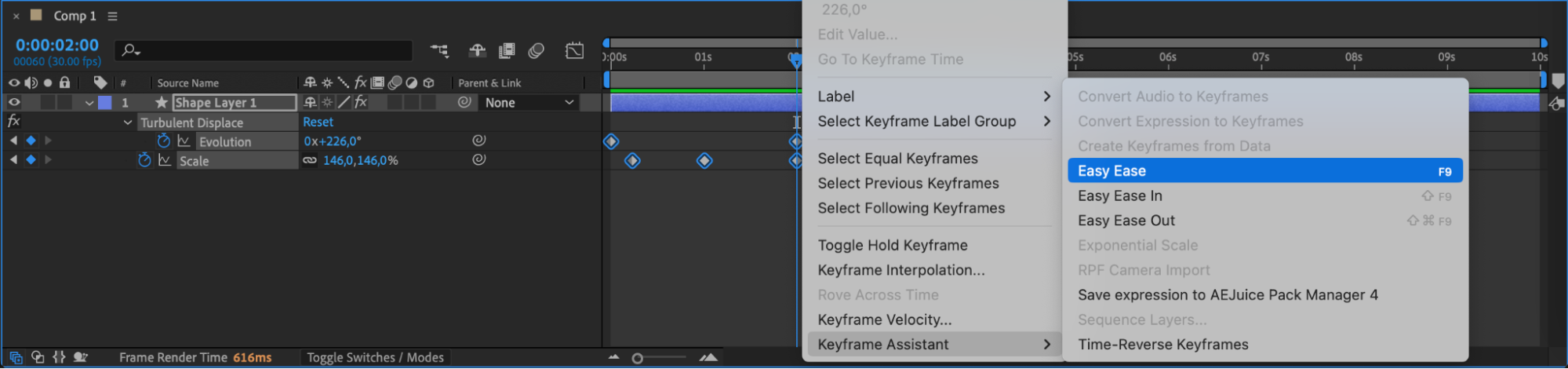
Go to the Effects & Presets panel and search for Turbulent Displace. Drag it onto your shape layer. In the Effect Controls panel, set Amount to 65, Size to 118, and Complexity to 10. Set Evolution to 0 at the beginning of the comp, then go to the 2-second mark and change Evolution to 226 degrees. This creates a swirling, irregular edge as the shape evolves.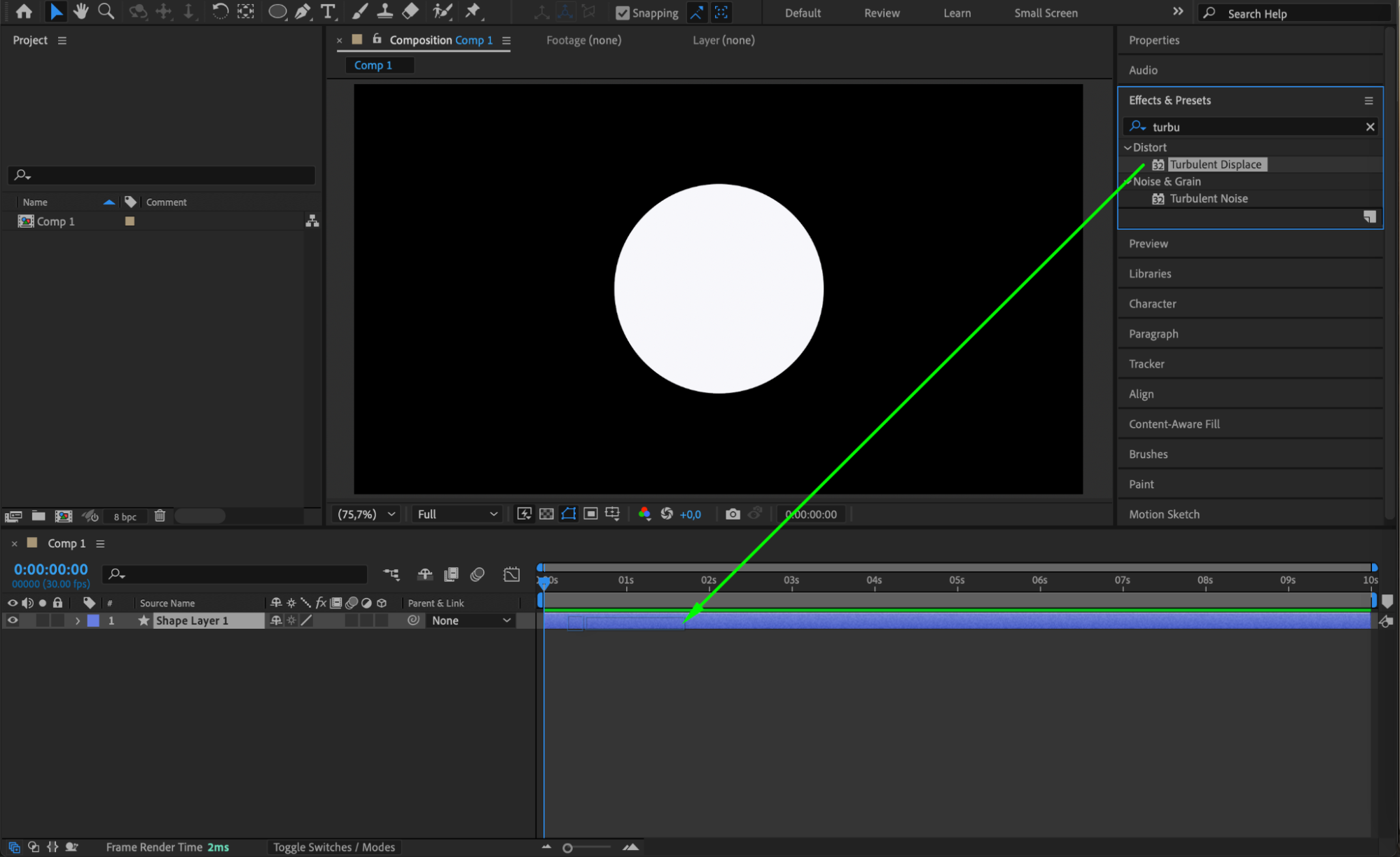
 Step 4: Animate the Scale of the Splatter
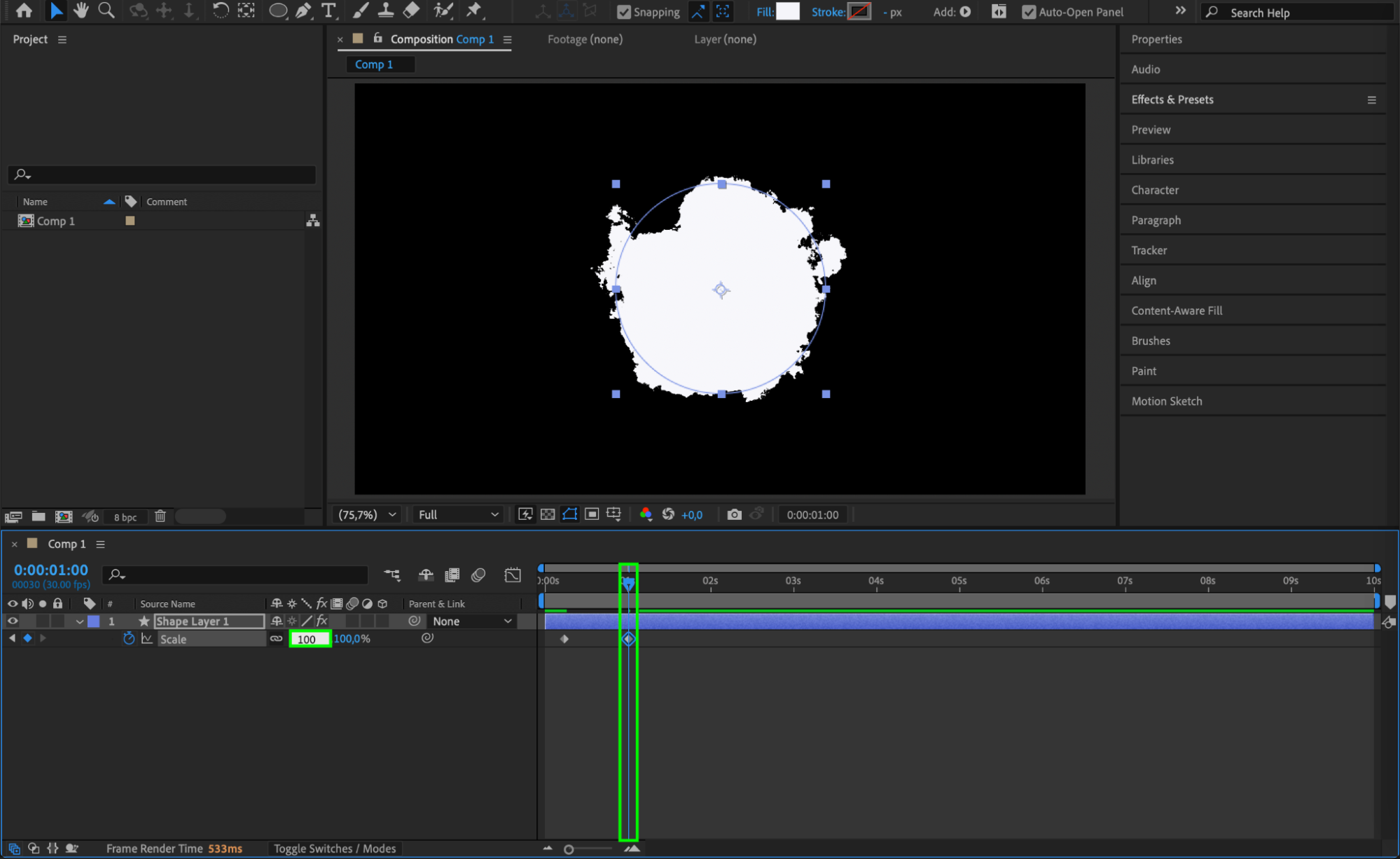
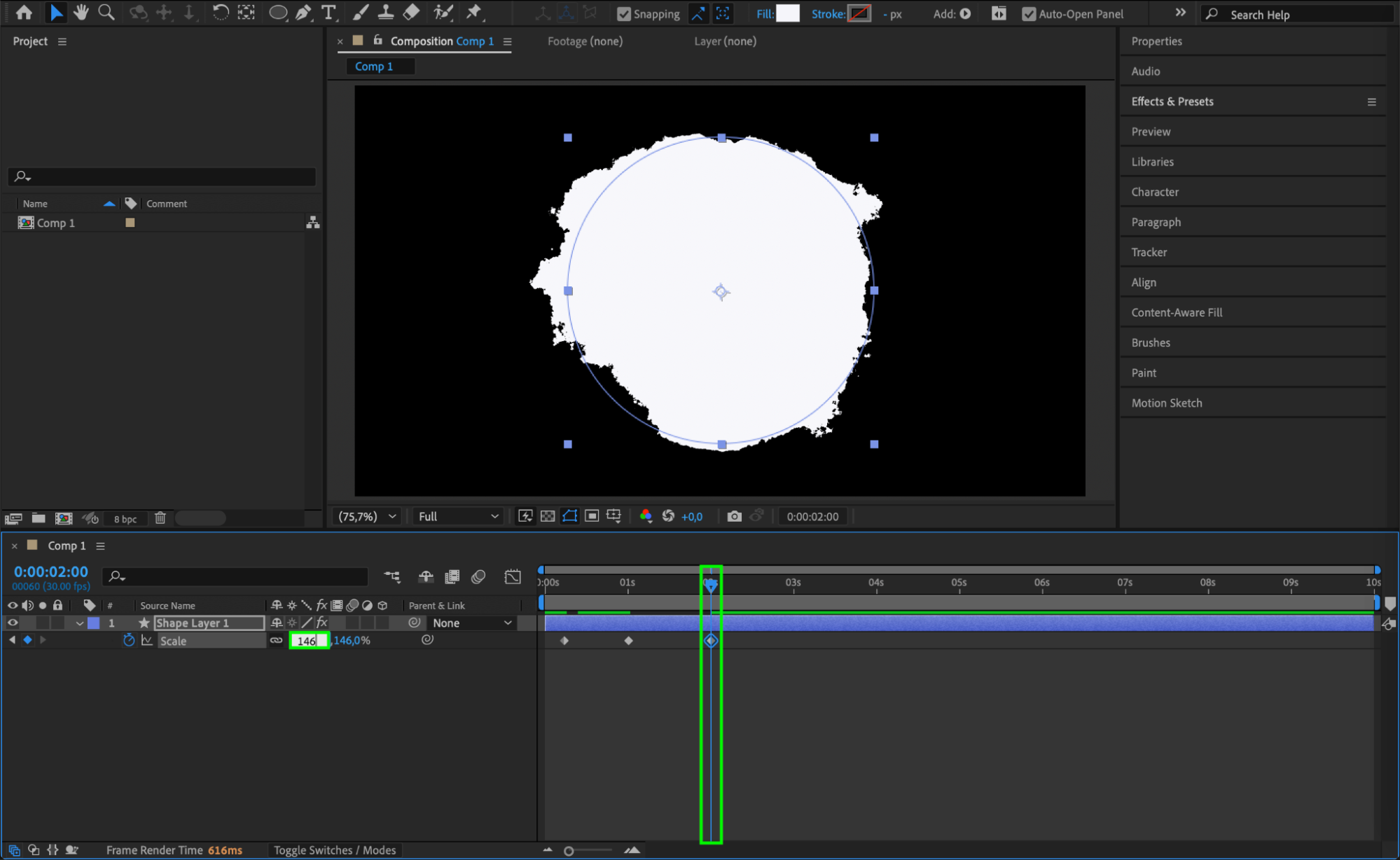
With the shape layer selected, press “S” to reveal the Scale property. Move the CTI (Current Time Indicator) a few frames from the start and set the Scale to 0. Then, at 1 second set the scale to 100%, and at 2 seconds increase it to 146%. This gives the impression of the ink expanding and spreading.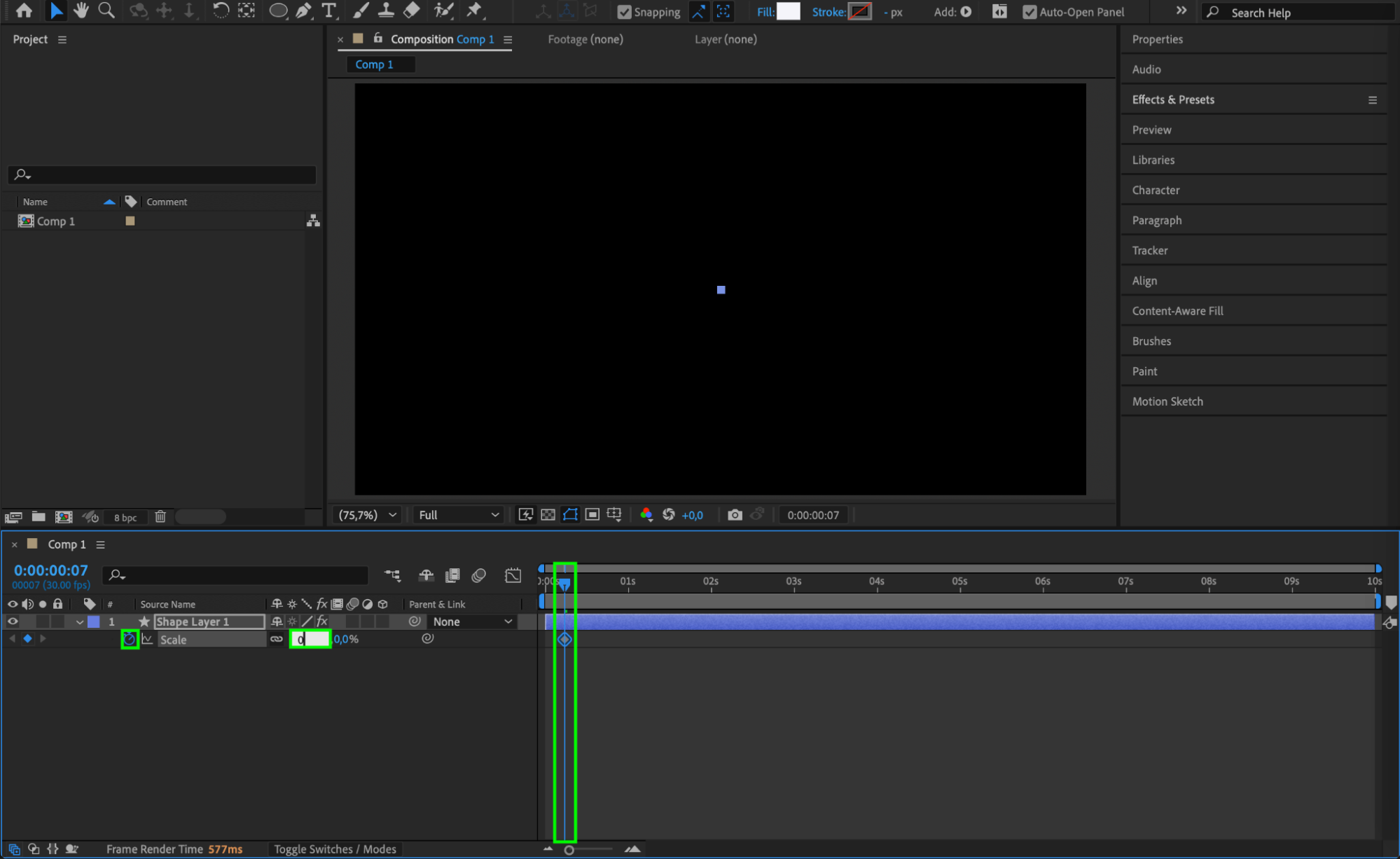
Step 5: Smooth the Animation
Select all the scale and evolution keyframes, right-click and choose Keyframe Assistant > Easy Ease. This will make the splatter feel more natural.
Step 6: Preview the Animation
Press the spacebar or use the Preview panel to watch your animation. Make sure the evolution and scale changes look fluid and organic.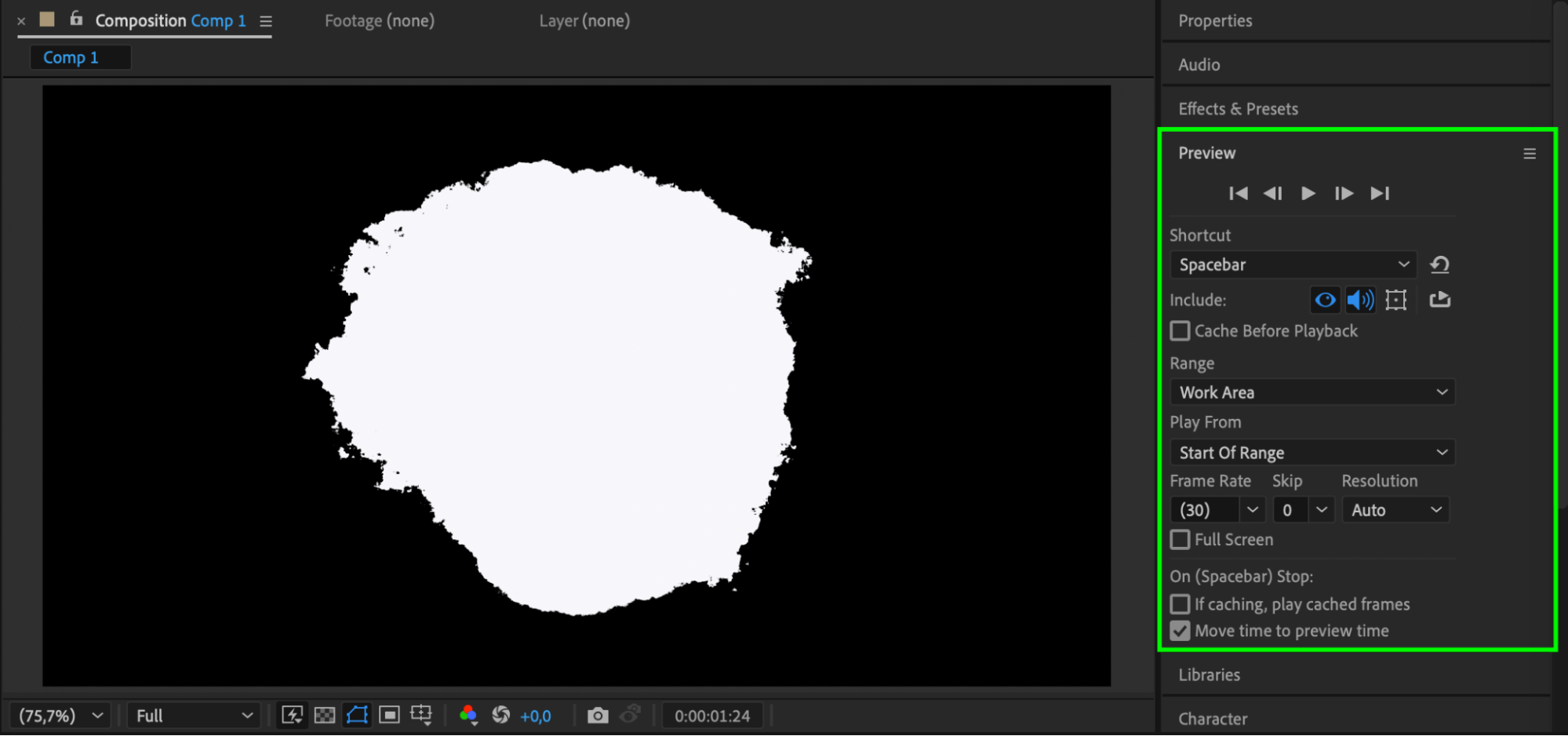 Step 7: Render the Final Result
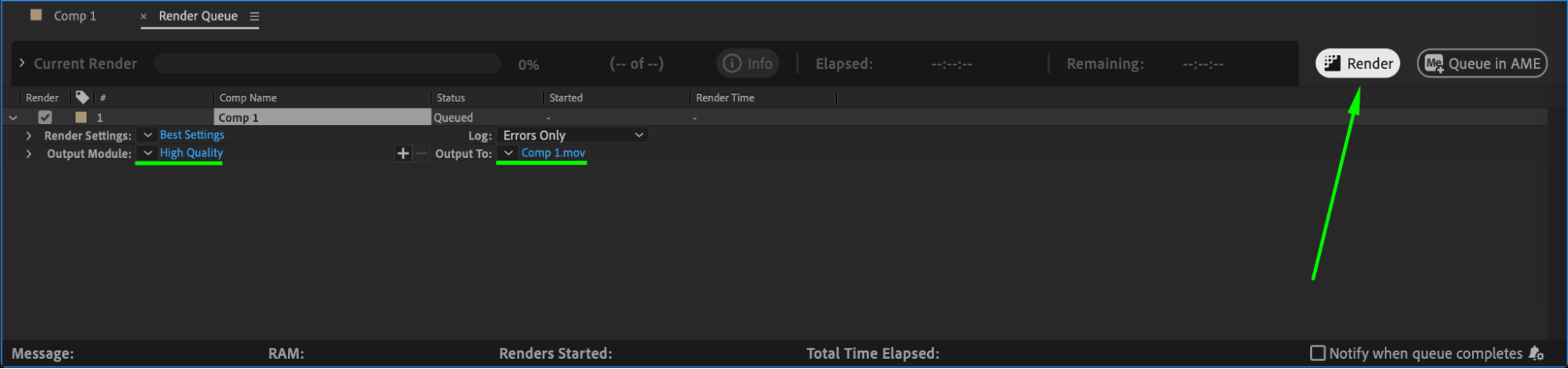
Once you’re happy with your animation, go to Composition > Add to Render Queue or use Adobe Media Encoder. Choose your format and quality settings, then export your final ink splatter animation.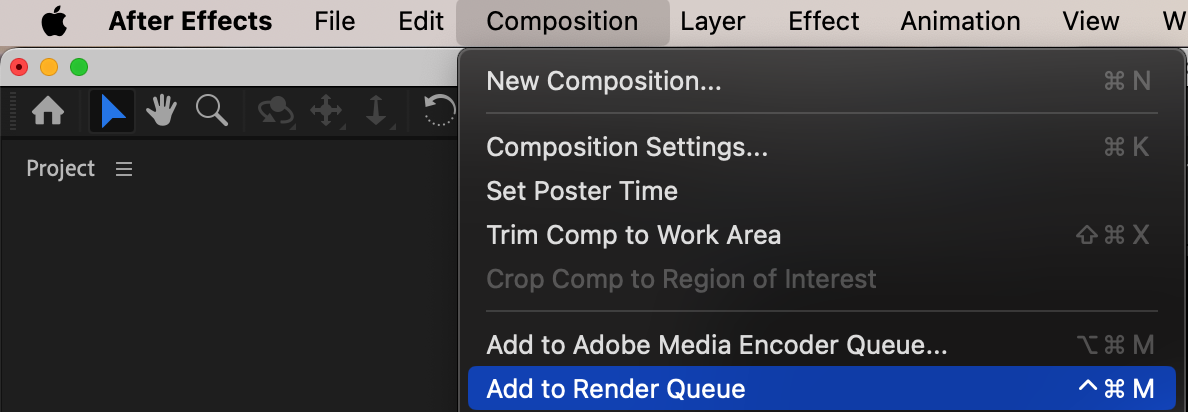
 Conclusion
Now you know how to create an animated ink splatter effect in After Effects using simple shape tools and built-in effects. This technique works great for artistic intros, transitions, or visual accents in motion graphics.
Our Bestsellers
Our Bestsellers


