
Introduction
Car light trails add cinematic motion and energy to night driving scenes. By animating masks over headlights and applying effects like Fill and Glow, you can create realistic streaks that follow moving cars in your footage.
Step 1: Import Your Footage
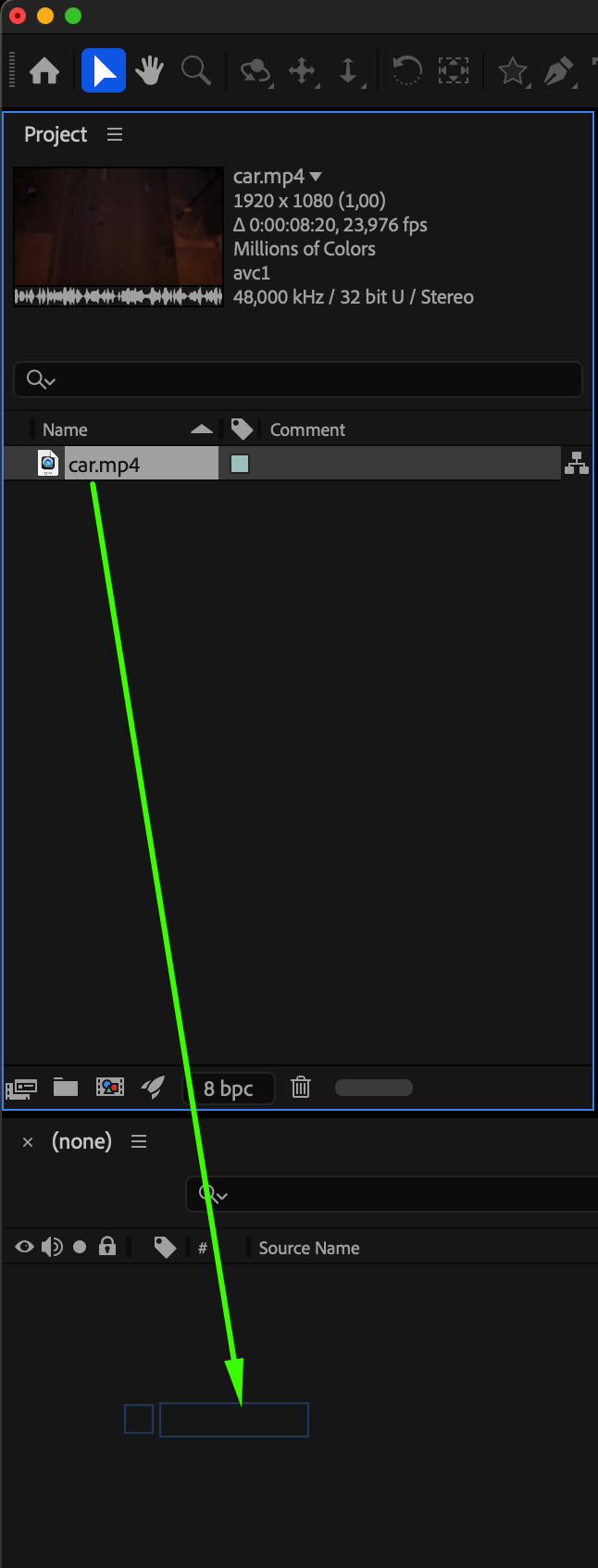
Go to File > Import > File and bring in the video you want to work with. Drag it onto the timeline.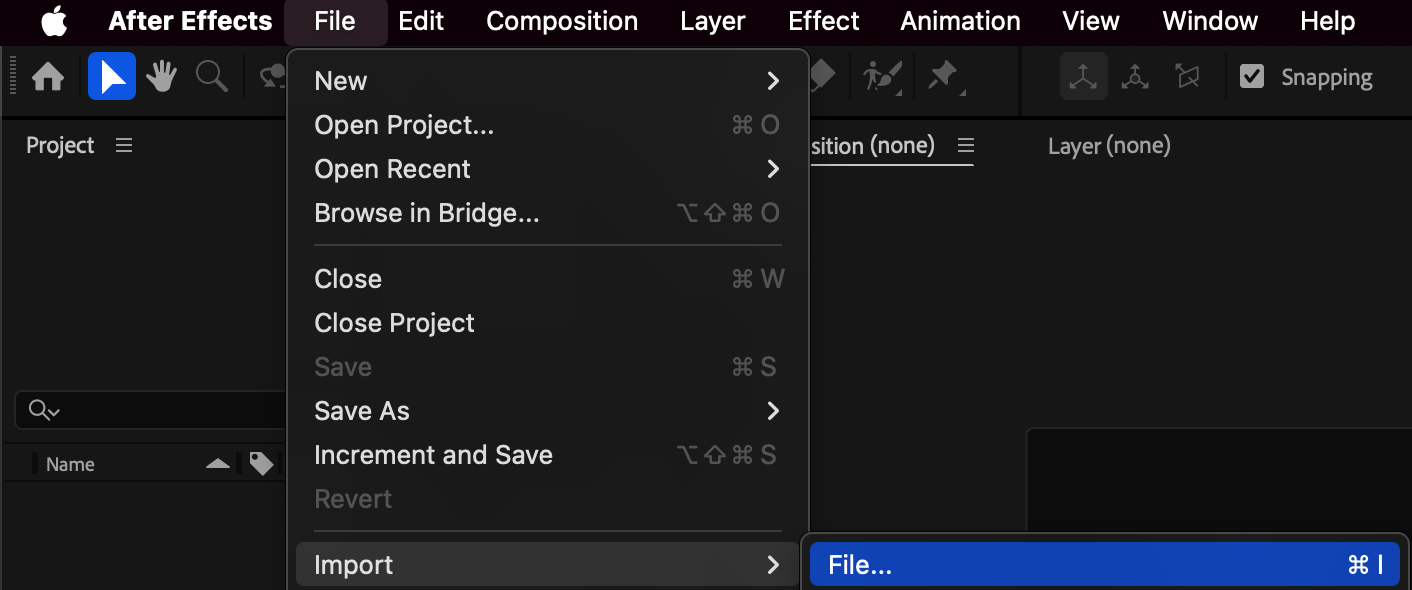
 Step 2: Create a Solid Layer
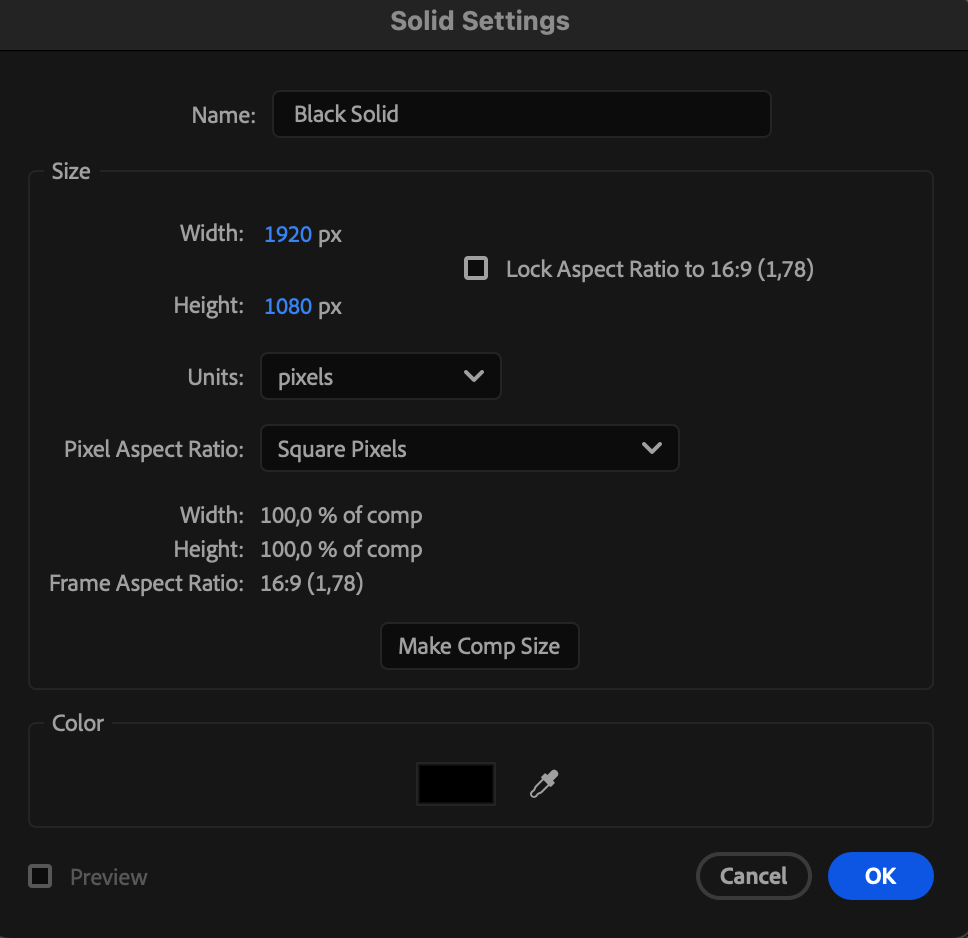
Go to Layer > New > Solid and choose any color. This solid will act as the base for your light trails.
Step 3: Draw Masks for Headlights
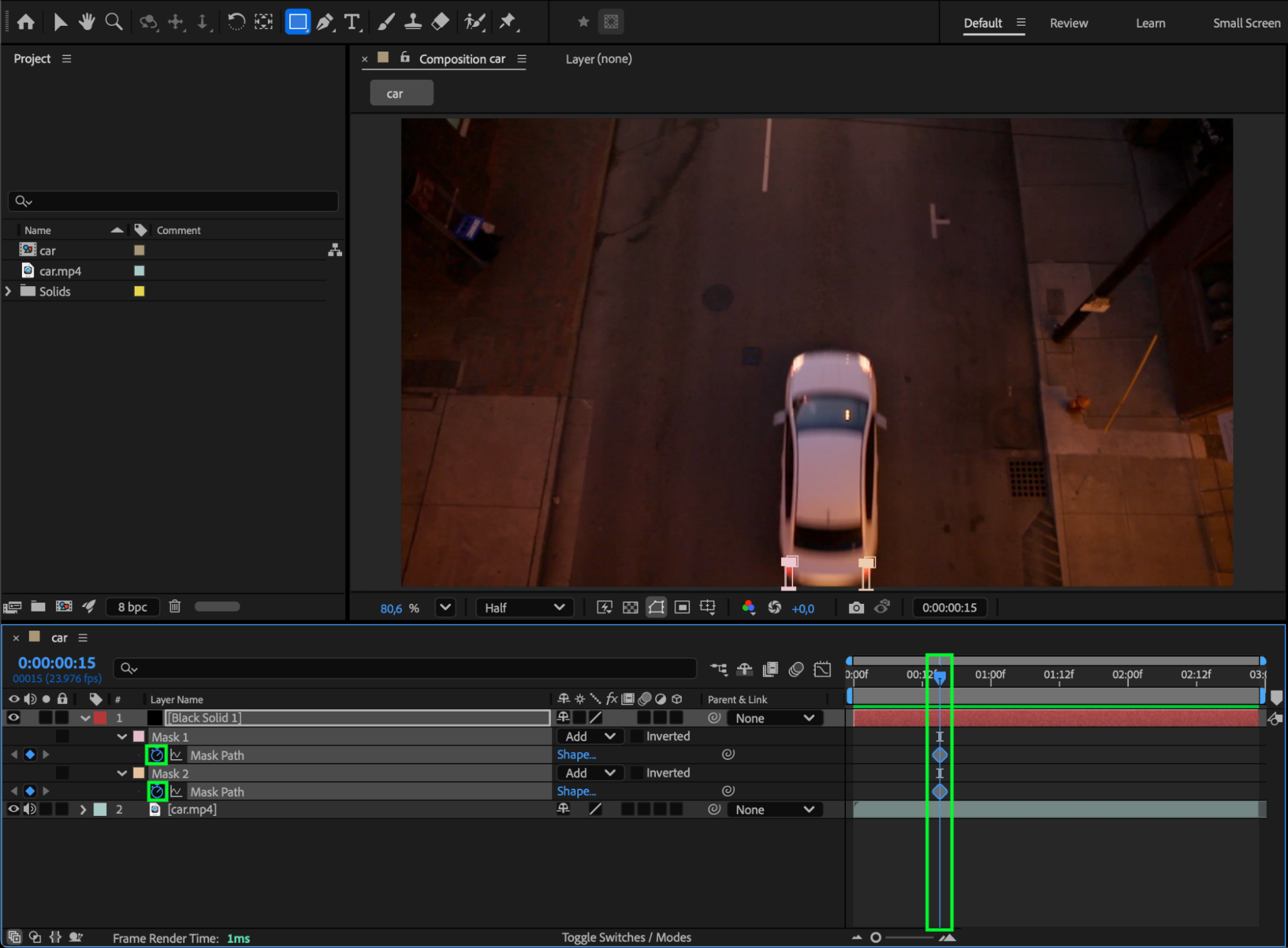
Select the Rectangle Tool (Q) and create masks on the solid layer over each headlight. Lower the Opacity of the solid temporarily so you can see your footage underneath.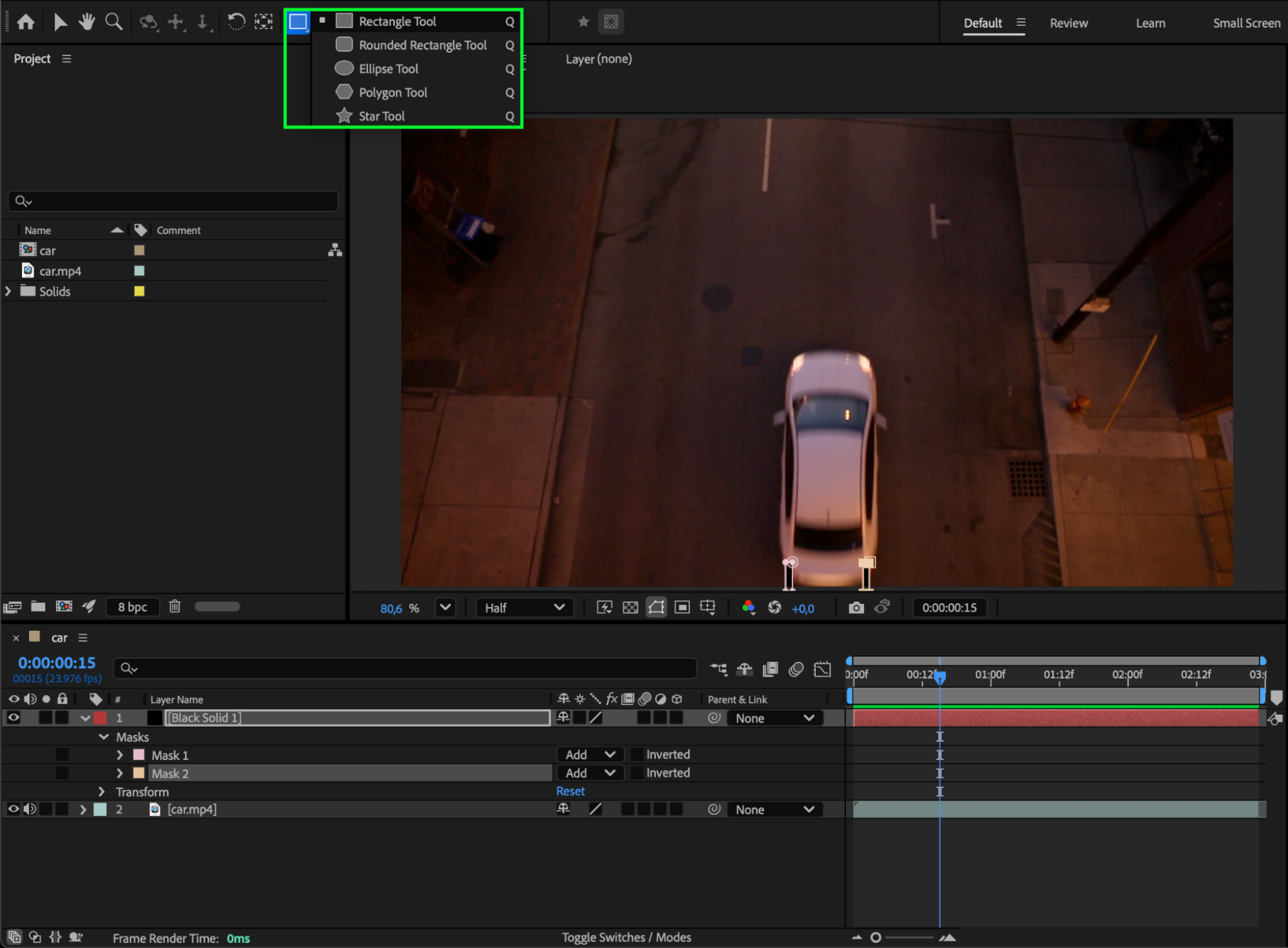 Step 4: Animate Mask Paths
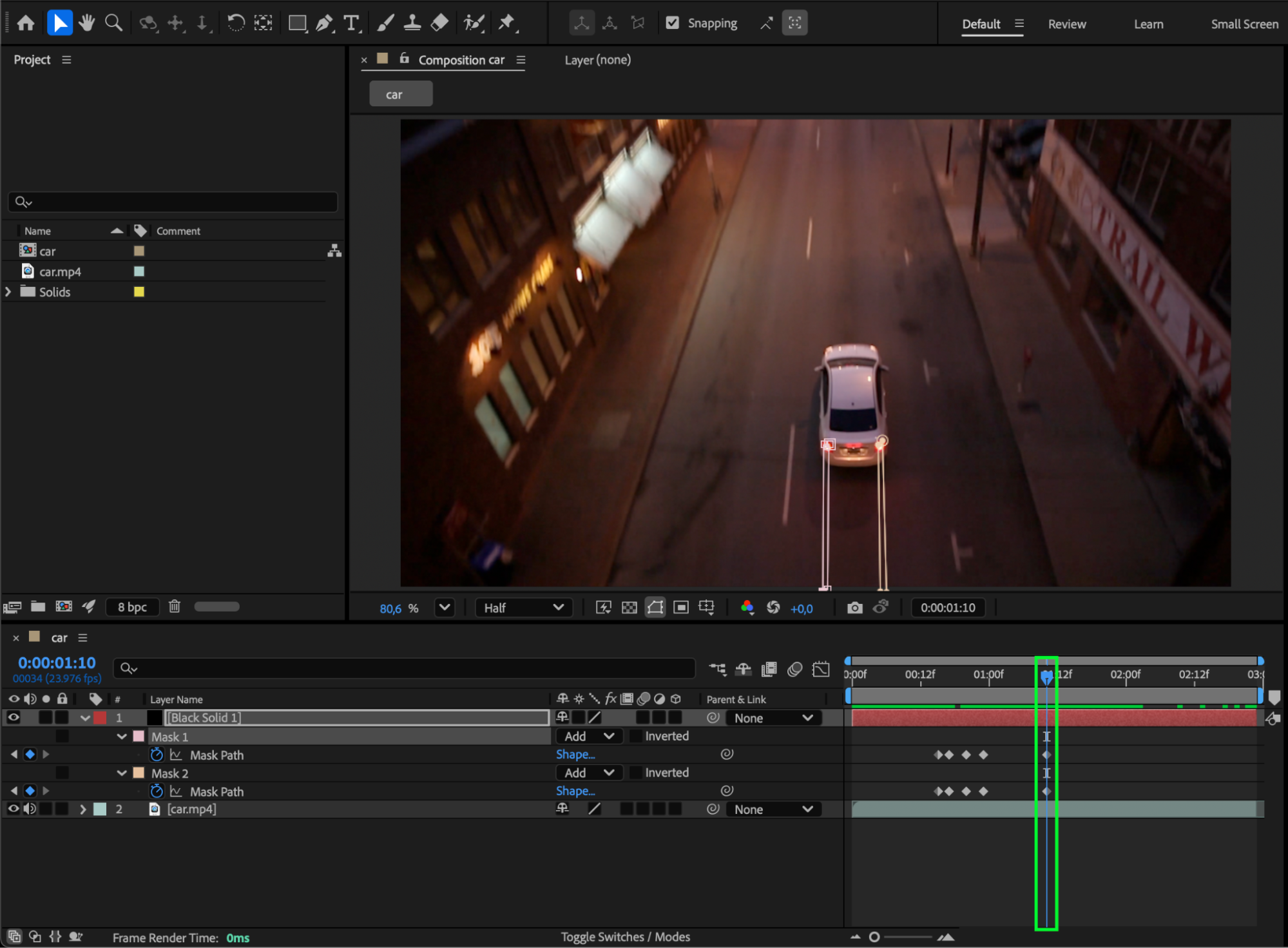
Animate each mask path so it follows the movement of the car headlights throughout the video. Make sure the masks stay aligned with the lights at all times.
 Step 5: Apply Fill and Glow Effects
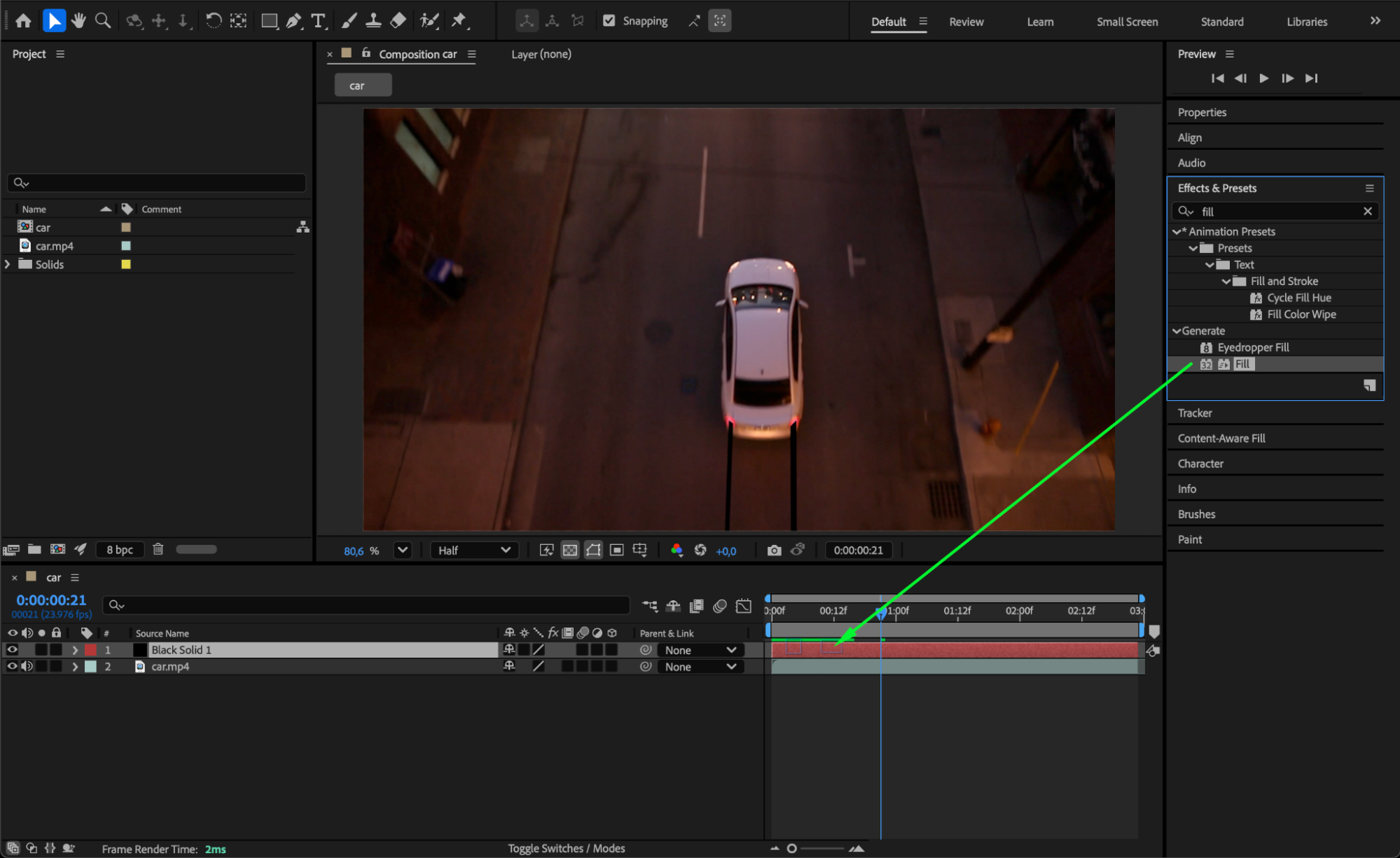
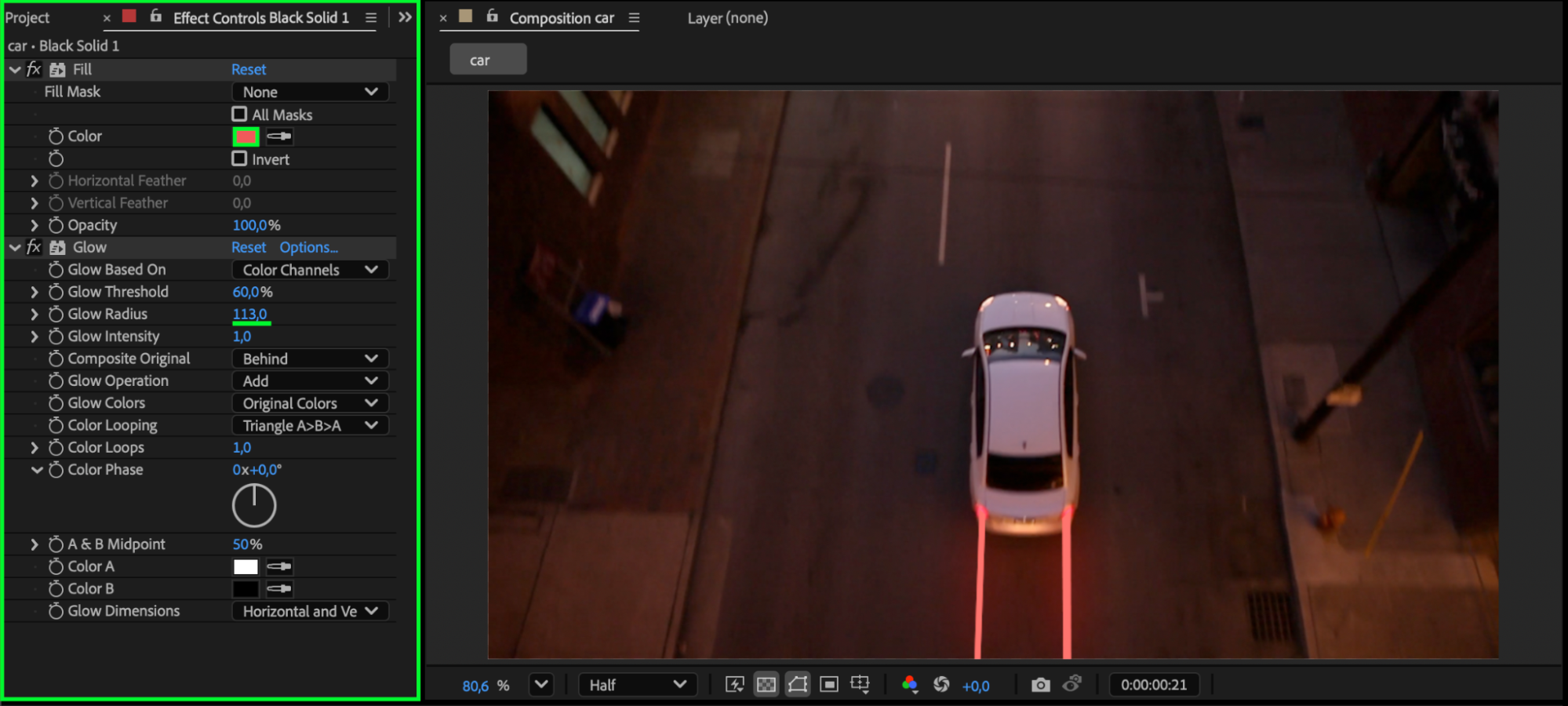
From the Effects & Presets panel, apply the Fill effect to the solid layer to color the trails.
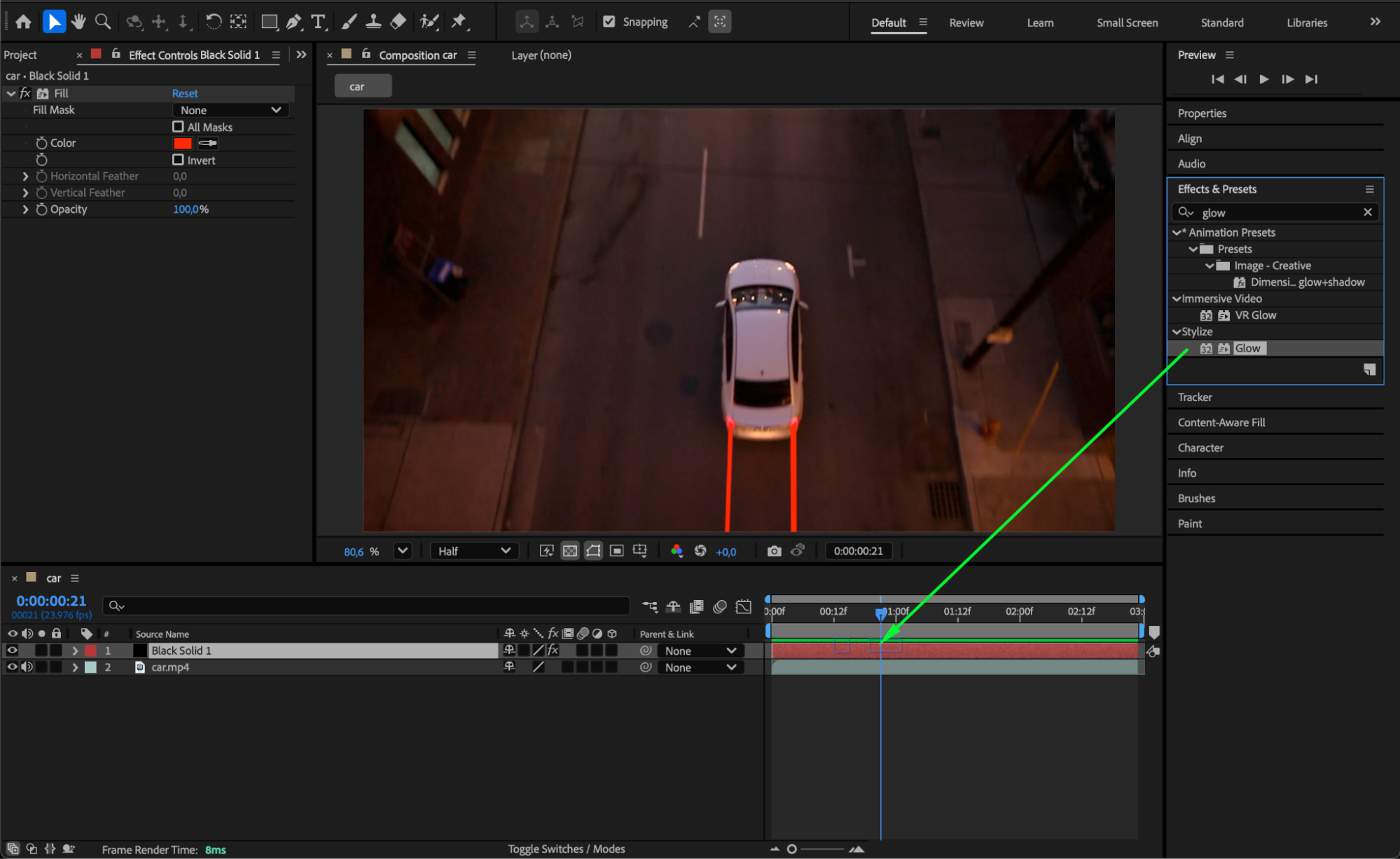
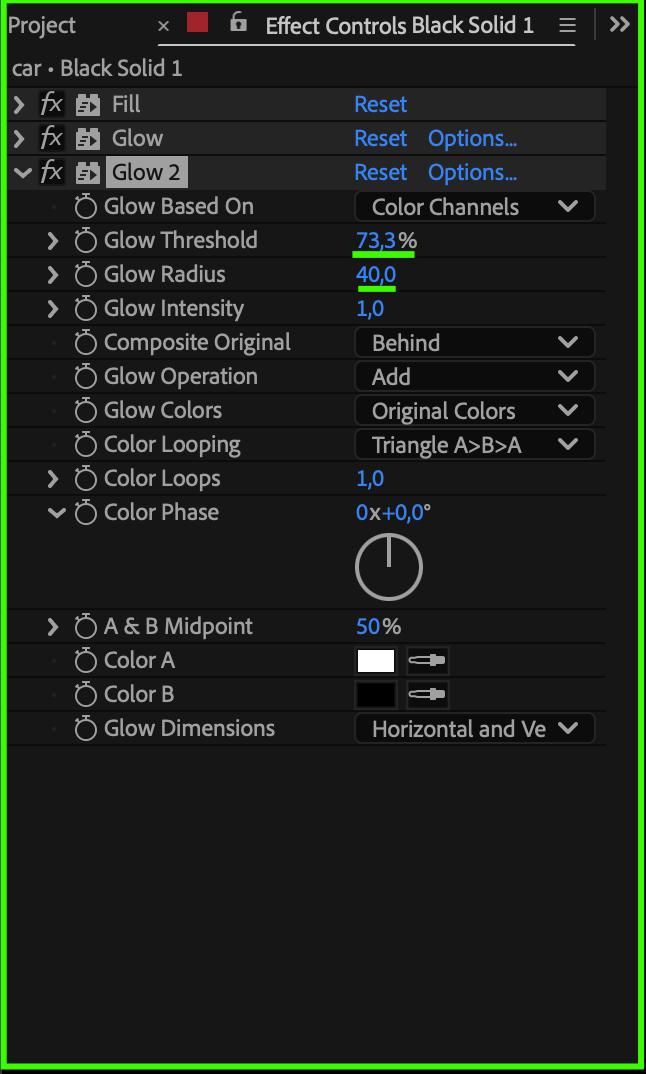
Then, apply Glow twice:
Glow 1: Glow Radius = 113
Glow 2: Glow Threshold = 73, Glow Radius = 40
This will make the light trails appear bright and realistic.
Step 6: Adjust Mask Feathering and Blending
Set Mask Feather to 3 for smoother edges. Optionally, change the Blending Mode of the solid layer or adjust its Opacity to better integrate the light trails with the footage.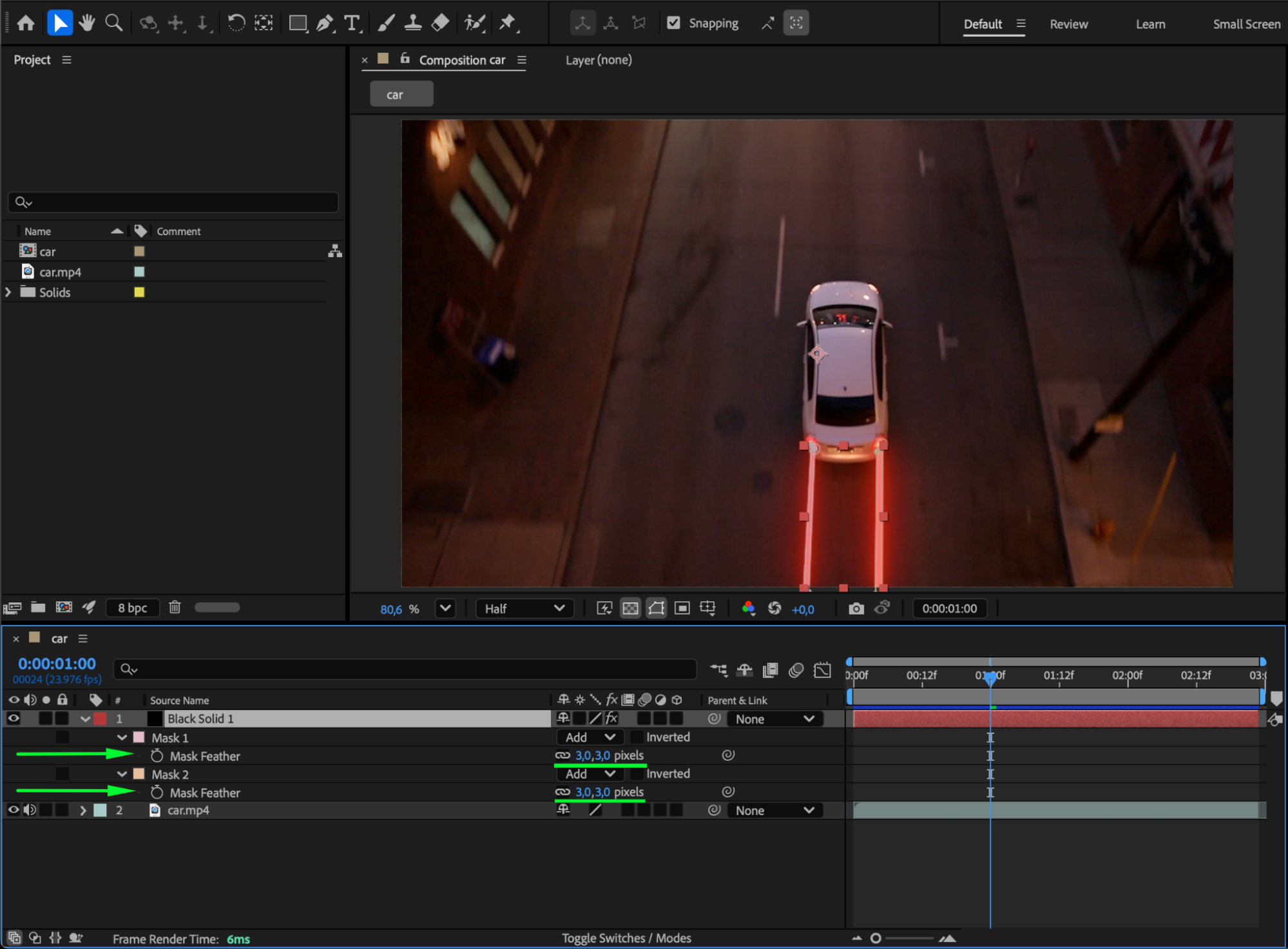
Step 7: Preview Your Animation
Press Spacebar to preview the animation. Make any final adjustments to mask paths, feathering, or glow settings for the most natural look.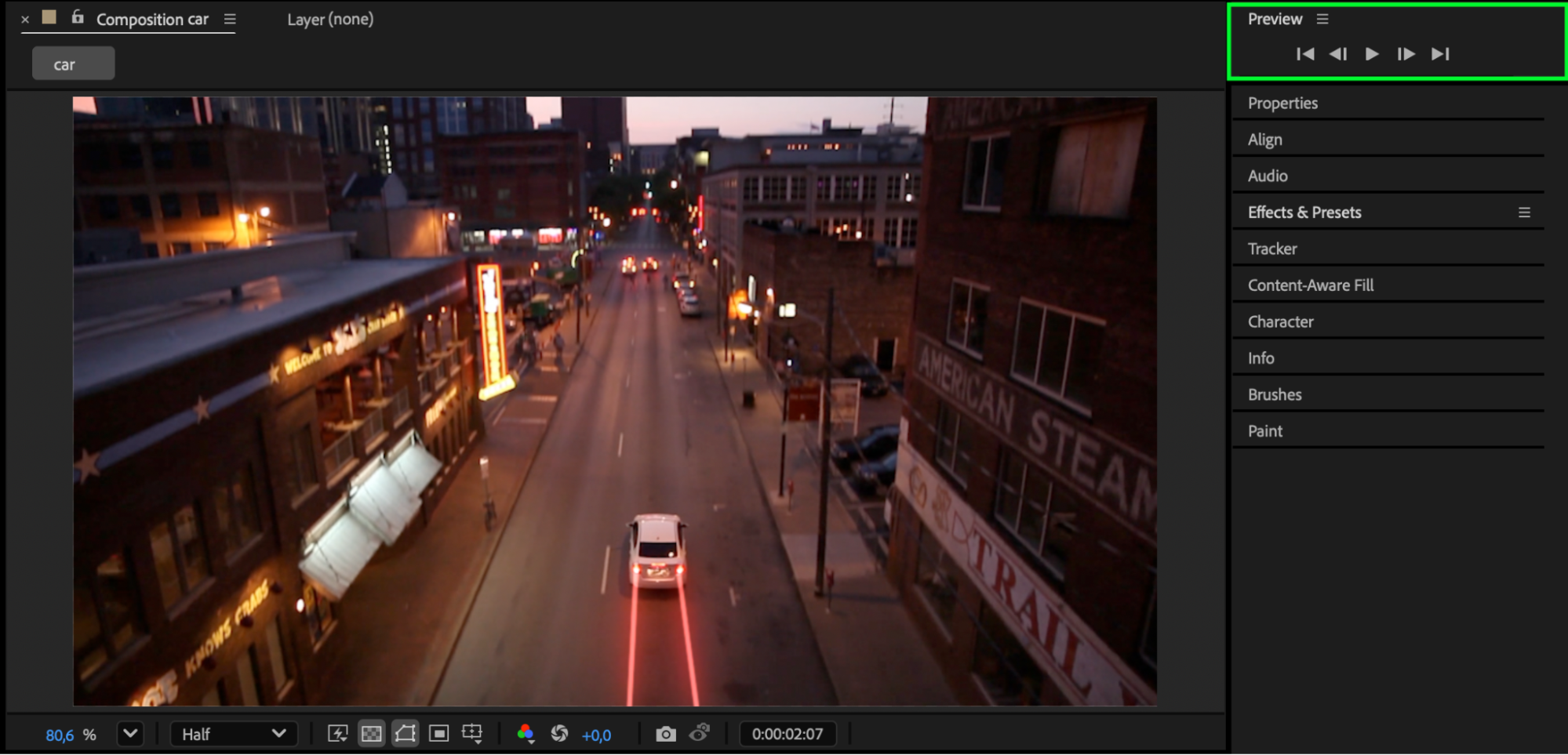
Conclusion
By combining animated masks, Fill, and Glow effects, you can create realistic and dynamic car light trails in After Effects, adding professional cinematic flair to night driving scenes.
Our Bestsellers
Our Bestsellers


