
Add a Fire Effect to Text in After Effects
Introduction to Creating Fire Text Effects
Adding a fire effect to your text can give your project a dramatic, energetic look. With the help of the free Saber plugin by Video Copilot, this process becomes fast and visually impressive. In this guide, you’ll learn how to set up the plugin, apply the fire preset, and customize your animation.
Step 1: Download and Install the Saber Plugin
Before starting, go to the Video Copilot website and download the free Saber plugin. Follow the installation instructions provided for your operating system. Once installed, restart After Effects so the plugin appears in your Effects panel.
Step 2: Create a New Composition
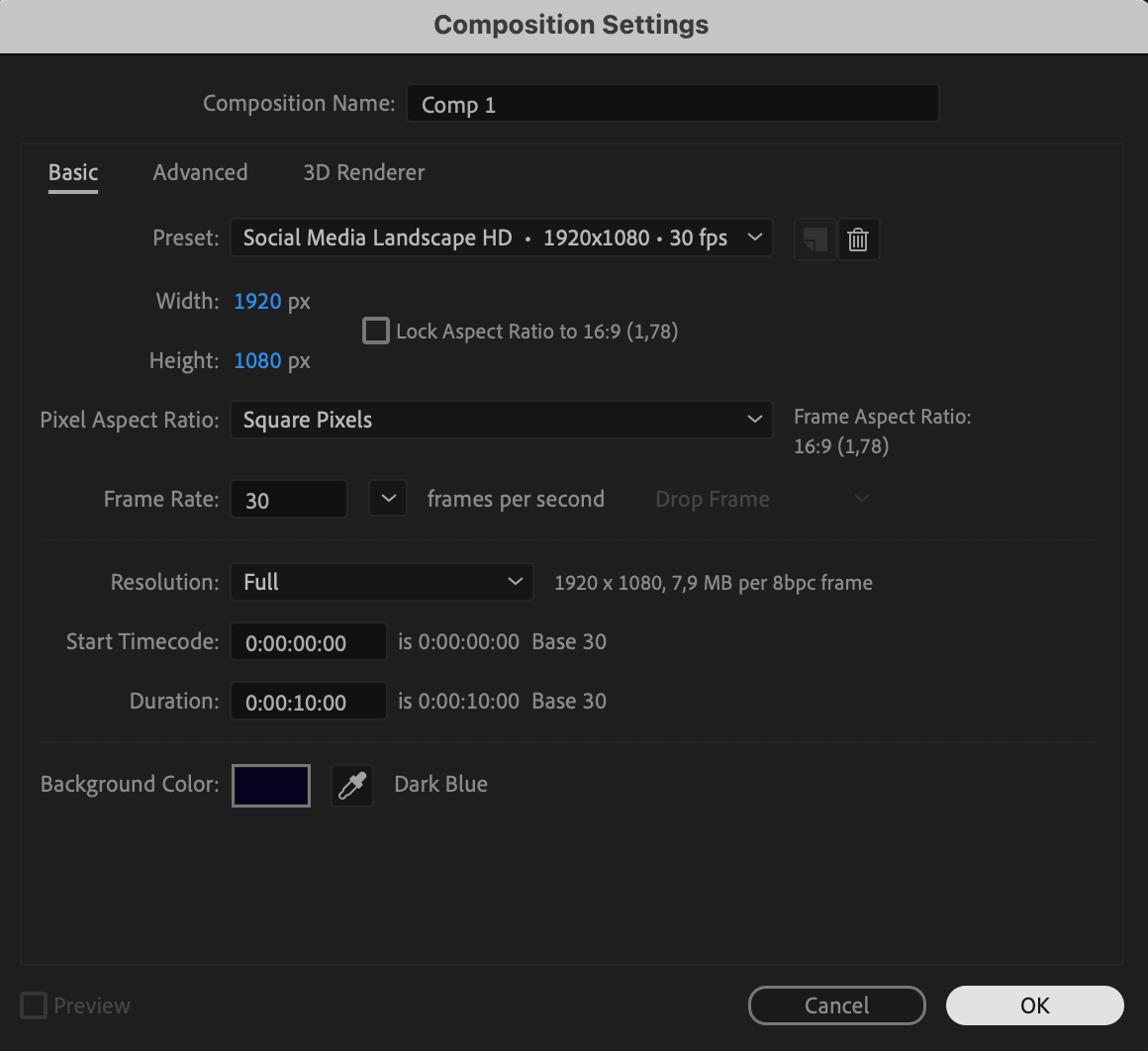
Open After Effects and go to Composition > New Composition. Choose your desired settings like resolution, frame rate, and duration. Click OK to create the comp.
Step 3: Add a Text Layer
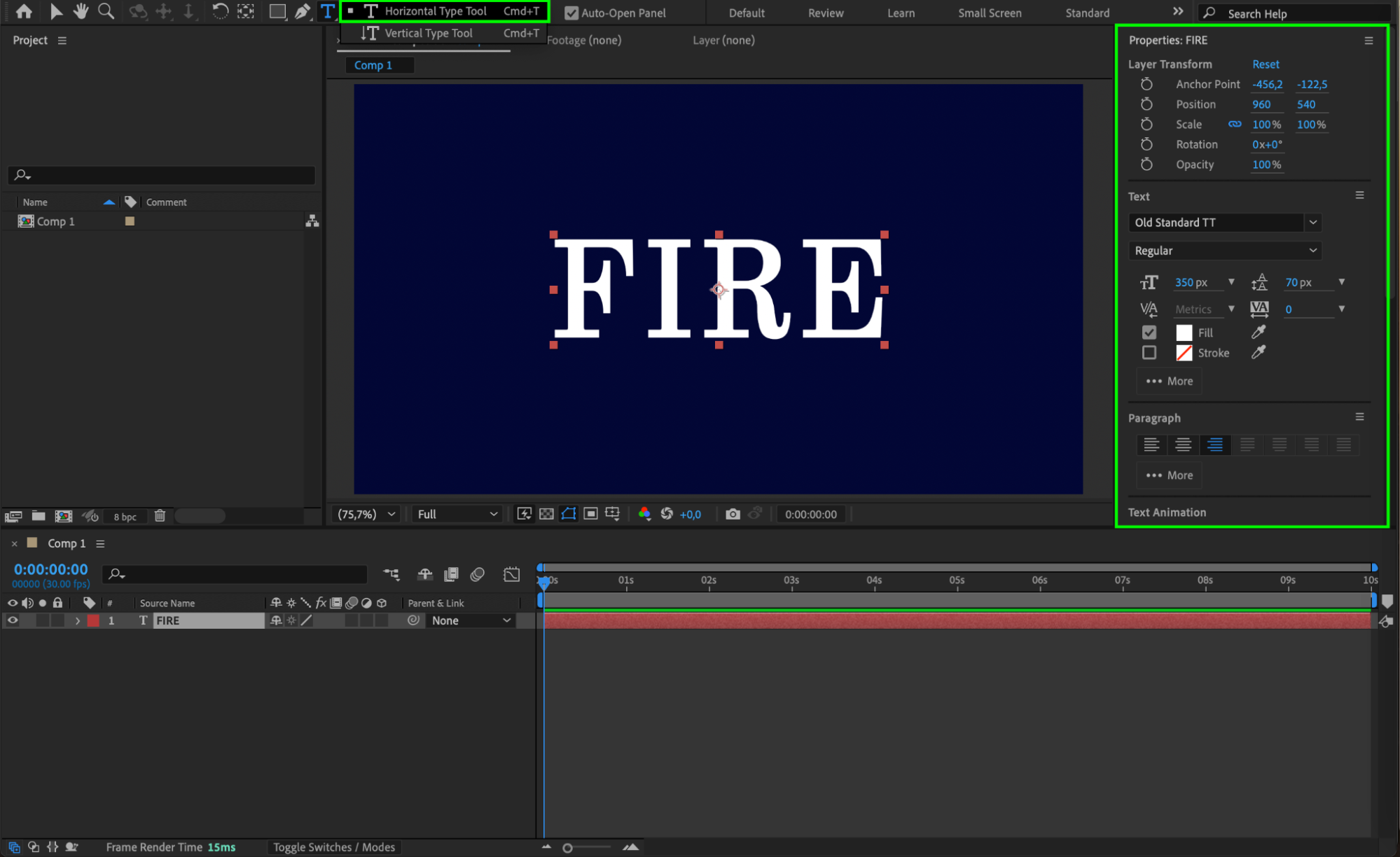
Select the Type Tool (Ctrl/Cmd + T) and click anywhere in the composition panel. Type your desired text—for example, “FIRE”—and choose a bold font to make the effect more visible. Adjust size and positioning as needed.
 Step 4: Add a New Black Solid
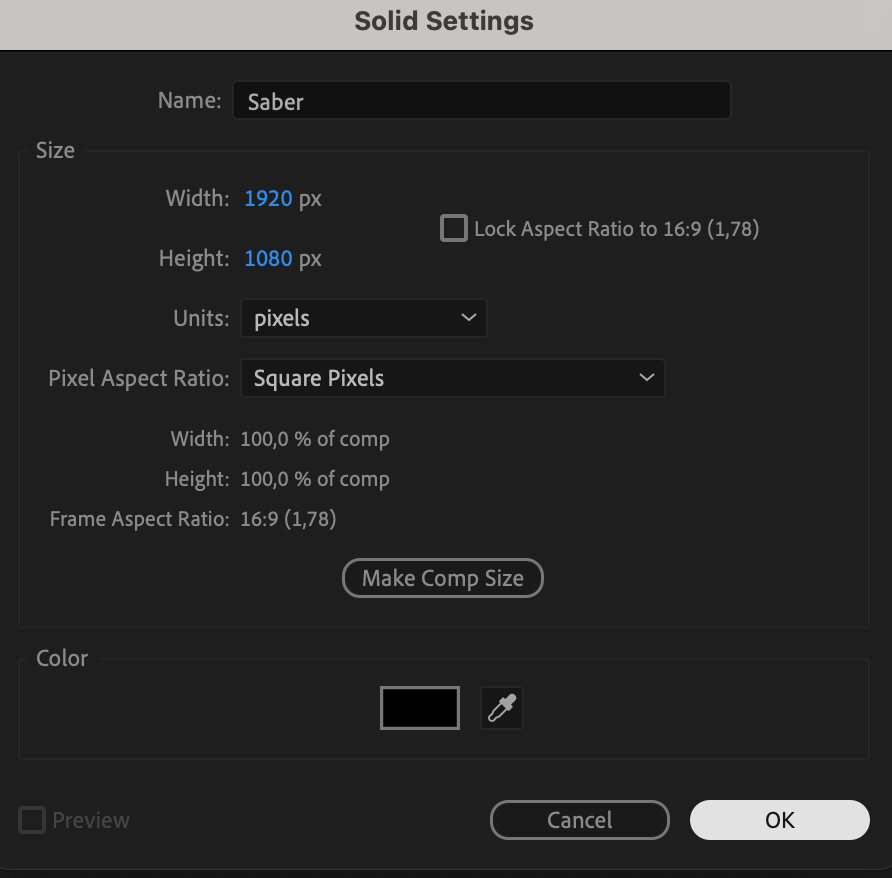
Go to Layer > New > Solid, select black as the color, and name it “Saber.” Make sure this solid layer is placed below the text layer in the timeline. This solid will hold the Saber effect that wraps around your text.
 Step 5: Apply the Saber Effect
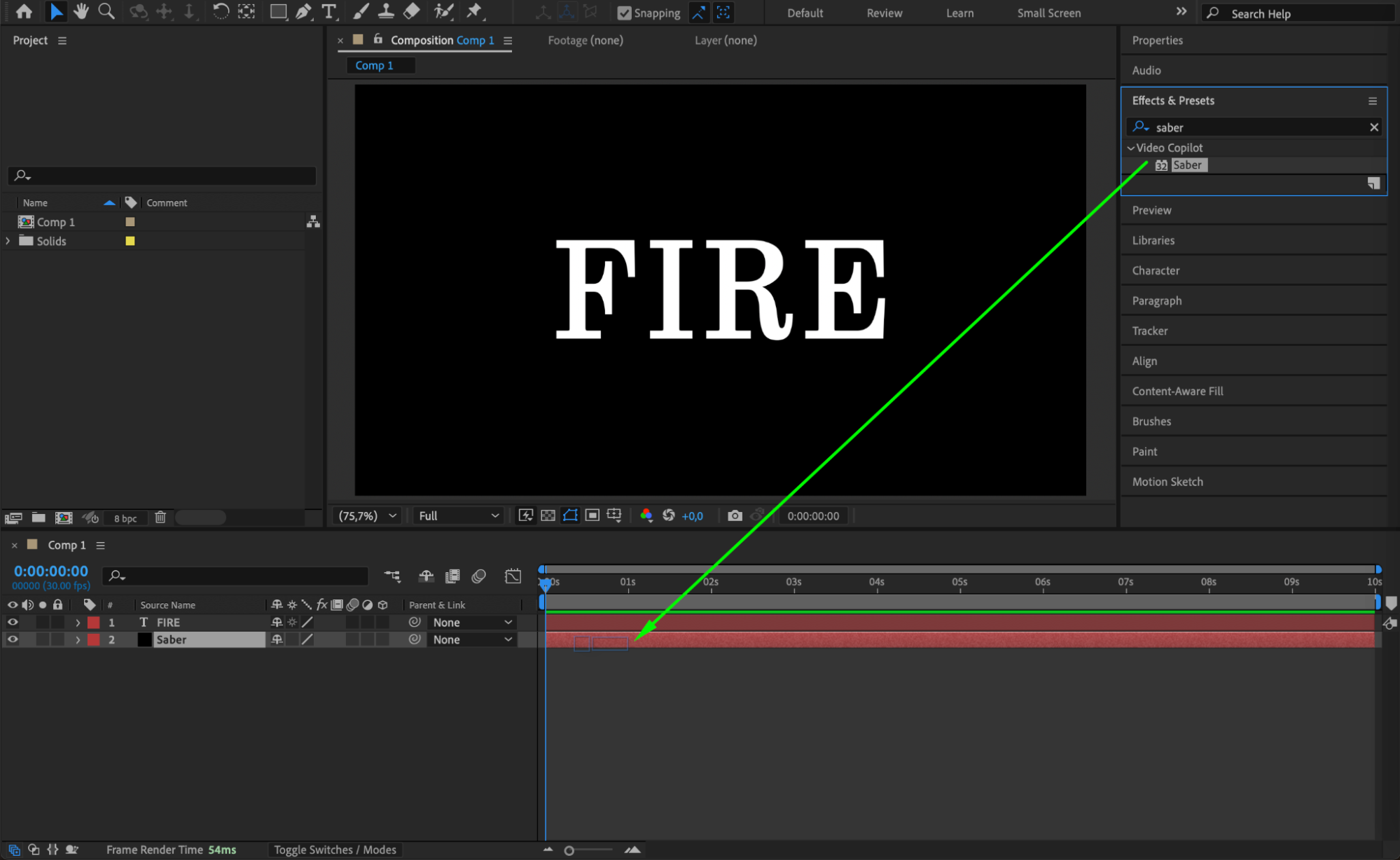
Open the Effects & Presets panel and search for “Saber.” Drag the effect onto the black solid layer. This will create a glowing energy beam by default, which you’ll now customize for the fire look.
Step 6: Set the Fire Preset and Link the Text
In the Effect Controls panel, under Core Type, choose Text Layer. Then set the Text Layer option to your text layer’s name. Change the Preset to Fire, and set Glow Intensity to around 36 for a more vibrant look. You can also adjust other settings like Core Size and Flicker for variation.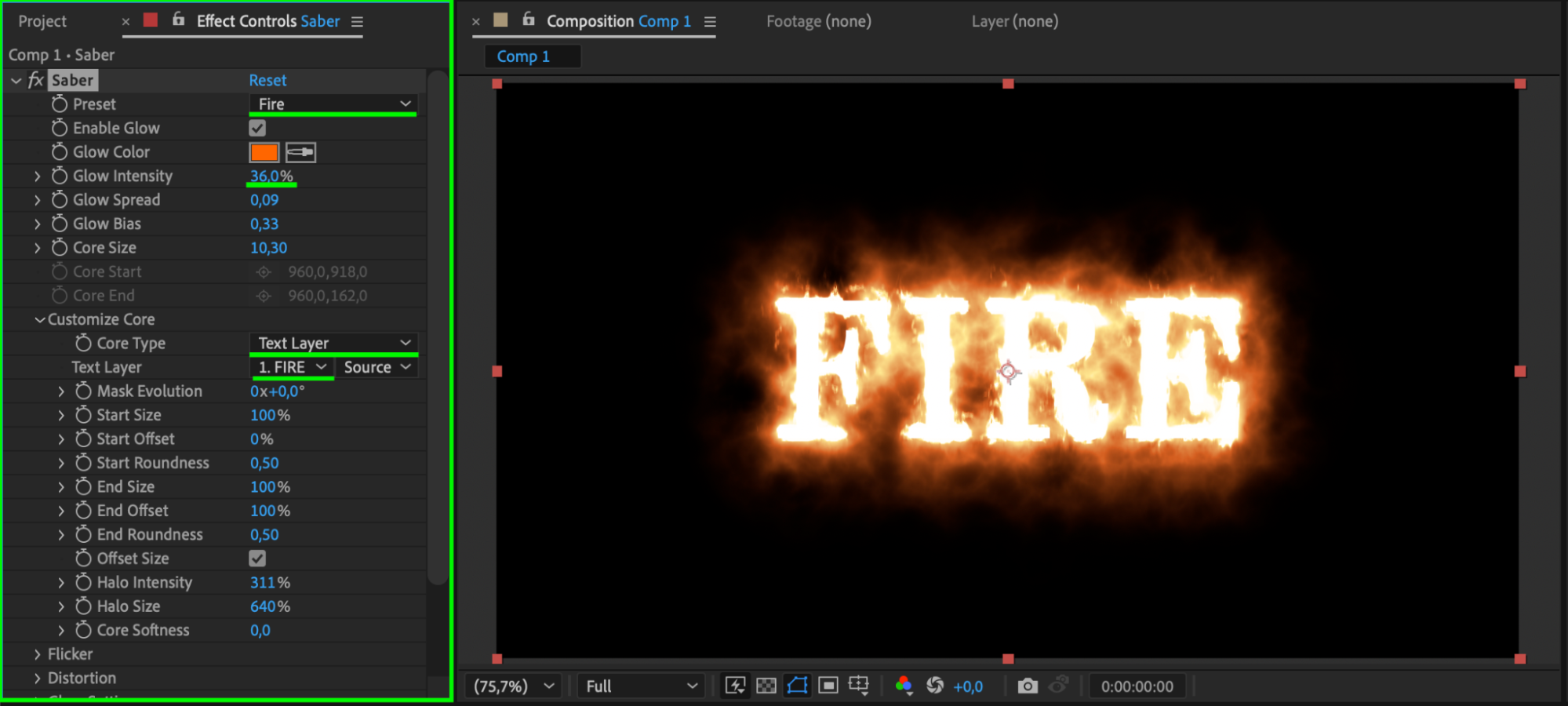
Step 7: Preview Your Fire Text Animation
Press the Spacebar to preview the animation. The fire effect will animate automatically along the outline of your text, giving it a burning glow.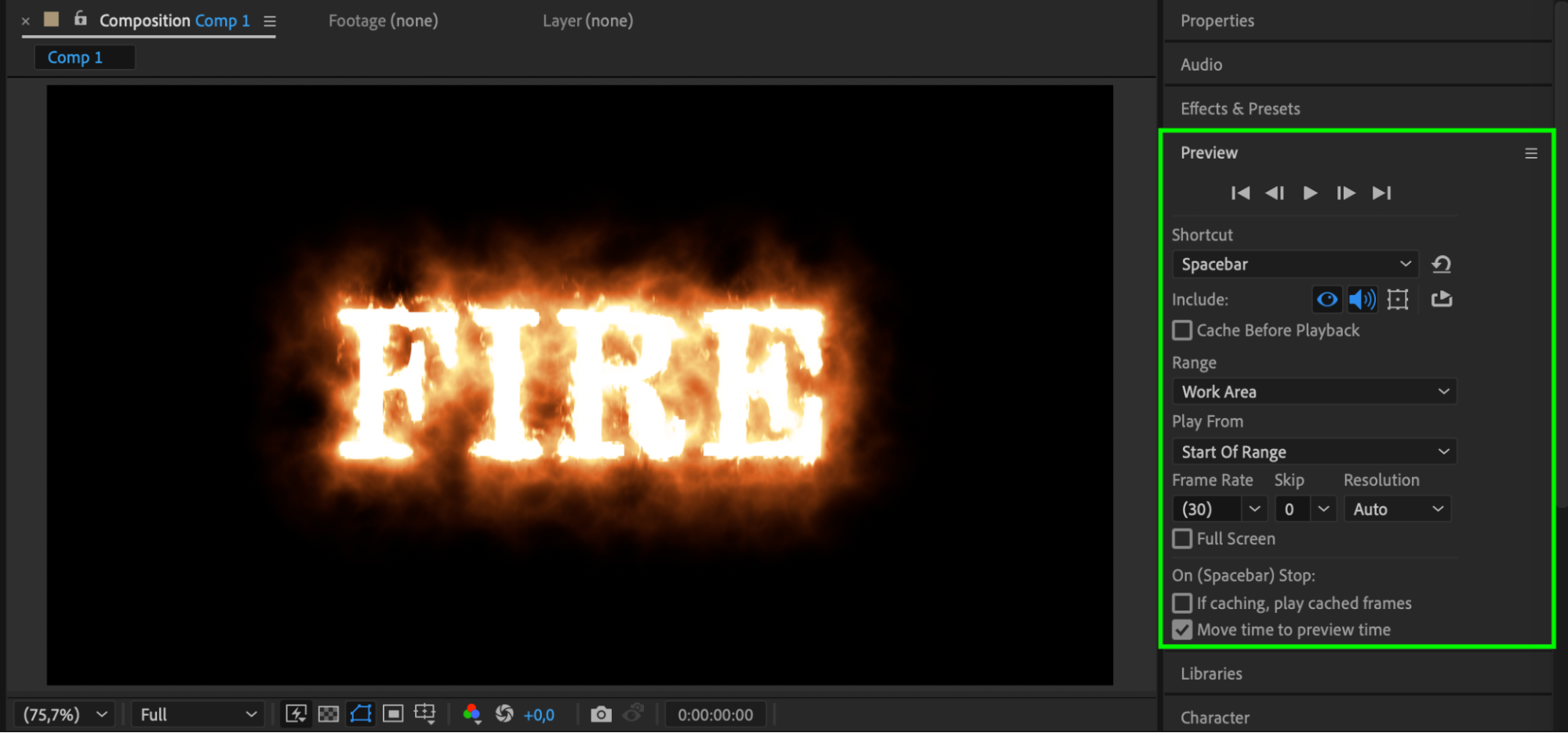 Step 8: Render Your Animation
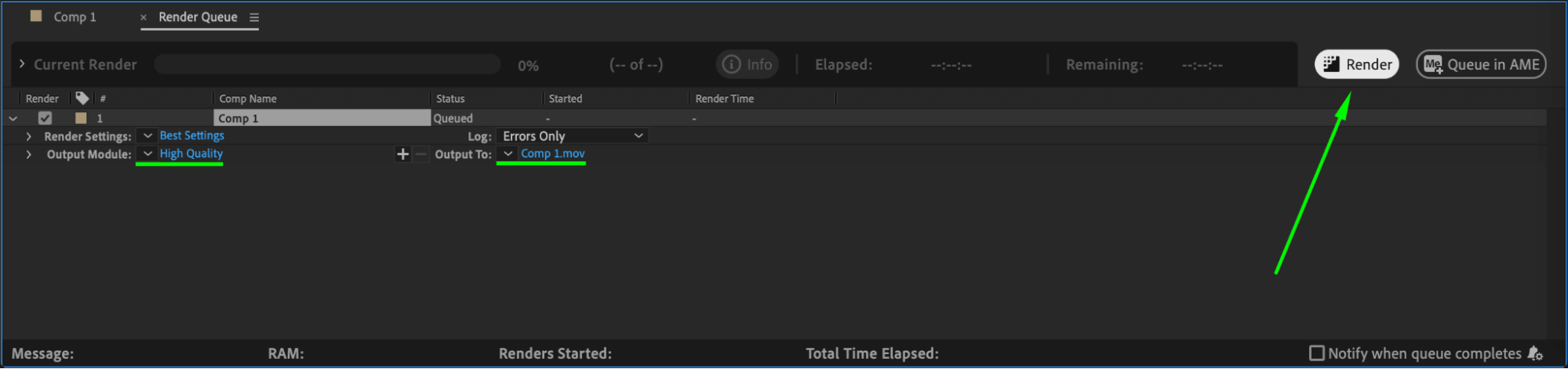
Once you’re satisfied, go to Composition > Add to Render Queue or use Adobe Media Encoder to export your fire text animation. Choose your desired output format and settings.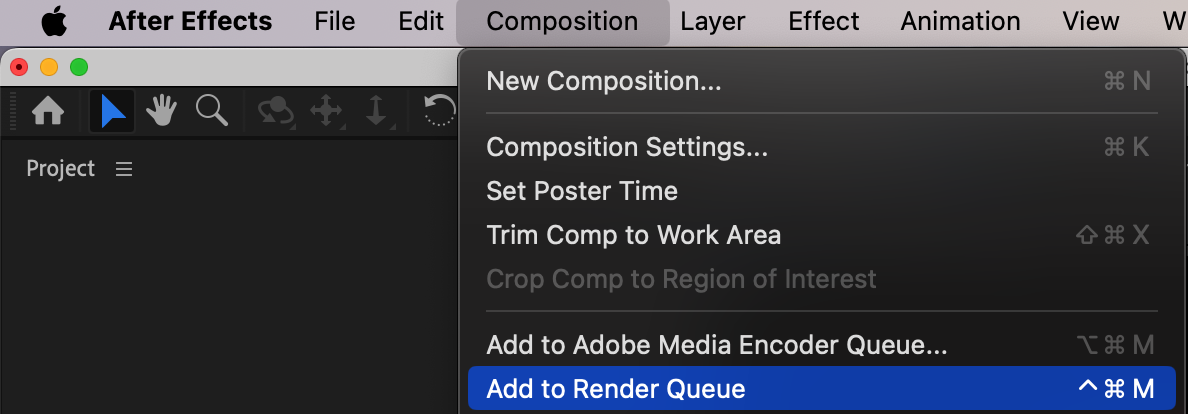
 Conclusion
With just a few steps and the Saber plugin, you can create stunning fire text in After Effects. This effect works great for intros, titles, and dramatic transitions. Experiment with different presets, colors, and glow settings to find the look that fits your project best.
Our Bestsellers
Our Bestsellers


