
Learn how to design and customize modern lower thirds in After Effects using AEJuice templates for stylish and professional video titles.
Designing Stylish Lower Thirds in After Effects
Introduction to Using Modern Lower Third Templates
Modern lower thirds are a powerful way to add context, names, and branding to your videos in a clean and professional way. Whether you’re working on interviews, YouTube content, or corporate videos, using ready-made AEJuice templates can speed up your workflow. In this modern lower thirds tutorial, you’ll learn how to apply and customize some of the best lower third templates available to editors.
Step 1: Create a New Composition
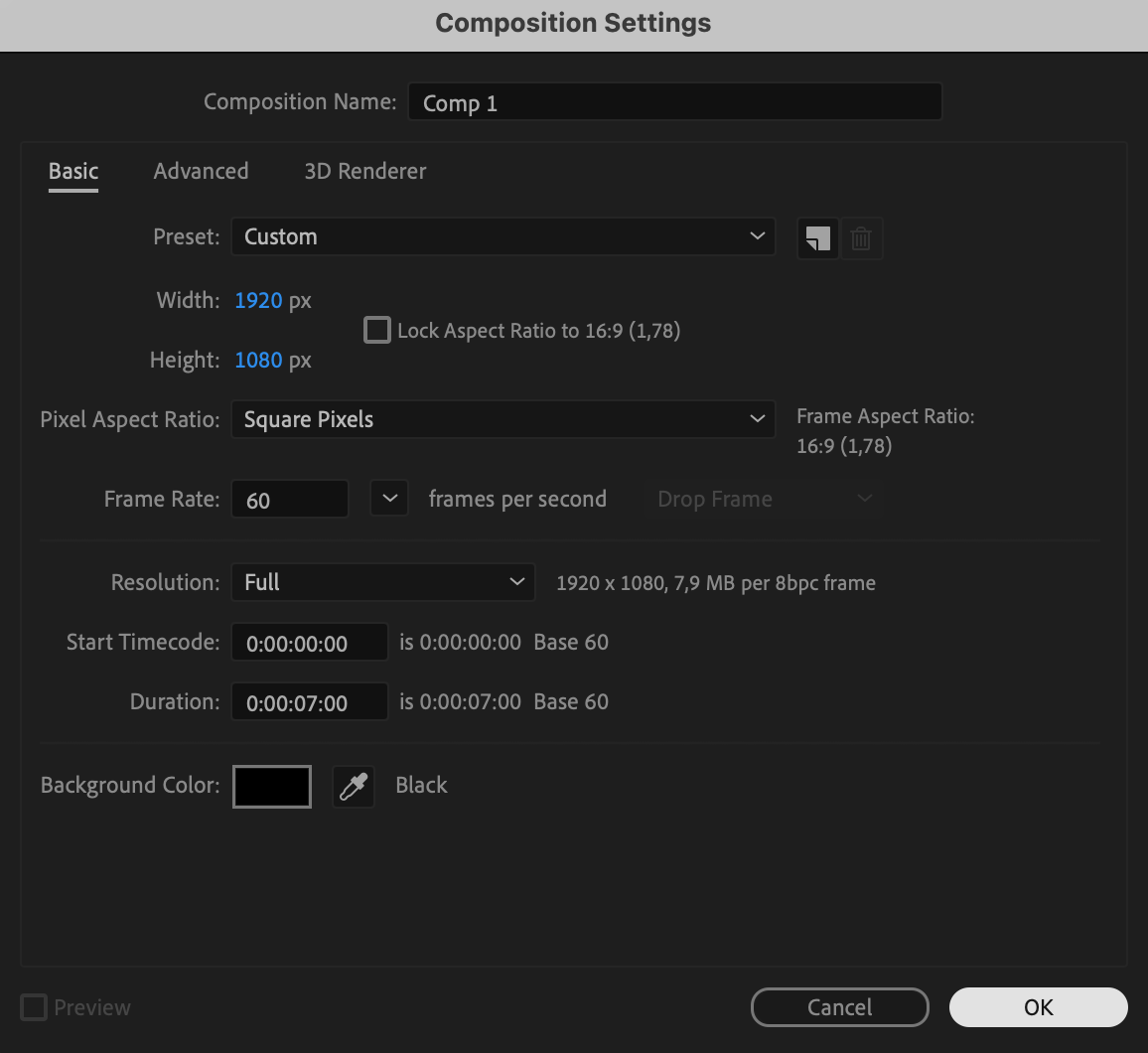
Start by creating a new composition. Go to Composition > New Composition, set your resolution (like 1920×1080), frame rate (like 30 or 60 fps), and duration. This comp will be the base for your project.
Step 2: Import Your Media (Logo or Photo)
Before selecting your lower third, go to File > Import > File and bring in any media assets you’ll use — such as a photo, logo, or branding graphic. These assets will be used inside the template later.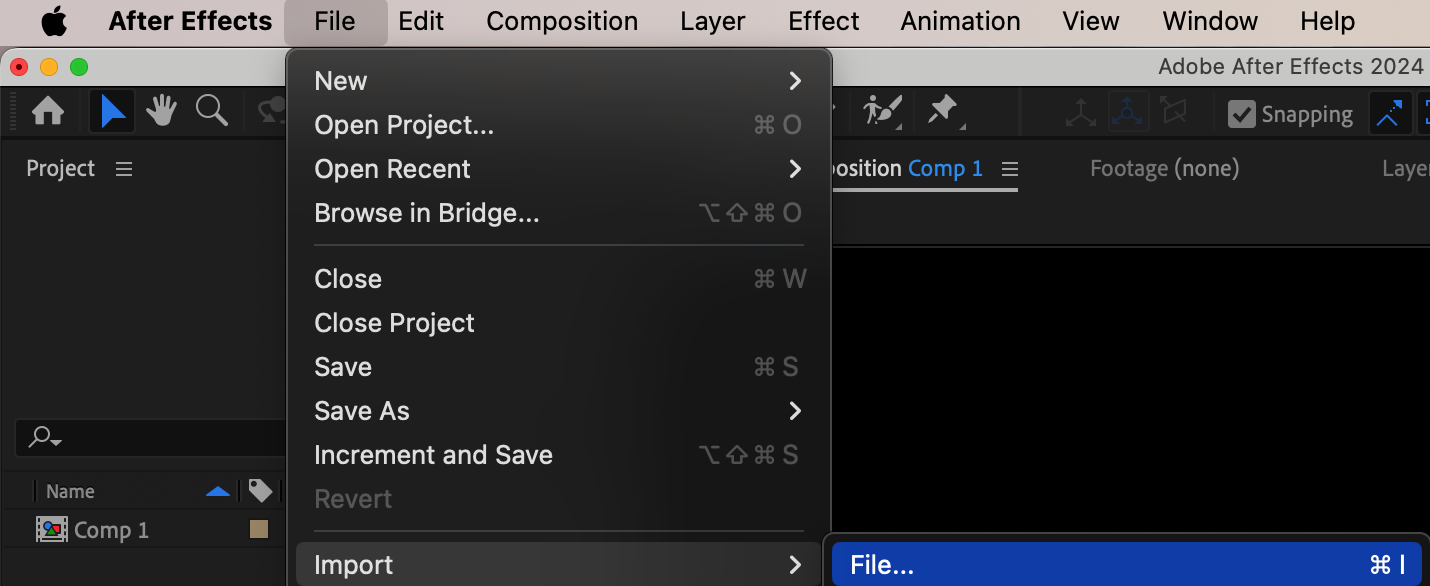 Step 3: Open AEJuice Pack Manager
Navigate to Window > AEJuice Pack Manager 4 to open the plugin panel. This tool gives you access to all your AEJuice packs and presets in one place. Step 4: Download the Modern Lower Thirds Pack
In the AEJuice Pack Manager, locate the Modern Lower Thirds pack. If you haven’t downloaded it yet, click on it and wait for the download to complete. You’ll then be able to preview and use all available templates.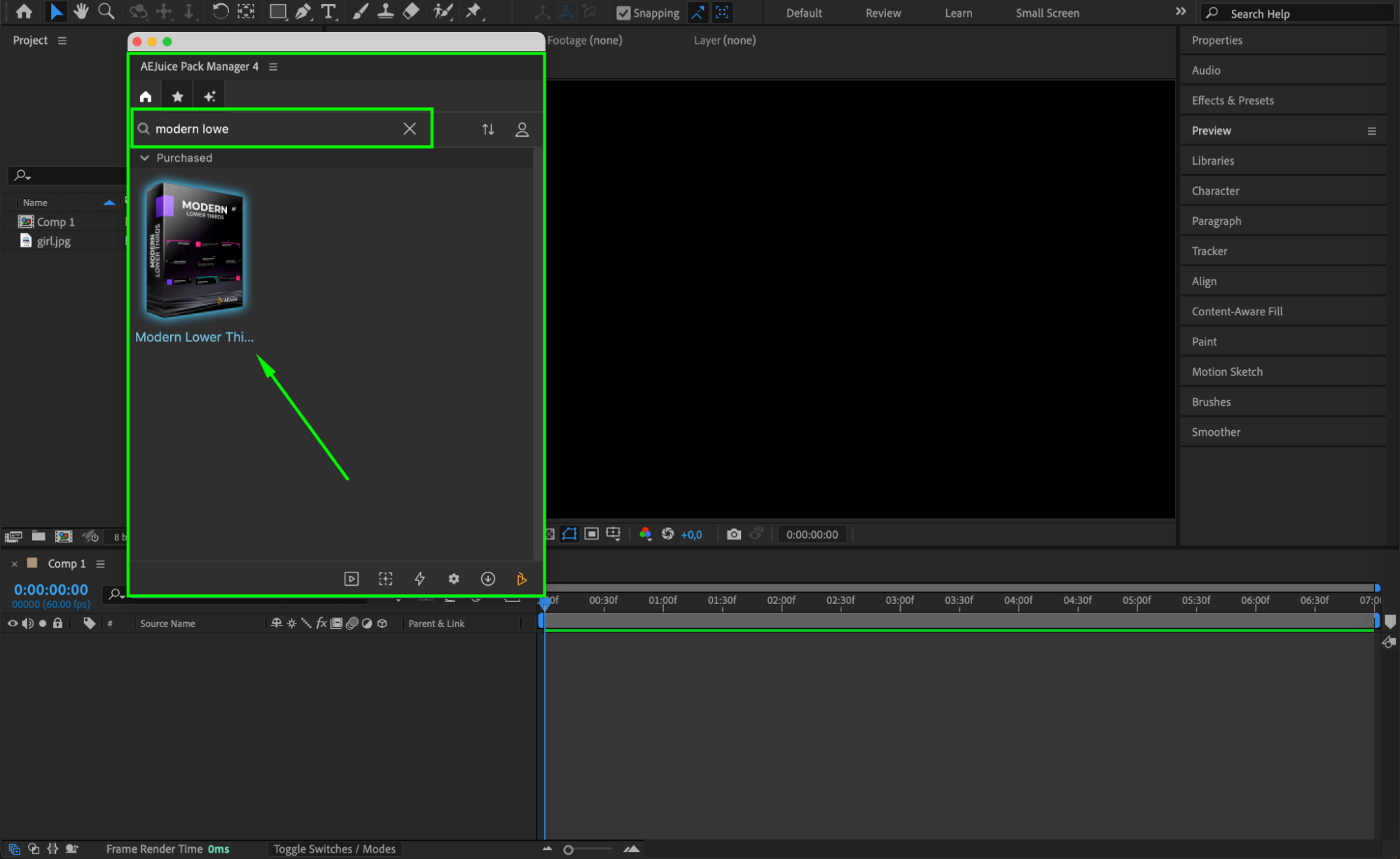
Step 5: Choose and Import a Template
Browse through the pack and select a lower third animation that matches your project’s style. Then, click the Import button to add the selected template to your composition.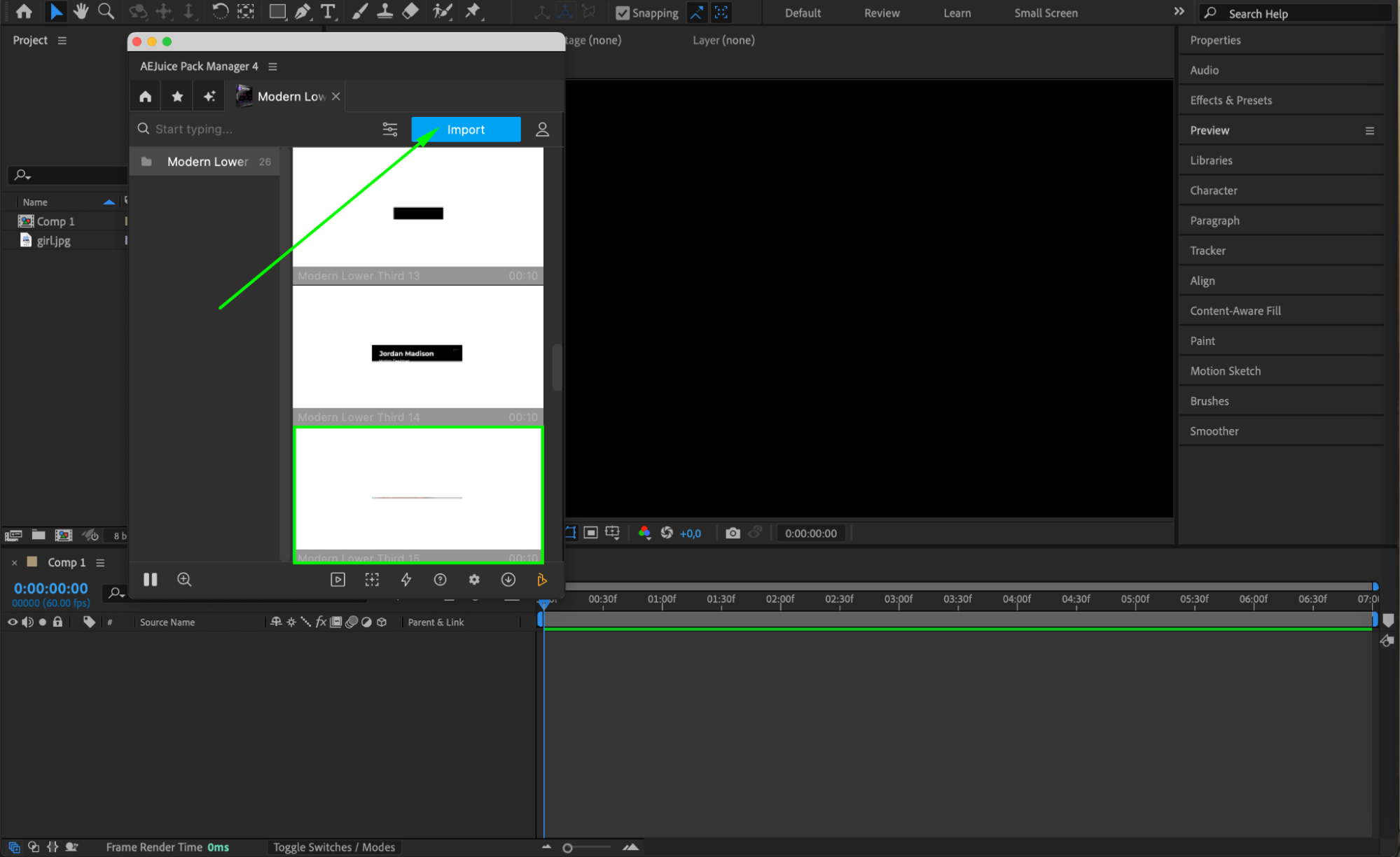 Step 6: Customize the Lower Third
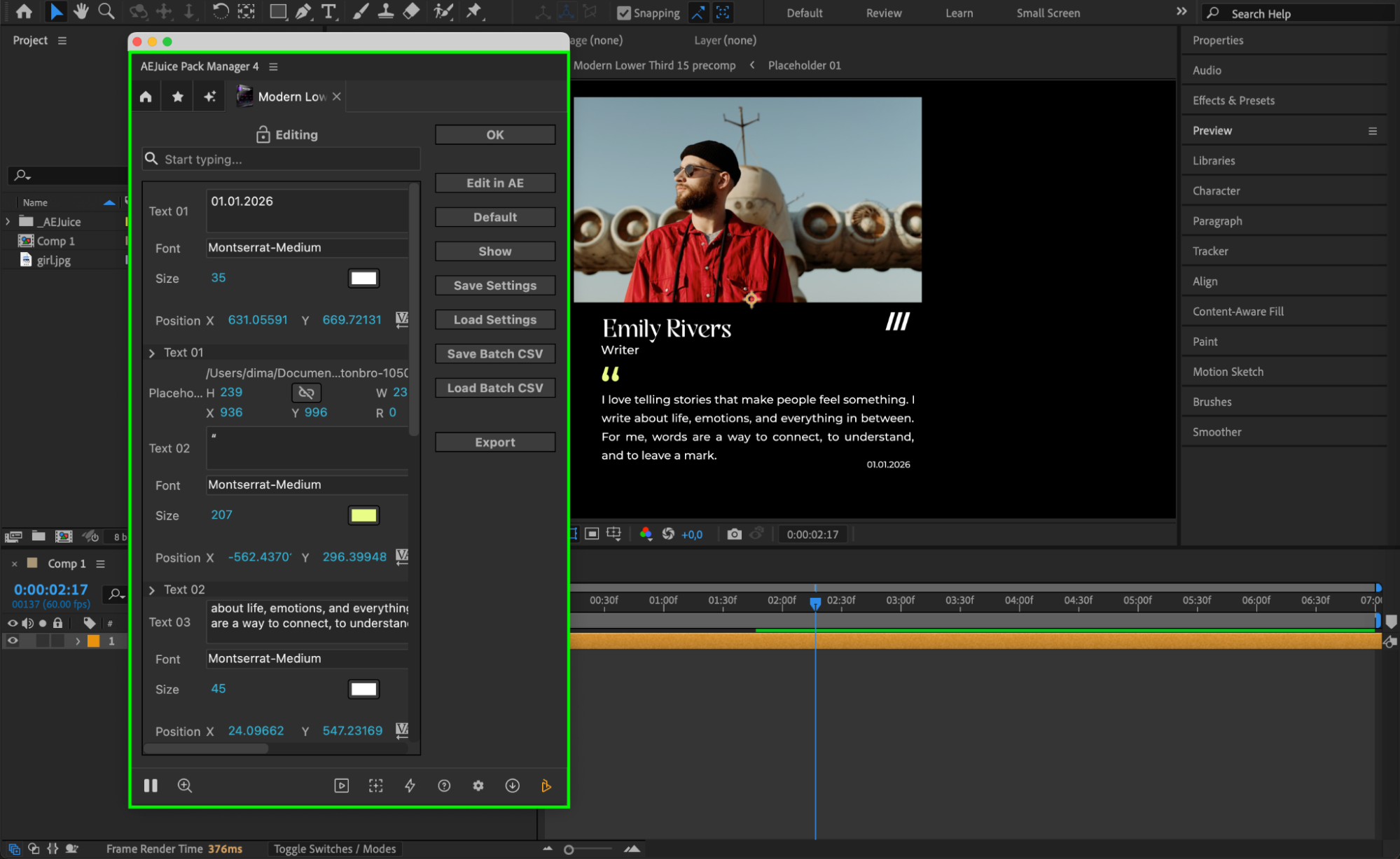
Click on the pre-comp in the timeline to select it. In the AEJuice Pack Manager 4 panel, press the Edit button (three sliders icon). This opens a customization panel where you can change text, font, color, position, animation style, and more. This makes it easy to match your branding or aesthetic.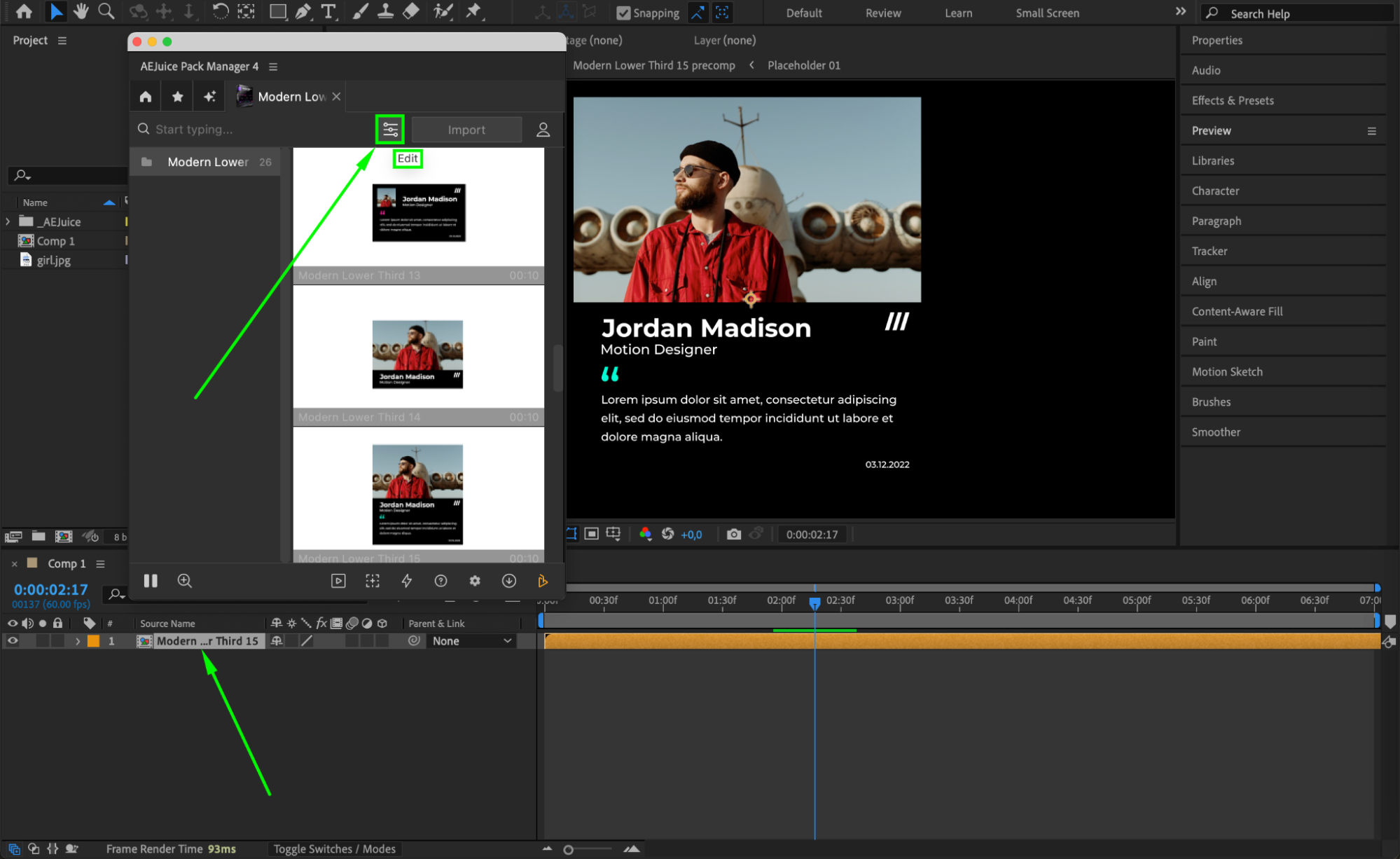
Step 7: Replace Media (Logo or Placeholder)
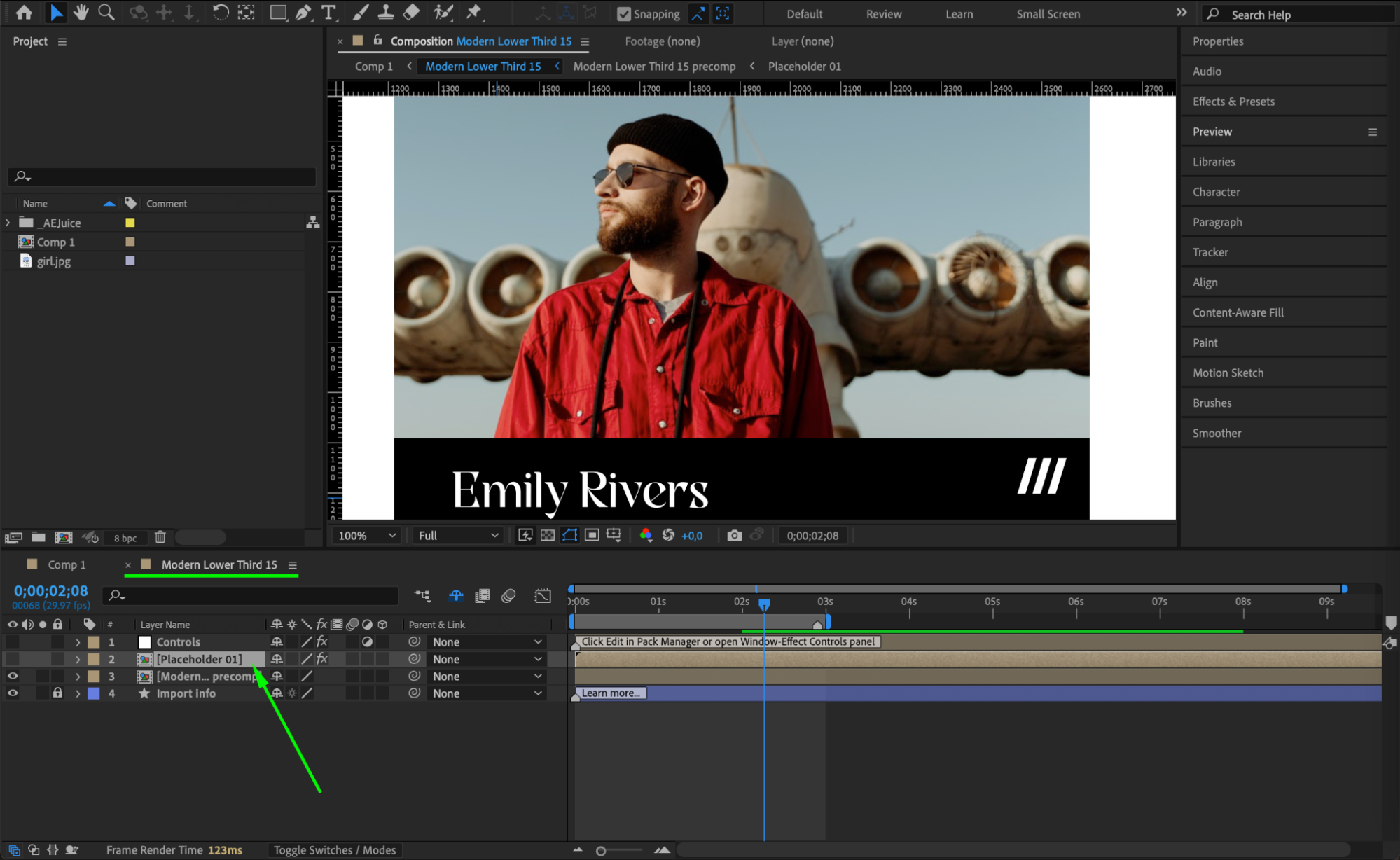
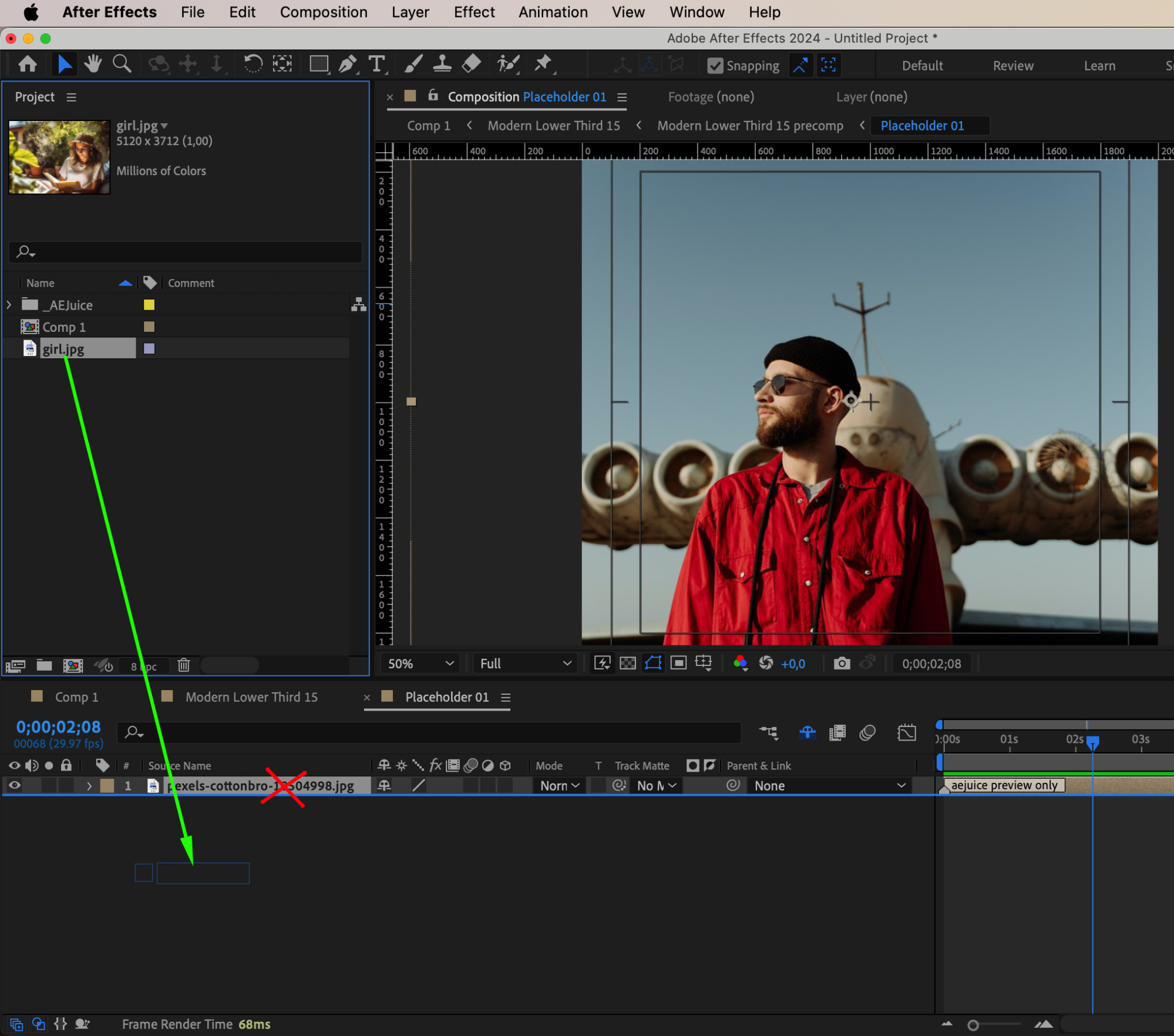
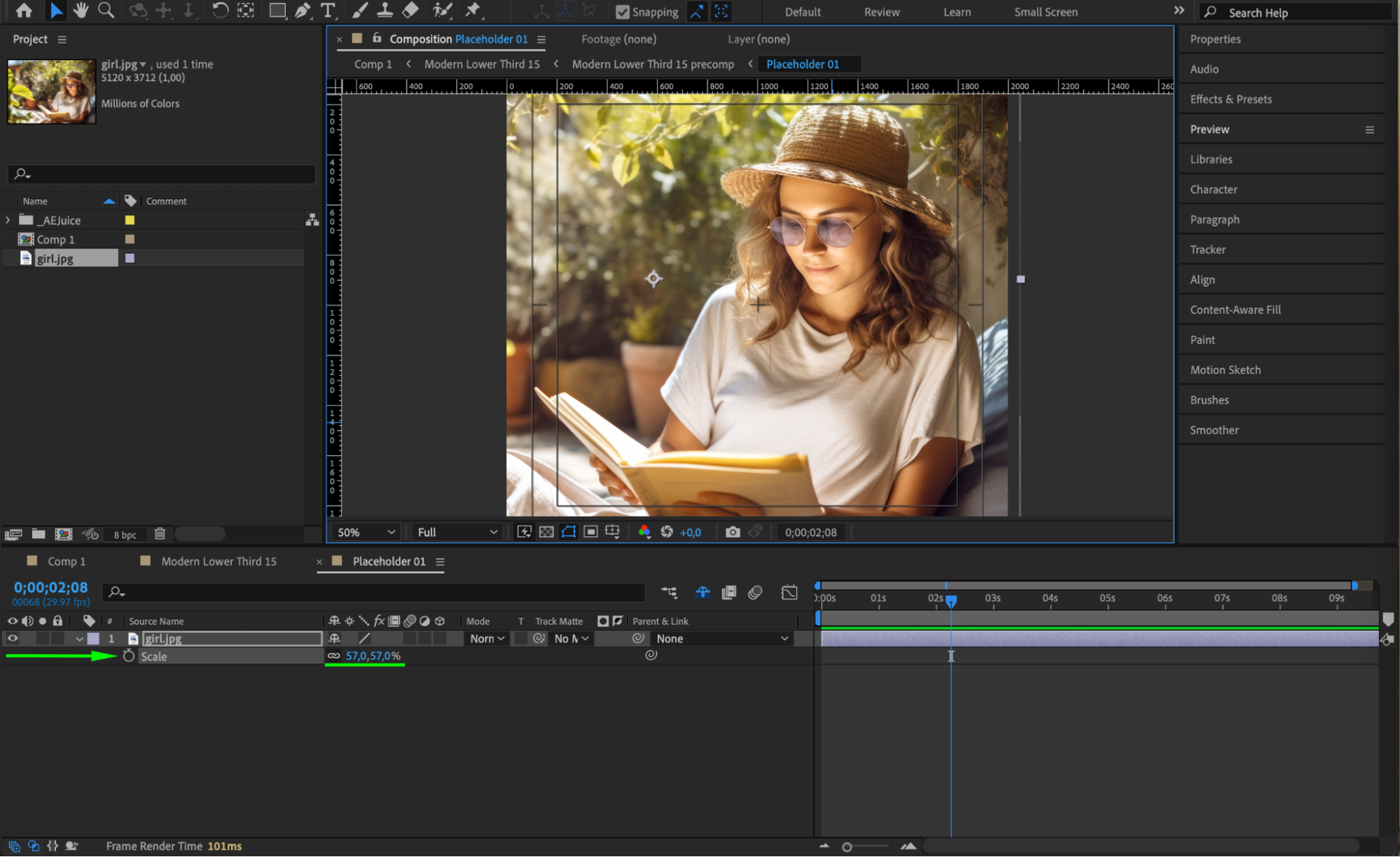
For lower thirds that include a placeholder image or logo, double-click the pre-comp layer in your timeline. Then, double-click the Placeholder pre-comp inside. Delete the existing content, and drag your new media (from the Project panel) into the comp. Adjust scale and position as needed.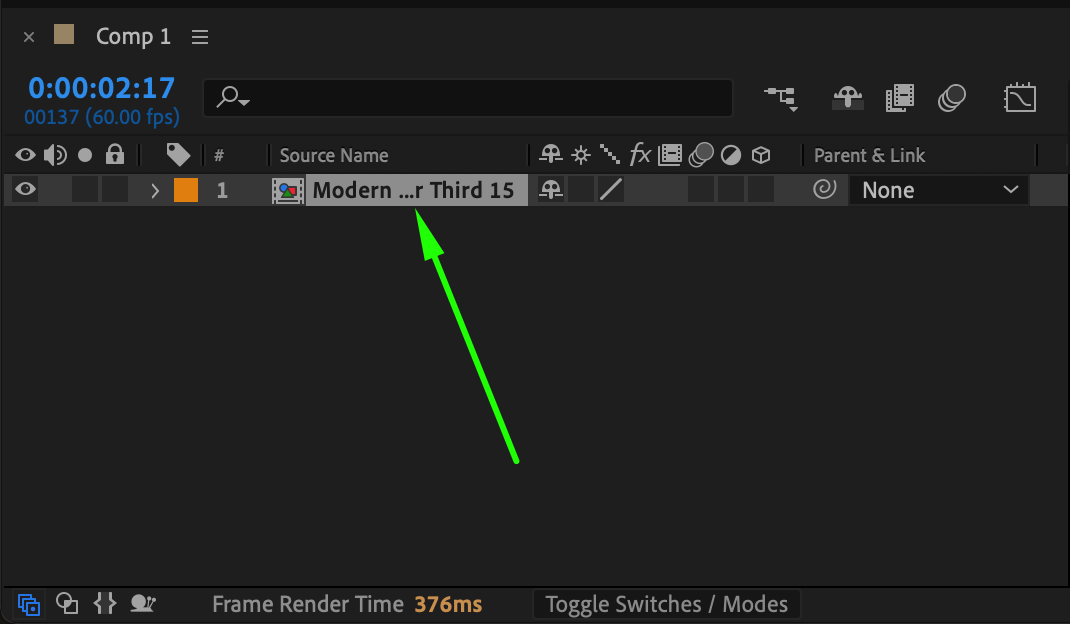
 Step 8: Preview and Final Adjustments
Hit the Spacebar to preview the animation. Make any final tweaks to timing or style to make sure everything looks polished and professional.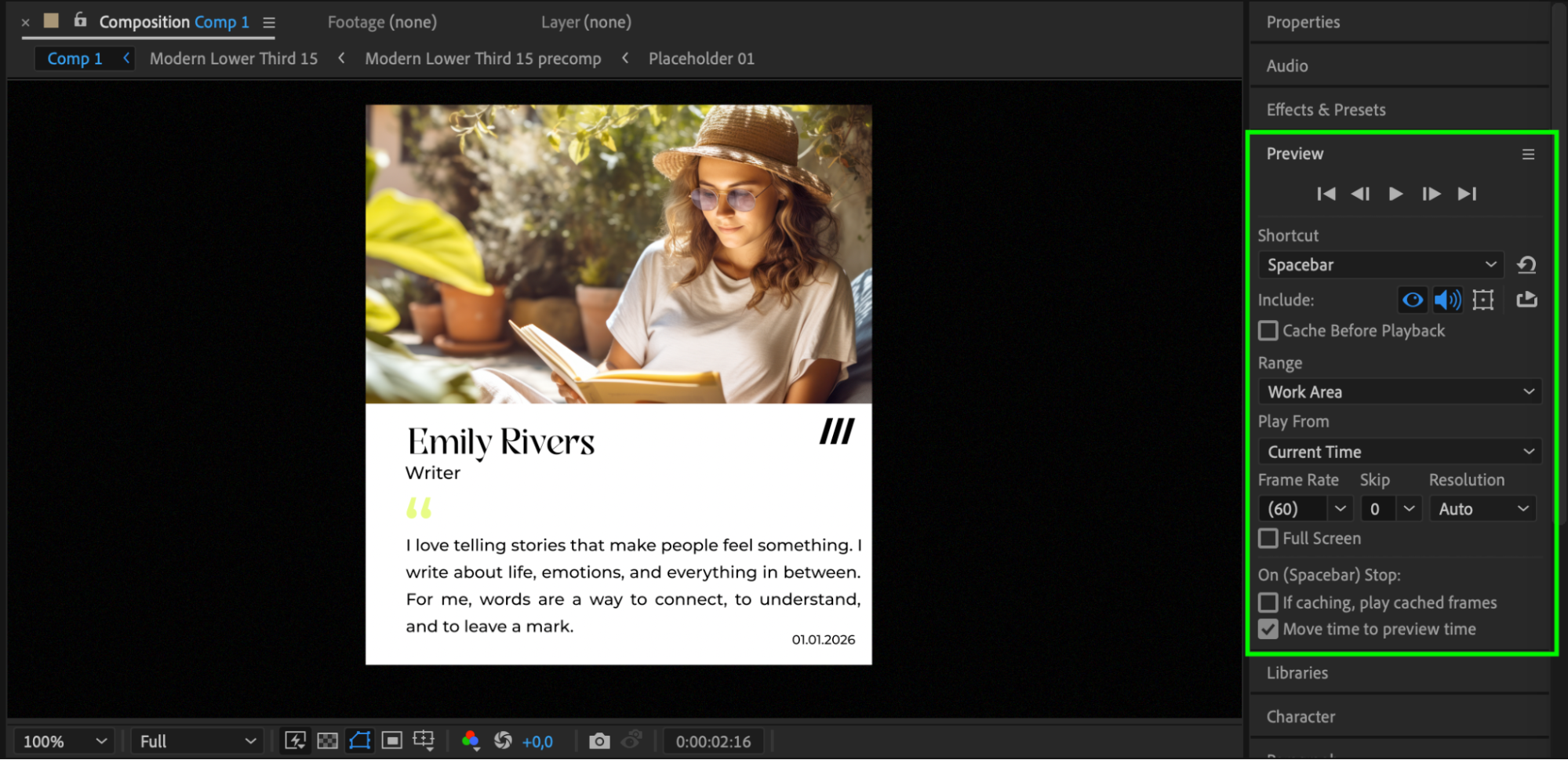
Conclusion
Modern lower thirds instantly elevate your videos with a clean, branded touch. Using AEJuice templates in After Effects makes it quick and easy to produce high-quality results, even if you’re short on time. Customize the layout, replace logos, and tweak styles to make every title your own.
Our Bestsellers
Our Bestsellers


