
Creating Animated Motion Text in After Effects
Introduction to Motion Text Animation
Motion text animation is a great way to enhance video projects by making text appear dynamically. In After Effects, you can easily create smooth text animations using tracking, opacity, and keyframes. Follow these steps to create professional animated text.
Step 1: Create a New Composition
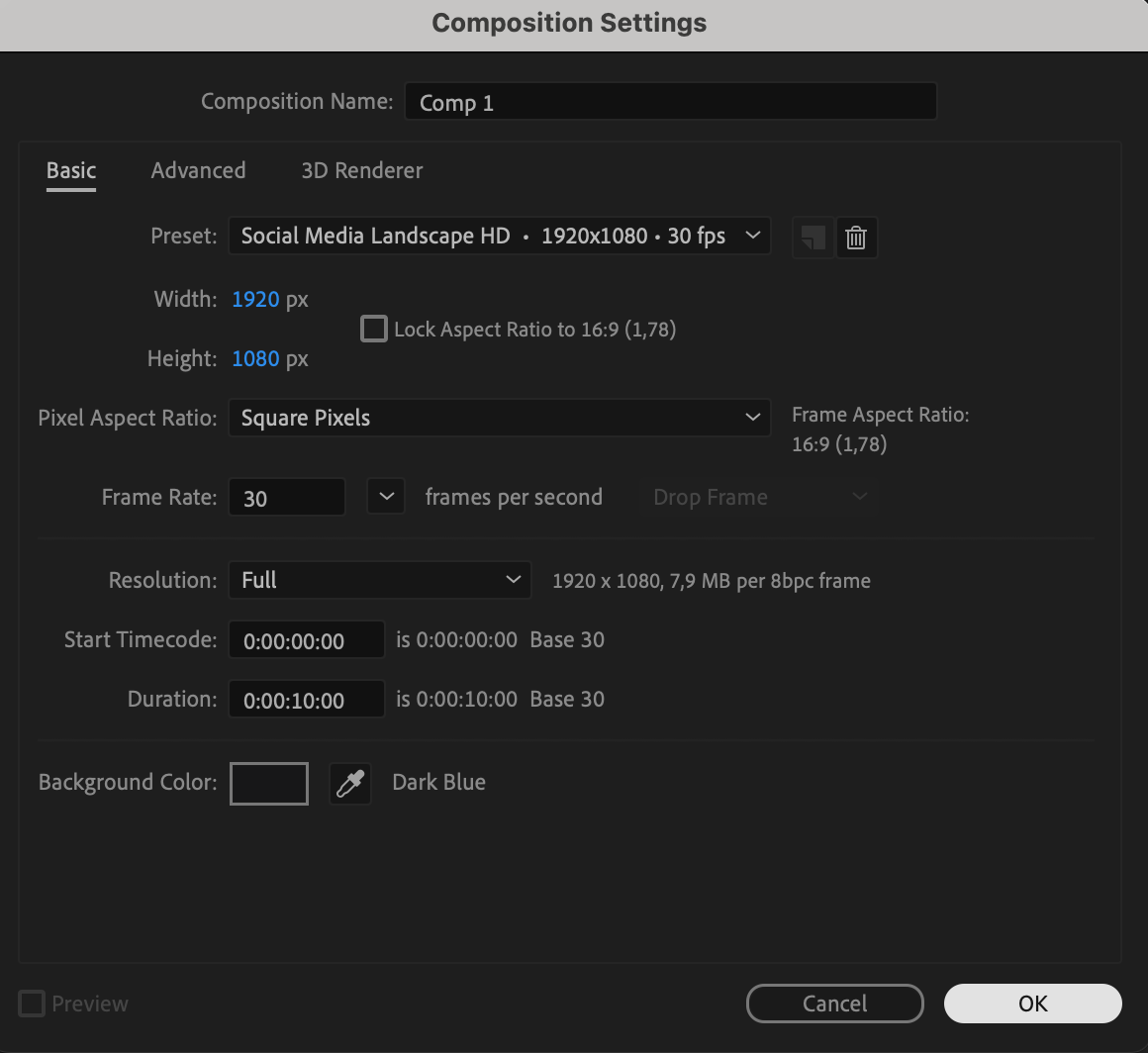
Open After Effects and go to Composition > New Composition. Set the resolution, duration, and background color as needed. This will be your working space for animating the text.

 Step 2: Add Text Using the Type Tool
Select the Type Tool (Ctrl/Cmd + T) from the toolbar and click inside the composition window to type your text. Adjust the font, size, and color in the Character panel. Position the text layer in the desired location.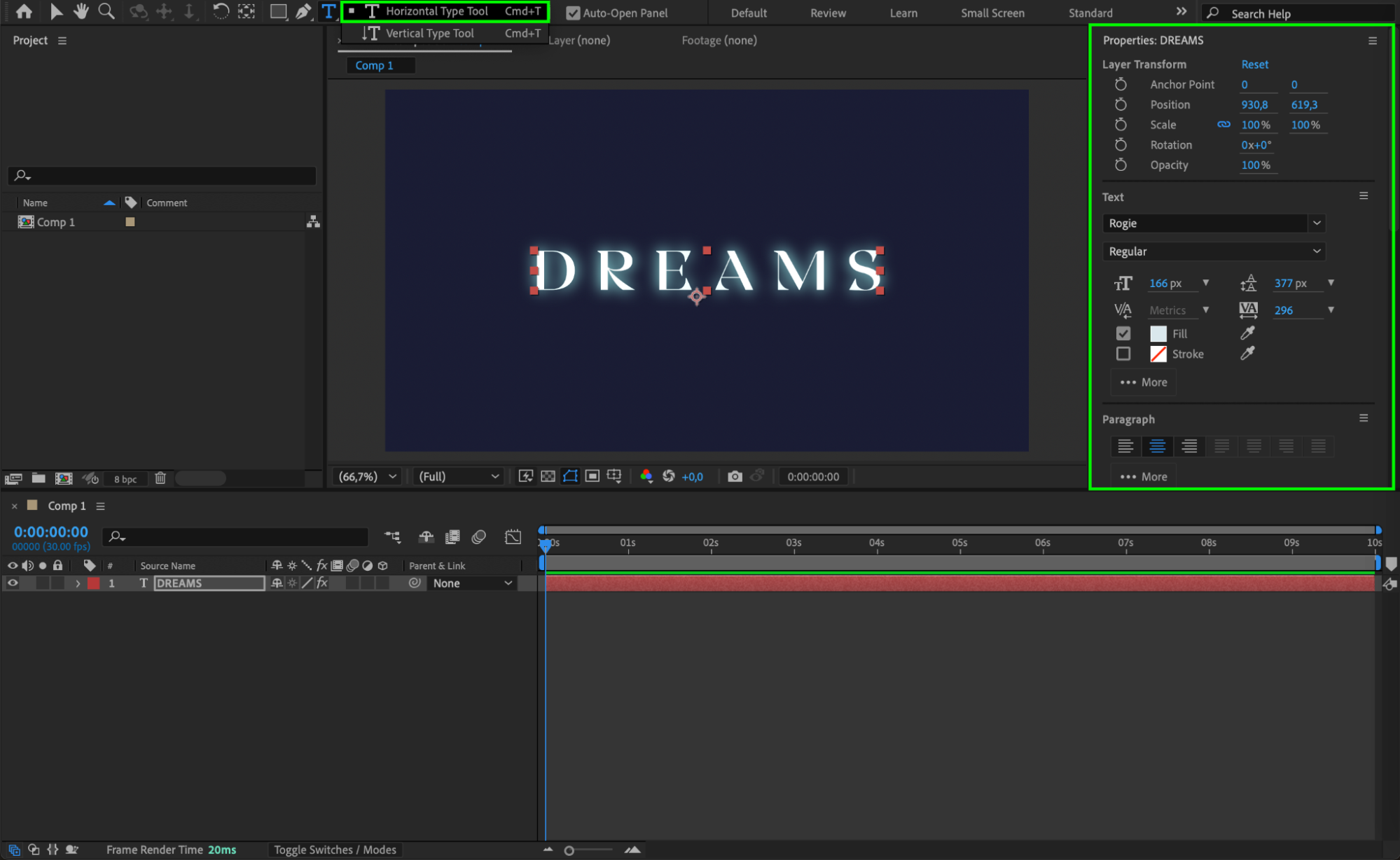 Step 3: Add Tracking Animation
Expand the text layer properties by clicking the small triangle next to it. Find the Animate menu next to the Text section, click the triangle, and select Tracking. This will allow you to animate the spacing between letters.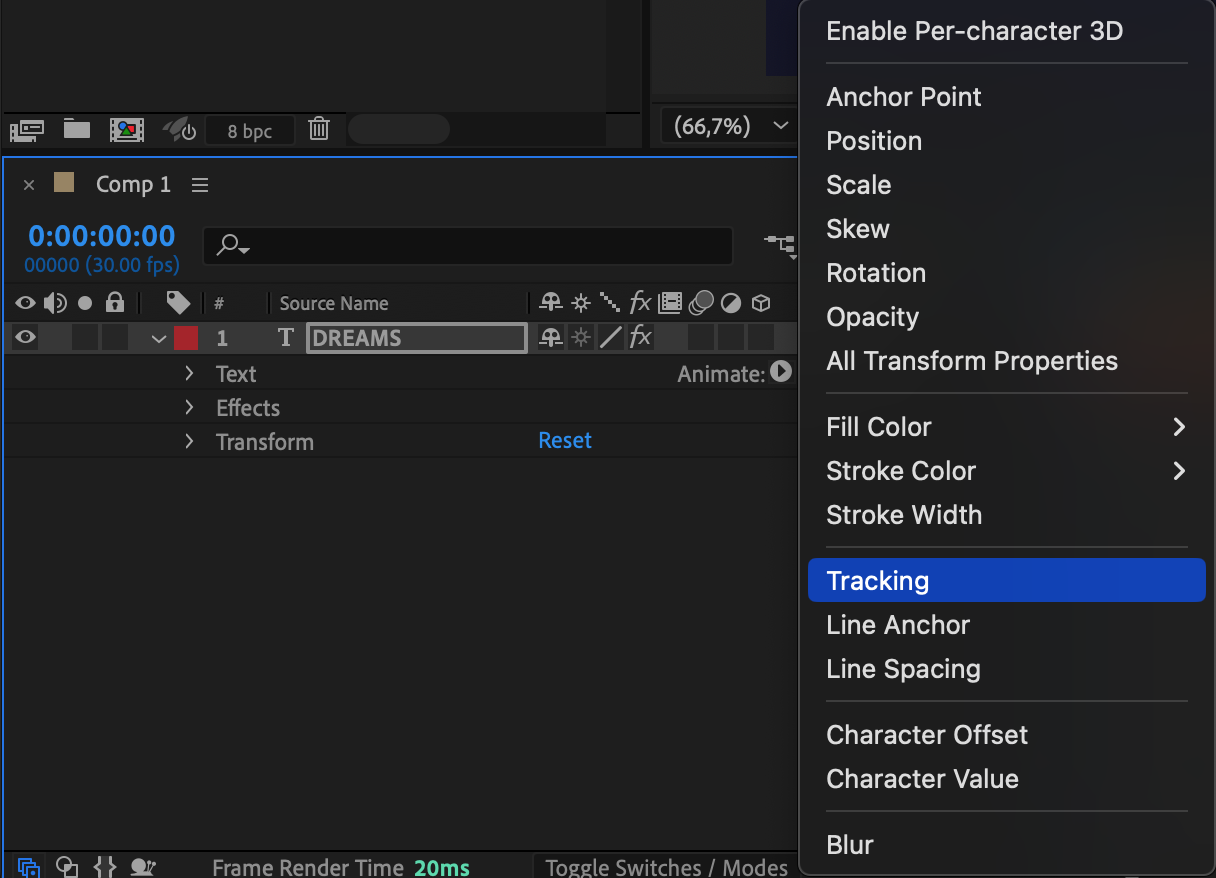 Step 4: Add an Opacity Property
Inside the text layer properties, locate Animator 1 and click the triangle next to Add. Choose Property > Opacity. This will let you animate the text’s visibility for a smooth fade-in effect.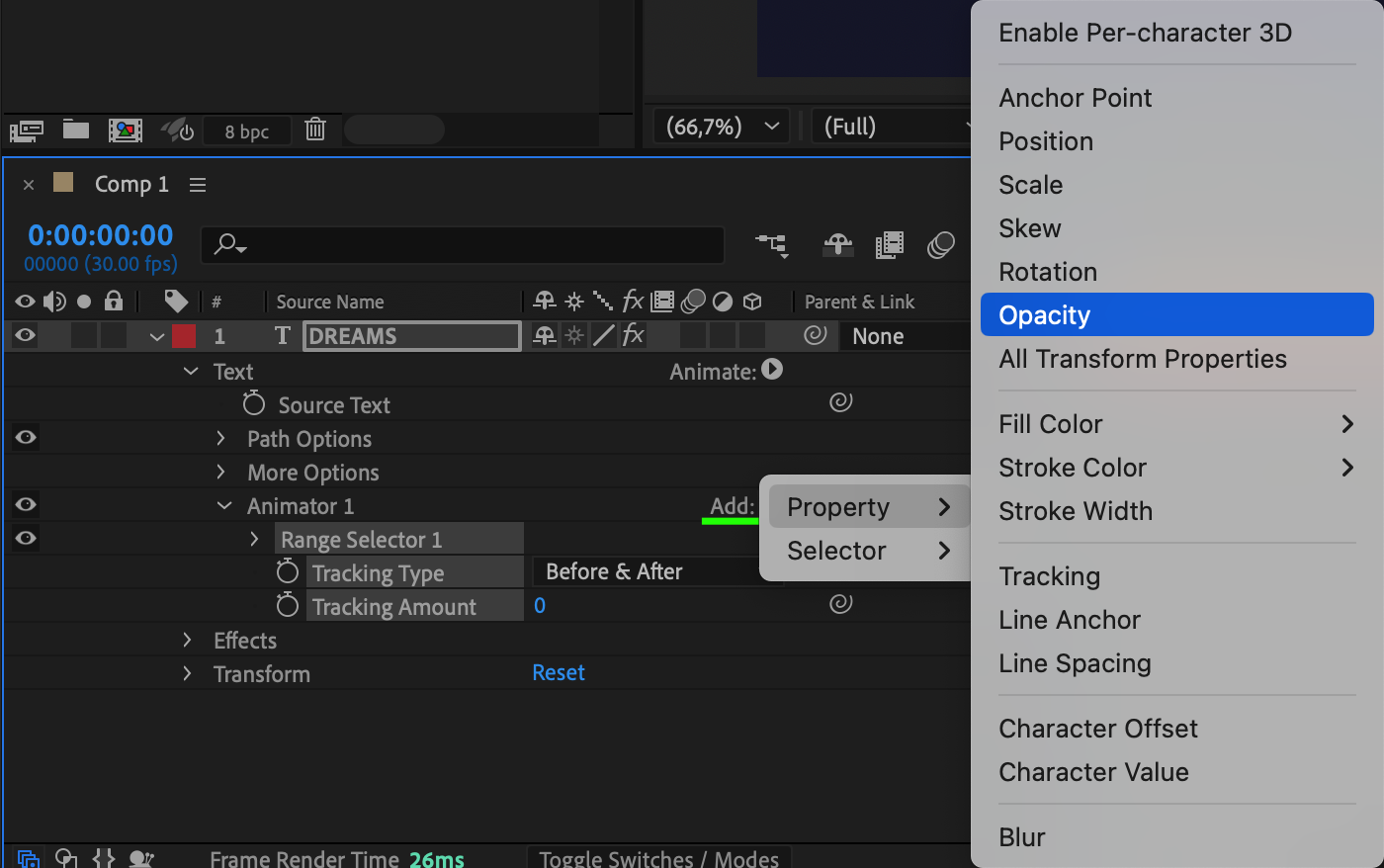 Step 5: Adjust Keyframes for Animation
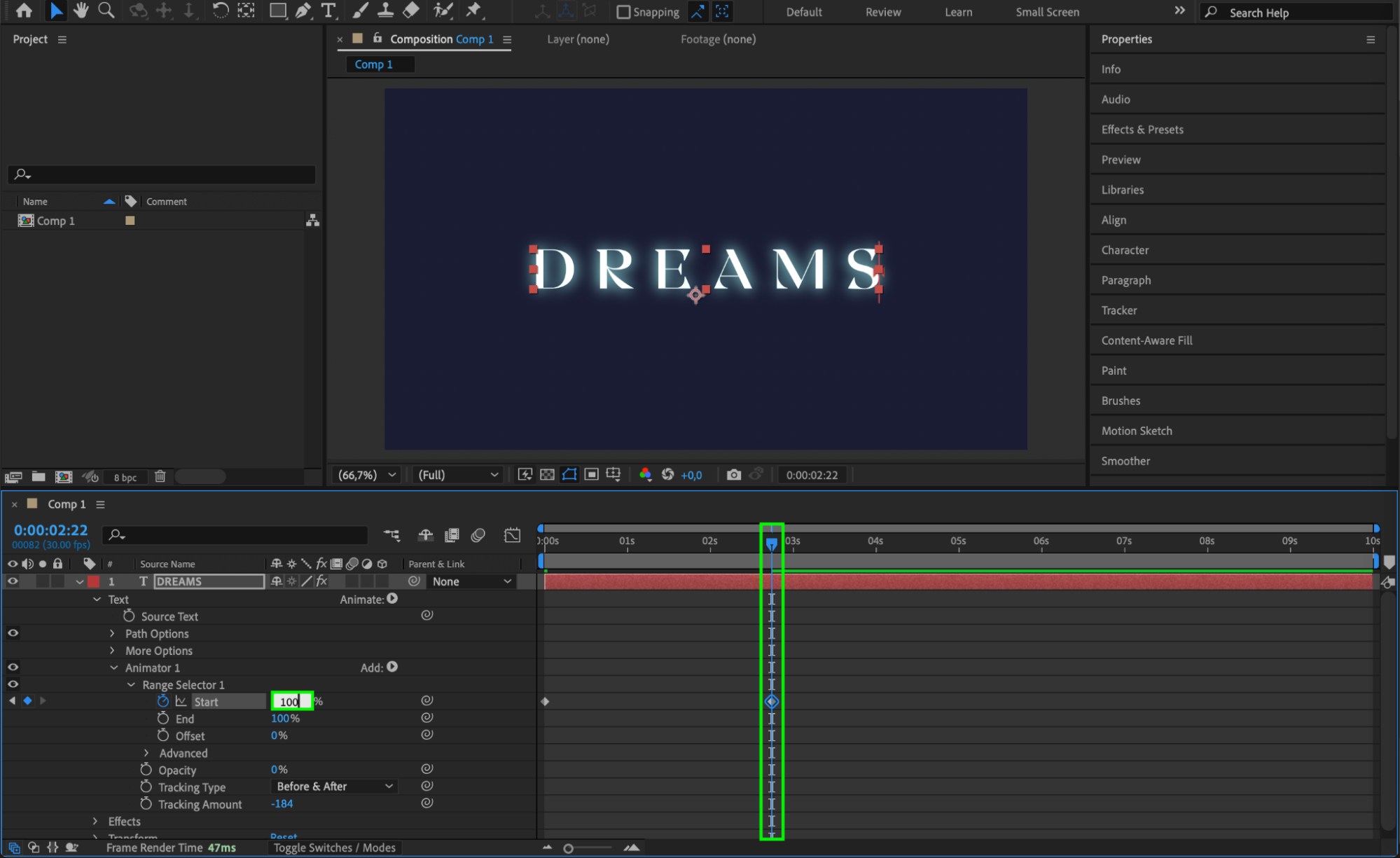
Set Opacity to 0 and Tracking Amount to -184 (or another negative value for tight letter spacing). Move the CTI (Current Time Indicator) to the start of the timeline, click the stopwatch next to Start, and set its value to 0. Move the CTI forward and change the Start value to 100. This will create a gradual text expansion and fade-in effect.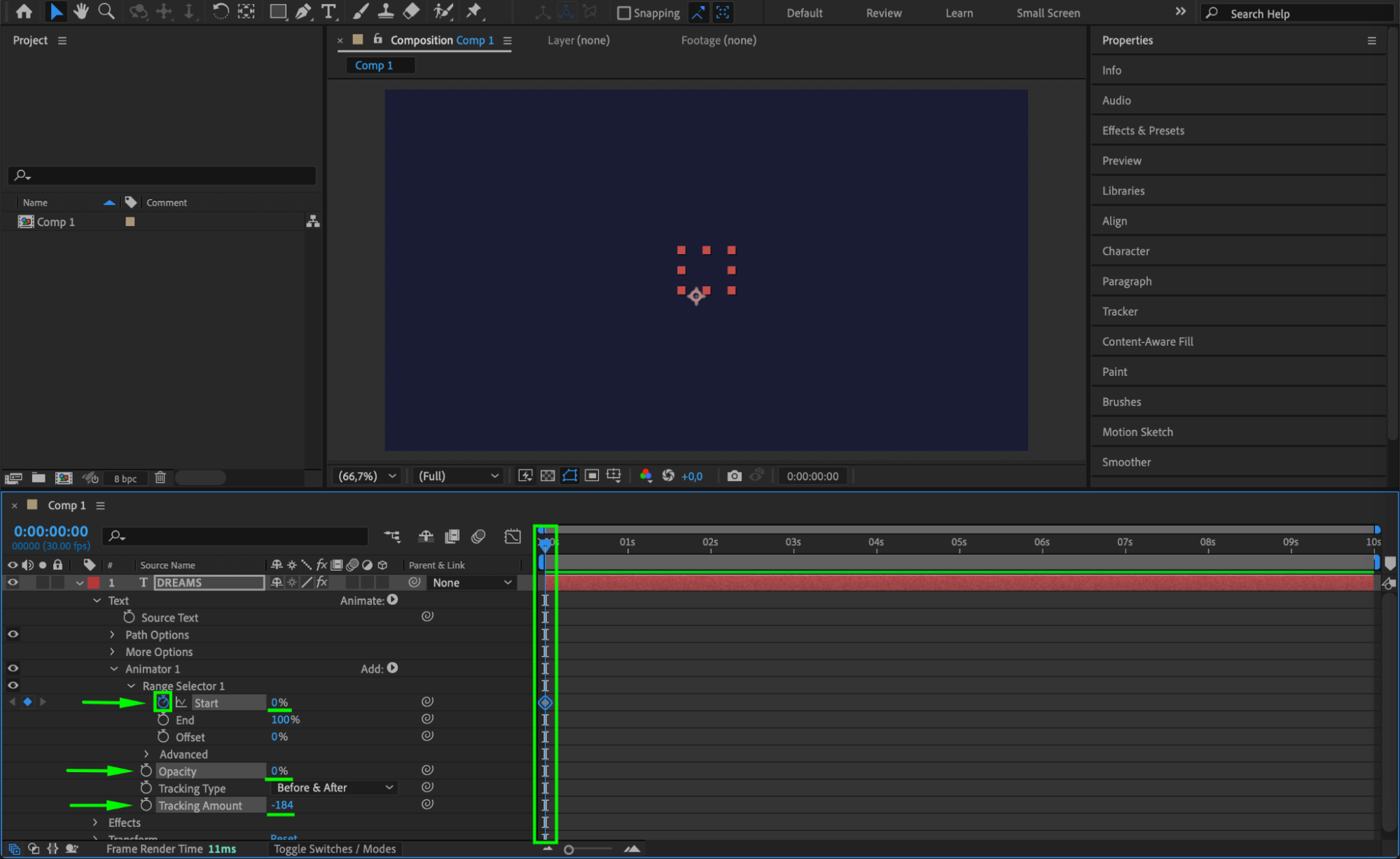
 Step 6: Smooth the Animation with Easy Ease
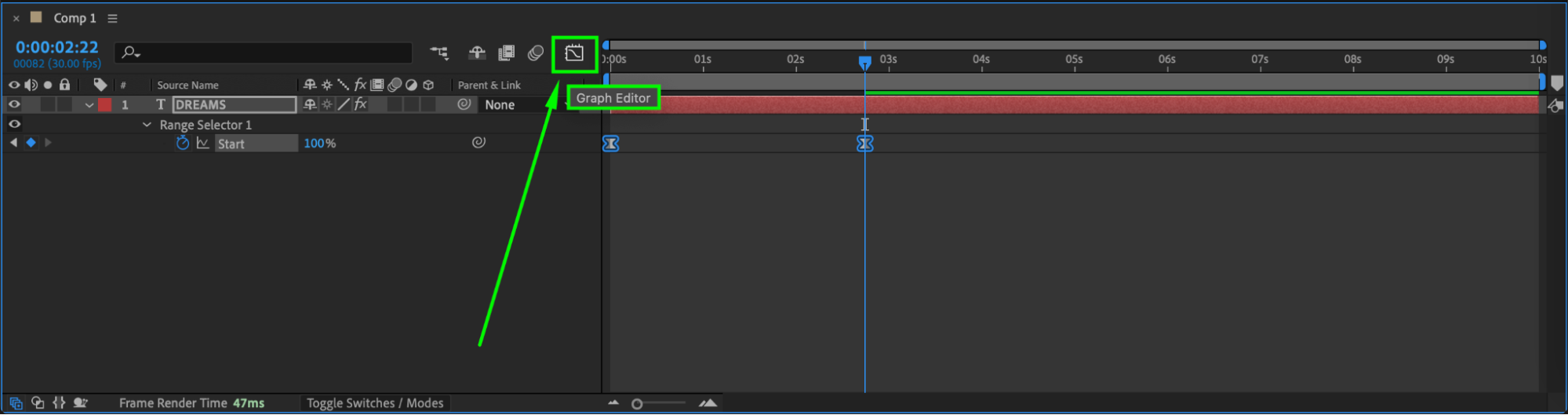
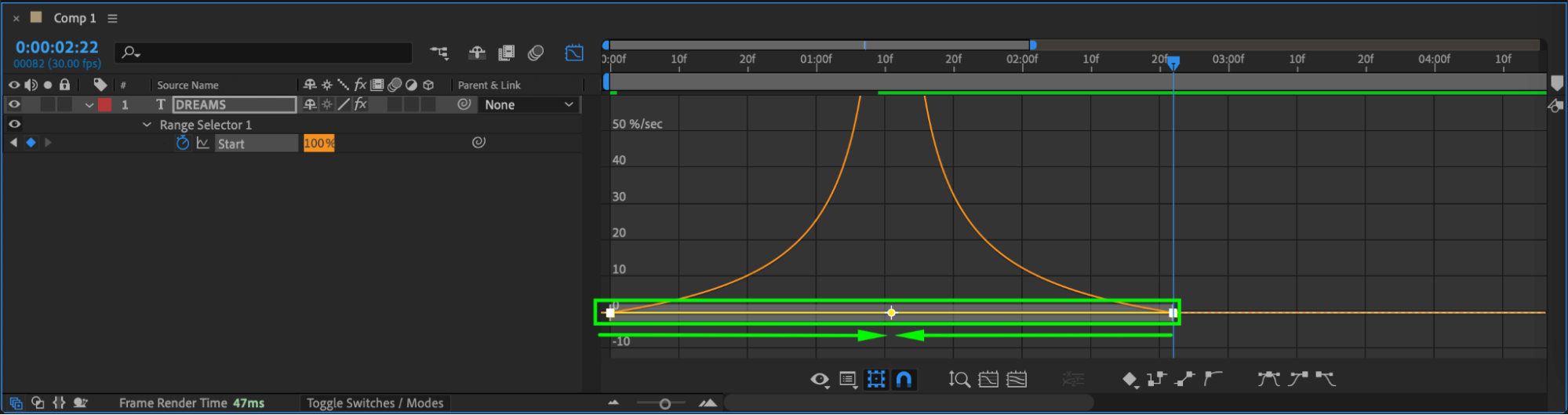
Select all created keyframes, right-click on them, and choose Keyframe Assistant > Easy Ease. This will make the animation smoother. Open the Graph Editor to fine-tune the speed curve for a more natural motion.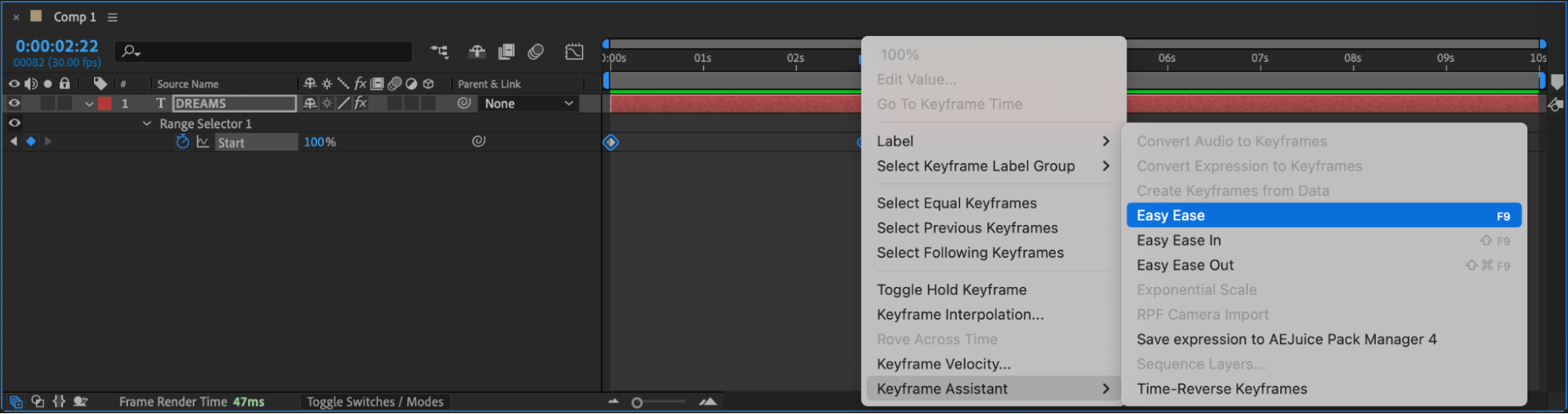
 Step 7: Preview the Animation
Press the Spacebar to play the composition and check how the text animation looks. Adjust keyframes or values if needed for a smoother effect.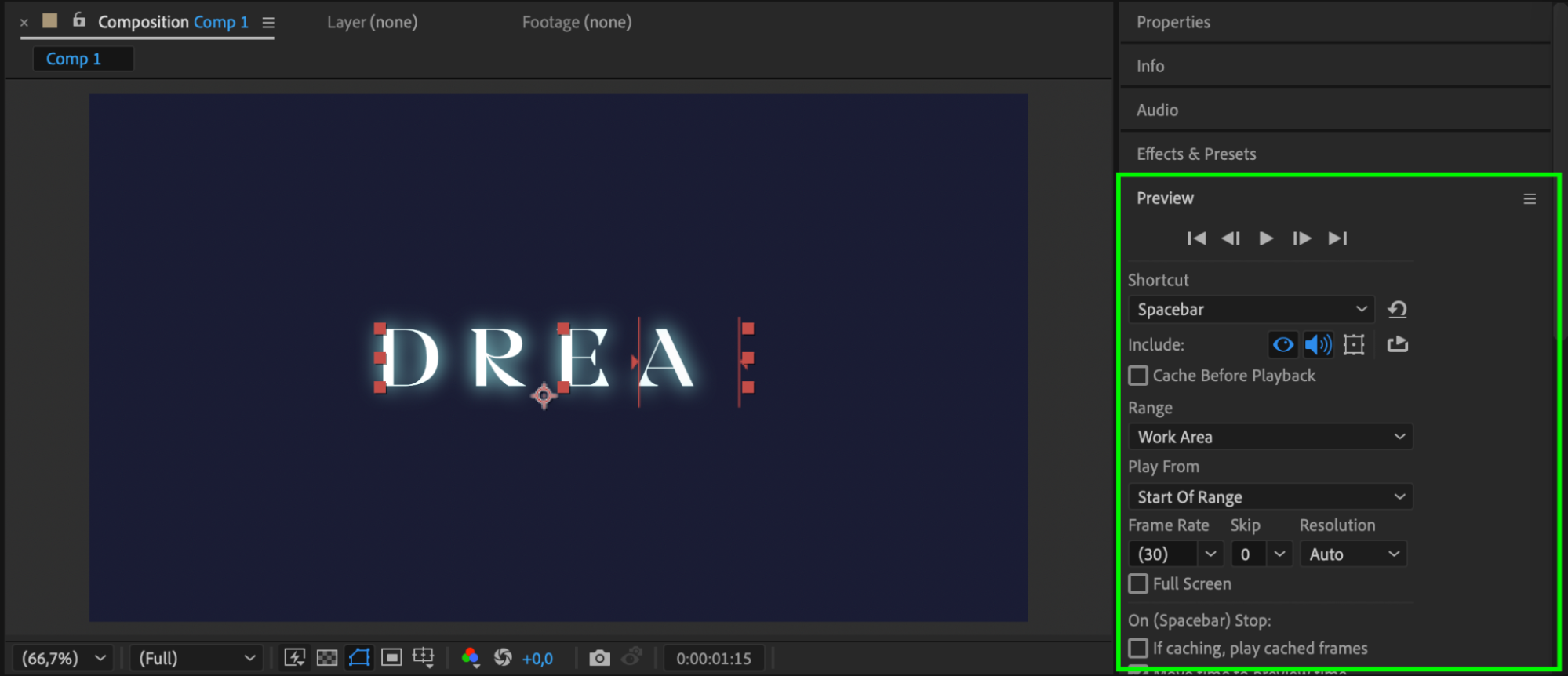 Step 8: Render the Final Animation
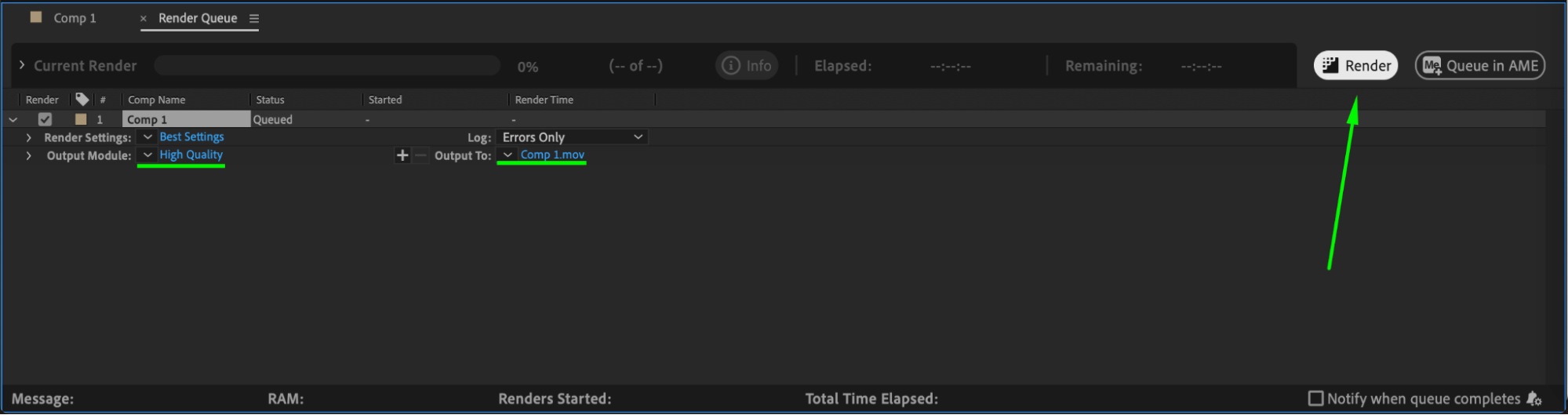
Go to Composition > Add to Render Queue, select your preferred format and output location, then click Render to export your animated motion text.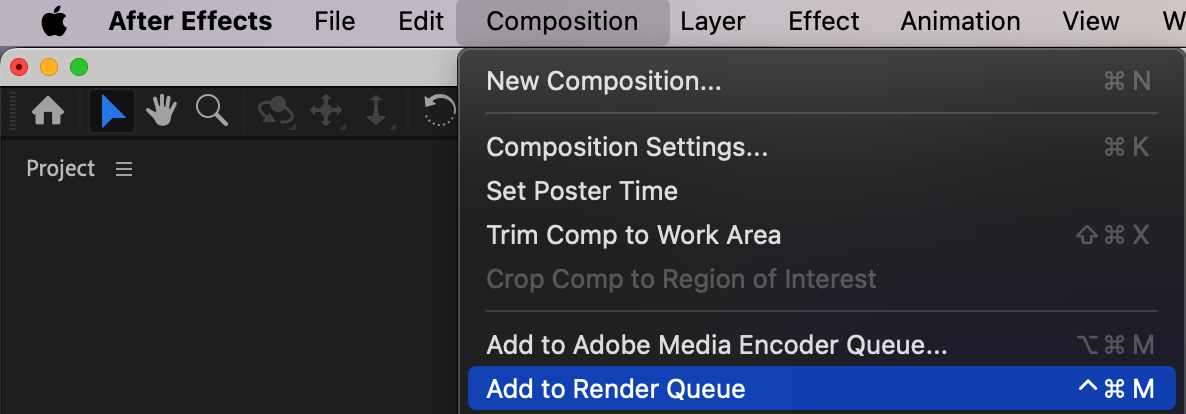
 Conclusion
Animating text in After Effects allows you to create dynamic, engaging visuals. By adjusting tracking, opacity, and easing keyframes, you can achieve a professional motion text effect that enhances your video content.
Our Bestsellers
Our Bestsellers


