
Creating Shiny Text in After Effects
Introduction
Shiny text effects can add a polished and professional look to your motion graphics projects. Whether you’re working on a logo animation, title sequence, or promotional video, this tutorial will guide you through creating a reflective, glossy text effect in After Effects using built-in effects.
Step 1: Create a New Composition
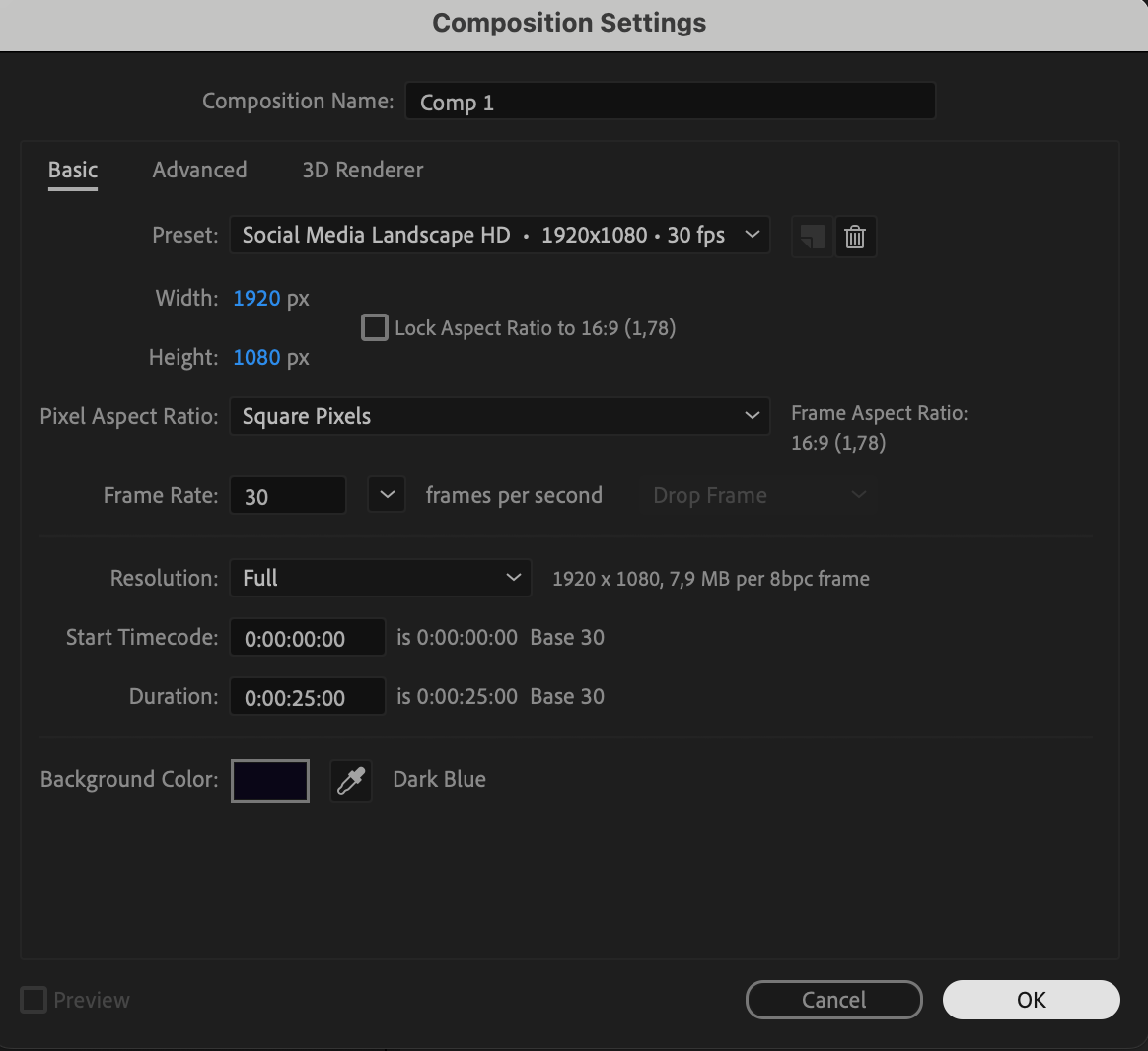
Open After Effects and create a new composition by going to Composition > New Composition. Set your desired resolution and frame rate.
 Step 2: Add Text
Select the Type Tool (Ctrl/Cmd + T) and type your text on the canvas. Choose a bold or metallic-style font for a stronger effect.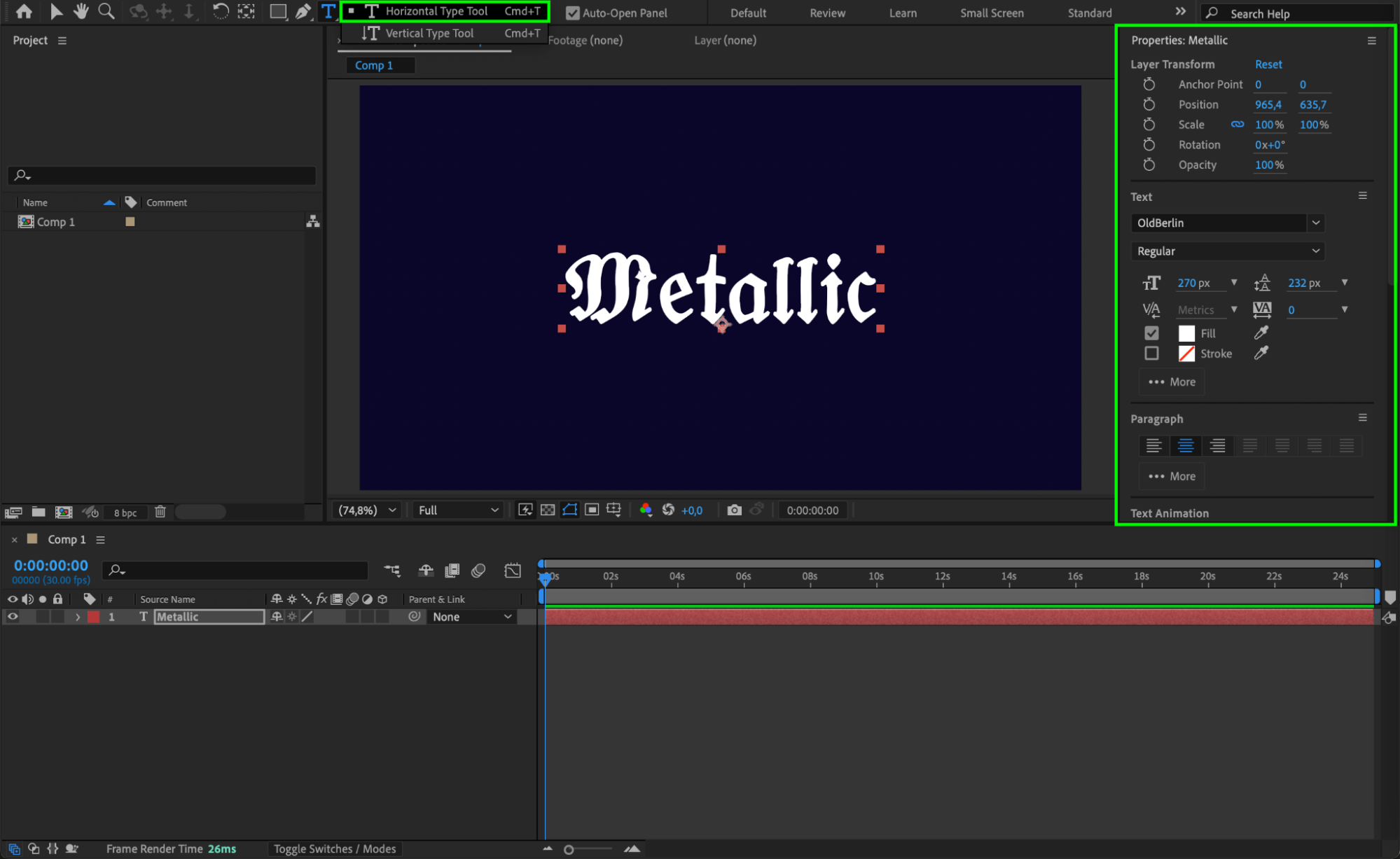 Step 3: Pre-Compose the Text Layer
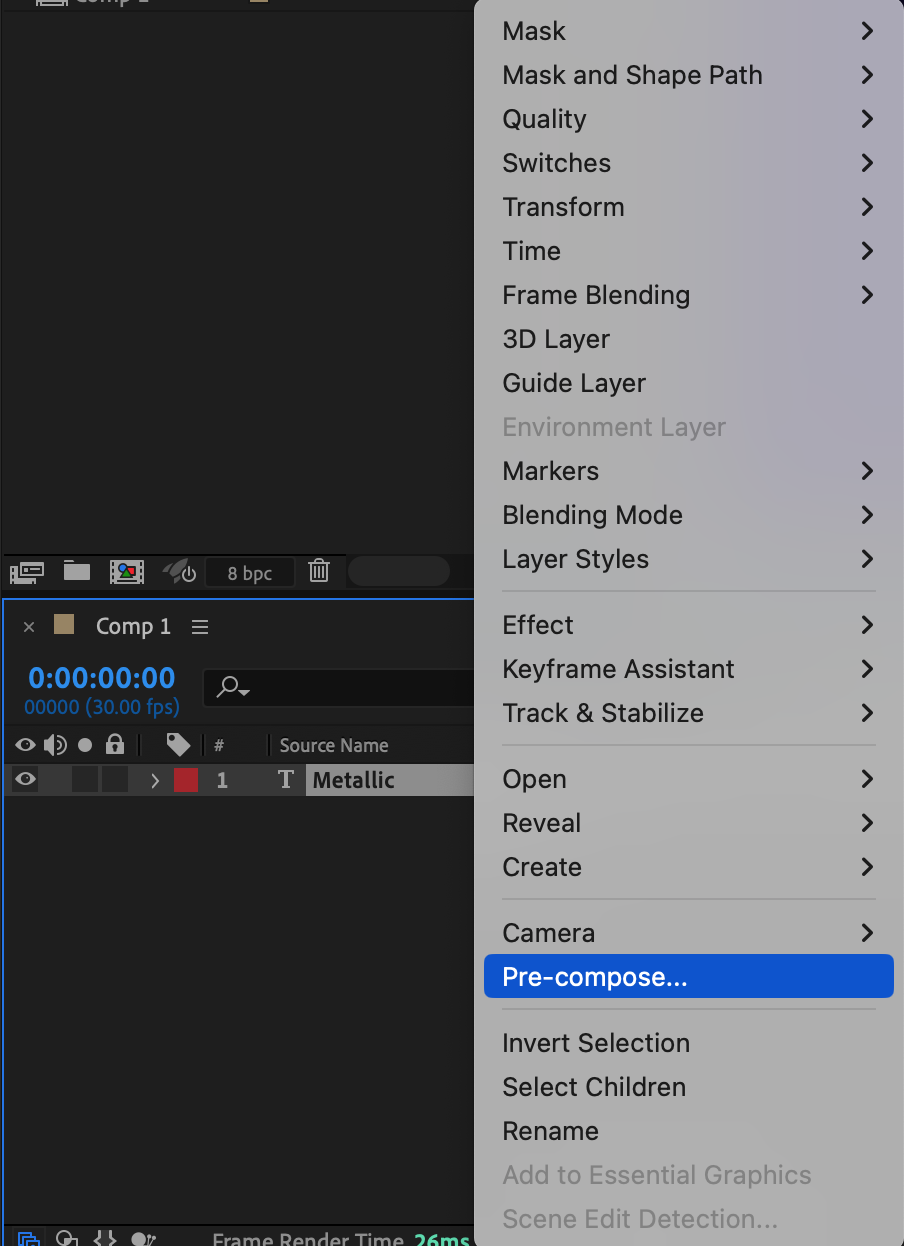
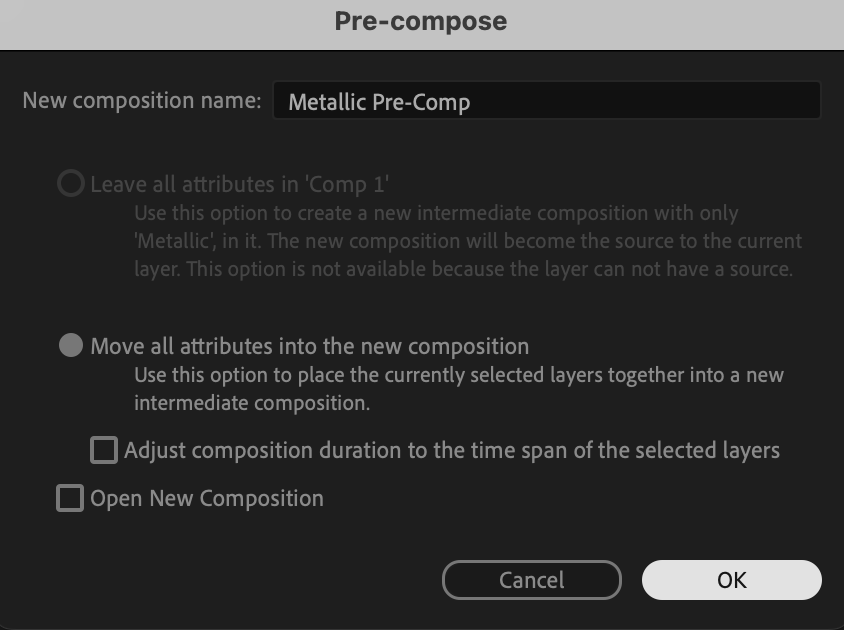
Right-click on the text layer in the Timeline and choose Pre-Compose. This step allows for easier effect application without affecting the original text.
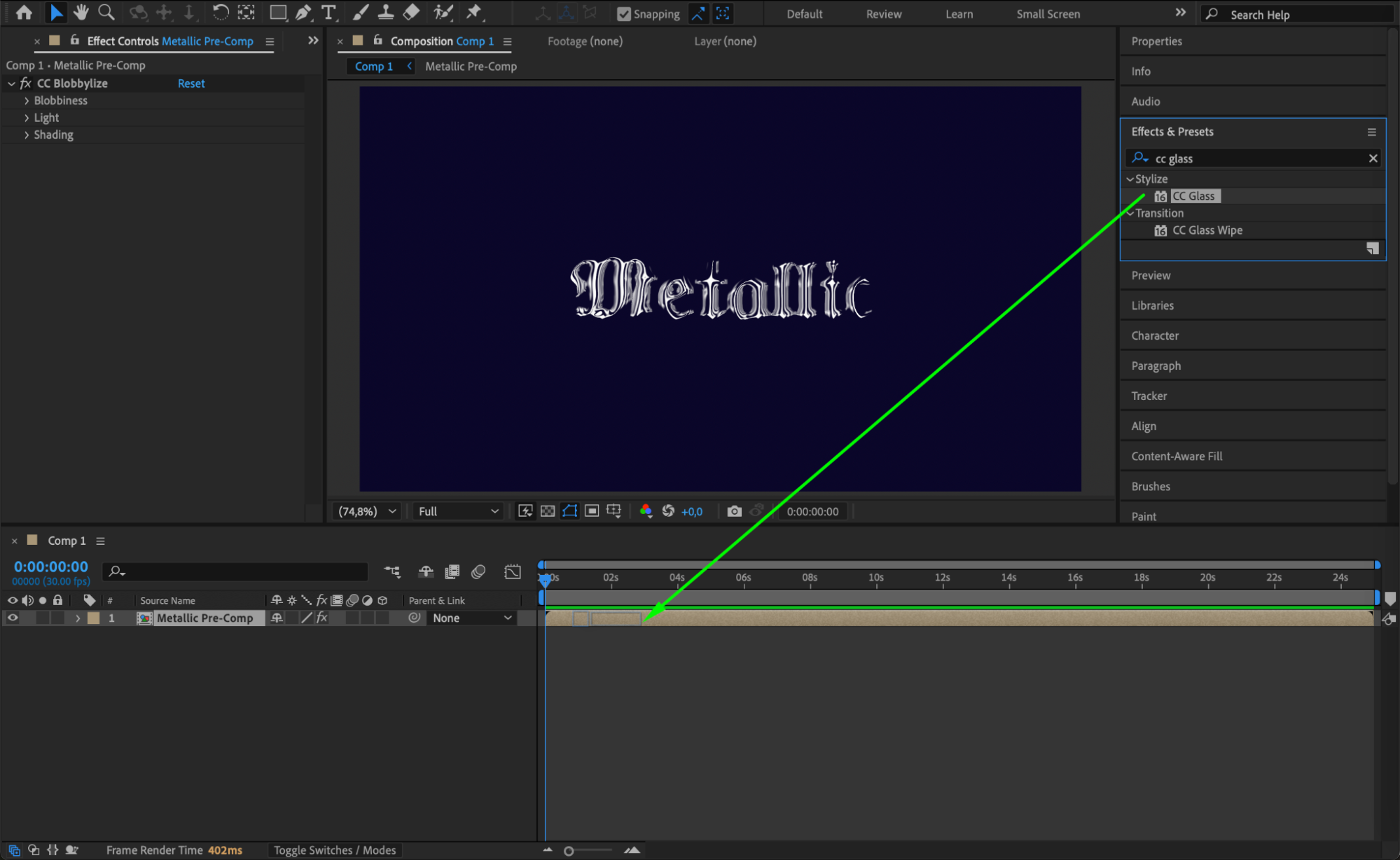
 Step 4: Apply CC Blobbylize and CC Glass Effects
Go to the Effects & Presets panel and apply CC Blobbylize and CC Glass to the pre-comp layer. These effects will create the illusion of a smooth, shiny surface.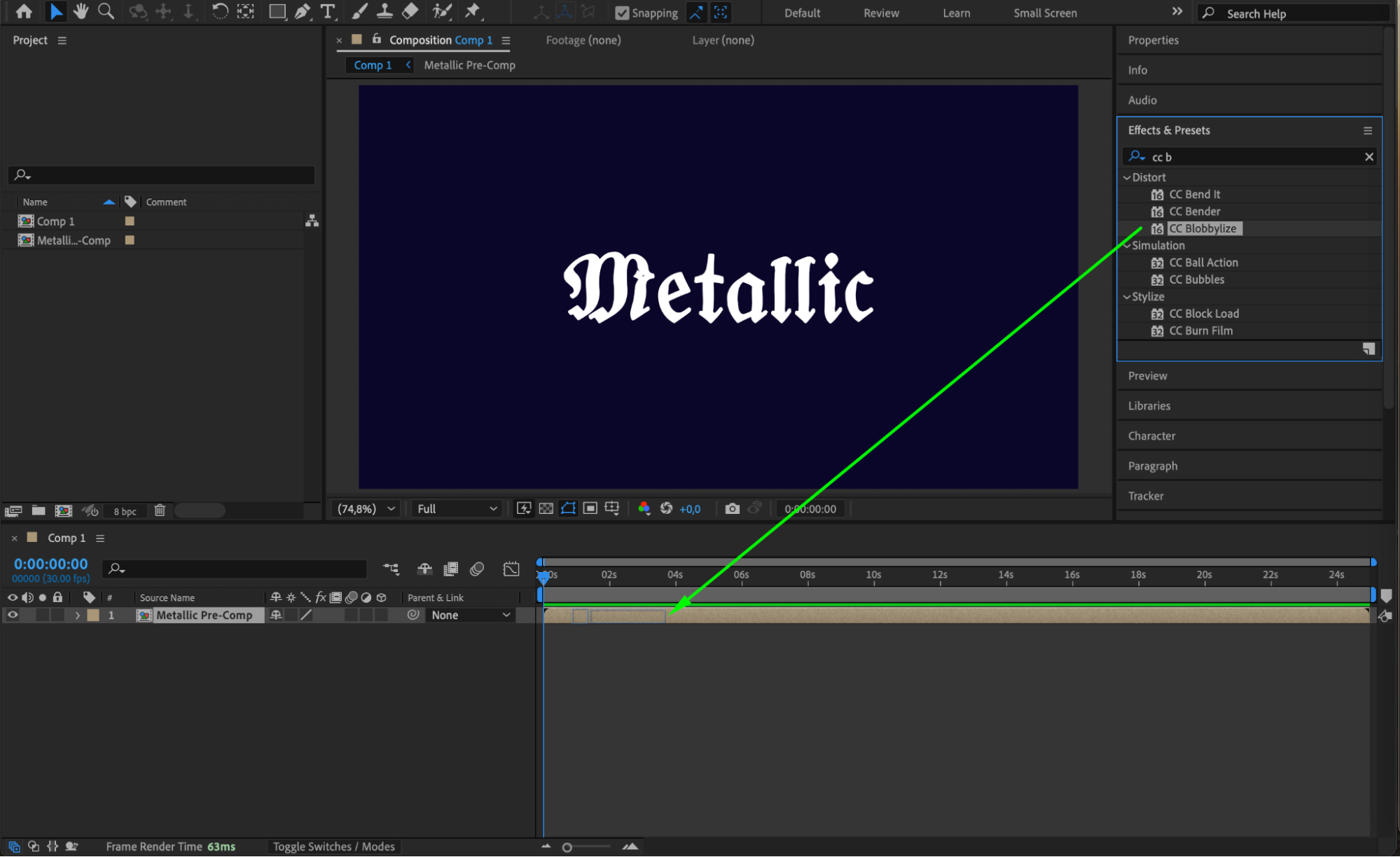
Step 5: Adjust Effect Settings
In the Effect Controls panel, tweak the settings for each effect:
CC Blobbylize:
Blob Layer: Set to “Text_PreComp”
Softness: 15
Cut Away: 46
Light Height: 50
CC Glass:
Bump Map: “Text_PreComp”
Softness: 12.7
Height: 16
Displacement: 89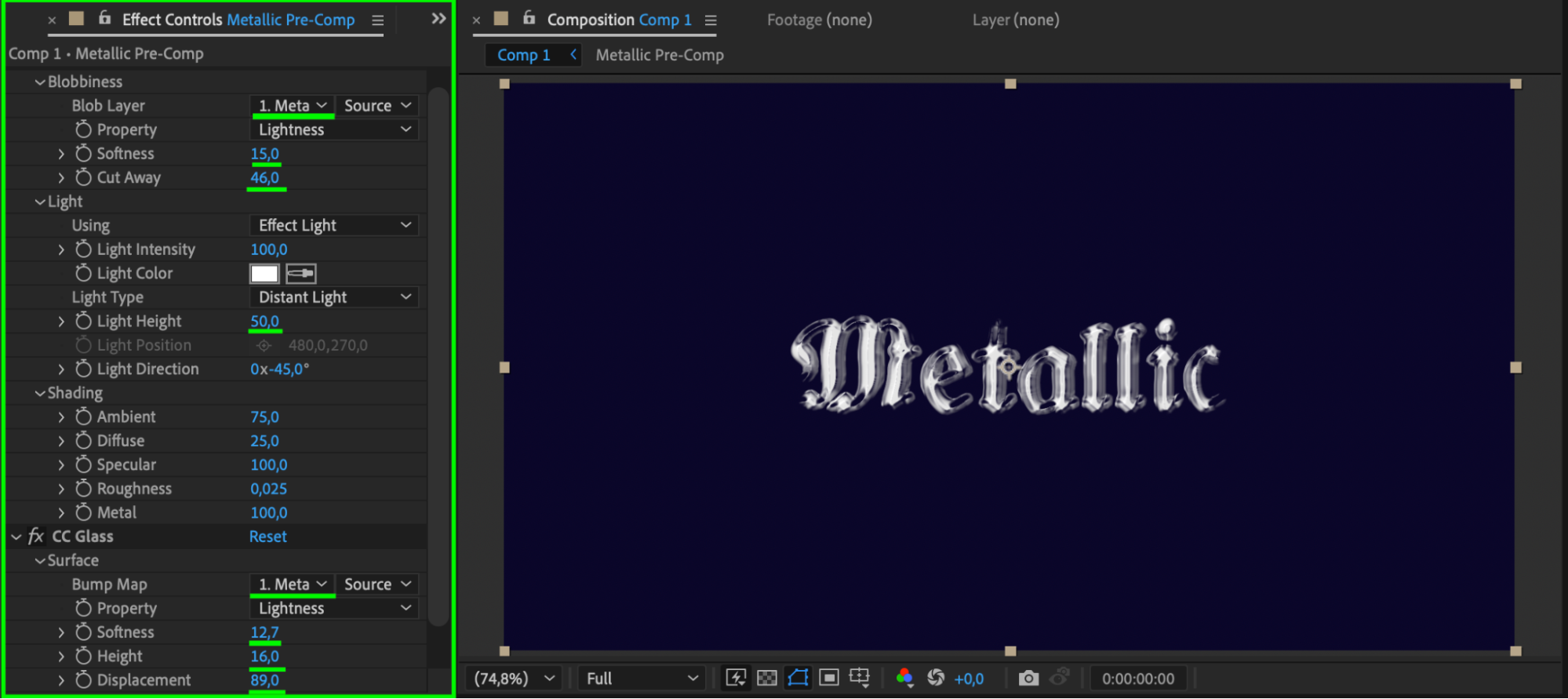 Step 6: Add Glow for a Bright Shine
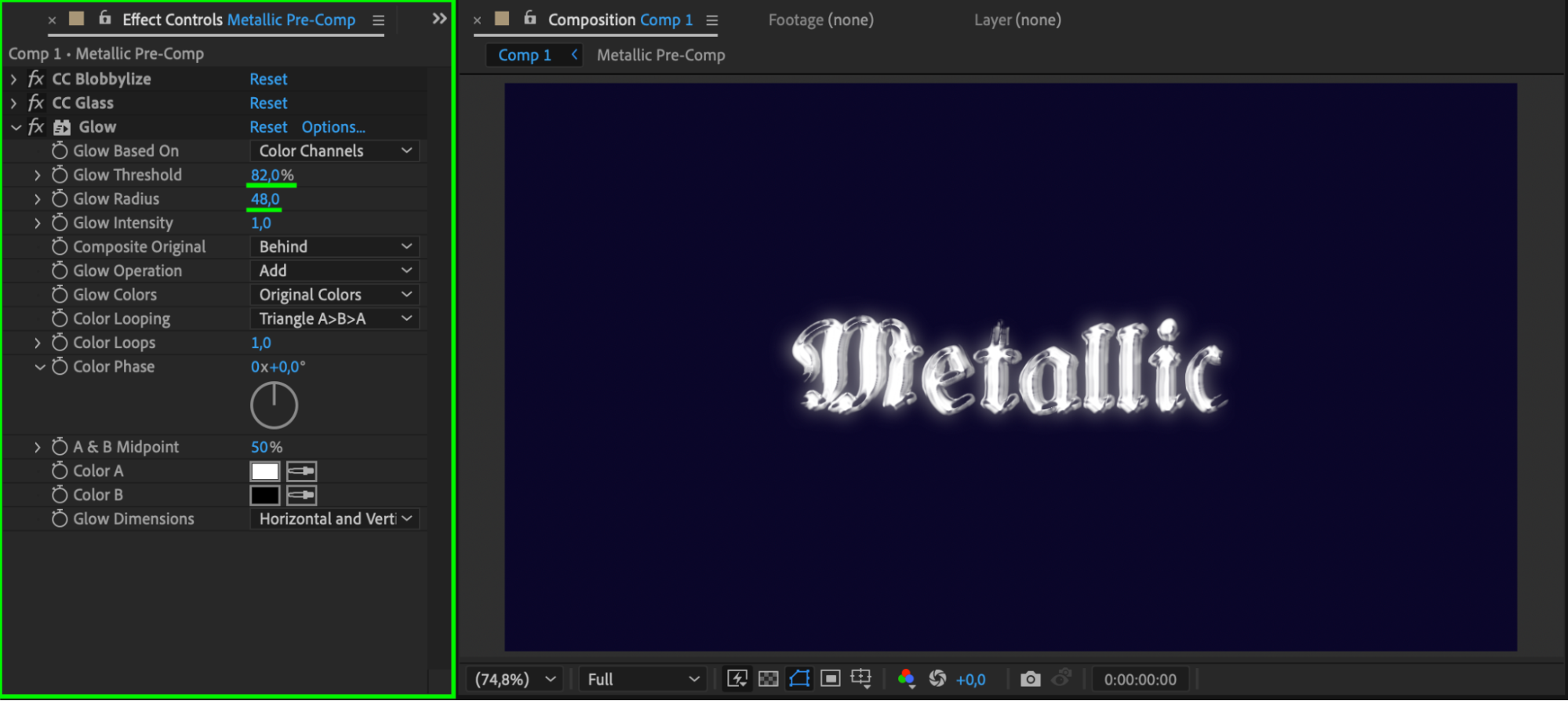
Search for the Glow effect in the Effects & Presets panel and apply it to the text. Adjust the settings for a bright and glossy look:
Glow Threshold: 82
Glow Radius: 48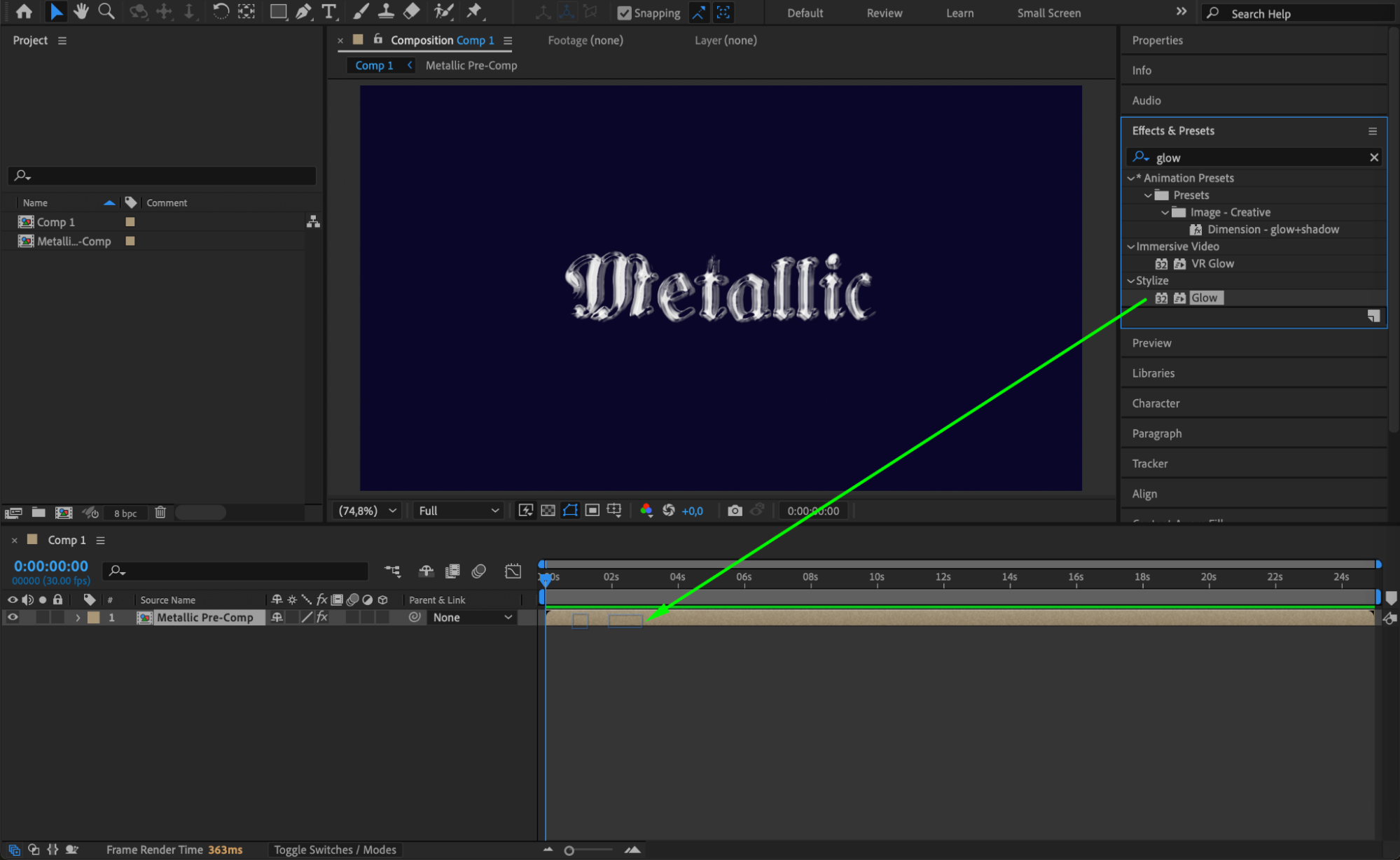
 Step 7: Preview the Effect
Press Spacebar to preview the animation. If needed, tweak the Glow or CC Glass settings for a more refined look.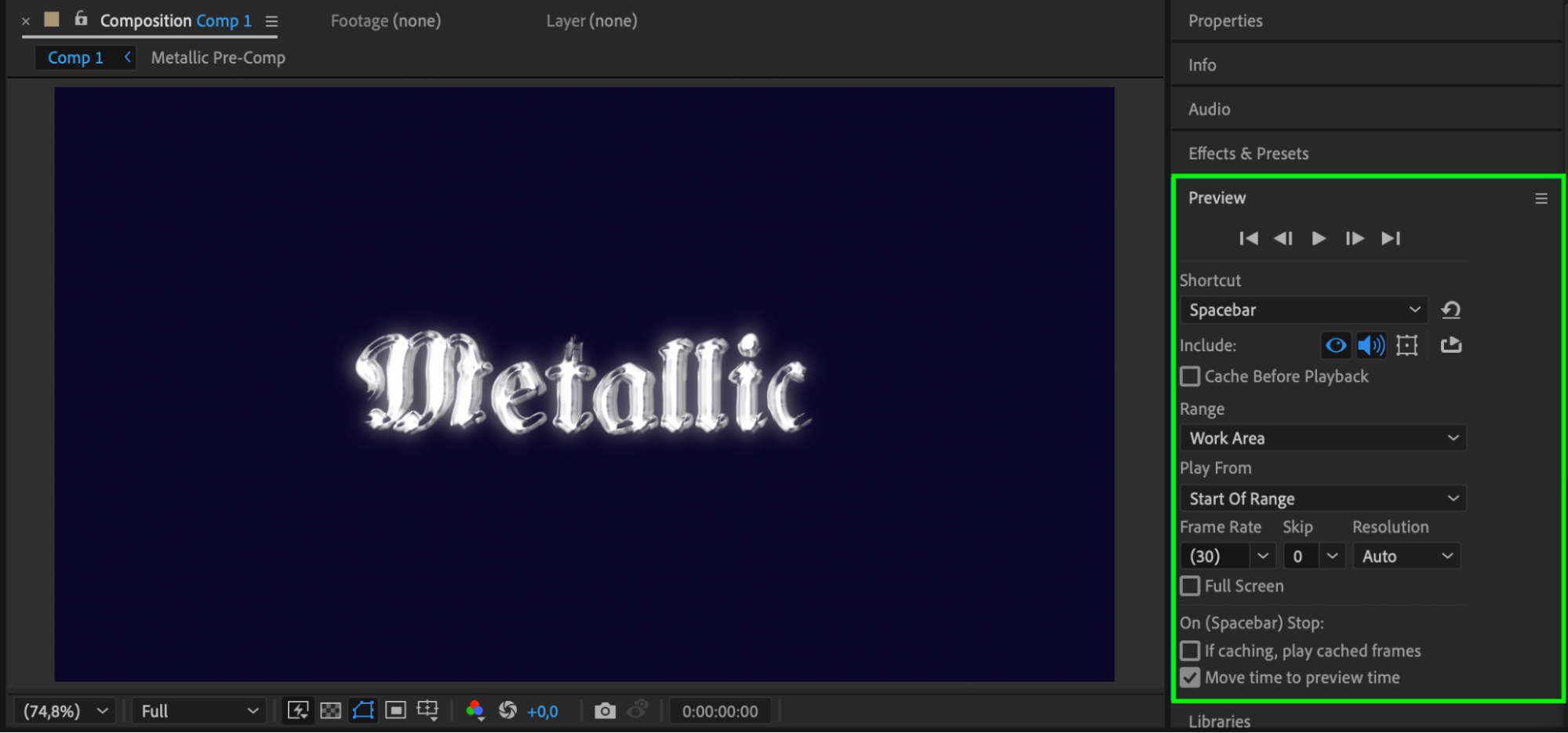 Step 8: Render the Final Text
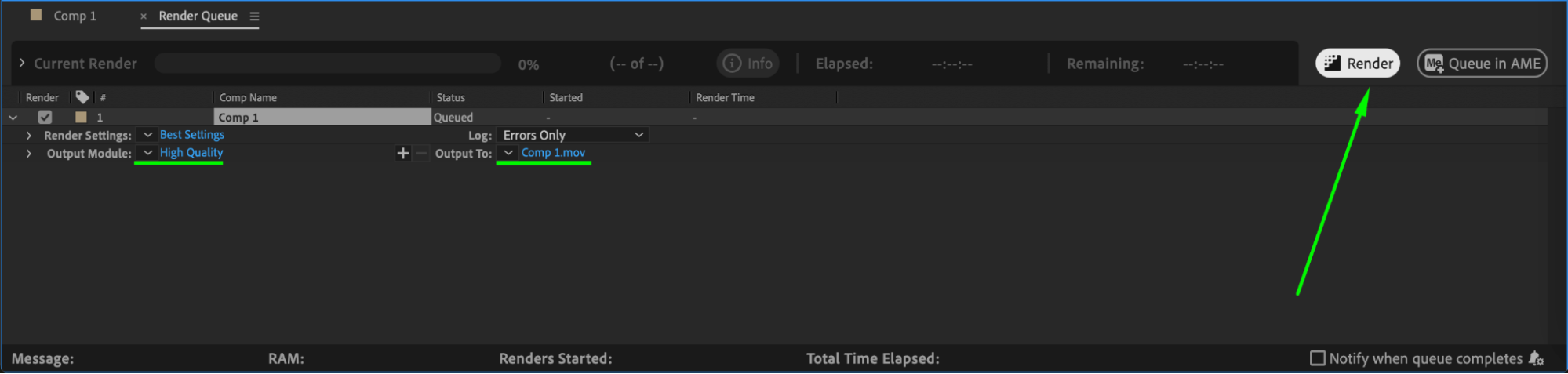
Once satisfied with the effect, go to Composition > Add to Render Queue, choose your export settings, and render the final video.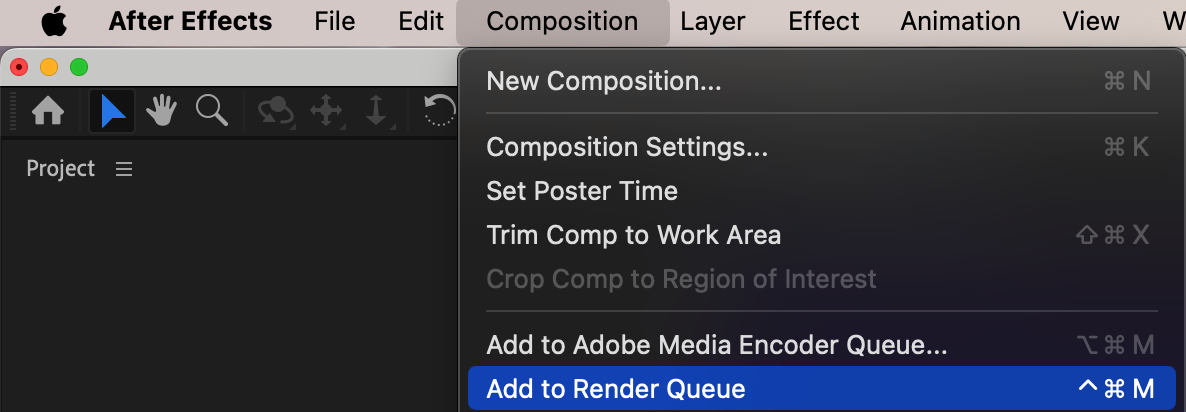
 Conclusion
By using CC Blobbylize, CC Glass, and Glow, you can create a stunning shiny text effect in After Effects. This technique is great for stylish titles, logo animations, or any project that needs a sleek and polished look. Experiment with different fonts and effect settings to achieve your desired result.
Our Bestsellers
Our Bestsellers


