
Why Temporarily Turn Off a Mask?
In After Effects, masks help you reveal or hide specific parts of a layer. However, there are
times when you only want the mask to be active during a certain section of your video. Instead of deleting the mask or creating a new layer, you can animate its visibility or shape using simple properties like opacity, expansion, or feather. This gives you more control and flexibility, especially when working on transitions, effects, or layered compositions.
Step 1: Import and Place Your Footage
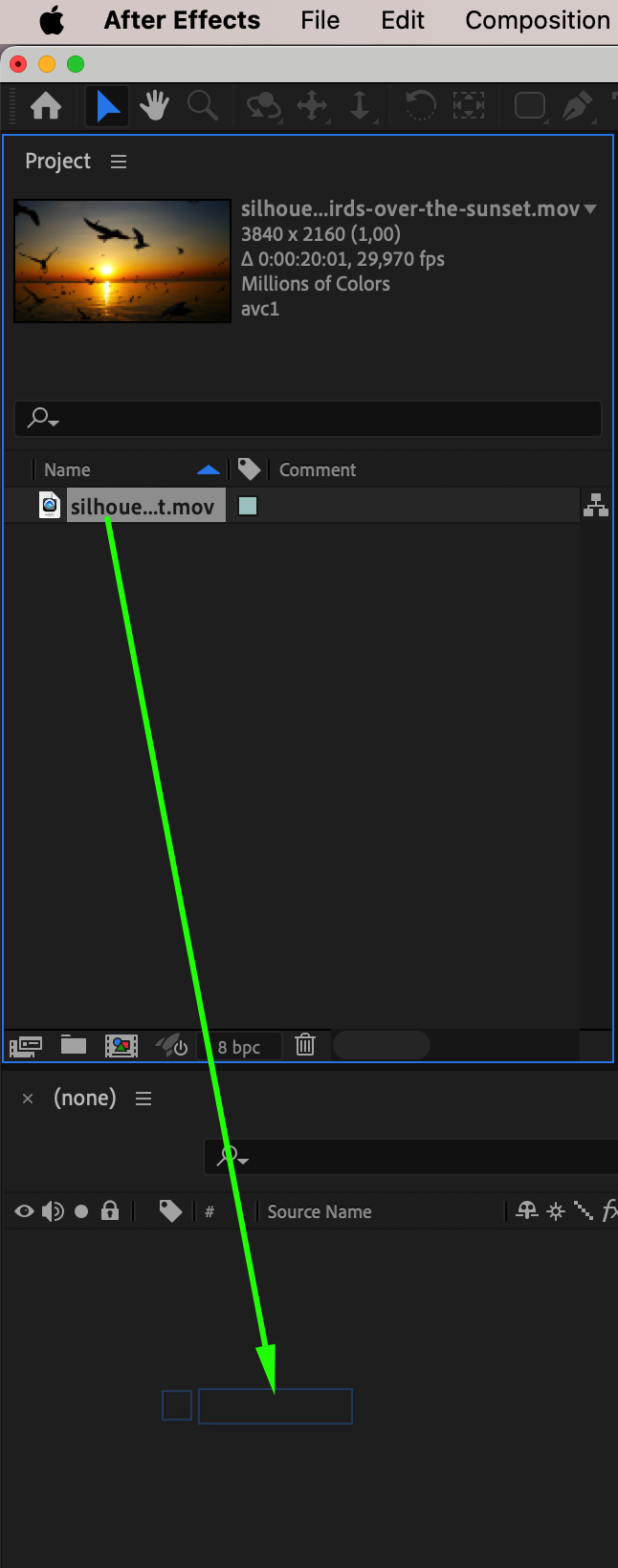
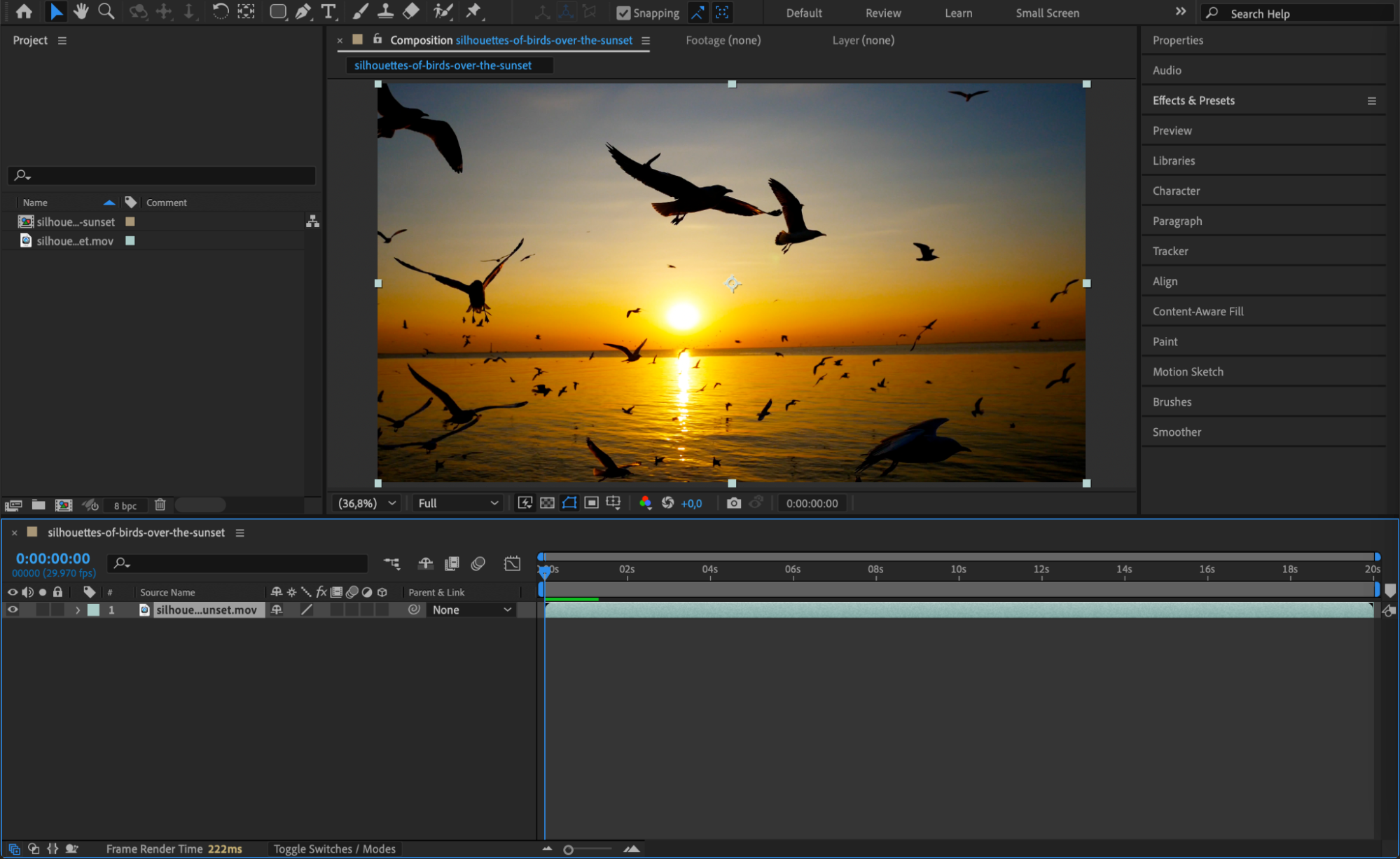
Go to File > Import > File, and select your footage. Drag it onto the timeline in your composition. This will serve as the base layer you want to mask and animate.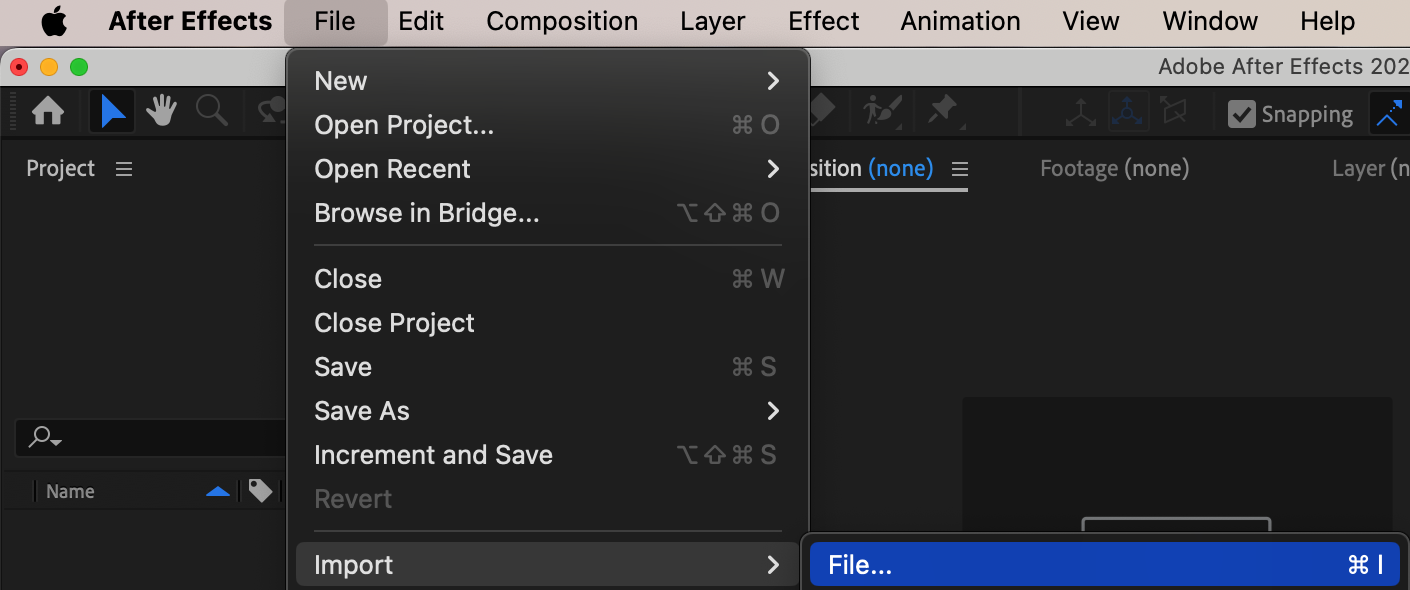
 Step 2: Duplicate the Footage Layer
Select your layer, then go to Edit > Duplicate (or press Ctrl/Cmd + D). This creates a copy of the original layer. By applying the mask to the duplicated layer instead of the original, you can control or animate the mask independently — without affecting the source footage. This is useful when you want to switch between masked and unmasked versions of the same content.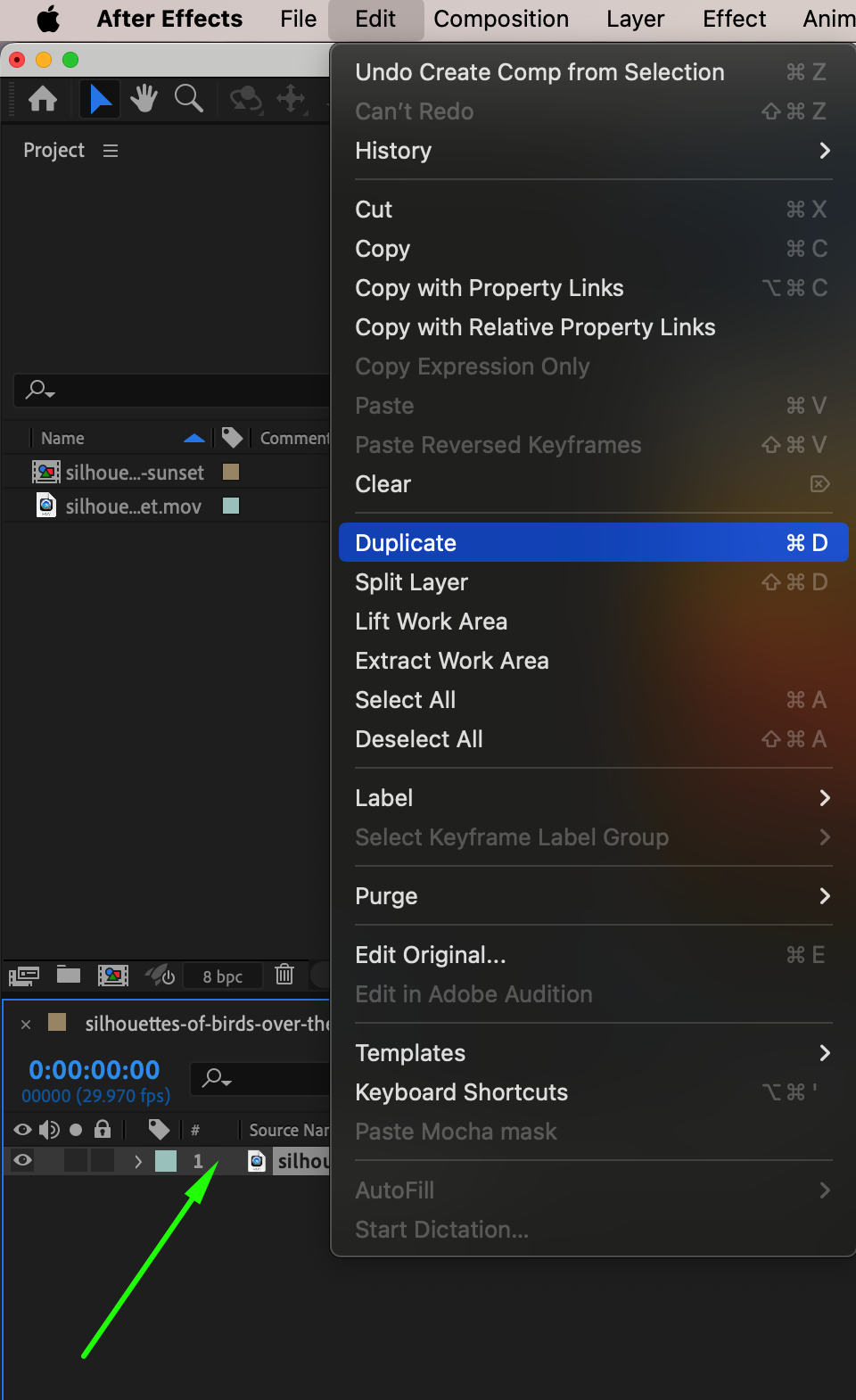
Step 3: Create a Mask Using the Shape Tool
With the duplicated layer selected, choose the Ellipse Tool or any other Shape Tool (press Q to cycle). Make sure the Mask Mode is set to Add so the shape defines the visible area.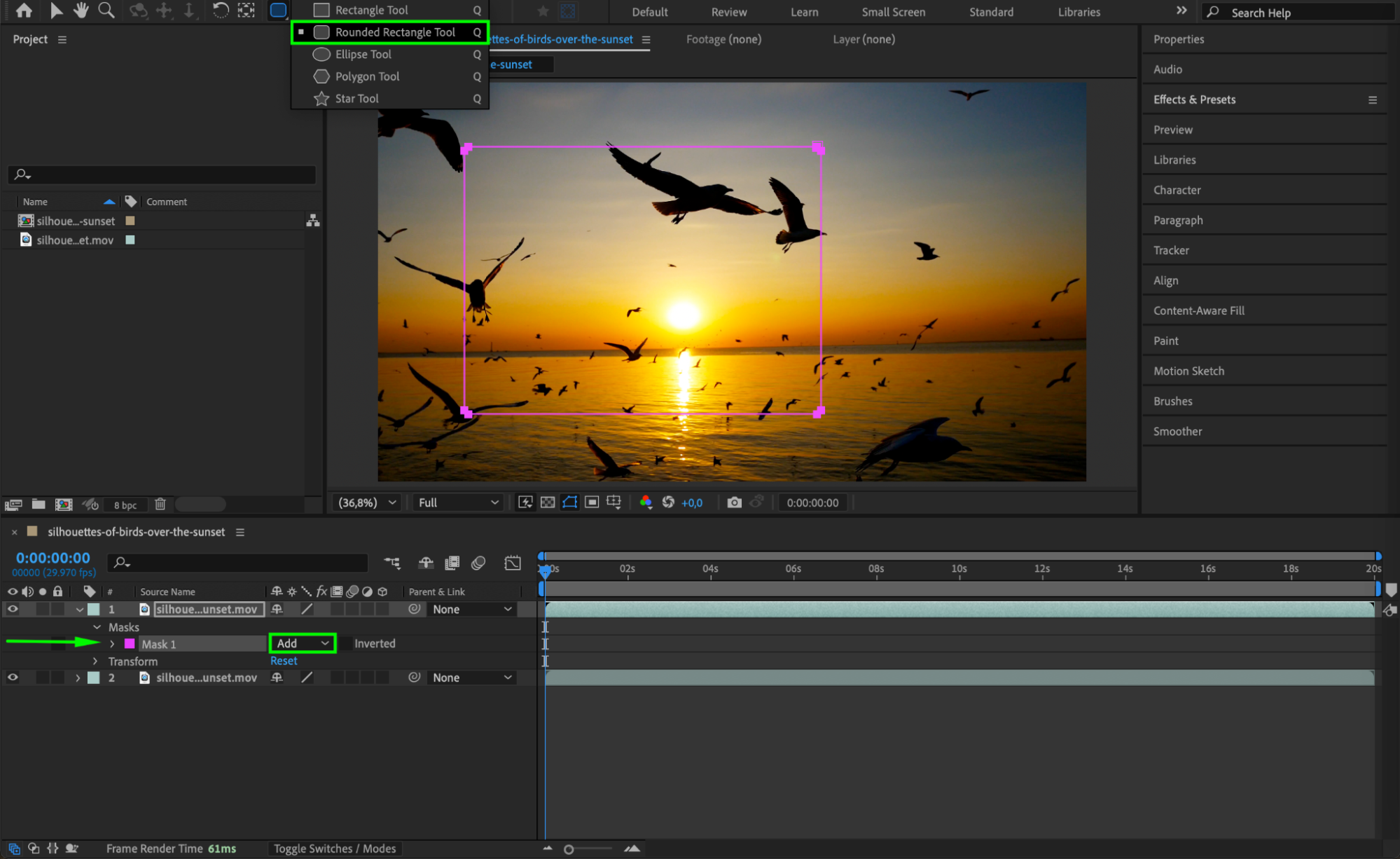 Step 4: Apply and Animate an Effect Within the Mask
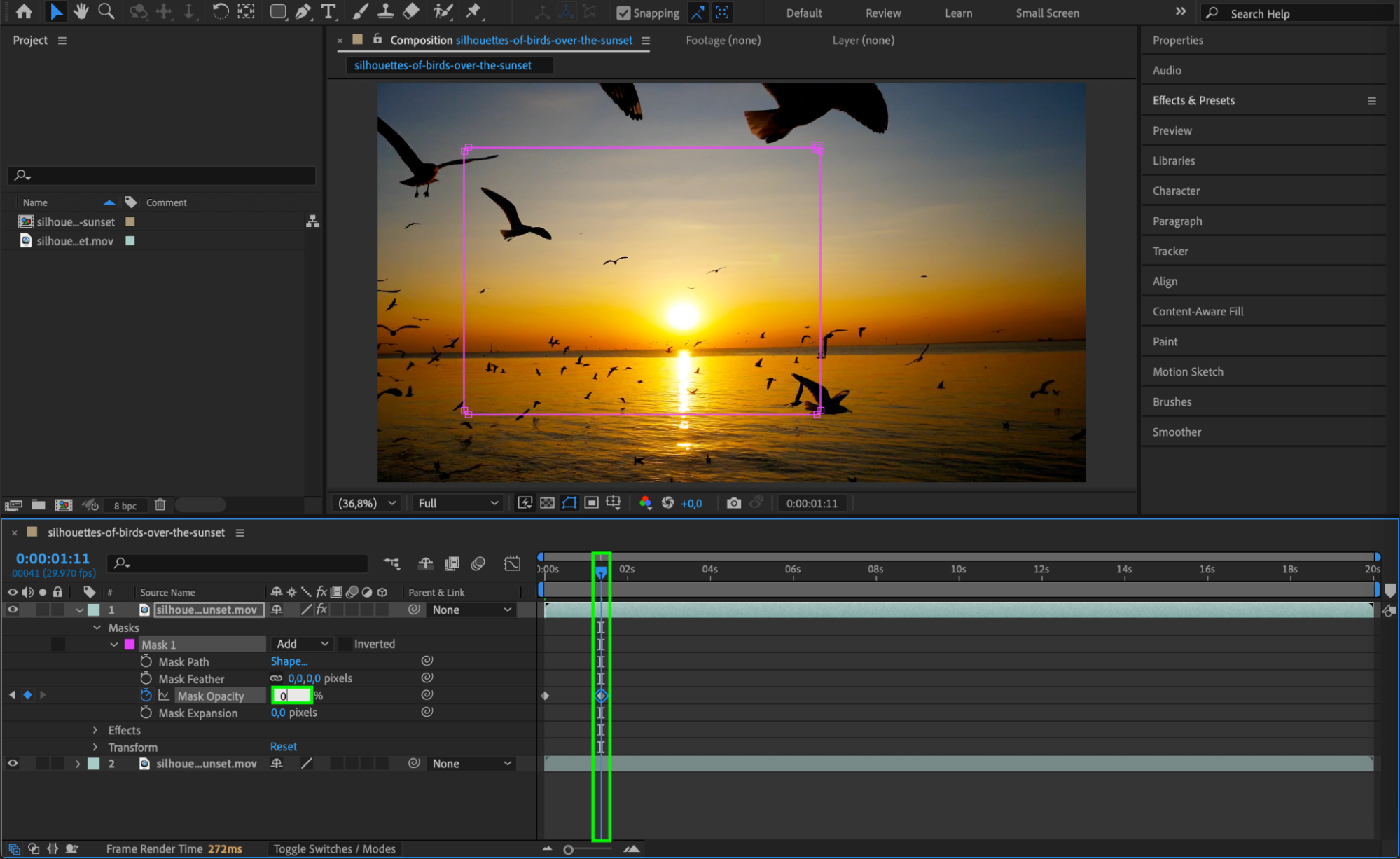
Apply an effect to the masked layer (e.g., Black & White, Glow, or Tint). Open the effect’s mask settings and keyframe Mask Opacity. For example, set Mask Opacity to 100% at the start, then animate it down to 0% at the point where you want the mask to disappear. This disables the visible effect of the mask without removing it.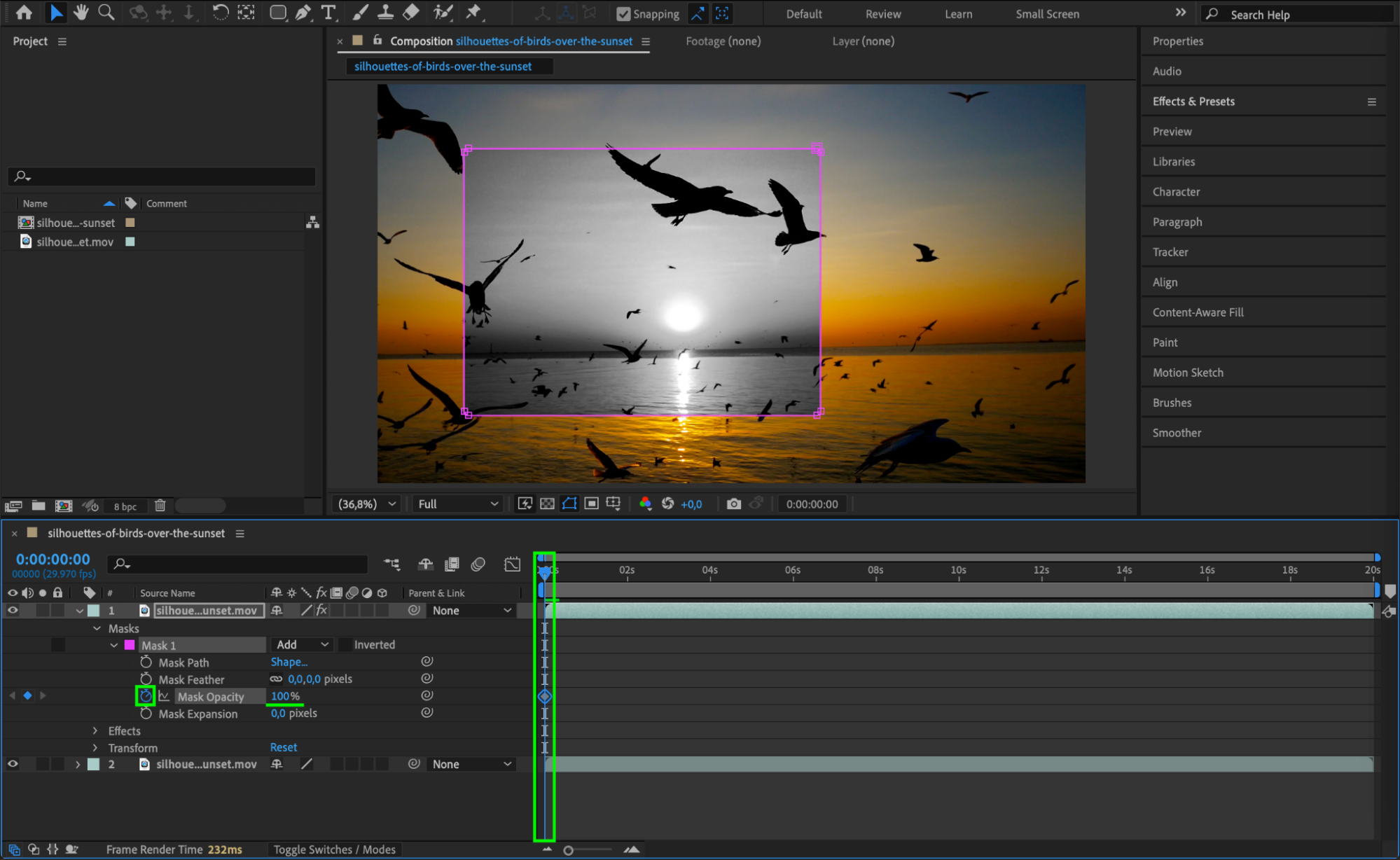
 Step 5: Animate Mask Expansion (Optional)
If you want to hide the shape of the mask itself rather than just its effect, animate the Mask Expansion property. For example, set Expansion to 0 at the start (fully visible), and then increase it to +2000 or more to expand it out of view. This method works well for radial or linear transitions.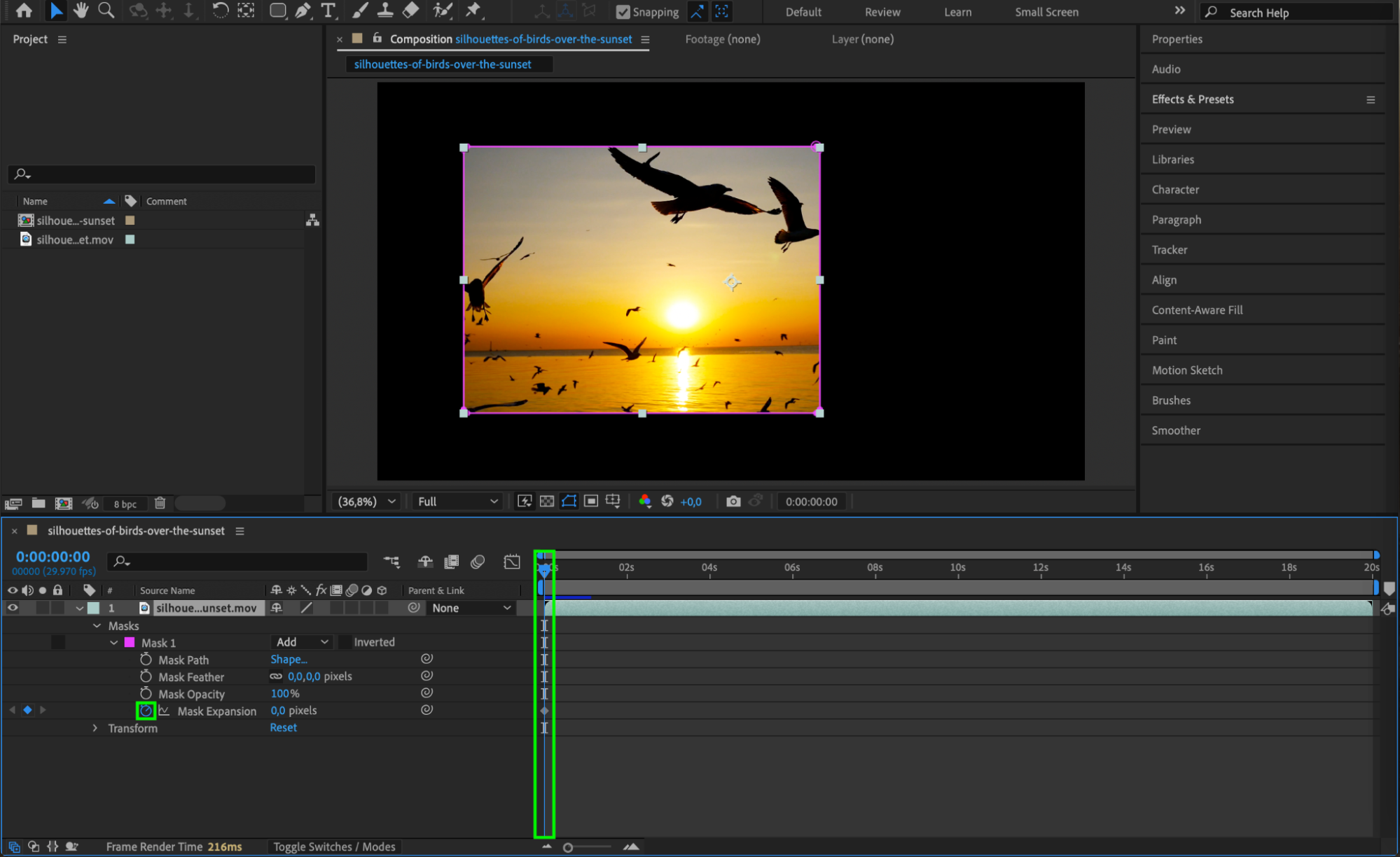
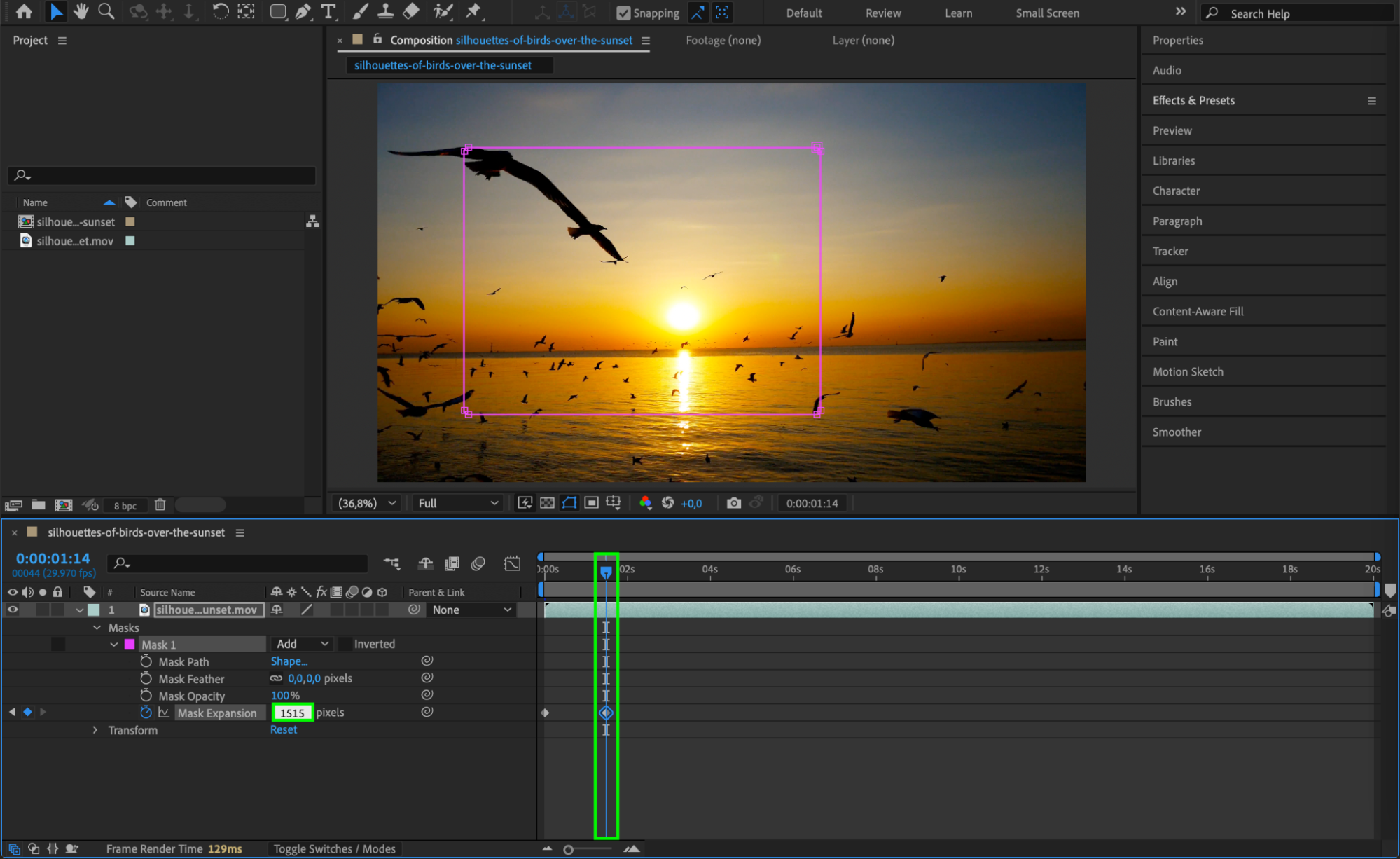
Step 6: Use Mask Feather for Soft Transitions
To make the mask appear or disappear gradually, animate the Mask Feather property. Increasing feathering will soften the mask’s edges, making the transition smoother and less harsh on the screen.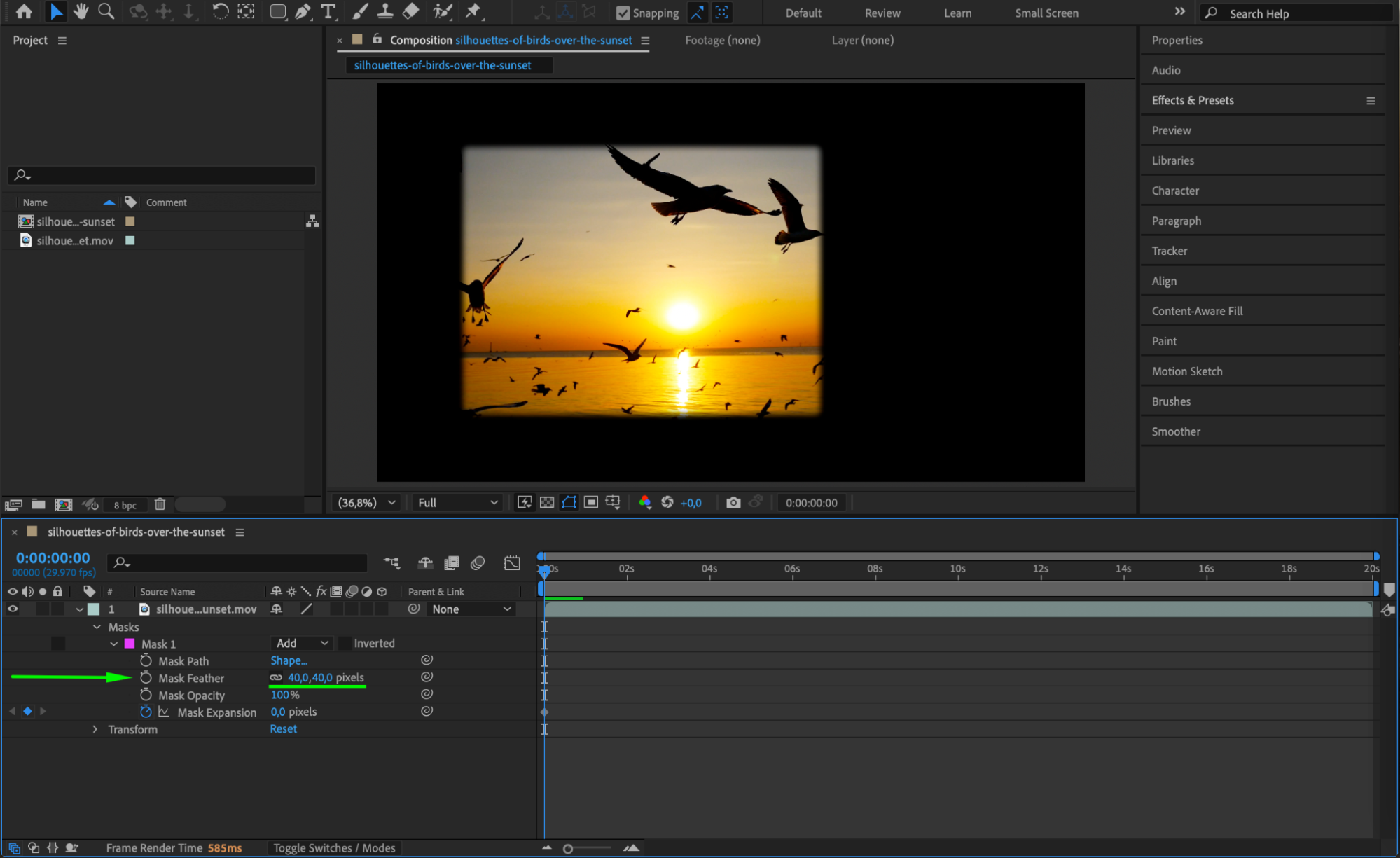 Step 7: Add Easy Ease and Adjust in Graph Editor
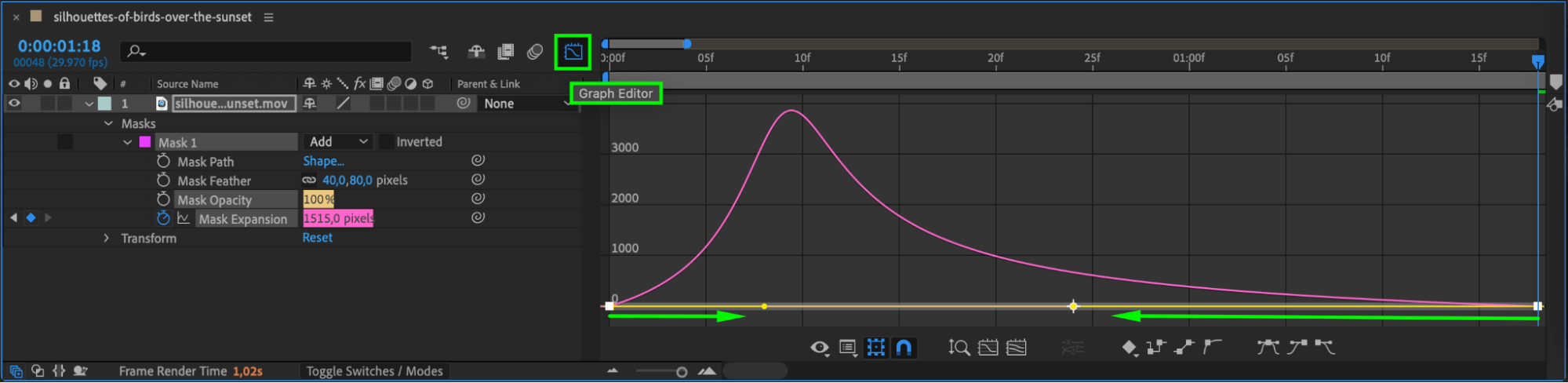
Select your keyframes, right-click, and choose Keyframe Assistant > Easy Ease. Then open the Graph Editor to adjust the animation curve for a more natural movement. This will help your mask transitions feel more cinematic and less robotic.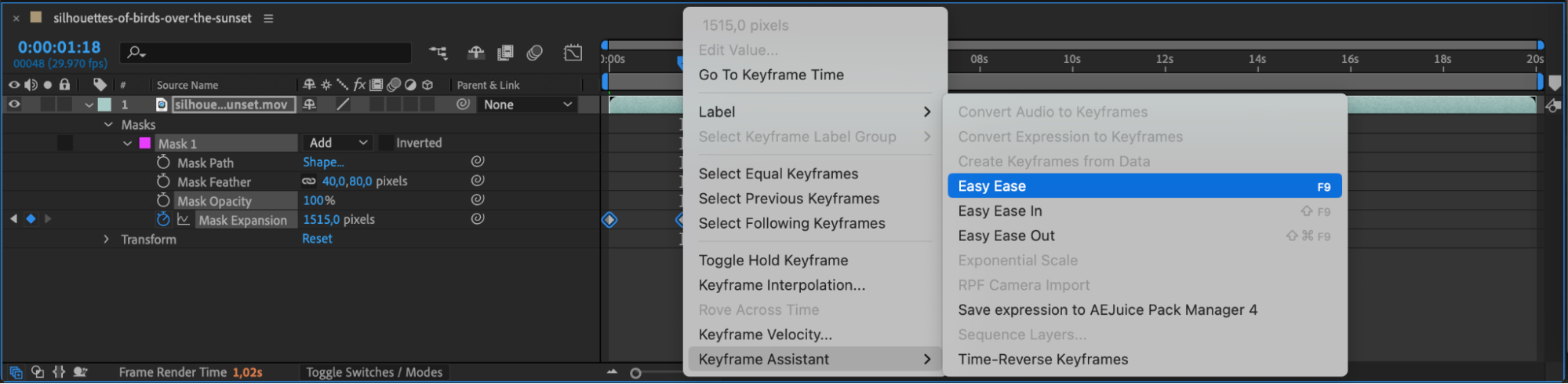
 Step 8: Preview and Adjust
Play back your composition using the spacebar or the Preview panel. Make sure the mask disappears and reappears exactly as you want. Tweak the timing, opacity, or feather settings as needed.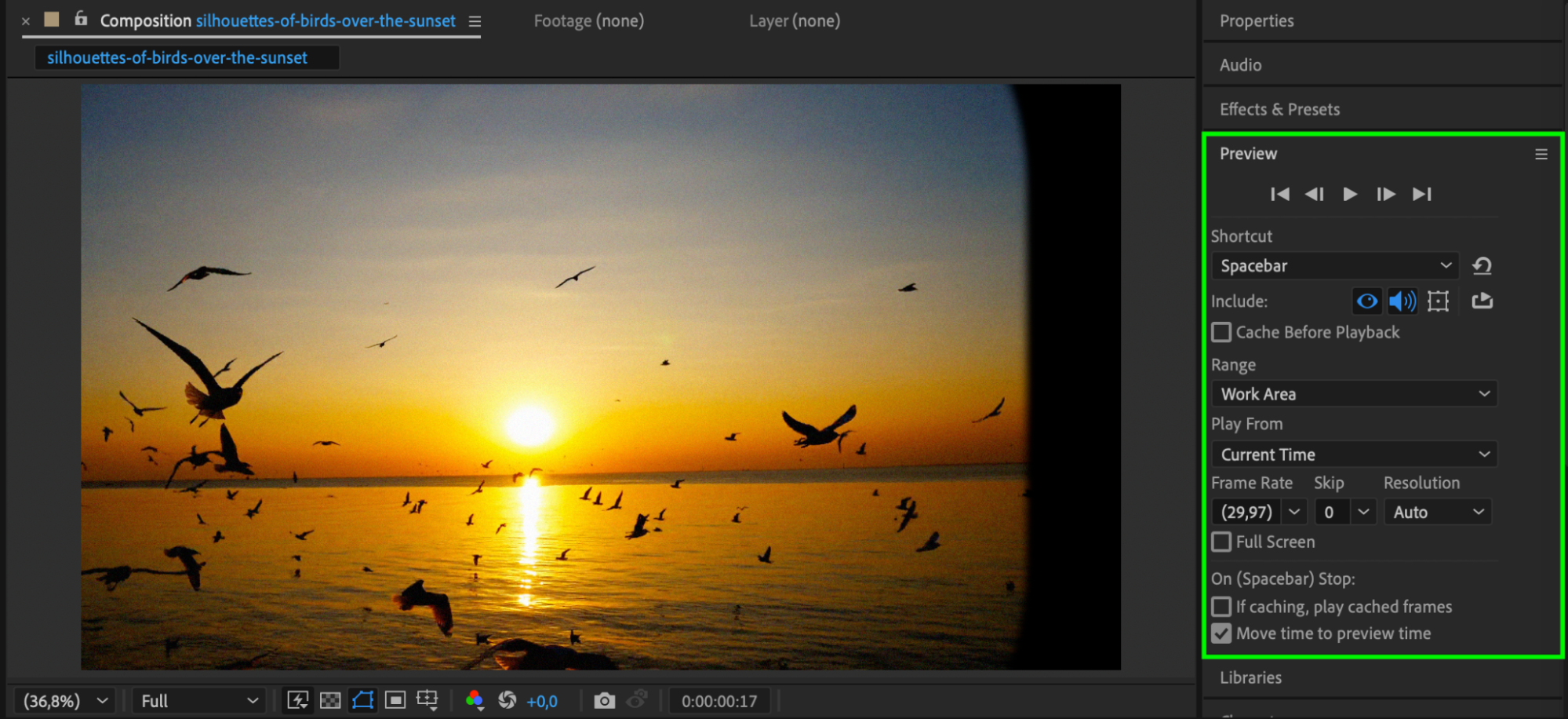 Conclusion
Deactivating a mask temporarily in After Effects doesn’t require complicated tricks. By using Mask Opacity, Expansion, and Feather, you can keep your masks flexible and reusable throughout your composition. These techniques save time, reduce clutter in your layers, and help you work more efficiently on advanced motion graphics or compositing tasks.
Our Bestsellers
Our Bestsellers


