
Learn how to create and customize animated sales badges for eCommerce videos using AEJuice packs in After Effects.
Creating Animated Sales Badges for eCommerce in After Effects
Introduction – Why Use Animated Sales Badges?
Animated sales badges are an effective way to grab attention in marketing videos, online ads, and eCommerce product showcases. Whether you’re highlighting a discount, a limited-time offer, or a product feature, animated badges add dynamic energy and visual appeal. With AEJuice packs, you can access ready-made templates that are easy to customize and integrate into your project. In this animated sales badges tutorial, we’ll show you how to use some of the best sales badge animations for your next video.
Step 1: Create a New Composition
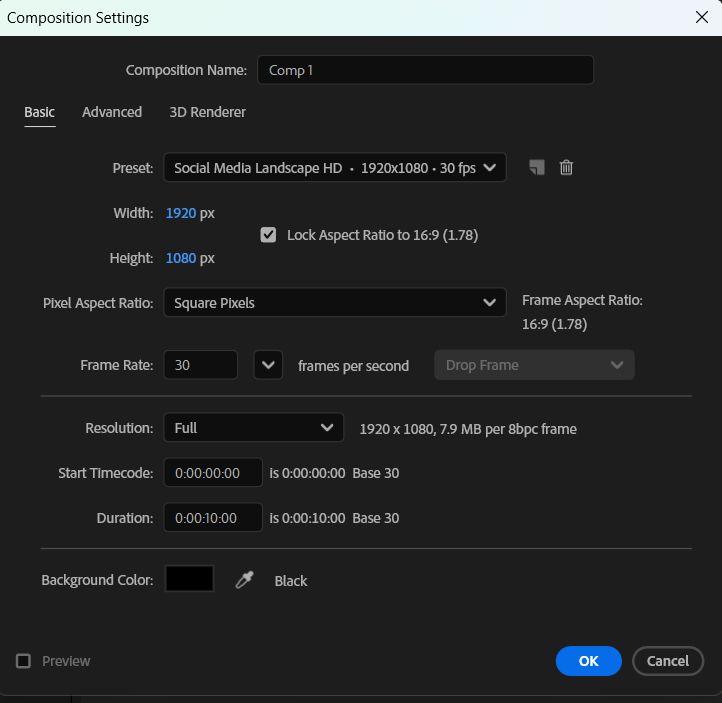
Open After Effects and create a new composition. Set your desired resolution, frame rate, and duration based on your project needs.
 Step 2: Open AEJuice Pack Manager
Open the AEJuice panel by going to Window > AEJuice Pack Manager 4. This is where you’ll find all your installed AEJuice packs and explore new ones, including the animated badge templates.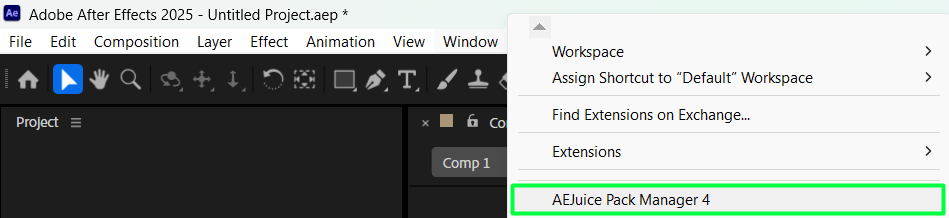
Step 3: Download the Animated Sales Badges Pack
Inside the Pack Manager, locate the Animated Sales Badges pack. Click on it to download if it’s not already installed. This pack contains various pre-animated badge templates suitable for product highlights and special offers.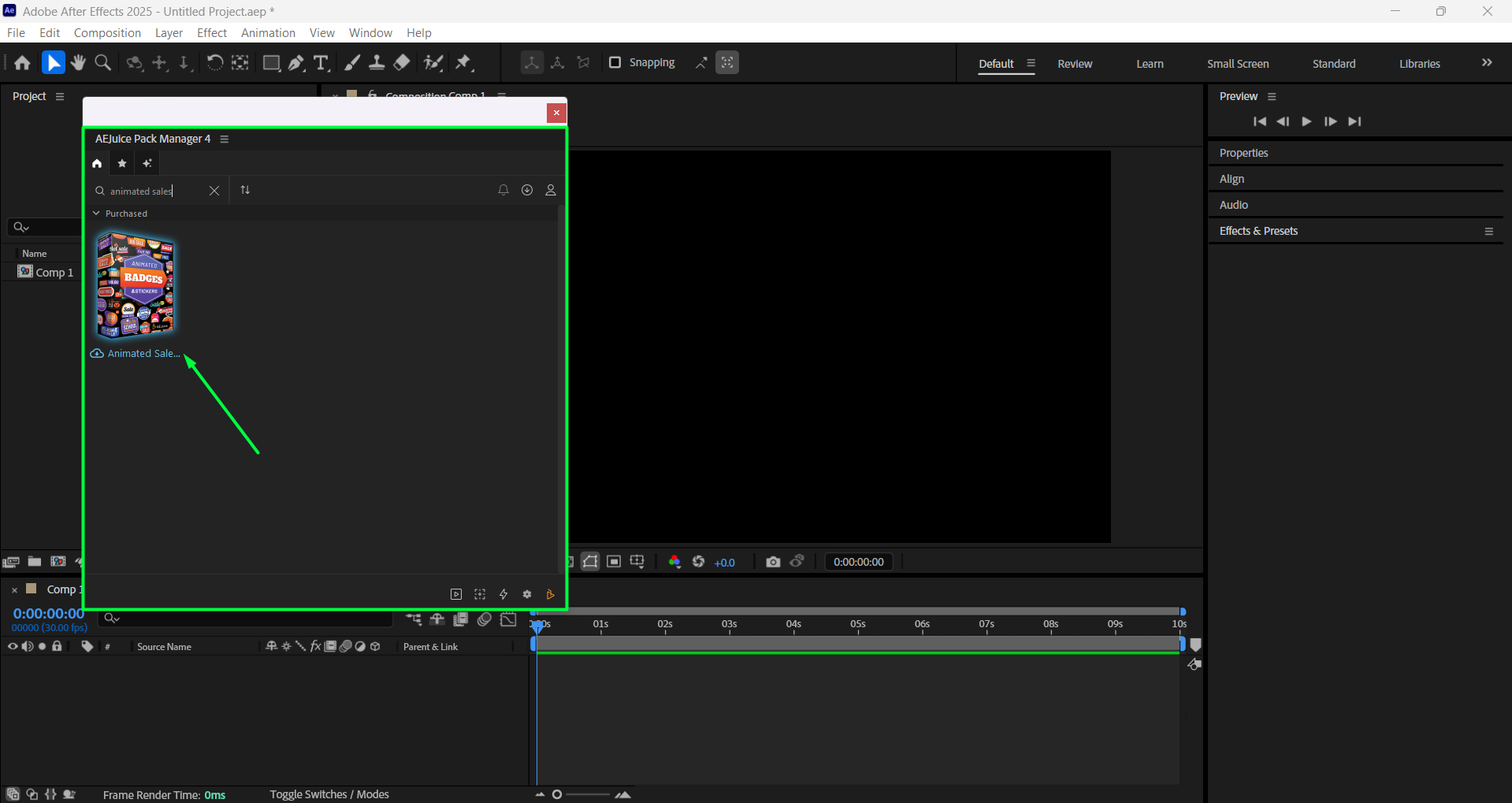 Step 4: Choose and Import a Badge
Browse through the badge templates and choose one that fits your style. Click on it, then press the Import button. This will load the badge into your timeline as a pre-composition (pre-comp).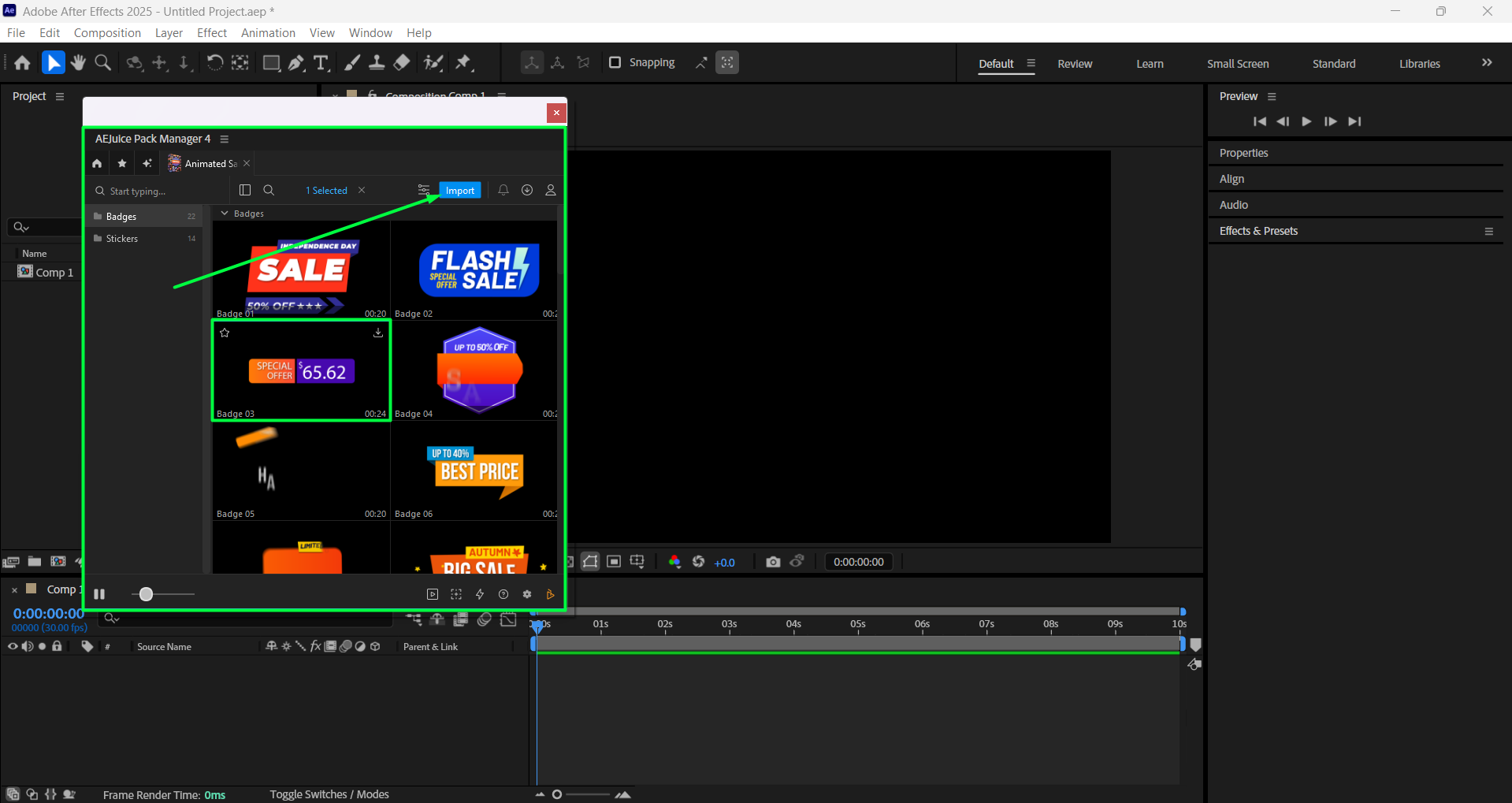 Step 5: Customize the Badge
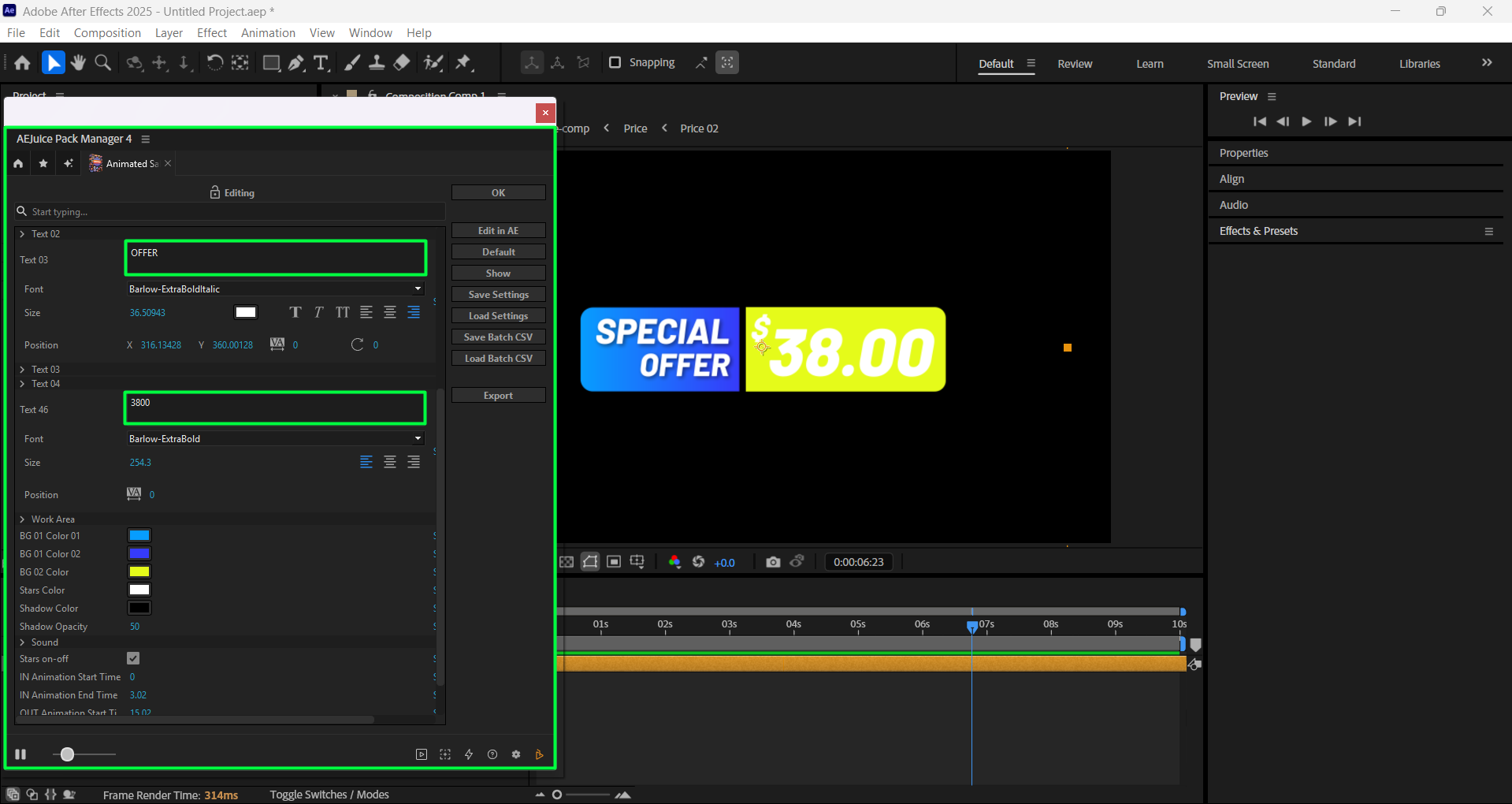
Click on the imported pre-comp layer in your timeline, then open the AEJuice Pack Manager 4 panel and click the Edit button (represented by three sliders). This will bring up the customization panel, where you can adjust the text, font, size, position, and choose the colors of the badge to match your design.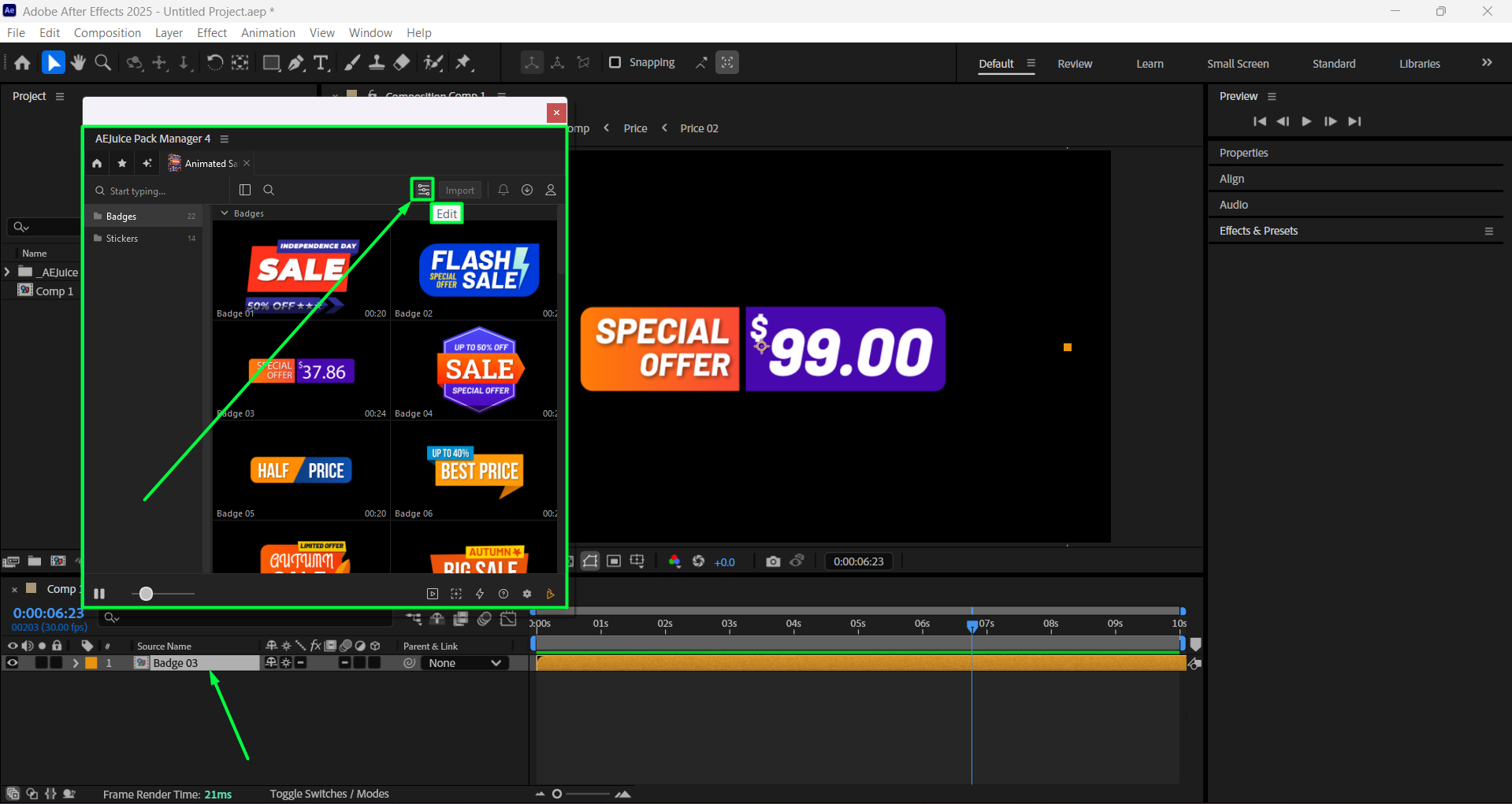
Step 6 (Optional): Add a Drop Shadow
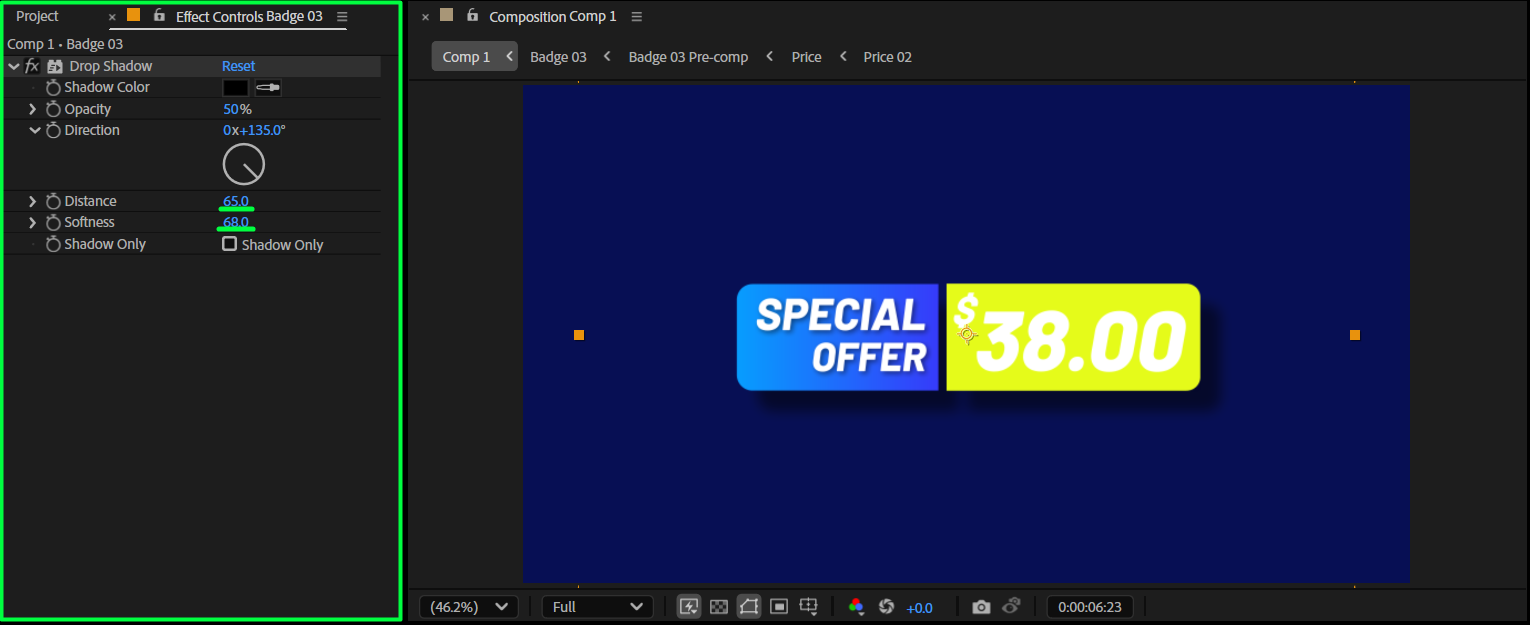
To make the badge stand out more, apply a Drop Shadow effect. Go to the Effects & Presets panel, search for “Drop Shadow”, and drag it onto the pre-comp layer.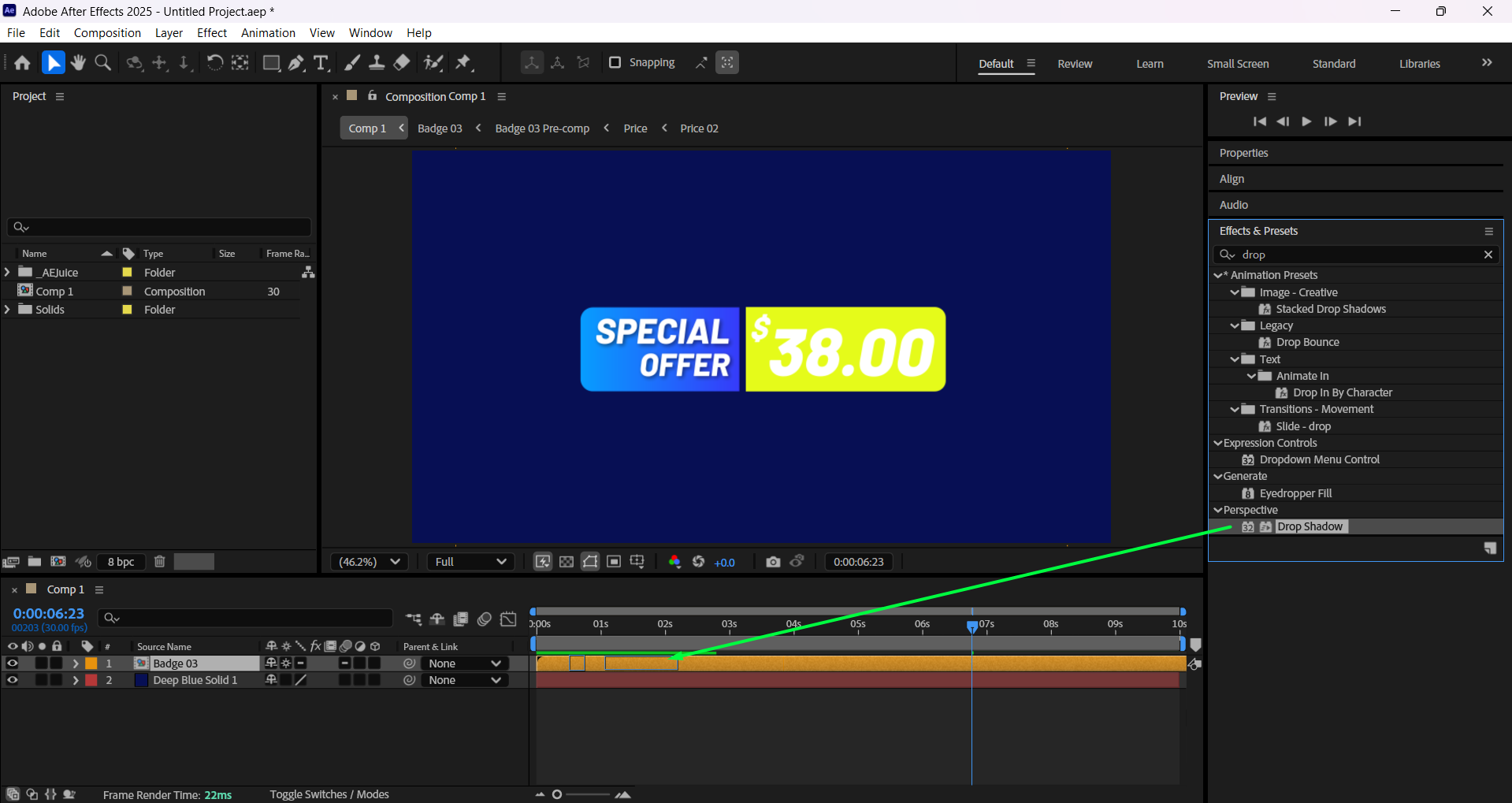
 Step 7: Preview and Export
Use the spacebar to preview your final animation and make any last adjustments. Once satisfied, go to Composition > Add to Render Queue or use Adobe Media Encoder to export your finished video with the animated badge included.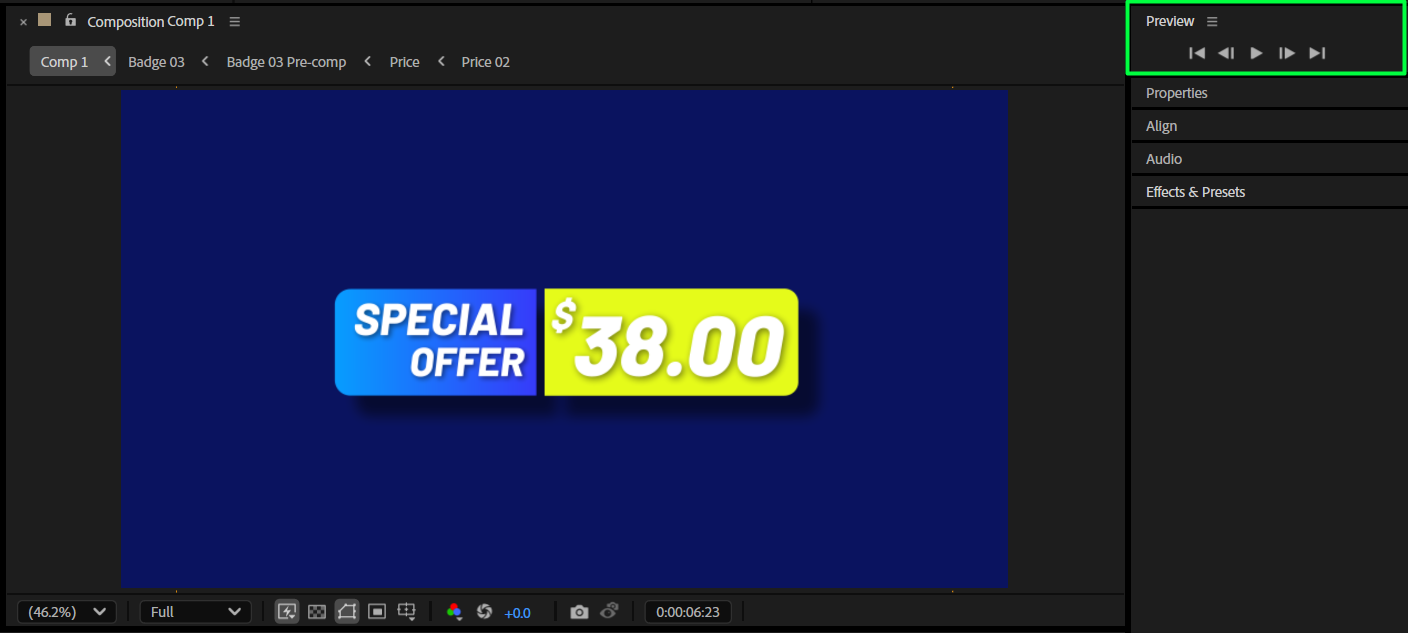 Conclusion
With AEJuice’s Animated Sales Badges pack and After Effects, designing motion-based promo tags has never been easier. Whether you’re promoting a sale, drawing attention to a feature, or enhancing eCommerce content, these badges provide a fast and customizable solution. Try combining different styles and effects to create badges that match your project’s energy and branding.
Our Bestsellers
Our Bestsellers


