
How to Use AEJuice YouTube Pack for Animated YouTube Videos
Introduction to YouTube Animation Tools for Creators
Adding animated intros, text overlays, and outros to your YouTube videos can make your content look more polished and professional. The AEJuice YouTube Pack is designed specifically for content creators who want to quickly and easily enhance their videos inside Adobe After Effects. In this tutorial, you’ll learn how to import and customize templates to match your style and message.
Step 1: Import Your Footage
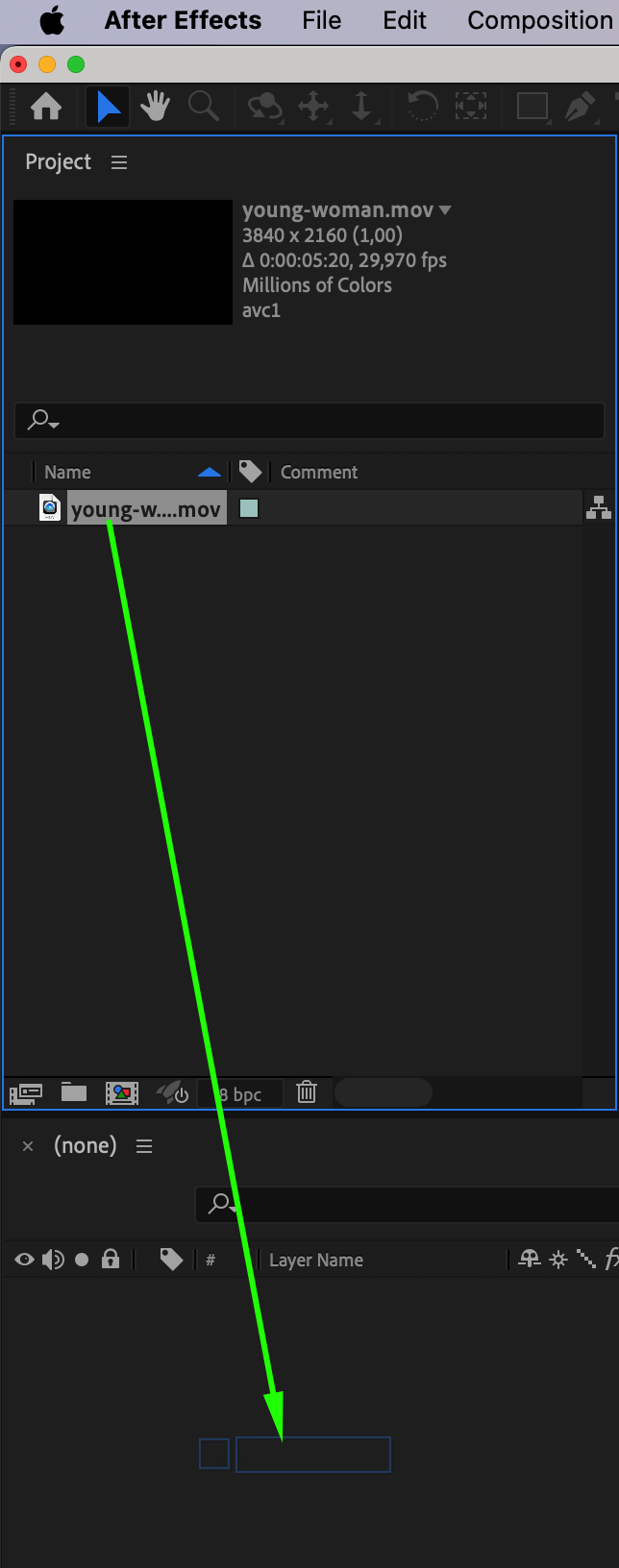
Start by going to File > Import > File and select your video clip. Drag the footage into the timeline to create a new composition. This will be your base layer where the YouTube Pack elements will be added.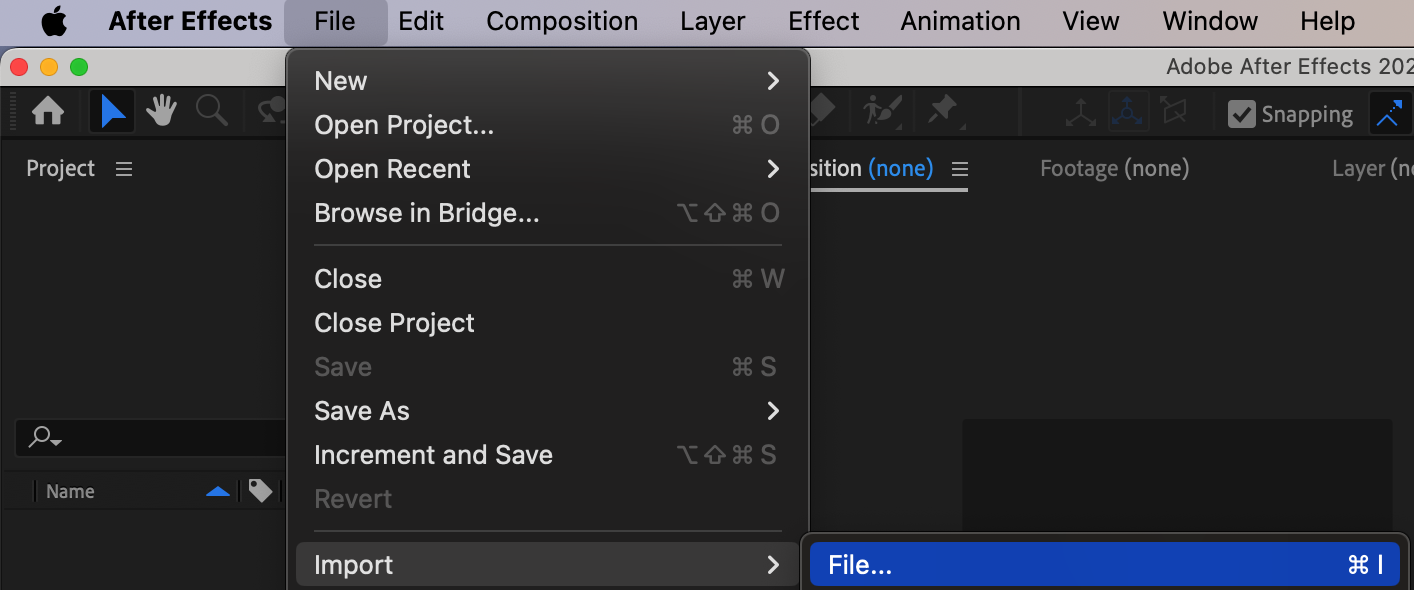
 Step 2: Open AEJuice Pack Manager
Go to Window > AEJuice Pack Manager 4 to open the plugin panel. This is where you’ll find all available AEJuice packs, including the YouTube Pack.
Step 3: Download the YouTube Pack
Inside the Pack Manager, locate the YouTube Pack. Click on it to download if it’s not already installed. Once downloaded, you can browse and use the included templates.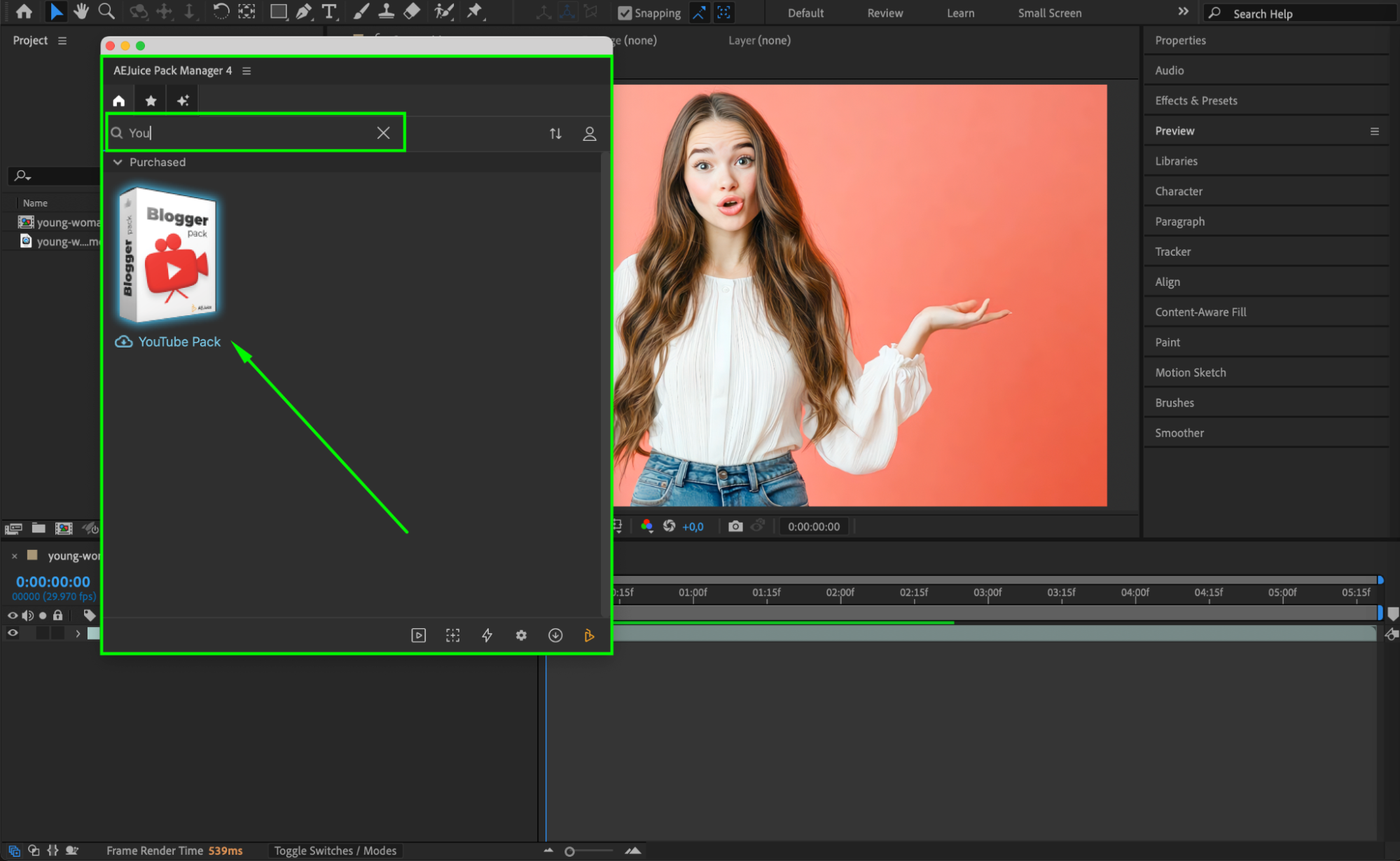 Step 4: Choose and Download a Template
Browse through the pack and choose a template you like. This could be an intro, lower third, subscribe button, or outro. Click on the template to download it.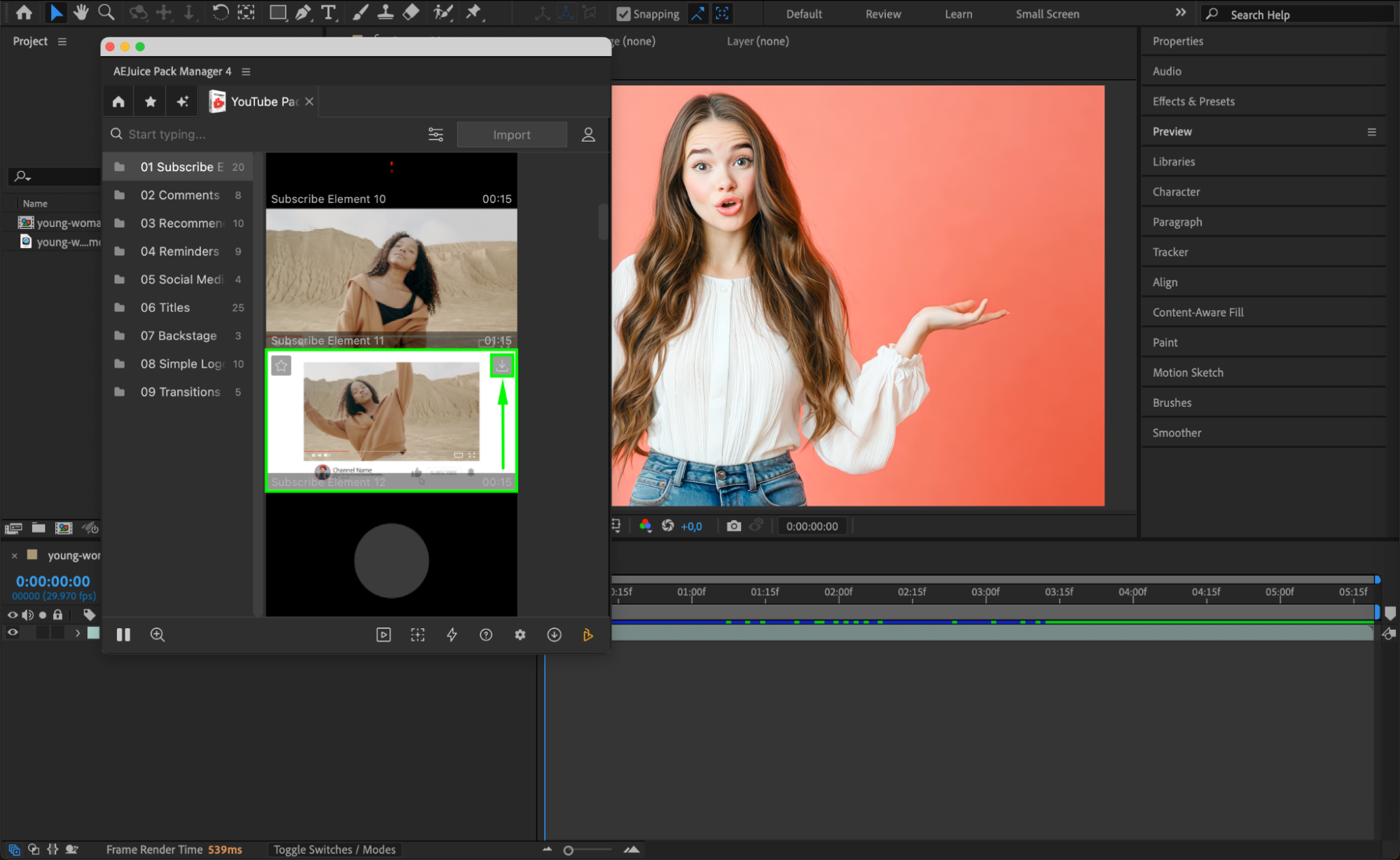
Step 5: Open the Pre-composed Template
Once downloaded, the template will appear in your timeline as a pre-composition layer. Double-click on it to open the template for editing.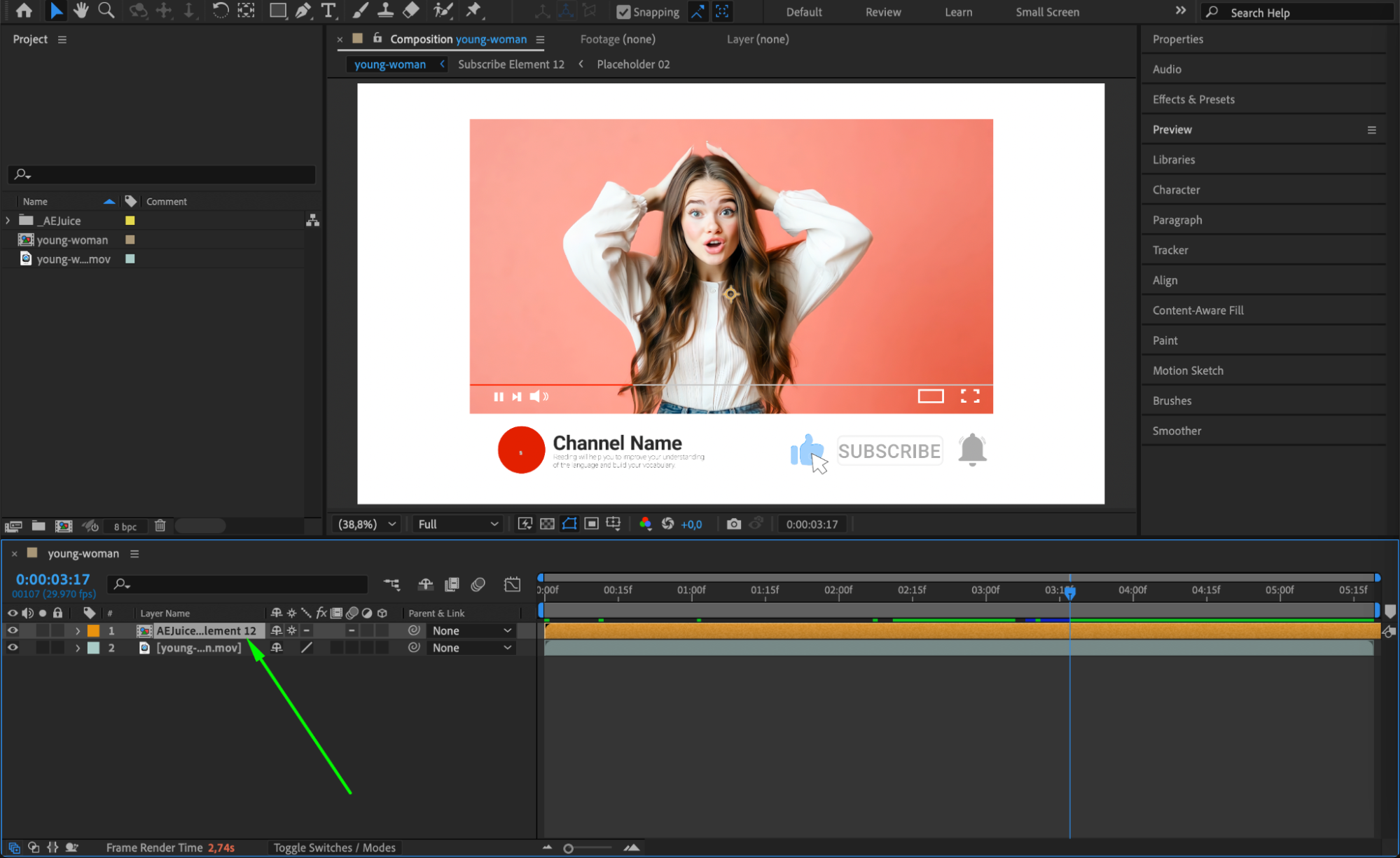 Step 6: Customize Text Holders
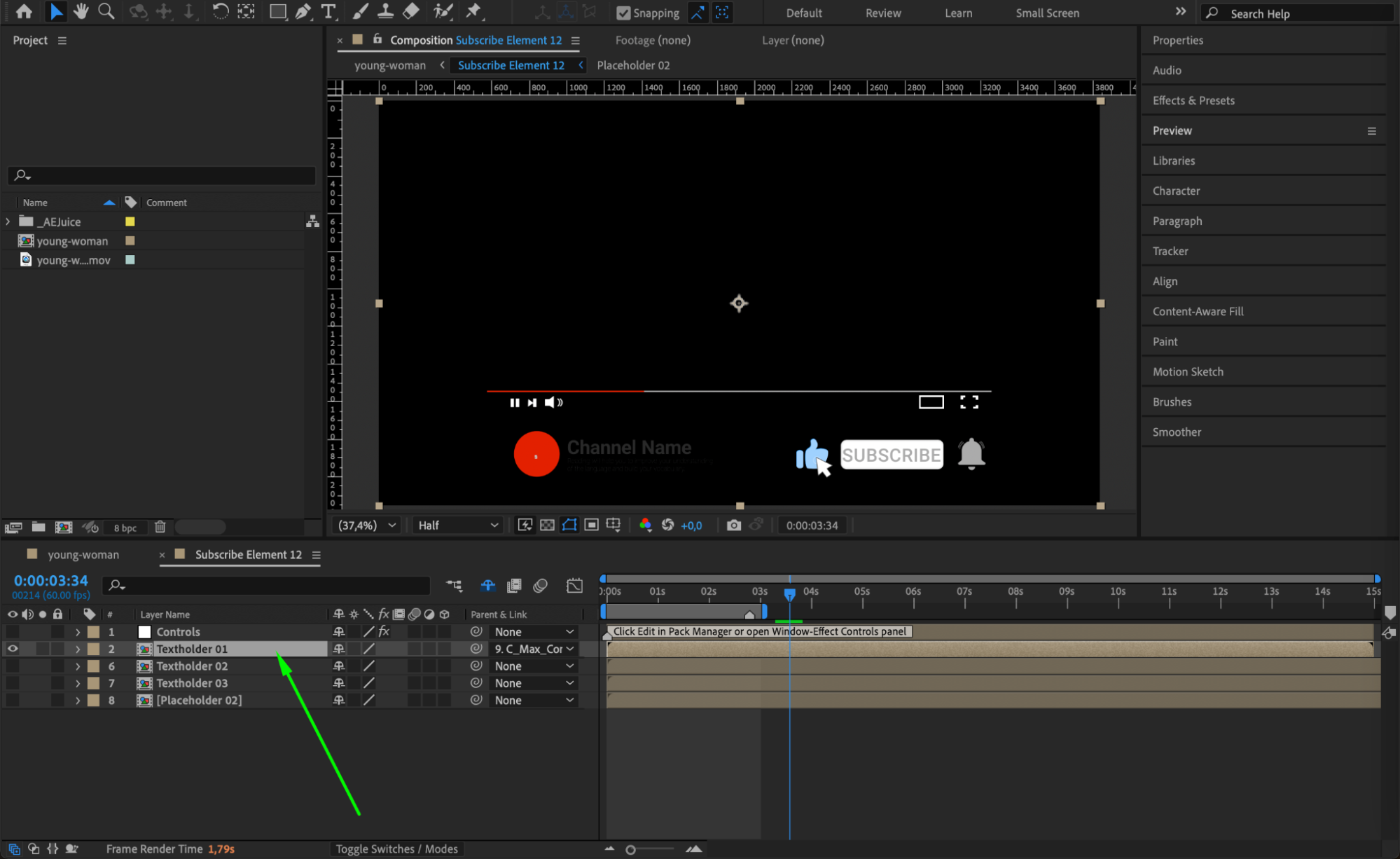
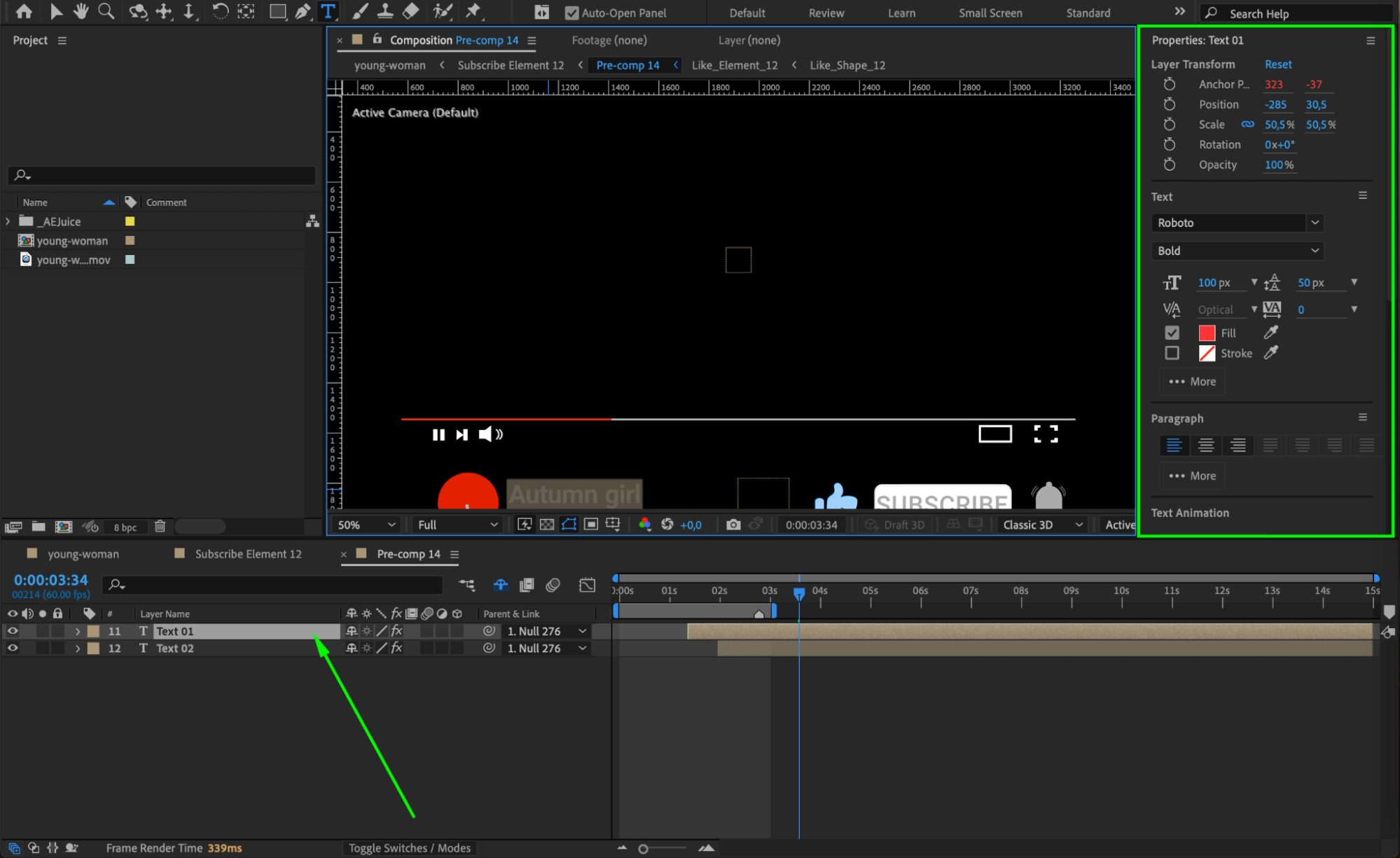
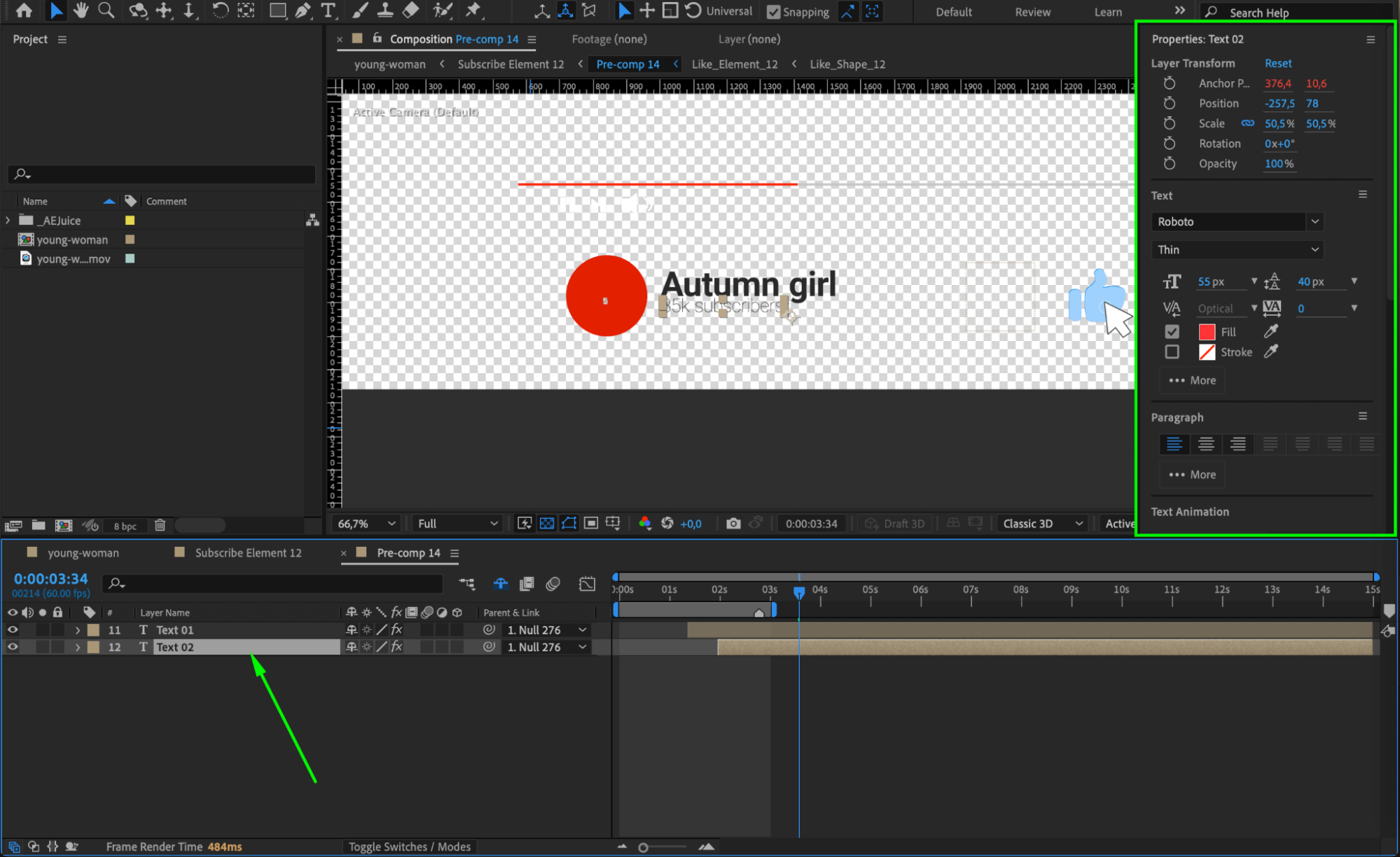
Inside the pre-comp, you’ll find text pre-comps labeled Textholder01, Textholder02, etc. Double-click on one of them to open. Inside, you’ll see two text layers. Double-click each one to replace the default text with your own. Repeat this process for all text holders.
Step 7: Replace Placeholder Images
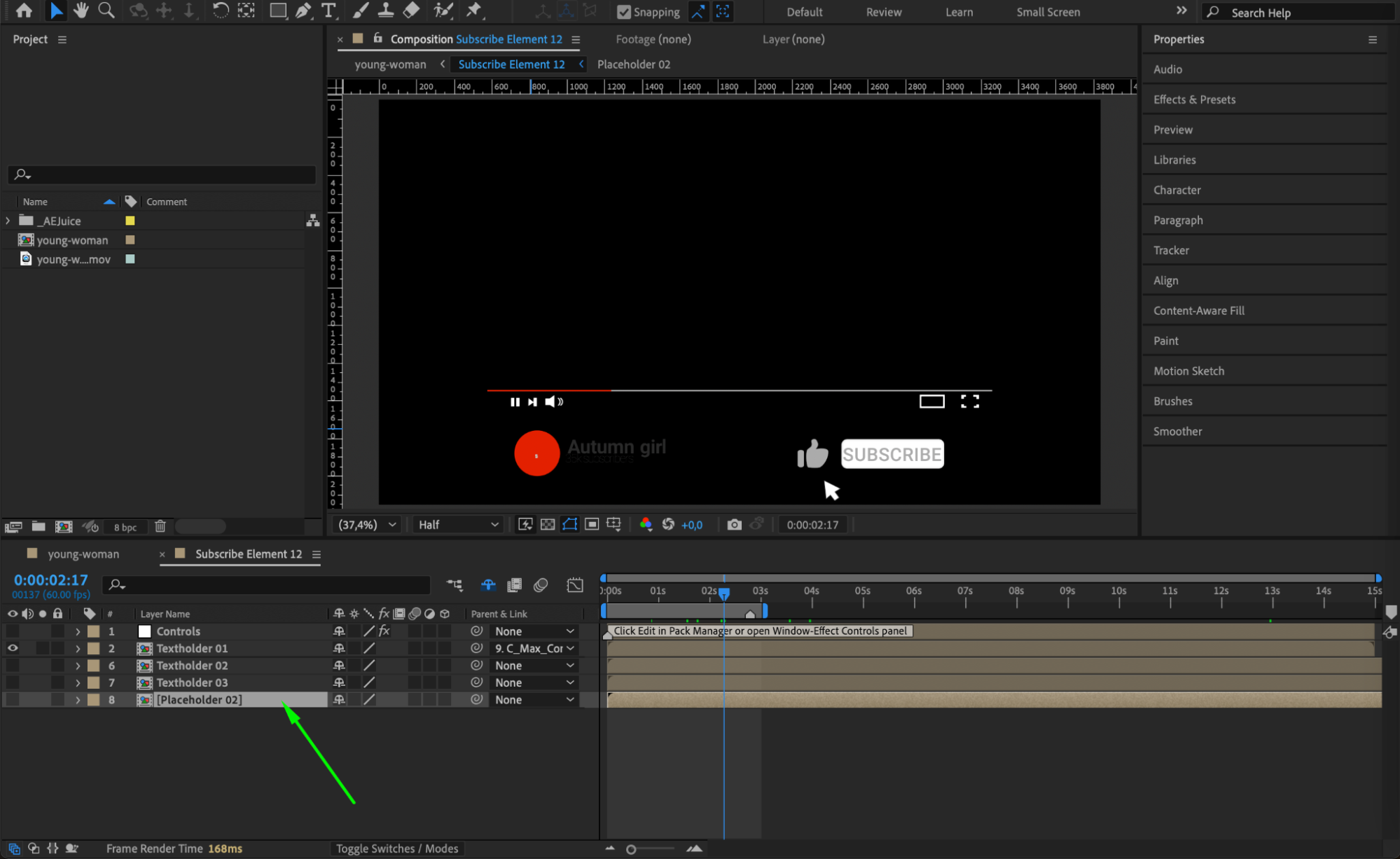
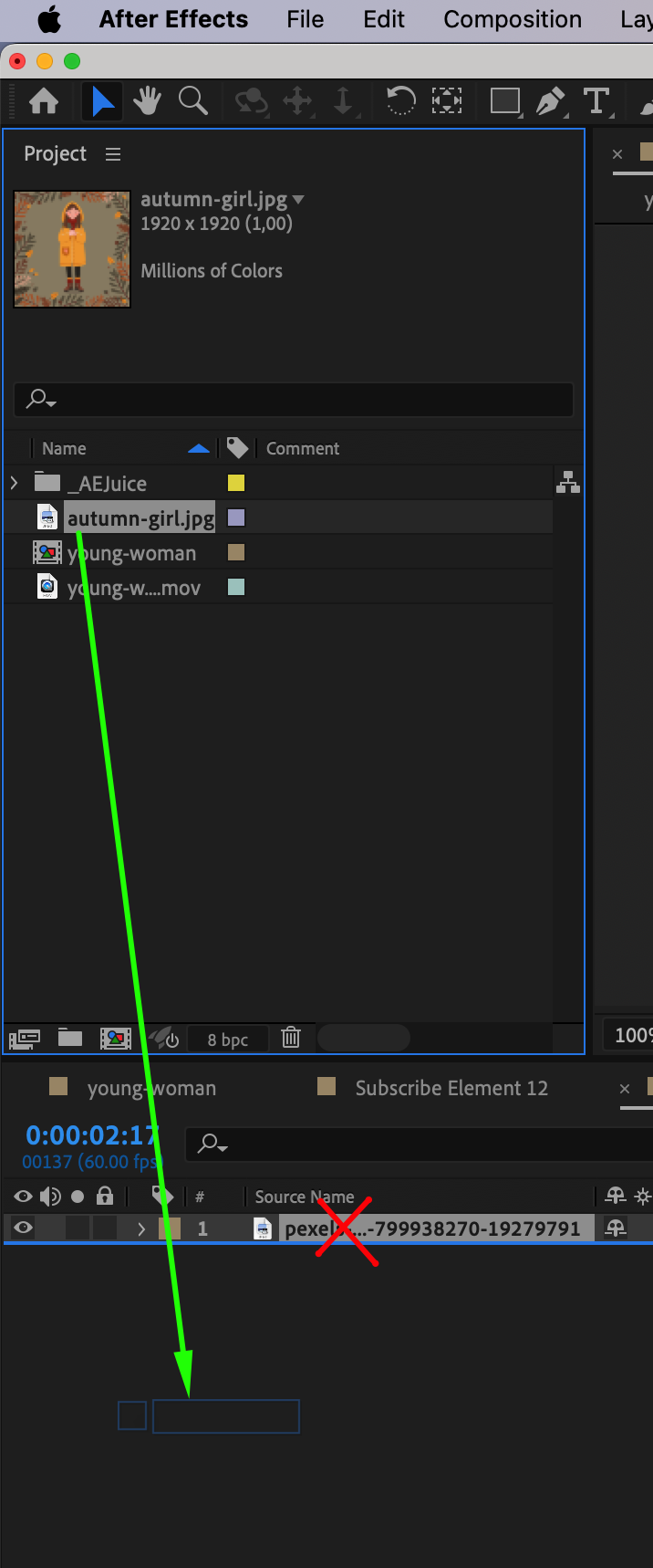
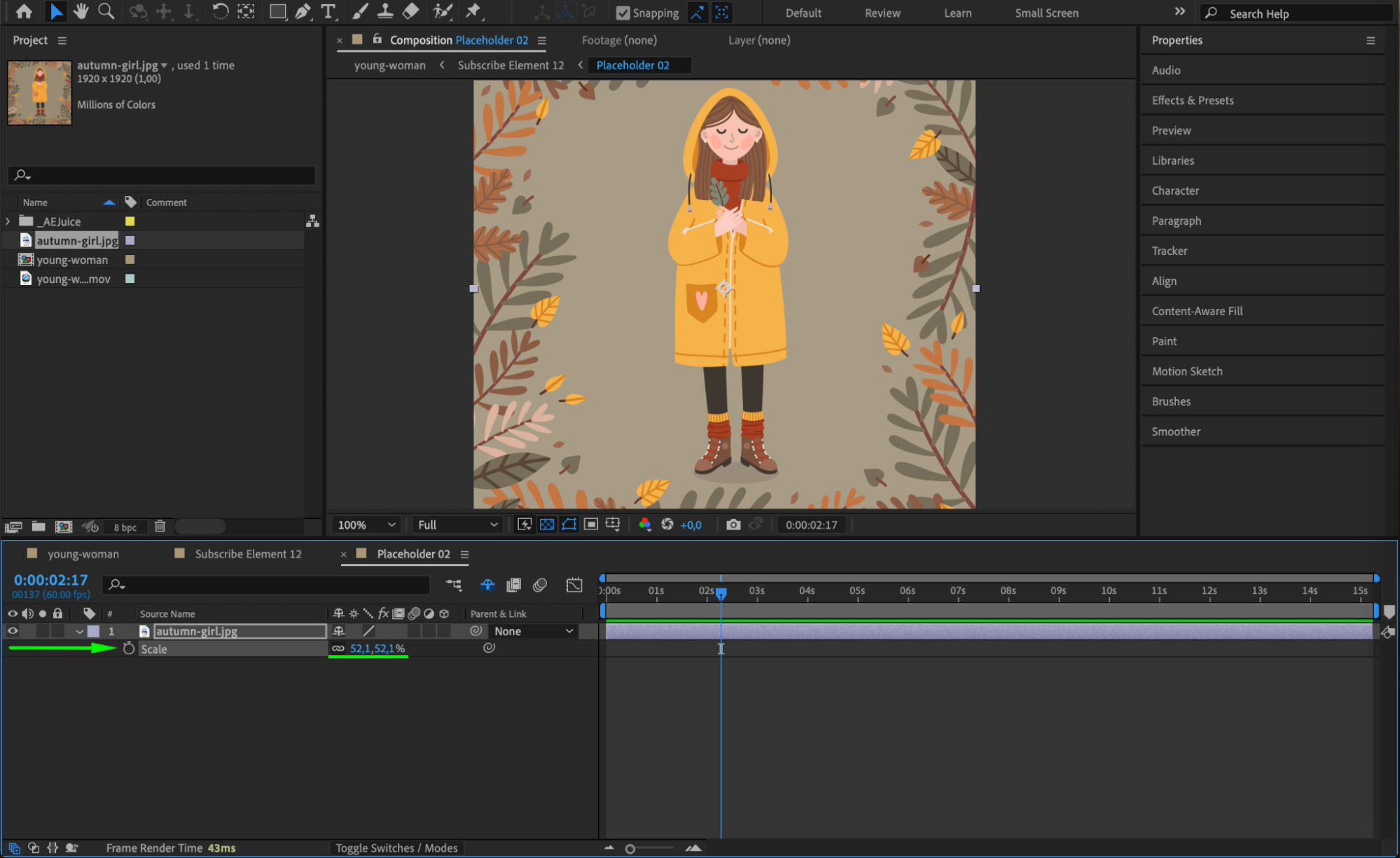
In the main AEJuice pre-comp, find a pre-comp labeled Placeholder02 and double-click it to open. Delete the placeholder image and drag your own image into the composition. Adjust its scale to fit the layout as needed.
Step 8: Use Transparency Grid to Check Layout
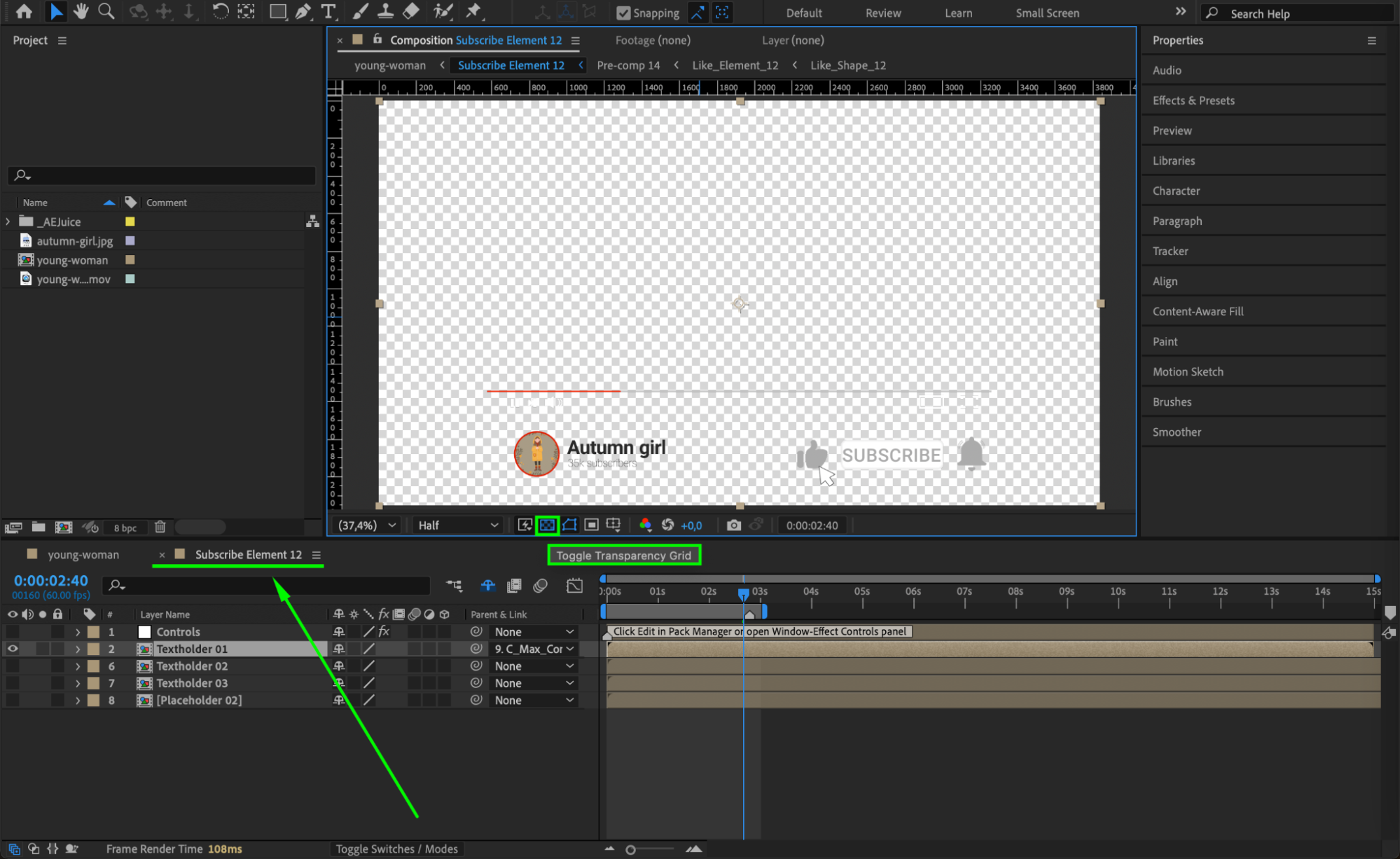
Click the Toggle Transparency Grid button (checkerboard icon) at the bottom of the Composition panel. This helps you see how your edits align visually without a background color interfering.
Step 9: Return and Preview Your Animation
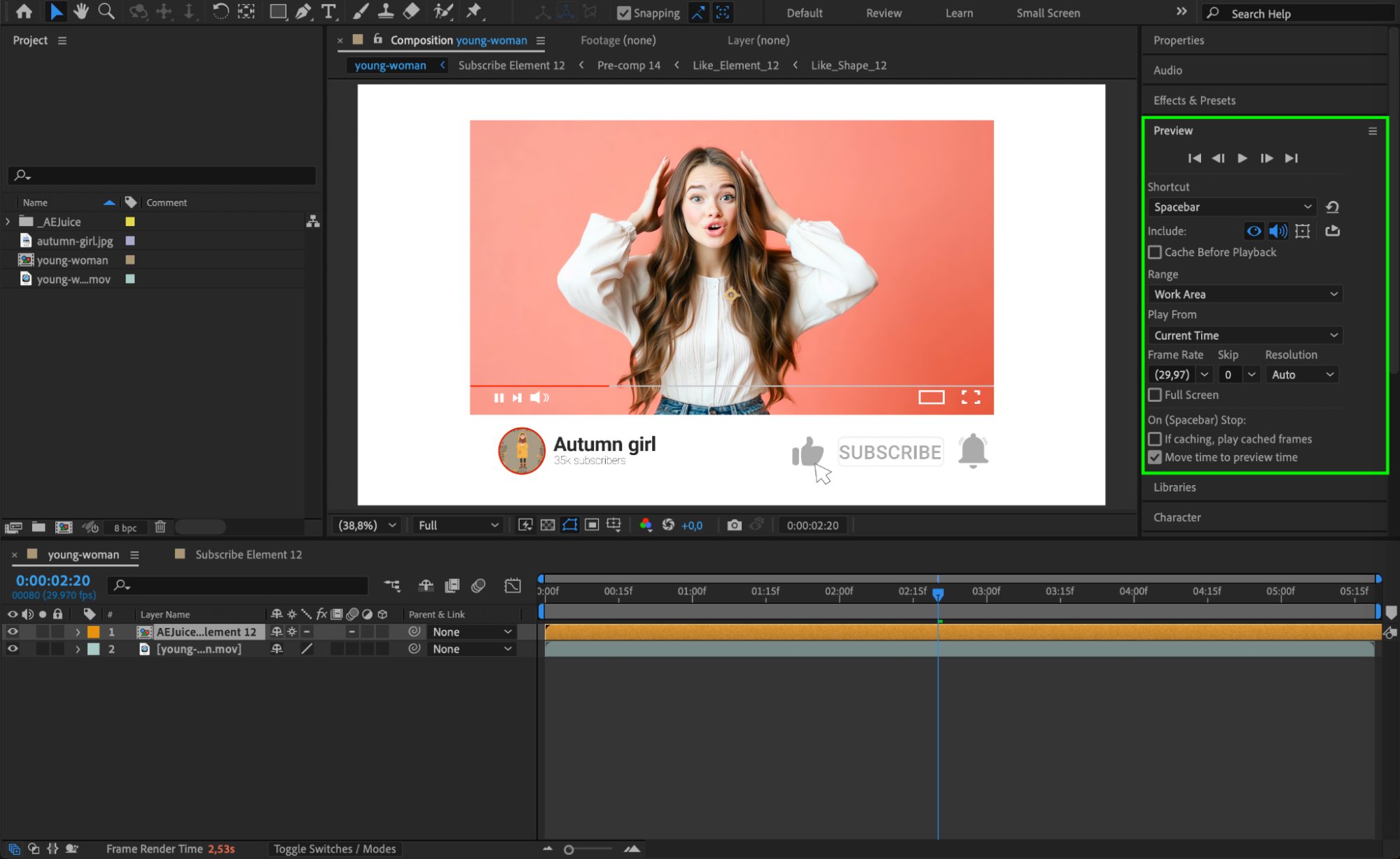
Go back to the main composition and press the Spacebar to preview your edited video. Make sure everything is placed correctly and looks good with your footage. Tweak timing, text, and visuals as needed.
Conclusion
The AEJuice YouTube Pack offers some of the best animation tools for YouTube creators, allowing you to add professional-looking intros, outros, and text effects with just a few clicks. With the ability to fully customize each element, it’s perfect for giving your content a polished, branded look directly inside After Effects.
Our Bestsellers
Our Bestsellers


