
How to Extend a Slideshow Template in Adobe After Effects
Introduction
Slideshow templates in Adobe After Effects are a fast way to create polished animations. However, sometimes the default duration is too short for your project. Whether you’re adding more photos or simply want each slide to stay longer on screen, it’s important to adjust the template correctly to keep animations smooth and timing consistent. This guide will show you how to elongate a slideshow without breaking its structure.
Step 1: Understand the Template Structure
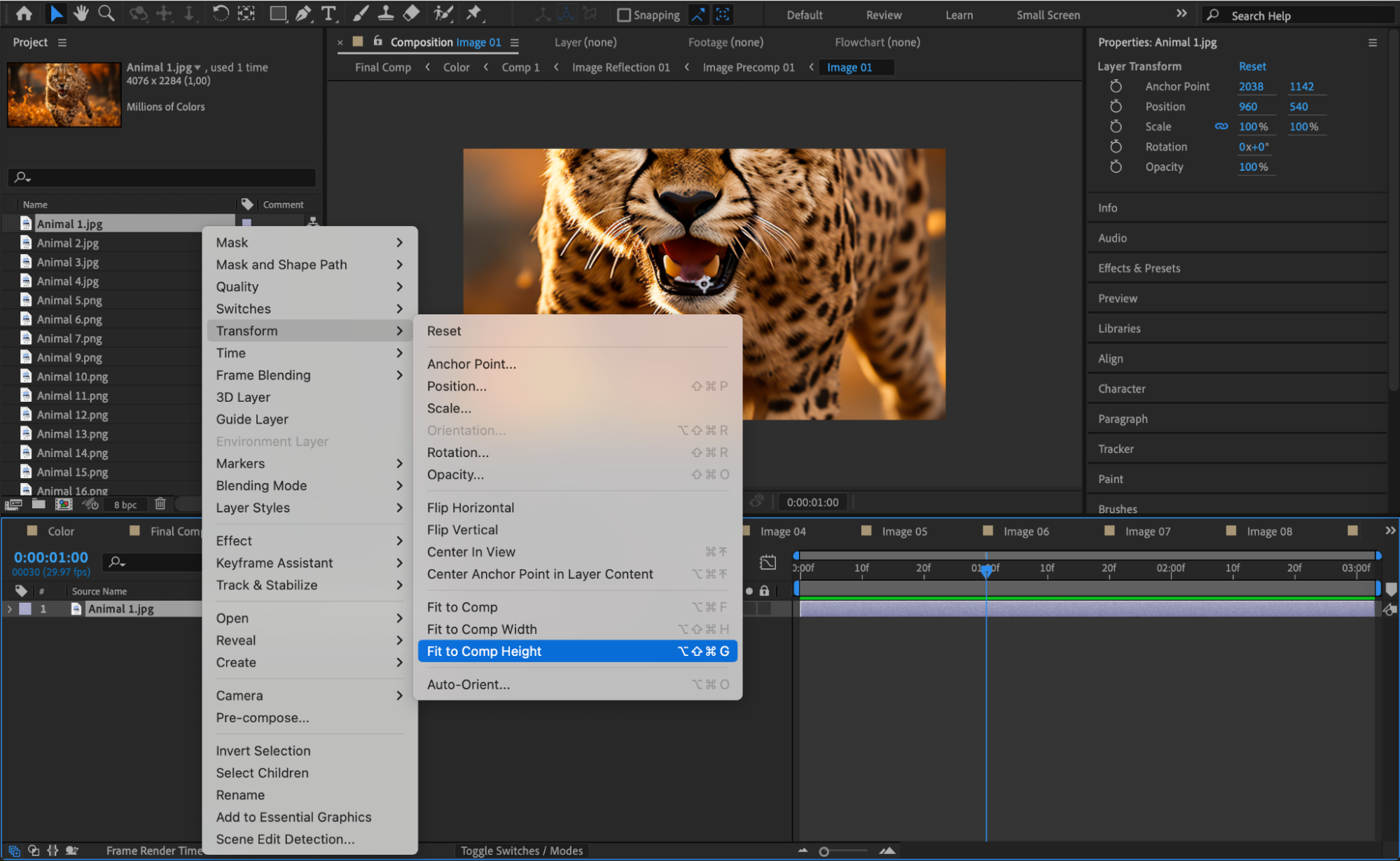
Before making any changes, open the template and explore the project panel. Most slideshow templates use a modular structure with pre-comps for each slide. Take note of where the images, texts, and transitions are located. This will help you identify which parts to duplicate or adjust. Once you understand the structure, begin customizing it by replacing the placeholder images and text with your own content while keeping the timing and animations consistent.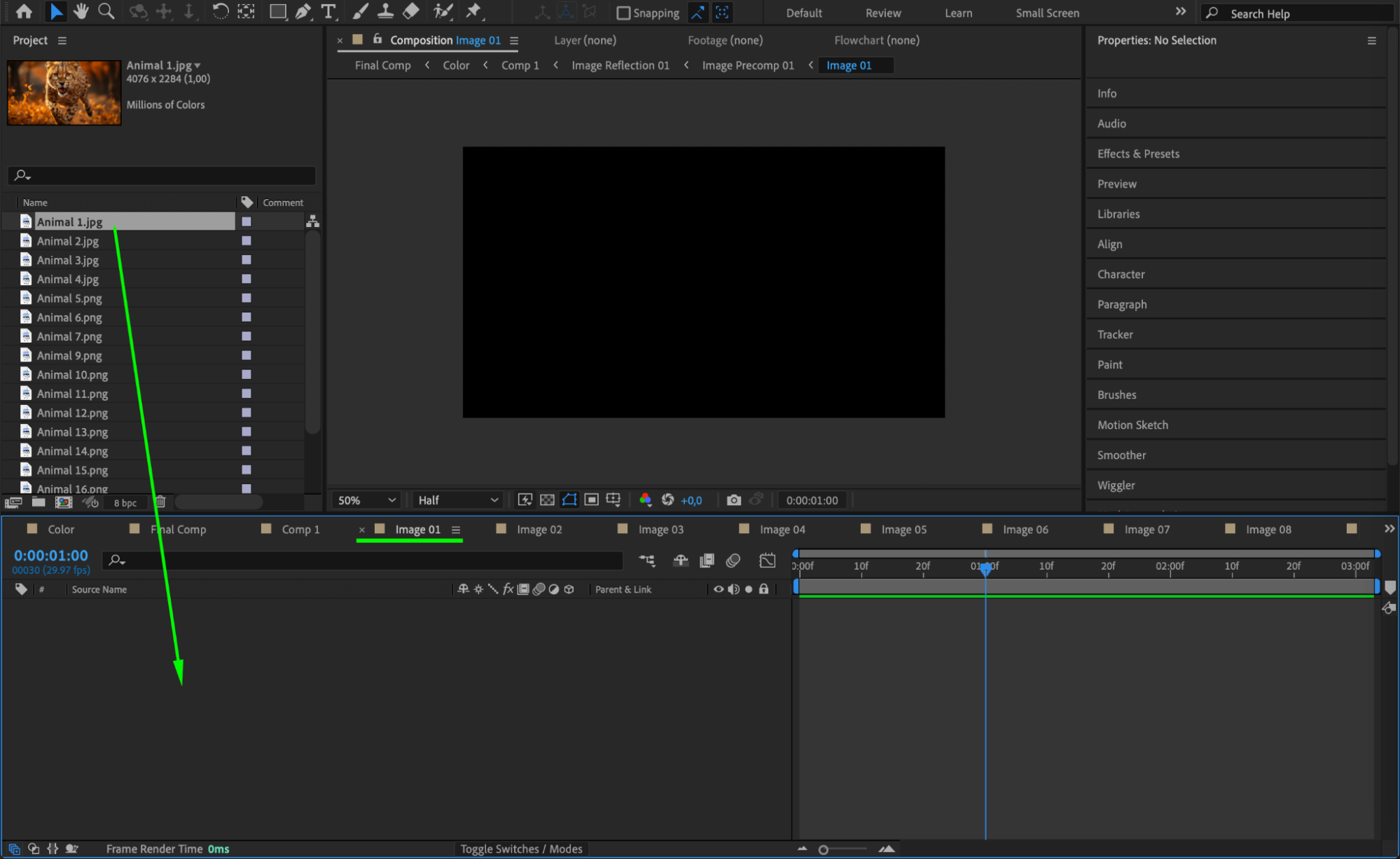
Step 2: Extend the Main Composition Duration
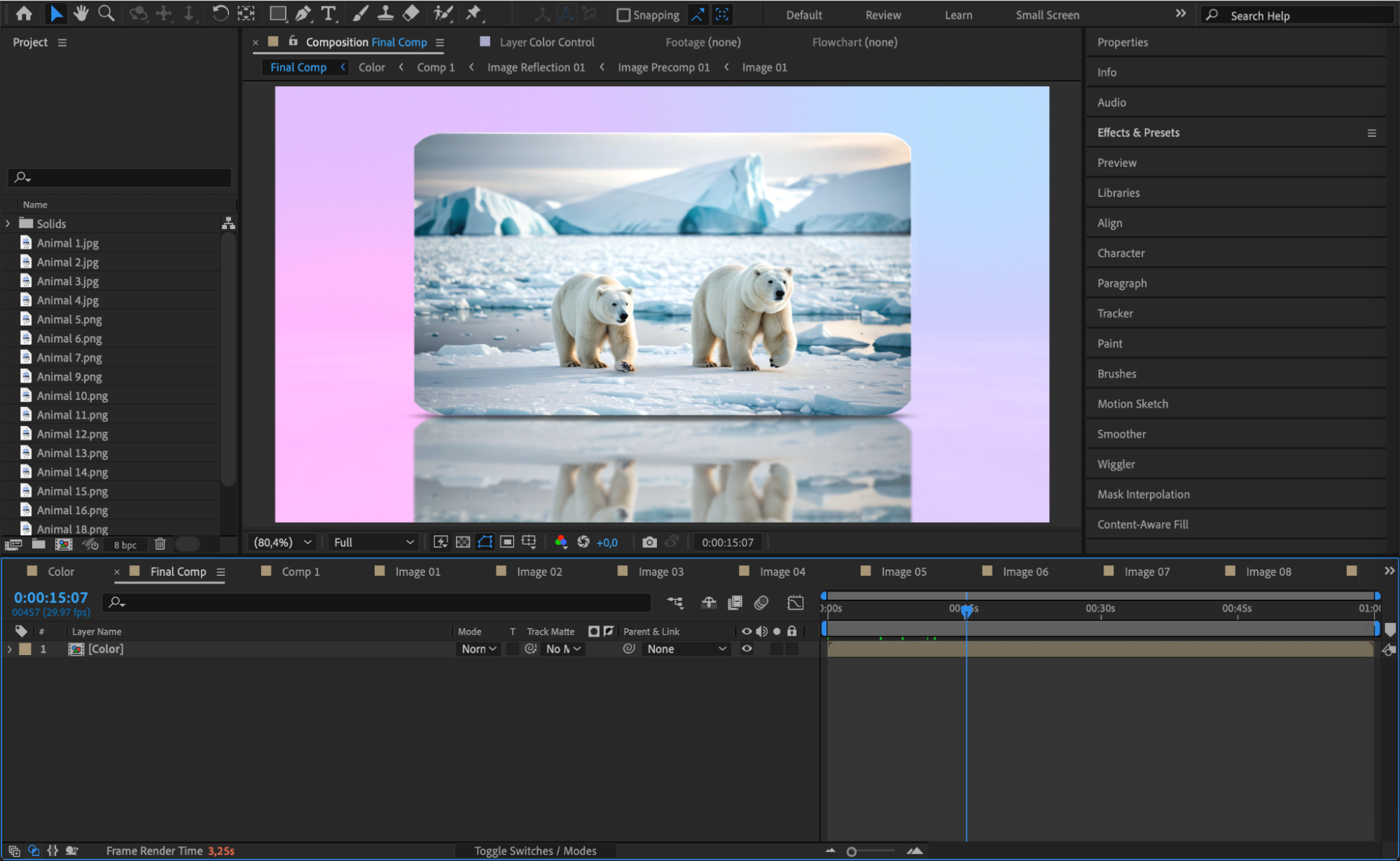
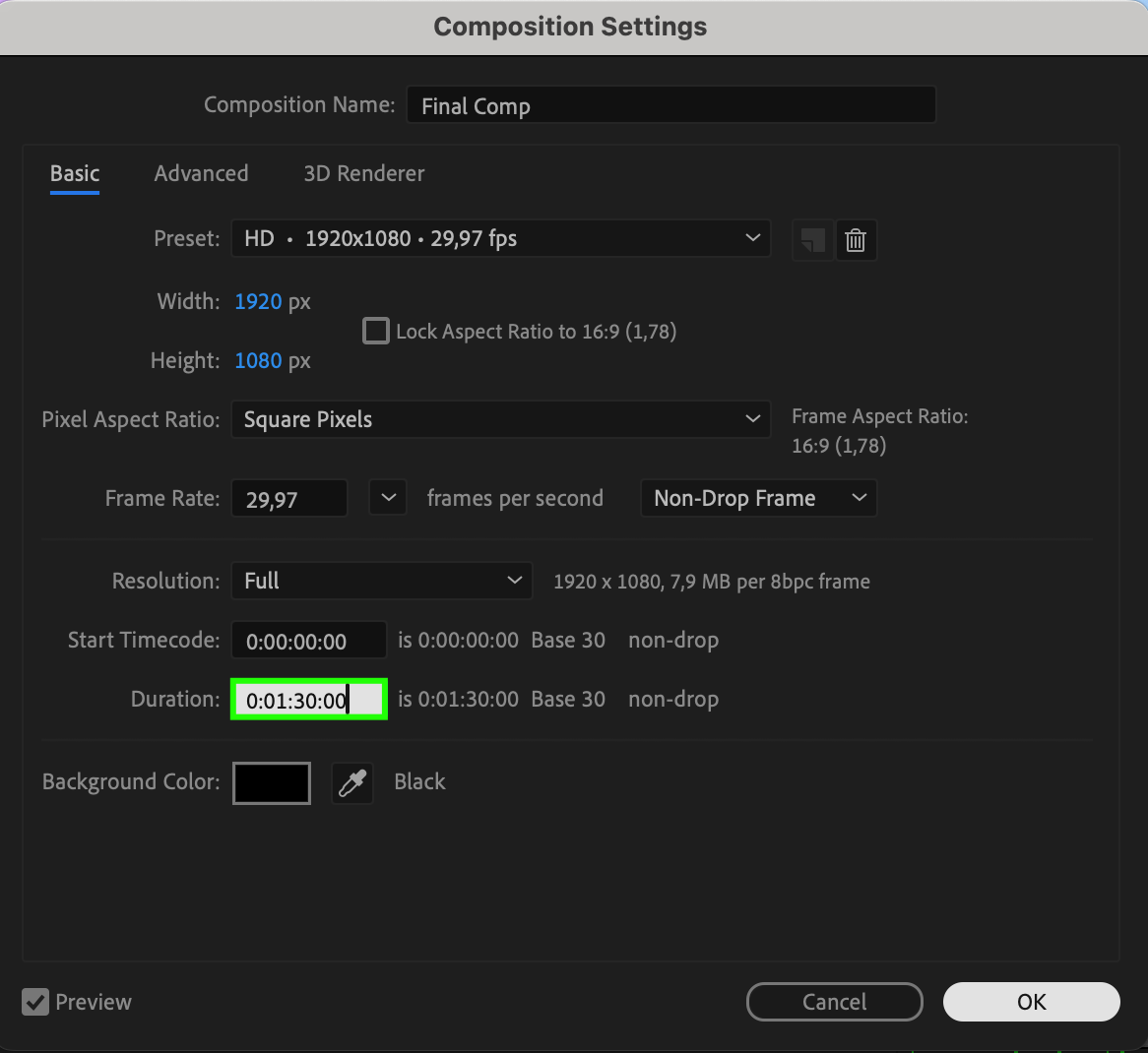
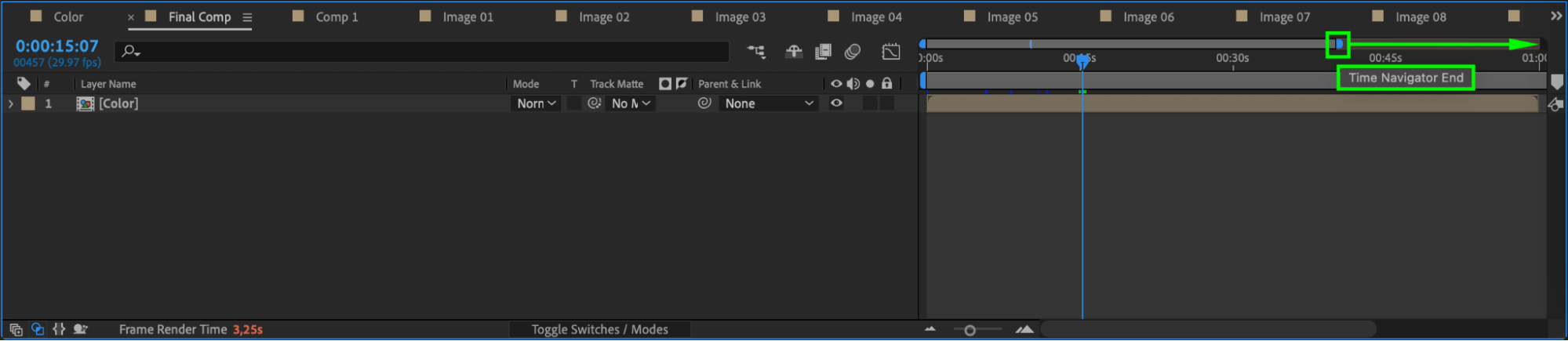
Go to your main (final) composition and select it in the timeline. Then go to Composition > Composition Settings and increase the duration in the “Duration” field. This ensures that your final slideshow comp will be long enough to hold all the slides you want to include, including any new ones you plan to add. Without this step, new content may be cut off.
 Step 3: Import the Template Again to Add More Slides
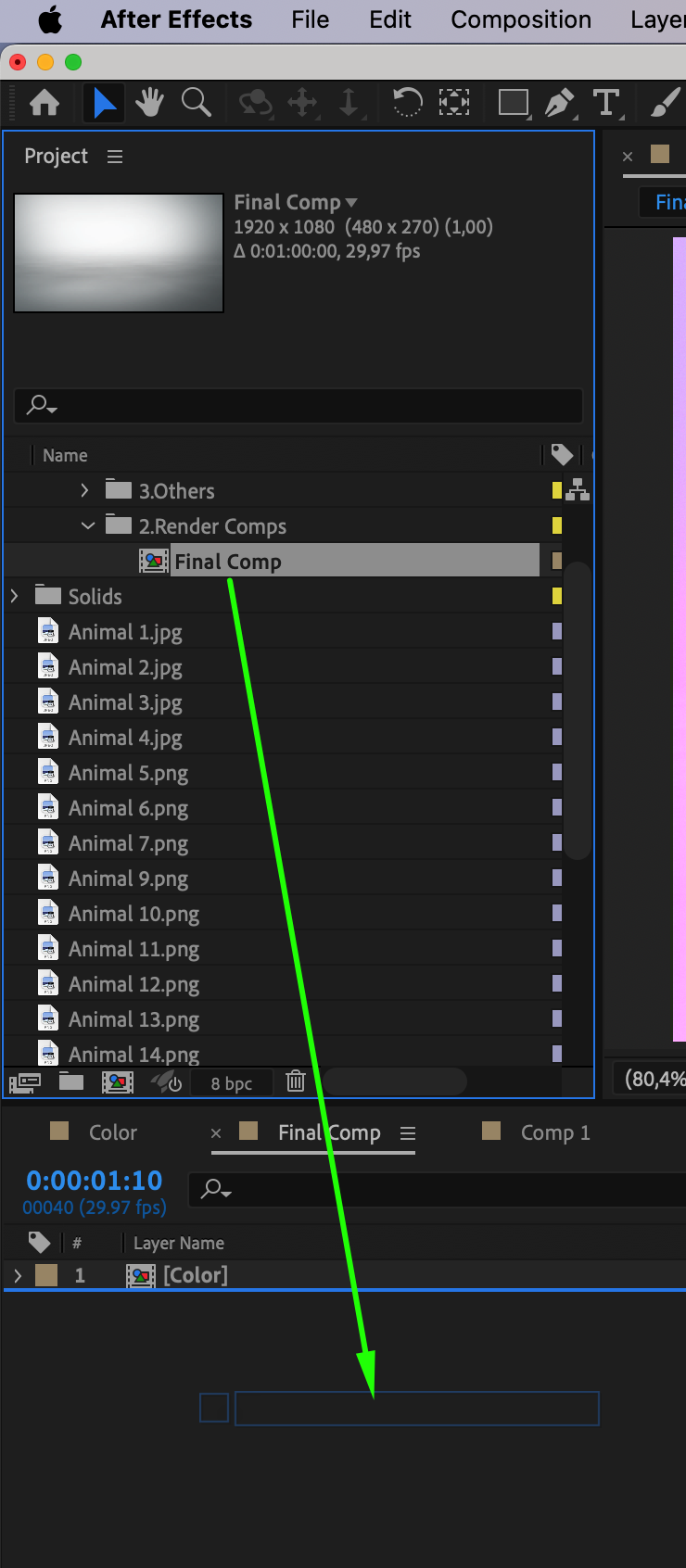
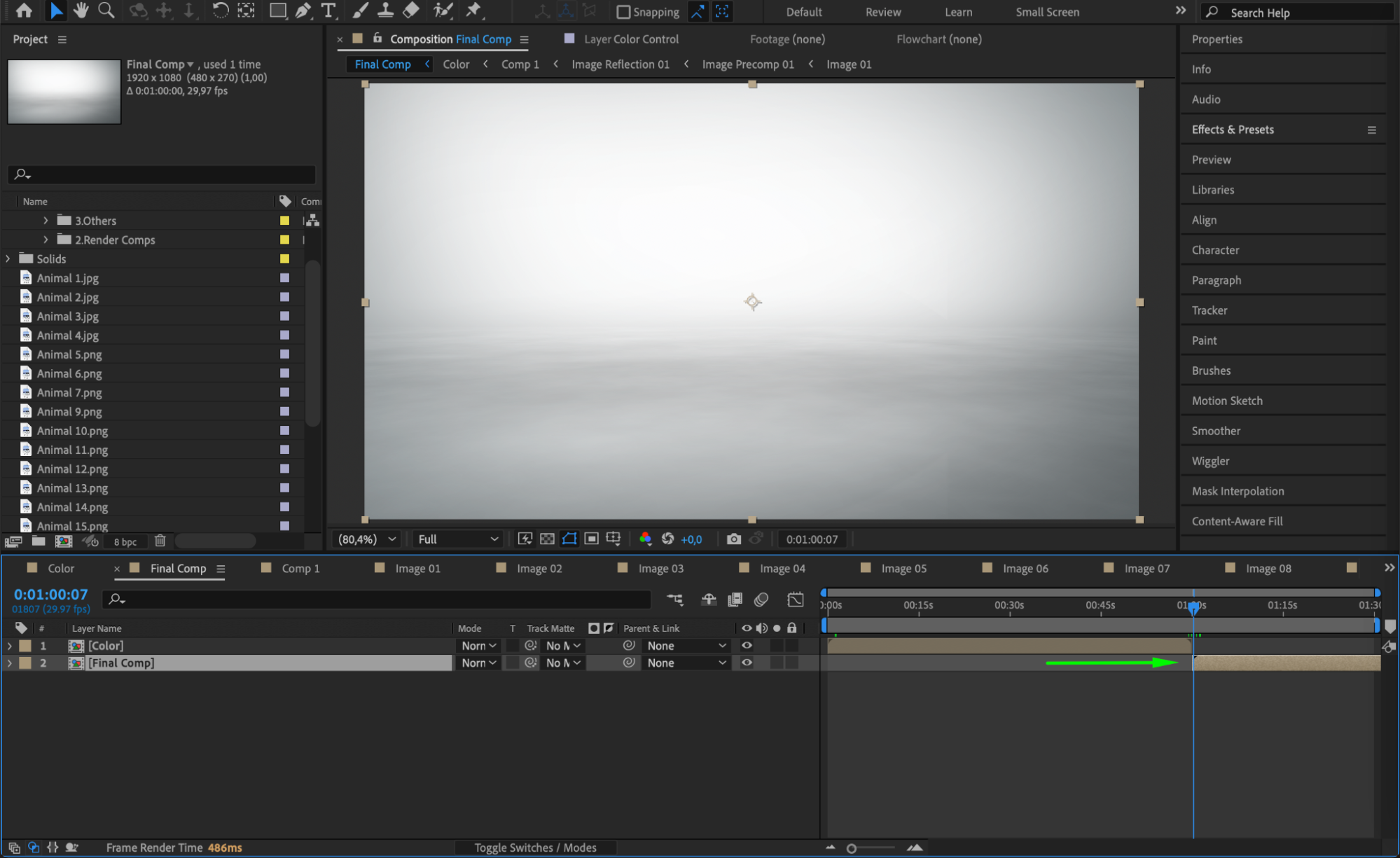
To add more slides without interfering with the existing ones, go to File > Import > File and re-import the same slideshow template. This gives you a clean version of the template that you can use for additional content. Once imported, drag the new version of the slideshow comp to your main timeline and position it right after the edited section ends.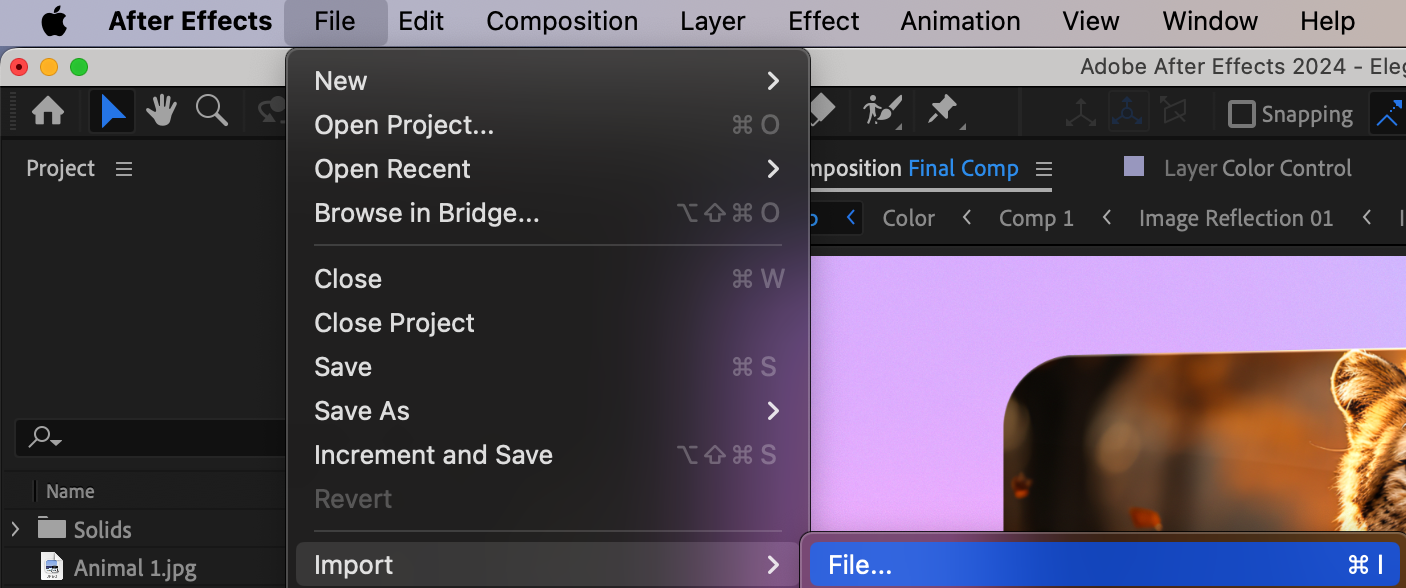
Step 4: Customize the Second Template
Open the newly added slideshow comp and start customizing it with different images, text, and transitions. Make sure each new slide matches the style of your original section so the whole video looks seamless. You can also change the order of slides, adjust durations of individual elements, or remove sections you don’t need.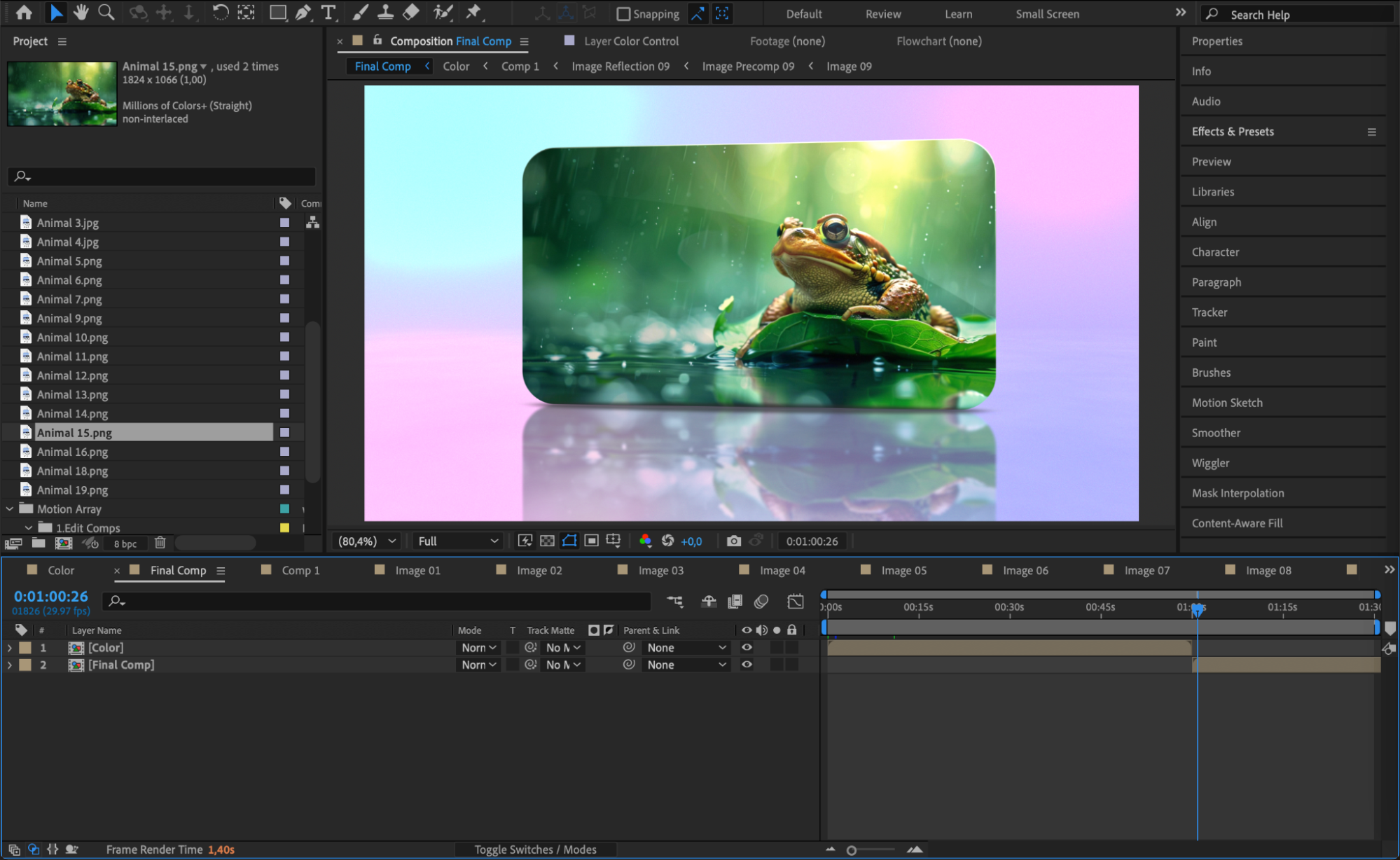
Step 5: Preview and Final Adjustments
Press the spacebar to preview your extended slideshow. Watch for any timing issues, overlaps, or gaps between sections. Use timeline markers to help with alignment. If needed, fine-tune transitions or fade-ins/outs to make sure the extended parts blend naturally with the original animation.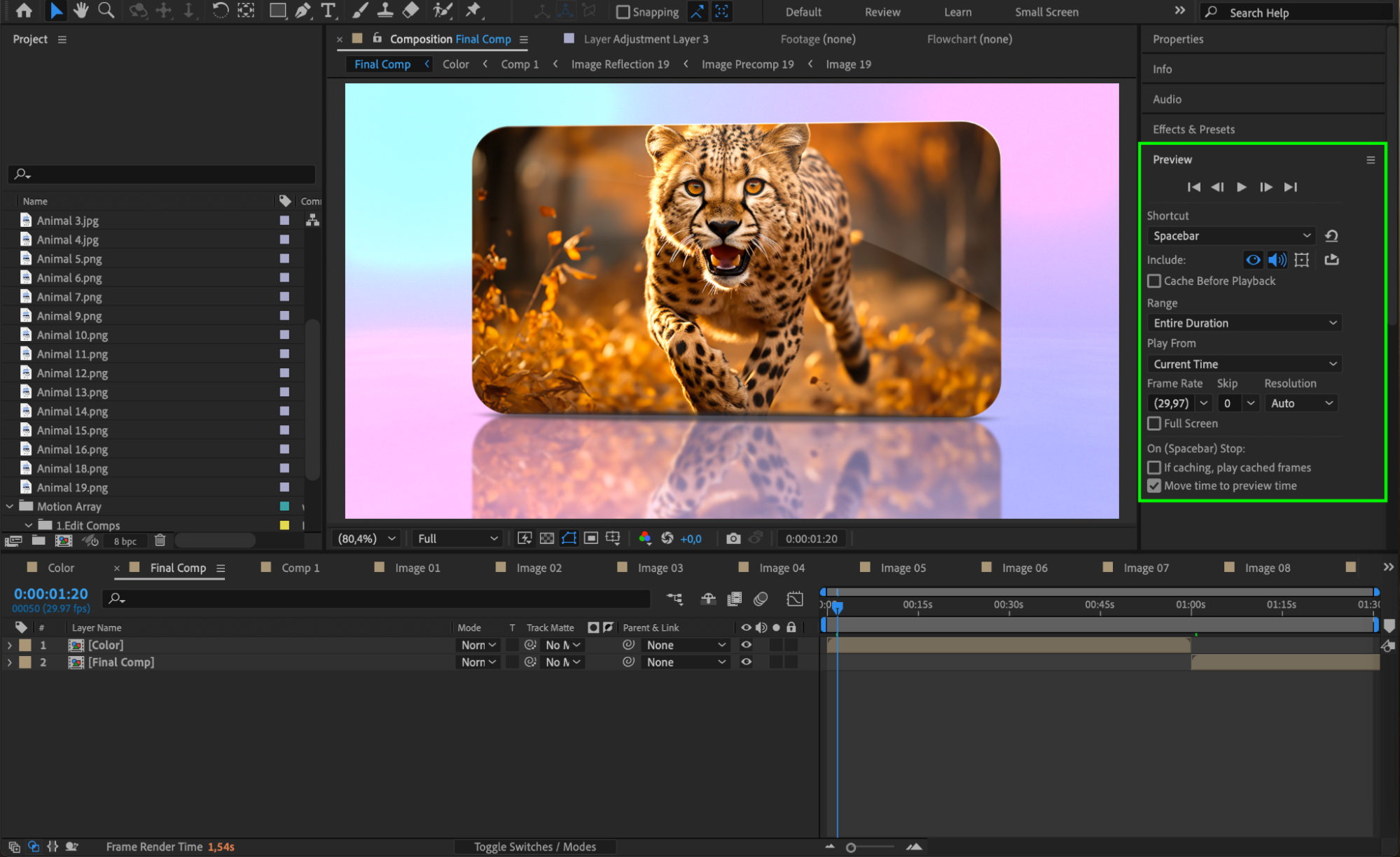
Conclusion
Extending a slideshow template in After Effects is simple when you understand its structure and use clean copies for new sections. By increasing the main comp duration and reusing the template smartly, you can create longer, more flexible slideshows without breaking animations. This workflow is ideal for portfolio reels, event recaps, or client presentations that need more screen time for content.
Our Bestsellers
Our Bestsellers


