
Introduction
The Mesh Warp effect in After Effects lets you stretch, reshape, and animate text or graphics using a customizable grid. By adjusting rows, columns, and distortion points, you can create unique distortions and smooth animations. Follow the steps below to expand and animate a mesh with ease.
Step 1: Create a New Composition and Add Text
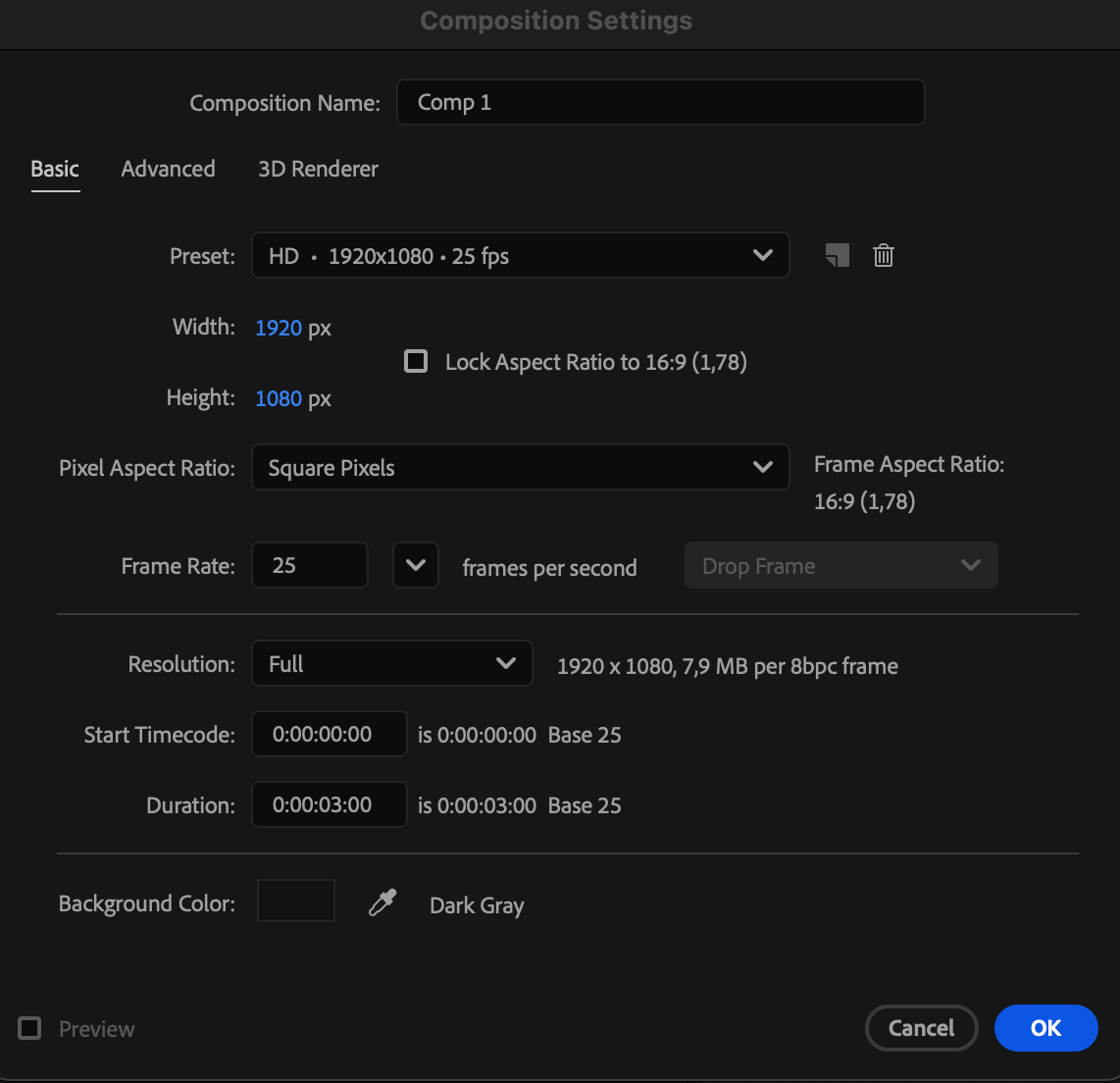
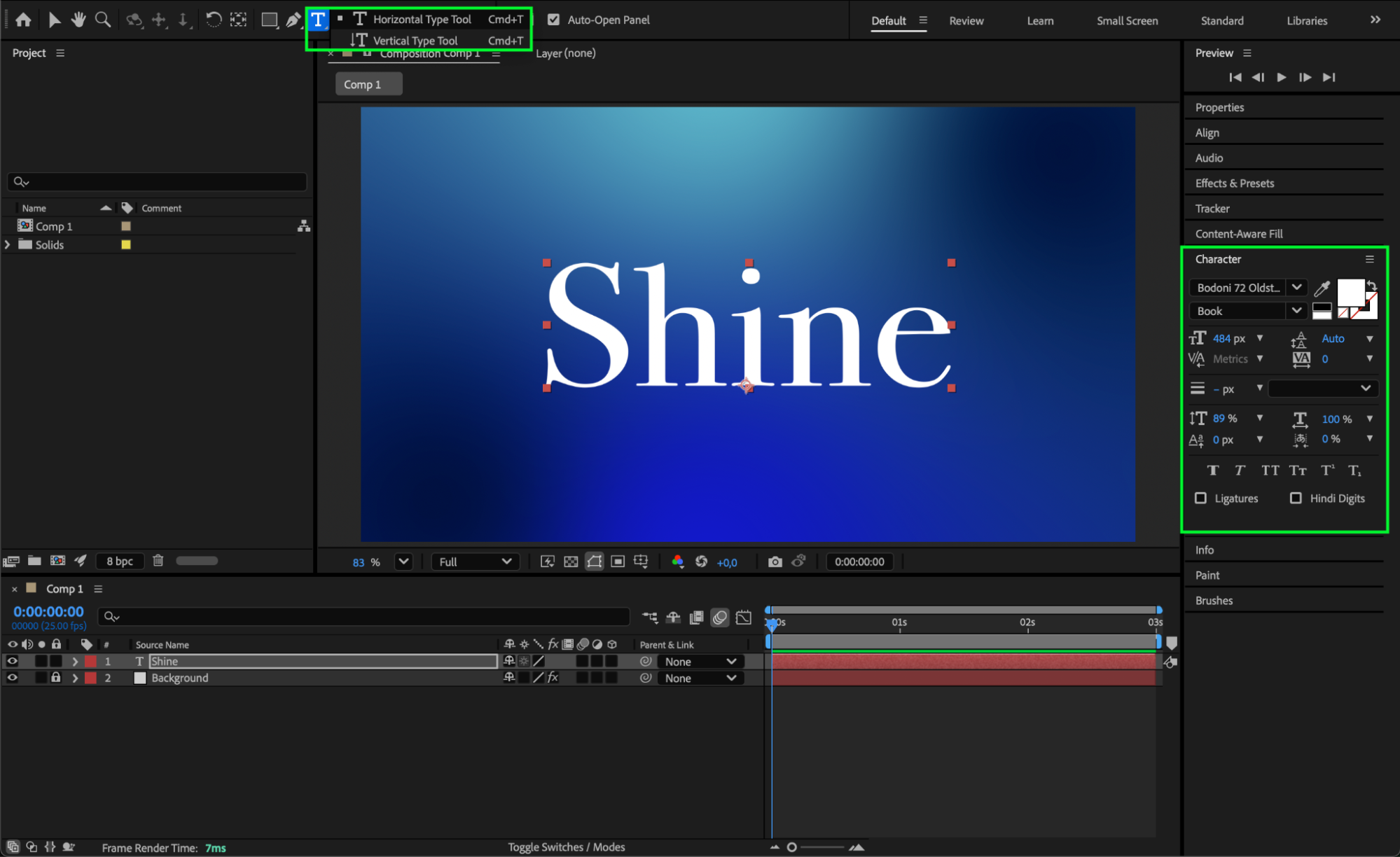
Create a new composition, then select the Type Tool (Ctrl/Cmd + T) to write your text. Customize the font, size, and style using the Character panel.
 Step 2: Apply the Mesh Warp Effect
Open the Effects & Presets panel and drag the Mesh Warp effect onto your text layer. This generates a grid you can manipulate to reshape your text.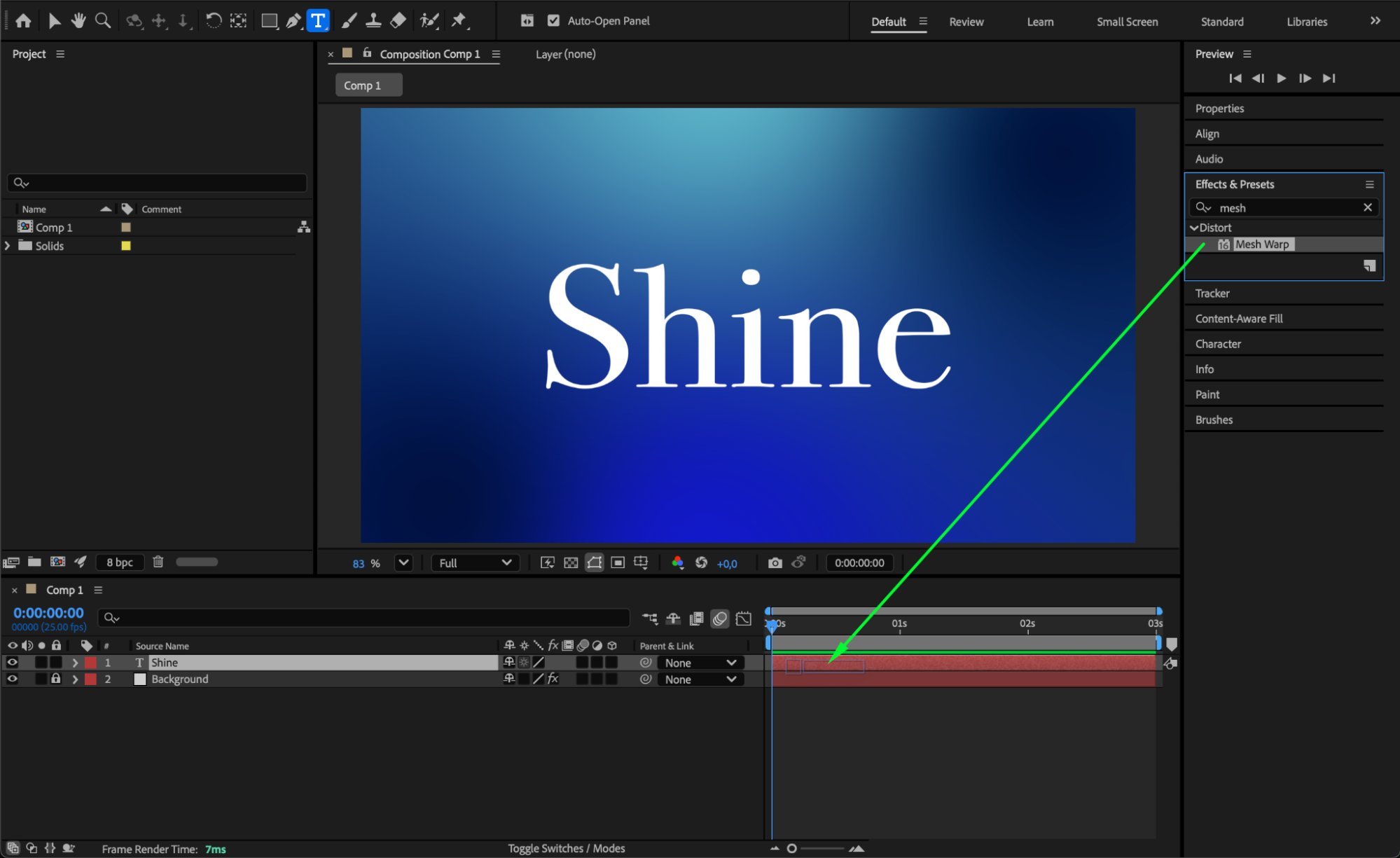
Step 3: Adjust Rows and Columns
In the Effect Controls panel, set the Rows and Columns according to the size and complexity of your text. Then go to the Composition panel and drag the mesh points to expand, stretch, or reshape your grid.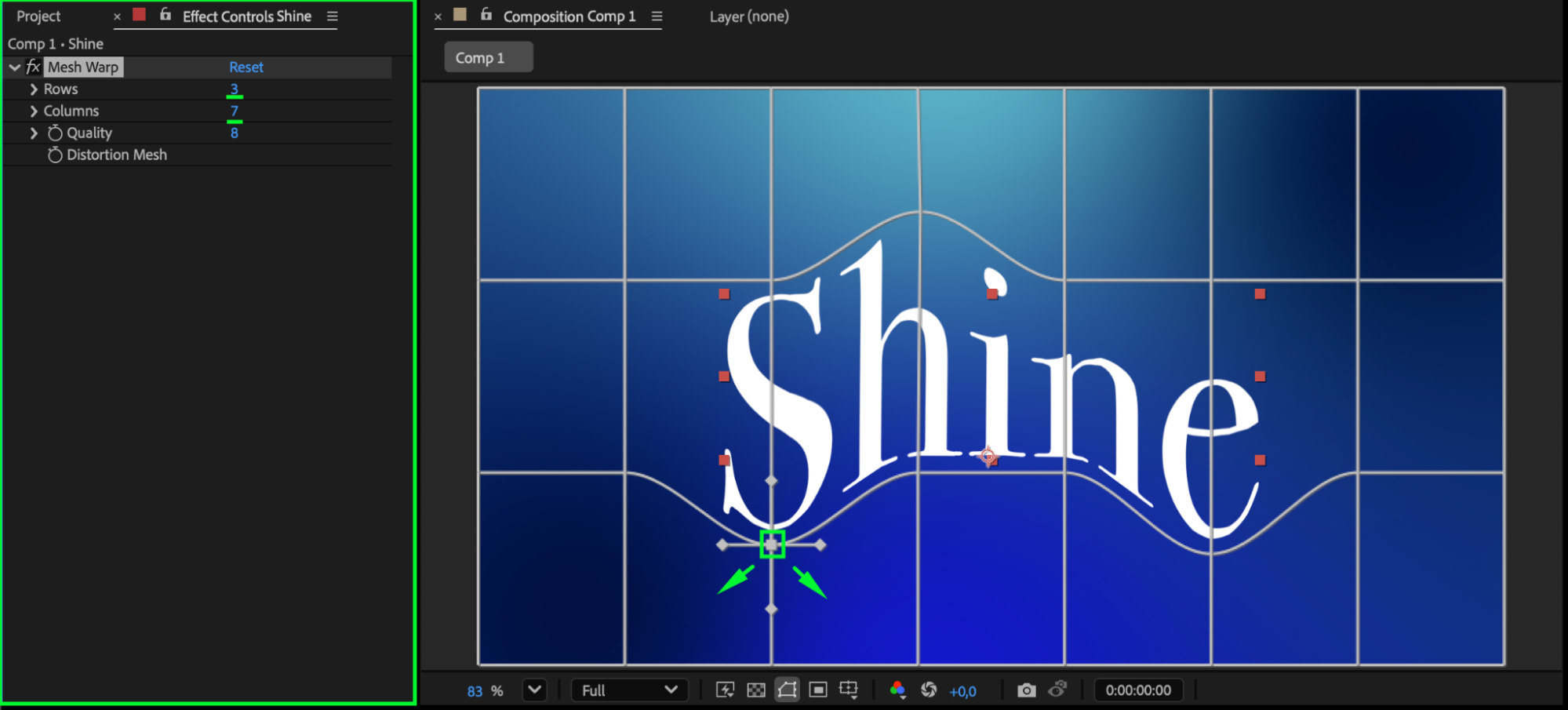 Step 4: Animate the Distortion Mesh
To create an animation, click the Distortion Mesh stopwatch in the Effect Controls panel.
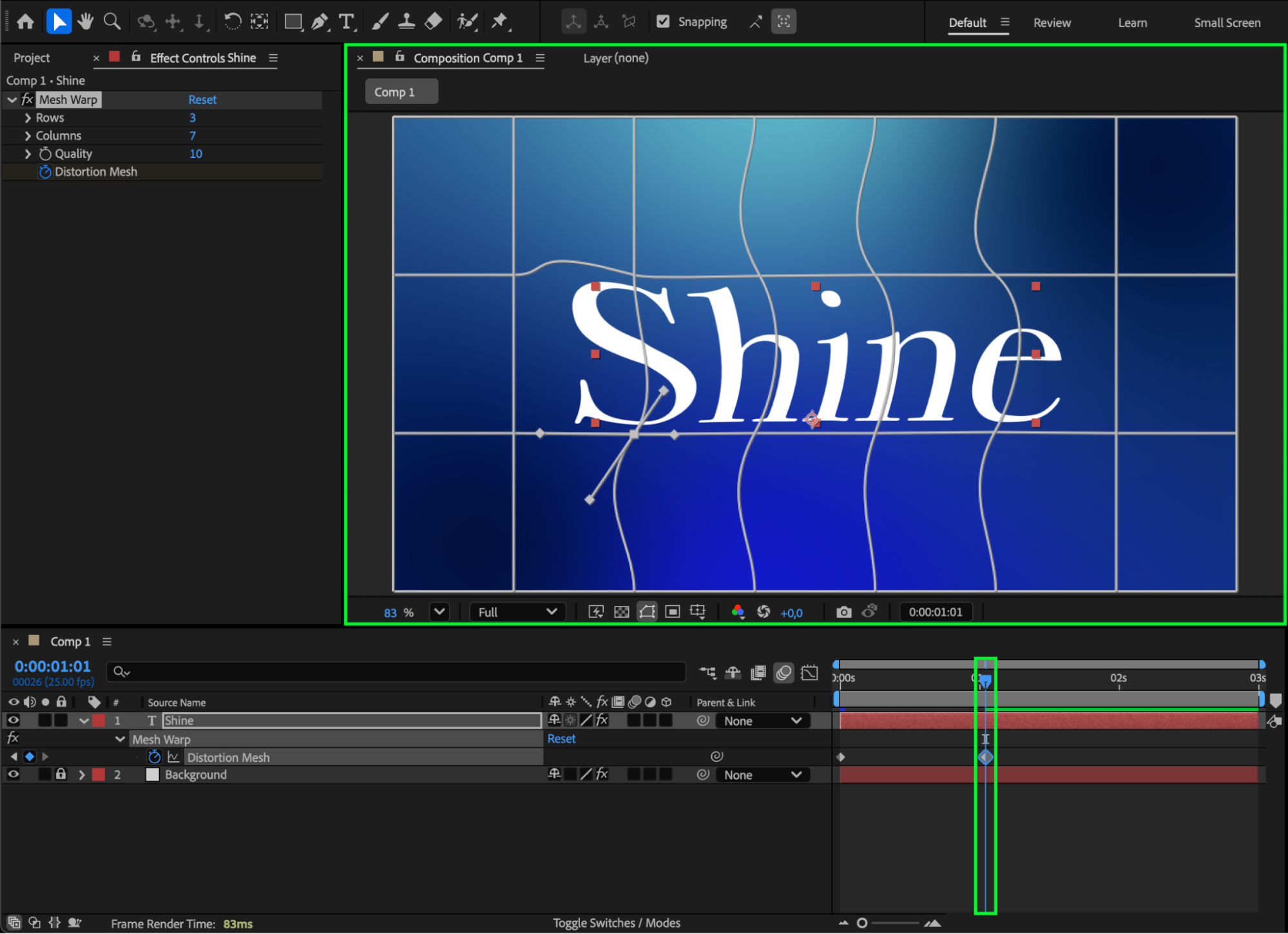
Move the CTI (Current Time Indicator) along the timeline and adjust the mesh points again. Each change creates new keyframes and animates your mesh over time.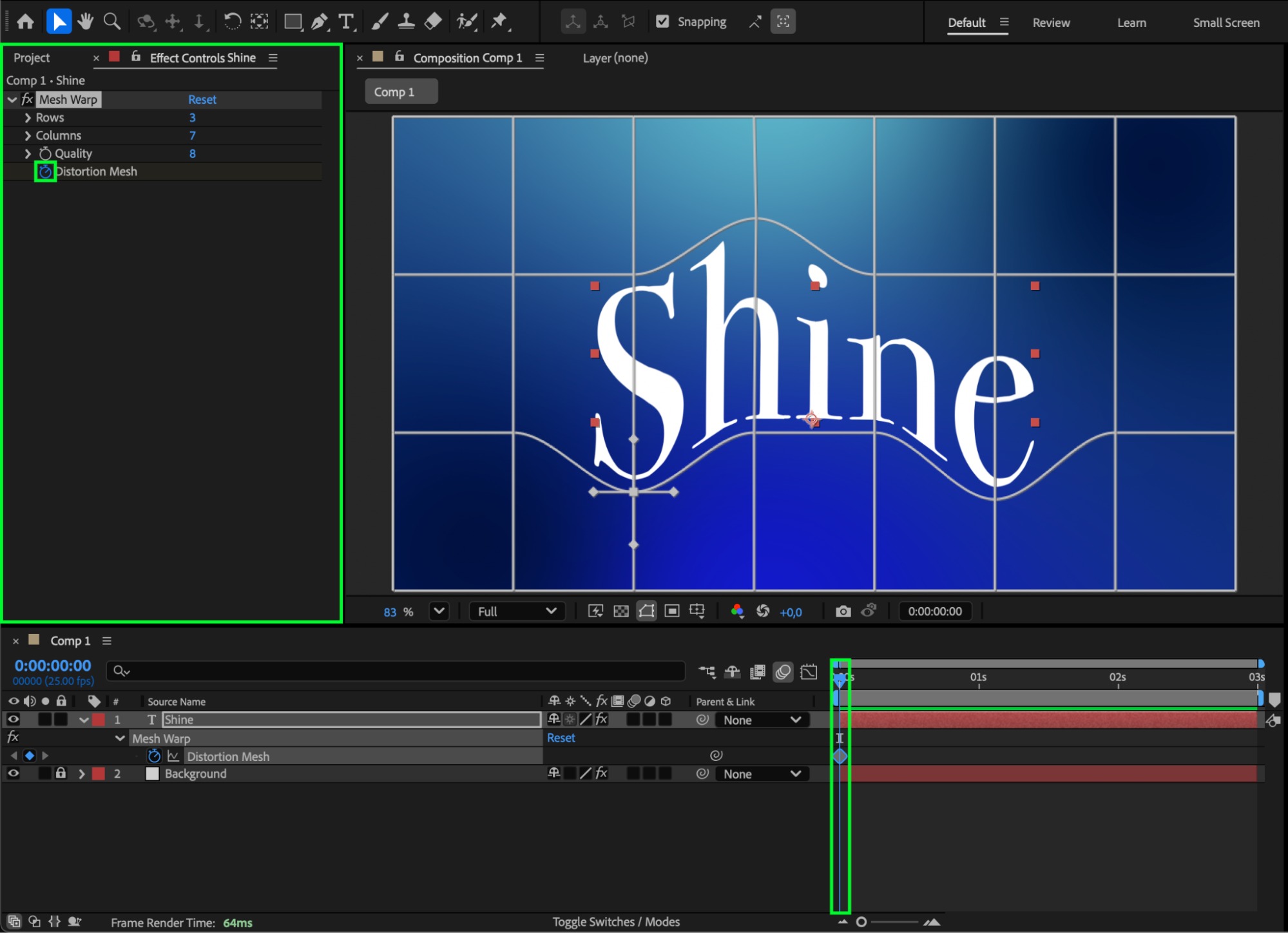
Step 5: Add Additional Effects (Optional)
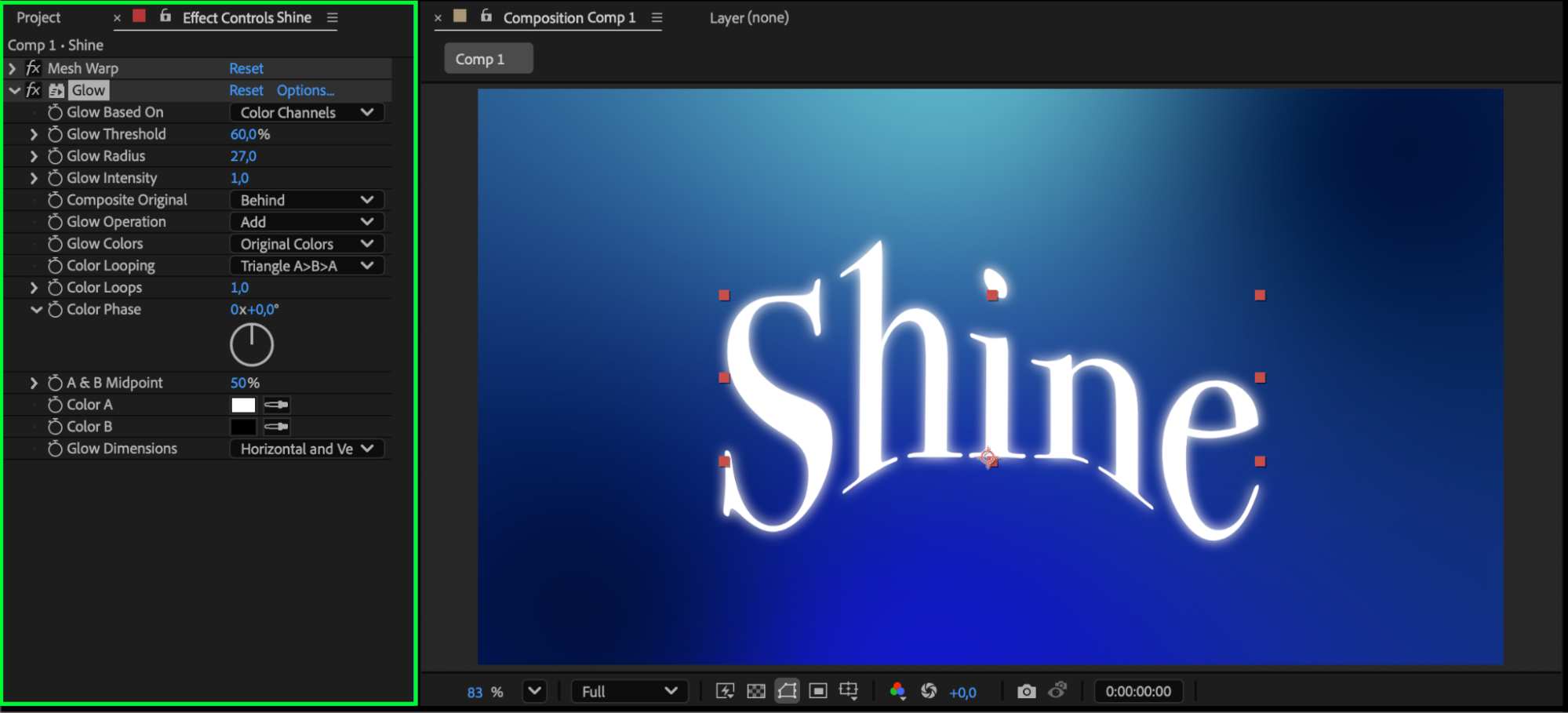
Enhance your text by applying extra effects such as Glow, Drop Shadow, or Blur to give your mesh animation more style and depth.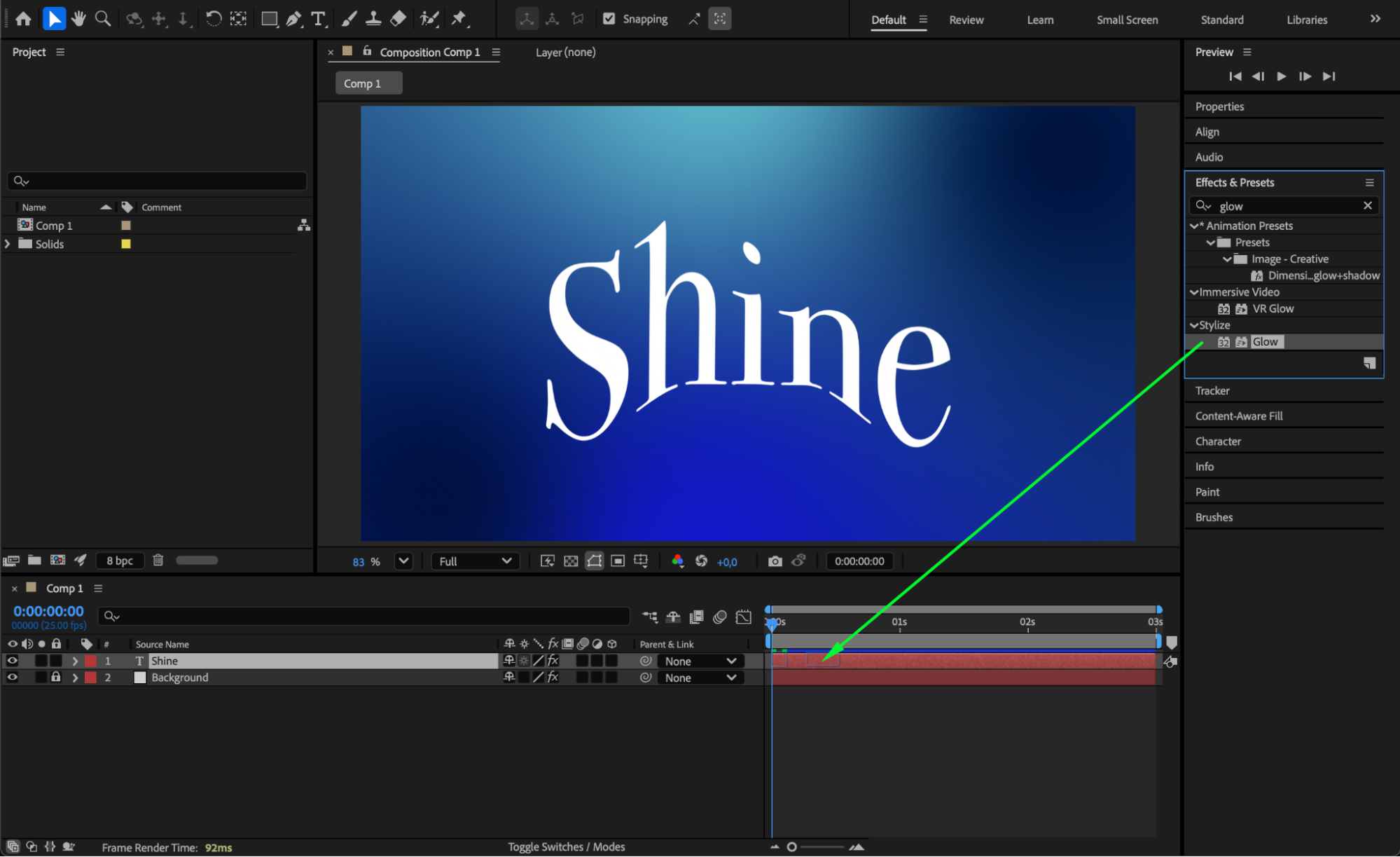
 Step 6: Preview and Refine
Press Spacebar to preview your animation. Make adjustments to the mesh, keyframes, or effects until everything looks smooth and polished.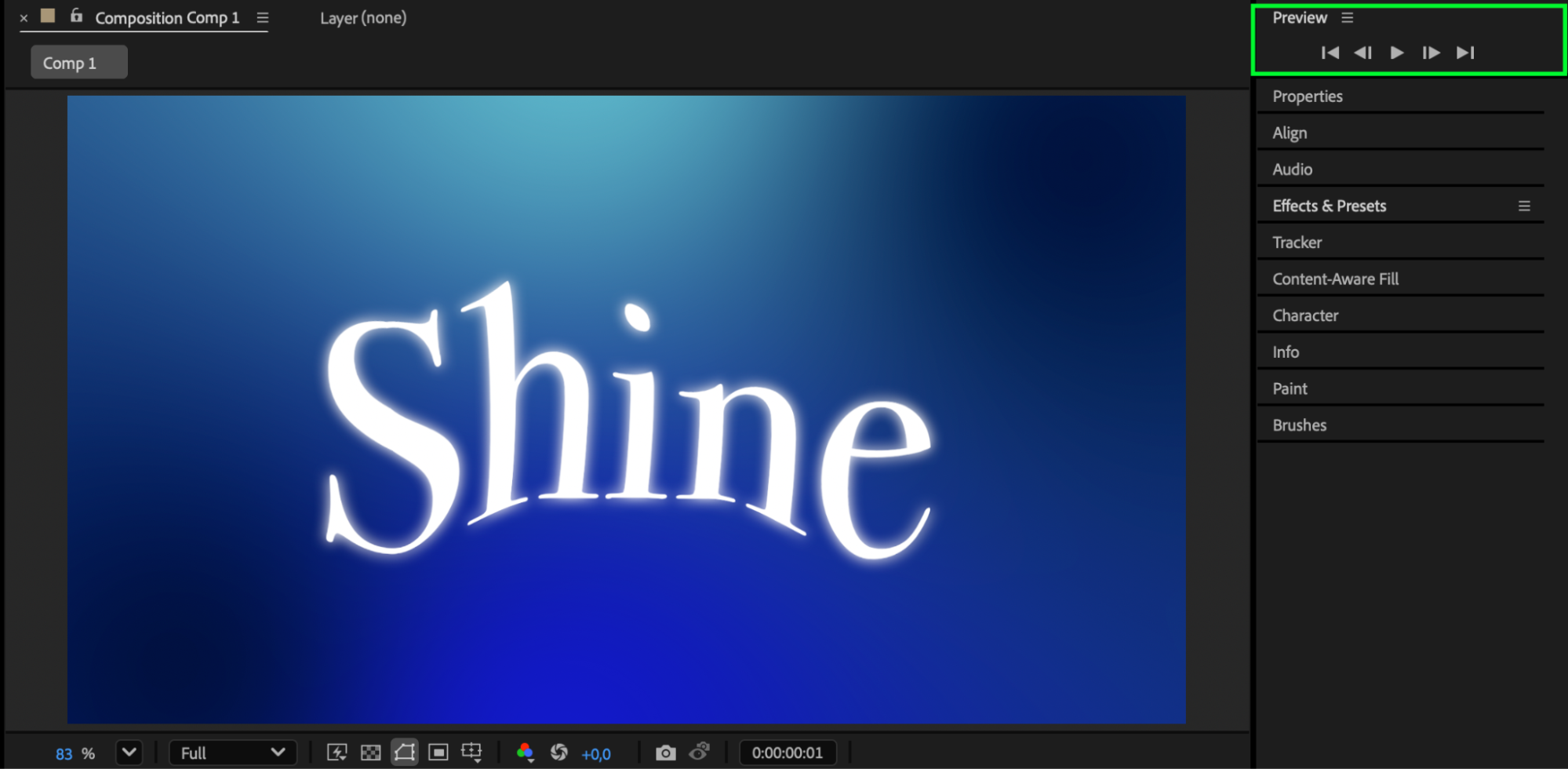 Conclusion
Expanding and animating a mesh in After Effects is easy with the Mesh Warp effect. By adjusting the grid and animating its distortion, you can create dynamic text transformations and stylized motion graphics.
Our Bestsellers
Our Bestsellers


