
Introduction – Why Use iPhone Aspect Ratio?
If you’re creating videos for mobile-first platforms like TikTok, Instagram Reels, or YouTube Shorts, you’ll need your content in a vertical 9:16 aspect ratio. This format matches most smartphone screens and makes your content look full-screen and professional. In After Effects, it’s simple to change your project to fit this format — whether you’re starting fresh or adapting horizontal footage.
Step 1: Open Your Project
Start by opening your existing project in After Effects. You can also create a new composition if you’re starting from scratch. Make sure your footage is already imported and ready to use.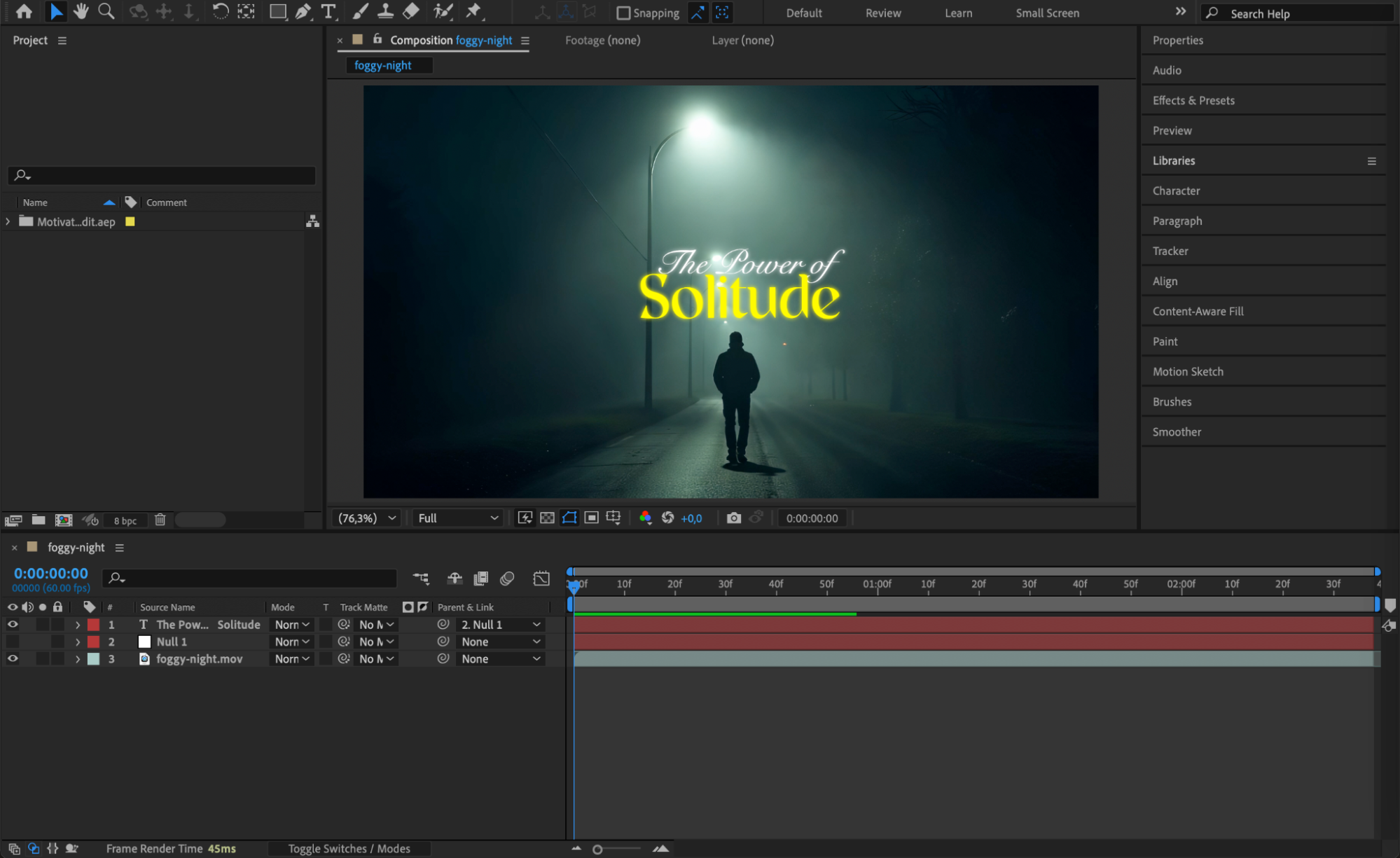 Step 2: Adjust Composition Settings to 9:16
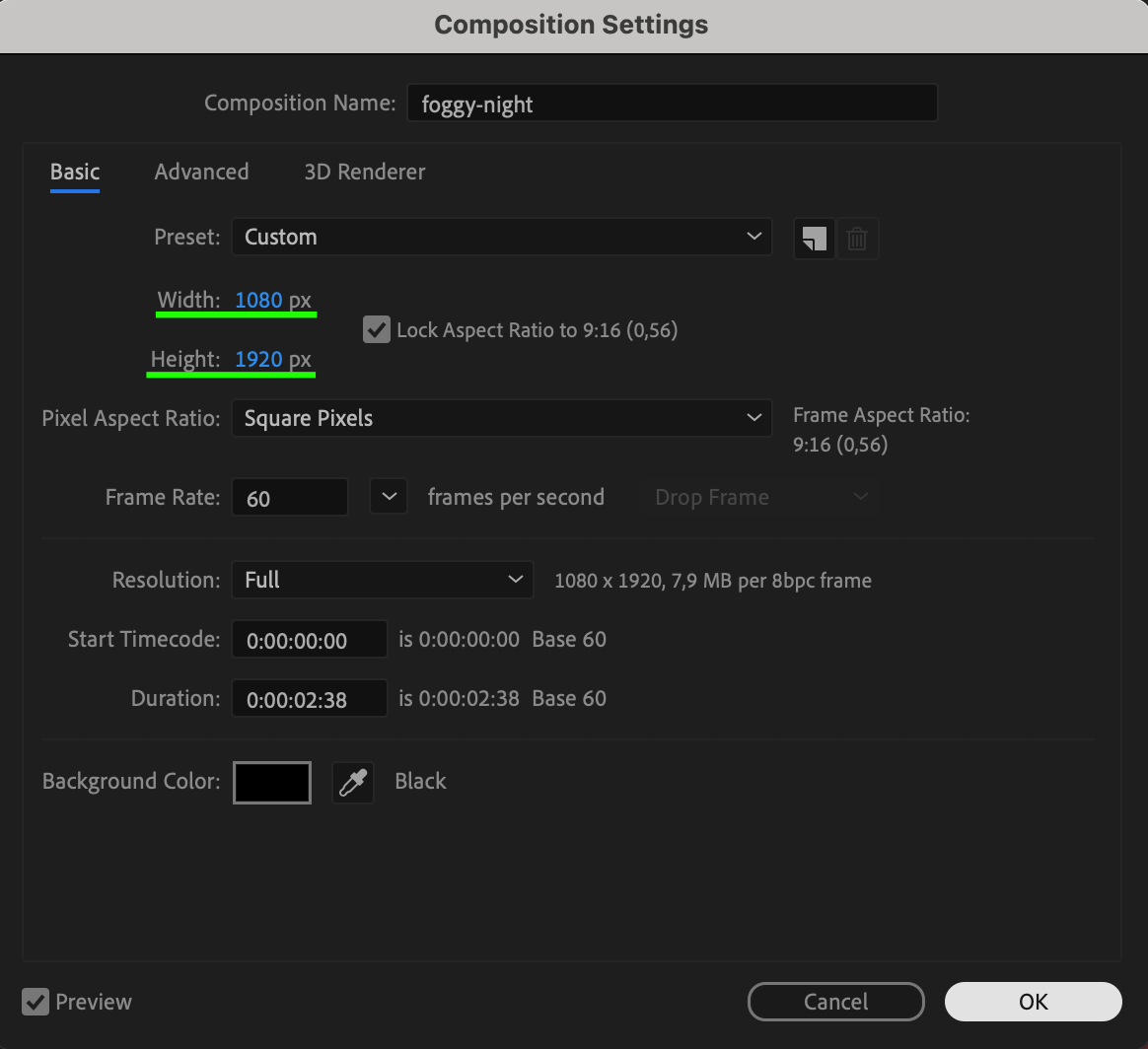
Go to Composition > Composition Settings. In the settings panel, change the Width to 1080 and Height to 1920. This sets your composition to a vertical format (9:16). Press OK to apply the new size.
Step 3: (Optional) Pre-Compose for Better Layer Control
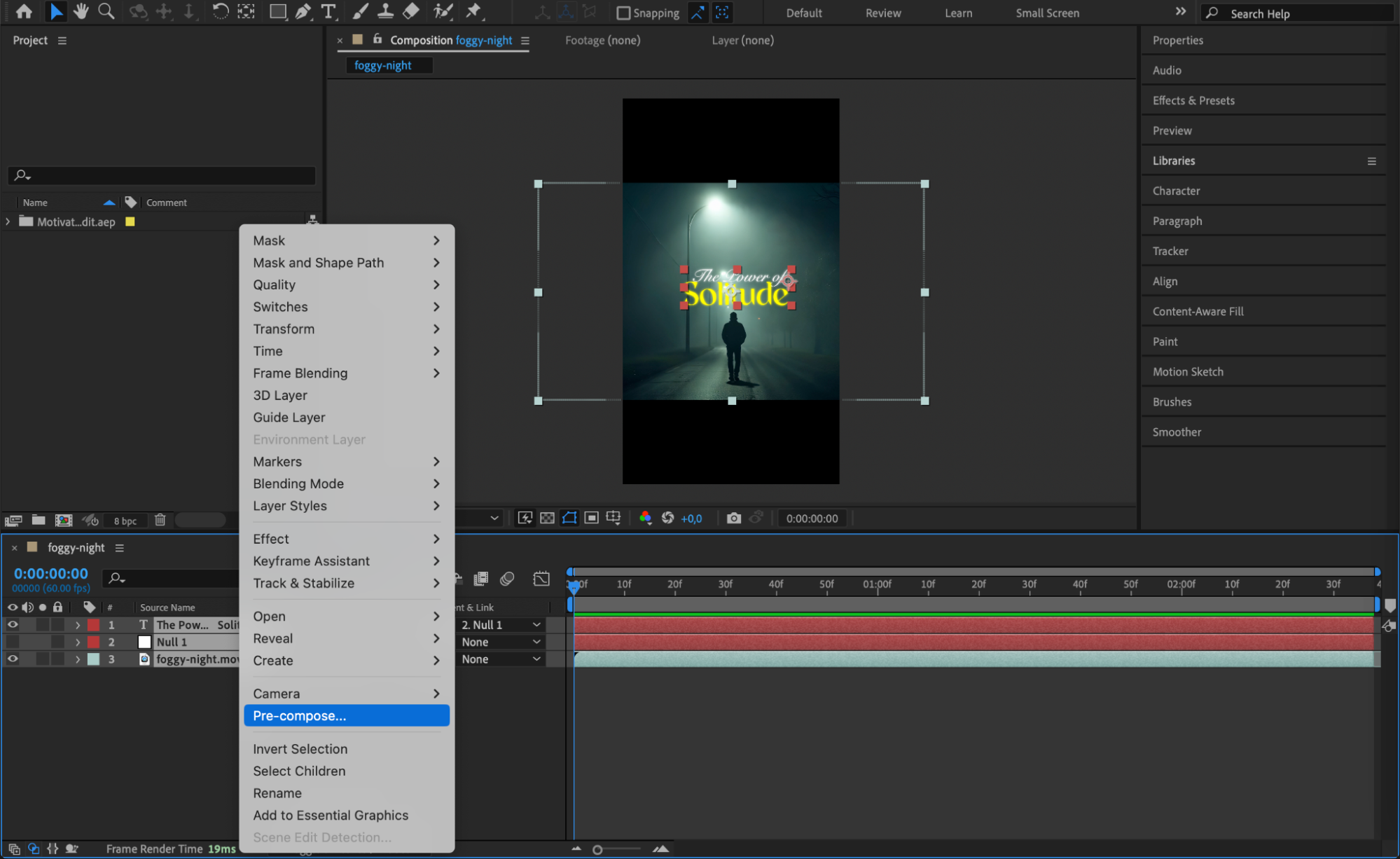
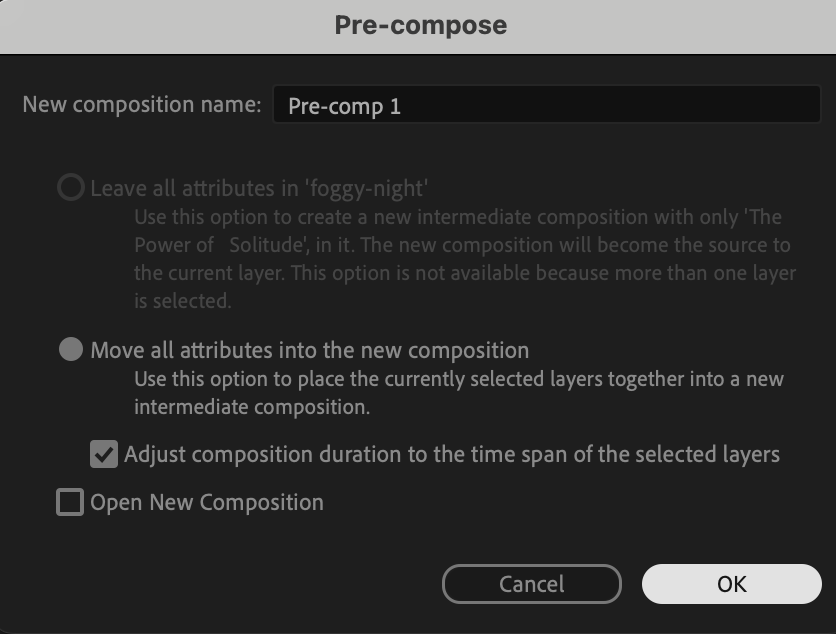
If you’re working with multiple layers or footage that’s larger than the composition, you can select them, right-click, and choose Pre-compose. This helps group your layers, making it easier to manage position and scale.
Note: If you plan to scale your footage down and show black bars, it’s better to skip pre-comping — otherwise, parts of your footage outside the frame may get cut off.
 Step 4: Reposition and Scale Your Footage
Select the pre-comp or footage layer and use the Selection Tool (V) to adjust its scale and position so it fits well in the vertical frame. You can also animate the scale or position if you want dynamic movement across the vertical format. Make sure your subject is centered and framed correctly.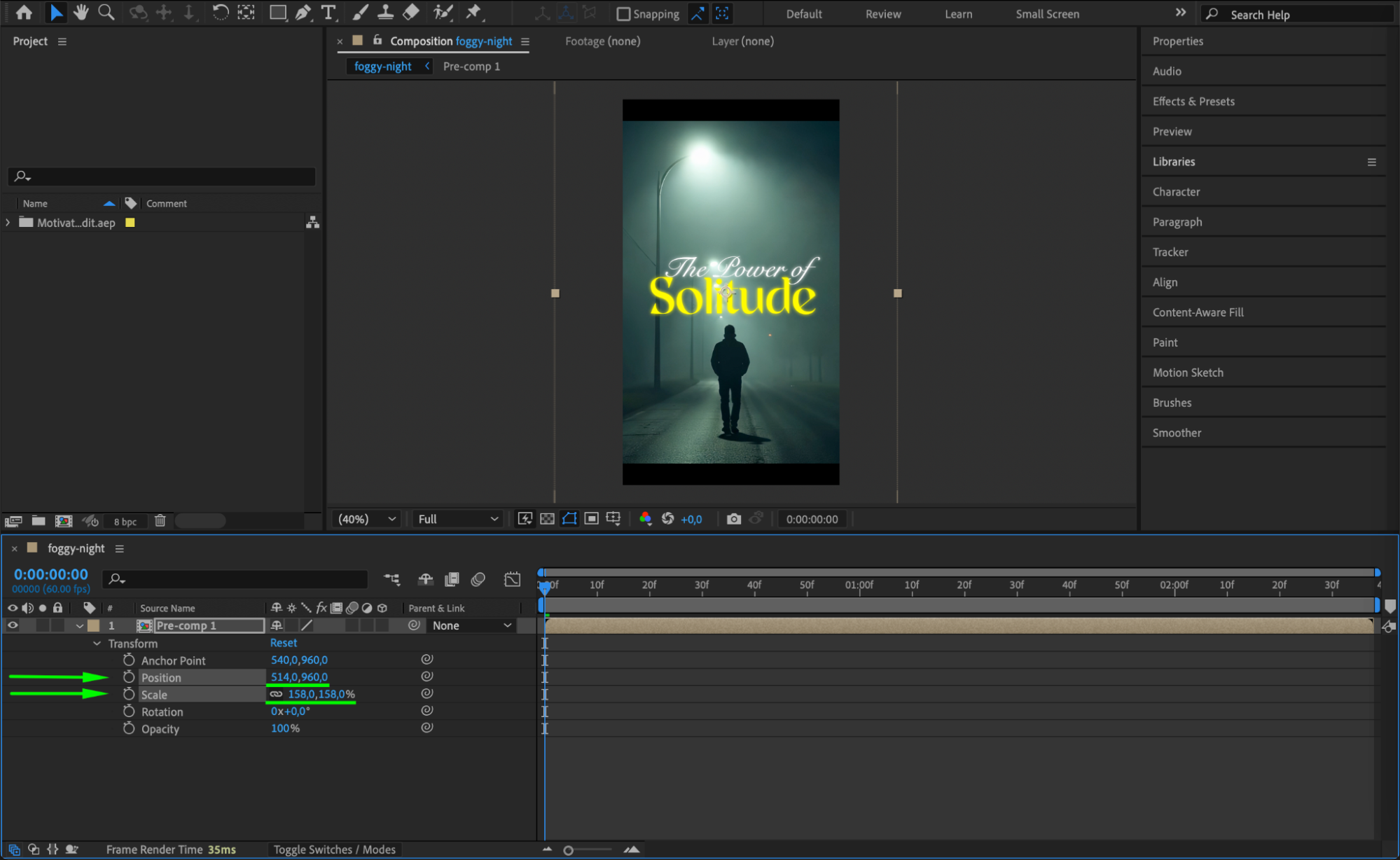 Step 5: Add to Render Queue
Once your composition looks the way you want, go to Composition > Add to Render Queue. This sends your comp to the Render Queue tab at the bottom of the screen.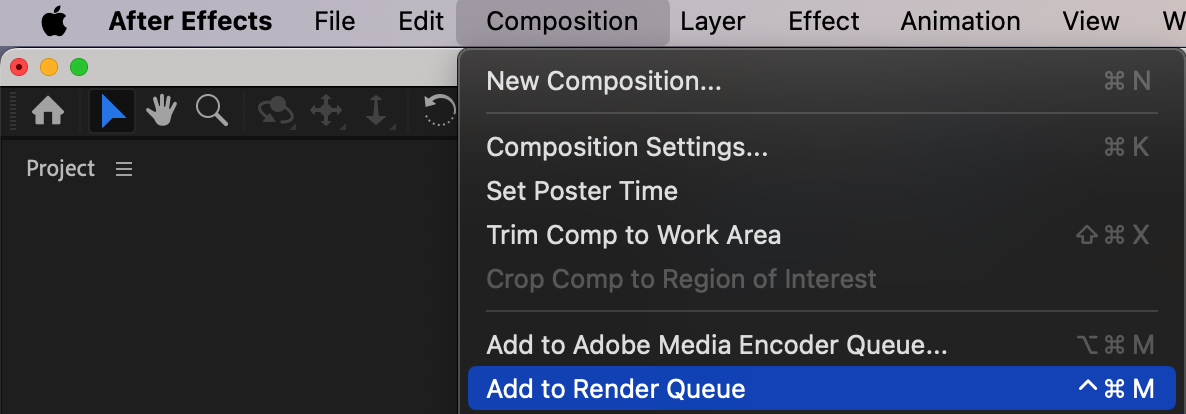
Step 6: Set Output Module Format
In the Render Queue, next to Output Module, click on the blue text (for example, “High Quality”). Choose the format you want to export. For mobile use, QuickTime or H.264 (MP4) is most common. If H.264 is not available, you can render via Adobe Media Encoder instead.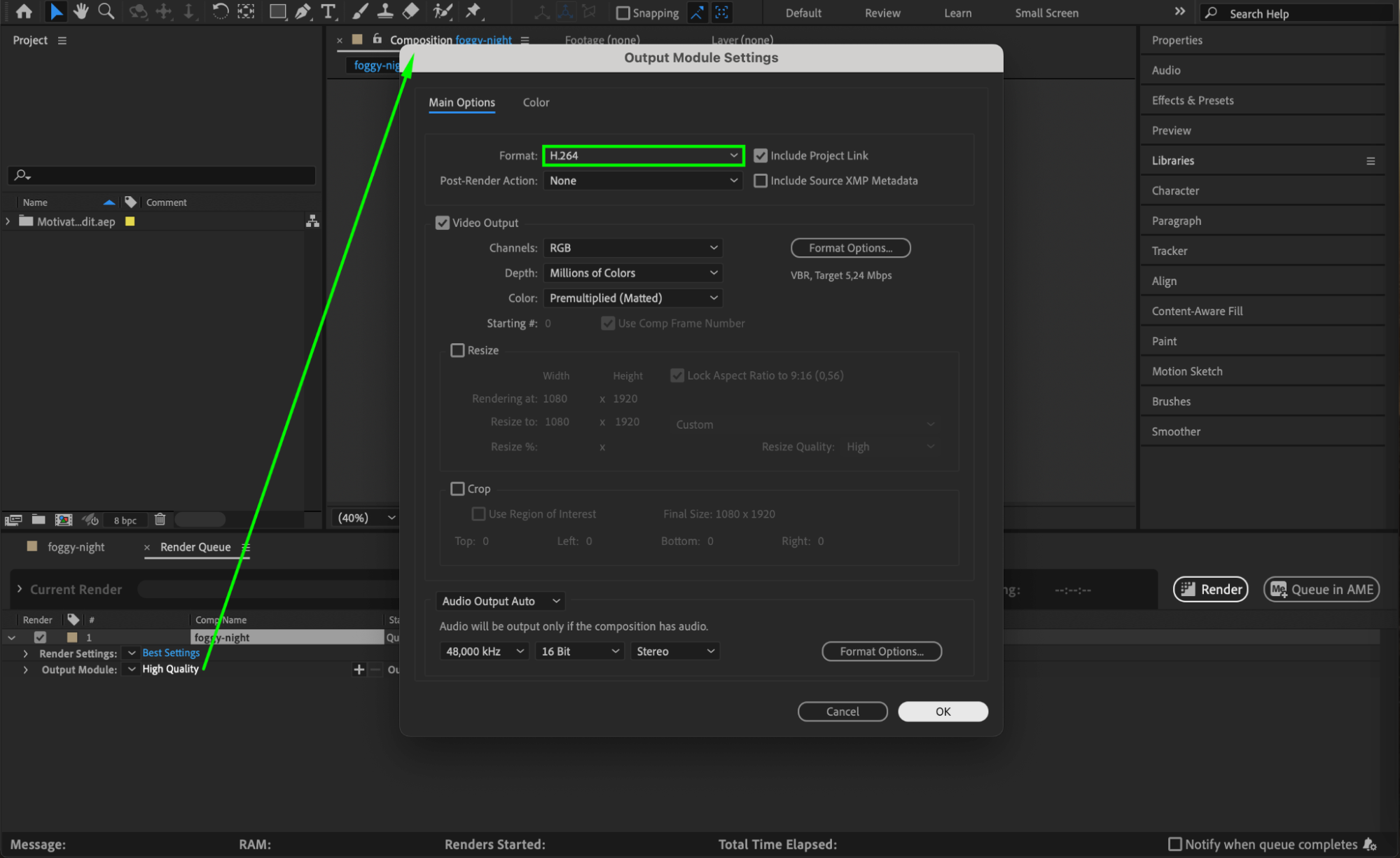 Step 7: Set Output Location
Next to Output To, click the blue file name to choose where you want to save your rendered file and what you want to name it. Pick a clear folder and filename for easy access later.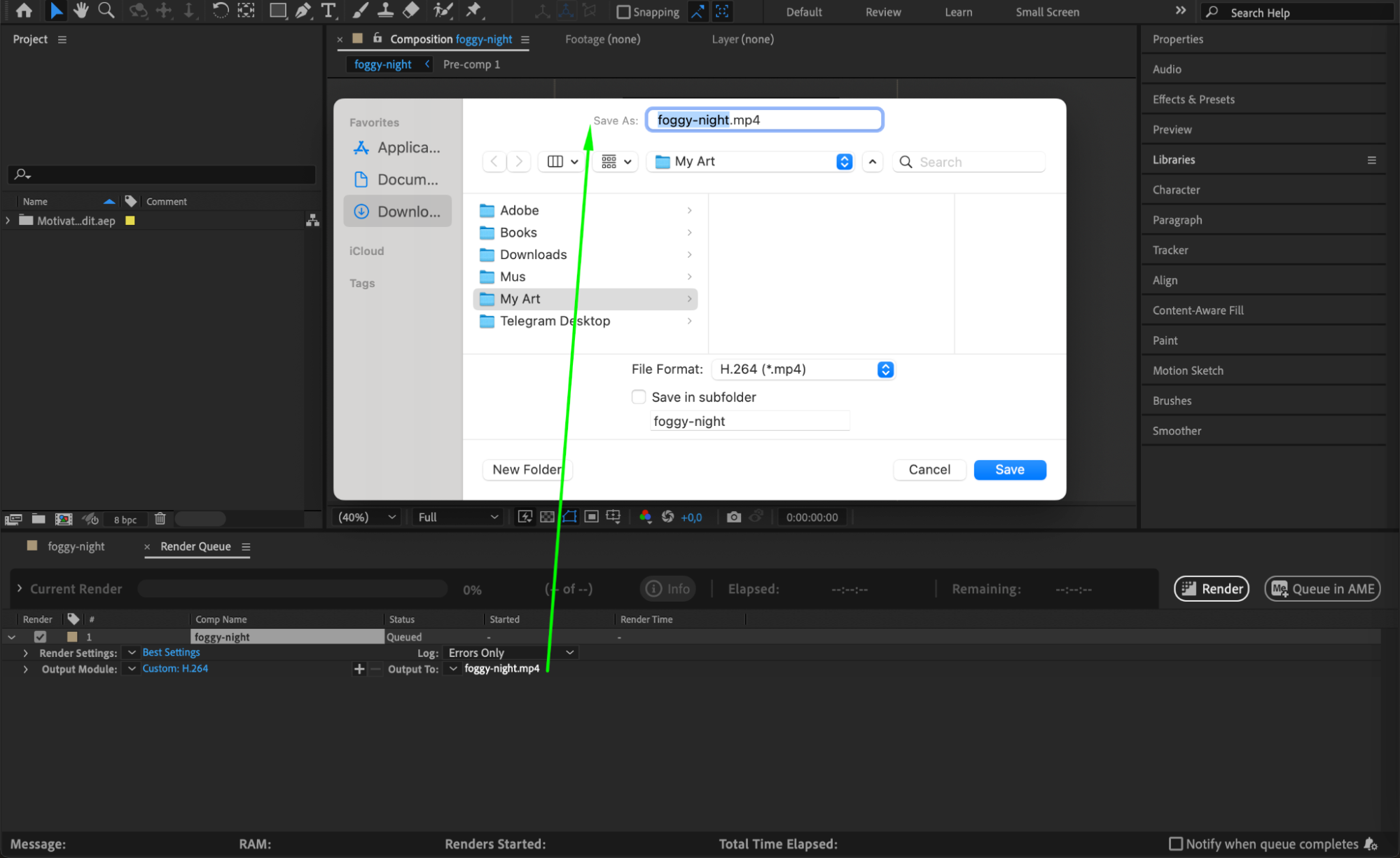
Step 8: Render the Video
Click Render to export your vertical iPhone-ready video. After it finishes, preview it to make sure everything is framed correctly.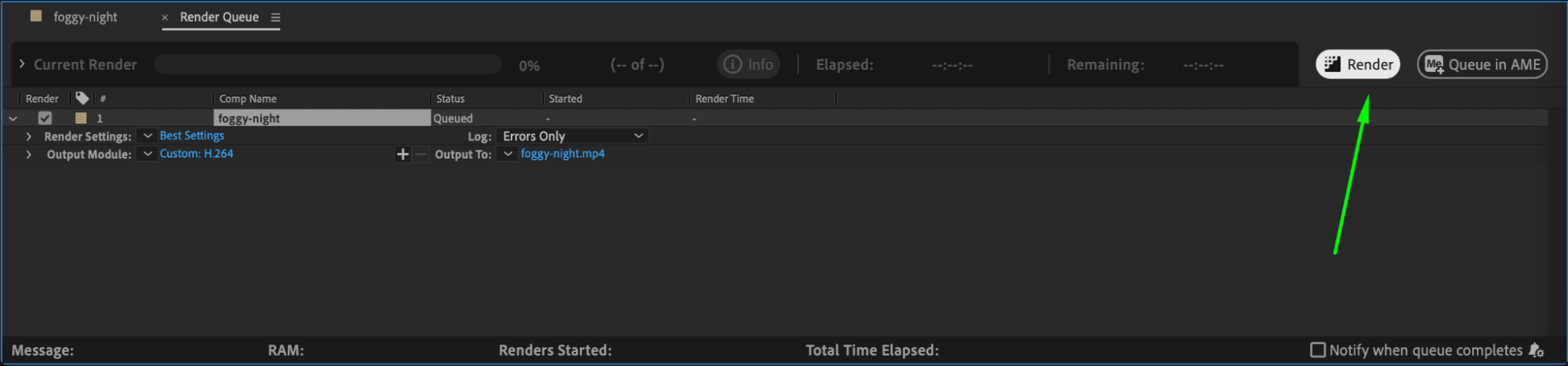
Conclusion
Exporting a vertical video in the iPhone 9:16 aspect ratio in After Effects is simple with a few key steps. Whether you’re creating motion graphics or adapting a horizontal video for mobile, the right composition settings and export format will ensure your content is optimized for TikTok, Reels, or Shorts. Adjust your footage, pre-compose if needed, and render confidently — your content will now look great on any phone screen.
Our Bestsellers
Our Bestsellers


