Introduction
Knowing the exact pixel size of a shape is essential when designing precise layouts, aligning elements, or preparing graphics for export. Although After Effects doesn’t display shape dimensions directly in the timeline, you can easily view the pixel width and height using the Scale value controls. This tutorial shows two simple ways to find the pixel size of a shape layer.
Step 1: Create a New Composition
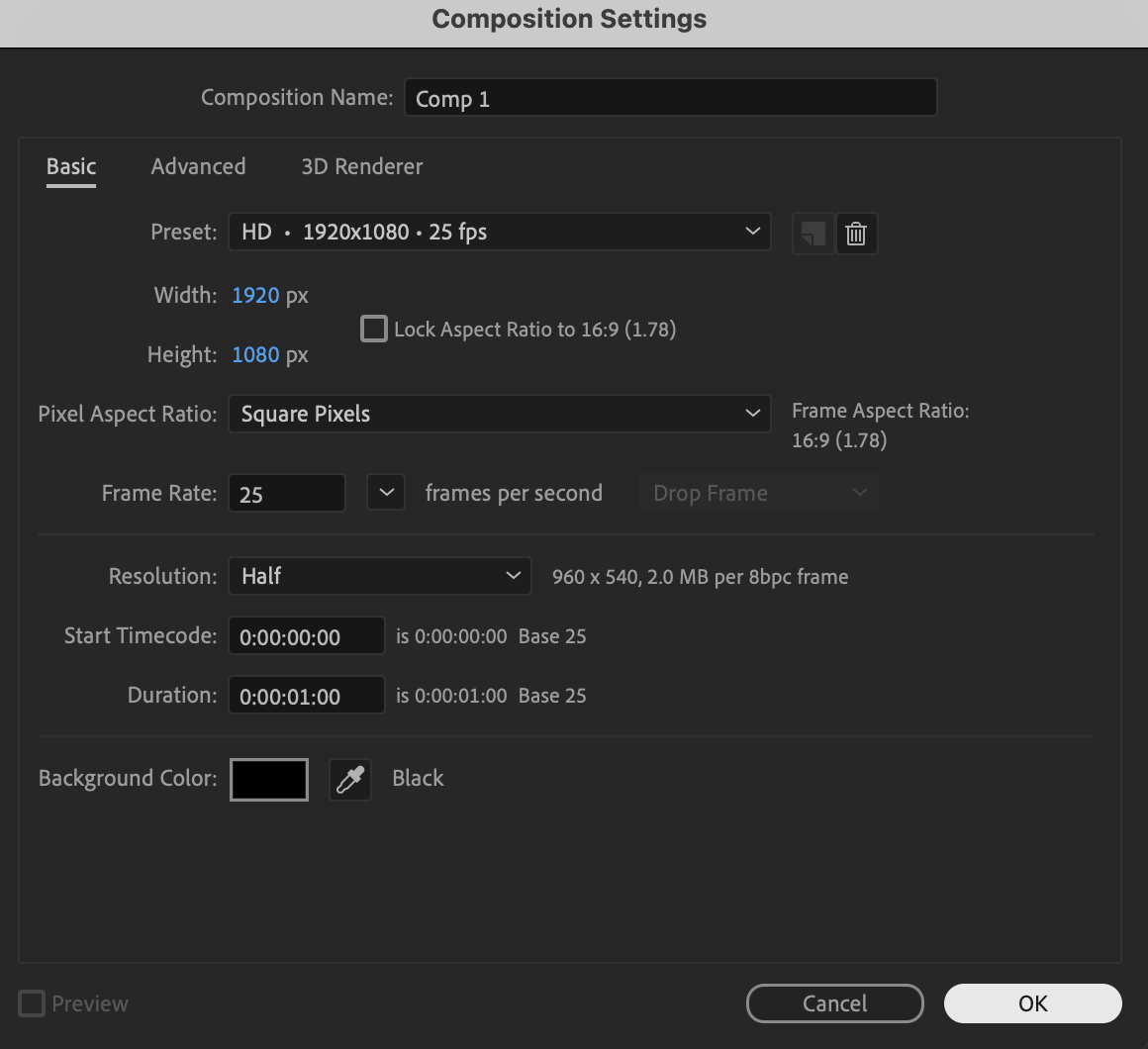
Create a new composition and open it in the timeline.
 Step 2: Create a Shape Layer
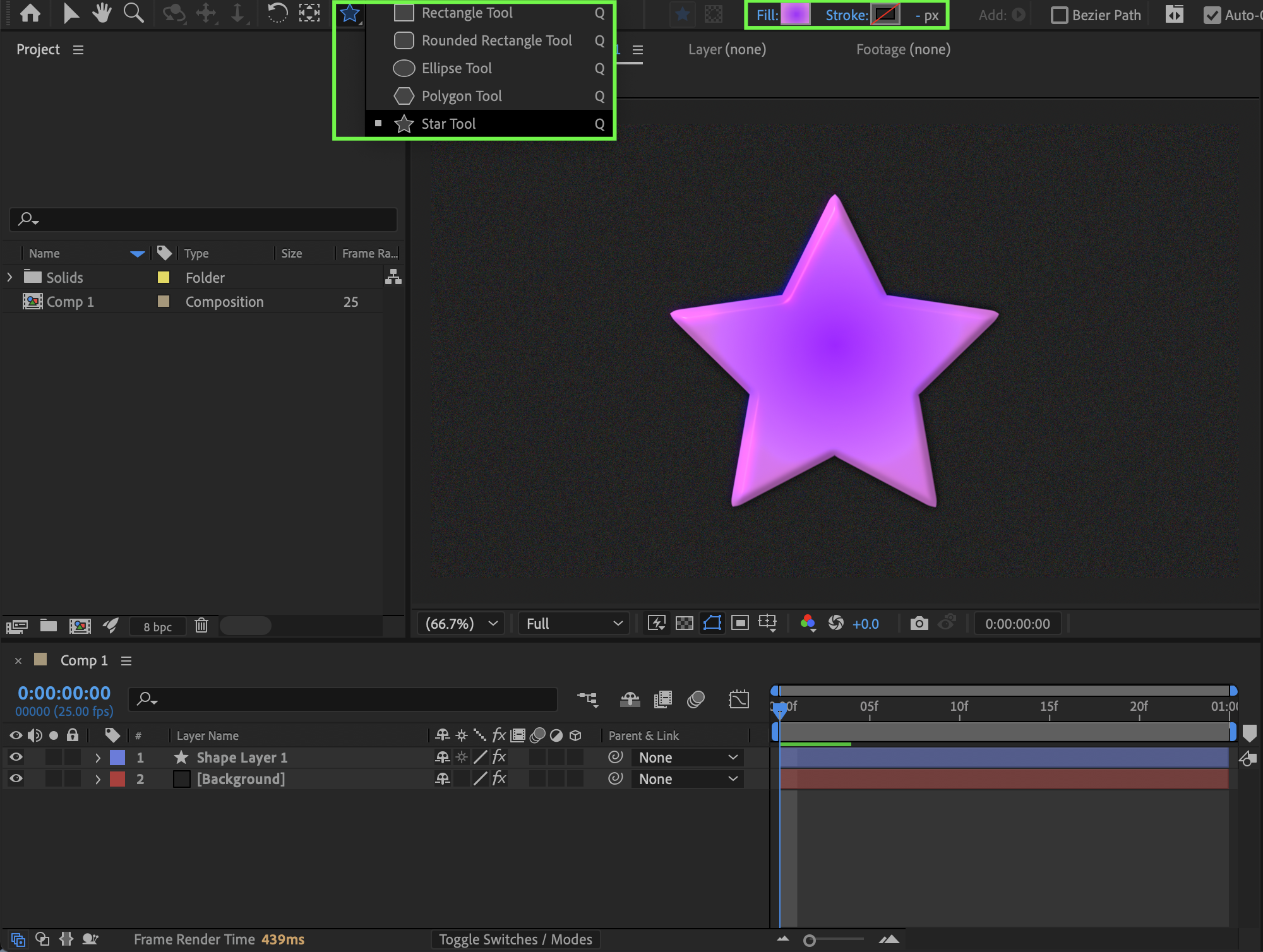
Select a Shape Tool (press Q) and create a shape in the composition. Set Fill and Stroke options as needed.
Get 10% off when you subscribe to our newsletter

Step 3: Select the Shape Layer
Click on the shape layer in the timeline to make sure it is active.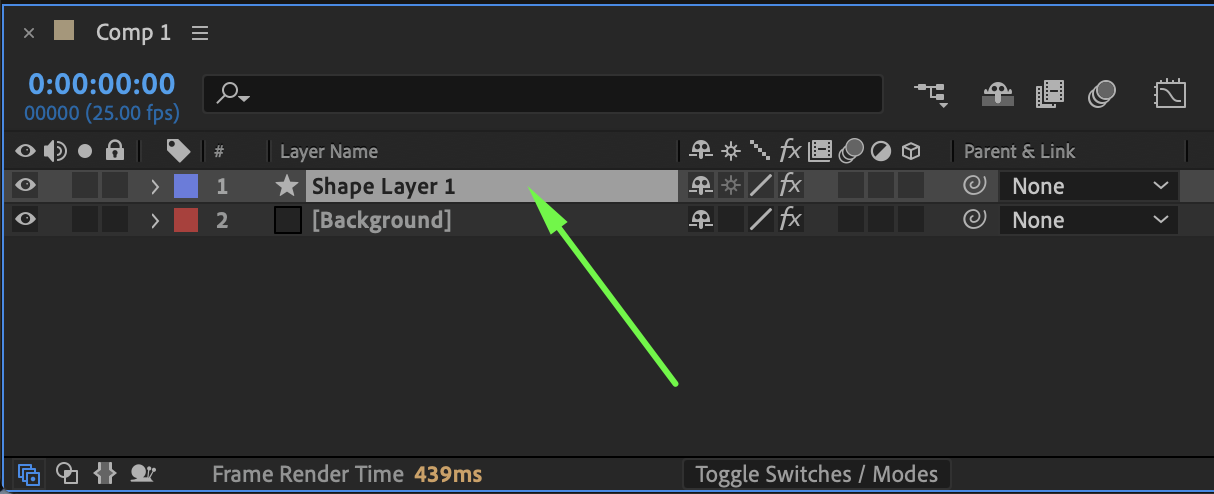
Step 4: View the Pixel Size Using Scale
Press S to reveal the Scale property.
Right-click on the Scale value and choose Edit Value.
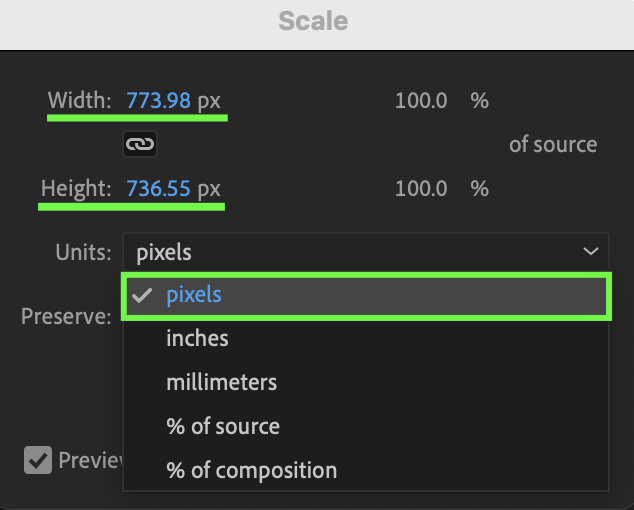
In the Scale window: Change Units to Pixels
You will see the Width and Height of the shape in pixels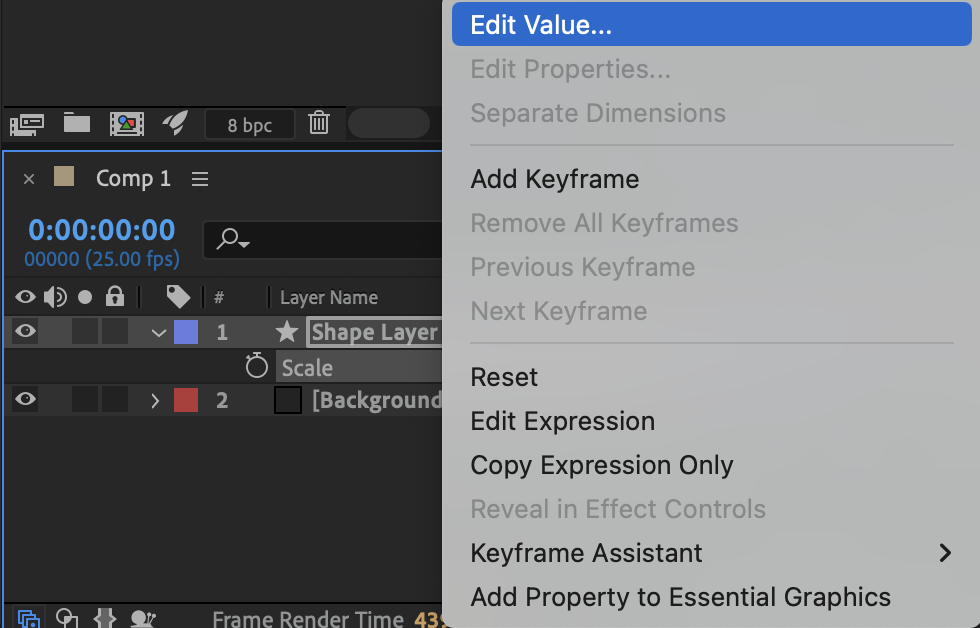
Step 5: Alternative Way to Open the Scale Window
Another way to access the same window:
Right-click on the shape layer
Choose Transform → Scale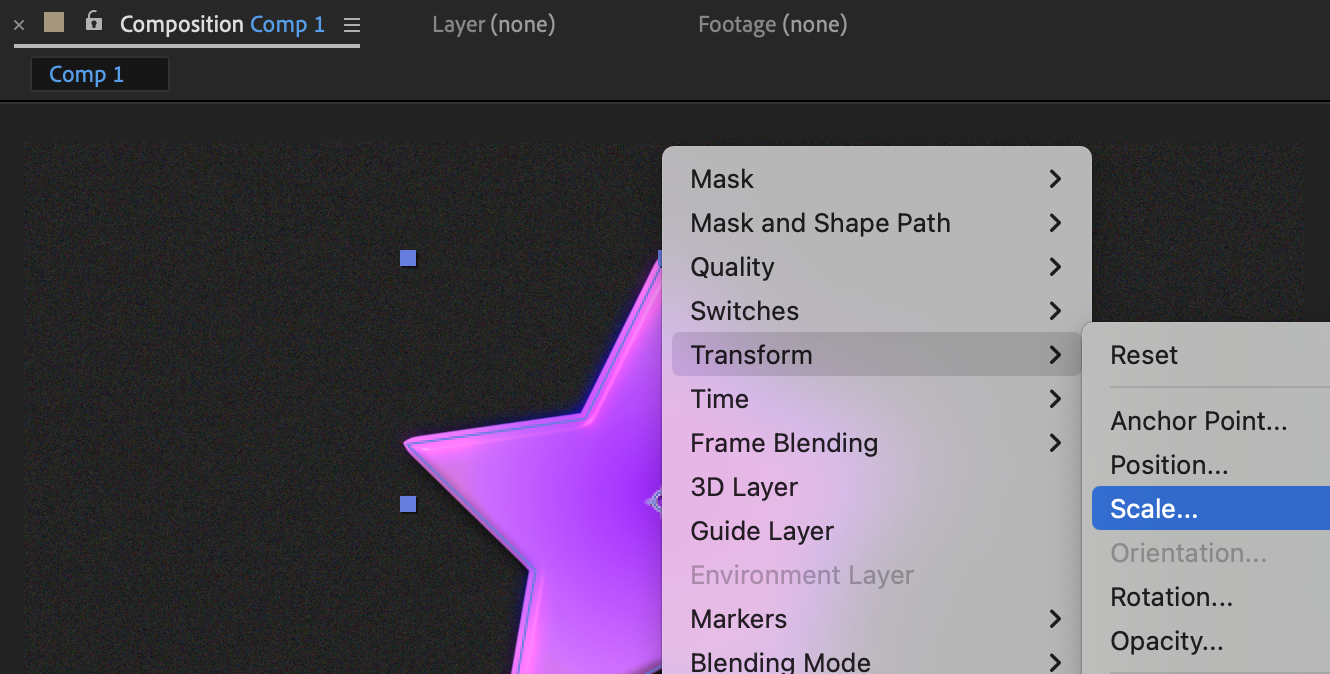 Step 6: Preview the Result
Confirm the pixel dimensions and adjust the shape size if necessary.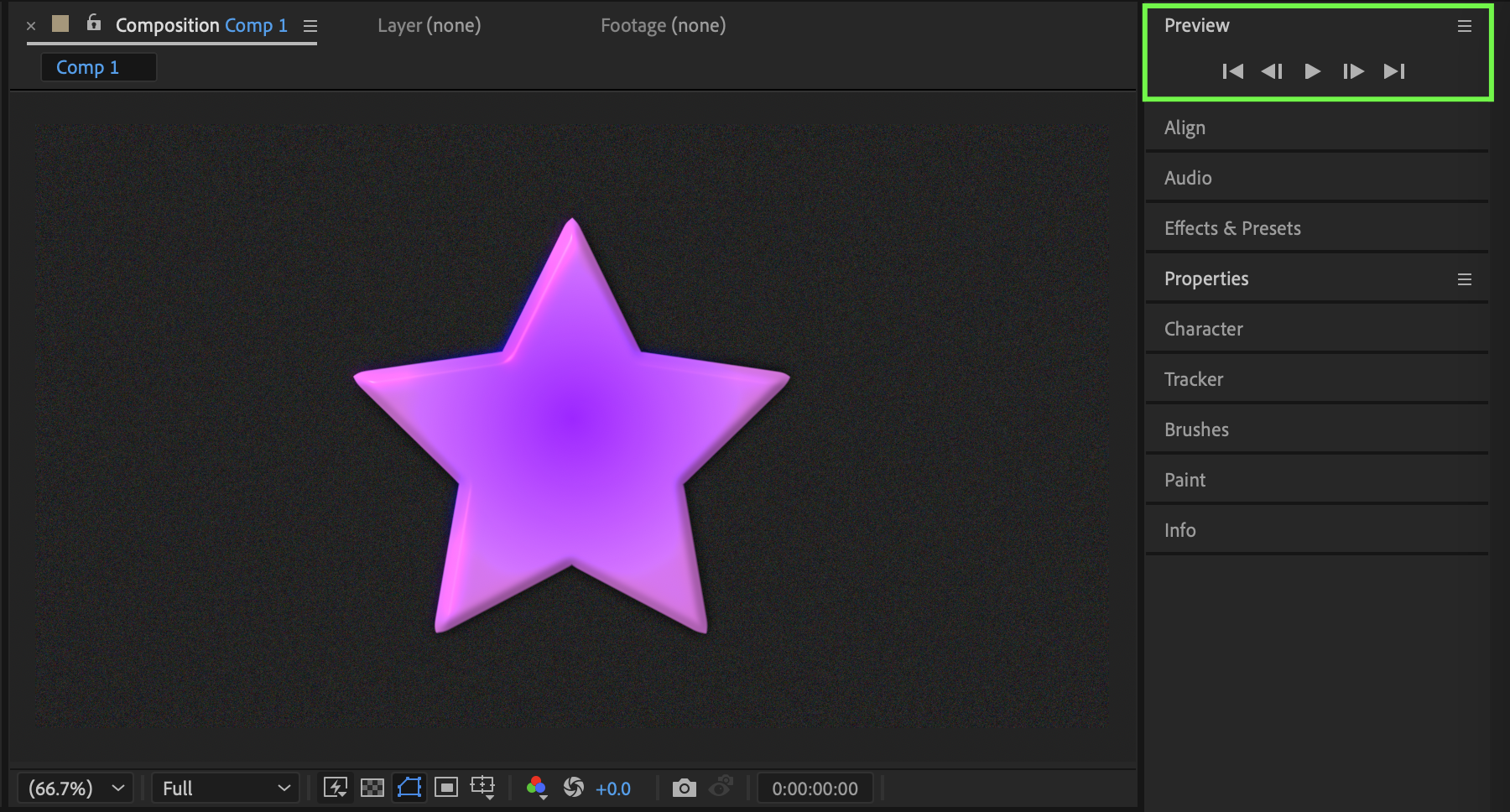
Conclusion
Using the Scale → Edit Value window is a quick and reliable way to find the exact pixel size of a shape in After Effects. This method is especially useful for precise design work, motion layouts, and preparing assets for different resolutions.
Our Bestsellers

