
Introduction to Fixing Washed-Out or White Skies
Overexposed skies — also known as blown-out skies — happen when your camera captures too much light in bright areas, turning clouds and skies into flat white patches. This can make your footage look unbalanced and unprofessional. In this tutorial, you’ll learn how to bring back life to these skies using masks and color correction tools in After Effects.
Step 1: Import and Prepare Your Footage
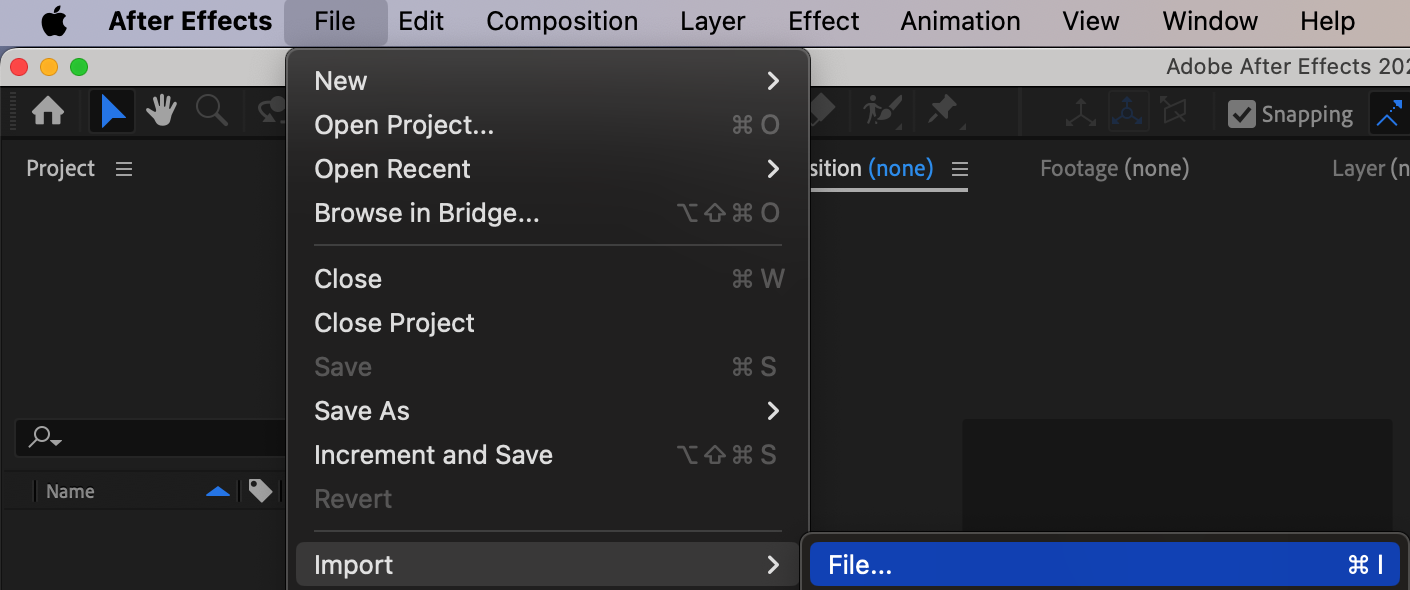
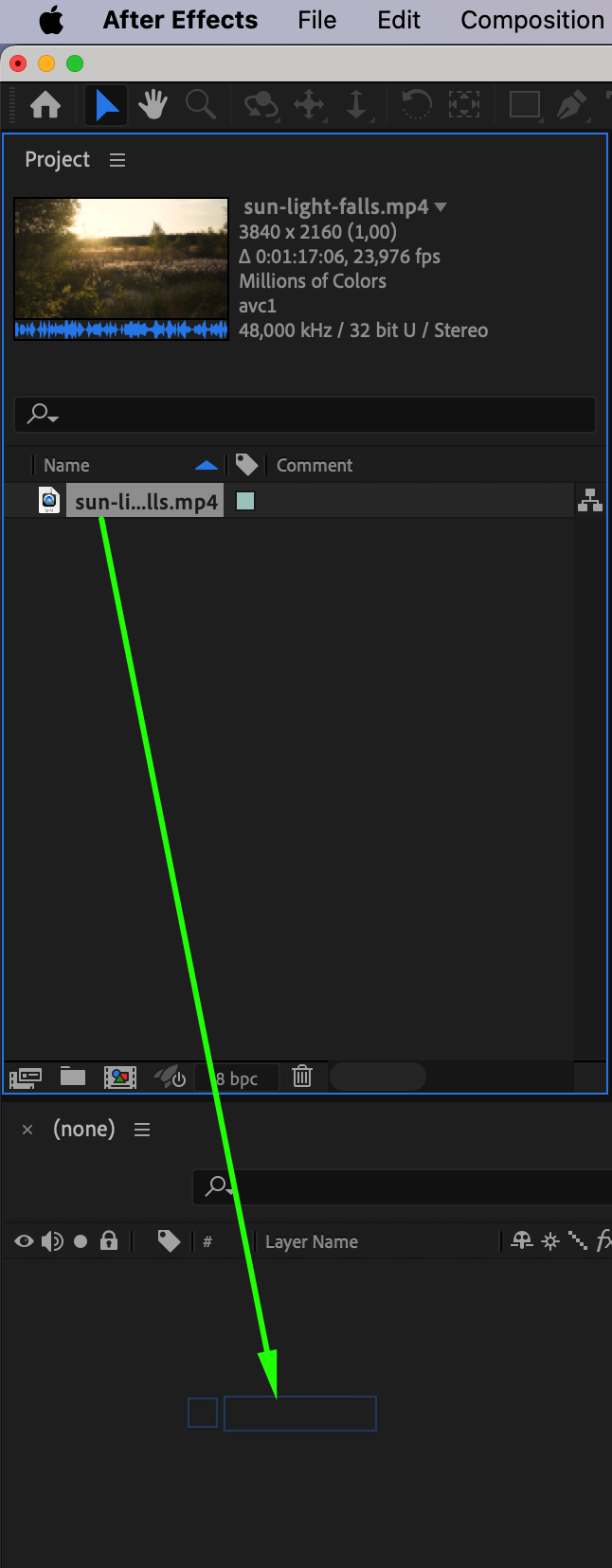
Start by importing your video file into After Effects through File > Import > File. Drag the clip onto the timeline to create a new composition. Identify the section of the footage where the sky appears most blown out so you can work directly on the problem area.
 Step 2: Create a New Adjustment Layer
Go to Layer > New > Adjustment Layer. This layer will hold your correction effects. Any changes applied to this adjustment layer will affect only the masked area of the sky, leaving the rest of the image untouched.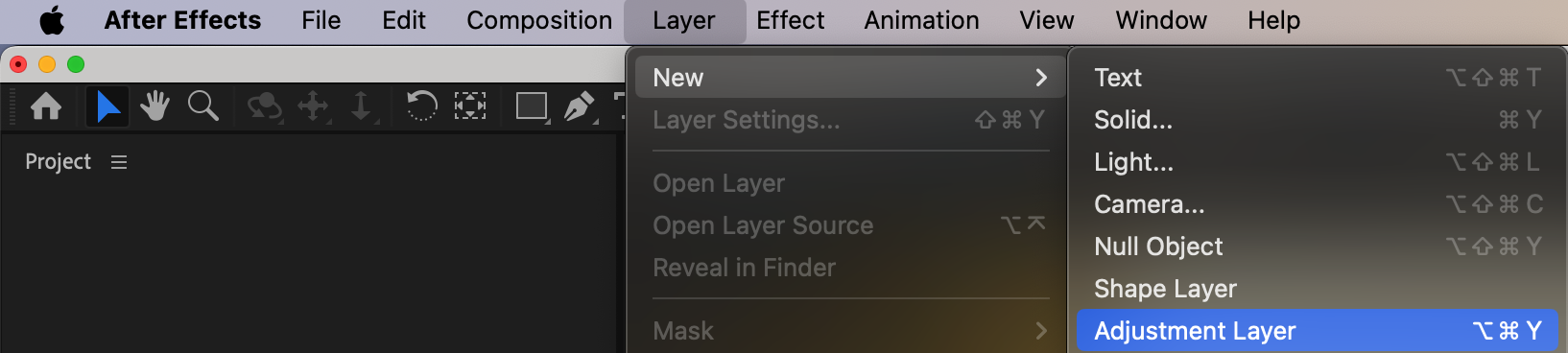 Step 3: Mask the Sky Area
With the adjustment layer selected, use the Pen Tool (G) or Shape Tool (Q) to draw a mask around the sky. Make sure you outline only the area that’s overexposed. Set the Mask Mode to Add so the effects will apply only within the mask.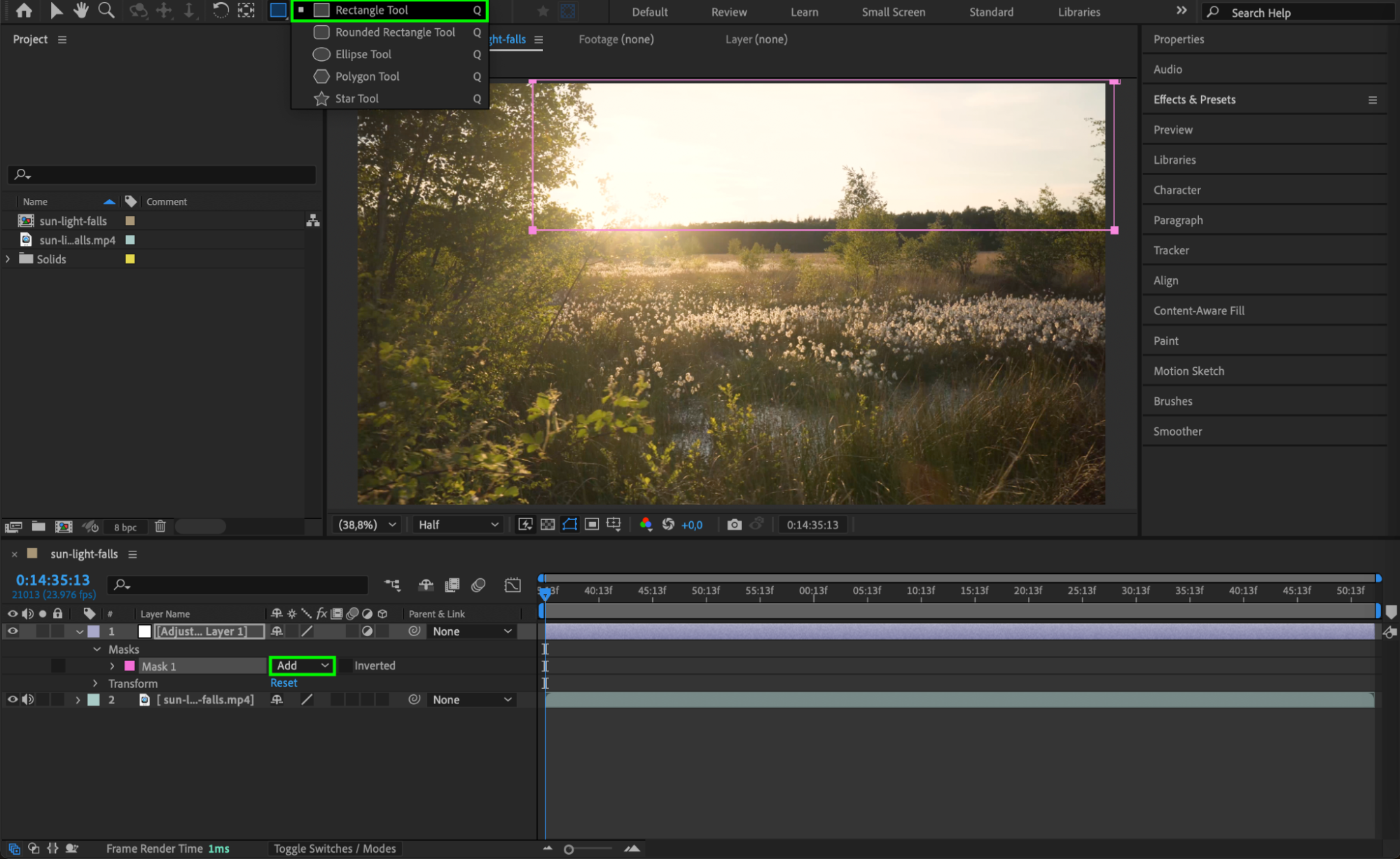 Step 4: Apply Brightness & Contrast
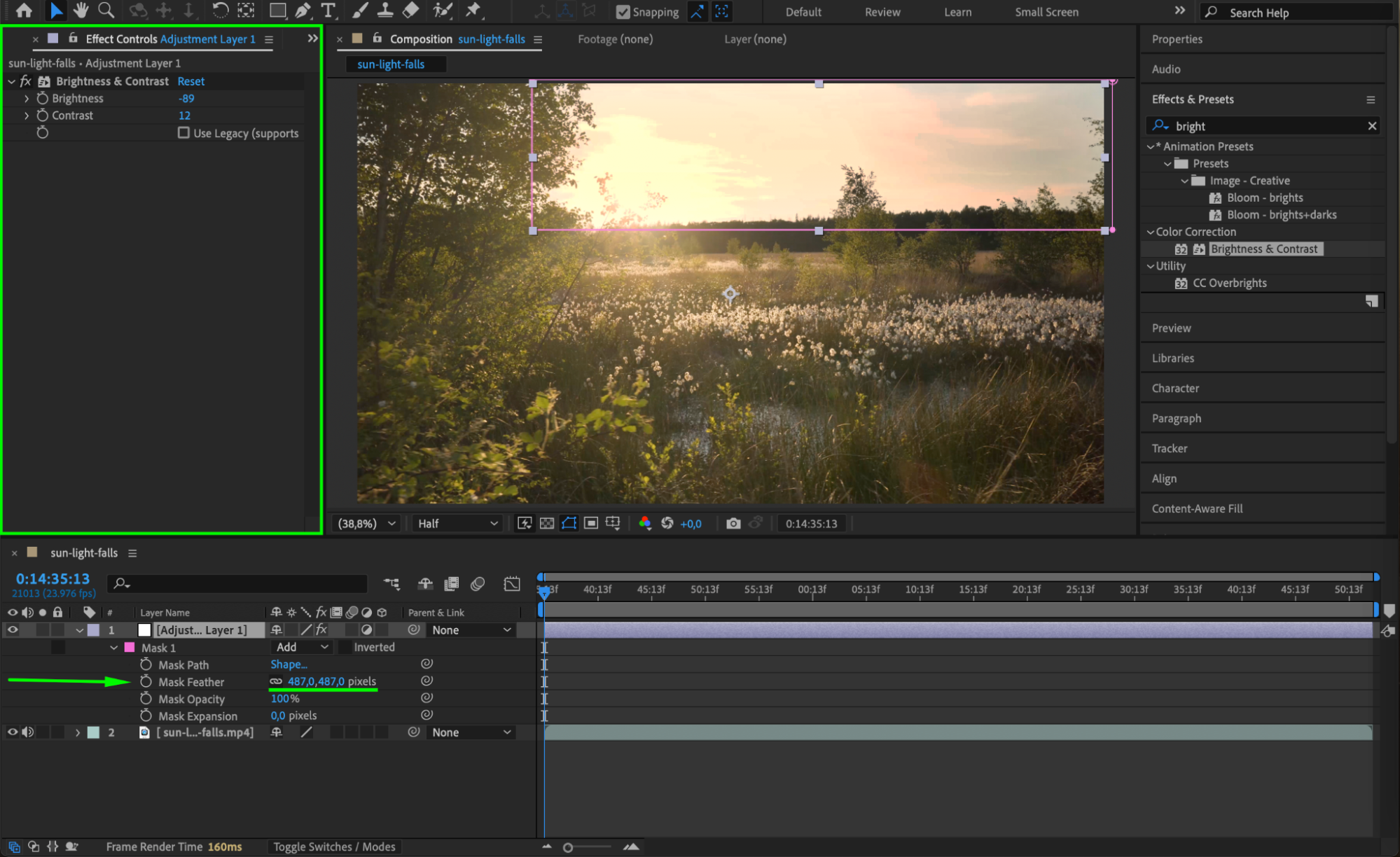
Open the Effects & Presets panel and apply the Brightness & Contrast effect to the adjustment layer. Set Brightness to around -50 and Contrast to about +12, depending on your footage. These values help recover some lost detail. Feather the mask using the Mask Feather setting (around 50px or more) to blend the correction naturally with the surrounding sky.
Step 5: Add Hue/Saturation Adjustments
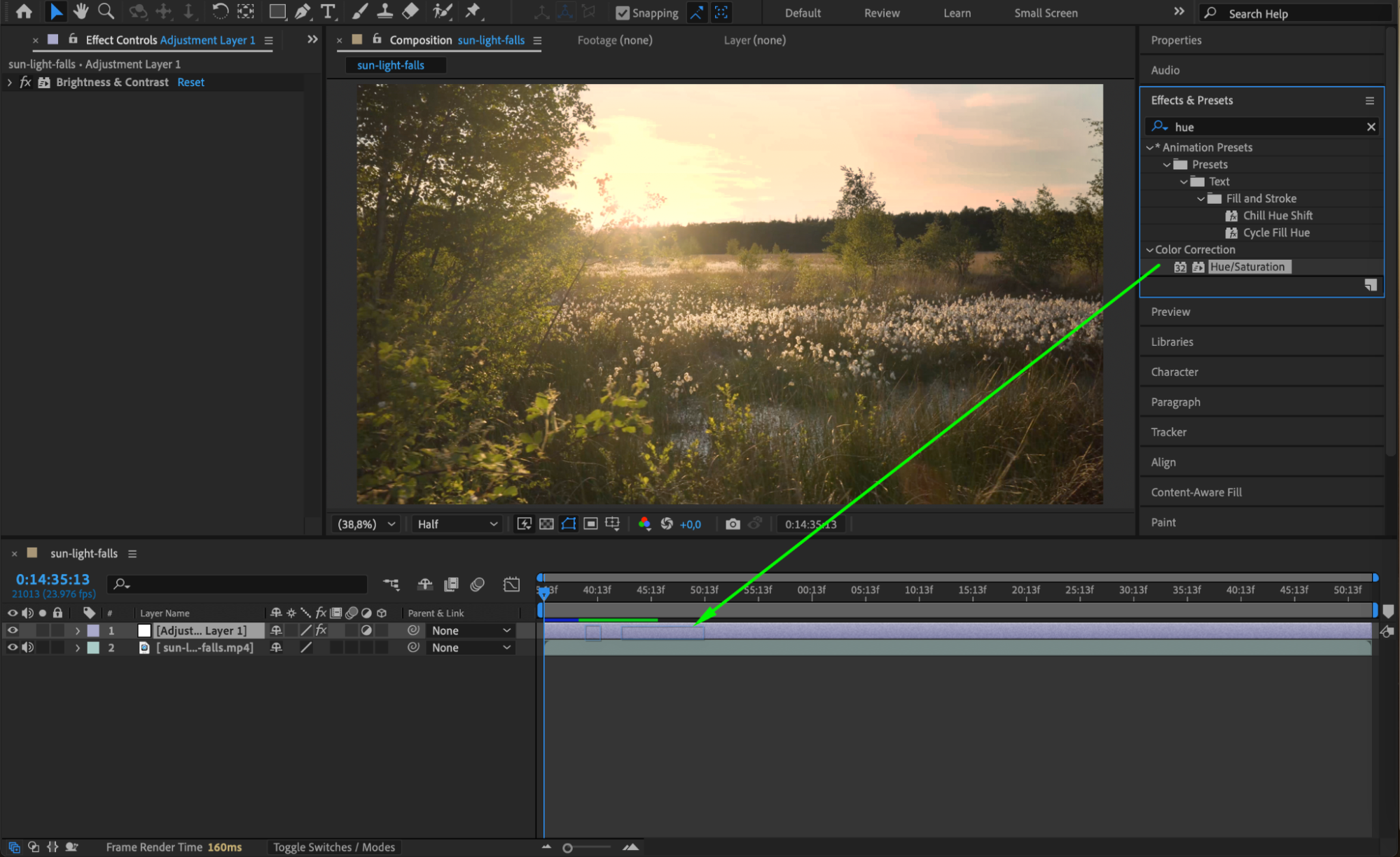
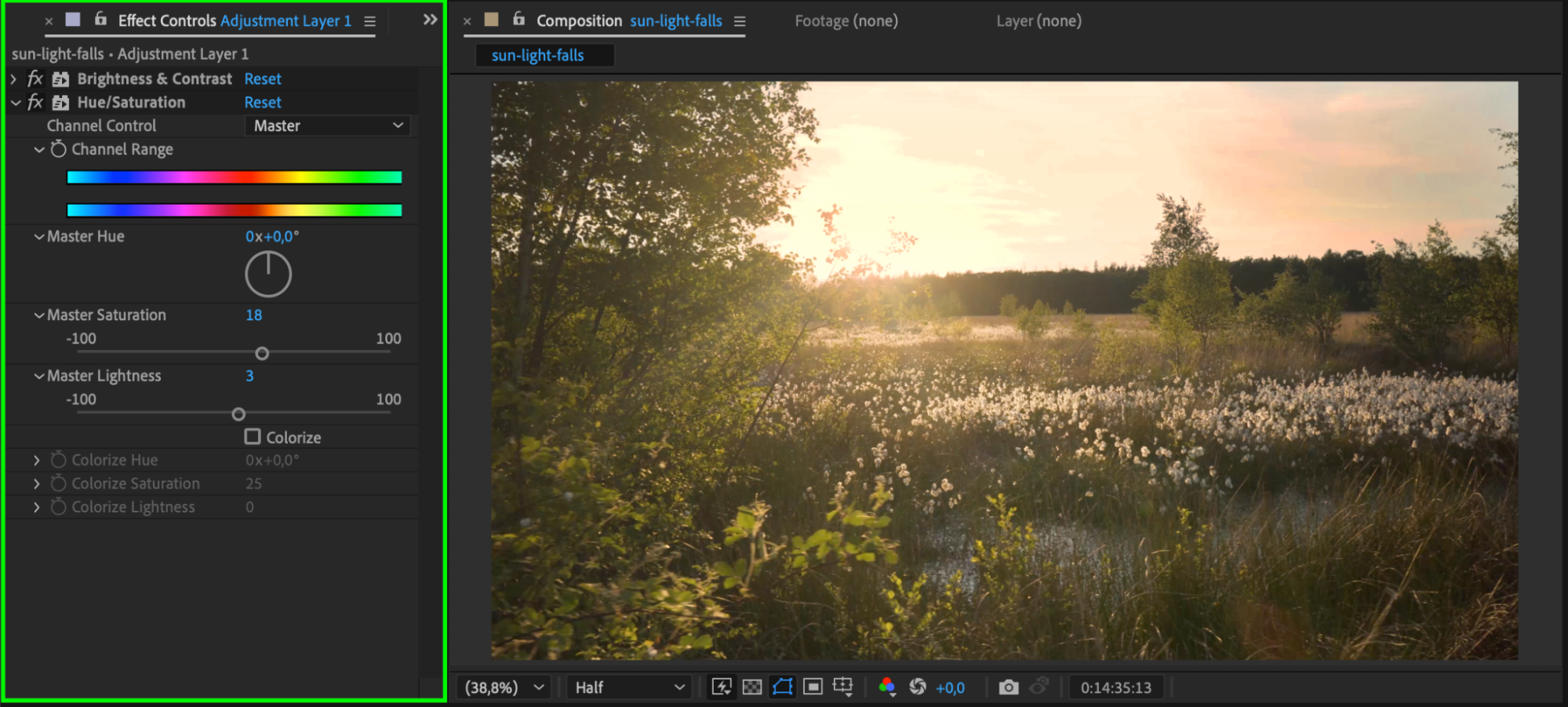
Next, apply the Hue/Saturation effect. Slightly reduce the Master Saturation to prevent artificial colors from appearing. If your original sky had blue tones, you can also adjust the Blues channel separately to bring back a more natural color.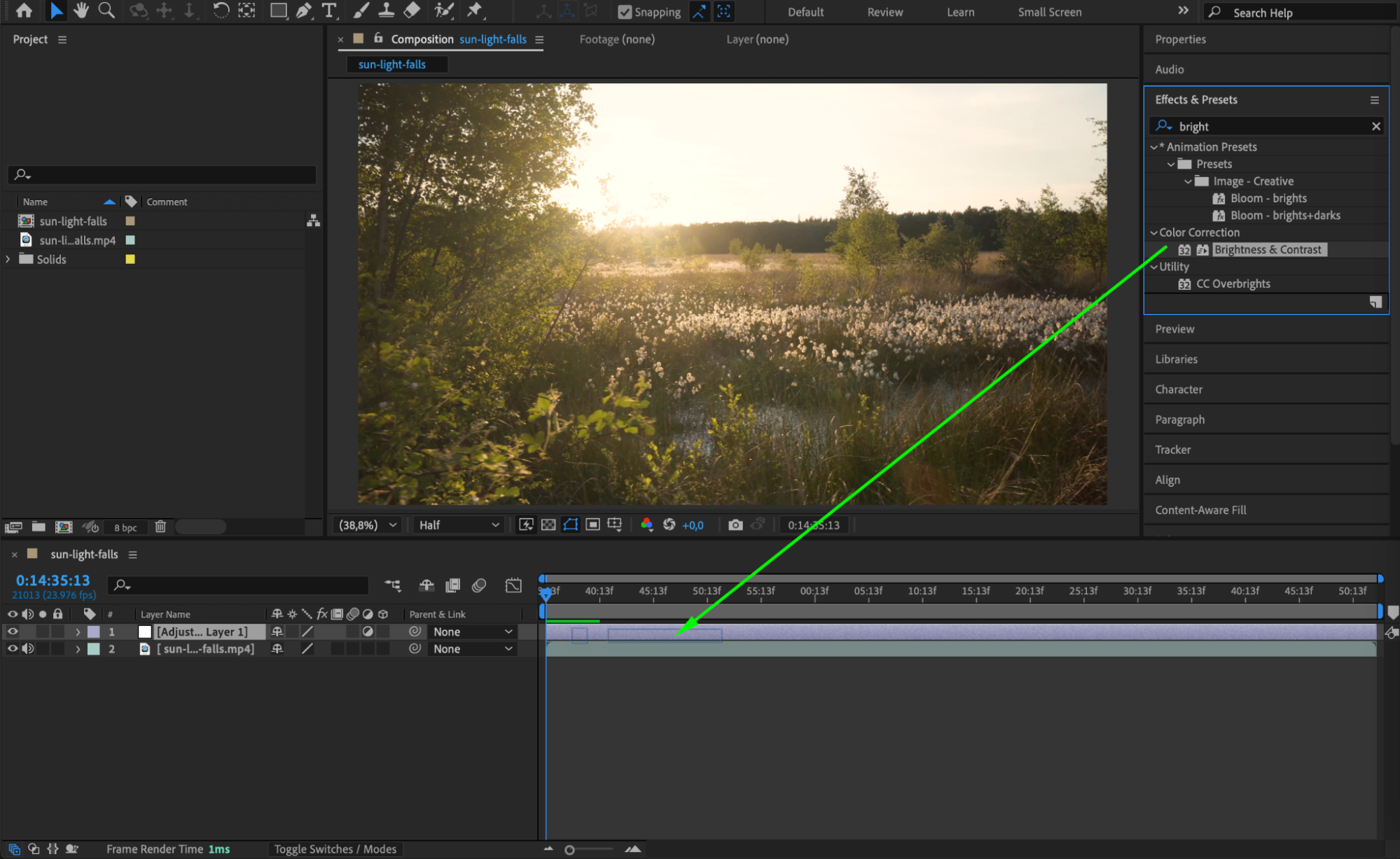
 Step 6: Use Curves for Additional Control
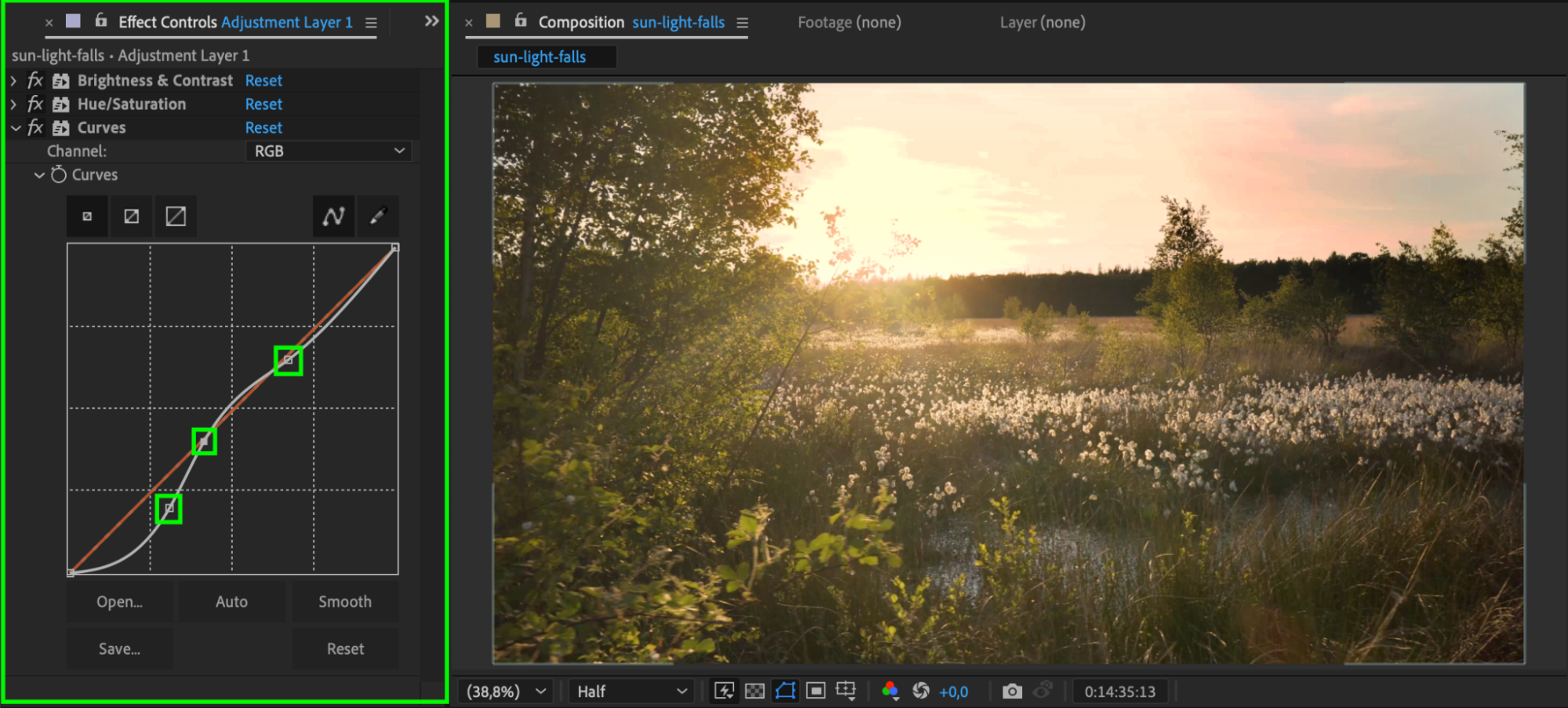
Add the Curves effect to fine-tune the exposure and contrast. Pull down the highlights to recover brightness and lift the shadows if needed. Curves allow for more subtle and precise adjustments compared to simple sliders.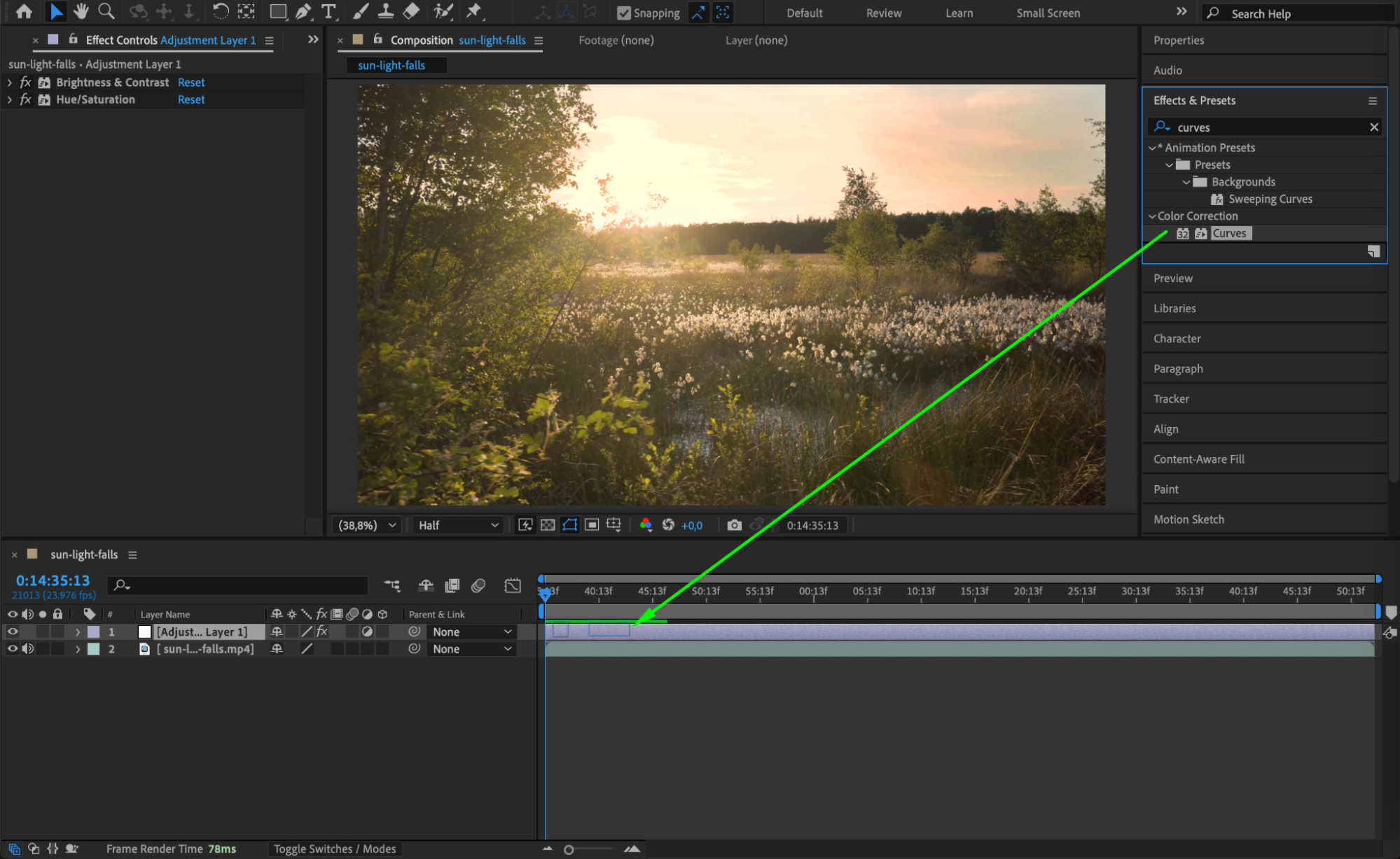
Step 7: Lower the Opacity for Soft Changes
If the correction looks too strong, select the adjustment layer and press “T” to bring up the Opacity settings. Reduce the opacity to about 66% to blend the effect more gently with the original sky.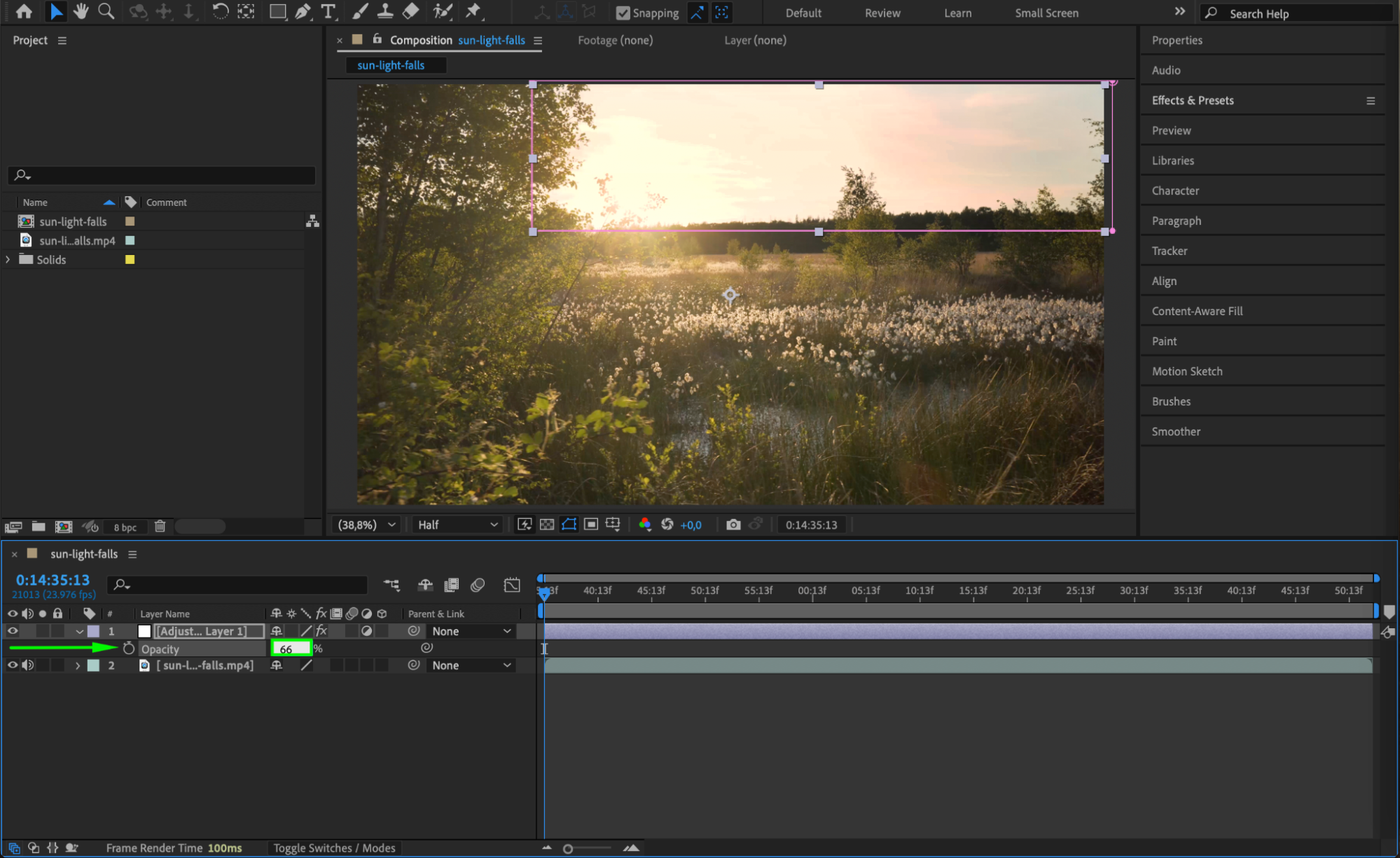 Step 8: Preview and Refine
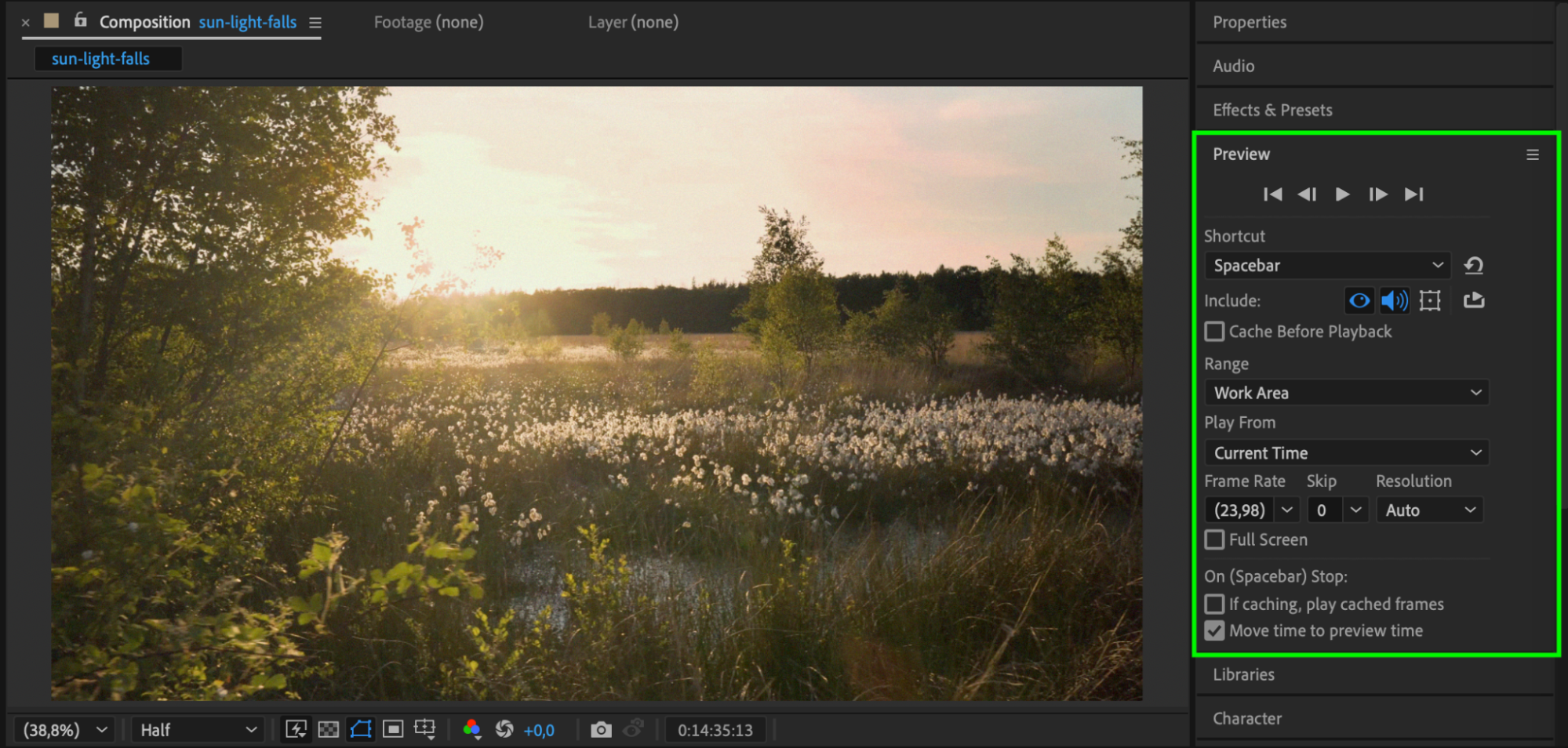
Press Spacebar to preview your changes. Watch the transition between the corrected sky and the rest of the frame. Adjust your mask feather, effect values, or opacity as needed for the most natural result.
Conclusion
Fixing a blown-out sky in After Effects is a powerful way to bring balance and realism back into your footage. By using adjustment layers, targeted masks, and a combination of Brightness, Hue/Saturation, and Curves, you can turn an overexposed sky into a more visually pleasing and professional-looking background. This workflow is quick, flexible, and doesn’t require replacing the sky completely.
Our Bestsellers
Our Bestsellers


