
Introduction to Picking Colors from Other Sources
Sometimes, you may want to use a color from a webpage, image, or another program outside Adobe After Effects. While the eyedropper tool in AE normally doesn’t work outside the app window (especially on Windows), there are simple workarounds. This guide shows you how to grab a color from any source and use it inside your After Effects project.
Step 1: Create or Select the Layer You Want to Color
Start by selecting the element you want to color. This could be a text layer, shape, or solid. Click on the color swatch to open the color picker. For text, use the Character panel; for shapes, use Fill or Stroke settings; for solids, go to Layer > Solid Settings.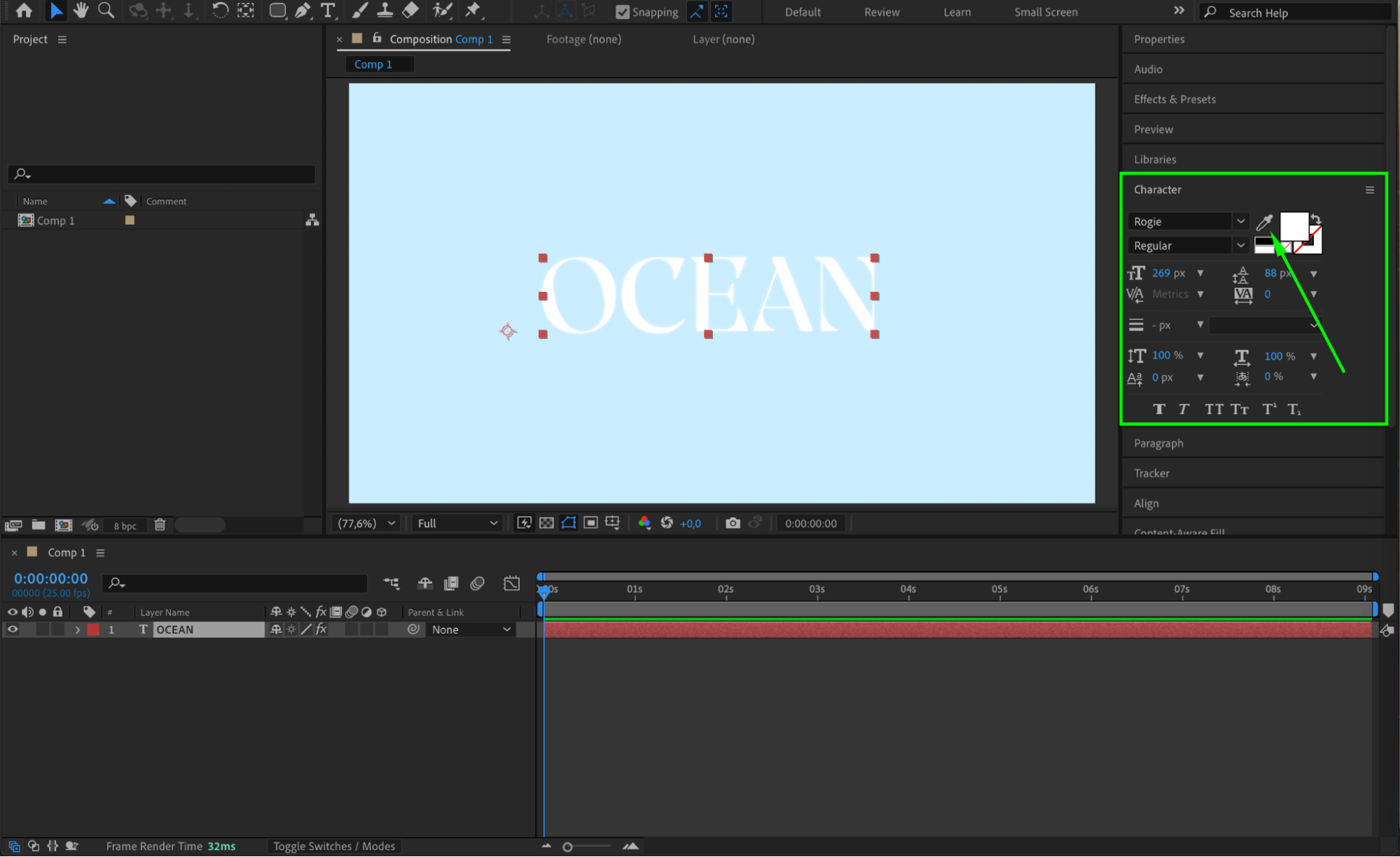 Step 2: Take a Screenshot of the External Color Source
If the eyedropper won’t grab colors from outside AE, take a screenshot of the window or webpage that contains the color you need. On Windows, press PrtScn or Snipping Tool. On Mac, press Cmd + Shift + 4. Save the screenshot as a PNG or JPEG.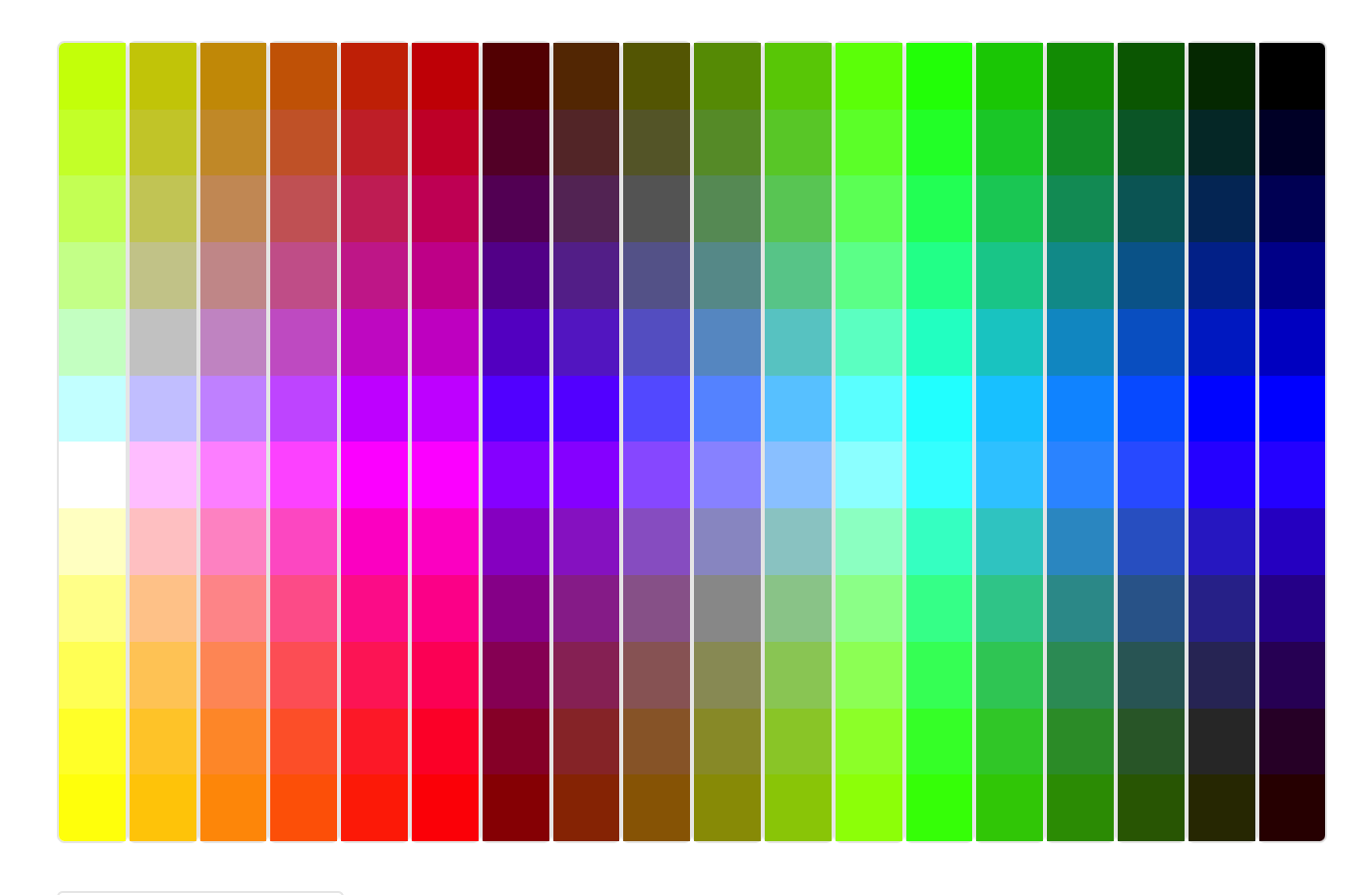
Step 3: Import and Add the Screenshot to Your Timeline
Go to File > Import > File, select the screenshot, and drag it into your composition timeline. This places the image inside your project, making the colors available for sampling.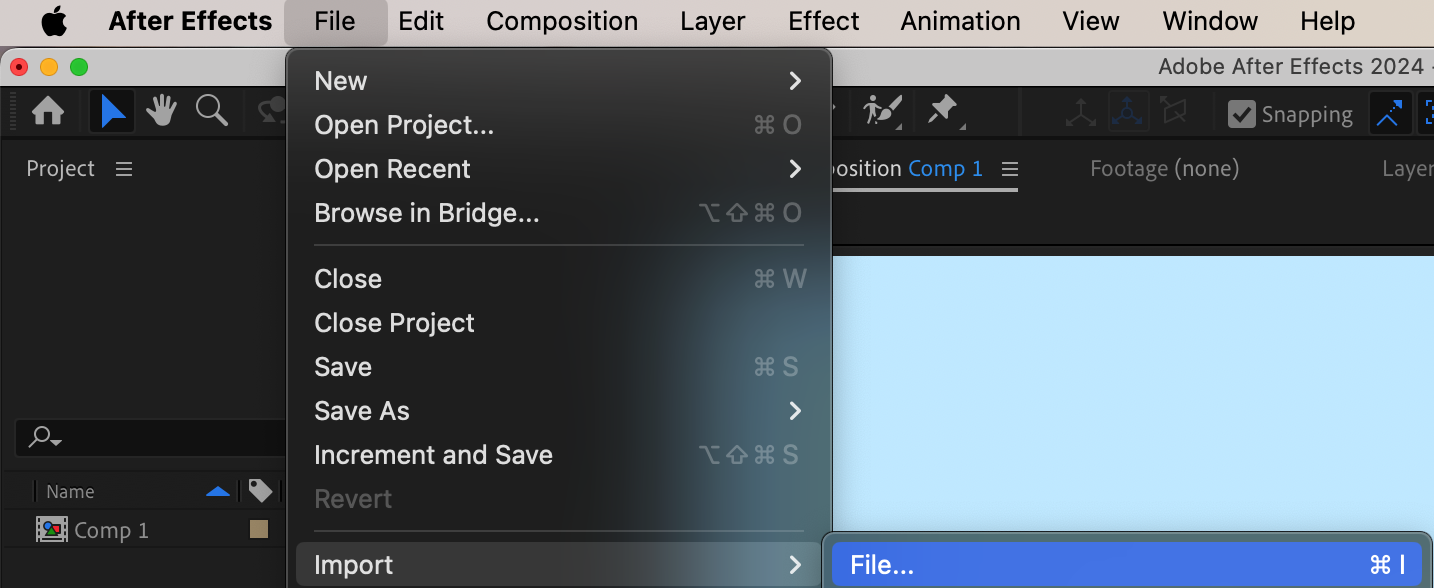
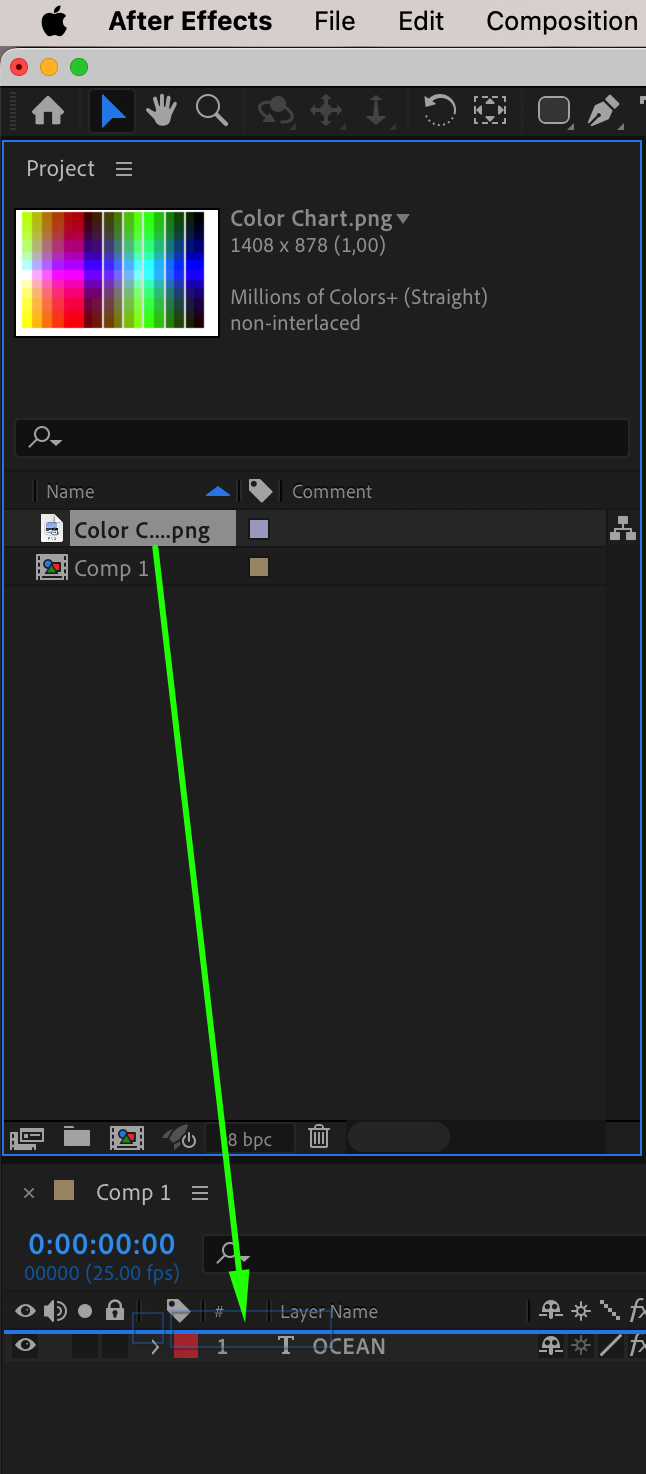 Step 4: Resize and Position the Screenshot
Scale down or reposition the screenshot so the area with the colors is clearly visible in the Composition panel. This makes it easier to pick the exact color you want later.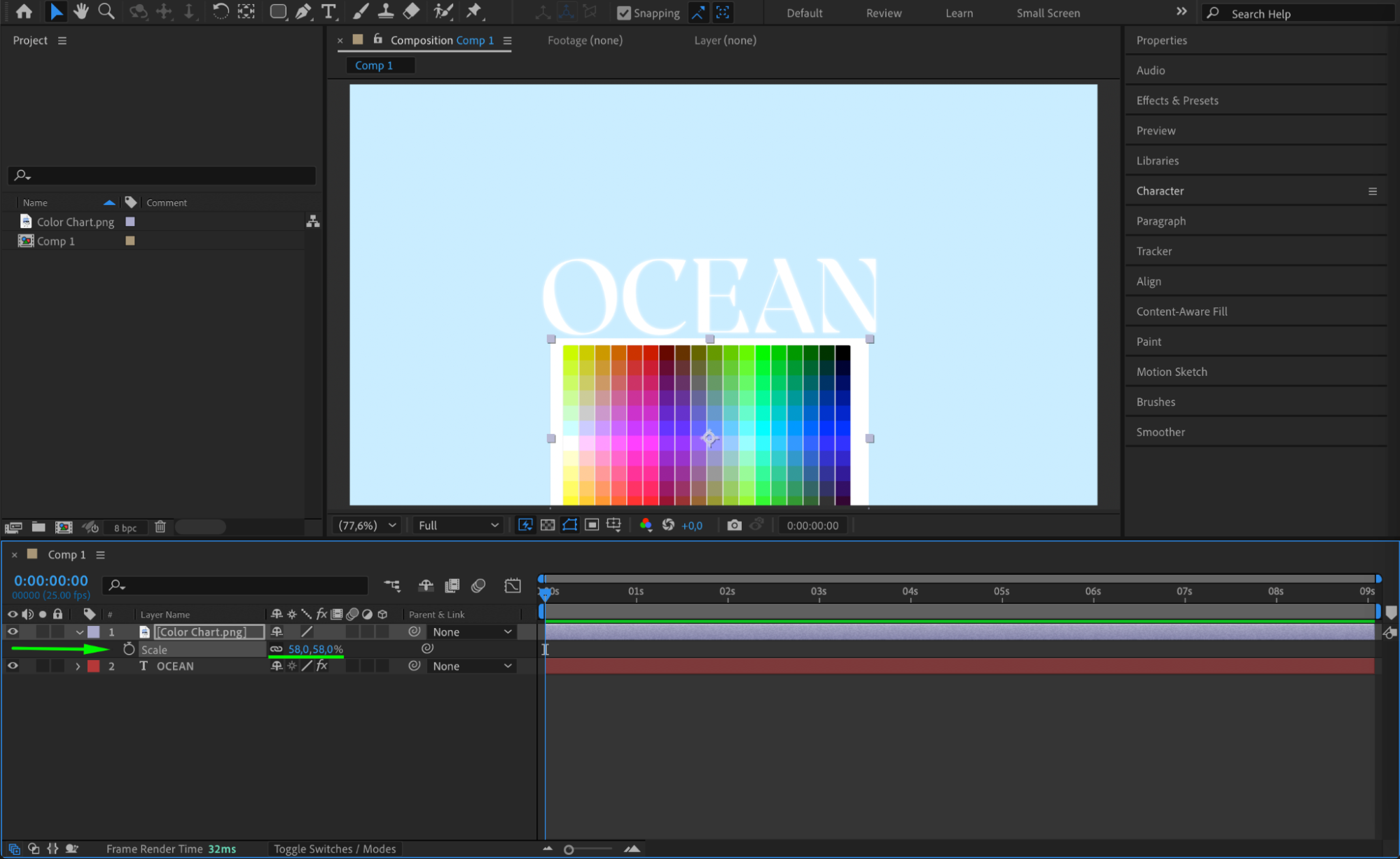 Step 5: Use the Eyedropper Tool to Pick the Color
Double-click on your text or shape layer to open its color picker. Use the eyedropper tool and click on the screenshot inside the Composition panel. The color will now be applied to your selected element.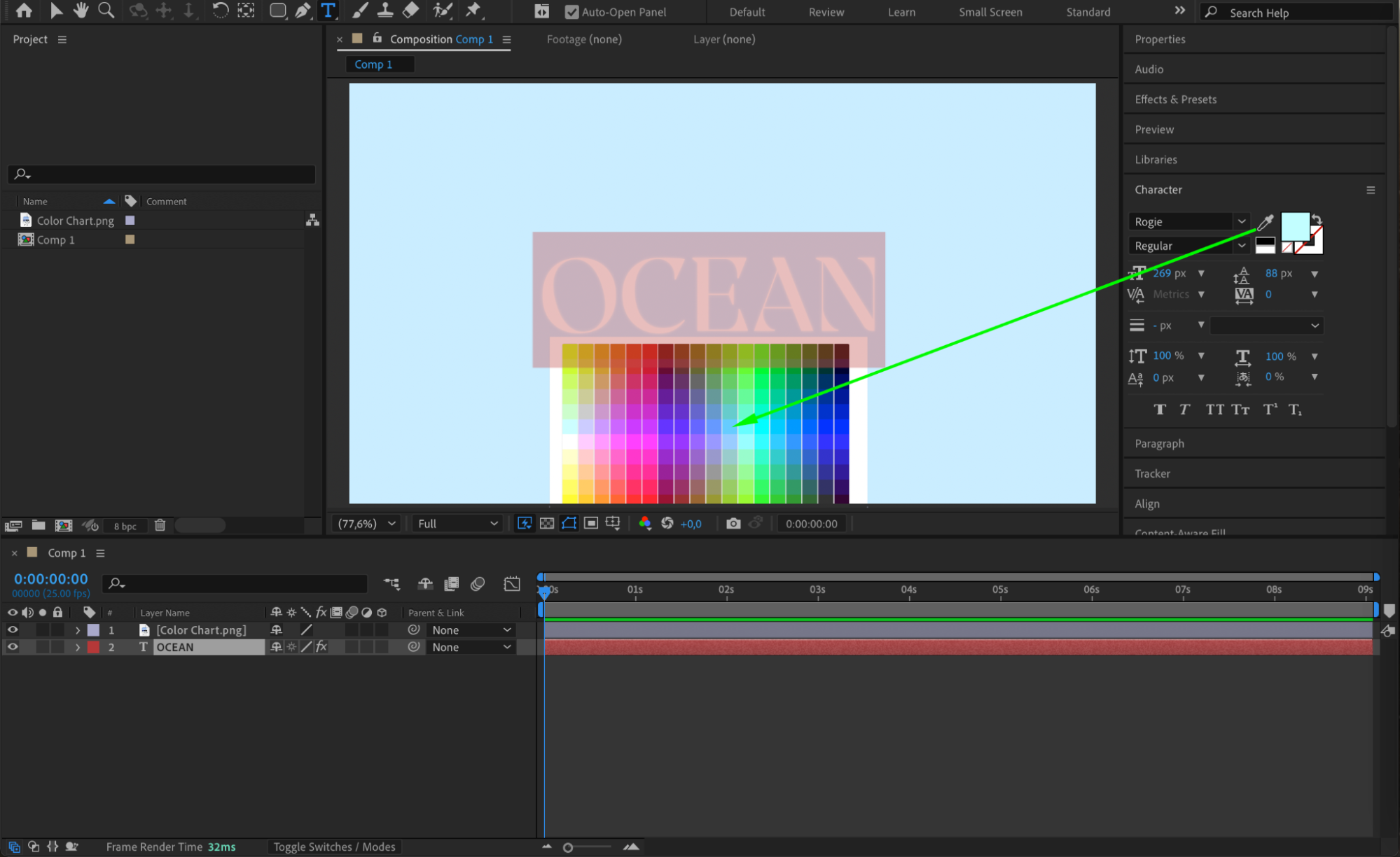
Step 6: Create a Solid with the Sampled Color (Optional)
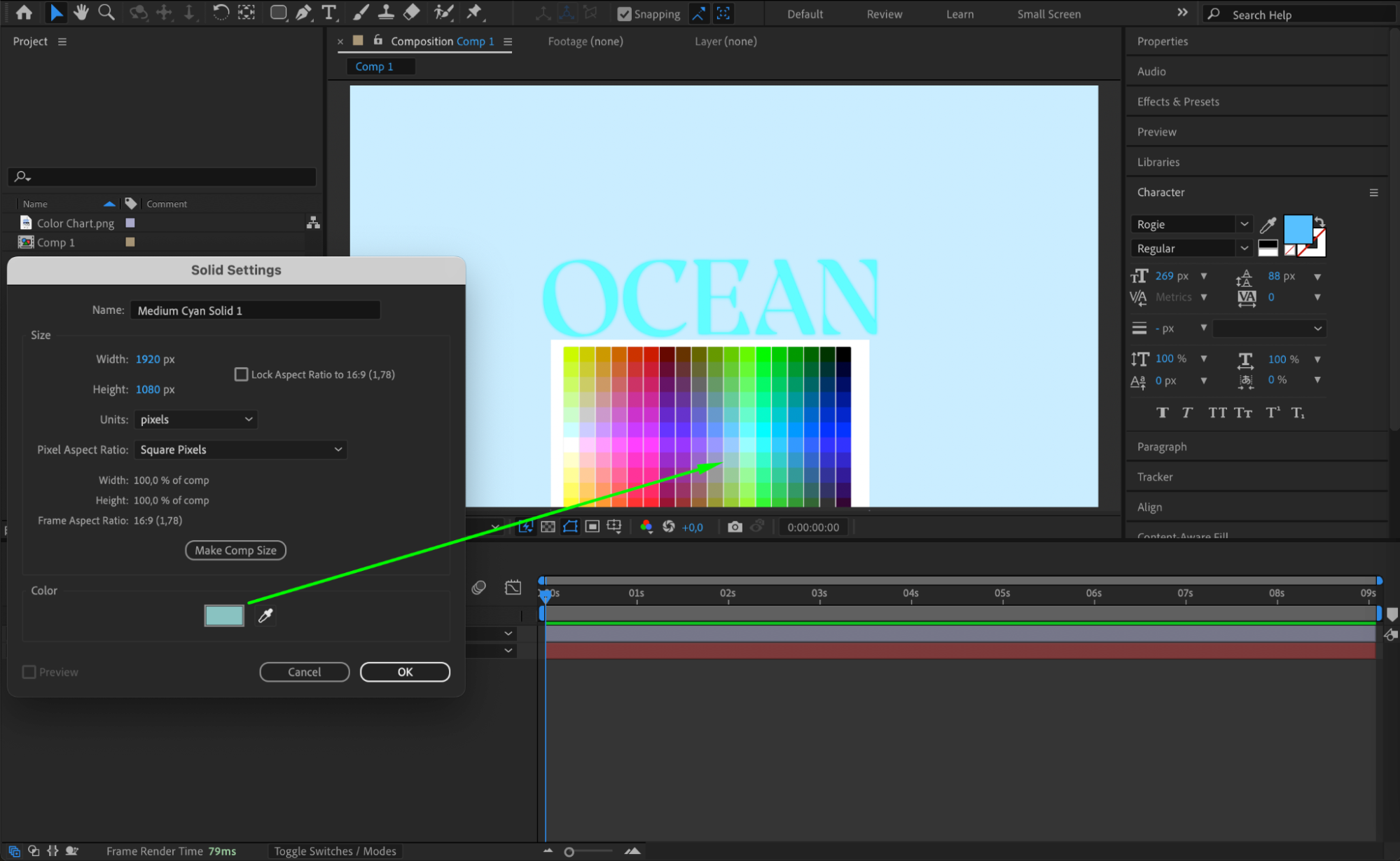
If you prefer to save the color as a solid background, go to Layer > New > Solid. When the Solid Settings window opens, use the eyedropper to choose a color from the screenshot
Step 7: Hide or Remove the Screenshot
After sampling the color, you can either delete the screenshot layer or simply hide it by clicking the eye icon next to the layer in the timeline. This keeps your comp clean while retaining the color you grabbed.

Step 8: Optional – Use HEX Code or Adobe Color Tools
If you’d rather not use a screenshot, you can copy a HEX color code from another app and paste it directly into the color picker in AE. You can also explore Adobe Color Themes online to find or save colors and enter their HEX codes manually.
Conclusion
Although After Effects doesn’t let you pick colors outside the app window directly, using screenshots or HEX codes gives you full control. These methods help keep your project colors consistent with other designs, webpages, or brand guidelines
Our Bestsellers
Our Bestsellers


