
Introduction
If you want to create a smooth darkening effect for your footage or background, After Effects makes it easy with basic opacity animation. This technique is perfect for scene transitions, fade-outs, or creating dramatic lighting effects.
Step 1: Create a New Composition
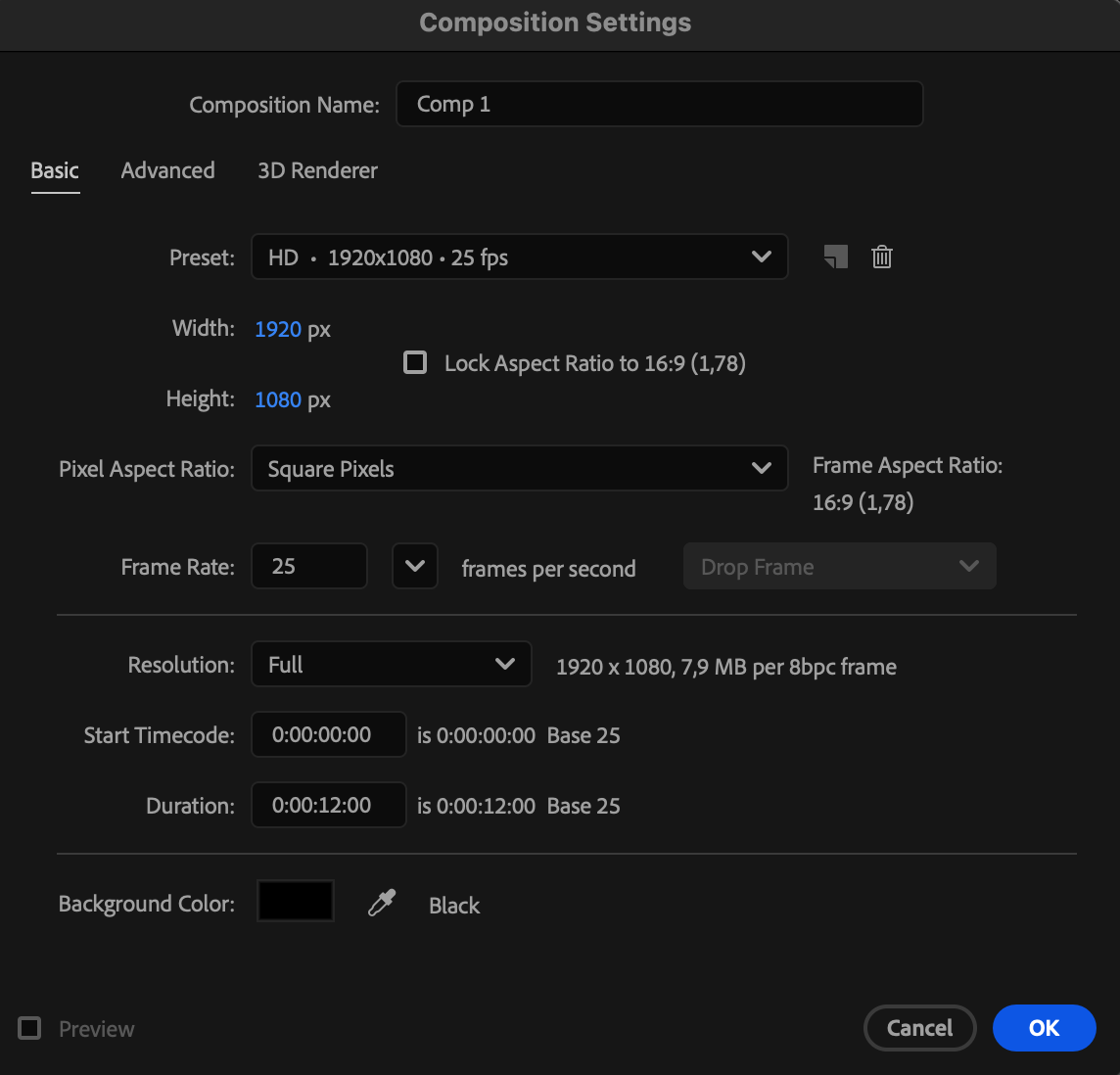
Go to Composition > New Composition, name your project, and choose your preferred background color (for example, black or dark gray).
Step 2: Import Your Footage
Go to File > Import > File, select your video or image, and drag it onto the timeline.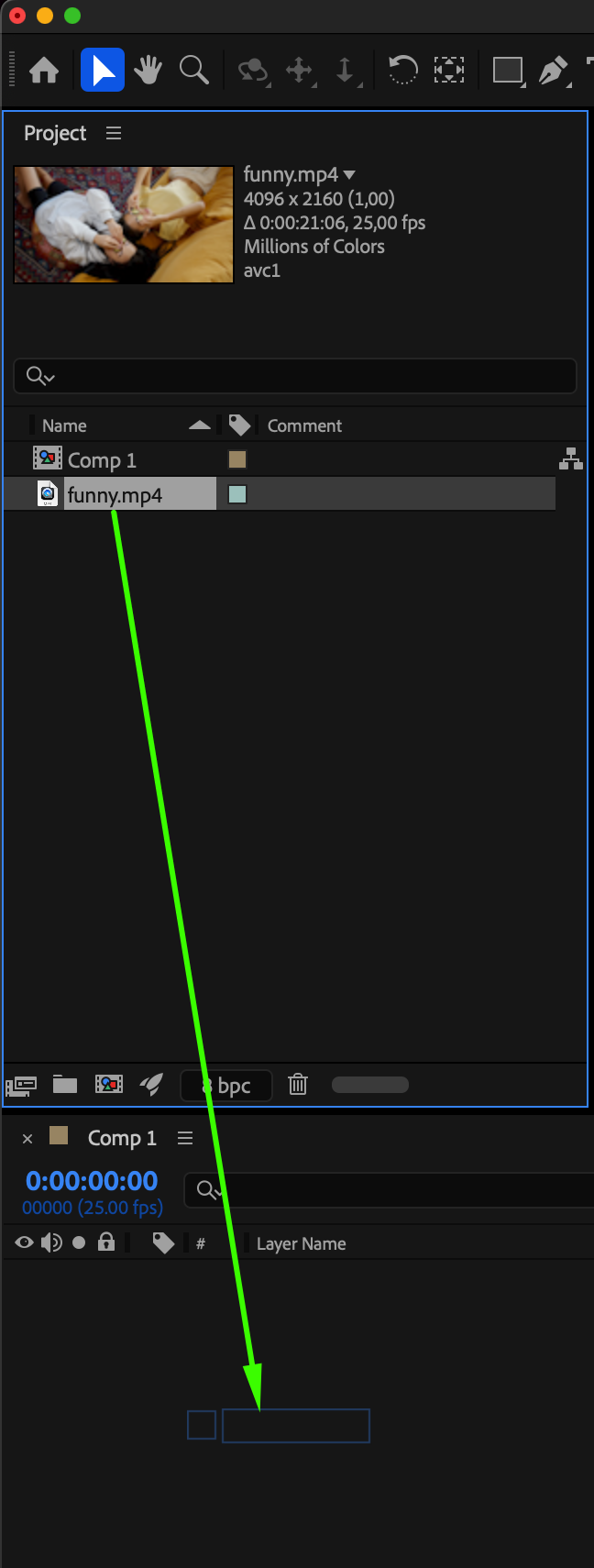 Step 3: Animate the Opacity
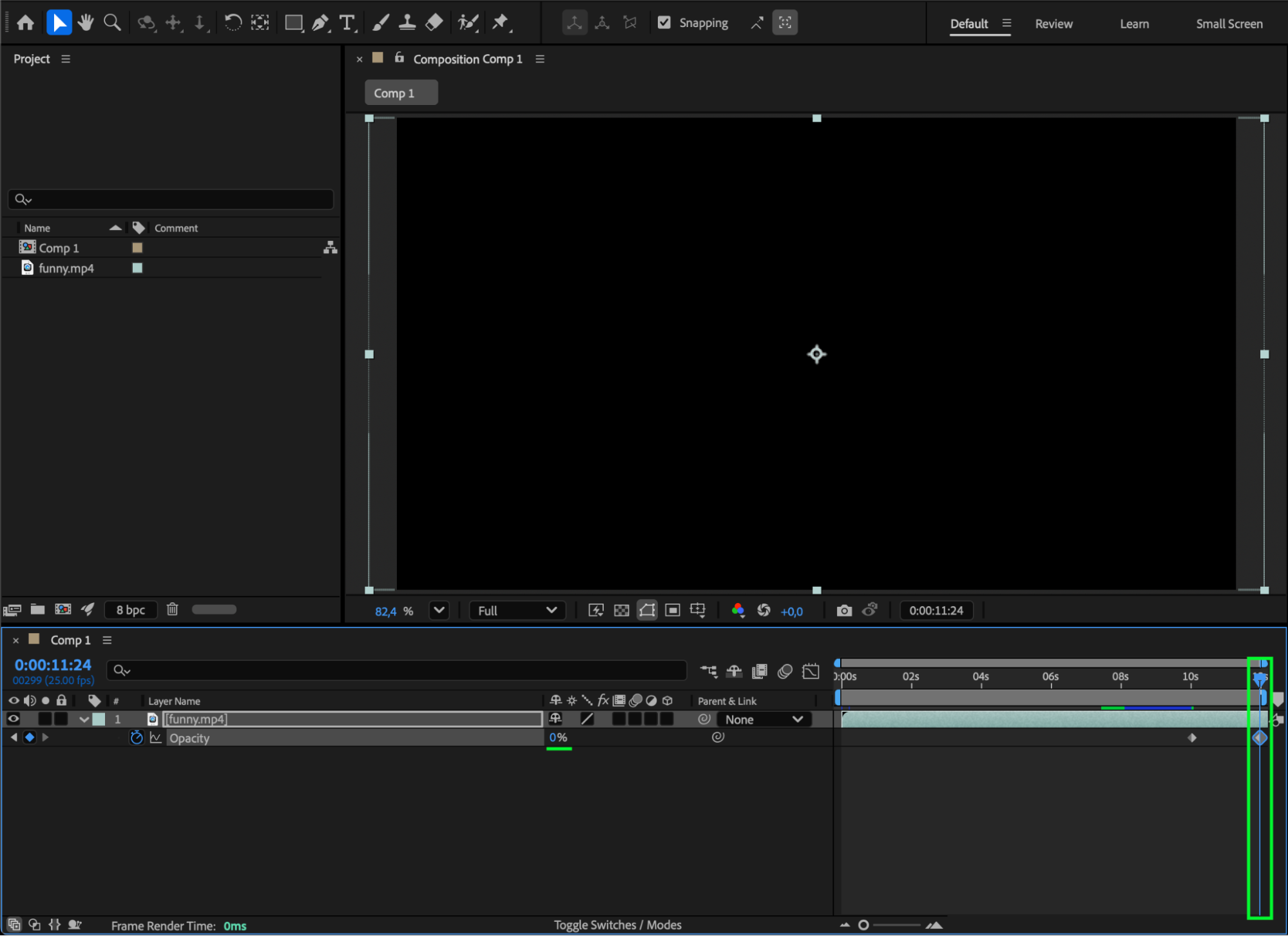
Select your layer and press “T” to open the Opacity property. Move the CTI (Current Time Indicator) to the point where you want the darkening to begin. Click the stopwatch icon to set the first keyframe with an opacity value of 100%. Move the CTI to the point where you want the screen to be fully dark and change the opacity to 0%.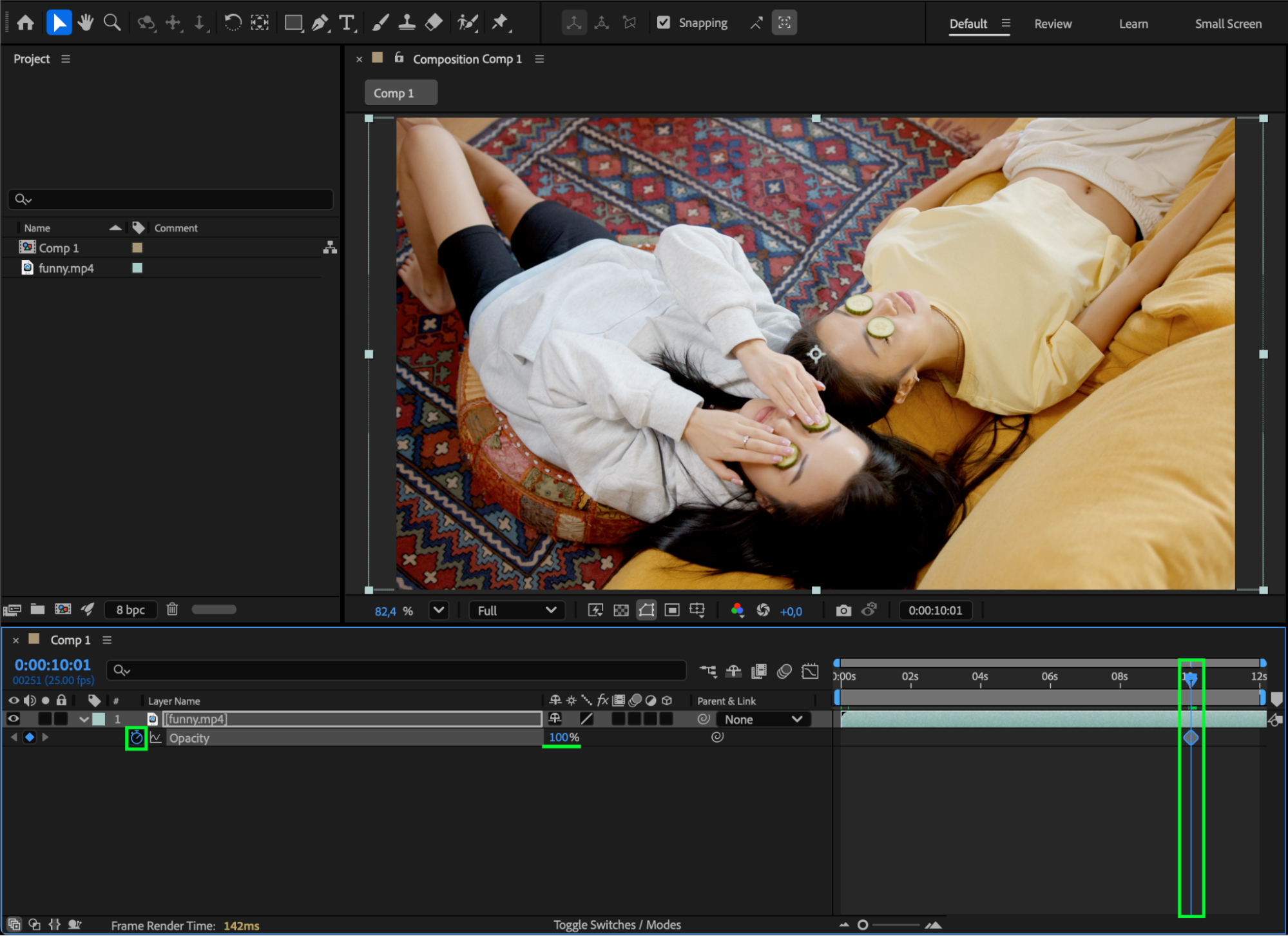
 Step 4: Smooth the Animation
Select both keyframes, right-click, and choose Keyframe Assistant > Easy Ease.
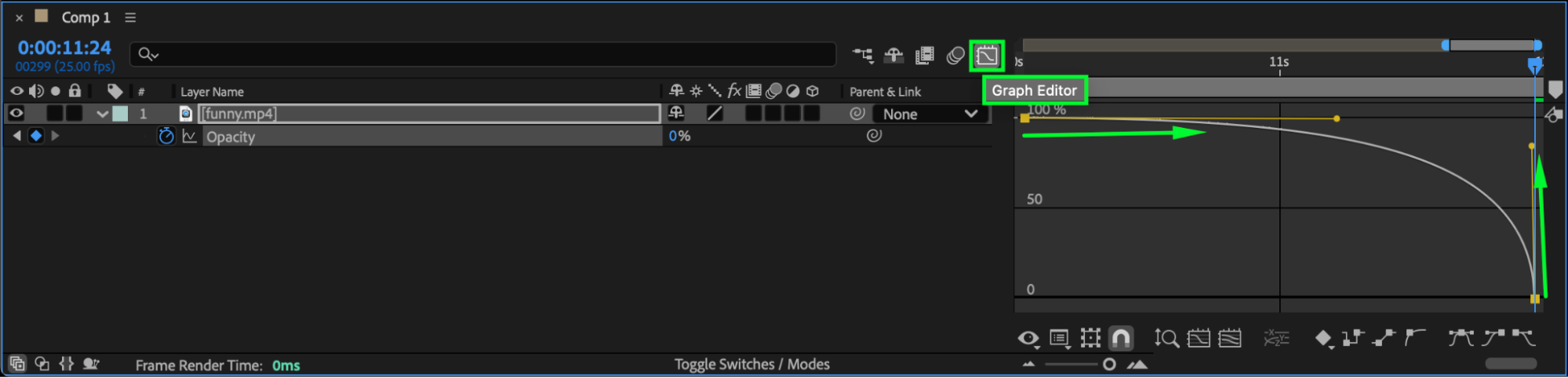
Then, open the Graph Editor to fine-tune the speed of the fade for a smoother transition.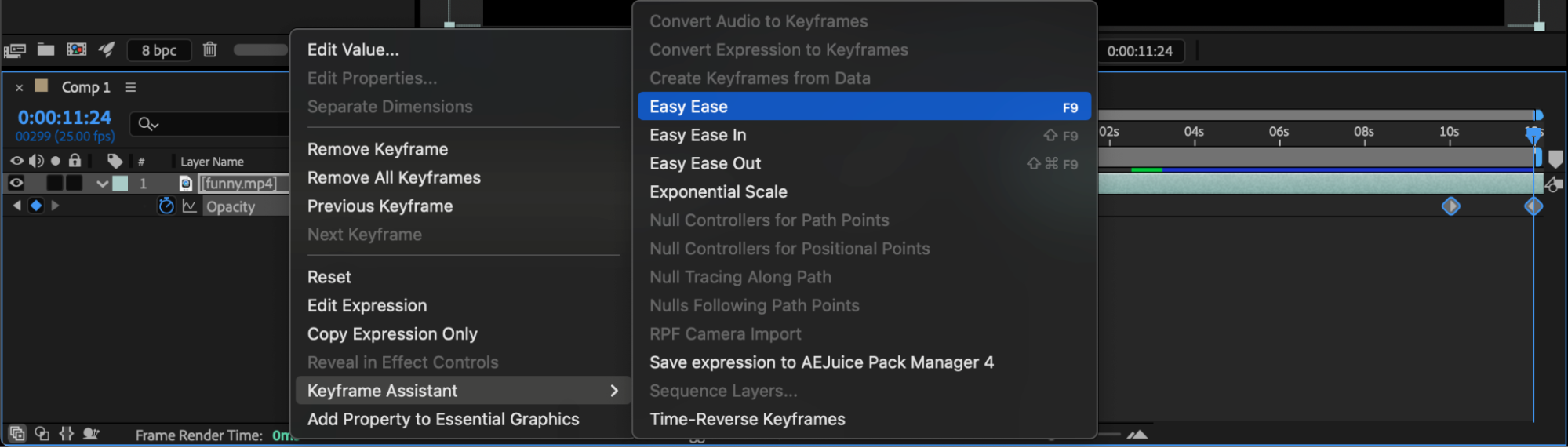
Step 5: Preview
Press Spacebar to preview your animation and make sure the darkening effect looks natural. Adjust the keyframe timing if you want a slower or faster fade.
Conclusion
Now you know how to gradually darken any layer in After Effects using opacity keyframes. This simple technique can be used for cinematic fades, transitions, or moody scene changes — all without any plugins.
Our Bestsellers
Our Bestsellers


