
How to Animate Effects Increasing Over Time in After Effects
Introduction
Animating effects over time is a simple but powerful technique in Adobe After Effects. Whether you’re adding blur, glow, or any other visual effect, you can control its intensity using keyframes. In this tutorial, we’ll walk through how to increase an effect – specifically Gaussian Blur – over time to create smooth and dynamic transitions.
Step 1: Import Your Footage
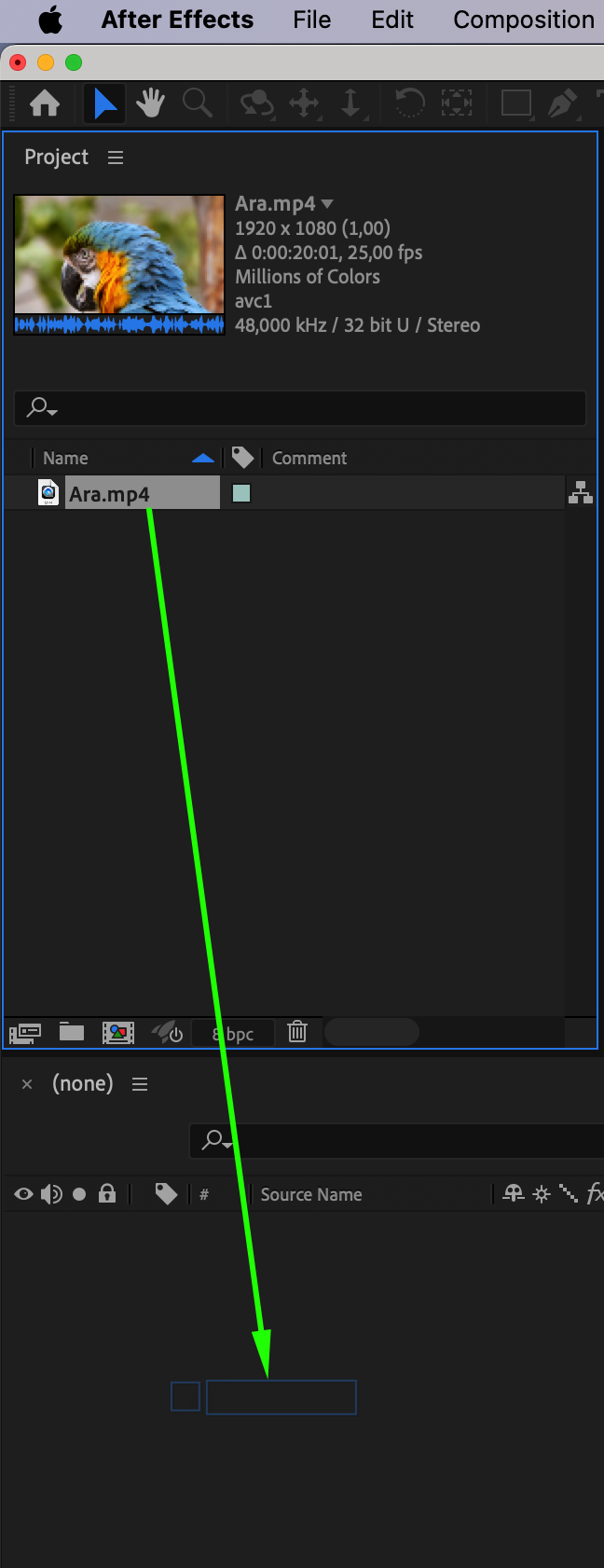
Open Adobe After Effects and create a new project or open an existing one. Go to File > Import > File, then drag your video file onto the timeline to begin editing.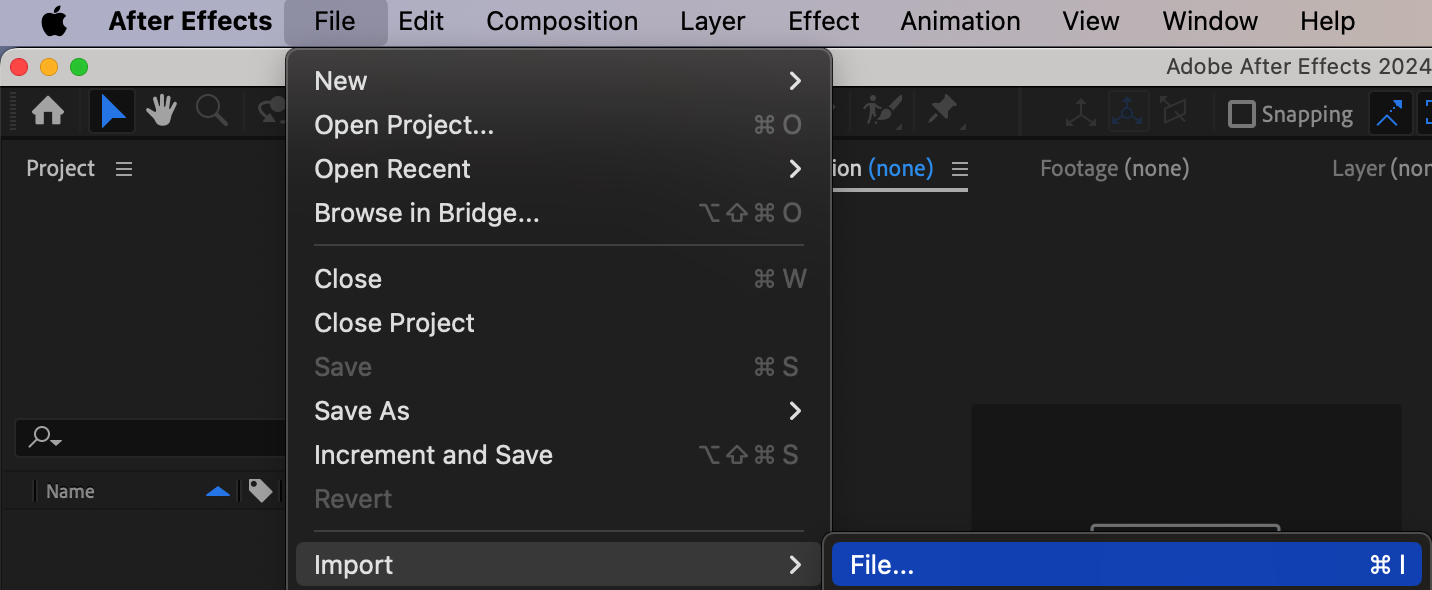
 Step 2: Apply an Effect
In the Effects & Presets panel, search for Gaussian Blur. Drag the effect onto the video layer in your timeline. The effect will now appear in the Effect Controls panel, where you can adjust its settings.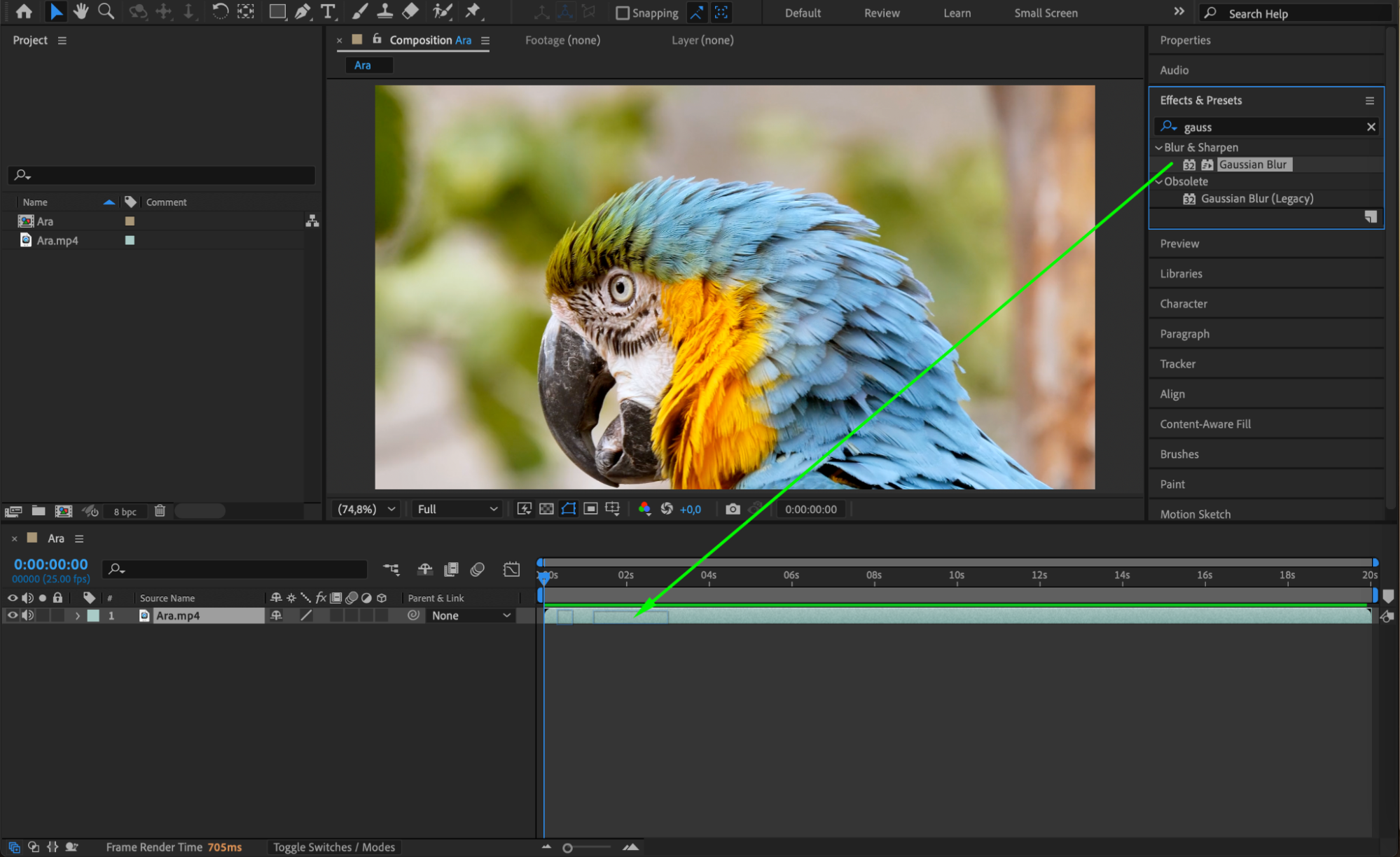
Step 3: Set Initial Keyframes
Move the CTI (Current Time Indicator) to the point in the timeline where you want the effect to begin. In the Effect Controls panel, set the Blurriness to 0, then click the stopwatch icon next to it to create the first keyframe. This marks the starting value of the effect.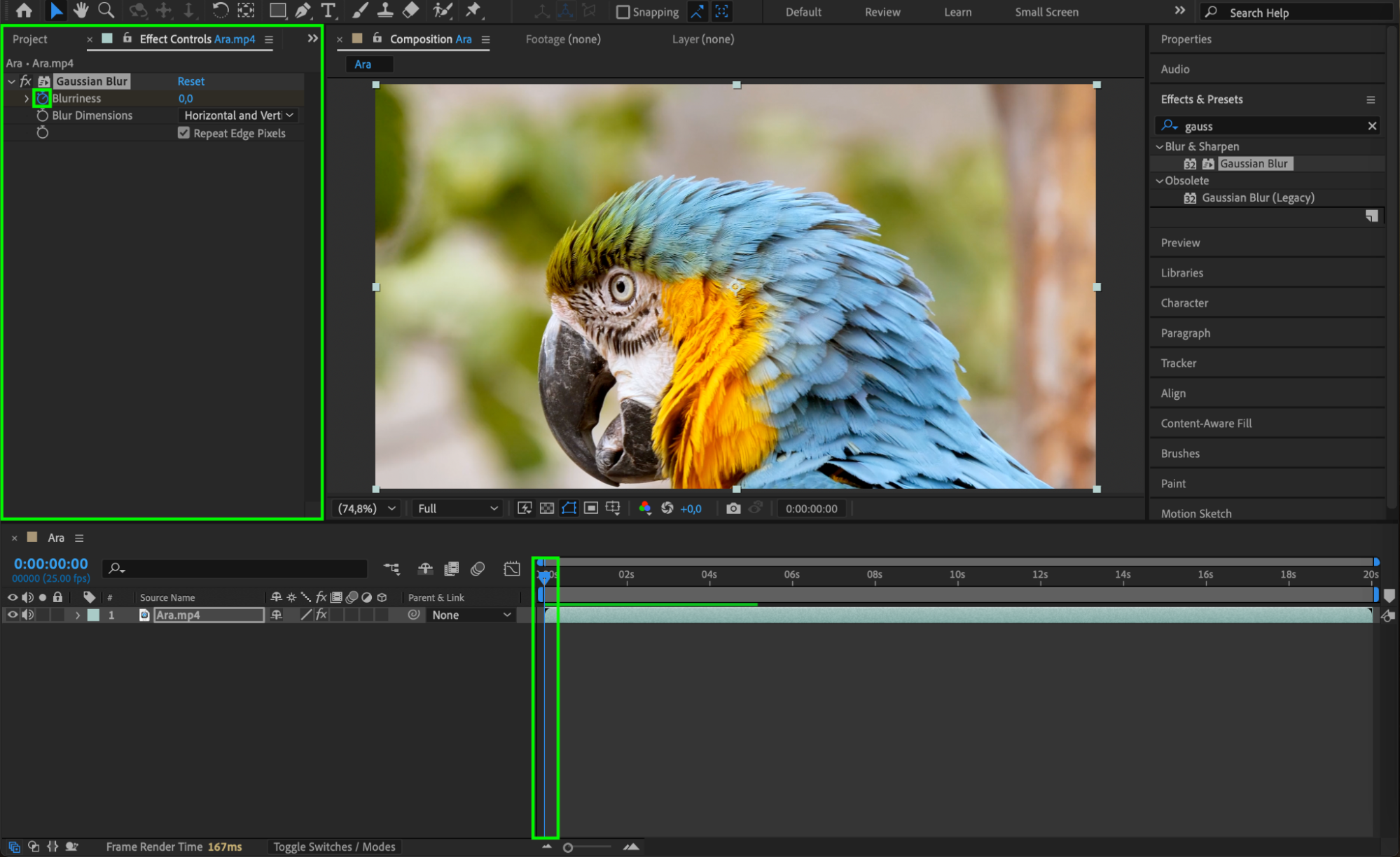 Step 4: Create Final Keyframes
Move the CTI to the end of your desired transition period. Now increase the Blurriness value to your preferred strength (e.g., 30 or 100). After Effects will automatically create a second keyframe, and the effect will gradually increase from 0 to your chosen value over time.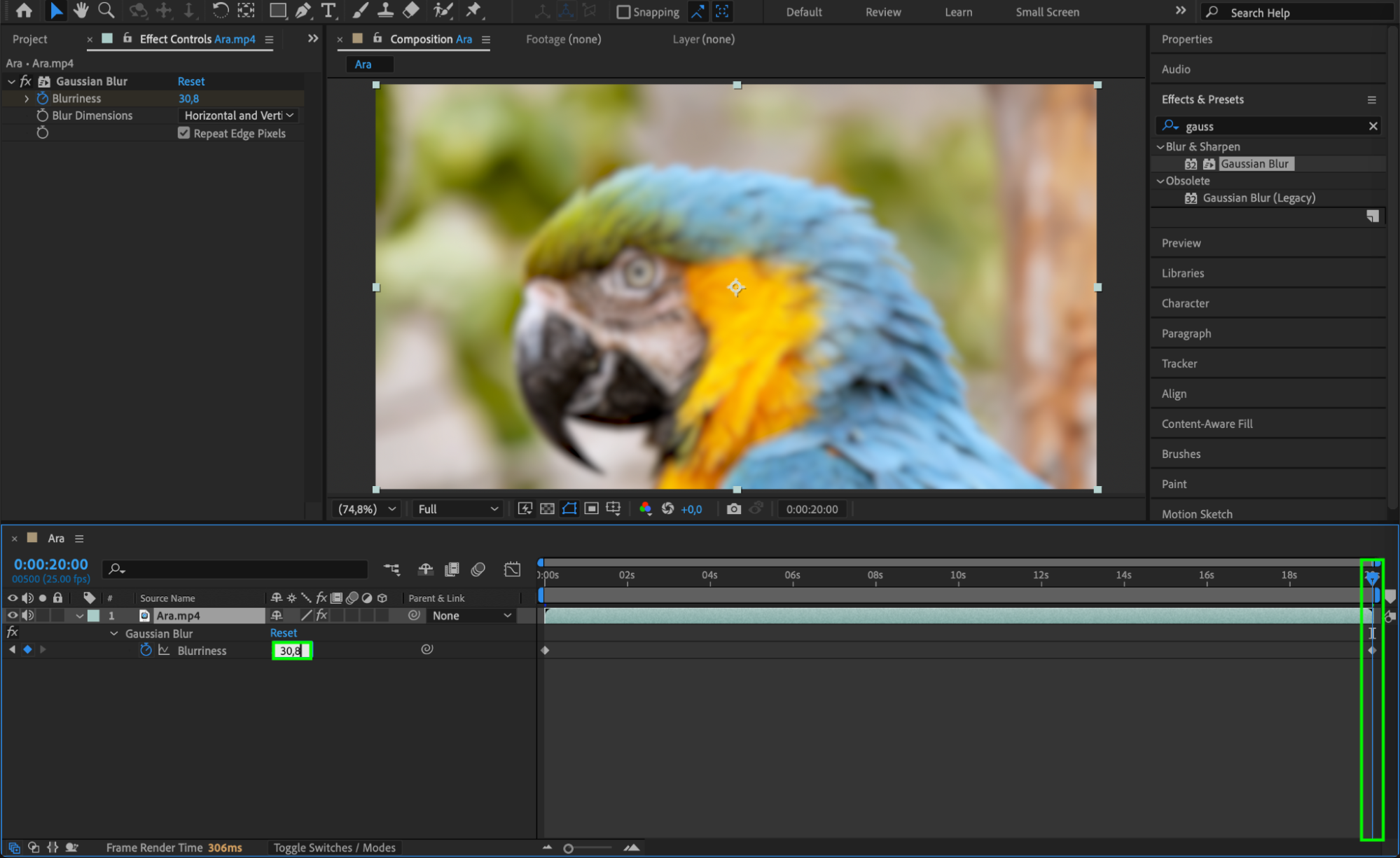 Step 5: Smooth the Animation with Easy Ease
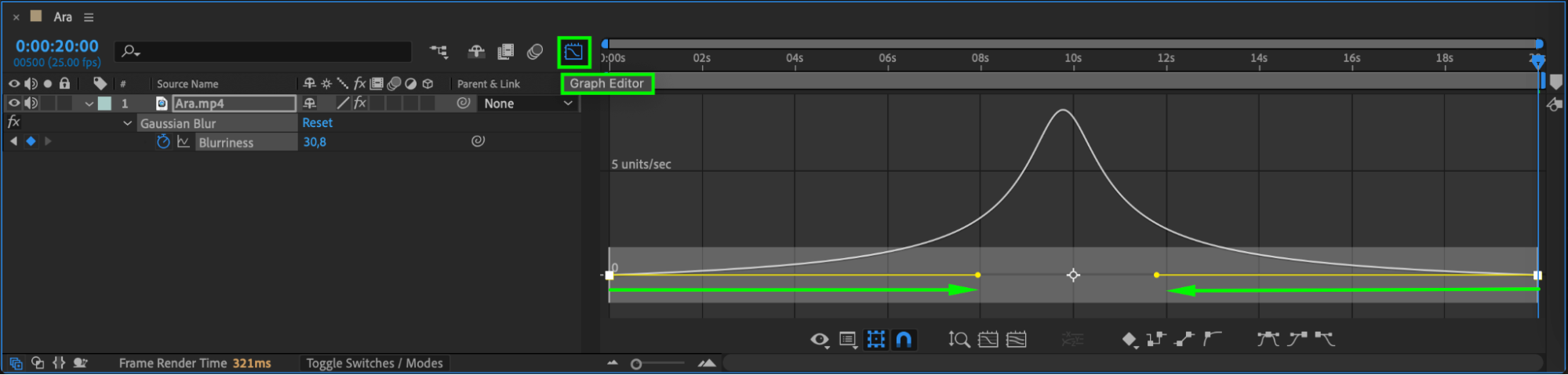
To make the transition feel more natural, select both keyframes, right-click, and choose Keyframe Assistant > Easy Ease. This adjusts the speed of the change for a smoother result.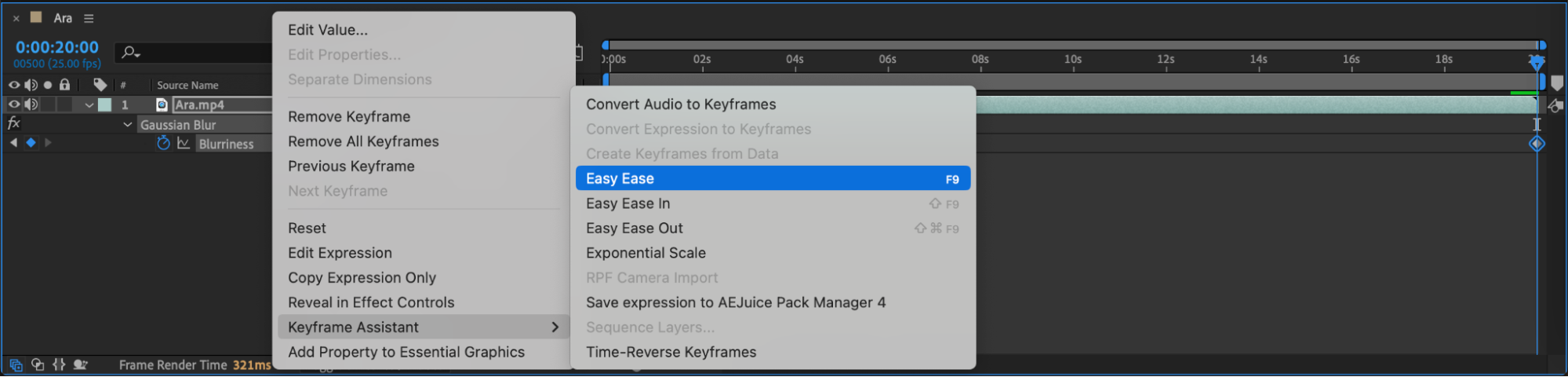
Step 6: Preview Your Animation
Press the spacebar to preview your animation. You should see the Gaussian Blur effect increasing gradually across the selected time period. Adjust timing or values as needed for better results.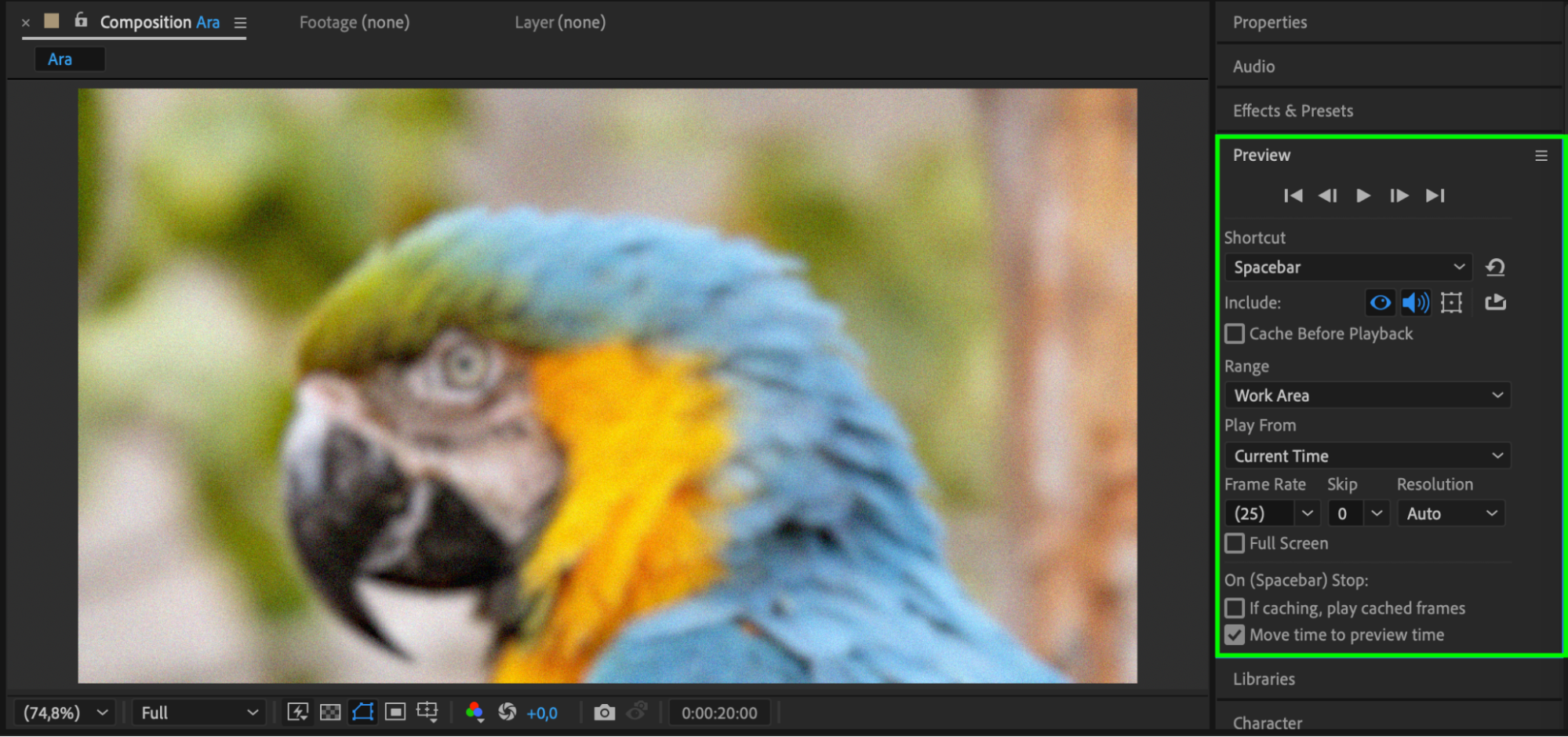 Step 7: Render Your Composition
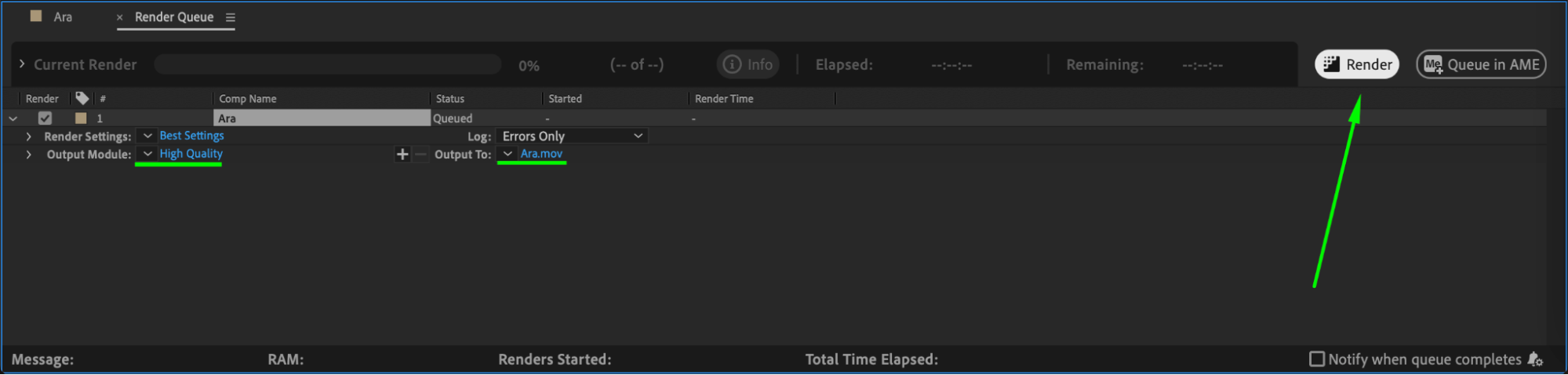
Once you’re happy with the animation, go to Composition > Add to Render Queue or Add to Adobe Media Encoder Queue to export your video.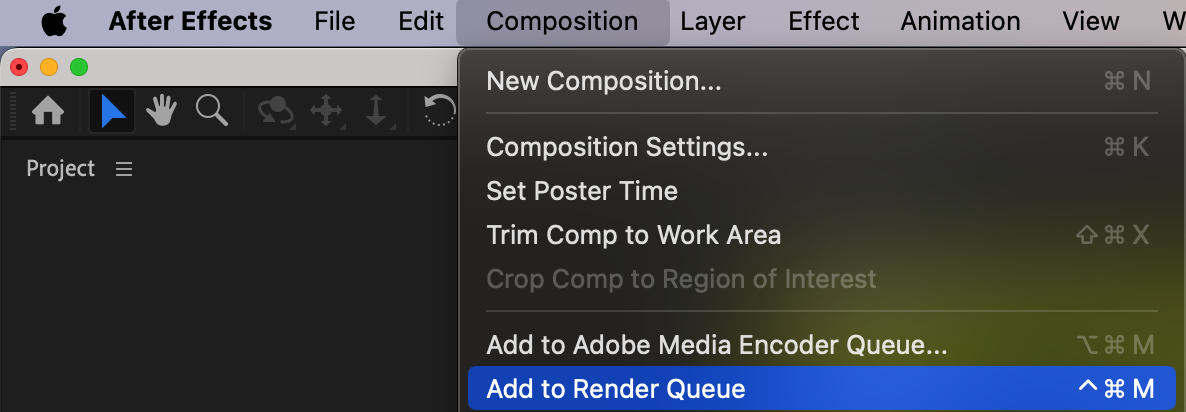
 Conclusion
Animating effects like Gaussian Blur over time adds depth and professionalism to your video edits. By using keyframes and Easy Ease, you can create smooth visual transitions that enhance your storytelling and style in After Effects.
Our Bestsellers
Our Bestsellers


