Introduction to Indenting Text Boxes
Indenting text in Adobe After Effects helps with aligning paragraphs, organizing bullet points, or creating a polished design for titles or credits. Although After Effects doesn’t have traditional word-processing tools, you can still control the position and spacing of text using simple techniques. This guide will show you how to add indentation manually and adjust spacing inside a text box.
Step 1: Create a New Composition and Text Layer
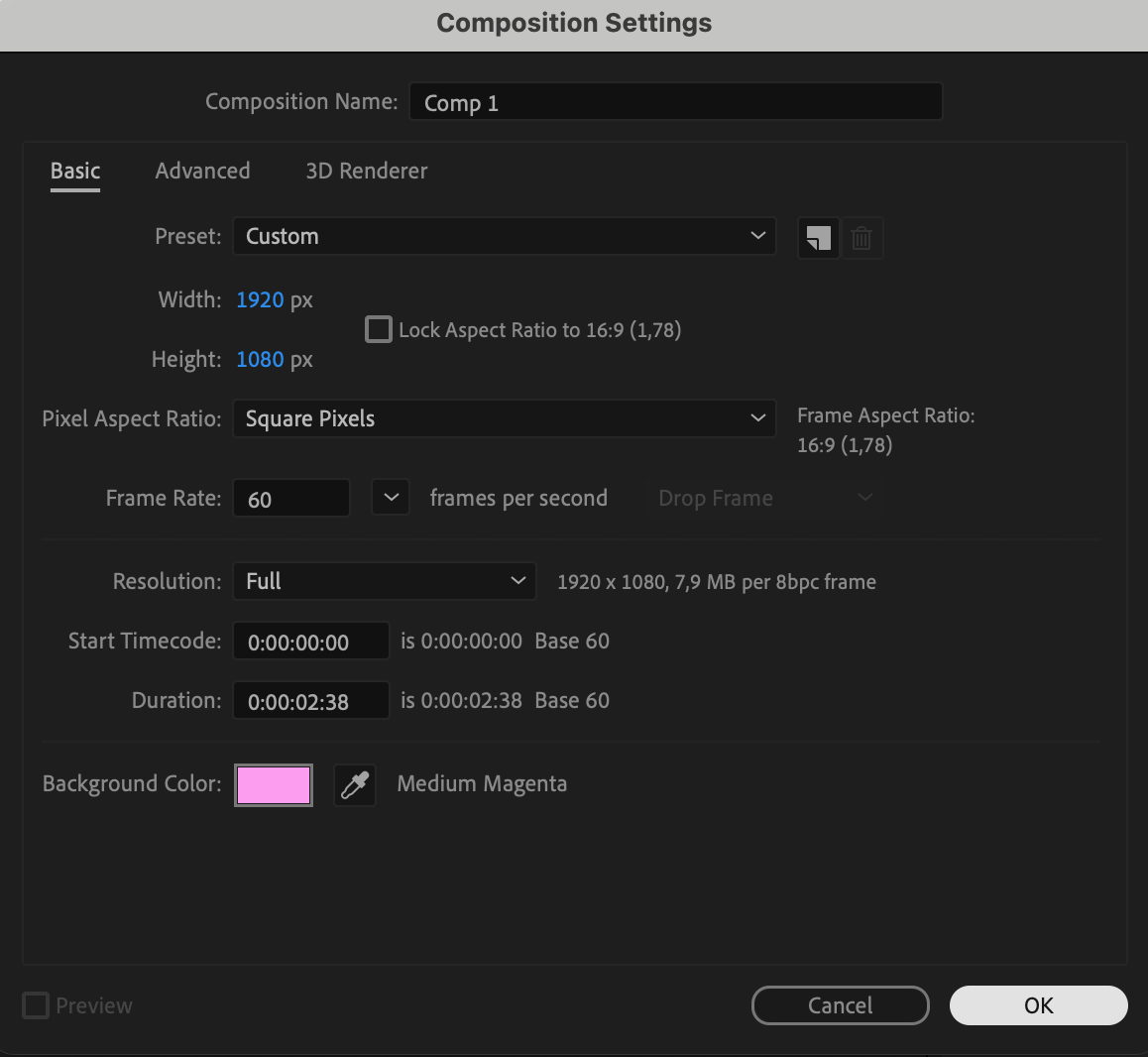
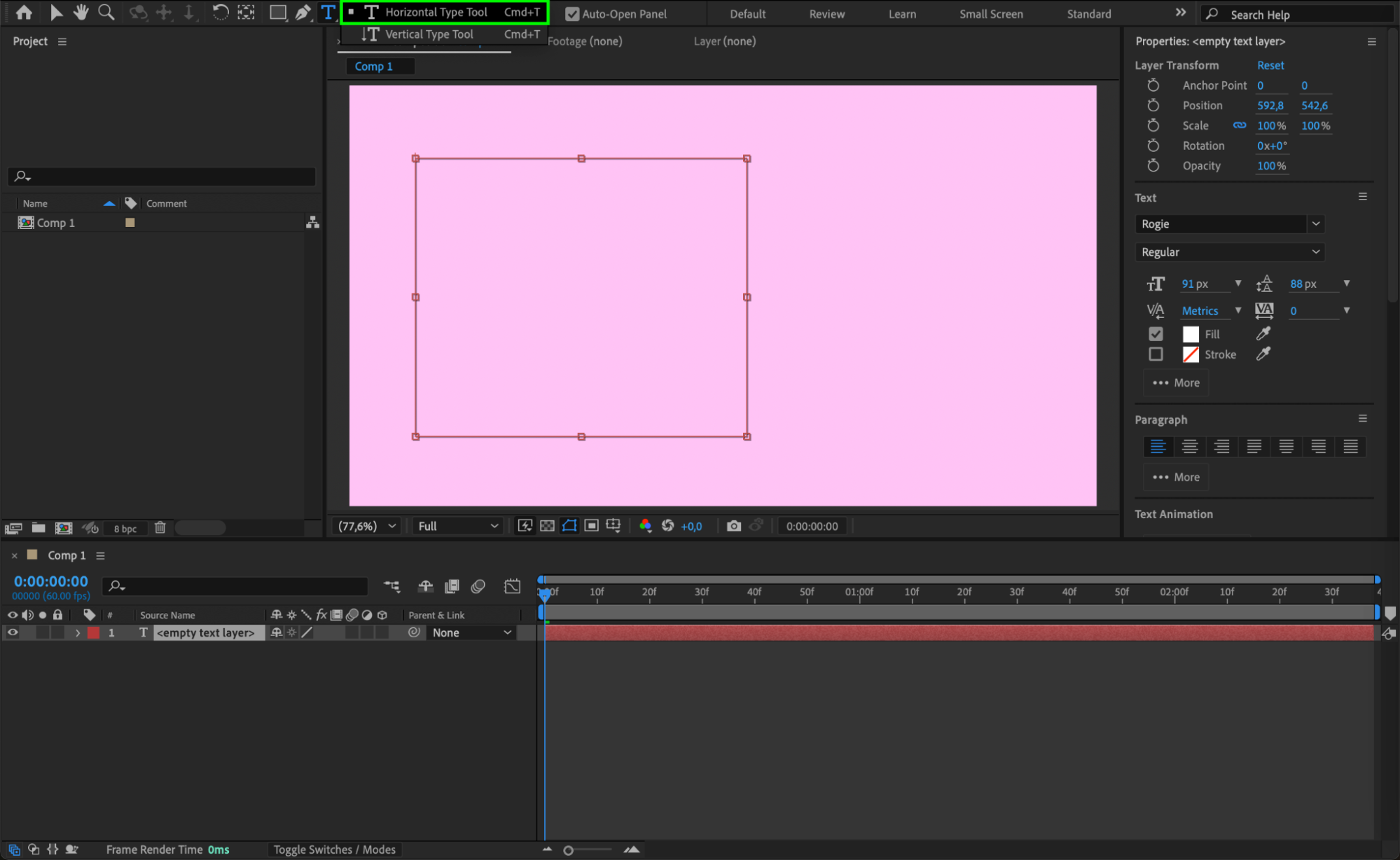
Open After Effects and create a new composition by going to Composition > New Composition. Then use the Type Tool (Ctrl/Cmd + T) to create a text box on the screen. Click and drag to create a text area box if you want your text to wrap automatically.
Get 10% off when you subscribe to our newsletter

Step 2: Add Text and Format the Paragraph
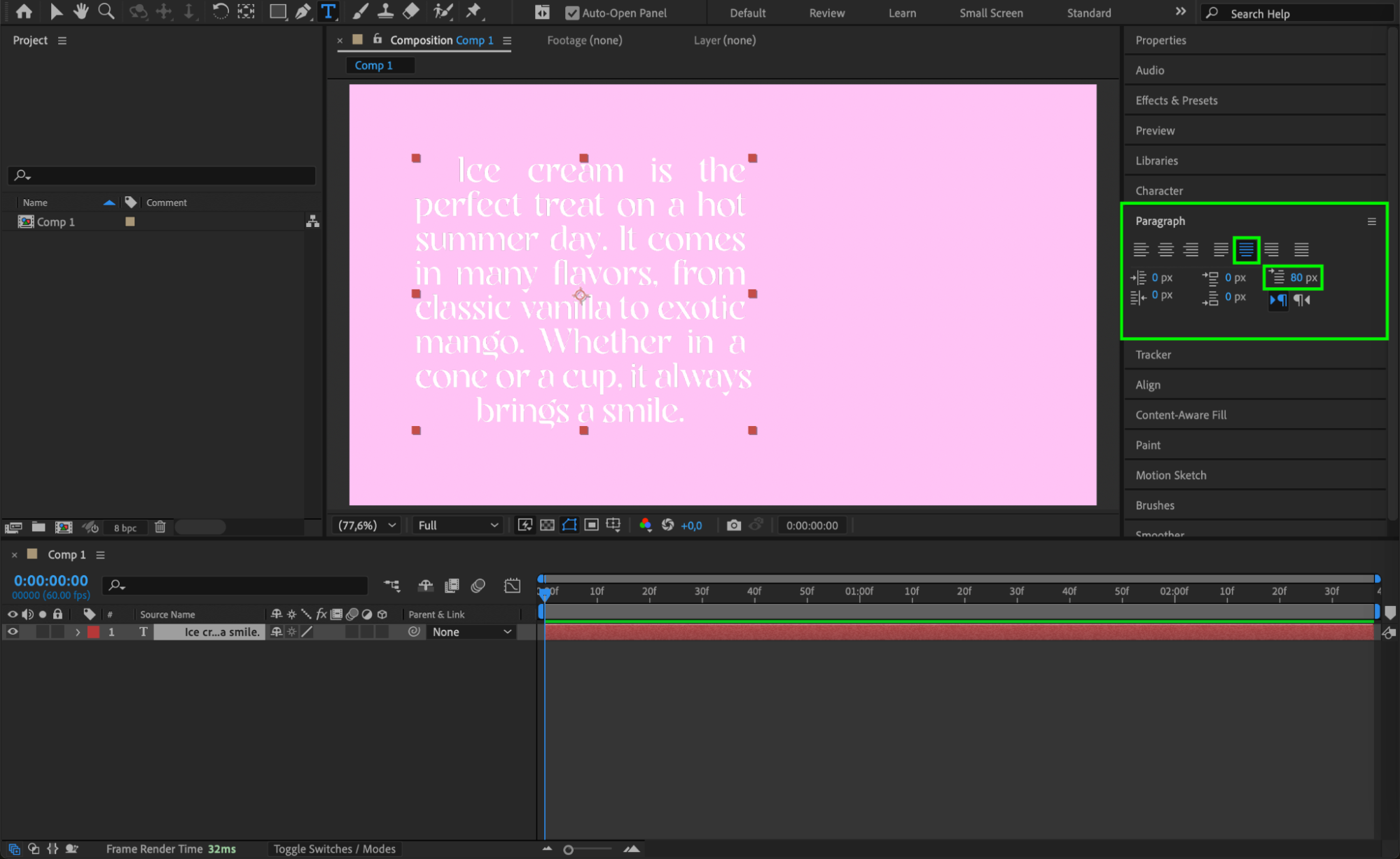
Type your text into the box. To indent the first line of a paragraph, click before the first word and press the Spacebar or use Option+Tab (Mac) / Alt+Tab (Win). If that doesn’t work due to system shortcuts, simply use spaces to simulate the indent. You can also break the line manually and push it to the right using the spacebar.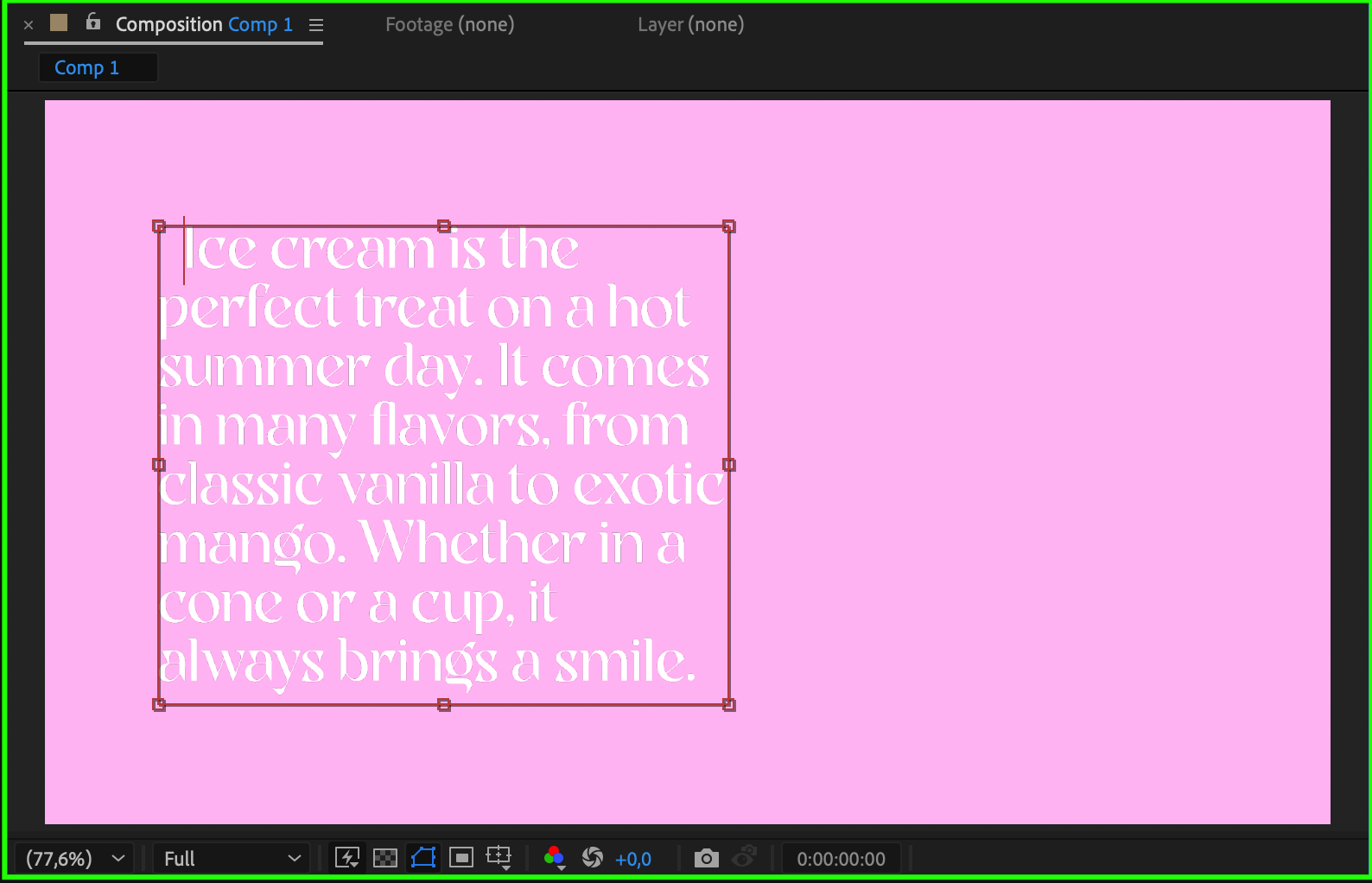 Step 3: Use the Paragraph Panel for Alignment and Indent
Go to Window > Paragraph to open the Paragraph panel. This panel allows you to align your text to the left, center, or right, and also lets you control spacing before and after paragraphs. To create an indentation at the beginning of a paragraph, adjust the “Indent First Line” value by entering your desired number.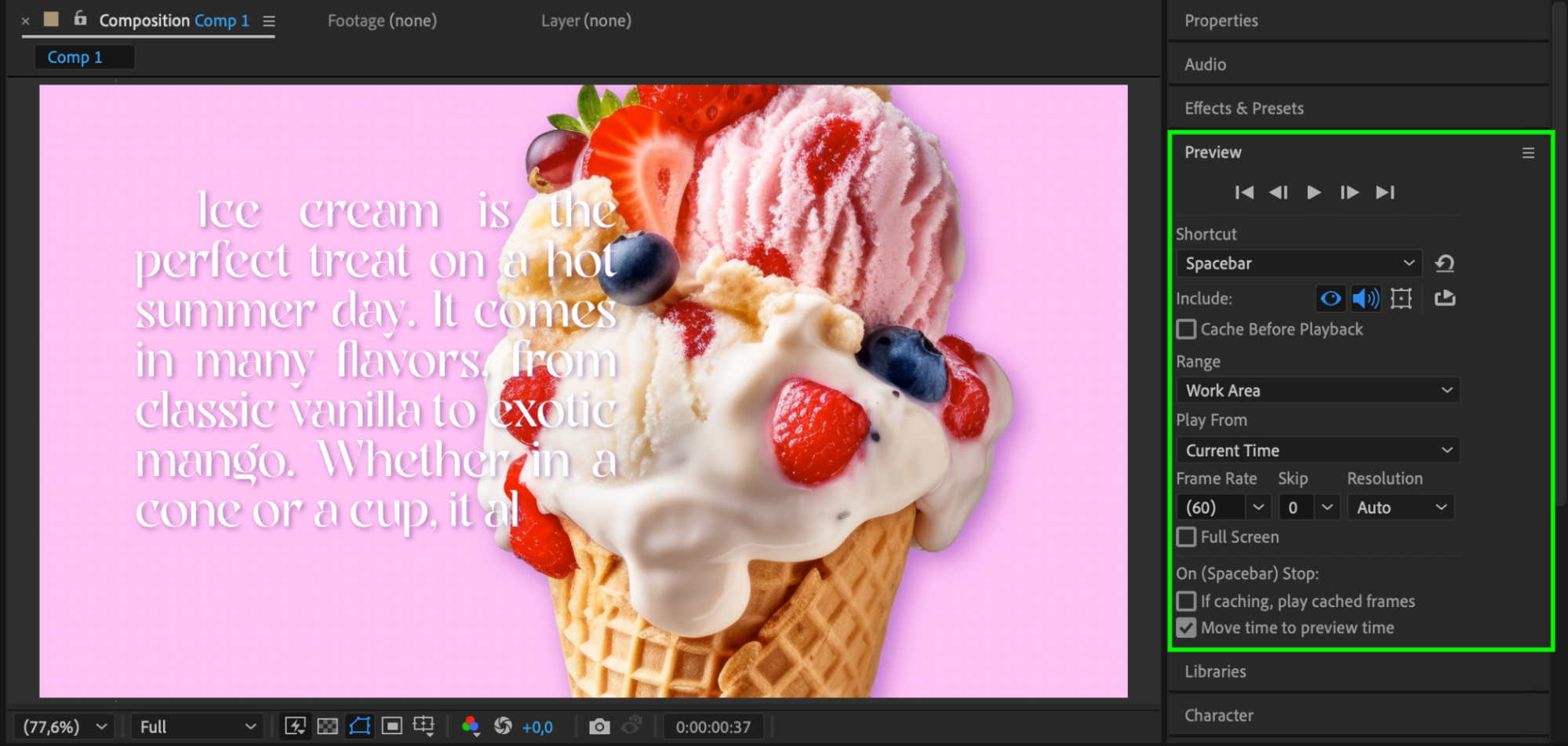
Step 4: Animate the Text
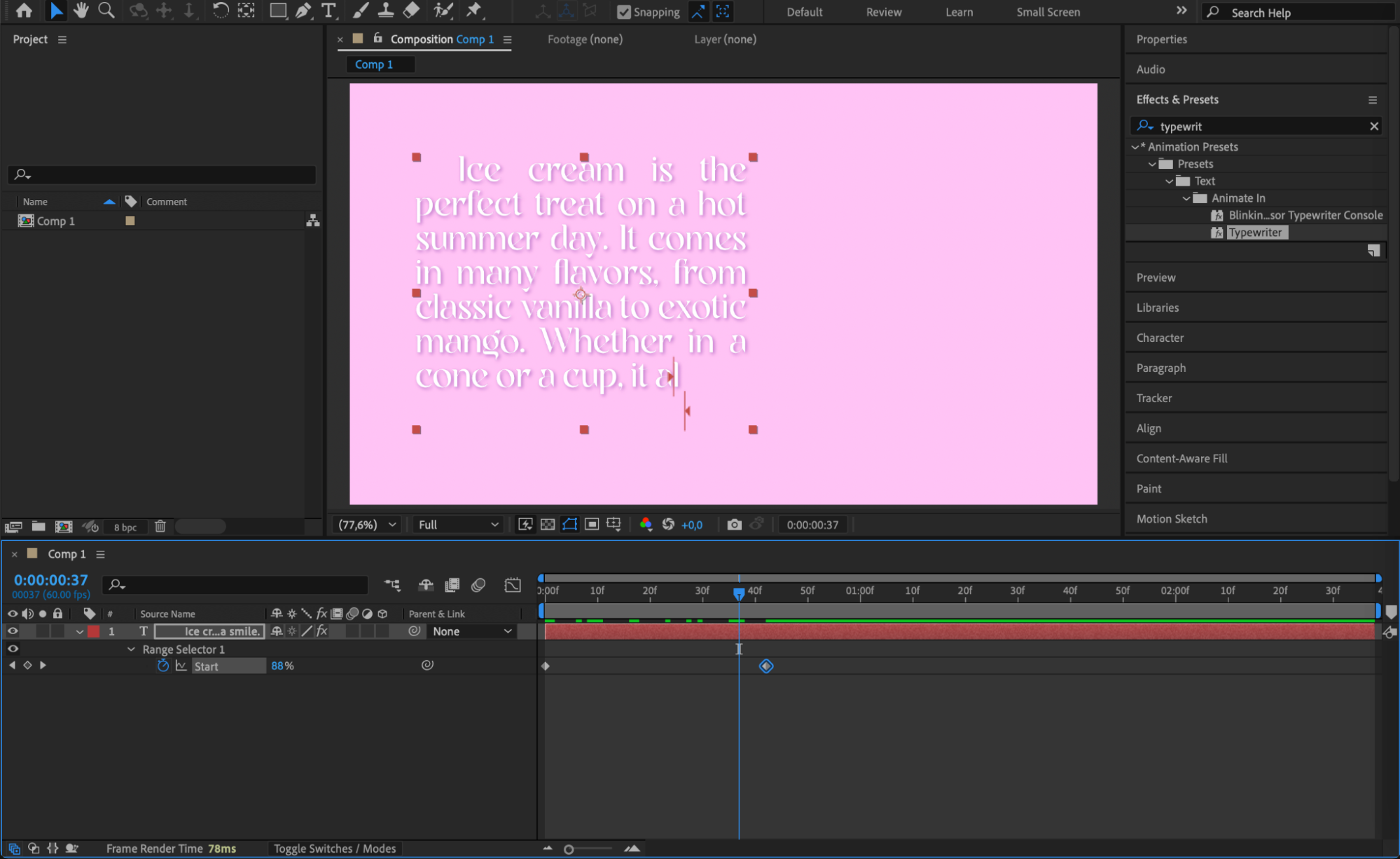
To add animation, you can create a custom text animation using keyframes for properties like opacity, position, or scale. Alternatively, use the built-in Typewriter animation preset by going to Animation > Browse Presets > Text > Animate In > Typewriter and applying it to your text layer.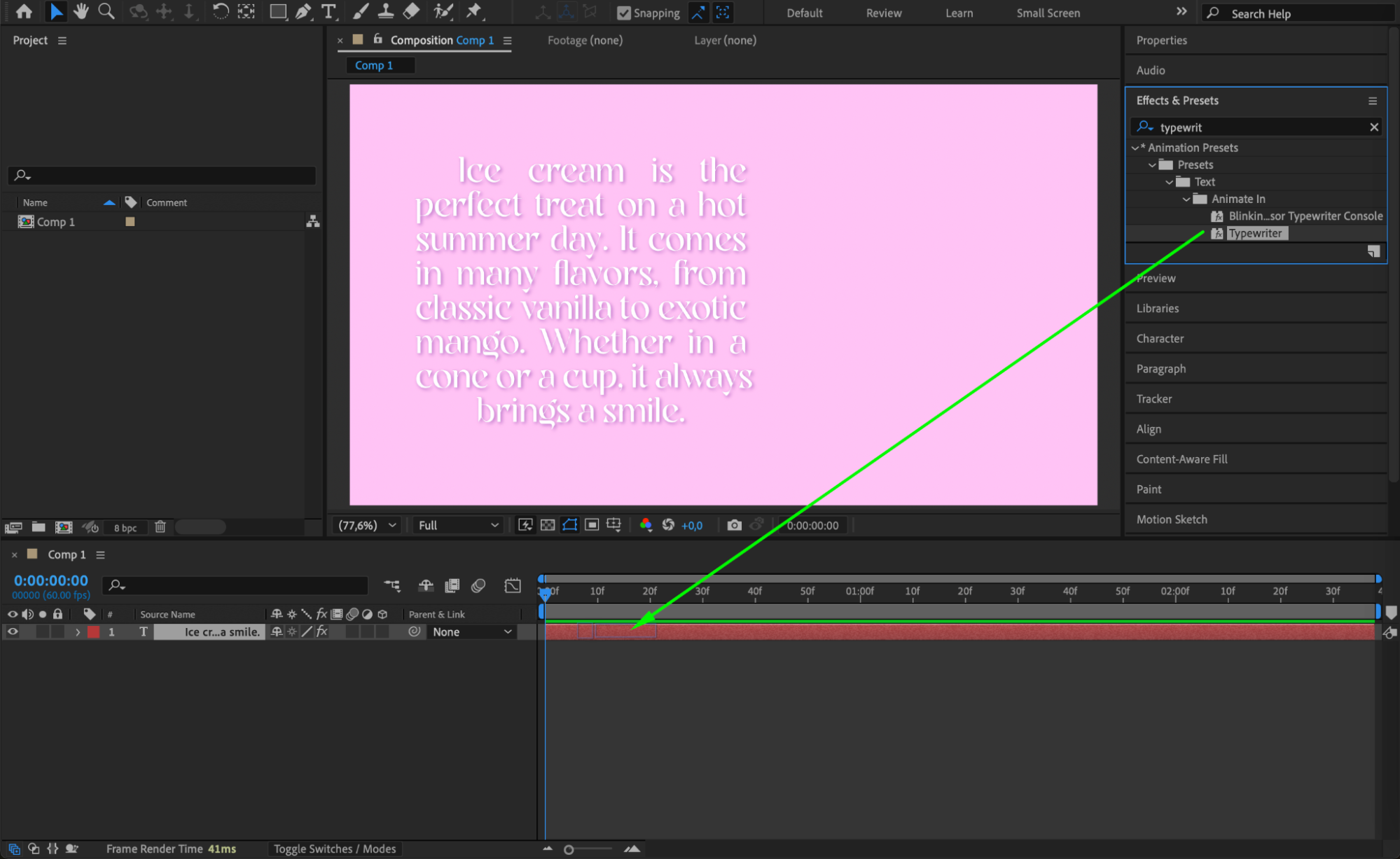
Step 5: Preview Your Composition
Press Spacebar to preview your text animation. Make sure your indent and alignment look clean and readable. Conclusion
Indenting text in Adobe After Effects may not be as straightforward as in word processors, but with the Paragraph panel and a few manual techniques, you can achieve clean and professional text formatting. Whether you’re designing motion titles, lower thirds, or rolling credits, understanding how to control spacing and alignment will help you create visually balanced compositions.
Our Bestsellers


