
Introduction
If you want to invert or transform a specific color in your footage — such as changing red to its opposite hue — you can easily do this with the Change Color effect. This method lets you target one color and flip it using hue adjustments.
Step 1: Import Your Footage
Go to File > Import > File, choose your video, and drag it into the timeline to begin editing.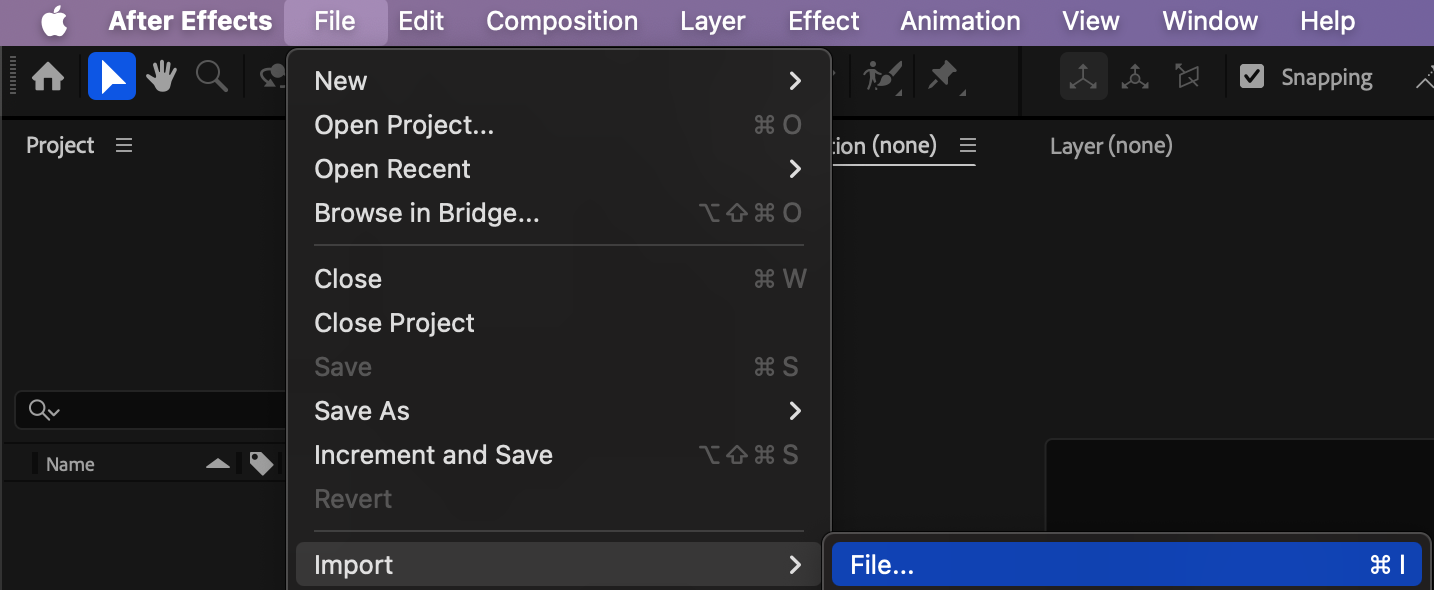
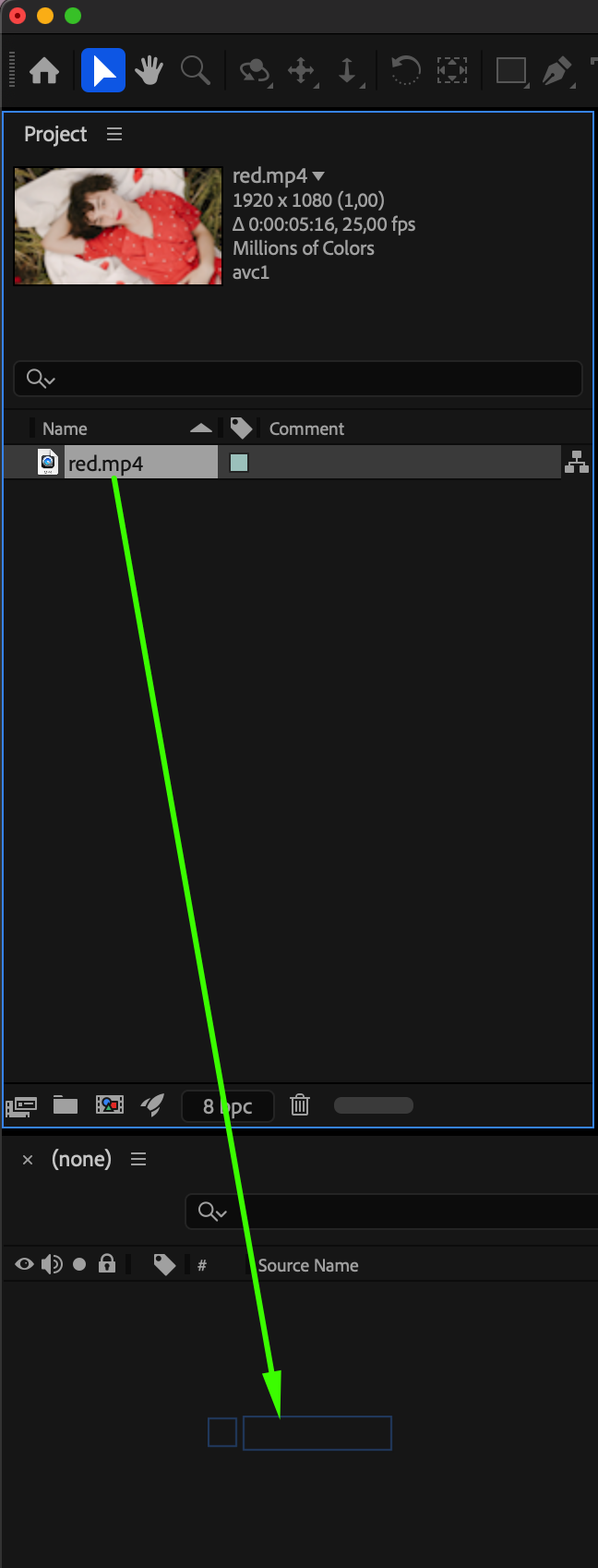
Step 2: Apply the Change Color Effect
Open the Effects & Presets panel and drag Change Color onto your video layer. Step 3: Select the Color to Invert
In the Effect Controls panel, use the eyedropper tool to pick the exact color you want to invert in your shot.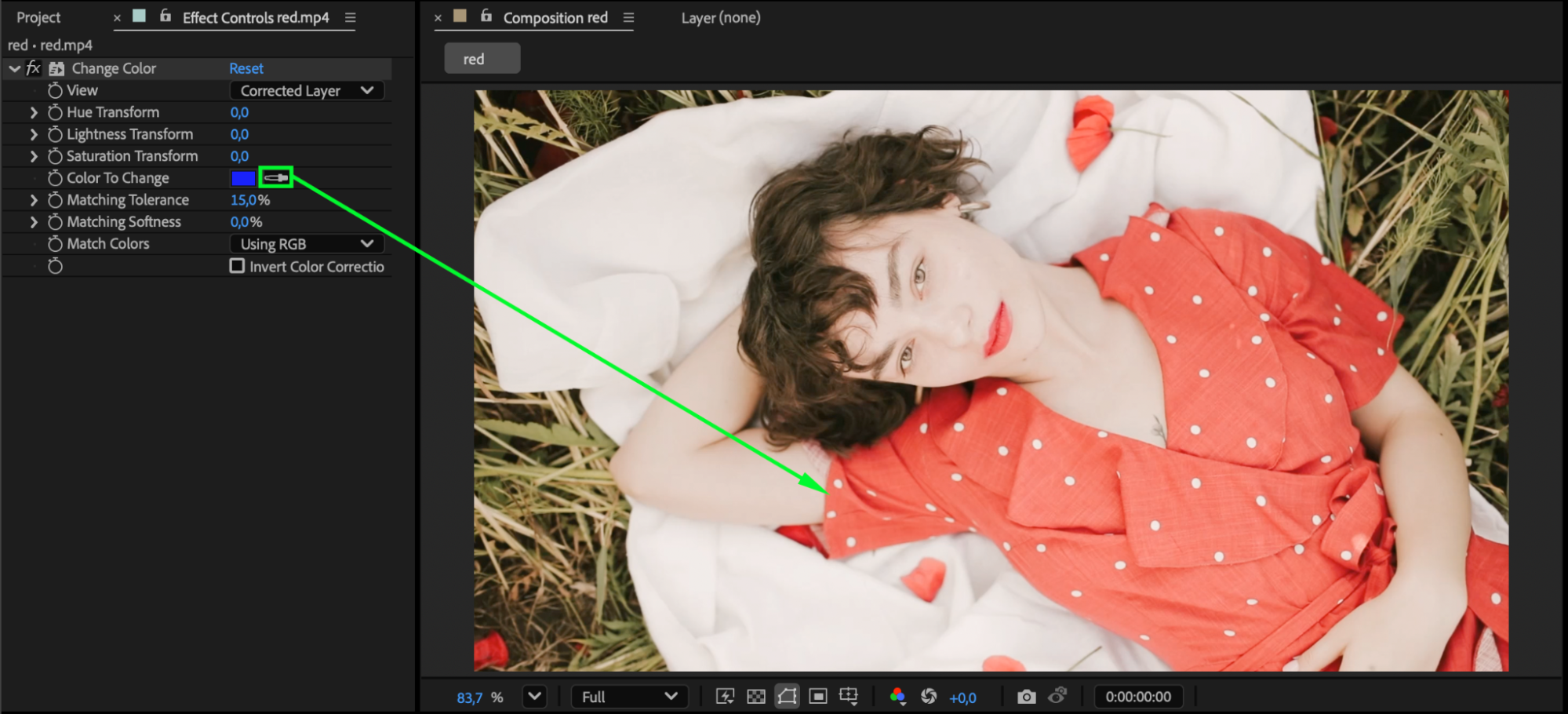
Step 4: Invert the Color Using Hue Transform
In the same Effect Controls panel, adjust the following:
Hue Transform: set to 180° to invert the selected color
Match Colors: choose Using Chroma
Refine other settings like Color Tolerance, Hue, Lightness, or Saturation as needed
Tip:
If your color has multiple similar shades (for example, different tones of red), duplicate the Change Color effect in the Effect Controls panel and select another shade with the eyedropper. Repeat this as needed to achieve a clean and complete inversion of all tones.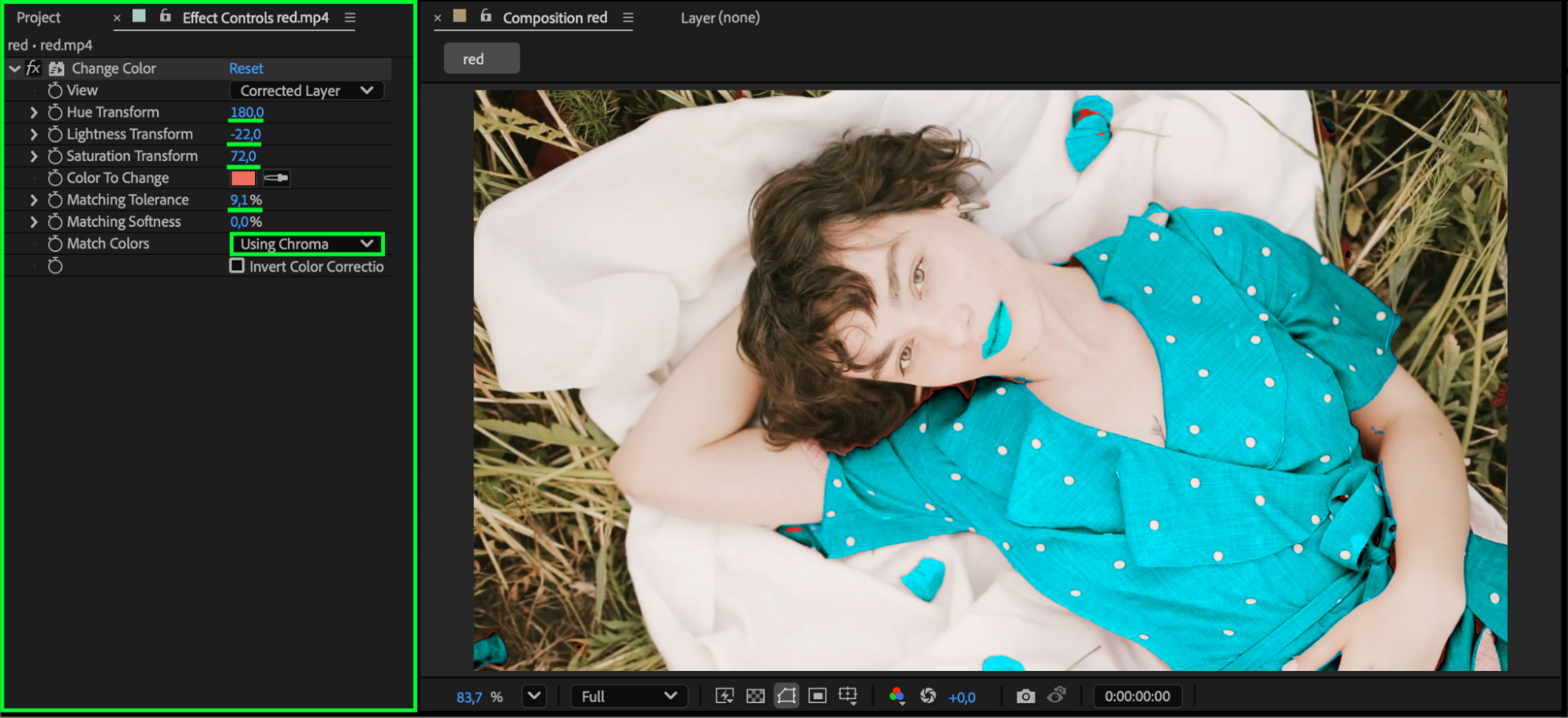 Step 5: Preview and Fine-Tune
Press Spacebar to preview your result. Continue refining the duplicated effects and tolerances until the inversion looks balanced and smooth. Conclusion
By using and duplicating the Change Color effect, you can invert any color — even complex multi-tone areas — with precision. This technique gives you clean, controllable color transformations that work well for stylized looks, creative effects, or color correction tasks in After Effects.
Our Bestsellers
Our Bestsellers


