
Create a Smooth Hyperlapse in After Effects
Introduction to the Hyperlapse Technique in After Effects
A hyperlapse is a type of time-lapse animation where the camera moves over long distances, creating a dynamic and cinematic effect. In After Effects, you can make a hyperlapse by combining stabilization, time control, and motion techniques. This guide will walk you through each step in a simple and practical way.
Step 1: Import Your Image Sequence or Footage
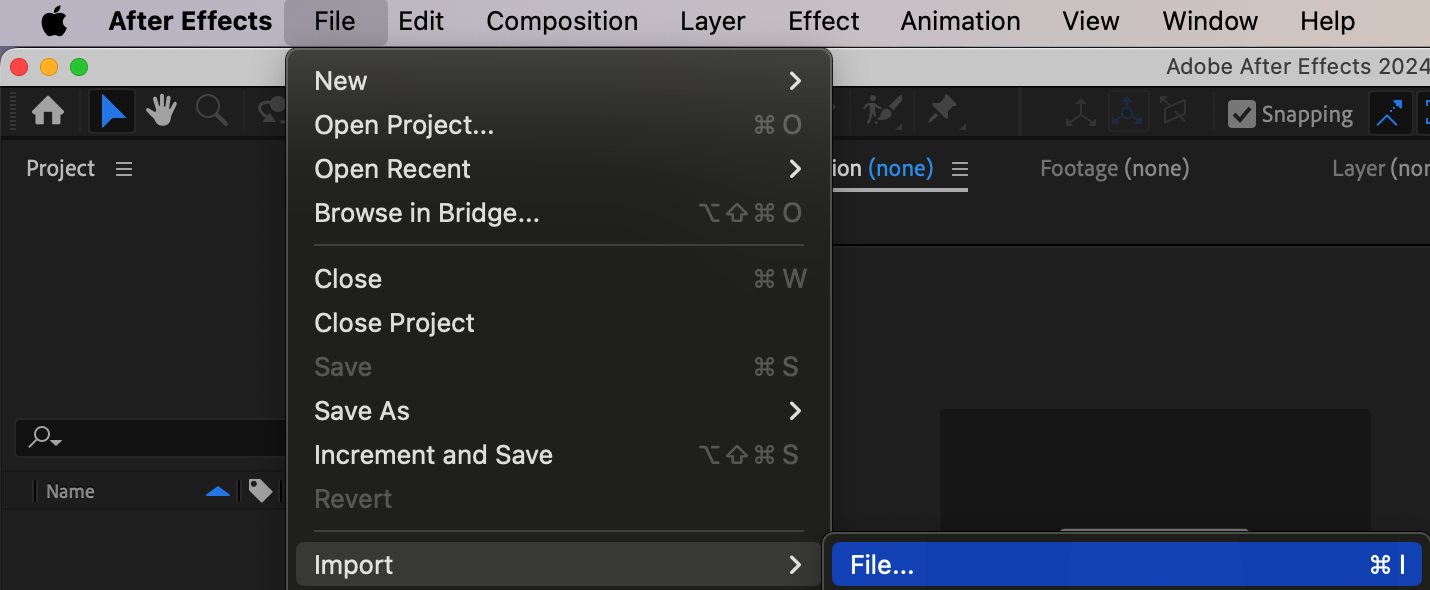
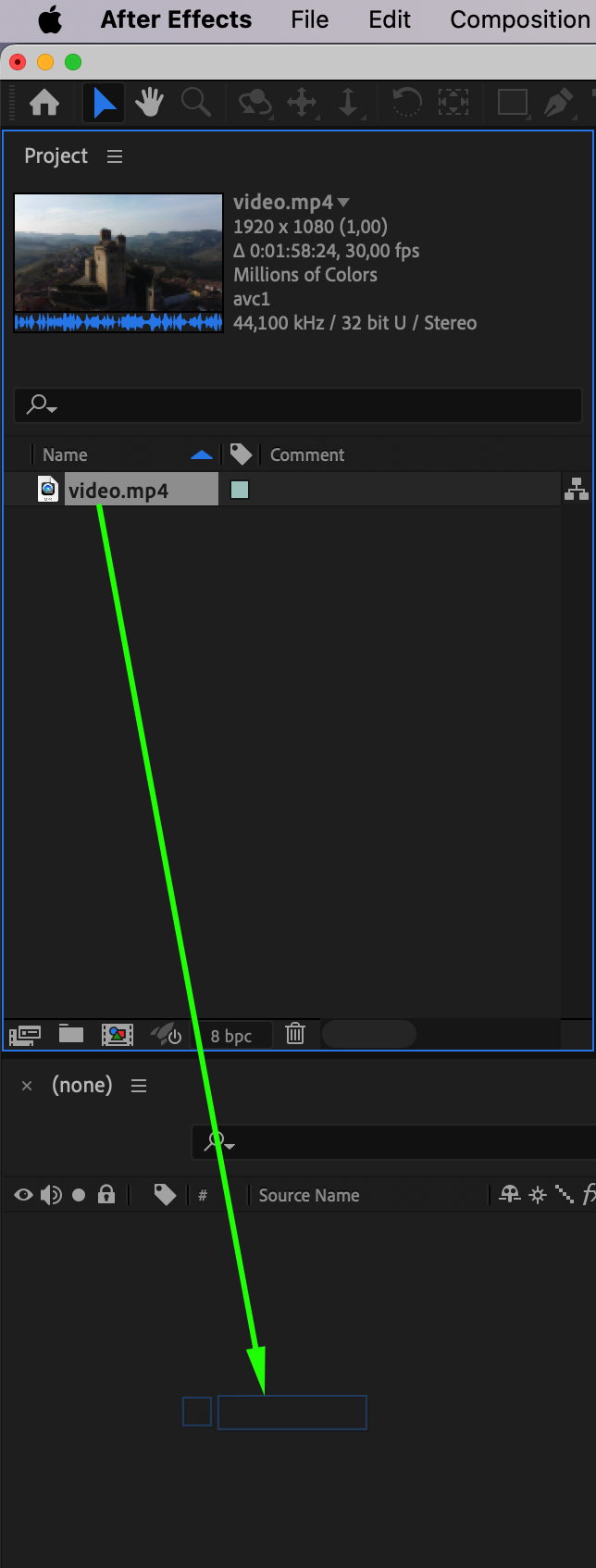
Go to File > Import > File, and select your hyperlapse image sequence or video footage. If you’re using images, make sure they’re numbered sequentially. Drag the sequence or video to the timeline to create a new composition.
 Step 2: Stabilize the Footage Using Warp Stabilizer
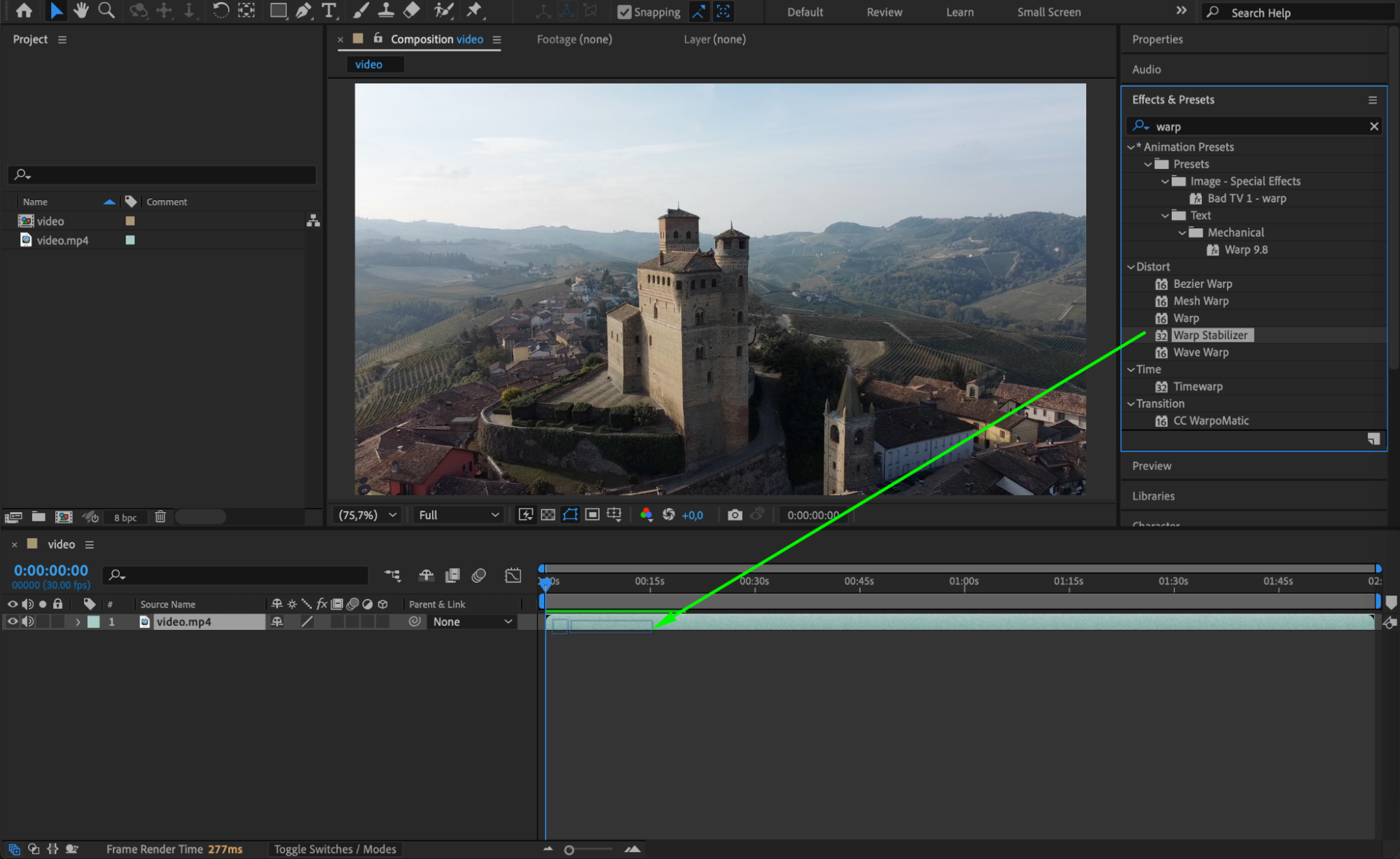
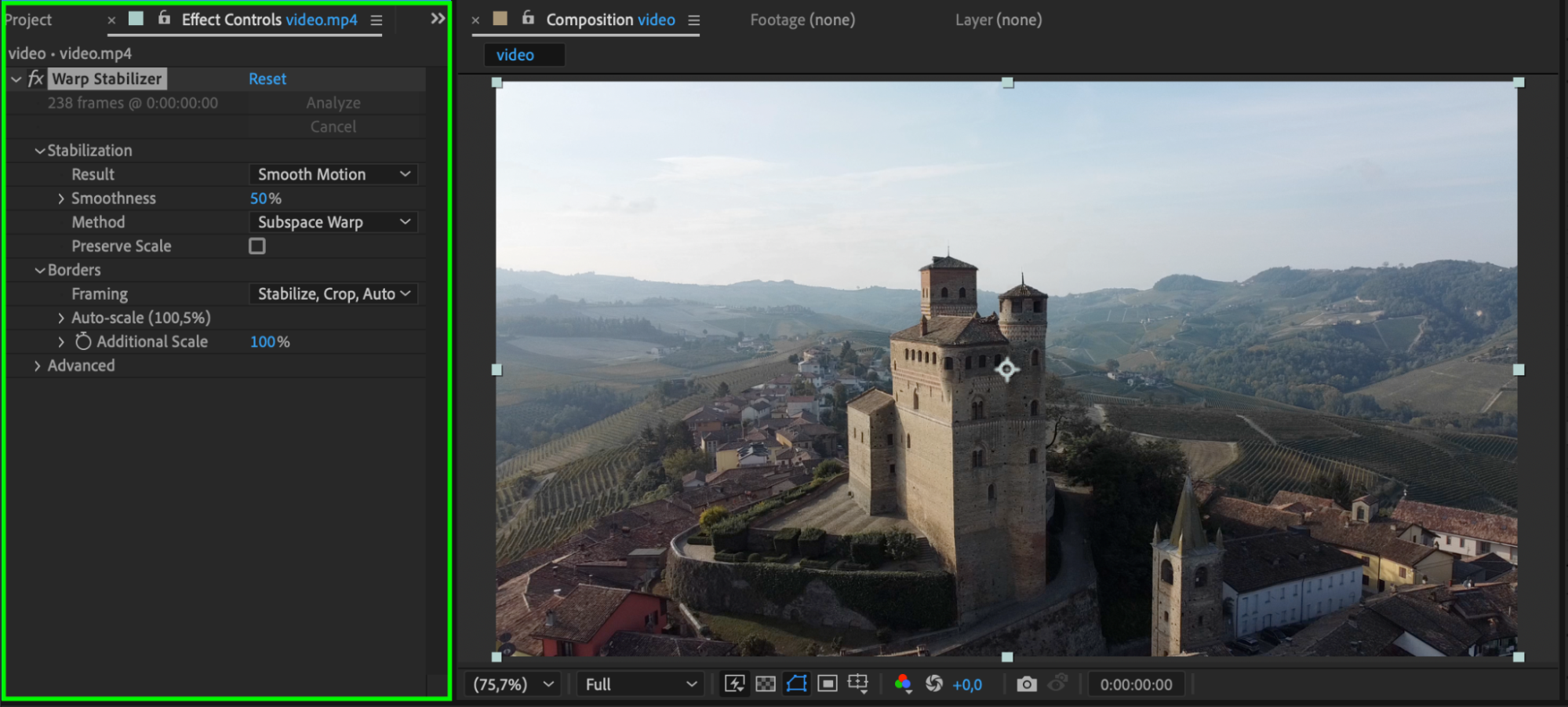
Select your footage in the timeline, then go to the Effects & Presets panel and apply the Warp Stabilizer effect. Set Result to Smooth Motion and Smoothness to around 50%. Let After Effects analyze and stabilize the clip. This will help reduce unwanted camera shake.
Step 3: Adjust the Speed with Time Stretch
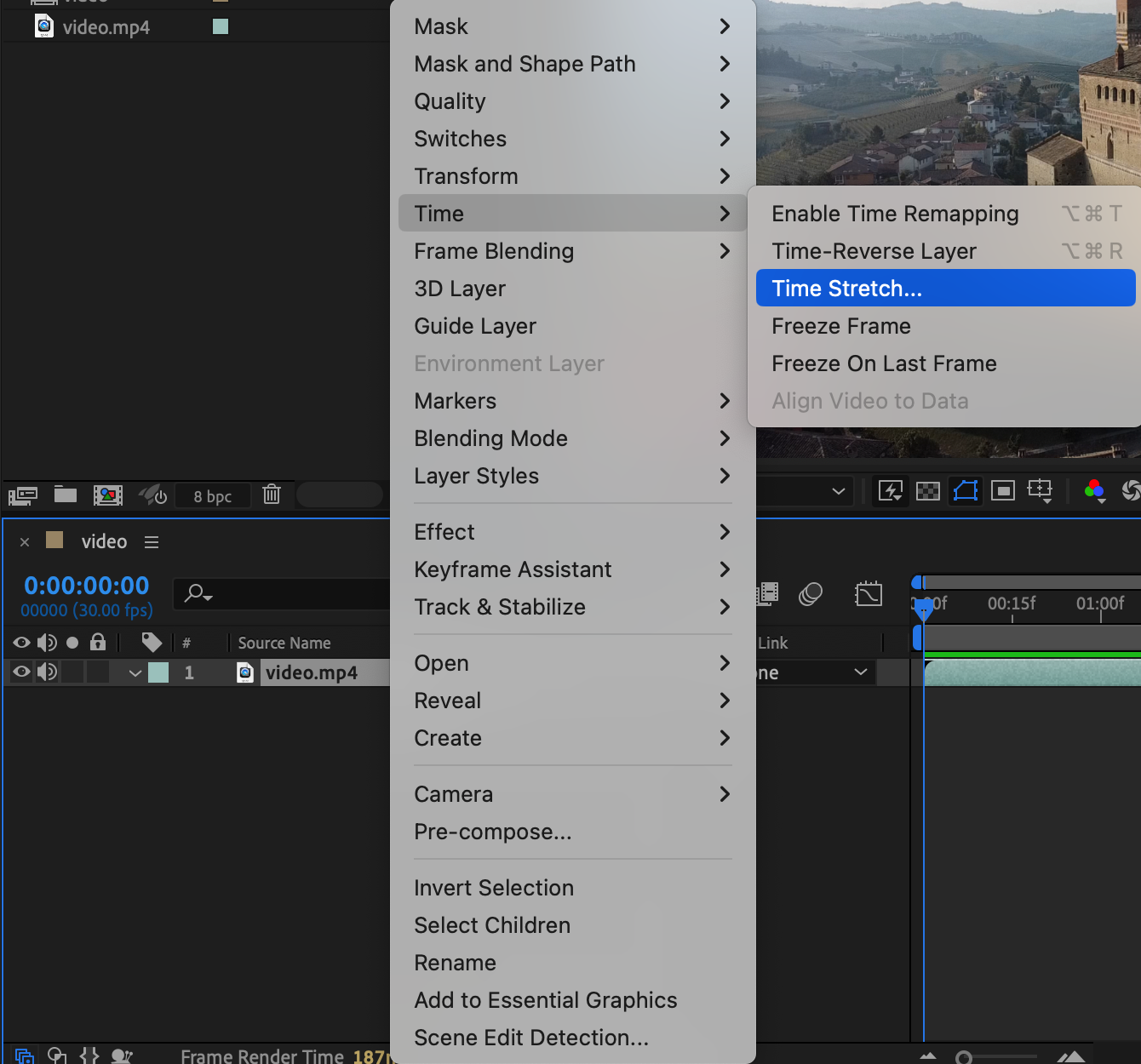
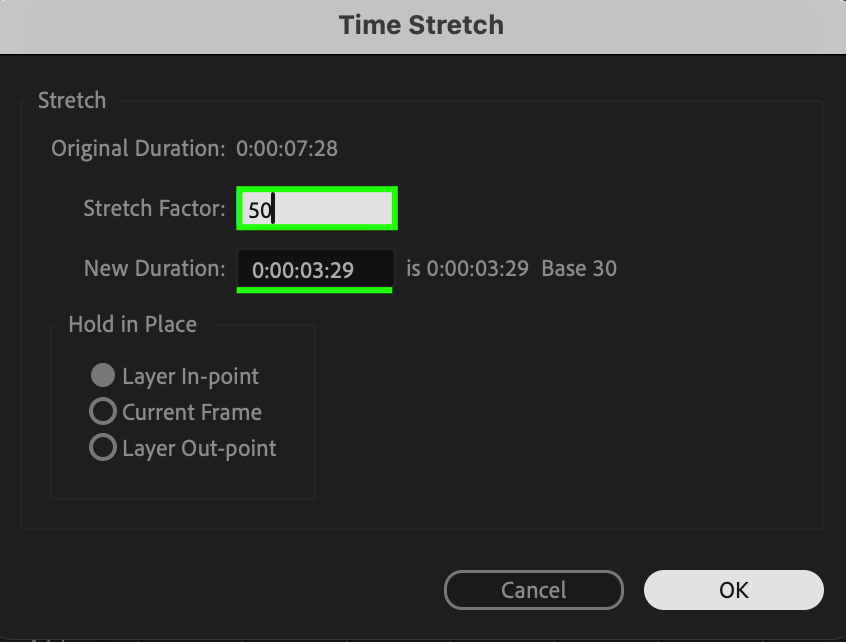
Right-click your footage layer and choose Time > Time Stretch. Set the Stretch Factor to 50 and click OK. This will double the playback speed, giving you a fast, time-lapse-style motion.
 Step 4: Add Scale and Position Keyframes
Select your footage and press “S” for Scale and “P” for Position. Add keyframes at the beginning and end of the timeline. Slightly adjust the position over time to add forward motion. Increase the scale a bit to avoid black edges from the stabilization.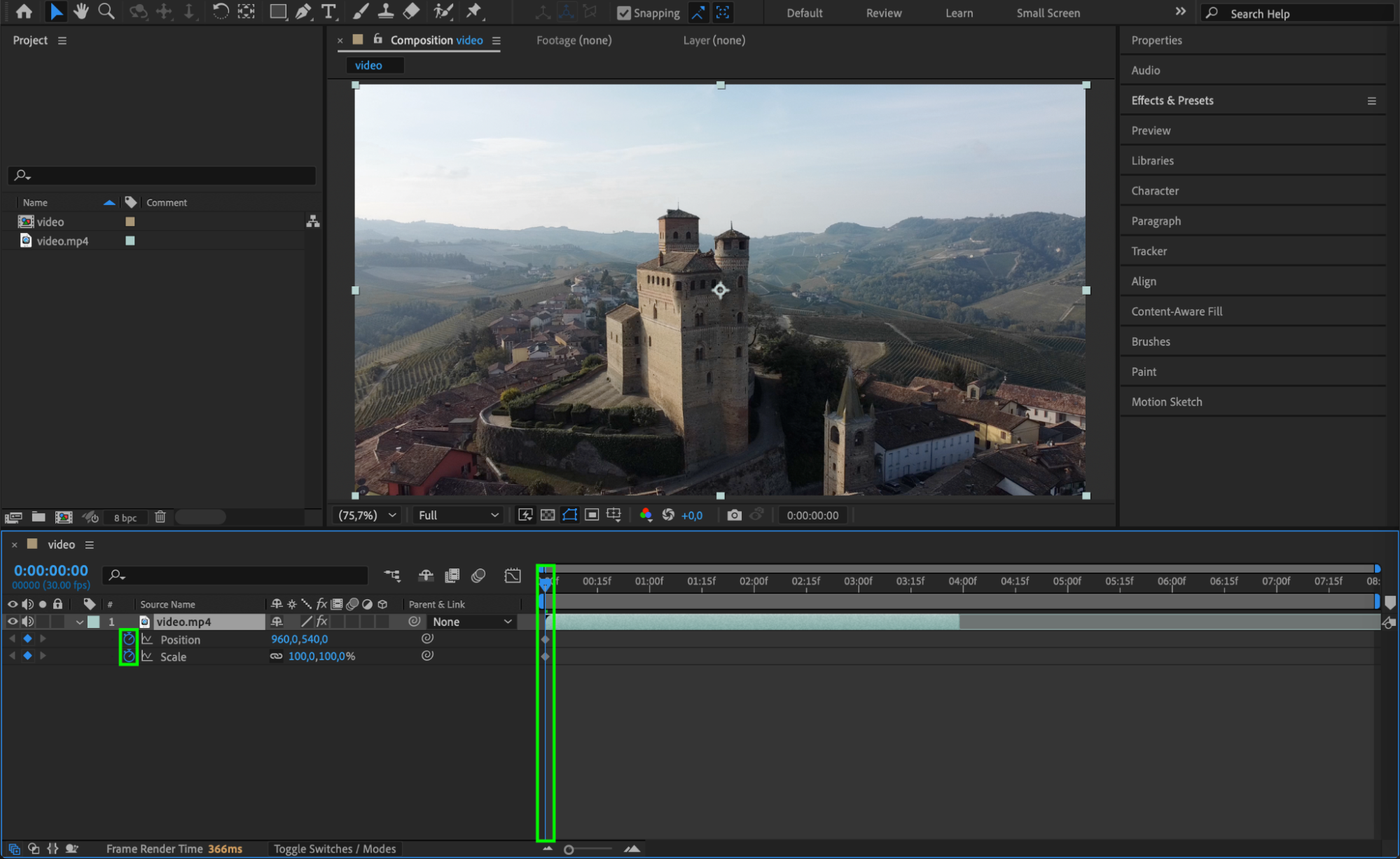
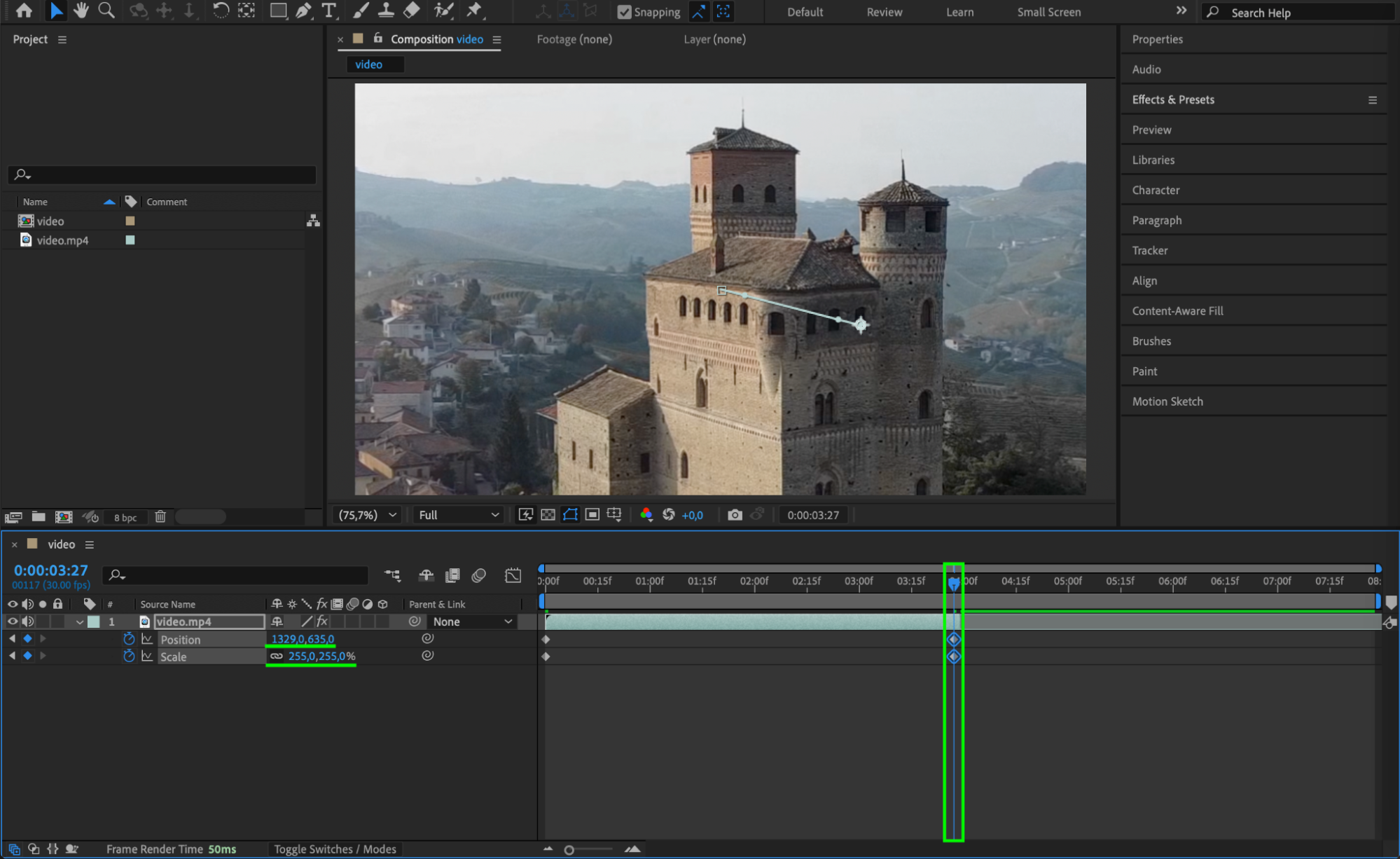 Step 5: Use Easy Ease and Graph Editor for Smoother Motion
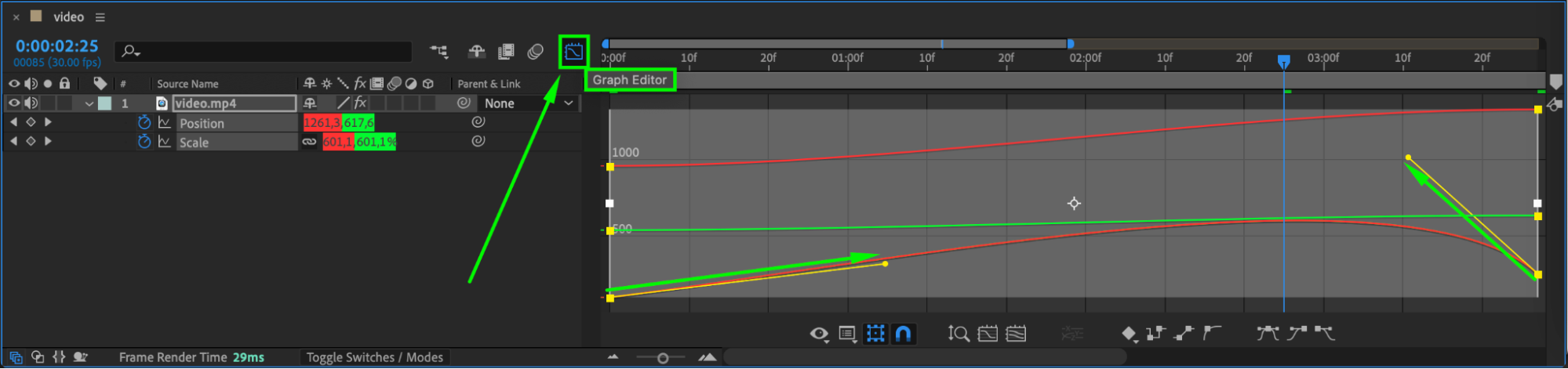
Select your keyframes, right-click, and choose Keyframe Assistant > Easy Ease. Then open the Graph Editor and adjust the speed curves for a more natural acceleration and deceleration. This helps the movement feel smooth and professional.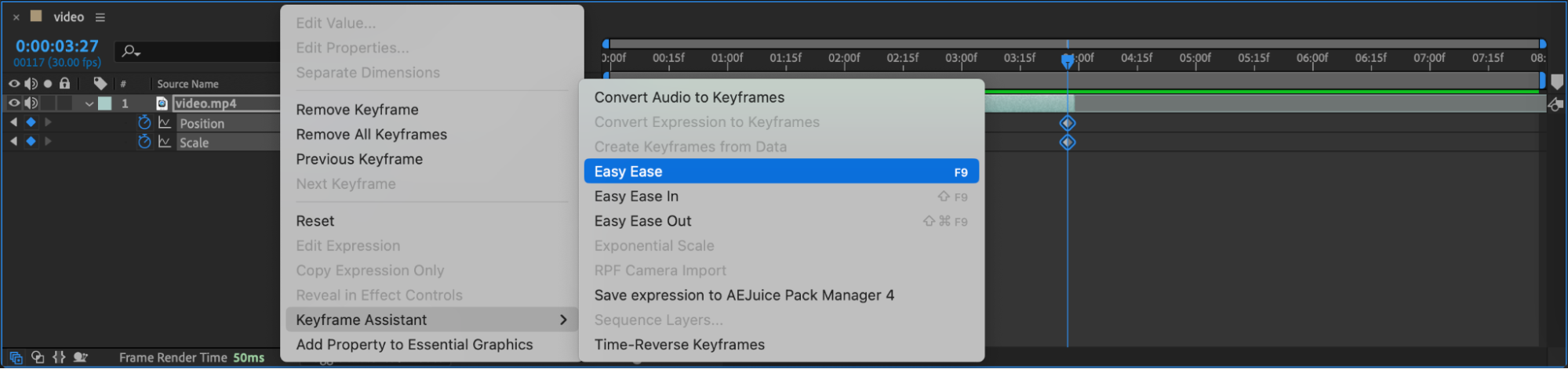
Step 6: Add Motion Blur for Realism
Enable Motion Blur for your footage layer by clicking the motion blur icon in the timeline. Then activate the master Motion Blur switch at the top of the timeline. This will add a subtle blur to fast movement, making your hyperlapse more realistic.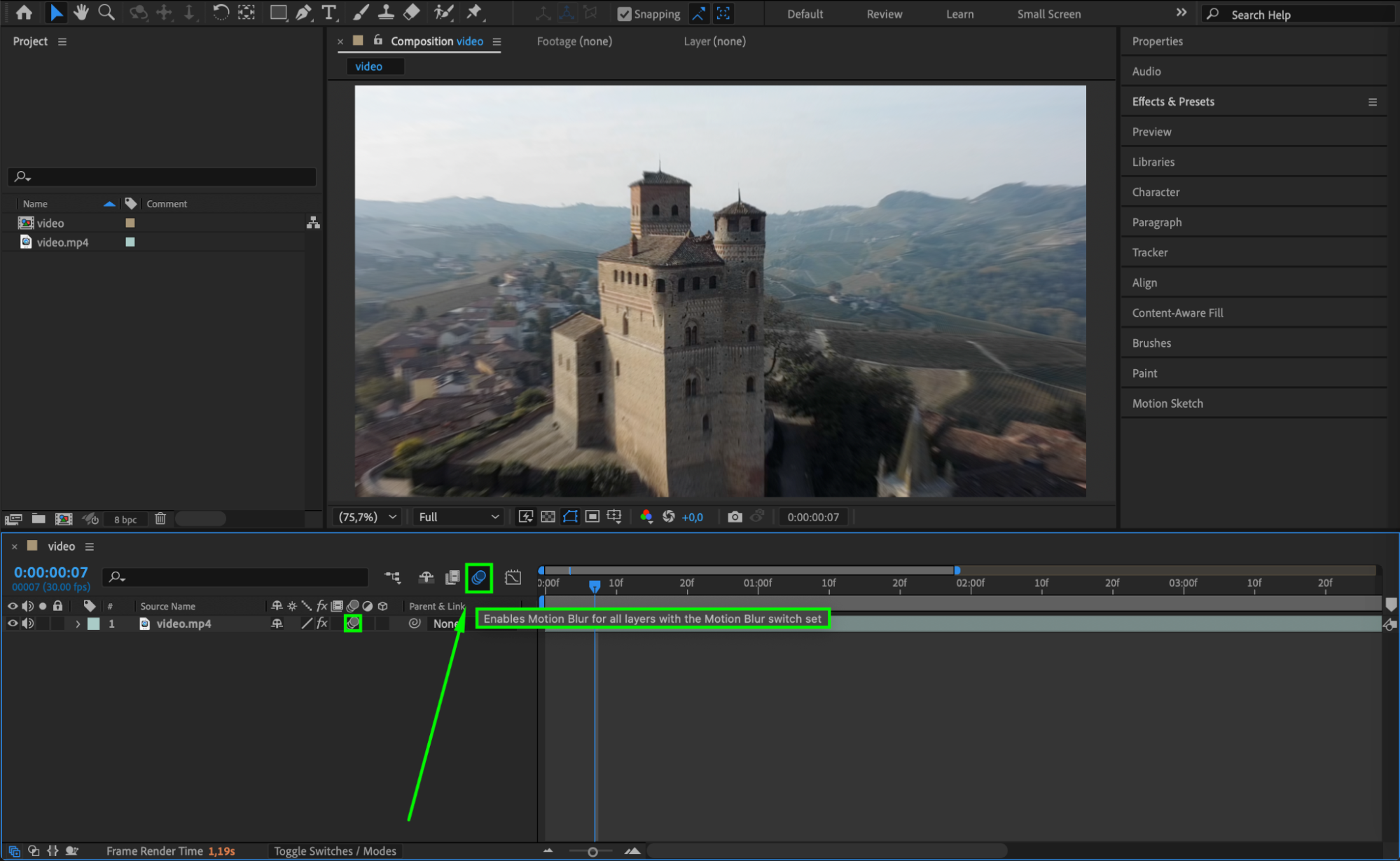 Step 7: Preview Your Hyperlapse
Press the spacebar to preview the animation. Make sure everything flows smoothly and the movement feels natural. If needed, go back and adjust the position, speed, or stabilization settings.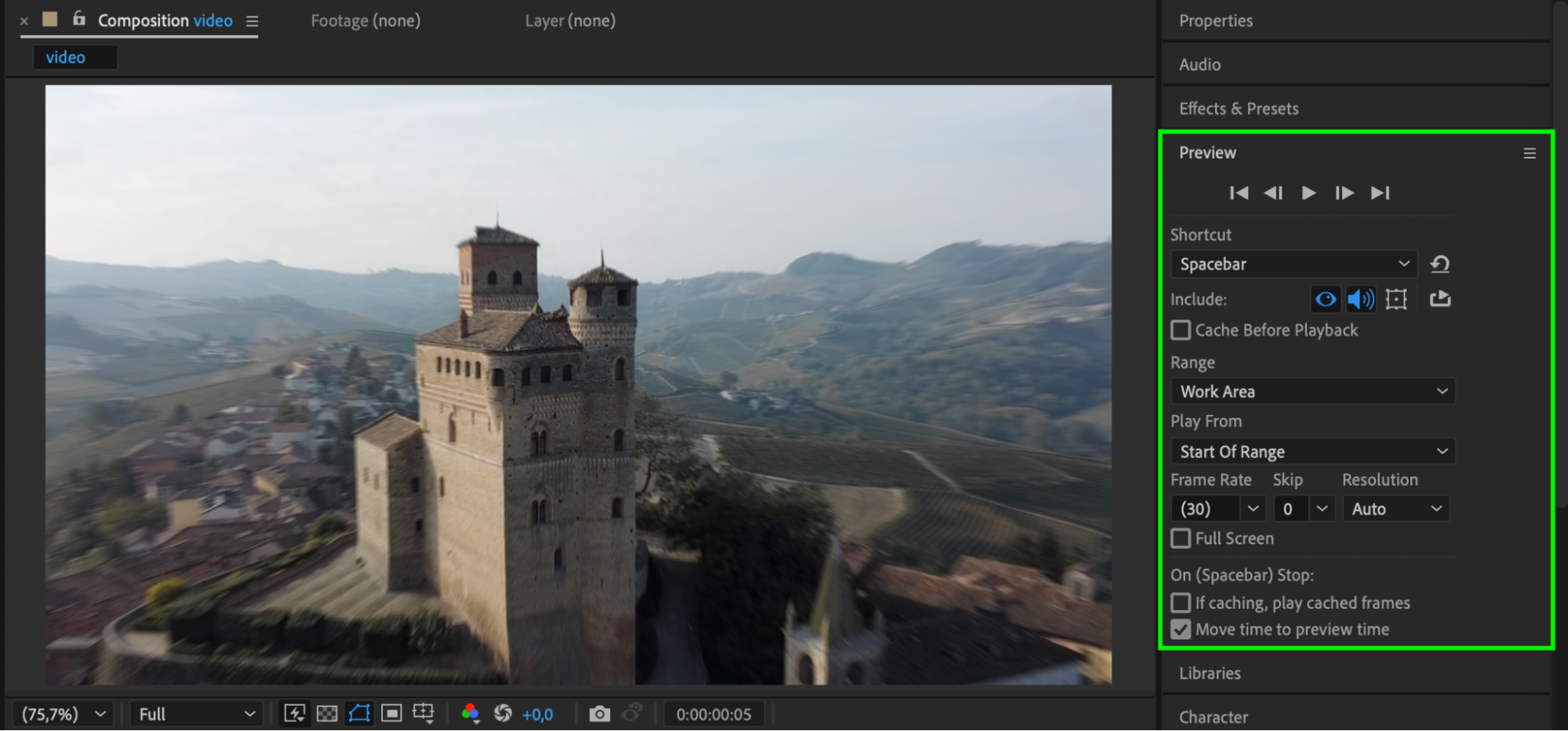 Step 8: Trim the Composition to Match Your Footage
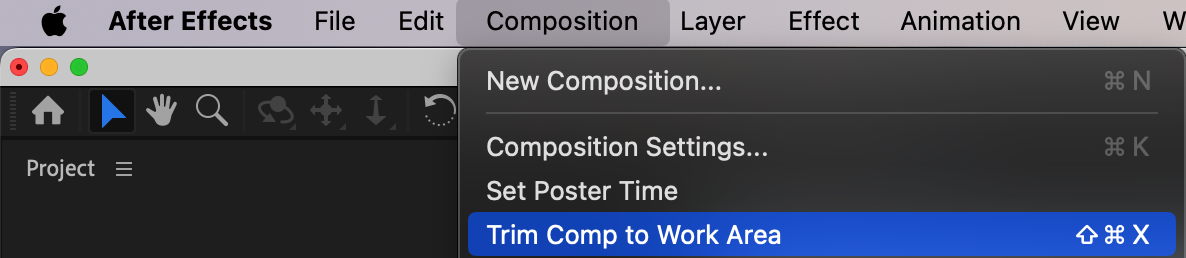
Drag the Work Area End slider to match the end of your footage. Then go to Composition > Trim Comp to Work Area. This step shortens your composition to match the length of your final animation.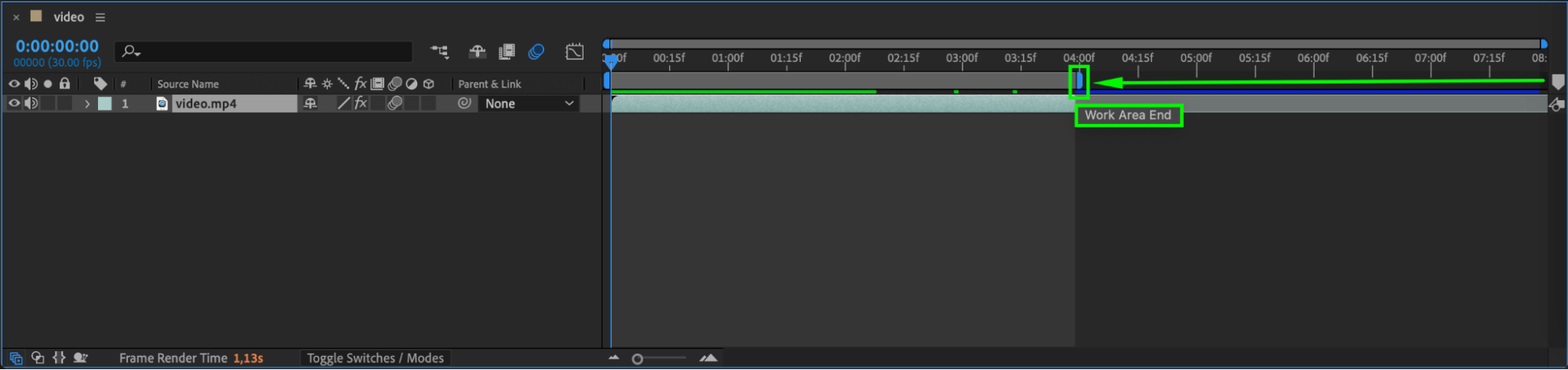
 Step 9: Export Your Final Animation
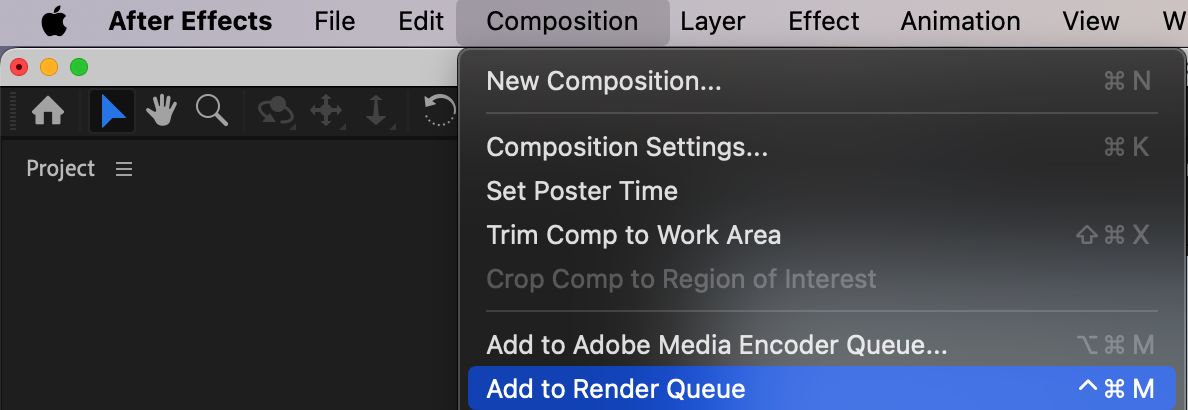
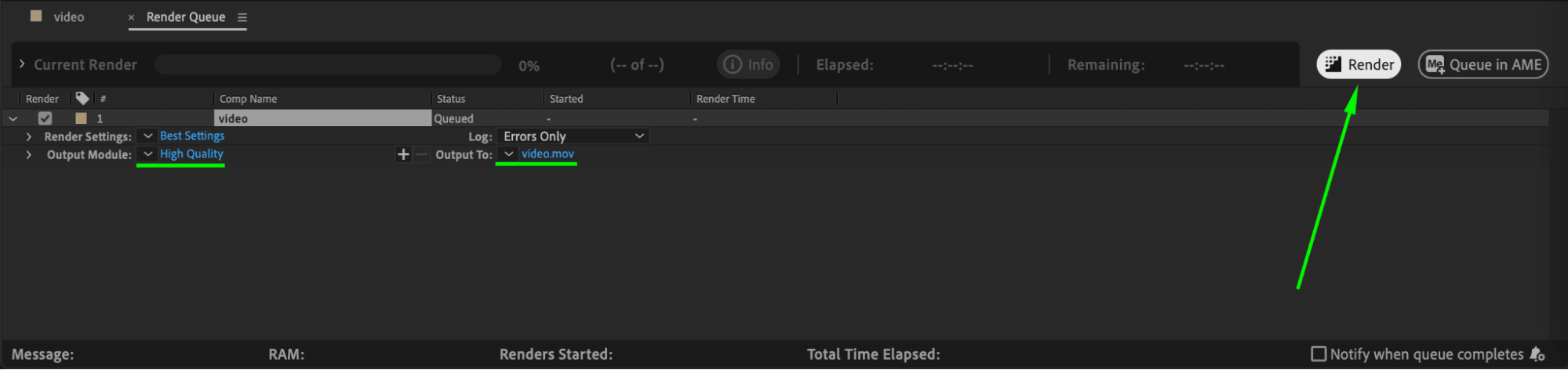
Once you’re happy with your hyperlapse, go to Composition > Add to Render Queue, or export using Adobe Media Encoder. Choose your preferred format and resolution, then render your final video.
 Conclusion
Creating a hyperlapse in After Effects can bring motion and cinematic energy to your project. By using stabilization, time stretching, and precise keyframing, you can transform simple footage into a dynamic sequence. Keep experimenting with movement and speed to find your perfect style.
Our Bestsellers
Our Bestsellers


