
Introduction
A glowing entrance effect adds a dramatic, illuminated look to doorways, hallways, or any opening in your footage. By combining the Roto Brush tool with the Glow effect, you can create a bright, atmospheric light source that feels natural and eye-catching.
Step 1: Import Your Footage
Go to File > Import > File, choose your video, and drag it into the timeline to begin working on the effect.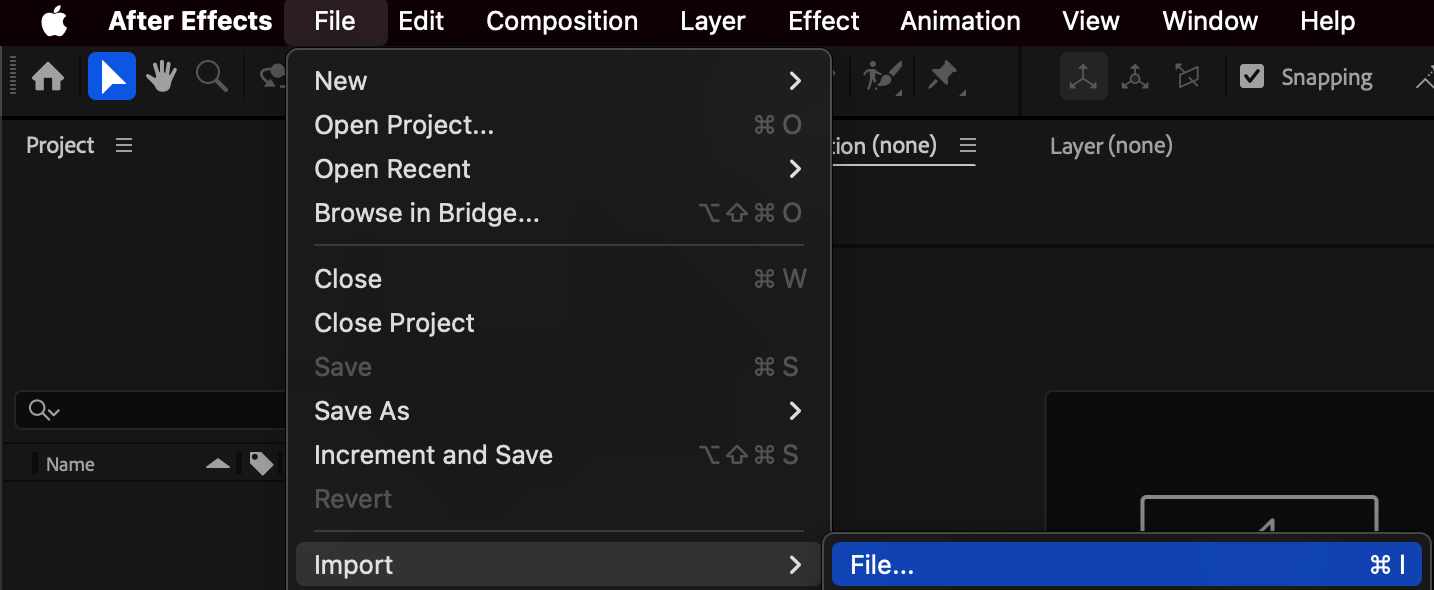
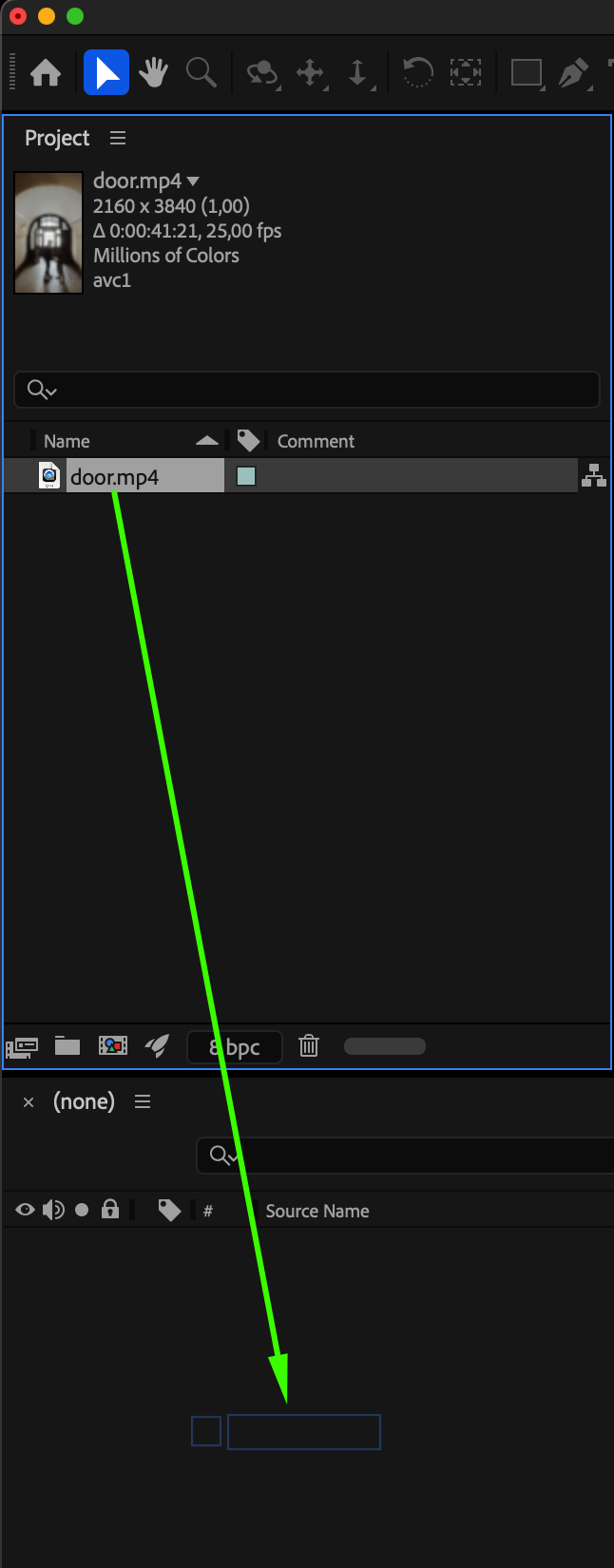 Step 2: Duplicate the Layer and Isolate the Entrance
Duplicate your video layer (Ctrl/Cmd + D). Double-click the duplicated layer to open it in the Layer Panel. Use the Roto Brush Tool (Alt/Option + W) and paint over the entrance area you want to isolate. After Effects will create a rotoscope selection.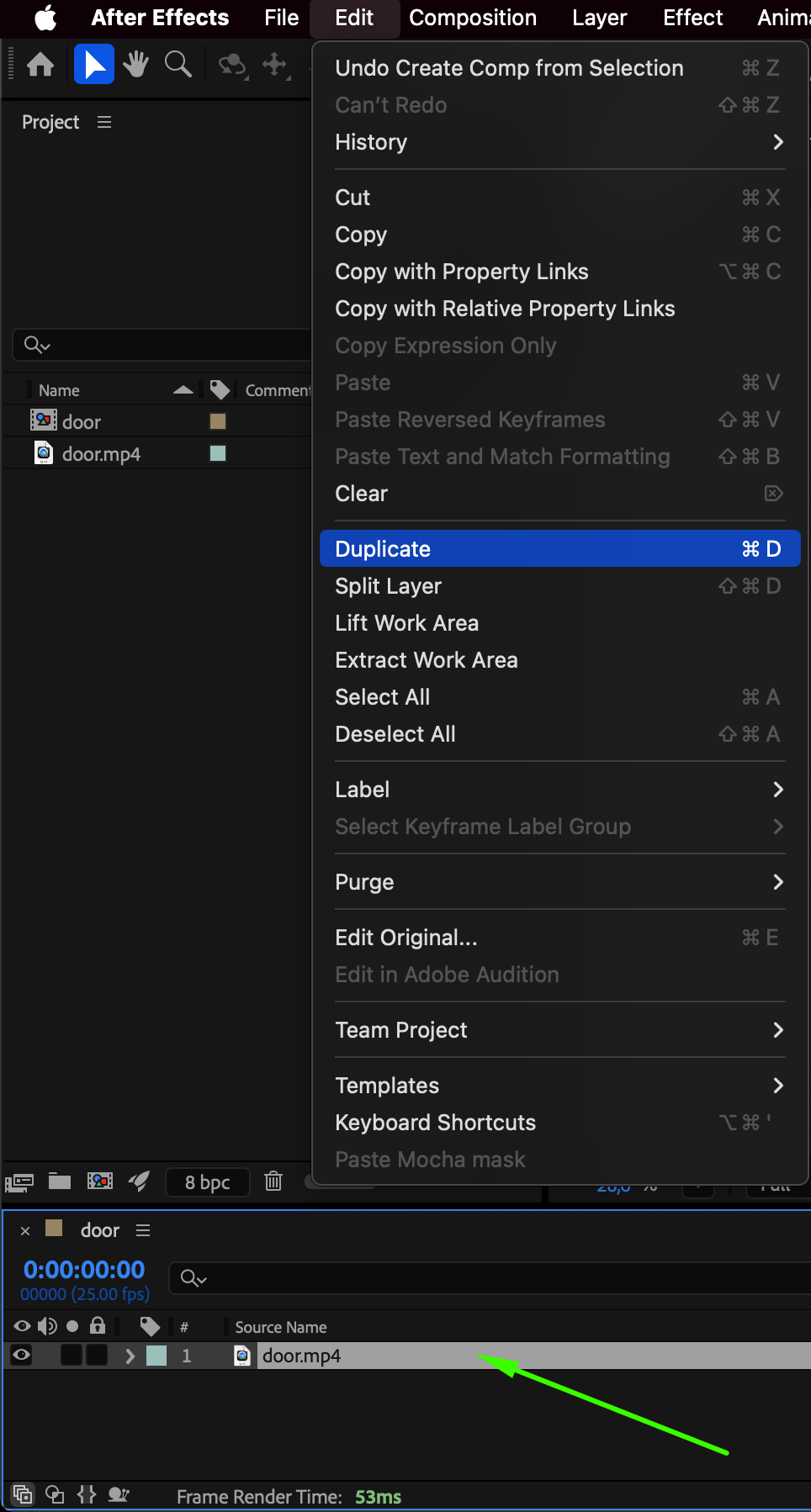
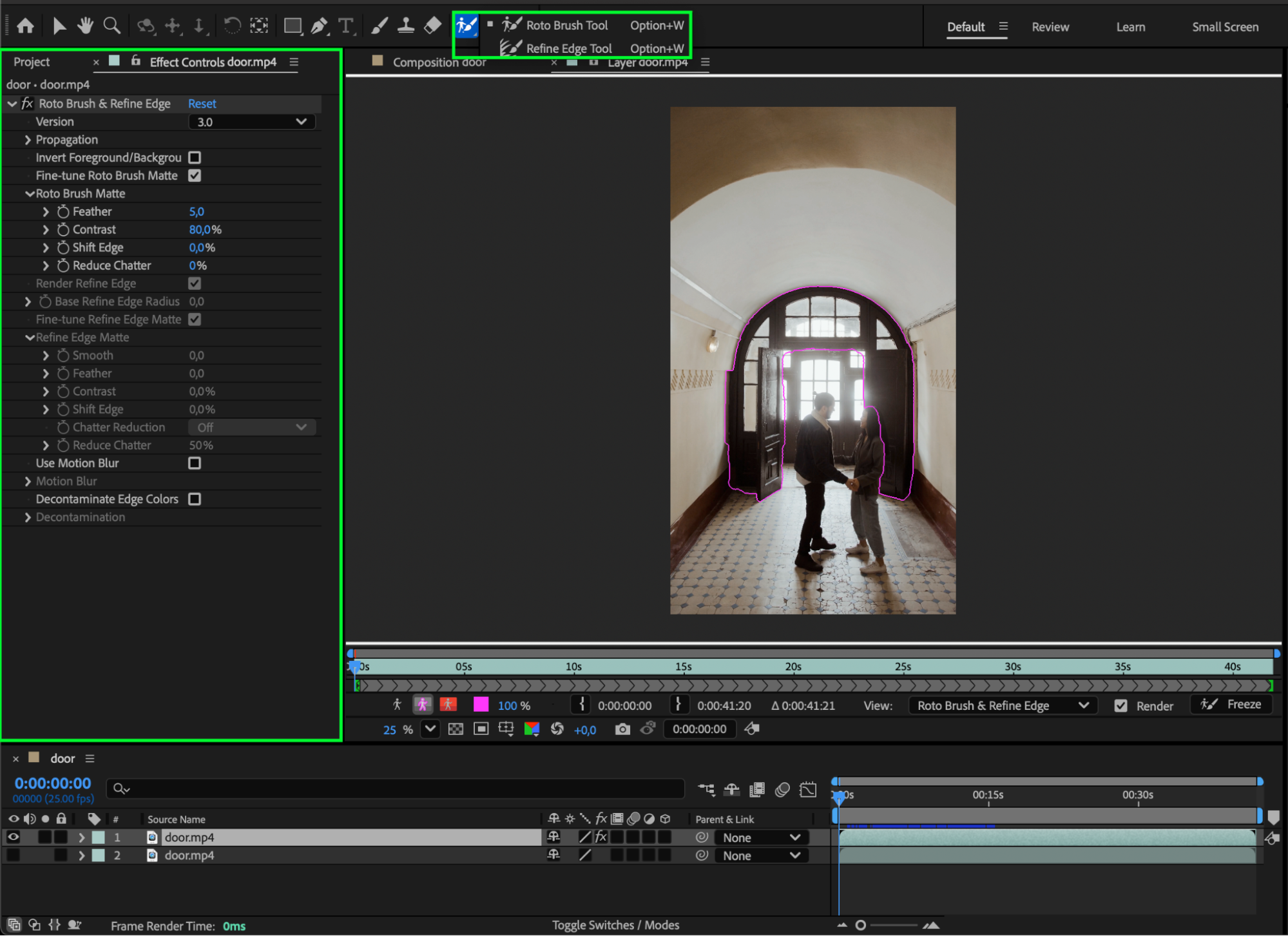
Step 3: Freeze the Roto Brush
Once your selection is clean, click Freeze in the Layer Panel. This locks the rotoscope and prevents further recalculation.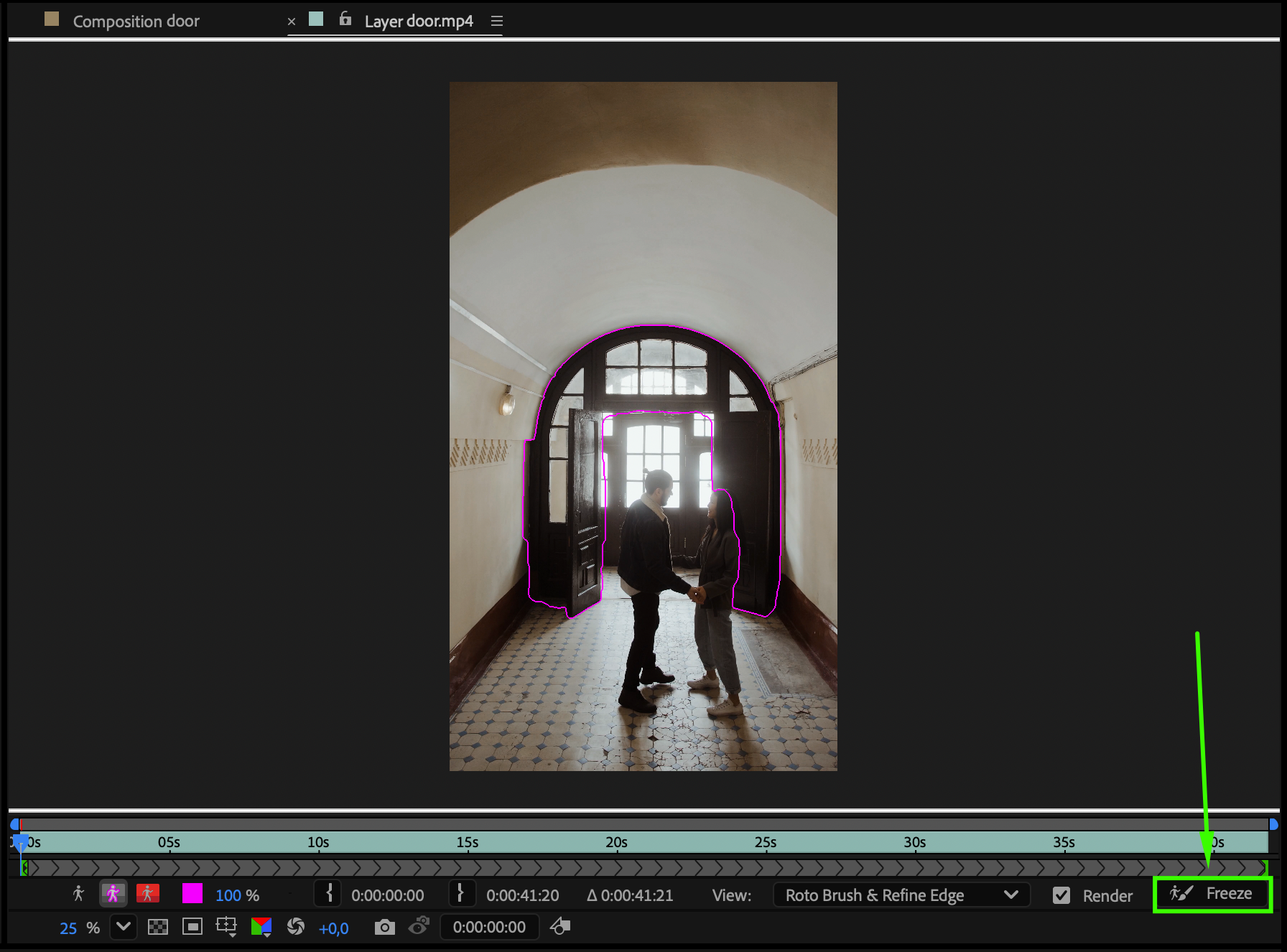 Step 4: Apply the Glow Effect
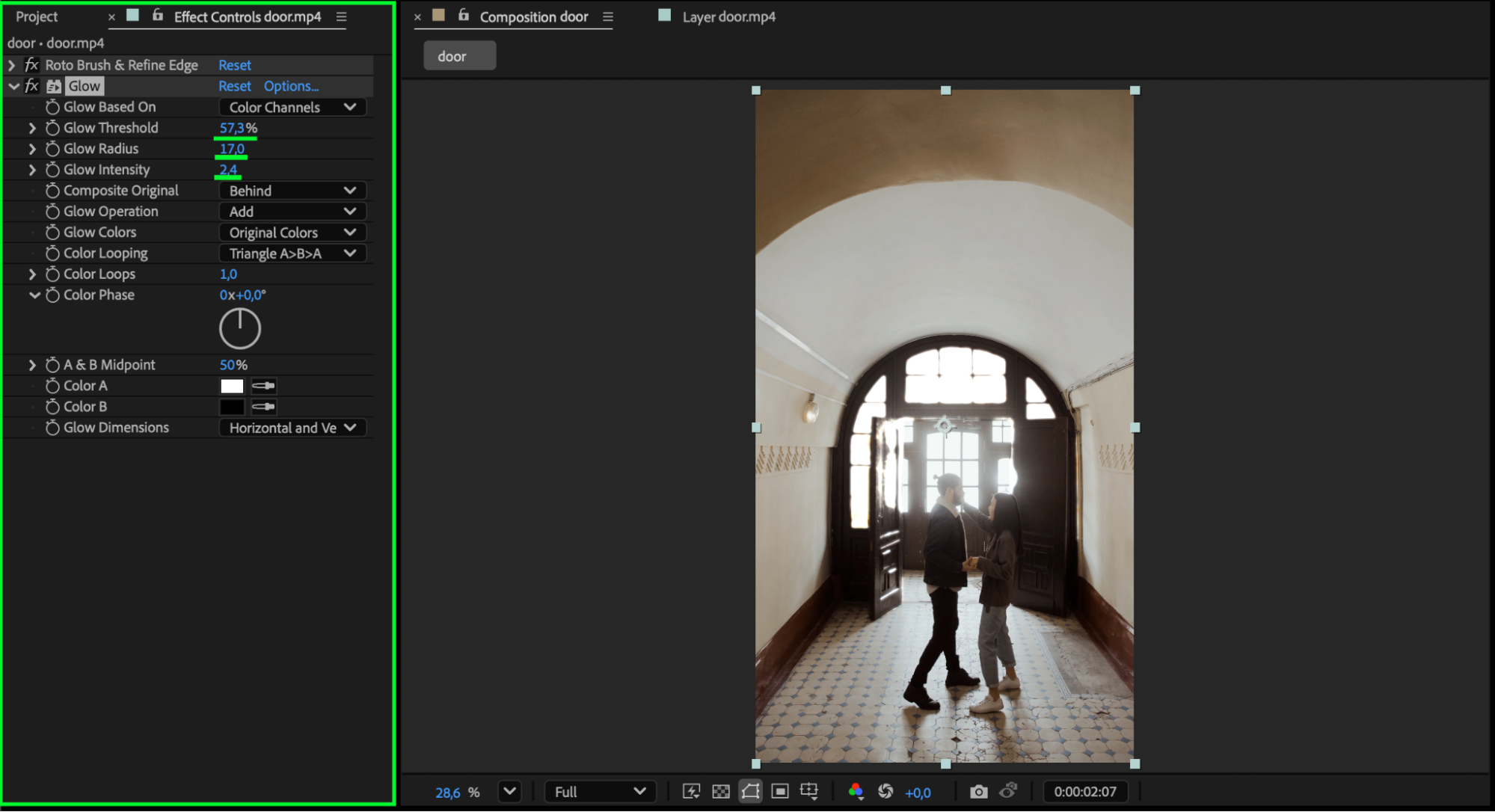
Return to the Composition Panel. Select your duplicated layer and drag the Glow effect from the Effects & Presets panel onto it. In the Effect Controls panel, adjust the following:
Glow Threshold
Glow Radius
Glow Intensity
Increase the radius for a soft ambient glow or intensify the threshold for a bright, strong entrance light.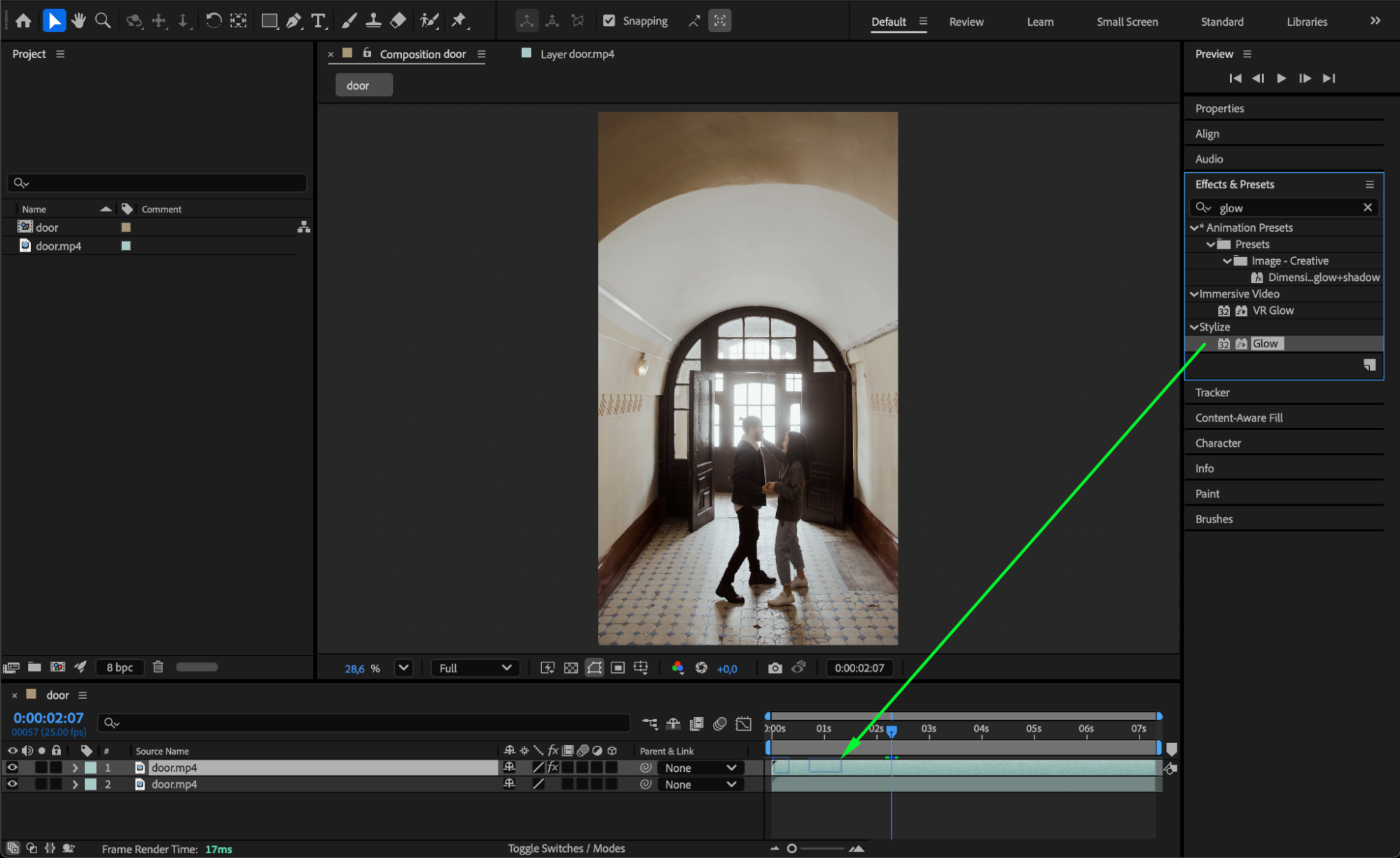
Step 5: Preview and Refine
Press Spacebar to preview the effect. Make additional adjustments to the glow settings until the light looks smooth, atmospheric, and well-integrated into the scene.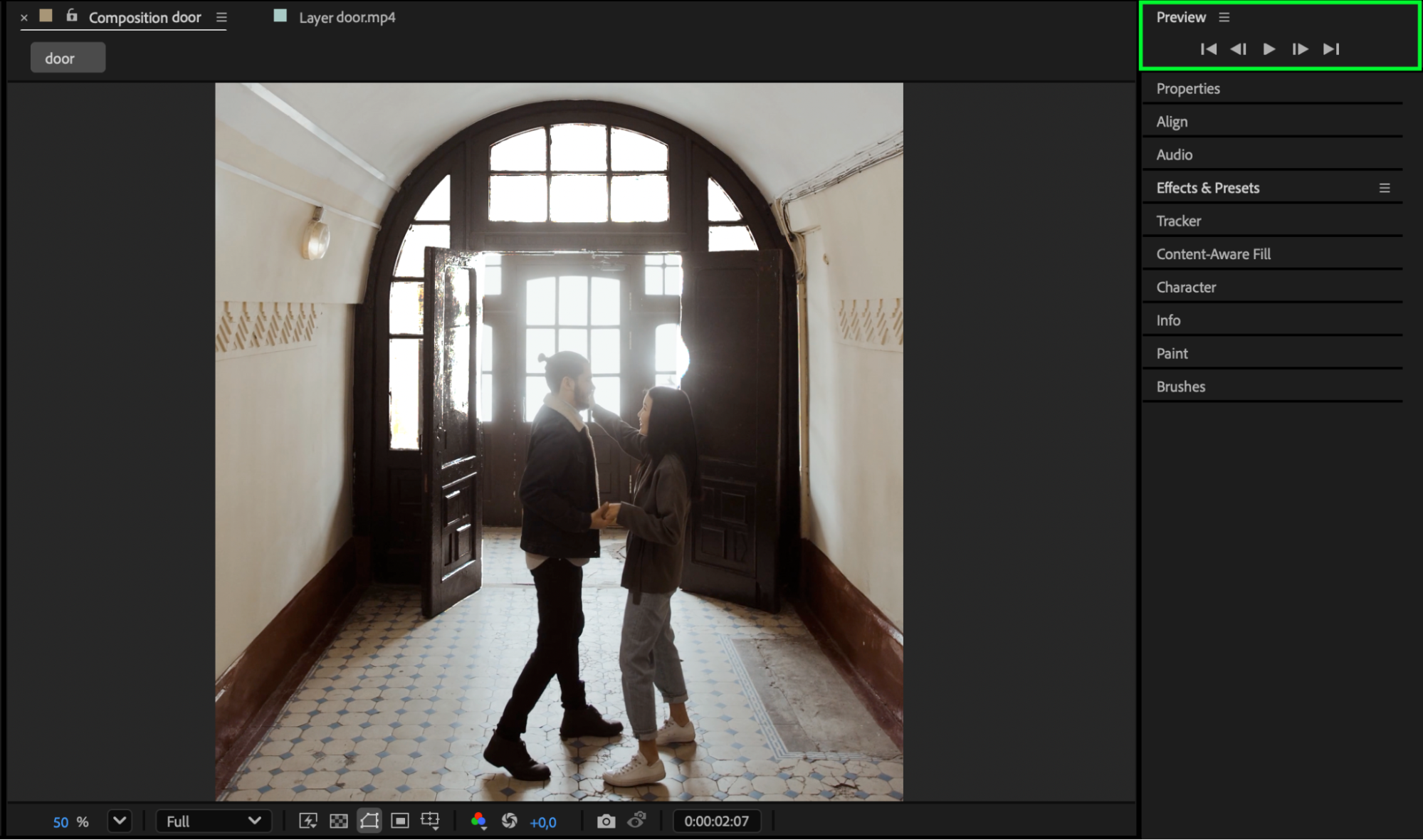 Conclusion
By isolating the entrance with the Roto Brush tool and enhancing it with the Glow effect, you can create a stunning light-filled entrance that adds depth and cinematic flair to your footage in After Effects. This simple technique works great for dramatic reveals, magical scenes, and stylized lighting transitions.
Our Bestsellers
Our Bestsellers


