
Creating a Stylized Line Animation in After Effects
Introduction to Animated Lines with Wiggle and Echo Effects
Creating animated lines is a great way to add energy and style to your motion graphics. In this tutorial, you’ll learn how to build a flowing, animated line using the Pen Tool, expressions, and the Echo effect in Adobe After Effects. This technique is perfect for motion design, UI elements, or abstract backgrounds.
Step 1: Create a New Composition
Go to Composition > New Composition and set your desired resolution (e.g., 1920×1080), duration, and background color. Press OK to create your comp.
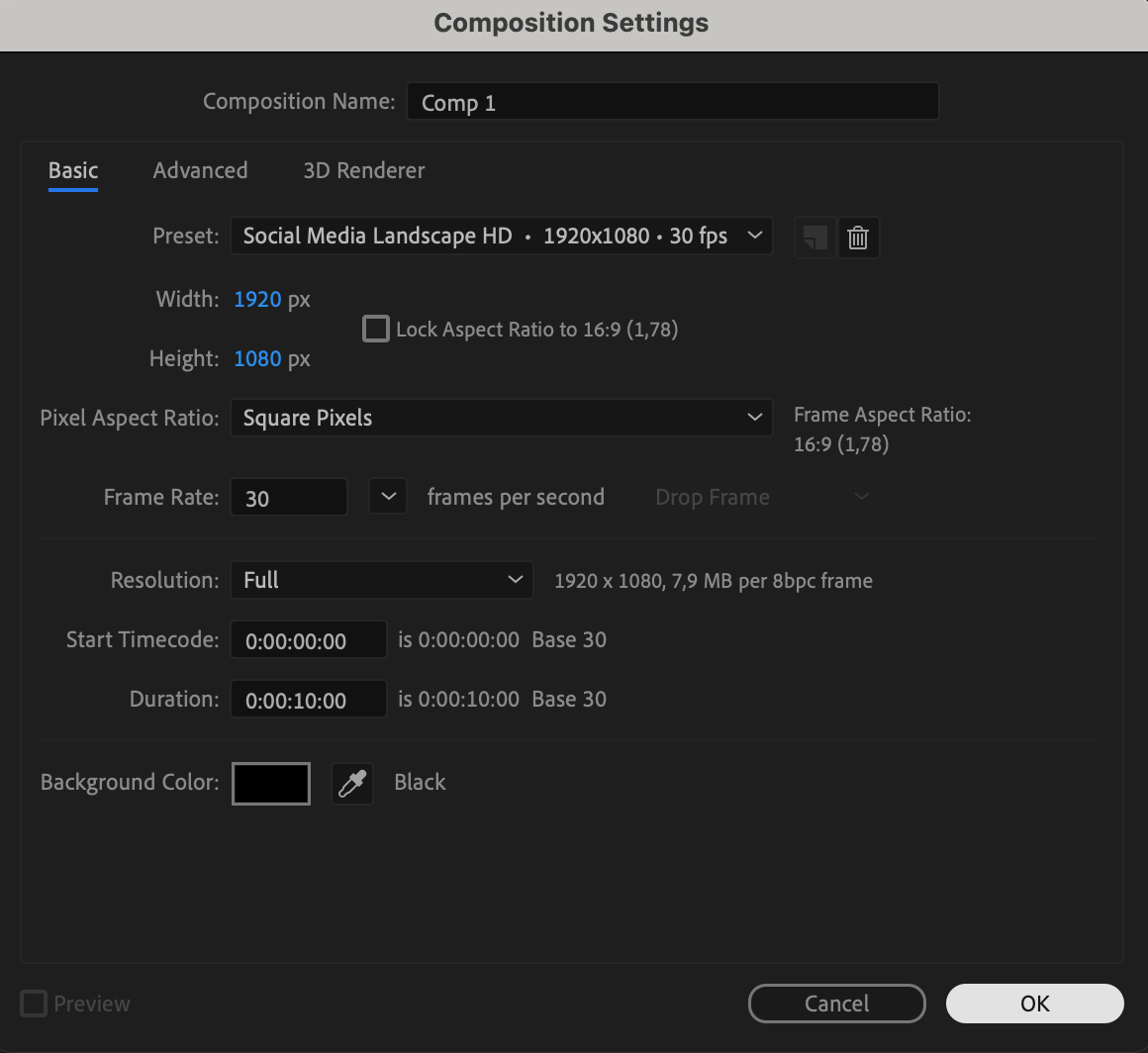 Step 2: Draw the Base Line
Select the Pen Tool (G) and make two points: one starting slightly off the left side of the comp and one ending off the right side, both at the center vertically. In the toolbar, set the Fill to “None” and the Stroke to 4 px. Choose any color for your line.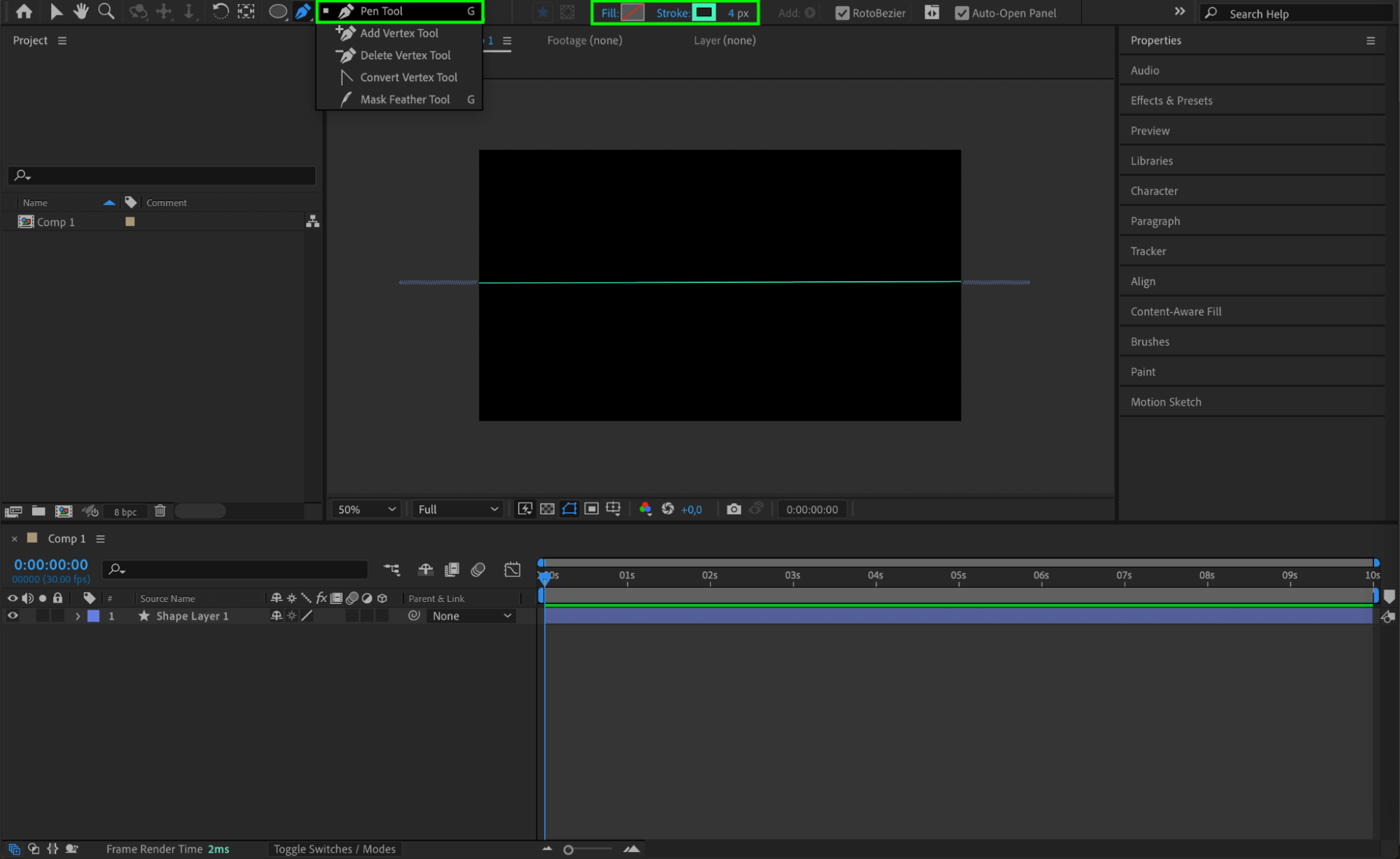 Step 3: Add Wiggle Paths
In the Timeline, expand the shape layer. Next to the Contents section, click the Add button and choose Wiggle Paths. This will give the line a wavy appearance.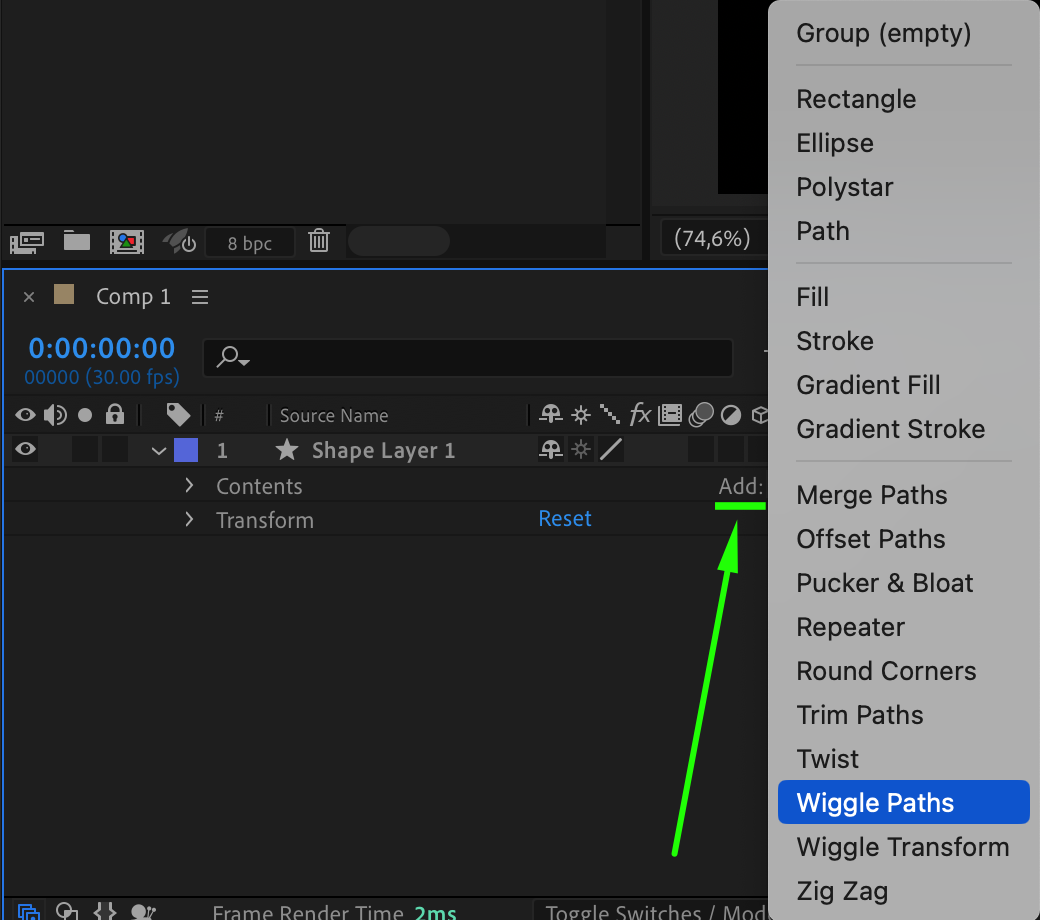
Step 4: Customize Wiggle Paths with Expressions
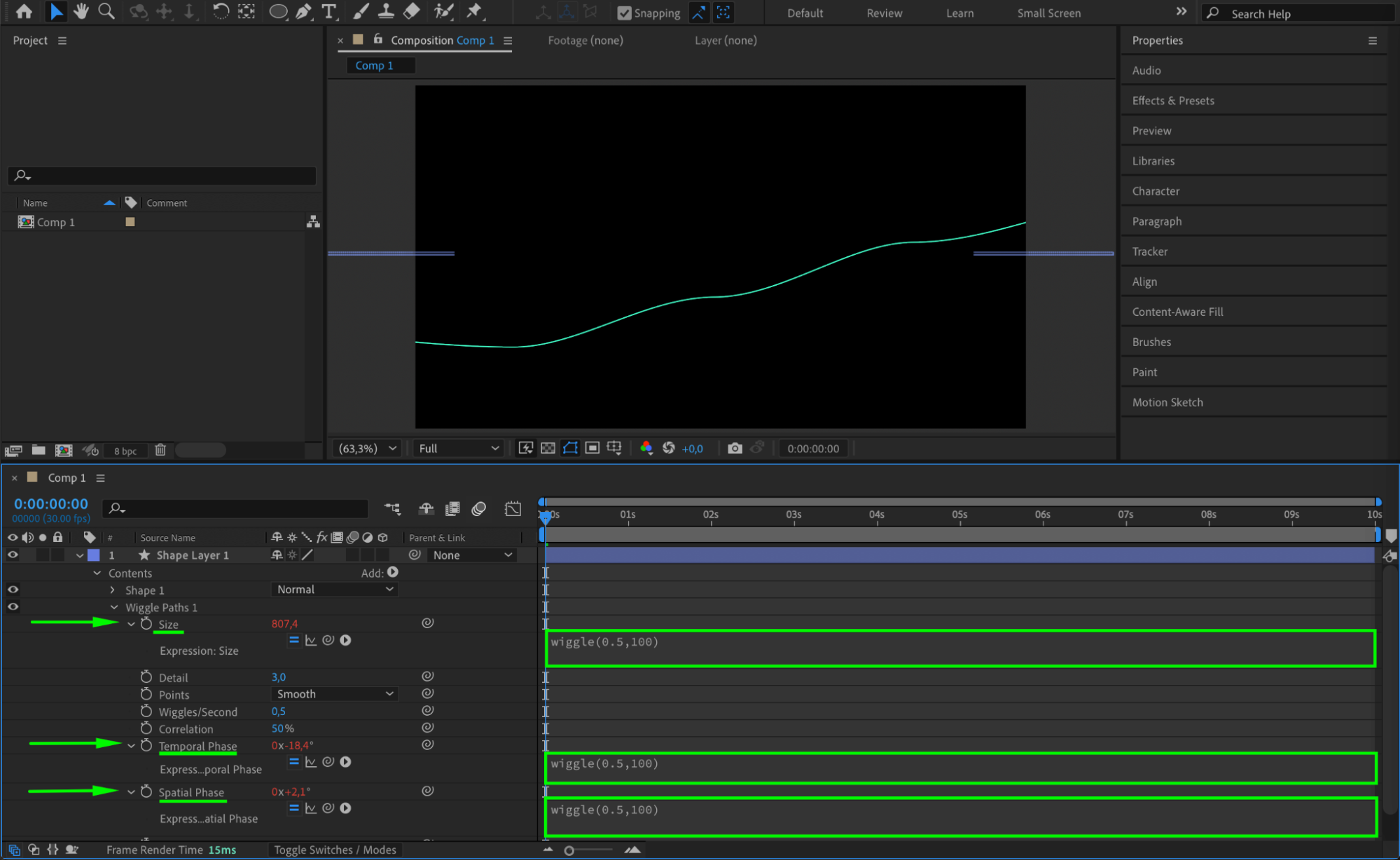
Set the following values for Wiggle Paths:
Size: 750
Detail: 3
Points: Smooth
Wiggles/Second: 0.5
Hold Alt/Option and click the stopwatch next to Size, Temporal Phase, and Spatial Phase, and type:
wiggle(0.5, 100)
This will animate the line’s movement in a fluid and organic way.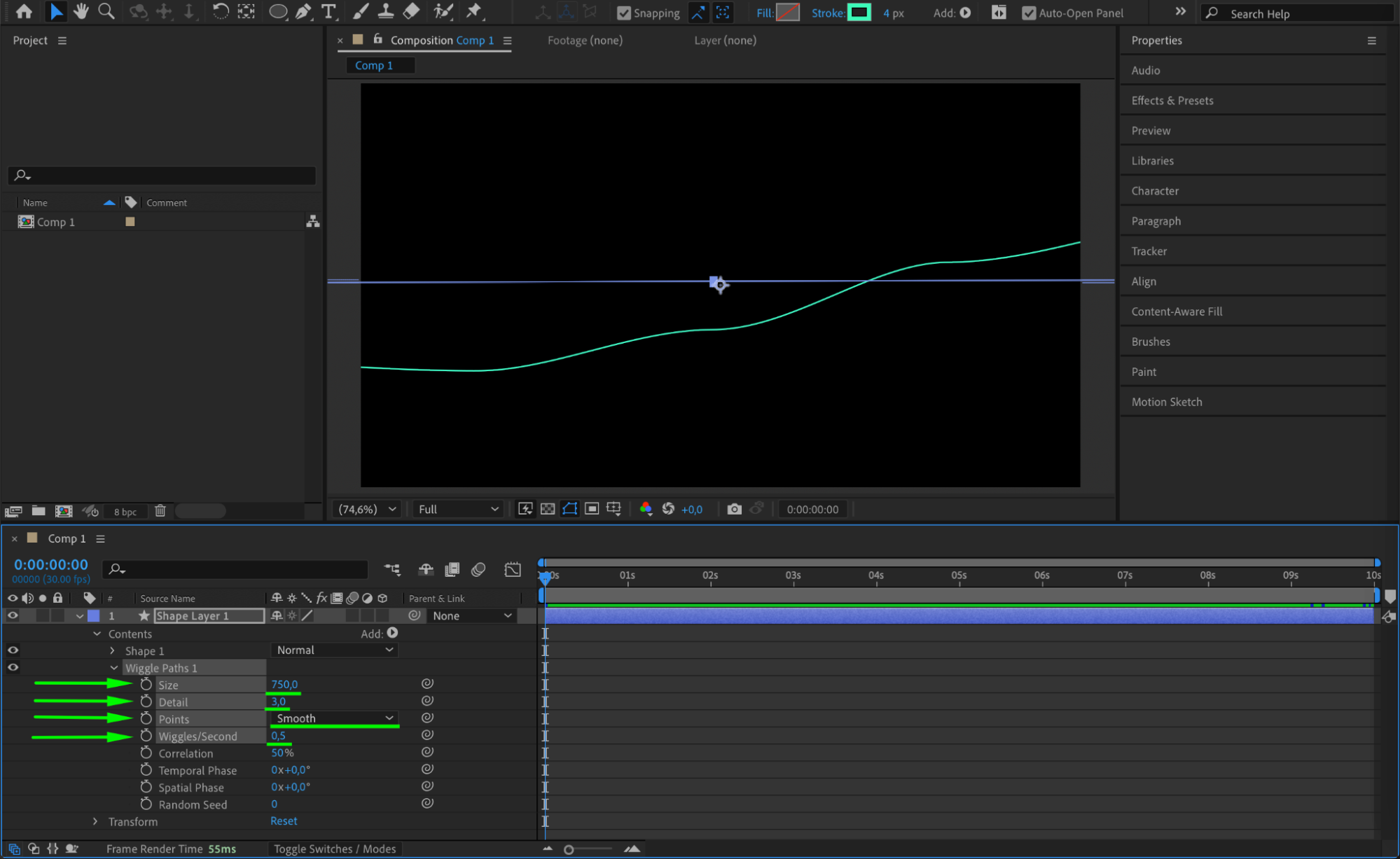
 Step 5: Add Rotation Wiggle
Press “R” to open the Rotation property. Hold Alt/Option and click the stopwatch, then type this expression:
wiggle(0.1, 100)
This adds subtle random movement to the entire line for more realism.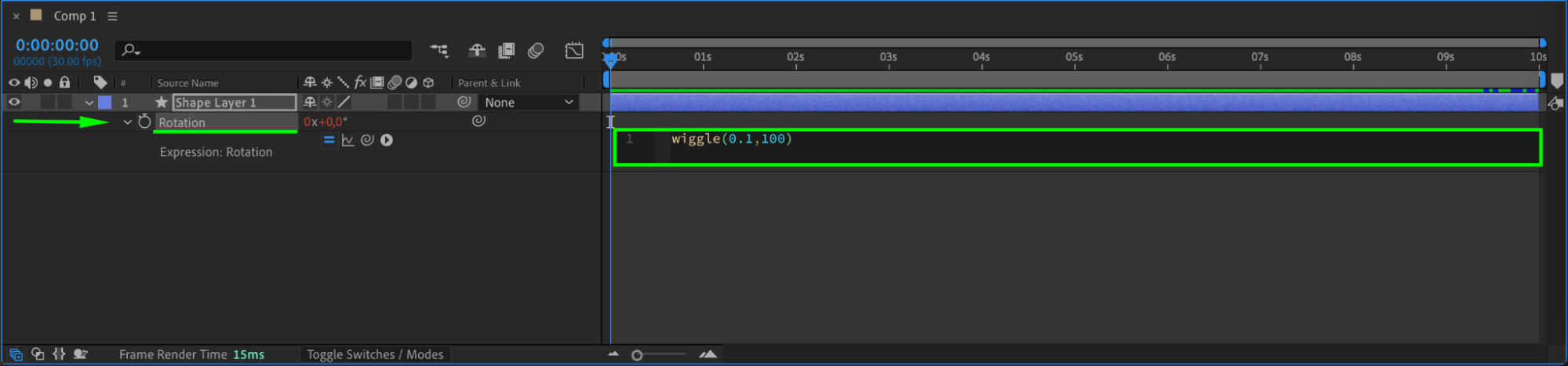 Step 6: Apply the Echo Effect
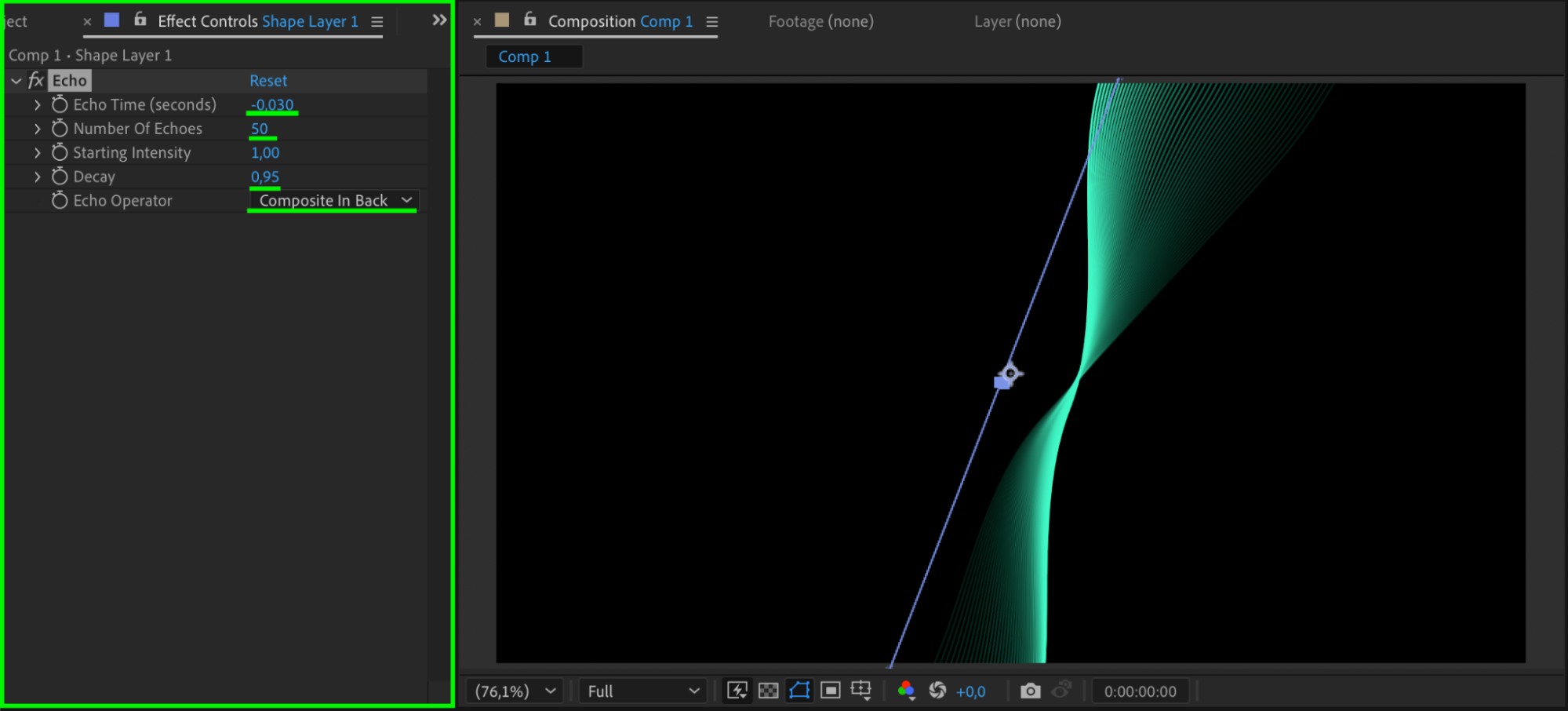
Go to the Effects & Presets panel and search for Echo. Drag it onto your shape layer. In the Effect Controls Panel, adjust these settings:
Echo Time: -0.030
Number of Echoes: 50
Decay: 0.95
Echo Operator: Composite in Back
The Echo effect creates trailing copies of the line, giving a smooth motion trail.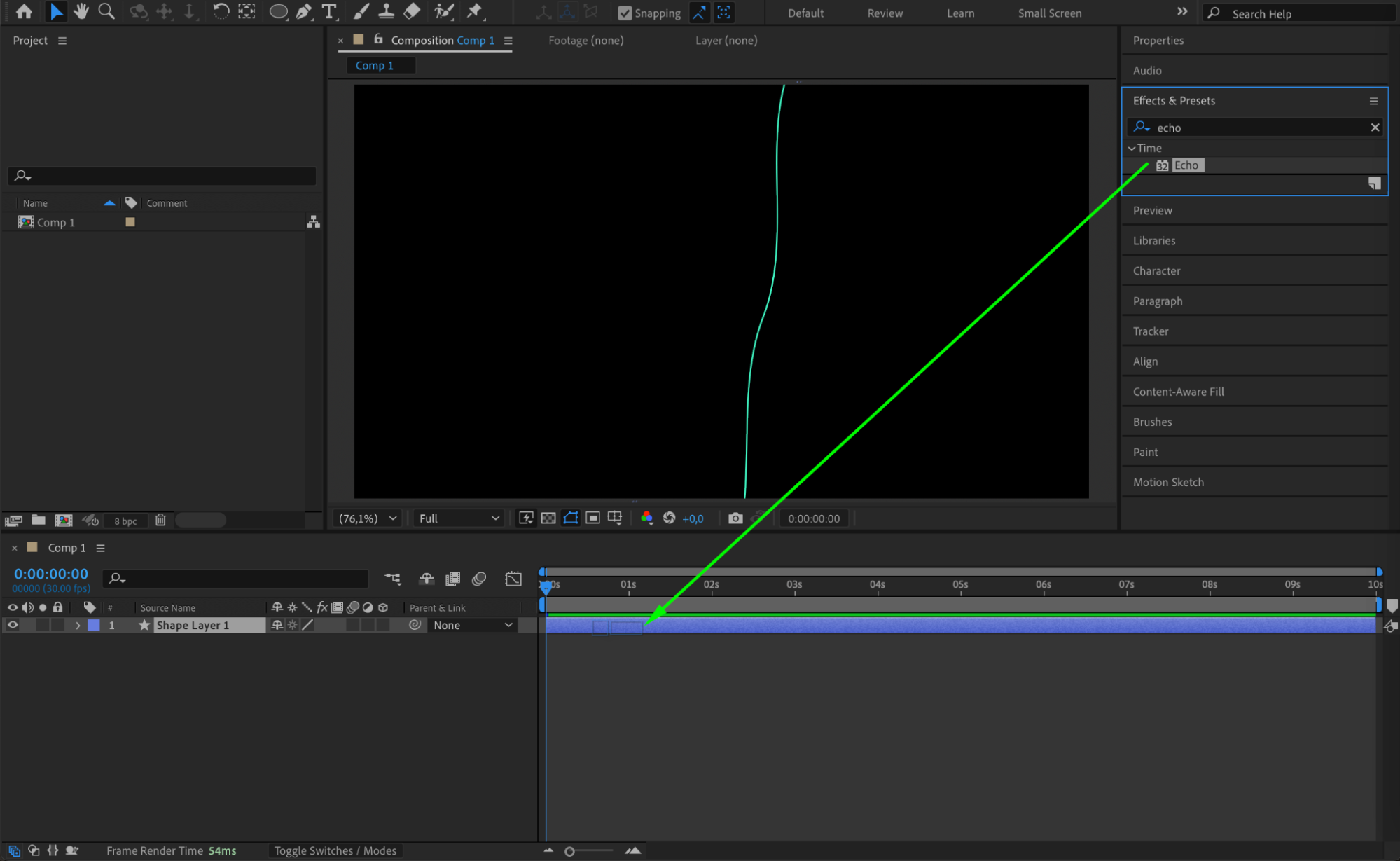
Step 7: Preview Your Animation
Press Spacebar or use the Preview panel to play your animation. Watch the line flow and leave a glowing trail as it moves. Adjust your settings if needed.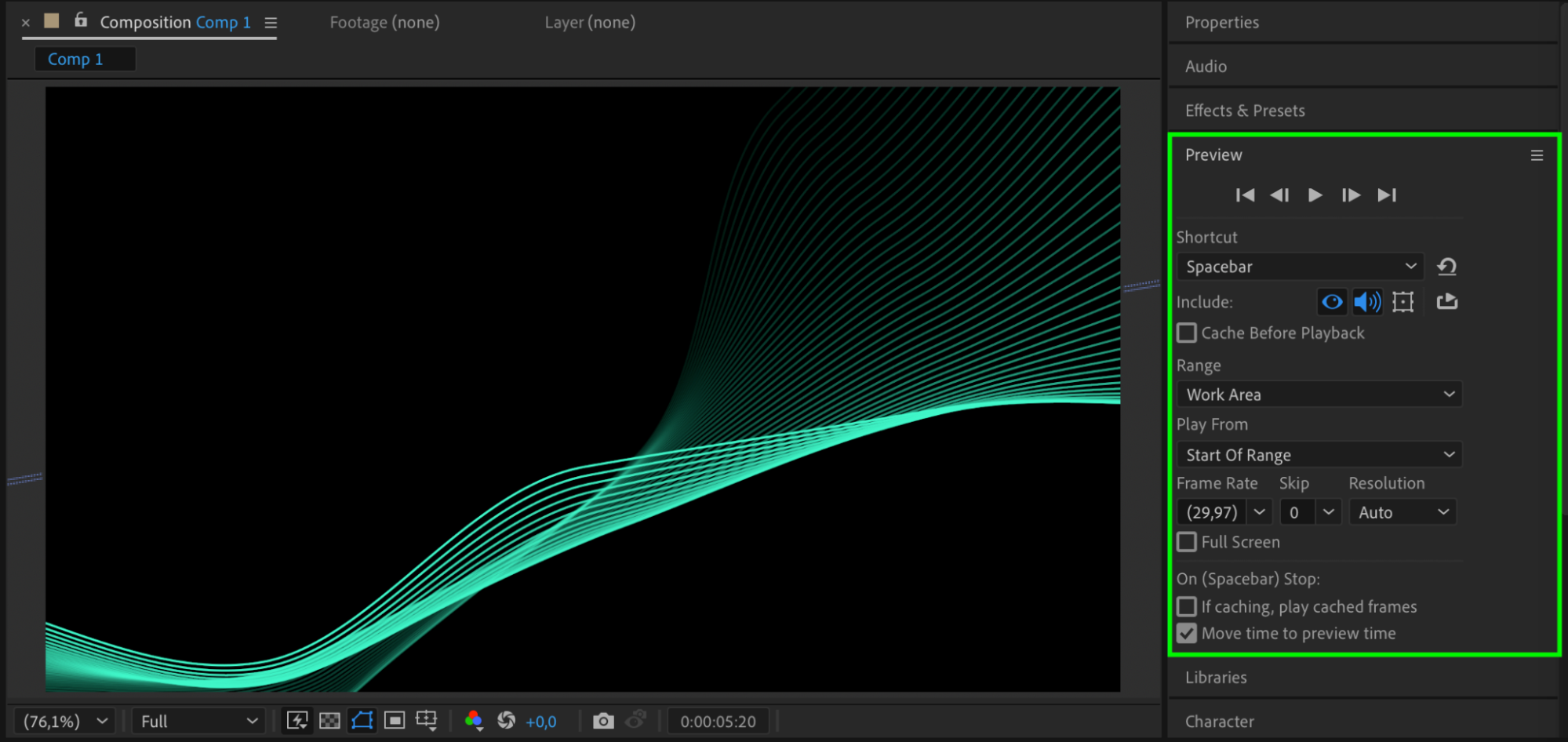 Step 8: Export the Animation
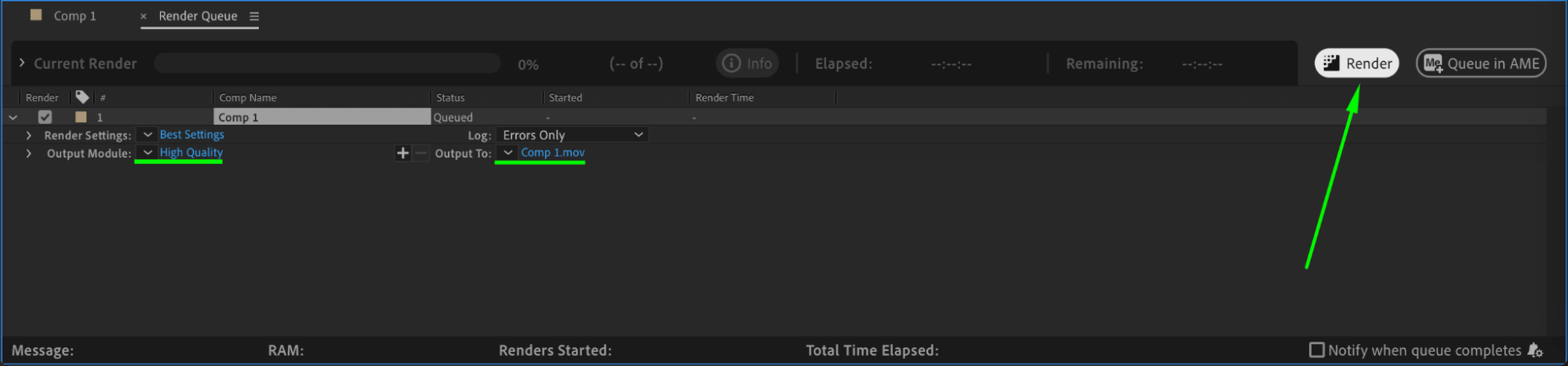
When you’re happy with the result, go to Composition > Add to Render Queue or Add to Adobe Media Encoder Queue to render your animation in the desired format and resolution.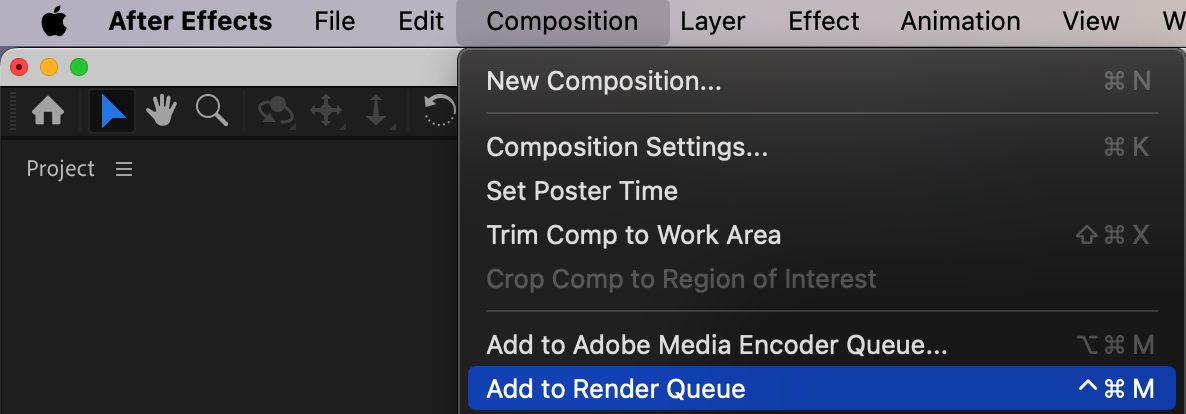
 Conclusion
That’s it! You’ve created a vibrant, stylized animated line using expressions, wiggle paths, and echo effects in After Effects. This technique can easily be customized with different colors, speeds, and shapes to fit any creative project.
Our Bestsellers
Our Bestsellers


