
Introduction
Creating polygons in After Effects is simple and highly customizable using the built-in Shape Tools. You can adjust points, rotation, radius, and more to design unique geometric graphics for motion design, UI animations, or visual effects.
Step 1: Create a New Composition
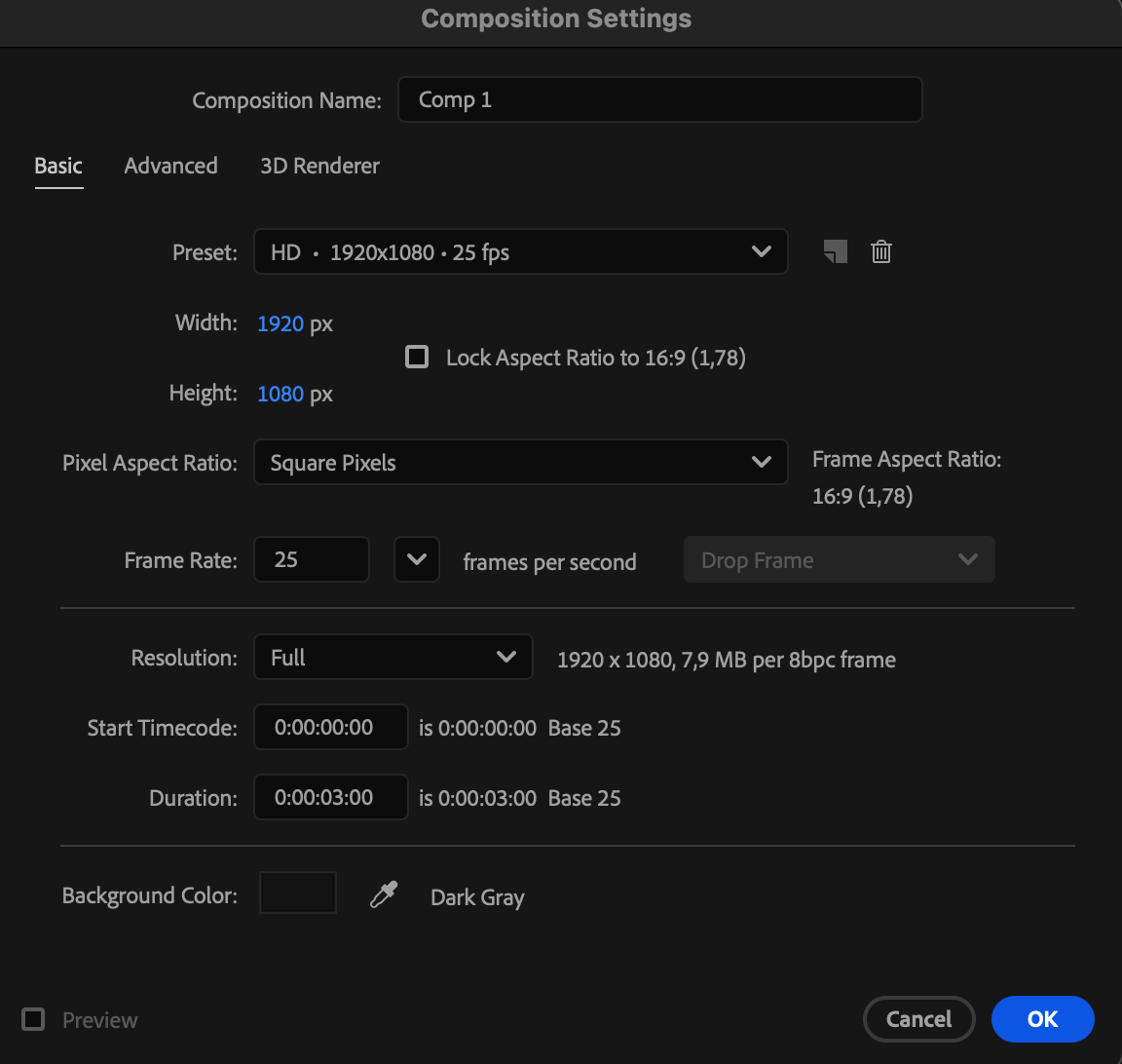
Go to Composition > New Composition, set your desired resolution and duration, and click OK.
Step 2: Select the Polygon Tool
In the toolbar, click and hold the Rectangle Tool (Q) to open the shape submenu, then choose Polygon Tool. Set your Fill and Stroke colors in the top toolbar if needed.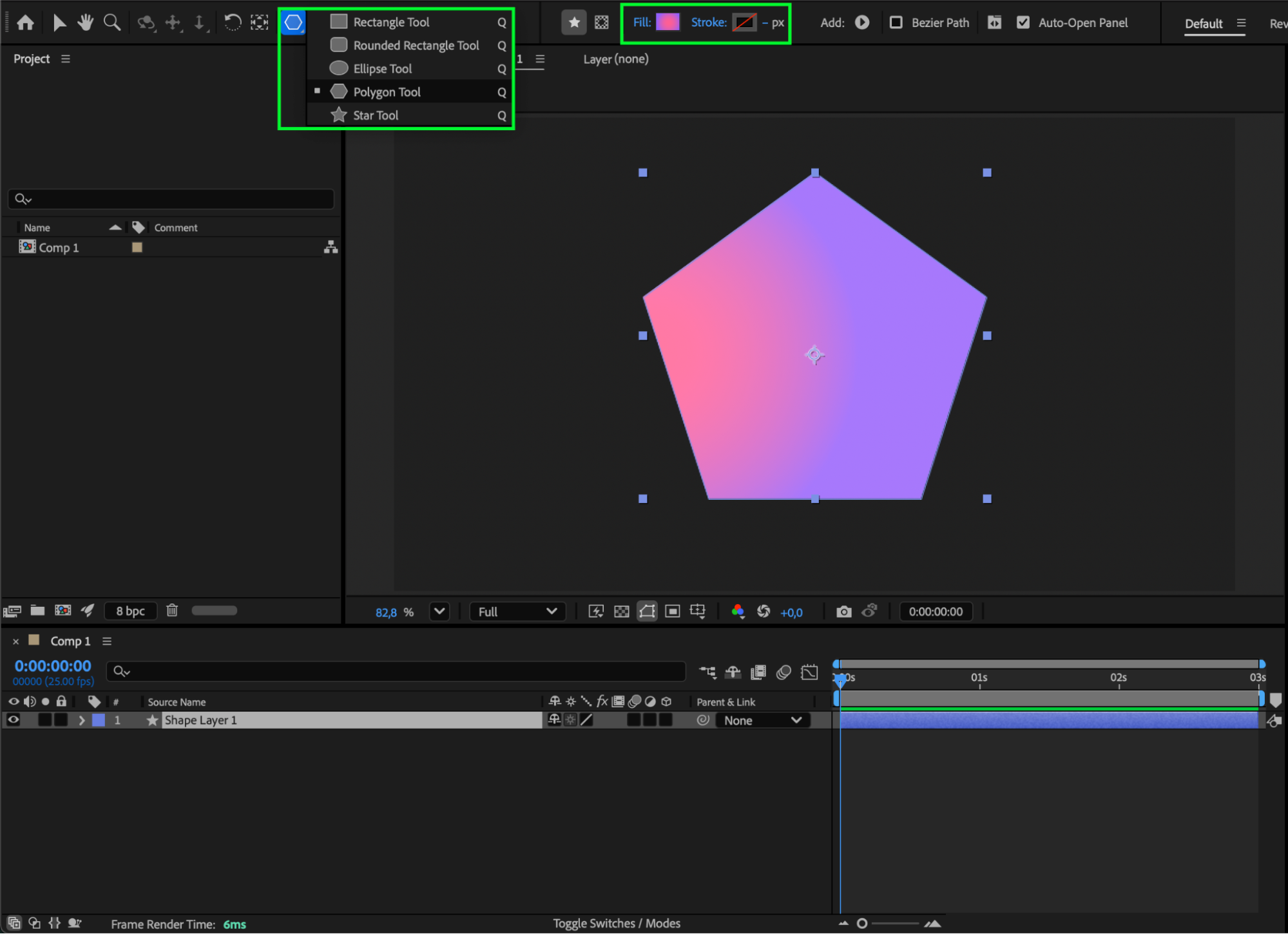 Step 3: Customize Polygon Properties
Expand the shape layer in the timeline to reveal Polystar Path 1. Adjust settings such as Points, Rotation, Outer Radius, and Outer Roundness to refine the shape exactly how you want it.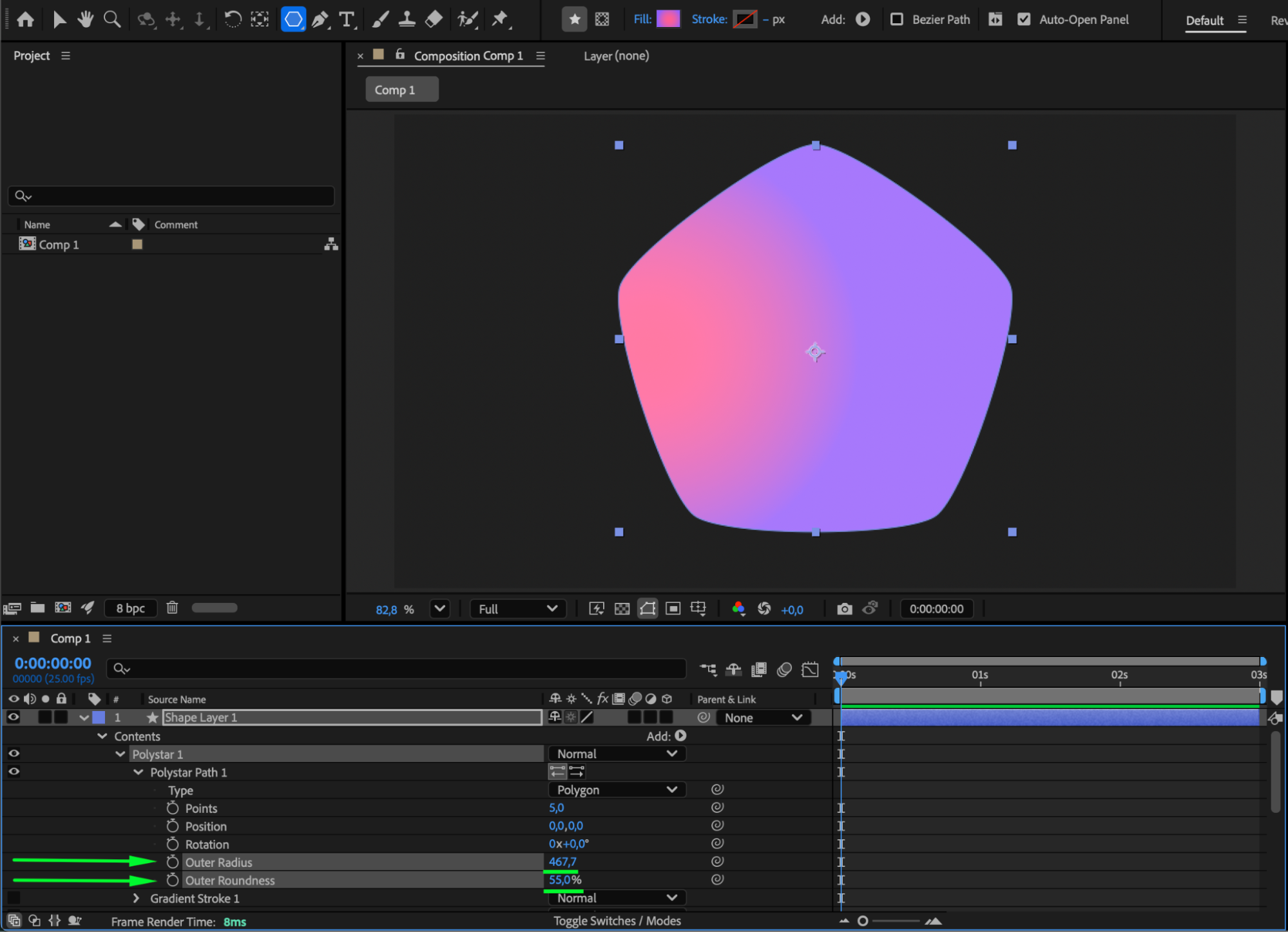
Step 4: Add Additional Effects
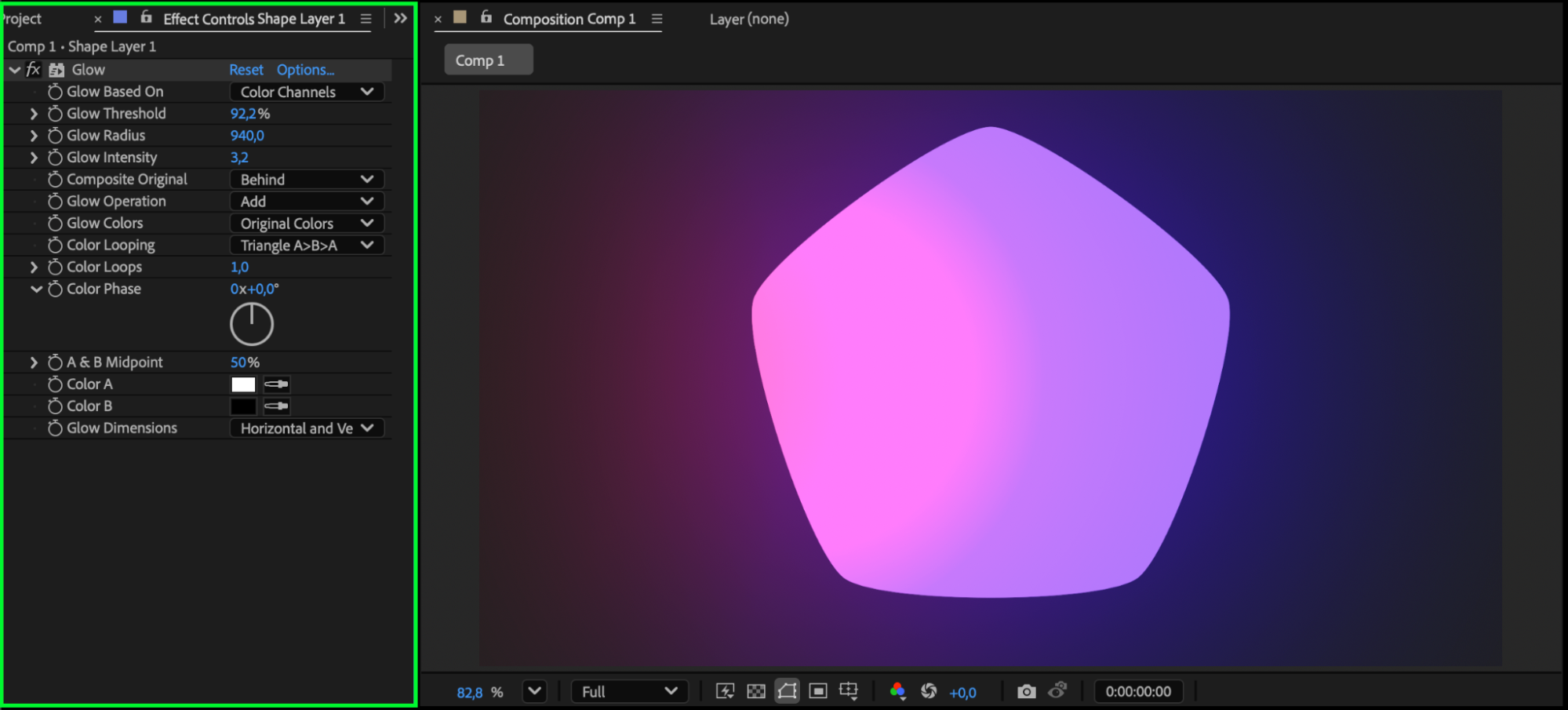
Apply effects like Glow, Noise, or Drop Shadow to enhance the look of your polygon and create more stylized graphics.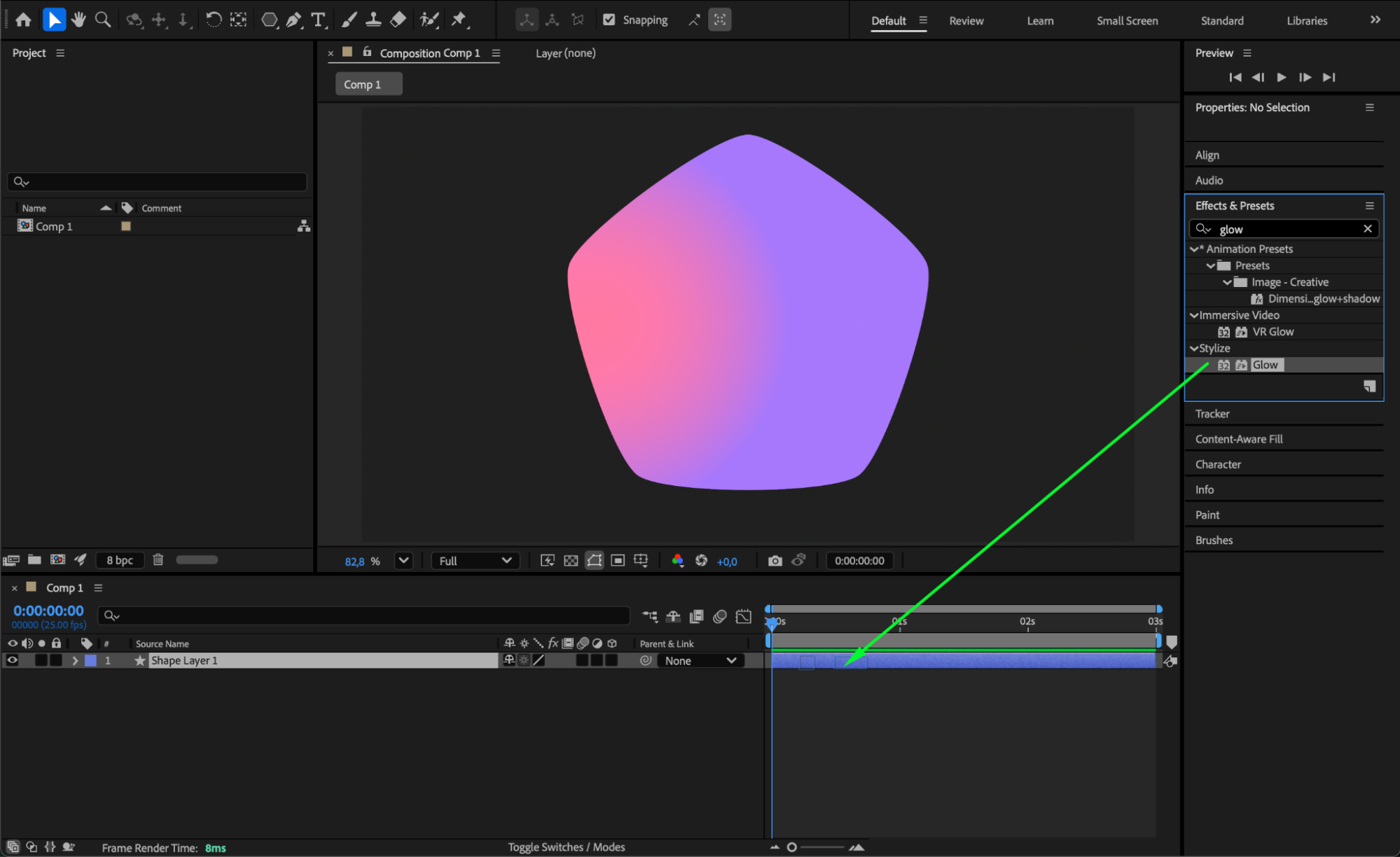
 Step 5: Preview Your Polygon
Press Spacebar to preview the result. Fine-tune any properties or effects until the polygon looks perfect for your project.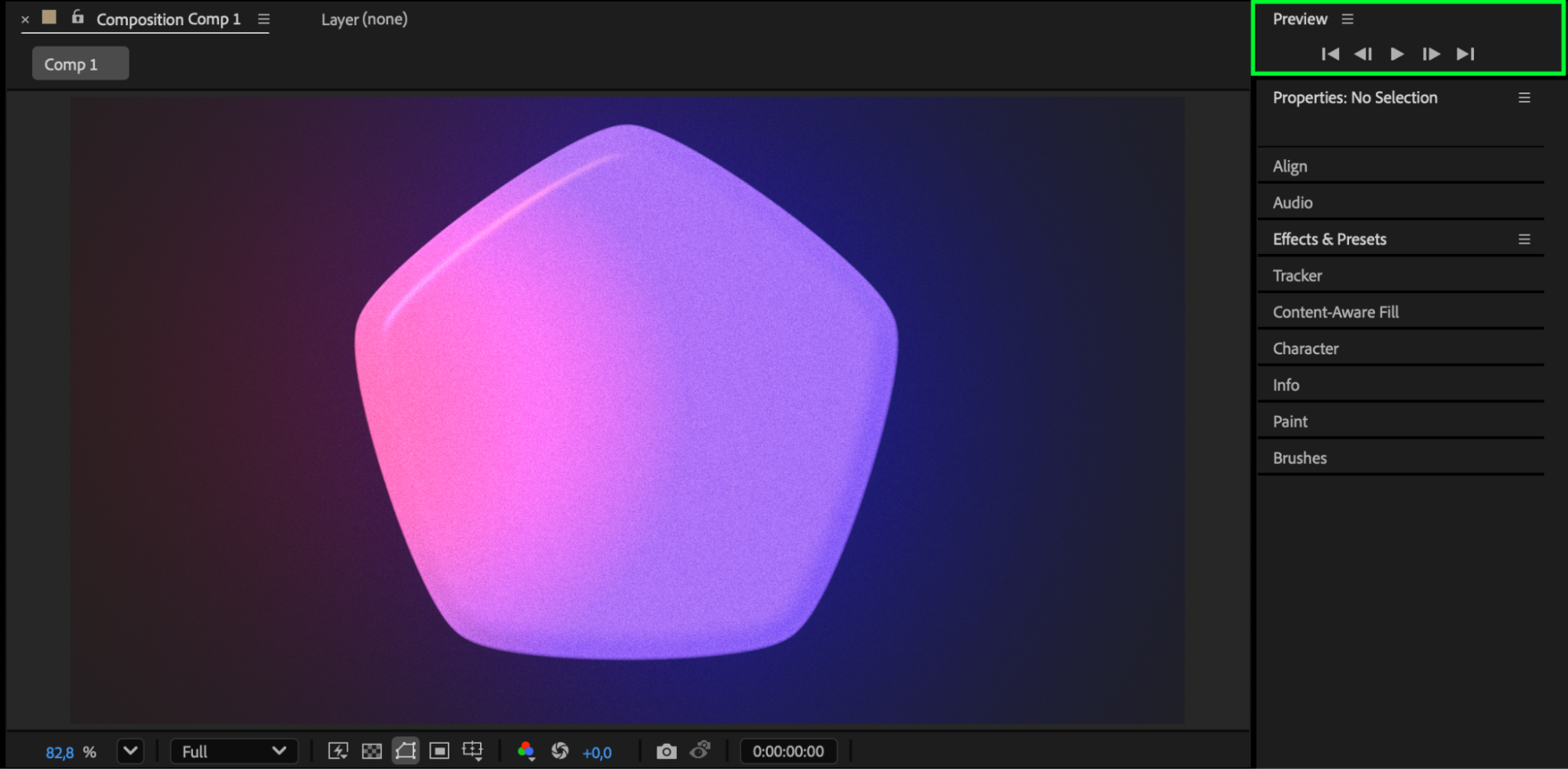 Conclusion
Polygons in After Effects are easy to create and highly flexible thanks to the Polygon Tool and detailed shape settings. With just a few adjustments, you can build polished geometric elements for any motion design composition.
Our Bestsellers
Our Bestsellers


