
Introduction
If your animation feels too slow, you can easily speed it up by adjusting keyframes. After Effects allows you to retime all effects at once by stretching or compressing keyframes. This method works for any layer, effect, or property that uses animation.
Step 1: Select Your Layer
Open your project and click the layer containing the animation or effects you want to speed up. Ensure the layer is highlighted in the timeline.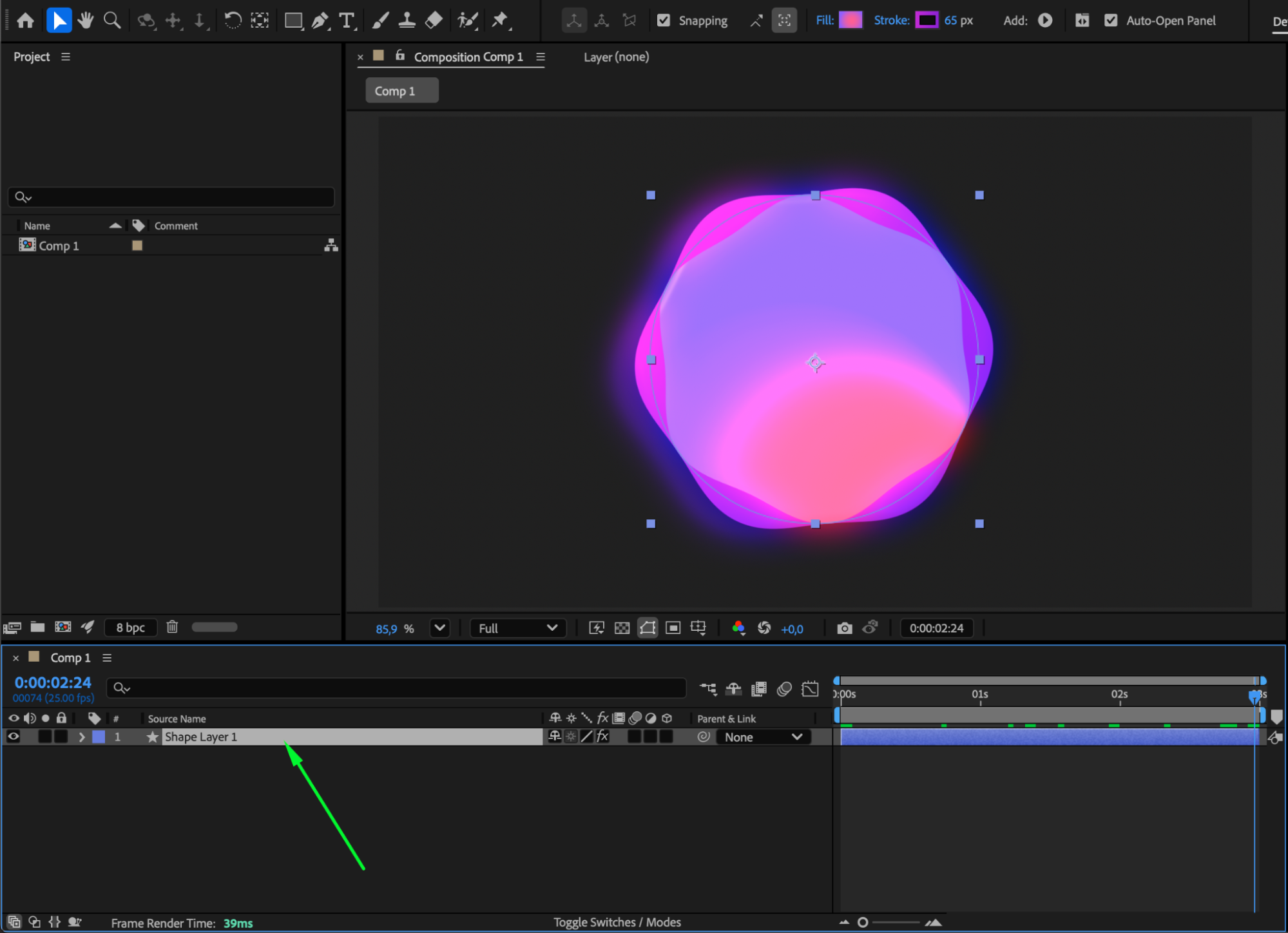 Step 2: Reveal All Keyframes
Press “U” on your keyboard to display all keyframes applied to the selected layer. This lets you see exactly which properties are animated.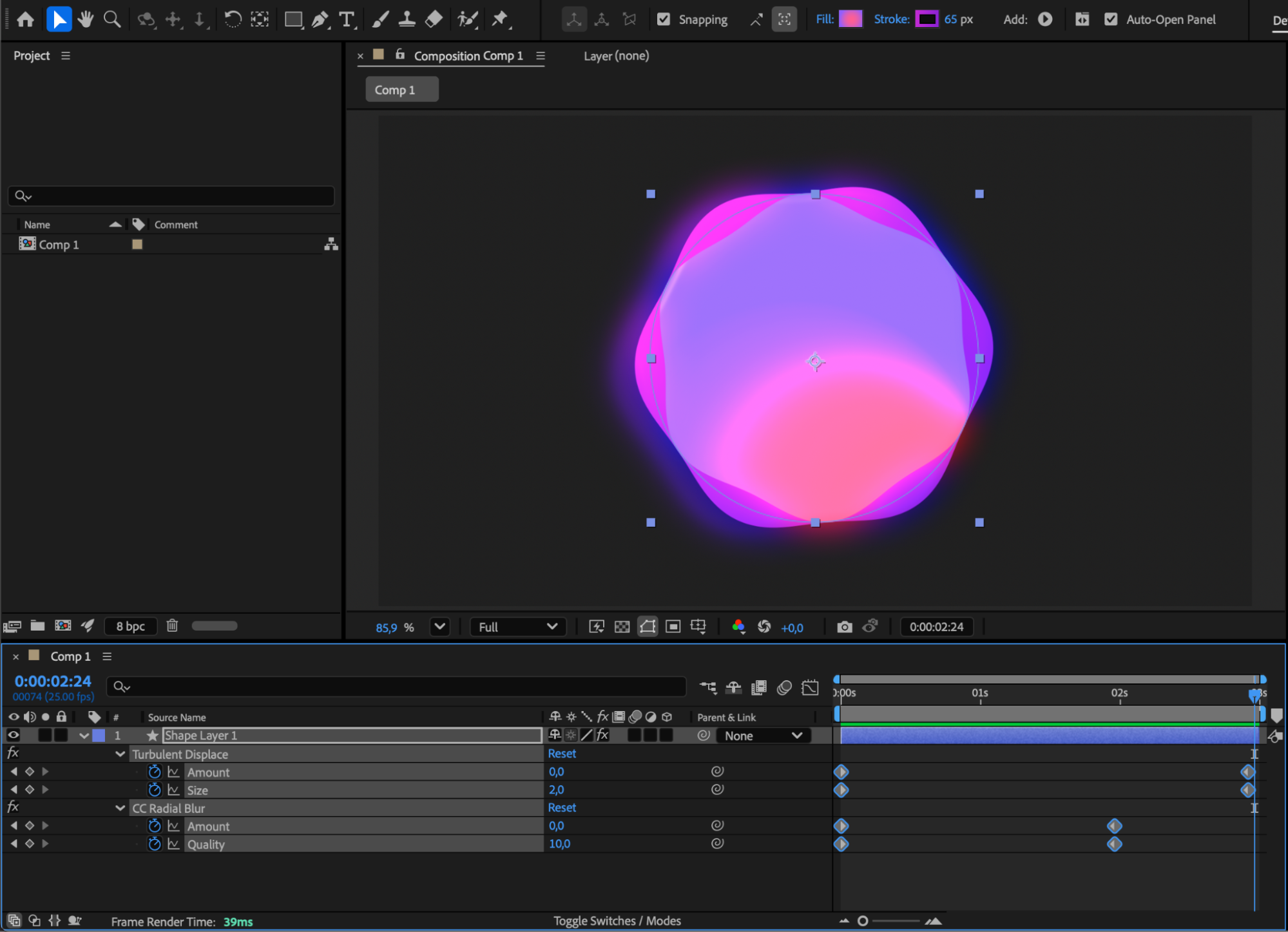
Step 3: Retime the Animation
Select all keyframes. Hold “Alt/Option”, then drag the last keyframe toward the left. This compresses the timeline between keyframes and speeds up the entire effect.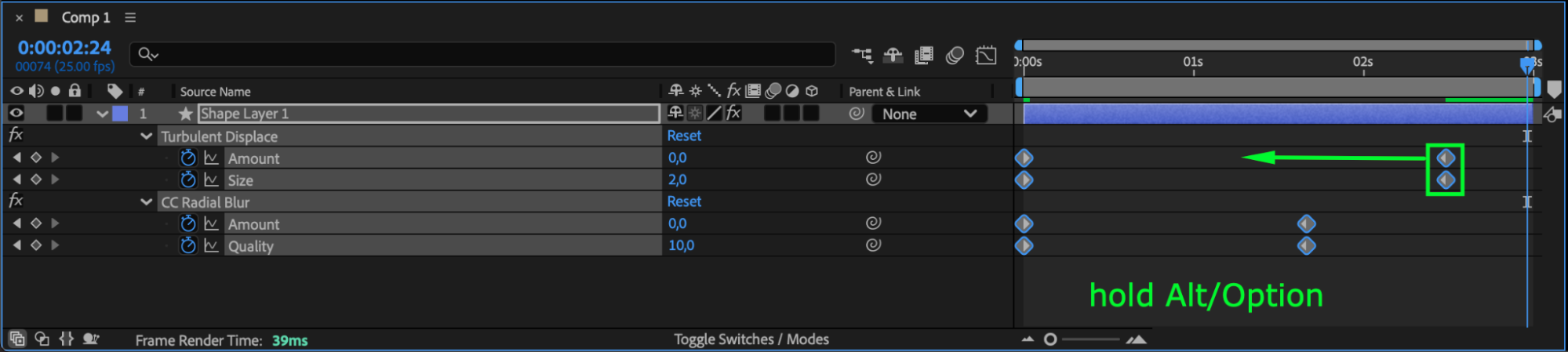
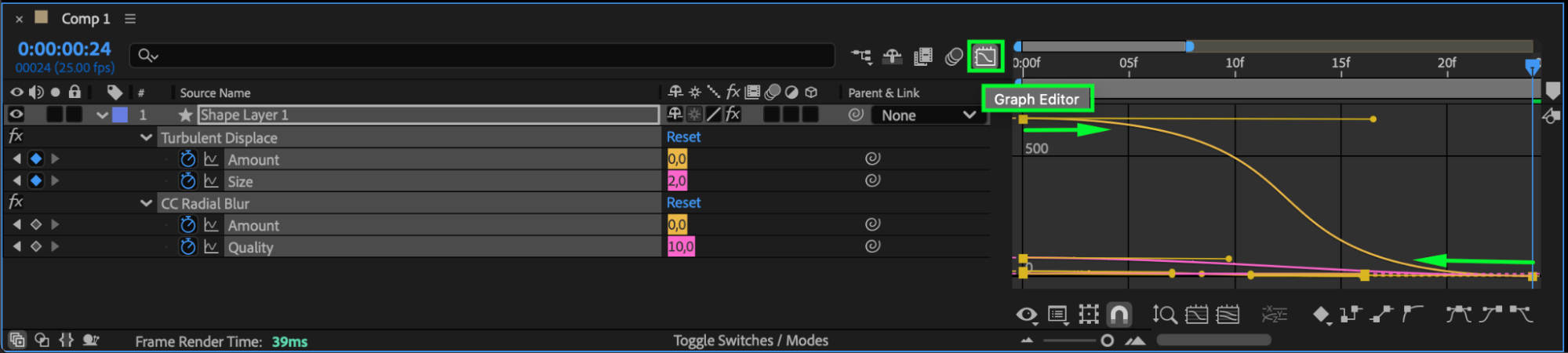
Step 4: Use Easy Ease and the Graph Editor
For smoother, more natural acceleration, apply Easy Ease (F9) and adjust the curves in the Graph Editor. This helps your fast animation stay clean and visually appealing.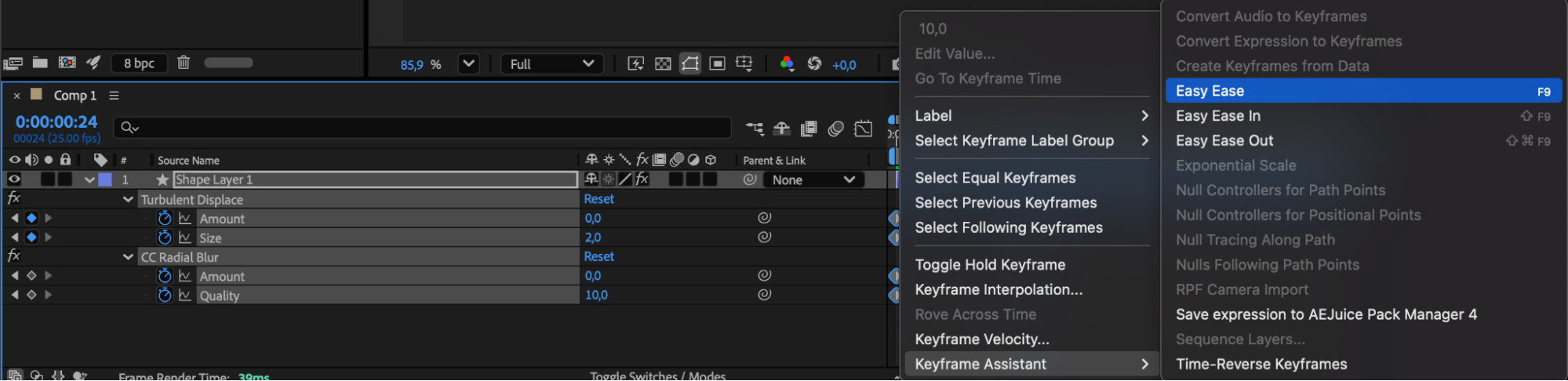
Step 5: Preview and Refine
Press Spacebar to preview your animation. If it still feels slow or too fast, retime the keyframes again until you’re satisfied with the speed.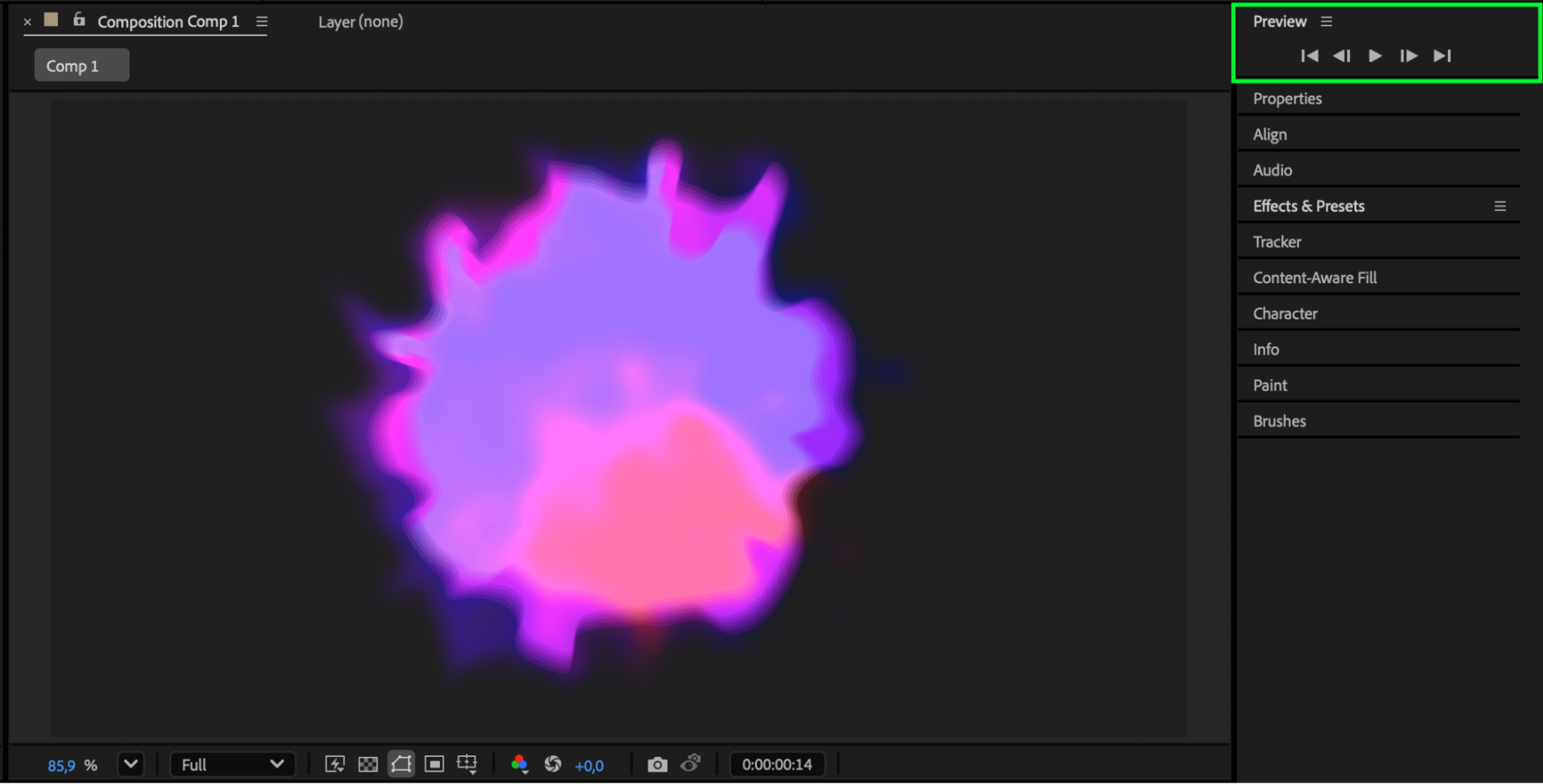
Conclusion
Speeding up effects in After Effects is simple — just compress your keyframes using the Alt/Option drag technique. Combined with Easy Ease and the Graph Editor, you can achieve fast, smooth animations with complete control over timing.
Our Bestsellers
Our Bestsellers


