
Introduction to Looping Effects Automatically
Repeating or looping an animation in Adobe After Effects is useful when you want an action to play over and over—such as a bouncing ball, waving hand, or moving background. Instead of manually copying keyframes, you can use expressions to automate the process. This guide shows you how to set up a simple animation and use the loopOutDuration() expression to make it repeat continuously.
Step 1: Import Your Files and Create a New Composition
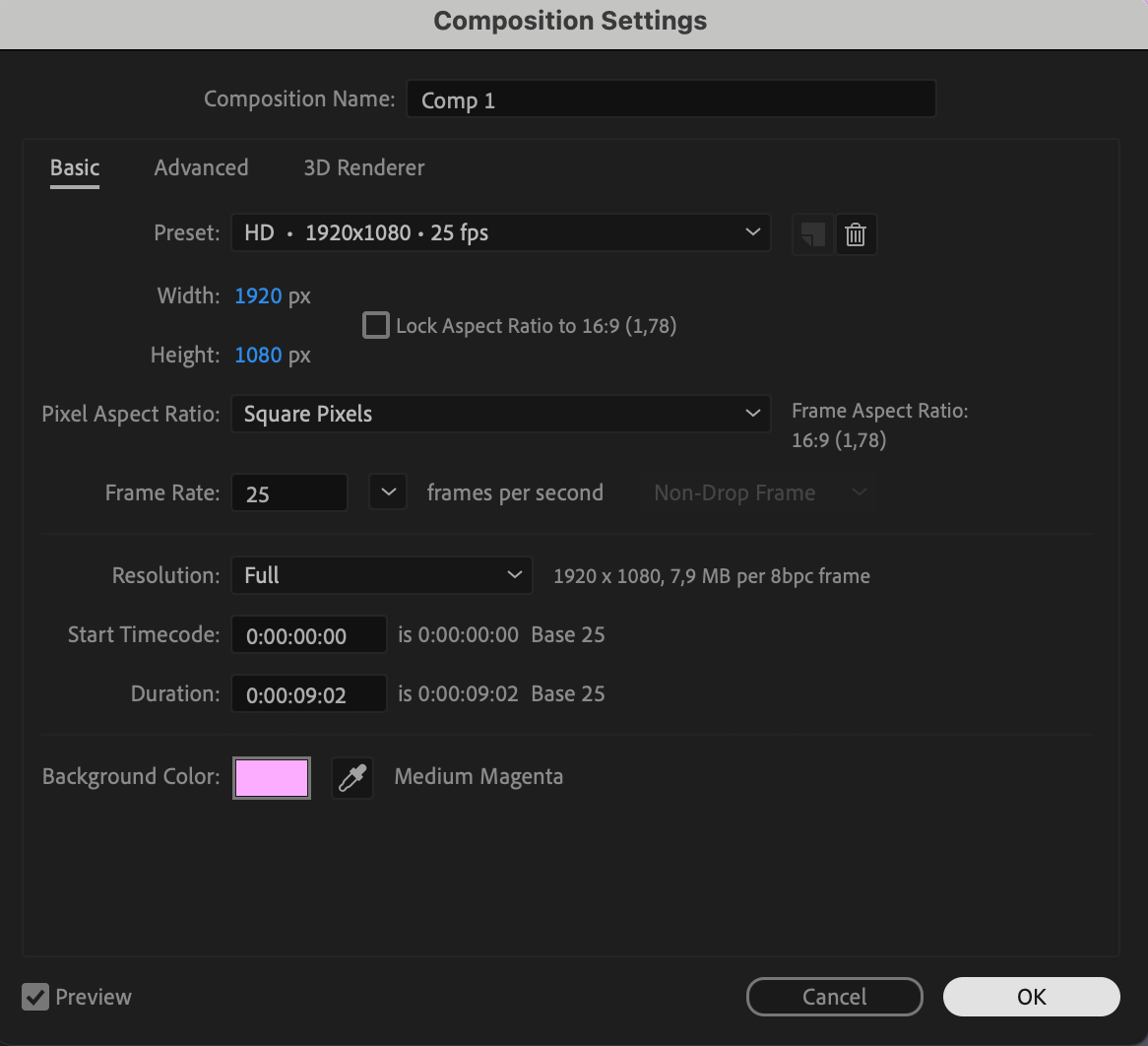
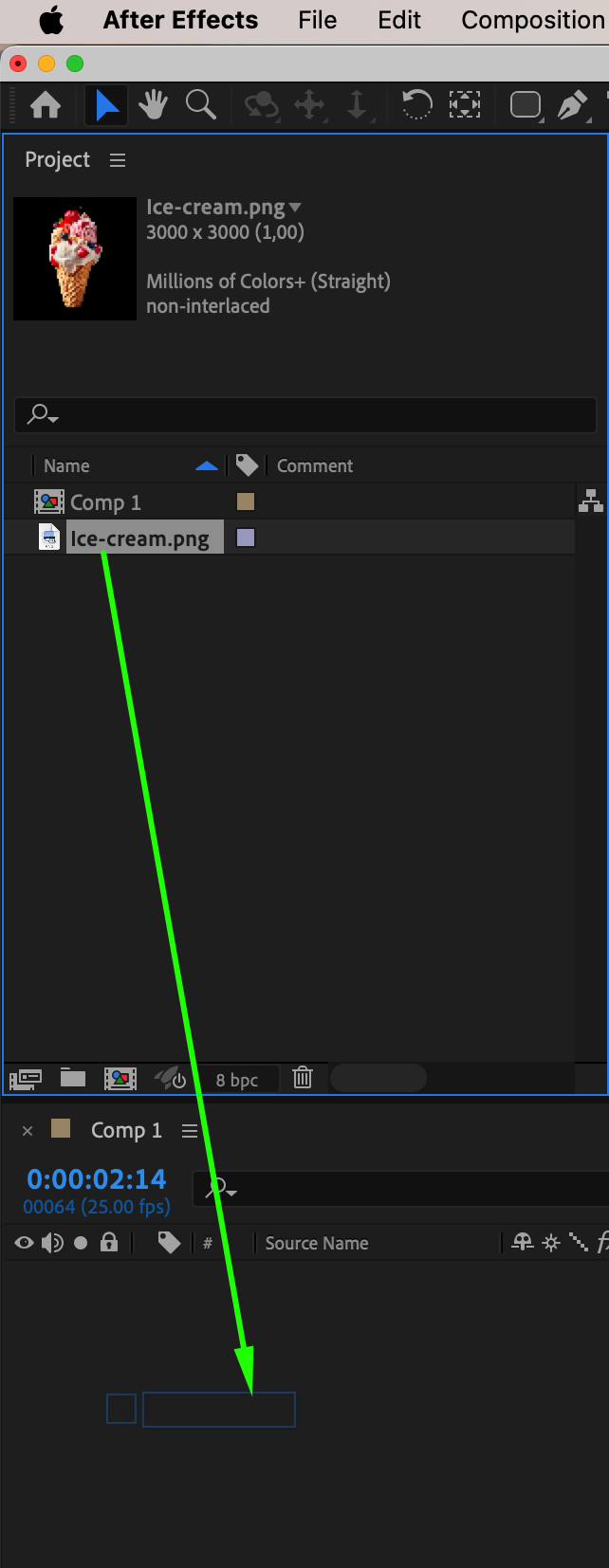
Go to File > Import > File to bring in the assets you want to animate. Then create a new composition by clicking Composition > New Composition, and drag your image or video onto the timeline. Make sure your timeline has enough duration to see the loop play several times.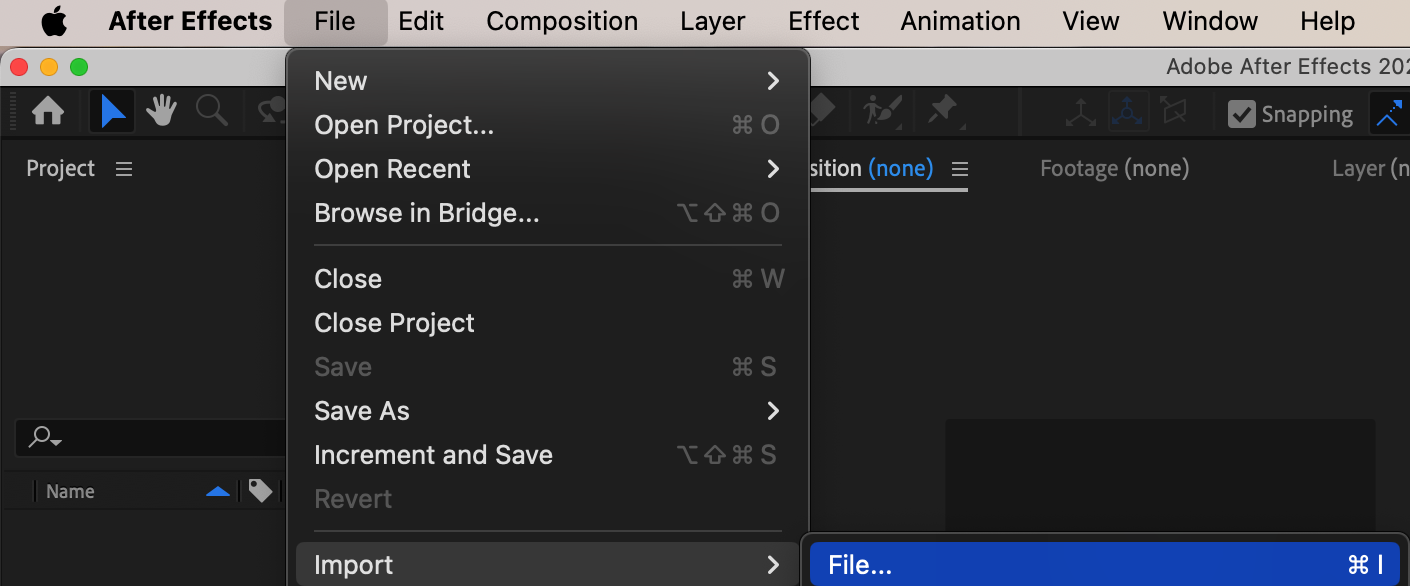

 Step 2: Animate a Property (e.g. Position)
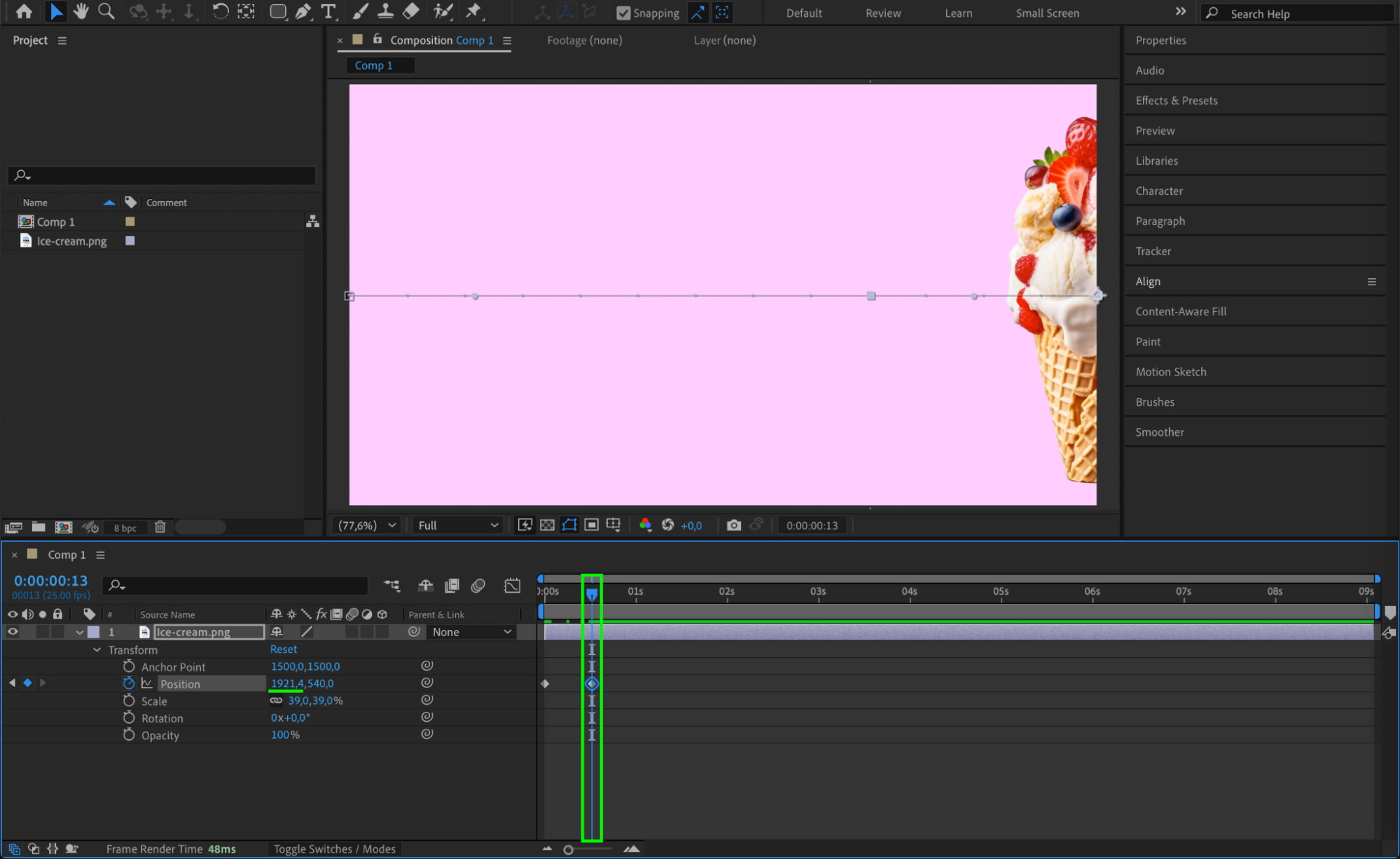
Select the layer you want to animate. Press “P” to reveal the Position property. Set a keyframe at the beginning of the timeline with the image on the left, then move forward a few seconds and set a second keyframe with the image on the right. This creates a basic left-to-right animation.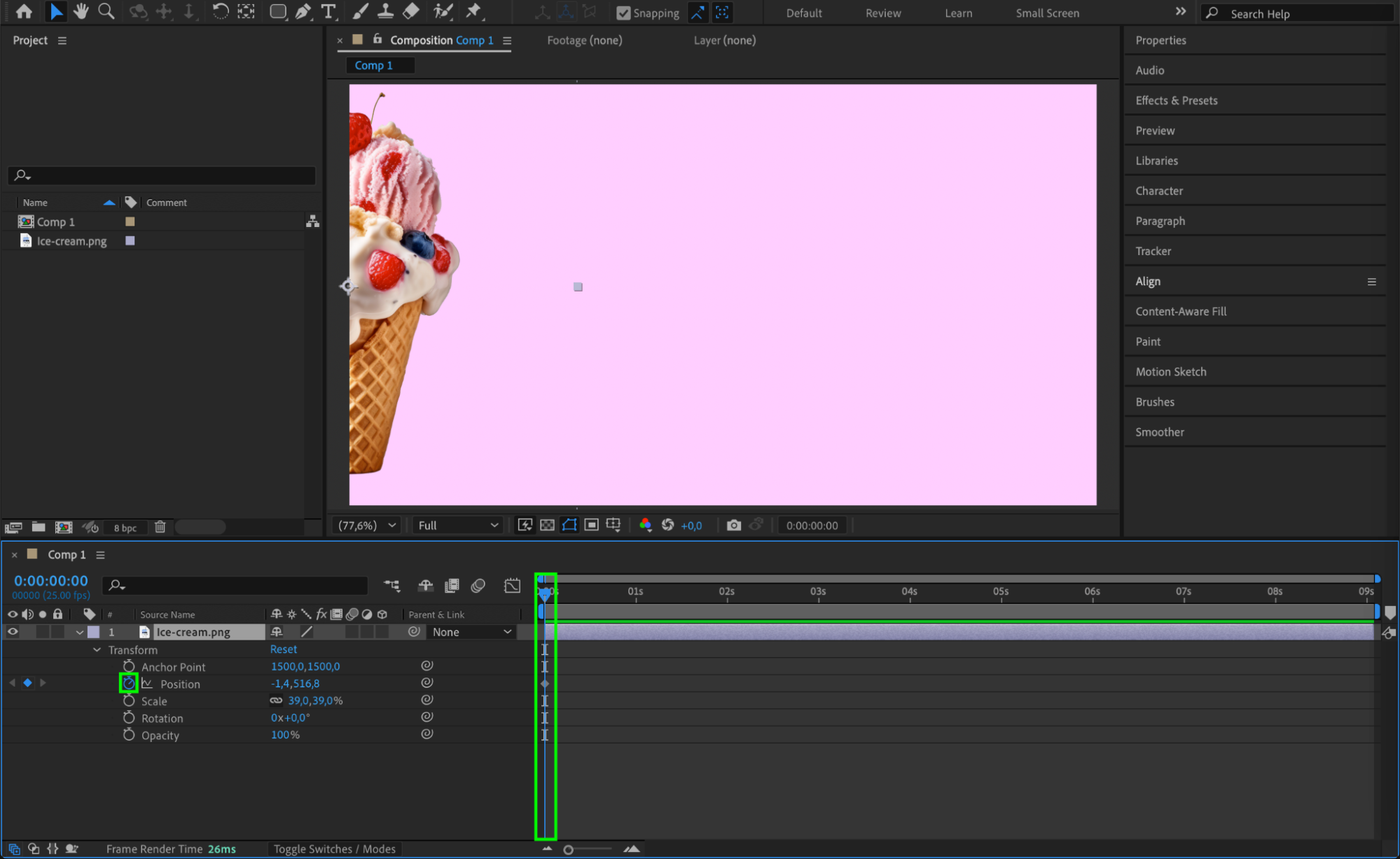
Step 3: Add Easy Ease and Use the Graph Editor
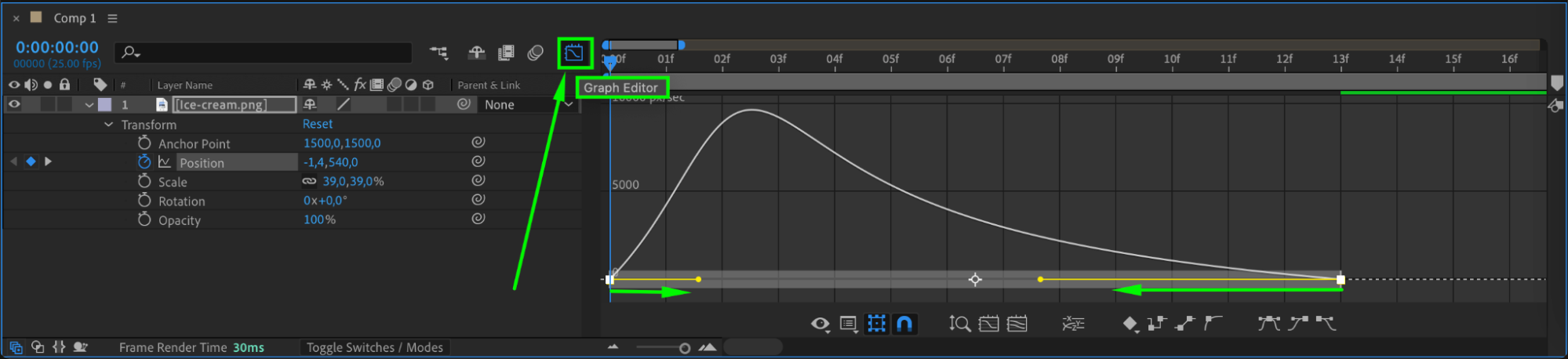
Right-click on your keyframes and choose Keyframe Assistant > Easy Ease to smooth the animation. Open the Graph Editor to fine-tune the motion speed, creating a more natural and polished animation curve. This step is optional but helps your loops look smoother.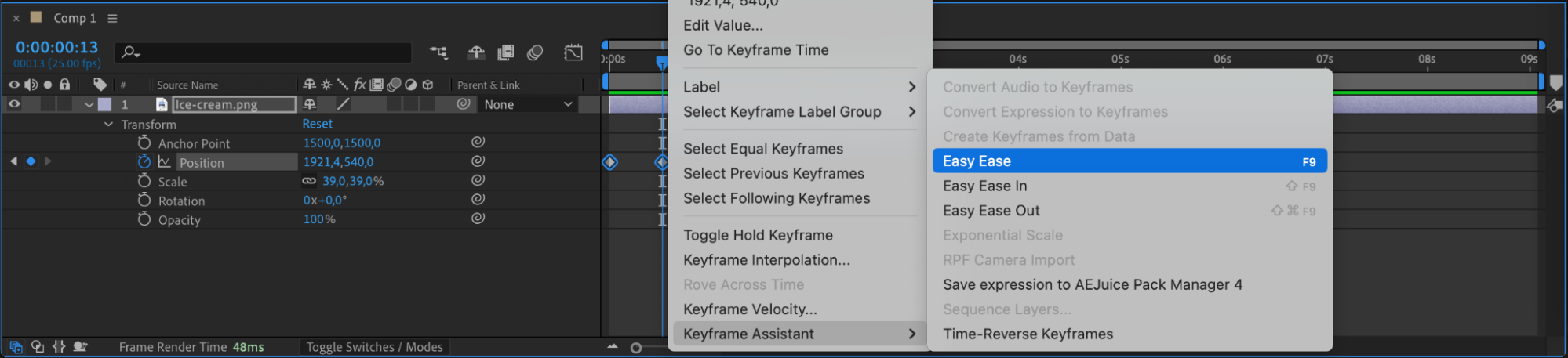
 Step 4: Add the loopOutDuration() Expression
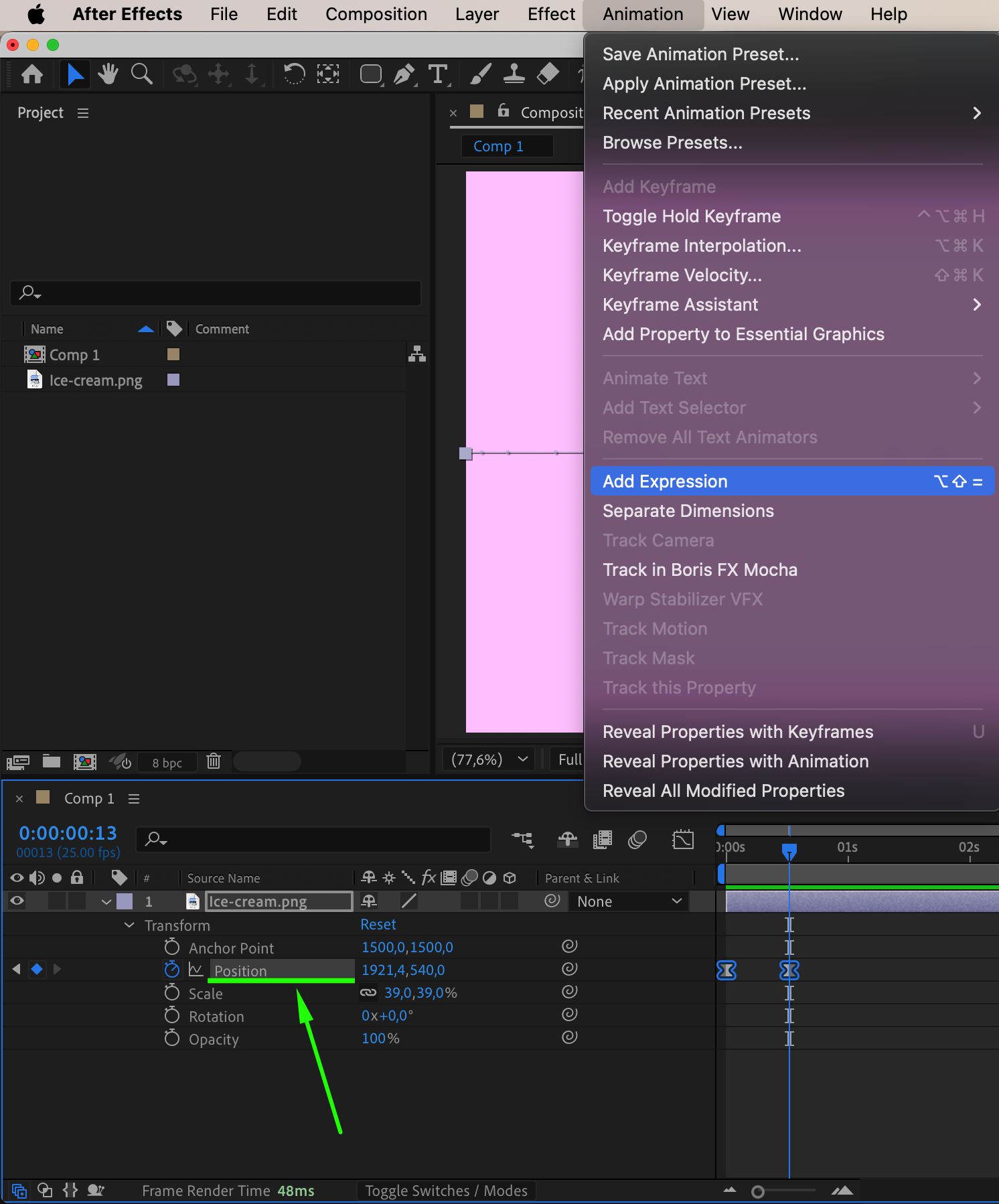
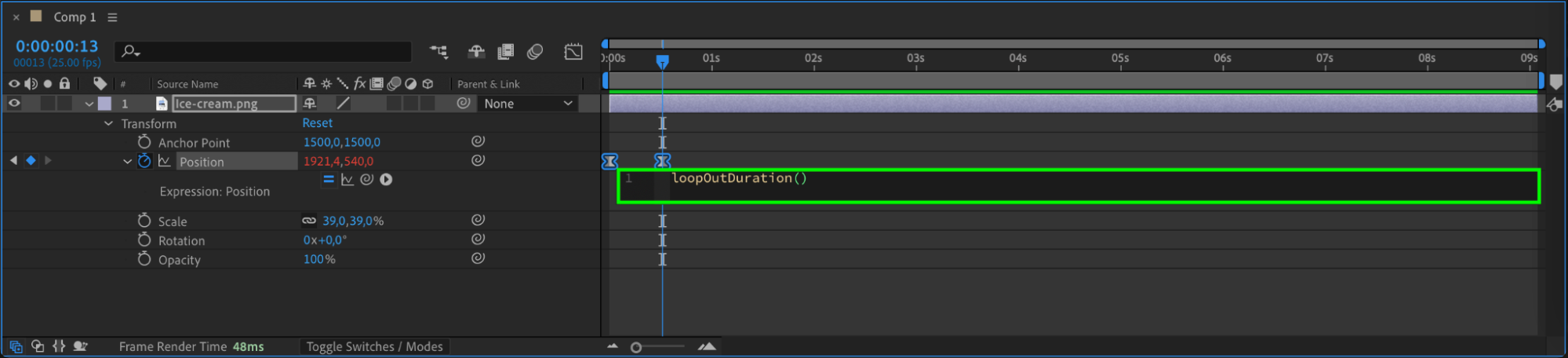
Alt+click (or Option+click on Mac) on the stopwatch icon next to the animated property (e.g., Position). In the expression box that appears, type:
loopOutDuration()
This expression tells After Effects to repeat the animation for the rest of the layer’s duration, based on the length of your keyframed segment.
Step 5: Enable Motion Blur (Optional)
To make the motion look more realistic, check the Motion Blur box for the layer and also activate the Motion Blur toggle at the top of the timeline. This adds natural-looking blur during movement, especially for fast or smooth loops.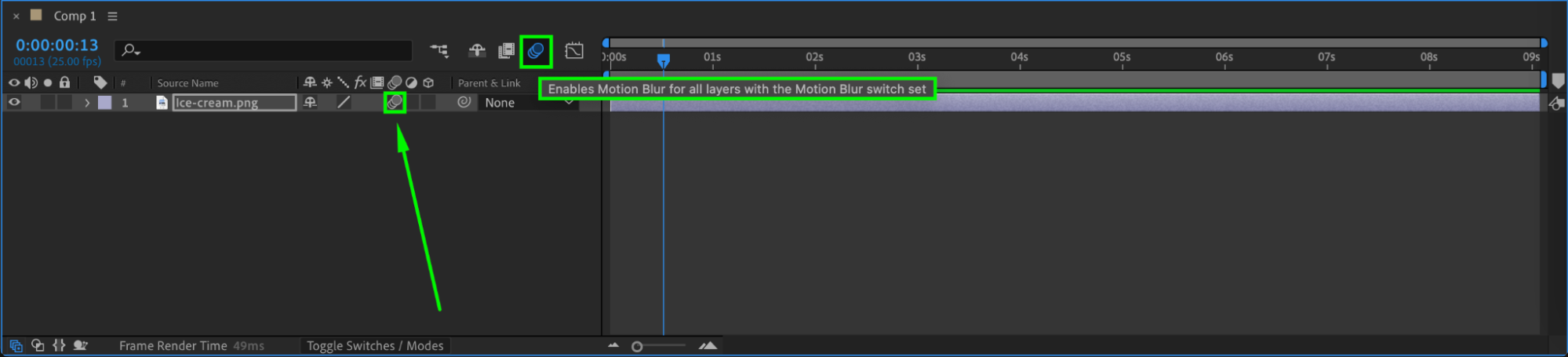 Step 6: Preview the Loop
Press Spacebar to play back your animation. You should see the effect loop seamlessly as long as the layer remains in the timeline. You can extend the layer to increase how long the loop continues.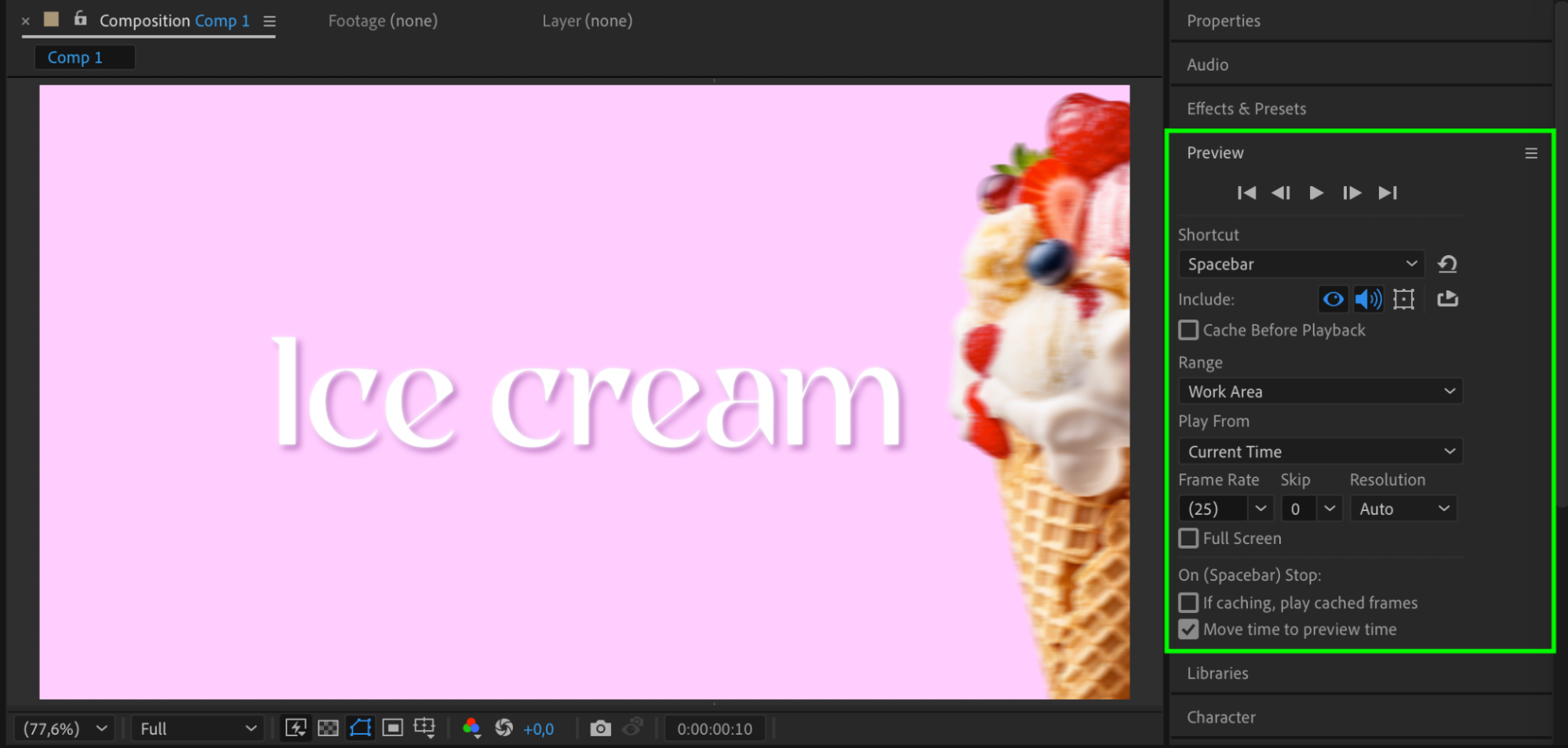
Conclusion
Using expressions like loopOutDuration() in Adobe After Effects is a simple way to repeat animations automatically without duplicating keyframes. It saves time and ensures consistency, especially for background elements, UI loops, or repeated movements. This technique is essential for creating efficient and professional motion designs.
Our Bestsellers
Our Bestsellers


