
Introduction
An engraving effect gives your text or shapes a carved, etched appearance — perfect for vintage titles, metal surfaces, or stylized graphic design. With a combination of matte blending and CC Glass, you can create a convincing engraved look quickly inside After Effects.
Step 1: Create a New Composition
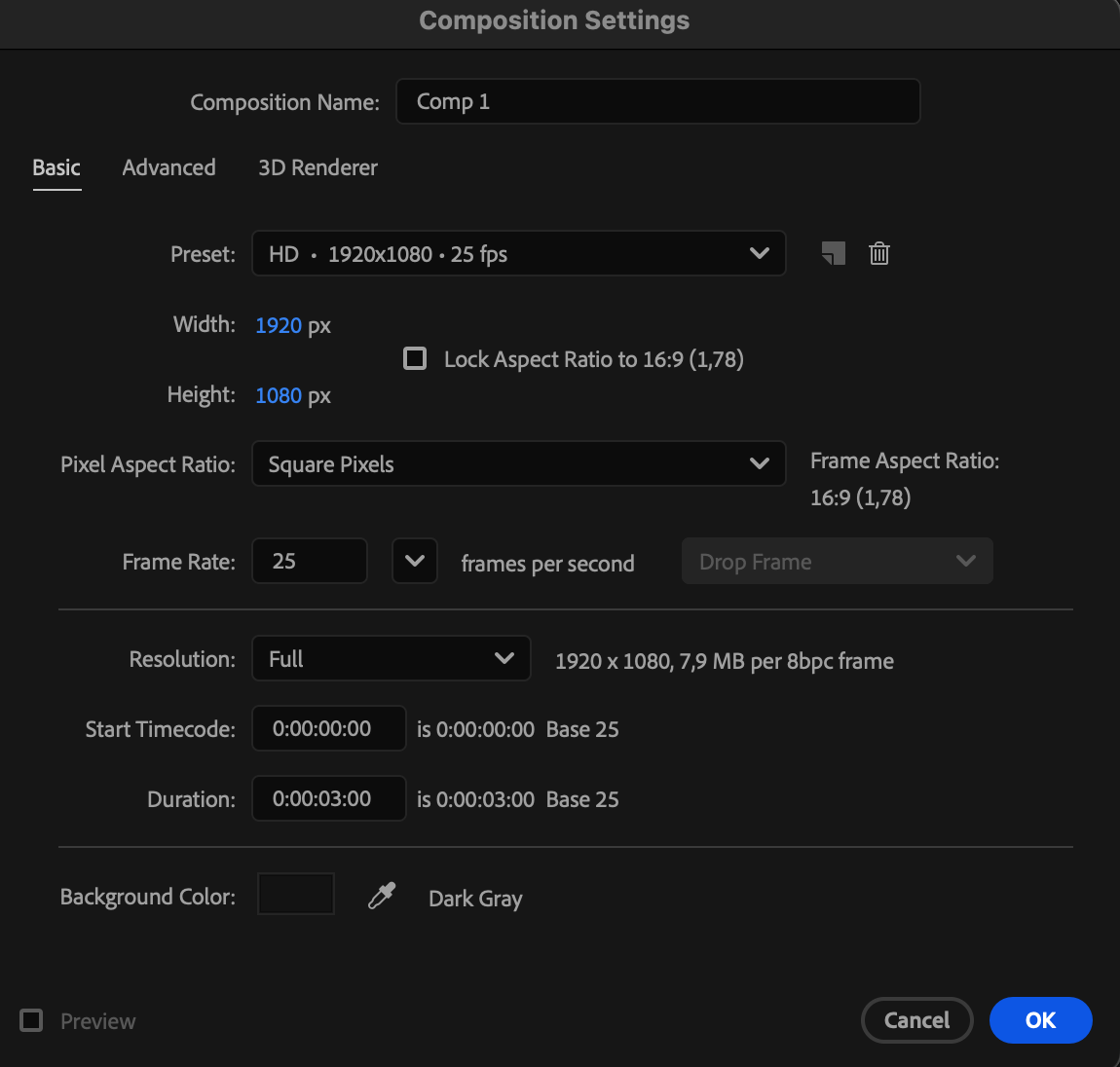
Go to Composition > New Composition and set your desired resolution and duration.
 Step 2: Create a Background Solid
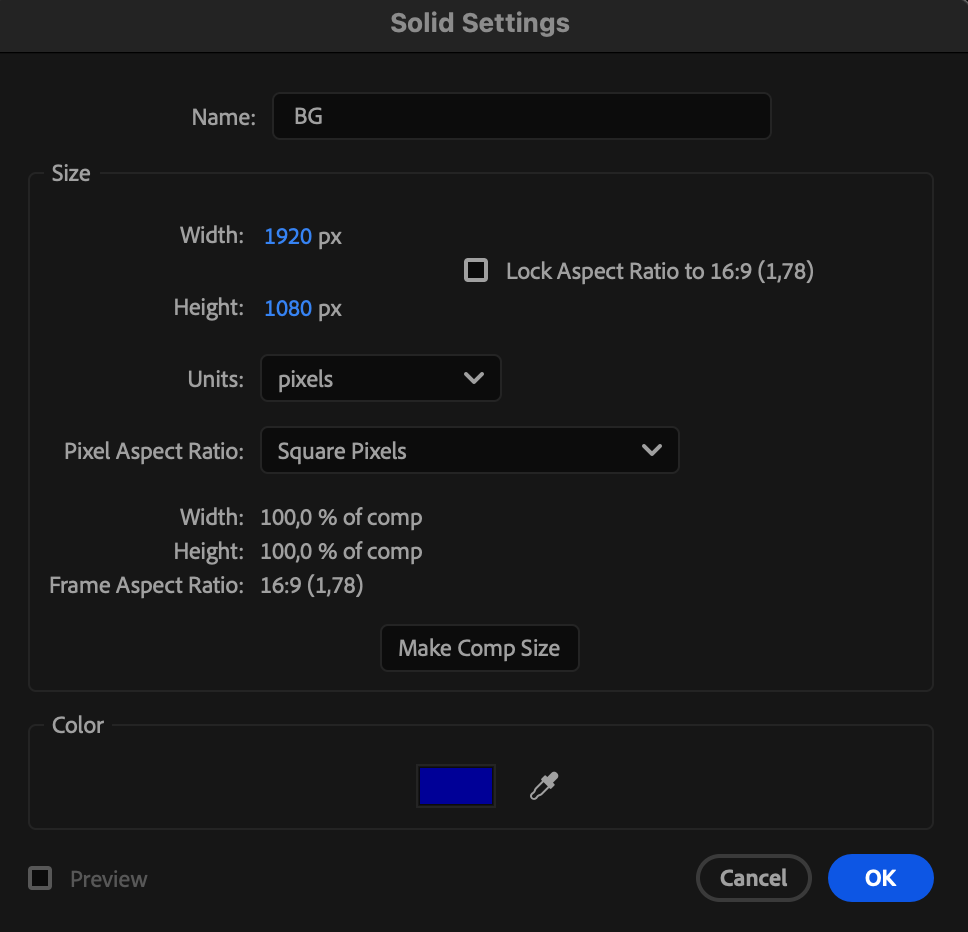
Go to Layer > New > Solid, choose a background color, and click OK.
Step 3: Create Your Text or Shape
Use the Type Tool (Ctrl/Cmd + T) to create text, or use the Shape Tool (Q) to draw a shape you want to engrave.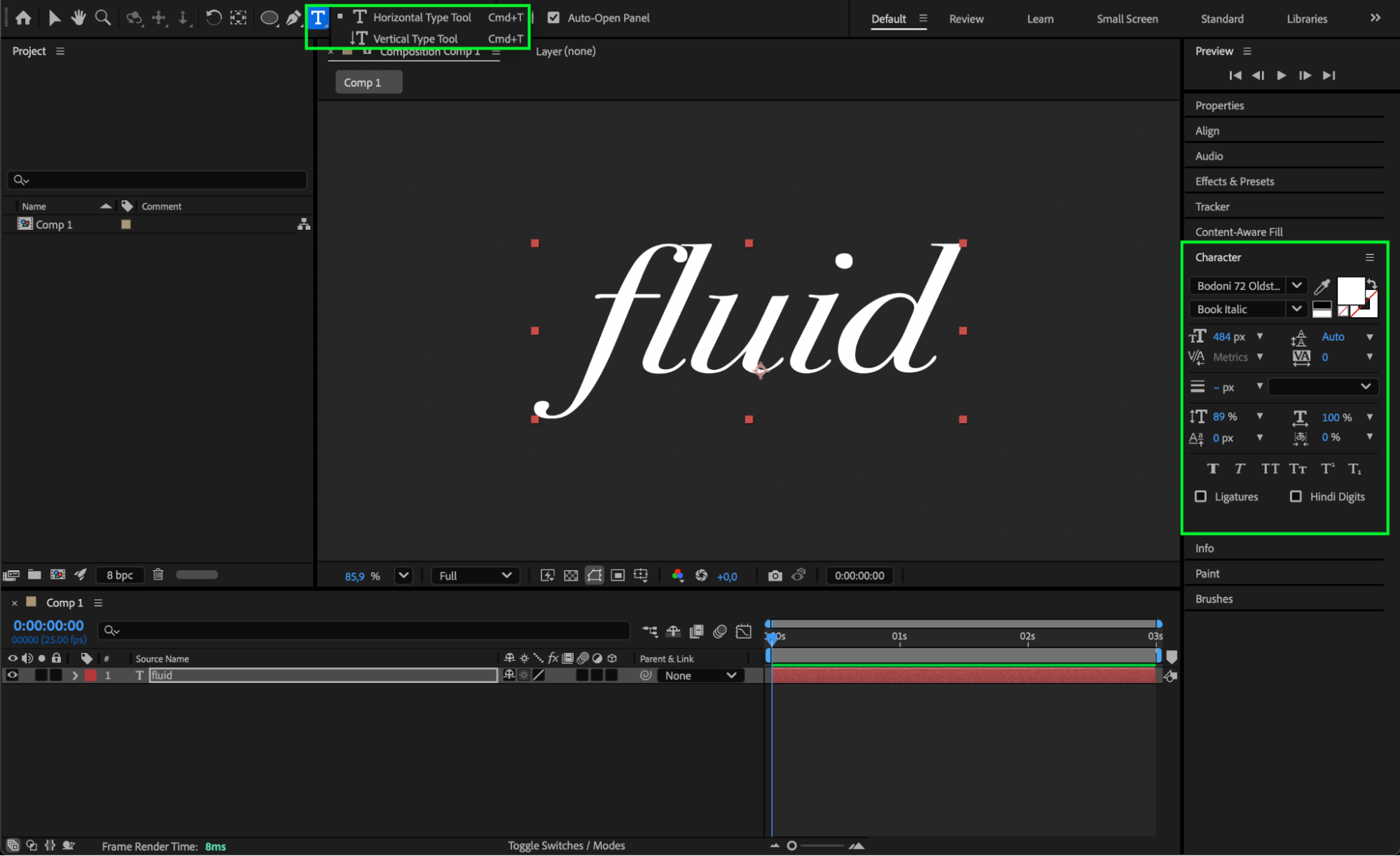 Step 4: Pre-Compose the Text or Shape
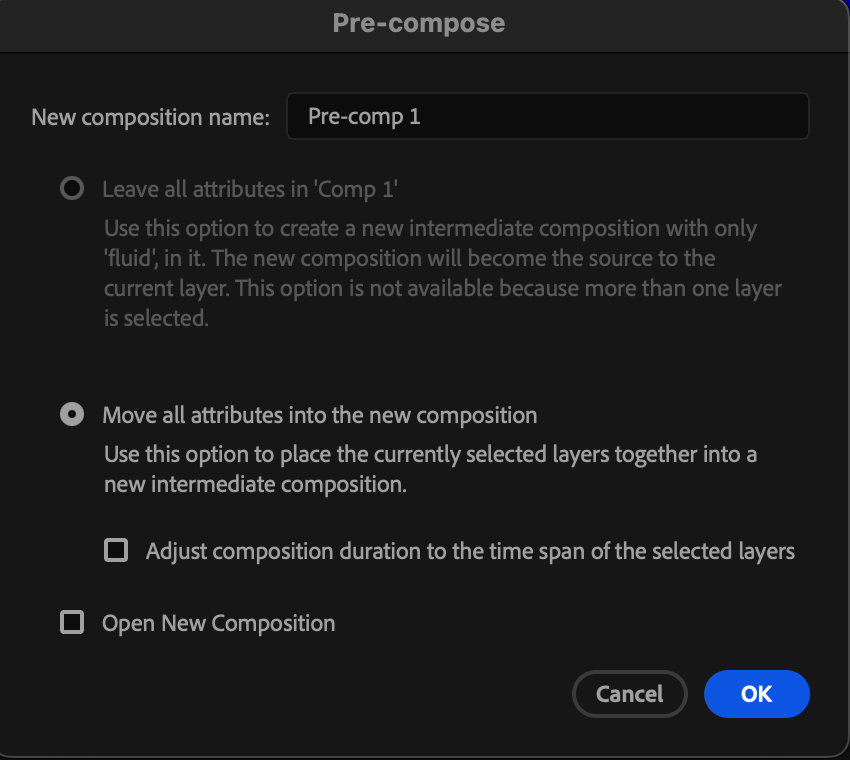
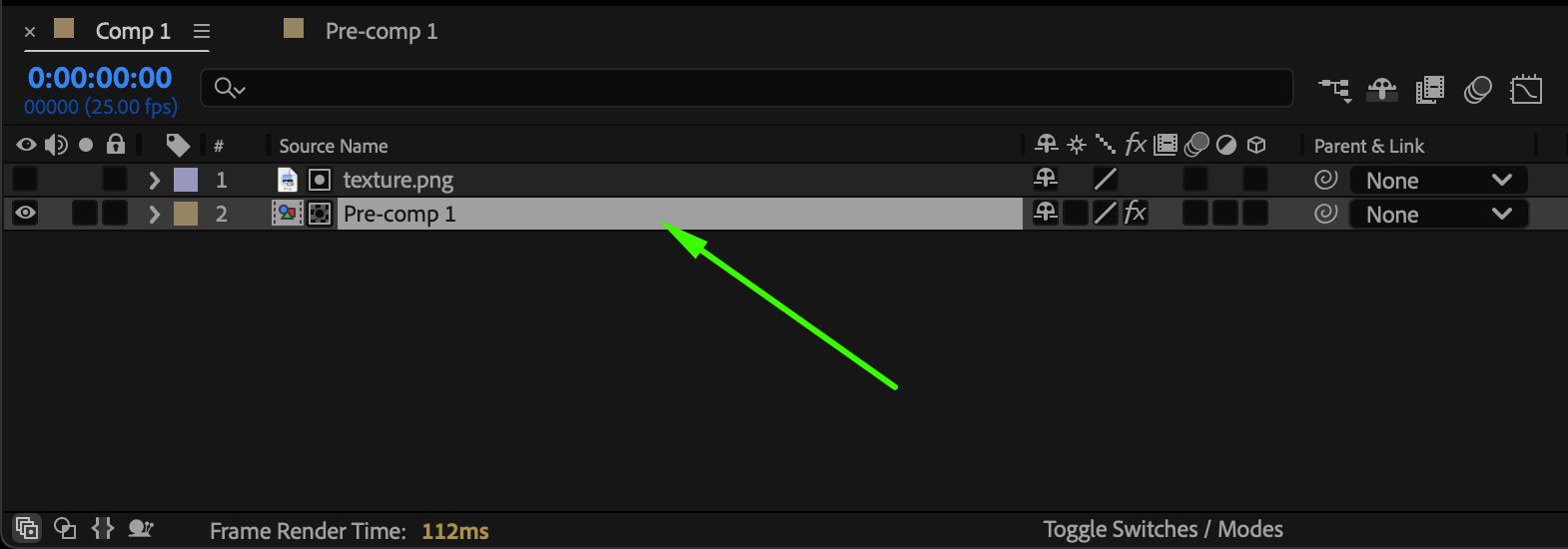
Select your text or shape layers along with the background solid, right-click, and choose Pre-compose. Make sure to move all attributes into the new composition and give it a clear name.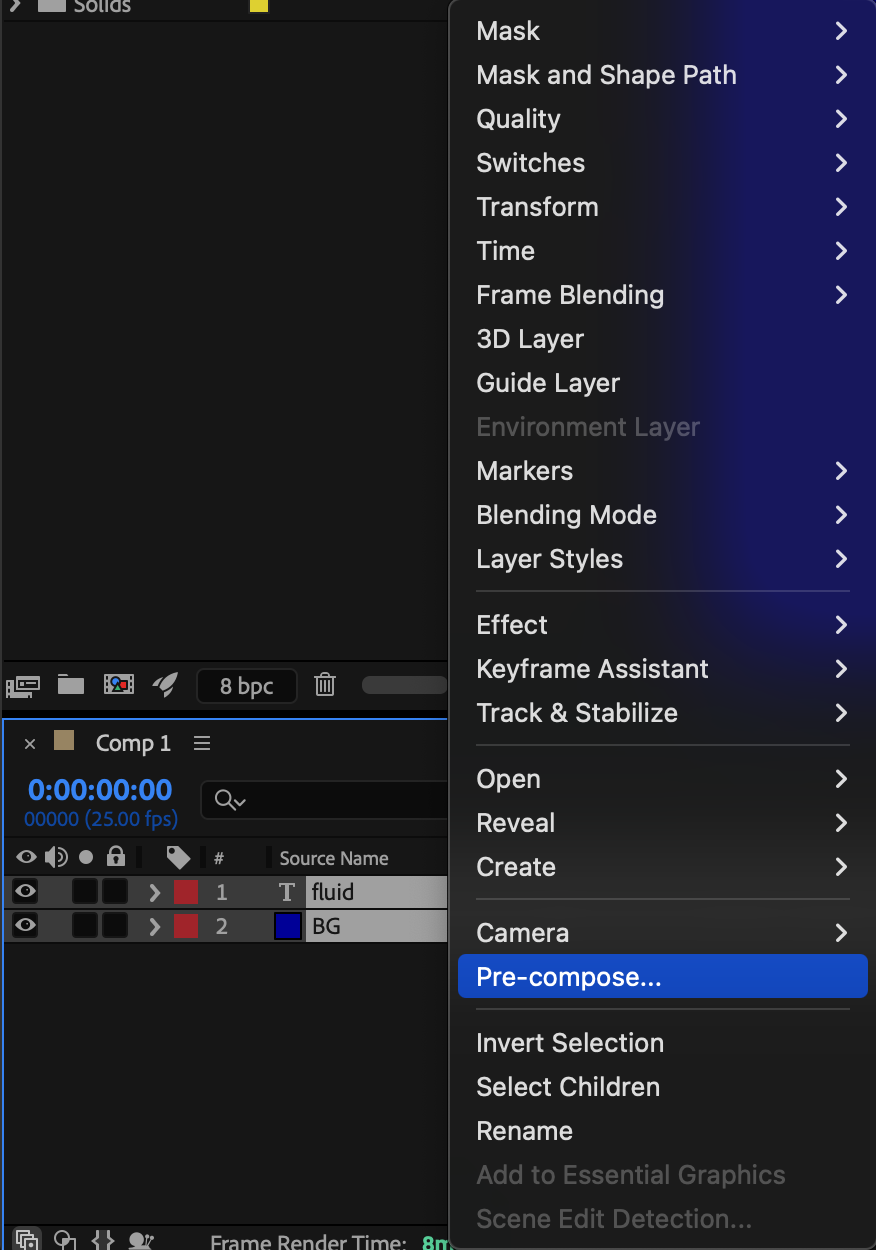
Step 5: Import a Texture
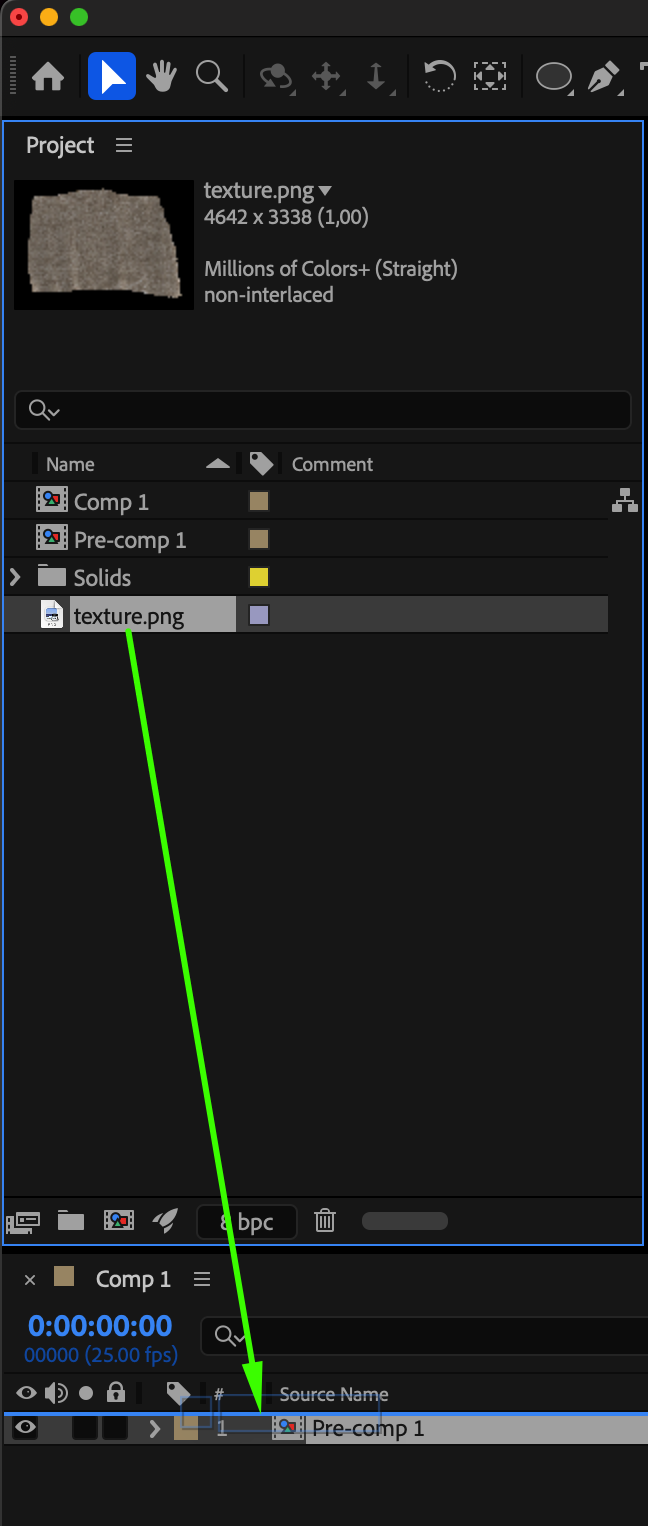
Go to File > Import > File and choose a texture (such as metal, stone, or wood). Place this texture layer above your pre-comp in the timeline.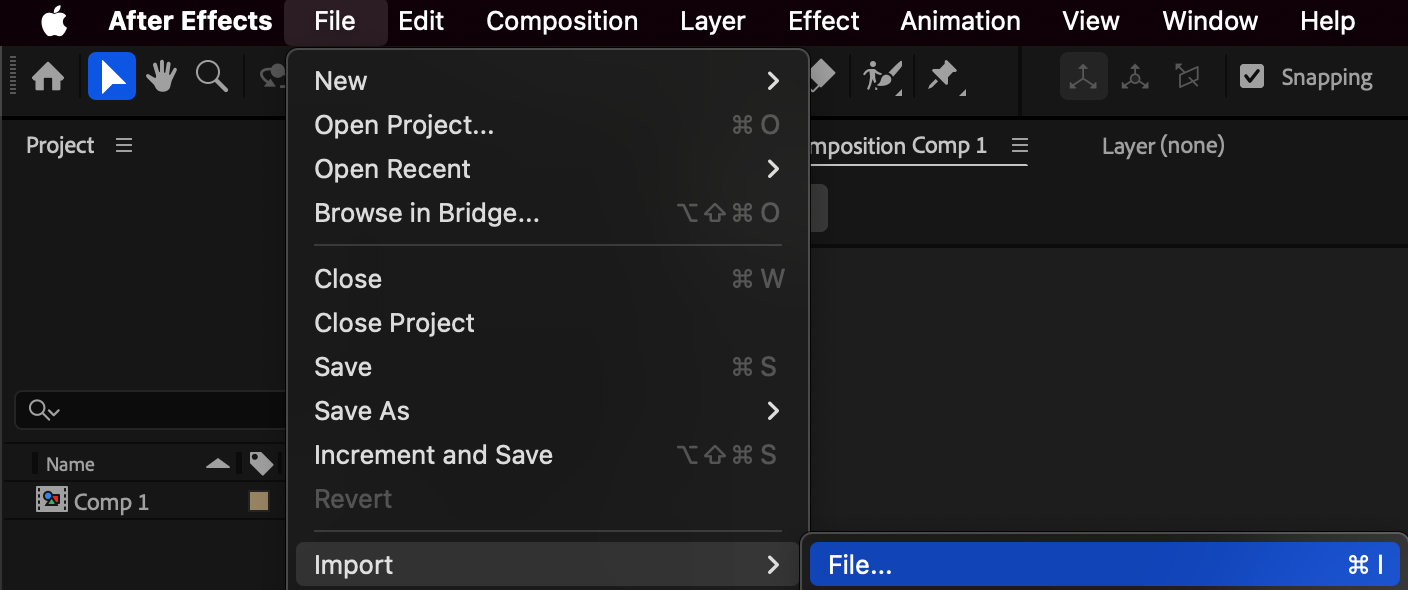
 Step 6: Apply Luma Matte
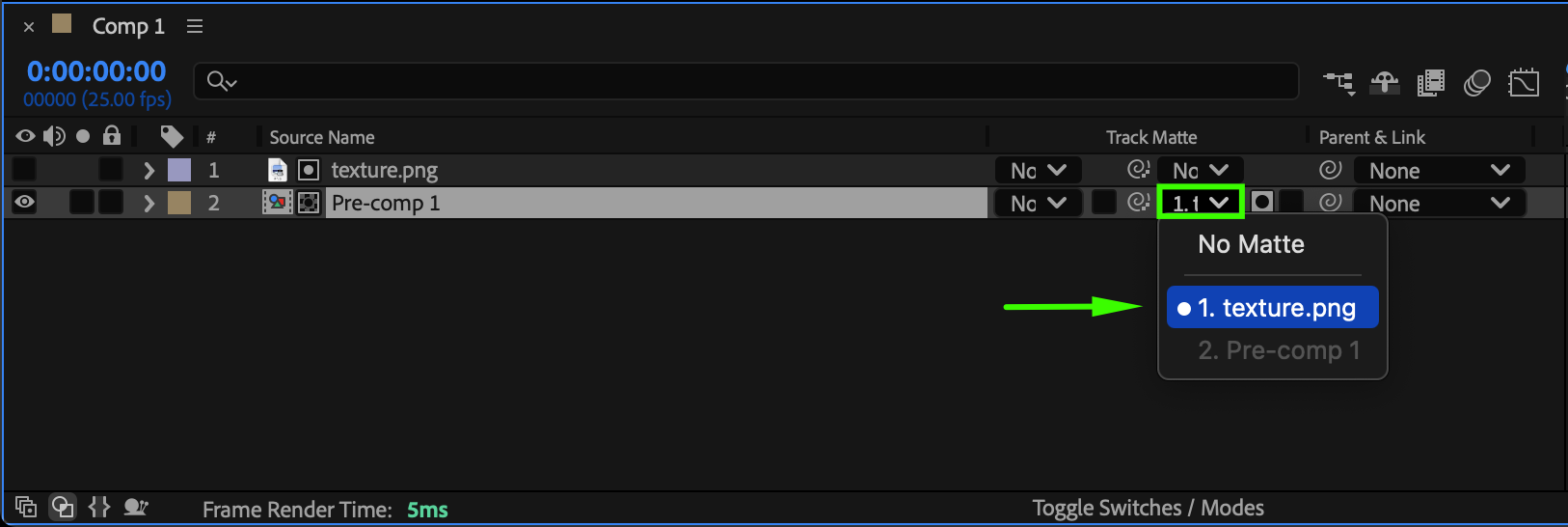
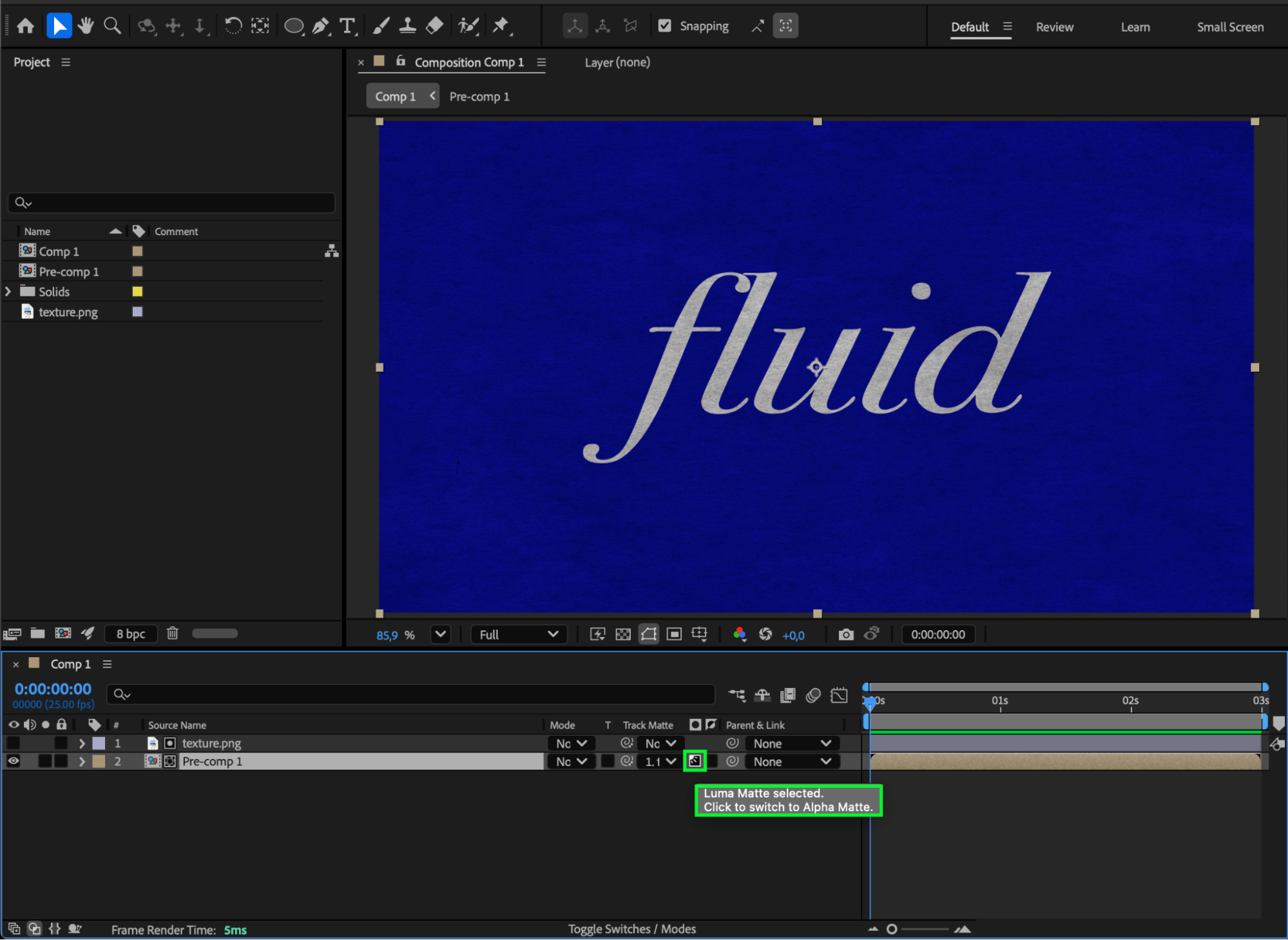
In the TrkMat (Track Matte) column, set your pre-comp to: Luma Matte using the texture layer. This allows the texture to define the engraved areas.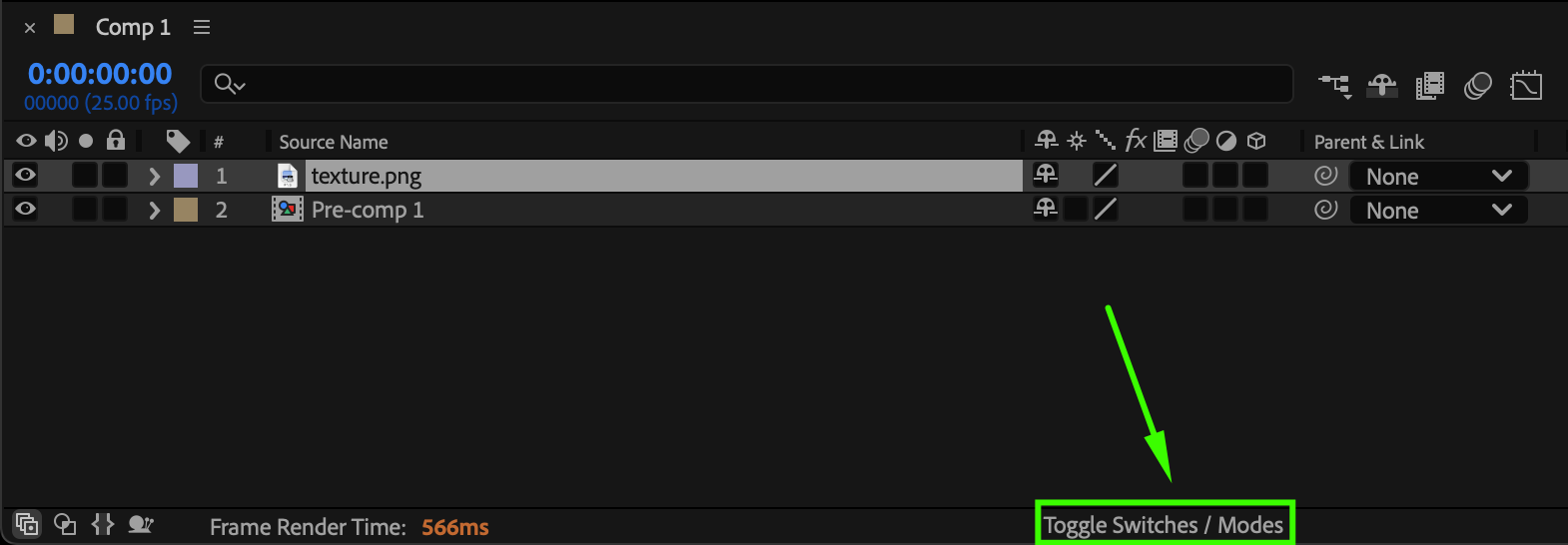
 Step 7: Apply the CC Glass Effec
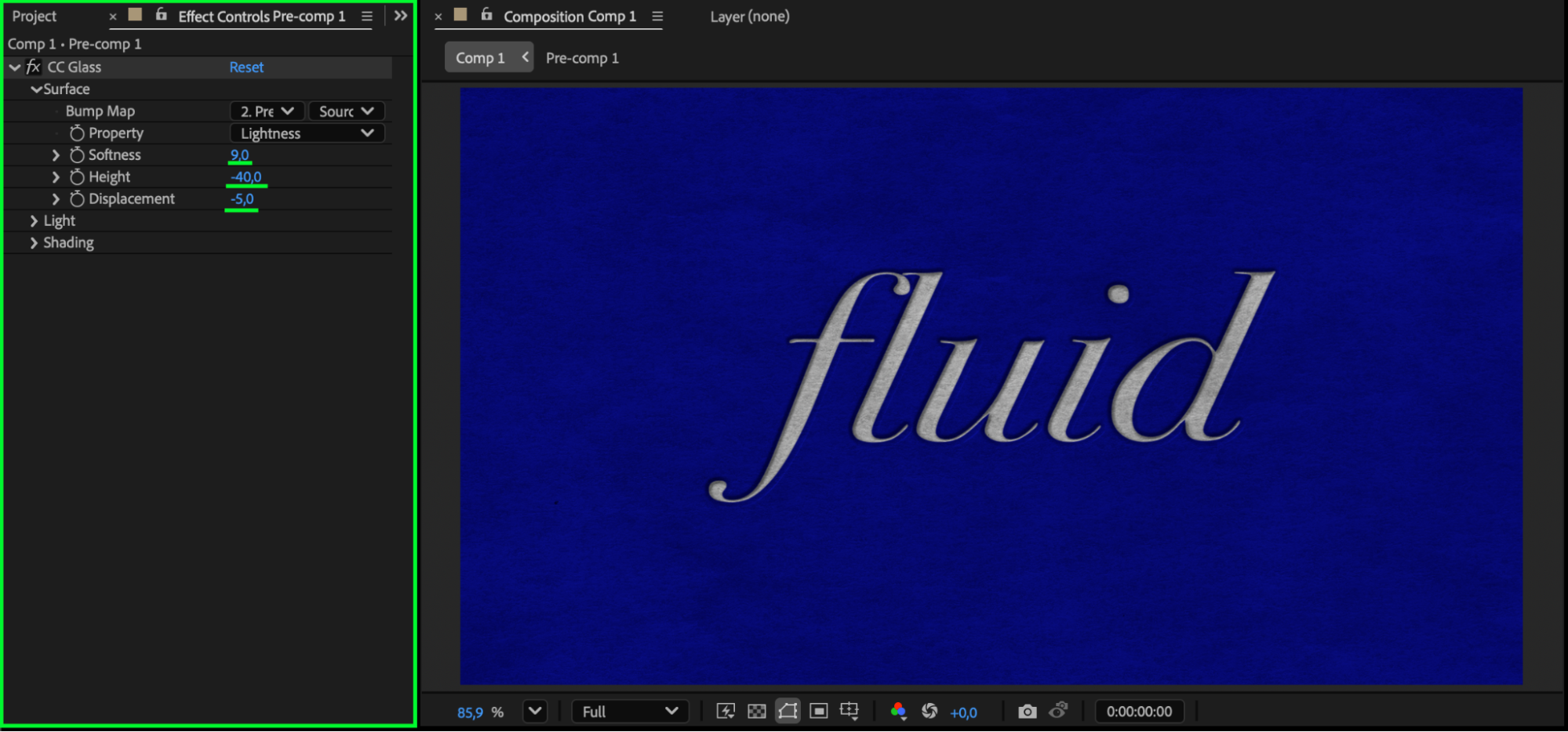
Select your pre-comp and drag CC Glass from the Effects & Presets panel onto it. In the Effect Controls, adjust:
Softness: 9
Height: –40
Displacement: –5
These settings help simulate an indented, carved surface.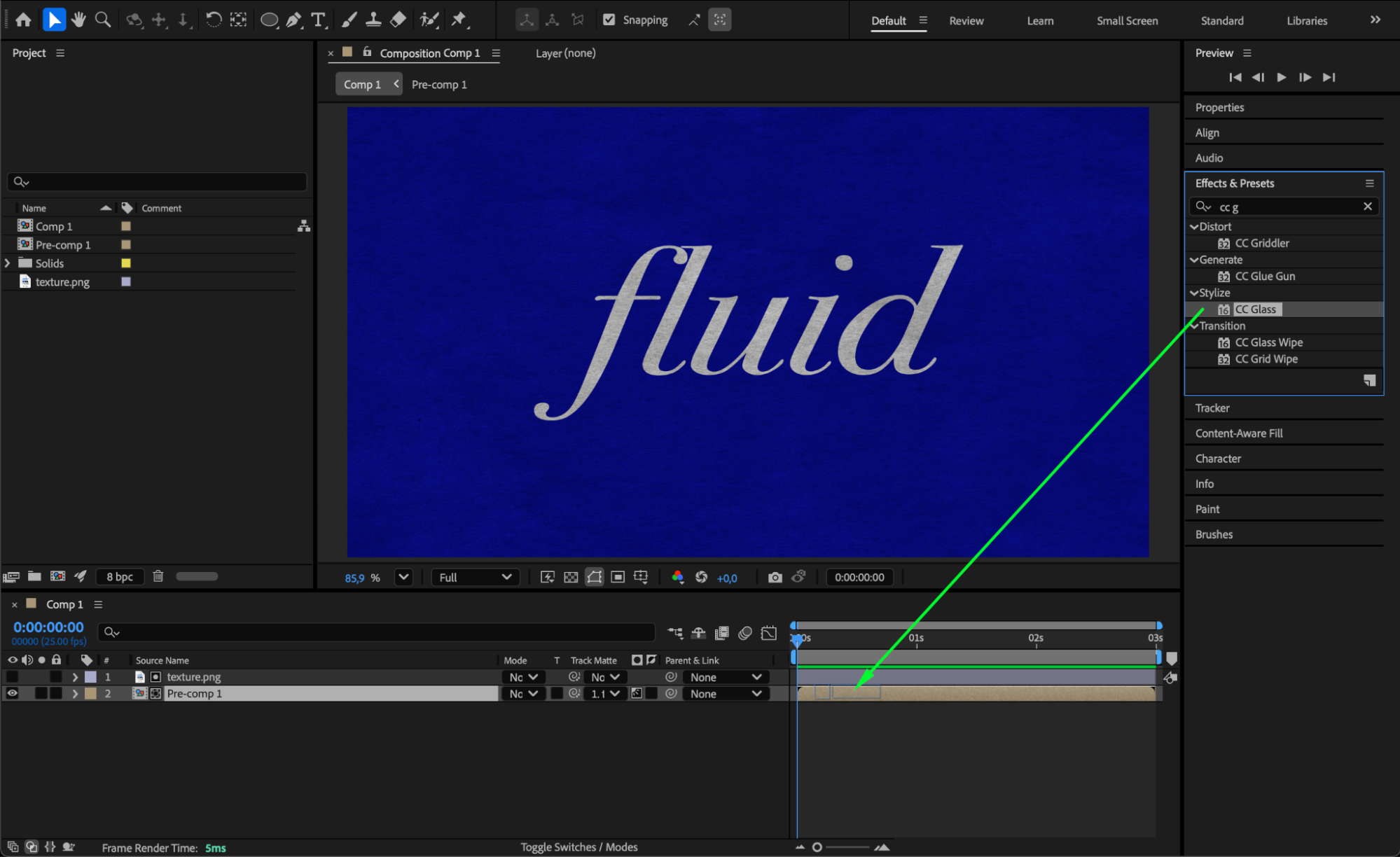
Step 8: Add Glow Inside the Pre-Comp
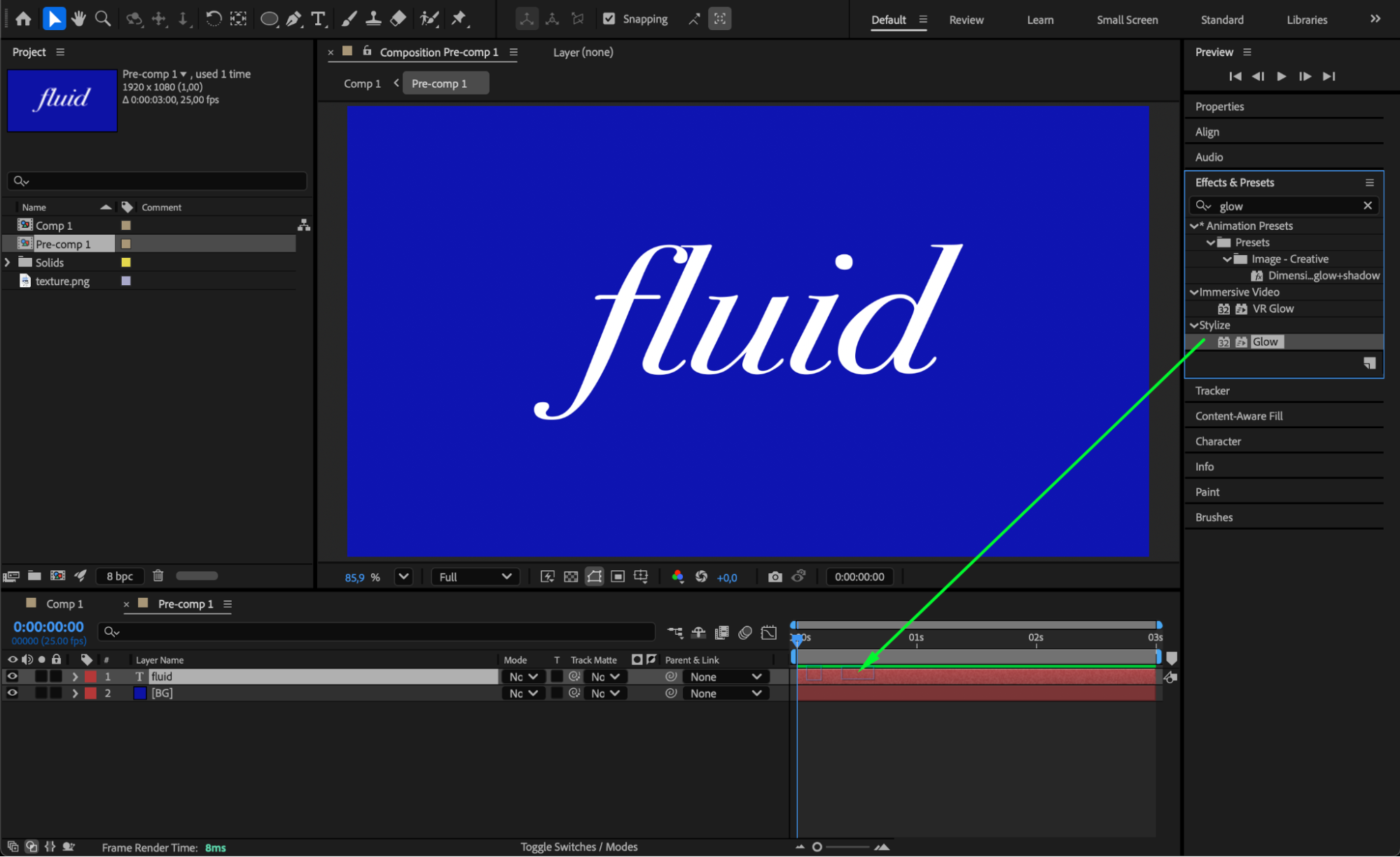
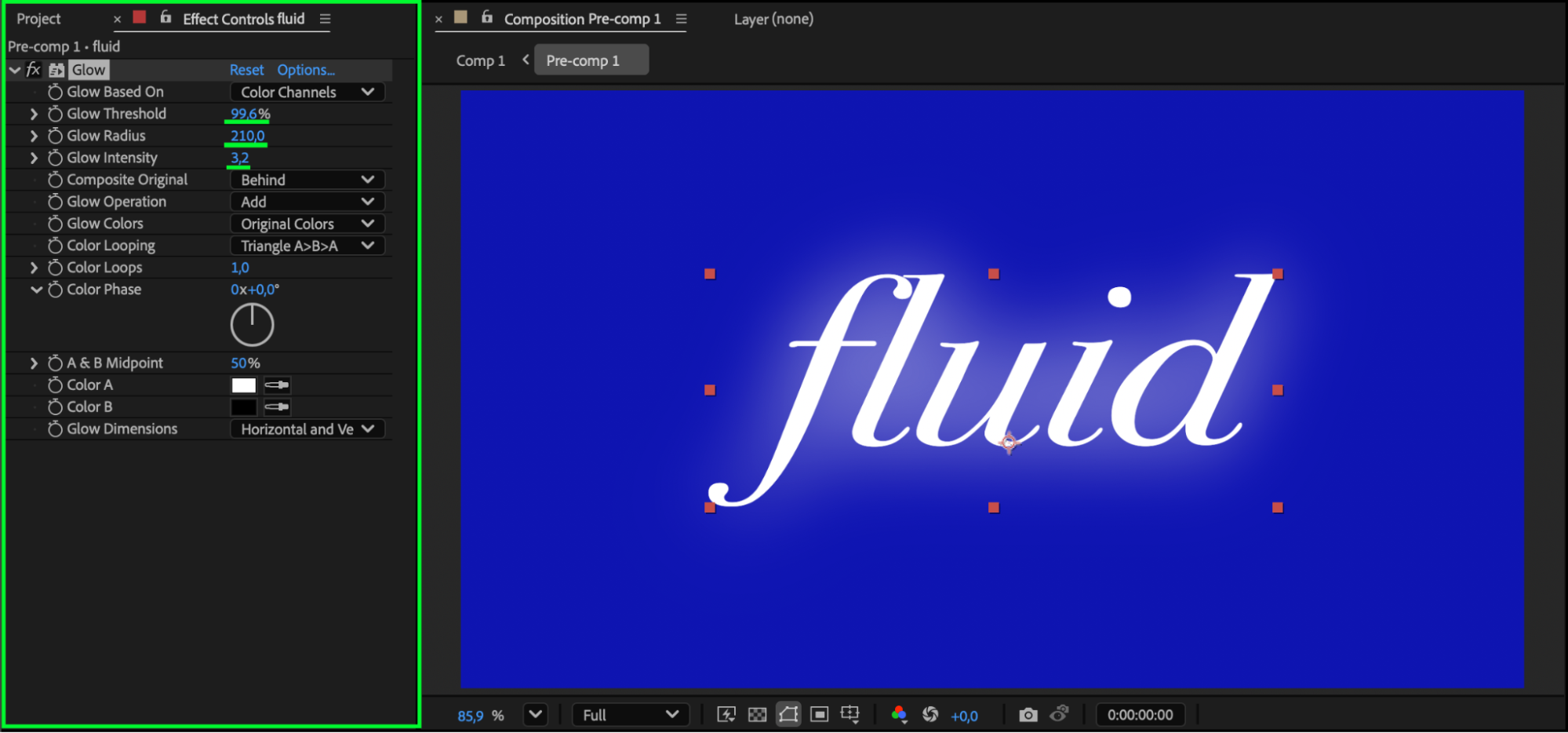
Double-click the pre-comp to open it. Select the text or shape layer and apply the Glow effect for subtle lighting and extra depth.
Step 9: Return to Main Composition and Preview
Go back to your main composition and press Spacebar to preview the engraving. Tweak CC Glass settings and glow intensity until the engraving looks polished and realistic.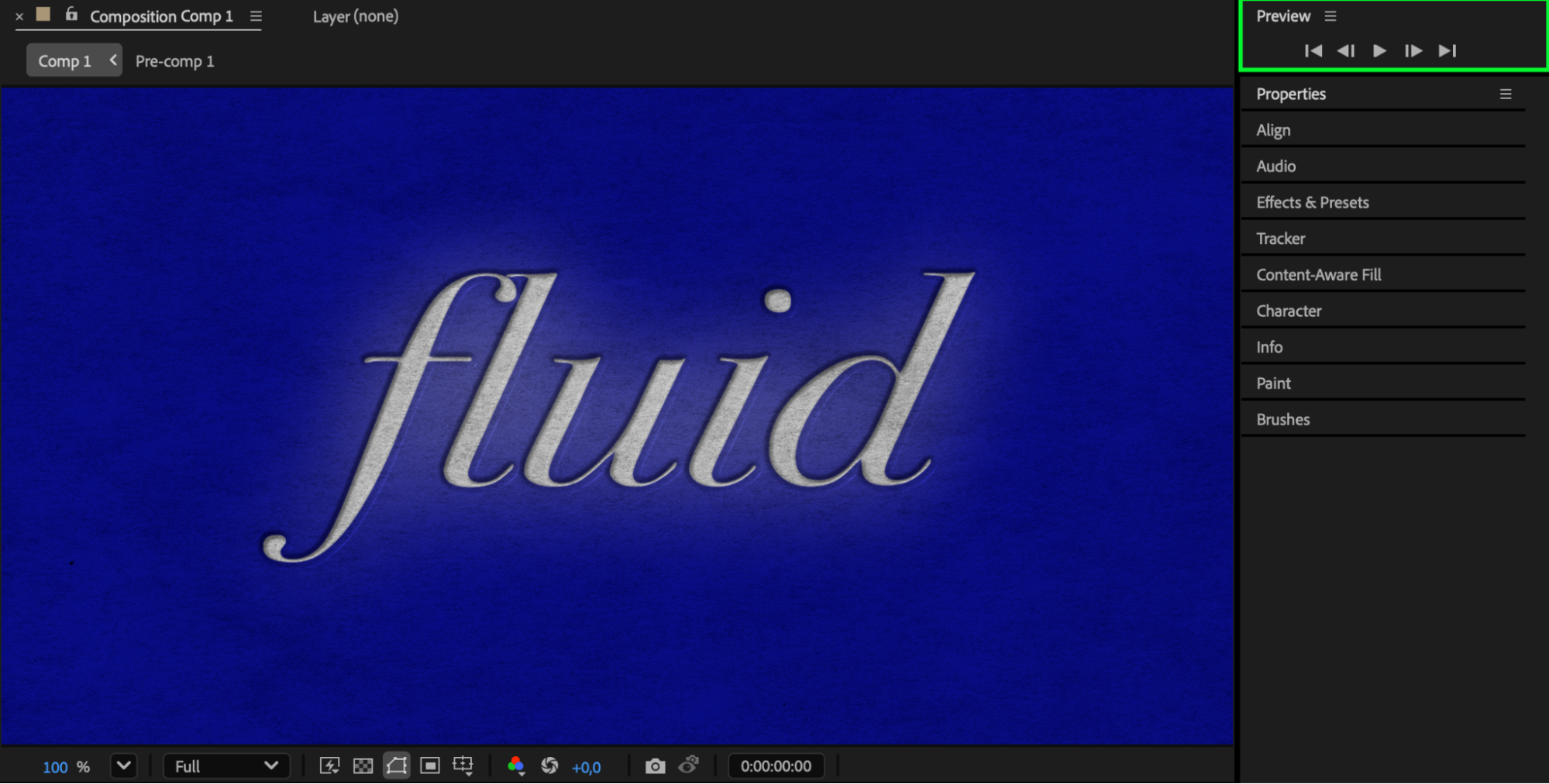
Conclusion
With texture mattes, CC Glass, and a touch of glow, you can easily create a detailed and convincing engraving effect in After Effects. This method works great for stylized titles, logos, or decorative animations that need a carved or etched aesthetic.
Our Bestsellers
Our Bestsellers


