
Introduction
A spiral effect can give your object a dynamic, rotating 3D look. By combining the CC Cylinder effect with basic transform settings, you can easily make any image, shape, or graphic spiral in After Effects.
Step 1: Select the Object You Want to Transform
Open your project, choose the layer you want to modify (such as an image or shape), and make sure it is highlighted in the timeline.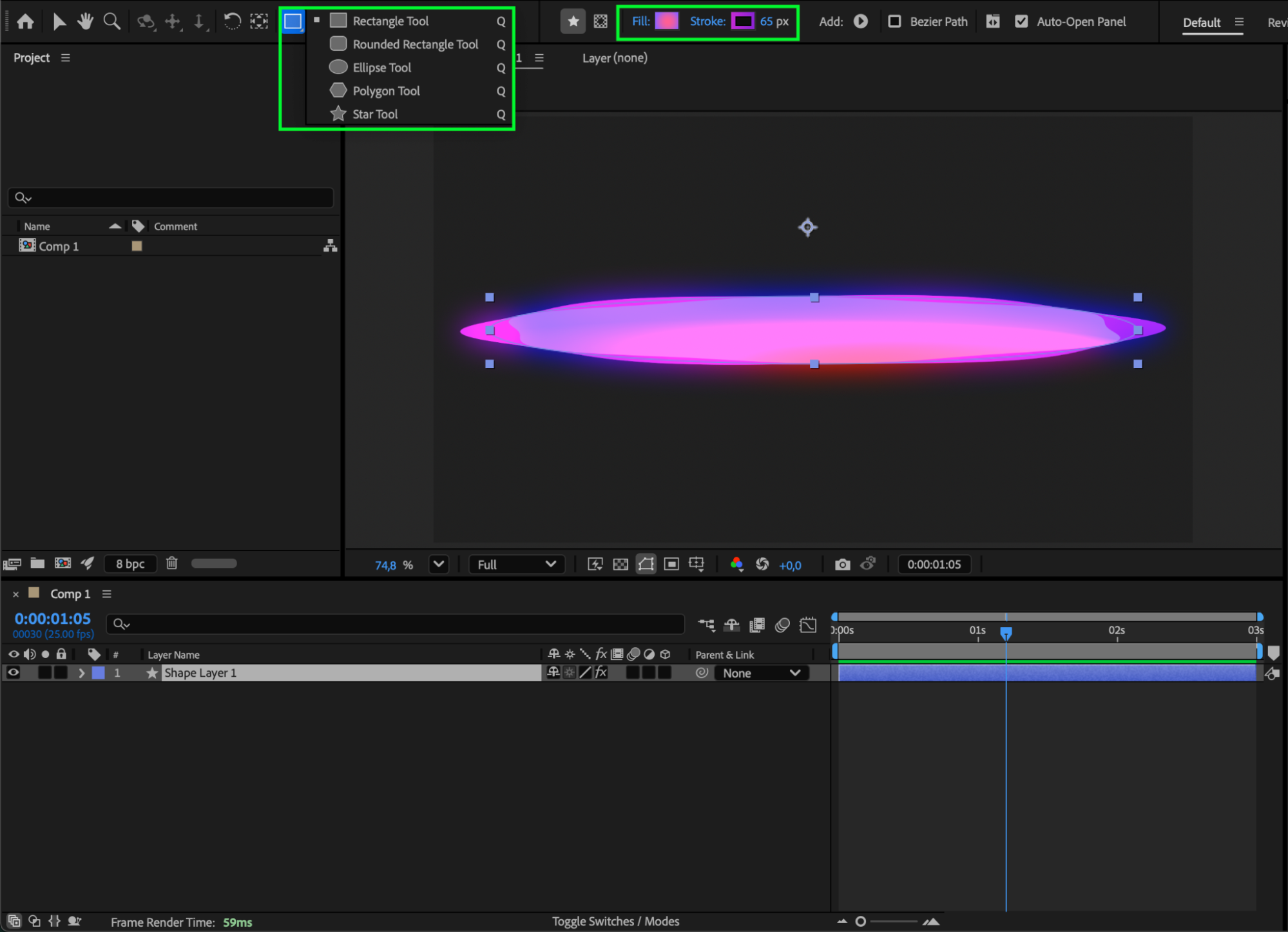 Step 2: Recenter the Anchor Point
Right-click the layer, go to Transform > Center Anchor Point in Layer Content to ensure clean and accurate rotation for the spiral effect.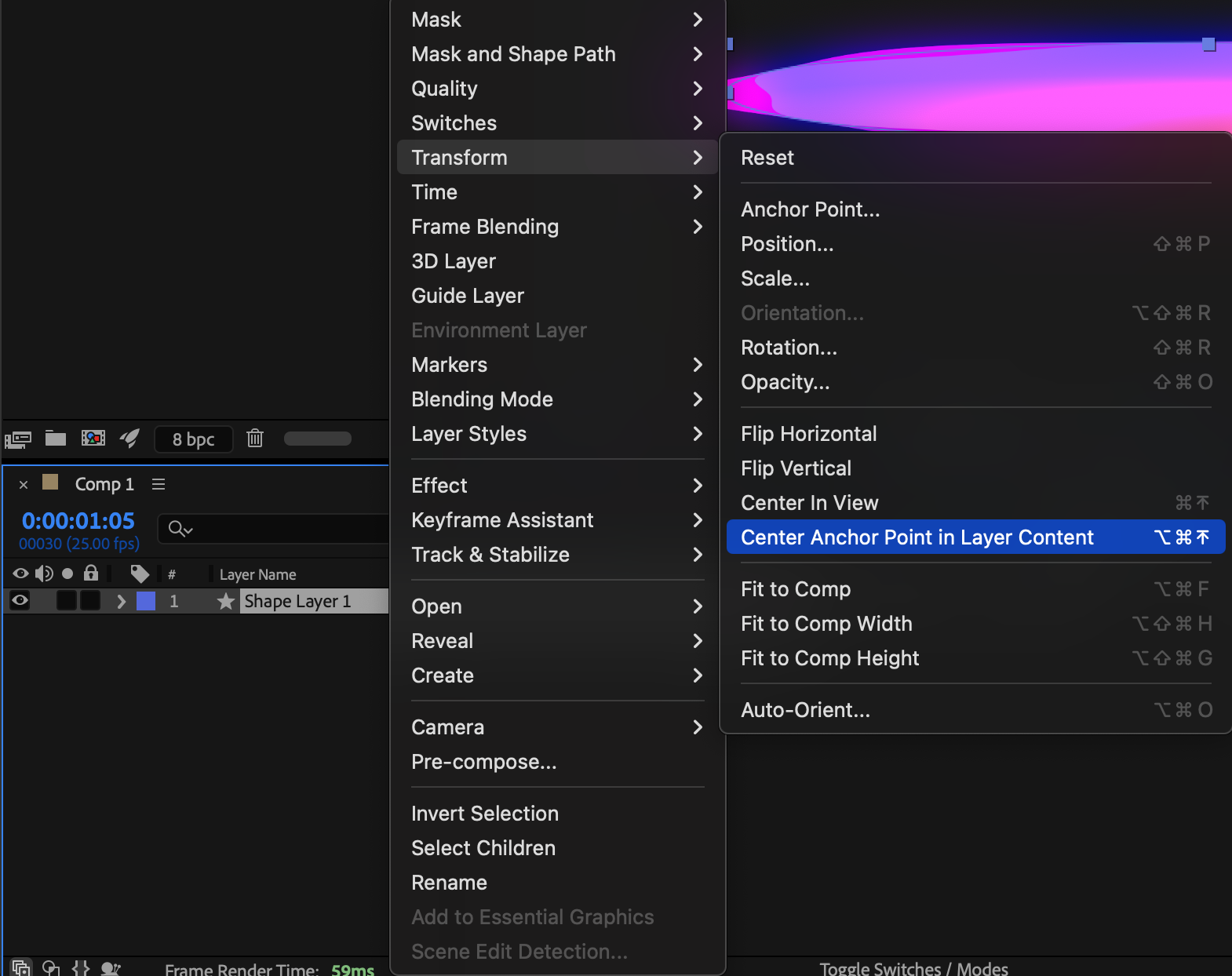
Step 3: Apply the CC Cylinder Effect
From the Effects & Presets panel, drag the CC Cylinder effect onto your selected layer. This converts your flat object into a cylindrical form that can spiral when rotated.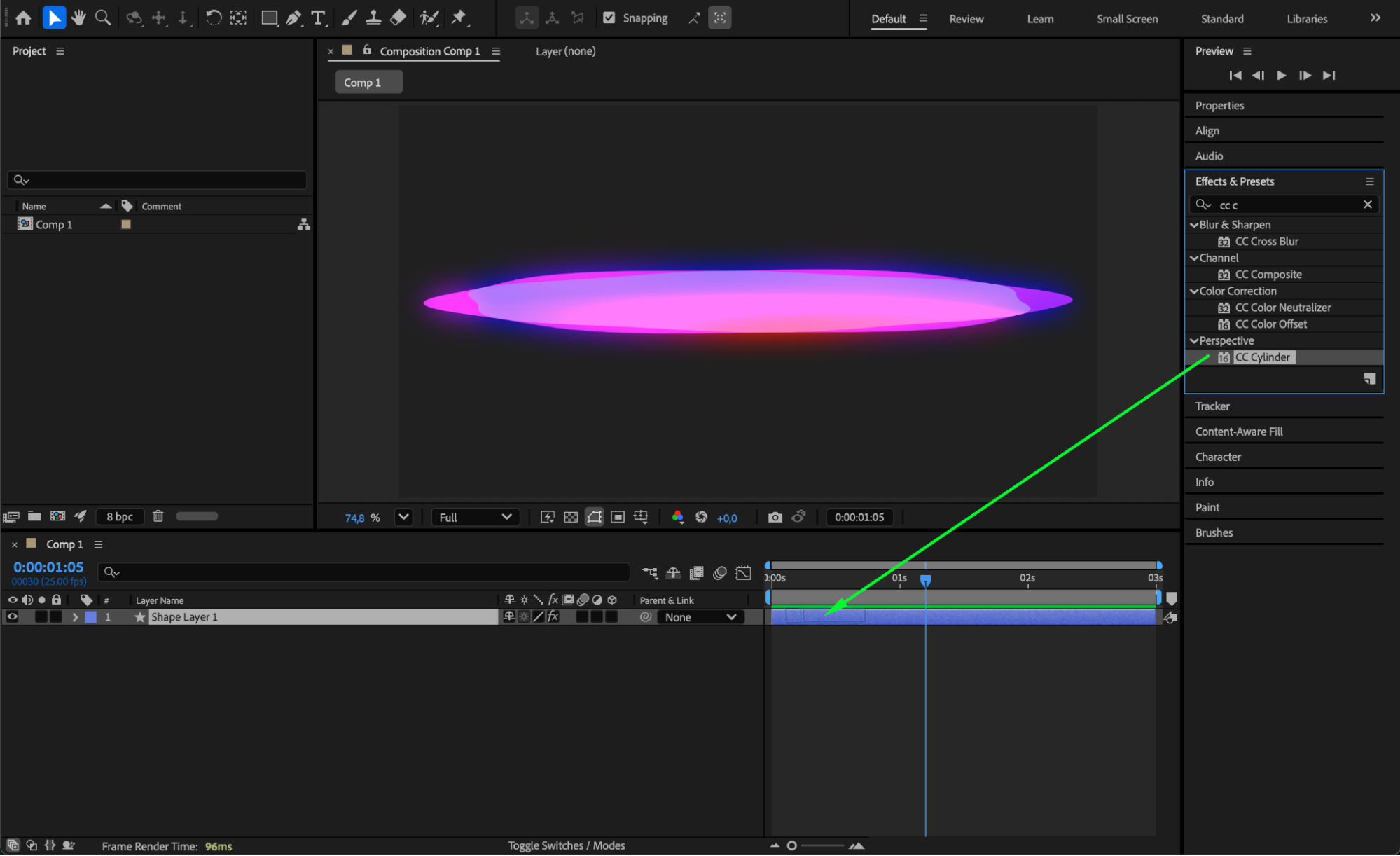 Step 4: Adjust Scale and Rotation
Open the layer’s Transform properties and modify Scale and Rotation to shape your spiral. You can rotate the cylinder using the CC Cylinder controls or use the regular layer rotation to achieve the spiraling look you want.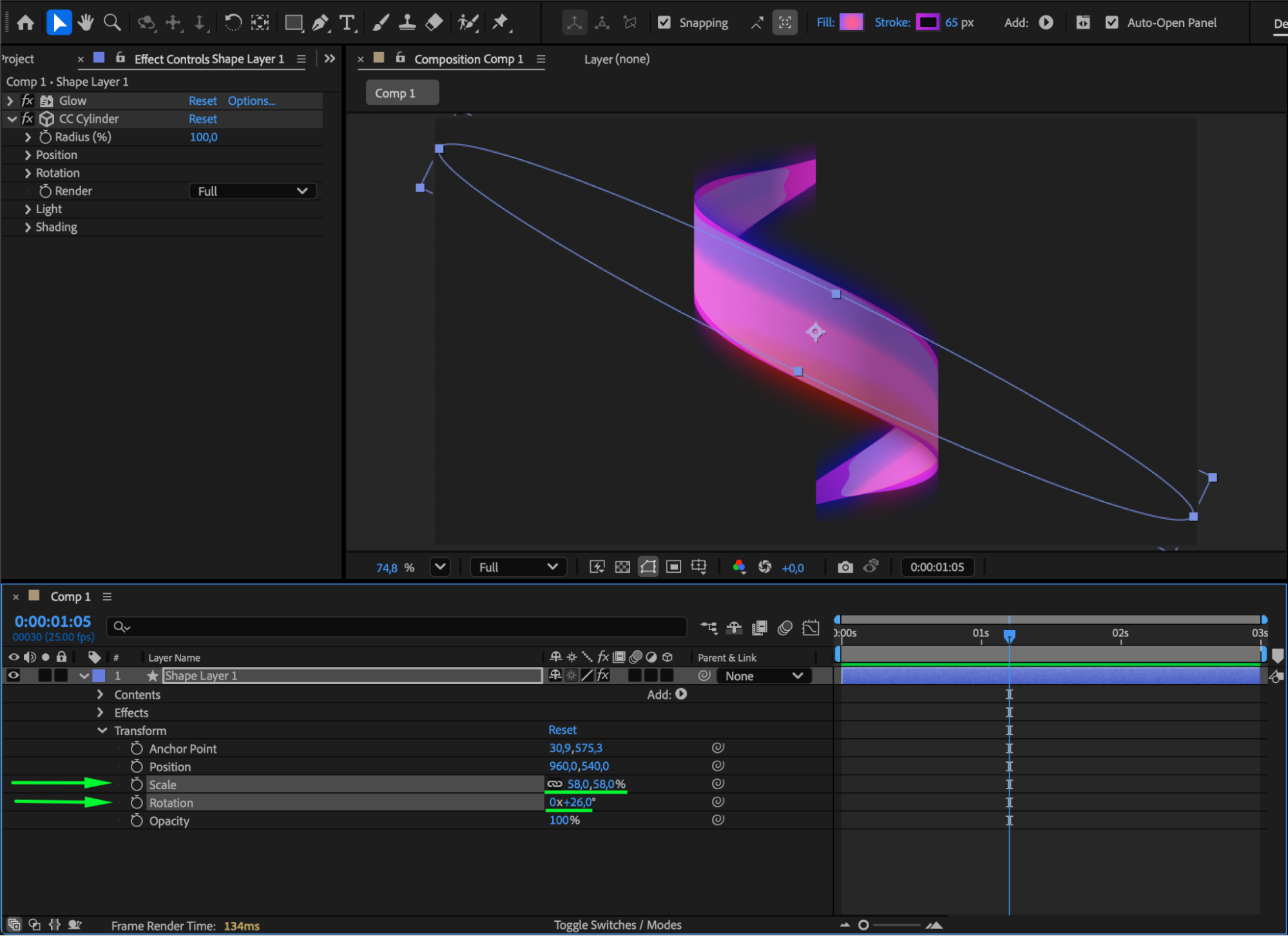
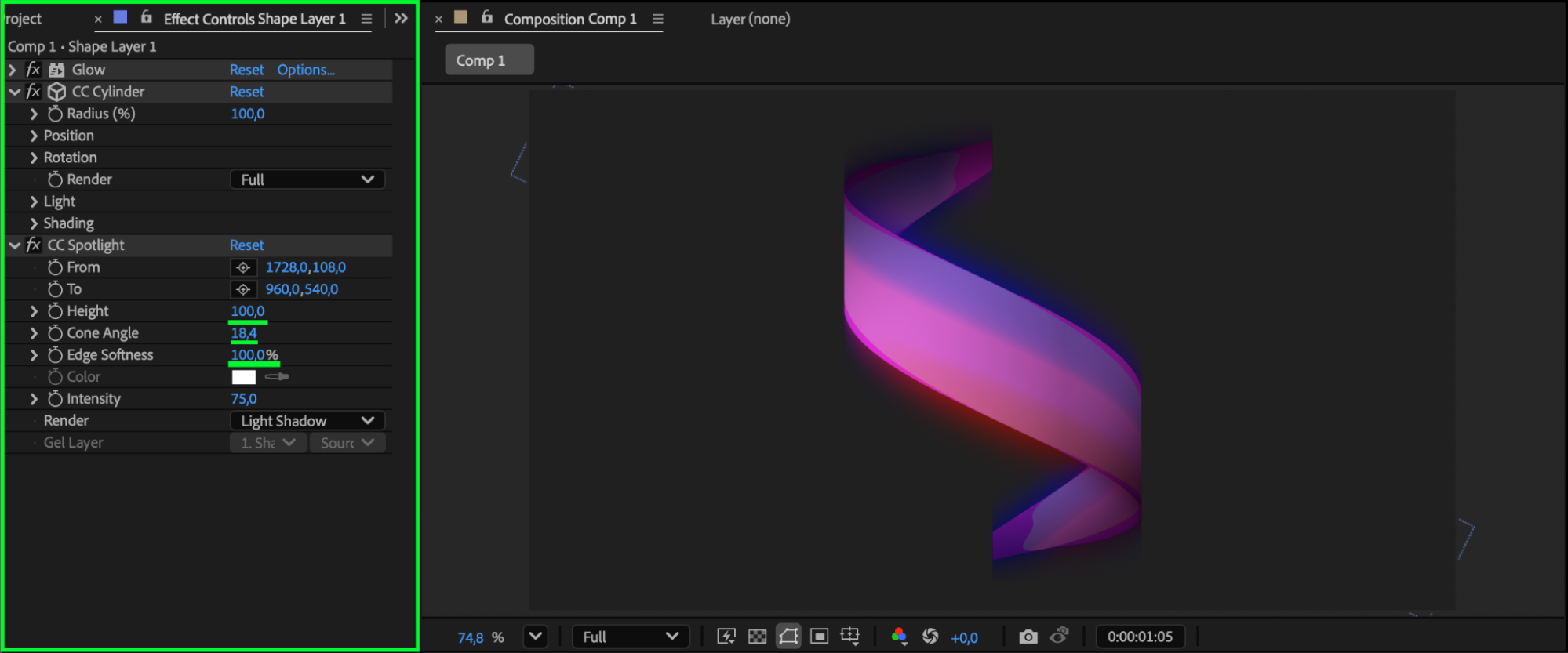
Step 5: Optional — Add CC Spotlight
For additional depth and realism, apply CC Spotlight to create dramatic lighting that highlights the spiral’s 3D appearance.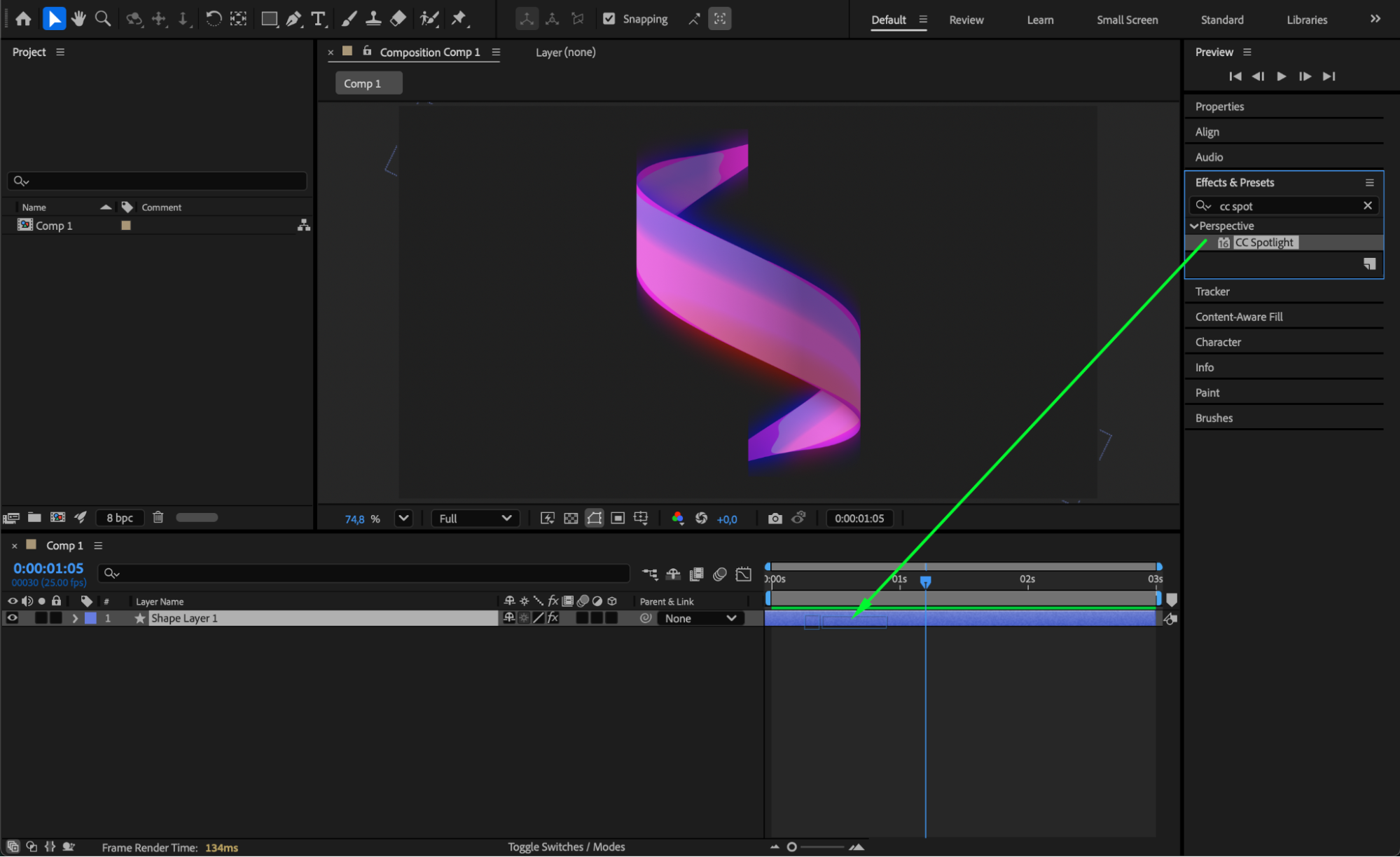
 Step 6: Preview and Refine
Press Spacebar to preview your animation. Adjust rotation, scale, and CC Cylinder settings until the spiral looks smooth and visually appealing.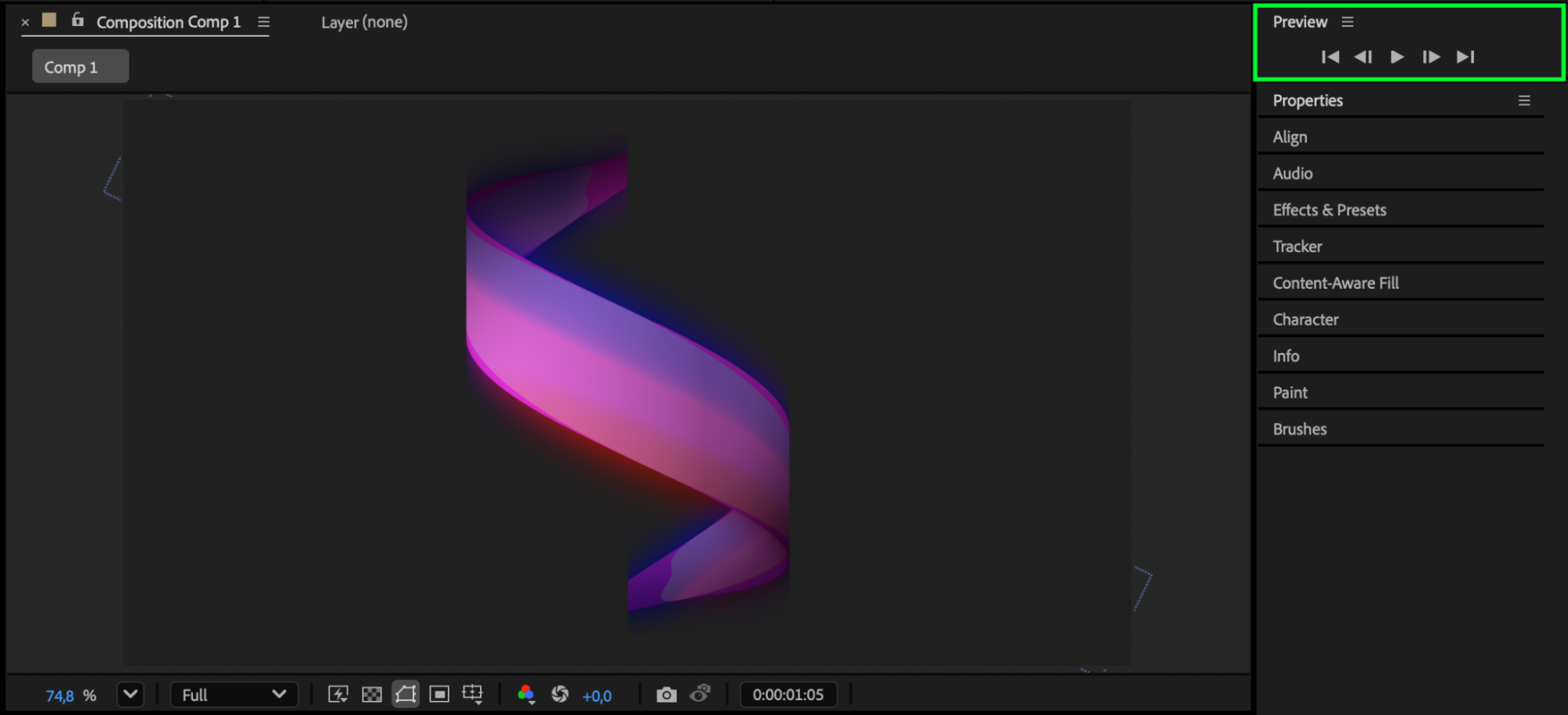
Conclusion
Using CC Cylinder and simple transform adjustments, you can turn any object into a dynamic spiral effect in After Effects. Adding lighting effects like CC Spotlight can further enhance the 3D look and give your animation a more polished result.
Our Bestsellers
Our Bestsellers


