
Introduction to Animation Creation in Adobe After Effects
Animation creation in Adobe After Effects offers limitless possibilities for bringing your creative visions to life. Follow these comprehensive steps to master the art of animation and unleash your imagination.
Step 1: Setting Up a New Composition
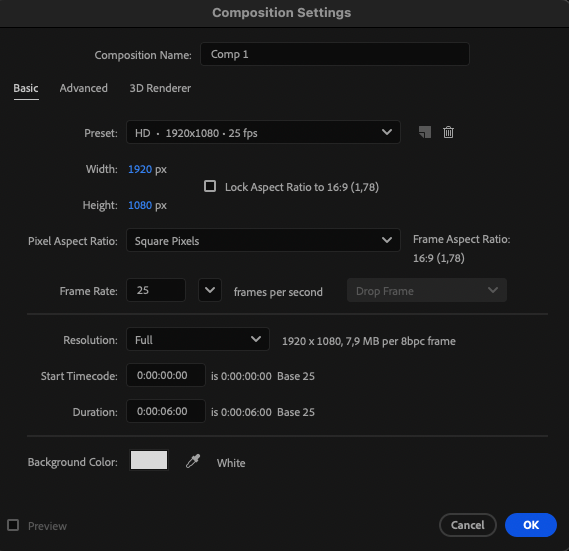
Open Adobe After Effects and create a new composition. Adjust its width, height, frame rate, and duration according to your project requirements. This will serve as the foundation for your animation.
 Step 2: Creating a Background
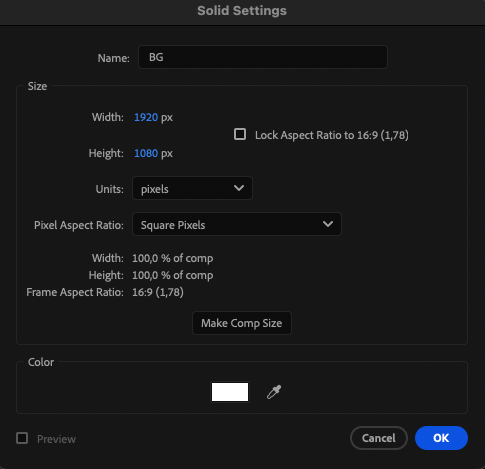
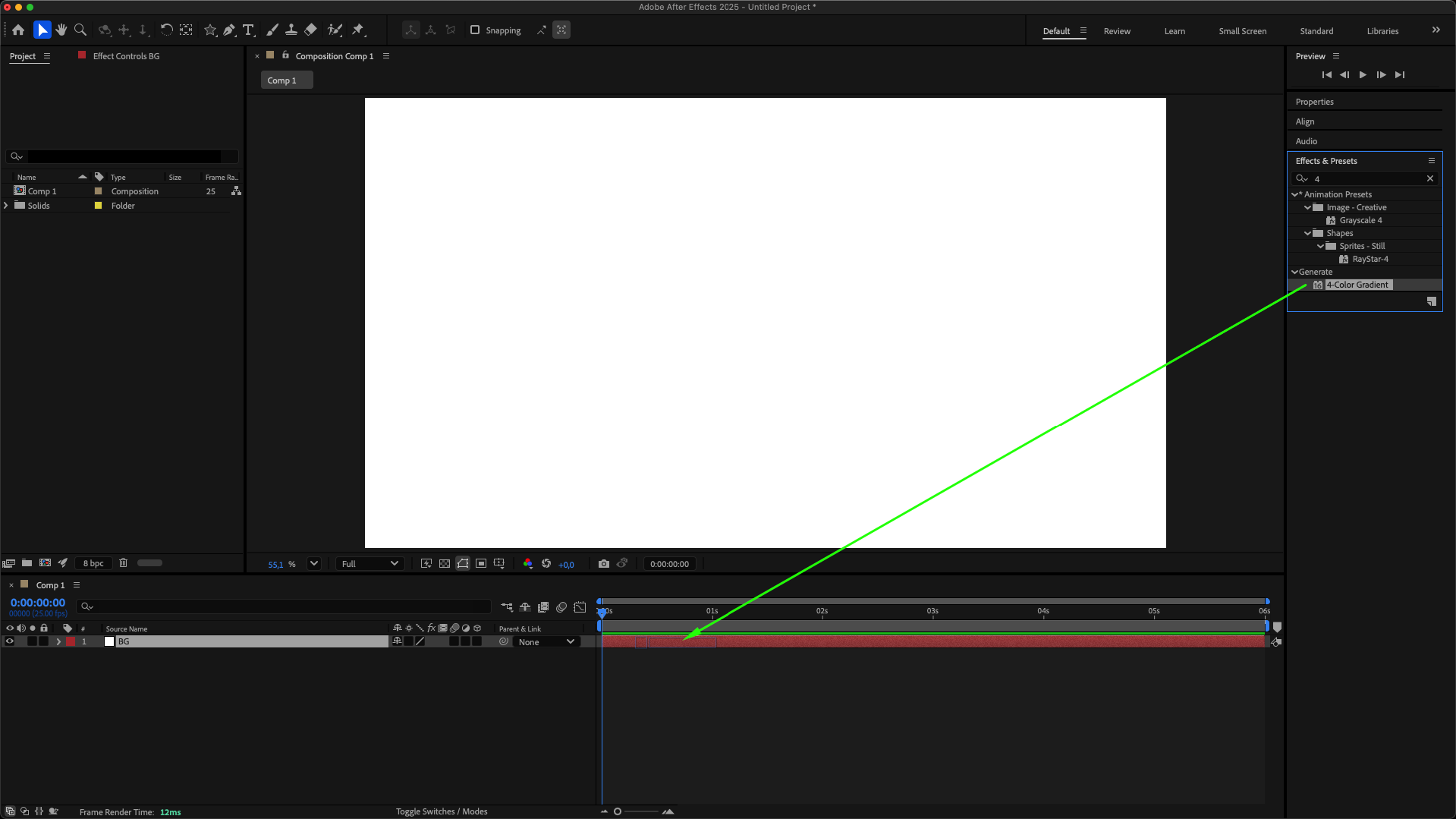
Go to Layer > New > Solid to create a background. You can also add effects to this layer to make your background more visually interesting.

Step 3: Adding Shapes or Images
Use the Shape Tool (Q) to create a shape, or import your own photo by going to File > Import > File. Position it on the timeline as needed.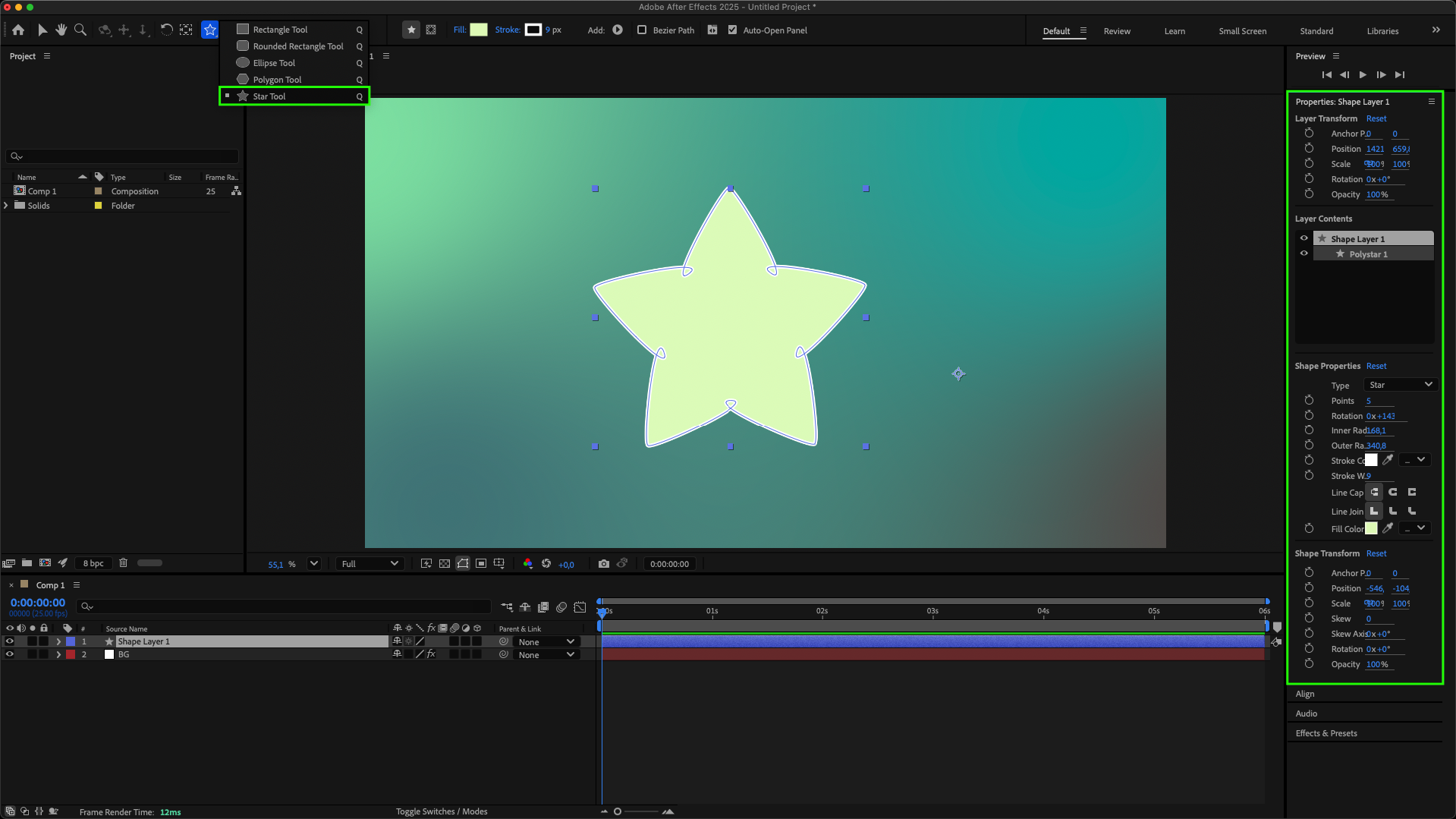 Step 4: Using Keyframes for Animation
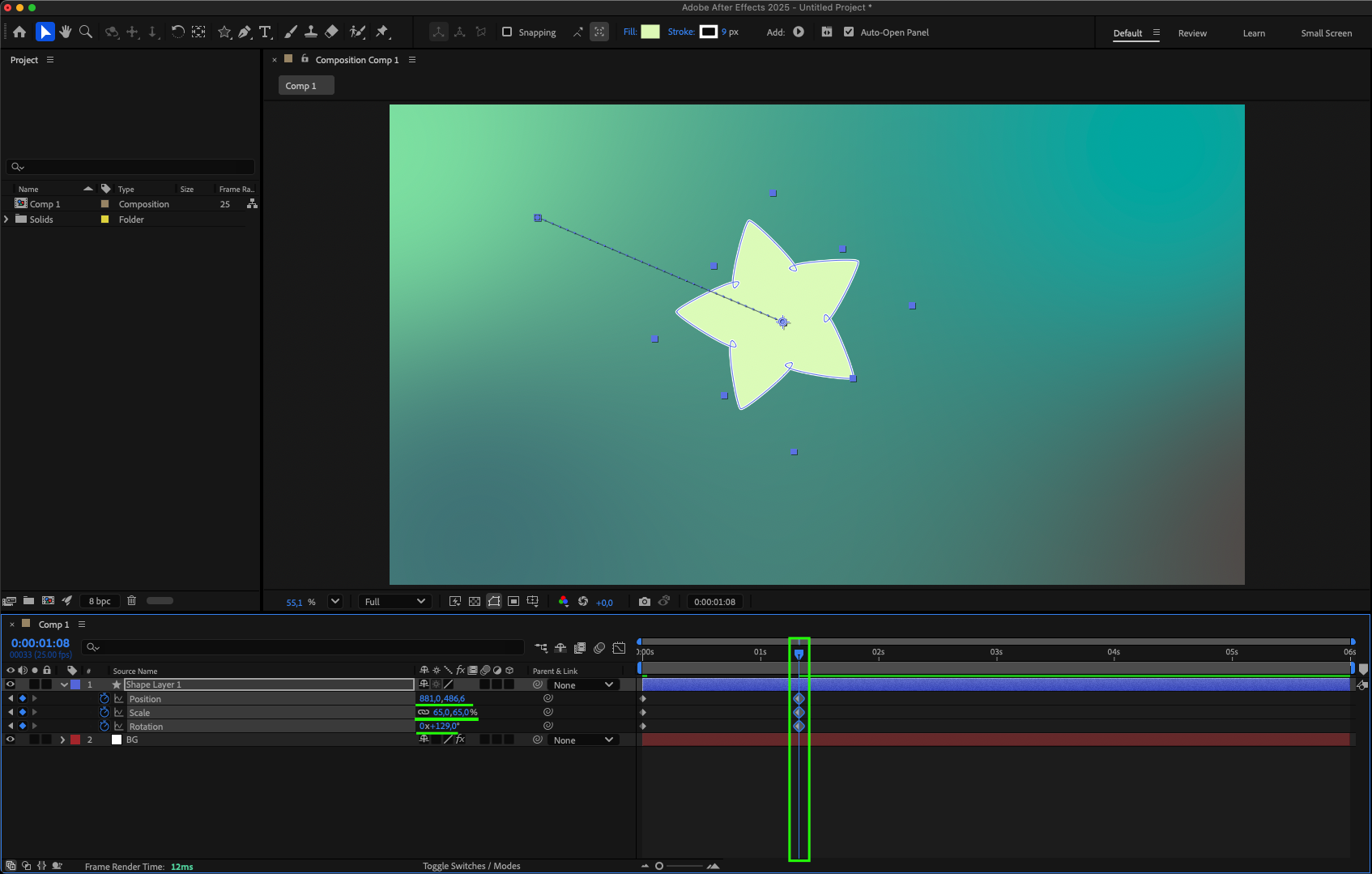
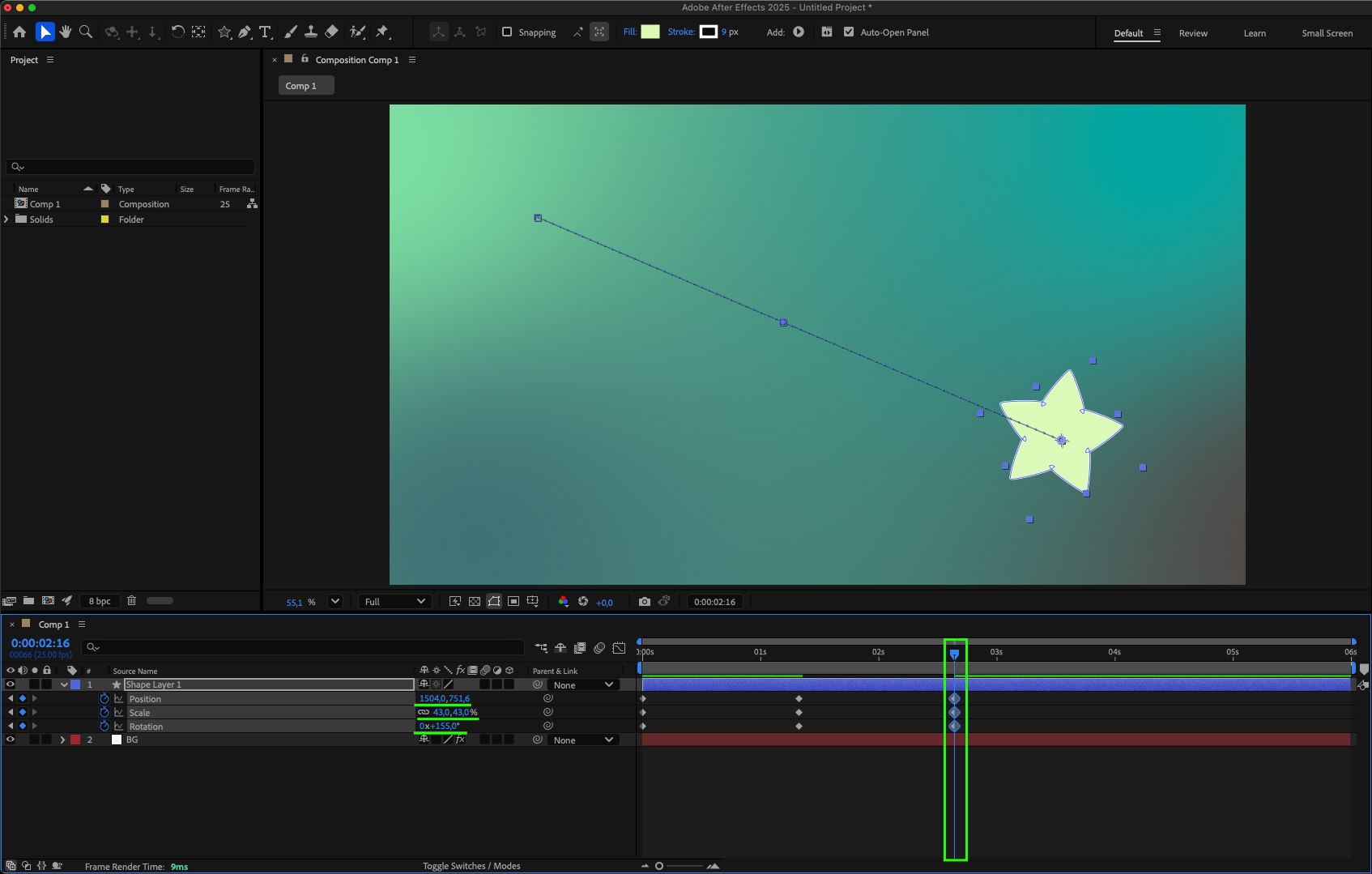
Select the layer you want to animate. Expand its properties and adjust parameters such as Position, Scale, Rotation, or Opacity. Click the stopwatch icon next to a parameter to create keyframes and define motion.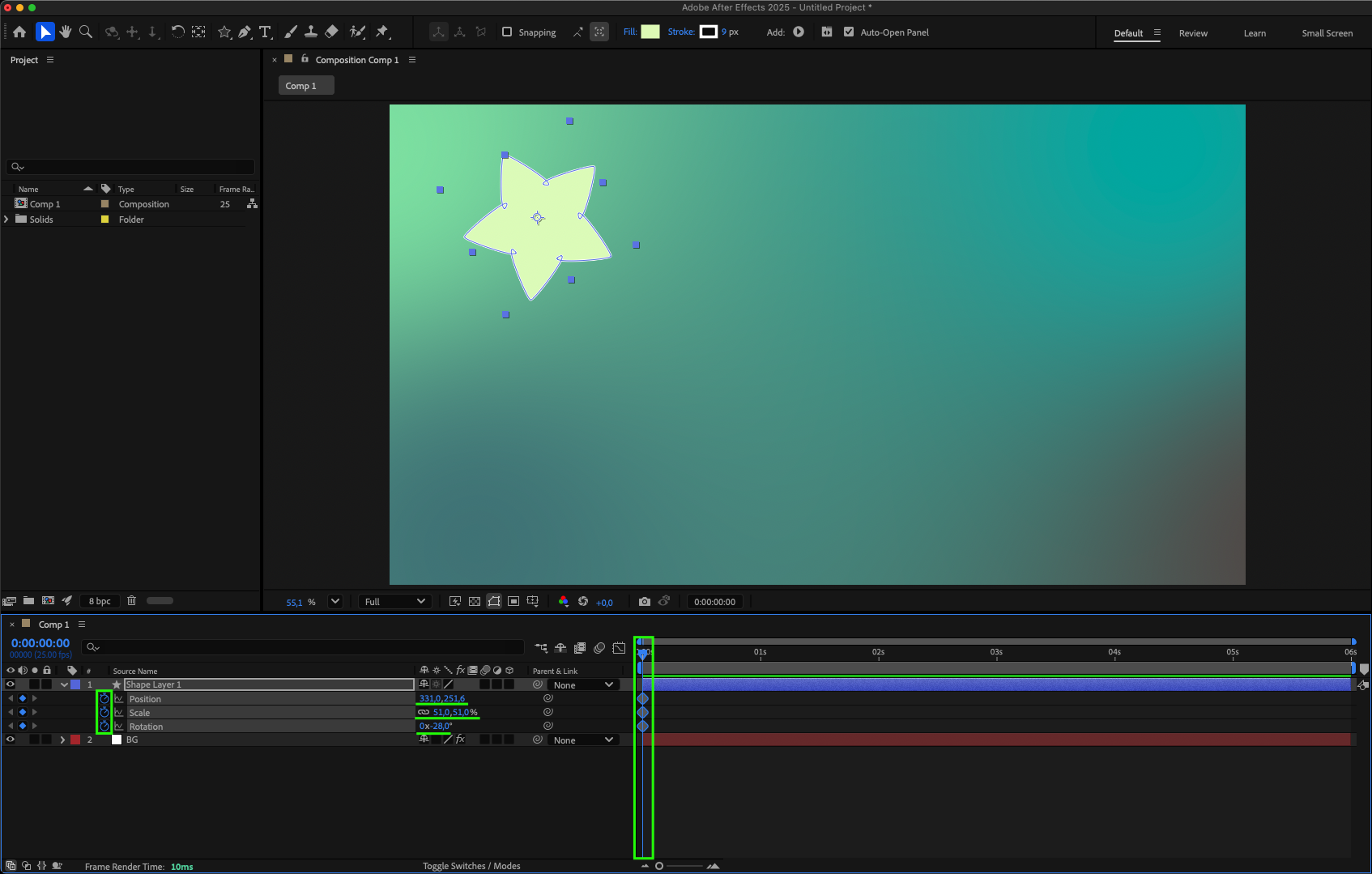
 Step 5: Applying Easy Ease
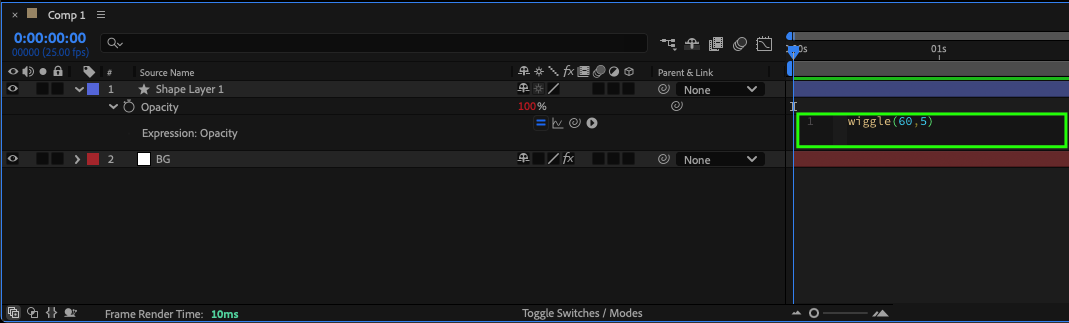
Select your keyframes, right-click, and choose Keyframe Assistant > Easy Ease. This will smooth the animation, making movements appear more natural. Step 6: Harnessing the Power of Expressions
Enhance your animation by using expressions on parameters. This allows you to automate movements and create complex animations more efficiently.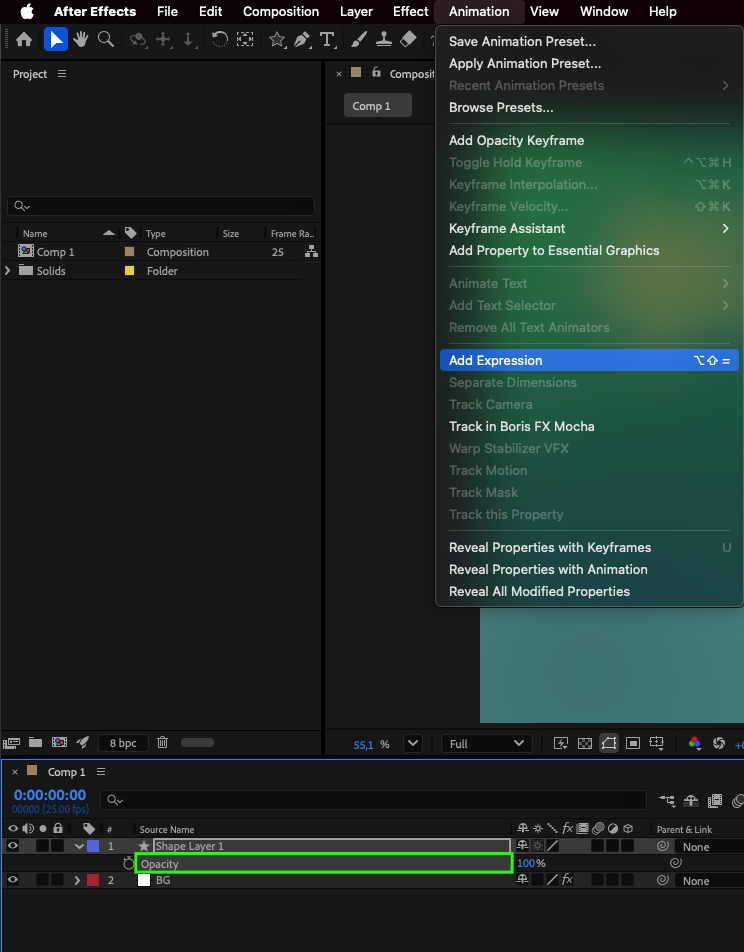
Step 7: Using Pre-compositions (Optional)
Pre-compose multiple layers to keep your project organized. This helps manage complex animations and apply effects to groups of layers simultaneously.
Step 8: Adding Realism with Motion Blur
Enable motion blur for layers to add realism to your animation. Activate the Enable Motion Blur button in the timeline panel to make moving objects appear smooth and lifelike.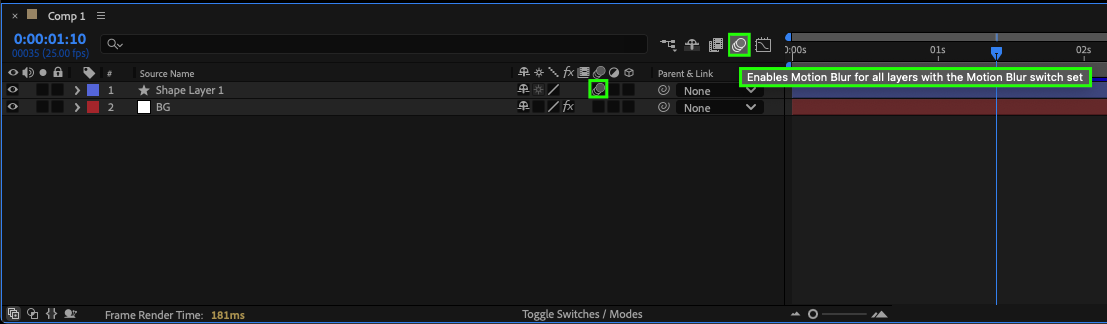 Step 9: Previewing Your Results
Press the Spacebar to preview your animation. Make any adjustments as needed and add effects to refine the final look.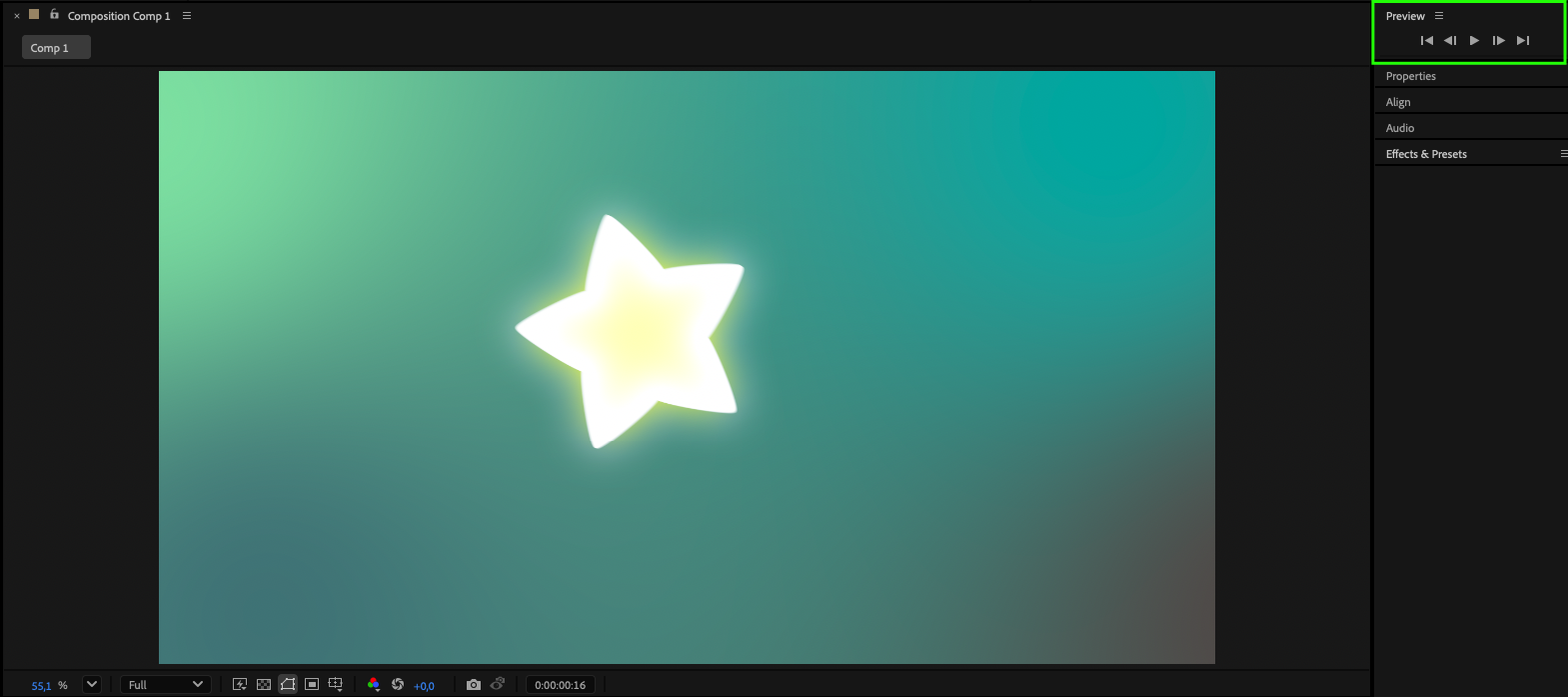
Conclusion
By following these steps, you’ll be able to create captivating animations in Adobe After Effects, enhancing the creativity and visual appeal of your projects. Experiment with different techniques and explore the full range of features to bring your ideas to life in stunning motion graphics.
Our Bestsellers
Our Bestsellers


