
Introduction
Creating cartoon-style water in After Effects doesn’t require plugins — you can achieve a smooth, animated wave effect using the built-in Fractal Noise effect. By adjusting contrast, scale, and blending modes, you can create a fun and natural-looking water surface for animated projects or motion graphics scenes.
Step 1: Create a New Composition
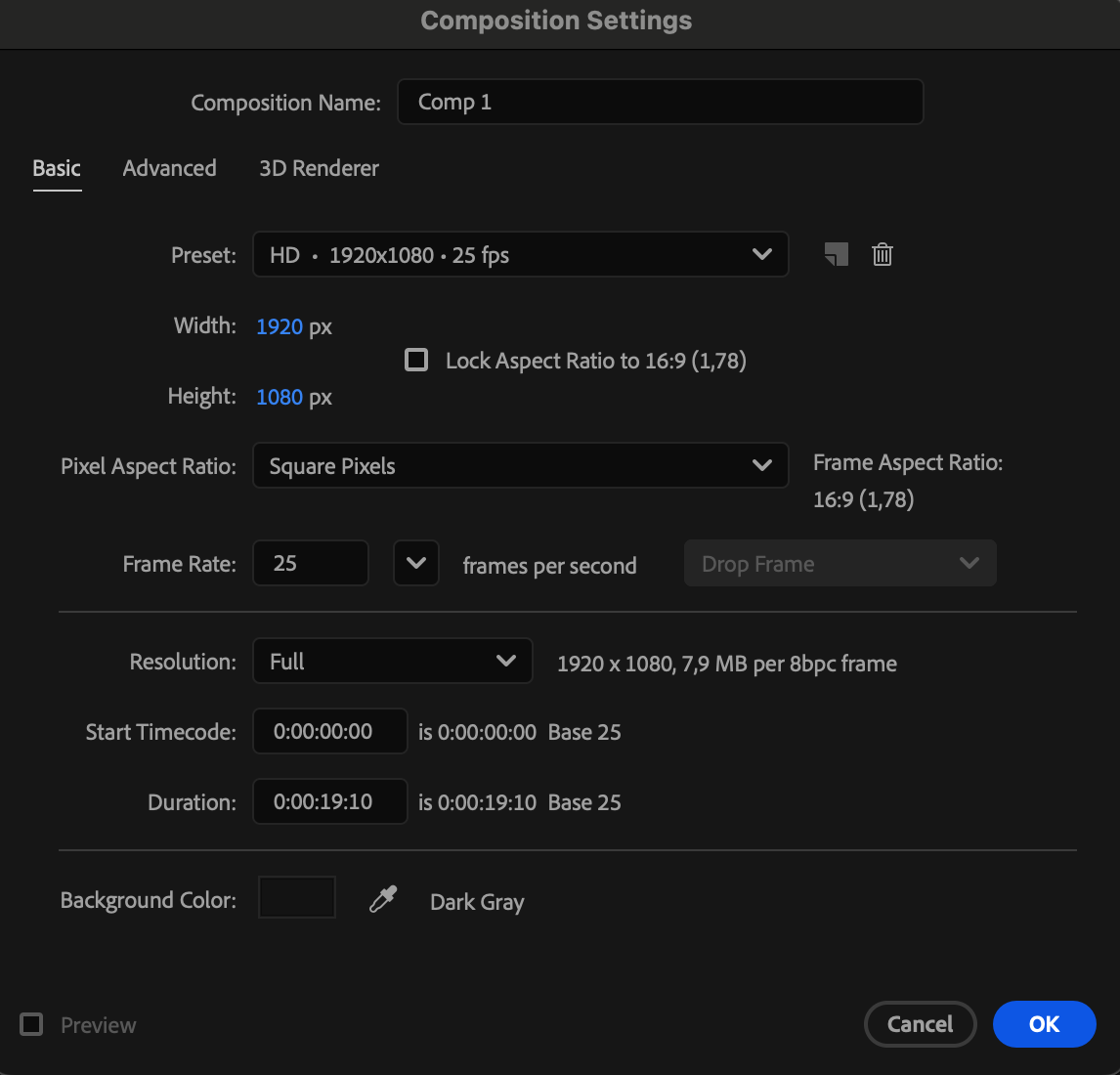
Go to Composition > New Composition, set your resolution and duration, and click OK. This will be your working space for the water animation.
 Step 2: Add Two Solid Layers
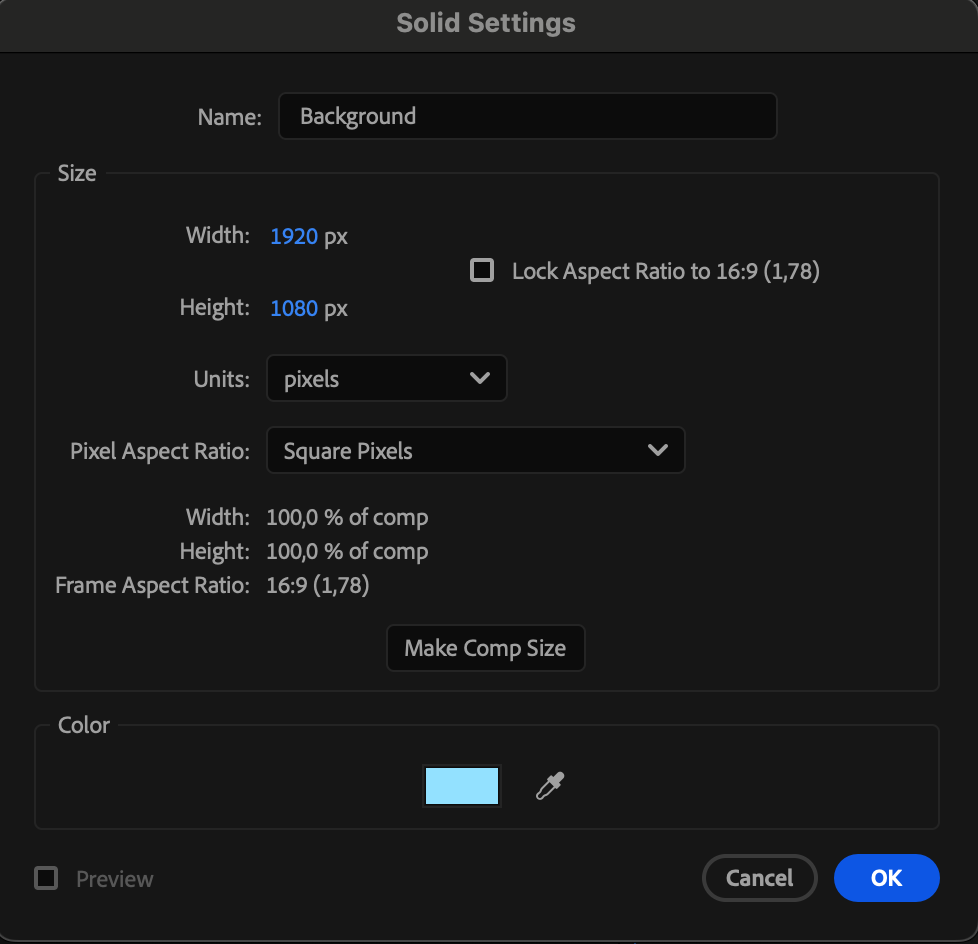
Go to Layer > New > Solid and create two solids:
A blue solid named “Background”
A white solid named “Water”
Place the blue solid at the bottom to act as the background color.
Step 3: Apply the Fractal Noise Effect
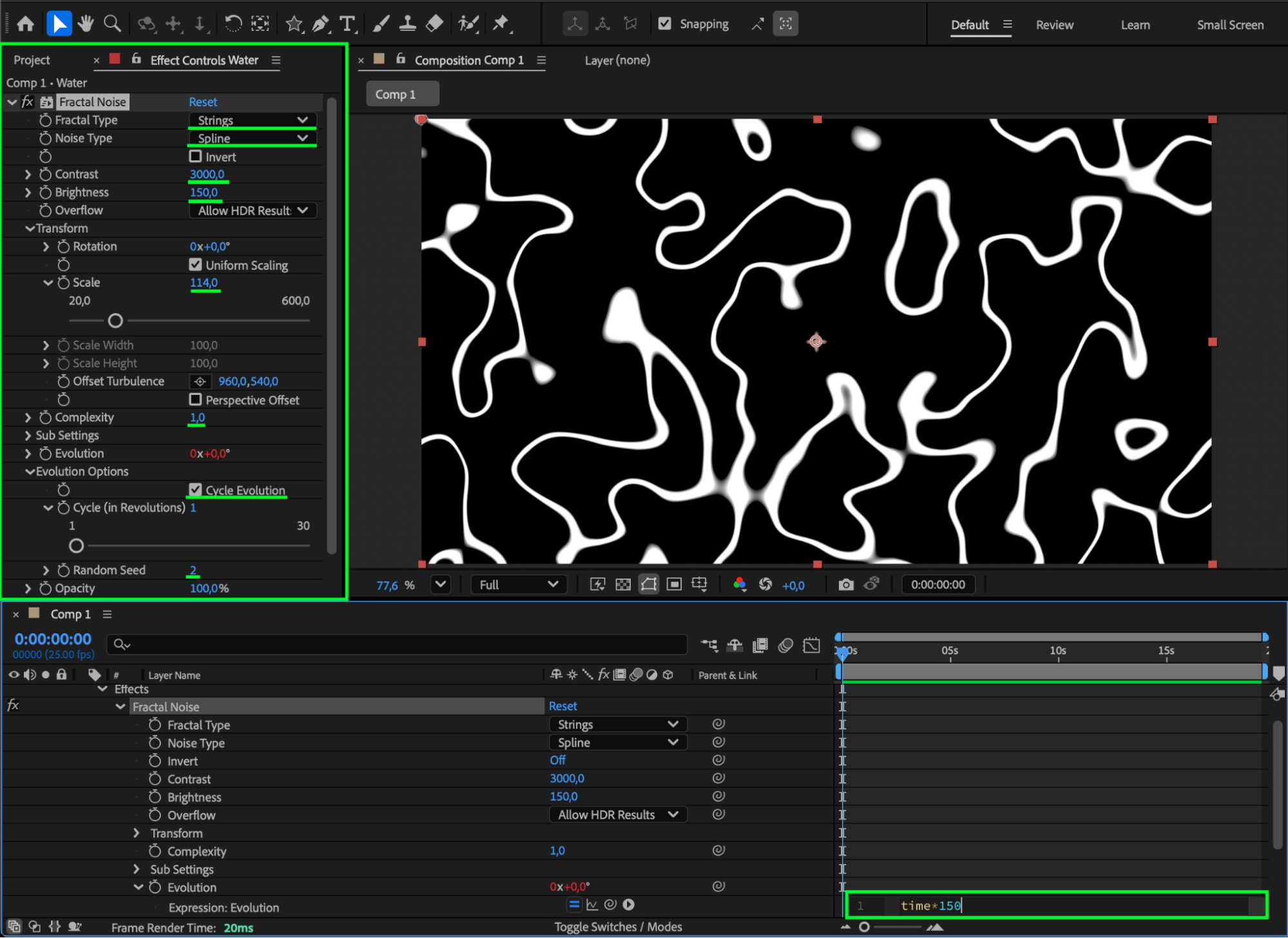
Select the Water layer, then go to Effect > Noise & Grain > Fractal Noise. In the Effect Controls panel, change these settings:
Fractal Type: Strings
Noise Type: Spline
Contrast: 3000
Brightness: 150
Scale: 114
Complexity: 1
Enable Cycle Evolution
Random Seed: 2
Then, for Evolution, hold Alt/Option and click the stopwatch. Type the expression:
time*150
This will create continuous water-like motion.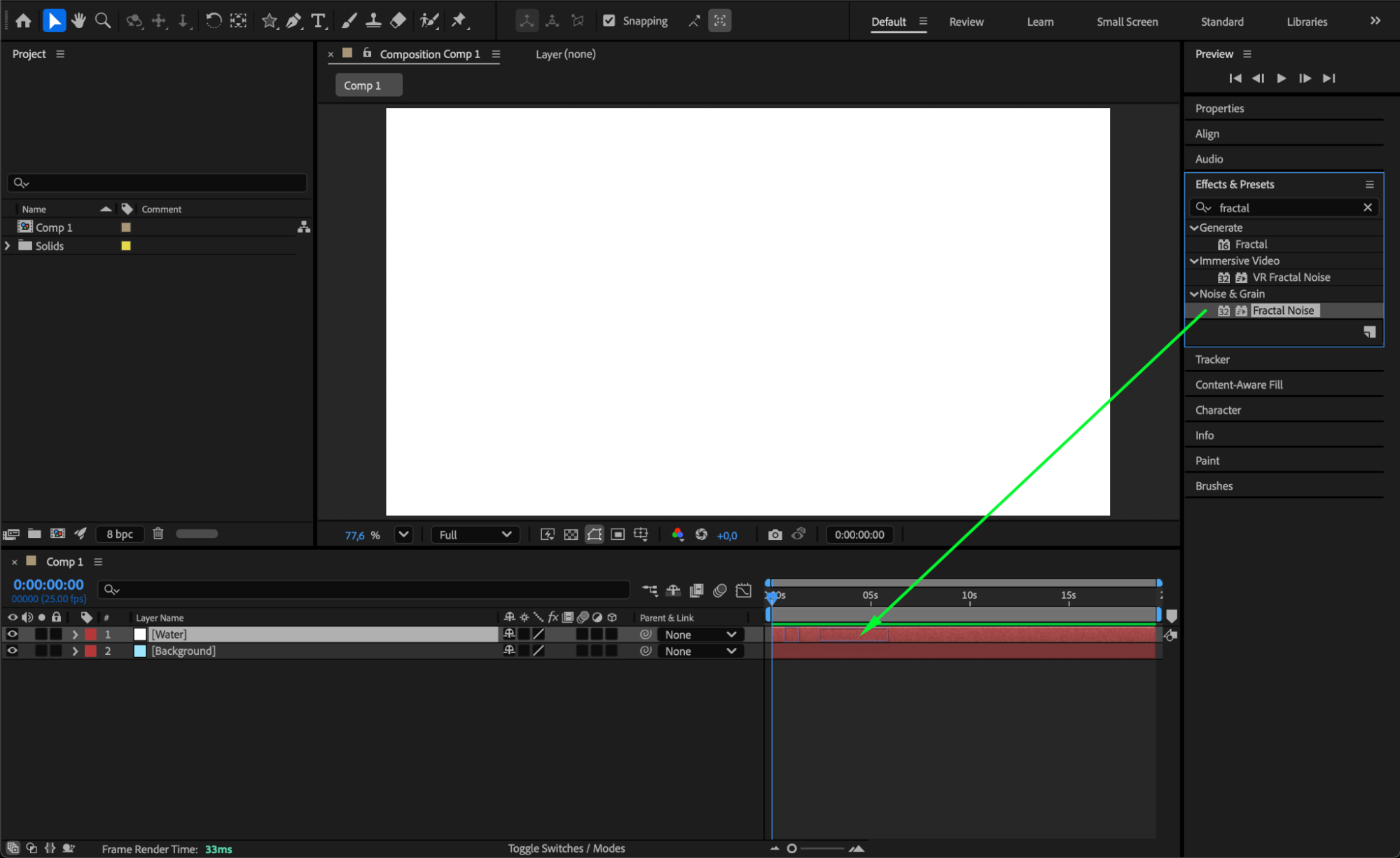
Step 4: Change Blending Mode and Opacity
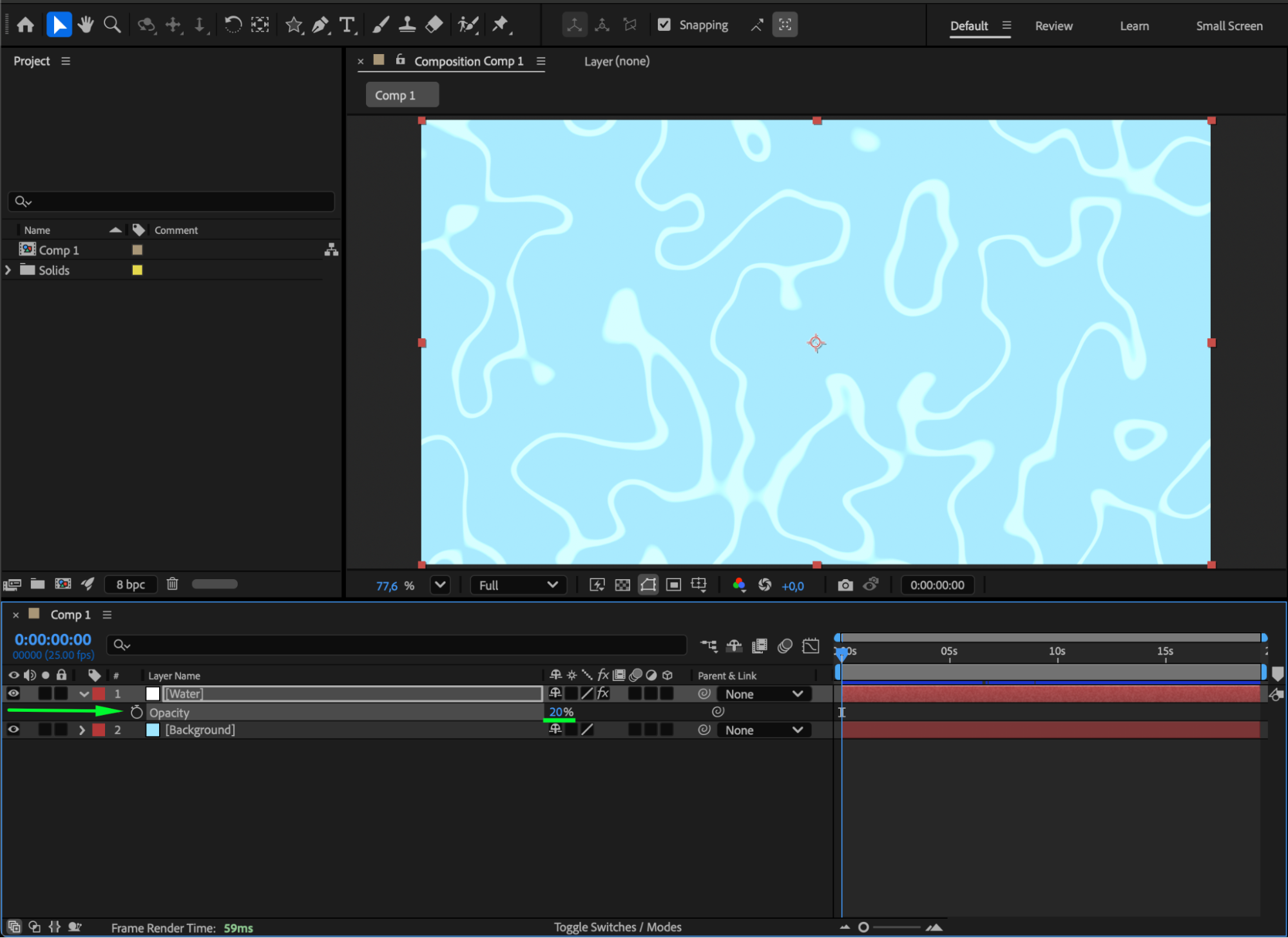
Right-click on the Water layer and set the Blending Mode to Add. Then, reduce the Opacity to around 20% for a softer look.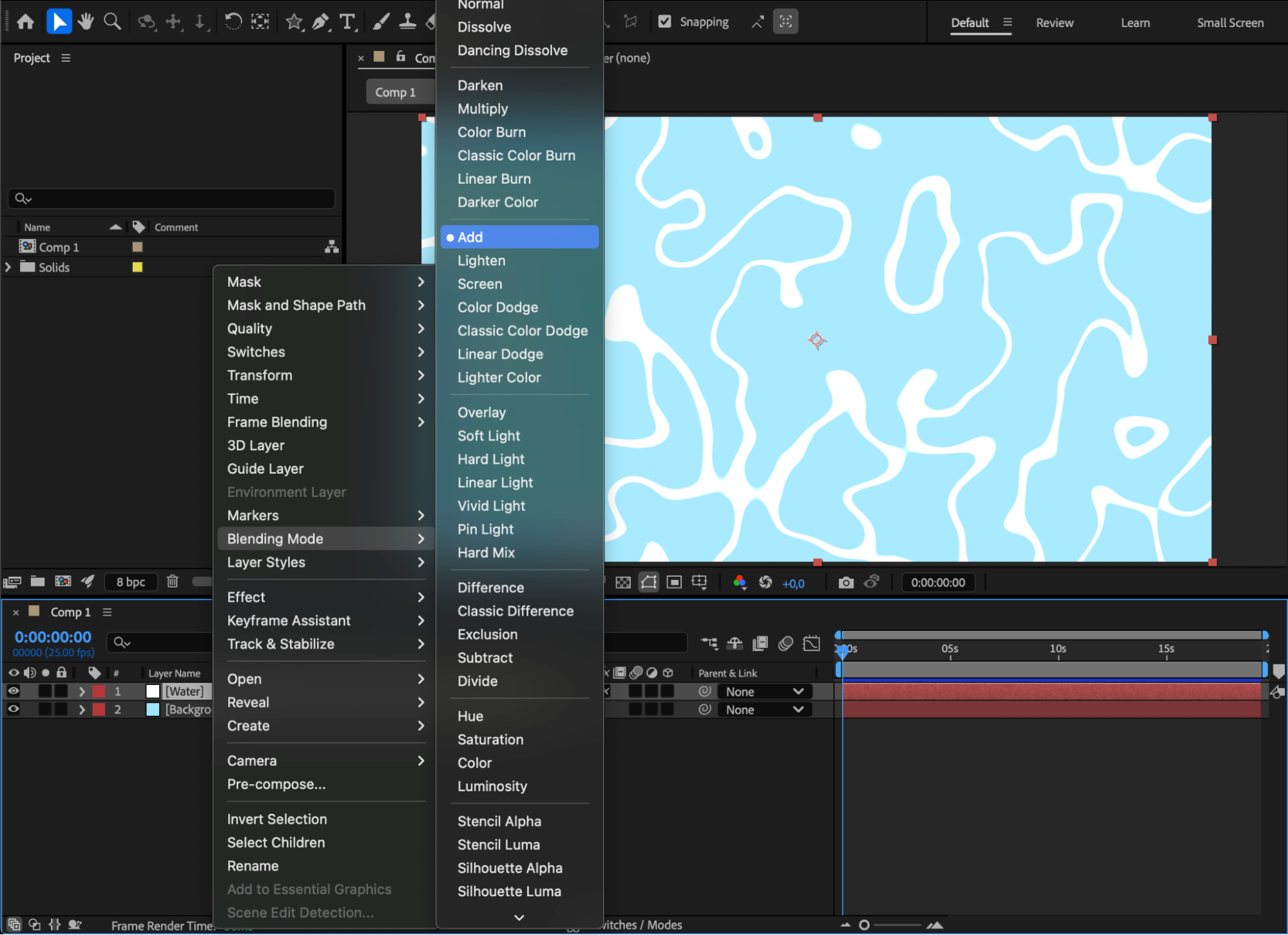
 Step 5: Duplicate and Adjust the Second Layer
Duplicate the Water layer (Ctrl/Cmd + D). On the duplicated layer:
Set Opacity to around 2%
In the Effect Controls panel, change Scale to 69 and Random Seed to 60
This adds variation and depth to the water texture.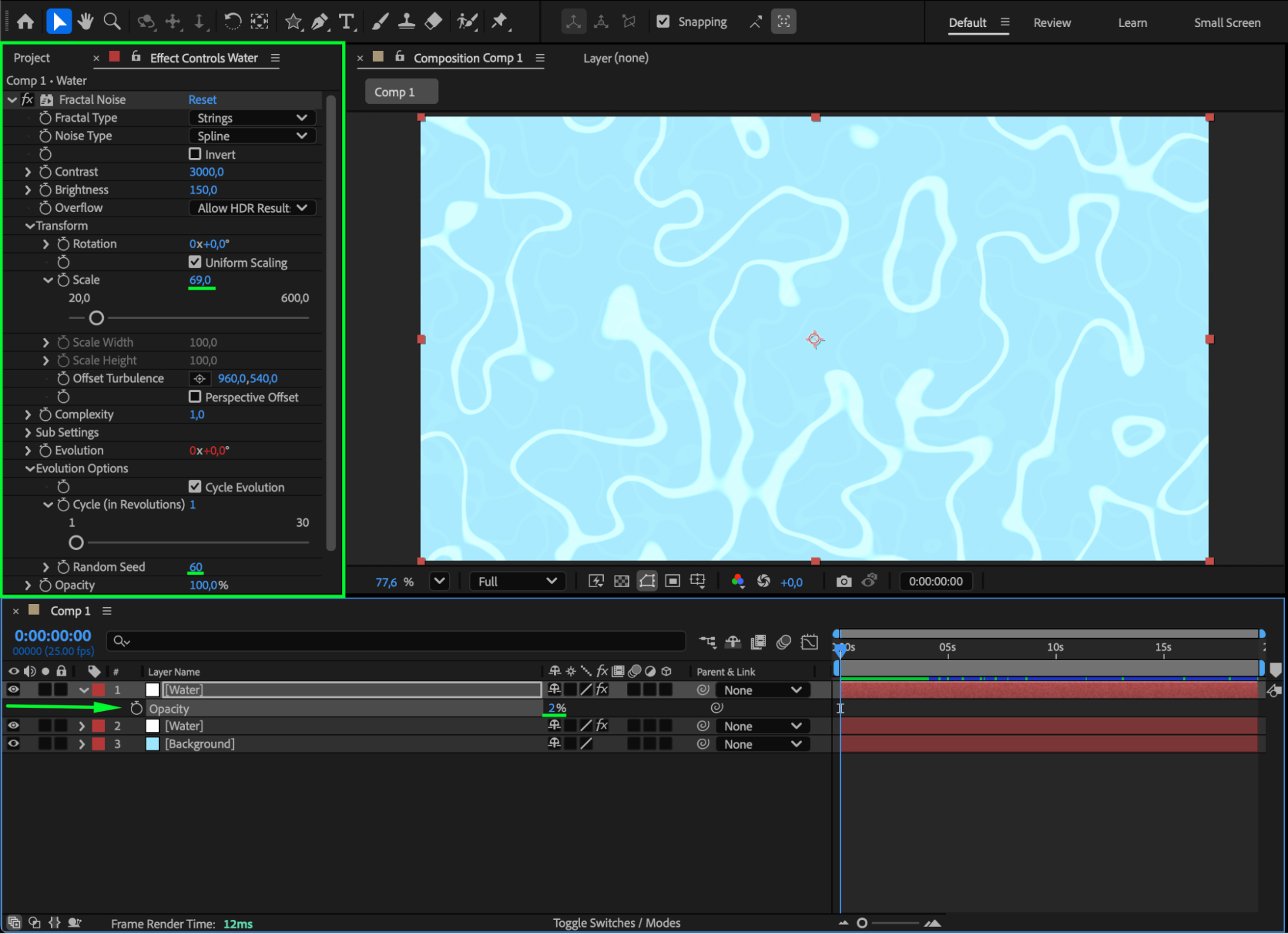
Step 6: (Optional) Add a Glow Effect
For extra stylization, apply Effect > Stylize > Glow to the water layers. Adjust Glow Radius and Glow Intensity to achieve a soft, glowing cartoon look.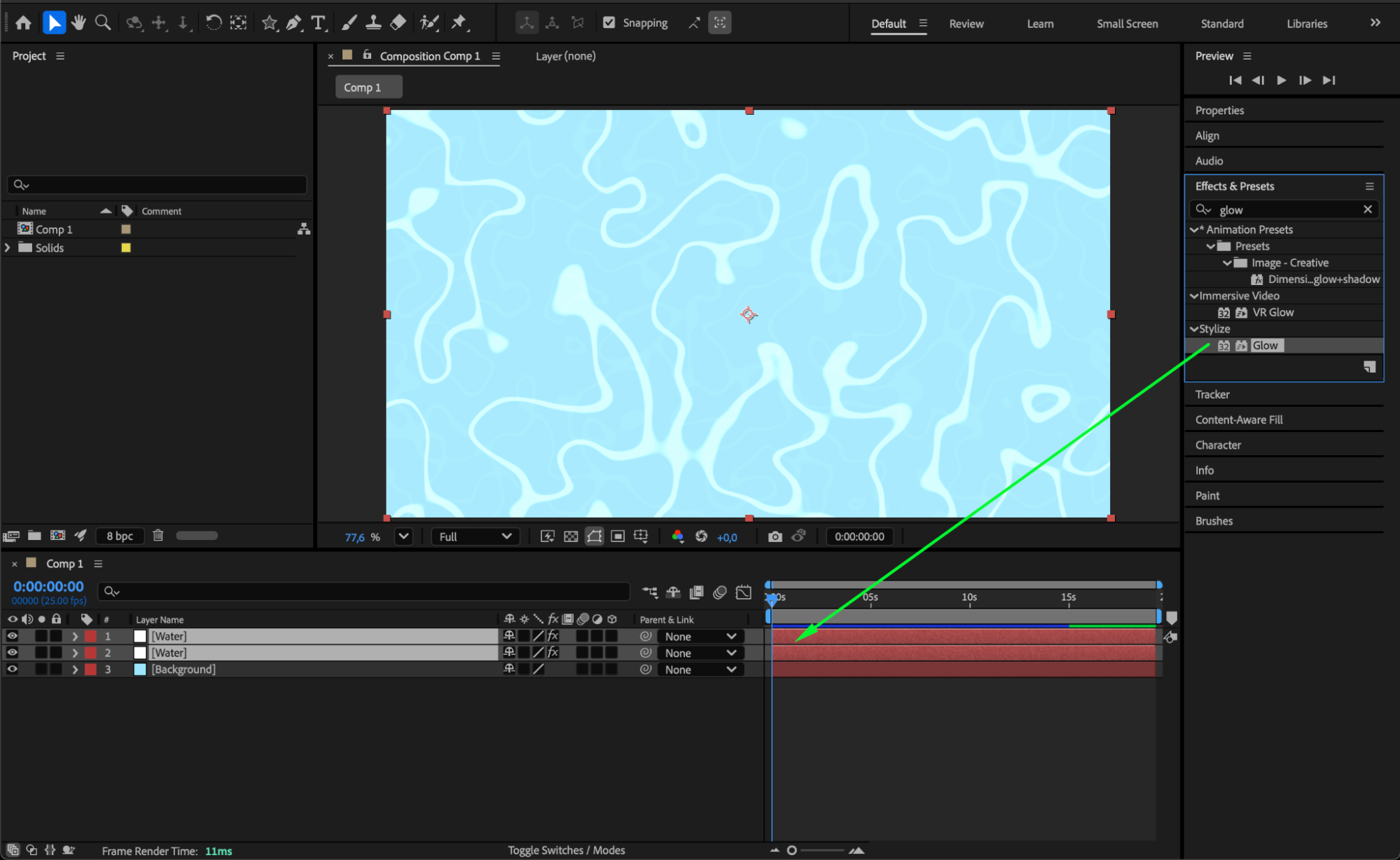 Step 7: Preview Your Composition
Press the Spacebar to preview your animation. You should see smooth, flowing cartoon water with subtle motion and layered texture.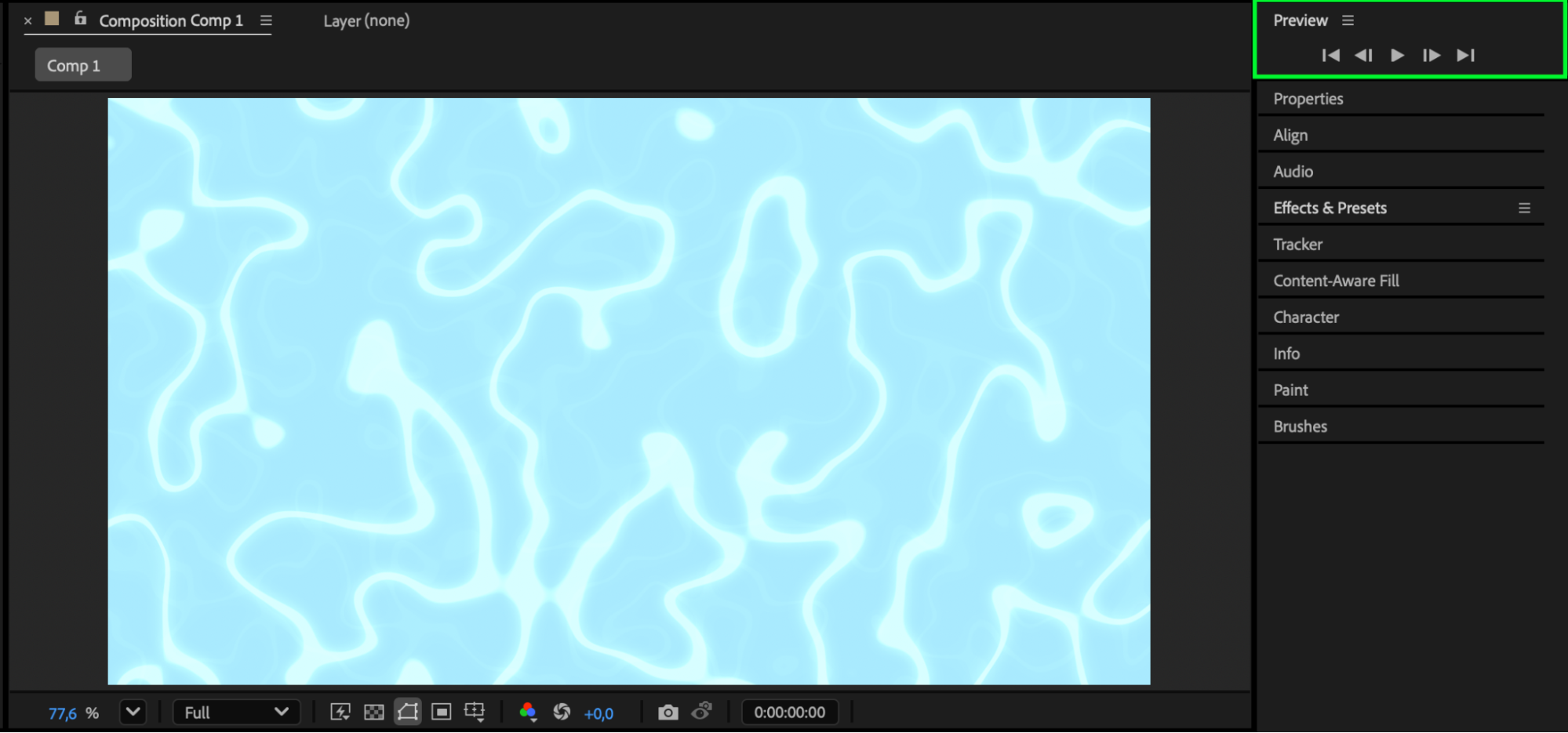 Conclusion
By using Fractal Noise and blending techniques, you can create beautiful cartoon-style water directly in After Effects — no third-party plugins needed. Experiment with contrast, opacity, and glow settings to match your desired animation style.
Our Bestsellers
Our Bestsellers


