
Creating Smooth Object Appear and Disappear Effects in After Effects
Introduction
In After Effects, making objects appear and disappear can add drama, focus, or creative flair to your video. Whether you’re working with green screen footage or layering elements over a background, the key lies in effective keying, opacity animation, and blending. This step-by-step guide will show you how to cleanly remove the background, adjust object placement, and animate visibility with simple yet powerful techniques.
Step 1: Create a New Composition
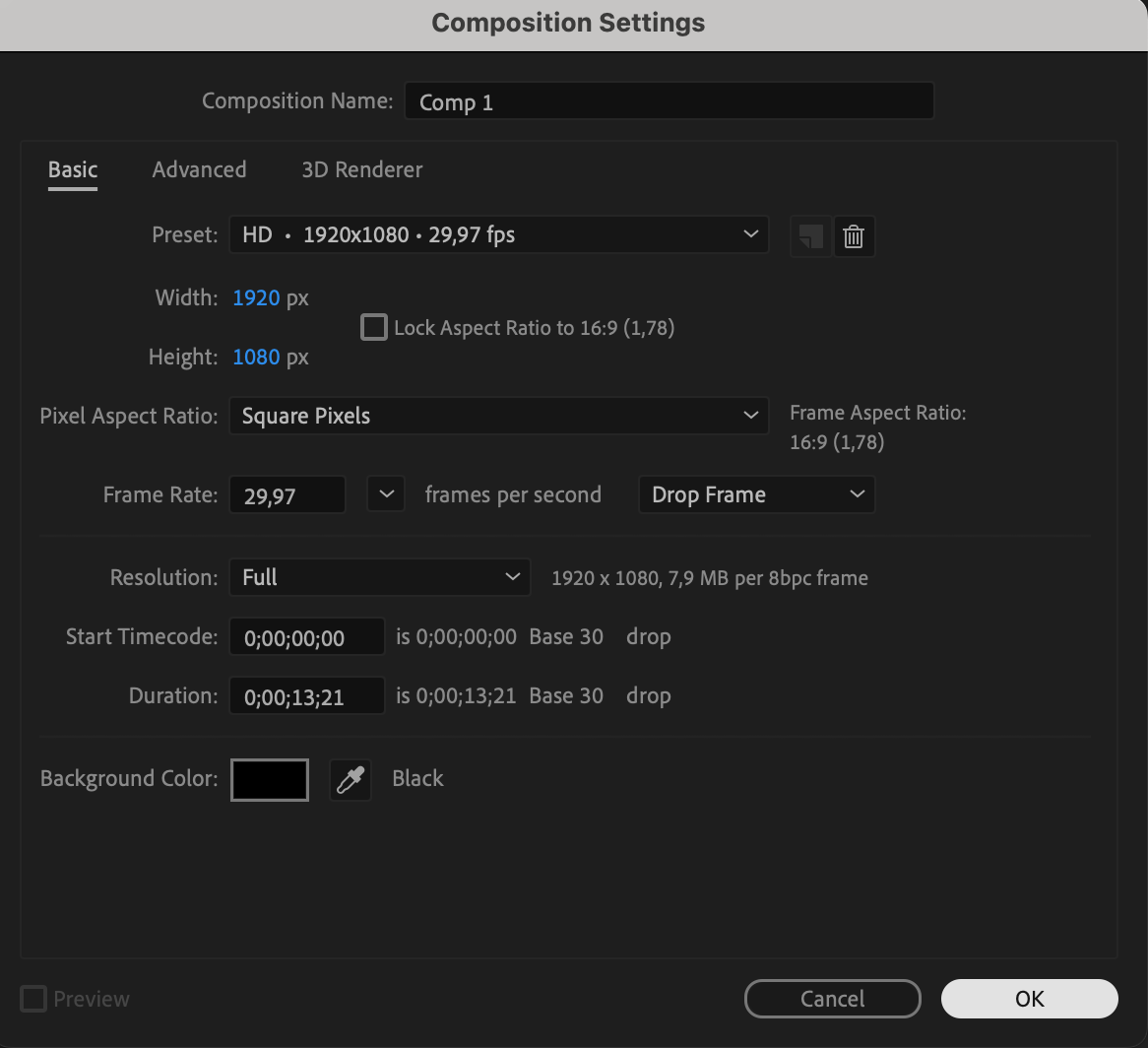
Start by opening After Effects and creating a new composition. Set your desired resolution and duration, such as 1920×1080 and 10-15 seconds. This will be the workspace where you build your animation.
 Step 2: Import Footage and Add to Timeline
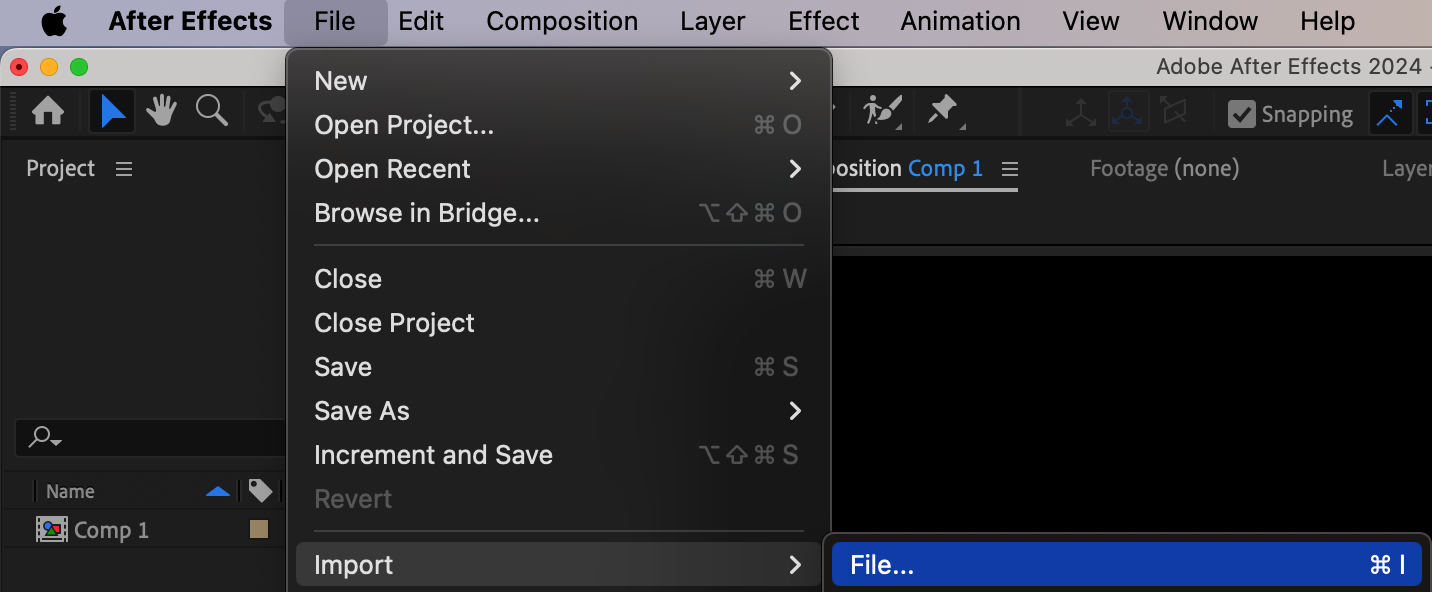
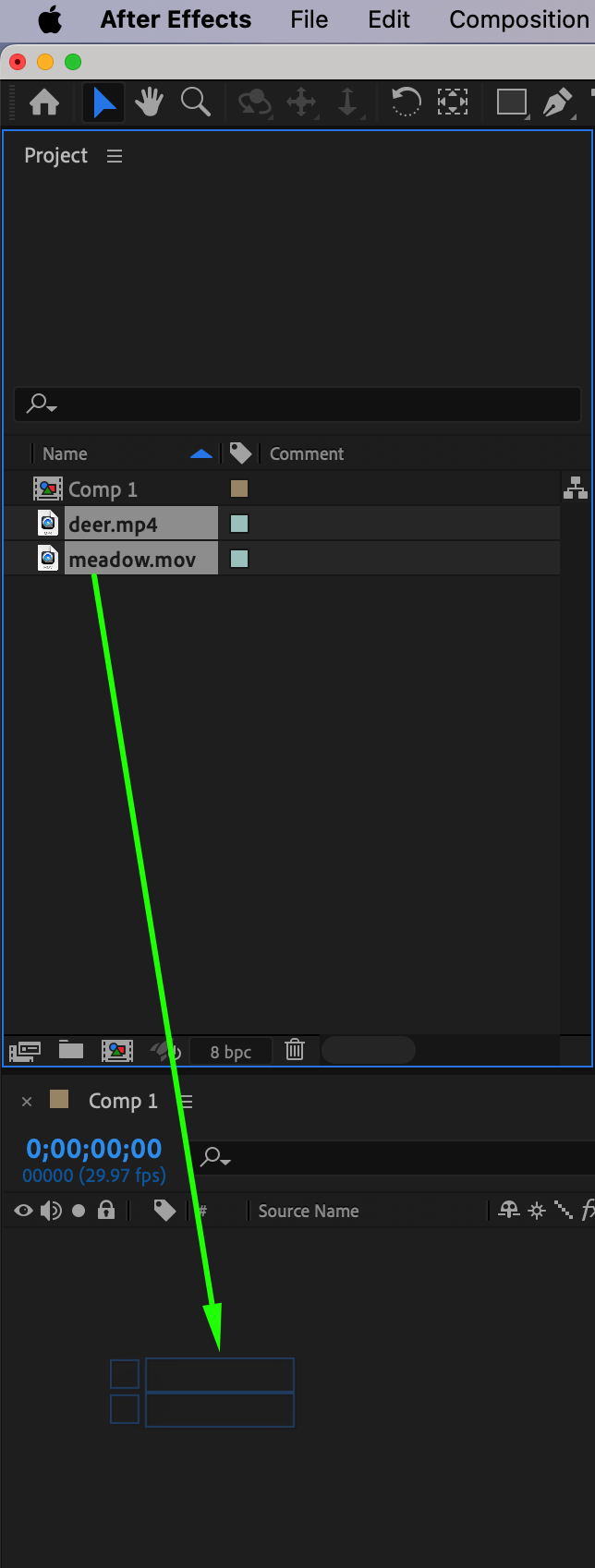
Go to File > Import > File and bring in your green screen object video and the background video. Drag both into the timeline, placing the background layer at the bottom and the green screen object above it.
Step 3: Remove Green Screen with Keylight
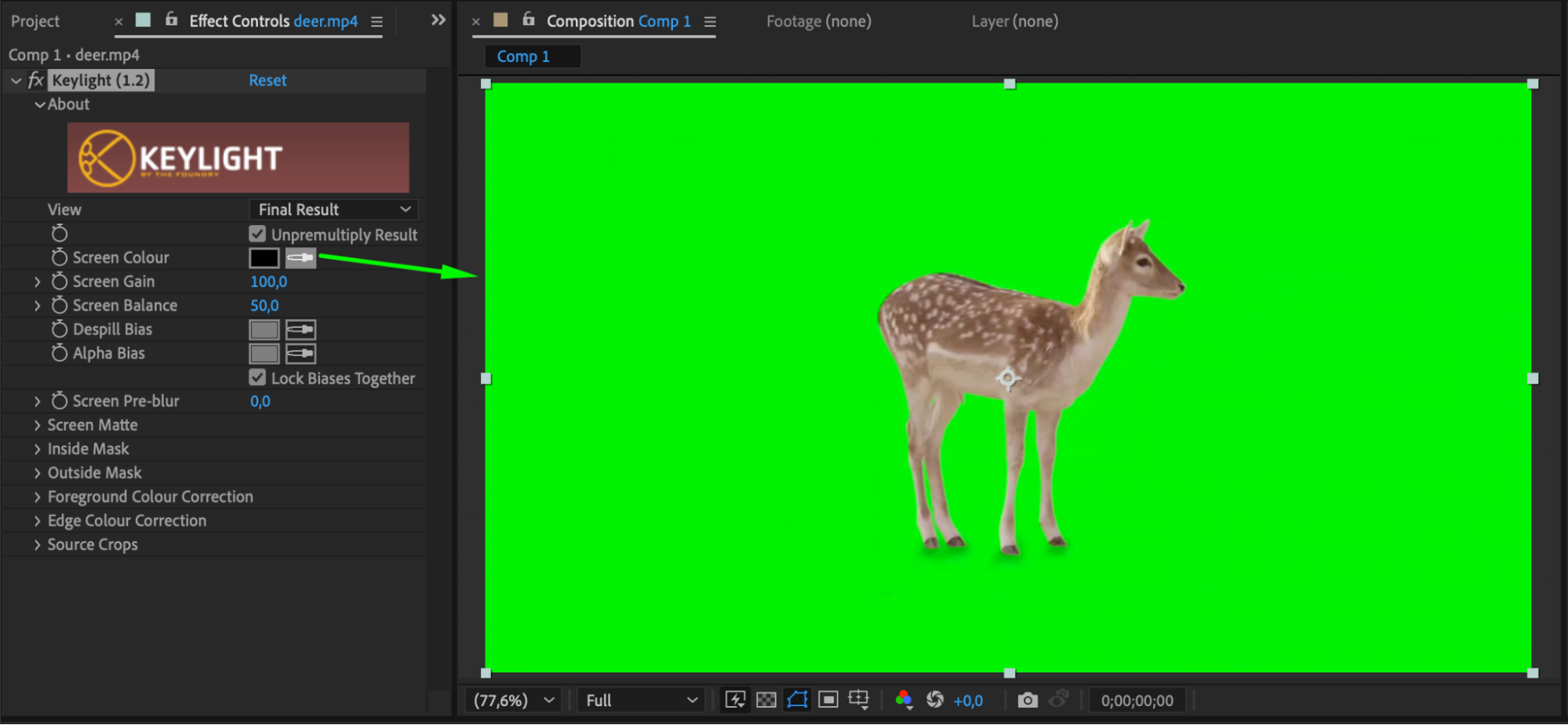
Select the object layer and apply the Keylight (1.2) effect from the Effects & Presets panel. In the Effect Controls panel, use the eyedropper tool to select the green background. This will key out the green, making the object appear over your background.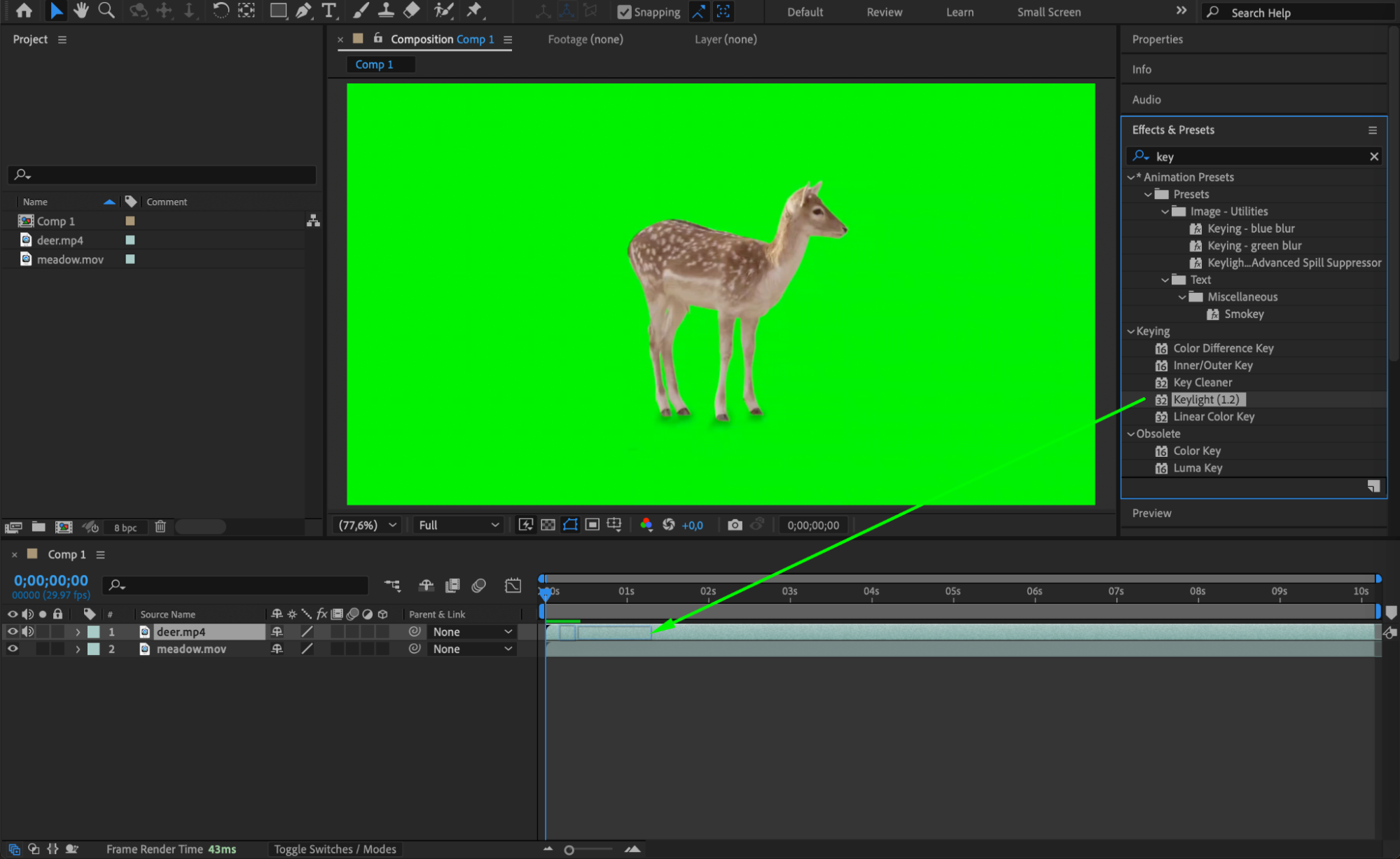
 Step 4: Adjust Position and Scale
Expand the object layer’s transform properties by clicking the arrow next to it. Use Position and Scale to place and size the object properly within the scene. Animate these values if the background or object needs to move in sync.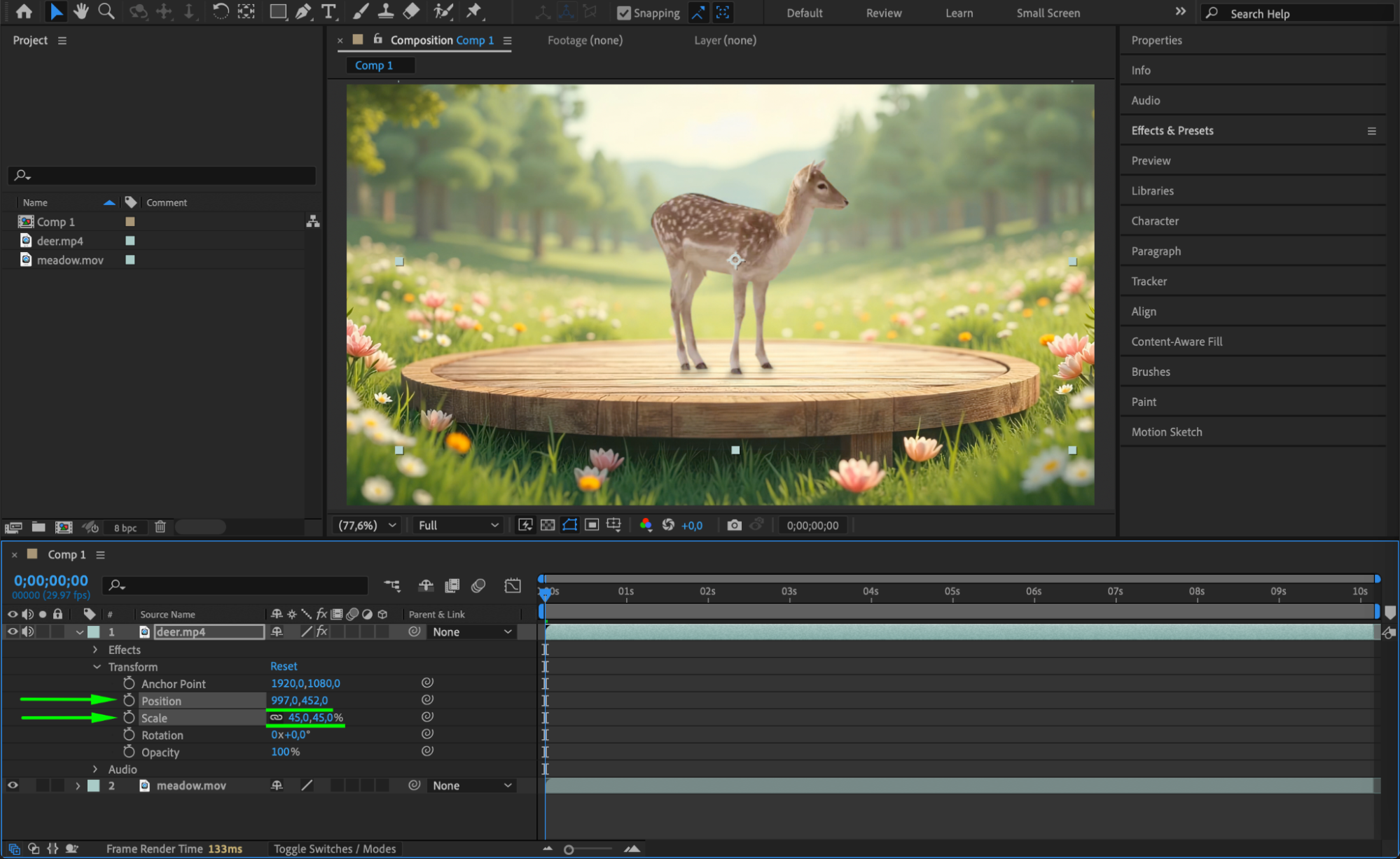 Step 5: Match Colors Using Lumetri Color
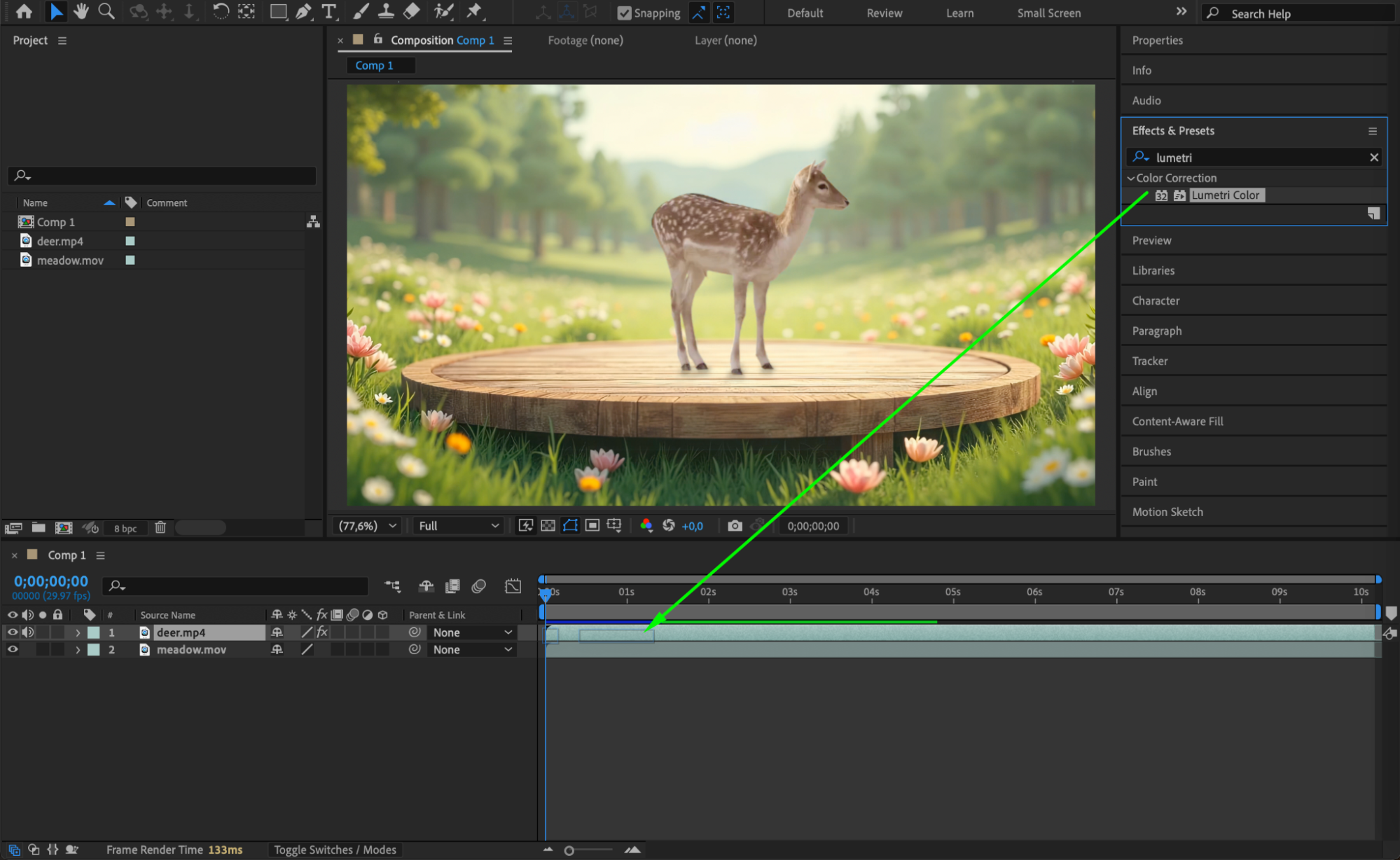
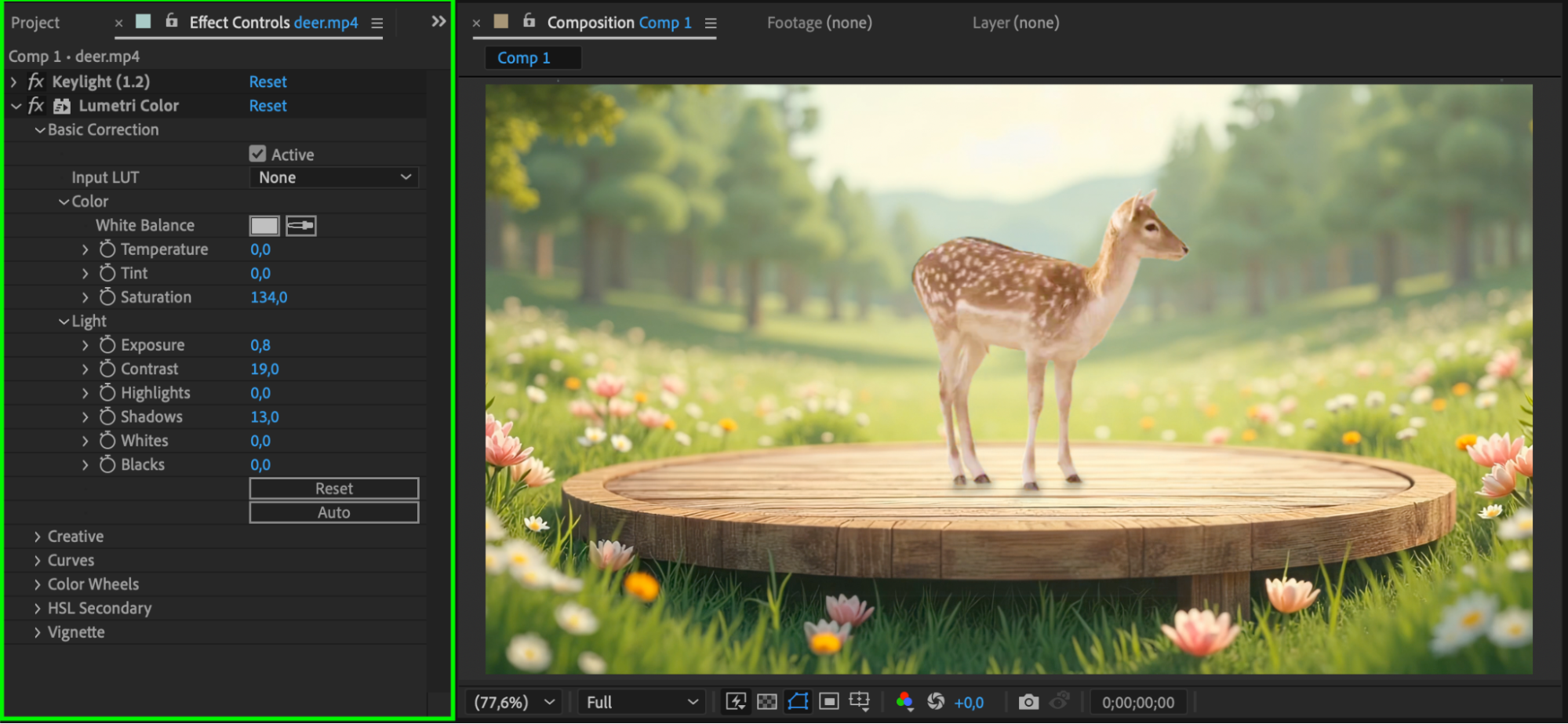
To make the object and background look more natural together, apply Lumetri Color to the object layer. Adjust Basic Correction settings such as exposure, contrast, and saturation to blend the elements more seamlessly.
 Step 6: Create a Shadow for Realism
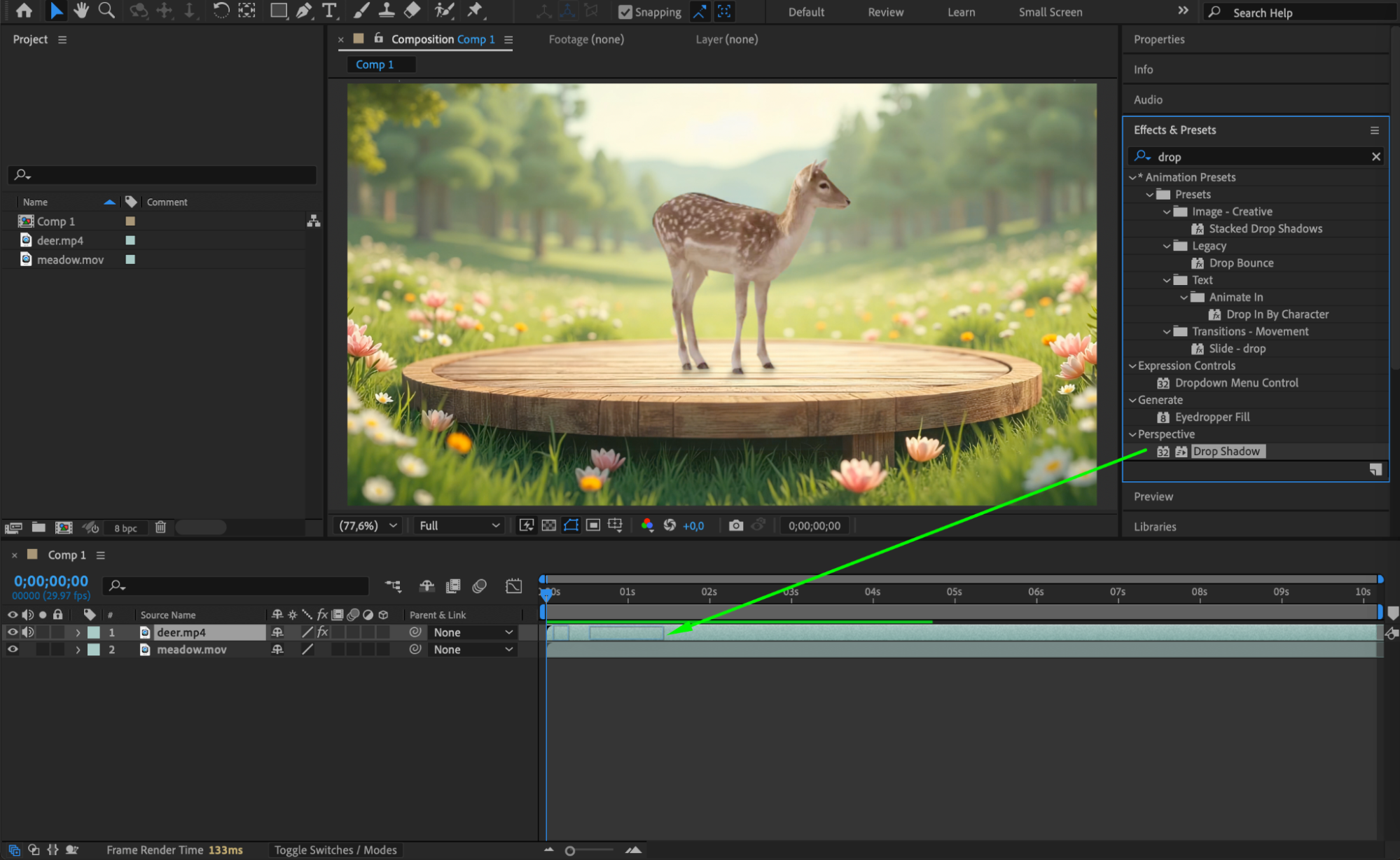
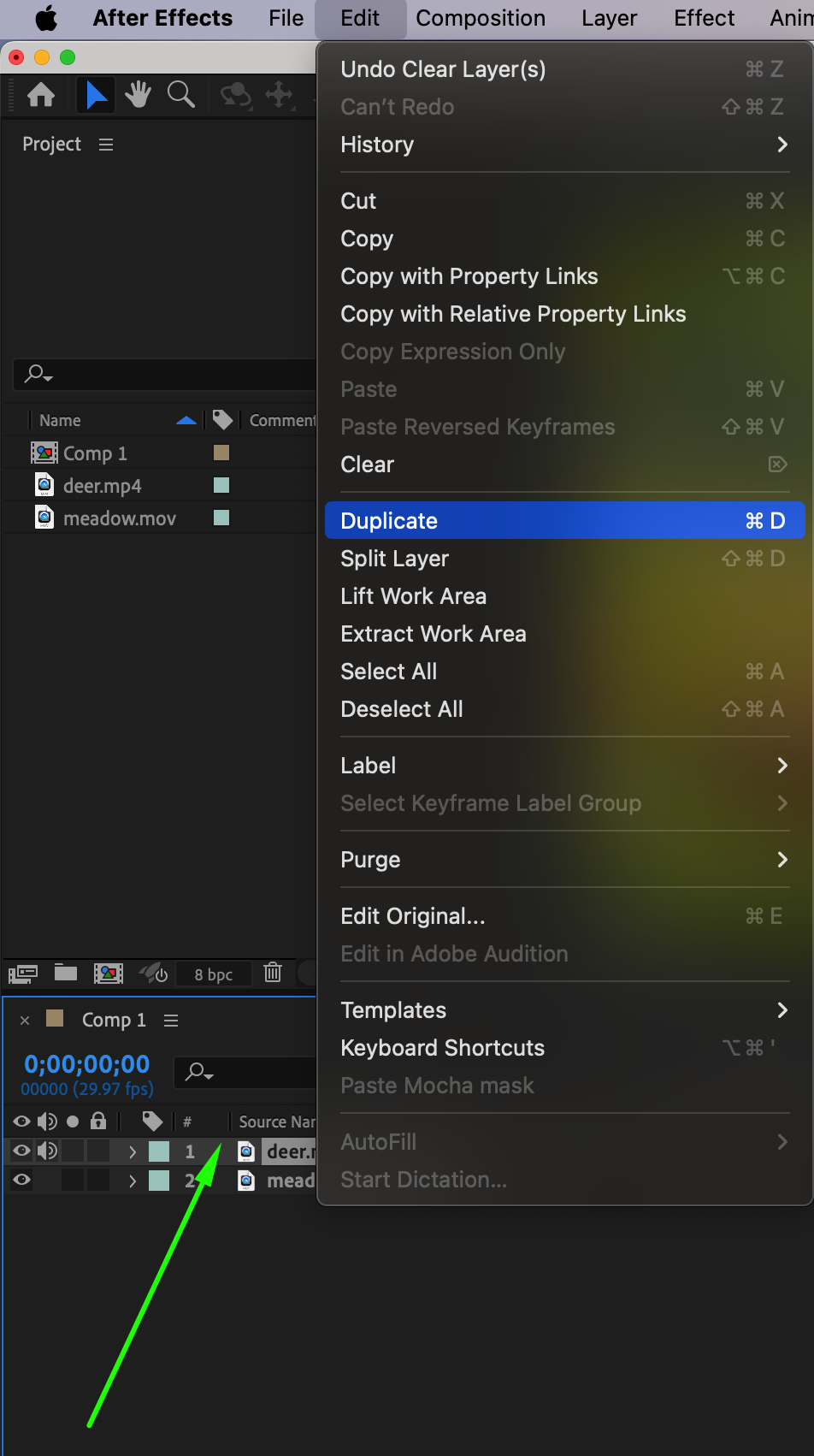
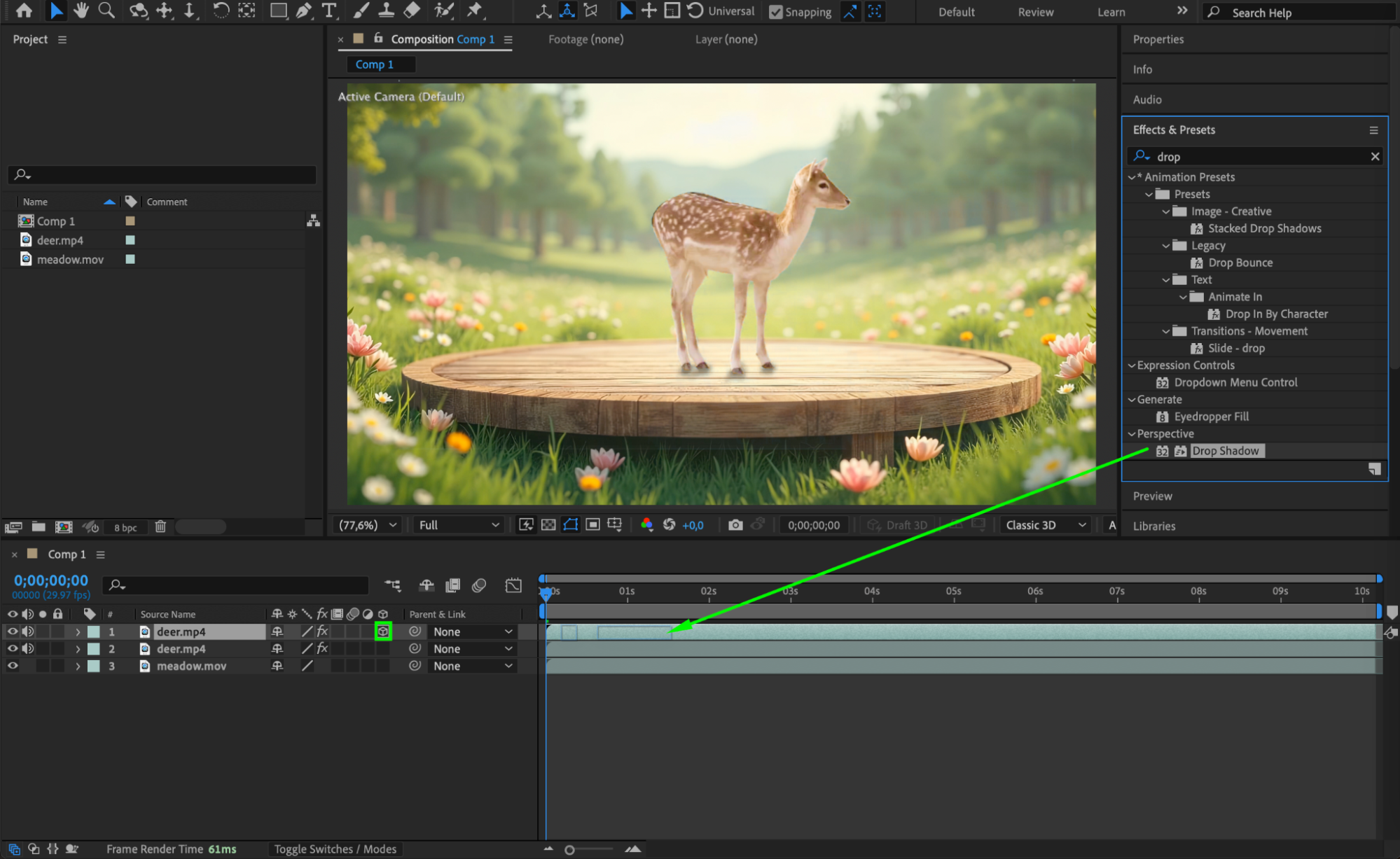
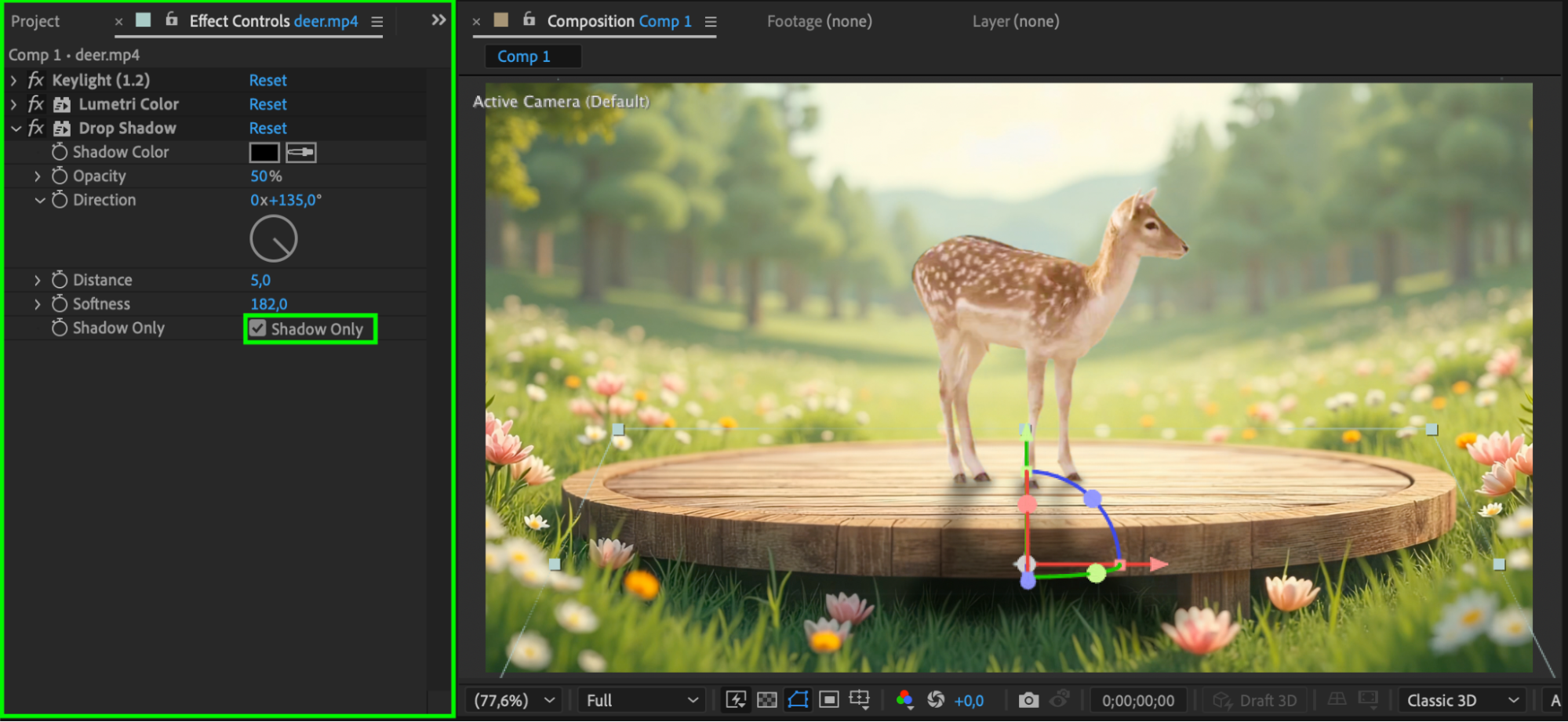
Duplicate the object layer and make the new one a 3D layer. Apply the Drop Shadow effect to this copy. In the Effect Controls, set Shadow Only to ON. Adjust the angle, distance, and softness to match your scene and add realism.
Step 7: Animate Opacity for Appear/Disappear
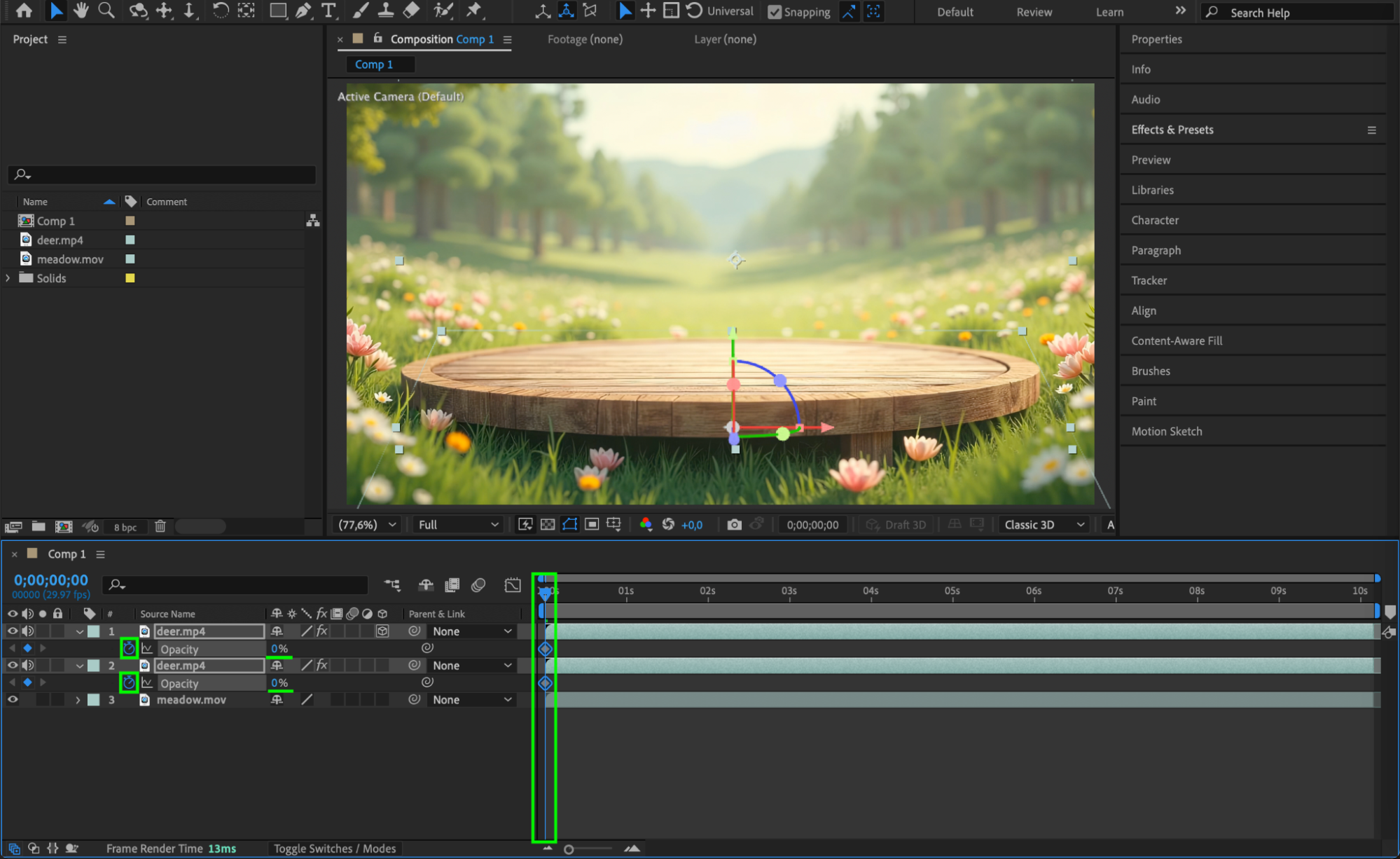
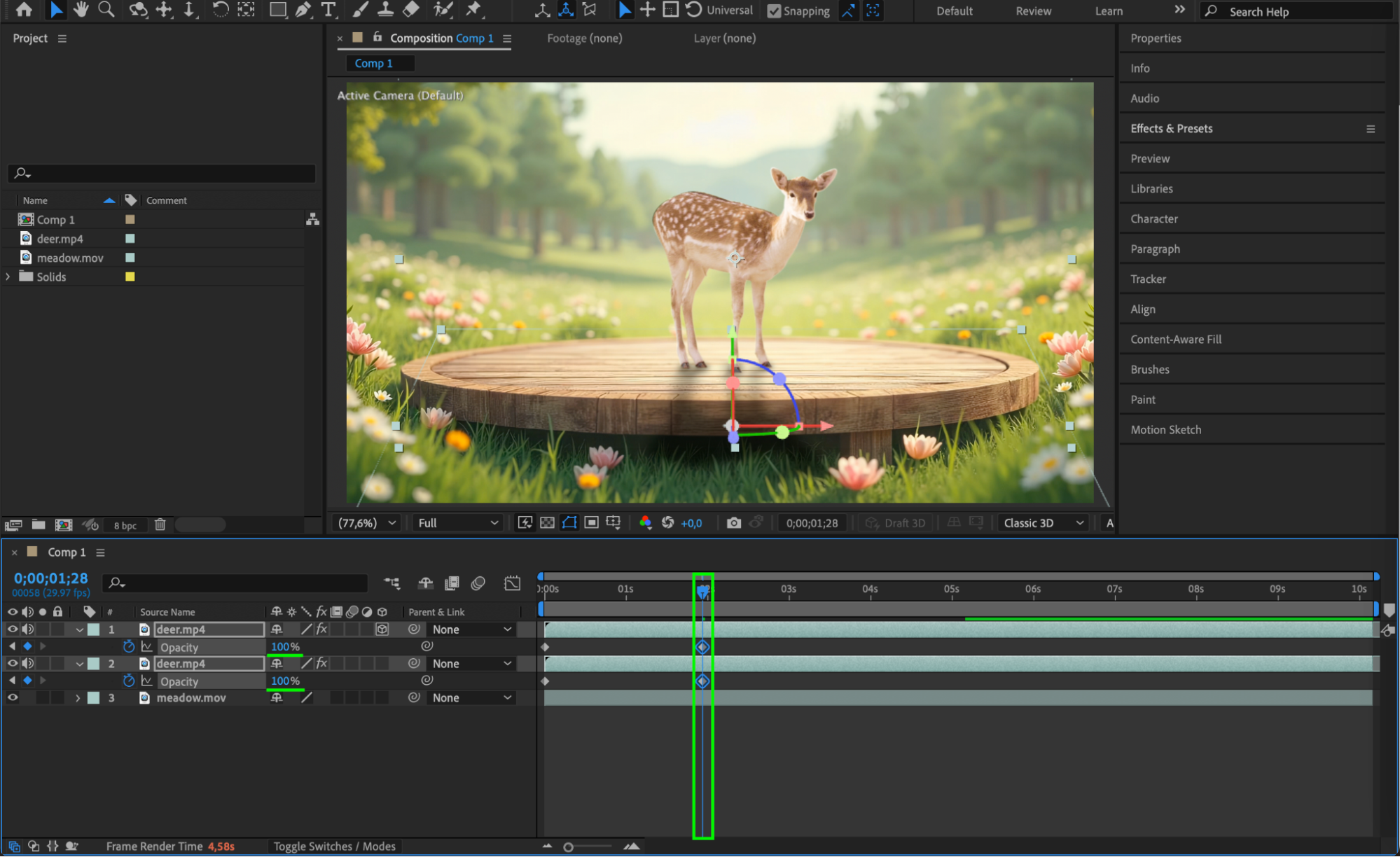
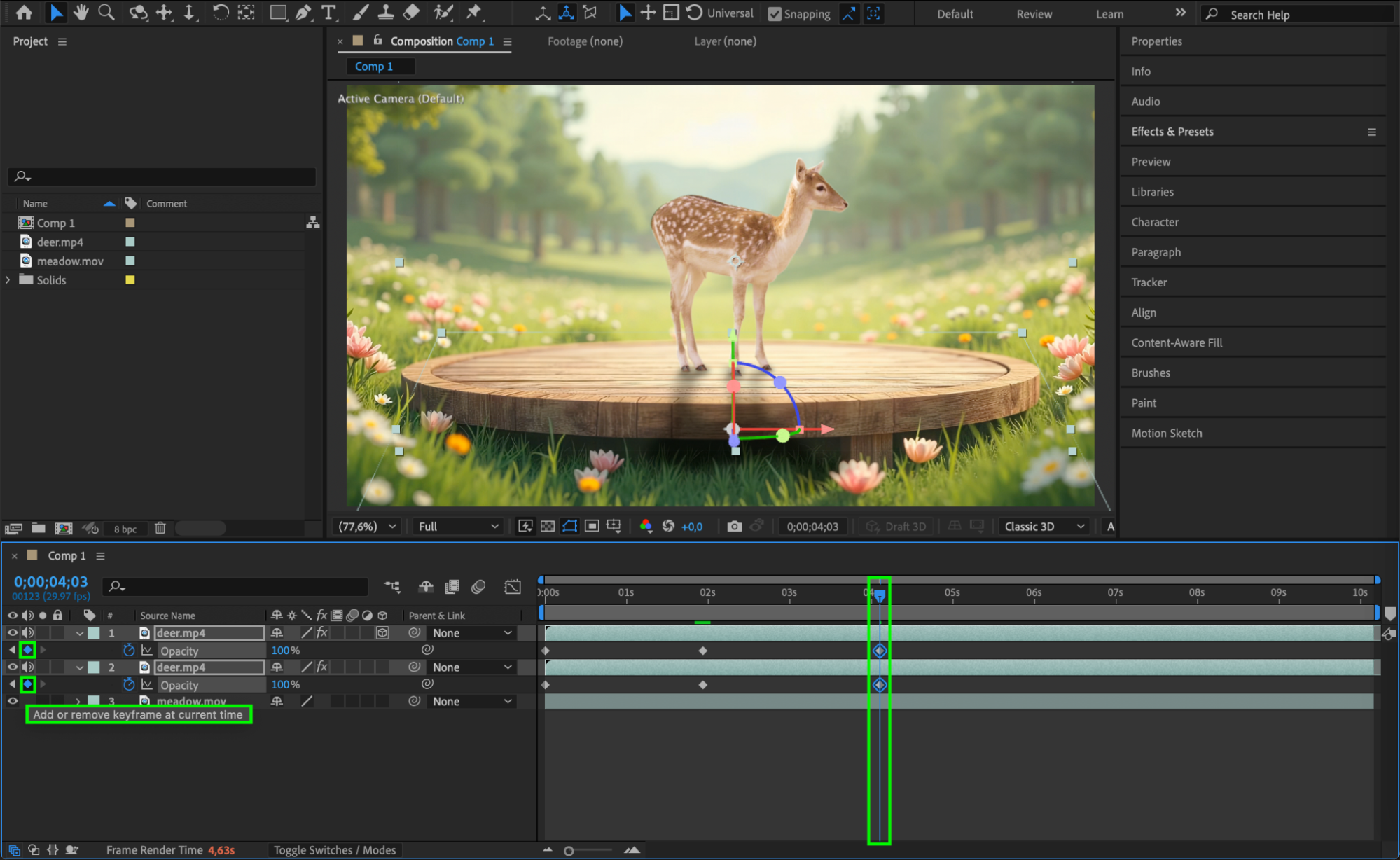
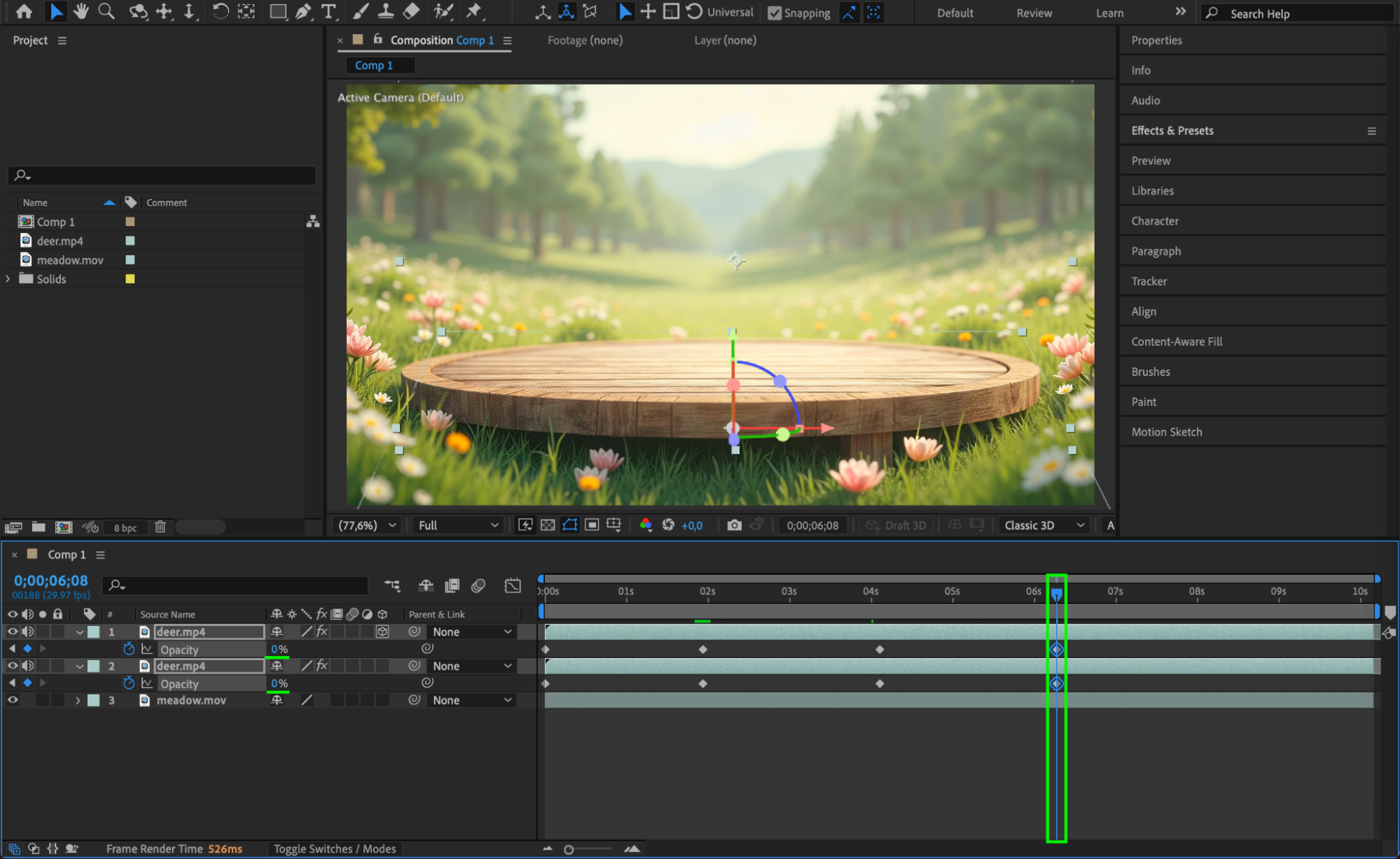
Select both the object and its shadow layer. Press “T” to open the Opacity property. Set it to 0% at the point where the object is hidden, then 100% where it should appear. Do the same in reverse for when it disappears.
 Step 8: Preview the Animation
Press the spacebar to preview your animation. Watch how the object fades in and out, and make any necessary timing adjustments for smoother transitions.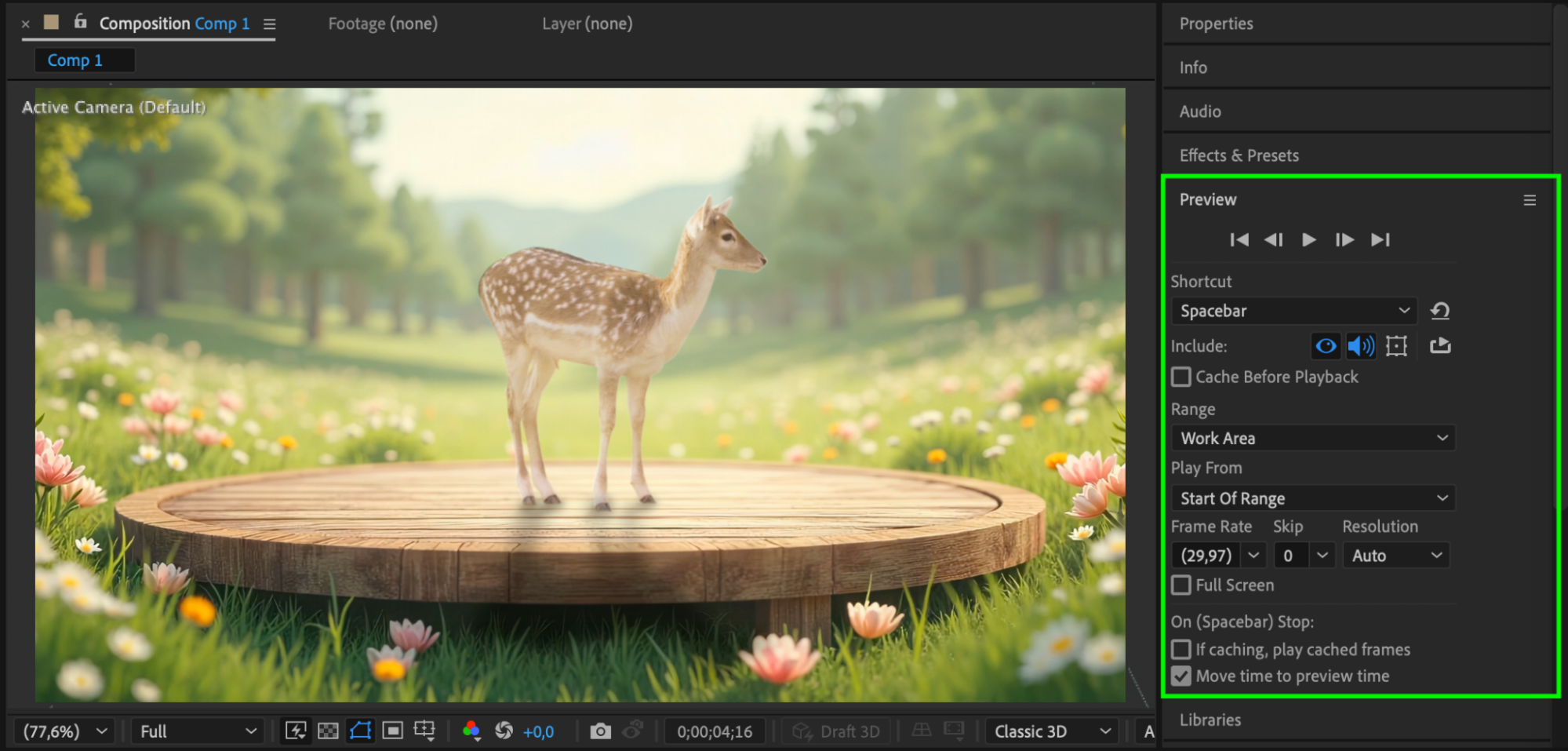 Step 9: Render the Final Video
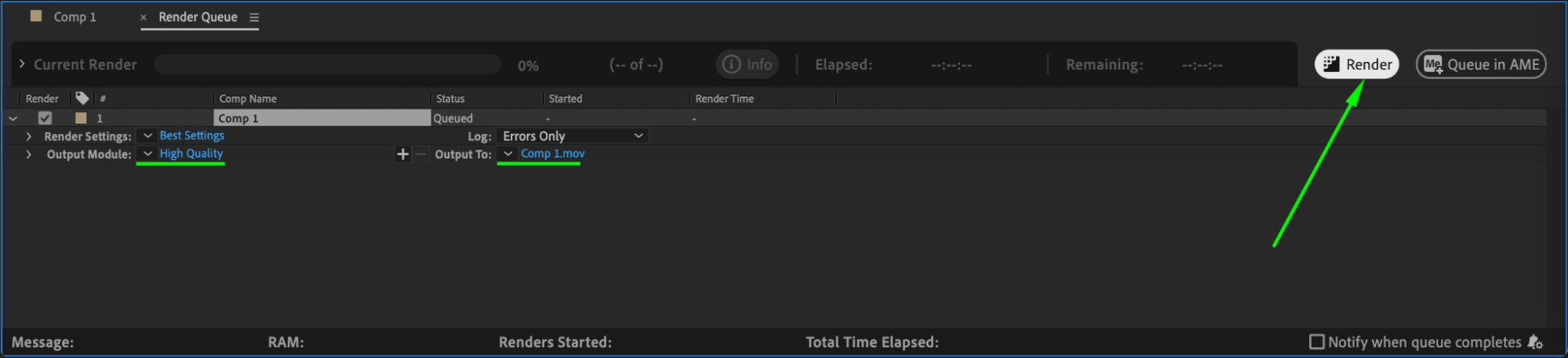
Once satisfied, go to Composition > Add to Render Queue, choose your output format, and click Render to export your finished video.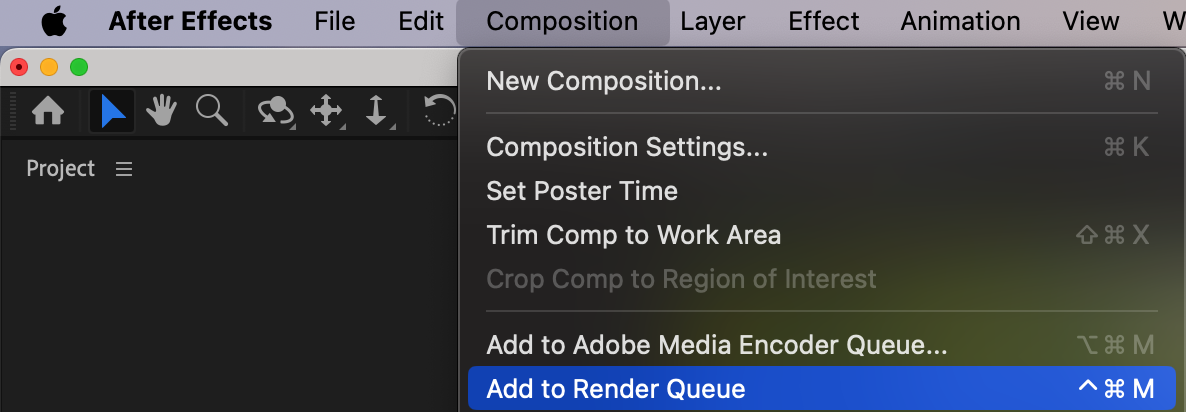
 Conclusion
By combining green screen removal, subtle shadow effects, and animated opacity, you can create professional-looking appear and disappear effects in After Effects. These techniques are perfect for transitions, magical reveals, or adding dynamic motion to your videos.
Our Bestsellers
Our Bestsellers


