
Introduction
In this tutorial, you’ll learn how to make your picture transform into particles and then smoothly come back together. This effect is perfect for creative intros, cinematic transitions, or visual storytelling.
Step 1: Import Your Image
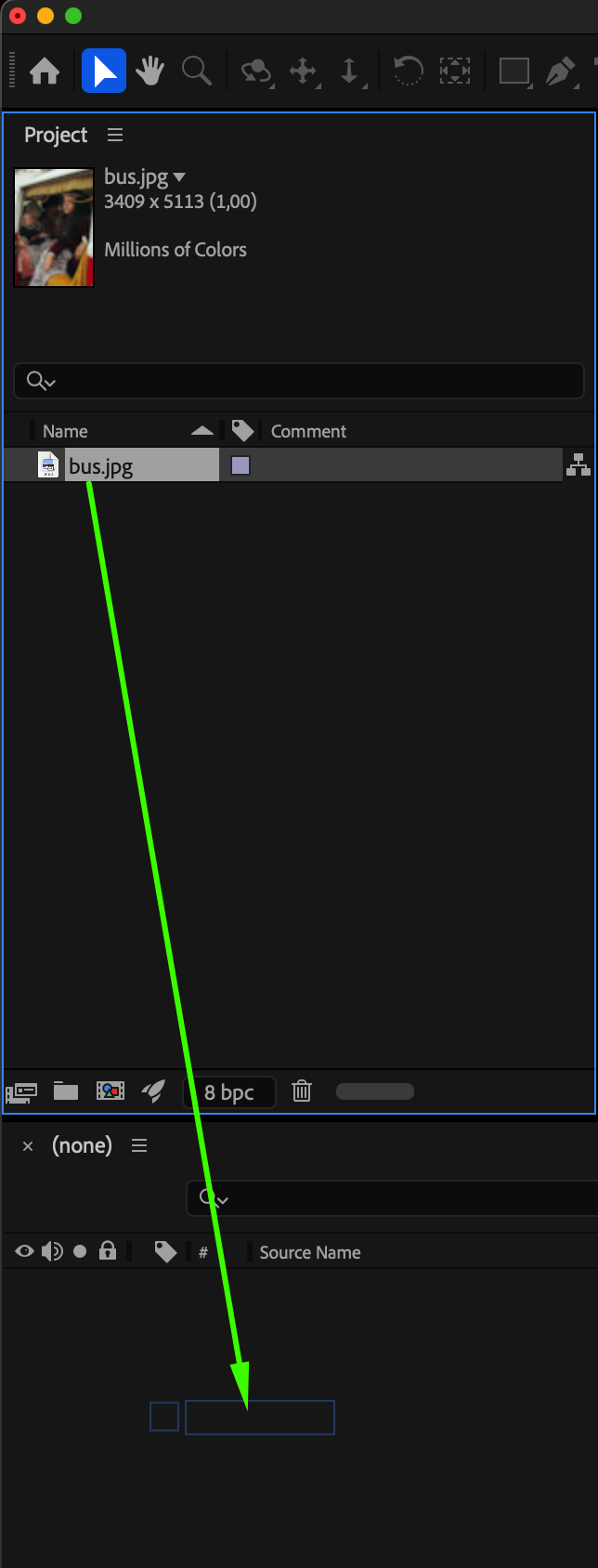
Go to File > Import > File and bring your picture into the project. Drag it onto the timeline to create a new composition.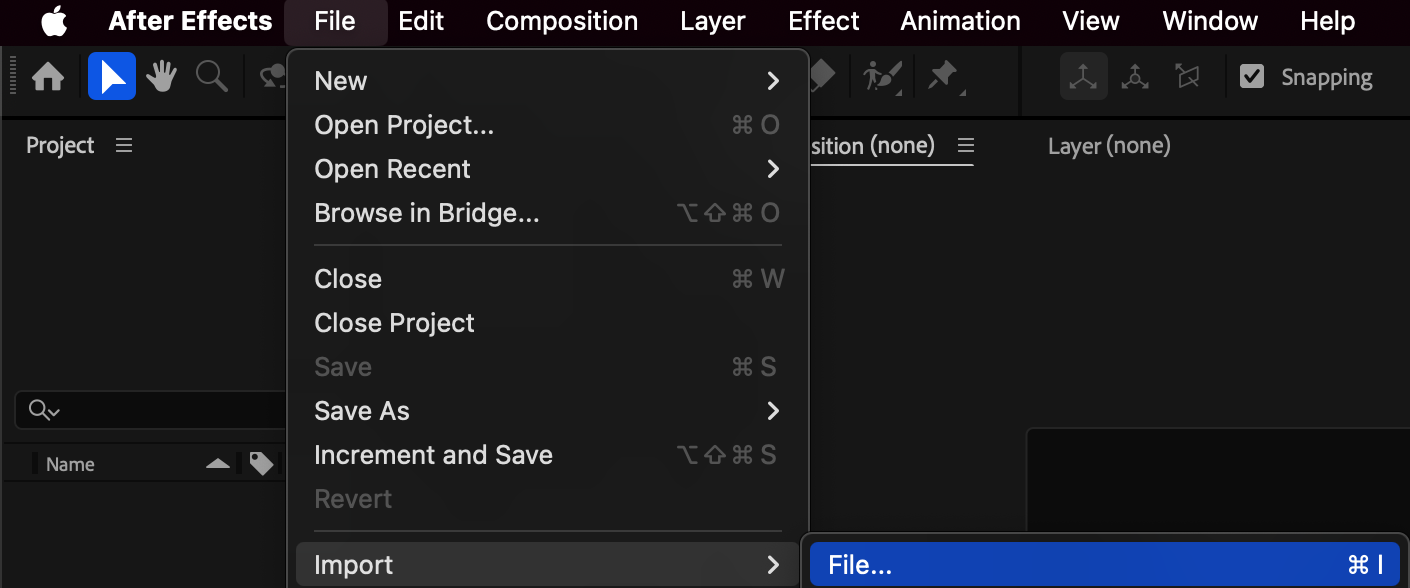
Step 2: Apply the CC Ball Action Effect
From the Effects & Presets panel, search for CC Ball Action and drag it onto your image layer. This effect breaks your image into small particles that can be animated.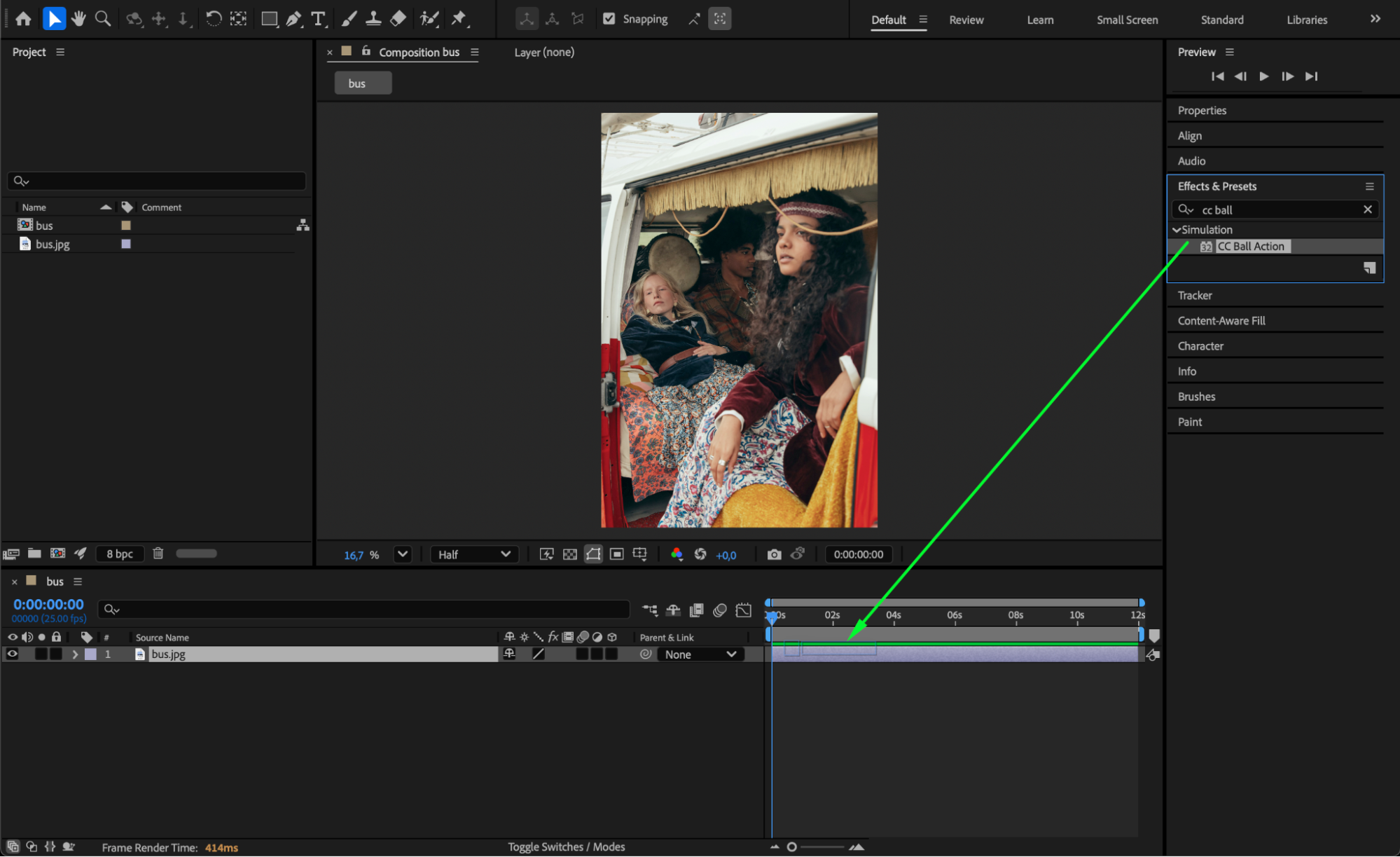 Step 3: Animate the Particle Dissolve
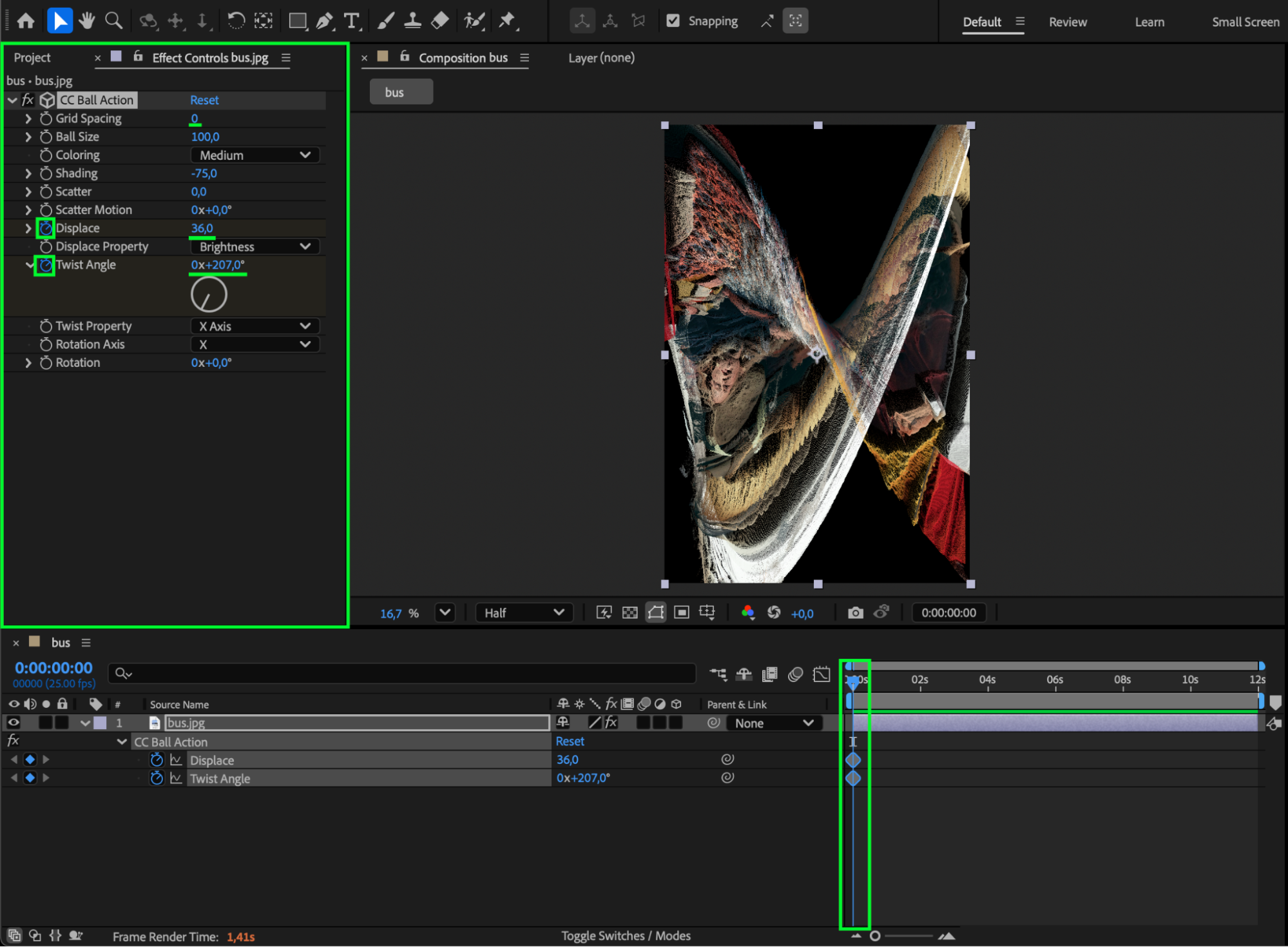
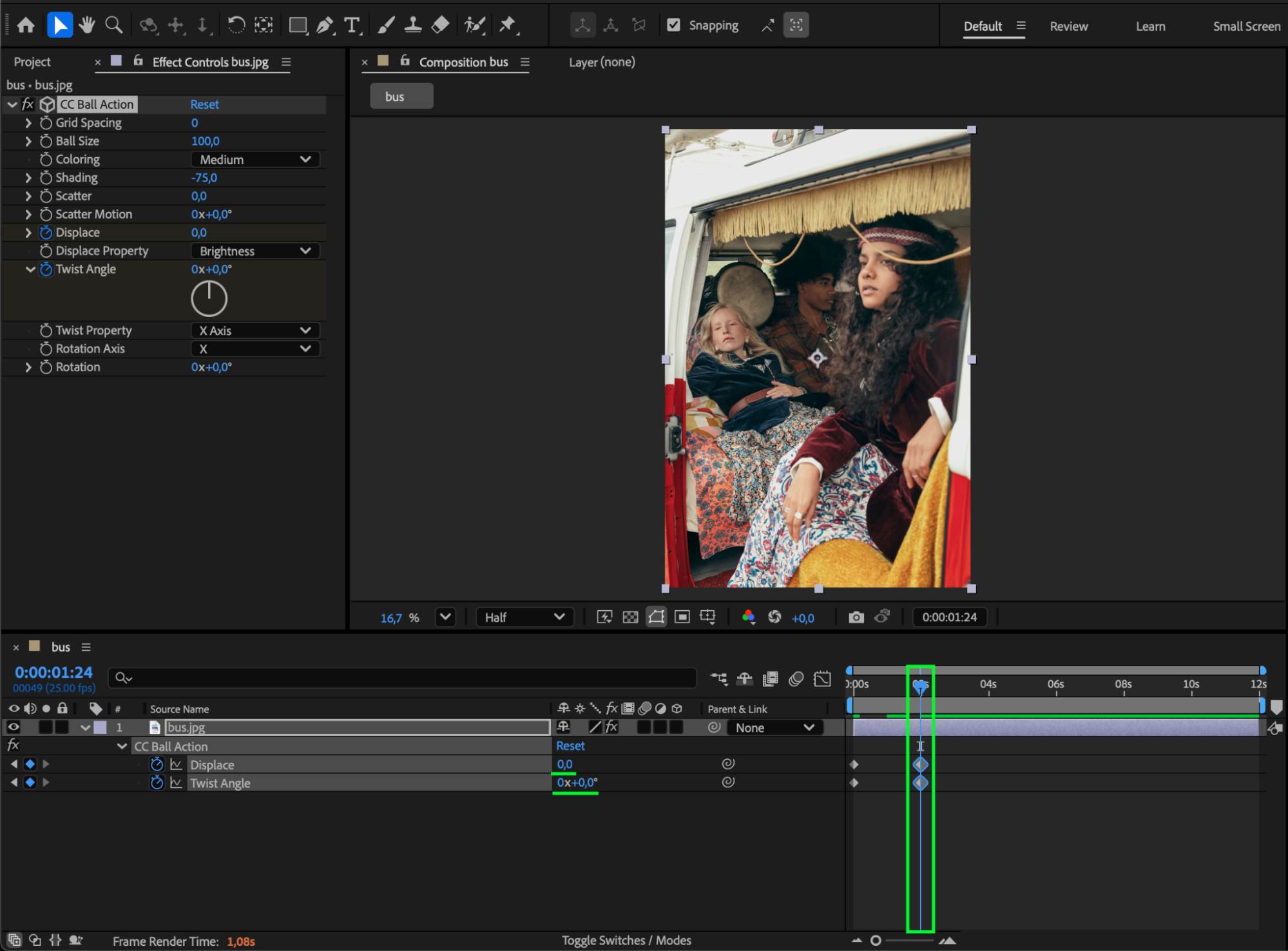
Open the Effect Controls panel. Set Grid Spacing to 0 for a fine particle look. With your CTI (Current Time Indicator) at the start of the composition:
Set Disperse to 36
Set Twist Angle to 207
Click the stopwatch next to both parameters to create keyframes.
Move the CTI forward a few frames, then change both Disperse and Twist Angle back to 0.
This creates an animation where the picture reforms from scattered particles.
Step 4: Add Easy Ease and Adjust the Graph
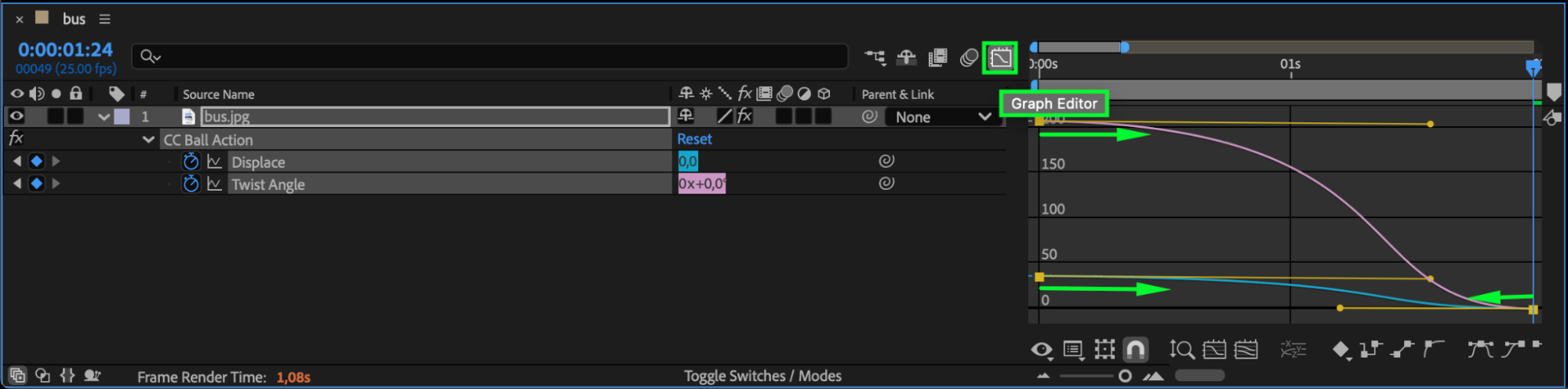
Select your keyframes, right-click, and choose Keyframe Assistant > Easy Ease for smoother motion. Then, open the Graph Editor to fine-tune the speed for a more natural dissolve and reformation.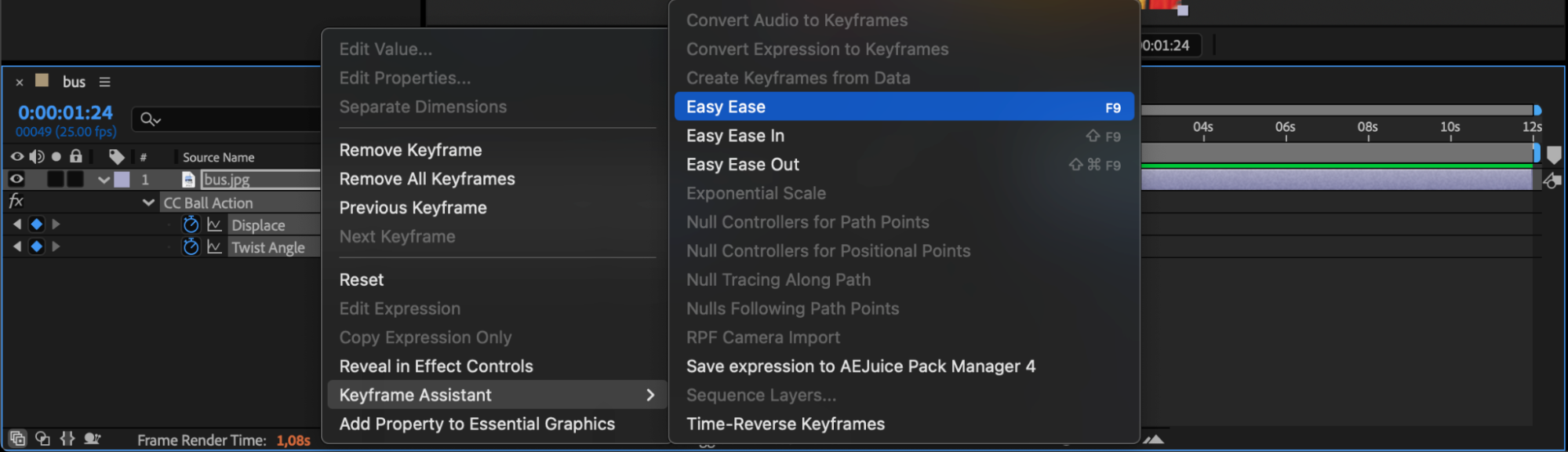
 Step 5: Preview the Animation
Press Spacebar to preview. You’ll see your image beautifully blend from particles into a complete picture.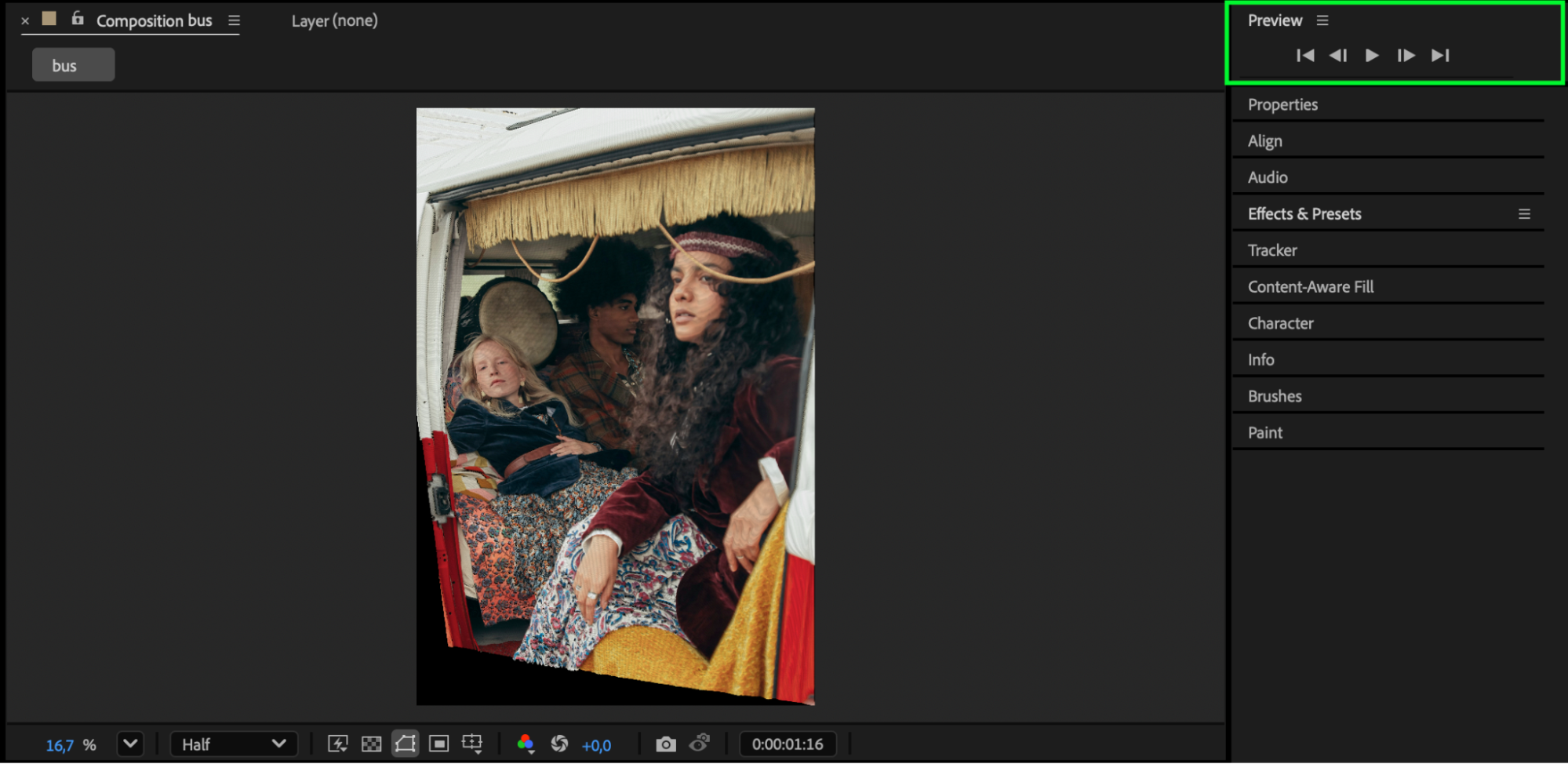
Conclusion
You’ve just created a stunning particle blend effect in After Effects using CC Ball Action!
This technique adds a cinematic touch to your projects — perfect for intros, outros, and transitions that captivate your audience.
Our Bestsellers
Our Bestsellers


