
Introduction
If you want to create a wood-like texture directly inside After Effects, the Turbulent Noise effect provides a fast and flexible way to generate organic patterns. Follow the steps below to build a natural-looking wood grain from scratch.
Step 1: Create a New Composition
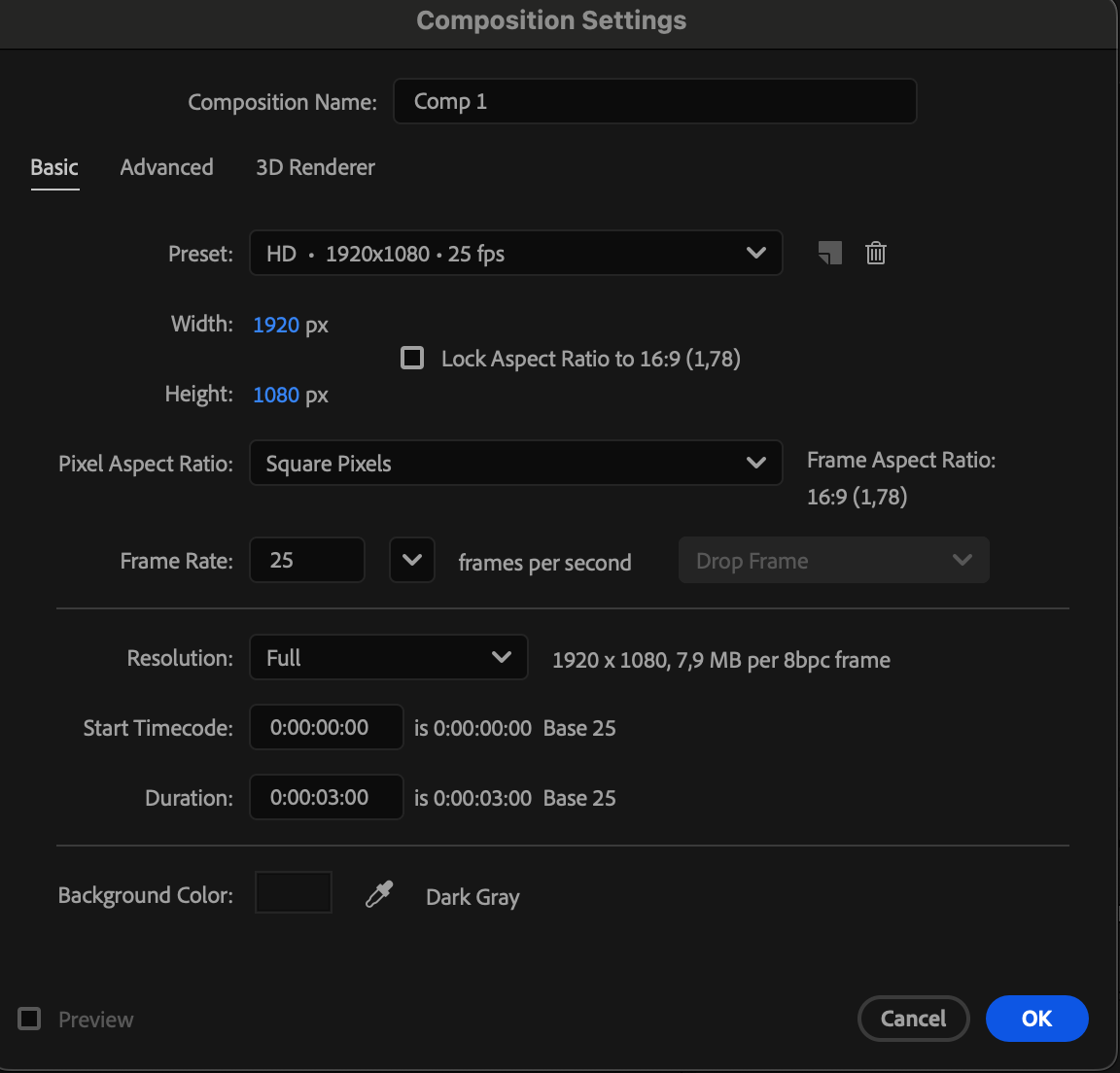
Go to Composition > New Composition, set your preferred resolution and duration, and click OK to begin.
 Step 2: Add a Solid Layer
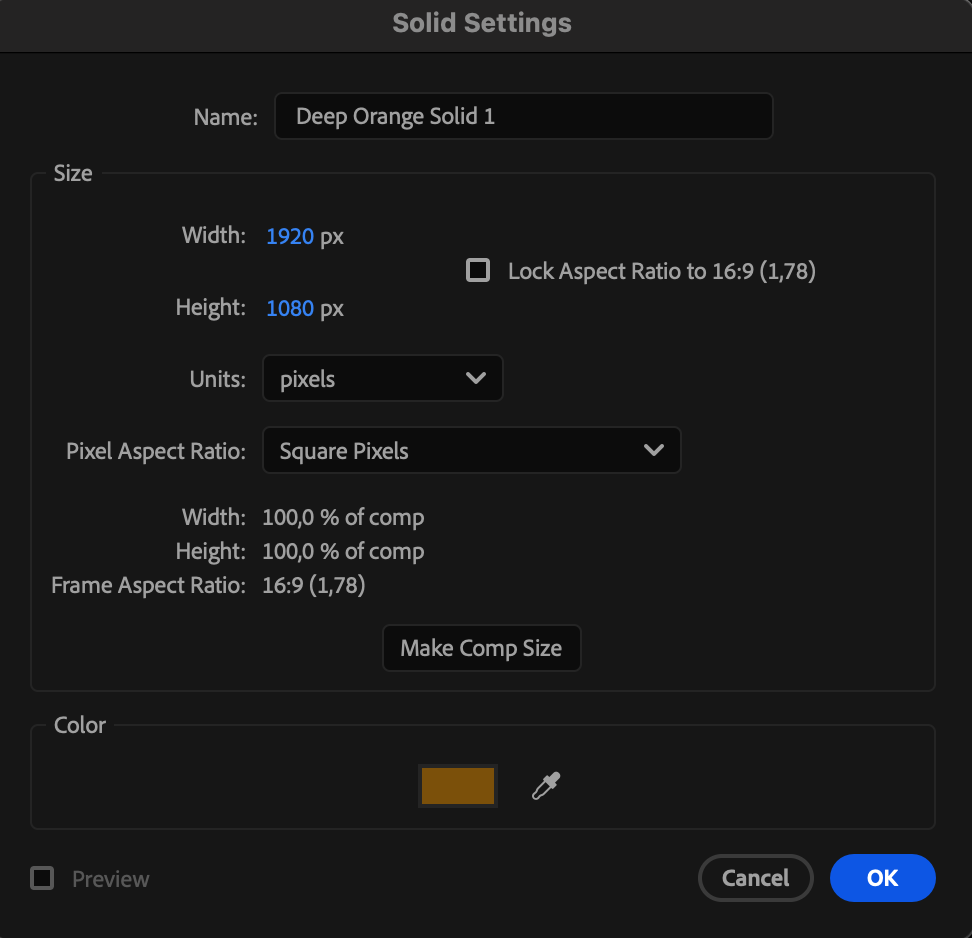
Go to Layer > New > Solid and choose the color #906314. (You can also apply this color to any text or shape layer if you prefer to give those elements a wood texture.)
Step 3: Apply Turbulent Noise
Open the Effects & Presets panel and drag the Turbulent Noise effect onto your solid or shape layer.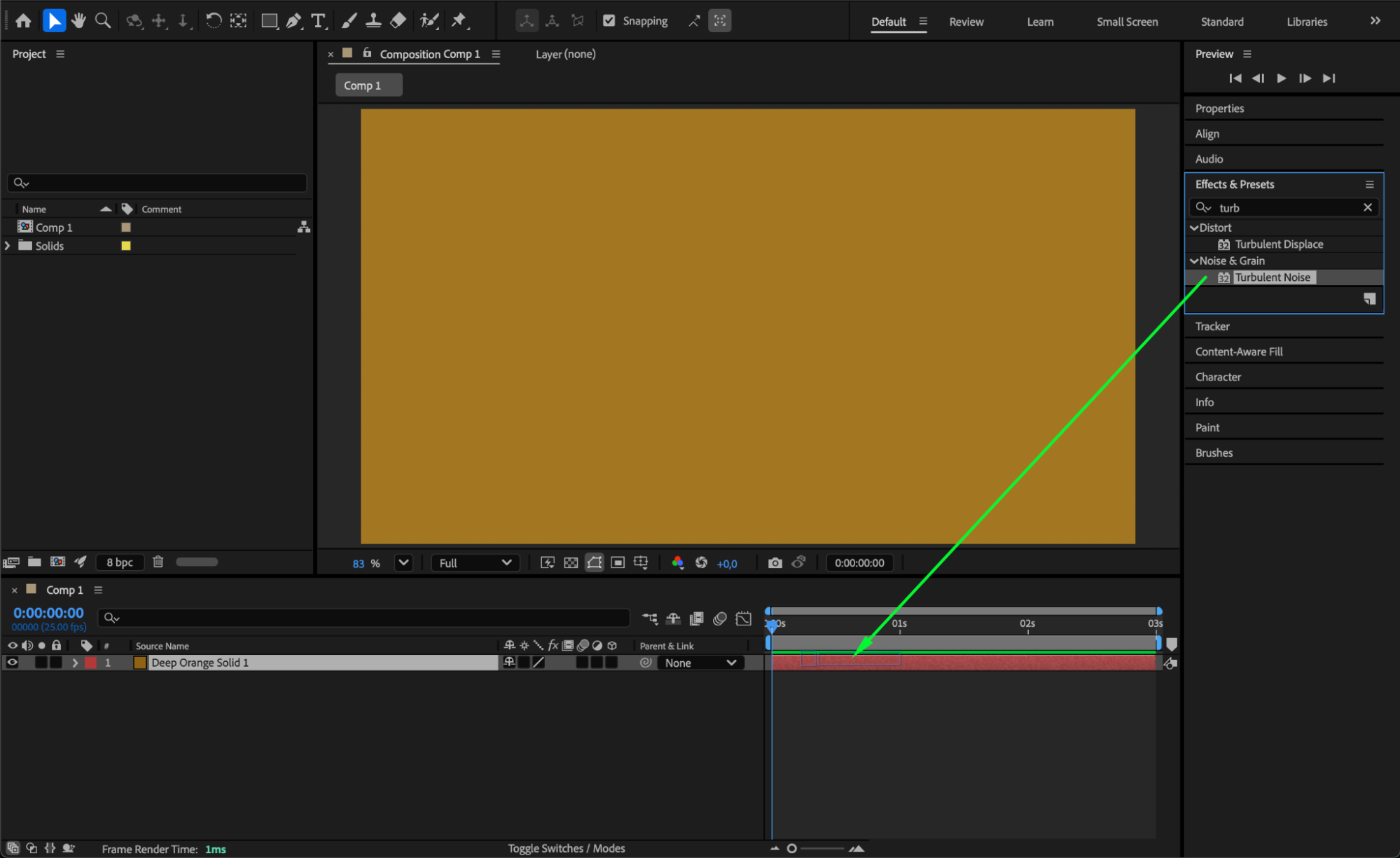 Step 4: Adjust Turbulent Noise Settings
In the Effect Controls panel:
Set Fractal Type to Swirly to create organic wood grain curves.
Uncheck Uniform Scaling.
Set Scale Width to 1734 and Scale Height to 169 to stretch the pattern into wood-like lines.
Change Blending Mode to Overlay to enhance contrast and richness.
These settings will shape the noise into flowing, layered wood grain.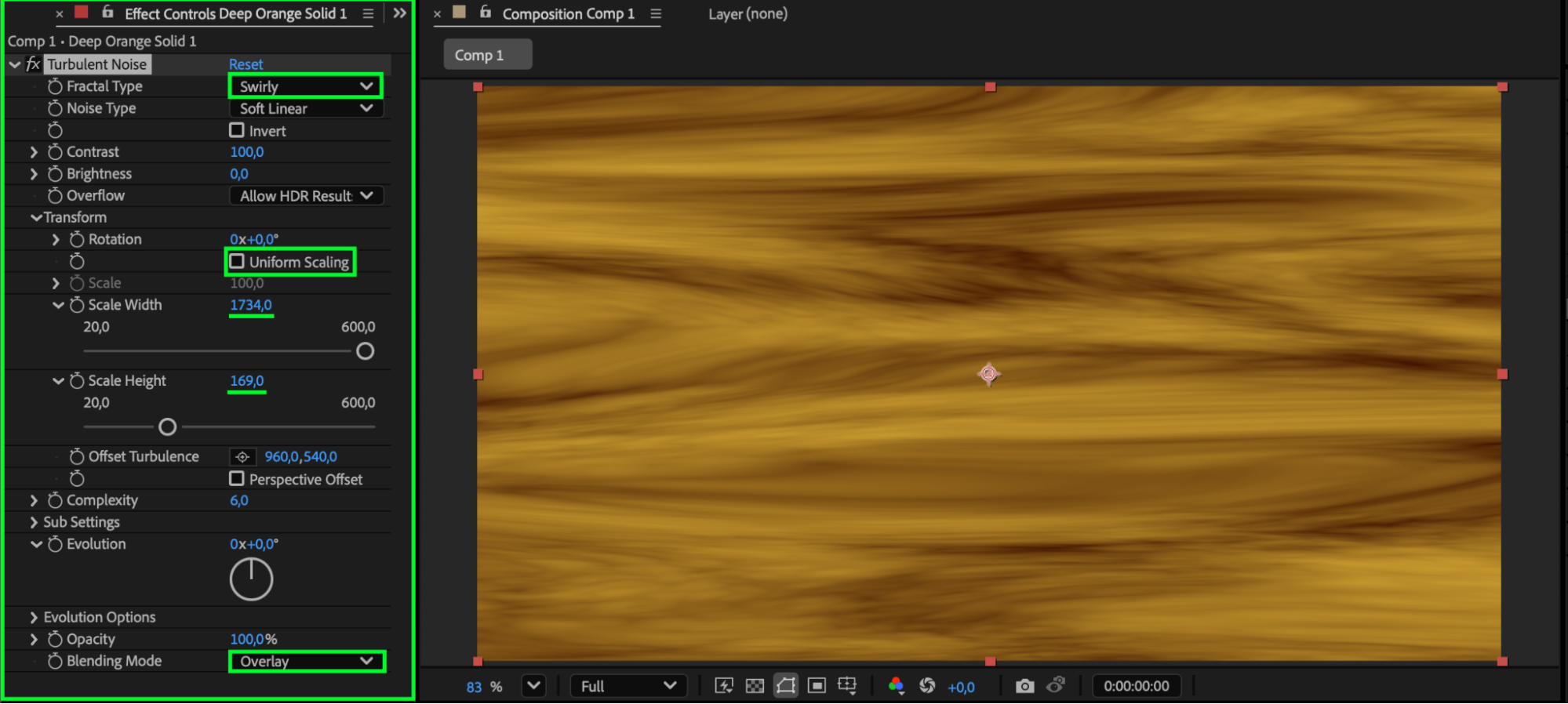
Step 5: Preview Your Wood Texture
Press Spacebar to preview the result. Adjust the Turbulent Noise parameters (contrast, complexity, evolution) if you’d like to refine the texture or animate the wood grain.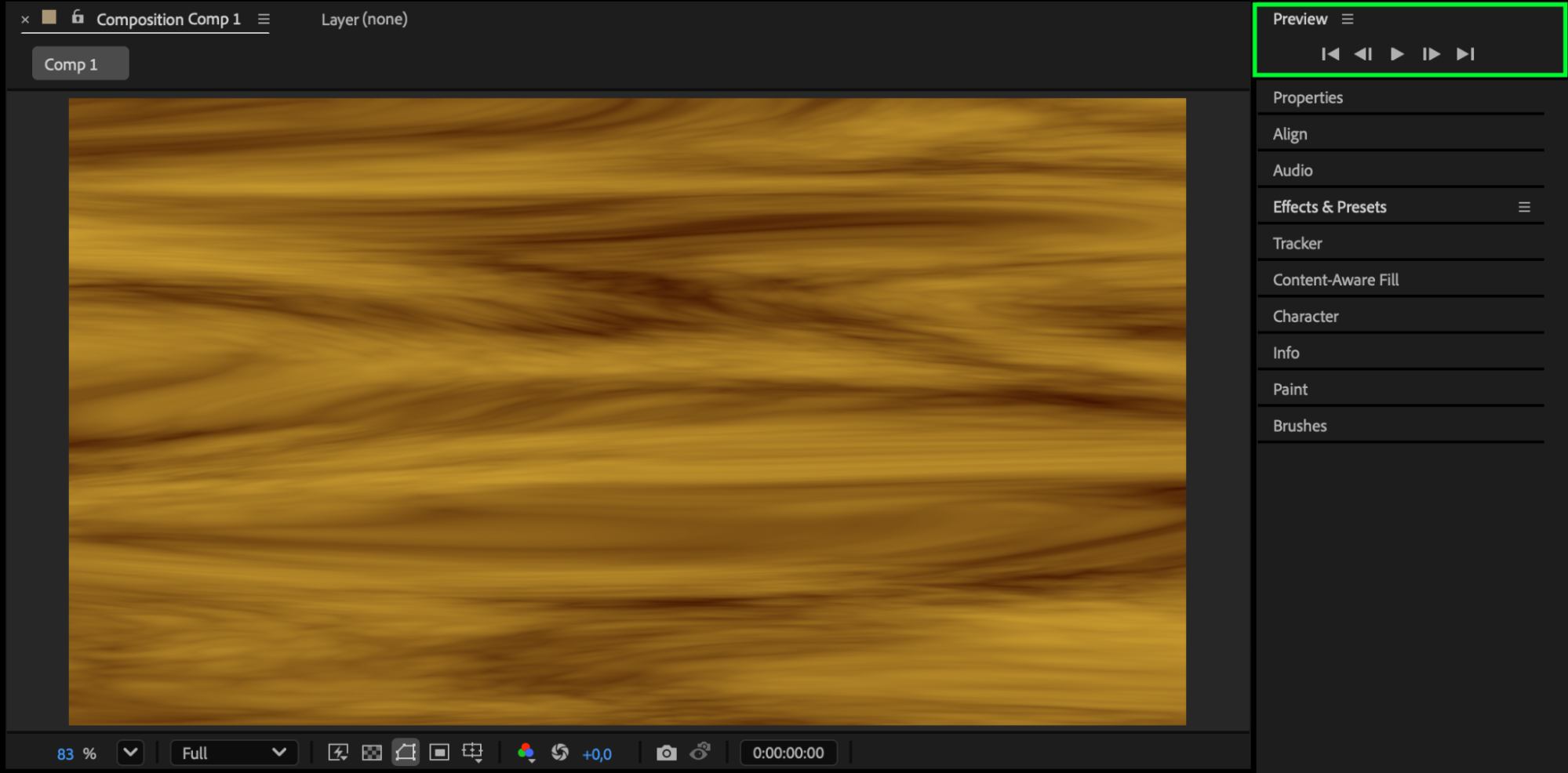
Conclusion
Using only a solid color and the Turbulent Noise effect, you can quickly generate a convincing wood texture in After Effects. Customize the scale, fractal type, blending mode, and evolution to create different wood styles — from smooth polished wood to rough natural grain.
Our Bestsellers
Our Bestsellers


