
Introduction
In After Effects, you can easily make one layer follow another using the Parent & Link feature. Making a text layer the child of a solid layer allows you to move or animate both together. You can also use Track Matte for creative transparency effects, such as revealing text through a solid.
Step 1: Open Your Project
Start by opening your After Effects project where you want to connect text and solid layers.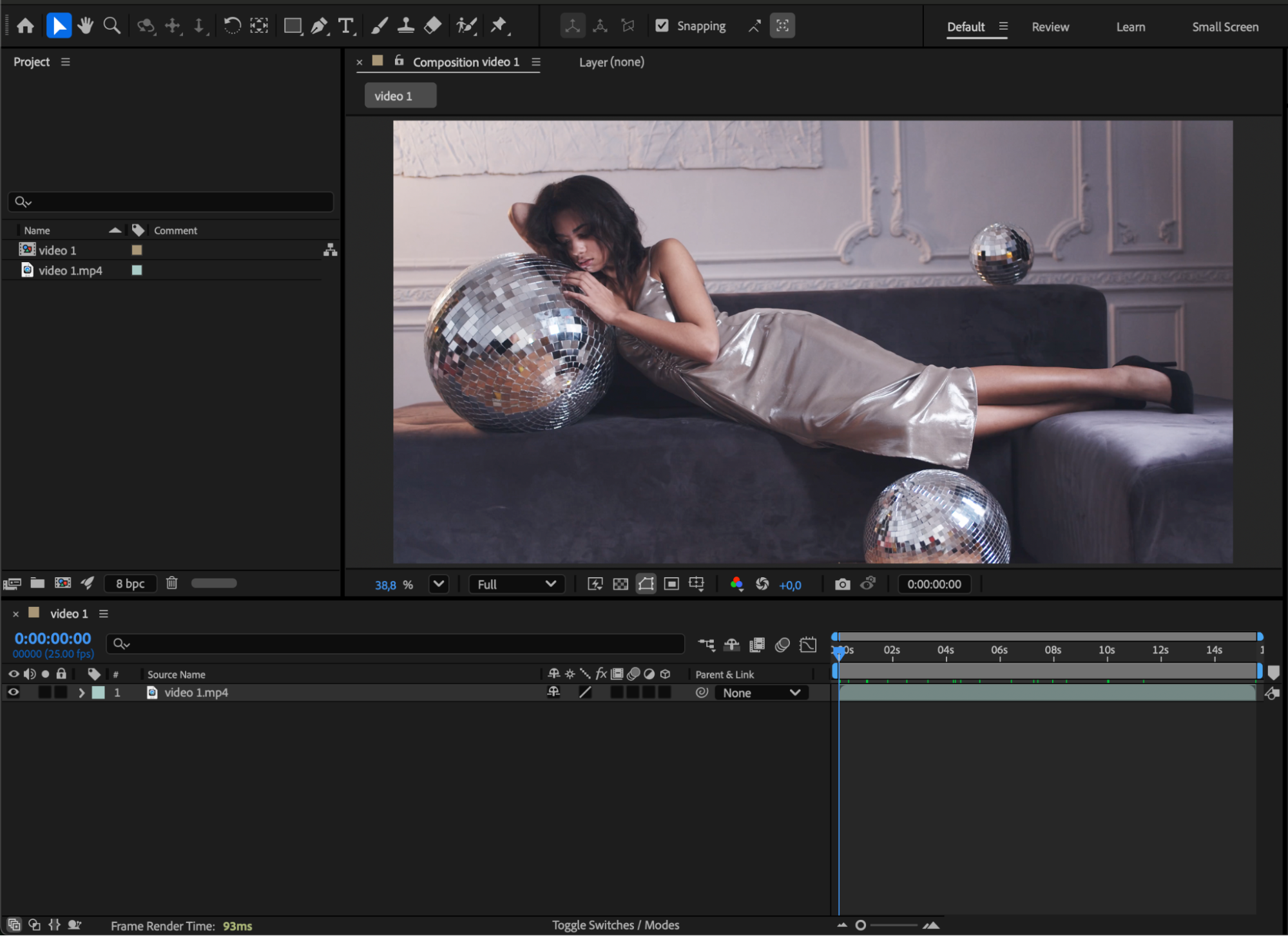
Step 2: Create a Solid Layer
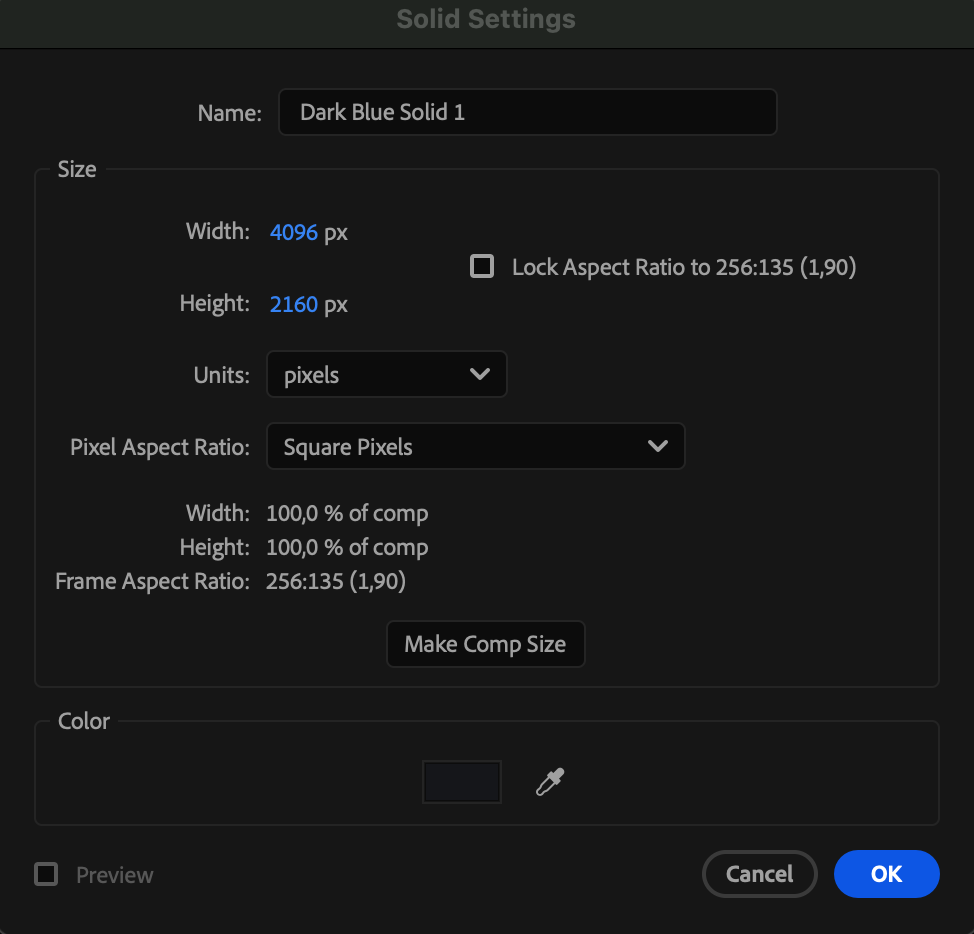
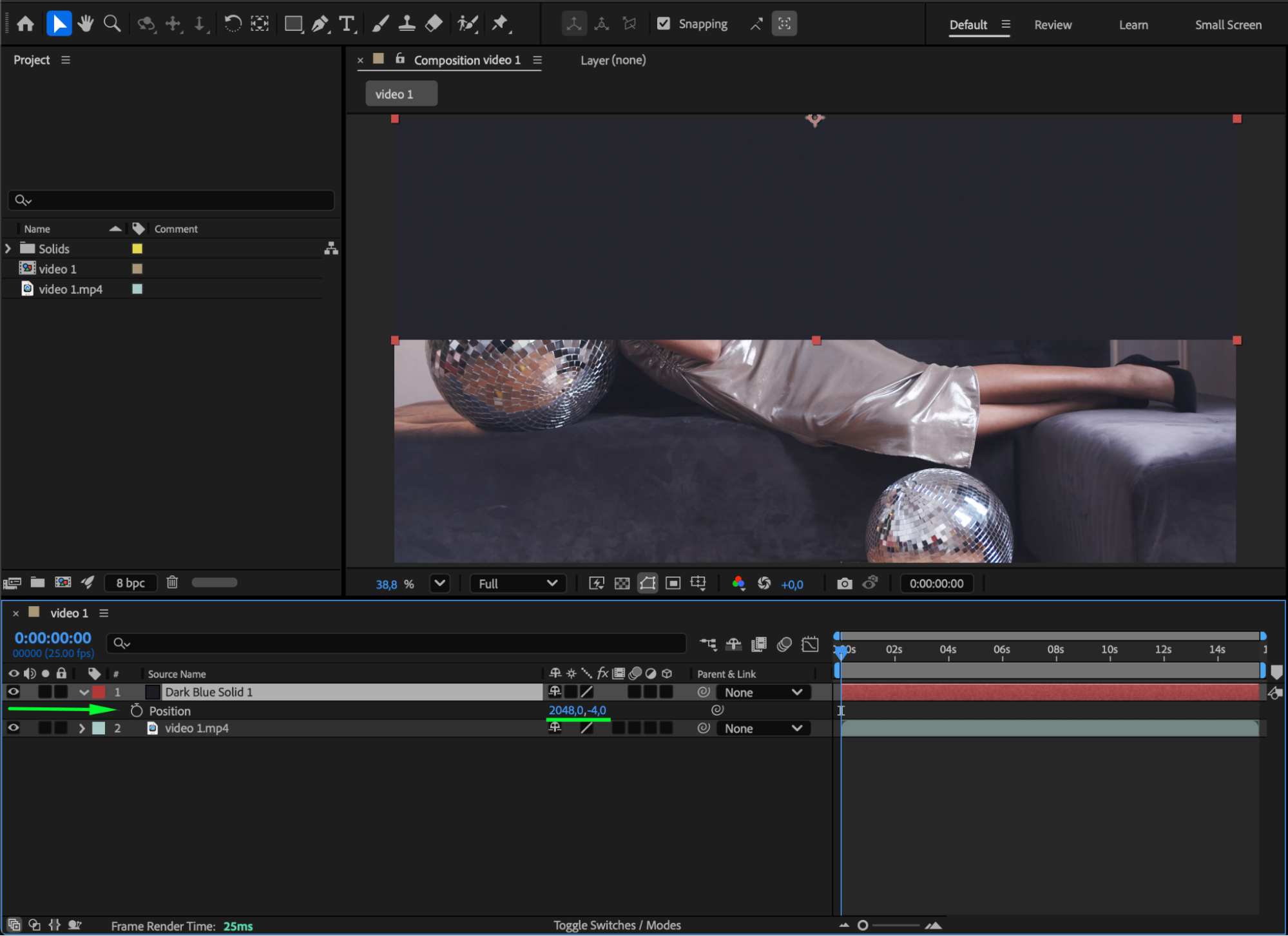
Go to Layer > New > Solid. Choose a color and name your solid layer. This layer will act as the parent that controls the text.
 Step 3: Add a Text Layer
Select the Type Tool (Ctrl/Cmd + T) and click in the Composition panel to create your text. Type in your desired word or phrase.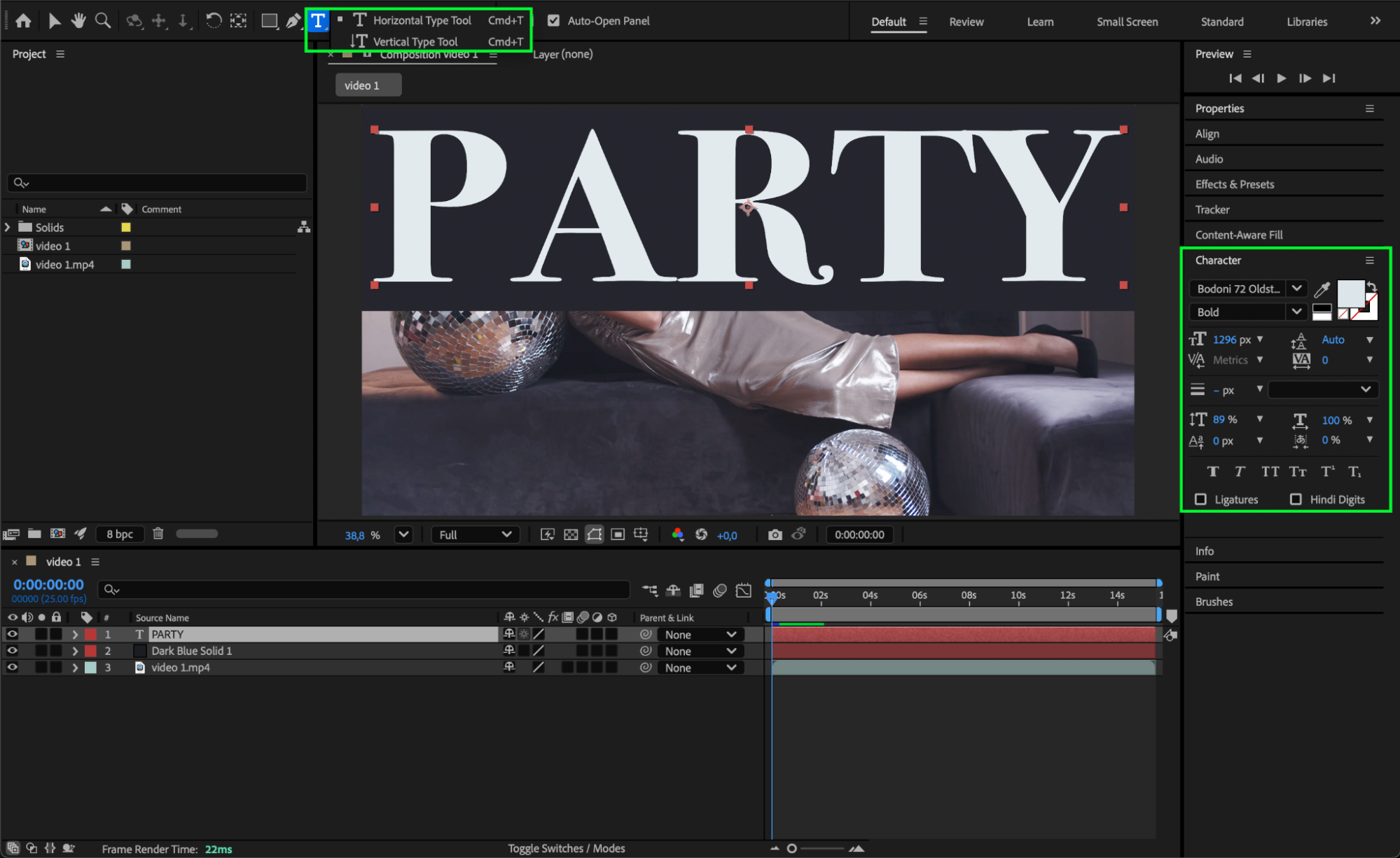 Step 4: (Optional) Create a Transparent Text Effect
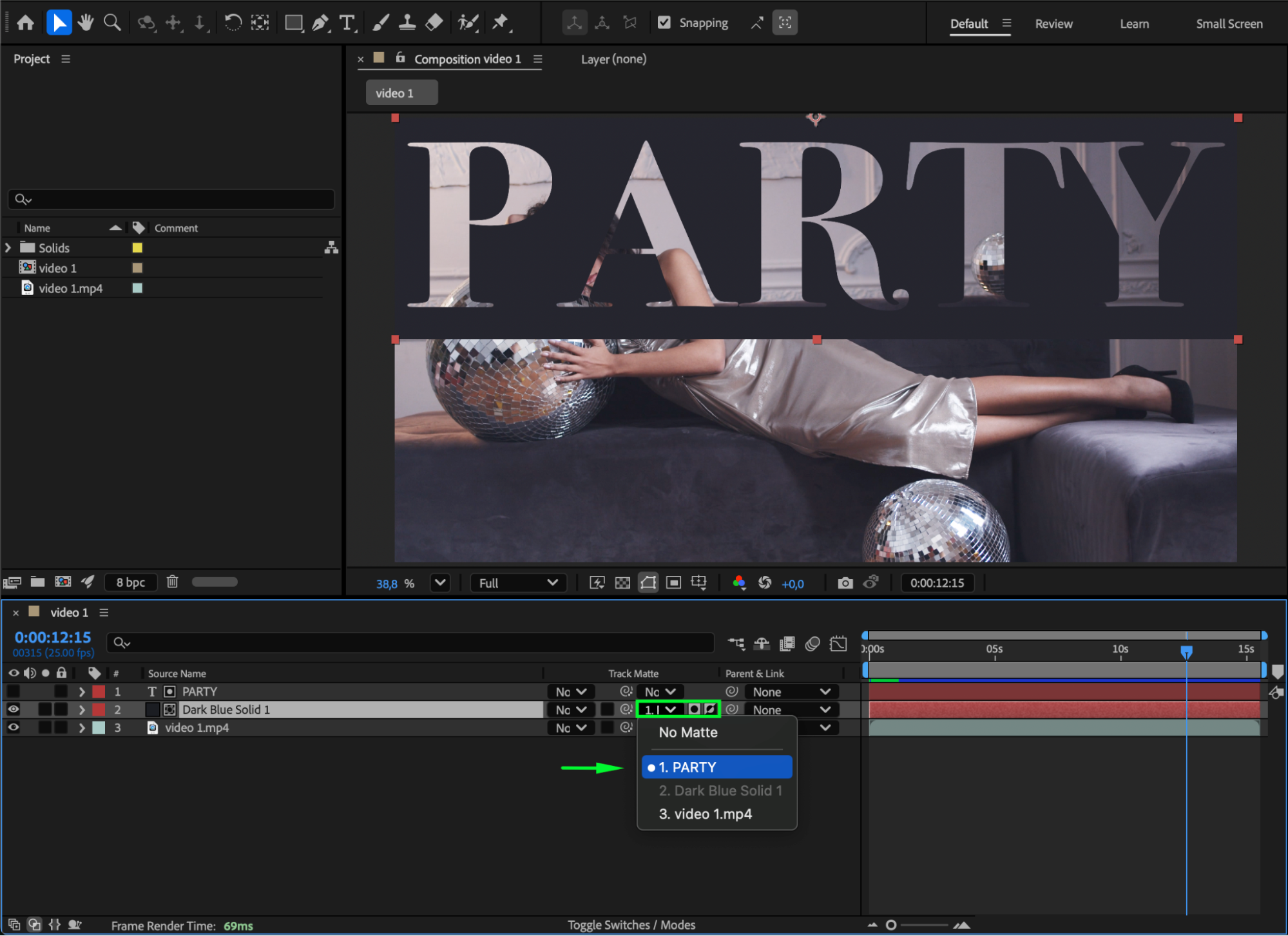
If you want to create a see-through text effect, press the Toggle Switches/Modes button. In the Track Matte column for the solid layer, select your text layer and choose Alpha Matte Inverted. This will make your text appear as transparent cutouts on the solid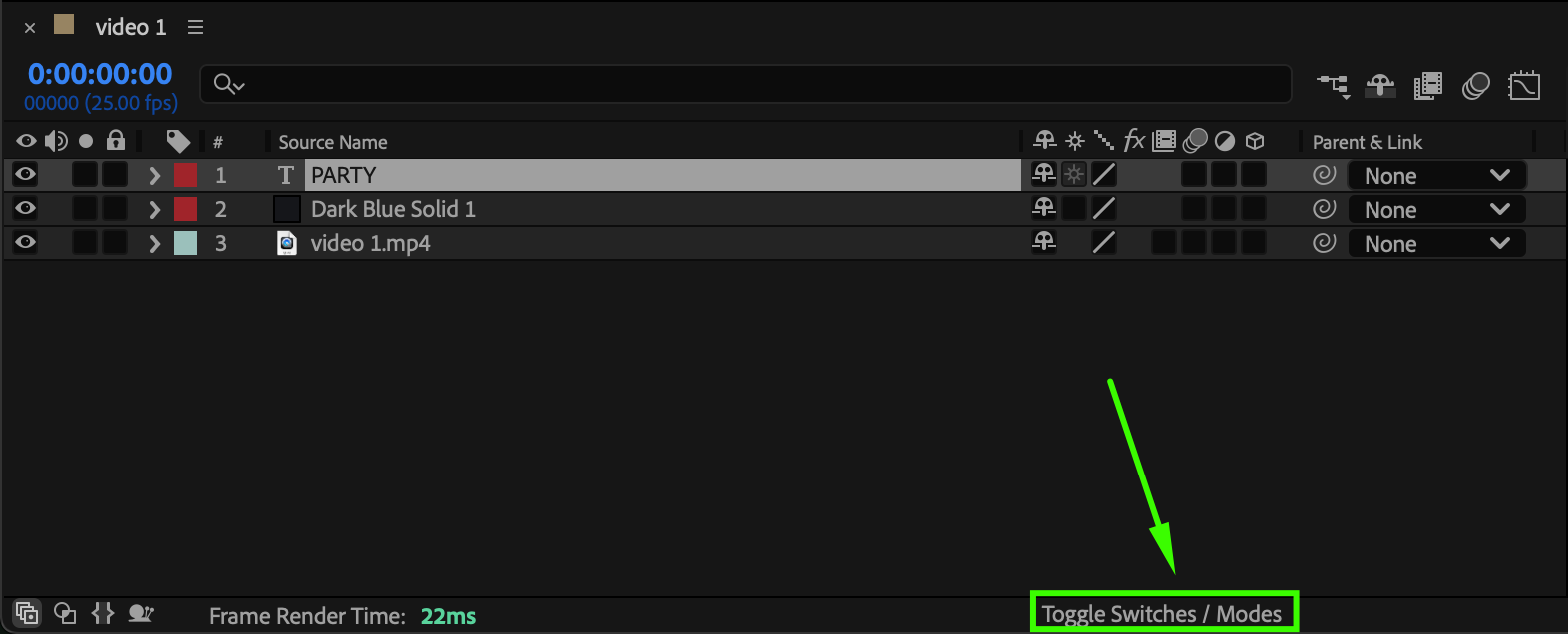
Step 5: Parent the Text to the Solid
In the Timeline Panel, use the Pick Whip Tool (the spiral icon) on the text layer and drag it to the solid layer. This links the text to the solid as its child.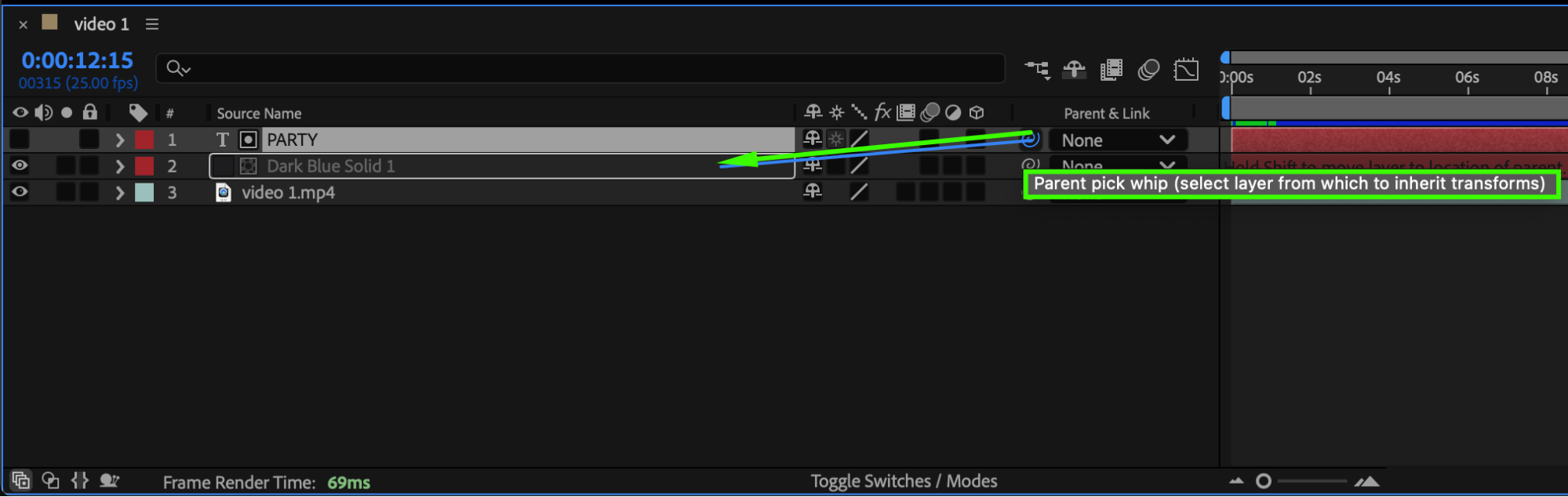 Step 6: Animate the Solid
Now, animate the solid’s Position, Rotation, or Scale. The text layer will follow all the movements and transformations since it’s parented to the solid.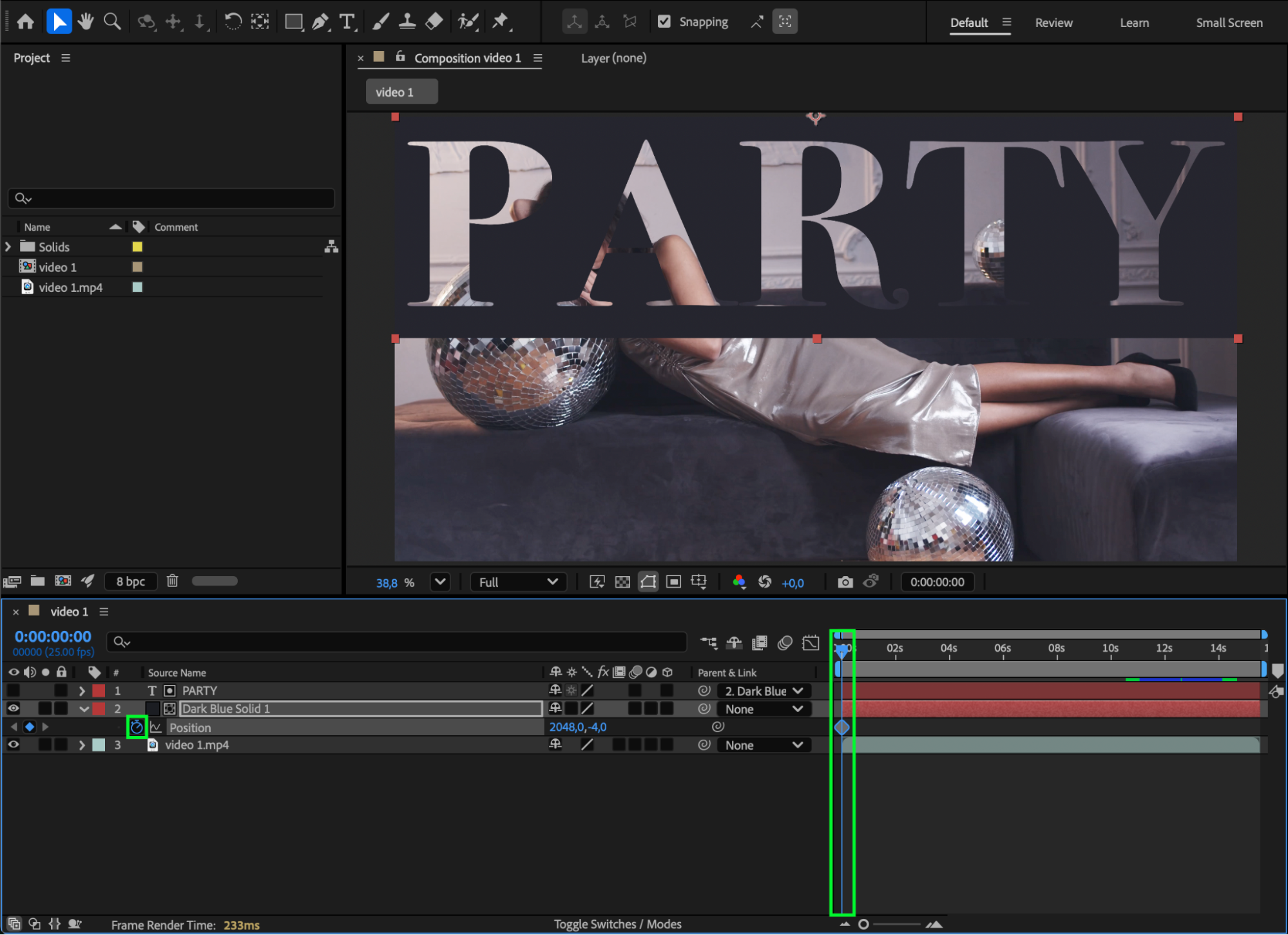
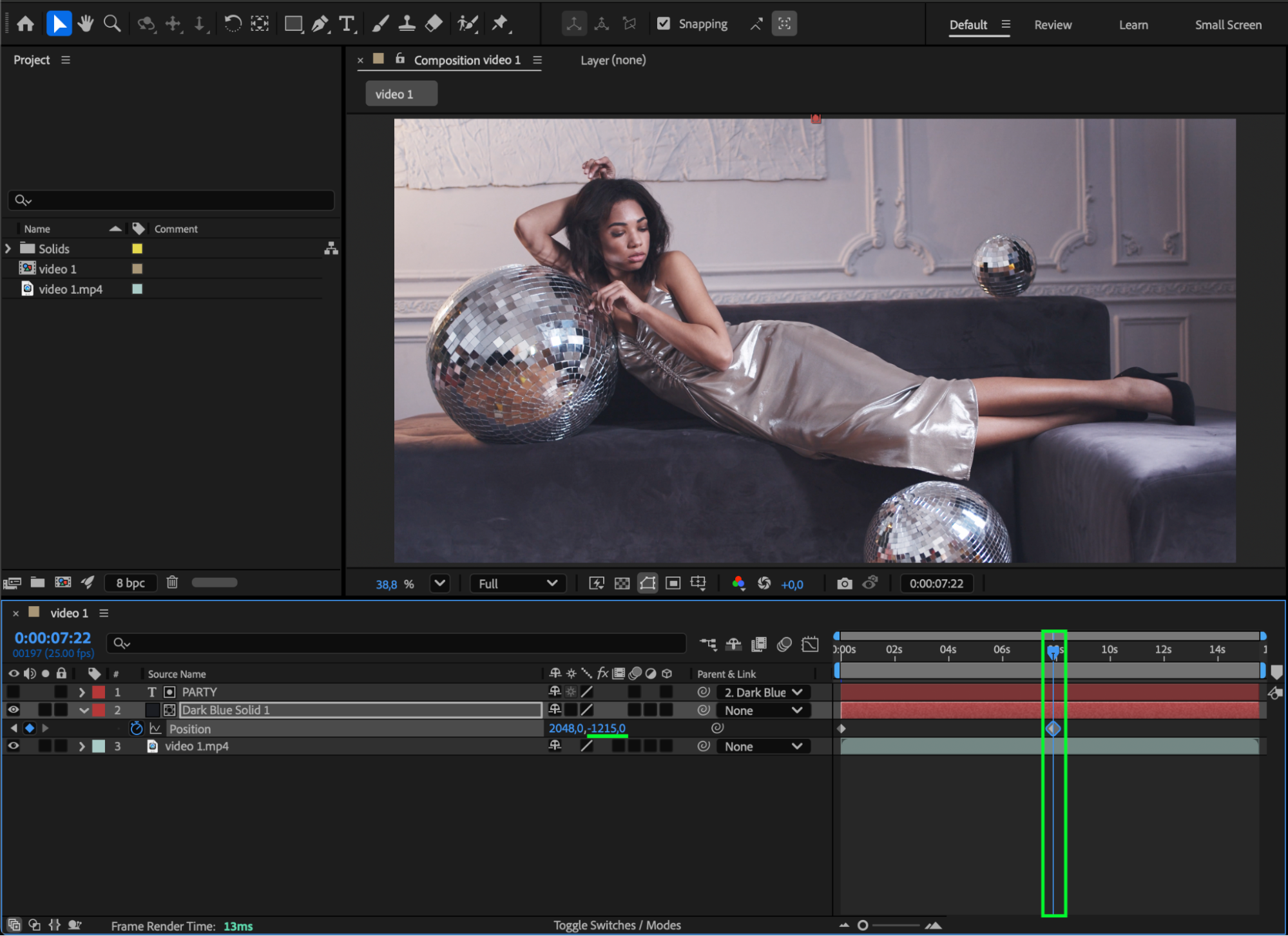 Step 7: Enable Motion Blur
For smoother, more realistic animation, enable Motion Blur for both layers and for the composition (by clicking the Motion Blur icons).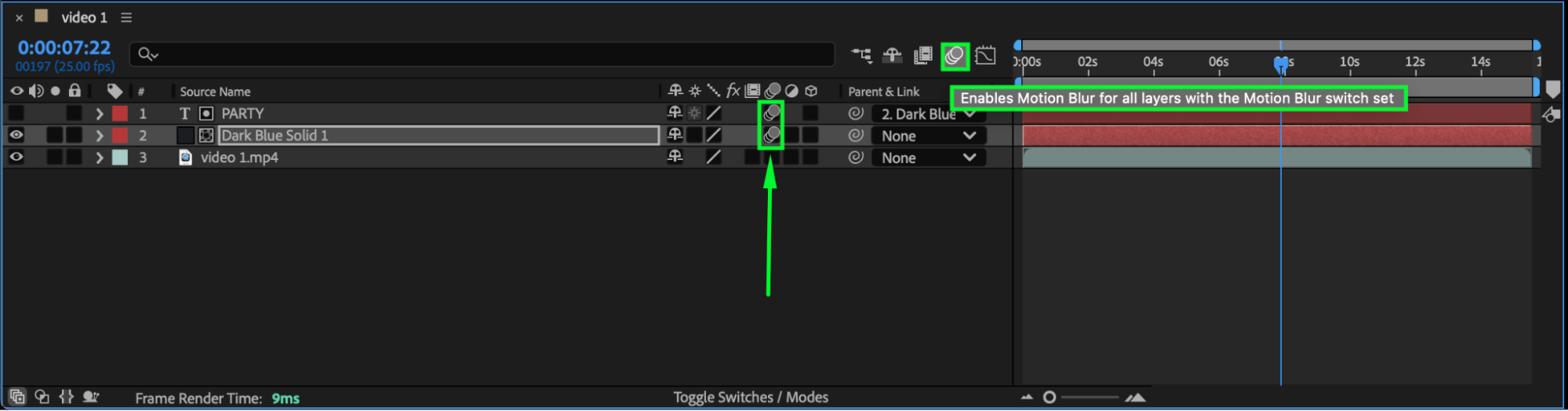 Step 8: Preview Your Composition
Press the Spacebar to preview the animation. You’ll see your text layer moving in sync with the solid, or forming a transparent text reveal if you used Alpha Matte.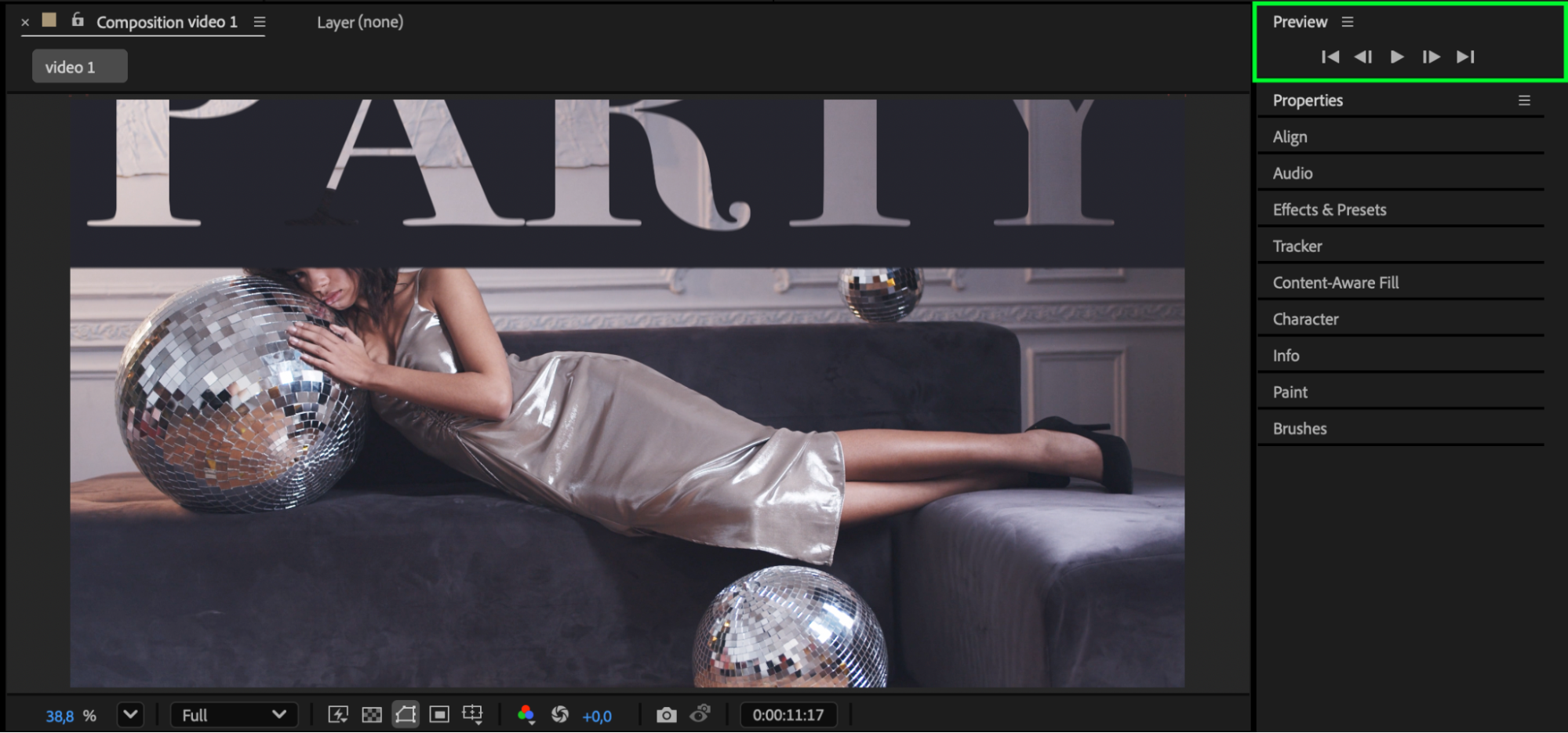 Conclusion
Making a text layer a child of a solid in After Effects is a simple but powerful way to synchronize animation. With parenting and matte effects, you can create dynamic, cinematic motion and stylish transparency in just a few steps.
Our Bestsellers
Our Bestsellers


