
Create Abstract Visuals in After Effects with Radio Waves
Introduction – Design Dynamic Visual Effects with Simple Tools
Creating animated visuals in After Effects is a fun and creative way to add energy and movement to your projects. In this tutorial, you’ll learn how to create a stylized retro visual effect using simple shapes, gradients, and a few key effects. Let’s get started.
Step 1: Create a New Composition
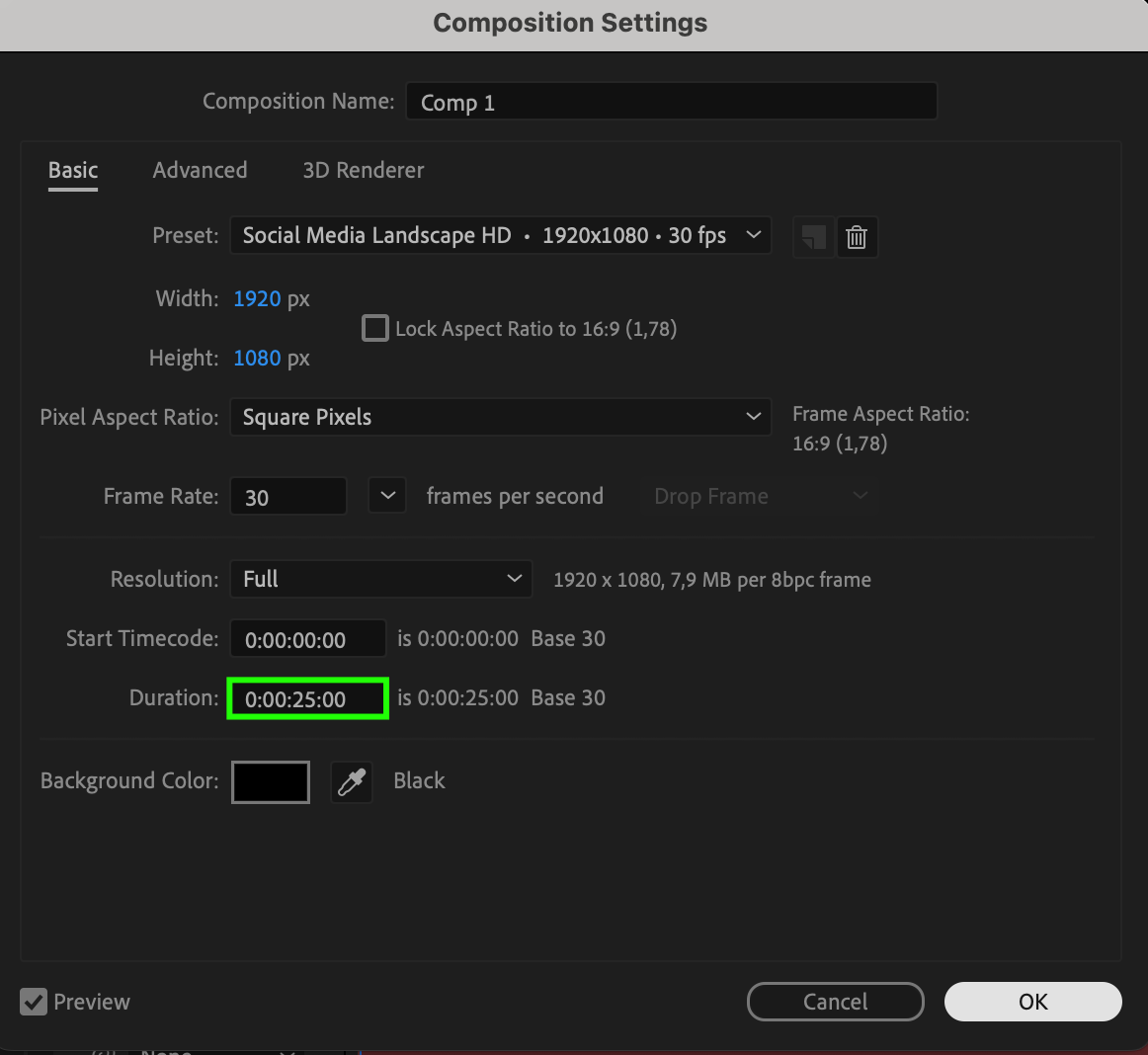
Go to Composition > New Composition. Set the duration to around 25 seconds, which gives enough time for your visuals to evolve on screen.
 Step 2: Create Background and Effect Layers
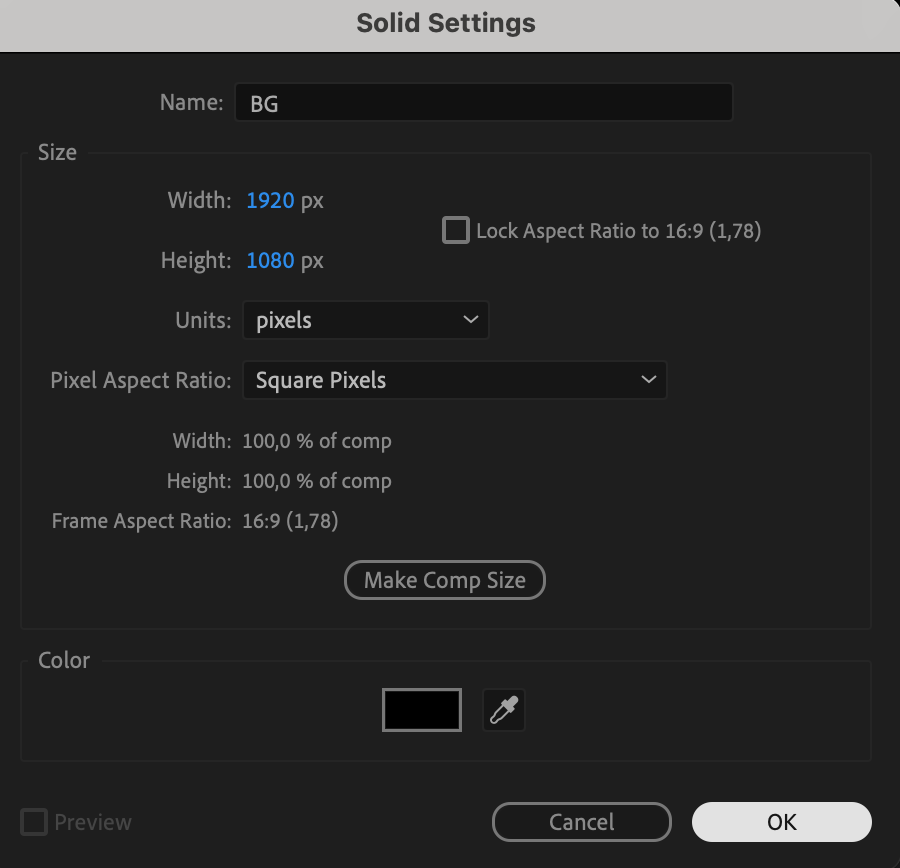
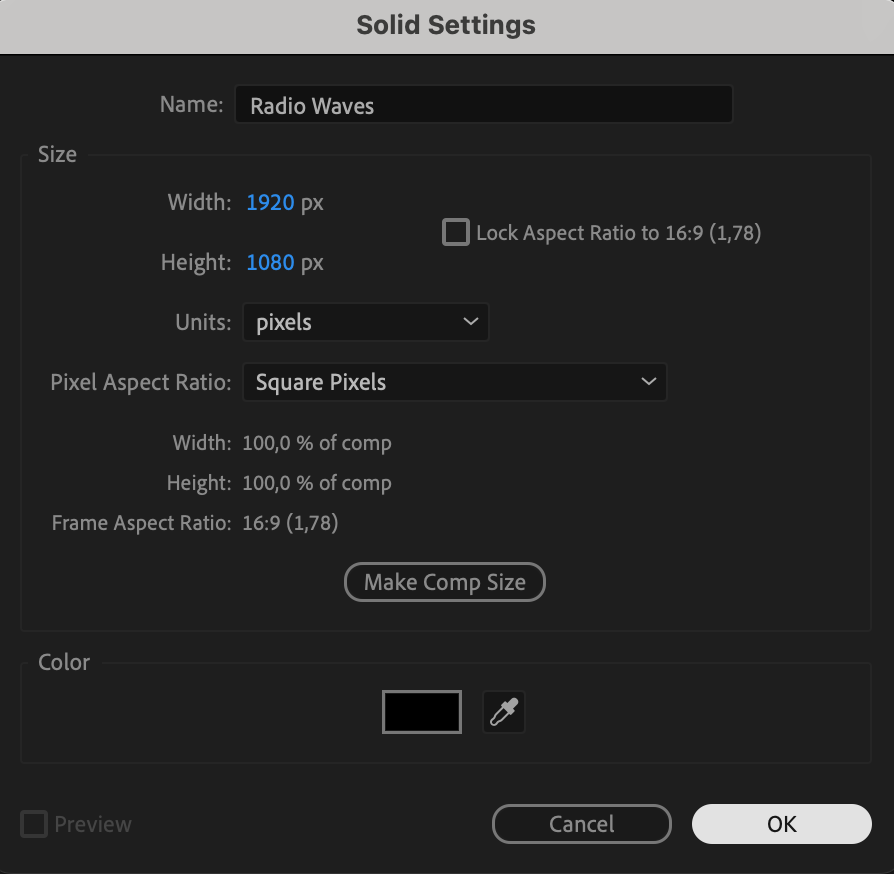
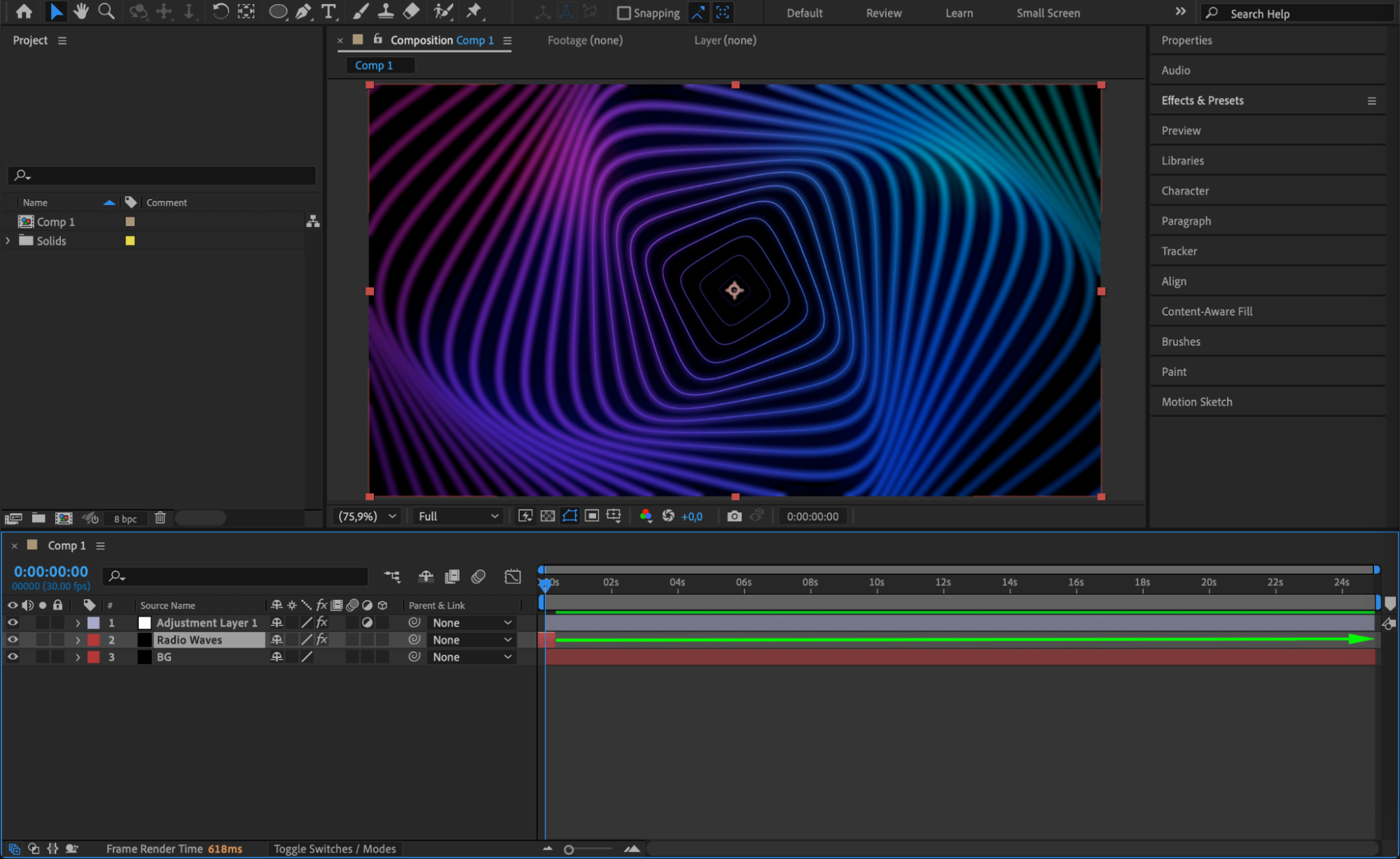
Go to Layer > New > Solid and create two black solids. Name the first one “BG” (background) and the second one “Retro Waves”. These will form the base of your animation.

Step 3: Apply Radio Waves Effect
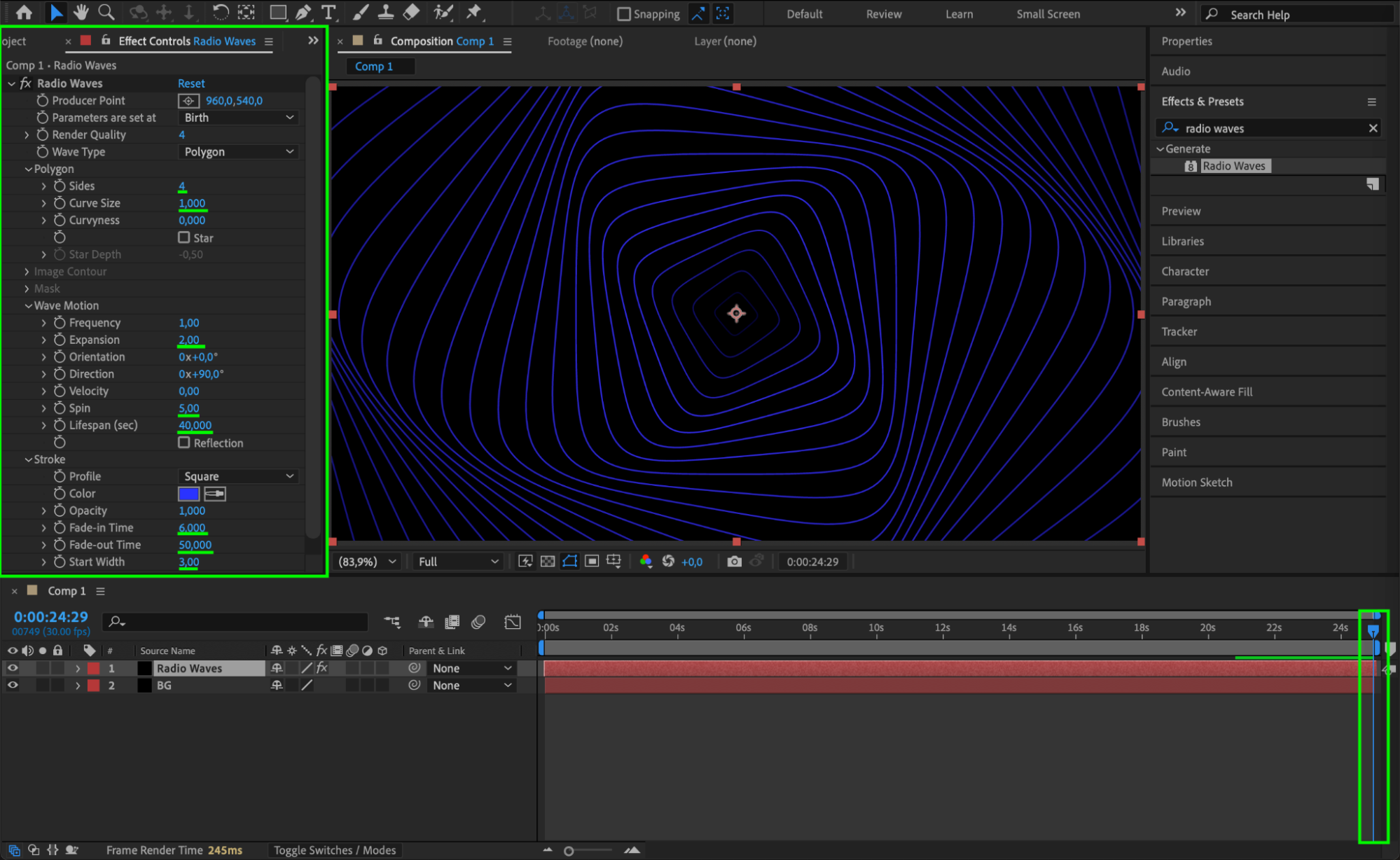
Select the Retro Waves layer and go to the Effects & Presets panel. Add the Radio Waves effect to it. Move the CTI (Current Time Indicator) to the end of the timeline before changing any settings to avoid lag. Set the following values:
Sides: 4
Curve Size: 1
Expansion: 2
Spin: 5
Lifespan: 40
Fade-in Time: 6
Fade-out Time: 50
Start Width: 3
This will create a looping geometric wave animation.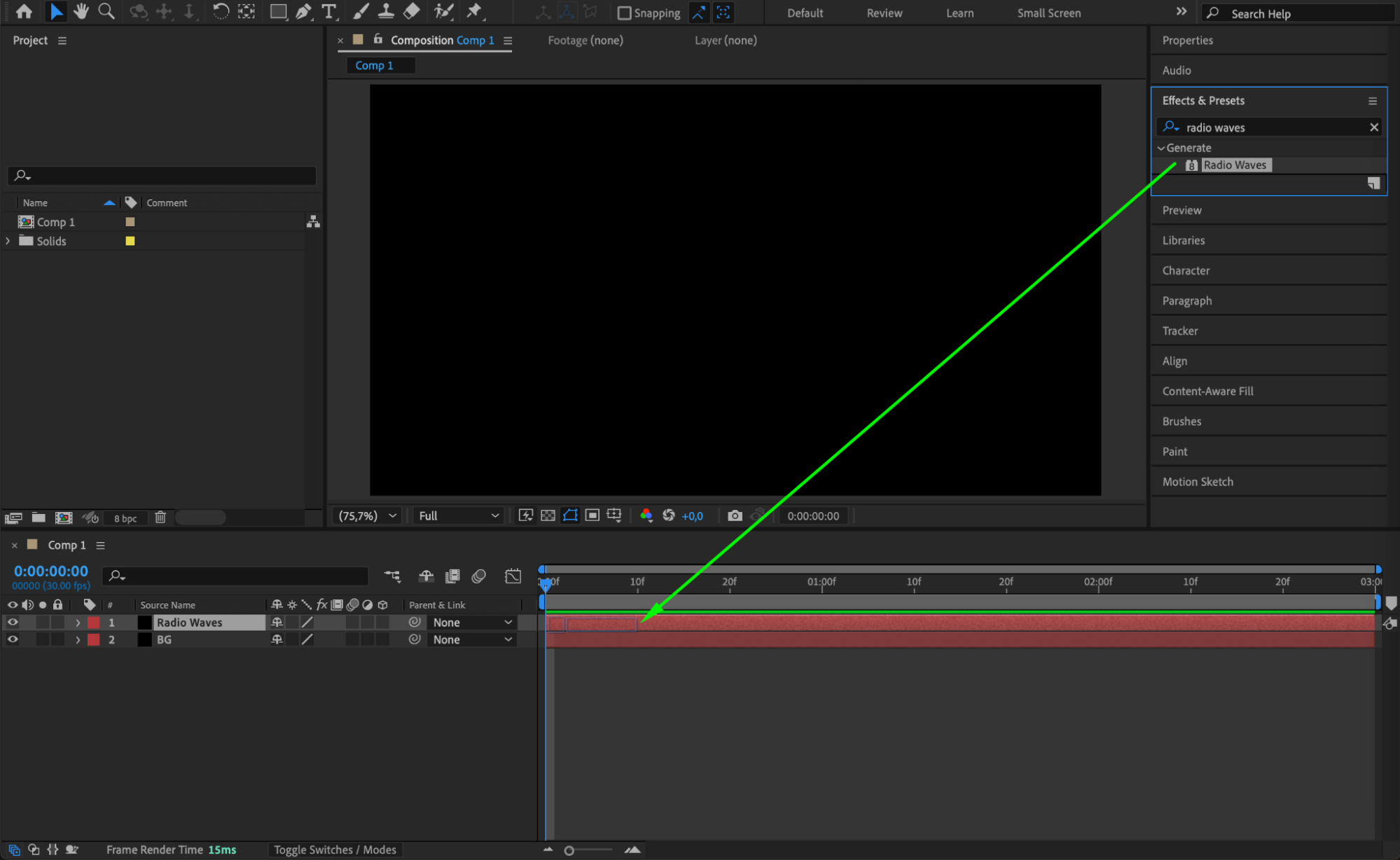
 Step 4: Add Color with 4-Color Gradient
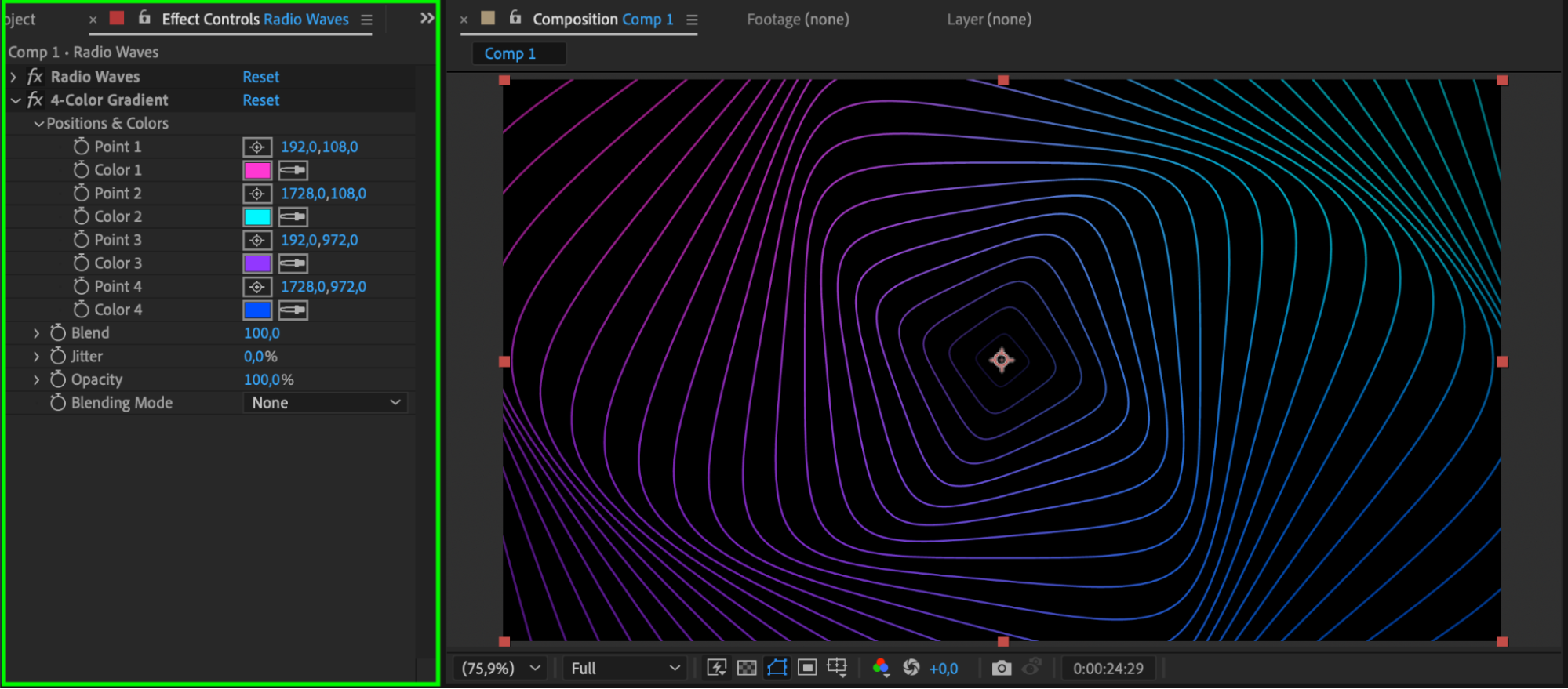
Add the 4-Color Gradient effect to the same Retro Waves layer. Choose four bright, complementary colors to make the visuals pop.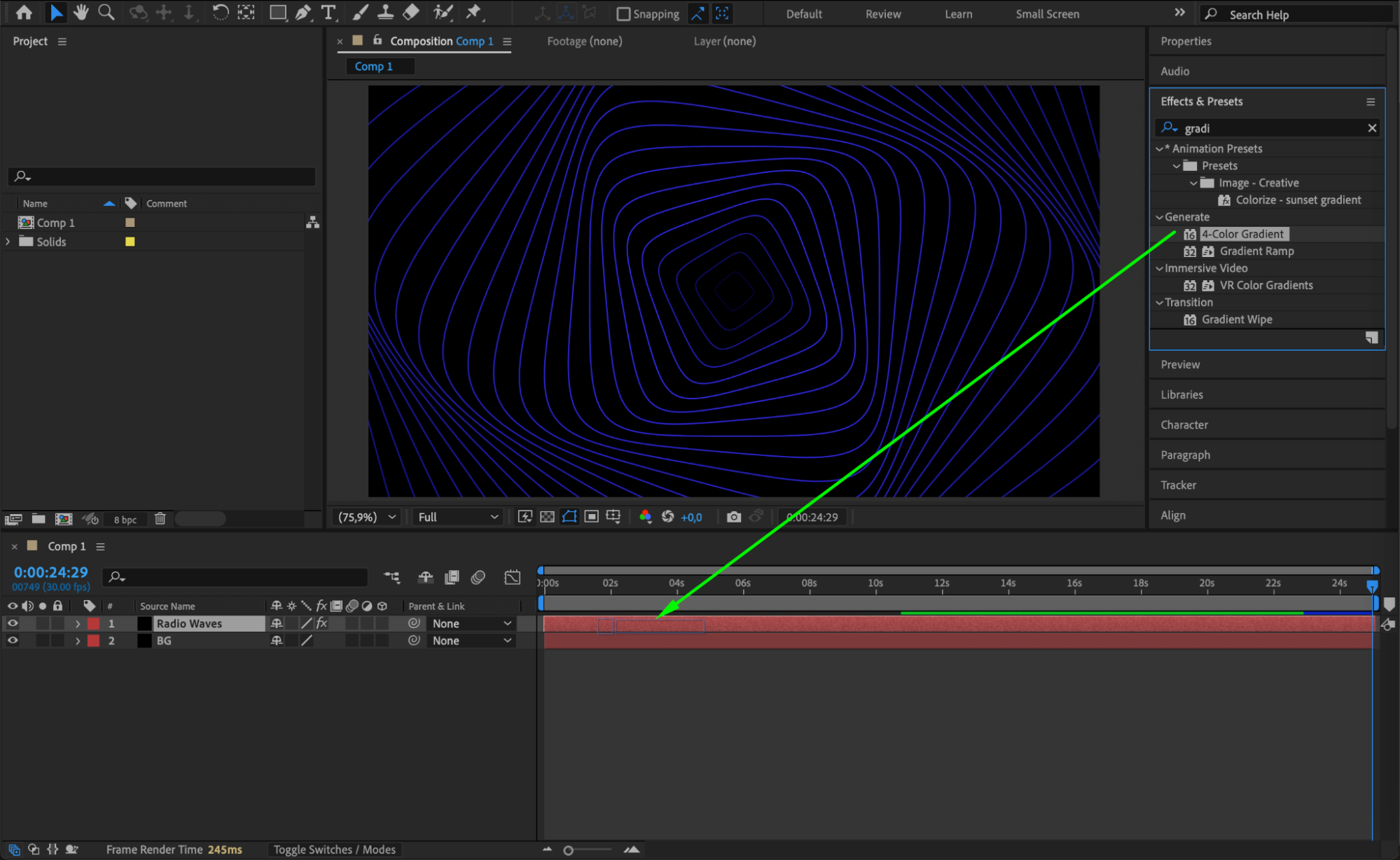
 Step 5: Add an Adjustment Layer for Glow
Go to Layer > New > Adjustment Layer. Then, apply the Glow effect twice. For the second glow, set the Glow Radius to 130, and duplicate it once more to intensify the look.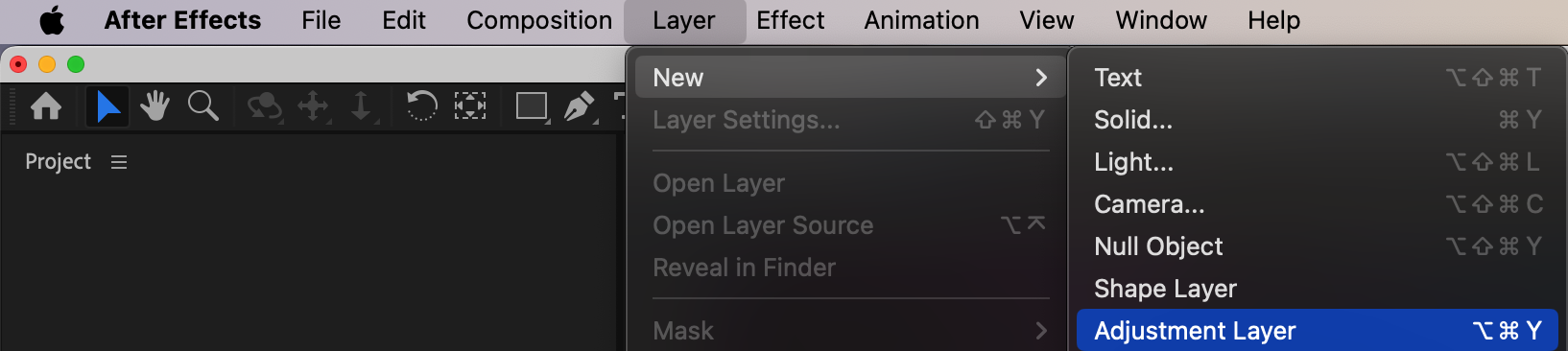
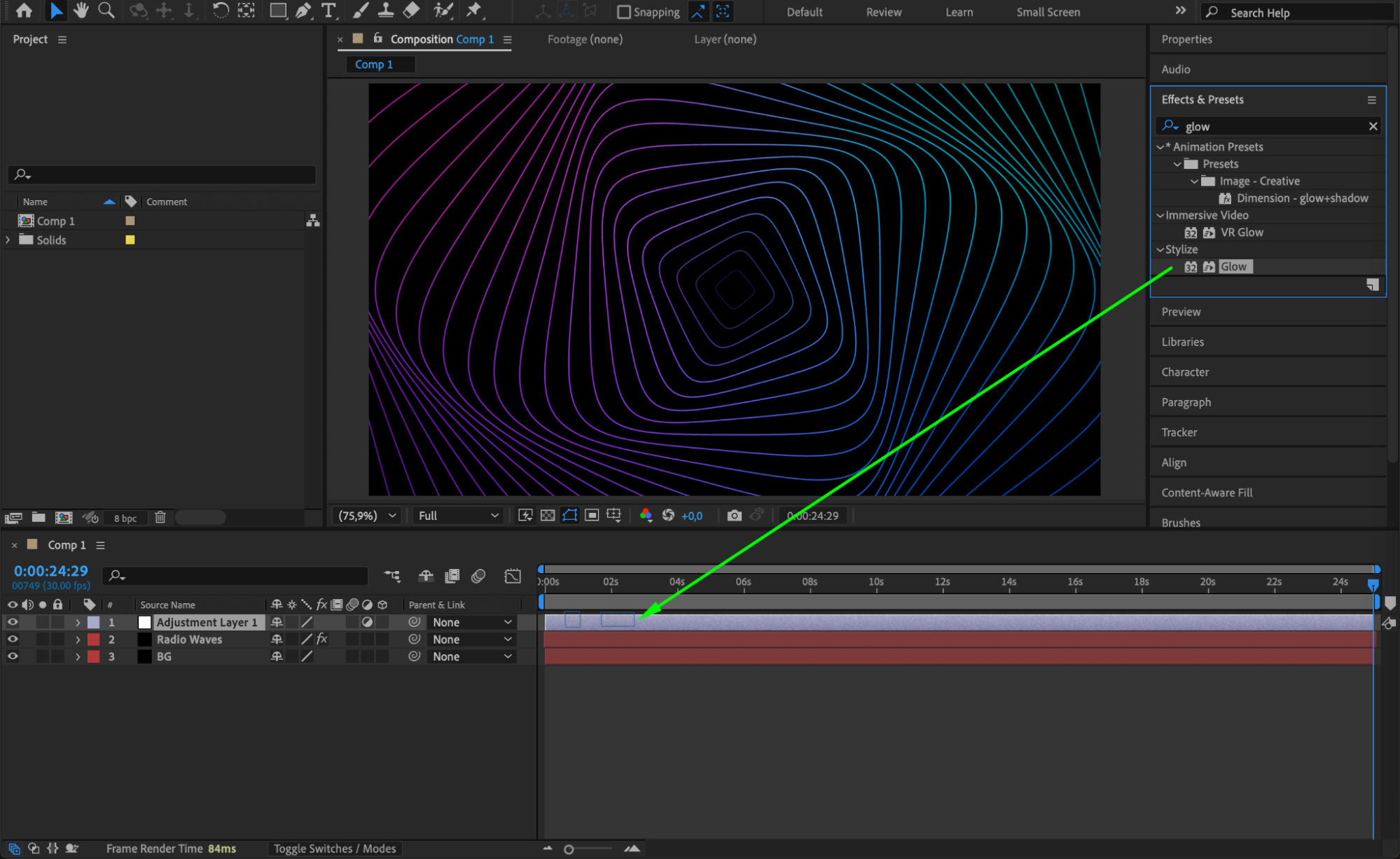
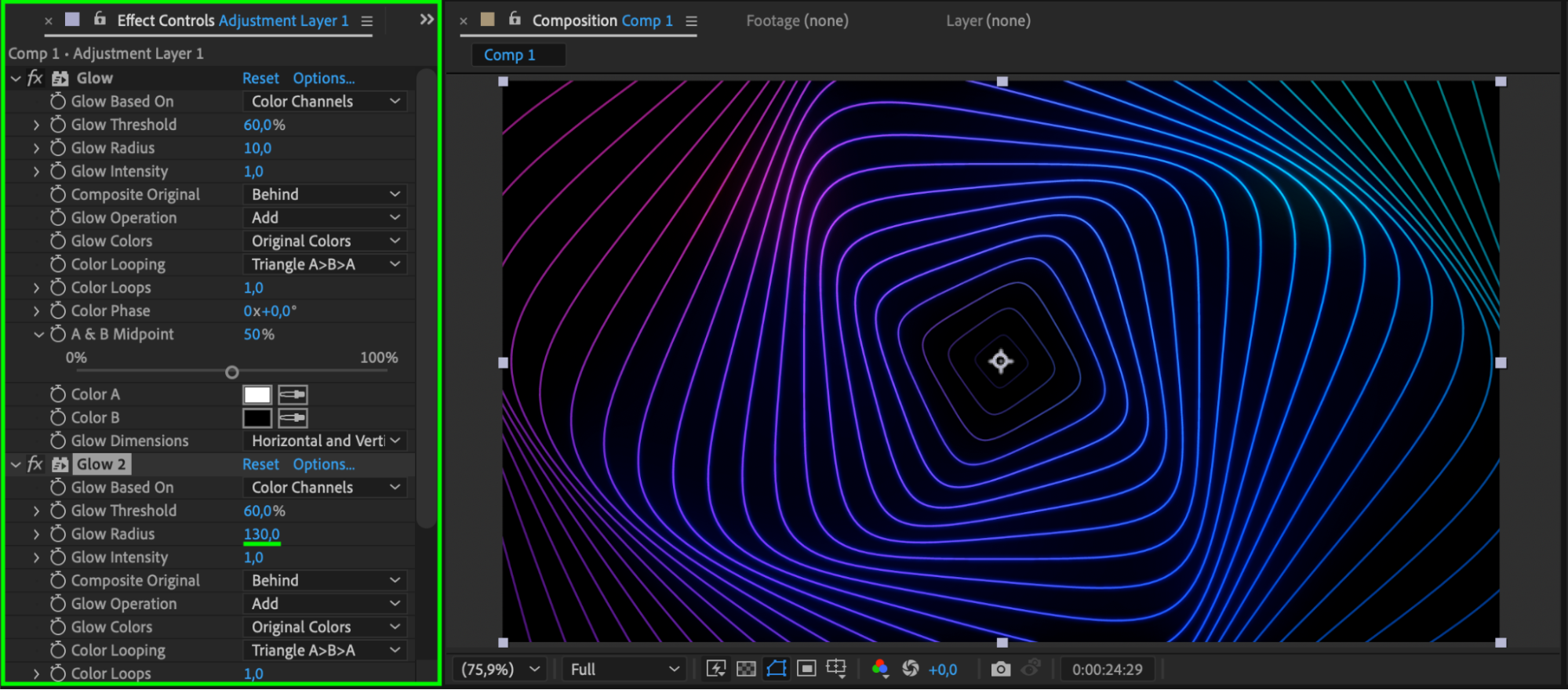
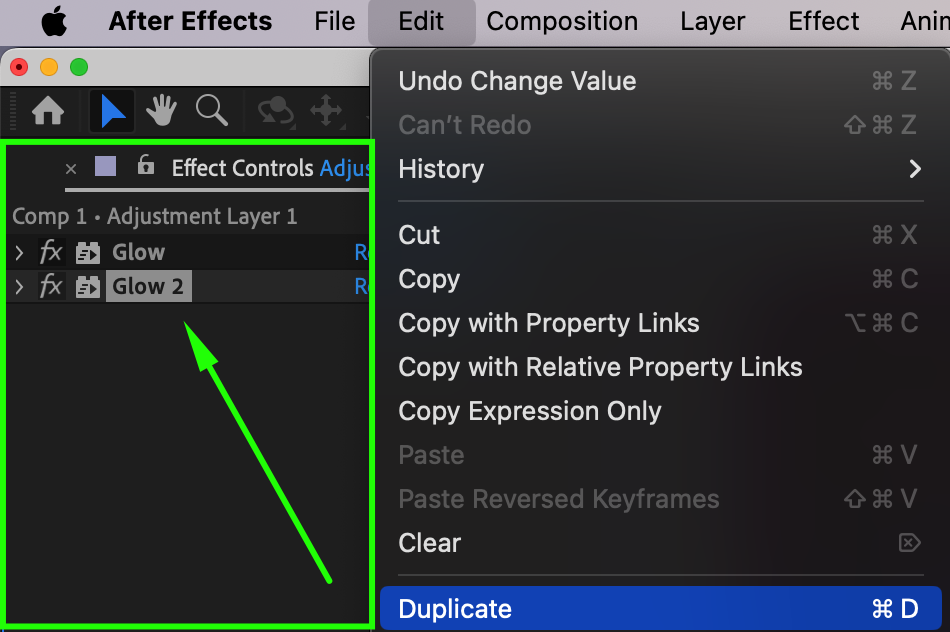
Step 6: Add a Second Adjustment Layer
Create another Adjustment Layer from the Layer menu. This one will be used for a soft blur that helps blend the visuals together.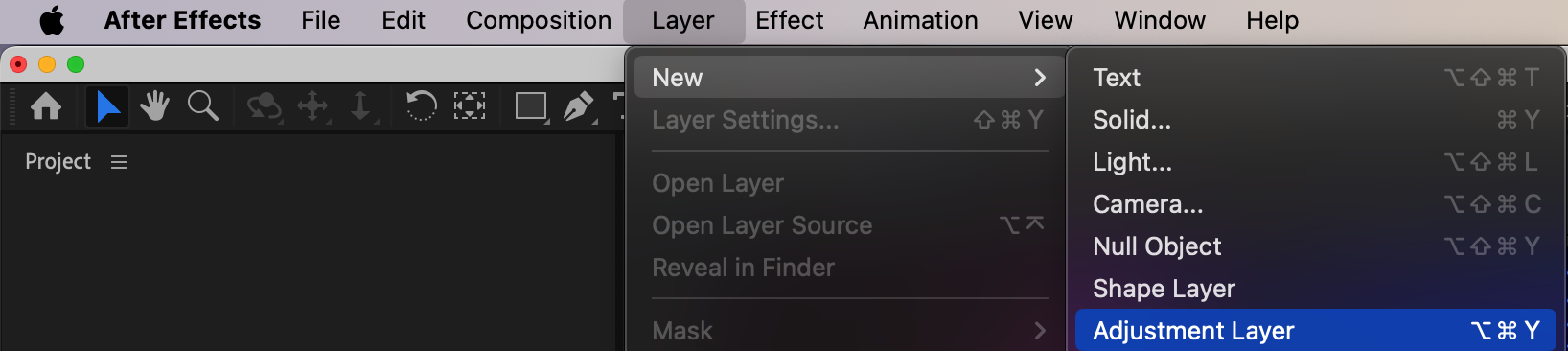 Step 7: Apply Gaussian Blur
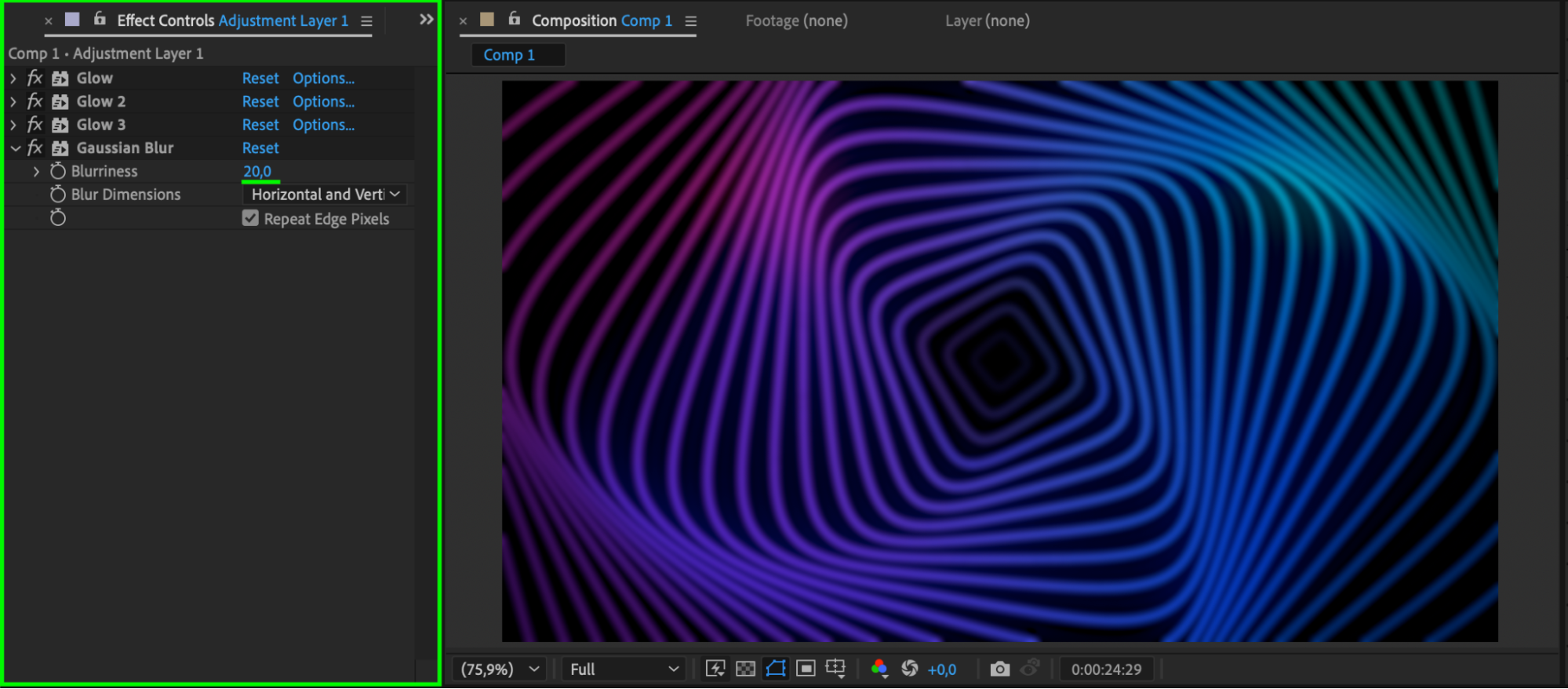
Add the Gaussian Blur effect to this second adjustment layer. Set Blurriness to 20. This smooths out any sharp edges in the visuals.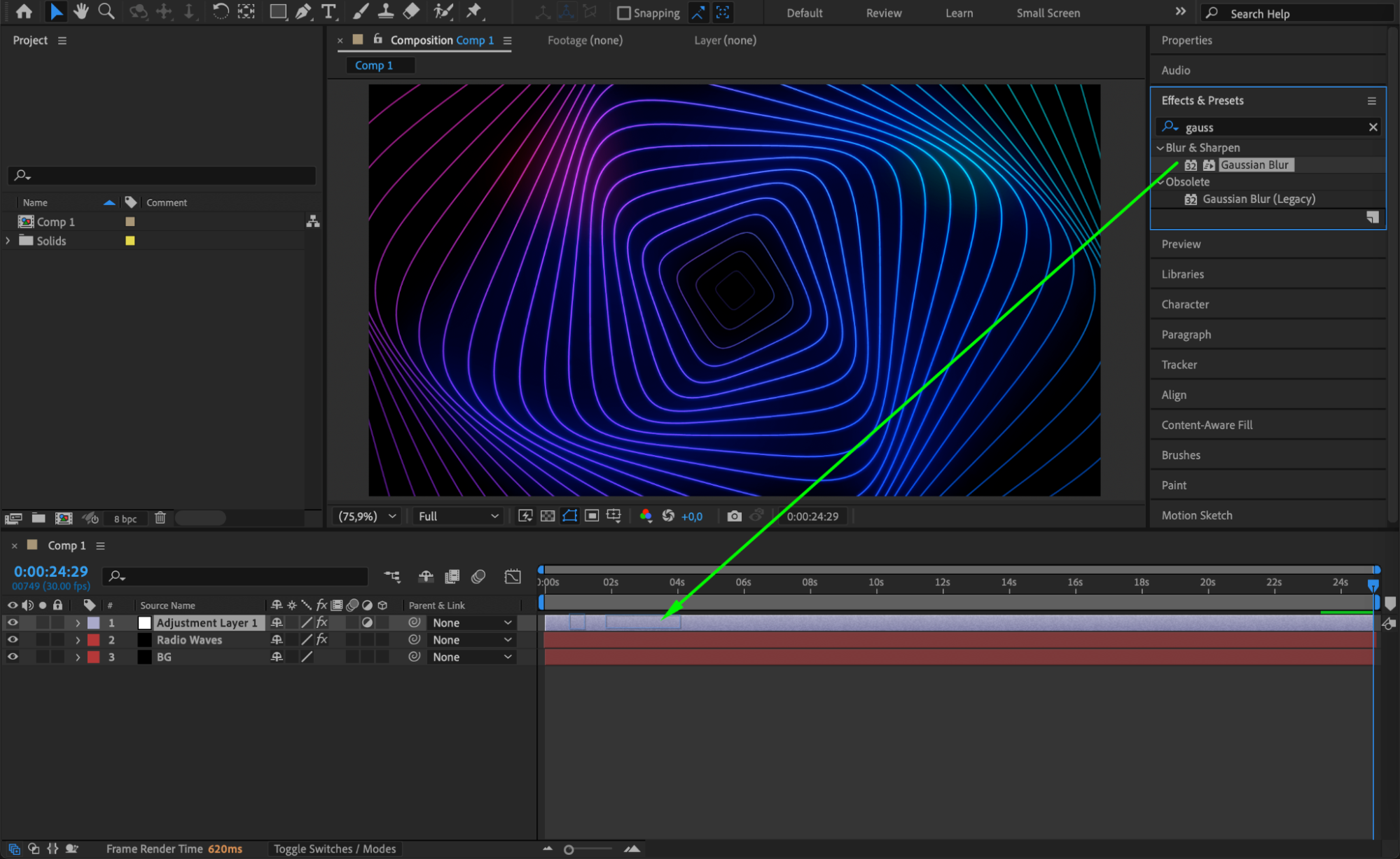
 Step 8: Create a Mask to Focus the Blur
Select the Ellipse Tool (Q) and draw a circular mask on the blurred adjustment layer. Set the Mask Mode to Subtract and increase the Mask Feather to around 335. This creates a soft blur around the edges while keeping the center clear.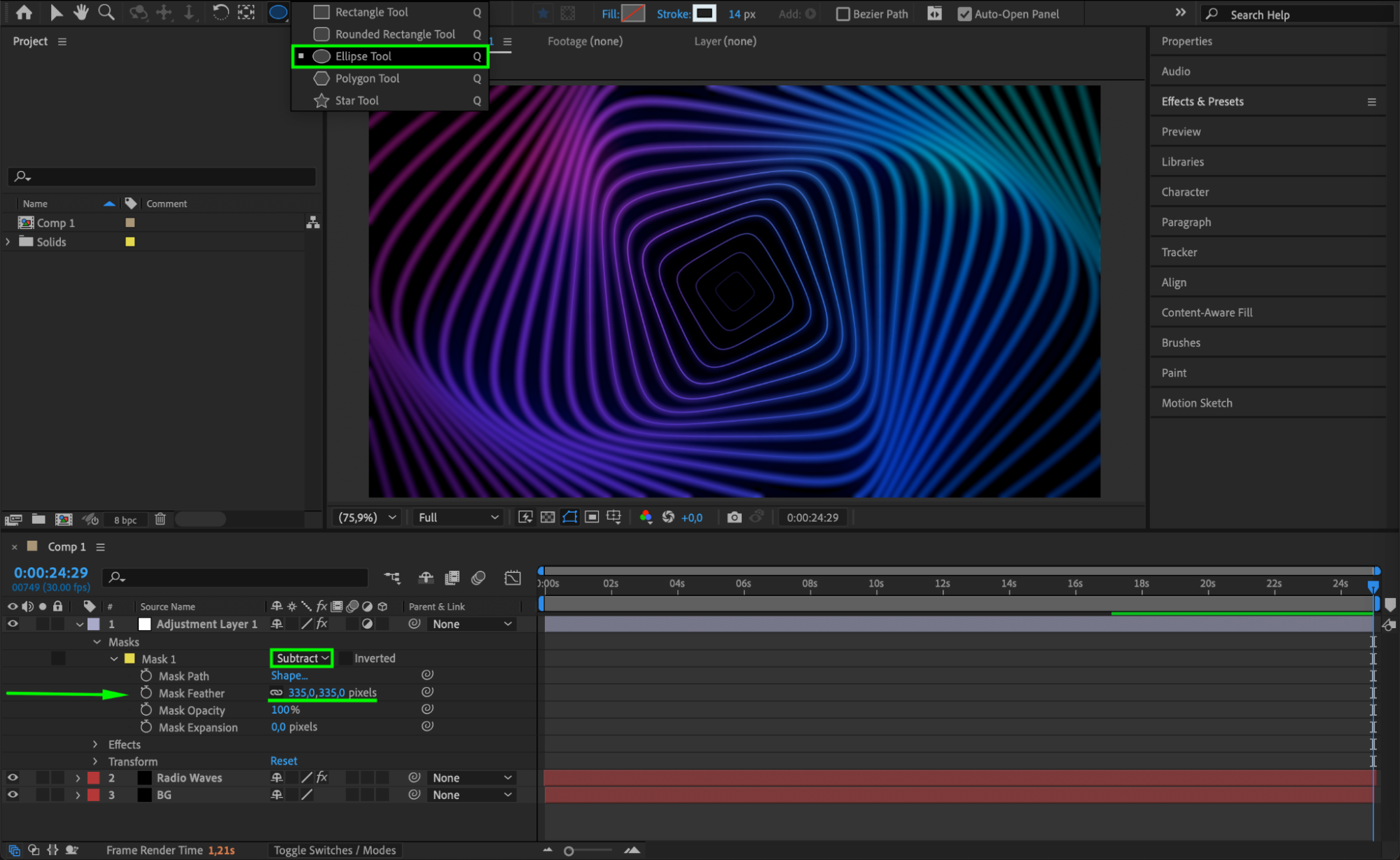 Step 9: Optional – Hide Intro and Outro
If you want the visuals to appear instantly instead of fading in from black, shorten the beginning and end of the Retro Waves layer. Drag the layer’s start point to the left so the animation begins without a buildup.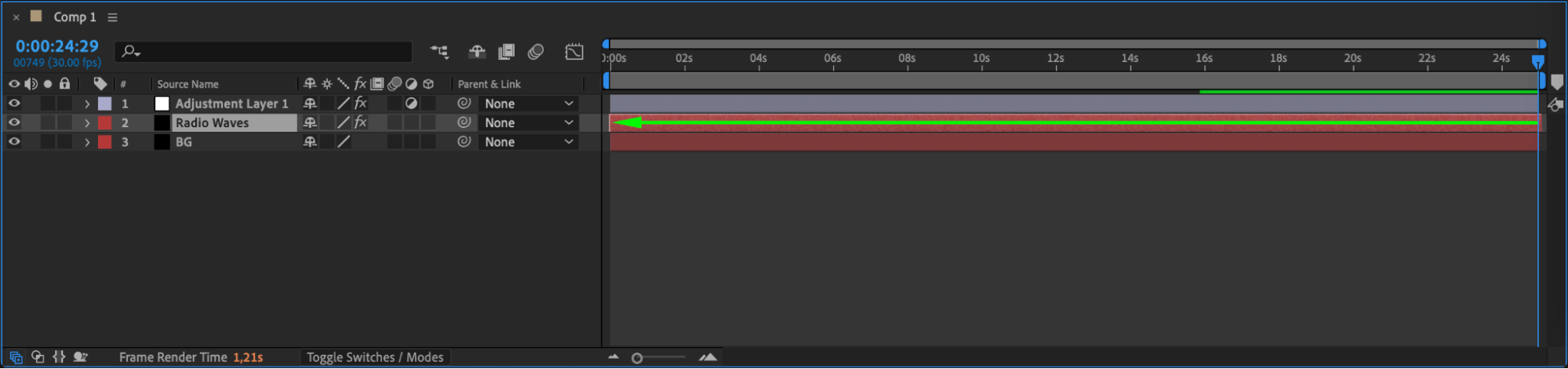
 Step 10: Preview
Press Spacebar to preview your visuals. Make any color or motion adjustments you need to perfect the look.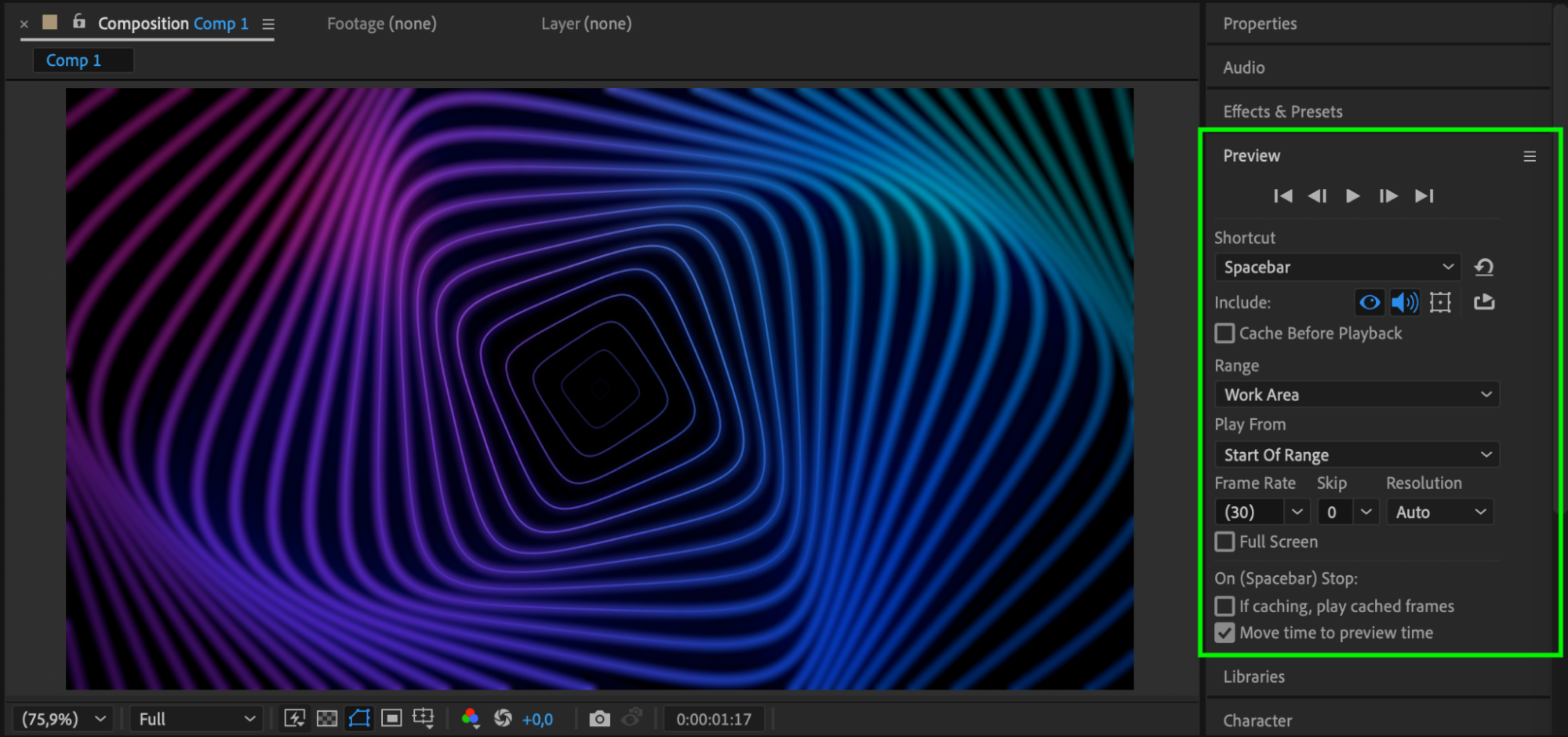 Conclusion
With just a few layers and effects, you can create eye-catching animated visuals in After Effects. Effects like Radio Waves, Glow, and Gaussian Blur work together to build an energetic, abstract look that’s perfect for backgrounds, VJ loops, or music visuals. Keep experimenting with colors, shapes, and motion for unique results every time.
Our Bestsellers
Our Bestsellers


