
Introduction
Masking one layer with another in After Effects is an essential technique for reveals, cutouts, transitions, and stylized effects. By using Track Mattes, you can control the visibility of one layer using the shape, text, or transparency of another. Follow the steps below to create a clean and effective matte setup.
Step 1: Import Your Assets
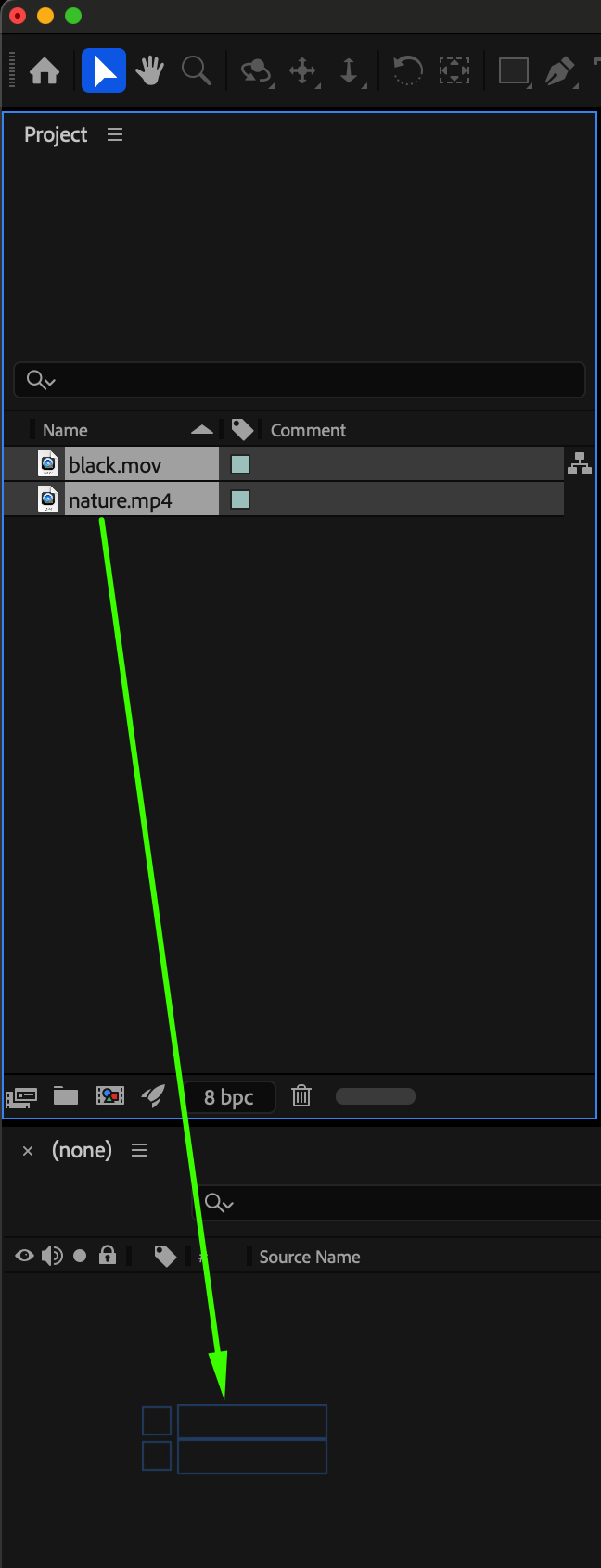
Go to File > Import > File, select the media you want to use, and drag both layers (the content layer and the mask layer) into your composition. Make sure both layers are visible in the Timeline Panel.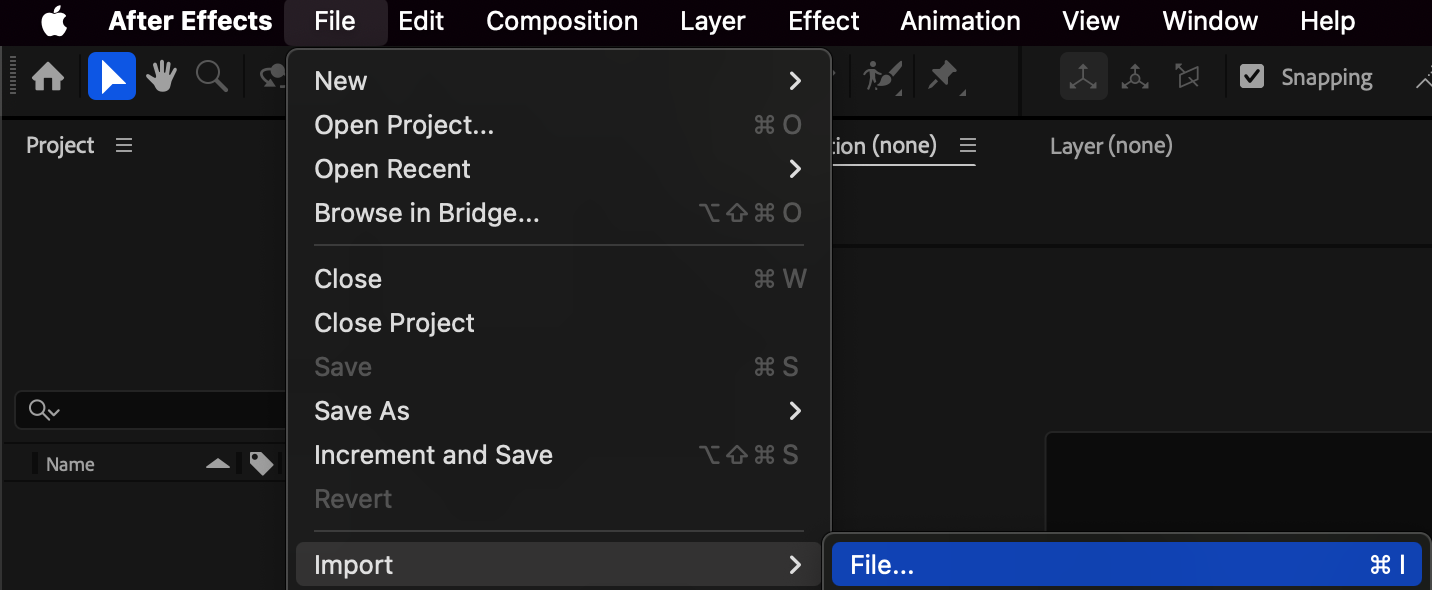
 Step 2: Position the Layers Correctly
Place the masking layer directly above the layer you want to mask. Track Mattes work top-to-bottom, so the top layer acts as the mask, and the layer below receives the mask.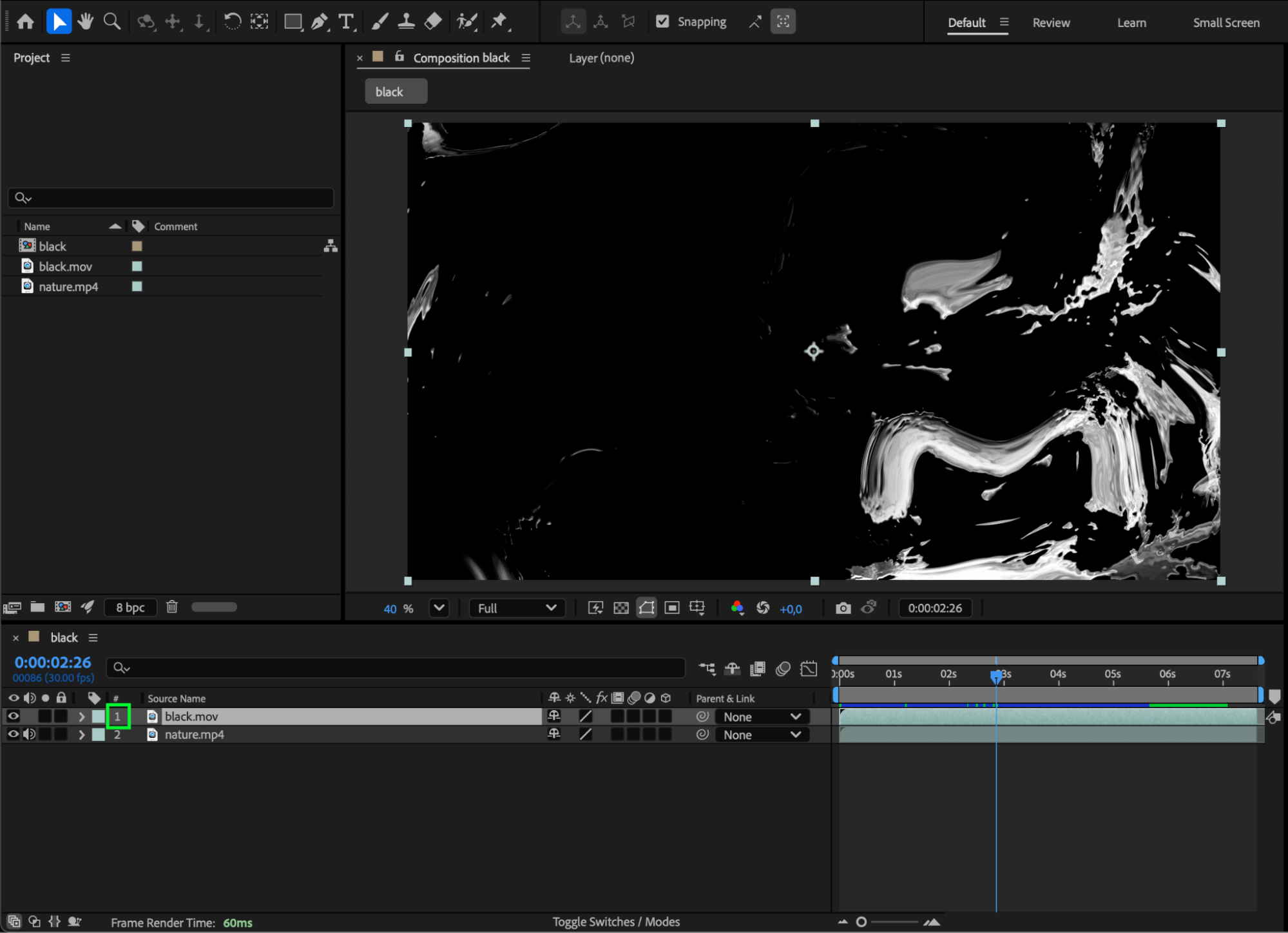
Step 3: Apply a Track Matte
Select the bottom layer (the layer being masked), and in the Track Matte column choose one of the following:
Alpha Matte [Layer Name] — uses the opaque area of the top layer as the visible region.
Alpha Inverted Matte — reveals everything except the opaque region.
Luma Matte — uses brightness values as the mask.
Luma Inverted Matte — reveals dark areas and masks bright ones.
If you don’t see the Track Matte dropdown, press F4 or click Toggle Switches/Modes.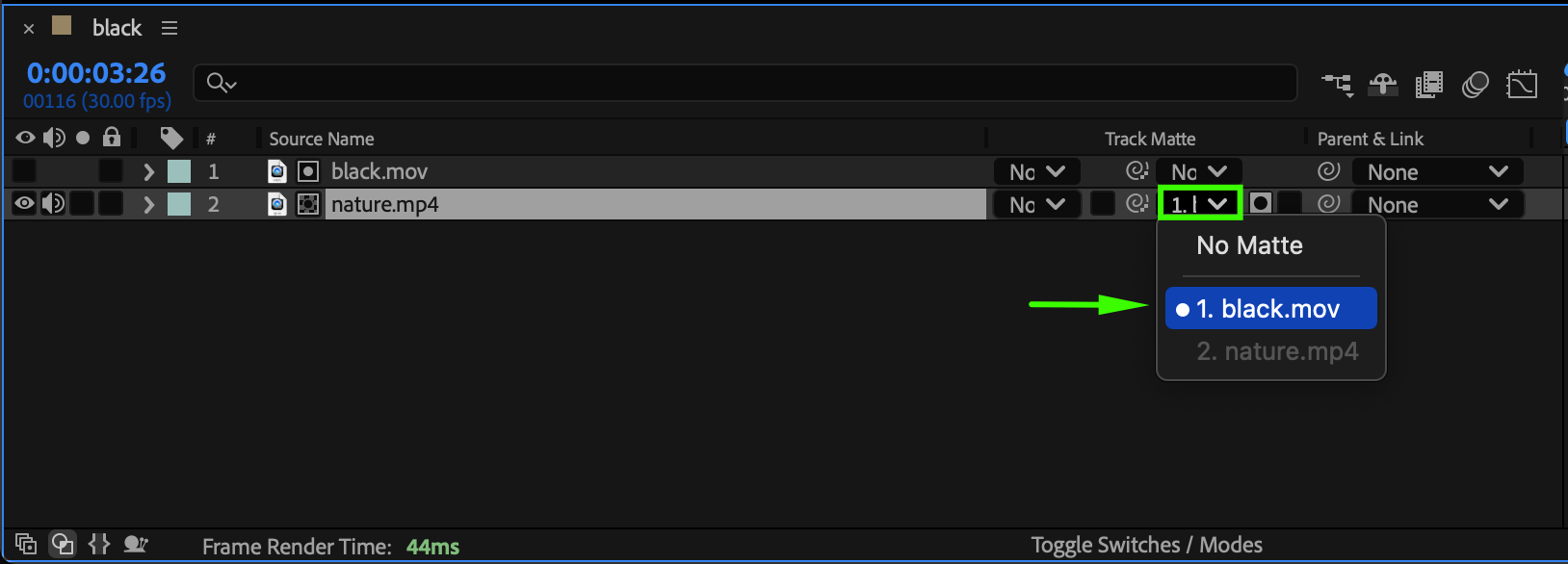
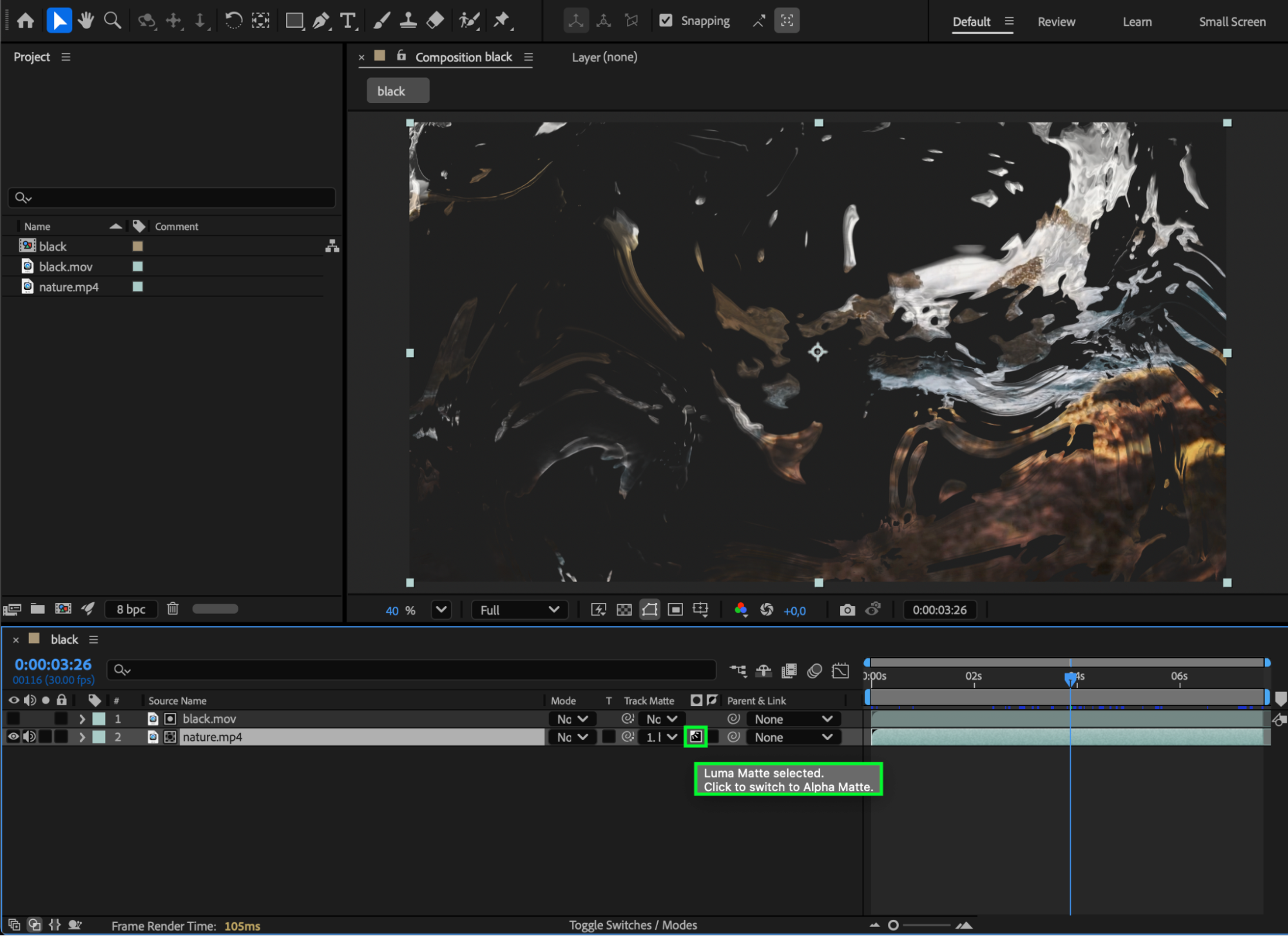 Step 4: Adjust the Mask Layer for Custom Results
Modify the mask layer by changing its scale, position, rotation, or opacity to control how the mask affects the bottom layer. Any animation applied to the matte layer will automatically animate the visibility of the masked layer.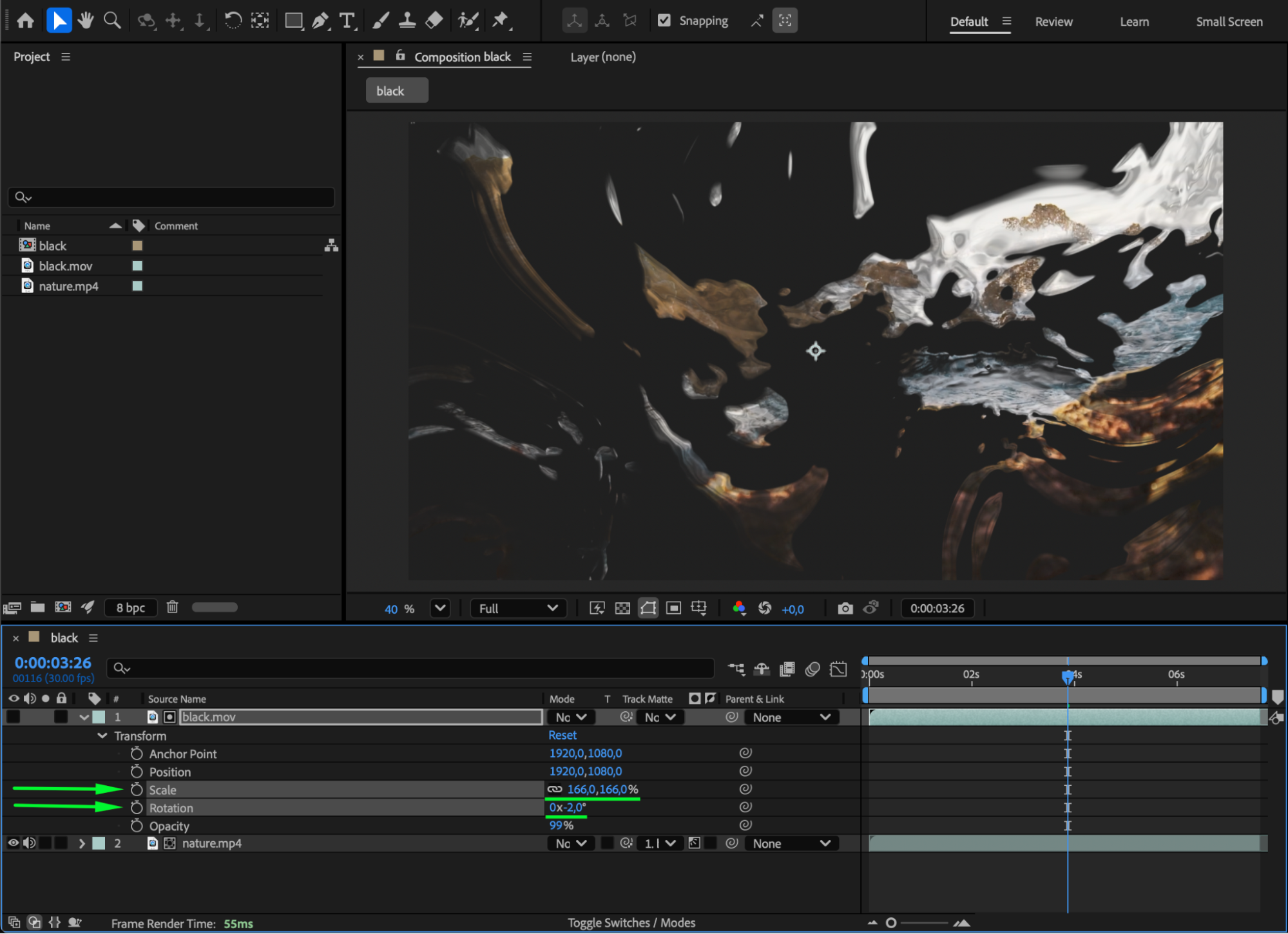
Step 5: Refine Using Effects (Optional)
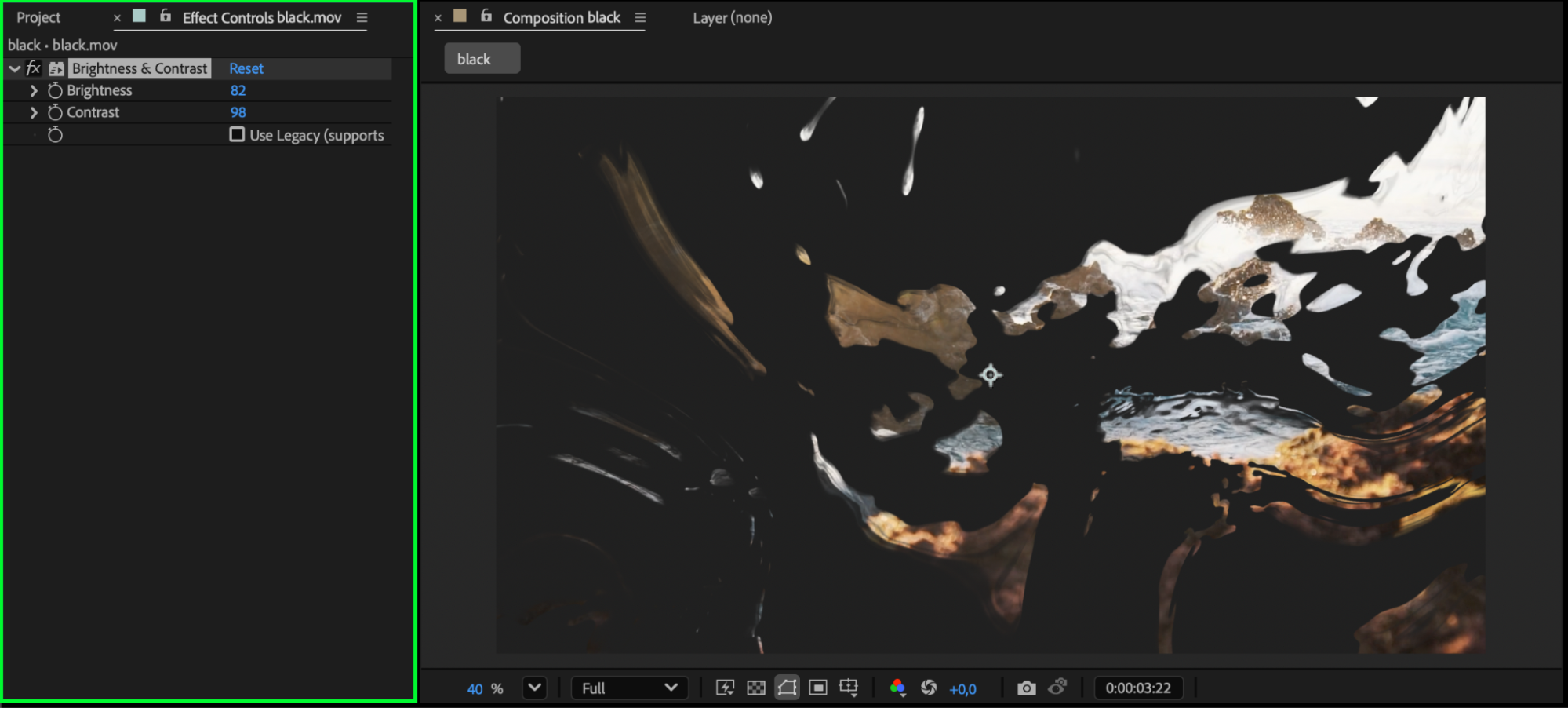
You can apply effects like Gaussian Blur, Curves, or Transform to the matte layer to soften edges, brighten luma values, or animate the reveal more creatively.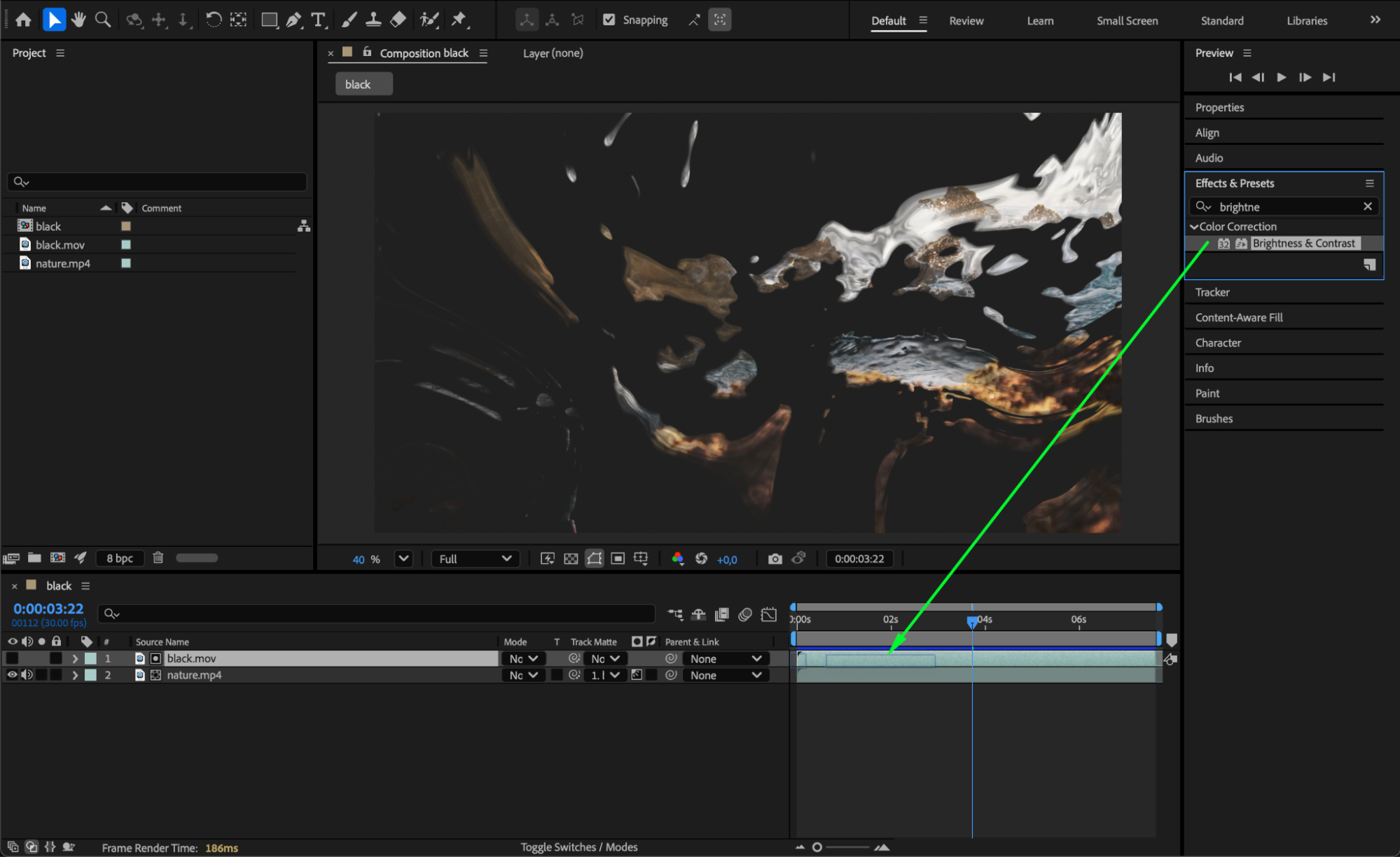
 Step 6: Preview and Finalize
Press Spacebar to preview your result. Adjust the matte layer’s movement, shape, or transparency until the masking effect looks smooth and intentional.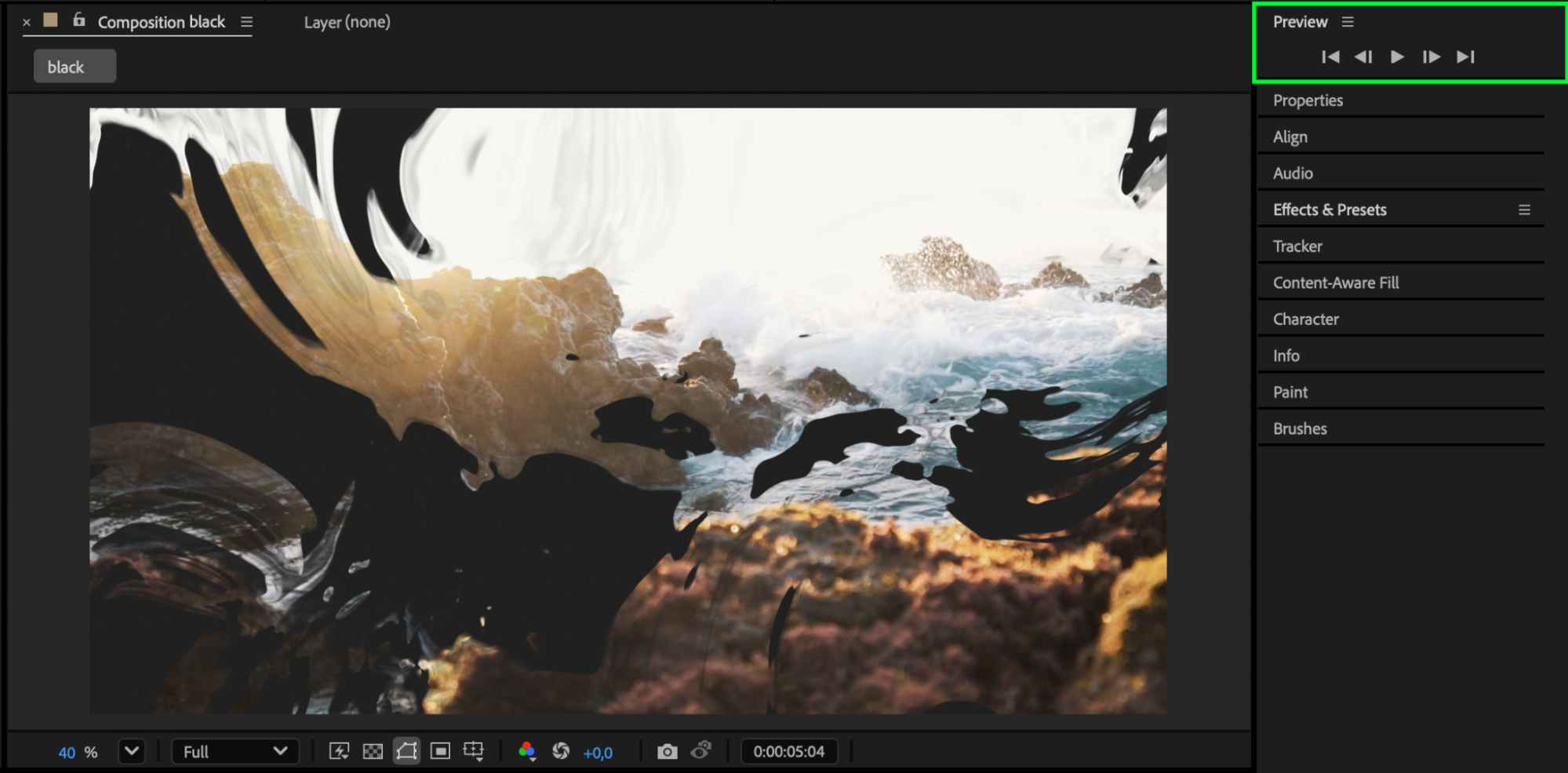 Conclusion
Masking a layer with another using Track Mattes in After Effects gives you precise control for reveals, transitions, and stylized compositions. By positioning your layers correctly and choosing the right matte type, you can create clean, dynamic visuals with ease.
Our Bestsellers
Our Bestsellers


