Introduction to Controlled Title Placement
When designing motion graphics or videos, placing a title in the right spot is important for a clean and professional look. Whether you want to center the title, align it to a specific margin, or fit it inside a defined box, After Effects gives you several tools to control its position. This guide will walk you through the key steps to accurately place and keep your title text where you want it.
Step 1: Create a New Composition and Add a Text Layer
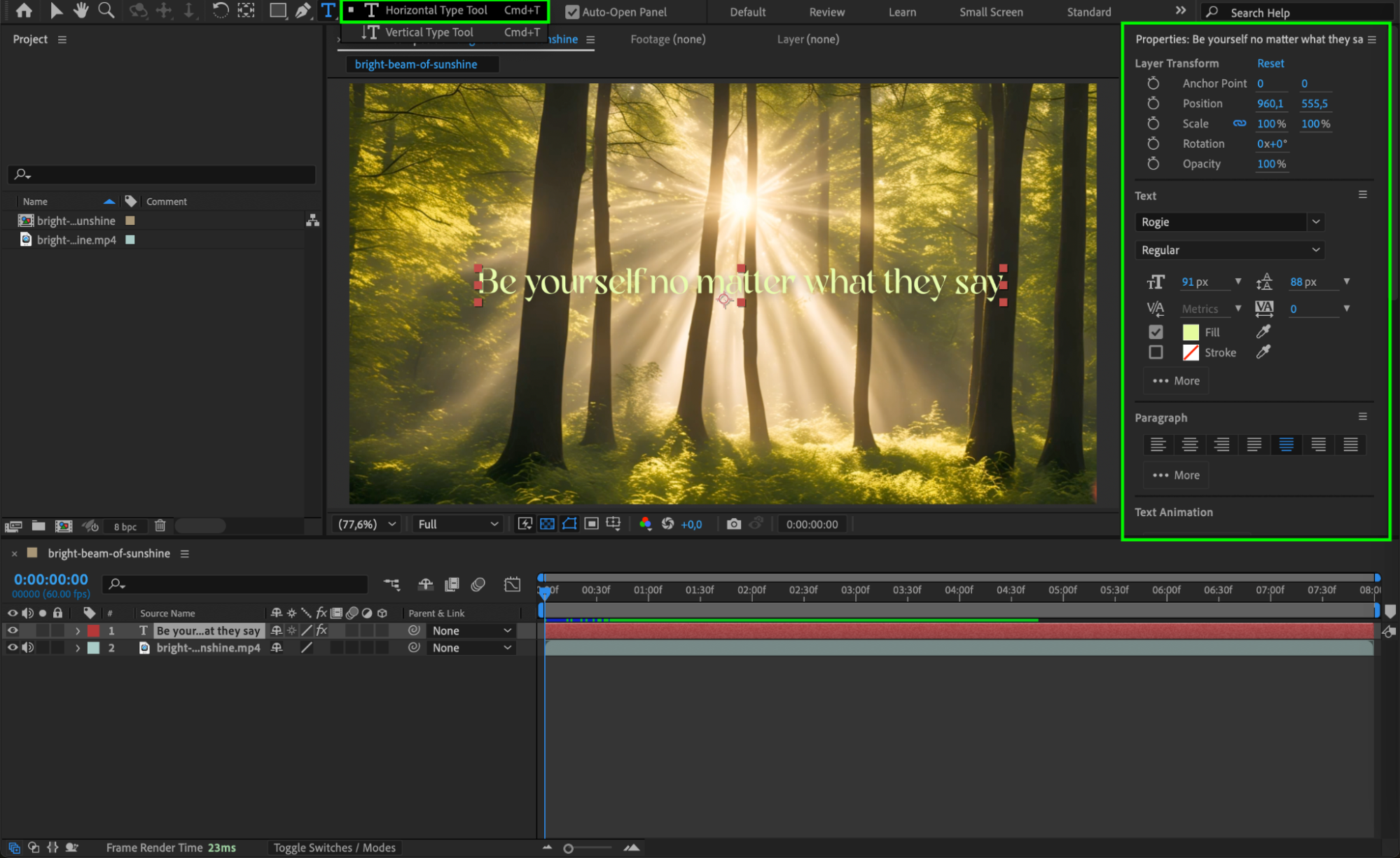
Start by going to Composition > New Composition and setting your desired resolution and duration or open your project. Then use the Type Tool (Ctrl/Cmd + T) to create your title. You can either click once to create point text or click and drag to define a paragraph text box, which is helpful if you want the text to stay within a set width.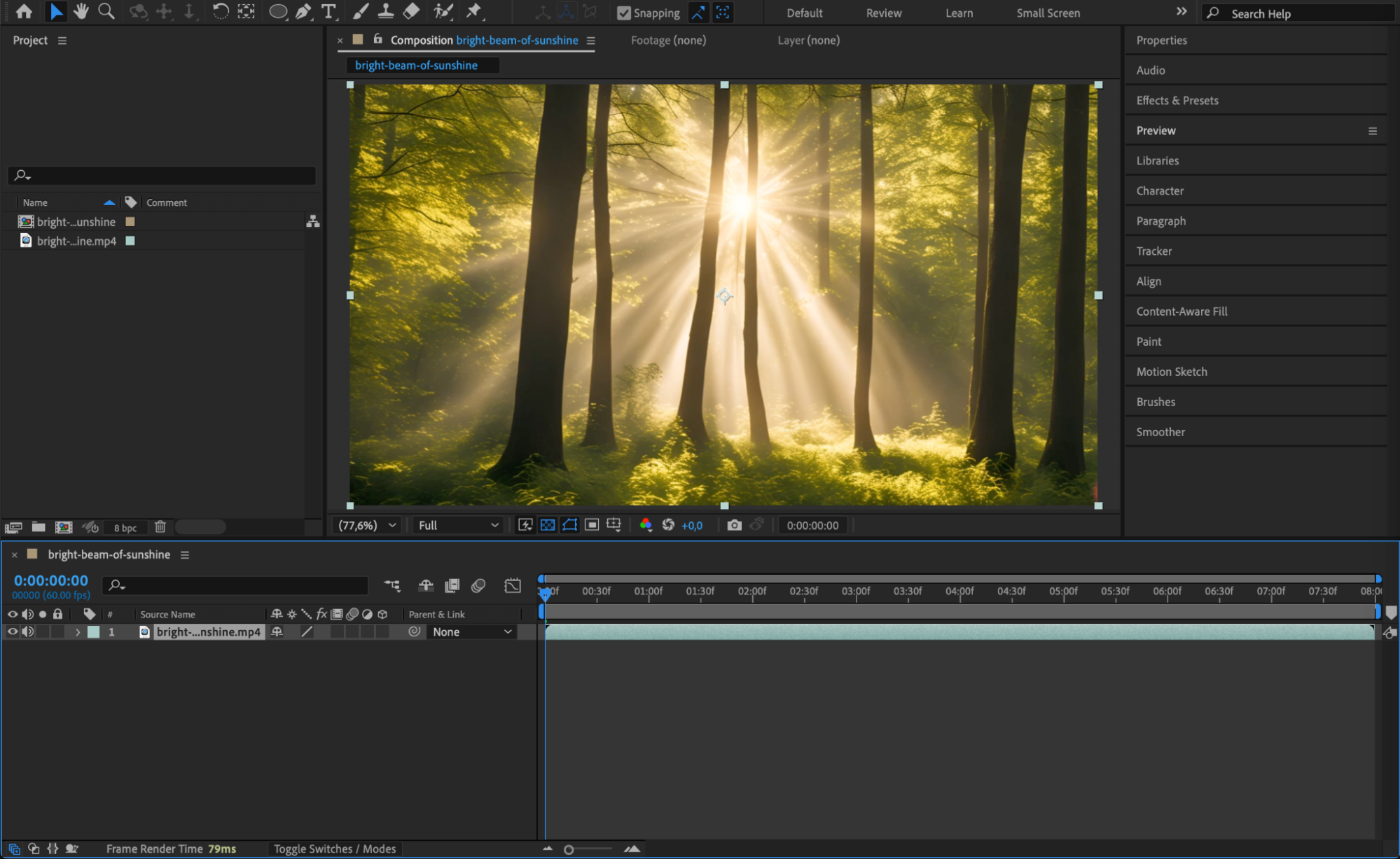
 Step 2: Use the Align Panel for Quick Positioning
Open the Align panel by going to Window > Align. With your text layer selected, you can instantly center the title horizontally, vertically, or both. This tool is useful if you want the title to be in the center of the screen or evenly spaced within the composition.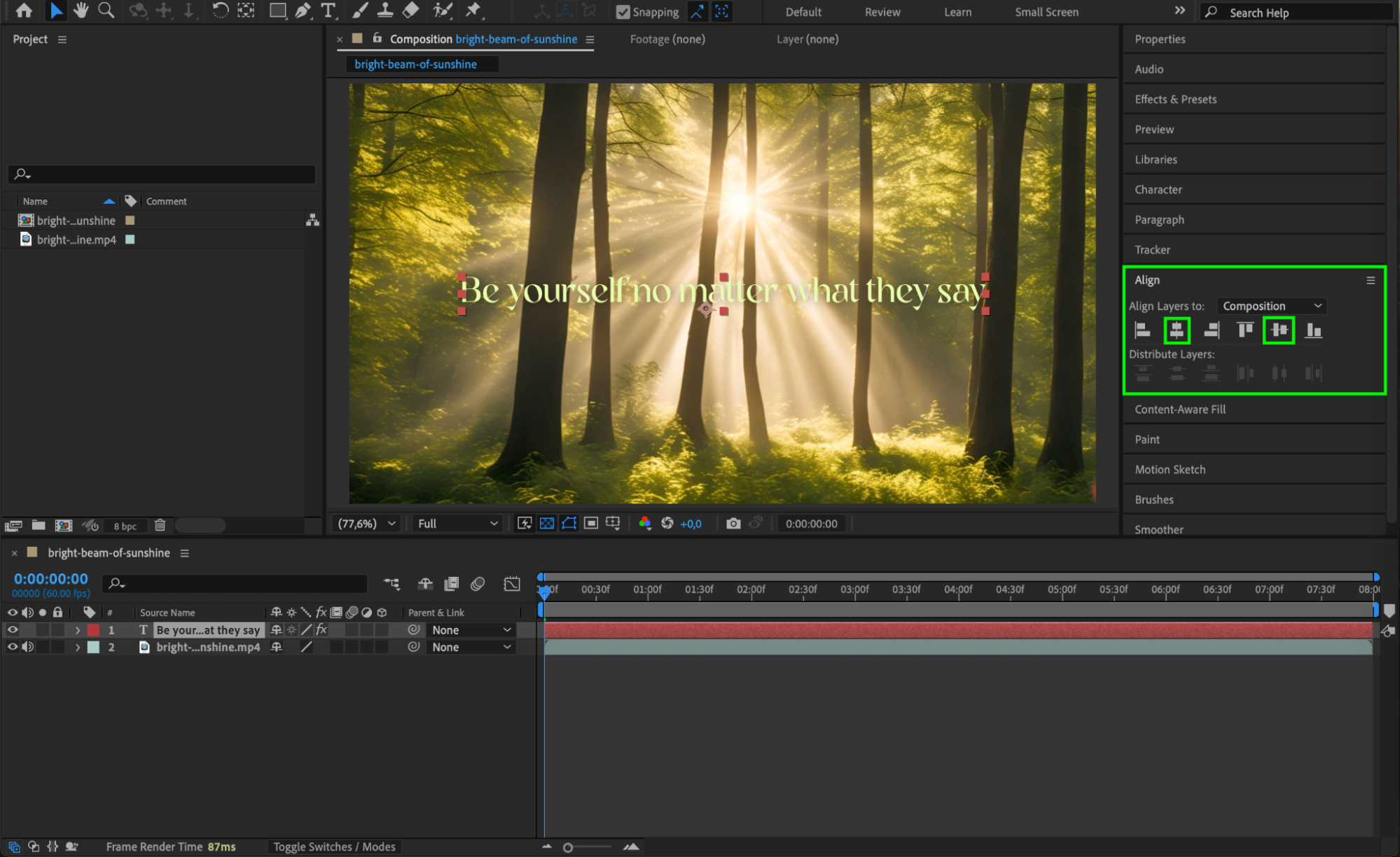
Get 10% off when you subscribe to our newsletter

Step 3: Use Guides and Safe Margins
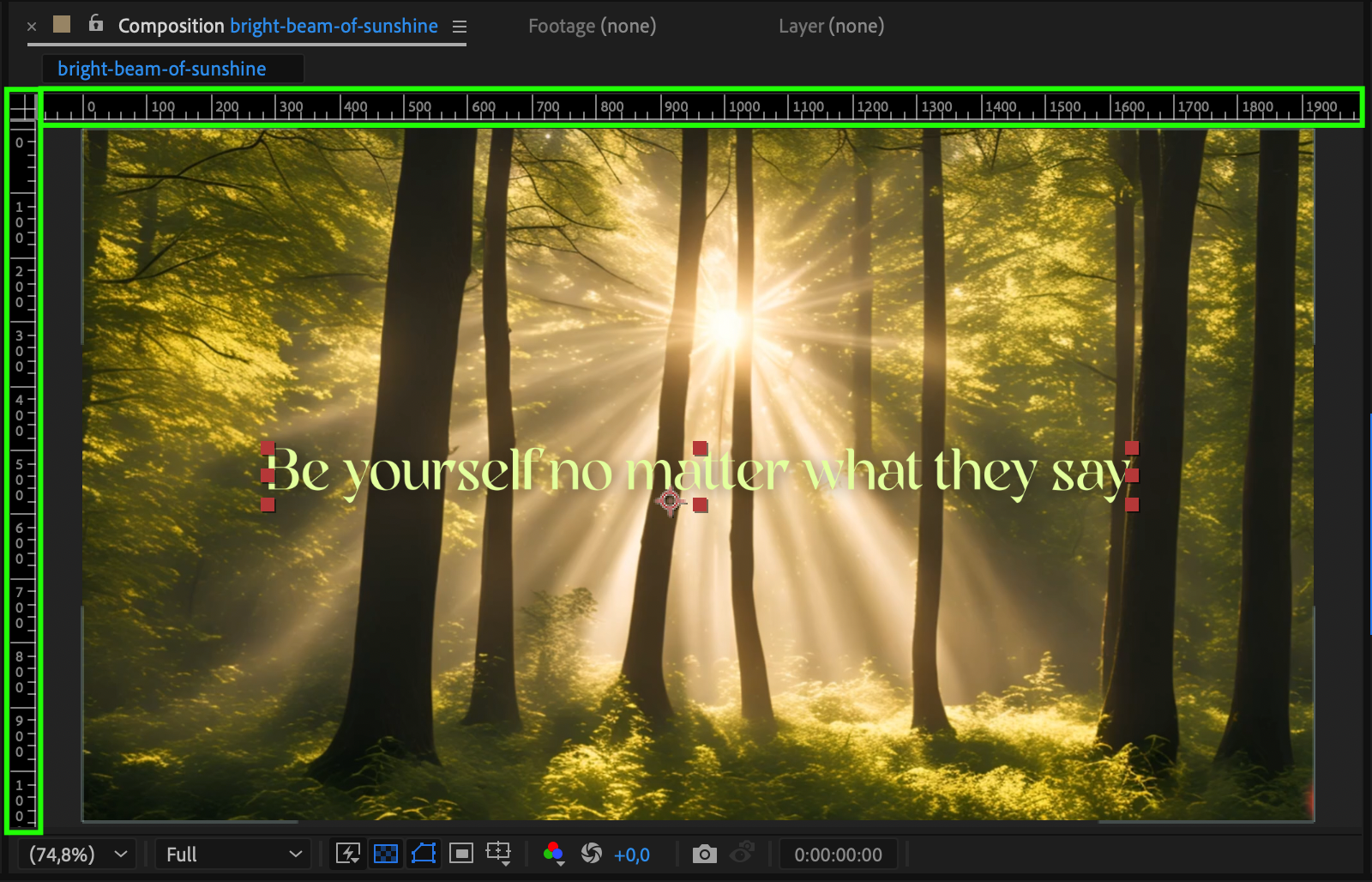
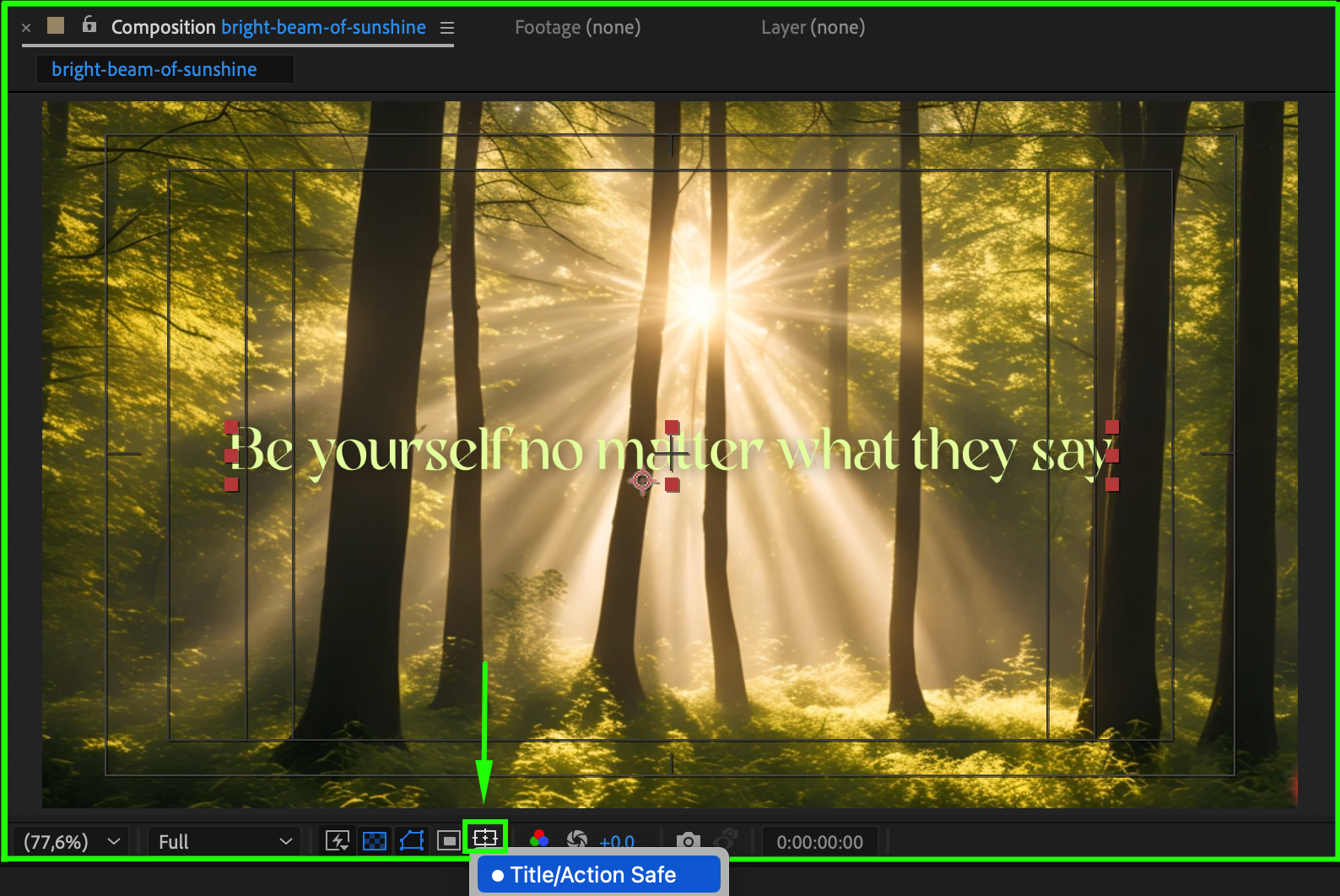
To place your title in a specific area, use guides by dragging from the rulers at the top and side of the Composition panel (enable rulers with Ctrl/Cmd + R). You can also turn on Title/Action Safe to keep your text inside TV-safe boundaries. Snap your title box to these guides for exact placement.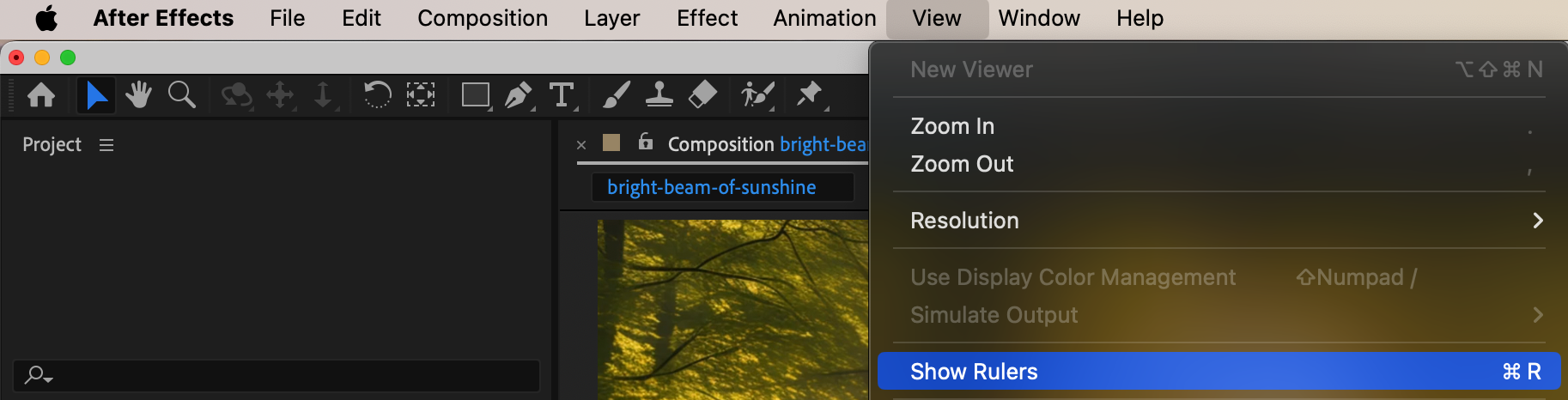
 Step 4: Create a Bounding Shape or Matte (Optional)
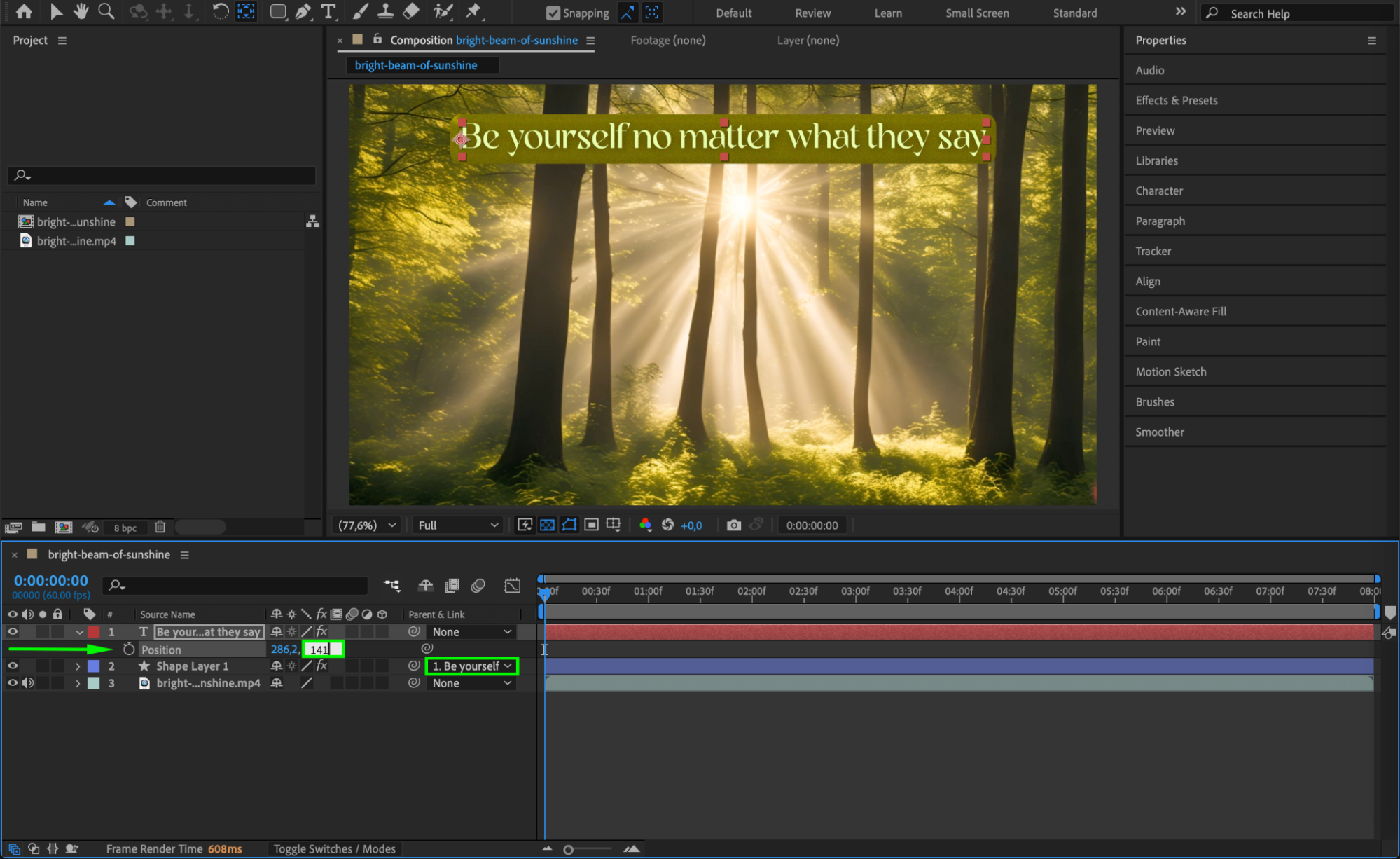
If you want your title to appear inside a fixed space — like a banner or window — you can draw a solid or shape layer as a background reference. This helps you visually define the boundaries for your text. You can also use a track matte to mask the title within a specific region if needed.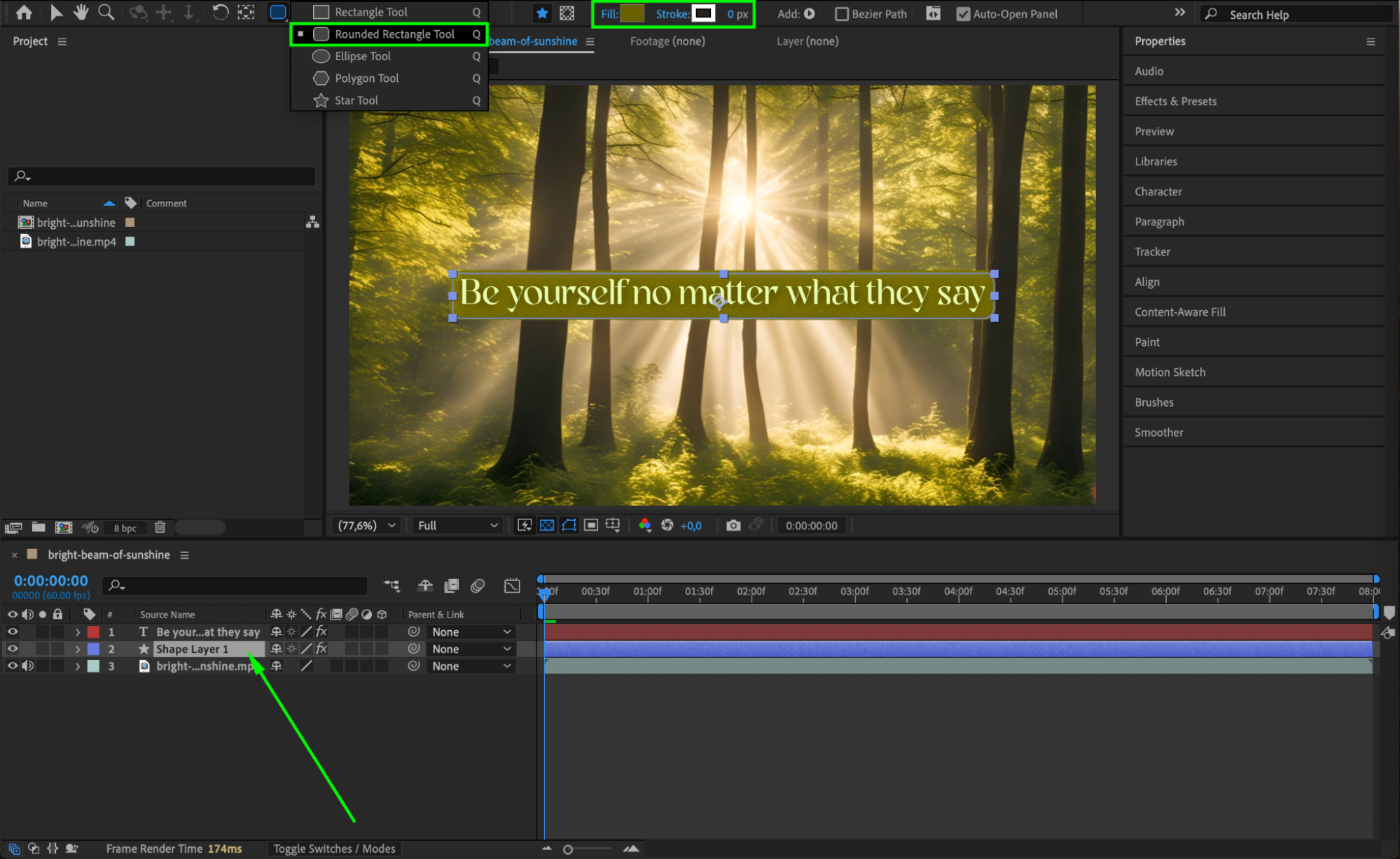
Step 5: Adjust Anchor Point and Position
Use the Pan Behind Tool (Y) to move the anchor point to a logical location—such as the center or bottom of the text box. Then press “P” to open the Position property and enter precise X and Y values to place the title exactly where it needs to go.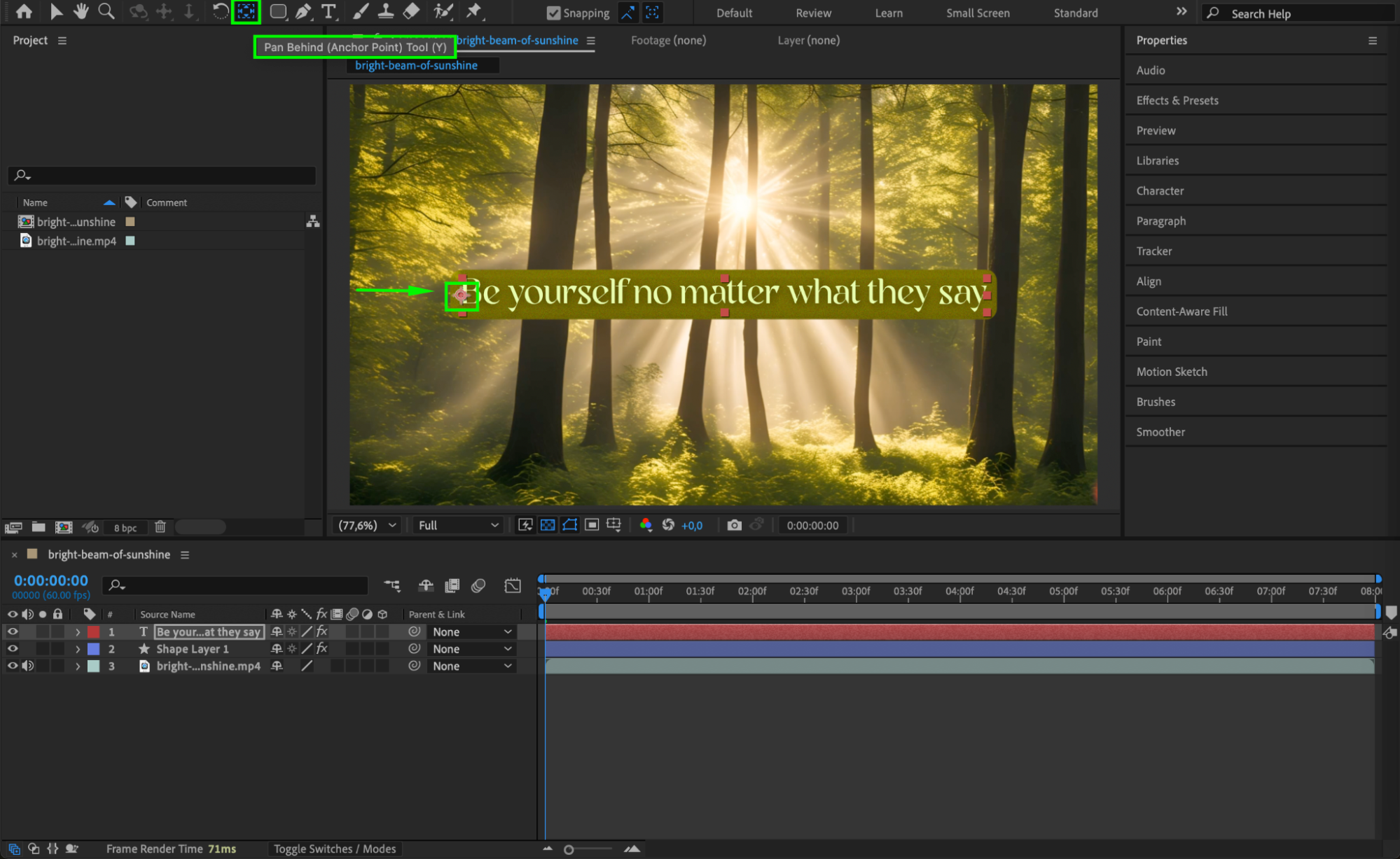
 Step 6: Animate the Title Within the Space (Optional)
Add Position, Opacity, or Scale keyframes as needed to create movement while keeping the text confined to its space.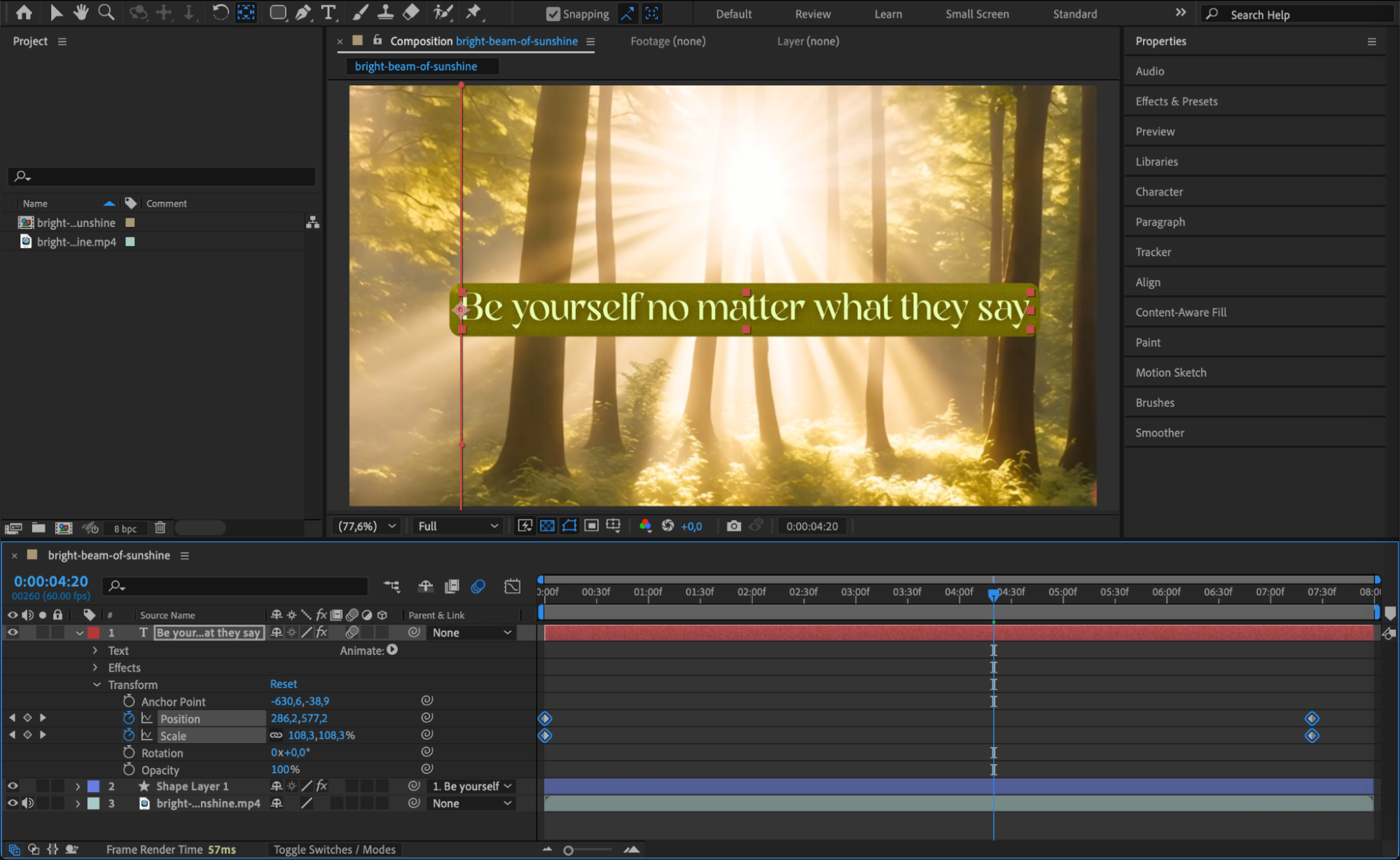 Step 7: Preview and Fine-Tune
Press Spacebar to preview your composition. Check if the title stays in the correct area during the entire animation. Adjust text size, alignment, or anchor point if anything seems off.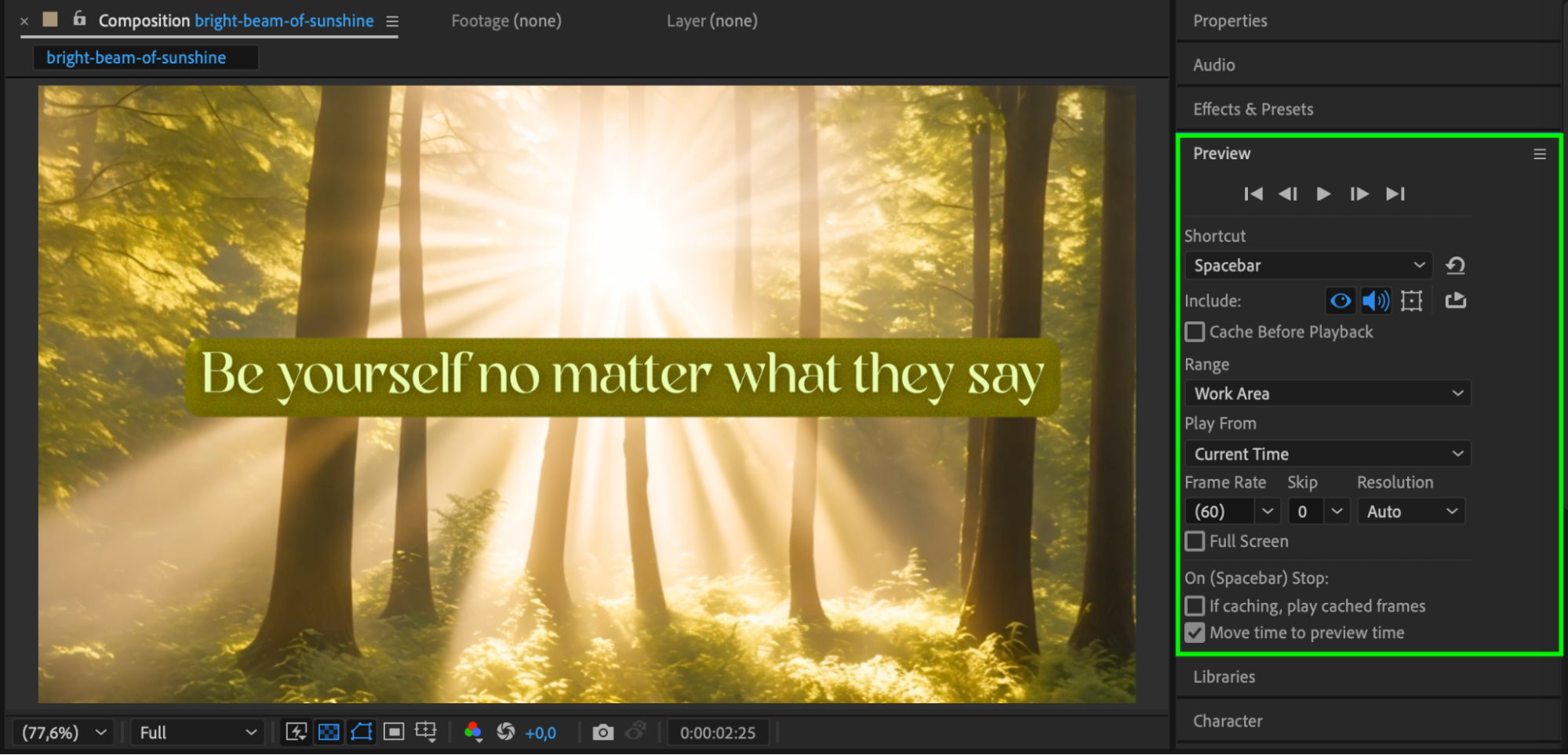 Conclusion
Keeping your title text inside a specific space in After Effects is easy once you understand how to use text boxes, alignment tools, and guides. These techniques ensure your designs stay consistent and visually balanced, whether you’re working on titles for social media, film, or professional presentations.
Our Bestsellers


