
How to Place Text Behind a Subject in After Effects
Introduction to Layering Text Behind a Person
Placing text behind a person is a popular technique used in modern video edits and title sequences. It gives depth to your composition and makes your visuals feel more dynamic. In this tutorial, you’ll learn how to use the Roto Brush tool in After Effects to isolate a person and position text behind them.
Step 1: Import Your Video
Start by going to File > Import > File and selecting the video clip where you want to place the text. Drag the footage onto the timeline in a new composition.
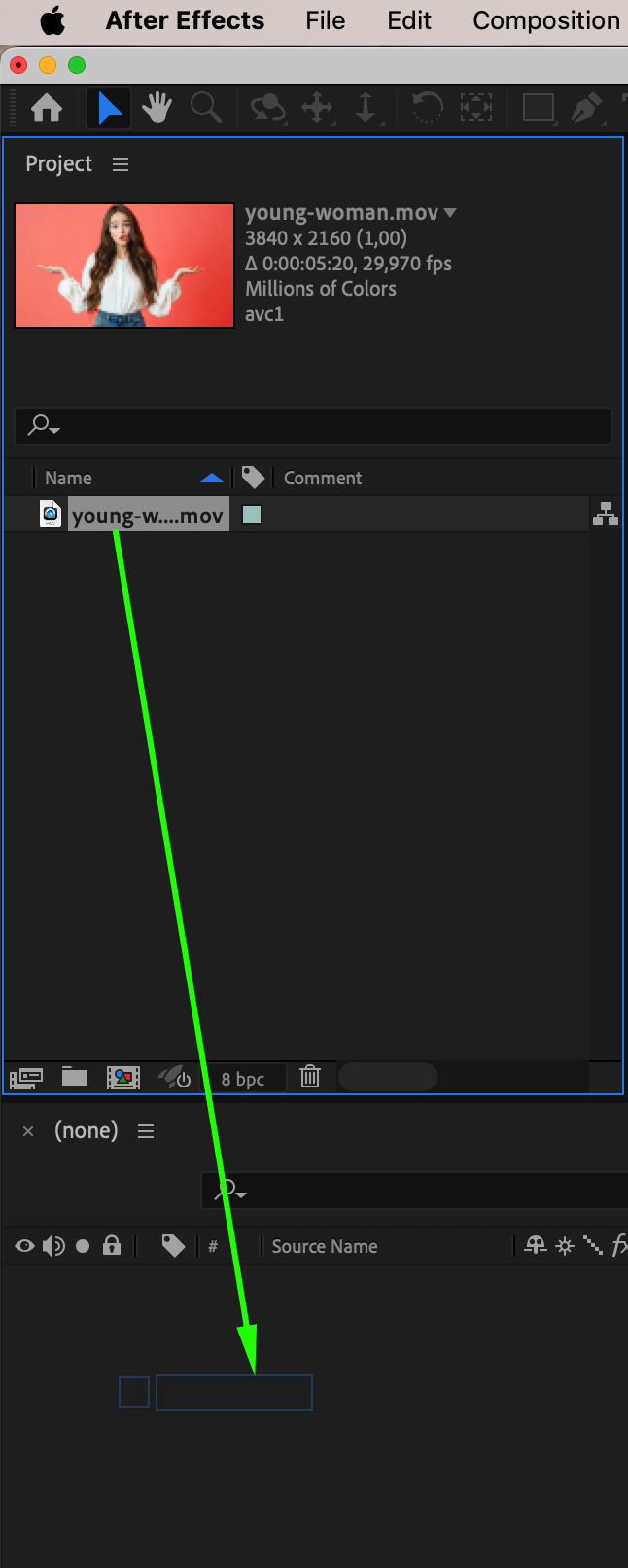
Step 2: Open Layer Panel and Use the Roto Brush Tool
In the timeline, double-click on your video layer to open it in the Layer panel. Then, select the Roto Brush Tool (Alt/Option + W) from the toolbar. Use the brush to paint over the person in your video – you’ll see a green selection area.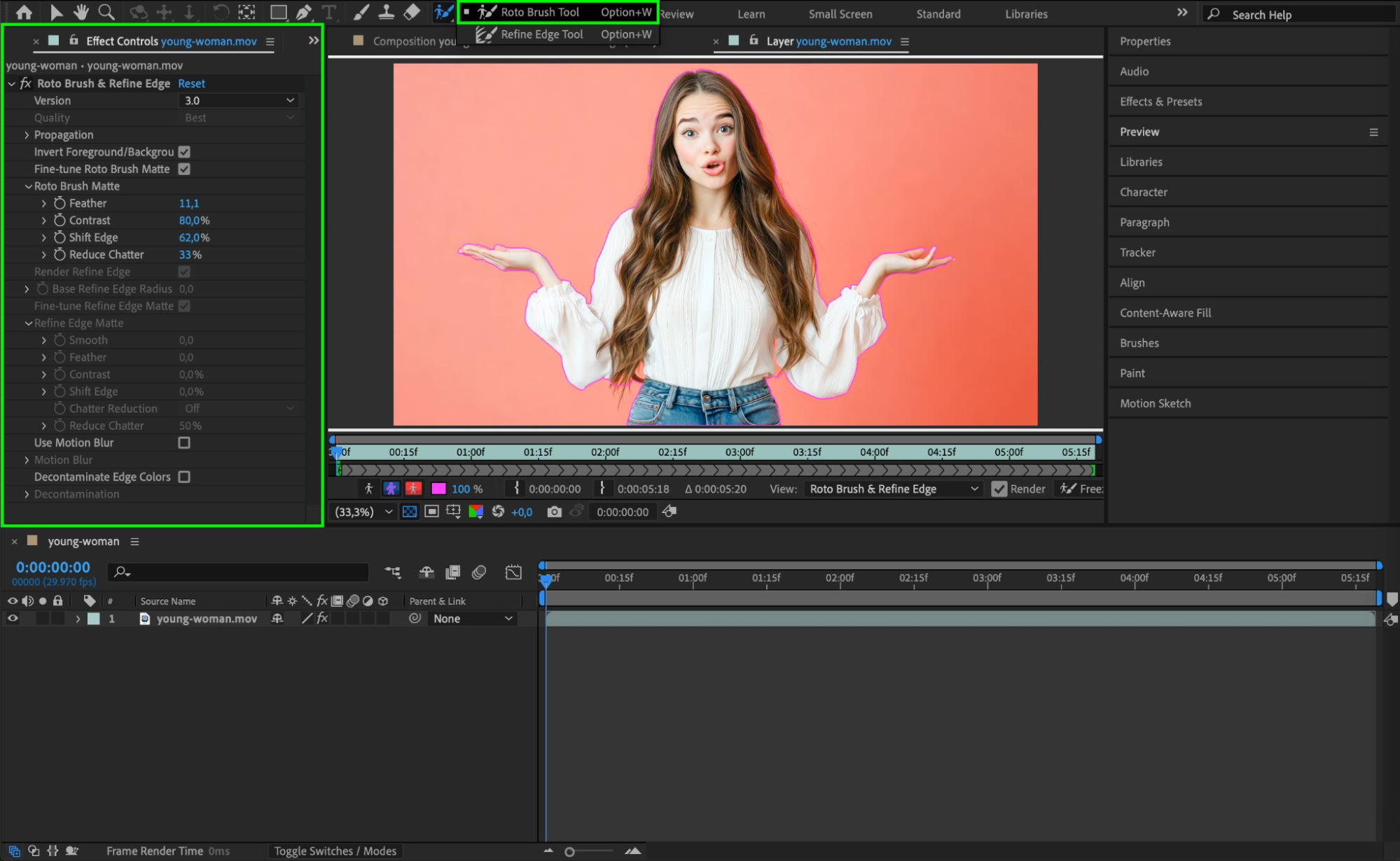
Step 3: Refine the Roto Selection and Freeze
Move forward frame by frame to adjust the selection where needed. Use the Alt/Option key to subtract areas, or keep brushing to add details. Once the full selection is refined, click Freeze at the bottom of the Layer panel to lock in your roto.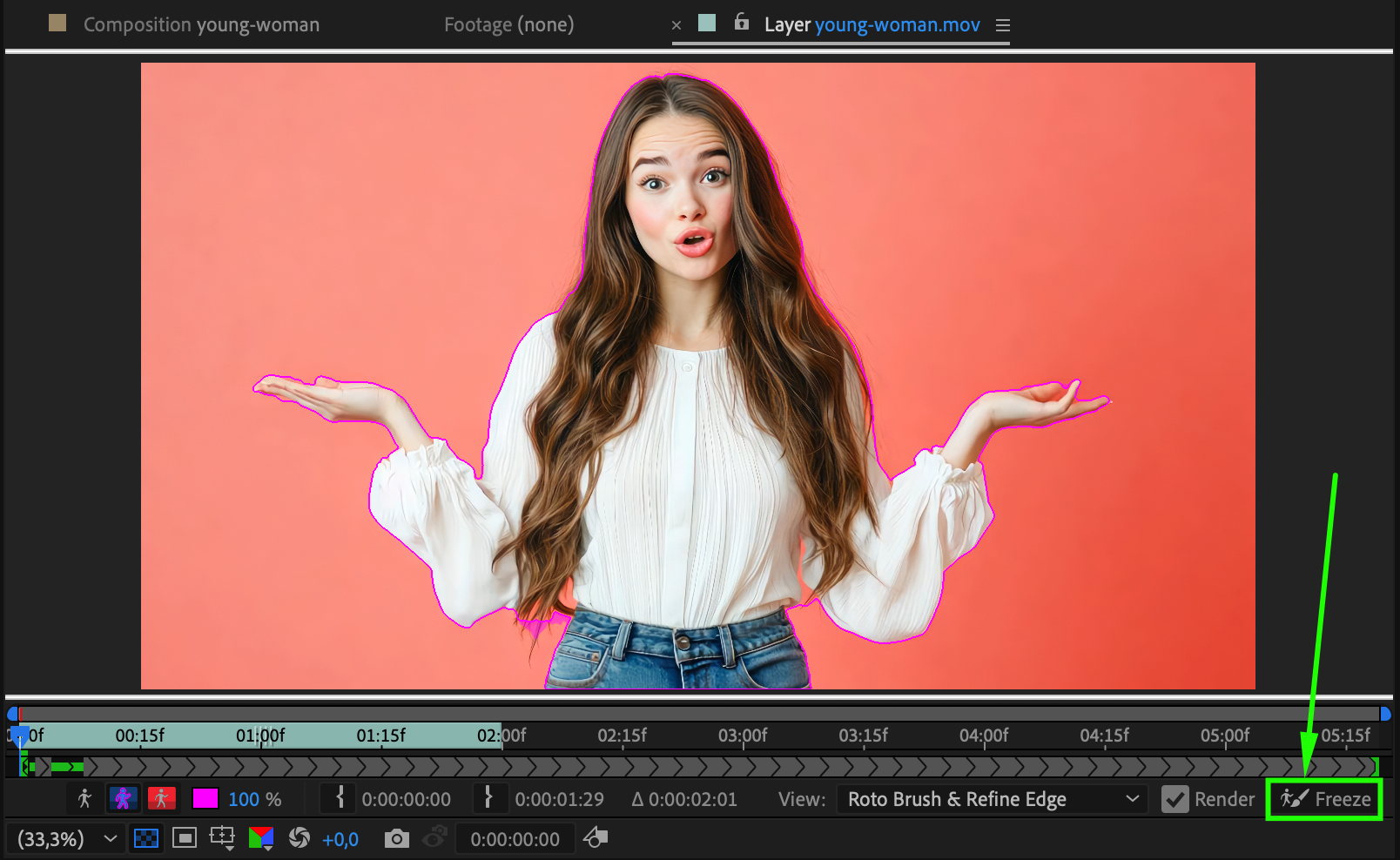 Step 4: Rename and Duplicate Layers
Go back to the Composition panel, and rename the layer with the roto brush as “Person”. Then, from the Project panel, drag the same video file back onto the timeline below the “Person” layer and name it “BG” (background).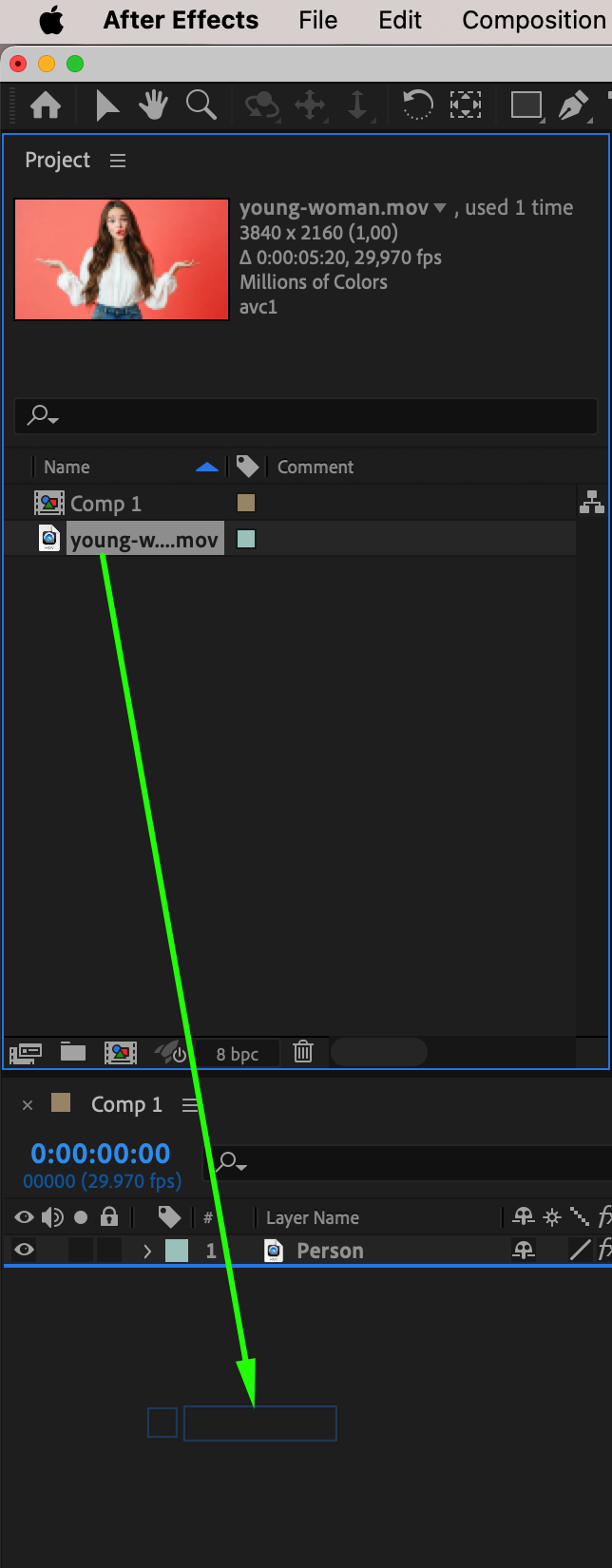
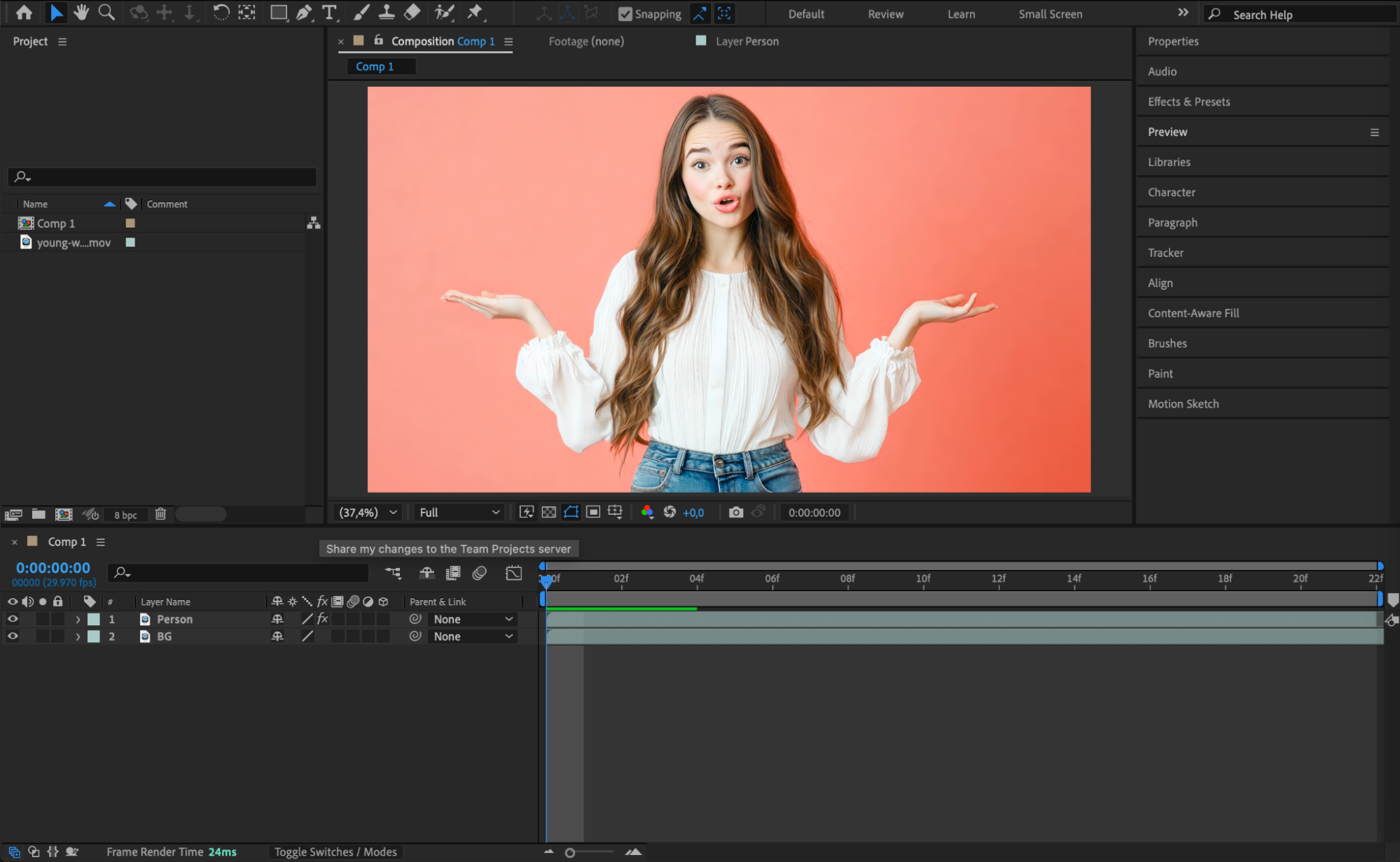
Step 5: Add Text Behind the Subject
Use the Type Tool (Ctrl/Cmd + T) to write your text. Place the text layer between the “Person” and “BG” layers. Now, the text will appear behind the subject, giving the illusion of depth.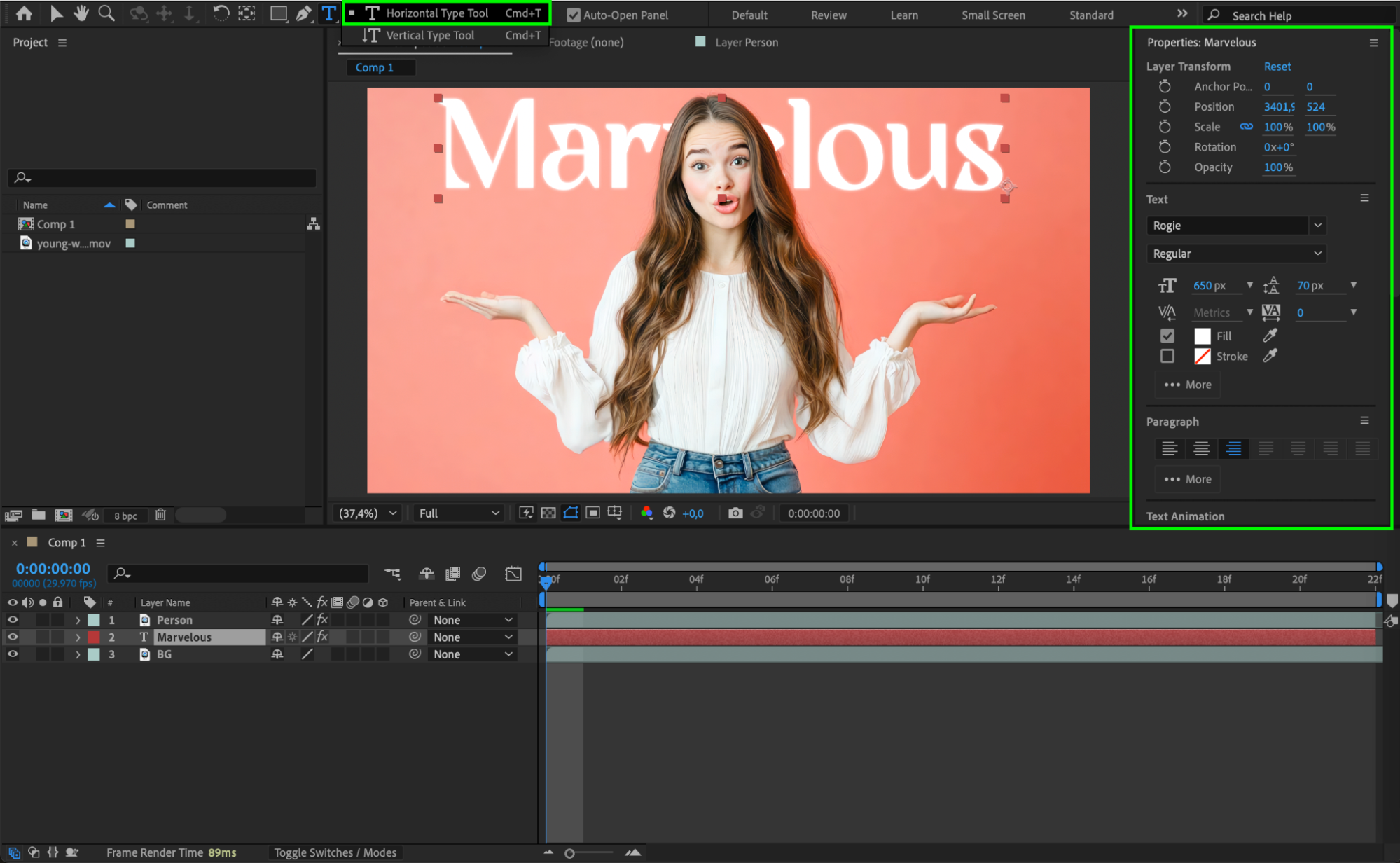 Step 6: Preview the Result
Press Spacebar to preview your composition. If needed, adjust the position, scale, or styling of the text to make it look more natural and integrated with the scene.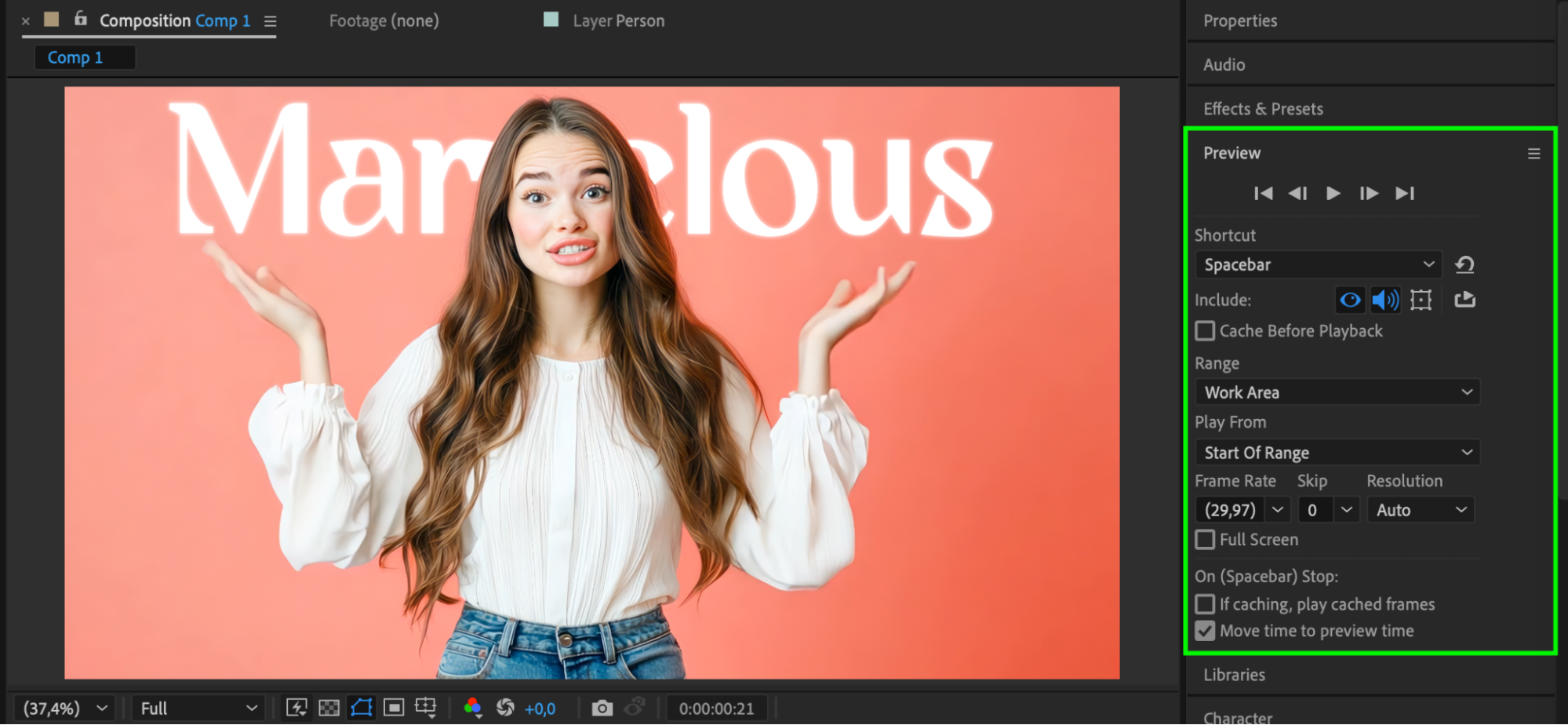
Step 7: Export the Final Composition
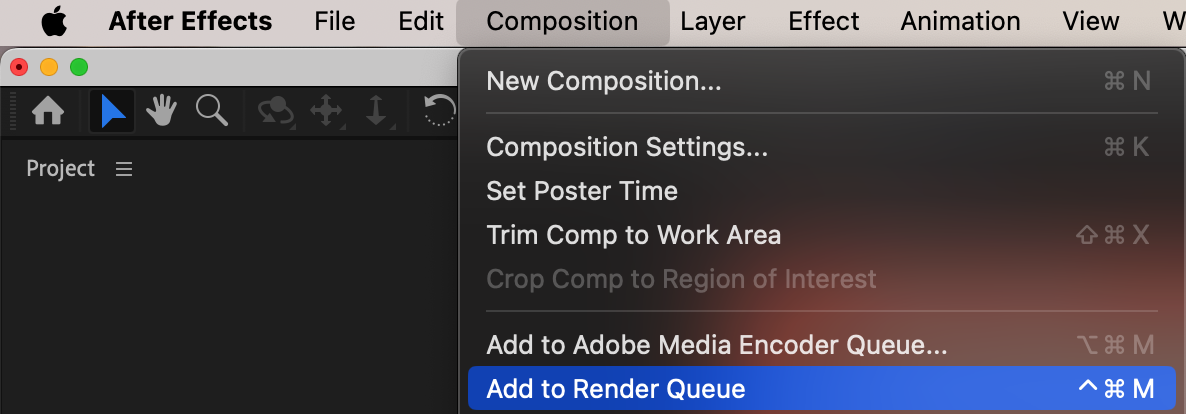
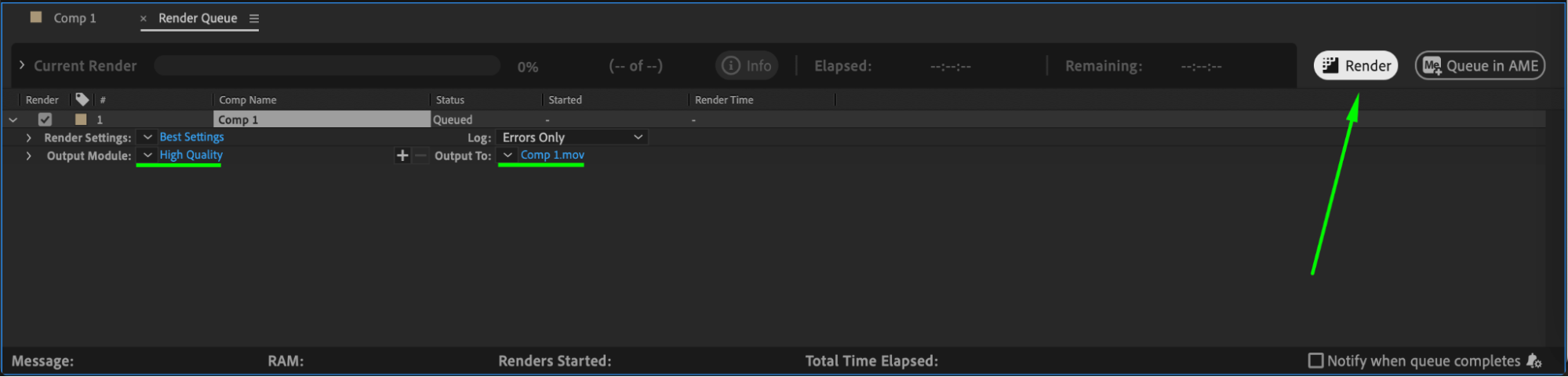
When you’re happy with the result, go to Composition > Add to Render Queue or use Media Encoder to export your video with the text cleanly placed behind the person.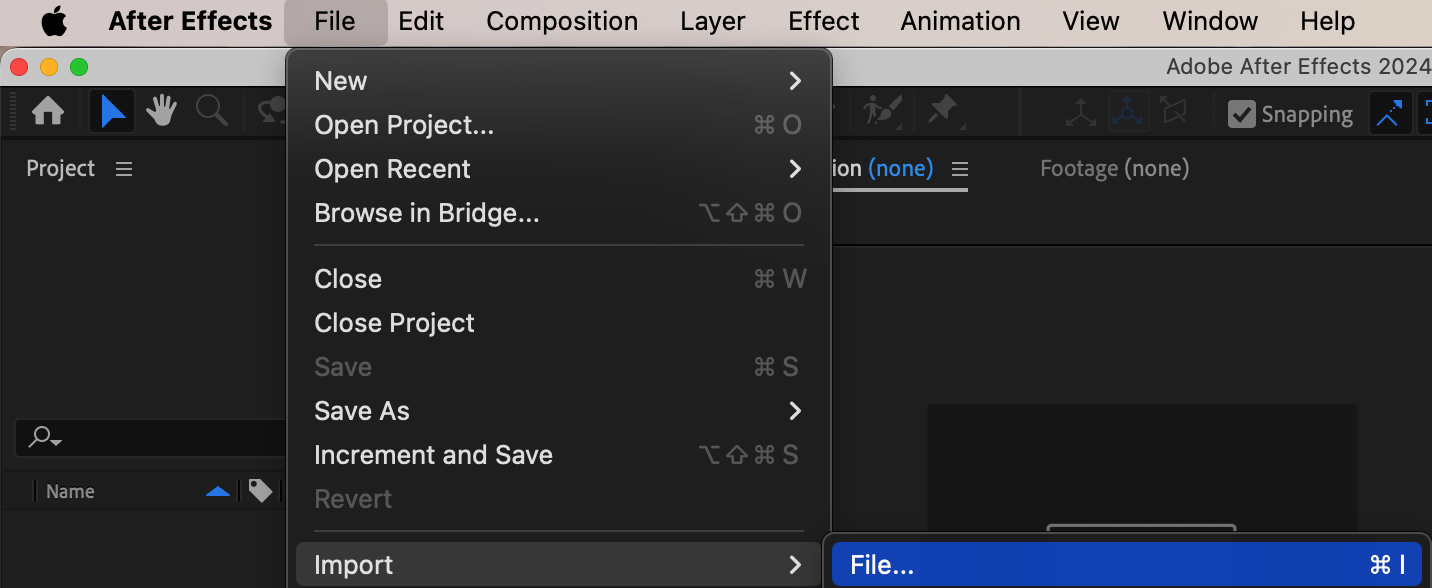
Conclusion
Using the Roto Brush tool in After Effects, you can easily separate a person from the background and place text behind them. This technique adds professionalism and depth to your edits and is great for titles, interviews, or creative intros.
Our Bestsellers
Our Bestsellers


