
How to Delete and Edit Text in After Effects
Introduction
In Adobe After Effects, modifying a text layer is quick and easy. Whether you need to update a title, change a name, or create new messaging, you can simply delete the current text and type a new one—without creating a new layer. This guide walks you through the process step by step.
Step 1: Open Your Project
Launch Adobe After Effects and open the project that contains the text layer you want to edit. Make sure your Composition panel is visible so you can see your changes in real time.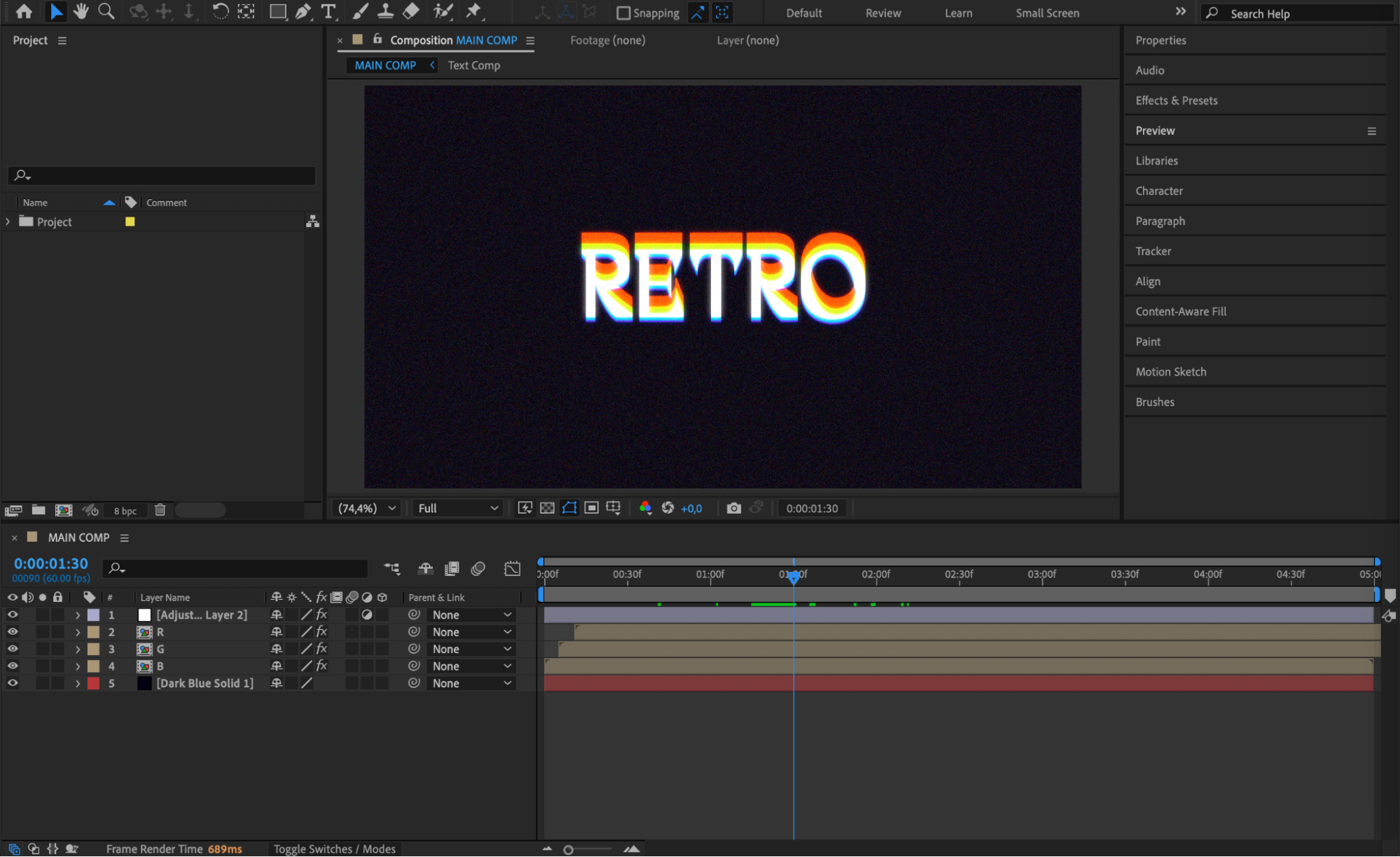 Step 2: Locate the Text Layer
In the Timeline panel, find the text layer you want to modify. The layer usually has a “T” icon, indicating it’s a text layer. Click once on the layer to select it.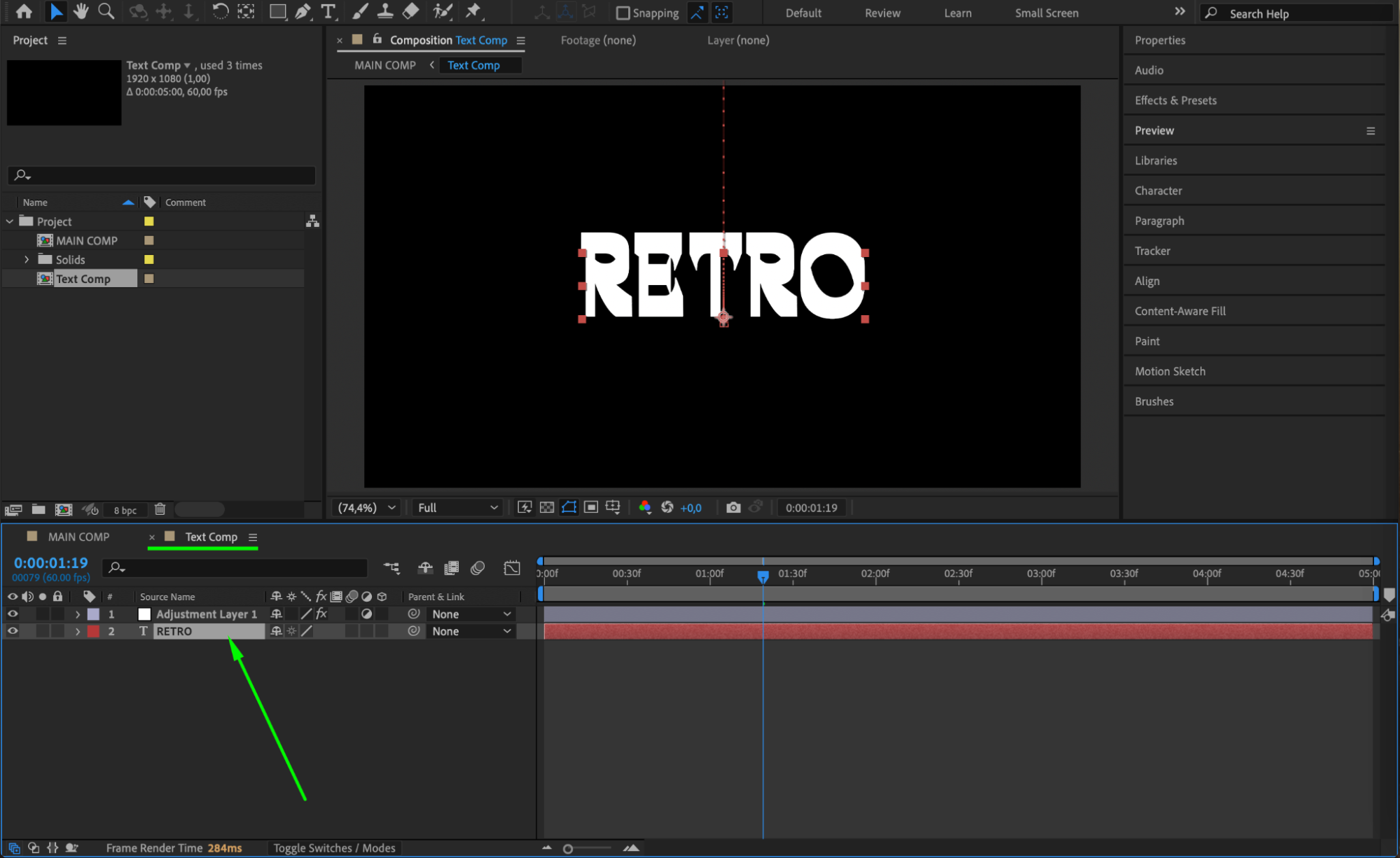
Step 3: Double-Click the Text
With the text layer selected, double-click directly on the text in the Composition panel. This will activate the text editing mode, and your text will become editable with a blinking cursor.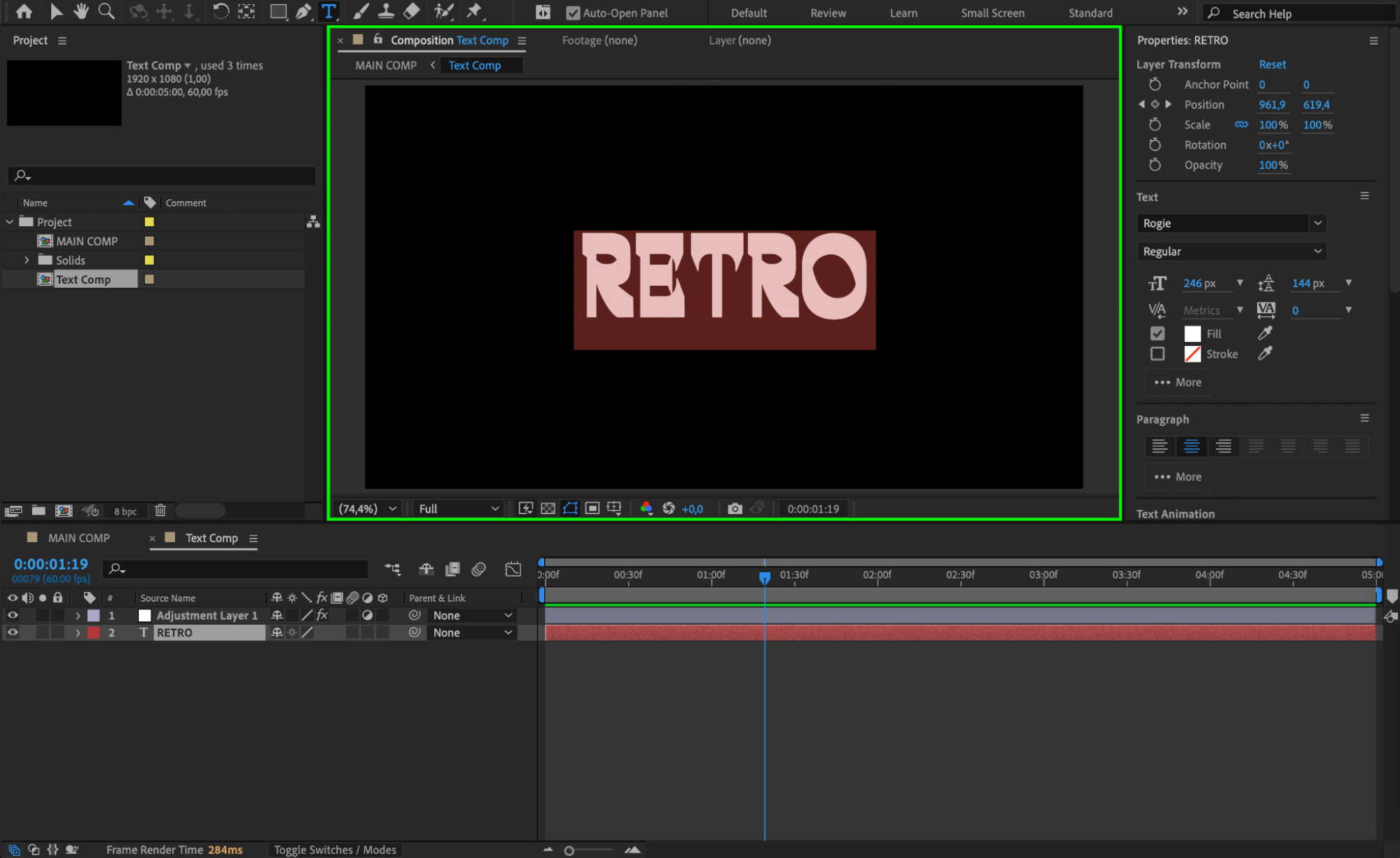 Step 4: Delete the Old Text
Use your Backspace or Delete key to remove the existing text. You can also highlight a portion of the text if you want to replace only part of it.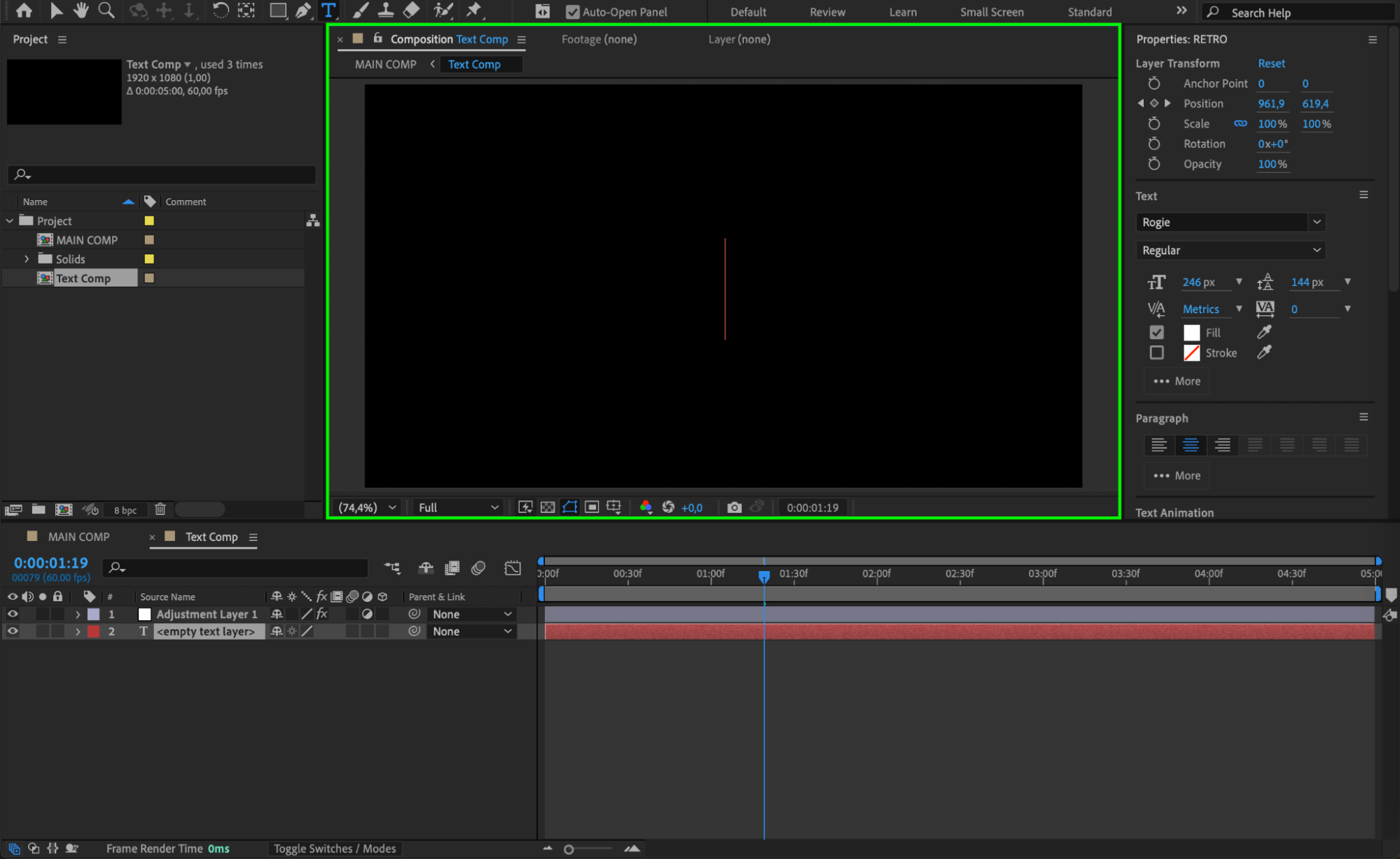 Step 5: Type New Text
Now simply type your new text directly into the same text layer. The style, size, font, and other formatting settings will stay the same unless you decide to change them.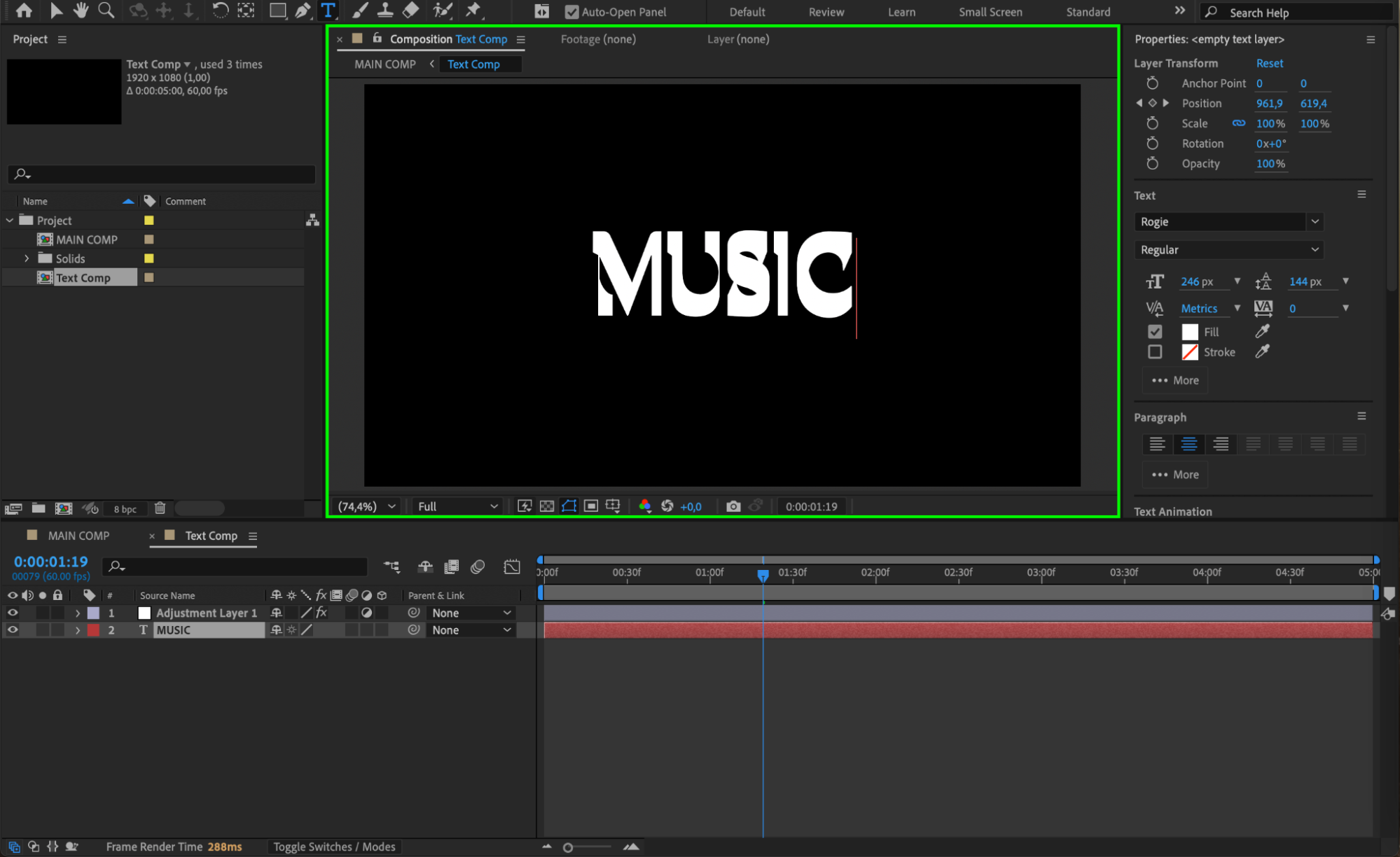
Step 6: Adjust Font and Style (Optional)
If needed, go to the Character panel to change the font, size, color, tracking, and more. You can also reposition the text using the Selection Tool (V) or by adjusting the Position property (press P with the layer selected).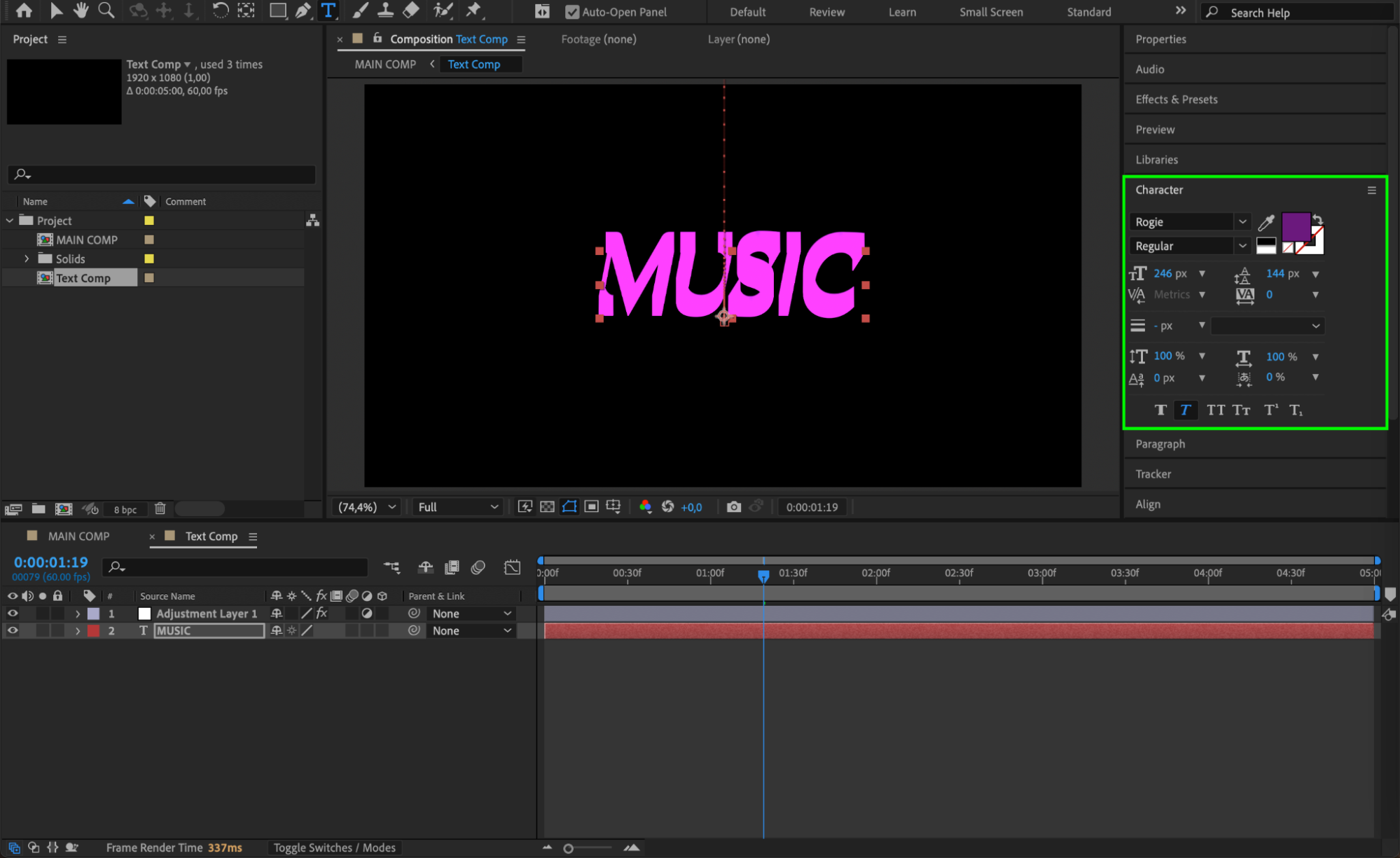
Step 7: Rename the Layer (Optional)
To stay organized, you can rename the text layer to match your new content. Right-click on the layer in the timeline, choose Rename, and type a new name.
Step 8: Preview Your Composition
Press the Spacebar to play back your timeline and see how your new text looks within the project. Make any final adjustments as needed.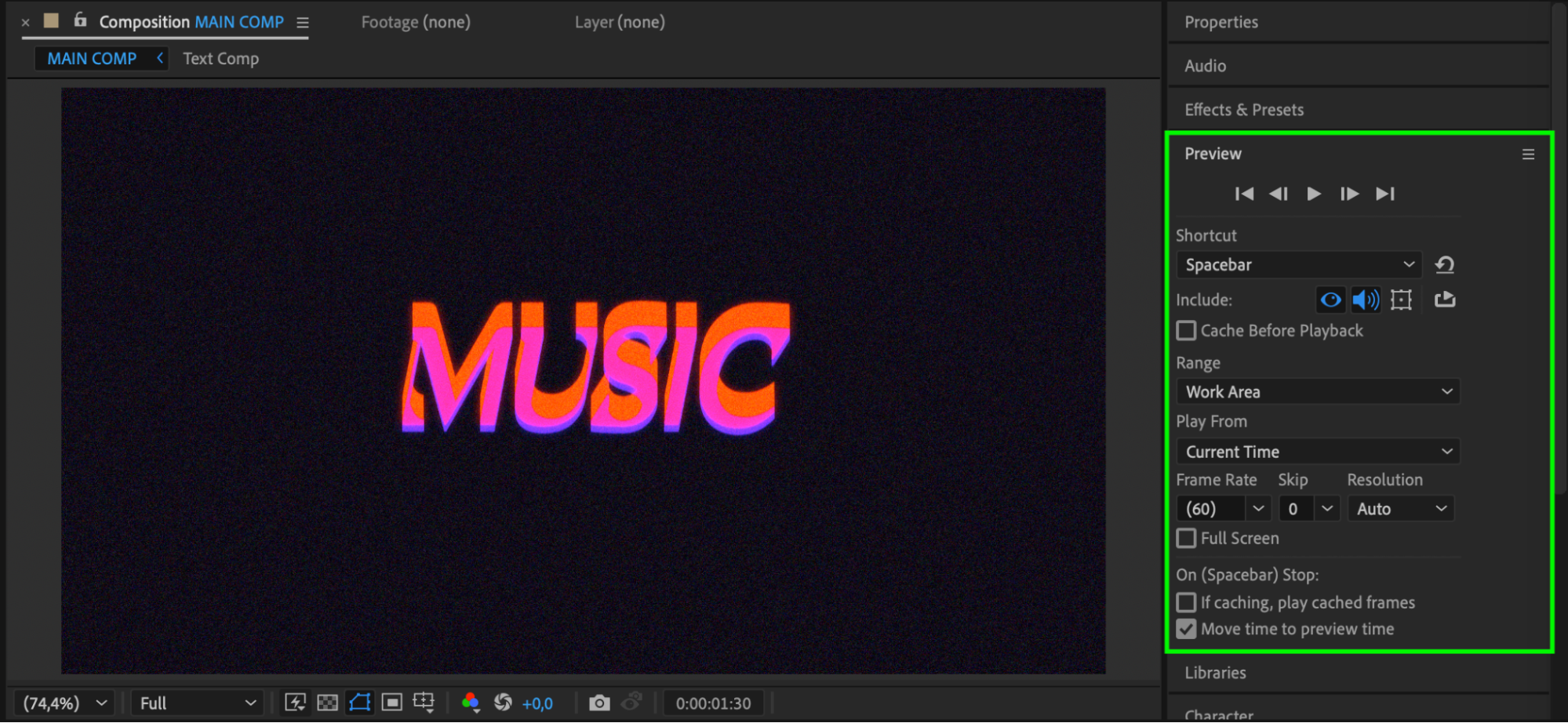
Conclusion
Editing text in After Effects is a fast and simple process. With just a double-click, you can delete old content and add new messaging while keeping all your design settings intact. This is useful for templates, titles, lower thirds, and other on-screen text updates.
Our Bestsellers
Our Bestsellers


