
Simple Steps to Isolate Your Object and Create Transparency
If you want to make your PNG image blend perfectly into your project, removing its background in After Effects is the way to go. This process is useful for motion graphics, product shots, or creative animations. Below are clear steps to help you isolate your object and work with transparency effectively.
Step 1: Import the File
Go to File > Import > File and choose your PNG image. You can also import JPEG or JPG files if needed. After importing, you will see the file in the Project panel.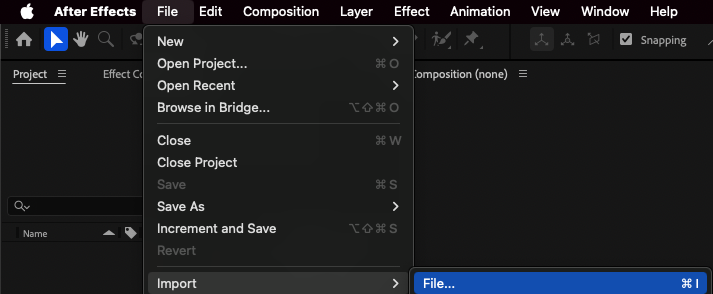
Step 2: Create a New Composition
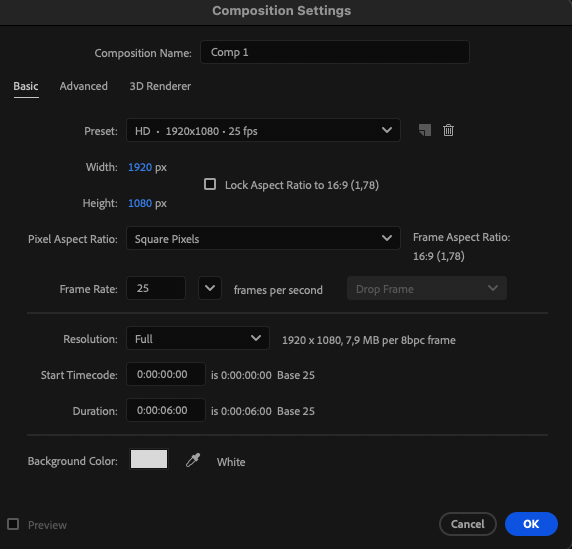
Drag your PNG into the “New Composition” button or create a new composition manually (Composition > New Composition). Adjust size, frame rate, and duration to match your project.
Step 3: Add the Image to the Timeline
Drag your imported file from the Project panel onto the timeline. This makes it visible in your composition and ready for editing.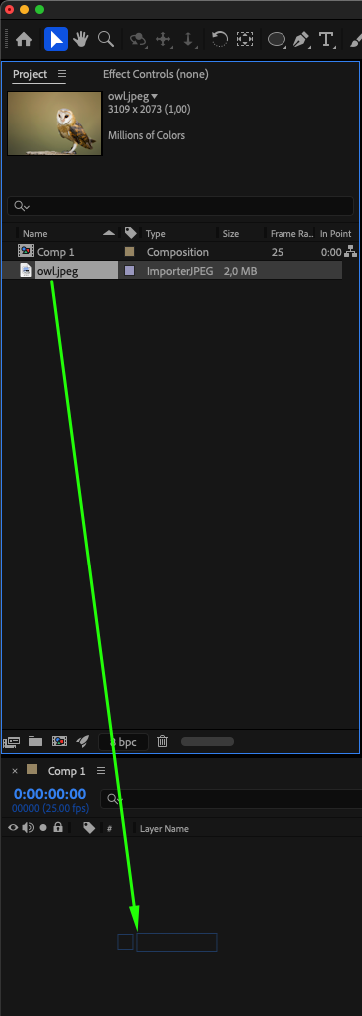 Step 4: Select the Object
Choose the Pen Tool (G) to outline the part of the image you want to keep. Zoom in for accuracy.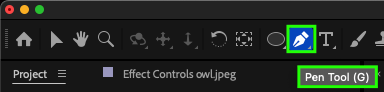
Step 5: Create the Mask
Click on the image layer, then draw a closed path around your object. Connect the first and last points to complete the mask. You can use the Hand Tool (H) to move around while zoomed in.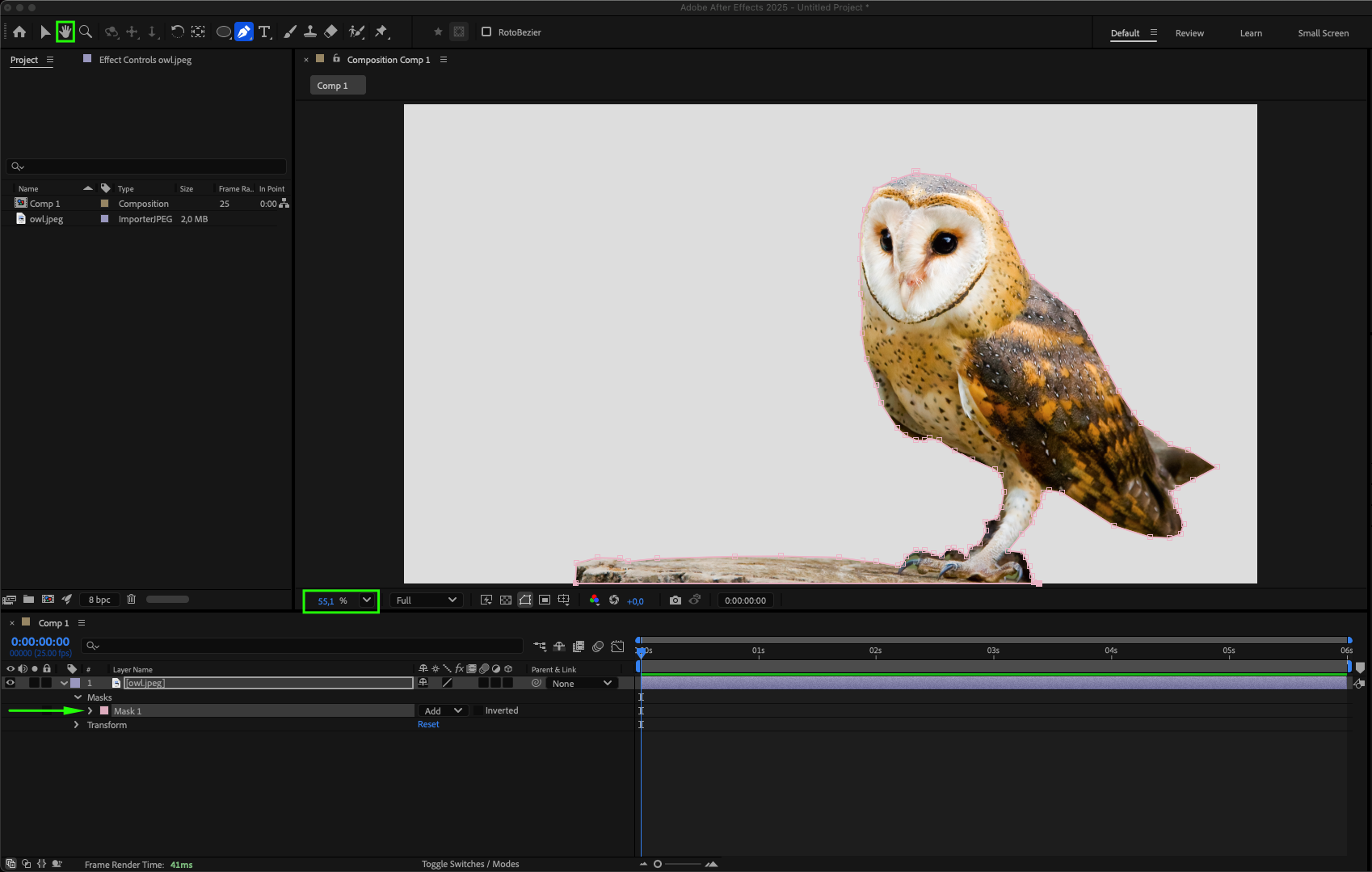
Step 6: Adjust the Mask Feather
Go to the Mask settings in the Timeline panel and increase the Feather value to around 2. This softens the mask edges for a smoother look.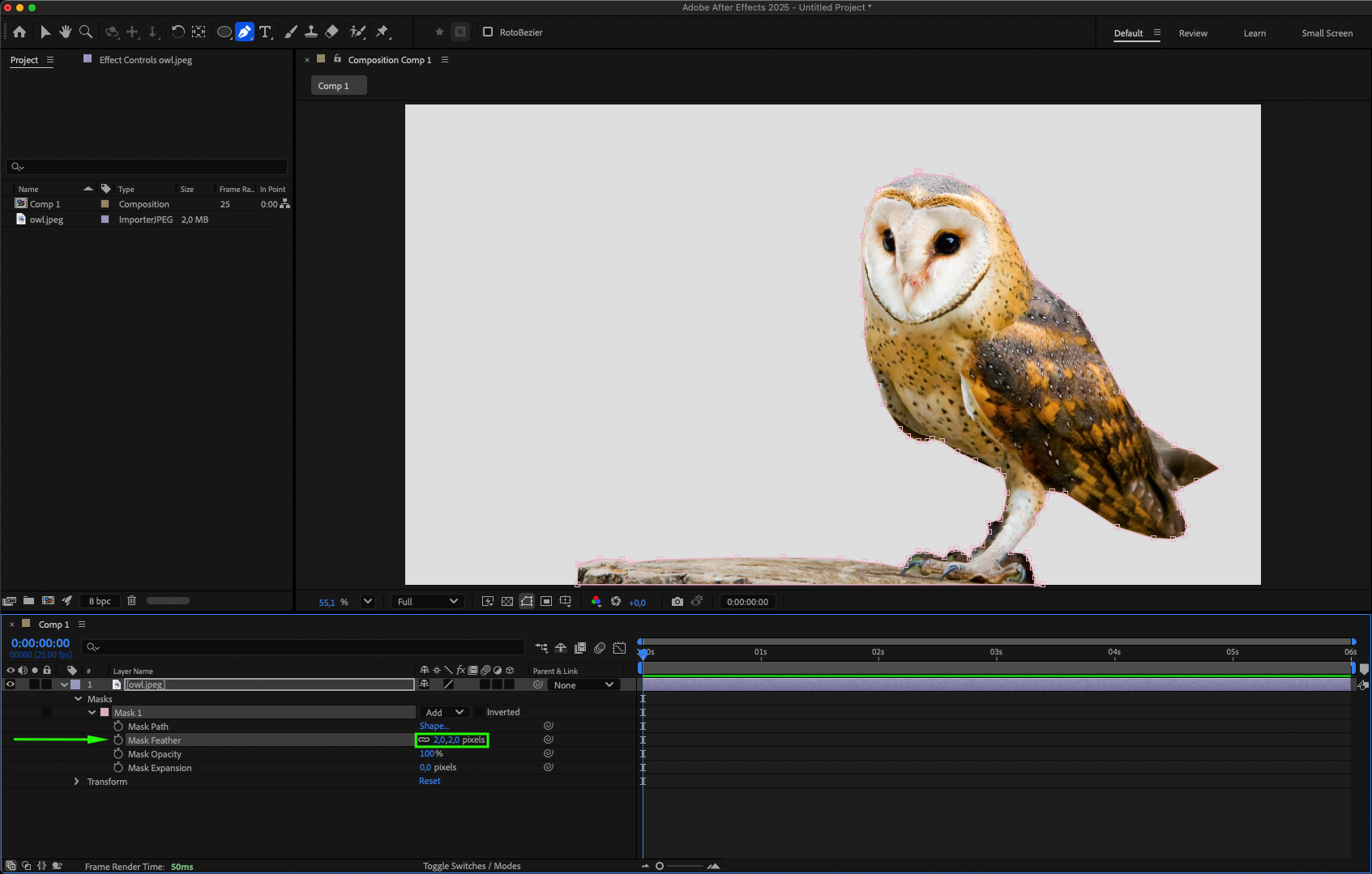
Step 7: Create a Mask Inside a Mask (Optional)
If you need to remove a part inside your main object, create another mask and set its Mask Mode to Subtract in the Timeline panel
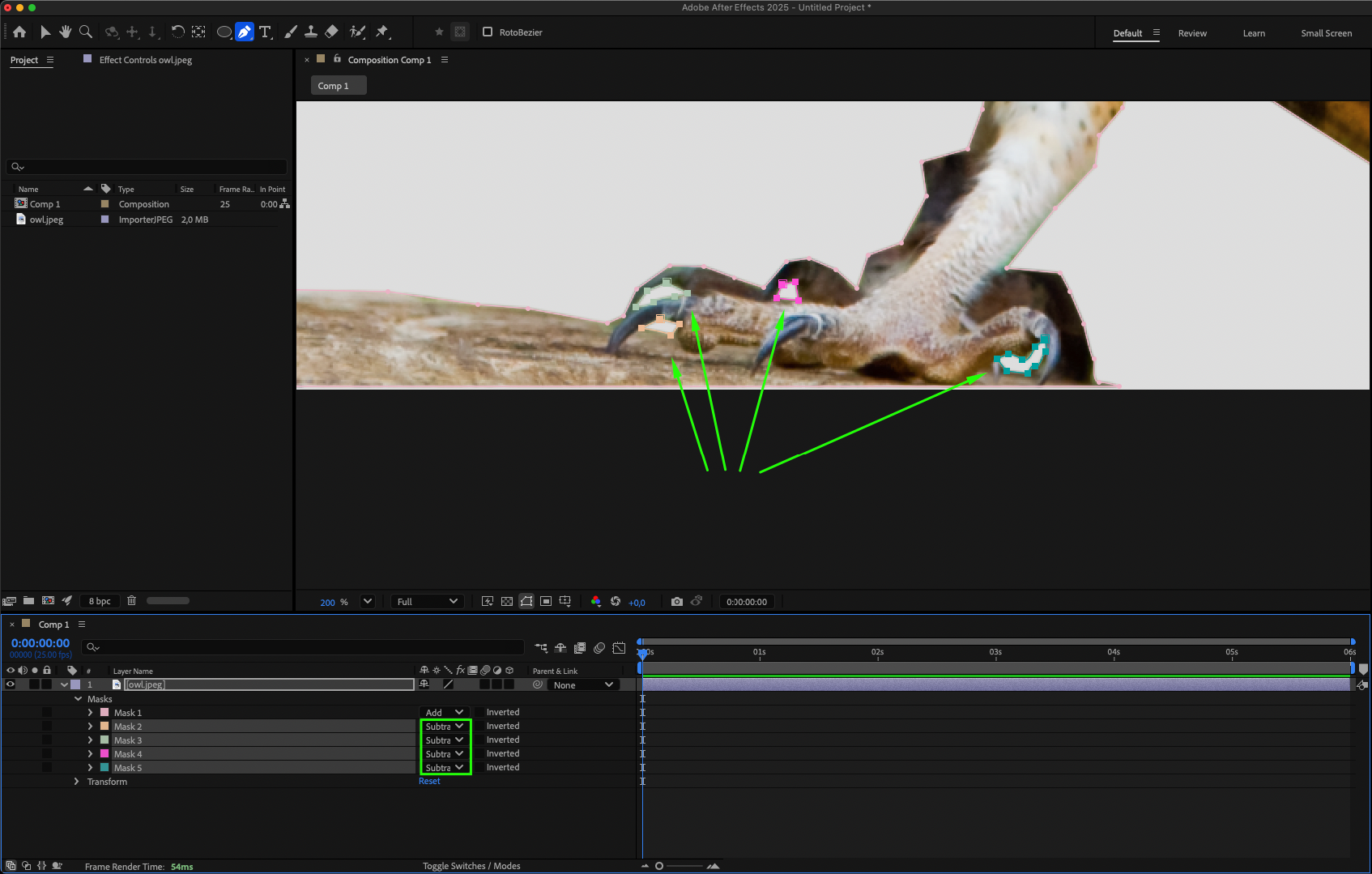 Step 8: Check Transparency
Click the Toggle Transparency Grid button in the Composition panel to see how your object looks on a transparent background.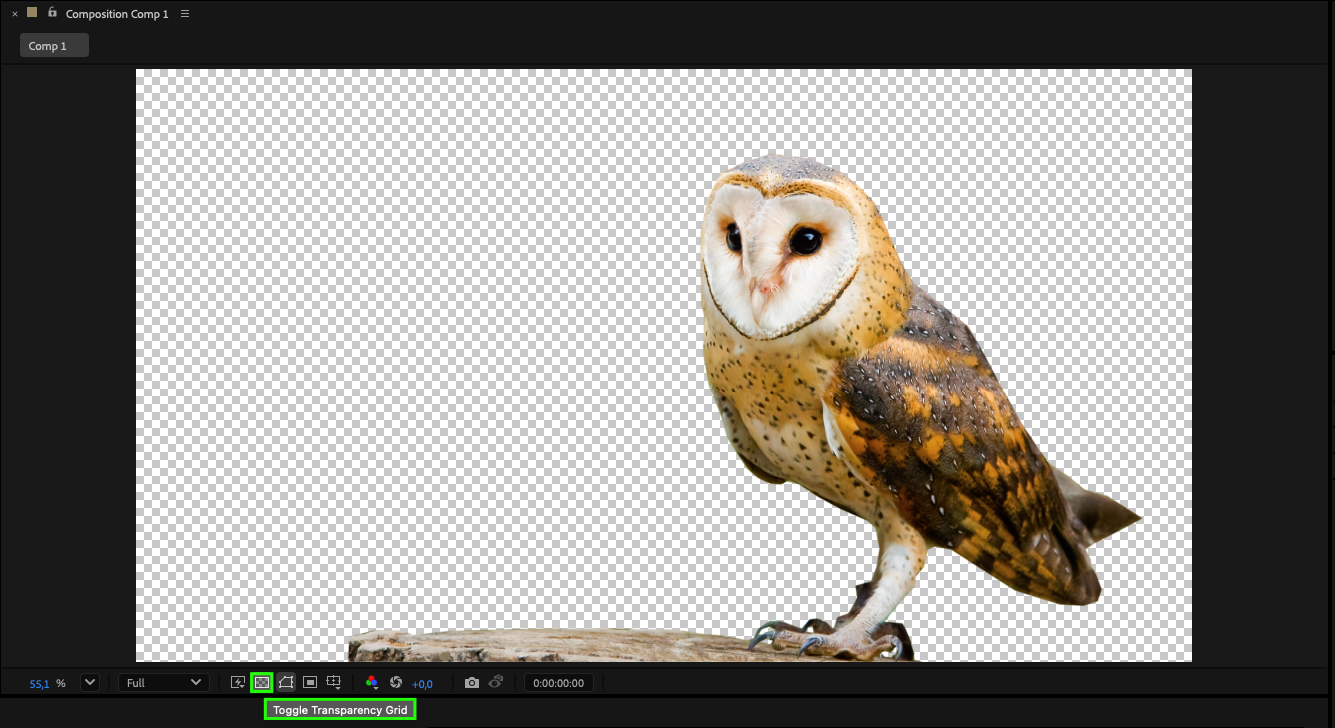
Conclusion
Removing PNG backgrounds in After Effects is simple once you understand masking and transparency tools. With just a few steps, you can isolate objects, refine edges, and prepare your visuals for seamless integration into any project. This skill will make your designs cleaner, more professional, and more versatile.
Our Bestsellers
Our Bestsellers


