
Screen Replacement with Tracking in After Effects
Introduction
Screen replacement is a common visual effect technique used to insert new content into devices like phones, tablets, or monitors within a video. Adobe After Effects makes this possible using built-in tracking tools. In this tutorial, you’ll learn how to track a screen and accurately place your own image or video over it, so that it moves and fits naturally with the footage.
Step 1: Import Footage and Create a New Composition
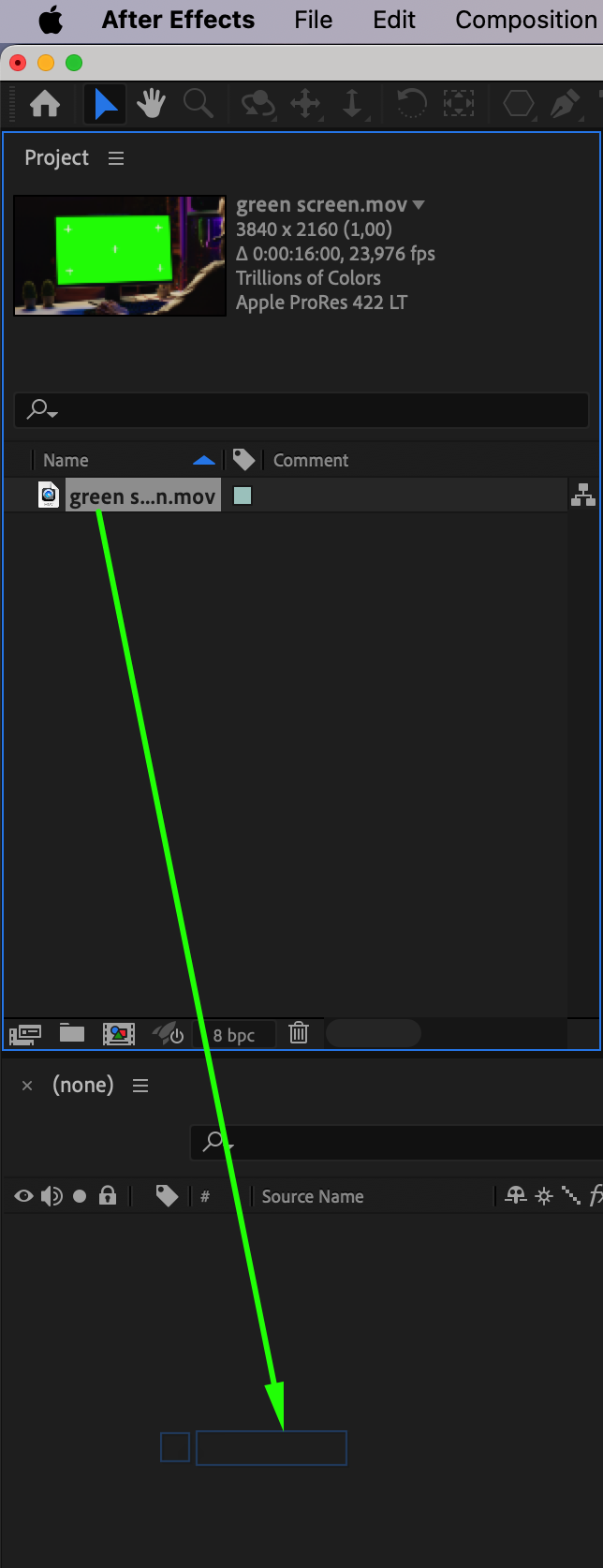
Start by importing the video clip that contains the screen you want to replace. Drag the footage into the timeline to create a new composition. Make sure the clip is stable and that the screen is clearly visible during the shot.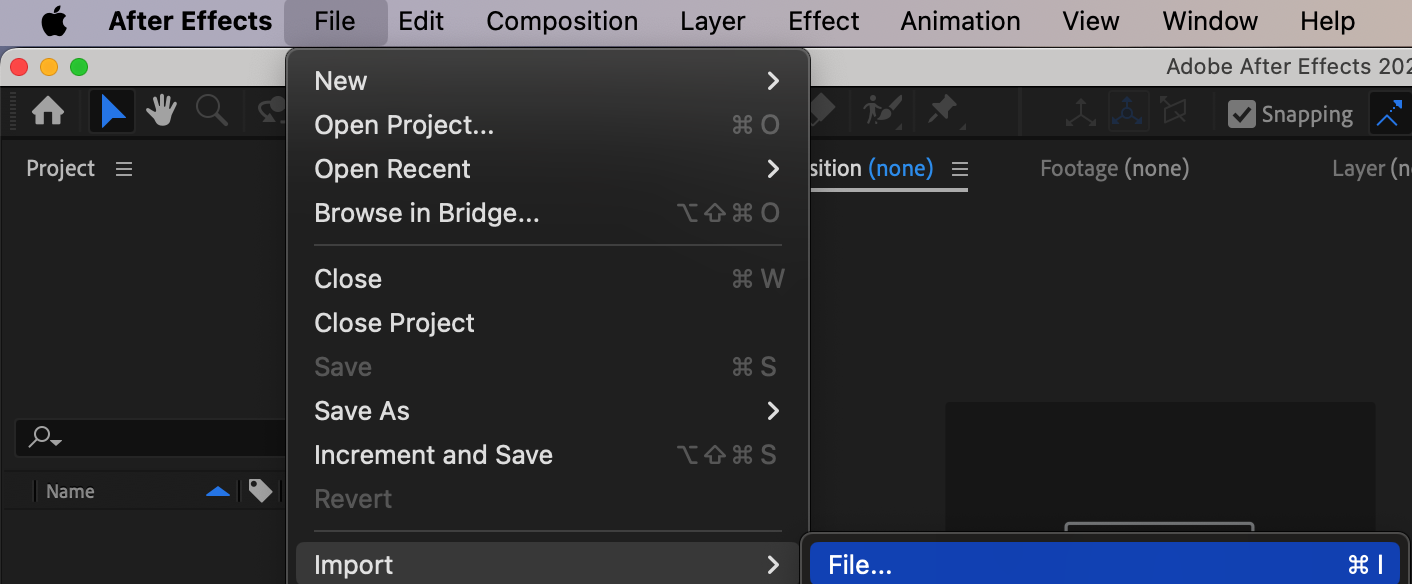
 Step 2: Select the Layer and Open the Tracker Panel
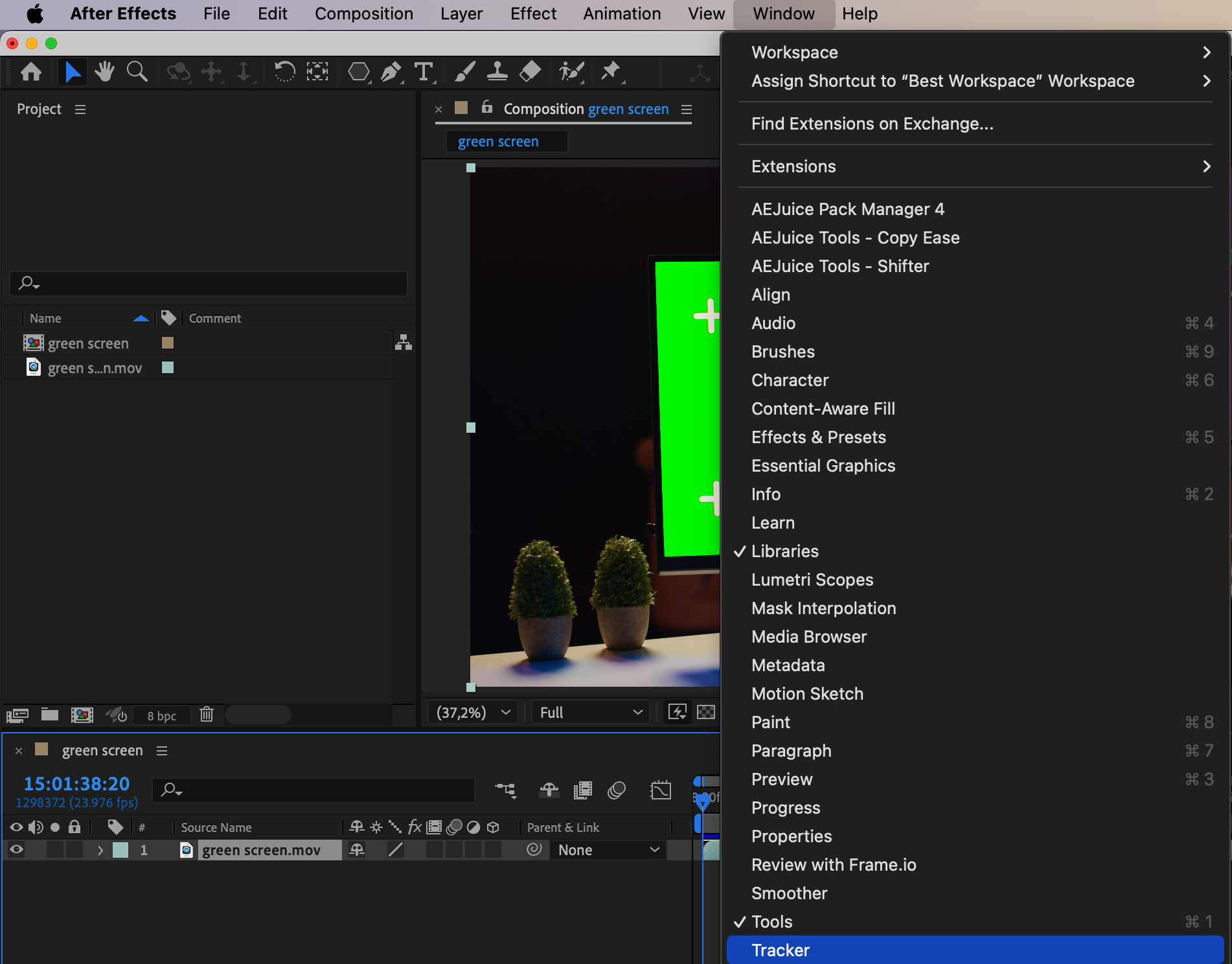
Click on the footage layer in the timeline. Then go to Window > Tracker to open the Tracker panel. This panel allows you to track motion and apply the data to another layer.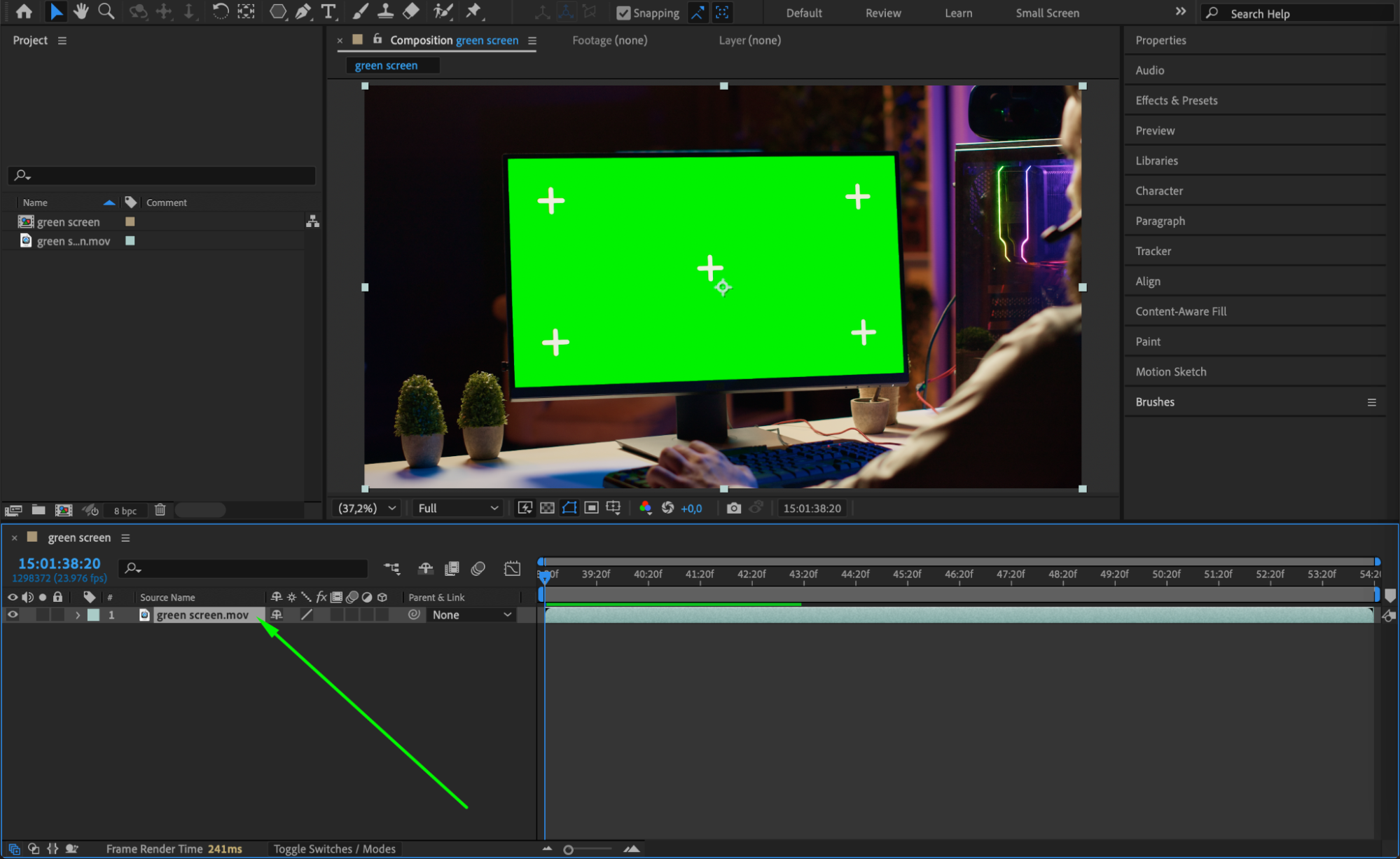
Step 3: Choose Track Motion and Enable Perspective Tracking
In the Tracker panel, click Track Motion. Enable the Perspective Corner Pin option. This will allow you to track four corner points of the screen, which is important for accurately replacing it, especially if there’s any camera movement or screen tilt.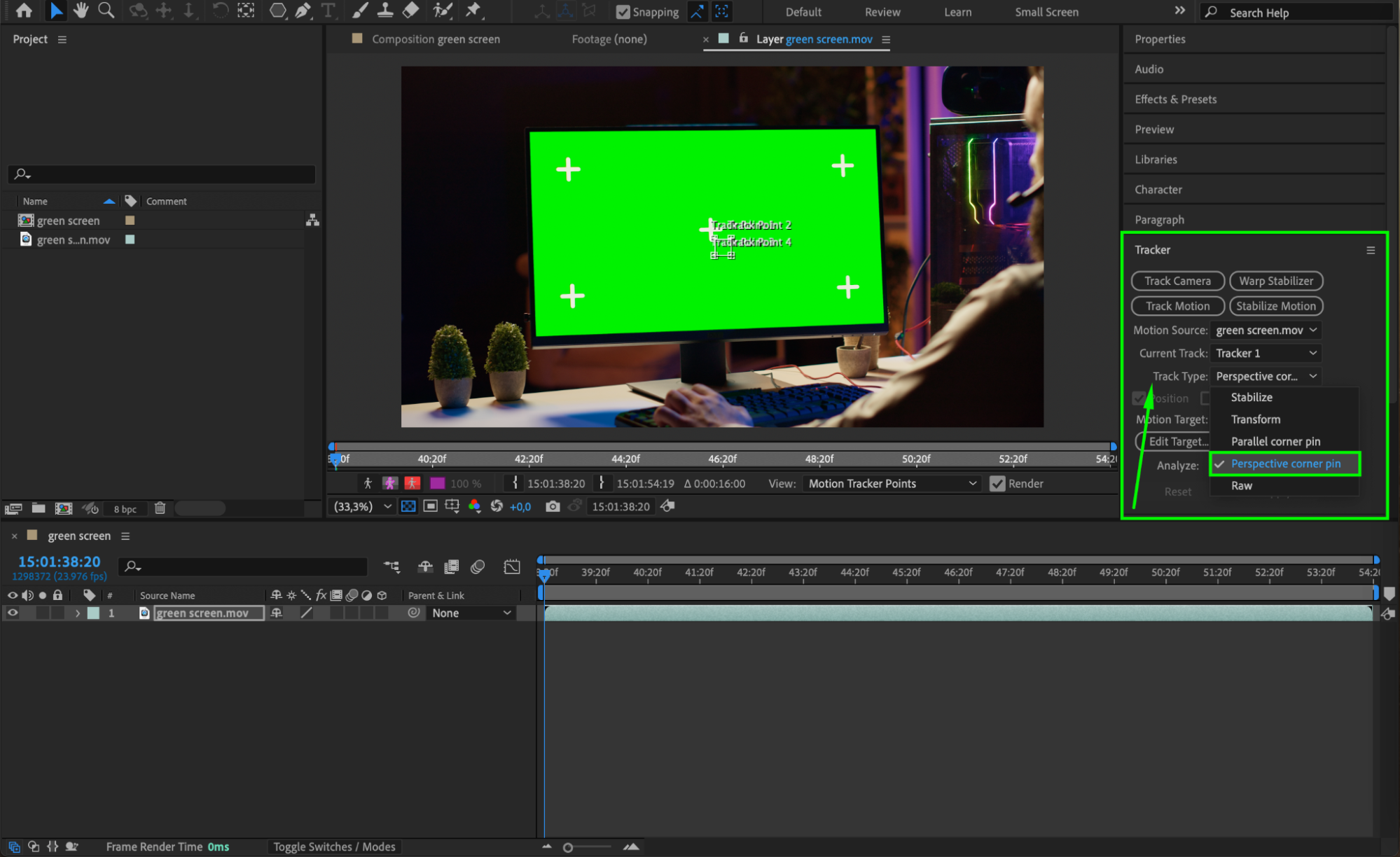 Step 4: Place Track Points on the Corners of the Screen
You will see four track points appear on the footage. Carefully drag and place each one at the exact corners of the screen you want to replace. Zoom in for precision. Make sure each track point is placed on a high-contrast area to ensure good tracking results.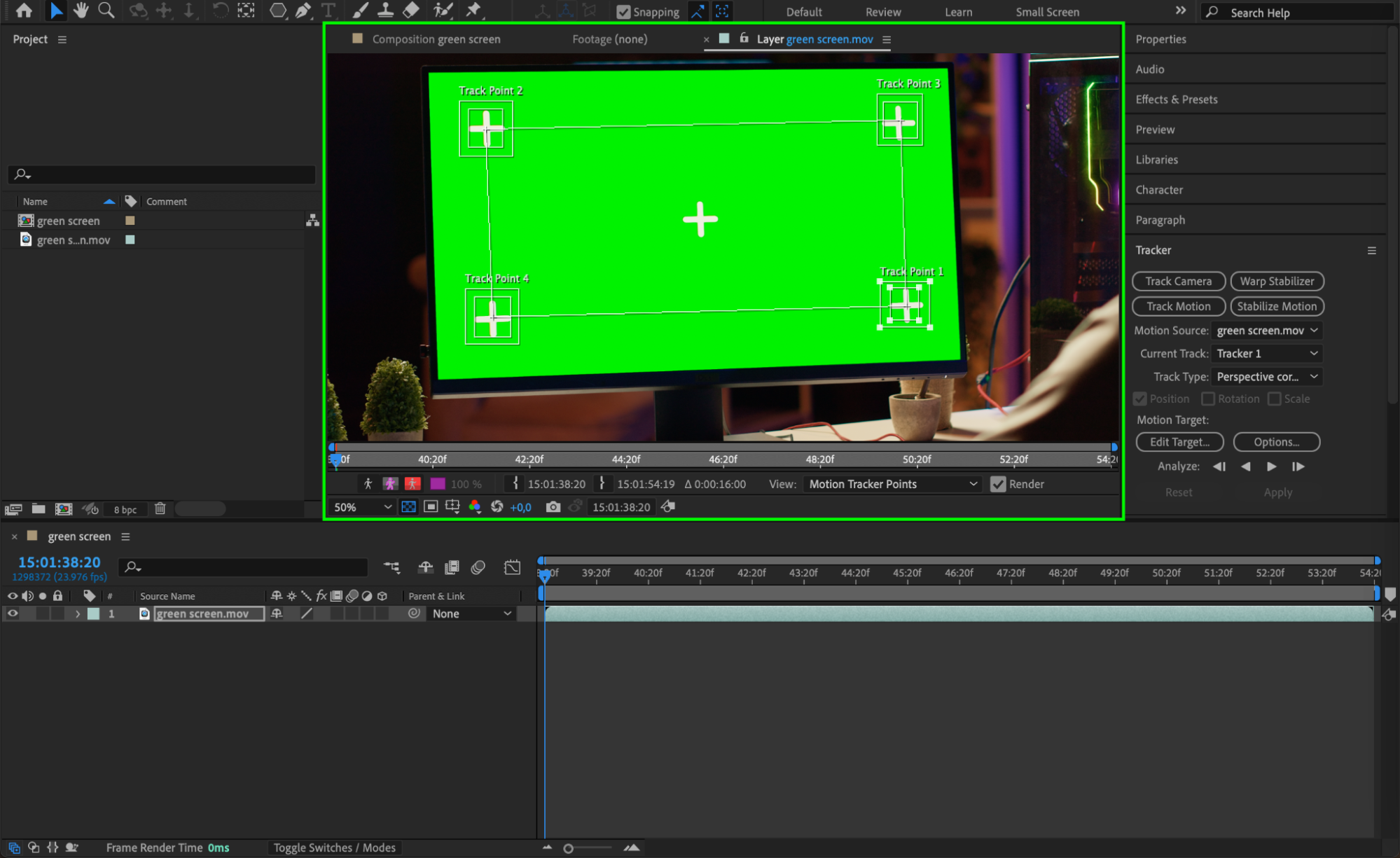 Step 5: Analyze the Motion
With the track points in place, click the Play Forward (▶) button in the Tracker panel to analyze the motion. After Effects will track the corner points frame by frame. If the track fails or drifts, stop the analysis and manually adjust the points, then continue.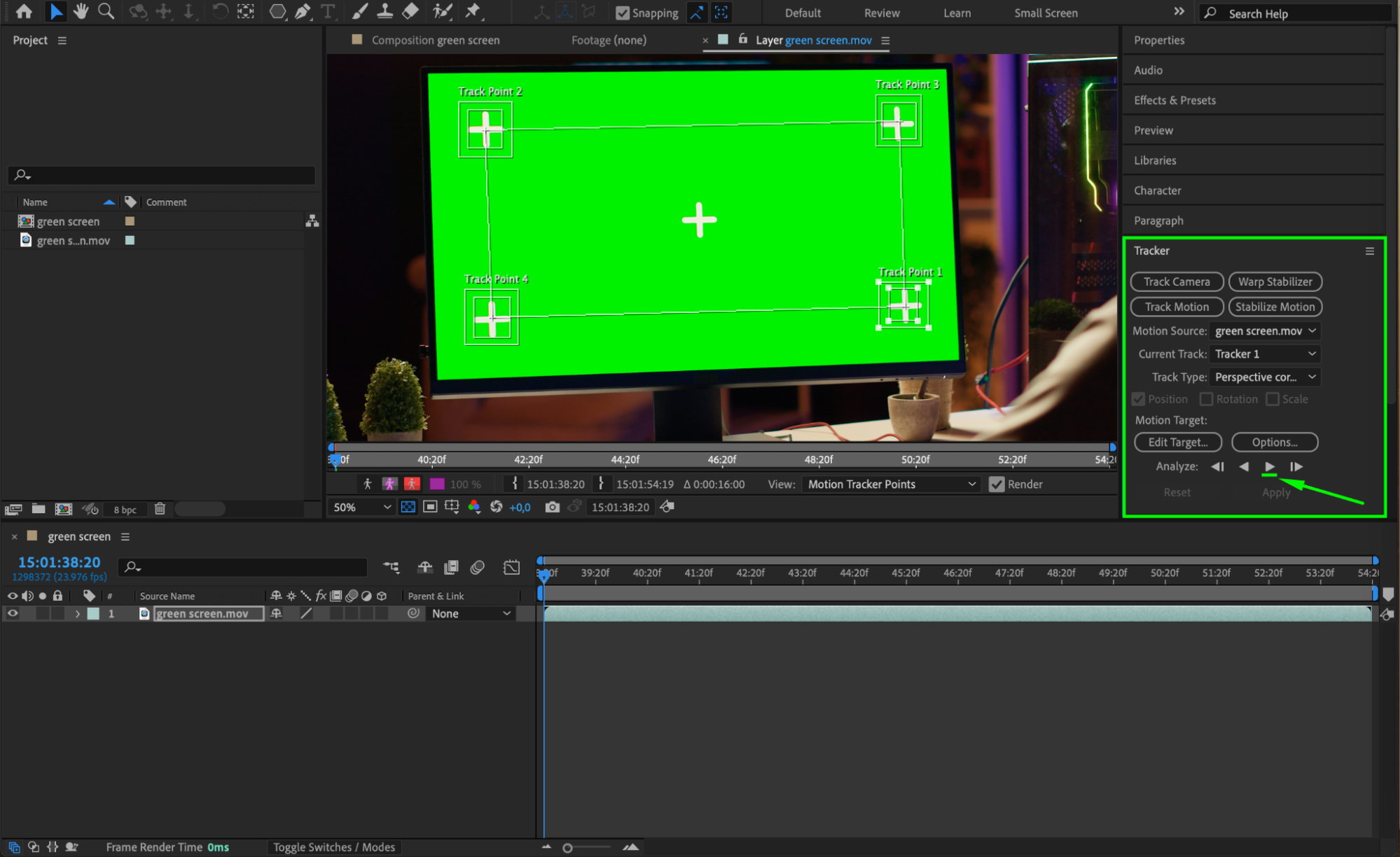
Step 6: Create a Solid or Import Your Screen Replacement
Once the tracking is complete, either import your custom screen content (image or video) or create a solid layer to represent it. This will be used to replace the original screen.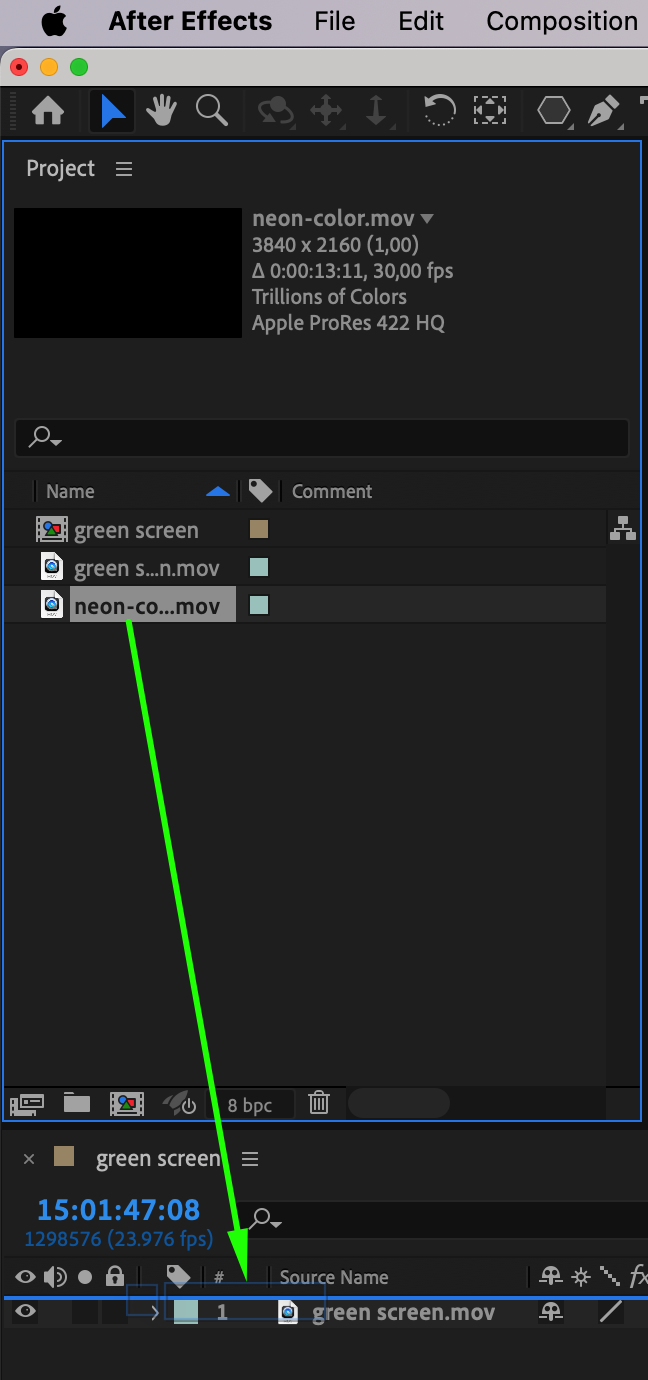 Step 7: Apply Tracking Data to the Replacement Layer
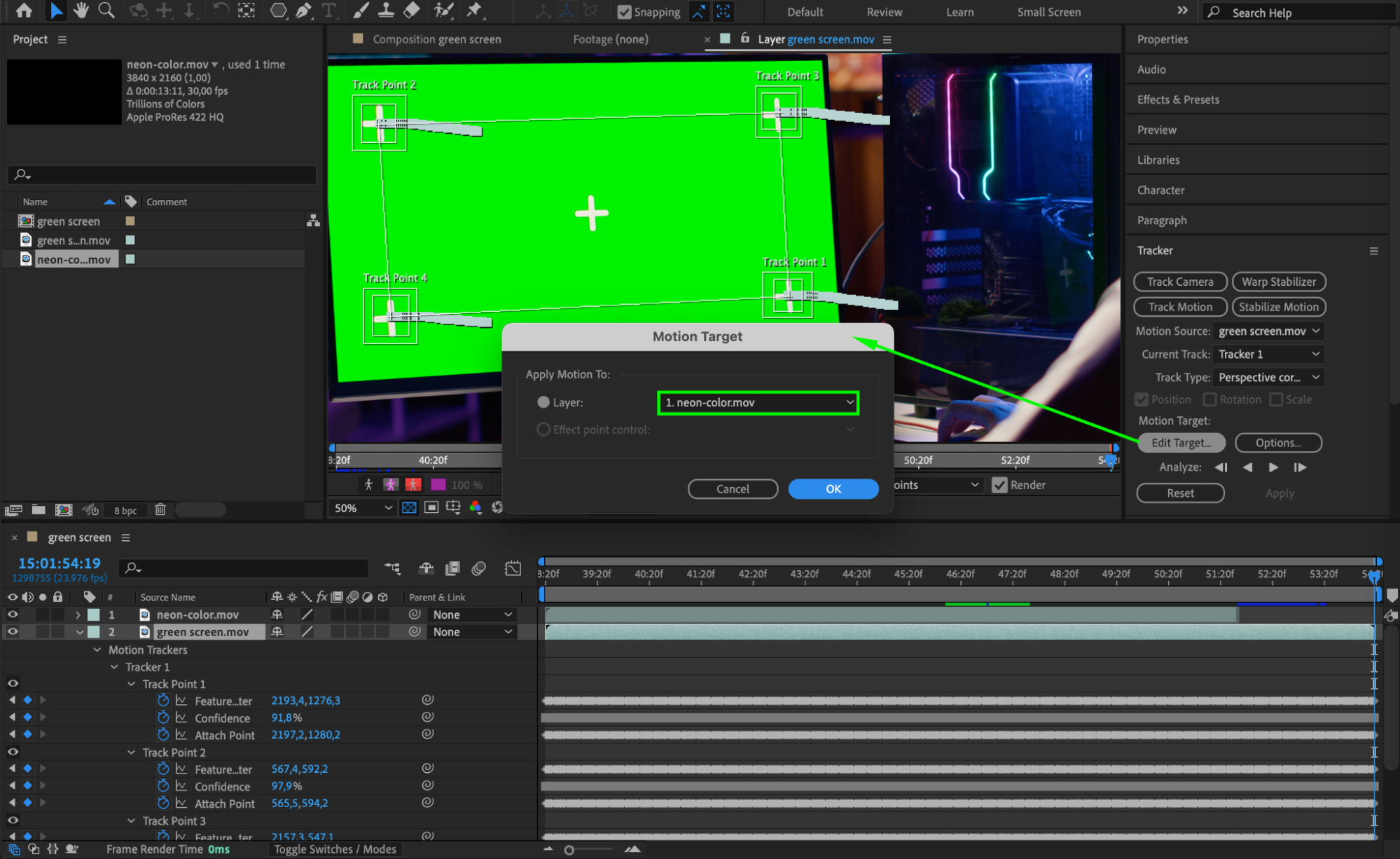
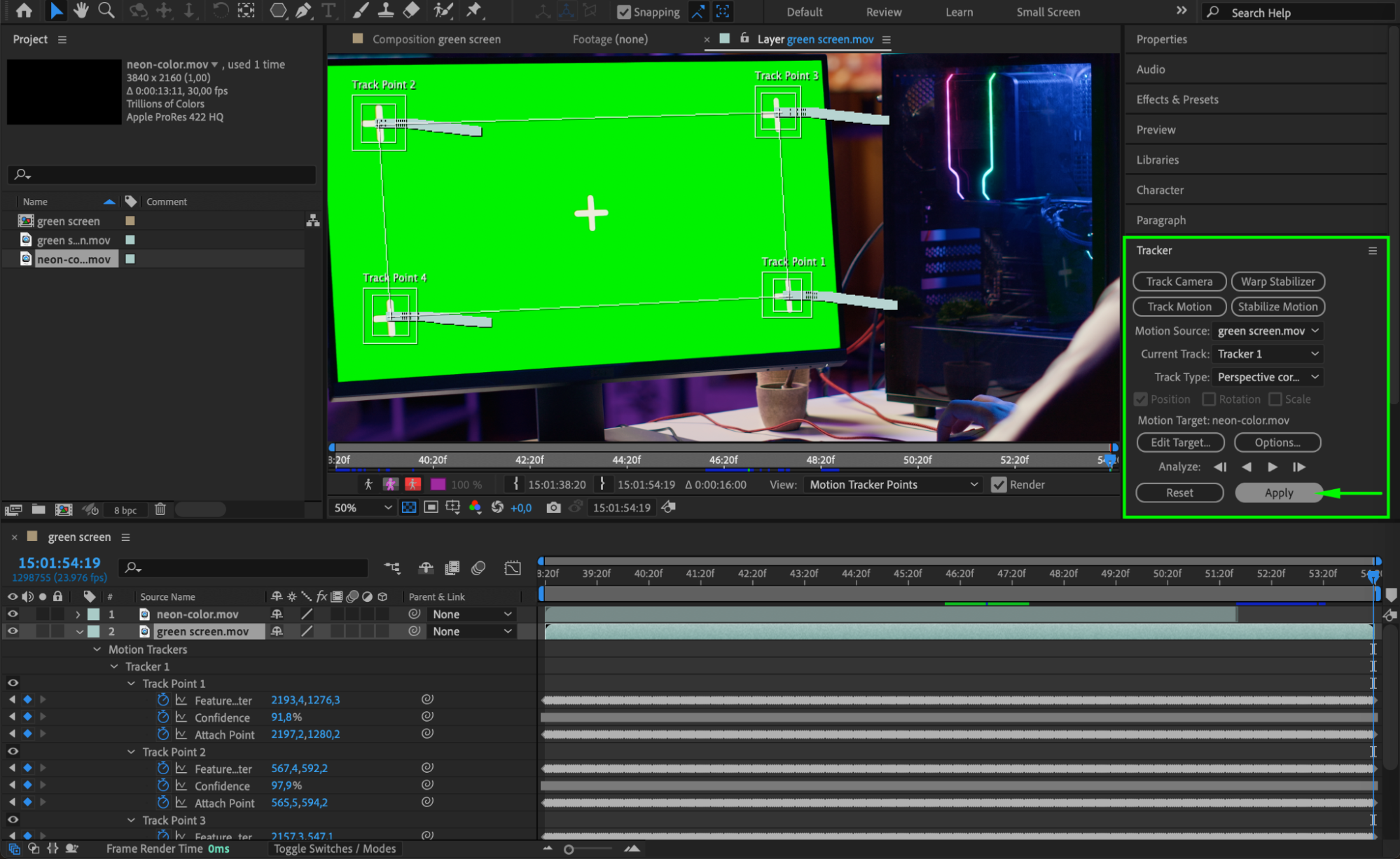
Back in the Tracker panel, click Edit Target and choose the layer you want to use as the replacement. Then click Apply. The replacement content will now follow the tracked screen movement.
 Step 8: Final Adjustment
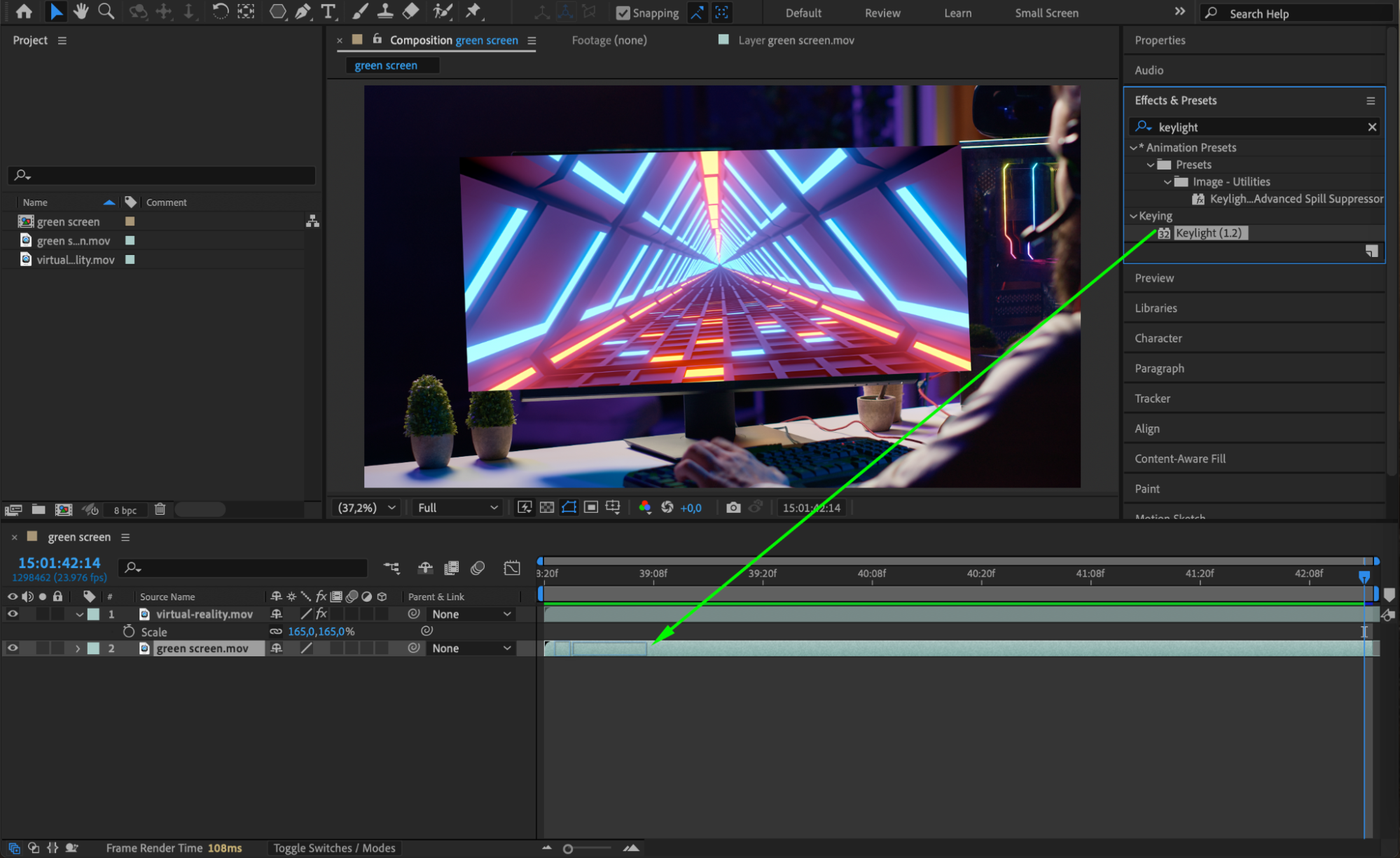
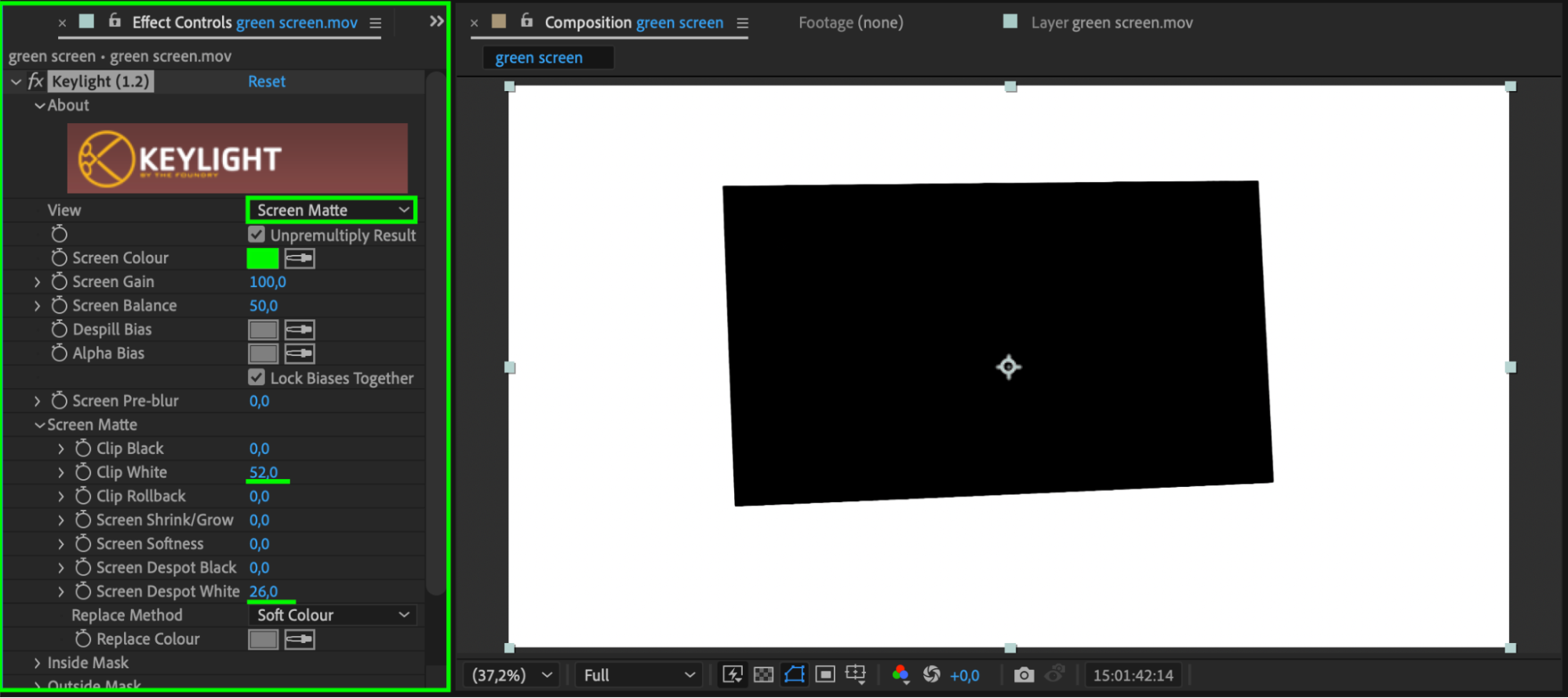
Adjust the scale of your screen replacement video if needed to match the device screen. Then, apply the Keylight (1.2) effect to the layer with the green screen. Use the eyedropper tool to select the green background color. Change the View to Screen Matte. Adjust the Clip White value to around 52 until the background becomes fully white, and set Screen Despot White to around 26 until the screen area becomes fully black. This ensures a clean key. Once you’re satisfied, switch the View back to Final Result, and place this layer above your background video in the timeline.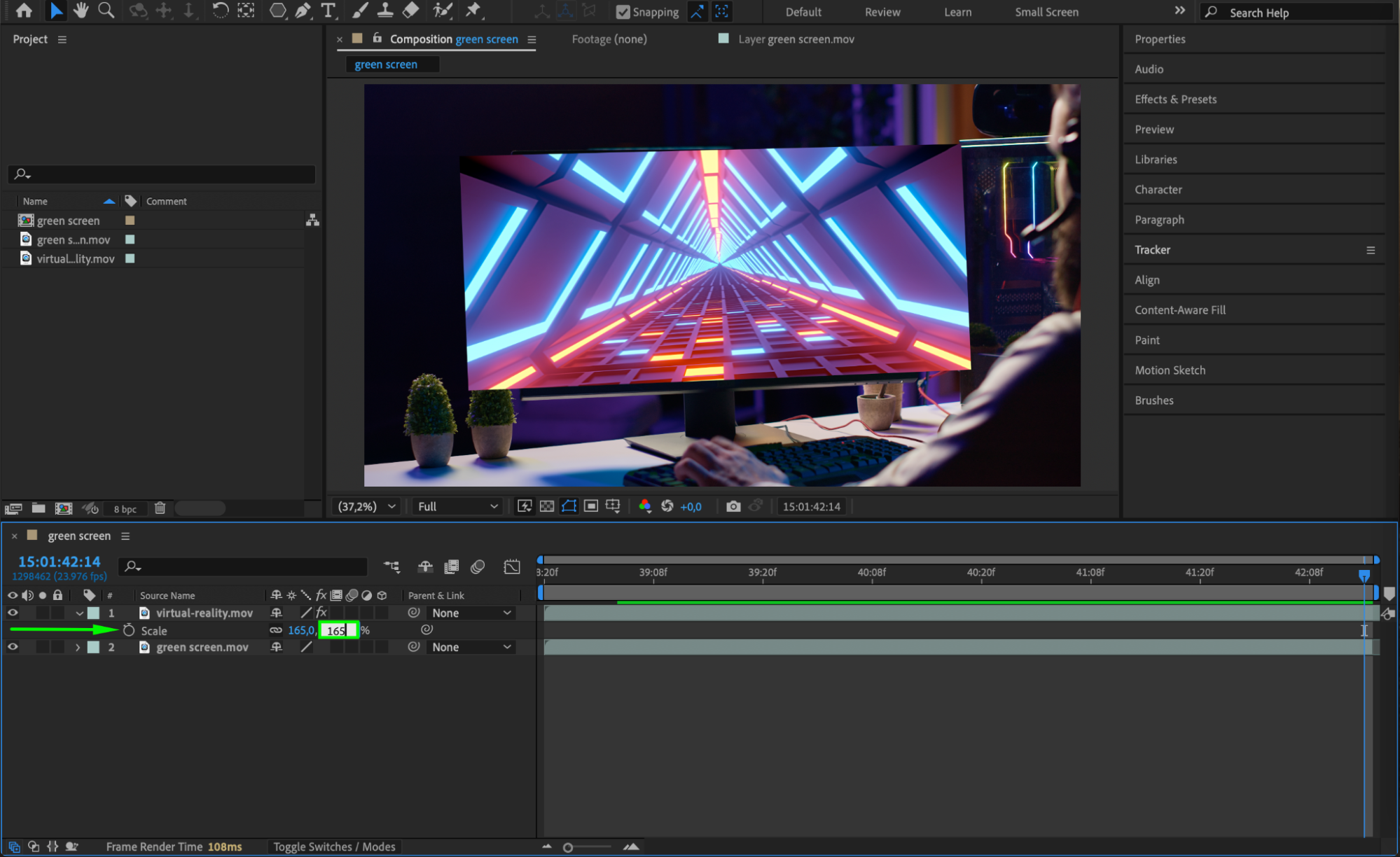
 Step 9: Preview and Fine-Tune
Play back the composition to see how your replacement behaves. If necessary, adjust position, scaling, or timing so it fits perfectly with the scene. You can also use feathering or color correction to match the lighting of the original footage.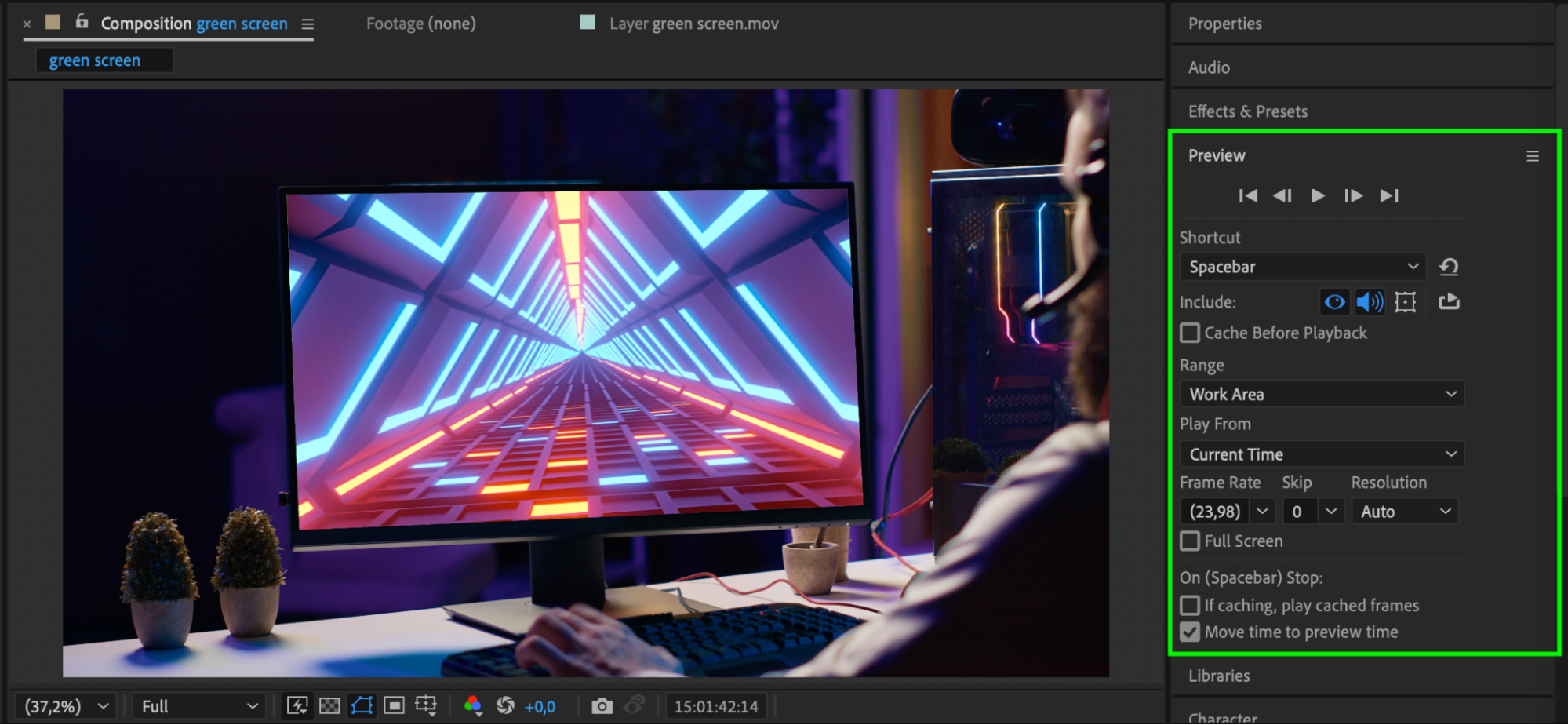
Conclusion
Screen replacement with tracking in After Effects allows you to integrate new visuals into your footage with professional results. By carefully placing tracking points and using perspective tracking, you can make your content appear as if it was always part of the original video. With a bit of precision and tweaking, your replaced screen will blend seamlessly into your scene.
Our Bestsellers
Our Bestsellers


