
Introduction
Reversing keyframes in After Effects is a quick way to make an animation play in reverse — for example, to rewind movement, fade in instead of fade out, or invert any animated sequence. This feature helps you save time and keep your motion smooth and consistent.
Step 1: Open Your Project
Start by opening your project in After Effects and select the layer you want to animate or edit.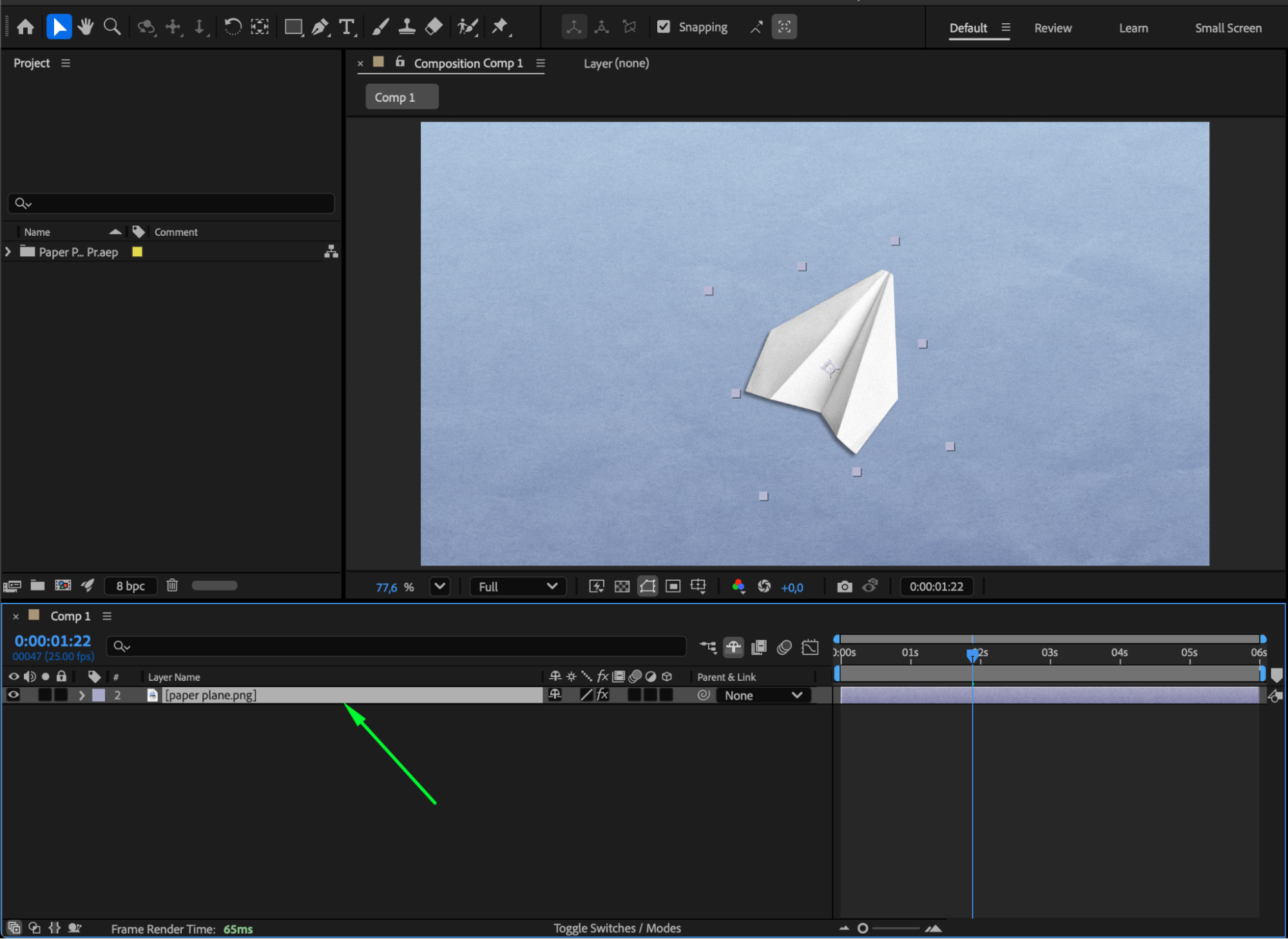 Step 2: Create Keyframes
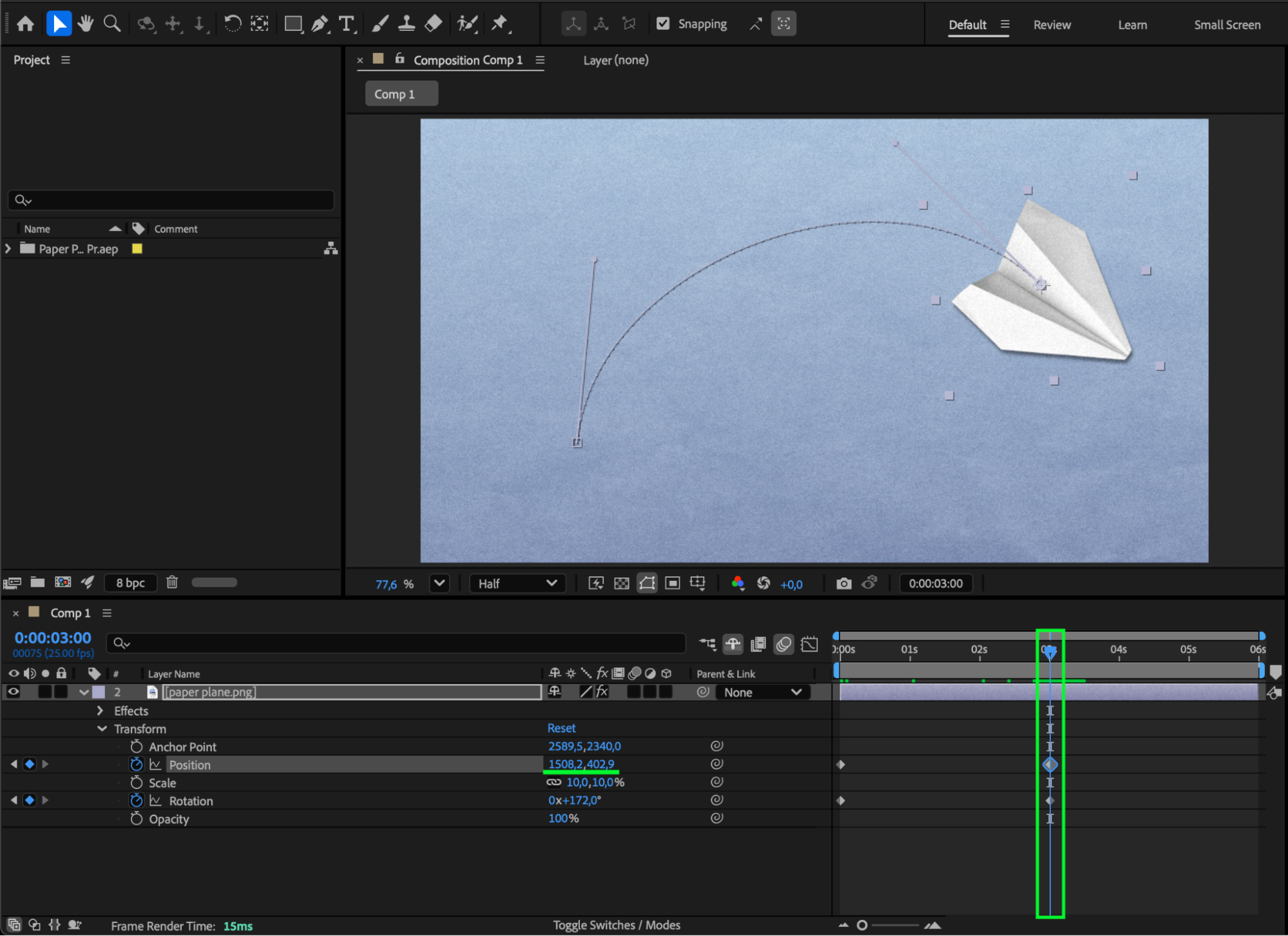
Expand the layer’s properties (such as Position, Scale, or Opacity) and create your keyframes by clicking the stopwatch icon next to the parameter. Animate the layer as you normally would.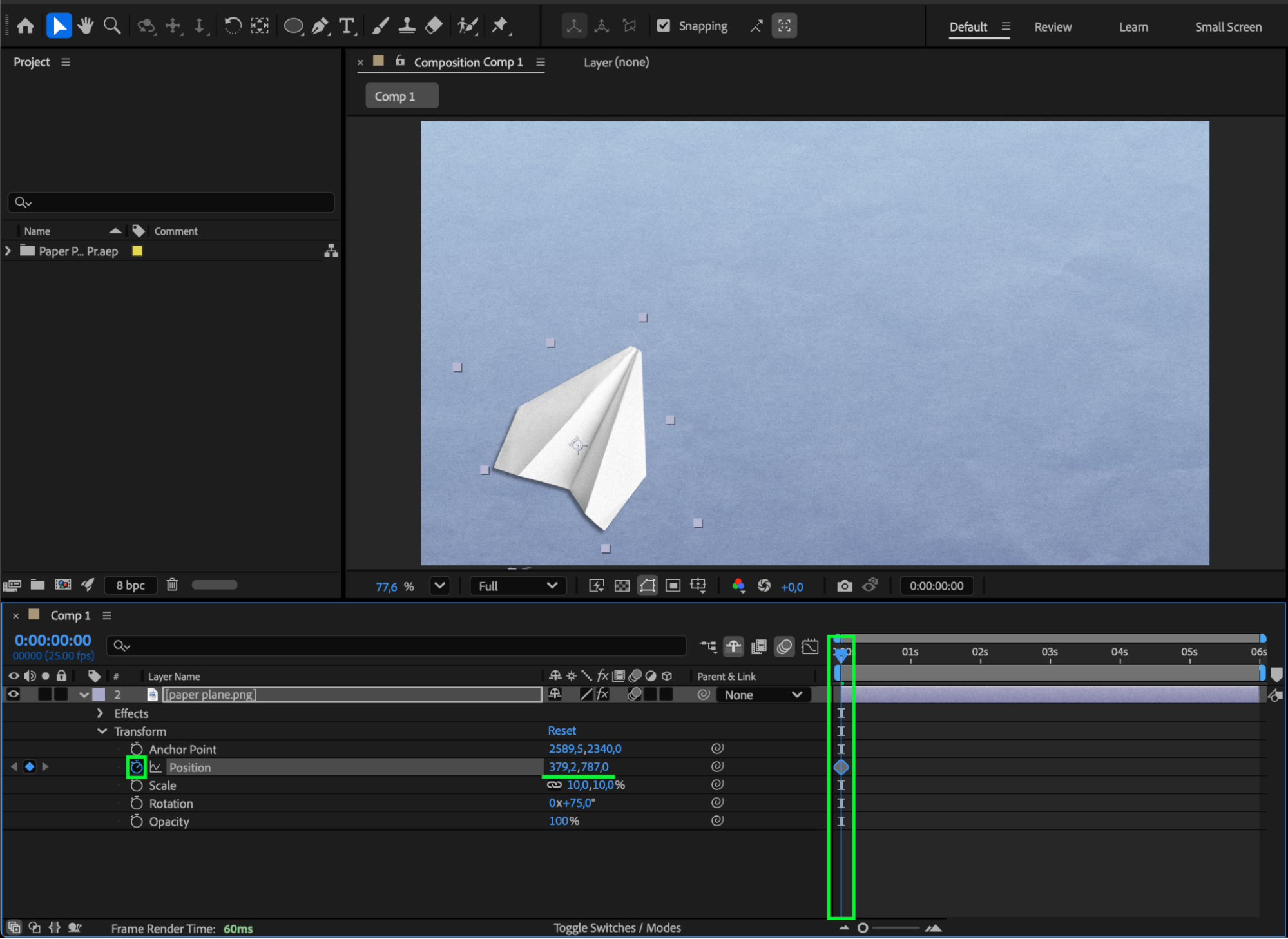
Step 3: Reveal All Keyframes
Once your animation is ready, select the layer and press “U” on your keyboard. This will display all the properties that contain keyframes.
Step 4: Reverse the Keyframes
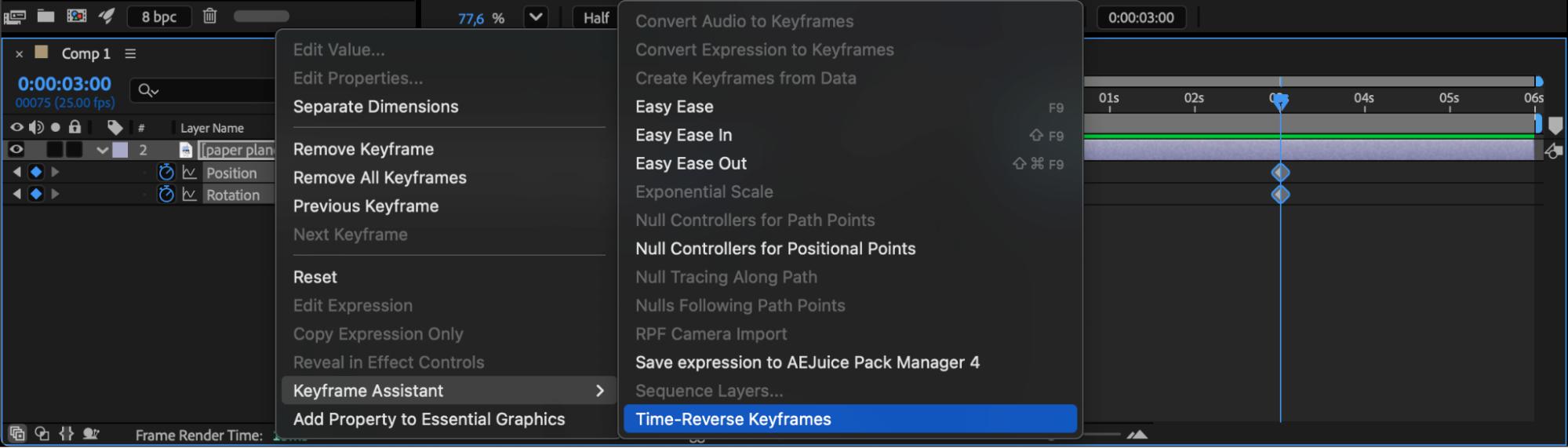
Highlight all the keyframes you want to reverse. Then right-click and go to Keyframe Assistant > Time-Reverse Keyframes. After Effects will automatically flip the order of the keyframes, making your animation play backward in time.
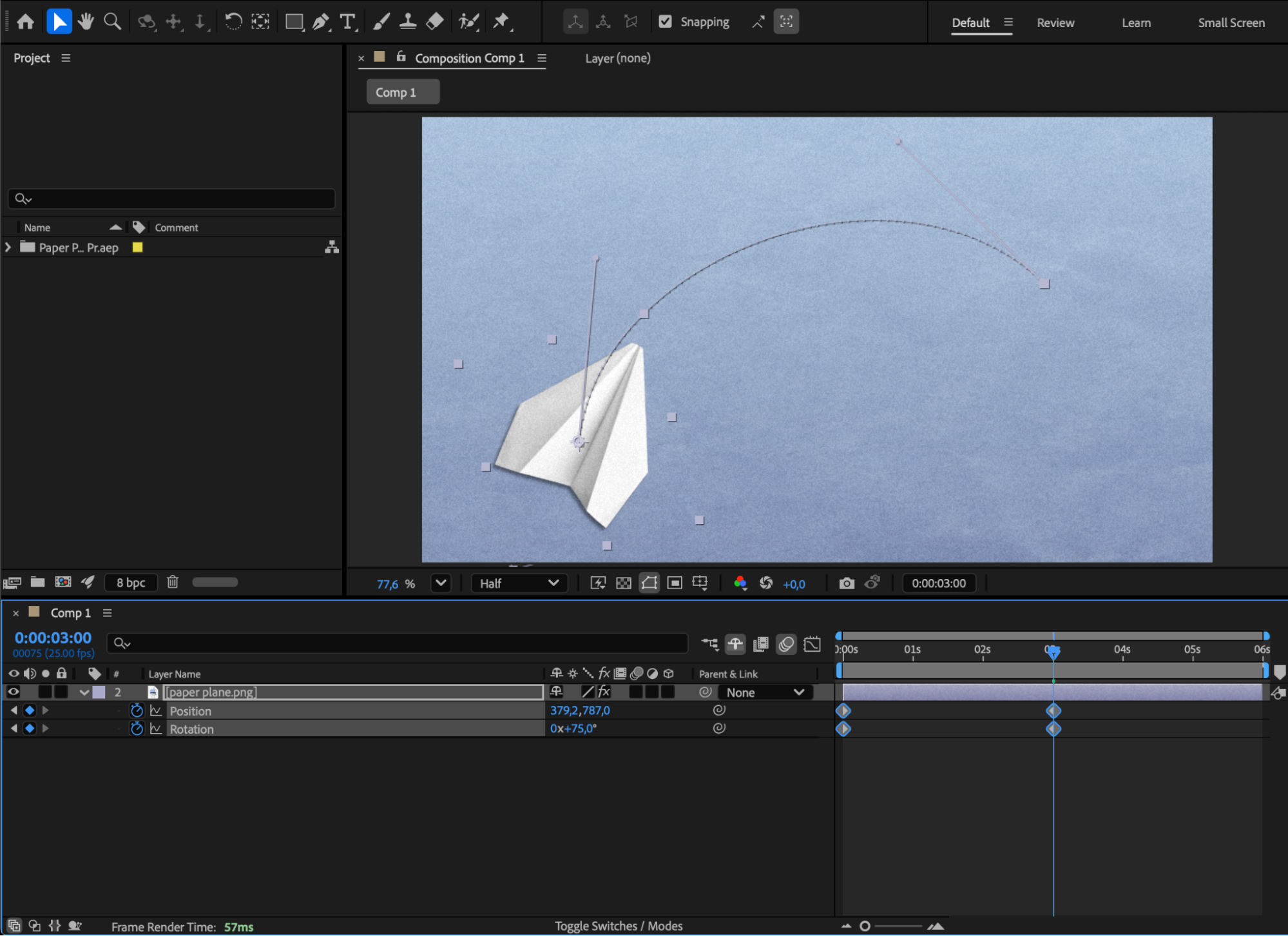
Step 5: Refine with Easy Ease and Graph Editor
To smooth out motion and timing, select your keyframes and press F9 (Easy Ease). You can further adjust the timing curve in the Graph Editor for more natural motion and flow.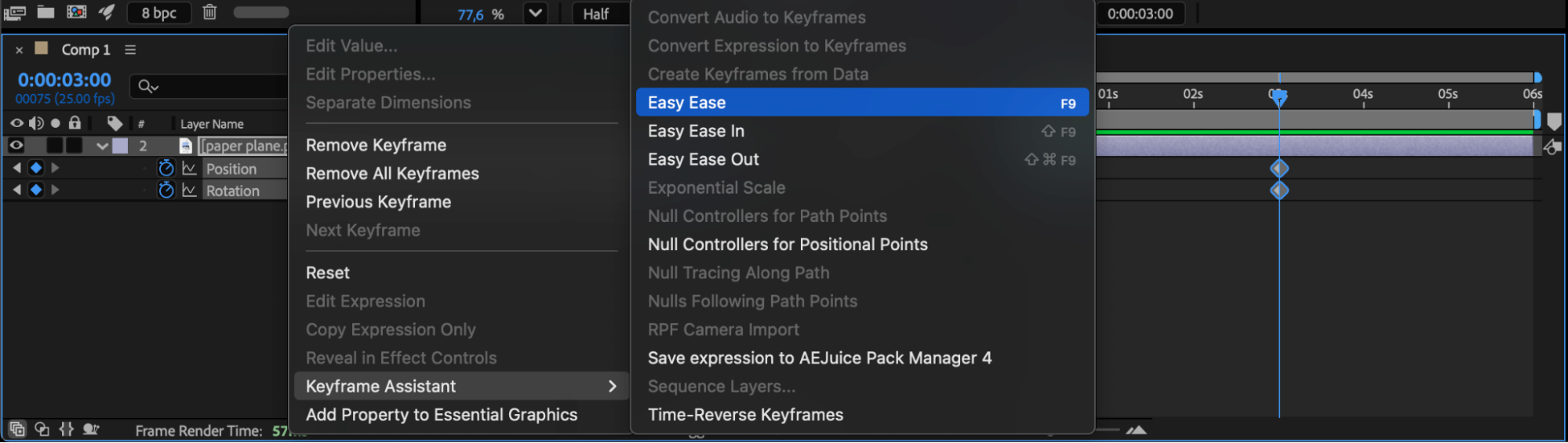
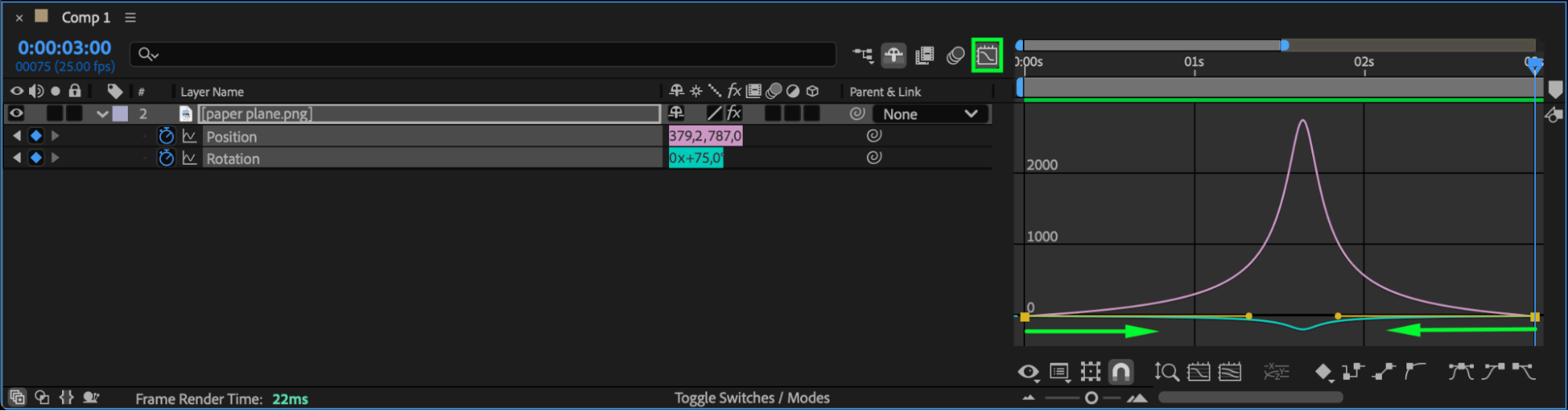 Step 6: Preview the Animation
Press the Spacebar to preview your reversed animation. You’ll see your layer now plays in reverse, maintaining the same smooth transitions as before.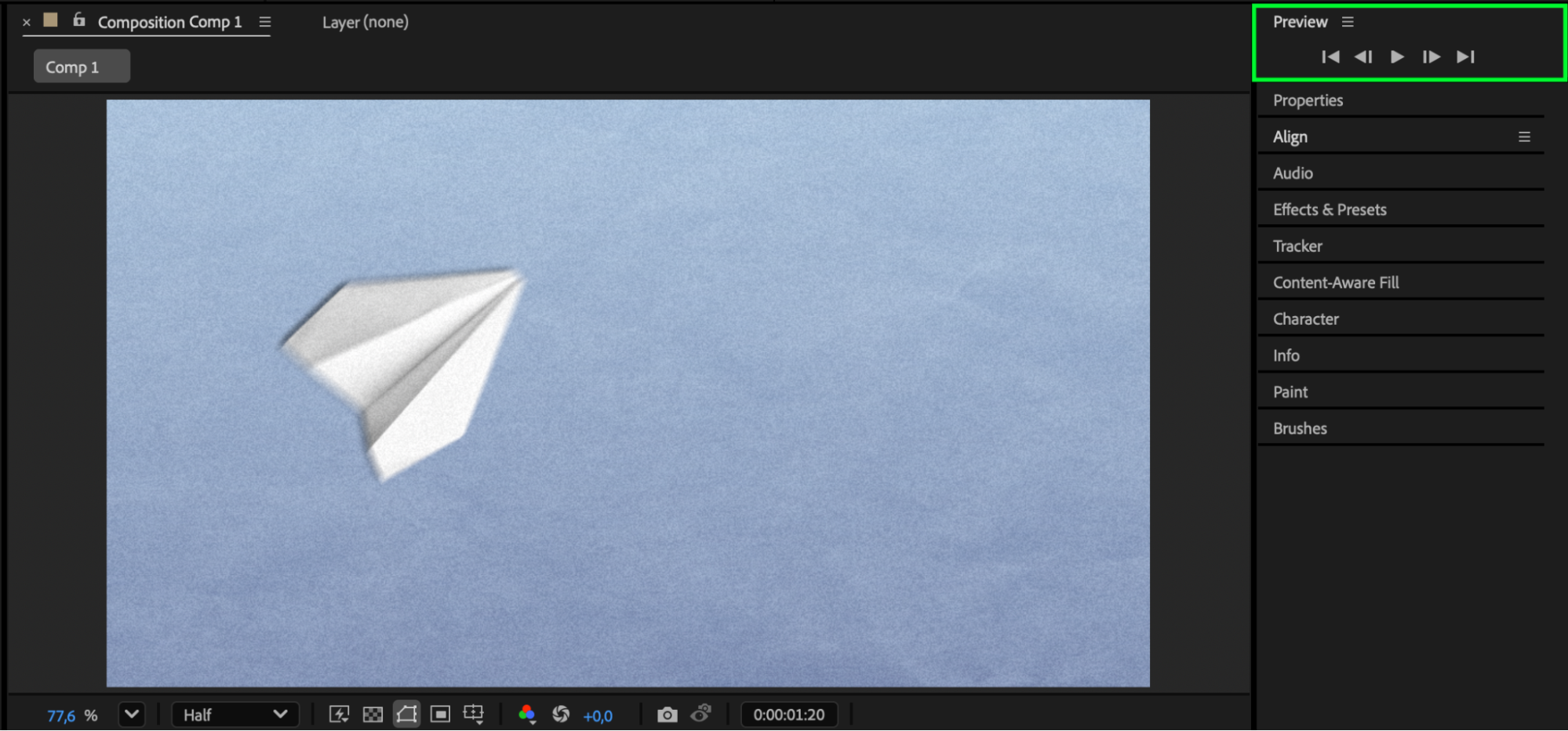
Conclusion
Using the Time-Reverse Keyframes feature in After Effects is a simple yet powerful way to reverse any animation. Combine it with Easy Ease and the Graph Editor to create fluid, professional-looking motion in just a few clicks.
Our Bestsellers
Our Bestsellers


