Introduction
When scaling a layer in After Effects, it’s important to maintain its original proportions. If the width and height are scaled independently, the layer becomes stretched or distorted. Fortunately, After Effects provides simple tools to scale uniformly while keeping dimensions locked.
In this tutorial, you’ll learn the safest and most efficient methods to scale a layer proportionally.
Method 1: Use Uniform Scale (Default Behavior)
By default, After Effects scales layers proportionally when dimensions are linked.
Step 1: Select the Layer
Click the layer you want to scale in the Timeline panel.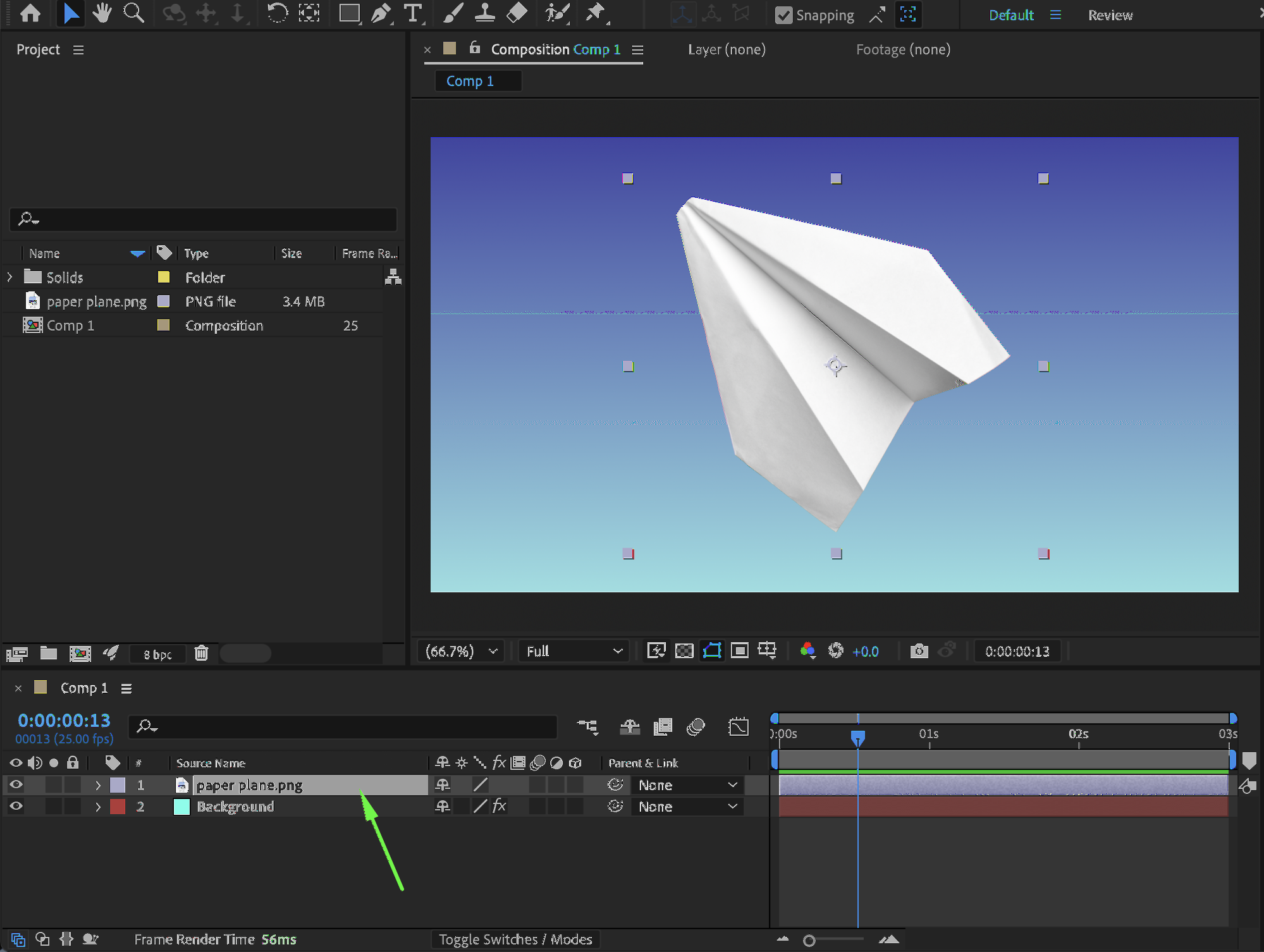
Step 2: Reveal the Scale Property
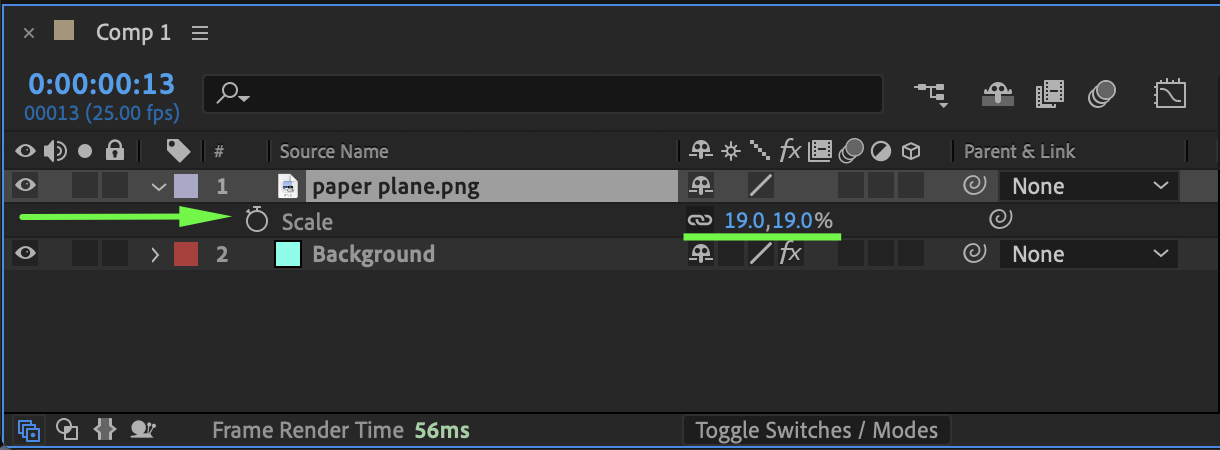
Press S on your keyboard to open the Scale property. You will see two values (for 2D layers):
X (Width)
Y (Height)
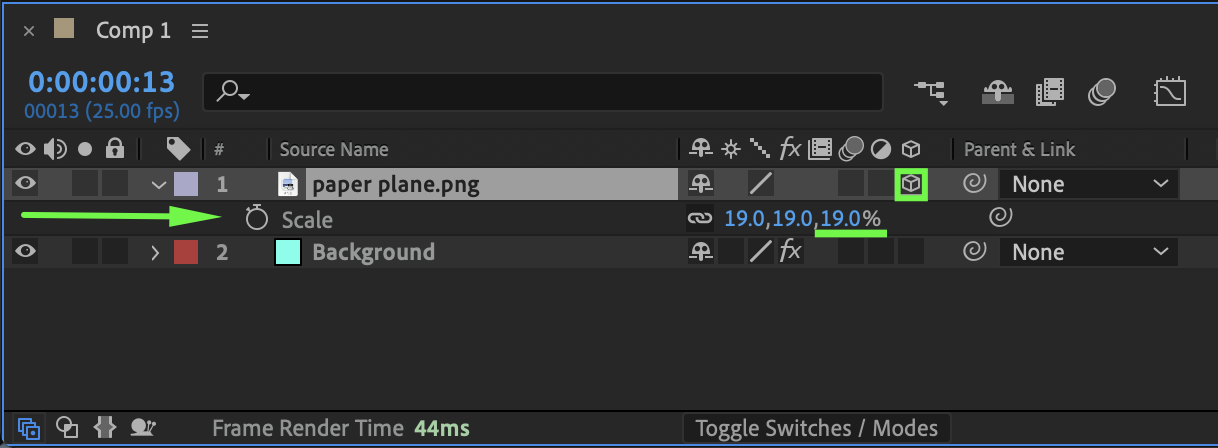
For 3D layers, you’ll see:
X
Y
Z
Get 10% off when you subscribe to our newsletter

Step 3: Make Sure the Constrain Proportions Icon Is Enabled
Next to the Scale values, you’ll see a small chain link icon. If the chain icon is enabled (linked), the scale values are locked together. Changing one value automatically adjusts the others proportionally.
If it’s disabled:
Click the chain icon to re-enable proportional scaling.
Now you can change one value (for example, from 100% to 150%), and the layer will scale evenly.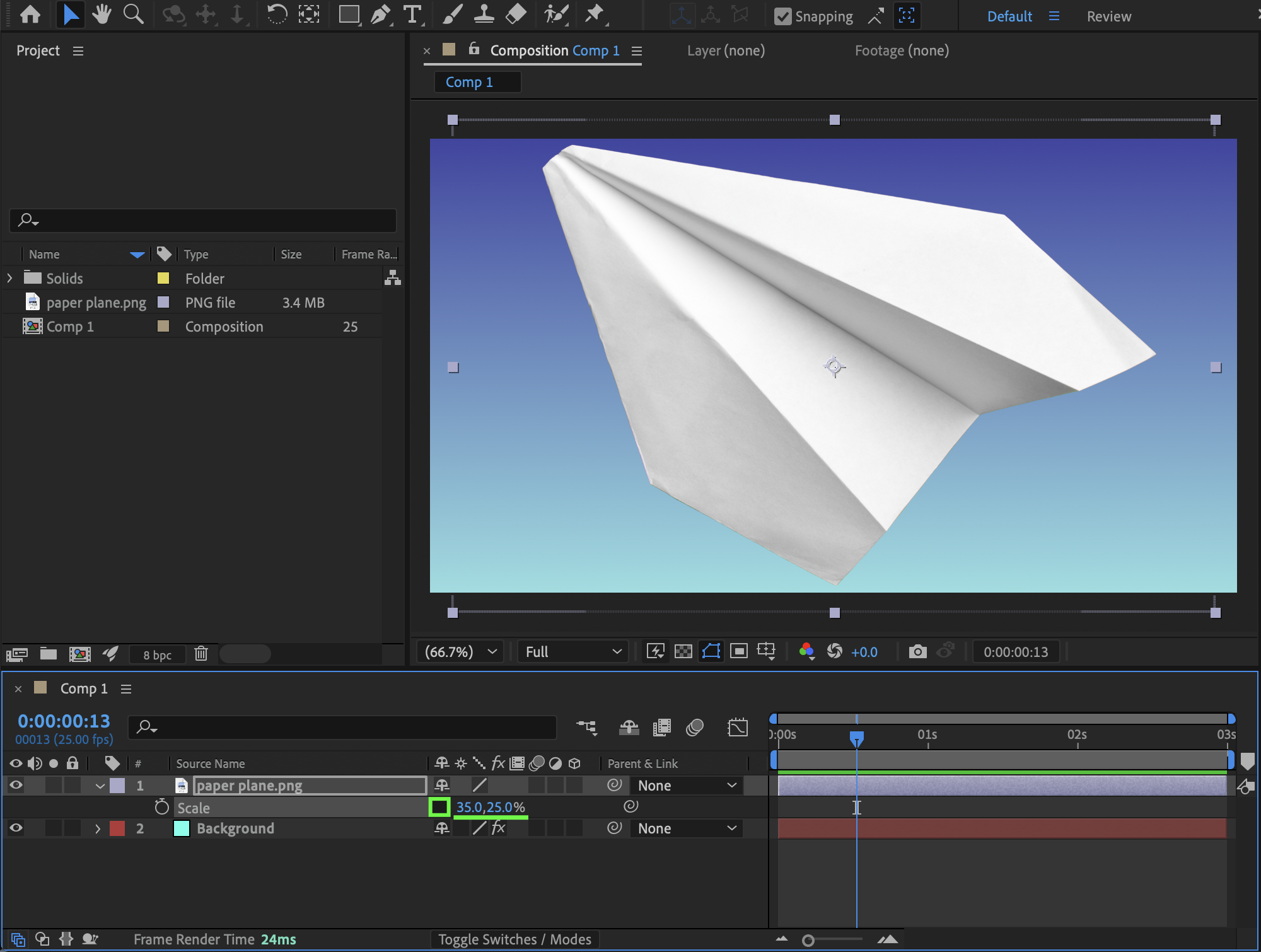
Method 2: Scale Using the Selection Tool (Maintain Proportions in the Viewer)
You can also scale directly in the Composition panel.
Step 1: Select the Layer
Make sure the layer is selected.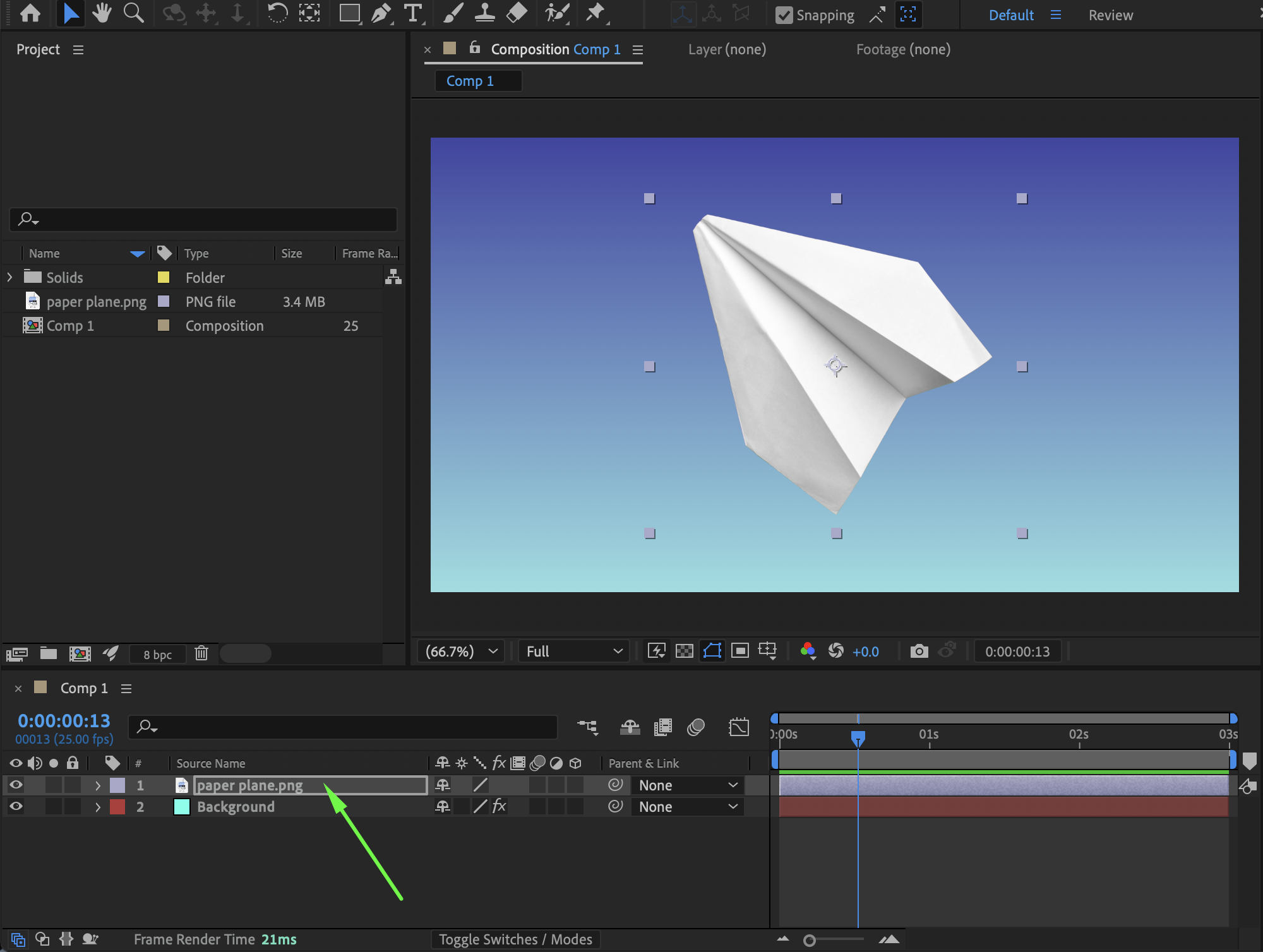
Step 2: Use Corner Handles
Drag one of the corner handles of the bounding box. To maintain proportions:
Hold Shift while dragging.
This ensures the layer scales uniformly without distortion.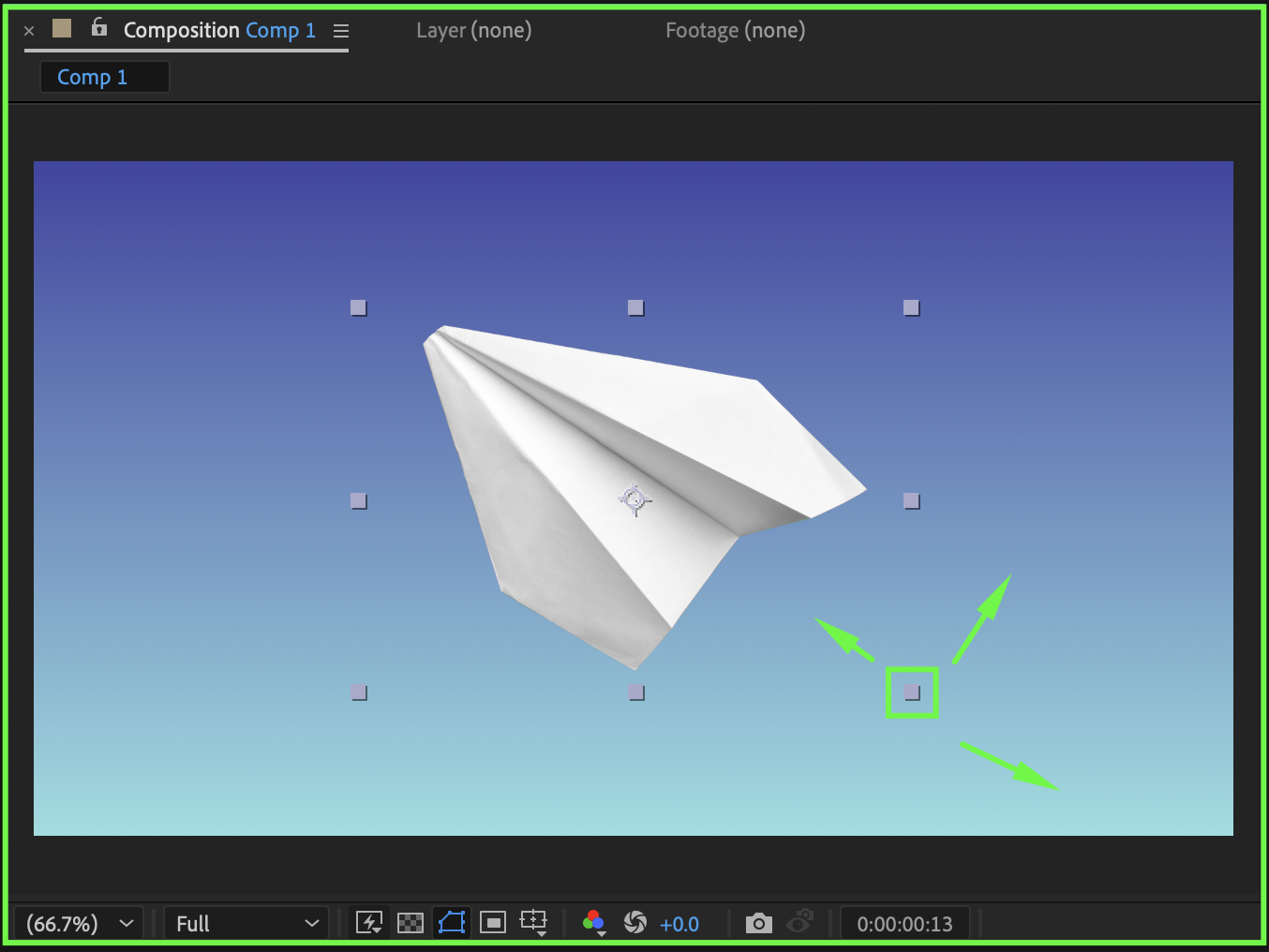
Method 3: Scale From the Center
Sometimes you want to scale proportionally from the center instead of an edge.
Step 1: Select the Layer
Click the layer in the timeline.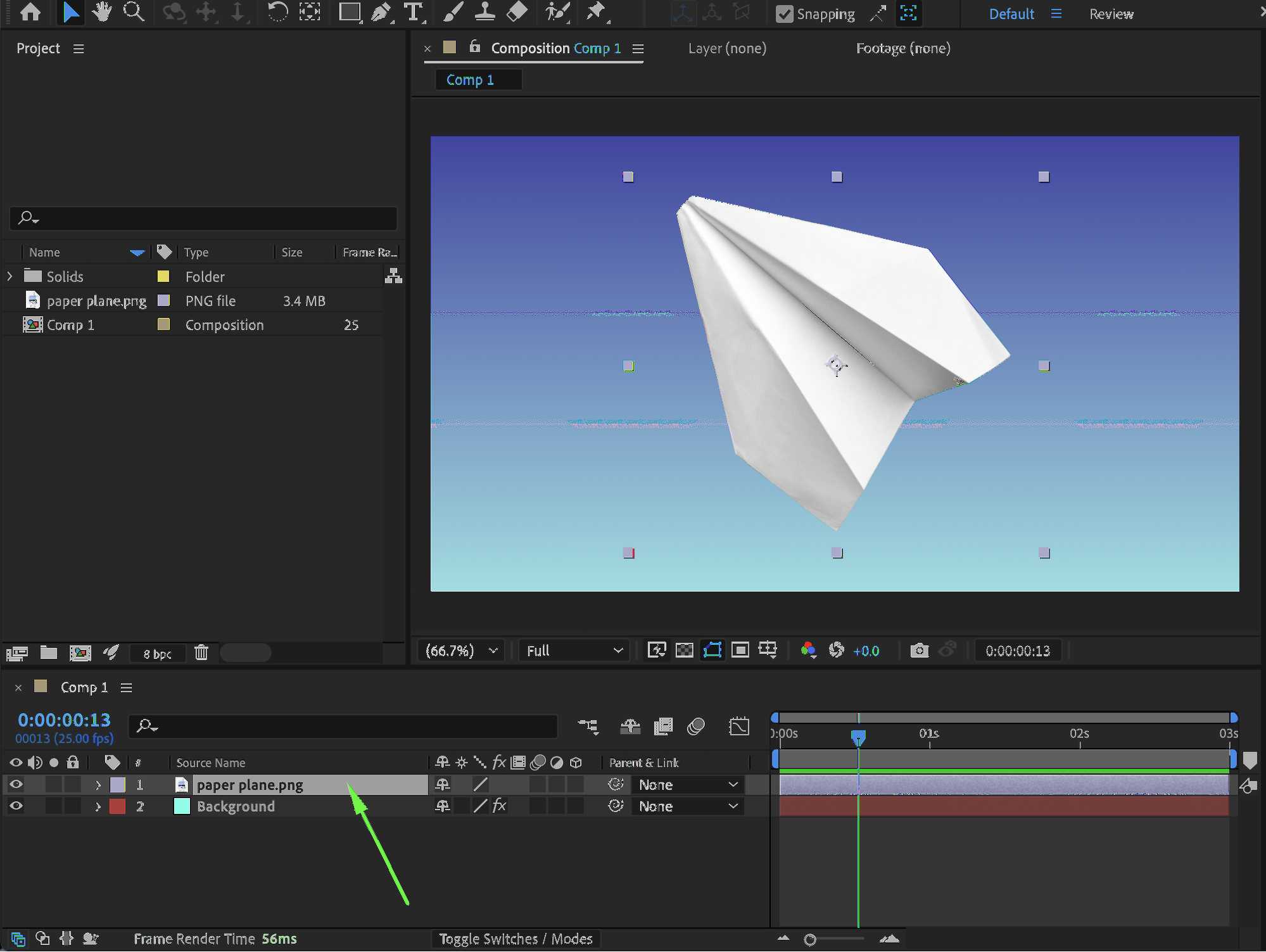
Step 2: Hold Modifier Keys While Dragging
Hold Shift + Alt (Windows)
Hold Shift + Option (Mac)
Then drag a corner handle.
This will:
Maintain proportions
Scale from the center of the layer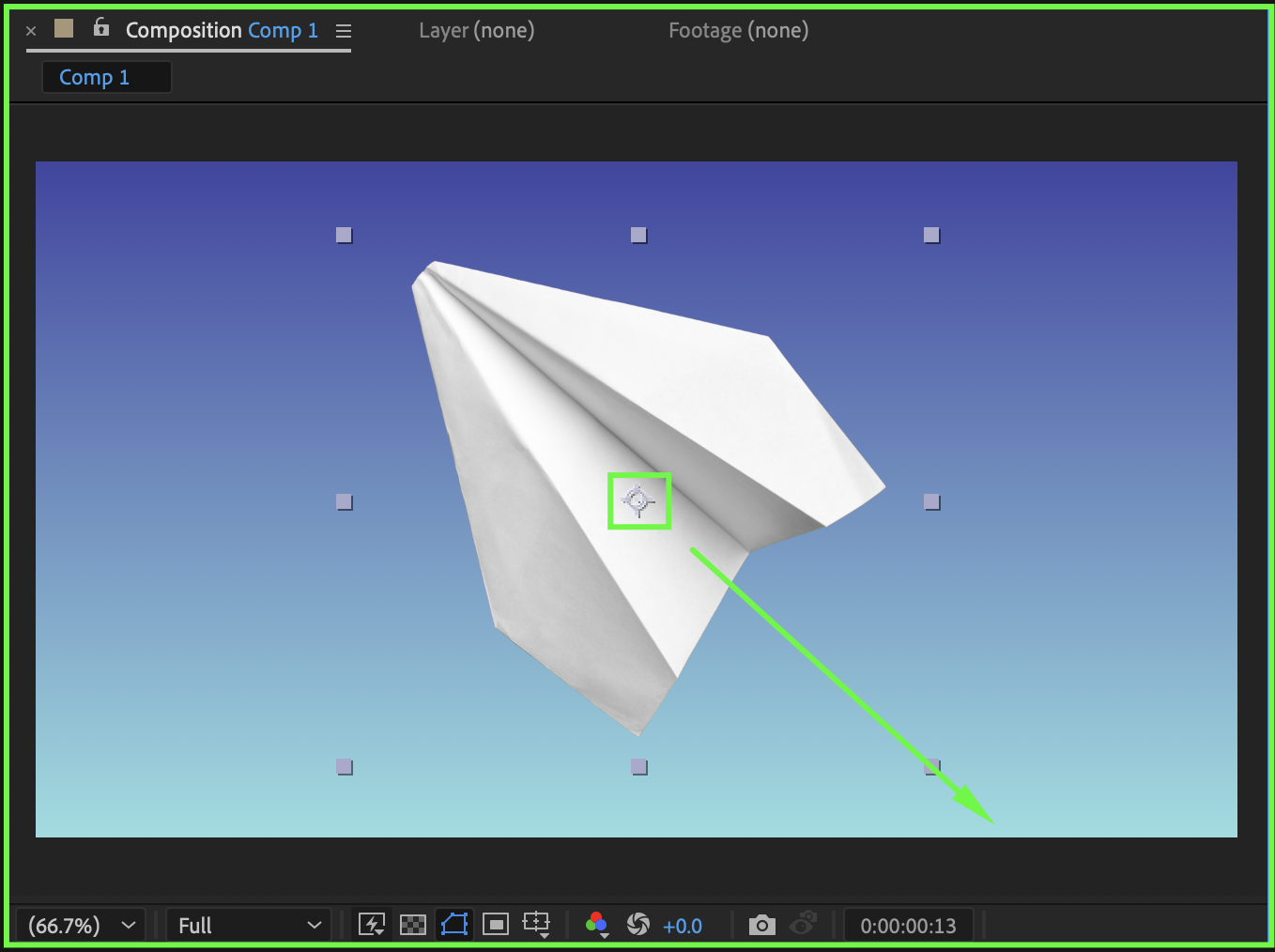
Important: Check Pixel Aspect Ratio
If your layer still looks distorted, verify:
The composition’s Pixel Aspect Ratio
The source file’s aspect ratio
Go to:
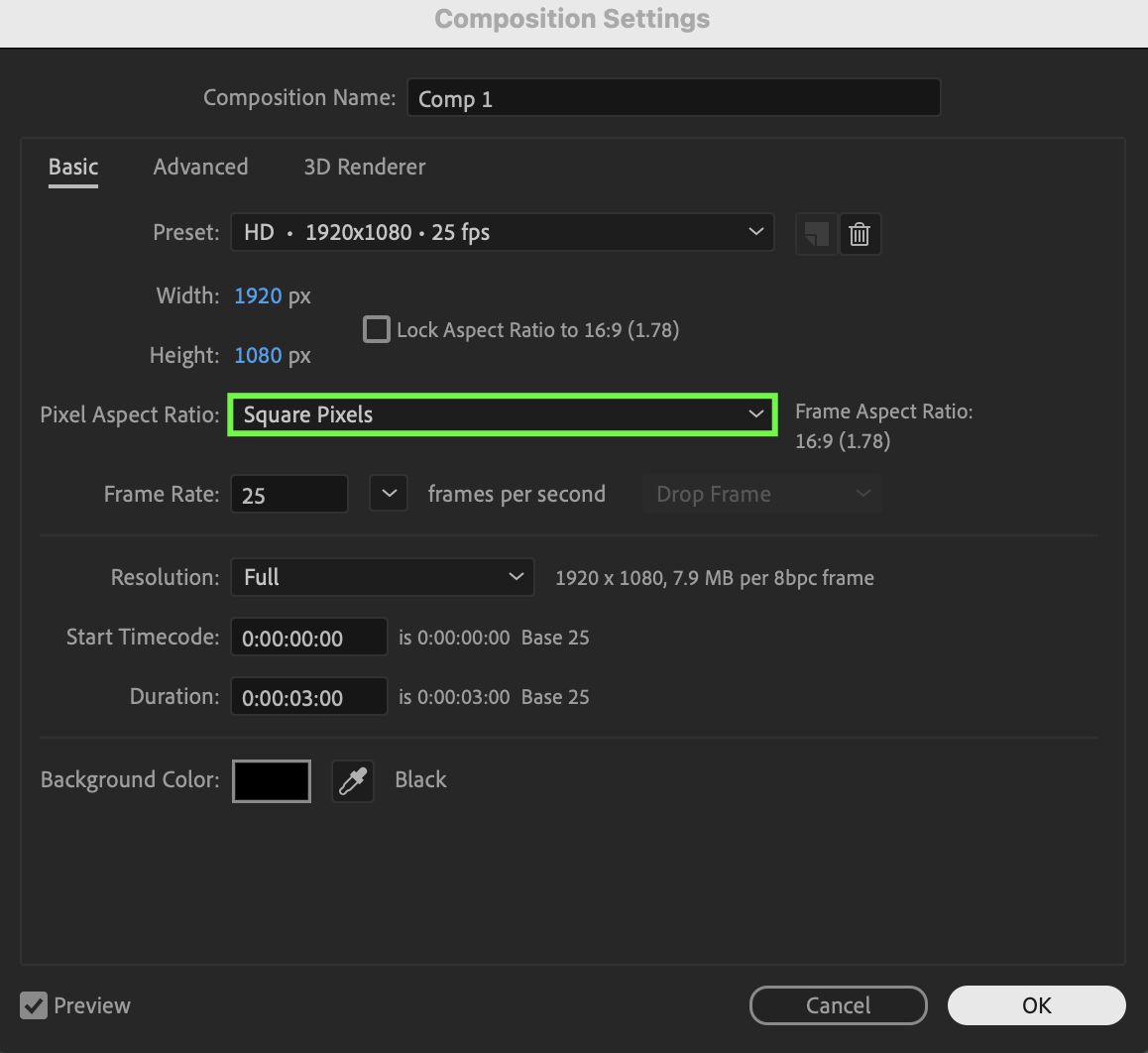
Composition → Composition Settings
Make sure Pixel Aspect Ratio is set correctly (usually Square Pixels for most modern projects).

Preview the Result
Scrub the timeline or preview the animation to confirm:
The layer scales smoothly
No stretching or distortion occurs
Proportions remain consistent
Conclusion
To scale a layer while keeping its dimensions correct in After Effects:
Keep the Scale values linked
Use Shift while dragging in the Composition panel
Use Shift + Alt / Option to scale from the center
Mastering proportional scaling ensures your designs remain clean, professional, and distortion-free in any project.
Our Bestsellers

