Introduction
When working with multiple layers in After Effects, scaling them together can sometimes cause unwanted movement. This usually happens because layers scale relative to a shared anchor point or a temporary bounding box center.
If you want to scale multiple layers without changing their positions in the composition, you need to adjust how scaling is applied. In this tutorial, you’ll learn the most reliable methods to scale multiple layers while keeping them perfectly in place.
Method 1: Scale Layers Individually (Maintain Original Positions)
This method ensures each layer scales relative to its own anchor point.
Step 1: Select Multiple Layers
Hold Shift and select all the layers you want to scale in the Timeline panel.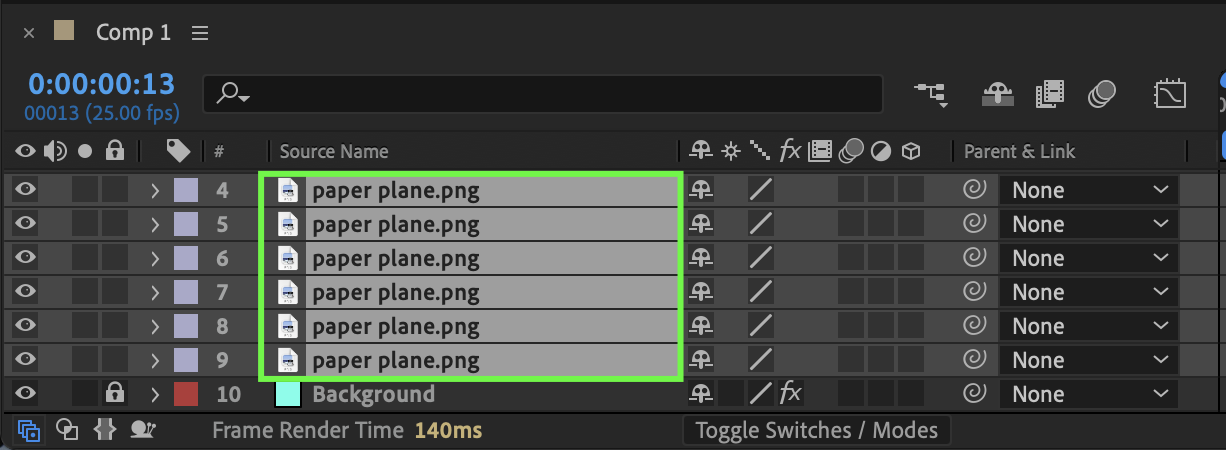
Step 2: Reveal the Scale Property
Press S to display the Scale property for all selected layers.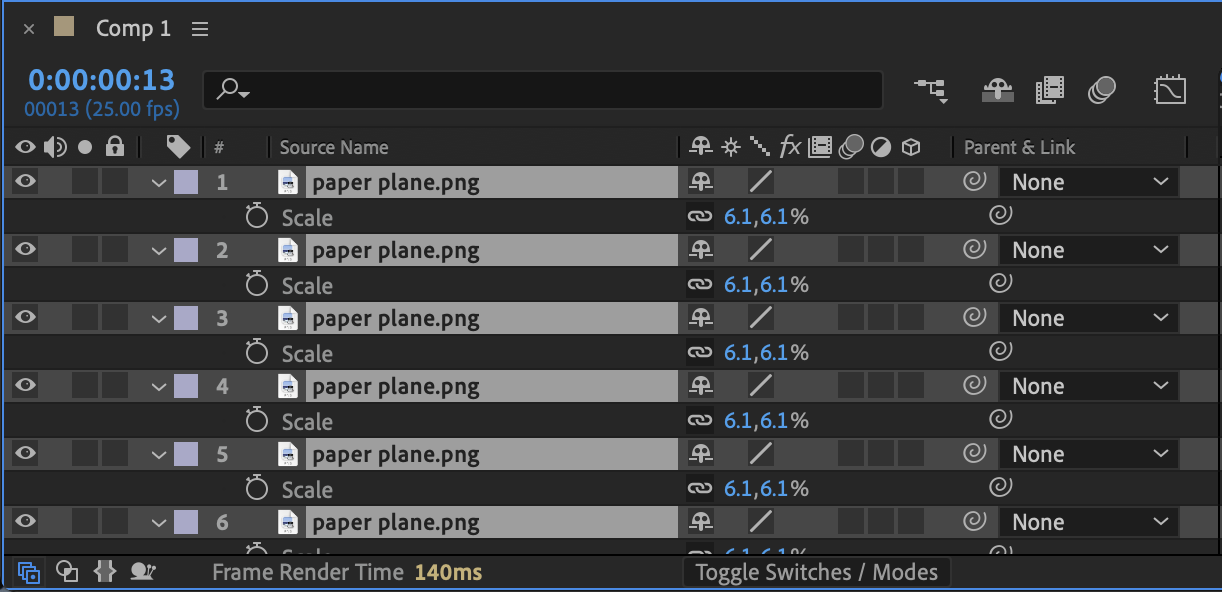
Get 10% off when you subscribe to our newsletter

Step 3: Adjust Scale Values
Change the Scale percentage (for example, from 100% to 80%).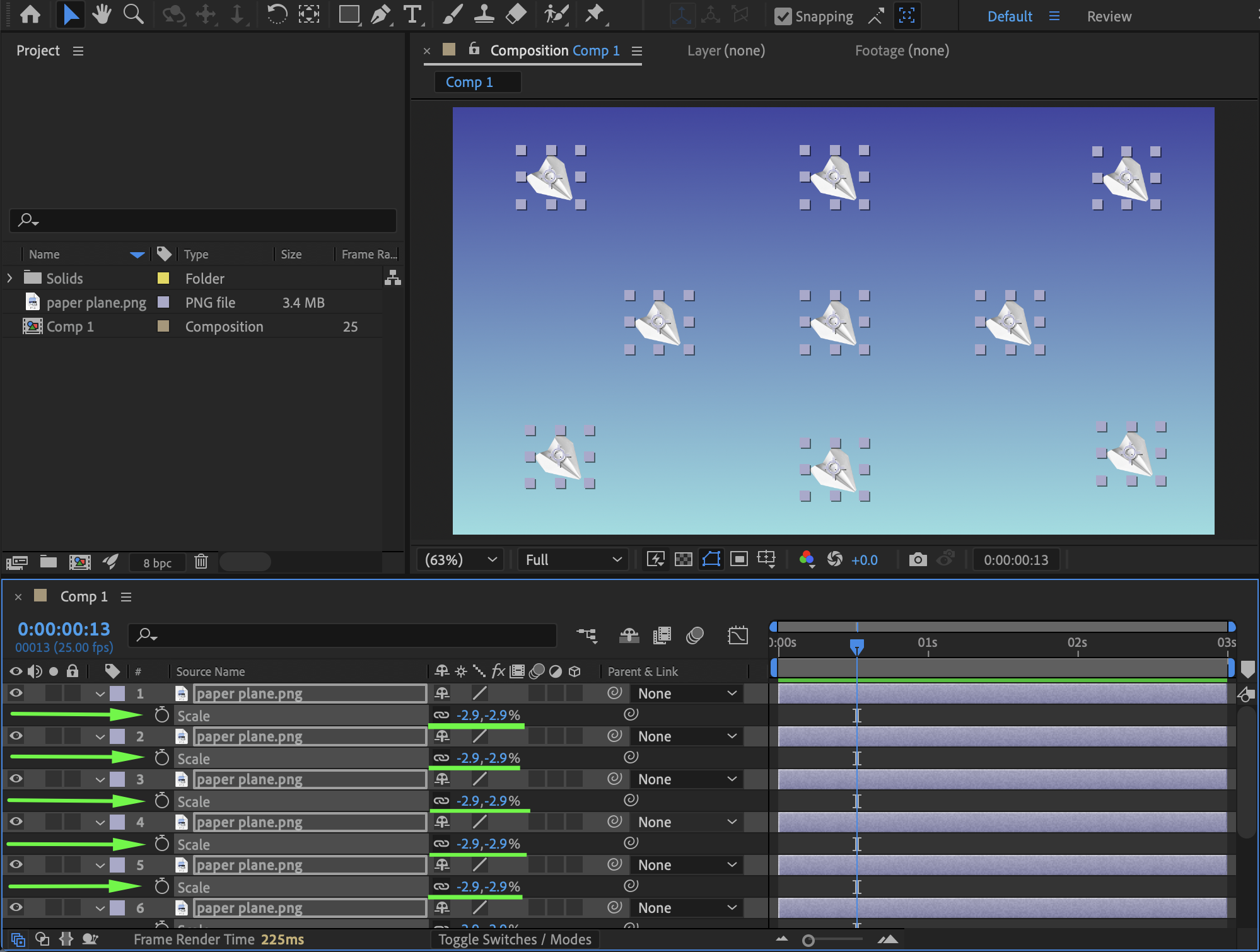
Each layer will scale:
Relative to its own anchor point
Without shifting position in the composition
This works correctly if each layer’s Anchor Point is centered properly.
Method 2: Center Anchor Points First (If Layers Move When Scaling)
If layers shift when scaling, their anchor points may not be centered.
Step 1: Select a Layer
Choose one layer at a time.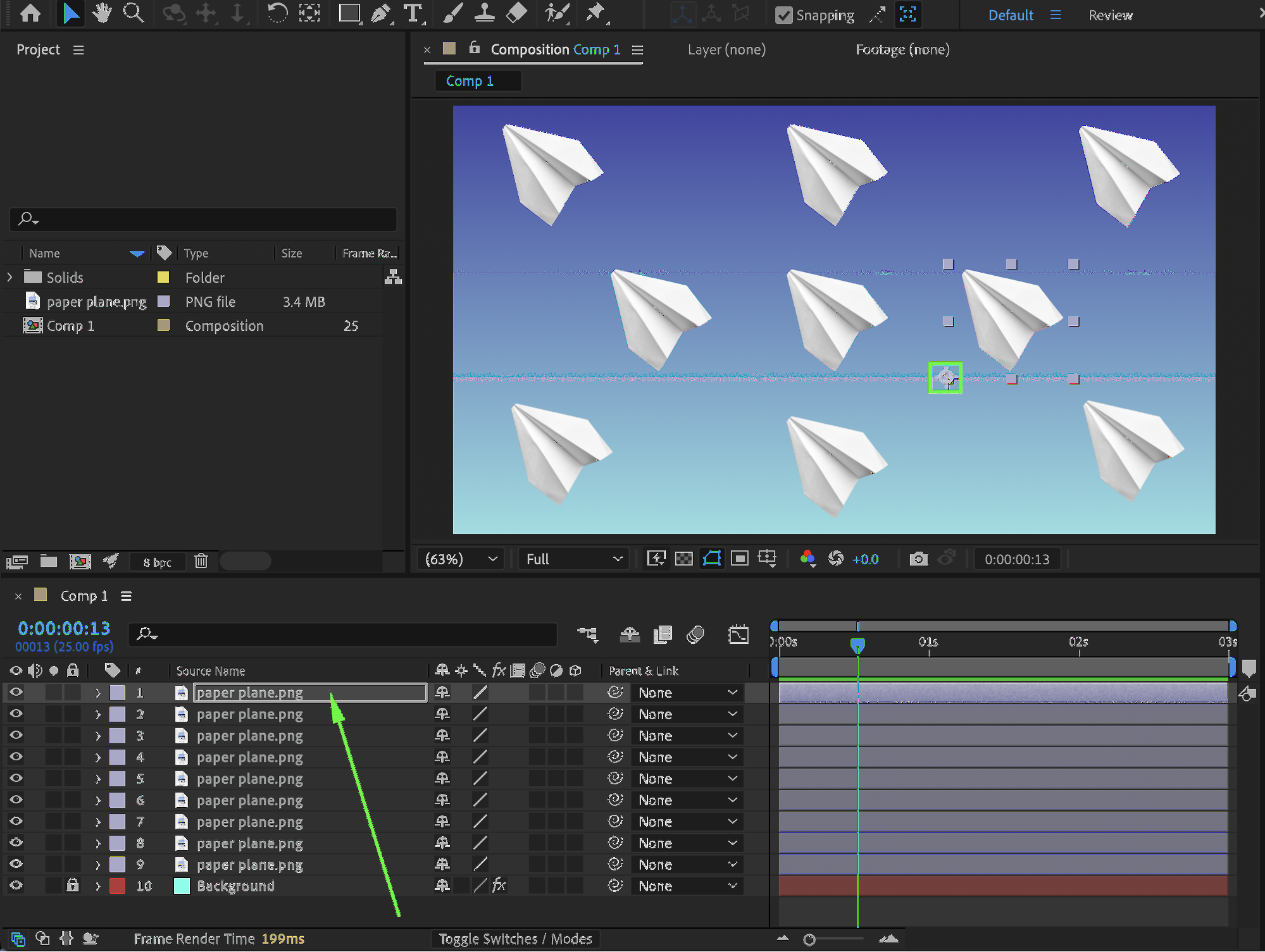
Step 2: Center the Anchor Point
Go to: Layer → Transform → Center Anchor Point in Layer Content
Shortcut:
Ctrl + Alt + Home (Windows)
Cmd + Option + Home (Mac)
Repeat for all selected layers if needed.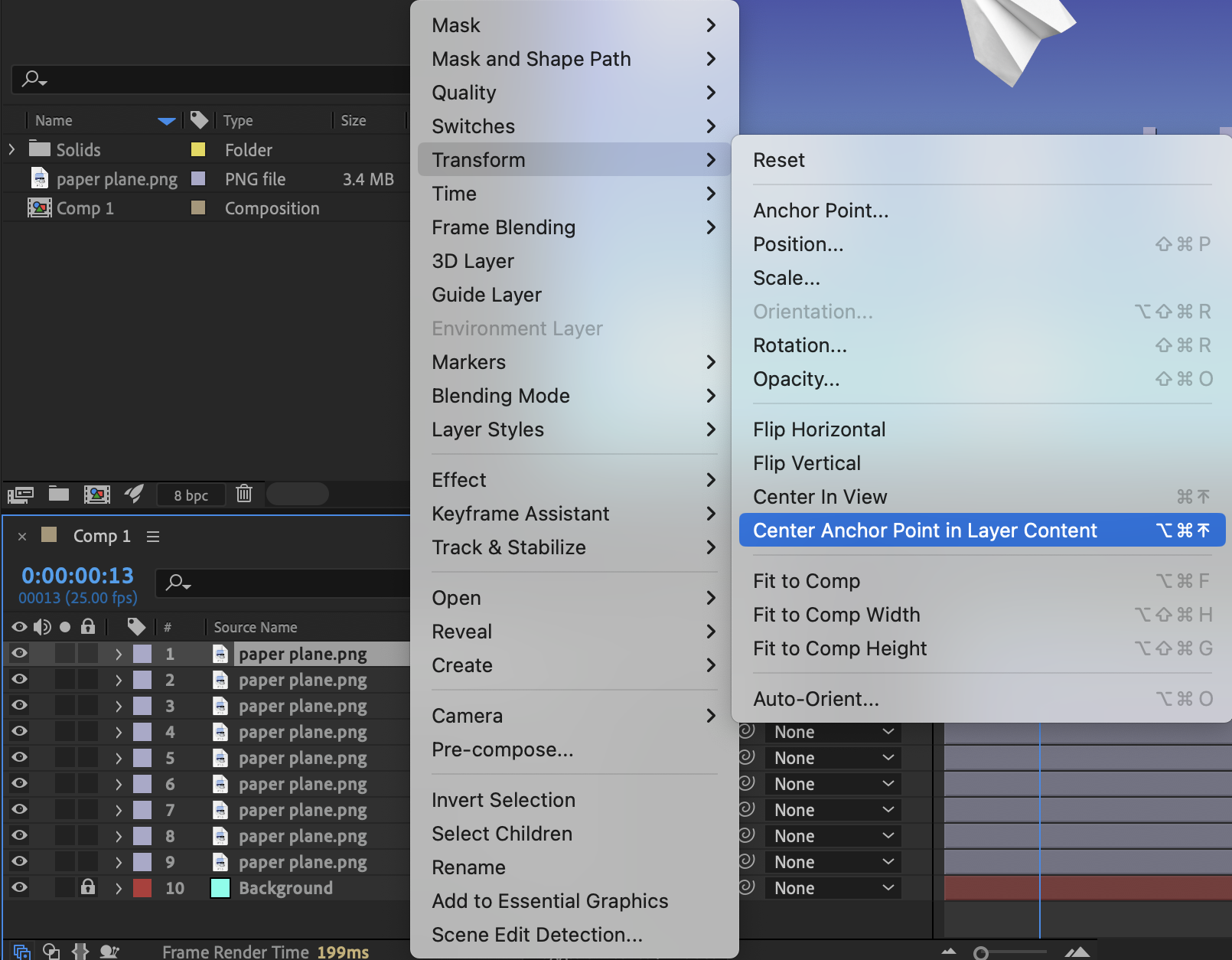
Once anchor points are centered, scaling will no longer cause unexpected movement.
Method 3: Use a Null Object (Scale as a Group Without Repositioning)
If you want to scale multiple layers together while keeping their relative layout intact, use a Null Object.
Step 1: Create a Null Object
Go to: Layer → New → Null Object Step 2: Parent Layers to the Null
In the Timeline panel:
Use the Pick Whip tool
or
Set the Parent & Link column to the Null Object
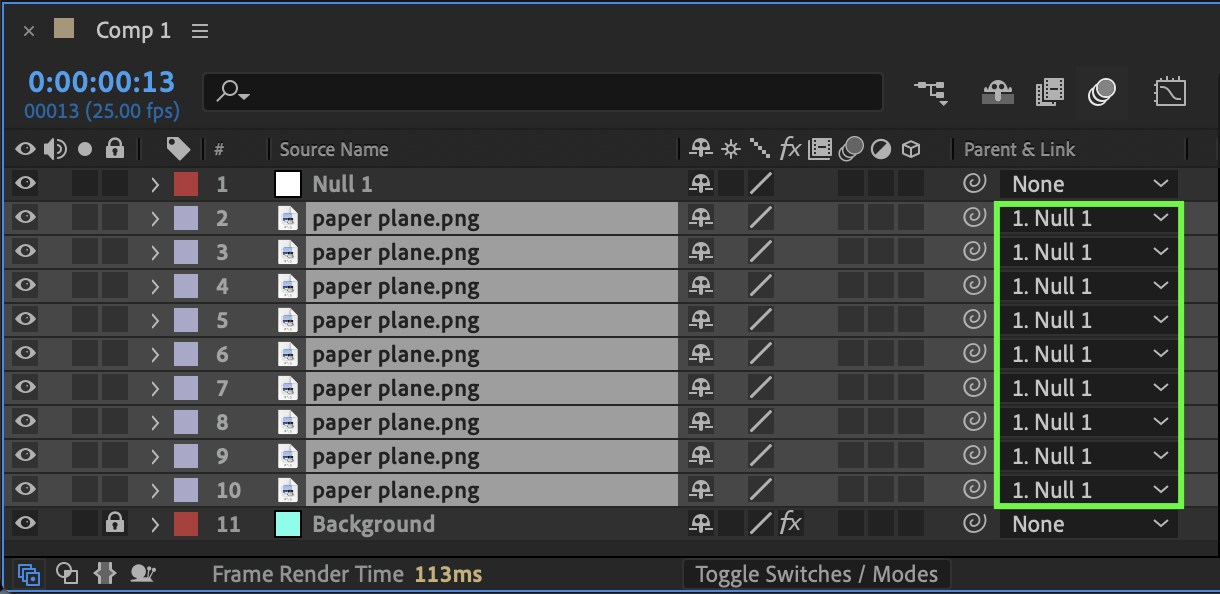
Step 3: Scale the Null Object
Select the Null layer and press S.
Adjust the Scale value.
All child layers will scale proportionally while maintaining:
Their relative spacing
Their layout structure
This method is ideal for scaling entire designs or UI layouts.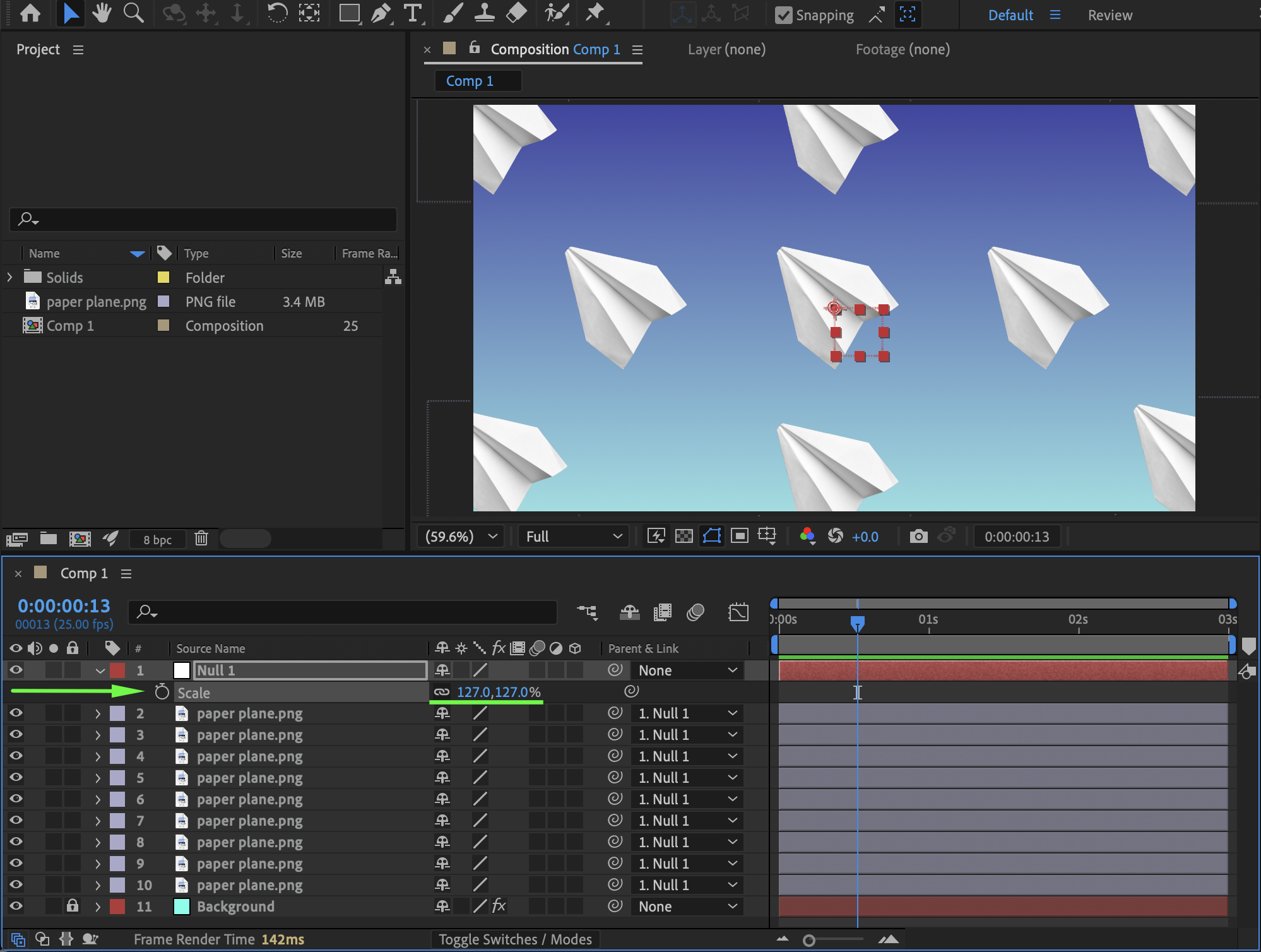
Important: Understand Why Layers Move
Layers move during scaling because:
The anchor point is offset
Multiple layers scale around a shared selection center
Parenting changes transform hierarchy
Correct anchor placement and parenting prevent these issues.
Preview the Result
Scrub the timeline or preview the composition to confirm:
Layers remain aligned
Layout is preserved
No unwanted position shifts occur
Conclusion
To scale multiple layers without moving them in After Effects:
Scale selected layers individually via the Scale property
Make sure anchor points are centered
Use a Null Object for grouped scaling
Understanding how anchor points and parenting affect transformations allows you to scale designs cleanly and professionally without breaking your layout.
Our Bestsellers

