Introduction
Scrolling designs around a cylinder is a popular effect used in product presentations, stylized motion graphics, and looping backgrounds. In After Effects, you can easily simulate cylindrical movement using the built-in CC Cylinder effect. This tutorial will show you how to wrap your design around a cylinder and animate horizontal scrolling with realistic motion blur.
Step 1: Create a New Composition
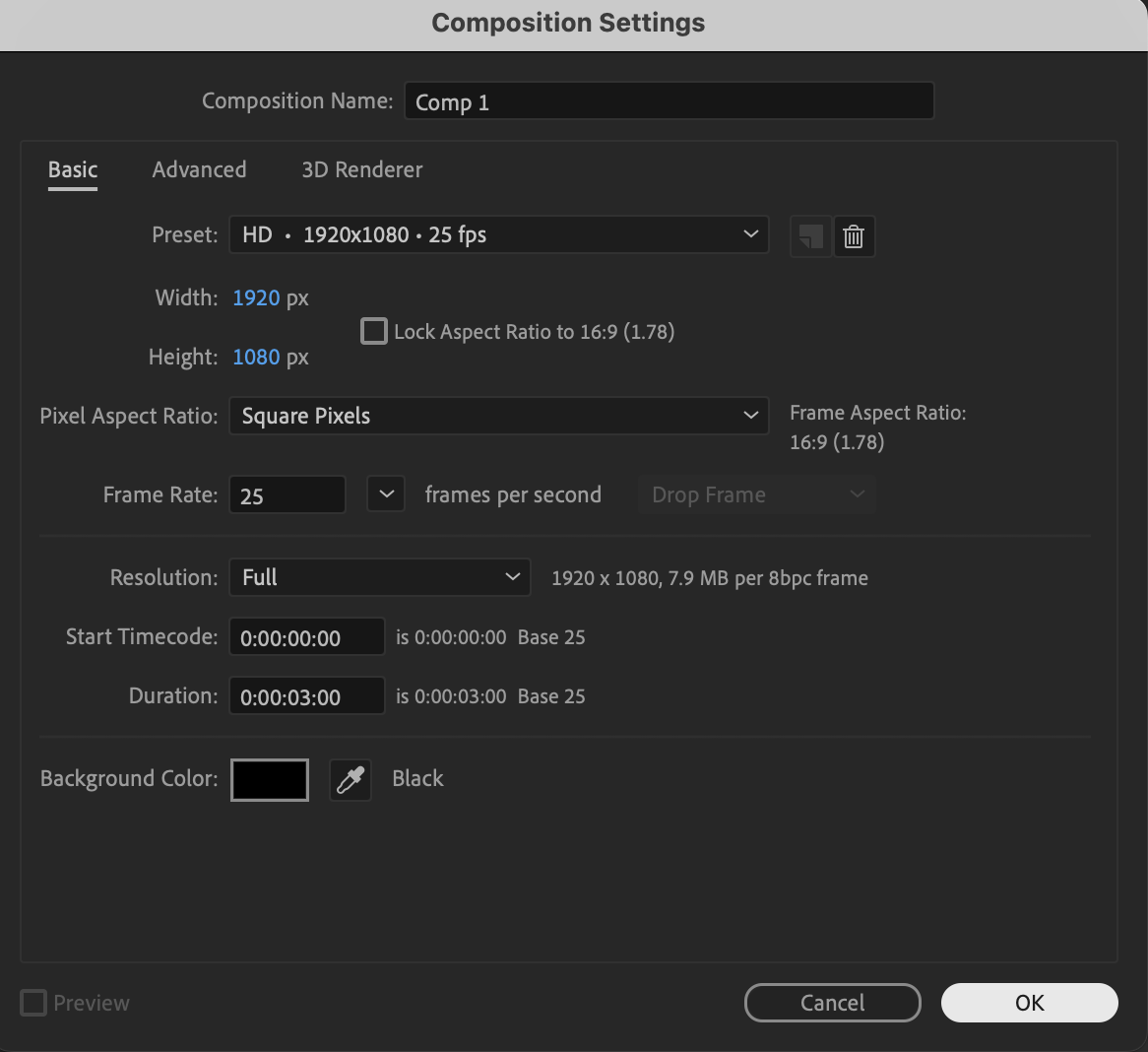
Go to Composition → New Composition and set your preferred resolution, frame rate, and duration.
 Step 2: Create or Import Your Design
You can use any visual element for the cylinder surface:
Import an image or video using File → Import → File,
or
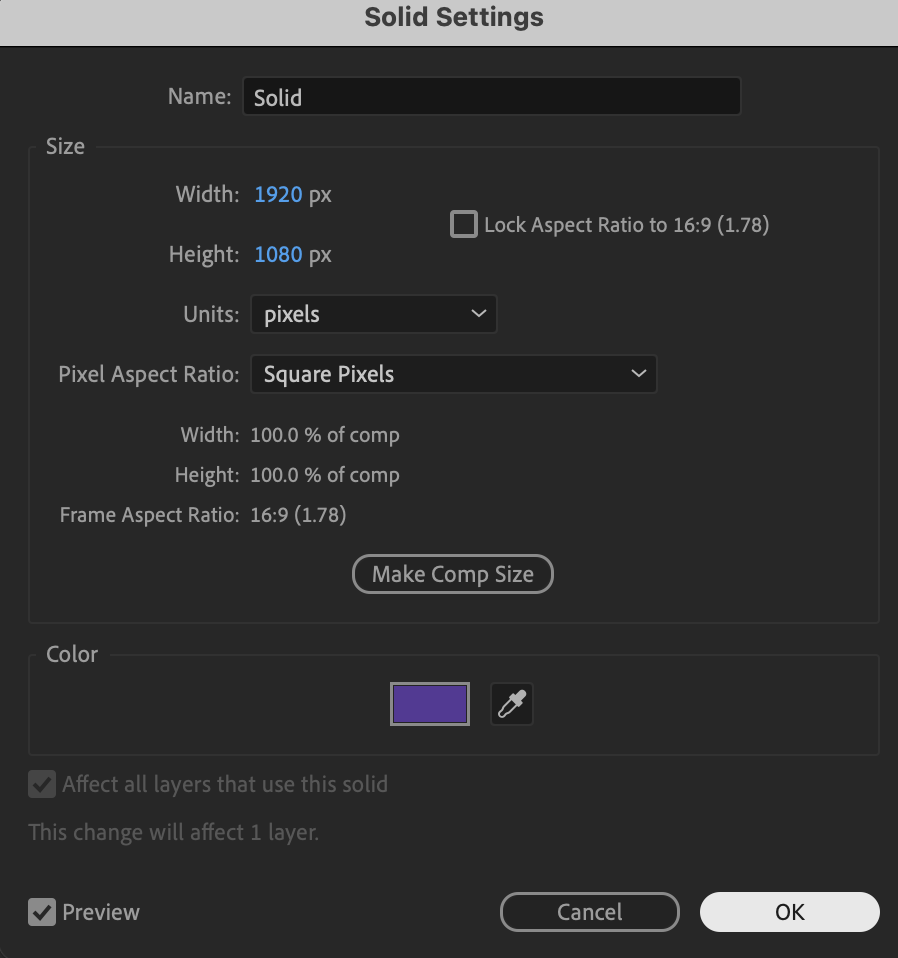
Create a new solid using Layer → New → Solid
Place the layer into your timeline.
Get 10% off when you subscribe to our newsletter

Step 3: Apply and Animate CC Cylinder
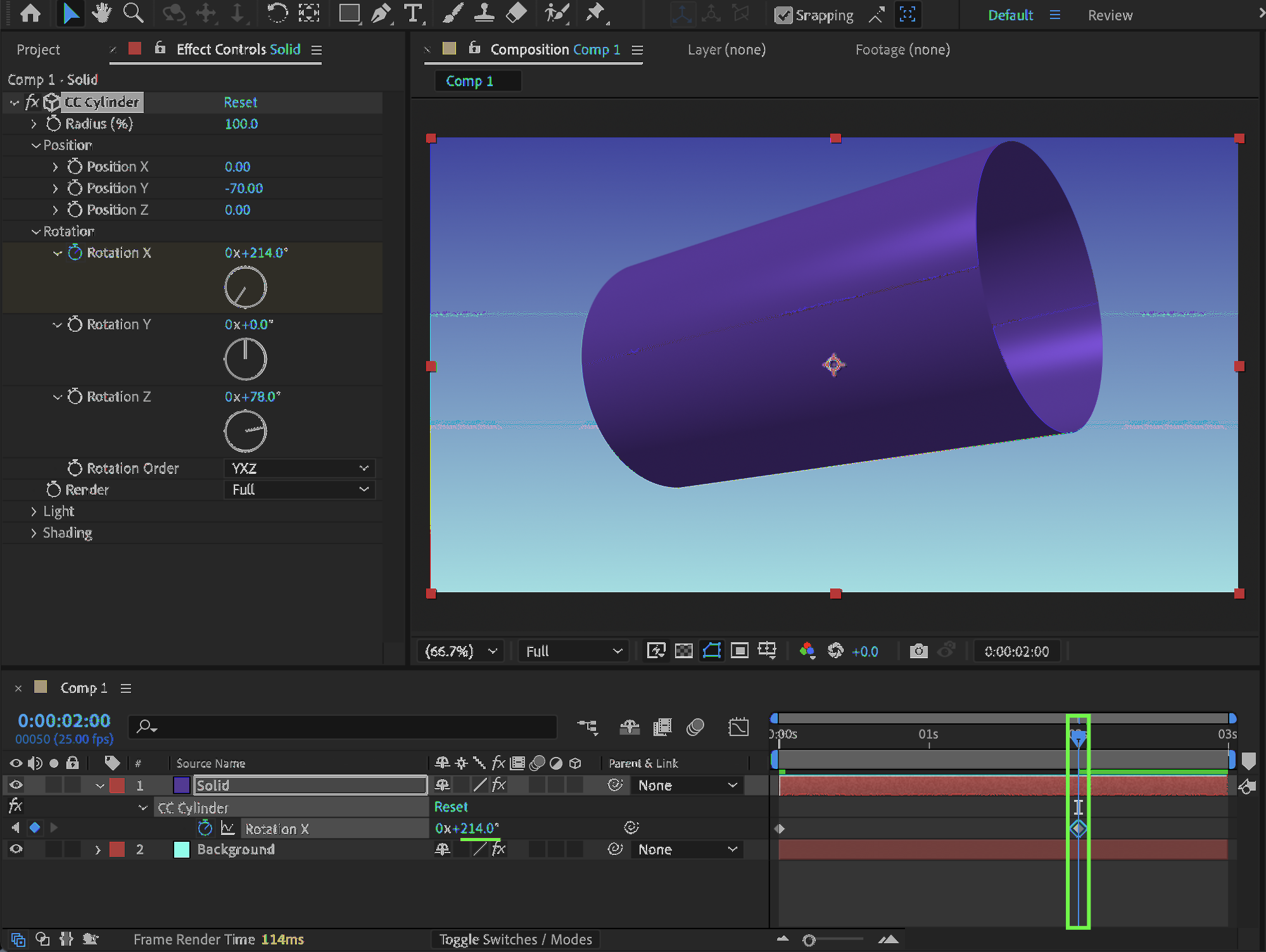
Select your layer and apply CC Cylinder from the Effects & Presets panel. Use the following settings as a starting point:
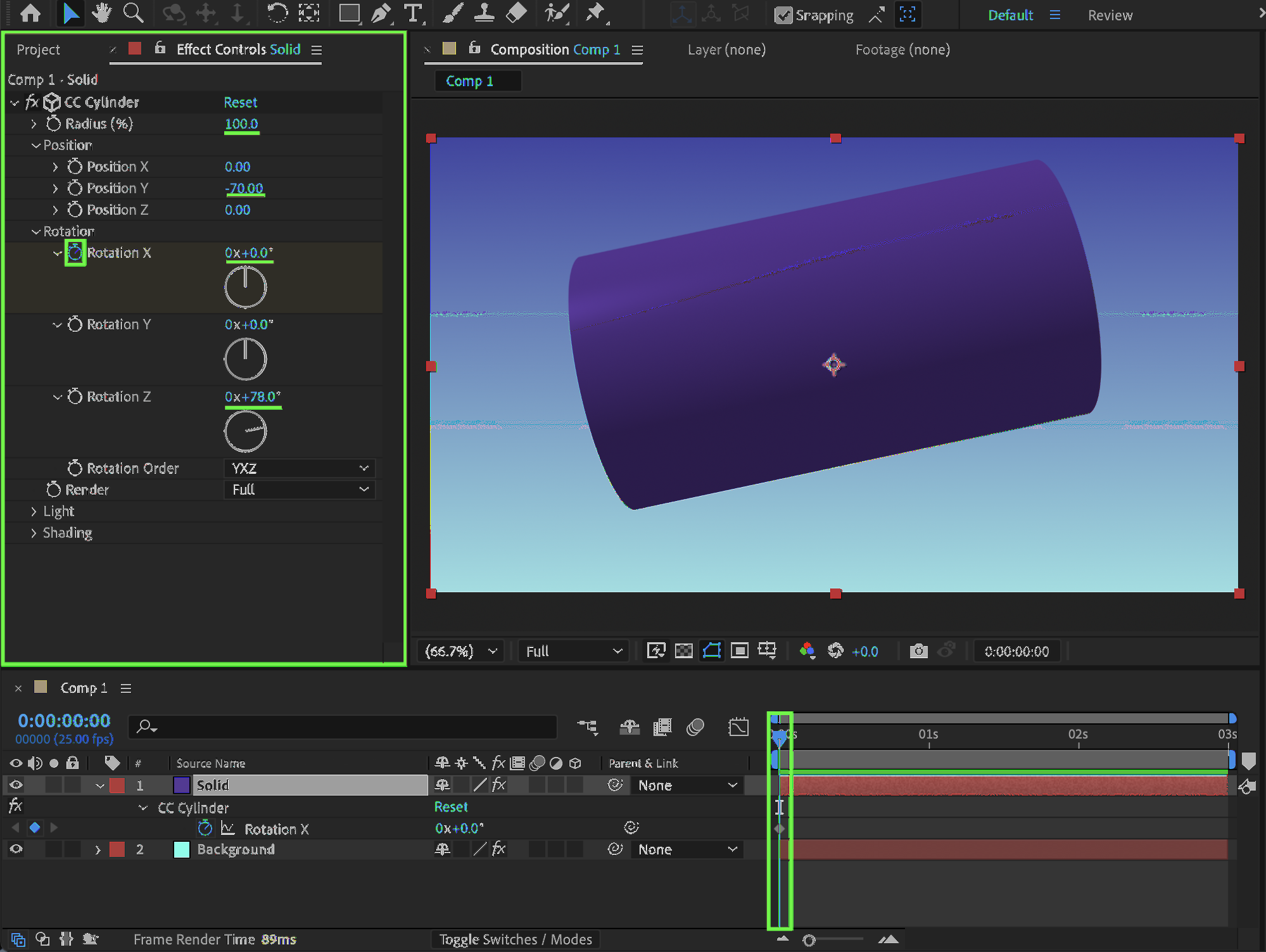
Position Y: Set to approximately -70 (this helps place the cylinder lower in the composition, for example, if you want it to appear lying on a surface).
Rotation Z: Set to around 78° to adjust the cylinder’s orientation.
Next, animate the rotation based on how your cylinder is positioned:
Animate Rotation X if the cylinder is placed horizontally (lying down).
Animate Rotation Y if the cylinder is positioned vertically (standing upright).
To create the scrolling effect:
Move to the beginning of the timeline and enable a keyframe for the chosen Rotation property.
Move forward in time.
Change the Rotation value to create the desired horizontal scroll.
This will produce a smooth scrolling animation around the cylindrical surface.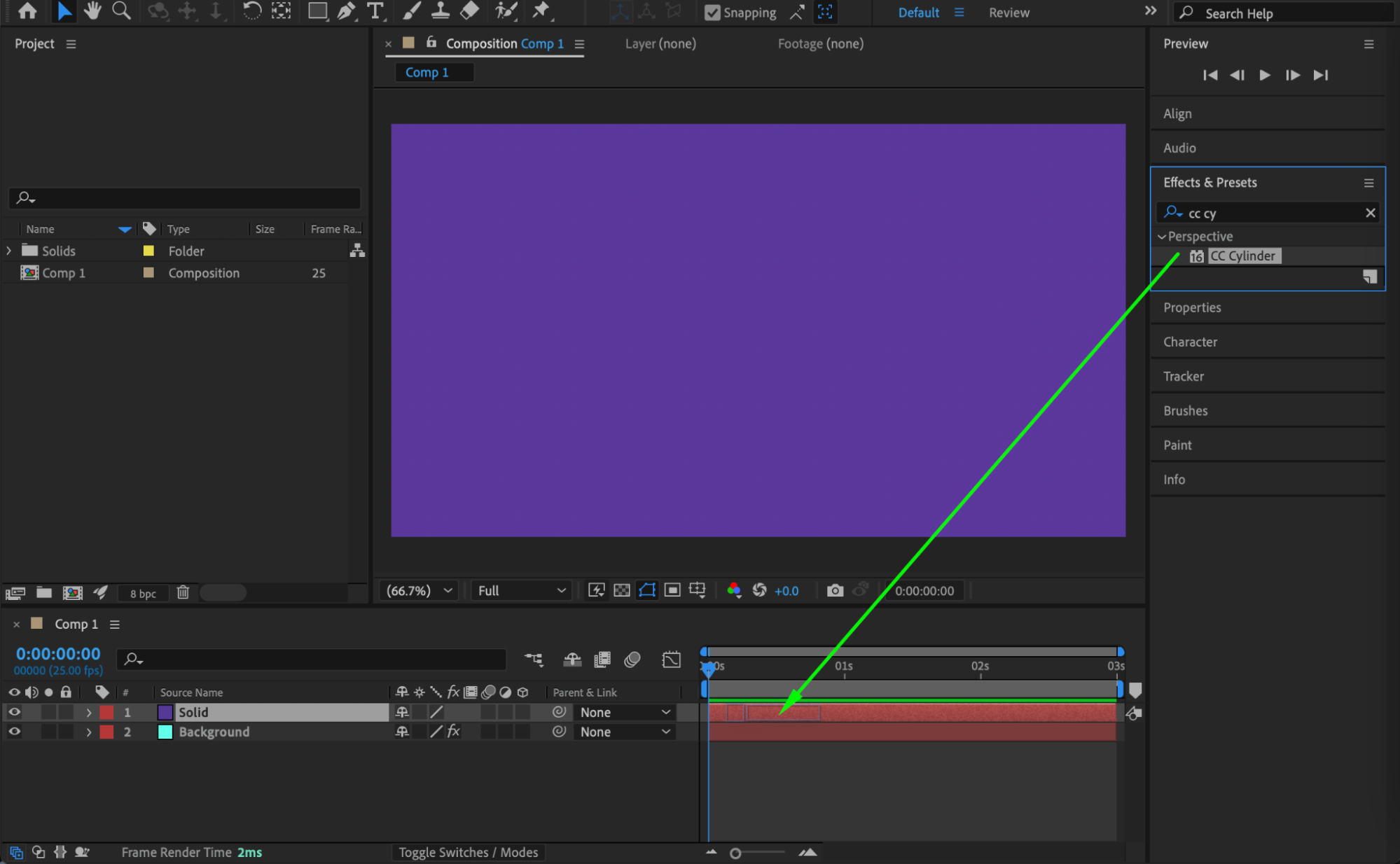
Step 4: Add Motion Blur for Realism
For smoother and more realistic movement:
Apply CC Force Motion Blur from the Effects & Presets panel.
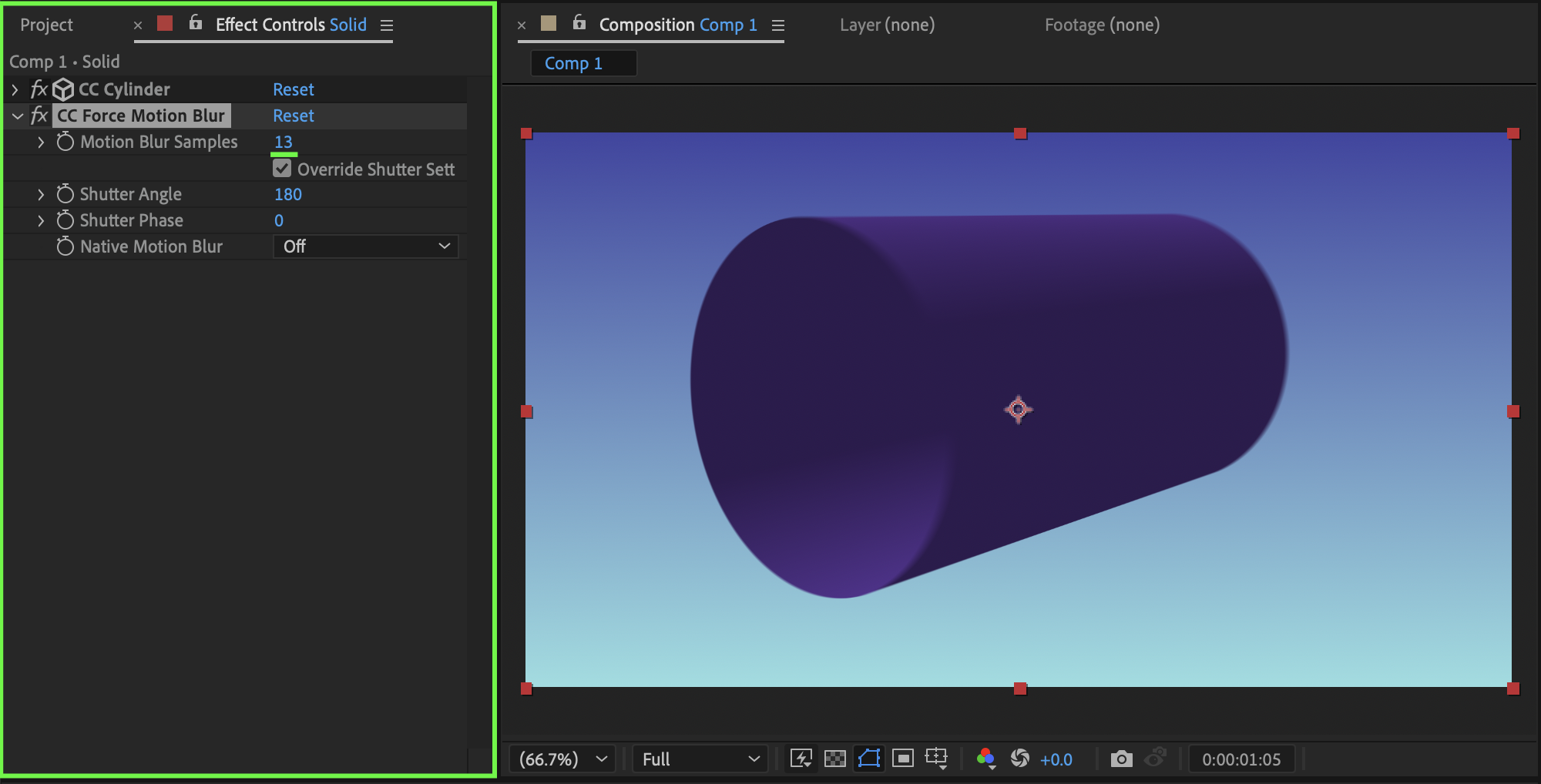
Set Motion Blur Samples to approximately 13.
This helps simulate natural motion during the rotation.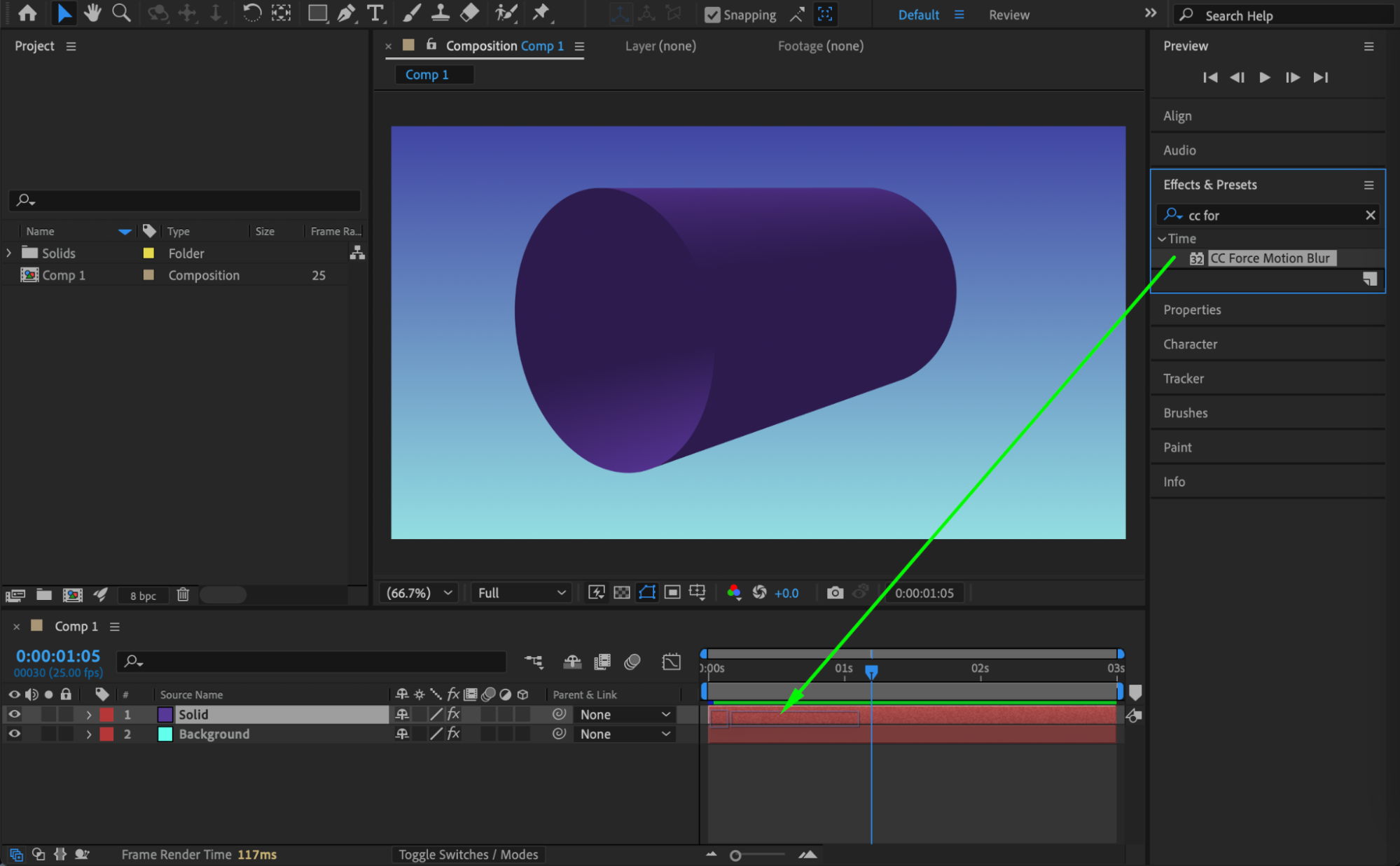
 Step 5: Preview the Result
Preview your composition and adjust rotation speed, cylinder position, or motion blur settings until the scrolling effect looks smooth and realistic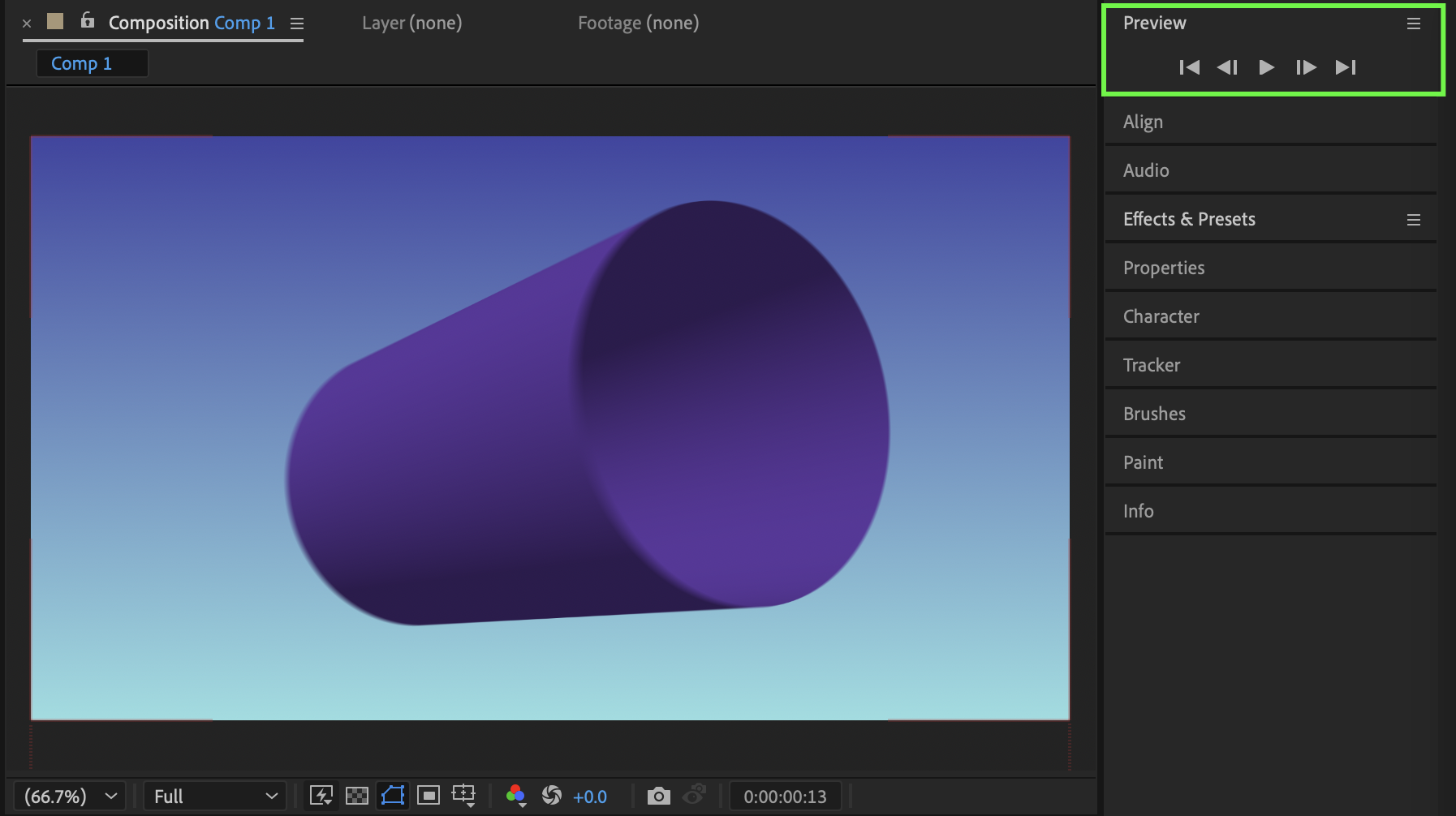
Conclusion
Using the CC Cylinder effect allows you to easily wrap and scroll designs around a cylindrical surface in After Effects. By animating rotation and adding motion blur, you can create professional-looking motion graphics suitable for presentations, ads, and stylized animations.
Our Bestsellers

