Introduction
When working in After Effects, you often need to scroll through footage to find specific frames, check details, or set precise keyframes. There are several ways to navigate through your video efficiently using the Timeline panel and keyboard shortcuts.
This guide explains the most effective methods.
Method 1: Drag the Current Time Indicator (Playhead)
The easiest way to scroll through footage:
Open your composition.
In the Timeline panel, locate the Current Time Indicator (CTI) — the blue vertical line.
Click and drag it left or right to move through your footage.
The Composition panel will update as you move the playhead.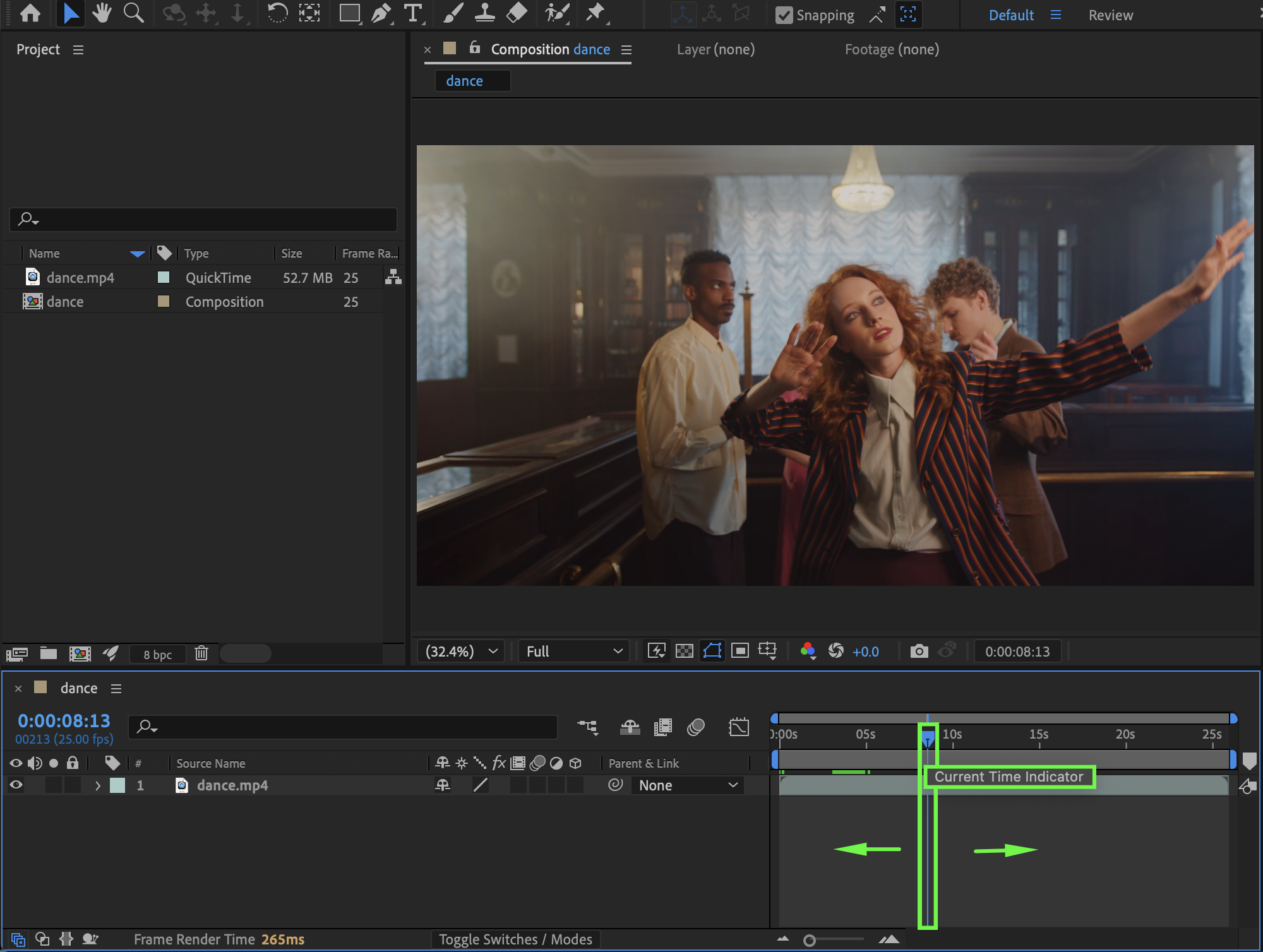
Method 2: Use the Scroll Wheel
You can also use your mouse:
Scroll up/down to move vertically in the Timeline.
Hold Shift + Scroll to move horizontally through the Timeline.
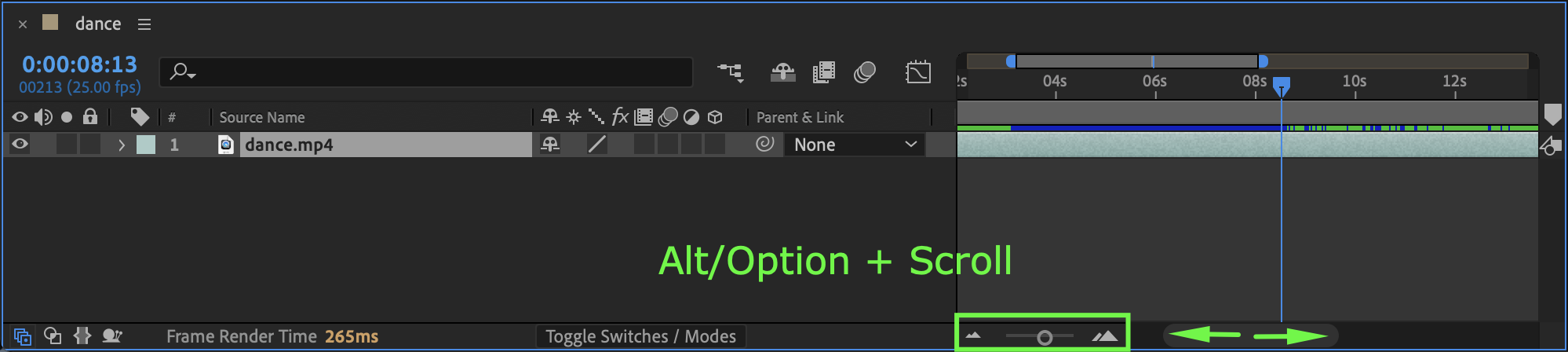
Hold Alt (Option on Mac) + Scroll to zoom in or out of the Timeline.
This allows faster navigation, especially in long compositions.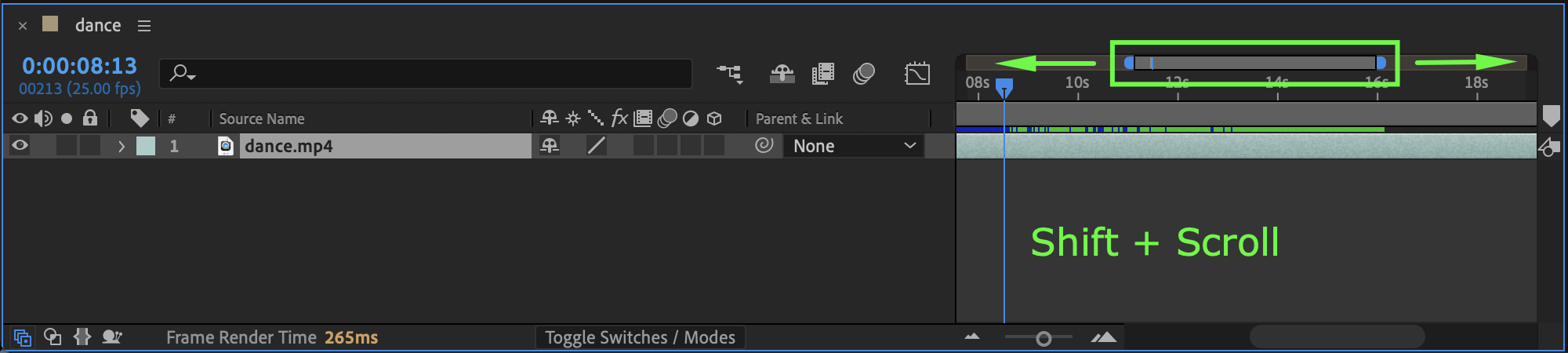
Get 10% off when you subscribe to our newsletter

Method 3: Move Frame by Frame (Precise Control)
For precise frame-by-frame navigation, use the following shortcuts:
Ctrl (Windows) / Cmd (Mac) + Right Arrow → Move forward one frame
Ctrl (Windows) / Cmd (Mac) + Left Arrow → Move backward one frame
This method allows you to move through your footage with maximum accuracy. It is especially useful for detailed editing, checking motion, or placing keyframes exactly where needed.
Method 4: RAM Preview
To preview motion smoothly:
Press Spacebar to start playback
or
Press 0 (zero) on the numeric keypad for RAM Preview
This plays the footage in real time (depending on your system performance).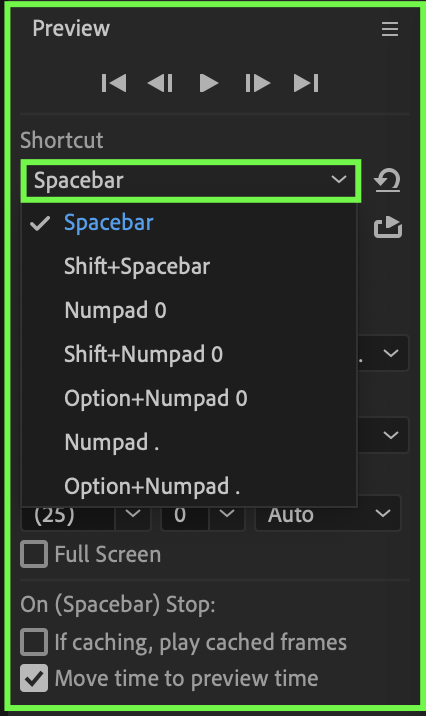 Method 5: Open Footage in the Layer Panel
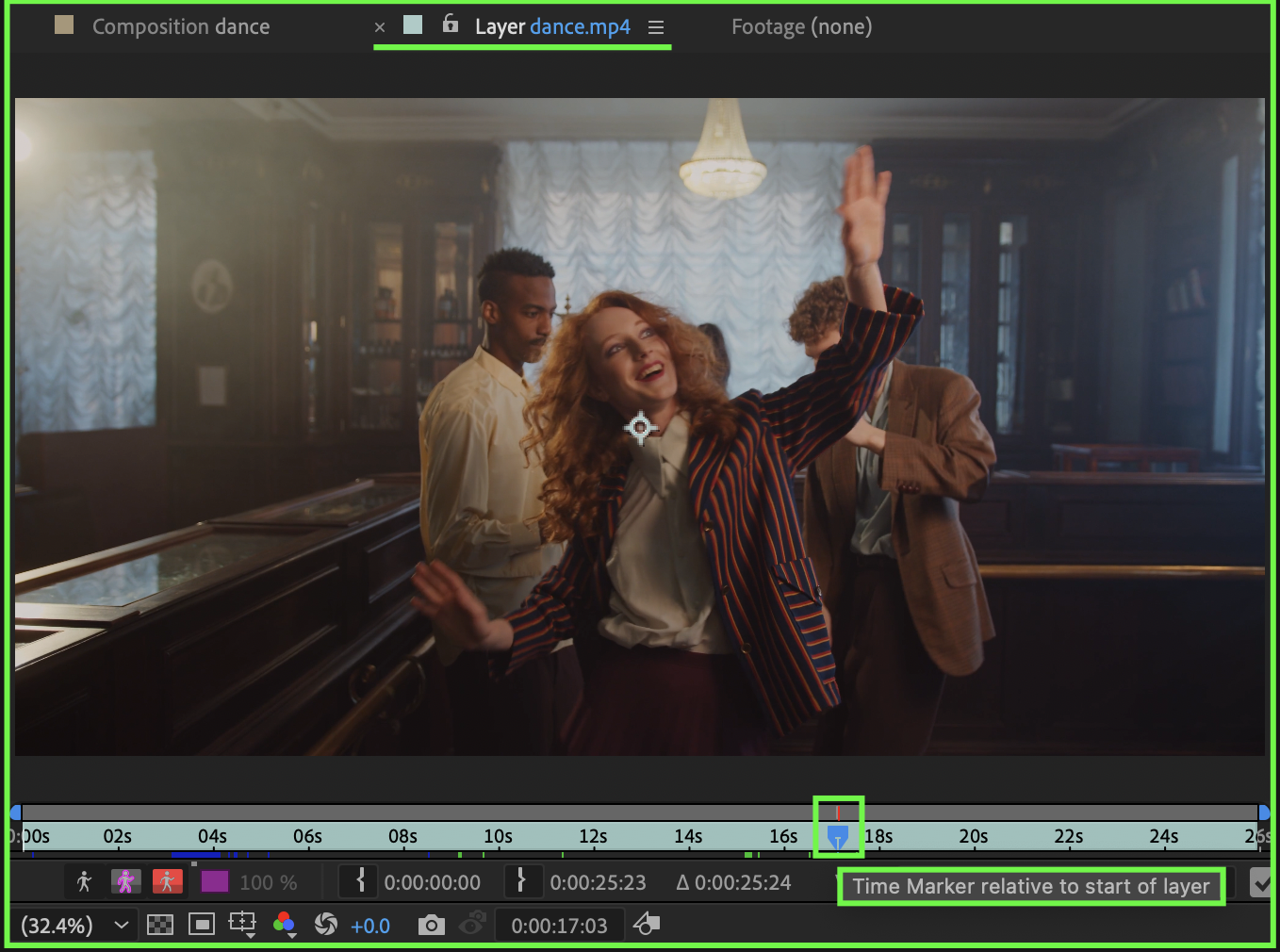
If you want to scroll through the original footage:
Double-click the footage layer in the Timeline.
It will open in the Layer panel.
Move the playhead to scroll through the raw footage independently of the composition.
Conclusion
You can scroll through footage in After Effects using several methods:
Dragging the playhead (Current Time Indicator)
Using the mouse scroll wheel or trackpad gestures
Navigating frame by frame with Ctrl/Cmd + Arrow Keys
Previewing playback with Spacebar or RAM Preview
Opening footage in the Layer panel for isolated viewing
By mastering these navigation techniques, you can work faster and achieve more precise results in your editing and animation workflow.
Our Bestsellers

