Introduction
When you import files into After Effects, they appear in the Project panel. If you can’t see your imported footage, images, or audio files, it’s usually because the Project panel is hidden, minimized, or the items are inside folders.
In this guide, you’ll learn how to find and manage your imported files quickly.
Step 1: Open the Project Panel
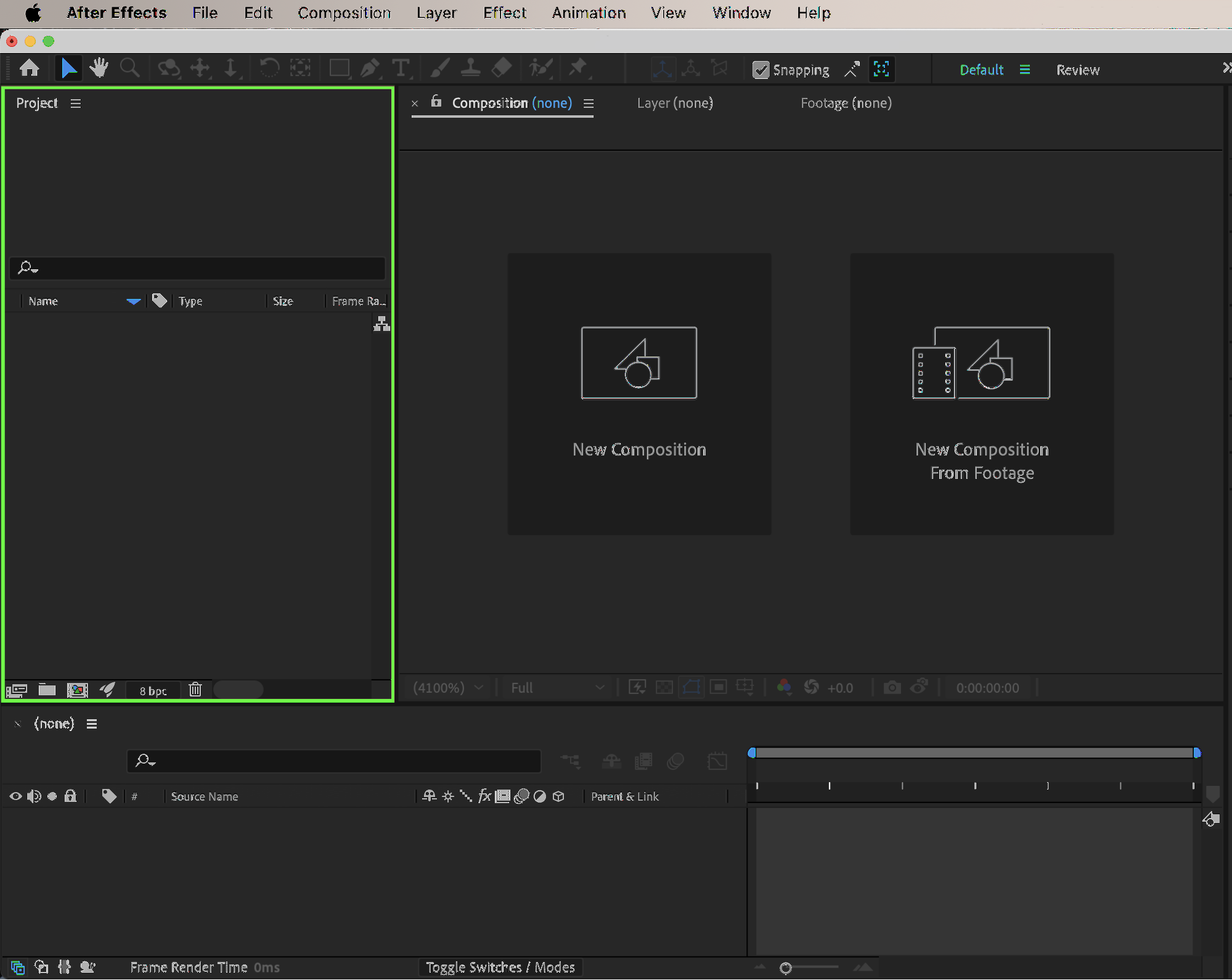
Imported files are always displayed in the Project panel.
If you don’t see it:
Go to: Window → Project
Make sure it is checked.
The Project panel will appear in your workspace.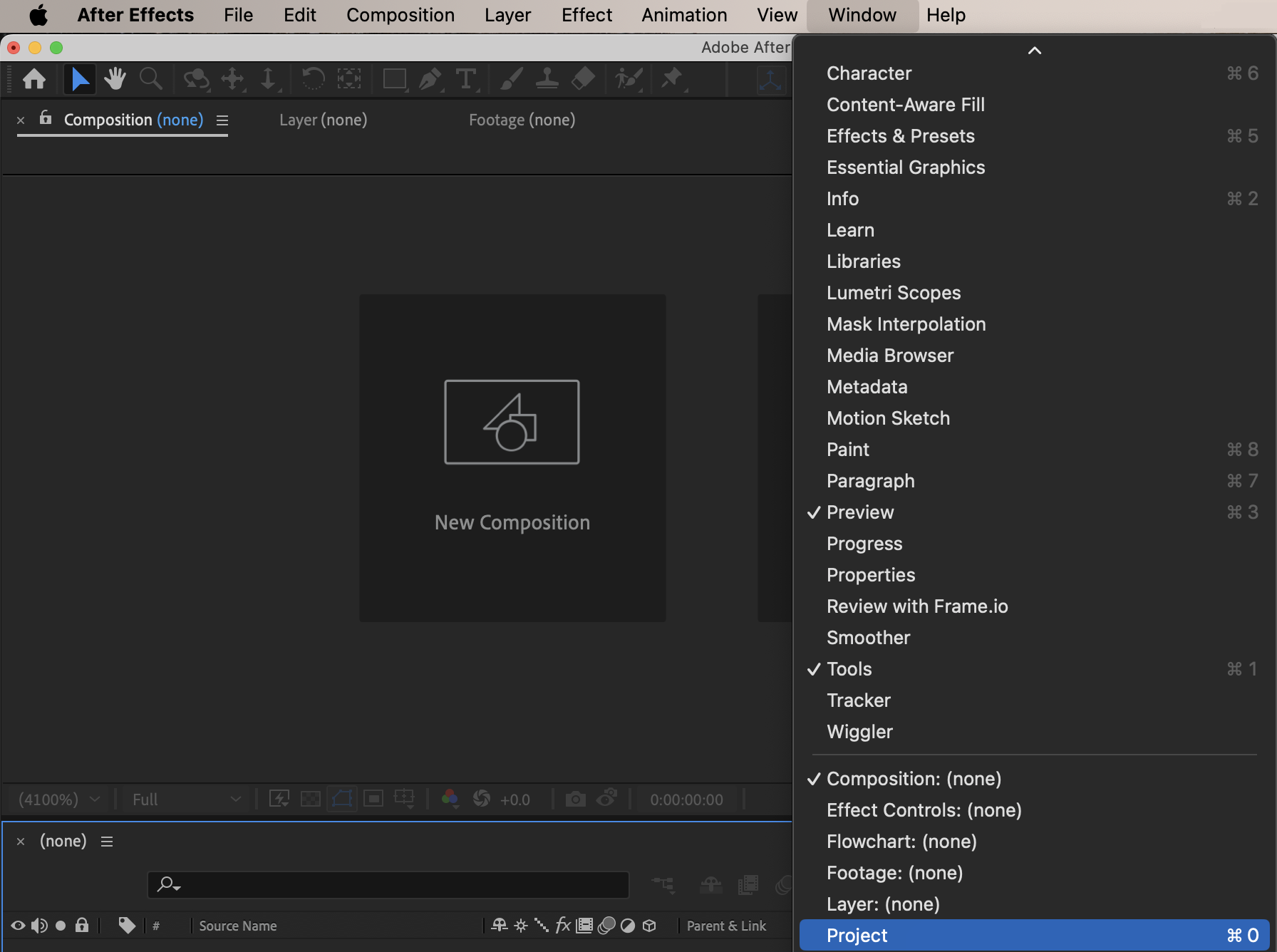
Get 10% off when you subscribe to our newsletter

Step 2: Import Files Properly
To import files:
Go to: File → Import → File
Select your file and click Import.
The file will now appear inside the Project panel. You can also double-click inside the Project panel to open the import window.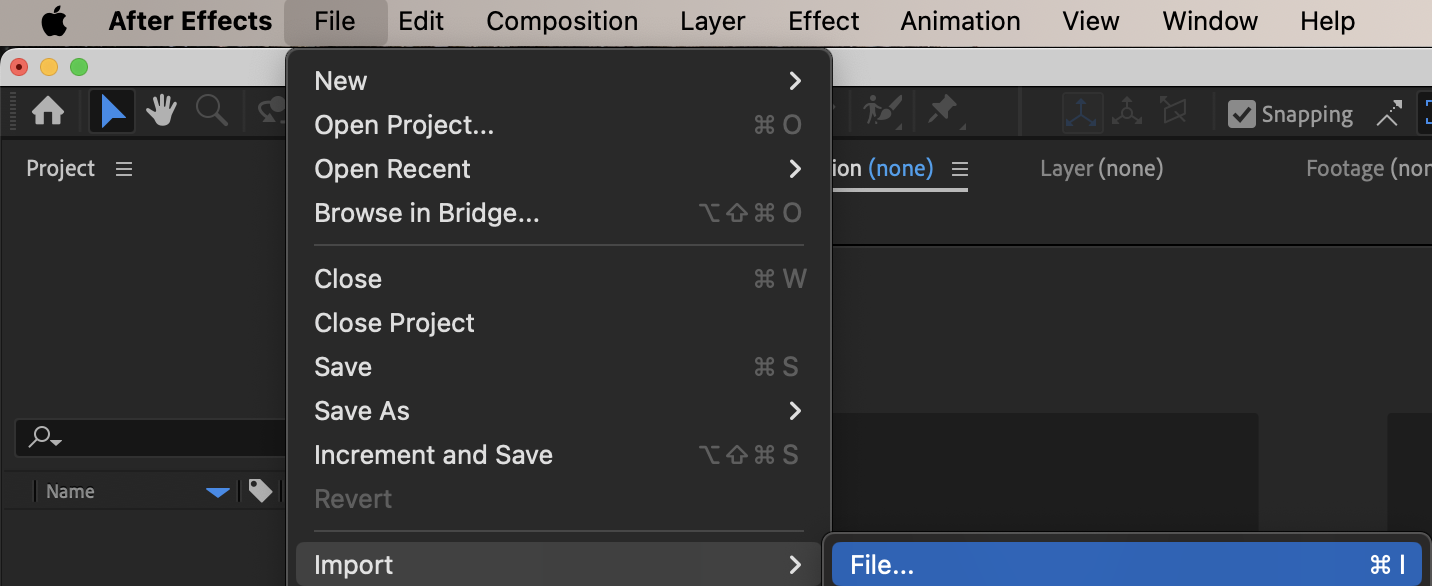
Step 3: Check Inside Folders
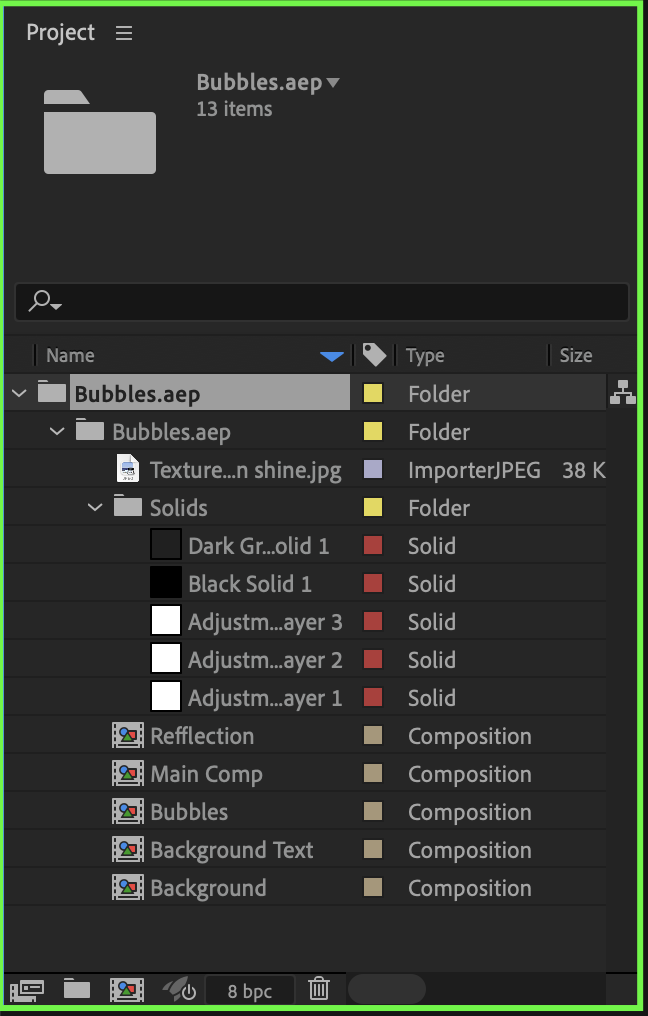
Sometimes imported files are automatically placed inside folders (for example, when importing from Premiere Pro or using organized templates). Expand any folders in the Project panel to locate your files. You can use the small arrow icon next to a folder to open it.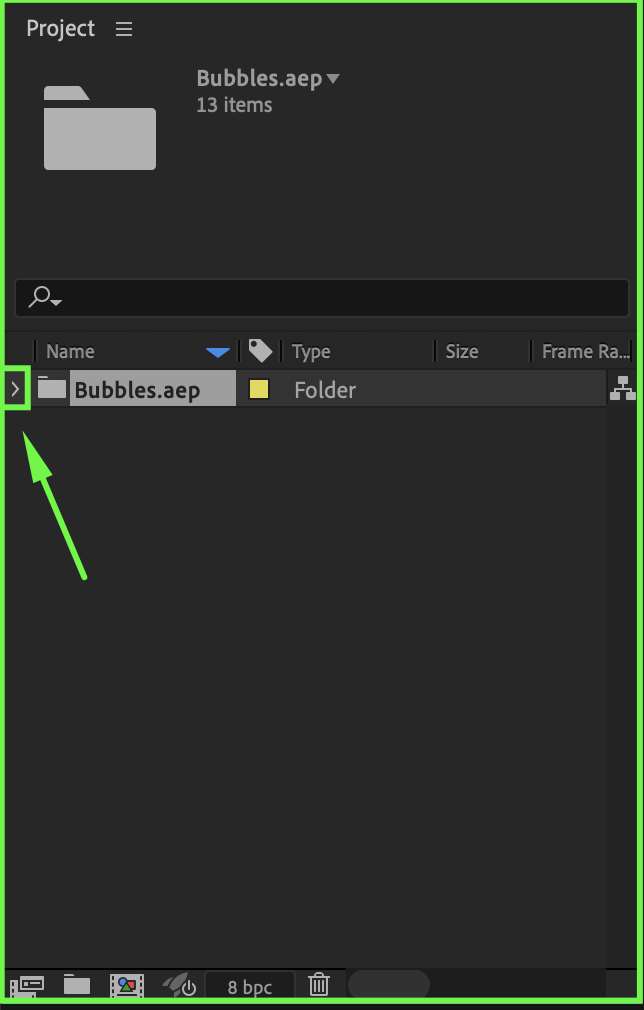
Step 4: Use the Search Bar
If you have many files in your project:
Use the Search bar at the top of the Project panel.
Type the name of your file to quickly locate it.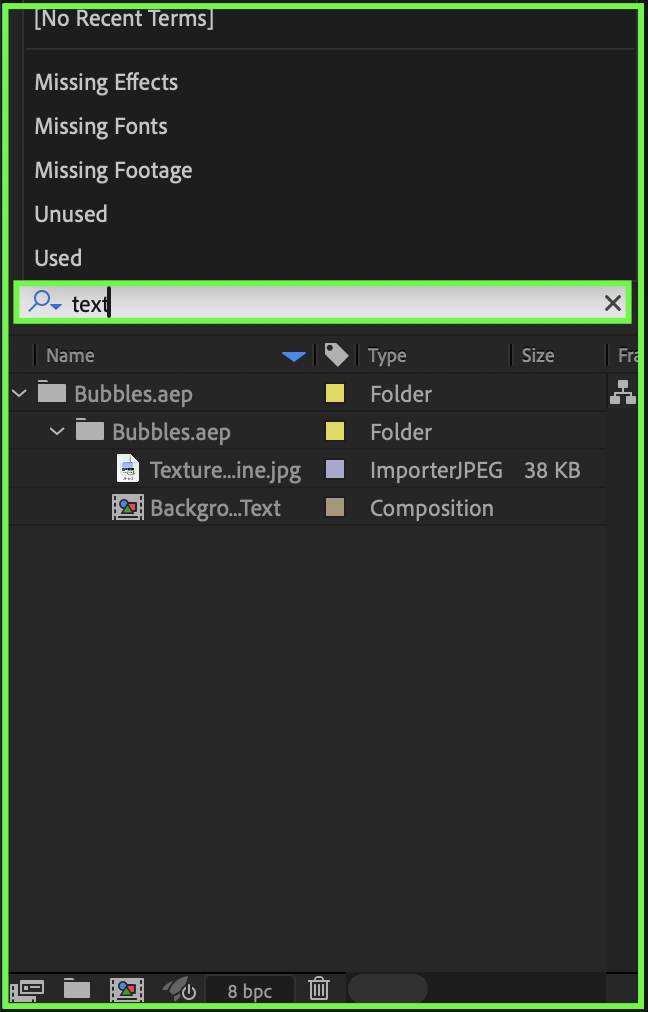 Step 5: Reset the Workspace (If Files Are Not Visible)
If the Project panel is missing or your workspace looks different:
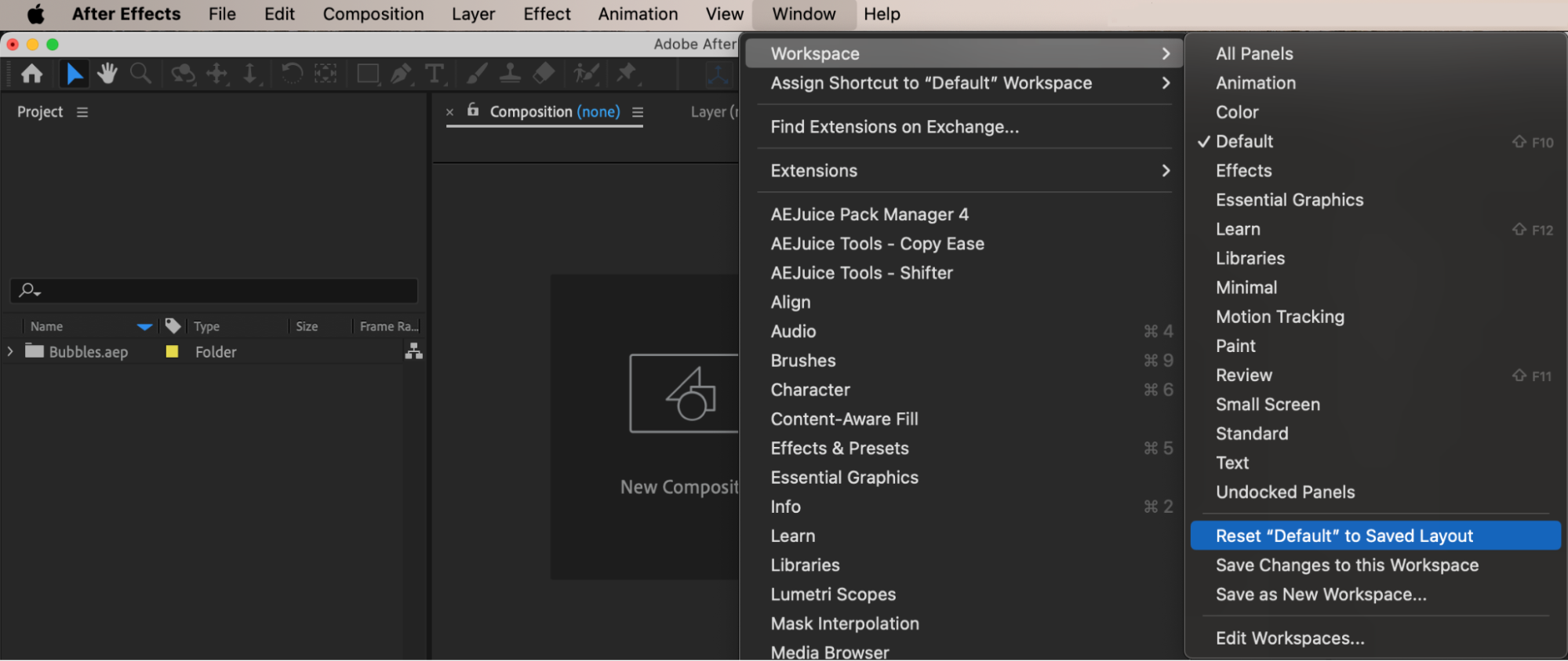
Go to: Window → Workspace → Reset to Saved Layout
This restores the default layout and makes hidden panels visible again.
Conclusion
All imported files in After Effects appear in the Project panel. If you cannot see them, make sure the panel is enabled, check inside folders, or reset your workspace. Keeping your Project panel organized will help you work more efficiently.
Our Bestsellers

